Saving Excel files in C# is a common task in many .NET applications, especially when generating reports, exporting analytical data, or automating system logs. Whether you’re working with financial summaries or daily operations data, being able to create and save Excel files programmatically can significantly improve efficiency and accuracy.
In C#, developers can handle Excel files in multiple ways—creating new workbooks, writing data, and saving them in various formats such as XLSX, CSV, or PDF. With the help of dedicated Excel libraries, these operations can be automated efficiently without relying on Microsoft Excel or manual intervention.
In this article, we will explore how to:
- Prepare your development environment
- Save DataTable or DataGridView data to Excel
- Save Excel files in different spreadsheet formats (CSV, XLS, etc.)
- Export Excel files to document formats (PDF, HTML, etc.)
- Save Excel workbooks to a MemoryStream for web apps
- Open and re-save existing Excel files
Prepare the Development Environment
Before diving into code, set up your development environment with an Excel library that supports creating, reading, and saving files in .NET. In this tutorial, we’ll use Free Spire.XLS for .NET.
Step 1: Install Spire.XLS via NuGet
Install-Package FreeSpire.XLS
Step 2: Import the Required Namespace
using Spire.Xls;
Step 3: Create, Write, and Save a Simple Excel File
// Create a new workbook and get the first worksheet
Workbook workbook = new Workbook();
Worksheet sheet = workbook.Worksheets[0];

// Write "Hello World!" into cell A1
sheet.Range["A1"].Text = "Hello World!";

// Save the workbook to a file
workbook.SaveToFile("HelloWorld.xlsx", ExcelVersion.Version2016);
This simple example shows the basic workflow: creating a workbook, writing data into a cell, and saving the file.
After this, you can explore key classes and methods such as:
- Workbook – represents the entire Excel file.
- Worksheet – represents a single sheet within the workbook.
- Range – allows access to specific cells for input, formatting, or styling.
- Workbook.SaveToFile() – saves the workbook to disk in the specified Excel format.
Save Data to an Excel File in C#
Saving structured data like DataTable or DataGridView into an Excel file is one of the most practical tasks in C# development. Whether your application produces database results, UI grid content, or automated reports, exporting these datasets into Excel provides better readability and compatibility.
Example 1: Save DataTable to Excel
using Spire.Xls;
using System.Data;

Workbook workbook = new Workbook();
Worksheet sheet = workbook.Worksheets[0];
sheet.Name = "EmployeeData";

DataTable table = new DataTable();
table.Columns.Add("EmployeeID");
table.Columns.Add("FullName");
table.Columns.Add("Department");
table.Columns.Add("HireDate");
table.Columns.Add("Salary");

// Add sample rows
table.Rows.Add("E001", "Alice Johnson", "Finance", "2020-03-12", "7500");
table.Rows.Add("E002", "Bob Williams", "Human Resources", "2019-08-05", "6800");
table.Rows.Add("E003", "Catherine Lee", "IT", "2021-01-20", "8200");
table.Rows.Add("E004", "David Smith", "Marketing", "2018-11-30", "7100");
table.Rows.Add("E005", "Emily Davis", "Sales", "2022-06-15", "6900");

// Insert the DataTable into worksheet
sheet.InsertDataTable(table, true, 1, 1);

// Apply built-in formats
sheet.AllocatedRange.Rows[0].BuiltInStyle = BuiltInStyles.Heading1;
for (int i = 1; i < sheet.AllocatedRange.Rows.Count(); i++)
{
    sheet.AllocatedRange.Rows[i].BuiltInStyle = BuiltInStyles.Accent1;
}
sheet.AllocatedRange.AutoFitColumns();
sheet.AllocatedRange.AutoFitRows();

// Save to Excel
workbook.SaveToFile("EmployeeDataExport.xlsx", FileFormat.Version2016);
How it works:
- InsertDataTable() inserts data starting from a specific cell.
- The true argument includes column headers.
- SaveToFile() saves the workbook to disk; the second parameter specifies the Excel format version.
- FileFormat.Version2016 specifies the Excel format version.
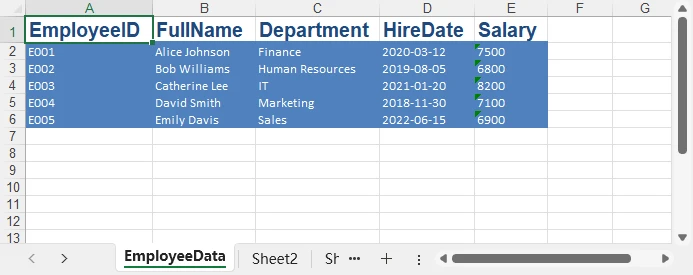
Below is a sample output showing how the exported DataTable looks in Excel:
Example 2: Save DataGridView to Excel
Workbook workbook = new Workbook();
Worksheet sheet = workbook.Worksheets[0];

sheet.InsertDataTable(((DataTable)dataGridView1.DataSource), true, 1, 1);
workbook.SaveToFile("GridViewExport.xlsx", FileFormat.Version2016);
Tip: Before saving, ensure that your DataGridView’s data source is properly cast to a DataTable.This ensures the exported structure matches the UI grid layout.
If you want learn how to create Excel files with more data types, formatting, and other elements, you can explore the article How to Create Excel Files in C#.
Save Excel File as CSV or XLS in C#
Different systems and platforms require different spreadsheet formats. While XLSX is now the standard, CSV, XLS, and other formats remain common in enterprise environments. Exporting to different formats allows Excel data to be shared, processed, or imported by various applications.
Example 1: Save Excel as CSV
CSV (Comma-Separated Values) is a simple text-based format ideal for exchanging data with databases, web applications, or other systems that support plain text files.
Workbook workbook = new Workbook();
workbook.LoadFromFile("EmployeeDataExport.xlsx");
workbook.SaveToFile("Report.csv", ",", FileFormat.CSV);
Example 2: Save Excel as XLS (Legacy Format)
XLS (Excel 97–2003 format) is a legacy binary format still used in older systems or applications that do not support XLSX. Saving to XLS ensures compatibility with legacy enterprise workflows.
Workbook workbook = new Workbook();
workbook.LoadFromFile("EmployeeDataExport.xlsx");
workbook.SaveToFile("Report_legacy.xls", ExcelVersion.Version97to2003);
Additional Supported Spreadsheet Formats
In addition to the commonly used CSV, XLS, and XLSX formats, the library also supports several other spreadsheet and template formats. The table below lists these formats together with their corresponding FileFormat enumeration values for easy reference when saving files programmatically.
| Format | Description | Corresponding Enum (FileFormat) |
|---|---|---|
| ODS | OpenDocument Spreadsheet | FileFormat.ODS |
| XLSM | Macro-enabled Excel workbook | FileFormat.Xlsm |
| XLSB | Binary Excel workbook |
FileFormat.Xlsb2007 / FileFormat.Xlsb2010
|
| XLT | Excel 97–2003 template | FileFormat.XLT |
| XLTX | Excel Open XML template | FileFormat.XLTX |
| XLTM | Macro-enabled Excel template | FileFormat.XLTM |
These additional formats are useful for organizations that work with legacy systems, open document standards, or macro/template–based automation workflows.
Save Excel as PDF or HTML in C#
In many cases, Excel files need to be converted into document or web formats for easier publishing, printing, or sharing.
Exporting to PDF is ideal for fixed-layout reports and printing, while HTML is suitable for viewing Excel data in a web browser.
Example 1: Save Excel as PDF
The following example shows how to save an Excel workbook as a PDF file using C#. This is useful for generating reports that preserve layout and formatting.
Workbook workbook = new Workbook();
workbook.LoadFromFile("EmployeeDataExport.xlsx");
workbook.SaveToFile("EmployeeDataExport.pdf", FileFormat.PDF);
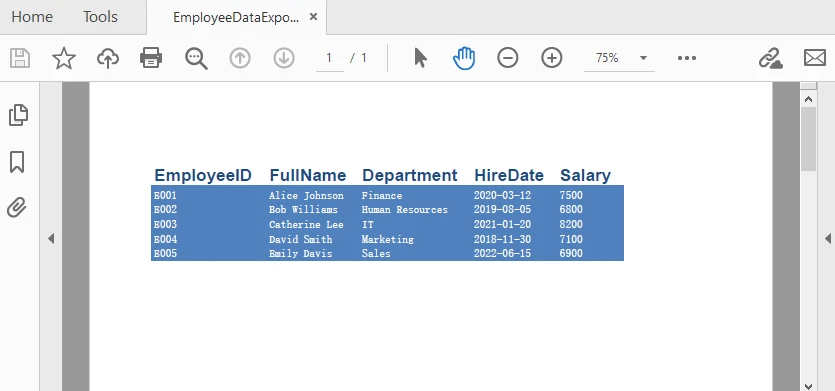
Here is an example of the generated PDF file after exporting from Excel:
Example 2: Save Excel as HTML
This example demonstrates how to save an Excel workbook as an HTML file, making it easy to render the data in a web browser or integrate with web applications.
Workbook workbook = new Workbook();
workbook.LoadFromFile("EmployeeDataExport.xlsx");
workbook.SaveToFile("EmployeeDataExport.html", FileFormat.HTML);
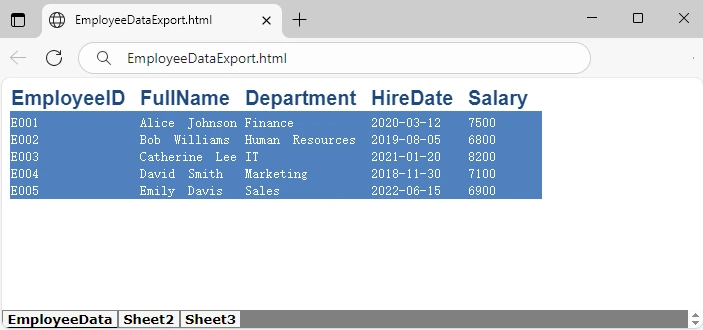
Below is a preview of the exported HTML file rendered in a browser:
Additional Supported Document & Web Formats
In addition to PDF and HTML, the library supports several other document and web-friendly formats. The table below shows these formats together with their FileFormat enumeration values for easy reference.
| Format | Description | Corresponding Enum (FileFormat) |
|---|---|---|
| XML | Excel data exported as XML | FileFormat.XML |
| Bitmap / Image | Export Excel as Bitmap or other image formats | FileFormat.Bitmap |
| XPS | XML Paper Specification document | FileFormat.XPS |
| PostScript | PostScript document | FileFormat.PostScript |
| OFD | Open Fixed-layout Document format | FileFormat.OFD |
| PCL | Printer Command Language file | FileFormat.PCL |
| Markdown | Markdown file format | FileFormat.Markdown |
These formats provide additional flexibility for distributing Excel content across different platforms and workflows, whether for printing, web publishing, or automation.
Save an Excel File to MemoryStream in C#
In web applications or cloud services, saving Excel files directly to disk may not be ideal due to security or performance reasons. Using MemoryStream allows you to generate Excel files in memory and deliver them directly to clients for download. Spire.XLS for .NET also supports both loading and saving workbooks through MemoryStream, making it easy to handle Excel files entirely in memory.
Workbook workbook = new Workbook();
Worksheet sheet = workbook.Worksheets[0];
sheet.Range["A1"].Text = "Export to Stream";

using (MemoryStream stream = new MemoryStream())
{
    workbook.SaveToStream(stream, ExcelVersion.Version2016);
    byte[] bytes = stream.ToArray();

    // Example: send bytes to client for download in ASP.NET
    // Response.BinaryWrite(bytes);
}
This approach is particularly useful for ASP.NET, Web API, or cloud services, where you want to serve Excel files dynamically without creating temporary files on the server.
Open and Re-Save Excel Files in C#
In many applications, you may need to load an existing Excel workbook, apply updates or modifications, and then save it back to disk or convert it to a different format. This is common when updating reports, modifying exported data, or automating Excel file workflows.
Example: Open and Update an Excel File
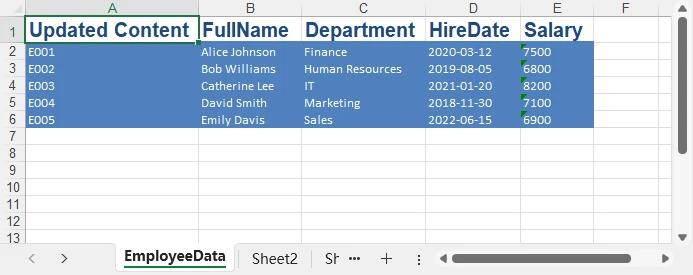
The following C# code loads the previous workbook, updates the first cell, and saves the changes:
Workbook workbook = new Workbook();
workbook.LoadFromFile("EmployeeDataExport.xlsx");

Worksheet sheet = workbook.Worksheets[0];
sheet.Range["A1"].Text = "Updated Content"; // Update the cell value
sheet.Range["A1"].AutoFitColumns(); // Autofit the column width

// Save the updated workbook
workbook.Save(); // Saves to original file
workbook.SaveToFile("UpdatedCopy.xlsx", ExcelVersion.Version2016); // Save as new file
The screenshot below shows the updated Excel sheet after modifying and saving the file:
You can also check out the detailed guide on editing Excel files using C# for more advanced scenarios.
Best Practices When Saving Excel Files
-
Avoid File Overwrites
Check if the target file exists before saving to prevent accidental data loss.
-
Handle Permissions and Paths Properly
Ensure your application has write access to the target folder, especially in web or cloud environments.
-
Choose the Right Format
Use XLSX for modern compatibility, CSV for data exchange, and PDF for printing or sharing reports.
Conclusion
Saving Excel files in C# covers a wide range of operations—from writing structured datasets, exporting to different spreadsheet formats, converting to PDF/HTML, to handling file streams in web applications.
With the flexibility offered by libraries such as Spire.XLS for .NET, developers can implement powerful Excel automation workflows with ease.
FAQ
Q1: How do I save an Excel file in C#?
Use SaveToFile() with the appropriate ExcelVersion or FileFormat:
workbook.SaveToFile("Report.xlsx", ExcelVersion.Version2016);
Q2: How do I open and modify an existing Excel file?
Load the workbook using LoadFromFile(), make changes, then save:
Workbook workbook = new Workbook();
workbook.LoadFromFile("ExistingFile.xlsx");
workbook.Worksheets[0].Range["A1"].Text = "Updated Content";
workbook.SaveToFile("UpdatedFile.xlsx", ExcelVersion.Version2016);
Q3: How do I save as CSV or PDF?
Specify the desired FileFormat in SaveToFile():
workbook.SaveToFile("Report.csv", ",", FileFormat.CSV);
workbook.SaveToFile("Report.pdf", FileFormat.PDF);
Q4: Can I save Excel to memory instead of disk?
Yes. Use SaveToStream() to output to a MemoryStream, useful in web or cloud applications:
using (MemoryStream stream = new MemoryStream())
{
    workbook.SaveToStream(stream, ExcelVersion.Version2016);
    byte[] bytes = stream.ToArray();
}