If you've ever downloaded data from a bank statement, an online tool, or a database, you've likely encountered a CSV file. While incredibly useful for storing raw data, CSVs lack the powerful features needed for analysis, formatting, and visualization. Converting your CSV to Excel unlocks a world of possibilities, transforming static data into a dynamic and insightful workbook.
This comprehensive guide will walk you through the easiest and most effective methods to convert CSV files to Excel, from simple manual methods to automated Python scripts.
- Understanding CSV and Excel Formats
- Method 1: Convert CSV to Excel Using Microsoft Excel
- Method 2: Convert CSV to Excel Using Google Sheets
- Method 3: Use Free Online CSV to Excel Converters
- Method 4: Automate CSV to Excel Conversion with Python
- Method Comparison: Choose the Right Tool
Understanding CSV and Excel Formats
What's the real difference between a CSV and an Excel file? Specifically:
-
CSV (Comma-Separated Values): This is a plain text file. It's like a digital notepad where data is separated by commas (or sometimes other delimiters like semicolons). Its simplicity is its strength—it's universally compatible. However, it cannot store formulas, charts, formatting (like colors or fonts), or multiple sheets.
-
Excel (XLS/XLSX): This is a proprietary, binary file format. Think of it as a full-featured digital ledger. It can store data, plus formulas, pivot tables, charts, multiple sheets, cell formatting, and much more.
You should convert CSV to Excel when you need to:
- Use formulas (SUM, VLOOKUP, etc.) on your data.
- Create charts or graphs for visualization.
- Apply filtering, sorting, or conditional formatting.
- Organize data across multiple tabs.
- Make your report look professional with colors and fonts.
Method 1: Convert CSV to Excel Using Microsoft Excel
If you already have Microsoft Excel (2016, 2019, 365, or 2021) installed, this is the simplest and most reliable method.
The Simple "Open With" Method (Best for Most Users)
This is the fastest and most straightforward way to convert a single CSV file. It's essentially using Excel to "save as" a new format.
- Locate your CSV file in Windows File Explorer or Mac Finder.
- Right-click on the file.
- Hover over "Open with" and select Microsoft Excel.
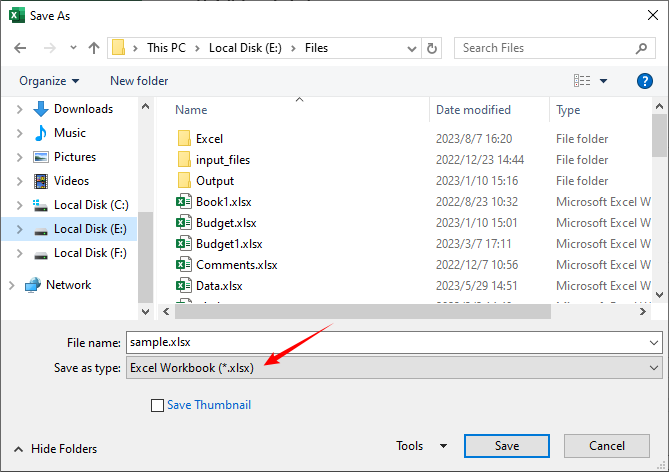
- Once opened in Excel, go to File > Save As.
- Choose the location where you want to save the new file.
- In the "Save as type" dropdown menu, select Excel Workbook (*.xlsx) or Excel 97-2003 Workbook (*.xls).
- Click Save.
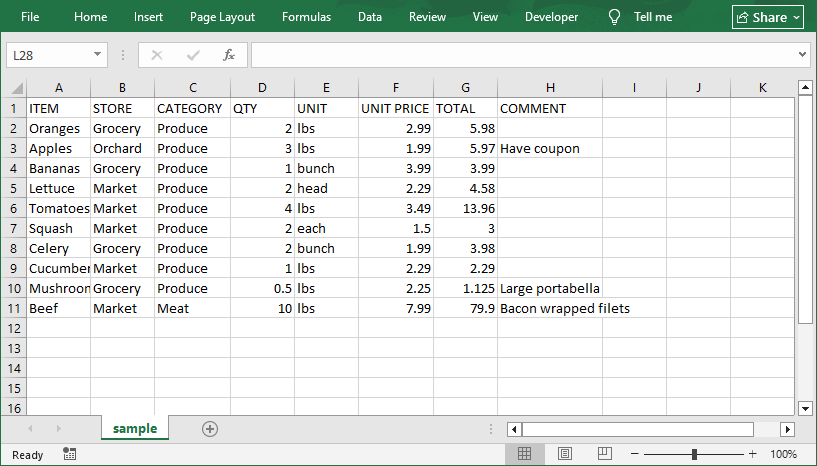
The converted Excel file:
Importing Data via Excel's Data Tab (More Control)
This method gives you precision, allowing you to define data types during import to prevent formatting errors.
Step 1: Open CSV File in Excel
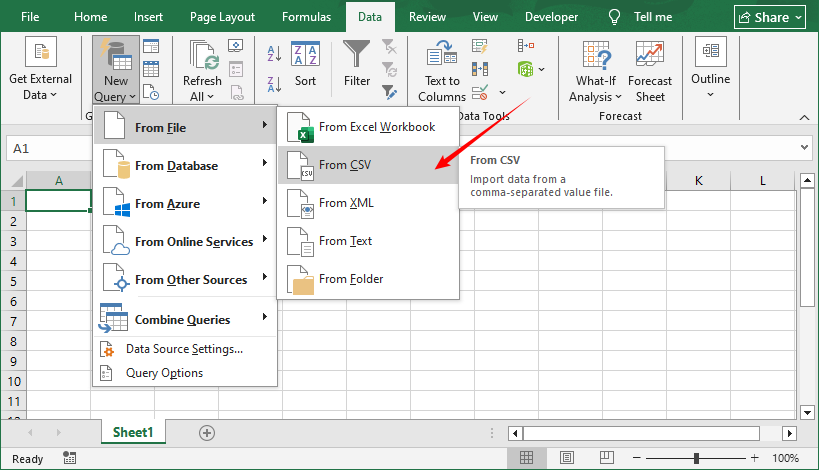
- Launch Excel and go to the Data tab.
- Click New Query > From File > From CSV.
- Browse to your CSV file, select it, and click Open.
Step 2: Customize the Import Settings
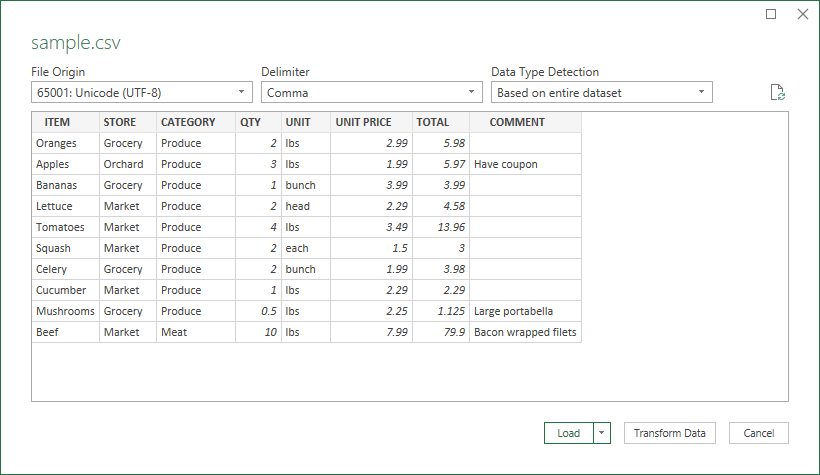
Excel will open a preview window where you can adjust settings to ensure data accuracy:
- Delimiter: Confirm “Comma” is selected. If your file uses tabs or semicolons, choose the correct option.
- Data Type Detection: Choose "Based on entire dataset" for auto-detection, or "Text" for sensitive fields (e.g., ZIP codes with leading zeros).
- Encoding: If your CSV has special characters, choose UTF-8 from the dropdown to avoid garbled text.
Click Load when you’re ready.
Step 3: Save as an Excel File
The CSV data will now open in Excel. To save it as a native Excel file:
- Go to File > Save As.
- Choose a location to save the file.
- Select Excel Workbook (*.xlsx) or Excel 97-2003 Workbook (*.xls) from the “Save as type” dropdown.
- Click Save. Your CSV file is now an Excel spreadsheet with all the functionality of Excel.
Method 2: Convert CSV to Excel Using Google Sheets
If you don’t have Excel, Google Sheets (Google’s free spreadsheet tool) is a fantastic alternative. It works in any browser, syncs to your Google Drive, and supports seamless CSV-to-Excel conversion. Here’s how:
Step 1: Import the CSV File to Google Sheets
- Go to Google Sheets and create a new blank spreadsheet.
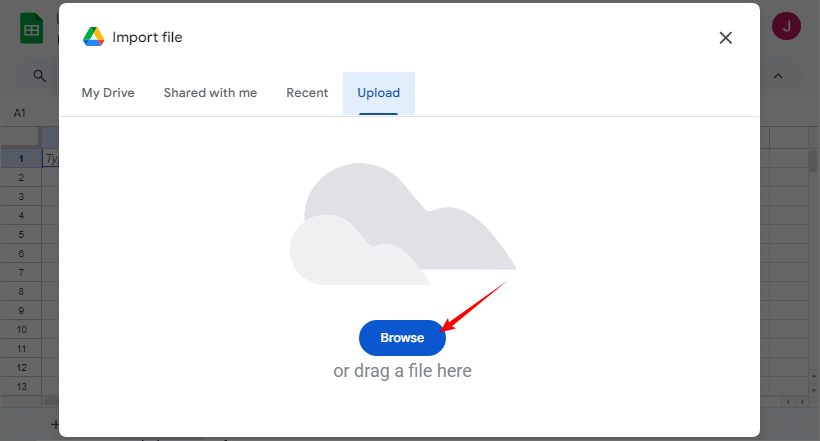
- Click File > Import > Upload.
- Click Browse to select your CSV file or drag and drop it.
Step 2: Configure Import Options
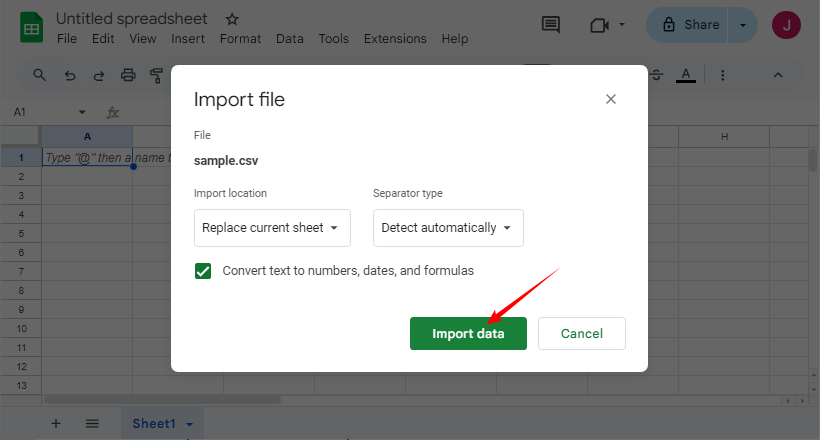
In the import window:
- Select your preferred Import location and Separator type.
- Click Import data.
Step 3: Export as an Excel File
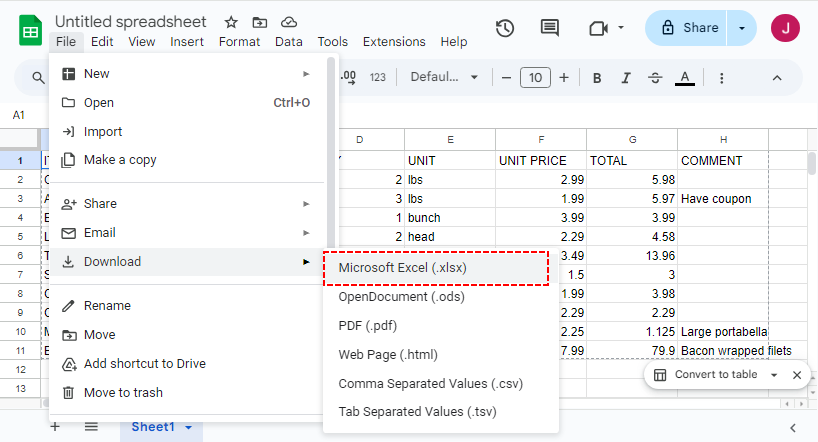
Once your data is in Google Sheets, go to File > Download > Microsoft Excel (.xlsx). The Excel file will download to your device automatically. Open it in Excel or another spreadsheet tool to verify the data.
ALSO READ: Convert CSV to PDF: 4 Efficient Methods
Method 3: Use Free Online CSV to Excel Converters
For one-off conversions, free online tools are a quick solution. Look for tools that prioritize data privacy and support large files. Our top picks:
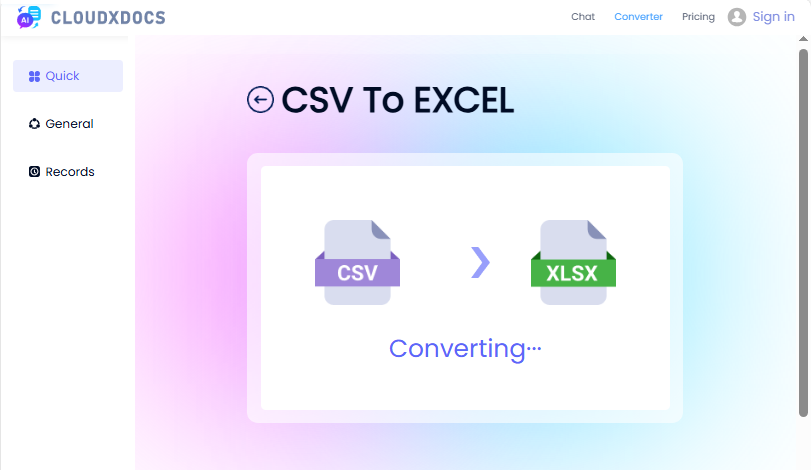
CSV to XLSX Converter by CLOUDXDOCS
CLOUDXDOCS is a trusted file conversion tool that supports CSV to XLSX conversions. Here’s how to use it:
- Go to CLOUDXDOCS CSV to Excel page.
- Upload your CSV file or drag and drop it.
- Wait for the conversion to complete and then download the Excel file.
Convertio (Supports Batch Conversions)
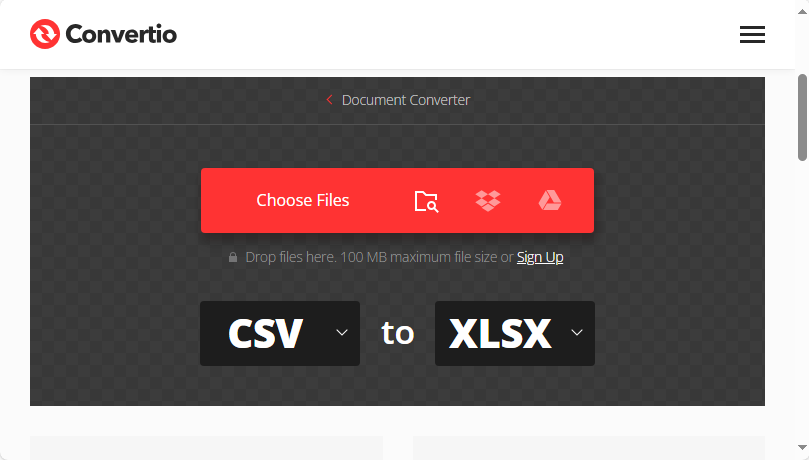
Convertio is ideal if you need to convert multiple CSV files at once. Steps:
- Visit Convertio’s CSV to XLSX converter.
- Drag and drop multiple CSV files or upload them from Google Drive/Dropbox.
- Ensure the output format is set to XLSX.
- Click Convert and download the zip file with your Excel files.
Method 4: Automate CSV to Excel Conversion with Python
For developers who need to convert bulk CSV files or integrate CSV-to-Excel into Python workflows, Spire.XLS for Python is the perfect tool. It is a powerful spreadsheet library that handles Excel/CSV operations programmatically.
Step 1: Install the Python Library
Open your terminal/command prompt and run the following pip command:
pip install spire-xls
Step 2: Python Code to Convert CSV to Excel (Single File)
This code converts a single CSV to XLS or XLSX format.
from spire.xls import *
from spire.xls.common import *

# Create a workbook
workbook = Workbook()

# Load a CSV file
workbook.LoadFromFile("sample csv.csv", ",", 1, 1)

# Save to xls format
workbook.SaveToFile("CSVToXLS.xls", ExcelVersion.Version97to2003)

# Save to xlsx format
workbook.SaveToFile("CSVToXLSX.xlsx", ExcelVersion.Version2016)
Step 3: Python Code to Batch Convert CSV Files (Multiple Files)
If you have a folder full of CSV files, use this code to batch convert CSV to Excel in one go:
import os
from spire.xls import *

input_folder = r"F:\CSVs"
output_folder = r"F:\Output"

# Loop through each CSV file
for csv_file in os.listdir(input_folder):
    if csv_file.endswith(".csv"):
        input_path = os.path.join(input_folder, csv_file)
        output_name = os.path.splitext(csv_file)[0] + ".xlsx"
        output_path = os.path.join(output_folder, output_name)

        # Create a Workbook instance and load CSV files
        workbook = Workbook()
        workbook.LoadFromFile(input_path, ",", 1, 1)

        # Save each CSV file as an Excel file
        workbook.SaveToFile(output_path, ExcelVersion.Version2016)
Code Explanation
- Workbook: The core class of Spire.XLS for Python—handles all Excel/CSV operations.
- LoadFromFile: Imports CSV data into the workbook. You can customize the delimiter (e.g., ";" for European CSVs).
- SaveToFile: Exports the workbook to an Excel file (supports Excel 2003-2019 formats).
- Bulk Conversion: Uses os.listdir to loop through CSV files.
Pro Tip: Spire.XLS for Python also supports converting CSV to XML and CSV to JSON.
Method Comparison: Choose the Right Tool
| Method | Automation | Security | Best For |
|---|---|---|---|
| Manual Excel | None | High | Single files, non-technical users |
| Google Sheets | None | Medium | Quick conversions, collaborative projects, users without Excel. |
| Online Tools | None | Low | One-time use, small non-confidential files, utmost convenience. |
| Python + Spire.XLS | Full | High | Batch processing, automation, integration into workflows. |
Final Thoughts
Converting a CSV file to Excel is a simple but powerful skill that unlocks the full analytical and presentation potential of your data. For quick, simple needs, use Excel’s “Open With” or Google Sheets. For messy/complex CSVs, Excel’s Data Tab ensures precision. Online tools work for one-off small files, while Python + Spire.XLS handles batch/automated tasks for power users.
Choose the method that fits your file size and skills, then leverage Excel’s calculations, visuals, and organization to turn raw data into meaningful, actionable results.