Watch this video to learn how to perform Excel to TXT conversion programmatically in C#, making large-scale or repetitive file processing easier to automate.
Excel files (.xlsx or .xls) are widely used for organizing and analyzing large datasets, but they can be difficult to share or use in systems that only accept plain text formats. Converting Excel to TXT increases compatibility, making it easier to share and automate processing. In this article, we'll walk you through 4 simple methods to help you easily achieve Excel to Text conversion — whether you're looking for a quick, manual solution or an automated batch process.
- Understanding the Differences Between Common Text Formats
- Method 1: Copy Excel Data and Paste It into a Text Editor (Quick and Simple)
- Method 2: Save Excel as Text Using Microsoft Excel (Native and Reliable)
- Method 3: Convert Excel to TXT Using Free Online Tools (No Software Needed)
- Method 4: Batch Convert Excel to TXT with C# (Automated Process)
- Comparison: Which Excel to TXT Method is right for you
- Practical Tips for Excel to Text Conversion
- Common Issues and Solutions
Understanding the Differences Between Common Text Formats
When converting Excel files to text, selecting the right text format is crucial to ensure data compatibility and integrity. Below are several common text formats used for this conversion:
- Tab-Delimited Text (.txt): Uses tabs (\t) as delimiters, suitable for most Windows applications.
- Unicode Text (.txt): Uses Unicode encoding (e.g., UTF-16), ideal for handling multilingual data, especially non-Latin characters like Chinese and Arabic.
- CSV (Comma-Separated Values) (.csv): A text format that uses commas as delimiters, commonly used for data exchange between databases and spreadsheets.
Each format has its strengths. Understanding these options can help you choose the right format for your needs.
Method 1: Copy Excel Data and Paste It into a Text Editor (Quick and Simple)
Copying Excel data and pasting it into a text editor is among the easiest ways to convert Excel to TXT. This method is ideal when you only need a specific range of Excel cells converted to text, not entire worksheets.
Quick Conversion Steps:
-
Highlight the data range you want to convert in your Excel spreadsheet.
-
Press Ctrl+C (Windows) or Cmd+C (Mac) to copy.
-
Open a text editor (Notepad, TextEdit, etc.).
-
Press Ctrl+V (Windows) or Cmd+V (Mac) to paste.
-
Save the file as .txt.
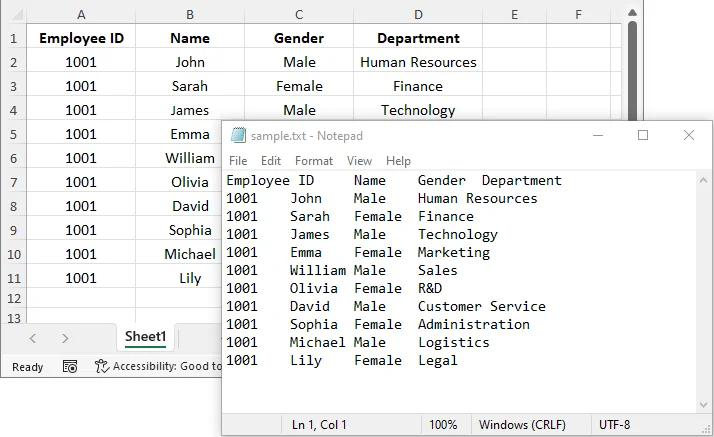
Important Notes:
- Data pasted into text editors typically uses tab delimiters, so columns are separated by tabs.
- Large datasets may experience formatting issues or truncation depending on your system's clipboard capacity. Consider splitting large datasets into smaller chunks if needed.
When to Use: Best for small, one-off conversions, or when you only need part of the spreadsheet.
Method 2: Save Excel as Text Using Microsoft Excel (Native and Reliable)
Microsoft Excel offers a built-in Save As feature to directly save an Excel file as text, which is reliable and widely used.
Step-by-Step Guide:
-
Launch Microsoft Excel. Click File > Open, then browse and select your Excel file.
-
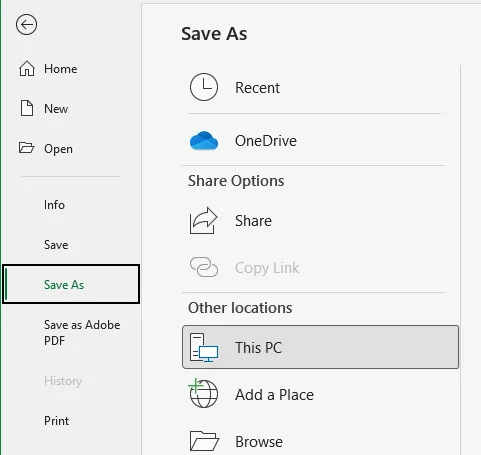
Navigate to the sheet you want to convert and click File > Save As.
-
Choose the preferred text format:
- From the Save as type drop-down menu, select the desired text or CSV format, such as Text (Tab-delimited) (.txt)", Unicode Text (.txt), or CSV (Comma-delimited) (.csv) (CSV is also a plain text format).
- If you choose Text (Tab-delimited), data will be separated by tabs; if you select CSV, it will be comma-separated. For multilingual documents, choose Unicode Text.
-
Select where you'd like to save the text file and click Save.
Considerations:
- This method saves only the active worksheet. If your workbook has multiple sheets, repeat the process for each one.
- Excel will warn you that some features might be lost (e.g., formatting, formulas). This is expected, as TXT files contain only raw text.
When to Use: This method is perfect for users who have Excel installed and want a reliable, straightforward solution for single-sheet conversions.
You might also like: How to Convert TXT Files to Excel Spreadsheets Quickly
Method 3: Convert Excel to TXT Using Free Online Tools (No Software Needed)
For users without Excel or those who prefer a mobile-friendly solution, many free online tools offer the flexibility to convert Excel files to TXT from any device with an internet connection.
Recommended Online Excel to TXT Converters:
- CloudConvert: Supports a wide range of file conversions, including Excel to TXT.
- Convertio: A user-friendly, popular tool for converting XLS/XLSX to TXT.
- Cloudxdocs: Fast and reliable, it supports Excel to TXT conversion and more.
Steps to Convert Excel to TXT Online:
-
Go to the website of your chosen online converter (e.g., Cloudxdocs).

-
Upload the Excel file you want to convert or drag and drop it to the designated area.
-
The tool will automatically process and convert your Excel file.
-
Download the TXT file to your device once the conversion is complete.
Security Warning:
Be cautious about uploading files containing sensitive or proprietary data to public online converters, as they may store or process your data on third-party servers. For confidential business data, always use offline methods or enterprise-grade solutions with proper data protection.
When to Use: Best for personal use or non-sensitive data that needs quick conversion without software installation.
Method 4: Batch Convert Excel to TXT with C# (Automated Process)
For developers or teams looking to convert multiple Excel files at once, C# provides an efficient solution through libraries like Spire.XLS for .NET. This method is well-suited for batch conversions, automation, and integration into larger data processing workflows.
What is Spire.XLS for .NET?
Spire.XLS for .NET is a .NET library for creating, modifying, and converting Excel XLSX or XLS files into multiple formats, including TXT and PDF — without the need for Microsoft Excel.

Installation Requirements:
Before proceeding, install the necessary library via NuGet or download it from the official website:
Install-Package Spire.XLS
Code Example:
Once the library is installed, add the following code to your C# project to batch convert Excel files to text files:
using Spire.Xls;
using System;
using System.IO;
using System.Text;

namespace ExcelToTXT
{
    class Program
    {
        static void Main(string[] args)
        {
            // Specify the directory containing the Excel files
            string inputDirectory = @"C:\ExcelFiles\";

            // Get all Excel files in the directory
            string[] excelFiles = Directory.GetFiles(inputDirectory, "*.xlsx");

            foreach (var file in excelFiles)
            {
                // Create a Workbook instance
                Workbook workbook = new Workbook();

                // Load the Excel file
                workbook.LoadFromFile(file);

                // Access the first sheet
                Worksheet sheet = workbook.Worksheets[0];

                // Generate output file name based on the input file name
                string outputFileName = Path.Combine(inputDirectory, Path.GetFileNameWithoutExtension(file) + ".txt");

                // Save the worksheet as a comma-delimited text file
                sheet.SaveToFile(outputFileName, ",", Encoding.UTF8);

                Console.WriteLine($"Converted {file} to {outputFileName}");
            }
        }
    }
}
This script loads multiple Excel files from a specified directory and converts the first sheet of each file into a text file. The output files are saved with the same name as the original Excel sheet but with a .txt extension.
Code Customization Options:
-
Handling .xls Files:
If you need to process .xls files instead of .xlsx, simply modify the file extension filter:
string[] excelFiles = Directory.GetFiles(inputDirectory, "*.xls"); -
Converting All Sheets:
To convert all sheets, use a loop to iterate over each worksheet:
foreach (Worksheet sheet in workbook.Worksheets) { string outputFileName = Path.Combine(inputDirectory, Path.GetFileNameWithoutExtension(file) + "_" + sheet.Name + ".txt"); sheet.SaveToFile(outputFileName, ",", Encoding.UTF8); } -
Changing the Delimiter:
The code uses a comma as the delimiter. You can change it to other delimiters like tab or pipe:
sheet.SaveToFile(outputFileName, "\t", Encoding.UTF8); // For tab-delimited sheet.SaveToFile(outputFileName, "|", Encoding.UTF8); // For pipe-delimited -
Converting a Specific Cell Range:
If you only want to convert a specific range of cells (e.g., A1:D10), you can set the print area:
sheet.PageSetup.PrintArea = "A1:D10";  // Define the range
sheet.SaveToFile(outputFileName, ",", Encoding.UTF8);  // Convert the range to txt
When to Use: This method is ideal for developers, data engineers, or teams that need to automate the conversion of multiple Excel files in batch processes.
Comparison: Which Excel to TXT Method is right for you?
Below is a comparison table that contrasts the four Excel to TXT conversion methods based on factors like ease of use, batch processing, customization options, security, and skill requirements:
| Method | Ease of Use | Batch Processing | Customization | Security | Technical Skill Required |
|---|---|---|---|---|---|
| Copy & Paste | Easy | No | No customization | High | Low |
| Excel Save As Feature | Easy | No | High | High | Low |
| Online Converters | Easy | No | Low | Low | Low |
| C# Automation | Moderate | Yes | Excellent | High | High (C# knowledge required) |
Quick Guide to Choose the Right Conversion Method
- For quick and small-scale data conversion → Copy & Paste
- For reliable single-sheet conversion → Excel Save As Feature
- For quick conversion without software installation → Online Converters
- For bulk conversion or automation needs → C# Automation
Practical Tips for Excel to Text Conversion
- Backup Your Original Excel Files: Before starting any conversion, ensure you have a backup of your original file to avoid losing critical data.
- Choose the Correct Delimiter: Make sure to choose the correct delimiter based on the intended use. For instance, use tab-delimited for better readability in text editors or comma-delimited for compatibility with data import tools.
- Avoid Large Files with Online Tools: Many online converters have size limits (typically 50MB-100MB). For large files, consider using offline methods or batch processing through C# automation.
- Verify the Converted Data: After conversion, always open the text file and check for data integrity, especially for important datasets.
Common Issues and Solutions
- Special Characters Are Displaying Incorrectly: Use Unicode encoding to preserve special characters like Chinese, Arabic, or other non-Latin alphabets. This can be done easily when exporting through Excel or automated C# conversion.
- Extra Blank Lines in TXT File: If blank rows appear, you can remove them using Find & Replace in a text editor like Notepad++ to delete extra line breaks.
- Formulas Showing Instead of Values: To avoid this, copy the cells and paste them as values only before converting. This ensures that calculated values (not formulas) are saved in the TXT file.
- Multiple Sheets Not Converting: If you're manually saving from Excel, only one sheet will be saved at a time. Use C# automation to convert multiple sheets in batch.
Frequently Asked Questions
Q1: Can I convert Excel to TXT on my mobile device?
A1: Yes, online tools like Cloudxdocs allow you to convert Excel files on mobile devices. However, be cautious when uploading sensitive data to public websites.
Q2: Why does my Excel data look garbled after conversion?
A2: This is usually a character encoding issue. When dealing with non-ASCII characters, ensure you select Unicode encoding text format to ensure proper conversion.
Q3: Can I convert Excel to TXT with specific delimiters?
A3: Yes, you can customize the delimiter when converting Excel to TXT, depending on the method or tool you use. For example, you can use Excel's Save As feature to save the Excel as CSV (comma-delimited) and then change the file extension to .txt or automate the process in C# for more control over the delimiters.
Q4: What is the difference between CSV and TXT file formats?
A4: Both are text-based formats, but CSV files separate data with commas, making them ideal for tabular data. TXT files can use a variety of delimiters (e.g., tabs, spaces, or pipes) and are often used for simpler or more flexible data storage.
Q5: Can I convert multiple sheets to TXT at once in Excel?
A5: Excel's built-in "Save As" feature only converts the active sheet. To convert multiple sheets, you need to either repeat the process or automate the conversion using C#.
Final Words
That's all you need to know about converting Excel to TXT! If you have any questions, tips, or tricks of your own for converting Excel files, feel free to share them with our community — we'd love to hear from you and learn together!