Converting Excel files (XLS/XLSX) to the ODS (OpenDocument Spreadsheet) format is often required when working with LibreOffice, OpenOffice, or other platforms that rely on the OpenDocument standard. Many organizations, especially those using open-source or cross-platform workflows, prefer ODS for better compatibility, long-term accessibility, and reduced vendor lock-in.
This guide explains 4 practical methods to convert Excel to ODS, including local software, online converters, and automated programming solutions. Whether you need a one-time conversion or a repeatable workflow for large datasets, you'll find the right approach here.
What You Will Learn
- What Is ODS
- Why Convert Excel to ODS
- Method 1: Convert Excel to ODS Using Microsoft Excel
- Method 2: Convert Excel to ODS with LibreOffice
- Method 3: Convert Excel to ODS Online
- Method 4: Batch Convert Excel to ODS with Python
- Tips for Converting Excel to ODS
What Is ODS?
ODS (OpenDocument Spreadsheet) is an open, XML-based spreadsheet format primarily used by LibreOffice Calc and OpenOffice Calc. As part of the ODF (Open Document Format) standard, ODS is widely adopted for:
- Open-source and cross-platform environments
- Long-term data preservation
- Interoperability with multiple office suites
Unlike proprietary Excel formats, ODS is standardized and vendor-neutral, making it ideal for collaborative and multi-platform workflows.
To learn more about the technical differences, you can refer to Microsoft's official guide on ODS vs. Excel (.xlsx) format.
Why Convert Excel to ODS?
Converting XLS or XLSX to ODS offers several advantages:
- Full compatibility with LibreOffice Calc and OpenOffice Calc
- Open, ISO-standardized file format for long-term archiving
- Improved workflow in Linux and open-source environments
- Reduced vendor lock-in across different office suites
- Compliance with organizations using ODF standards
- Better interoperability when collaborating across systems
If your workflow involves open-source tools or mixed software environments, ODS ensures data remains accessible, secure, and compatible.
Method 1: Convert Excel to ODS Using Microsoft Excel
Microsoft Excel can save spreadsheets directly in the ODS format, providing a quick solution for users who already use Excel. This method is best suited for single-file conversions and requires no additional software.
Steps to Save Excel to ODS with Excel:
-
Open your Excel file (.xlsx or .xls) in Microsoft Excel.
-
Click File > Save As from the top menu.
-
Choose the folder where you want to save the file.
-
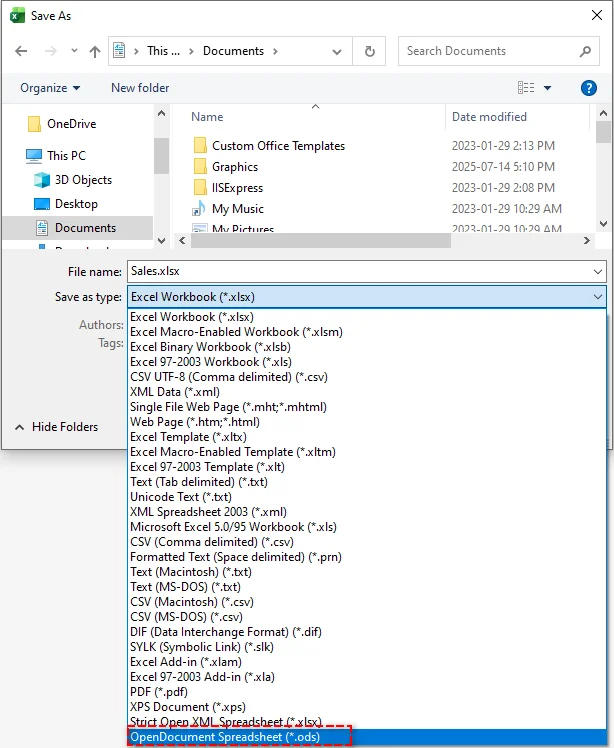
In the Save as type dropdown, select OpenDocument Spreadsheet (*.ods).
-
Click Save. Excel may show a compatibility warning-review it and click Yes to proceed.
Pros:
- Fast and straightforward
- Maintains most data, formulas, and formatting
- No extra software required
Cons:
- Advanced features like macros or complex formulas may not transfer fully
- Not ideal for batch processing multiple files
Method 2: Convert Excel to ODS with LibreOffice
LibreOffice Calc is a free, open-source alternative to Excel and offers excellent native support for ODS. It's the recommended tool for users who want high-fidelity Excel to ODS conversions in open-source environments.
Steps to Export XLSX to ODS with LibreOffice:
-
Open LibreOffice Calc.
-
Go to File > Open and select your Excel file.
-
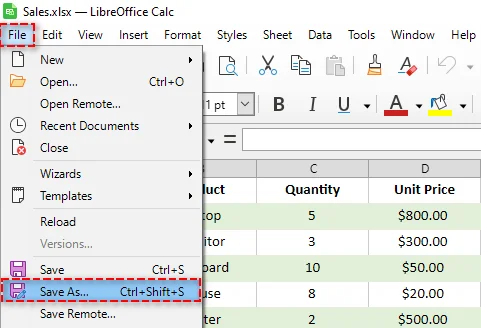
Once the file is open, go to File > Save As.
-
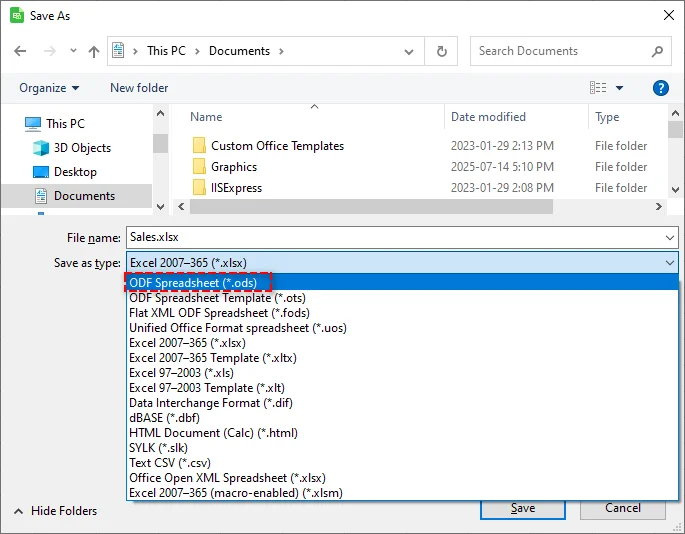
In the dialog box, choose ODF Spreadsheet (.ods) from the File type dropdown.
-
Click Save.
Pros:
- Free and open-source
- High fidelity conversion for formatting, formulas, and charts
- Works well across platforms (Windows, macOS, Linux)
Cons:
- Requires installation
- Interface may differ from Excel, which may need a short learning curve
- Advanced Excel macros may not be fully supported
Tip: LibreOffice also supports batch conversion via command-line, which can save time when converting multiple Excel files to ODS.
Method 3: Convert Excel to ODS Online
Online converters provide a free, fast, and no-installation solution to convert Excel to ODS. They are especially convenient for small files or occasional use. Popular converters include Zamzar and CloudConvert.
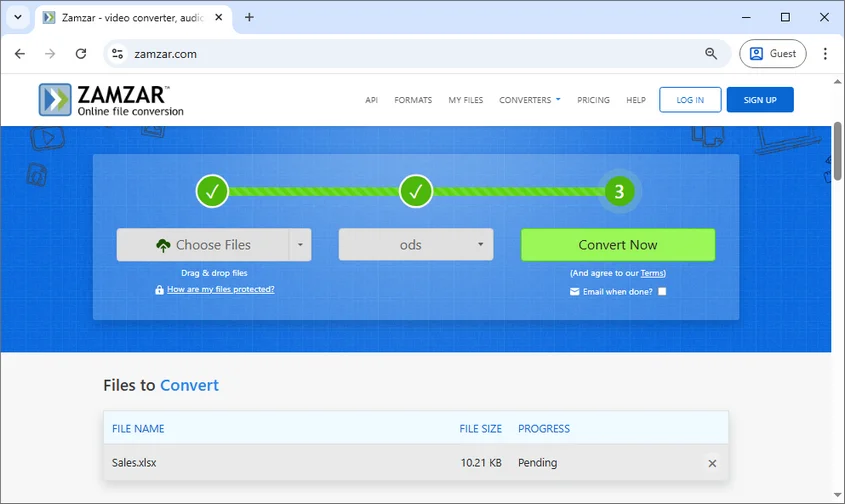
Steps to Convert Excel Files to ODS Online (Using Zamzar as an Example):
- Go to Zamzar.
- Click Choose Files to upload your Excel file or drag & drop the file to the designated area.
- Select ODS as the output format.
- Click Convert Now to convert the file to ODS format instantly.
- Download the converted ODS file.
Pros:
- No software installation required
- Quick and easy for single files
- Accessible from any device with internet
Cons:
- Limited file size for free users
- Potential privacy concerns for sensitive data
- Cannot handle batch processing efficiently
Tip: For sensitive or large files, local software like Excel or LibreOffice is safer and more efficient.
Method 4: Batch Convert Excel to ODS with Python
For developers or users handling multiple Excel files, automating the conversion process with Python is the most powerful method. Libraries like Spire.XLS for Python allow you to batch convert Excel files to ODS quickly and securely, without needing Microsoft Excel.
Steps to Batch Convert Multiple Excel Files:
-
Install the Spire.XLS library from PyPI by running the following command:
pip install spire-xls -
Write a Python script to loop through each Excel file in a folder and save it to ODS:
from spire.xls import * import os # Folder containing Excel files input_folder = "input_excels" output_folder = "output_ods" # Create the output folder if it doesn't exist if not os.path.exists(output_folder): os.makedirs(output_folder) # Loop through all Excel files (.xls, .xlsx) for file_name in os.listdir(input_folder): if file_name.lower().endswith((".xls", ".xlsx")): input_path = os.path.join(input_folder, file_name) # Load workbook workbook = Workbook() workbook.LoadFromFile(input_path) # Output ODS file name base_name = os.path.splitext(file_name)[0] output_path = os.path.join(output_folder, base_name + ".ods") # Save as ODS workbook.SaveToFile(output_path, FileFormat.ODS) print(f"Converted: {file_name} → {base_name}.ods") -
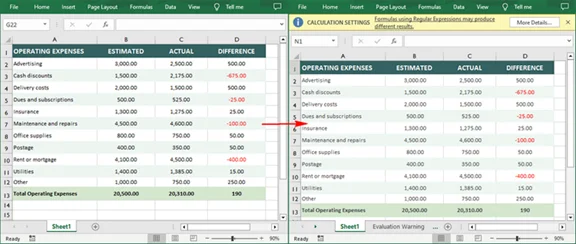
Run the script to process all files automatically and view the results.
Pros
- Perfect for automating batch conversion of hundreds or thousands of files.
- Highly customizable and integrable into larger data pipelines.
- Runs locally, ensuring data privacy.
Cons
- Requires basic Python programming knowledge.
Tip: In addition to converting Excel files to ODS format, Spire.XLS also supports various other file format conversions, including Excel to PDF and XLX or XLSX to CSV.
Tips for Converting Excel to ODS
- Test First: Always convert a sample file first to check formatting and formula compatibility before processing important documents.
- Backup Your Data: Keep a backup of your original Excel files before starting any conversion process.
- Check Formulas: After conversion, verify that all formulas work correctly in the ODS file, especially if using Excel-specific functions.
- Review Formatting: Complex charts, conditional formatting, and pivot tables may need adjustment after conversion.
- Consider File Size: For large Excel files, local methods (Excel, LibreOffice, Python) are more reliable than online converters.
- Validate ODS Files: Open converted files in LibreOffice or OpenOffice to ensure they work as expected in their native environment.
Final Recommendations
- For One-time or Occasional Conversion: Use Microsoft Excel or LibreOffice-both provide reliable results with minimal setup.
- For Small Files or Quick Needs without Installation: Online converters offer convenience when privacy isn't a concern.
- For Large Datasets or Recurring Conversions: Python automation ensures efficiency, consistency, and data security.
- For Mixed Environments: LibreOffice is the ideal choice if you frequently work across different operating systems and office suites.
Converting Excel to ODS doesn't have to be complicated. With these four methods, you can ensure your spreadsheets are accessible to everyone, regardless of their preferred software. Whether you're an individual user, part of an organization transitioning to open-source tools, or a developer building automated workflows, there's a solution that fits your needs.
Have questions or your own tips for smooth conversions? Share them in our forum-we'd love to hear from you!
FAQs: XLSX to ODS
Q1: How do I convert Excel to ODS for free?
A1: Use LibreOffice or a trusted online converter. Both are free and handle most conversions well.
Q2: Can I batch convert Excel files to ODS?
A2: Yes. Use Python along with the Spire.XLS library to efficiently process multiple files at once.
Q3: Do Excel formulas work in ODS files?
A3: Standard formulas convert well, but advanced or Excel-specific functions may need adjustment.
Q4: What's the best way to convert XLSX to ODS?
A4: For best results, use LibreOffice Calc. It best preserves formatting and compatibility for the ODS format.