Sorting data in Excel is an essential skill for organizing, analyzing, and making sense of information. Whether you're working with customer lists, financial reports, or large datasets, sorting helps you quickly identify patterns, trends, and outliers.
In this guide, you'll learn 5 practical ways to sort data in Excel, including single-column sorting, multi-column sorting, dynamic formula-based sorting, and automation using Python.
Quick Navigation
- Method 1: Sort Data by a Single Column in Excel (Quick & Essential)
- Method 2: Sort Data by Multiple Columns in Excel (Custom Sort)
- Method 3: Sort Data in Excel Using Formulas (SORT & SORTBY)
- Method 4: Sort Filtered Data in Excel (Flexible Exploration)
- Method 5: Sort Excel Data Using Python (Automation & Scalability)
Before You Start
Before sorting data in Excel, make sure:
- Your dataset includes a header row
- There are no completely blank rows or columns in the middle
- Each column contains consistent data types (e.g., numbers, dates, text)
These checks help prevent sorting errors and data misalignment.
Method 1: Sort Data by a Single Column in Excel (Quick & Essential)
The built-in Sort tool is the fastest way to sort data by a single column. It’s ideal for simple tasks such as sorting names alphabetically or numbers from smallest to largest.
Step-by-Step Instructions:
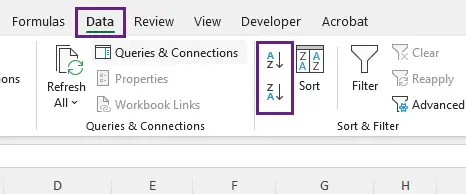
- Select the single column you want to sort.
- Go to the Data tab in the Excel ribbon.
- Click either Sort A to Z (ascending order: A→Z, 1→100) or Sort Z to A (descending order: Z→A, 100→1).
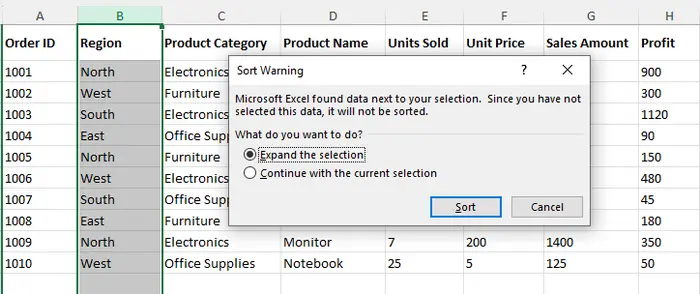
- A pop-up window will appear: Expand the selection . Keep this option checked.
- Click Sort to complete the process.
Pro Tip:
- The Expand the selection option ensures all related data in adjacent columns sorts alongside the selected column. In most cases, you should keep this option checked to avoid breaking data relationships.
- If your data has a header row (e.g., “Name”, “Email”), check the My data has headers box in the pop-up window. This prevents Excel from sorting the header itself (e.g., “Name” won’t end up at the bottom of the column).
Method 2: Sort Data by Multiple Columns in Excel (Custom Sort)
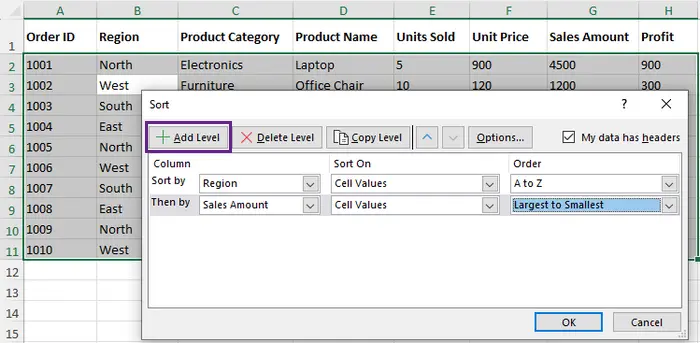
For more complex datasets, sorting by a single column isn’t enough. For example, you might want to sort sales data first by “Region” (ascending) and then by “Sales Amount” (descending) to see top performers in each region. This is where Custom Sort comes in.
Step-by-Step Instructions:
- Select any cell within your dataset (this ensures Excel recognizes the entire table).
- Go to the Data tab and click Sort (not the A→Z/Z→A buttons).
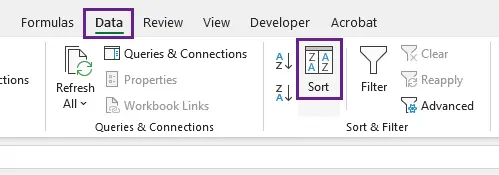
- In the Custom Sort window:
- Choose the first column (e.g., “Region”) and set order to A to Z.
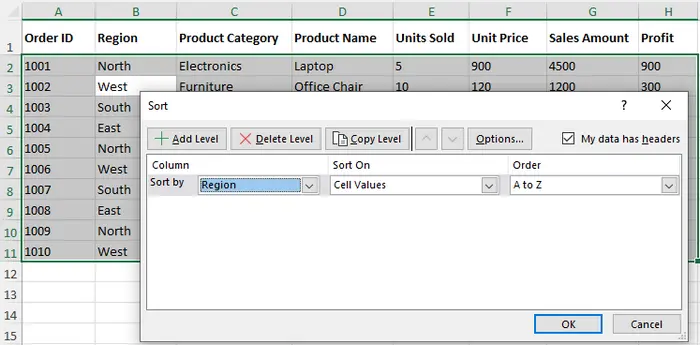
- Click Add Level to add another column (e.g., “Sales Amount”) and set order to Largest to Smallest.
- Choose the first column (e.g., “Region”) and set order to A to Z.
- Click OK to apply the sort. Your data will now be organized by the "Region" column, with ties broken by the "Sales Amount" column.
Key Insight:
Excel applies sorting hierarchically —it sorts by the first column, then resolves ties using the next column.
Use Case:
- Sales reports (Region → Revenue)
- Employee lists (Department → Role)
- Inventory (Category → Stock level)
Method 3: Sort Data in Excel Using Formulas (SORT & SORTBY)
If your data updates frequently, manual sorting becomes inefficient. Excel formulas like SORT and SORTBY allow you to create dynamic, auto-updating sorted lists.
Unlike traditional sorting, these functions do not modify the original data . Instead, they generate a dynamically sorted copy that updates automatically.
Using the SORT Function (Simplest for Modern Excel)
The SORT function sorts a range of data and returns a new sorted array. Syntax: =SORT(range, [sort_column], [sort_order], [by_col])
- In an empty cell (e.g., J1), enter the formula: =SORT(A1:H11, 1, -1, FALSE)
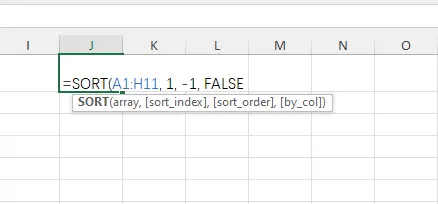
- A1:H11: The entire dataset you want to sort.
- 1: The column to sort by.
- -1: Sort order (1 = ascending, -1 = descending).
- FALSE: Sort by rows (default; use TRUE to sort by columns).
- Press Enter. Excel will generate a dynamic sorted list in the range starting at J1. If you update the original data (e.g., change a sales amount), the sorted list will update automatically.
Using the SORTBY Function (More Flexible)
=SORTBY(A1:H11, G1:G11, -1)
The SORTBY function sorts a dataset based on values in one or more separate ranges. Unlike the SORT function, which relies on column positions, SORTBY lets you define exactly which range controls the sorting order.
How It Works:
- A1:H11 → The dataset to return (the full table)
- G1:G11 → The range used as the sorting key (e.g., “Sales Amount”)
- -1 → Sort order (1 = ascending, -1 = descending)
Example Use Case:
Sort a sales table by revenue without changing the original dataset.
Method 4: Sort Filtered Data in Excel (Flexible Exploration)
Filters allow you to quickly explore and sort specific subsets of your data without permanently changing the original dataset. This is especially useful when working with large datasets, such as analyzing sales from a specific region or time period.
Step-by-Step Instructions:
- Select your dataset, including the header row.
- Go to the Data tab and click Filter (or use the shortcut: Ctrl+Shift+L). Small drop-down arrows will appear in each header cell.
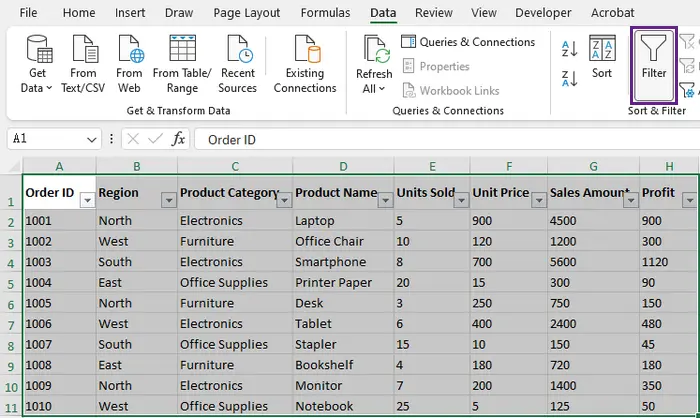
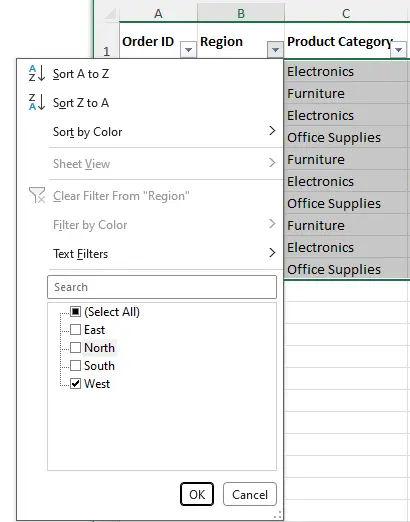
- Click the drop-down arrow in the column you want to sort (e.g., “Region”), uncheck the regions you don’t need (e.g., “East”, “North”, “South”), and then click OK.
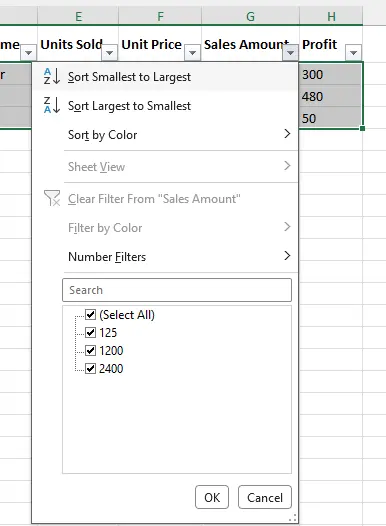
- Click the drop-down arrow in the Sales Amount column, and choose Sort Smallest to Largest (ascending), or Sort Largest to Smallest (descending). This will sort only the filtered (visible) rows.
- To remove the filter and return to the original dataset, click Filter again (or Ctrl+Shift+L).
Key Advantage:
Filters let you combine sorting with data filtering, making it easy to explore specific subsets (e.g., sort high-value sales in the specific Region only) without altering the original data structure.
Method 5: Sort Excel Data Using Python (Automation & Scalability)
For large datasets (10,000+ rows) or repetitive sorting tasks (e.g., sorting daily Excel reports), Python automation is a game-changer. We’ll use Spire.XLS for Python —a powerful library that simplifies Excel file manipulation, including sorting, without requiring Excel to be installed on your machine.
Prerequisites:
- Install Spire.XLS for Python: Run pip install Spire.XLS in your terminal/command prompt.
- Prepare your input Excel file (e.g., “Input.xlsx”) with the data you want to sort.
Step-by-Step Python Code (with Explanations):
from spire.xls.common import *
from spire.xls import *

# Create a Workbook instance
workbook = Workbook()

# Load the input Excel file
workbook.LoadFromFile("Input.xlsx")

# Get the first worksheet
worksheet = workbook.Worksheets[0]

# Define the sorting rule: Sort Column B (index 1) by values in ascending order
workbook.DataSorter.SortColumns.Add(1, SortComparsionType.Values, OrderBy.Ascending)

# Specify the cell range to sort
workbook.DataSorter.Sort(worksheet["A1:H11"])

# Save the sorted data to a new Excel file
workbook.SaveToFile("SortByColumns.xlsx", ExcelVersion.Version2016)
workbook.Dispose()
How to Customize the Code:
- Sort a different column: Change the first parameter in Add() (e.g., 0 for Column A, 1 for Column B).
- Descending sort: Replace OrderBy.Ascending with OrderBy.Descending.
- Sort a larger range: Modify worksheet["A1:H11"] (e.g., worksheet["A1:G1000"] for 1000 rows, 7 columns).
- Multiple columns: Add a second sorting rule with workbook.DataSorter.SortColumns.Add() (e.g., sort Column A ascending, then Column B descending).
Use Case:
This method is perfect for automating repetitive tasks—e.g., sorting 50+ Excel files daily, or sorting datasets too large for Excel to handle smoothly.
In addition to sorting data, you can also use Python to automate other Excel tasks such as formatting worksheets, applying styles, and exporting Excel files to PDF. These capabilities make it easy to build complete document processing workflows.
Comparison Table: Which Method Should You Choose
| Method | Best For | Pros | Cons |
|---|---|---|---|
| Built-in Sort | Quick, single-column sorting | Easy to use, no setup required | Limited to basic sorting; manual |
| Custom Sort | Multi-column, hierarchical sorting | Flexible, handles complex datasets | Requires a few extra steps |
| Excel Formulas | Dynamic, auto-updating sorted lists | No manual re-sorting; updates with data | SORT function only available in modern Excel |
| Filters | Temporary sorting/exploring subsets | Non-destructive; combines with filtering | Not ideal for permanent sorting |
| Python (Spire.XLS) | Large datasets, automation | Scalable, repetitive tasks, no Excel required | Requires basic Python knowledge |
Final Thoughts
Sorting in Excel is more than just arranging data—it’s about making information usable and meaningful.
- Use built-in sorting for quick tasks
- Use custom sort for structured analysis
- Use formulas for dynamic results
- Use filters for flexible exploration
- Use Python for automation at scale
Mastering these methods will allow you to handle everything from simple spreadsheets to complex data workflows with ease.
FAQs
Q1: Why is my Excel data misaligned after sorting?
This usually happens when Expand the selection is not selected. Always ensure related columns are included when sorting.
Q2: Can I sort by cell color or font color?
Yes. In the Sort dialog, choose Cell Color or Font Color under “Sort On”.
Q3: Can I sort data with blank cells?
Yes. Excel places blanks at the bottom (ascending) or top (descending). You can filter them out if needed.
Q4: How do I undo a sort?
Press Ctrl + Z immediately after sorting. If you've made other changes, undo may not be available.
Q5: Why is Excel sort not working?
Common causes include:
- Mixed data types
- Hidden rows or columns
- Incorrect selection range