Have you ever sent an Excel report, only to realize the recipient couldn't see the supporting evidence because you forgot to attach the original PDF contracts or invoices? It is a common challenge.
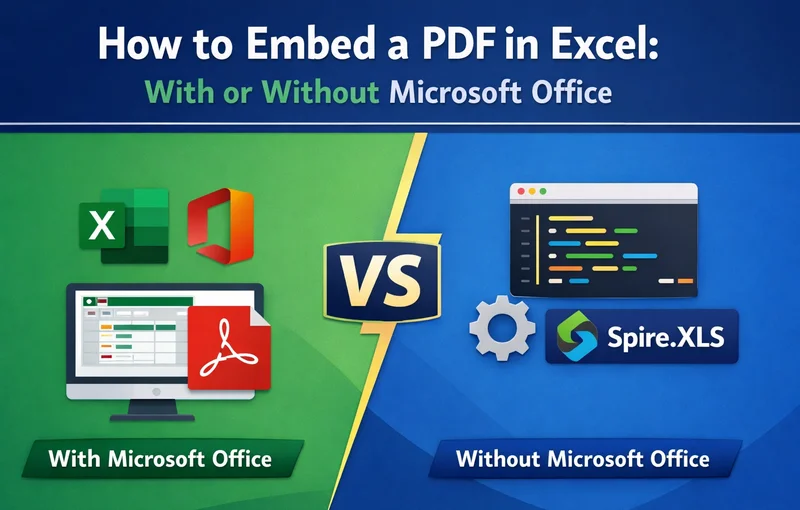
Embedding a PDF in an Excel file is the ultimate solution to keep your data and its "proof" together. Whether you are looking for a quick manual fix or needing to automate thousands of reports on a server, this guide covers how to get it done—with or without Microsoft Office installed.
- What Does Embedding Mean
- Embed a PDF in Excel File with Microsoft Office
- Embed a PDF Document in Excel with Code
- Display PDF Content as Images
- Supplement: Linking vs. Attaching
- Compare Microsoft Office and Free Spire.XLS
- FAQs
What Does "Embedding" Really Mean?
Before we dive into the how to embed a PDF in Excel spreadsheets, it is important to understand that embedding can look different depending on your goals. There are three common ways to embed a PDF file in an Excel worksheet:
-
OLE Object Embedding: The PDF is bundled inside the Excel file. If you send the Excel file, the PDF goes with it.
-
Visual Embedding: The PDF pages are converted into images and placed on the sheet. The content shows immediately, but there is no PDF file to open or check.
-
Hyperlinking: You create a clickable link to a PDF stored on your PC or the cloud. As a result, when you share the Excel file, the recipient will often be unable to access or view the PDF due to missing files, broken paths, or permission issues. This isn't a true embed, but it keeps the Excel file size small.
Method 1: Embed a PDF in Excel File with Microsoft Office
As the world’s most popular spreadsheet software, Microsoft Office provides a built-in "Object" tool that allows you to easily embed a PDF in an Excel file. This is the most straightforward and common method, especially if your device already has the Microsoft Office suite installed and you only have a few files to process manually.
How to embed a PDF document in Excel via "Insert Object"
- Open your Excel file and go to the Insert tab.
- On the far right, click on Object.
- In the dialog box, go to the Create from File tab and browse for your PDF.
- Check "Display as icon" if you want a neat PDF logo in your cell.
- Leave it unchecked if you want to see a small preview of the first page.
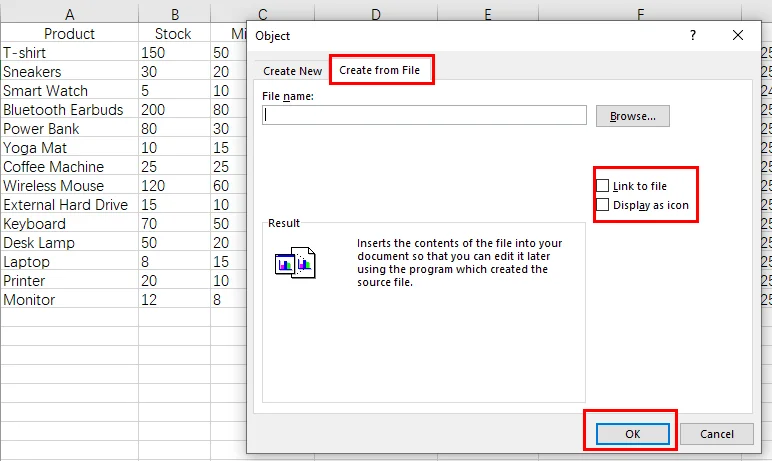
- Click OK.
The Pros: It’s free and very easy.
The Cons: The Cons: It is not suitable for batch processing, and it relies heavily on the local system’s OLE configuration.
Method 2: Embed a PDF Document in Excel with Code
What if you are building a web application or a server-side service that needs to generate reports with PDF attachments? It is not recommended to install Microsoft Office on a server just for this. This is where Free Spire.XLS comes in. It embeds a PDF in an Excel worksheet by inserting OLE objects.

How to embed a PDF in an Excel file programmatically
Using a library like Free Spire.XLS allows you to automate the process without opening the Excel interface. You can precisely place a PDF into a specific cell range using code.
For developers, the key is the OleObjectType enumeration. Since you are dealing with PDFs, you would use OleObjectType.AdobeAcrobatDocument.
Here's how it works in Python:
- Install Free Spire.XLS and import the essential modules.
- Create Workbook object and load an Excel file.
- Access the target worksheet.
- Load an image to use as the placeholder icon.
- Embed a PDF in the Excel file using the Worksheet.OleObjects.Add() method.
- Specify the display location of the OLE object, and set the OLE object type to AdobeAcrobatDocument through OleObjectType property.
- Save the modified Excel workbook.
Below is a sample code:
from spire.xls import *
from spire.xls.common import *

# Create a Workbook object and load an Excel file
workbook = Workbook()
workbook.LoadFromFile("/input/sales report.xlsx")
# Get the first worksheet
sheet = workbook.Worksheets[0]

# Add a descriptive label to cell A16
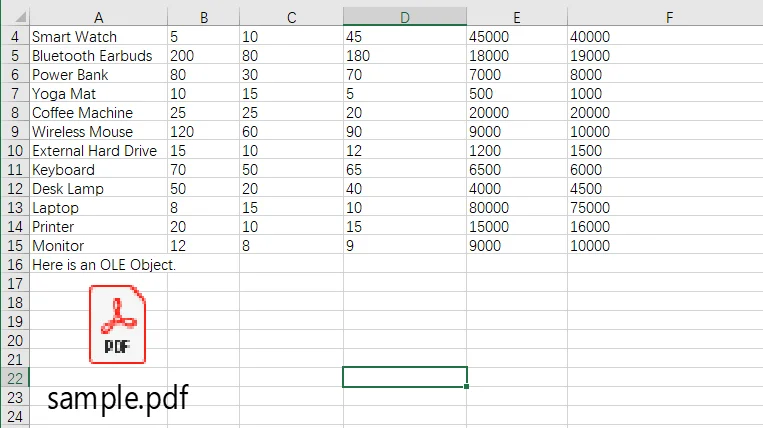
sheet.Range["A16"].Text = "Here is an OLE Object."

# Define the paths for the PDF and the placeholder icon
pdf_path = "/input/sample.pdf"
icon_path = "/pdf.png"

# Read the icon image as a byte stream
with open(icon_path, 'rb') as f:
    img_data = f.read()
    icon_stream = Stream(img_data)

    # Add the PDF as an embedded OLE object using the image stream
    oleObject = sheet.OleObjects.Add(pdf_path, icon_stream, OleLinkType.Embed)

# Specify the display location of the OLE object
oleObject.Location = sheet.Range["A17"]

# Set the OLE object type to AdobeAcrobatDocument (Standard for PDFs)
oleObject.ObjectType = OleObjectType.AdobeAcrobatDocument

# Save the modified workbook to the output directory
workbook.SaveToFile("/output/OleObject.xlsx", ExcelVersion.Version2016)

# Dispose of the workbook to release resources
workbook.Dispose()
Output file preview:
Why go the "Without Office" route with Free Spire.XLS?
- Massive Automation: You can loop through a folder of 500 PDFs and embed each one into a corresponding row in seconds.
- Precision: You can set the exact height, width, and cell coordinates for the PDF icon.
- No Dependencies: Your server doesn't need Excel installed, which is safer and more efficient for enterprise environments.
Method 3: Display PDF Content as Images
Sometimes, you don't want your users to have to double-click an icon; you want them to see the content of the PDF as they scroll through the spreadsheet. Then you can insert screenshot images of a PDF by pasting it into an Excel file.
How to embed a PDF file in an Excel worksheet as an image
-
With Office: You can use the "Screen Clipping" tool or take a screenshot of the PDF and paste it into Excel.
-
Without Office: You can use a two-step automated process. First, use a PDF library to convert the PDF pages into images (PNG or JPEG), then use Free Spire.XLS to insert those images into the worksheet.
This is the best solution for embedding a PDF file when the visual data is more important than the actual file format.
Supplement: Linking vs. Attaching
If you are worried about your Excel file becoming too large and slowing down the opening and processing speed, you should consider linking instead of embedding PDFs.
-
Embedding (Attachment): The PDF is part of the
.xlsxfile. High portability, high file size. -
Linking (Hyperlink): The Excel file only stores the "path" to the PDF. Low file size, but if you move the PDF or send the Excel file to someone else, the link will break.
A Side-by-Side Comparison: Microsoft Office vs. Free Spire.XLS
To help you quickly identify the most suitable solution, this section compares Microsoft Office and Free Spire.XLS across four key dimensions that matter most when embedding PDFs into Excel files:
| Requirement | Microsoft Office | Free Spire.XLS |
|---|---|---|
| Installation | Requires Microsoft Office | Requires Free Spire.XLS DLL |
| Processing Speed | Manual and time-consuming | Automated and fast |
| Flexibility | Drag-and-drop, limited control | Logic-driven and highly extensible |
| Best Use Case | Individual desktop use | Server-side or production environments |
FAQs about Embedding a PDF in an Excel File
1. How do I embed a PDF in Excel?
You can use the "Insert Object" menu in Office or the Worksheet.OleObjects.Add() method in Free Spire.XLS for automation.
2. How do I embed a file in Excel as an attachment?
Follow the "Insert Object" steps and always check "Display as Icon." This treats the file like a clickable attachment.
3. Can you embed a PDF in Google Sheets?
No. Google Sheets does not support OLE embedding. Your only option there is to upload the PDF to Google Drive and use a hyperlink.
Conclusion
Deciding how to embed a PDF in Excel depends largely on your working environment. For business users handling a one-off report, the built-in "Insert" and "Object" feature in Microsoft Office is usually sufficient. However, if you are an IT professional or developer who needs to scale or automate the process, an Office-independent solution such as Free Spire.XLS is a better fit. Choosing the right approach ensures your Excel files remain organized, professional, and—most importantly—complete.