
ODS (OpenDocument Spreadsheet) is the default format used by LibreOffice and Apache OpenOffice, while Excel formats (XLSX and XLS) remain dominant in business, reporting, and data analysis environments. When spreadsheets need to be shared, reviewed, or integrated into Excel-based workflows, converting ODS to Excel becomes unavoidable.
This guide covers four practical ways to convert ODS files to Excel, including desktop software, online tools, and Python automation. Whether you're a casual user, a business professional, or a developer, you'll find the right solution here.
- Why Convert ODS to Excel
- Method 1. Convert ODS to Excel Using LibreOffice or OpenOffice
- Method 2. Convert ODS to Excel Using Microsoft Excel
- Method 3. Convert ODS to Excel Online for Free
- Method 4. Automate ODS to Excel Conversion with Python
- How to Avoid Common Issues During the Conversion
- ODS to XLSX vs. ODS to XLS: Which Format Should You Choose?
Tip: Need to revert the process? Check out our Excel to ODS conversion guide to convert your Excel files back to ODS format efficiently.
Why Convert ODS to Excel?
Converting ODS to Excel (XLSX or XLS) is often necessary for the following reasons:
- Better compatibility with Microsoft Excel: Most organizations use Excel for reporting, dashboards, and analytics.
- Easier collaboration: Share spreadsheets seamlessly with colleagues or clients who rely on Excel.
- Advanced Excel features: Full support for PivotTables, macros, charts, and data analysis tools.
- Integration with workflows: Ensure ODS data works in Excel-based reporting and enterprise systems.
For a detailed comparison of feature support between ODS and Excel formats, see this Microsoft support document.
Method 1. Convert ODS to Excel Using LibreOffice or OpenOffice
LibreOffice and Apache OpenOffice are free and open-source office suites that allow you to convert ODS files to Excel formats. This method is reliable for users who prefer desktop tools and want full control over their data.
Steps:
-
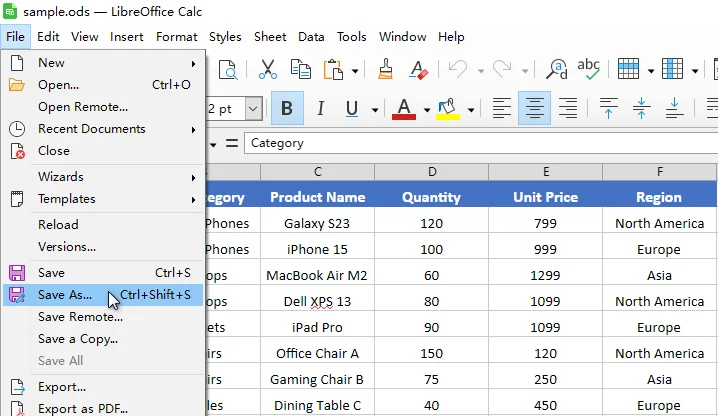
Open your ODS file in LibreOffice Calc or OpenOffice Calc.
-
Go to File > Save As.
-
In the Save as type dropdown, select Microsoft Excel 2007-365 (*.xlsx) or Excel 97-2003 (*.xls).
-
Choose a destination folder and click Save.
This approach preserves most formulas and formatting and works entirely offline, making it suitable for sensitive or internal files.
You might also be interested in: 4 Proven Ways to Convert CSV to Excel (Free & Automated)
Method 2. Convert ODS to Excel Using Microsoft Excel
Modern versions of Microsoft Excel (2010 and later) can directly open ODS files and save them as XLSX or XLS formats. This method is convenient for users who already work in Excel and need to convert individual files quickly.
Steps:
-
Open Microsoft Excel.
-
Click File > Open and select your ODS file.
-
After the file loads, click File > Save As.
-
Choose Excel Workbook (*.xlsx) or Excel 97-2003 Workbook (*.xls).

-
Save the file to your preferred location.
Tip: While Excel handles standard ODS content well, features specific to the ODS specification-such as certain styles or functions-may need to be reviewed after conversion.
Method 3. Convert ODS to Excel Online for Free
Online ODS to Excel converters let you upload an ODS file and download the converted Excel file directly from your browser. This method is convenient for quick, one-time conversions when you don't want to install any software.
Popular online converters include:
- Zamzar
- CloudConvert
- FreeConvert
Steps to Convert ODS to Excel Online (Using Zamzar as an Example):
-
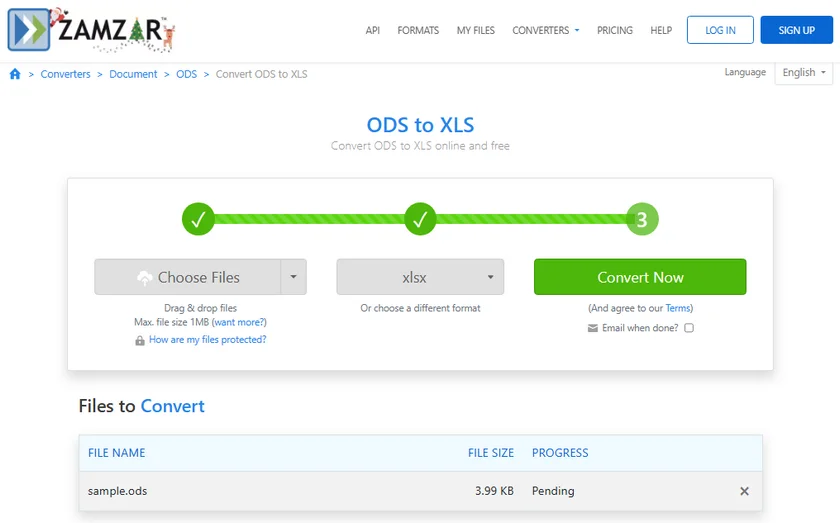
Open the Zamzar ODS to Excel converter.
-
Click Choose Files to upload the ODS file you want to convert.
-
Select xls or xlsx as the output format.
-
Click Convert Now and wait for the conversion process to finish.
-
Download the converted Excel file.
Note: Online converters require file uploads, so they are not recommended for confidential data or very large spreadsheets.
Method 4. Automate ODS to Excel Conversion Using Python
For large numbers of files or regular conversions, automation with Python is the most efficient method. Libraries such as Spire.XLS for Python provides a reliable way to programmatically read ODS files and export them to Excel formats, especially when LibreOffice or Microsoft Excel is not available.

Steps to Batch Convert ODS to Excel:
-
Install Spire.XLS for Python from PyPI using pip:
pip install spire.xls -
Create a Python script to loop through a folder of ODS files and save each as Excel.
from spire.xls import * import os # Input and output folder paths input_folder = "path_to_ods_files" output_folder = "path_to_excel_files" # Create output folder if it doesn't exist os.makedirs(output_folder, exist_ok=True) # Loop through all ODS files in the input folder for file_name in os.listdir(input_folder): if file_name.lower().endswith(".ods"): # Create a workbook object wb = Workbook() # Load the ODS file wb.LoadFromFile(os.path.join(input_folder, file_name)) # Save the ODS file as an XLSX file wb.SaveToFile(os.path.join(output_folder, os.path.splitext(file_name)[0] + ".xlsx"), FileFormat.Version2013) # Or save it as an XLS file # wb.SaveToFile(os.path.join(output_folder, os.path.splitext(file_name)[0] + ".xls"), FileFormat.Version97to2003) # Release resources wb.Dispose() -
Run the script to convert all files automatically.
This approach is typically chosen by developers and data teams who need consistent, repeatable ODS to Excel conversion as part of an automated workflow.
Reference: Spire.XLS for Python Official Documentation
How to Avoid Common Issues During the Conversion
To achieve better ODS to Excel conversion results, consider the following best practices:
-
Avoid unsupported features
Advanced elements such as macros, external links, or complex charts may not fully translate between formats.
-
Use standard fonts
Widely supported fonts reduce layout changes after conversion.
-
Review formulas carefully
While most formulas convert correctly, function compatibility may vary.
-
Test with a sample file
Always validate the output before converting large batches.
ODS to XLSX vs. ODS to XLS: Which Format Should You Choose?
When converting ODS to Excel, you typically choose between two formats:
-
ODS to XLSX
Recommended for modern versions of Excel. Supports larger datasets, better formatting, and newer Excel features.
-
ODS to XLS
Intended for older Excel versions. Limited in size and functionality.
In most cases, ODS to XLSX is the preferred and future-proof option.
Conclusion
There is no one-size-fits-all solution for converting ODS to Excel. Choose the method based on your needs:
- For occasional or manual conversions, LibreOffice or Microsoft Excel provides a simple and reliable solution.
- For quick, one-time tasks, online ODS to Excel converters are convenient.
- For professional, large-scale, or automated scenarios, using Python to batch convert ODS to Excel offers the highest efficiency and control.
By choosing the appropriate method, you can ensure accurate ODS to XLSX or XLS conversion while maintaining productivity and data integrity.
FAQs: ODS to Excel
Q1: What's the difference between ODS and Excel formats?
A1: ODS is a file format developed as part of the OpenDocument standard, primarily used by open-source spreadsheet applications like LibreOffice Calc and OpenOffice Calc. While Excel (XLSX/XLS) is Microsoft's proprietary format, it's widely used in business and supports advanced features such as PivotTables, macros, and large datasets.
Q2: Can I convert ODS to Excel without installing any software?
A2: Yes, free online tools like Zamzar, Convertio, and CloudConvert allow you to convert ODS to XLSX/XLS directly in your browser.
Q3: Will formulas in ODS files work in Excel after conversion?
A3: Most standard formulas are preserved, but complex formulas or macros may require manual adjustment.
Q4: Can I convert multiple ODS files to Excel at once?
A4: Yes, using Python with libraries like Spire.XLS for Python, you can automate batch conversions efficiently.