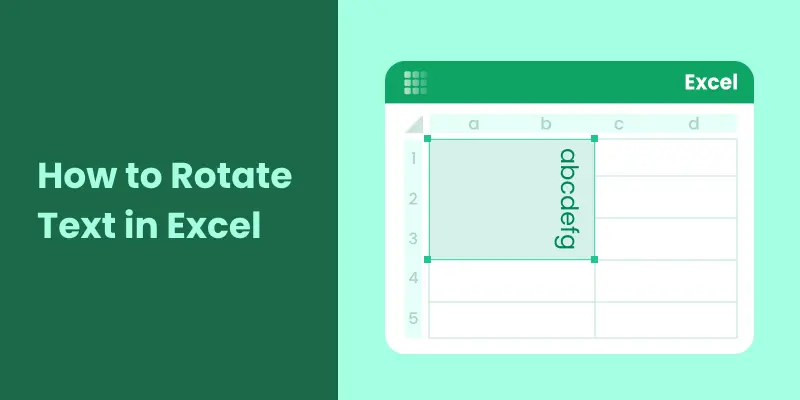
In Excel worksheets with many narrow columns, long header text often forces rows to become taller or makes tables harder to scan. Simply wrapping or shrinking text doesn't always solve the problem-and can even reduce readability. Rotating text in Excel offers a cleaner solution by letting you display labels vertically or at an angle, saving space while keeping your layout clear and professional.
In this guide, you'll learn 7 practical ways to rotate text in Excel, from built-in formatting tools to automated solutions using VBA and Python, so you can choose the right method for any scenario.
- Why Rotating Text in Excel?
- How to Rotate Text in Excel Manually
- How to Rotate Text in Excel Automatically
- Best Practices for Rotating Text in Excel
Also Read:
How to Shrink Text or Cells to Fit Cell Content
How to Add Watermarks to Excel (4 Easy Ways)
Why Rotating Text in Excel?
Rotating text in Excel helps you:
- Fit longer headers into narrow columns without enlarging the sheet
- Make more rows visible on screen, improving overall readability
- Organize dashboards and reports with a cleaner, more professional look
- Highlight key labels or sections for easier analysis
How to Rotate Text in Excel Manually
Excel provides multiple built-in ways to rotate text in cells without writing any code. These methods are best suited for quick formatting tasks, small datasets, or one-time layout adjustments.
Rotate Text Using the Format Cells Dialog Box
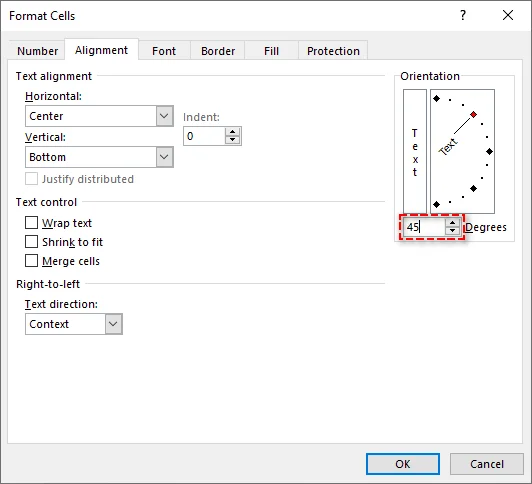
The Format Cells dialog box is the most flexible option to rotate text in Excel. It allows you to set an exact angle, which is especially useful for custom layouts or non-standard header orientations.
Steps:
-
Click the cell containing the text you want to rotate.
-
Right-click the selected cell and choose Format Cells… from the context menu.
-
In the Format Cells dialog box, switch to the Alignment tab.
-
In the Orientation section, drag the rotation slider or enter a value between -90° and 90° in the Degrees box.
-
Click OK to rotate the text.
Rotate Text Using the Ribbon (Home Tab)
The Ribbon provides a convenient way to rotate text using predefined orientation styles. This method is best for users who want quick results without adjusting custom angles.
Steps:
-
Highlight the cell with the text you want to rotate.
-
On the Excel Ribbon, go to the Home tab.
-
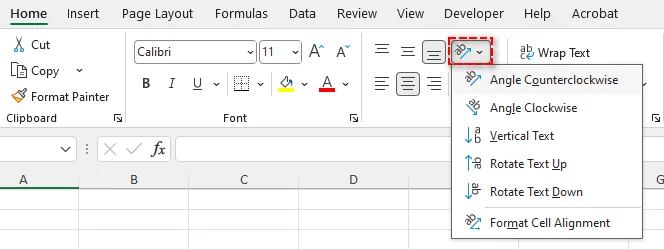
In the Alignment group, click the Orientation icon (displayed as a slanted "ab" symbol).
-
From the drop-down menu, select a preset style such as Rotate Text Up, Rotate Text Down, or Vertical Text.
Use Keyboard Shortcuts to Rotate Text
For users who prefer keyboard navigation, shortcuts provide a quicker way to rotate text in Excel. This method is especially useful for quickly formatting headers, tables, or dashboards without opening additional dialogs.
Shortcut keys for rotating text in Excel:
- ALT > H > F > Q > L: Rotate text clockwise
- ALT > H > F > Q > O: Rotate text counterclockwise
- ALT > H > F > Q > V: Rotate text vertically
- ALT > H > F > Q > U: Rotate text up
- ALT > H > F > Q > D: Rotate text down
Steps:
- Select the cell or range you want to rotate.
- Press one of the keyboard shortcuts above in sequence to apply the desired text rotation.
- Text rotates immediately according to the selected shortcut.
Rotate Text with Text Box
Text boxes allow you to rotate text independently of cell formatting. This method is useful when text needs to be positioned freely or placed on top of charts and shapes.
Steps:
-
Go to the Insert tab and click Text Box.
-
Click and drag on the worksheet to create the text box.
-
Type the desired text inside the text box.
-
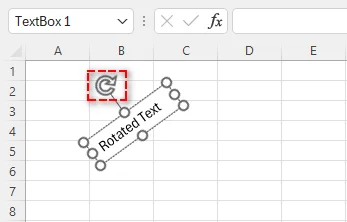
Select the text box, then drag the rotation handle at the top to rotate it to any angle.
Rotate Text with WordArt
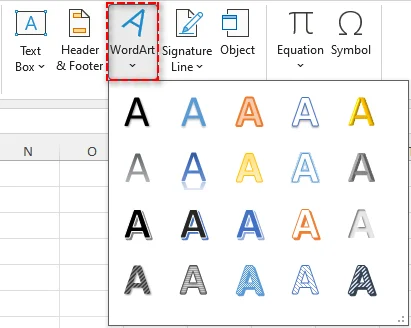
WordArt is designed for decorative purposes, but it can also be used to rotate text in Excel while applying visual effects like outlines, colors, or transformations.
Steps:
-
Go to Insert > WordArt and choose a style.
-
Replace the placeholder text with your own.
-
Click the WordArt to activate formatting options.
-
Drag the rotation handle or use the Shape Format tab to set rotation values.
WordArt works best for headings, section labels, or presentation-style Excel files.
How to Rotate Text in Excel Automatically
For larger datasets or repeated tasks, automating the rotation of text using VBA or Python is far more efficient than manual methods.
Rotate Text with VBA
VBA (Visual Basic for Applications) provides a built-in way to automate text rotation directly within Excel. This method is ideal when text rotation needs to be applied dynamically based on user actions, worksheet conditions, or predefined rules inside a workbook.
Steps to rotate text in Excel using VBA:
-
Press Alt + F11 to open the VBA editor.
-
In the editor, click Insert > Module to create a new module.
-
Add the following VBA Code to automatically rotate text in selected cells:
Sub RotateText()
    Dim rng As Range
    Set rng = Selection

    ' Rotate text for all selected cells
    rng.Orientation = 45
End Sub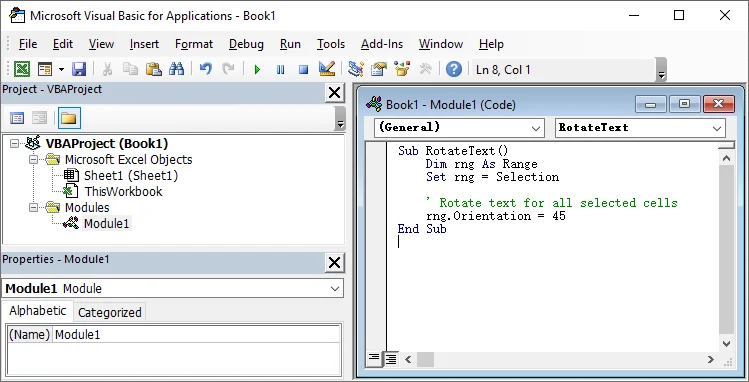
-
Close the editor, press Alt + F8, select RotateText, and click Run.
Tip: Once created, this macro can be reused at any time. You can also modify it to target a specific range or assign it to a Ribbon button for faster access.
Reference: Range.Orientation property (Excel)
Rotate Text with Python
Python automation is well-suited for rotating text in Excel files at scale, such as when processing multiple workbooks or applying consistent formatting as part of a data-processing workflow. This approach runs without manual interaction with Excel, making it ideal for batch operations, automated scripts, and server-side environments where Excel is not opened interactively.
Using libraries like Spire.XLS for Python, you can rotate text programmatically across worksheets and save the updated files automatically.

Steps to rotate text in Excel using Python:
-
Install the Spire.XLS for Python Library from PyPI:
pip install spire.xls -
Write the Python Script to automatically rotate text in specifiied cell:
from spire.xls import * # Load Excel file workbook = Workbook() workbook.LoadFromFile("example.xlsx") # Access the first worksheet sheet = workbook.Worksheets[0] # Rotate text in cell A1 sheet.Range["A1"].Style.Rotation = 45 # Save the updated workbook workbook.SaveToFile("example_rotated.xlsx", FileFormat.Version2016) workbook.Dispose() -
Save and run the script.
Tip: You can loop through multiple sheets or workbooks to apply rotation in batch operations.
Related Article: Python: Set Text Alignment and Orientation in Excel
Best Practices for Rotating Text in Excel
After learning the different methods to rotate text in Excel, it's important to follow a few best practices to ensure your formatting remains clear and professional.
- Use Rotation Sparingly: Rotating text in Excel can help fit content and improve layout, but overusing it may make your spreadsheet look cluttered and harder to read.
- Align Text Properly: After rotating text, ensure it is correctly aligned within the cell or table. You may need to adjust row height, column width, or text alignment to maintain a neat appearance.
- Prioritize Readability: Consider the orientation of the content when rotating text. Vertical text can be more difficult to read than horizontal text, so use it mainly for space-saving or special layout needs.
Conclusion
Rotating text in Excel helps manage space and improve clarity in Excel worksheets. For occasional adjustments, Excel's built-in rotation features are usually sufficient. When formatting needs to be applied repeatedly or across multiple files, VBA and Python automation offer more efficient and scalable solutions. Choosing the right approach depends on how often you need to rotate text and how complex your workflow is.
FAQs
Q1: How do I rotate text vertically in Excel?
A1: You can use the Format Cells dialog box, the Ribbon Orientation tool, or VBA/Python automation to rotate text vertically in Excel.
Q2: Can I rotate text automatically for multiple Excel sheets?
A2: Yes. Using VBA or Python, you can apply rotation across multiple worksheets or workbooks in batch mode.
Q3: What is the difference between VBA and Python for text rotation in Excel?
A3: VBA works inside Excel and is ideal for workbook-specific macros, while Python handles multiple files, batch operations, and server-side automation without opening Excel interactively.
Q4: Can I rotate text in Excel without affecting other cell formatting?
A4: Yes. Using Text Boxes or WordArt allows rotation independent of cell formatting.