Replace Placeholders in Word Documents with HTML or Paragraphs from Another Document Using JavaScript in React
Replacing placeholders in documents with HTML content or paragraphs from another document is a highly practical need in document automation — for example, inserting rich HTML content authored in a WYSIWYG editor into placeholder positions in a Word template, or extracting specific paragraphs from a standard clause library and replacing corresponding placeholders in a contract template. Spire.Doc for JavaScript handles such replacement operations entirely in the browser via WebAssembly, using a virtual file system (VFS) to manage fonts and document files — no backend server required.
This article covers two core features:
For installation and project setup, refer to Integrating Spire.Doc for JavaScript in a React Project. The examples below assume Spire.Doc is installed and the WebAssembly module is initialized.
Replace Placeholder with HTML
Replacing a placeholder with HTML involves three stages: first, load the font files, the HTML file, and the target Word document into the WASM virtual file system via FetchFileToVFS; then, create a temporary Section, render the HTML string into document objects using AppendHTML, collect them into a replacement list, find all [#placeholder] occurrences with FindAllString, sort the matched positions, and insert the replacement content one by one via ChildObjects.Insert while removing the original text; finally, remove the temporary Section, save the document, read the generated file from VFS, wrap it as a Blob, and trigger a browser download.
import React, { useState } from 'react';

function App() {
  // Define the placeholder replacement logic
  function ReplacedWithHTML(location, replacement) {
    let textRange = location.Text;
    let index = location.Index;
    let paragraph = location.Owner;
    let sectionBody = paragraph.OwnerTextBody;
    let paragraphIndex = sectionBody.ChildObjects.IndexOf(paragraph);

    let replacementIndex = -1;
    if (index === 0) {
      paragraph.ChildObjects.RemoveAt(0);
      replacementIndex = sectionBody.ChildObjects.IndexOf(paragraph);
    } else if (index === paragraph.ChildObjects.Count - 1) {
      paragraph.ChildObjects.RemoveAt(index);
      replacementIndex = paragraphIndex + 1;
    } else {
      let paragraph1 = paragraph.Clone();
      while (paragraph.ChildObjects.Count > index) {
        paragraph.ChildObjects.RemoveAt(index);
      }
      let i = 0;
      let count = index + 1;
      while (i < count) {
        paragraph1.ChildObjects.RemoveAt(0);
        i += 1;
      }
      sectionBody.ChildObjects.Insert(paragraphIndex + 1, paragraph1);
      replacementIndex = paragraphIndex + 1;
    }

    for (let i = 0; i <= replacement.length - 1; i++) {
      sectionBody.ChildObjects.Insert(replacementIndex + i, replacement[i].Clone());
    }
  }

  function TextRangeLocation(TextRange) {
    this.Text = TextRange;
    this.Owner = this.Text.OwnerParagraph;
    this.Index = this.Owner.ChildObjects.IndexOf(this.Text);
    this.CompareTo = function (other) {
      return -(this.Index - other.Index);
    };
  }

  const ReplaceWithHTML = async () => {
    // Get the Spire.Doc WASM module
    const docModule = window.wasmModule?.spiredoc;

    // Check if the module is ready
    if (!docModule) {
      alert('Spire.Doc is not ready yet');
      return;
    }

    // Load the font file into the virtual file system (VFS)
    await window.spire.FetchFileToVFS('arial.ttf', '/Library/Fonts/', `${process.env.PUBLIC_URL}/font/`);

    // Load the HTML file and Word document into VFS
    let HTMLName = 'InputHtml.txt';
    await window.spire.FetchFileToVFS(HTMLName, '', `${process.env.PUBLIC_URL}/data/`);
    const HTML = window.dotnetRuntime.Module.FS.readFile(HTMLName);

    let inputFileName = 'ReplaceWithHtml.docx';
    await window.spire.FetchFileToVFS(inputFileName, '', `${process.env.PUBLIC_URL}/data/`);

    // Load the document
    let doc = new docModule.Document();
    doc.LoadFromFile(inputFileName);

    // Create a temporary Section and render the HTML
    let replacement = [];
    let tempSection = doc.AddSection();
    let par = tempSection.AddParagraph();
    const decoder = new TextDecoder('utf-8');
    const HTMLString = decoder.decode(HTML);
    par.AppendHTML(HTMLString);

    // Collect the rendered document objects
    for (let i = 0; i < tempSection.Body.ChildObjects.Count; i++) {
      let docObj = tempSection.Body.ChildObjects.get_Item(i);
      replacement.push(docObj);
    }

    // Find all placeholders and sort
    let selections = doc.FindAllString('[#placeholder]', false, true);
    let locations = [];
    for (let selection of selections) {
      locations.push(new TextRangeLocation(selection.GetAsOneRange()));
    }
    locations.sort();

    // Replace one by one
    for (let location of locations) {
      ReplacedWithHTML(location, replacement);
    }

    // Remove the temporary Section
    doc.Sections.Remove(tempSection);

    // Define the output file name and save
    const outputFileName = 'ReplaceWithHtml_output.docx';
    doc.SaveToFile({ fileName: outputFileName, fileFormat: docModule.FileFormat.Docx2013 });

    // Release resources
    doc.Dispose();

    // Read the generated file from VFS and trigger download
    const modifiedFileArray = window.dotnetRuntime.Module.FS.readFile(outputFileName);
    const blob = new Blob([modifiedFileArray], { type: 'application/vnd.openxmlformats-officedocument.wordprocessingml.document' });
    const url = URL.createObjectURL(blob);
    const a = document.createElement('a');
    a.href = url;
    a.download = outputFileName;
    a.click();
    URL.revokeObjectURL(url);
  };

  return (
    <div style={{ textAlign: 'center', height: '300px' }}>
      <h1>Replace Placeholder with HTML in a Word Document</h1>
      <button onClick={ReplaceWithHTML}>
        Generate
      </button>
    </div>
  );
}

export default App;
The [#placeholder] placeholders in the document are replaced with rich text content rendered from HTML
![The [#placeholder] placeholders in the document are replaced with rich text content rendered from HTML](https://cdn.e-iceblue.com/images/art_images/replace-placeholder-with-html-or-paragraph-en-1.webp)
Replace Placeholder with Paragraphs from Another Document
Replacing a placeholder with paragraphs from another document involves three stages: first, load the font files and two Word documents into the WASM virtual file system via FetchFileToVFS; then, load the main document and the source document separately, use FindAllPattern with a regular expression to find placeholders (such as [MY_DOCUMENT]), iterate through all Sections and Paragraphs of the source document, insert each paragraph into the corresponding position in the main document using ChildObjects.Insert, and finally remove the original placeholder text; lastly, save the document, read the generated file from VFS, wrap it as a Blob, and trigger a browser download.
import React, { useState } from 'react';

function App() {
  const ReplaceContentWithDoc = async () => {
    // Get the Spire.Doc WASM module
    const docModule = window.wasmModule?.spiredoc;

    // Check if the module is ready
    if (!docModule) {
      alert('Spire.Doc is not ready yet');
      return;
    }

    // Load the two Word documents into VFS
    let inputFileName1 = 'ReplaceContentWithDoc.docx';
    await window.spire.FetchFileToVFS(inputFileName1, '', `${process.env.PUBLIC_URL}/data/`);

    let inputFileName2 = 'Insert.docx';
    await window.spire.FetchFileToVFS(inputFileName2, '', `${process.env.PUBLIC_URL}/data/`);

    // Load the main document
    let document1 = new docModule.Document();
    document1.LoadFromFile(inputFileName1);

    // Load the source document (contains paragraphs to insert)
    let document2 = new docModule.Document();
    document2.LoadFromFile(inputFileName2);

    // Get the first Section of the main document
    let section1 = document1.Sections.get_Item(0);

    // Create a regex to find the placeholder
    let regex = new docModule.Regex('\\[MY_DOCUMENT\\]', docModule.RegexOptions.None);

    // Find all matching placeholders
    let textSections = document1.FindAllPattern({ pattern: regex });

    // Iterate through each match
    for (let i = 0; i < textSections.length; i++) {
      let selection = textSections[i];
      let para = selection.GetAsOneRange().OwnerParagraph;
      let textRange = selection.GetAsOneRange();
      let index = section1.Body.ChildObjects.IndexOf(para);

      // Insert all paragraphs from the source document at the placeholder position
      for (let i = 0; i < document2.Sections.Count; i++) {
        let section2 = document2.Sections.get_Item(i);
        for (let j = 0; j < section2.Paragraphs.Count; j++) {
          let paragraph = section2.Paragraphs.get_Item(j);
          section1.Body.ChildObjects.Insert(index++, paragraph.Clone());
        }
      }

      // Remove the original placeholder text
      para.ChildObjects.Remove(textRange);
    }

    // Define the output file name and save
    const outputFileName = 'ReplaceContentWithDoc_output.docx';
    document1.SaveToFile({ fileName: outputFileName, fileFormat: docModule.FileFormat.Docx2013 });

    // Release resources
    document1.Dispose();

    // Read the generated file from VFS and trigger download
    const modifiedFileArray = window.dotnetRuntime.Module.FS.readFile(outputFileName);
    const blob = new Blob([modifiedFileArray], { type: 'application/vnd.openxmlformats-officedocument.wordprocessingml.document' });
    const url = URL.createObjectURL(blob);
    const a = document.createElement('a');
    a.href = url;
    a.download = outputFileName;
    a.click();
    URL.revokeObjectURL(url);
  };

  return (
    <div style={{ textAlign: 'center', height: '300px' }}>
      <h1>Replace Placeholder with Paragraphs from Another Document</h1>
      <button onClick={ReplaceContentWithDoc}>
        Generate
      </button>
    </div>
  );
}

export default App;
The [MY_DOCUMENT] placeholder in the main document is replaced with all paragraphs from the source document
![The [MY_DOCUMENT] placeholder in the main document is replaced with all paragraphs from the source document](https://cdn.e-iceblue.com/images/art_images/replace-placeholder-with-html-or-paragraph-en-2.webp)
FAQ
HTML content formatting is not displayed correctly
Cause: The AppendHTML method supports a limited range of HTML tags, only recognizing basic block-level and inline tags (such as <p>, <b>, <i>, <table>, etc.). Complex CSS styles, JavaScript code, or HTML5-specific tags are ignored.
Solution: Ensure the input HTML uses only basic tags and defines formatting through inline styles (such as style="color:red") rather than CSS class names:
<p style="font-size:14pt; color:#2E75B6;">This is blue heading text</p>
<ul><li>Item one</li><li>Item two</li></ul>
Inserted paragraph order does not match expectations
Cause: When replacing multiple placeholders, the matched positions are not sorted before processing. Replacing sequentially from beginning to end causes the indices of subsequent positions to shift, leading to paragraphs being inserted at incorrect locations.
Solution: Sort all matched positions in descending order by index (replacing from the end of the document backward), or track the original index offset for each position:
let locations = [];
for (let selection of selections) {
  locations.push(new TextRangeLocation(selection.GetAsOneRange()));
}
locations.sort(); // Descending order, replace from back to front
Get a Free License
Spire.Doc for JavaScript offers a 30-day full-featured free trial license with no functional limitations. Apply here to evaluate before purchasing.
Replace Text with Image or Table in Word with JavaScript in React
Replacing specific placeholder text with images or tables is a common requirement in real-world development — such as replacing a "(Seal)" marker at the end of a contract with a company stamp image, or swapping a data summary placeholder with a statistics table. Spire.Doc for JavaScript runs entirely in the browser via WebAssembly, using a virtual file system (VFS) to manage fonts, images, and document files — no backend server required.
This article covers two core features:
For installation and project setup, refer to Integrating Spire.Doc for JavaScript in a React Project. The examples below assume Spire.Doc is installed and the WebAssembly module is initialized.
Replace Text with Image
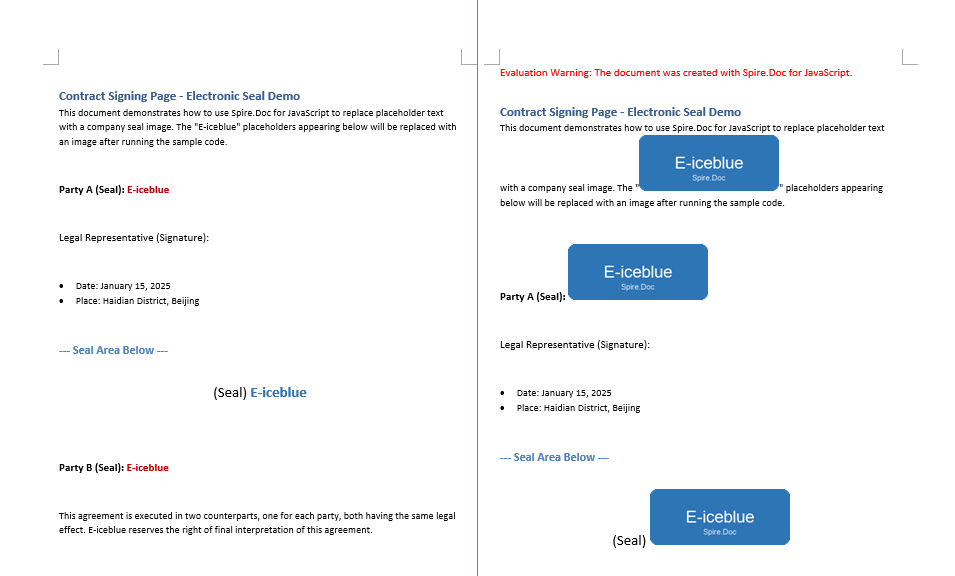
Replacing text with an image involves three steps: first, load the font files, the target image, and the Word document into the WASM virtual file system via FetchFileToVFS; then call FindAllString to locate all matching text, iterate through each match, load the image with DocPicture, insert it using ChildObjects.Insert, and remove the original text via ChildObjects.Remove; finally, save the document, read the generated file from VFS, wrap it as a Blob, and trigger a browser download.
import React, { useState } from 'react';

function App() {
  const ReplaceWithImage = async () => {
    // Get the Spire.Doc WASM module
    const docModule = window.wasmModule?.spiredoc;

    // Check if the module is ready
    if (!docModule) {
      alert('Spire.Doc is not ready yet');
      return;
    }

    // Load the image and Word document into VFS
    let pngName = 'E-iceblue.png';
    await window.spire.FetchFileToVFS(pngName, '', `${process.env.PUBLIC_URL}/data/`);

    let inputFileName = 'Template.docx';
    await window.spire.FetchFileToVFS(inputFileName, '', `${process.env.PUBLIC_URL}/data/`);

    // Load the document
    const doc = new docModule.Document();
    doc.LoadFromFile(inputFileName);

    // Find all matching text
    let selections = doc.FindAllString('E-iceblue', true, true);

    // Iterate through each match and replace text with the image
    for (let i = 0; i < selections.length; i++) {
      // Create a DocPicture object and load the image
      let pic = new docModule.DocPicture(doc);
      pic.LoadImage(pngName);
      let selection = selections[i];
      // Get the current text range
      let range = selection.GetAsOneRange();
      // Get the index of the TextRange in its owner paragraph's ChildObjects
      let index = range.OwnerParagraph.ChildObjects.IndexOf(range);
      // Insert the image at the TextRange position
      range.OwnerParagraph.ChildObjects.Insert(index, pic);
      // Remove the original TextRange
      range.OwnerParagraph.ChildObjects.Remove(range);
    }

    // Define the output file name and save
    const outputFileName = 'ReplaceWithImage_output.docx';
    doc.SaveToFile({ fileName: outputFileName, fileFormat: docModule.FileFormat.Docx2013 });

    // Release resources
    doc.Dispose();

    // Read the generated file from VFS and trigger download
    const modifiedFileArray = window.dotnetRuntime.Module.FS.readFile(outputFileName);
    const blob = new Blob([modifiedFileArray], { type: 'application/vnd.openxmlformats-officedocument.wordprocessingml.document' });
    const url = URL.createObjectURL(blob);
    const a = document.createElement('a');
    a.href = url;
    a.download = outputFileName;
    a.click();
    URL.revokeObjectURL(url);
  };

  return (
    <div style={{ textAlign: 'center', height: '300px' }}>
      <h1>Replace text with image in Word document</h1>
      <button onClick={ReplaceWithImage}>
        Generate
      </button>
    </div>
  );
}

export default App;
Target text in the document is found and replaced with the specified image
Replace Text with Table
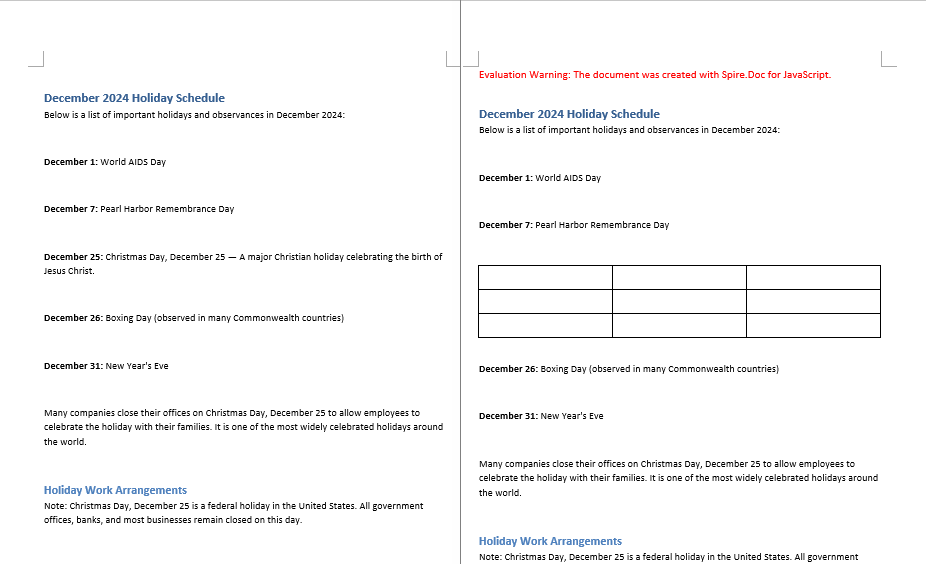
Replacing text with a table involves three steps: first, load the font files and the target Word document into the WASM virtual file system via FetchFileToVFS; then call FindString to locate the target text, retrieve the text range with GetAsOneRange, get the paragraph index via OwnerTextBody.ChildObjects, create a new table, remove the original paragraph with ChildObjects.Remove, and insert the table at the same position with ChildObjects.Insert; finally, save the document, read the generated file from VFS, wrap it as a Blob, and trigger a browser download.
import React, { useState } from 'react';

function App() {
  const ReplaceTextWithTable = async () => {
    // Get the Spire.Doc WASM module
    const docModule = window.wasmModule?.spiredoc;

    // Check if the module is ready
    if (!docModule) {
      alert('Spire.Doc is not ready yet');
      return;
    }

    // Load the font file into VFS
    await window.spire.FetchFileToVFS('ARIALUNI.TTF', '/Library/Fonts/', `${process.env.PUBLIC_URL}/font/`);

    // Load the Word document into VFS
    let inputFileName = 'Template_Docx_1.docx';
    await window.spire.FetchFileToVFS(inputFileName, '', `${process.env.PUBLIC_URL}/data/`);

    // Load the document
    const doc = new docModule.Document();
    doc.LoadFromFile(inputFileName);

    // Get the first section
    let section = doc.Sections.get_Item(0);

    // Find the target text
    let selection = doc.FindString('Christmas Day, December 25', true, true);

    // Get the text range and its owner paragraph
    let range = selection.GetAsOneRange();
    let paragraph = range.OwnerParagraph;

    // Get the text body and calculate the paragraph index
    let body = paragraph.OwnerTextBody;
    let index = body.ChildObjects.IndexOf(paragraph);

    // Create a 3x3 table
    let table = section.AddTable(true);
    table.ResetCells(3, 3);

    // Remove the original paragraph and insert the table at the same position
    body.ChildObjects.Remove(paragraph);
    body.ChildObjects.Insert(index, table);

    // Define the output file name and save
    const outputFileName = 'ReplaceTextWithTable_output.docx';
    doc.SaveToFile({ fileName: outputFileName, fileFormat: docModule.FileFormat.Docx2013 });

    // Release resources
    doc.Dispose();

    // Read the generated file from VFS and trigger download
    const modifiedFileArray = window.dotnetRuntime.Module.FS.readFile(outputFileName);
    const blob = new Blob([modifiedFileArray], { type: 'application/vnd.openxmlformats-officedocument.wordprocessingml.document' });
    const url = URL.createObjectURL(blob);
    const a = document.createElement('a');
    a.href = url;
    a.download = outputFileName;
    a.click();
    URL.revokeObjectURL(url);
  };

  return (
    <div style={{ textAlign: 'center', height: '300px' }}>
      <h1>Replace text with table in Word document</h1>
      <button onClick={ReplaceTextWithTable}>
        Generate
      </button>
    </div>
  );
}

export default App;
The target paragraph is removed and a table is inserted at the same position
FAQ
Image does not appear in the document after insertion
Cause: The image file was not loaded into the WASM virtual file system, or the FetchFileToVFS path is incorrect, causing DocPicture.LoadImage to fail when reading the image data from VFS.
Solution: Ensure the image file is properly loaded into VFS via FetchFileToVFS before calling LoadImage, and verify the file name and path match:
await window.spire.FetchFileToVFS(
  'E-iceblue.png', '', `${process.env.PUBLIC_URL}/data/`
);
Table is inserted at the wrong position
Cause: The paragraph index obtained via OwnerTextBody.ChildObjects.IndexOf is inaccurate, or the selected text spans multiple paragraphs, causing an index offset that places the table in the wrong location.
Solution: Verify that the text searched by FindString resides within a single paragraph, then use GetAsOneRange to obtain the correct OwnerParagraph before retrieving its index in OwnerTextBody.ChildObjects:
let range = selection.GetAsOneRange();
let paragraph = range.OwnerParagraph;
let body = paragraph.OwnerTextBody;
let index = body.ChildObjects.IndexOf(paragraph);
Get a Free License
Spire.Doc for JavaScript offers a 30-day full-featured free trial license with no functional limitations. Apply here to evaluate before purchasing.
Find and Replace Text in Word Documents with JavaScript in React
Text replacement is one of the most common operations in Word document processing — whether it's batch-replacing placeholders in contracts, standardizing terminology, or normalizing text of a specific pattern, the find-and-replace feature handles it efficiently. Spire.Doc for JavaScript processes Word documents directly in the browser via WebAssembly, using a virtual file system (VFS) to manage fonts and file resources — no backend server required.
This article covers two core features:
For installation and project setup, refer to Integrating Spire.Doc for JavaScript in a React Project. The examples below assume Spire.Doc is installed and the WebAssembly module is initialized.
Replace Specific Text
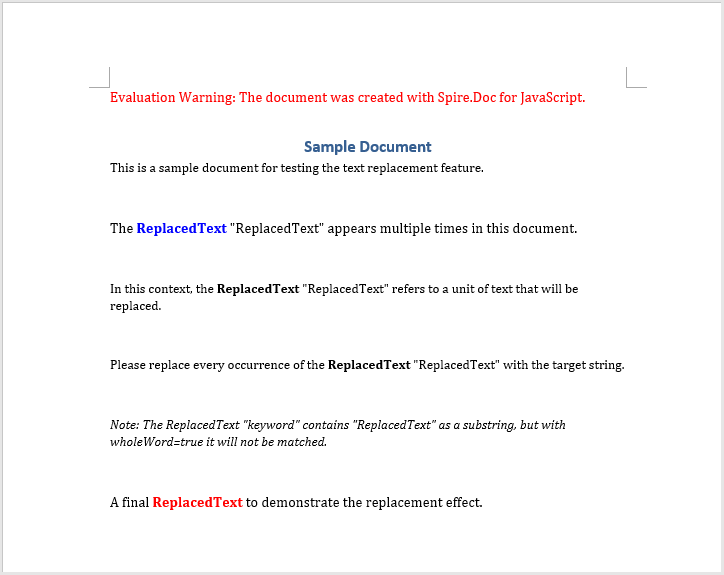
Replacing specific text is the most basic text operation — it replaces a word or phrase in a document with another string, with options for case sensitivity and whole-word matching. The core process involves three steps: first, load font files and the target Word document into the WASM virtual file system via FetchFileToVFS; then instantiate a Document, load the file, and call the Replace method to match a specified string and replace it with new text, controlling the matching rules through caseSensitive and wholeWord parameters; finally, save the document, read the generated file from VFS, wrap it as a Blob, and trigger a browser download.
import React, { useState } from 'react';

function App() {

  const ReplaceWithText = async () => {
      // Get the Spire.Doc WASM module
      const docModule = window.wasmModule?.spiredoc;

       // Check if the module is ready
       if (!docModule) {
        alert('Spire.Doc is not ready yet');
        return;
       }
        // Load the sample file into VFS
        let inputFileName = 'Sample.docx';
        await window.spire.FetchFileToVFS(inputFileName, '', `${process.env.PUBLIC_URL}/data/`);

        // Create a new document
        const doc = new docModule.Document();

        // Load the document from the virtual file system
        doc.LoadFromFile(inputFileName);

        // Replace text: "word" → "ReplacedText", case-insensitive, whole-word match
        doc.Replace({ matchString: 'word', newValue: 'ReplacedText', caseSensitive: false, wholeWord: true });

        // Define the output file name and save
        const outputFileName = 'ReplaceWithText_output.docx';
        doc.SaveToFile({ fileName: outputFileName, fileFormat: docModule.FileFormat.Docx2013 });

        // Release resources
        doc.Dispose();

        // Read the generated file from VFS and trigger download
        const modifiedFileArray = window.dotnetRuntime.Module.FS.readFile(outputFileName);
        const blob = new Blob([modifiedFileArray], { type: 'application/vnd.openxmlformats-officedocument.wordprocessingml.document'});
        const url = URL.createObjectURL(blob);
        const a = document.createElement('a');
        a.href = url;
        a.download = outputFileName;
        a.click();
        URL.revokeObjectURL(url);
  };

  return (
    <div style={{ textAlign: 'center', height: '300px' }}>
      <h1>Replace text in a Word document.</h1>
      <button onClick={ReplaceWithText}>
        Generate
      </button>
    </div>
    );
  };

export default App;
Target strings in the document are uniformly replaced with the new content after using the Replace method
Replace Text Using Regex
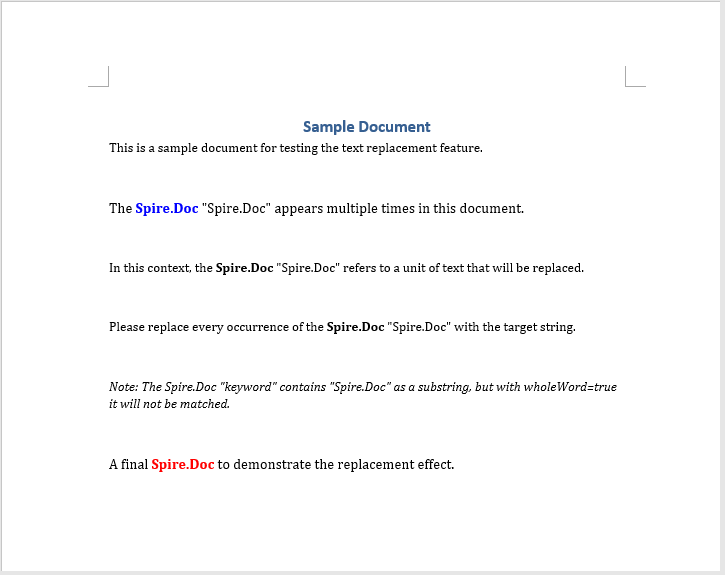
When you need to match text with variable formatting, regex is the most powerful tool — for example, replacing all hashtag labels starting with # with a fixed string. The core process involves three steps: first, load font files and the target Word document into the WASM virtual file system via FetchFileToVFS; then create a Regex object to define the matching pattern, and call the Replace method to uniformly replace all matched text with the specified content; finally, save the document, read the generated file from VFS, wrap it as a Blob, and trigger a browser download.
import React, { useState } from 'react';

function App() {

  const ReplaceWithText = async () => {
      // Get the Spire.Doc WASM module
      const docModule = window.wasmModule?.spiredoc;

       // Check if the module is ready
       if (!docModule) {
        alert('Spire.Doc is not ready yet');
        return;
       }
       // Load the sample file into VFS
        let inputFileName = 'Sample.docx';
        await window.spire.FetchFileToVFS(inputFileName, '', `${process.env.PUBLIC_URL}/data/`);

        // Create a new document
        const doc = new docModule.Document();

        // Load the document from the virtual file system
        doc.LoadFromFile(inputFileName);

        // Create a regex pattern to match whole words
        let regex = new docModule.Regex('\\bword\\b', docModule.RegexOptions.None);

        // Replace text using the regex
        doc.Replace(regex, 'Spire.Doc');

        // Define the output file name and save
        const outputFileName = 'ReplaceTextByRegex_output.docx';
        doc.SaveToFile({fileName: outputFileName, fileFormat: docModule.FileFormat.Docx2013 });

        // Release resources
        doc.Dispose();

        // Read the generated file from VFS and trigger download
        const modifiedFileArray = window.dotnetRuntime.Module.FS.readFile(outputFileName);
        const blob = new Blob([modifiedFileArray], { type: 'application/vnd.openxmlformats-officedocument.wordprocessingml.document'});
        const url = URL.createObjectURL(blob);
        const a = document.createElement('a');
        a.href = url;
        a.download = outputFileName;
        a.click();
        URL.revokeObjectURL(url);
  };

  return (
    <div style={{ textAlign: 'center', height: '300px' }}>
      <h1>Replace text in a Word document.</h1>
      <button onClick={ReplaceWithText}>
        Generate
      </button>
    </div>
    );
  };

export default App;
All strings matching the pattern are uniformly replaced after regex-based text replacement
FAQ
Text replacement does not take effect (text is not replaced)
Cause: The caseSensitive or wholeWord parameters are set incorrectly, causing the match to fail — the actual text does not meet the matching criteria.
Solution: Check whether the case matches, or set caseSensitive to false to ignore case, and wholeWord to false to match partial words:
doc.Replace({ matchString: 'word', newValue: 'ReplacedText', caseSensitive: false, wholeWord: false });
Regex pattern does not match the target content
Cause: Special characters (such as #, \) in the regex pattern are not properly escaped, causing the match to fail.
Solution: Ensure that special characters in the regex pattern are correctly escaped. For example, when matching #tag-style text:
let regex = new wasmModule.Regex('#\\S+', wasmModule.RegexOptions.None);
Get a Free License
Spire.Doc for JavaScript offers a 30-day full-featured free trial license with no functional limitations. Apply here to evaluate before purchasing.
Replace Text with Field or Another Document in Word with JavaScript in React
Replacing specific text with field codes or another document's content is a highly practical need in document automation — such as replacing a "current date" placeholder with a DATE field that automatically updates to the system date each time the document is opened, or swapping a "terms" placeholder in a contract template with detailed clause content from another Word document for modular document assembly. Spire.Doc for JavaScript runs entirely in the browser via WebAssembly, using a virtual file system (VFS) to manage fonts and document files — no backend server required.
This article covers two core features:
For installation and project setup, refer to Integrating Spire.Doc for JavaScript in a React Project. The examples below assume Spire.Doc is installed and the WebAssembly module is initialized.
Replace Text with a Field
Replacing text with a field involves three steps: first, load the font files and the target Word document into the WASM virtual file system via FetchFileToVFS; then call FindString to locate the target text, retrieve its paragraph and position index, create a Field object with the desired field type (such as FieldDate), sequentially insert Field, FieldMark(FieldSeparator), and FieldMark(FieldEnd) into the paragraph to construct a complete field structure, and finally remove the original text; finally, save the document, read the generated file from VFS, wrap it as a Blob, and trigger a browser download.
import React, { useState } from 'react';

function App() {
  const ReplaceTextWithField = async () => {
    // Get the Spire.Doc WASM module
    const docModule = window.wasmModule?.spiredoc;

    // Check if the module is ready
    if (!docModule) {
      alert('Spire.Doc is not ready yet');
      return;
    }

    // Load the Word document into VFS
    let inputFileName = 'ReplaceTextWithField.docx';
    await window.spire.FetchFileToVFS(inputFileName, '', `${process.env.PUBLIC_URL}/data/`);

    // Load the document
    const doc = new docModule.Document();
    doc.LoadFromFile(inputFileName);

    // Find the target text
    let selection = doc.FindString({
      stringValue: 'summary',
      caseSensitive: false,
      wholeWord: true,
    });

    // Get the text range and its owner paragraph
    let textRange = selection.GetAsOneRange();
    let ownParagraph = textRange.OwnerParagraph;
    let rangeIndex = ownParagraph.ChildObjects.IndexOf(textRange);

    // Create a DATE field
    let eqField = new docModule.Field(doc);
    eqField.Type = docModule.FieldType.FieldDate;
    eqField.Code = 'DATE \\@ "yyyyMMdd "';

    // Insert Field, FieldSeparator, and FieldEnd in sequence
    ownParagraph.ChildObjects.Insert(rangeIndex, eqField);

    let mark = new docModule.FieldMark(doc, docModule.FieldMarkType.FieldSeparator);
    ownParagraph.ChildObjects.Insert(rangeIndex + 1, mark);

    let end = new docModule.FieldMark(doc, docModule.FieldMarkType.FieldEnd);
    ownParagraph.ChildObjects.Insert(rangeIndex + 2, end);

    // Remove the original text
    ownParagraph.ChildObjects.Remove(textRange);

    // Define the output file name and save
    const outputFileName = 'ReplaceTextWithField_output.docx';
    doc.SaveToFile({ fileName: outputFileName, fileFormat: docModule.FileFormat.Docx2013 });

    // Release resources
    doc.Dispose();

    // Read the generated file from VFS and trigger download
    const modifiedFileArray = window.dotnetRuntime.Module.FS.readFile(outputFileName);
    const blob = new Blob([modifiedFileArray], { type: 'application/vnd.openxmlformats-officedocument.wordprocessingml.document' });
    const url = URL.createObjectURL(blob);
    const a = document.createElement('a');
    a.href = url;
    a.download = outputFileName;
    a.click();
    URL.revokeObjectURL(url);
  };

  return (
    <div style={{ textAlign: 'center', height: '300px' }}>
      <h1>Replace text with field in Word document</h1>
      <button onClick={ReplaceTextWithField}>
        Generate
      </button>
    </div>
  );
}

export default App;
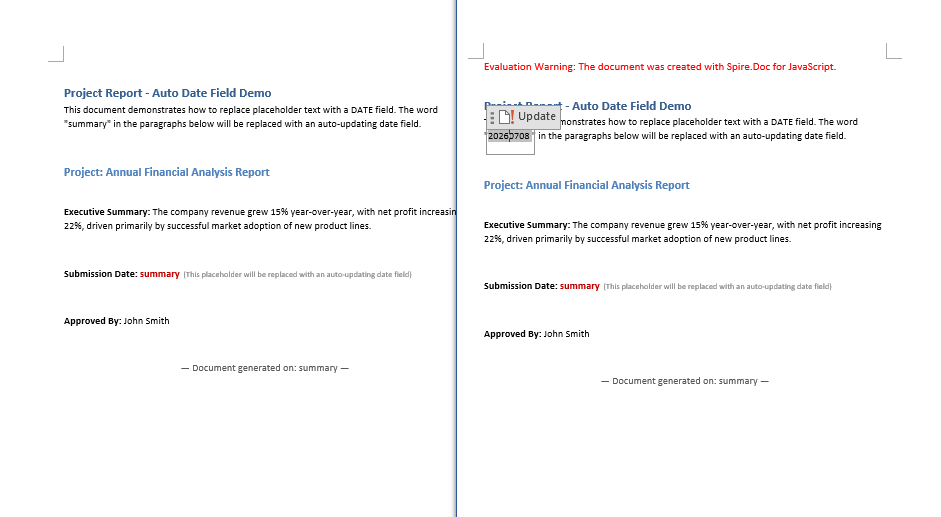
The target text is replaced with a DATE field that automatically displays the current system date when the document is opened
Replace Text with Another Document
Replacing text with another document involves three steps: first, load the font files and two Word documents (the main document and the replacement content document) into the WASM virtual file system via FetchFileToVFS; then instantiate two Document objects to load both documents, call the Replace method on the main document with the matchDoc parameter pointing to the replacement document object, substituting the matching text with the full content of that document; finally, save the document, read the generated file from VFS, wrap it as a Blob, and trigger a browser download.
import React, { useState } from 'react';

function App() {
  const ReplaceWithDocument = async () => {
    // Get the Spire.Doc WASM module
    const docModule = window.wasmModule?.spiredoc;

    // Check if the module is ready
    if (!docModule) {
      alert('Spire.Doc is not ready yet');
      return;
    }

    // Load the two Word documents into VFS
    let inputFileName1 = 'Text2.docx';
    await window.spire.FetchFileToVFS(inputFileName1, '', `${process.env.PUBLIC_URL}/data/`);

    let inputFileName2 = 'Text1.docx';
    await window.spire.FetchFileToVFS(inputFileName2, '', `${process.env.PUBLIC_URL}/data/`);

    // Load the main document
    let doc = new docModule.Document();
    doc.LoadFromFile(inputFileName1);

    // Load the replacement document
    let replaceDoc = new docModule.Document();
    replaceDoc.LoadFromFile(inputFileName2);

    // Replace the specified text with the content of another document
    doc.Replace({
      matchString: 'Document1',
      matchDoc: replaceDoc,
      caseSensitive: false,
      wholeWord: true,
    });

    // Define the output file name and save
    const outputFileName = 'ReplaceWithDocument_output.docx';
    doc.SaveToFile({ fileName: outputFileName, fileFormat: docModule.FileFormat.Docx2013 });

    // Release resources
    doc.Dispose();

    // Read the generated file from VFS and trigger download
    const modifiedFileArray = window.dotnetRuntime.Module.FS.readFile(outputFileName);
    const blob = new Blob([modifiedFileArray], { type: 'application/vnd.openxmlformats-officedocument.wordprocessingml.document' });
    const url = URL.createObjectURL(blob);
    const a = document.createElement('a');
    a.href = url;
    a.download = outputFileName;
    a.click();
    URL.revokeObjectURL(url);
  };

  return (
    <div style={{ textAlign: 'center', height: '300px' }}>
      <h1>Replace text with another document in Word</h1>
      <button onClick={ReplaceWithDocument}>
        Generate
      </button>
    </div>
  );
}

export default App;
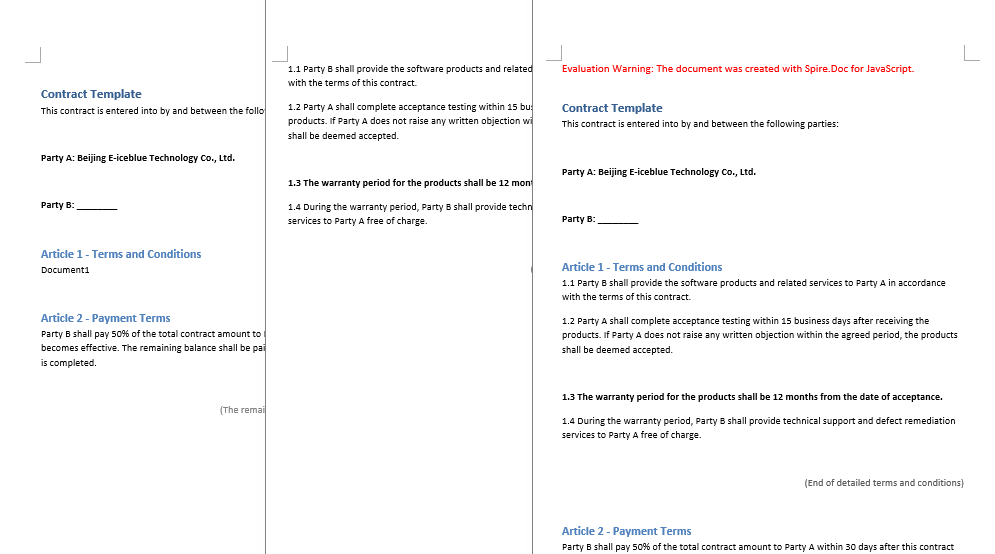
The placeholder text in the main document is replaced with the full content of another document
FAQ
Field value does not appear in the document after insertion
Cause: The Field, FieldMark(FieldSeparator), and FieldMark(FieldEnd) are not inserted in the correct order, breaking the integrity of the field structure and preventing Word from properly recognizing and evaluating the field value.
Solution: Ensure that Field, FieldSeparator, and FieldEnd are inserted sequentially with consecutive indices:
ownParagraph.ChildObjects.Insert(rangeIndex, eqField);
ownParagraph.ChildObjects.Insert(rangeIndex + 1, mark);
ownParagraph.ChildObjects.Insert(rangeIndex + 2, end);
Replacement with another document does not work
Cause: The document object passed via the matchDoc parameter in the Replace method was not properly loaded into VFS, or the file path/name does not match what was used in FetchFileToVFS, causing LoadFromFile to fail to locate the target file.
Solution: Ensure both documents are loaded into VFS via FetchFileToVFS, and create separate Document objects that successfully load before calling Replace:
let doc = new docModule.Document();
doc.LoadFromFile('Text2.docx');

let replaceDoc = new docModule.Document();
replaceDoc.LoadFromFile('Text1.docx');

doc.Replace({
  matchString: 'Document1',
  matchDoc: replaceDoc,
  caseSensitive: false,
  wholeWord: true,
});
Get a Free License
Spire.Doc for JavaScript offers a 30-day full-featured free trial license with no functional limitations. Apply here to evaluate before purchasing.