Python: Set a Background Color or Image for PDF
Applying a background color or image to a PDF can be an effective way to enhance its visual appeal, create a professional look, or reinforce branding elements. By adding a background, you can customize the overall appearance of your PDF document and make it more engaging for readers. Whether you want to use a solid color or incorporate a captivating image, this feature allows you to personalize your PDFs and make them stand out. In this article, you will learn how to set a background color or image for a PDF document in Python using Spire.PDF for Python.
Install Spire.PDF for Python
This scenario requires Spire.PDF for Python and plum-dispatch v1.7.4. They can be easily installed in your Windows through the following pip command.
pip install Spire.PDF
If you are unsure how to install, please refer to this tutorial: How to Install Spire.PDF for Python on Windows
Set a Background Color for PDF in Python
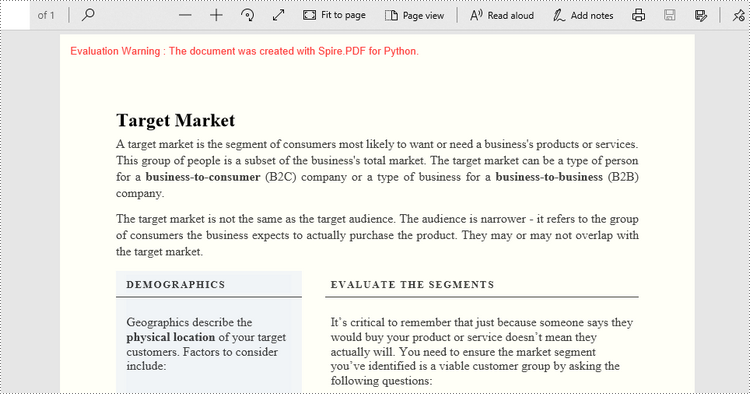
Spire.PDF for Python offers the PdfPageBase.BackgroundColor property to get or set the background color of a certain page. To add a solid color to the background of each page in the document, follow the steps below.
- Create a PdfDocument object.
- Load a PDF file using PdfDocument.LoadFromFile() method.
- Traverse through the pages in the document, and get a specific page through PdfDocument.Pages[index] property.
- Apply a solid color to the background through PdfPageBase.BackgroundColor property.
- Save the document to a different PDF file using PdfDocument.SaveToFile() method.
- Python
from spire.pdf.common import *
from spire.pdf import *

# Create a PdfDocument object
doc = PdfDocument()

# Load a PDF file
doc.LoadFromFile("C:\\Users\\Administrator\\Desktop\\input.pdf")

# Loop through the pages in the document
for i in range(doc.Pages.Count):

    # Get a particular page
    page = doc.Pages.get_Item(i)

    # Set background color
    page.BackgroundColor = Color.get_LightYellow()

# Save the document to a different file
doc.SaveToFile("output/SetBackgroundColor.pdf")
Set a Background Image for PDF in Python
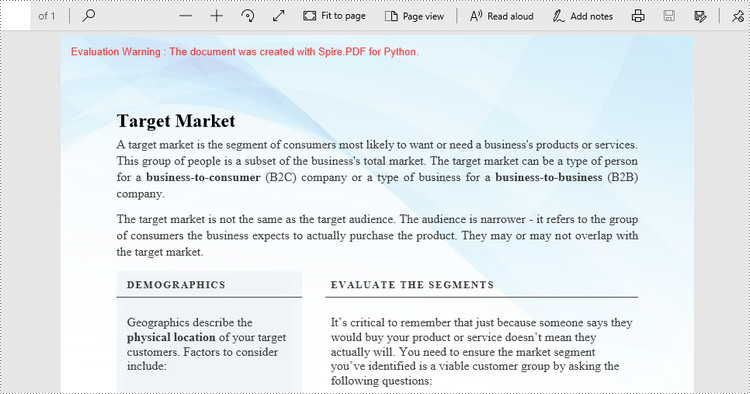
Likewise, an image can be applied to the background of a specific page via PdfPageBase.BackgroundImage property. The steps to set an image background for the entire document are as follows.
- Create a PdfDocument object.
- Load a PDF file using PdfDocument.LoadFromFile() method.
- Traverse through the pages in the document, and get a specific page through PdfDocument.Pages[index] property.
- Apply an image to the background through PdfPageBase.BackgroundImage property.
- Save the document to a different PDF file using PdfDocument.SaveToFile() method.
- Python
from spire.pdf.common import *
from spire.pdf import *

# Create a PdfDocument object
doc = PdfDocument()

# Load a PDF file
doc.LoadFromFile("C:\\Users\\Administrator\\Desktop\\input.pdf")

# Loop through the pages in the document
for i in range(doc.Pages.Count):

    # Get a particular page
    page = doc.Pages.get_Item(i)

    # Set background image
    page.BackgroundImage = Stream("C:\\Users\\Administrator\\Desktop\\img.jpg")

# Save the document to a different file
doc.SaveToFile("output/SetBackgroundImage.pdf")
Apply for a Temporary License
If you'd like to remove the evaluation message from the generated documents, or to get rid of the function limitations, please request a 30-day trial license for yourself.
Python: Rotate PDF Pages
If you receive or download a PDF file and find that some of the pages are displayed in the wrong orientation (e.g., sideways or upside down), rotating the PDF file allows you to correct the page orientation for easier reading and viewing. This article will demonstrate how to programmatically rotate PDF pages using Spire.PDF for Python.
Install Spire.PDF for Python
This scenario requires Spire.PDF for Python and plum-dispatch v1.7.4. They can be easily installed in your Windows through the following pip command.
pip install Spire.PDF
If you are unsure how to install, please refer to this tutorial: How to Install Spire.PDF for Python on Windows
Rotate a Specific Page in PDF in Python
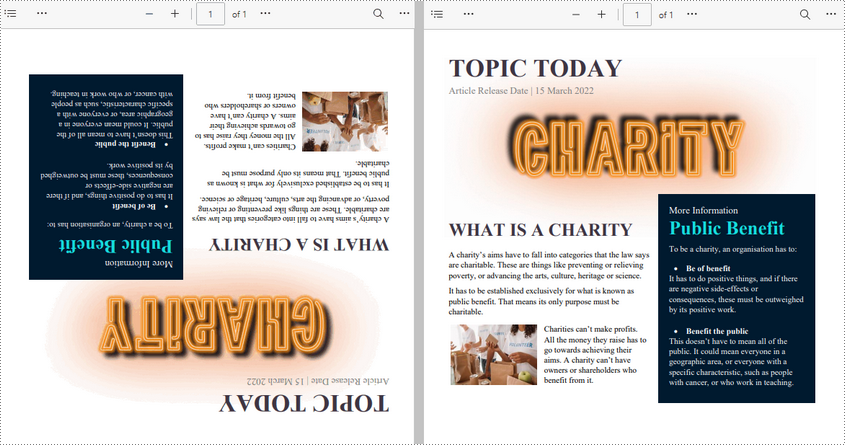
Rotation is based on 90-degree increments. You can rotate a PDF page by 0/90/180/270 degrees. The following are the steps to rotate a PDF page:
- Create a PdfDocument object.
- Load a PDF document using PdfDocument.LoadFromFile() method.
- Get a specified page using PdfDocument.Pages[pageIndex] property.
- Get the original rotation angle of the page using PdfPageBase.Rotation.value property.
- Increase the original rotation angle by desired degrees.
- Apply the new rotation angle to the page using PdfPageBase.Rotation property
- Save the result document using PdfDocument.SaveToFile() method.
- Python
from spire.pdf.common import *
from spire.pdf import *

# Create a PdfDocument object
pdf = PdfDocument()

# Load a PDF document
pdf.LoadFromFile("Sample.pdf")

# Get the first page
page = doc.Pages.get_Item(0)

# Get the original rotation angle of the page
rotation = int(page.Rotation.value)

# Rotate the page 180 degrees clockwise based on the original rotation angle
rotation += int(PdfPageRotateAngle.RotateAngle180.value)
page.Rotation = PdfPageRotateAngle(rotation)

# Save the result document
pdf.SaveToFile("RotatePDFPage.pdf")
pdf.Close()
Rotate All Pages in PDF in Python
Spire.PDF for Python also allows you to loop through each page in a PDF file and then rotate them all. The following are the detailed steps.
- Create a PdfDocument object.
- Load a PDF document using PdfDocument.LoadFromFile() method.
- Loop through each page in the document.
- Get the original rotation angle of the page using PdfPageBase.Rotation.value property.
- Increase the original rotation angle by desired degrees.
- Apply the new rotation angle to the page using PdfPageBase.Rotation property.
- Save the result document using PdfDocument.SaveToFile() method.
- Python
from spire.pdf.common import *
from spire.pdf import *

# Create a PdfDocument object
pdf = PdfDocument()

# Load a PDF document
pdf.LoadFromFile("Input.pdf")

# Loop through each page in the document
for i in range(pdf.Pages.Count):
    page = pdf.Pages.get_Item(i)

    # Get the original rotation angle of the page
    rotation = int(page.Rotation.value)

    # Rotate the page 180 degrees clockwise based on the original rotation angle
    rotation += int(PdfPageRotateAngle.RotateAngle180.value)
    page.Rotation = PdfPageRotateAngle(rotation)

# Save the result document
pdf.SaveToFile("RotatePDF.pdf")
pdf.Close()
Apply for a Temporary License
If you'd like to remove the evaluation message from the generated documents, or to get rid of the function limitations, please request a 30-day trial license for yourself.