C#/VB.NET: Change or Delete Hyperlinks in PDF
Hyperlinks in PDF documents allow users to jump to pages or open documents, making PDF files more interactive and easier to use. However, if the target site of the link has been changed or the link points to the wrong page, it may cause trouble or misunderstanding to the document users. Therefore, it is very important to change or remove wrong or invalid hyperlinks in PDF documents to ensure the accuracy and usability of the hyperlinks, so as to provide a better reading experience for users. This article will introduce how to change or remove hyperlinks in PDF documents through .NET programs using Spire.PDF for .NET.
Install Spire.PDF for .NET
To begin with, you need to add the DLL files included in the Spire.PDF for.NET package as references in your .NET project. The DLL files can be either downloaded from this link or installed via NuGet.
PM> Install-Package Spire.PDF
Change the URL of a Hyperlink in PDF
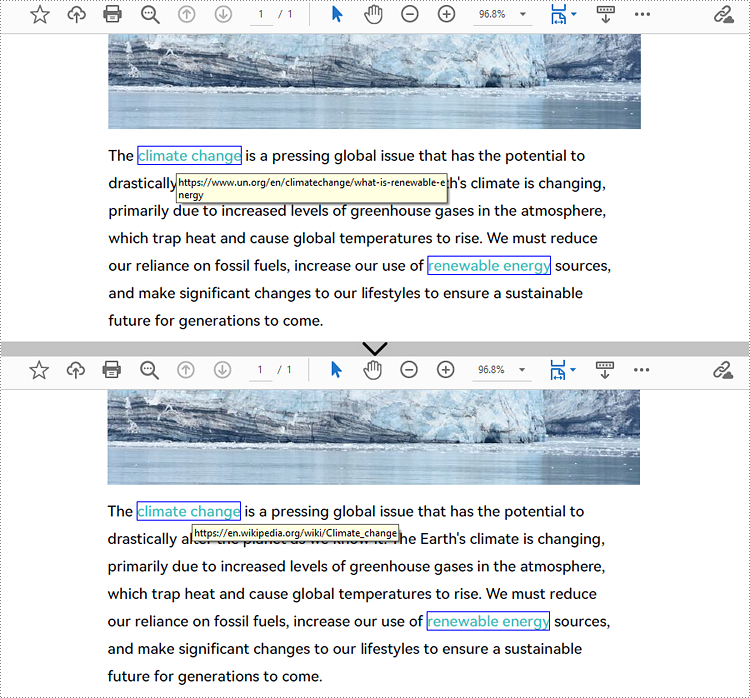
To change the URL of a hyperlink on a PDF page, it is necessary to get the hyperlink annotation from the annotation collection of the page, convert it to a PdfLinkAnnotation object, and then use the URI property of its PdfURIAction action to reset the URL. The detailed steps are as follows:
- Create an object of PdfDocument class.
- Load a PDF file using PdfDocument.LoadFromFIle() method.
- Get the first page of the document using PdfDocument.Pages[] property.
- Get the page's annotation collection using PdfAnnotationCollection.Create(page) method and get the first hyperlink annotation by index, converting it to a PdfLinkAnnotation object.
- Reset the URL of the hyperlink through the URI property of the PdfURIAction action of the PdfLinkAnnotation object.
- Save the document using PdfDocument.SaveToFile() method.
- C#
- VB.NET
using Spire.Pdf;
using Spire.Pdf.Actions;
using Spire.Pdf.Interactive.Annotations;
using System;

namespace ChangeHyperlink
{
    internal class Program
    {
        static void Main(string[] args)
        {
            //Cretae an object of PdfDocument
            PdfDocument pdf = new PdfDocument();

            //Load a PDF file
            pdf.LoadFromFile("Sample.pdf");

            //Get the first page
            PdfPageBase page = pdf.Pages[0];

            //Get the first hyperlink
            PdfLinkAnnotation url = PdfAnnotationCollection.Create(page)[0] as PdfLinkAnnotation;

            //Reset the url of the hyperlink
            (url.Action as PdfURIAction).URI = "https://en.wikipedia.org/wiki/Climate_change";

            //Save the PDF file
            pdf.SaveToFile("ChangeHyperlink.pdf");
            pdf.Dispose();
        }
    }
}
Remove Hyperlinks from PDF
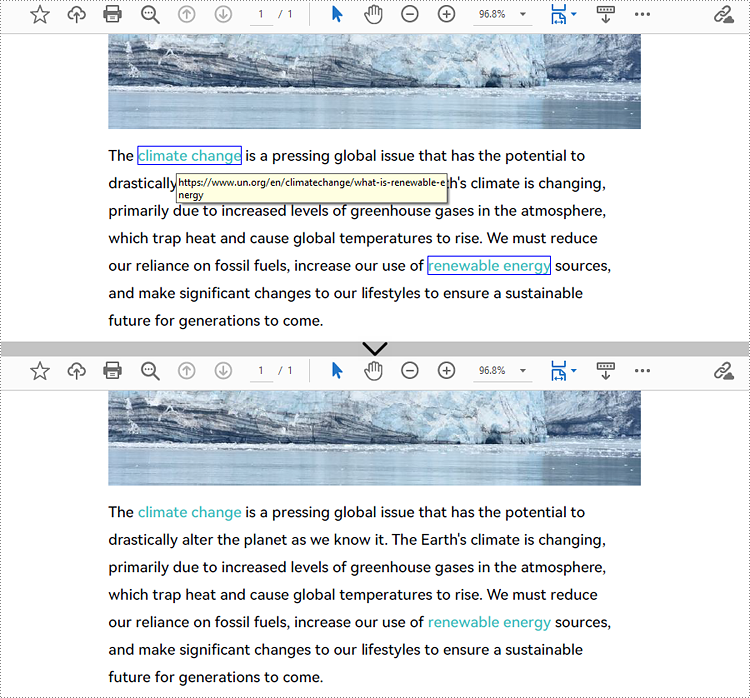
Spire.PDF for .NET provides the PdfAnnotationCollection.Create(page) method to get the annotation collection of a page, and its RemoveAt() method to remove a hyperlink on a PDF page by its index. Eliminating all hyperlinks from a PDF document requires iterating through the pages, obtaining the annotation collection of each page, verifying whether an annotation is an instance of the PdfLinkAnnotation class, and deleting the annotation if it is. The following are the detailed steps:
- Create an object of PdfDocument class.
- Load a PDF document using PdfDocument.LoadFromFIle() method.
- To remove a specific hyperlink, get the page containing the hyperlink and remove the hyperlink by its index using the PdfAnnotationCollection.Create(page) method and its RemoveAt() method.
- To remove all hyperlinks, loop through the pages in the document to get the annotation collection of each page using the PdfAnnotationCollection.Create(page) method.
- Check if an annotation is an instance of PdfLinkAnnotation class and remove the annotation using PdfAnnotationCollection.Remove(PdfLinkAnnotation) method if it is.
- Save the document using PdfDocument.SaveToFIle() method.
- C#
- VB.NET
//Example 1: Change the URL of a hyperlink in PDF
using Spire.Pdf;
using Spire.Pdf.Actions;
using Spire.Pdf.Interactive.Annotations;

namespace ChangeHyperlink
{
    internal class Program
    {
        static void Main(string[] args)
        {
            //Create an object of PdfDocument
            PdfDocument pdf = new PdfDocument();

            //Load a PDF file
            pdf.LoadFromFile("Sample.pdf");

            //Get the first page
            PdfPageBase page = pdf.Pages[0];

            //Get the first hyperlink
            PdfLinkAnnotation url = PdfAnnotationCollection.Create(page)[0] as PdfLinkAnnotation;

            //Reset the url of the hyperlink
            (url.Action as PdfURIAction).URI = "https://en.wikipedia.org/wiki/Climate_change";

            //Save the PDF file
            pdf.SaveToFile("ChangeHyperlink.pdf");
            pdf.Dispose();
        }
    }
}

//Example 2: Remove hyperlinks from PDF
using Spire.Pdf;
using Spire.Pdf.Interactive.Annotations;

namespace DeleteHyperlink
{
    internal class Program
    {
        static void Main(string[] args)
        {
            //Create an object of PdfDocument
            PdfDocument pdf = new PdfDocument();

            //Load a PDF file
            pdf.LoadFromFile("Sample.pdf");

            //Remove the second hyperlink in the first page
            //PdfPageBase page = pdf.Pages[0];
            //PdfAnnotationCollection.Create(page).RemoveAt(1);

            //Remove all hyperlinks in the document
            //Loop through pages in the document
            foreach (PdfPageBase page in pdf.Pages)
            {
                //Get the annotation collection of a page
                PdfAnnotationCollection collection = PdfAnnotationCollection.Create(page);
                for (int i = collection.Count - 1; i >= 0; i--)
                {
                    PdfAnnotation annotation = collection[i];
                    //Check if an annotation is an instance of PdfLinkAnnotation
                    if (annotation is PdfLinkAnnotation)
                    {
                        PdfLinkAnnotation url = (PdfLinkAnnotation)annotation;
                        //Remove the hyperlink
                        collection.Remove(url);
                    }
                }
            }

            //Save the document
            pdf.SaveToFile("DeleteHyperlink.pdf");
            pdf.Dispose();
        }
    }
}
Apply for a Temporary License
If you'd like to remove the evaluation message from the generated documents, or to get rid of the function limitations, please request a 30-day trial license for yourself.
Extract and Update link from a PDF file
Spire.PDF for .NET is a PDF library which enables users to handle the whole PDF document with wide range of tasks in C#, VB.NET. Spire.PDF supports to create PDF links, extract PDF links, update PDF links and remove PDF links from a PDF file. This article mainly shows how to extract and update link from a PDF file in C#.
Before the steps and codes, please check the original PDF file at first:
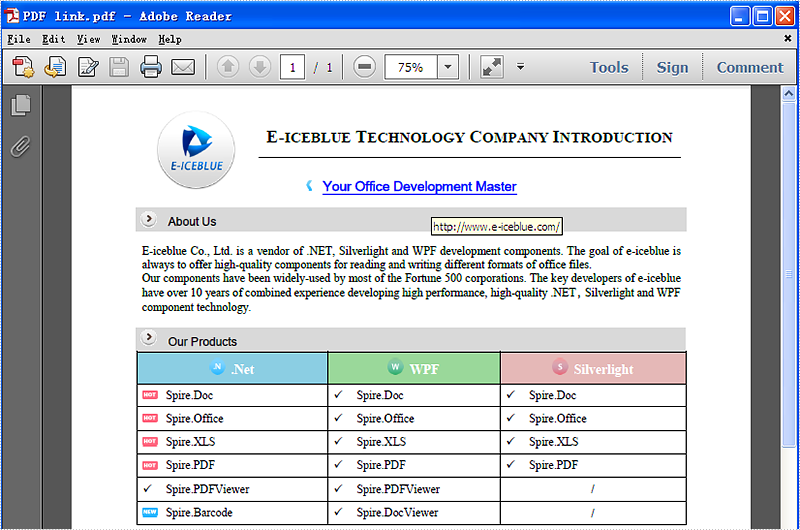
Firstly we need to create a new Document object and load a PDF file which needs to extract and update the links. The links are represented as annotations in a PDF file. Before extract and update the link from a PDF file, we need to get all the annotations from the annotation collection of the page through the PdfAnnotationCollection.Create(page) method.
The following code snippet shows you how to extract links from the PDF file.
//Load an existing PDF file
PdfDocument document = new PdfDocument();
document.LoadFromFile(@"..\..\output.pdf");

//Get the first page
PdfPageBase page = document.Pages[0];

//Get the annotation collection
PdfAnnotationCollection annotations = PdfAnnotationCollection.Create(page);

//Verify whether annotations is not null or not
if (annotations.Count > 0)
{
    foreach (PdfAnnotation obj in annotations)
    {
        //Get the TextWebLink Annotation
        if (obj is PdfLinkAnnotation)
        {
            PdfLinkAnnotation link = obj as PdfLinkAnnotation;
The following code snippet shows you how to update the link in PDF file
//Change the url of the link annotation
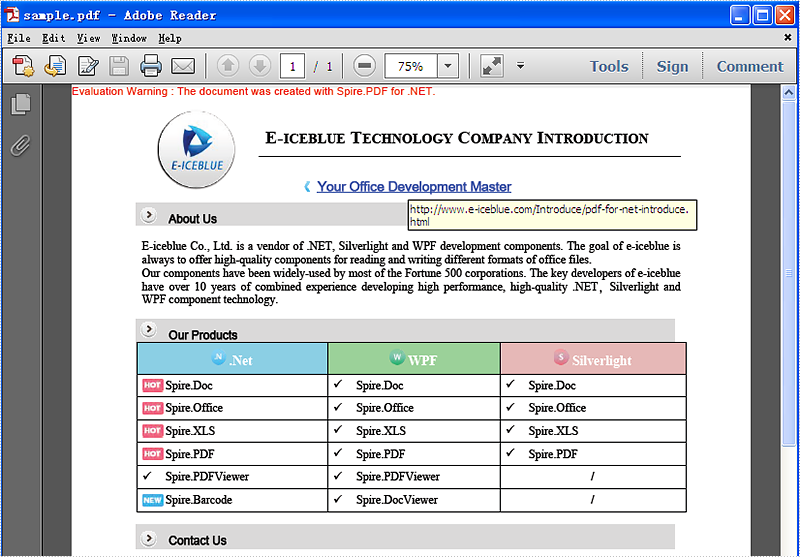
            (link.Action as PdfURIAction).URI = "http://www.e-iceblue.com/Introduce/pdf-for-net-introduce.html";
        }
    }
}

//Save the PDF document to file.
document.SaveToFile("sample.pdf");
This picture will show you the link has been updated in the PDF file.
C#/VB.NET: Insert Hyperlinks into Existing Text in PDF
Hyperlinks in PDF are a valuable feature that enables readers to effortlessly access a given webpage. By including hyperlinks in a PDF, it becomes easier to offer readers supplementary information about the document or direct them to relevant resources. When a reader clicks on a hyperlink, the corresponding page opens immediately in the browser. In this article, we will demonstrate how to add hyperlinks to existing text in a PDF document through .NET programs using Spire.PDF for .NET.
Install Spire.PDF for .NET
To begin with, you need to add the DLL files included in the Spire.PDF for.NET package as references in your .NET project. The DLL files can be either downloaded from this link or installed via NuGet.
PM> Install-Package Spire.PDF
Insert a Hyperlink to Existing Text in PDF with C#/VB.NET
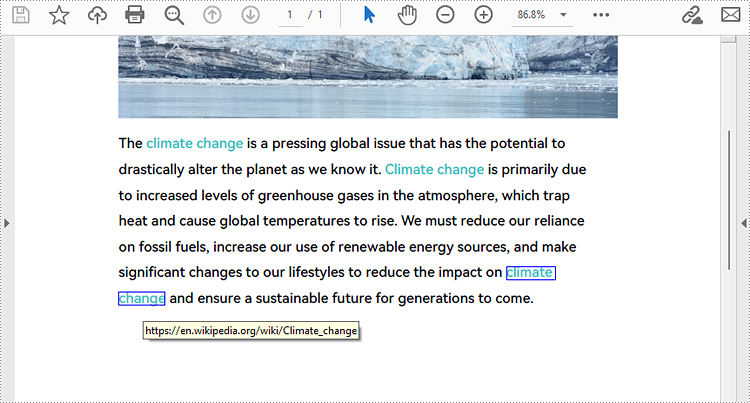
Hyperlinks in PDF documents are inserted to the page as annotation elements. Adding a hyperlink to existing text in a PDF document requires locating the text first. Once the location has been obtained, a PdfLinkAnnotation object with a specified URL action can be created and added to the position. The detailed steps are as follows:
- Create an object of PdfDocument class and load a PDF file using PdfDocument.LoadFromFile() method.
- Get the first page using PdfDocument.Pages property.
- Create an object of PdfTextFinder class and set the finder options using PdfTextFinder.Options.Parameter property.
- Find the specified text in the page using PdfTextFinder.Find() method and get the third occurrence.
- Loop through the text bounds of the specified occurrence (because the text being searched may span multiple lines and have more than one bound, the retrieved text bounds are stored in a list to accommodate this variability).
- Create a PdfURIAction object to specify the URL to link to, and then create a PdfLinkAnnotation object within the text bound. Set the border width and border color using properties under PdfLinkAnnotation class.
- Get the page's annotation collection using PdfAnnotationCollection.Create(page) method and insert the hyperlink using its Add(PdfLinkAnnotation) method.
- Save the PDF file using PdfDocument.SaveToFile() method.
- C#
- VB.NET
using Spire.Pdf;
using Spire.Pdf.Actions;
using Spire.Pdf.Interactive.Annotations;
using Spire.Pdf.Texts;
using System;
using System.Collections.Generic;
using System.Drawing;
using TextFindParameter = Spire.Pdf.Texts.TextFindParameter;

namespace ChangeHyperlink
{
    internal class Program
    {
        static void Main(string[] args)
        {
            //Create an object of PdfDocument class
            PdfDocument pdf = new PdfDocument();

            //Load a PDF file
            pdf.LoadFromFile("Sample.pdf");

            //Get the first page
            PdfPageBase page = pdf.Pages[0];

            //Create an object of PdfTextFinder and set the finder options
            PdfTextFinder finder = new PdfTextFinder(page);
            finder.Options.Parameter = TextFindParameter.IgnoreCase;

            //Find the specified text in the page and get the third occurrence
            List collection = finder.Find("climate change");
            PdfTextFragment fragment = collection[2];

            //Loop through the text bounds of the specified occurrence
            foreach (RectangleF bounds in fragment.Bounds)
            {
                //Create a hyperlink annotation
                PdfURIAction action = new PdfURIAction("https://en.wikipedia.org/wiki/Climate_change");
                PdfLinkAnnotation url = new PdfLinkAnnotation(page, bounds, action);
                //Set the border width of the hyperlink annotation
                url.Border.Width = 1f;
                //Set the color of the border
                url.Color = Color.Blue;
                //Add the hyperlink annotation to the page
                PdfAnnotationCollection.Create(page).Add(url);
            }

            //Save the PDF file
            pdf.SaveToFile("AddHyperlinks.pdf");
            pdf.Dispose();
        }
    }
}
Apply for a Temporary License
If you'd like to remove the evaluation message from the generated documents, or to get rid of the function limitations, please request a 30-day trial license for yourself.