Add a Header and Footer When Creating a New PDF in React with JavaScript
Laying out a report, a form or a set of notes and exporting it as a PDF often starts from a blank page. Headers and footers belong at the moment the document is built: going back to add them after the body is finished leaves positions and pagination awkward to manage. Doing it by hand page after page is tedious, and handing the job to a server means the data leaves the user's device.
This article uses Spire.PDF for JavaScript to create a PDF from scratch and add a header and a footer. The page margins are set to 0, and the surrounding white space comes from the Left, Top, Right and Bottom template elements of the document template (PdfDocumentTemplate) instead; the header and footer are drawn inside the top and bottom templates and appear on every new page at render time. The footer can fill in page numbers dynamically with PdfCompositeField. The library creates, draws and saves documents in the browser on top of WebAssembly, reading and writing files through a virtual file system (VFS), with no backend involved.
Two core features are covered:
For installation and project setup, see Integrating Spire.PDF for JavaScript into a React project. The examples below assume Spire.PDF is installed and the WebAssembly module is initialized.
Add a header when creating a new PDF
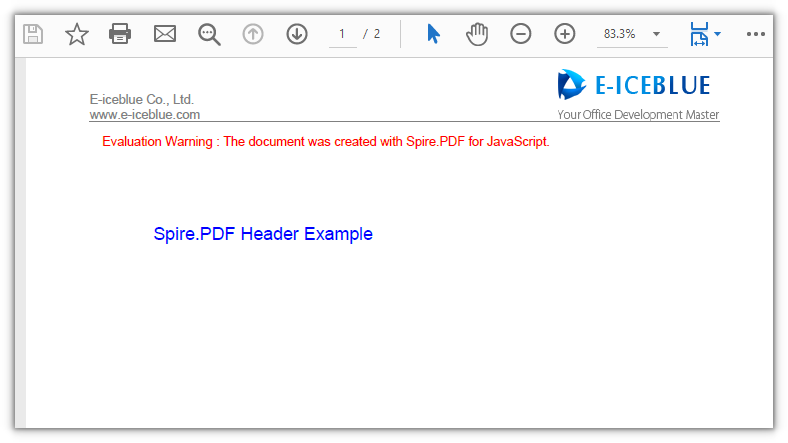
Spire.PDF for JavaScript provides PdfPageTemplateElement for reserving a content area on a page that you can draw into independently and that travels with the page. Assign it to PdfDocumentTemplate.Top and every new page carries this header template inside its top margin. The template element's height is the top margin; inside it, coordinates for lines, text and images start at the page's top-left corner, with x to the right and y downward.
function App() {
  const addHeaderToNewPdf = async () => {
    // Get the Spire.PDF WASM module
    const pdfModule = window.wasmModule?.spirepdf;

    // Check that the module is ready
    if (!pdfModule) {
      alert('Spire.PDF is not ready yet');
      return;
    }

    // Load the font and the header image into the VFS
    await window.spire.FetchFileToVFS('ARIAL.TTF', '/Library/Fonts/', `${process.env.PUBLIC_URL}/font/`);
    const imageFileName = 'E-iceblue.png';
    await window.spire.FetchFileToVFS(imageFileName, "", `${process.env.PUBLIC_URL}/data/`);

    // Create a new PDF document with an A4 page size
    const doc = new pdfModule.PdfDocument();
    const pageSize = pdfModule.PdfPageSize.A4();
    doc.PageSettings.Size = pageSize;

    // Set the page margins to 0; the white space comes from the document template's edge elements (50 points each)
    doc.PageSettings.Margins = new pdfModule.PdfMargins({ margin: 0 });
    const margins = new pdfModule.PdfMargins({ margin: 50 });

    // Reserve the left, right and bottom edges with blank templates so the body area is inset
    doc.Template.Left = new pdfModule.PdfPageTemplateElement({ width: margins.Left, height: pageSize.Height - margins.Top - margins.Bottom });
    doc.Template.Right = new pdfModule.PdfPageTemplateElement({ width: margins.Right, height: pageSize.Height - margins.Top - margins.Bottom });
    doc.Template.Bottom = new pdfModule.PdfPageTemplateElement({ width: pageSize.Width, height: margins.Bottom });

    // Header template: its height is the top margin; Foreground = true draws it above the body
    const headerSpace = new pdfModule.PdfPageTemplateElement({ width: pageSize.Width, height: margins.Top });
    headerSpace.Foreground = true;
    doc.Template.Top = headerSpace;

    // Font, brush, pen and alignment for the header
    const font = new pdfModule.PdfTrueTypeFont({ fontFile: '/Library/Fonts/ARIAL.TTF', size: 10, style: pdfModule.PdfFontStyle.Italic });
    const brush = pdfModule.PdfBrushes.get_Gray();
    const pen = new pdfModule.PdfPen({ brush: pdfModule.PdfBrushes.get_Gray(), width: 1.0 });
    const leftAlign = new pdfModule.PdfStringFormat({ alignment: pdfModule.PdfTextAlignment.Left });

    // Read the header image and convert its pixel size to points
    const headerImage = pdfModule.PdfImage.FromFile(imageFileName);
    const unitCvtr = new pdfModule.PdfUnitConvertor();
    const pointWidth = unitCvtr.ConvertUnits(headerImage.Width, pdfModule.PdfGraphicsUnit.Pixel, pdfModule.PdfGraphicsUnit.Point);
    const pointHeight = unitCvtr.ConvertUnits(headerImage.Height, pdfModule.PdfGraphicsUnit.Pixel, pdfModule.PdfGraphicsUnit.Point);

    // Put the logo on the right of the header, two lines of text on the left, and a divider line at the bottom
    headerSpace.Graphics.DrawImage({
      image: headerImage,
      x: headerSpace.Width - margins.Left - pointWidth,
      y: headerSpace.Height - pointHeight
    });
    headerSpace.Graphics.DrawString({
      s: 'E-iceblue Co., Ltd.\nwww.e-iceblue.com',
      font: font,
      brush: brush,
      x: margins.Left,
      y: headerSpace.Height - font.Height * 2,
      format: leftAlign
    });
    headerSpace.Graphics.DrawLine({
      pen: pen,
      x1: margins.Left,
      y1: margins.Top,
      x2: pageSize.Width - margins.Left,
      y2: margins.Top
    });

    // Add pages and write the body text; the header is applied by the template at render time
    const bodyFont = new pdfModule.PdfTrueTypeFont({ fontFile: '/Library/Fonts/ARIAL.TTF', size: 14 });
    const bodyBrush = pdfModule.PdfBrushes.get_Blue();
    const texts = ['Spire.PDF Header Example', 'Second page body text'];
    for (let i = 0; i < texts.length; i++) {
      const page = doc.Pages.Add();
      page.Canvas.DrawString({ s: texts[i], font: bodyFont, brush: bodyBrush, x: margins.Left, y: margins.Top + 30 });
    }

    const outputFileName = 'Header_Example.pdf';
    doc.SaveToFile(outputFileName);
    doc.Close();

    // Read the generated file from the VFS and trigger a download
    const fileArray = window.dotnetRuntime.Module.FS.readFile(outputFileName);
    const blob = new Blob([fileArray], { type: 'application/pdf' });
    const url = URL.createObjectURL(blob);
    const a = document.createElement('a');
    a.href = url;
    a.download = outputFileName;
    a.click();
    URL.revokeObjectURL(url);
  };

  return (
    <div style={{ textAlign: 'center', height: '300px' }}>
      <h1>Add a header when creating a new PDF</h1>
      <button onClick={addHeaderToNewPdf}>
        Generate
      </button>
    </div>
  );
}

export default App;
Every new page carries the header at the top:
Add a footer when creating a new PDF
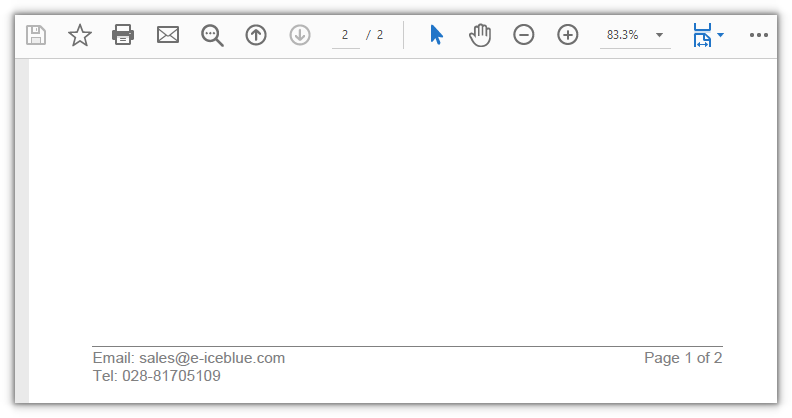
The footer hangs off PdfDocumentTemplate.Bottom; the approach matches the header, only the template height changes to the bottom margin. A footer often carries a page number: PdfPageNumberField and PdfPageCountField combine into a PdfCompositeField, and the number resolves to whichever page it is on.
function App() {
  const addFooterToNewPdf = async () => {
    // Get the Spire.PDF WASM module
    const pdfModule = window.wasmModule?.spirepdf;

    // Check that the module is ready
    if (!pdfModule) {
      alert('Spire.PDF is not ready yet');
      return;
    }

    // Load the font into the VFS for the footer text and page numbers
    await window.spire.FetchFileToVFS('ARIAL.TTF', '/Library/Fonts/', `${process.env.PUBLIC_URL}/font/`);

    // Create a new PDF document with an A4 page size
    const doc = new pdfModule.PdfDocument();
    const pageSize = pdfModule.PdfPageSize.A4();
    doc.PageSettings.Size = pageSize;

    // Set the page margins to 0; the white space comes from the document template's edge elements (50 points each)
    doc.PageSettings.Margins = new pdfModule.PdfMargins({ margin: 0 });
    const margins = new pdfModule.PdfMargins({ margin: 50 });

    // Reserve the left, right and top edges with blank templates so the body area is inset
    doc.Template.Left = new pdfModule.PdfPageTemplateElement({ width: margins.Left, height: pageSize.Height - margins.Top - margins.Bottom });
    doc.Template.Right = new pdfModule.PdfPageTemplateElement({ width: margins.Right, height: pageSize.Height - margins.Top - margins.Bottom });
    doc.Template.Top = new pdfModule.PdfPageTemplateElement({ width: pageSize.Width, height: margins.Top });

    // Footer template: its height is the bottom margin; Foreground = true draws it above the body
    const footerSpace = new pdfModule.PdfPageTemplateElement({ width: pageSize.Width, height: margins.Bottom });
    footerSpace.Foreground = true;
    doc.Template.Bottom = footerSpace;

    // Font, brush, pen and alignment for the footer
    const font = new pdfModule.PdfTrueTypeFont({ fontFile: '/Library/Fonts/ARIAL.TTF', size: 12, style: pdfModule.PdfFontStyle.Italic });
    const brush = pdfModule.PdfBrushes.get_Gray();
    const pen = new pdfModule.PdfPen({ brush: pdfModule.PdfBrushes.get_Gray(), width: 1.0 });
    const leftAlign = new pdfModule.PdfStringFormat({ alignment: pdfModule.PdfTextAlignment.Left });

    // Draw a divider line at the top of the footer, with two lines of contact details left-aligned below it
    footerSpace.Graphics.DrawLine({ pen: pen, x1: margins.Left, y1: 0, x2: pageSize.Width - margins.Left, y2: 0 });
    footerSpace.Graphics.DrawString({
      s: 'Email: sales@e-iceblue.com\nTel: 028-81705109',
      font: font,
      brush: brush,
      x: margins.Left,
      y: 2,
      format: leftAlign
    });

    // Two dynamic fields: the current page number and the total page count
    const number = new pdfModule.PdfPageNumberField();
    const count = new pdfModule.PdfPageCountField();

    // Combine them into "Page {0} of {1}" in placeholder order; the list order must match {0} and {1}
    const compositeField = new pdfModule.PdfCompositeField({
      font: font,
      brush: brush,
      text: 'Page {0} of {1}',
      list: [number, count]
    });
    compositeField.StringFormat = new pdfModule.PdfStringFormat({
      alignment: pdfModule.PdfTextAlignment.Right,
      lineAlignment: pdfModule.PdfVerticalAlignment.Top
    });

    // Measure the page-number text so it sits right-aligned at the end of the footer line
    const size = font.MeasureString({ text: compositeField.Text });
    compositeField.Bounds = new pdfModule.RectangleF({
      x: pageSize.Width - margins.Left - size.Width,
      y: 2,
      width: size.Width,
      height: size.Height
    });
    compositeField.Draw({ graphics: footerSpace.Graphics });

    // Add pages and write the body text; the footer is applied by the template at render time
    const bodyFont = new pdfModule.PdfTrueTypeFont({ fontFile: '/Library/Fonts/ARIAL.TTF', size: 14 });
    const bodyBrush = pdfModule.PdfBrushes.get_Blue();
    const texts = ['Spire.PDF Footer Example', 'Second page body text'];
    for (let i = 0; i < texts.length; i++) {
      const page = doc.Pages.Add();
      page.Canvas.DrawString({ s: texts[i], font: bodyFont, brush: bodyBrush, x: margins.Left, y: margins.Top + 30 });
    }

    const outputFileName = 'Footer_Example.pdf';
    doc.SaveToFile(outputFileName);
    doc.Close();

    // Read the generated file from the VFS and trigger a download
    const fileArray = window.dotnetRuntime.Module.FS.readFile(outputFileName);
    const blob = new Blob([fileArray], { type: 'application/pdf' });
    const url = URL.createObjectURL(blob);
    const a = document.createElement('a');
    a.href = url;
    a.download = outputFileName;
    a.click();
    URL.revokeObjectURL(url);
  };

  return (
    <div style={{ textAlign: 'center', height: '300px' }}>
      <h1>Add a footer when creating a new PDF</h1>
      <button onClick={addFooterToNewPdf}>
        Generate
      </button>
    </div>
  );
}

export default App;
Every new page carries the footer at the bottom:
FAQ
The body text touches the page edge and overlaps the header or footer
Cause: the page margins are set to 0, so the body area's white space comes entirely from the Left, Top, Right and Bottom template elements of doc.Template. Attach a template only on the header or footer side and leave the other sides empty, and the body runs right up to that page edge.
Solution: attach a template element on all four sides; use a blank template where there is no content to place:
doc.Template.Left = new pdfModule.PdfPageTemplateElement({ width: margins.Left, height: pageSize.Height - margins.Top - margins.Bottom });
doc.Template.Right = new pdfModule.PdfPageTemplateElement({ width: margins.Right, height: pageSize.Height - margins.Top - margins.Bottom });
doc.Template.Top = new pdfModule.PdfPageTemplateElement({ width: pageSize.Width, height: margins.Top });
doc.Template.Bottom = new pdfModule.PdfPageTemplateElement({ width: pageSize.Width, height: margins.Bottom });
Chinese characters in the header or footer show up as boxes
Cause: the template text uses a Western font without Chinese glyphs (such as ARIAL.TTF), so no matching glyph is found at render time and each character becomes a hollow box.
Solution: switch to a font that includes Chinese, and load it into the virtual file system's /Library/Fonts/ first:
// Load the Chinese font first, then hand it to PdfTrueTypeFont
await window.spire.FetchFileToVFS('SIMSUN.TTF', '/Library/Fonts/', `${process.env.PUBLIC_URL}/font/`);
const font = new pdfModule.PdfTrueTypeFont({ fontFile: '/Library/Fonts/SIMSUN.TTF', size: 10 });
The header or footer is hidden behind the body text
Cause: PdfPageTemplateElement.Foreground defaults to false, so the template is drawn beneath the body. If the body reaches the same position, it covers the header or footer.
Solution: set the template element's Foreground to true so it is drawn above the body:
const headerSpace = new pdfModule.PdfPageTemplateElement({ width: pageSize.Width, height: margins.Top });
headerSpace.Foreground = true;
doc.Template.Top = headerSpace;
Get a Free License
If you want to remove the evaluation message from the result document, or lift the feature limits, contact sales for a temporary license valid for 30 days.
Add Header and Footer to an Existing PDF with JavaScript in React
Contracts and reports that go out to others usually carry a header and a footer beyond the body: the header says whose document this is, and the footer holds the page number and a note like "Internal use only". Typing them in by hand is slow and easy to miss, and handing the job to a server means the document has to leave the user's device first.
This article shows how to use Spire.PDF for JavaScript to add a text header and footer, an image header and footer, and automatic page numbers to an existing PDF. It loads, modifies and saves PDF documents directly in the browser with WebAssembly, draws the header and footer inside the blank areas the page already has, and reads and writes files through the virtual file system (VFS), with no backend involved.
This article covers three core features:
- Add a text header and footer
- Add an image to the header and footer
- Add automatic page numbers and total page count
For installation and project setup, see Integrate Spire.PDF for JavaScript into a React project. The examples below assume Spire.PDF is installed and the WebAssembly module is initialized.
Coordinate system
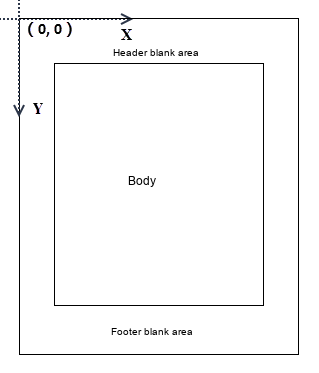
On an existing PDF page, the coordinate system is set up as follows: the origin is at the top-left corner of the page, the X axis extends to the right, and the Y axis extends downward (as shown below). Values are in points, and the drawing coordinates in the three features below all follow this convention.
Add a text header and footer
To give every page a fixed header and footer, draw the text at the target coordinates with DrawString on PdfPageBase.Canvas.
function App() {
  const addTextHeaderFooter = async () => {
    // Get the Spire.PDF WASM module
    const pdfModule = window.wasmModule?.spirepdf;

    // Check whether the module is ready
    if (!pdfModule) {
      alert('Spire.PDF is not ready yet');
      return;
    }

    // Load the font into the VFS for the header and footer text
    await window.spire.FetchFileToVFS('ARIAL.TTF', '/Library/Fonts/', `${process.env.PUBLIC_URL}/font/`);

    // Load the input PDF into the VFS
    const inputFileName = 'Multipage_Document.pdf';
    await window.spire.FetchFileToVFS(inputFileName, "", `${process.env.PUBLIC_URL}/data/`);

    // Create a PdfDocument object and load the PDF document
    const doc = new pdfModule.PdfDocument();
    doc.LoadFromFile(inputFileName);

    // Page margins, plus the pen, font and alignment shared by header and footer
    const margin = doc.PageSettings.Margins;
    const pen = new pdfModule.PdfPen({ brush: pdfModule.PdfBrushes.get_Black(), width: 0.75 });
    const font = new pdfModule.PdfTrueTypeFont({ fontFile: '/Library/Fonts/ARIAL.TTF', size: 10 });
    const brush = pdfModule.PdfBrushes.get_Black();
    const rightAlign = new pdfModule.PdfStringFormat({ alignment: pdfModule.PdfTextAlignment.Right });
    rightAlign.MeasureTrailingSpaces = true;

    // Gap between the separator line and the text
    const space = font.Height * 0.75;

    // Draw the header and footer page by page
    for (let i = 0; i < doc.Pages.Count; i++) {
      const canvas = doc.Pages.get_Item(i).Canvas;
      const x = margin.Left;
      const width = canvas.ClientSize.Width - margin.Left - margin.Right;

      // Header: draw the separator above the content area, right-align the title above the line
      let y = margin.Top - space;
      canvas.DrawLine({ pen: pen, x1: x, y1: y, x2: x + width, y2: y });
      canvas.DrawString({
        s: 'E-iceblue',
        font: font,
        brush: brush,
        x: x + width,
        y: y - font.Height,
        format: rightAlign
      });

      // Footer: draw the separator below the content area, right-align the note below the line
      y = canvas.ClientSize.Height - margin.Bottom + space;
      canvas.DrawLine({ pen: pen, x1: x, y1: y, x2: x + width, y2: y });
      canvas.DrawString({
        s: 'Internal use only',
        font: font,
        brush: brush,
        x: x + width,
        y: y + 1,
        format: rightAlign
      });
    }

    const outputFileName = 'Text_Header_Footer.pdf';
    doc.SaveToFile(outputFileName);
    doc.Close();

    // Read the generated file from the VFS and trigger the download
    const fileArray = window.dotnetRuntime.Module.FS.readFile(outputFileName);
    const blob = new Blob([fileArray], { type: 'application/pdf' });
    const url = URL.createObjectURL(blob);
    const a = document.createElement('a');
    a.href = url;
    a.download = outputFileName;
    a.click();
    URL.revokeObjectURL(url);
  };

  return (
    <div style={{ textAlign: 'center', height: '300px' }}>
      <h1>Add a Text Header and Footer</h1>
      <button onClick={addTextHeaderFooter}>
        Start Adding
      </button>
    </div>
  );
}

export default App;
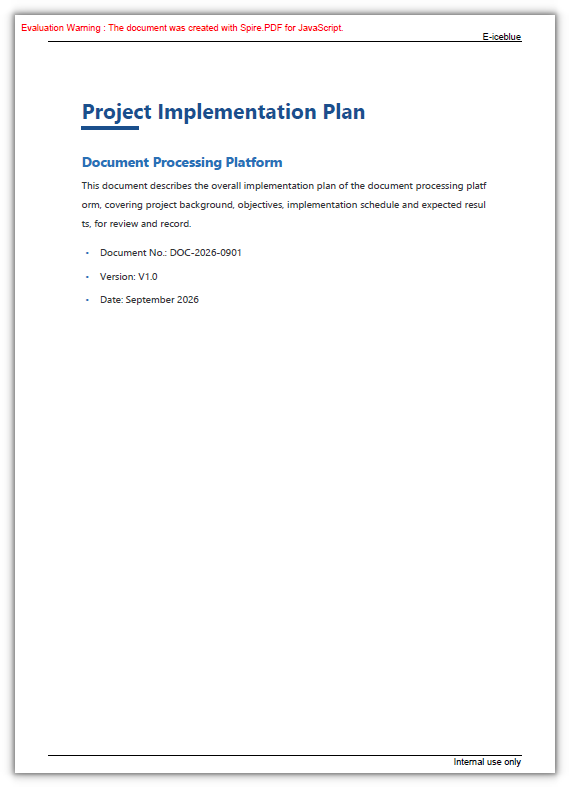
Every page carries a right-aligned header and footer, each separated from the body by a separator line:
Add an image to the header and footer
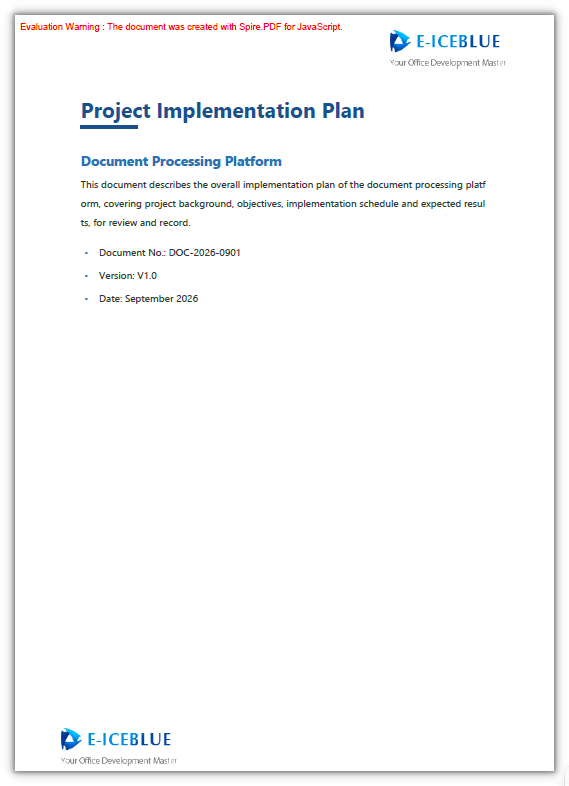
A company logo often goes into the header and footer too. PdfImage.FromFile reads the image from the virtual file system, and Canvas.DrawImage draws it by its top-left coordinates. The image size is in pixels, so convert it into points with PdfUnitConvertor first to line it up with the page coordinates.
function App() {
  const addImageHeaderFooter = async () => {
    // Get the Spire.PDF WASM module
    const pdfModule = window.wasmModule?.spirepdf;

    // Check whether the module is ready
    if (!pdfModule) {
      alert('Spire.PDF is not ready yet');
      return;
    }

    // Load the input PDF and the logo image into the VFS
    const inputFileName = 'Multipage_Document.pdf';
    const imageFileName = 'E-iceblue.png';
    await window.spire.FetchFileToVFS(inputFileName, "", `${process.env.PUBLIC_URL}/data/`);
    await window.spire.FetchFileToVFS(imageFileName, "", `${process.env.PUBLIC_URL}/data/`);

    // Create a PdfDocument object and load the PDF document
    const doc = new pdfModule.PdfDocument();
    doc.LoadFromFile(inputFileName);

    // Read the logo image and convert its pixel size into points
    const image = pdfModule.PdfImage.FromFile(imageFileName);
    const unitCvtr = new pdfModule.PdfUnitConvertor();
    const pointWidth = unitCvtr.ConvertUnits(image.Width, pdfModule.PdfGraphicsUnit.Pixel, pdfModule.PdfGraphicsUnit.Point);
    const pointHeight = unitCvtr.ConvertUnits(image.Height, pdfModule.PdfGraphicsUnit.Pixel, pdfModule.PdfGraphicsUnit.Point);

    // Draw the logo at the top-right of the header and the bottom-left of the footer, page by page
    for (let i = 0; i < doc.Pages.Count; i++) {
      const page = doc.Pages.get_Item(i);
      const canvas = page.Canvas;

      // Top-right of the header
      canvas.DrawImage({
        image: image,
        x: page.ActualSize.Width - pointWidth - 55,
        y: 20
      });

      // Bottom-left of the footer
      canvas.DrawImage({
        image: image,
        x: 55,
        y: page.ActualSize.Height - pointHeight - 20
      });
    }

    const outputFileName = 'Image_Header_Footer.pdf';
    doc.SaveToFile(outputFileName);
    doc.Close();

    // Read the generated file from the VFS and trigger the download
    const fileArray = window.dotnetRuntime.Module.FS.readFile(outputFileName);
    const blob = new Blob([fileArray], { type: 'application/pdf' });
    const url = URL.createObjectURL(blob);
    const a = document.createElement('a');
    a.href = url;
    a.download = outputFileName;
    a.click();
    URL.revokeObjectURL(url);
  };

  return (
    <div style={{ textAlign: 'center', height: '300px' }}>
      <h1>Add an Image to the Header and Footer</h1>
      <button onClick={addImageHeaderFooter}>
        Start Adding
      </button>
    </div>
  );
}

export default App;
The company logo lands at the top-right of the header and the bottom-left of the footer:
Add automatic page numbers and total page count
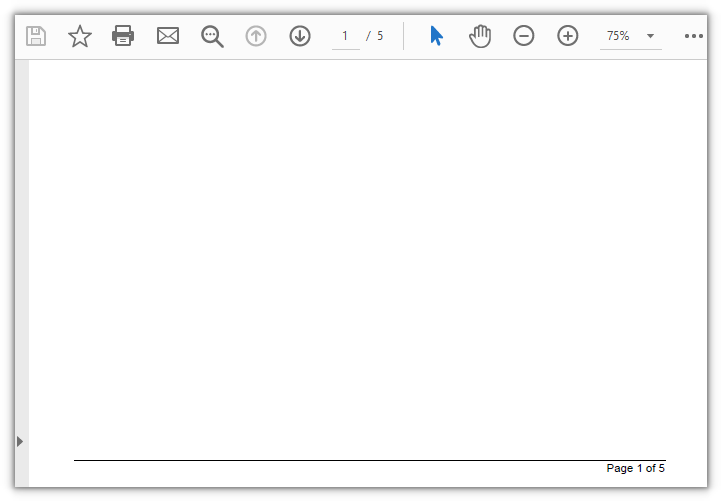
The product provides the PdfPageNumberField and PdfPageCountField classes to get the current page number and the total number of pages in a PDF document. They can be merged into a PdfCompositeField that formats the output as "Page X of Y", where X is the current page number and Y is the total page count.
function App() {
  const addPageNumbers = async () => {
    // Get the Spire.PDF WASM module
    const pdfModule = window.wasmModule?.spirepdf;

    // Check whether the module is ready
    if (!pdfModule) {
      alert('Spire.PDF is not ready yet');
      return;
    }

    // Load the font into the VFS for the page number text
    await window.spire.FetchFileToVFS('ARIAL.TTF', '/Library/Fonts/', `${process.env.PUBLIC_URL}/font/`);

    // Load the input PDF into the VFS
    const inputFileName = 'Multipage_Document.pdf';
    await window.spire.FetchFileToVFS(inputFileName, "", `${process.env.PUBLIC_URL}/data/`);

    // Create a PdfDocument object and load the PDF document
    const doc = new pdfModule.PdfDocument();
    doc.LoadFromFile(inputFileName);

    // Page margins, plus the pen, font and alignment for the page number text
    const margin = doc.PageSettings.Margins;
    const pen = new pdfModule.PdfPen({ brush: pdfModule.PdfBrushes.get_Black(), width: 0.75 });
    const font = new pdfModule.PdfTrueTypeFont({ fontFile: '/Library/Fonts/ARIAL.TTF', size: 10 });
    const brush = pdfModule.PdfBrushes.get_Black();
    const rightAlign = new pdfModule.PdfStringFormat({ alignment: pdfModule.PdfTextAlignment.Right });
    rightAlign.MeasureTrailingSpaces = true;
    const space = font.Height * 0.75;

    // Two dynamic fields: the current page number and the total page count
    const number = new pdfModule.PdfPageNumberField();
    const count = new pdfModule.PdfPageCountField();

    // Join them into "Page X of Y" by placeholder order; the list order matches {0} and {1}
    const compositeField = new pdfModule.PdfCompositeField({
      font: font,
      brush: brush,
      text: 'Page {0} of {1}',
      list: [number, count]
    });
    compositeField.StringFormat = rightAlign;

    // Draw the separator line and place the right-aligned page number, page by page
    for (let i = 0; i < doc.Pages.Count; i++) {
      const canvas = doc.Pages.get_Item(i).Canvas;
      const x = margin.Left;
      const width = canvas.ClientSize.Width - margin.Left - margin.Right;

      // Draw a separator line below the content area
      const y = canvas.ClientSize.Height - margin.Bottom + space;
      canvas.DrawLine({ pen: pen, x1: x, y1: y, x2: x + width, y2: y });

      // Measure the text and place the page number below the line, flush with the right edge
      const size = font.MeasureString({ text: 'Page 1 of 1' });
      compositeField.Bounds = new pdfModule.RectangleF({
        x: x + width - size.Width,
        y: y + 1,
        width: size.Width,
        height: size.Height
      });

      // Draw the dynamic field directly onto the canvas
      compositeField.Draw({ graphics: canvas });
    }

    const outputFileName = 'Page_Number_Footer.pdf';
    doc.SaveToFile(outputFileName);
    doc.Close();

    // Read the generated file from the VFS and trigger the download
    const fileArray = window.dotnetRuntime.Module.FS.readFile(outputFileName);
    const blob = new Blob([fileArray], { type: 'application/pdf' });
    const url = URL.createObjectURL(blob);
    const a = document.createElement('a');
    a.href = url;
    a.download = outputFileName;
    a.click();
    URL.revokeObjectURL(url);
  };

  return (
    <div style={{ textAlign: 'center', height: '300px' }}>
      <h1>Add Page Numbers</h1>
      <button onClick={addPageNumbers}>
        Start Adding
      </button>
    </div>
  );
}

export default App;
The footer shows "Page X of Y" right-aligned below the separator line:
Frequently Asked Questions
The header and footer are drawn on top of the body text
Cause: The header and footer are layered onto the page, and their position comes from the coordinates derived from PageSettings.Margins. If the loaded PDF has very little blank space at the top and bottom, that text overlaps the body.
Solution: Save the original page as a template first, and after drawing the header and footer, draw the original content back into place so the body and the header/footer each take their own layer. If you don't need layers, use a source file with enough blank space at the top and bottom:
// Save the current page content as a template
const template = page.CreateTemplate();

// After drawing the header and footer, lay the original content back over the full page
const graphicsWidget = new pdfModule.PdfGraphicsWidget(template.H);
graphicsWidget.Draw({ graphics: canvas, location: new pdfModule.PointF(0, 0) });
The header and footer text shows up as boxes
Cause: The font has no glyphs for those characters. Rendering CJK text with a Latin font such as ARIAL.TTF finds no matching glyph, so the page shows empty boxes.
Solution: Switch to a font file that includes those glyphs, and load it into /Library/Fonts/ in the virtual file system first:
// Load a CJK-capable font first, then hand it to PdfTrueTypeFont
await window.spire.FetchFileToVFS('SIMSUN.TTF', '/Library/Fonts/', `${process.env.PUBLIC_URL}/font/`);
const font = new pdfModule.PdfTrueTypeFont({ fontFile: '/Library/Fonts/SIMSUN.TTF', size: 10 });
The page number numbers don't match
Cause: The text of PdfCompositeField uses {0} and {1} as placeholders, filled in the order given by list. Putting PdfPageCountField before PdfPageNumberField, or swapping the two placeholders in text, makes the page number and the total page count trade places.
Solution: Keep the placeholder order consistent with list: page number first, total page count second:
const compositeField = new pdfModule.PdfCompositeField({
  font: font,
  brush: brush,
  text: 'Page {0} of {1}',
  list: [number, count]
});
Get a Free License
If you want to remove the evaluation message from the resulting document, or get past the feature limits, contact sales for a temporary 30-day license.