Add Hyperlinks to Shapes in Excel with JavaScript in React
A shape in Excel is usually there to point at something: the arrow on a diagram, the triangle that flags a number, the cloud that circles an area. Give it a hyperlink and the drawing becomes an entry point a reader can click. A shape, like a picture, is not a cell, and its hyperlink lives on the shape object itself, so both setting and reading one go through the worksheet's shape collection rather than its cell hyperlink collection. Spire.XLS for JavaScript does this in the browser on WebAssembly, handling input and output files through a virtual file system (VFS) with no backend service.
This article covers two core feature points:
For installation and project setup, see Integrating Spire.XLS for JavaScript in a React Project. The examples below assume Spire.XLS is installed and the WebAssembly module has been initialised.
Set a hyperlink on a shape
Setting a hyperlink on a shape is what turns a drawing into a clickable entry point: a reader who clicks the shape on the worksheet opens the address it points at. The link belongs to the shape itself rather than to a cell, so the shape has to be taken from the worksheet's shape collection first, and the address handed to its own link object. The steps are:
- Load the font and the test data file into the VFS.
- Load the workbook with
workbook.LoadFromFile. - Add the shapes into the space left for them with
sheet.PrstGeomShapes.AddPrstGeomShape. - Take the shape count from
sheet.PrstGeomShapes.Countand walk every shape on the worksheet with it. - Take each shape's link object from its
HyLinkproperty and write the address into itsAddress. - Save the workbook with
workbook.SaveToFile. - Dispose of the workbook with
workbook.Disposeto free resources.
The complete code example below shows how to set a hyperlink on a shape in Excel in React:
function App() {
  const shapeHyperlink = async () => {
    // get the Spire.XLS WASM module
    const xlsModule = window.wasmModule?.spirexls;

    // check that the module is ready
    if (!xlsModule) {
      alert('Spire.Xls is not ready yet');
      return;
    }

    // load the font and the test data file into the VFS
    await window.spire.FetchFileToVFS('ARIAL.TTF', '/Library/Fonts/', `${process.env.PUBLIC_URL}/font/`);
    const inputFileName = 'ShapeLink.xlsx';
    await window.spire.FetchFileToVFS(inputFileName, '', `${process.env.PUBLIC_URL}data/`);

    // load the workbook
    const workbook = new xlsModule.Workbook();
    workbook.LoadFromFile({ fileName: inputFileName });

    // take the first worksheet and add the three shapes into the space left for them
    const sheet = workbook.Worksheets.get(0);
    const shapes = sheet.PrstGeomShapes;
    shapes.AddPrstGeomShape(10, 1, 90, 60, xlsModule.PrstGeomShapeType.Triangle);
    shapes.AddPrstGeomShape(10, 3, 90, 60, xlsModule.PrstGeomShapeType.CurvedRightArrow);
    shapes.AddPrstGeomShape(10, 5, 90, 60, xlsModule.PrstGeomShapeType.Cloud);

    // set a hyperlink on each shape in turn
    const addresses = [
      'https://www.e-iceblue.com/Introduce/xls-for-javascript.html',
      'https://www.e-iceblue.com/Buy/Spire.XLS-JavaScript.html',
      'https://www.e-iceblue.com/Download/Spire-Office-JavaScript.html',
    ];
    for (let i = 0; i < shapes.Count; i++) {
      shapes.get(i).HyLink.Address = addresses[i];
    }

    // save the workbook
    const outputFileName = 'ShapeHyperlink.xlsx';
    workbook.SaveToFile({ fileName: outputFileName, fileFormat: xlsModule.FileFormat.Version2010 });

    // dispose of the workbook to free resources
    workbook.Dispose();

    // read the result file from the VFS and start the download
    const fileArray = window.dotnetRuntime.Module.FS.readFile(outputFileName);
    const blob = new Blob([fileArray], { type: 'application/vnd.openxmlformats-officedocument.spreadsheetml.sheet' });
    const url = URL.createObjectURL(blob);
    const a = document.createElement('a');
    a.href = url;
    a.download = outputFileName;
    a.click();
    URL.revokeObjectURL(url);
  };

  return (
    <div style={{ textAlign: 'center', height: '300px' }}>
      <h1>Add Hyperlinks to Shapes in Excel</h1>
      <button id="shape-hyperlink" onClick={shapeHyperlink}>Set a hyperlink on the shape</button>
    </div>
  );
}

export default App;
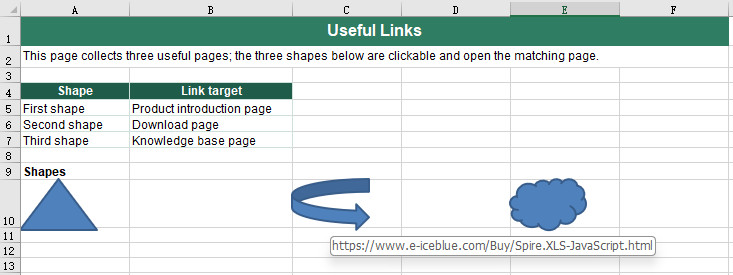
After running, the effect of setting a hyperlink on a shape:
Read the hyperlink from a shape
Reading the hyperlink off a shape is how a finished sheet is checked over: whether every shape carries a link, and whether they point at the right addresses. The addresses that come back are written out as a text file, which makes them easy to line up against a list of links. Shape hyperlinks are not kept in the cell hyperlink collection, so the shapes have to be taken from the worksheet one by one, and each one asked for its own link object. The steps are:
- Load the font and the test data file into the VFS.
- Load the workbook with
workbook.LoadFromFile. - Take the shape count from
sheet.PrstGeomShapes.Countand walk every shape on the worksheet with it. - Take this shape's link object from its
HyLinkproperty. - Read the target address from the link object's
Address, collecting the addresses as you go. - Write the collected addresses into a text file with
FS.writeFile, one address per line. - Dispose of the workbook with
workbook.Disposeto free resources.
The complete code example below shows how to read the hyperlink from a shape in Excel in React:
function App() {
  const readShapeHyperlink = async () => {
    // get the Spire.XLS WASM module
    const xlsModule = window.wasmModule?.spirexls;

    // check that the module is ready
    if (!xlsModule) {
      alert('Spire.Xls is not ready yet');
      return;
    }

    // load the font and the test data file into the VFS
    await window.spire.FetchFileToVFS('ARIAL.TTF', '/Library/Fonts/', `${process.env.PUBLIC_URL}/font/`);
    const inputFileName = 'ShapeHyperlinks.xlsx';
    await window.spire.FetchFileToVFS(inputFileName, '', `${process.env.PUBLIC_URL}data/`);

    // load the workbook
    const workbook = new xlsModule.Workbook();
    workbook.LoadFromFile({ fileName: inputFileName });

    // walk the shapes of the worksheet and read the hyperlink off each one
    const sheet = workbook.Worksheets.get(0);
    const shapes = sheet.PrstGeomShapes;
    const addresses = [];
    for (let i = 0; i < shapes.Count; i++) {
      addresses.push(shapes.get(i).HyLink.Address);
    }

    // write the addresses that were read into a text file
    const outputFileName = 'ReadShapeHyperlink.txt';
    window.dotnetRuntime.Module.FS.writeFile(outputFileName, addresses.join('\n'));

    // dispose of the workbook to free resources
    workbook.Dispose();

    // read the result file from the VFS and start the download
    const fileArray = window.dotnetRuntime.Module.FS.readFile(outputFileName);
    const blob = new Blob([fileArray], { type: 'text/plain' });
    const url = URL.createObjectURL(blob);
    const a = document.createElement('a');
    a.href = url;
    a.download = outputFileName;
    a.click();
    URL.revokeObjectURL(url);
  };

  return (
    <div style={{ textAlign: 'center', height: '300px' }}>
      <h1>Add Hyperlinks to Shapes in Excel</h1>
      <button id="read-shape-hyperlink" onClick={readShapeHyperlink}>Read the hyperlink from the shape</button>
    </div>
  );
}

export default App;
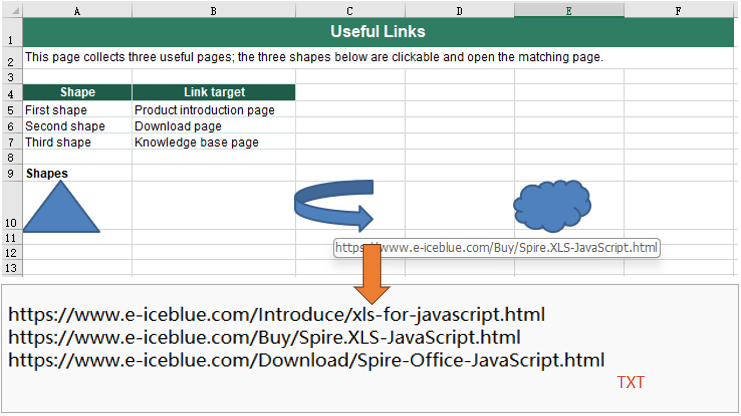
After running, the effect of reading the hyperlink from a shape:
FAQ
Why does a shape's hyperlink not show up in sheet.HyperLinks?
Cause: sheet.HyperLinks collects cell hyperlinks only. A shape is not a cell; it belongs to the worksheet's shape collection, and the link hangs on the shape object's HyLink.
Solution: Go through the shape collection. In this example, after a hyperlink was set on the shapes, sheet.HyperLinks.Count was still 0, and it was still 0 after the file was saved and opened again. Read a shape's link with sheet.PrstGeomShapes.get(i).HyLink.Address.
Get a Free License
Spire.XLS for JavaScript offers a 30-day full-featured free trial license with no functional limitations. Apply here to evaluate before purchasing.
Add Cross-Sheet and External File Links with JavaScript in React
Excel workbooks often need to tie scattered content together: one click on a summary page jumps to a detail worksheet, one click on a quote opens the source file kept beside it. That "jump elsewhere" ability belongs to cell hyperlinks, and the link type decides where the jump goes -- another worksheet inside the same workbook, or a file outside it. Spire.XLS for JavaScript does this in the browser through WebAssembly; input and output files are managed by a virtual file system (VFS), with no backend service required.
This article covers two feature points:
For installation and project setup, see Integrating Spire.XLS for JavaScript in a React Project. The examples below assume Spire.XLS is installed and the WebAssembly module has been initialized.
Add a link to another worksheet
A cross-sheet link solves the "jump from here to there" problem inside one workbook: it strings the content scattered across worksheets into a clickable path, so that the reader does not have to hunt for the right sheet. A link sits on a cell, so the first move is to create a hyperlink object on the target cell and then say, in turn, where it jumps and what text it shows. The steps are:
- Load the font and the test data file into the VFS.
- Load the workbook with
workbook.LoadFromFile. - Create a hyperlink object on the target cell with
sheet.HyperLinks.Add. - Mark the type as a workbook-internal link with the hyperlink's
Typeproperty, set toxlsModule.HyperLinkType.Workbook. - Set the text shown on the cell with the
TextToDisplayproperty. - Write the jump target into the
Addressproperty, in the form "sheet name!cell", for exampleData!B7. - Style the link text blue and underlined so that it reads differently from ordinary text.
- Save the workbook with
workbook.SaveToFile. - Dispose of the workbook with
workbook.Disposeto free resources.
The complete code example below shows how to add a cross-sheet hyperlink to an Excel cell in React:
function App() {
  const linkToOtherSheet = async () => {
    // get the Spire.XLS WASM module
    const xlsModule = window.wasmModule?.spirexls;

    // check that the module is ready
    if (!xlsModule) {
      alert('Spire.Xls is not ready yet');
      return;
    }

    // load the font and the test data file into the VFS
    await window.spire.FetchFileToVFS('ARIAL.TTF', '/Library/Fonts/', `${process.env.PUBLIC_URL}/font/`);
    const inputFileName = 'SheetLink.xlsx';
    await window.spire.FetchFileToVFS(inputFileName, '', `${process.env.PUBLIC_URL}data/`);

    // load the workbook
    const workbook = new xlsModule.Workbook();
    workbook.LoadFromFile({ fileName: inputFileName });

    // take the first worksheet and add a hyperlink object to cell B5
    const sheet = workbook.Worksheets.get(0);
    const cell = sheet.Range.get('B5');
    const hyperlink = sheet.HyperLinks.Add({ range: cell });

    // mark it as a workbook-internal link that points at cell B7 of the second worksheet
    hyperlink.Type = xlsModule.HyperLinkType.Workbook;
    hyperlink.TextToDisplay = 'View the full-year total in the data sheet';
    hyperlink.Address = 'Data!B7';

    // colour the link text blue and underline it so that it reads as a link
    cell.Style.Font.Color = xlsModule.Color.get_Blue();
    cell.Style.Font.Underline = xlsModule.FontUnderlineType.Single;

    // save the workbook
    const outputFileName = 'LinkToOtherSheetCell.xlsx';
    workbook.SaveToFile({ fileName: outputFileName, fileFormat: xlsModule.FileFormat.Version2010 });

    // dispose of the workbook to free resources
    workbook.Dispose();

    // read the result file from the VFS and start the download
    const fileArray = window.dotnetRuntime.Module.FS.readFile(outputFileName);
    const blob = new Blob([fileArray], { type: 'application/vnd.openxmlformats-officedocument.spreadsheetml.sheet' });
    const url = URL.createObjectURL(blob);
    const a = document.createElement('a');
    a.href = url;
    a.download = outputFileName;
    a.click();
    URL.revokeObjectURL(url);
  };

  return (
    <div style={{ textAlign: 'center', height: '300px' }}>
      <h1>Add Cross-Sheet and External File Links in Excel</h1>
      <button id="link-to-other-sheet" onClick={linkToOtherSheet}>Add a link to another worksheet</button>
      <button id="link-to-external-file" onClick={linkToExternalFile}>Add a link to an external file</button>
    </div>
  );
}

export default App;
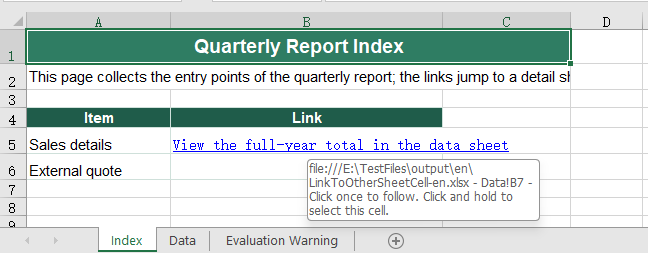
After running, the effect of adding a cross-sheet link:
Add a link to an external file
A cross-sheet link can only jump within the same workbook, so once the target falls outside it, the link has to become a file link. It differs from a cross-sheet link in just two places: the type is marked as a file link, and the jump target becomes a file path -- either a full path or a path relative to the current workbook. The steps are:
- Load the font and the test data file into the VFS.
- Load the workbook with
workbook.LoadFromFile. - Create a hyperlink object on the target cell with
sheet.HyperLinks.Add. - Mark the type as a file link with the
Typeproperty, set toxlsModule.HyperLinkType.File. - Set the text shown on the cell with the
TextToDisplayproperty. - Write the path of the external file into the
Addressproperty, for example../files/Quote.xlsx. - Style the link text blue and underlined so that it reads differently from ordinary text.
- Save the workbook with
workbook.SaveToFile. - Dispose of the workbook with
workbook.Disposeto free resources.
The complete code example below shows how to add an external-file hyperlink to an Excel cell in React:
function App() {
  const linkToExternalFile = async () => {
    // get the Spire.XLS WASM module
    const xlsModule = window.wasmModule?.spirexls;

    // check that the module is ready
    if (!xlsModule) {
      alert('Spire.Xls is not ready yet');
      return;
    }

    // load the font and the test data file into the VFS
    await window.spire.FetchFileToVFS('ARIAL.TTF', '/Library/Fonts/', `${process.env.PUBLIC_URL}/font/`);
    const inputFileName = 'SheetLink.xlsx';
    await window.spire.FetchFileToVFS(inputFileName, '', `${process.env.PUBLIC_URL}data/`);

    // load the workbook
    const workbook = new xlsModule.Workbook();
    workbook.LoadFromFile({ fileName: inputFileName });

    // take the first worksheet and add a hyperlink object to cell B6
    const sheet = workbook.Worksheets.get(0);
    const cell = sheet.Range.get('B6');
    const hyperlink = sheet.HyperLinks.Add({ range: cell });

    // mark it as a file link that points at a file outside the workbook
    hyperlink.Type = xlsModule.HyperLinkType.File;
    hyperlink.TextToDisplay = 'Open the external quote';
    hyperlink.Address = '../files/Quote.xlsx';

    // colour the link text blue and underline it so that it reads as a link
    cell.Style.Font.Color = xlsModule.Color.get_Blue();
    cell.Style.Font.Underline = xlsModule.FontUnderlineType.Single;

    // save the workbook
    const outputFileName = 'LinkToExternalFile.xlsx';
    workbook.SaveToFile({ fileName: outputFileName, fileFormat: xlsModule.FileFormat.Version2010 });

    // dispose of the workbook to free resources
    workbook.Dispose();

    // read the result file from the VFS and start the download
    const fileArray = window.dotnetRuntime.Module.FS.readFile(outputFileName);
    const blob = new Blob([fileArray], { type: 'application/vnd.openxmlformats-officedocument.spreadsheetml.sheet' });
    const url = URL.createObjectURL(blob);
    const a = document.createElement('a');
    a.href = url;
    a.download = outputFileName;
    a.click();
    URL.revokeObjectURL(url);
  };

  return (
    <div style={{ textAlign: 'center', height: '300px' }}>
      <h1>Add Cross-Sheet and External File Links in Excel</h1>
      <button id="link-to-other-sheet" onClick={linkToOtherSheet}>Add a link to another worksheet</button>
      <button id="link-to-external-file" onClick={linkToExternalFile}>Add a link to an external file</button>
    </div>
  );
}

export default App;
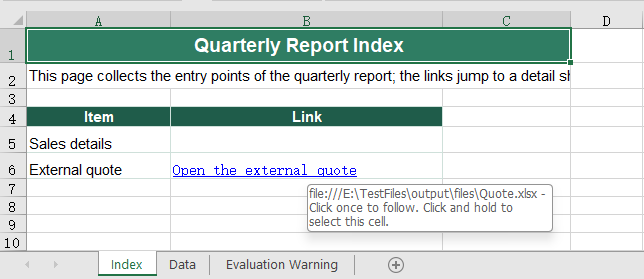
After running, the effect of adding an external-file link:
FAQ
Why does adding a link to a cell that already has text replace that text with the address
Reason: The text a cell shows is decided by TextToDisplay. Create a link without setting it and the address moves up to serve as the display text; the replacement happens the moment the link is added, so reading Range.Text afterwards returns the address rather than the original text.
Solution: Read the text before adding the link, then hand it back to TextToDisplay once the link is in place:
const cell = sheet.Range.get('B6');
const text = cell.Text;                  // keep the original text before adding the link
const hyperlink = sheet.HyperLinks.Add({ range: cell });
hyperlink.Type = xlsModule.HyperLinkType.File;
hyperlink.Address = '../files/Quote.xlsx';
hyperlink.TextToDisplay = text;          // hand the text back, so the cell still shows it
How do I remove a link but keep the text in the cell
Reason: The link and the text are two different things -- the link hangs on the cell, while the text is the cell's content. Range.ClearAll() clears the content, so using it to get rid of a link takes the text with it.
Solution: Remove the link by index with sheet.HyperLinks.RemoveAt, and the cell text stays as it was. For example, sheet.HyperLinks.RemoveAt(0) removes the first link; the text is still in the cell afterwards, it simply is no longer clickable.
Get a Free License
Spire.XLS for JavaScript offers a 30-day full-featured free trial license with no functional limitations. Apply here to evaluate before purchasing.
Add Hyperlinks to Pictures in Excel with JavaScript in React
A picture in Excel is more than decoration. Put a logo or a product shot on a worksheet and give it a hyperlink, and the file stops being a plain description and becomes something a reader can click through. A picture is not a cell, though, and its hyperlink lives on the picture object, so both setting and reading one go through the worksheet's picture collection rather than its cell hyperlink collection. Spire.XLS for JavaScript does this in the browser on WebAssembly, handling input and output files through a virtual file system (VFS) with no backend service.
This article covers two core feature points:
For installation and project setup, see Integrating Spire.XLS for JavaScript in a React Project. The examples below assume Spire.XLS is installed and the WebAssembly module has been initialised.
Set a hyperlink on a picture
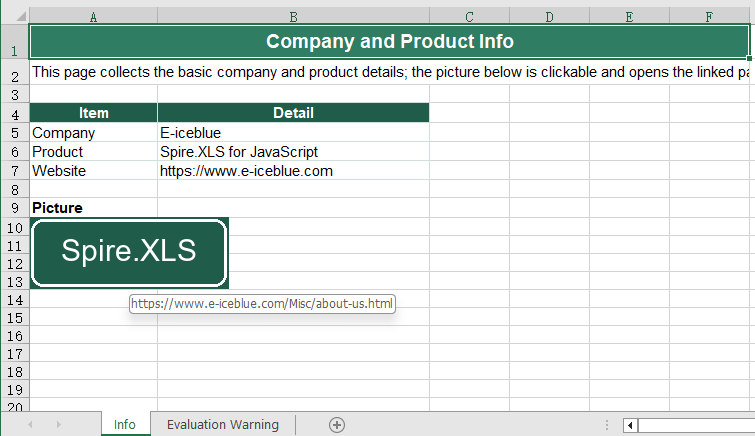
Setting a hyperlink on a picture is what turns it into a clickable entry point: a reader who clicks the picture on the worksheet opens the address it points at. The link belongs to the picture itself rather than to a cell, so the picture object has to be taken from the worksheet's picture collection first, and the address handed to that object. The steps are:
- Load the font, the picture and the test data file into the VFS.
- Load the workbook with
workbook.LoadFromFile. - Insert the picture into the space left for it with
sheet.Pictures.Add. - Set the hyperlink on the picture with
picture.SetHyperLink, passingtrueas the second argument. - Save the workbook with
workbook.SaveToFile. - Dispose of the workbook with
workbook.Disposeto free resources.
The complete code example below shows how to set a hyperlink on a picture in Excel in React:
function App() {
  const pictureHyperlink = async () => {
    // get the Spire.XLS WASM module
    const xlsModule = window.wasmModule?.spirexls;

    // check that the module is ready
    if (!xlsModule) {
      alert('Spire.Xls is not ready yet');
      return;
    }

    // load the font, the picture and the test data file into the VFS
    await window.spire.FetchFileToVFS('ARIAL.TTF', '/Library/Fonts/', `${process.env.PUBLIC_URL}/font/`);
    await window.spire.FetchFileToVFS('logo.png', '', `${process.env.PUBLIC_URL}data/`);
    const inputFileName = 'PictureLink.xlsx';
    await window.spire.FetchFileToVFS(inputFileName, '', `${process.env.PUBLIC_URL}data/`);

    // load the workbook
    const workbook = new xlsModule.Workbook();
    workbook.LoadFromFile({ fileName: inputFileName });

    // take the first worksheet and drop the picture into the space left for it
    const sheet = workbook.Worksheets.get(0);
    const picture = sheet.Pictures.Add({ topRow: 10, leftColumn: 1, fileName: 'logo.png' });

    // set the hyperlink on the picture; the second argument being true means it points outside the workbook
    picture.SetHyperLink('https://www.e-iceblue.com/Misc/about-us.html', true);

    // save the workbook
    const outputFileName = 'PictureHyperlink.xlsx';
    workbook.SaveToFile({ fileName: outputFileName, fileFormat: xlsModule.FileFormat.Version2010 });

    // dispose of the workbook to free resources
    workbook.Dispose();

    // read the result file from the VFS and start the download
    const fileArray = window.dotnetRuntime.Module.FS.readFile(outputFileName);
    const blob = new Blob([fileArray], { type: 'application/vnd.openxmlformats-officedocument.spreadsheetml.sheet' });
    const url = URL.createObjectURL(blob);
    const a = document.createElement('a');
    a.href = url;
    a.download = outputFileName;
    a.click();
    URL.revokeObjectURL(url);
  };

  return (
    <div style={{ textAlign: 'center', height: '300px' }}>
      <h1>Add Hyperlinks to Pictures in Excel</h1>
      <button id="picture-hyperlink" onClick={pictureHyperlink}>Set a hyperlink on the picture</button>
    </div>
  );
}

export default App;
After running, the effect of setting a hyperlink on a picture:
Read the hyperlink from a picture
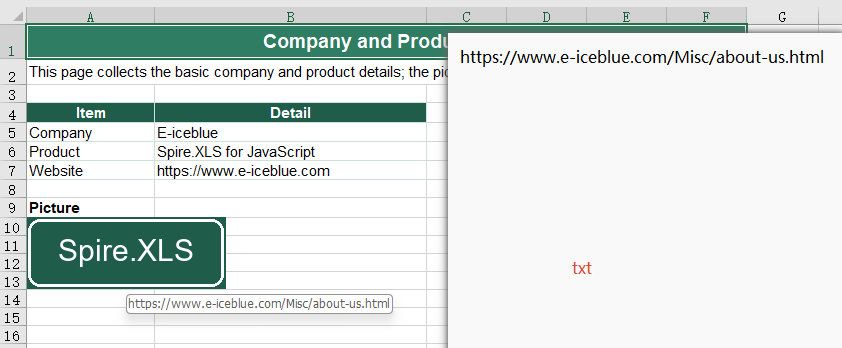
Reading the hyperlink off a picture is how a finished workbook is checked over: whether the links are all there, and whether they point at the right addresses. The addresses that come back are written out as a text file, which makes them easy to line up against a list of links. Picture hyperlinks are not kept in the cell hyperlink collection, so the pictures have to be taken from the worksheet one by one, and each one asked for its own link object. The steps are:
- Load the font and the test data file into the VFS.
- Load the workbook with
workbook.LoadFromFile. - Take the picture count from
sheet.Pictures.Countand walk every picture on the worksheet with it. - Take this picture's hyperlink object with
picture.GetHyperLink. - Read the target address from the link object's
Address, collecting the addresses as you go. - Write the collected addresses into a text file with
FS.writeFile, one address per line. - Dispose of the workbook with
workbook.Disposeto free resources.
The complete code example below shows how to read the hyperlink from a picture in Excel in React:
function App() {
  const readPictureHyperlink = async () => {
    // get the Spire.XLS WASM module
    const xlsModule = window.wasmModule?.spirexls;

    // check that the module is ready
    if (!xlsModule) {
      alert('Spire.Xls is not ready yet');
      return;
    }

    // load the font and the test data file into the VFS
    await window.spire.FetchFileToVFS('ARIAL.TTF', '/Library/Fonts/', `${process.env.PUBLIC_URL}/font/`);
    const inputFileName = 'PictureHyperlinks.xlsx';
    await window.spire.FetchFileToVFS(inputFileName, '', `${process.env.PUBLIC_URL}data/`);

    // load the workbook
    const workbook = new xlsModule.Workbook();
    workbook.LoadFromFile({ fileName: inputFileName });

    // walk the pictures of the worksheet and read the hyperlink off each one
    const sheet = workbook.Worksheets.get(0);
    const pictures = sheet.Pictures;
    const addresses = [];
    for (let i = 0; i < pictures.Count; i++) {
      const link = pictures.get(i).GetHyperLink();
      addresses.push(link.Address);
    }

    // write the addresses that were read into a text file
    const outputFileName = 'ReadPictureHyperlink.txt';
    window.dotnetRuntime.Module.FS.writeFile(outputFileName, addresses.join('\n'));

    // dispose of the workbook to free resources
    workbook.Dispose();

    // read the result file from the VFS and start the download
    const fileArray = window.dotnetRuntime.Module.FS.readFile(outputFileName);
    const blob = new Blob([fileArray], { type: 'text/plain' });
    const url = URL.createObjectURL(blob);
    const a = document.createElement('a');
    a.href = url;
    a.download = outputFileName;
    a.click();
    URL.revokeObjectURL(url);
  };

  return (
    <div style={{ textAlign: 'center', height: '300px' }}>
      <h1>Add Hyperlinks to Pictures in Excel</h1>
      <button id="read-picture-hyperlink" onClick={readPictureHyperlink}>Read the hyperlink from the picture</button>
    </div>
  );
}

export default App;
After running, the effect of reading the hyperlink from a picture:
FAQ
Why does a picture's hyperlink not show up in sheet.HyperLinks?
Cause: sheet.HyperLinks collects cell hyperlinks only. A picture is not a cell; it belongs to the worksheet's picture collection, and the link hangs on the picture object itself.
Solution: Go through the picture collection. In this example, after a hyperlink was set on the picture, sheet.HyperLinks.Count was still 0, and it was still 0 after the file was saved and opened again. Read a picture's link with sheet.Pictures.get(i).GetHyperLink(), then read the Address off the link object.
When should the second argument of SetHyperLink be false?
Cause: The second argument of picture.SetHyperLink(address, isExternal) says whether the target lies outside the workbook.
Solution: Pass true for a web page or an external file, and the link type comes out as HyperLinkType.Url; pass false for a position inside the same workbook, write the address as a cell reference such as Sheet1!A1, and the type comes out as HyperLinkType.Workbook. In this example both forms were saved, and after the file was opened again the Address and Type read back matched what had been set.
Get a Free License
Spire.XLS for JavaScript offers a 30-day full-featured free trial license with no functional limitations. Apply here to evaluate before purchasing.
Add, Read, Modify, and Delete Excel Hyperlinks with JavaScript in React
Hyperlinks are a common element in Excel for quickly jumping to web pages, email addresses, or other resources, and they often appear in tables such as product websites, contact information, and reference materials. Spire.XLS for JavaScript uses WebAssembly to add, read, modify, and delete hyperlinks directly in the browser and manages input/output files through a virtual file system (VFS) without any backend support.
This article demonstrates the following common features:
For installation and project configuration, please refer to Integrating Spire.XLS for JavaScript in a React Project. The examples below assume that Spire.XLS is installed and the WebAssembly module has been initialized.
Add a Hyperlink to Text
For cells that contain text such as company names, website names, or email addresses, you can add hyperlinks to the text so that users can click to jump to a web page or send an email.
function App() {
  const addHyperlinkToText = async () => {
    // Get the Spire.XLS WASM module
    const xlsModule = window.wasmModule?.spirexls;

    // Check whether the module is ready
    if (!xlsModule) {
      alert('Spire.Xls is not ready yet');
      return;
    }

    // Load the font and the Excel file into the VFS
    await window.spire.FetchFileToVFS('ARIAL.TTF', '/Library/Fonts/', `${process.env.PUBLIC_URL}/font/`);
    const inputFileName = 'HyperlinksSample.xlsx';
    await window.spire.FetchFileToVFS(inputFileName, '', `${process.env.PUBLIC_URL}data/`);

    // Load the workbook
    const workbook = new xlsModule.Workbook();
    workbook.LoadFromFile({ fileName: inputFileName });

    // Get the first worksheet
    const sheet = workbook.Worksheets.get(0);

    // Add a web hyperlink to the text in cell D10
    const urlLink = sheet.HyperLinks.Add({ range: sheet.Range.get('D10') });
    urlLink.TextToDisplay = sheet.Range.get('D10').Text;
    urlLink.Type = xlsModule.HyperLinkType.Url;
    urlLink.Address = 'https://www.e-iceblue.com/';

    // Add an email hyperlink to the text in cell E10
    const mailLink = sheet.HyperLinks.Add({ range: sheet.Range.get('E10') });
    mailLink.TextToDisplay = sheet.Range.get('E10').Text;
    mailLink.Type = xlsModule.HyperLinkType.Url;
    mailLink.Address = 'mailto:support@e-iceblue.com';

    // Save the workbook
    const outputFileName = 'AddHyperlinkToText_output.xlsx';
    workbook.SaveToFile({ fileName: outputFileName, version: xlsModule.ExcelVersion.Version2010 });

    // Dispose of the workbook
    workbook.Dispose();

    // Read the generated file from the VFS and trigger the download
    const fileArray = window.dotnetRuntime.Module.FS.readFile(outputFileName);
    const blob = new Blob([fileArray], { type: 'application/vnd.openxmlformats-officedocument.spreadsheetml.sheet' });
    const url = URL.createObjectURL(blob);
    const a = document.createElement('a');
    a.href = url;
    a.download = outputFileName;
    a.click();
    URL.revokeObjectURL(url);
  };

  return (
    <div style={{ textAlign: 'center', height: '300px' }}>
      <h1>Add Hyperlink To Text</h1>
      <button onClick={addHyperlinkToText}>Start</button>
    </div>
  );
}

export default App;
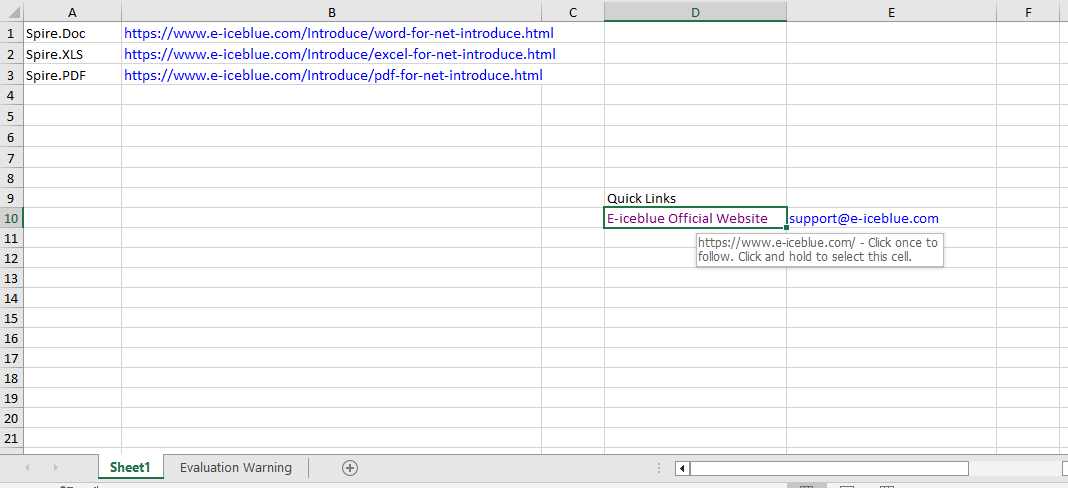
After running, the text in cell D10 becomes a clickable web link, and the email address in cell E10 becomes an email link that can be used to send an email.
Read Hyperlinks
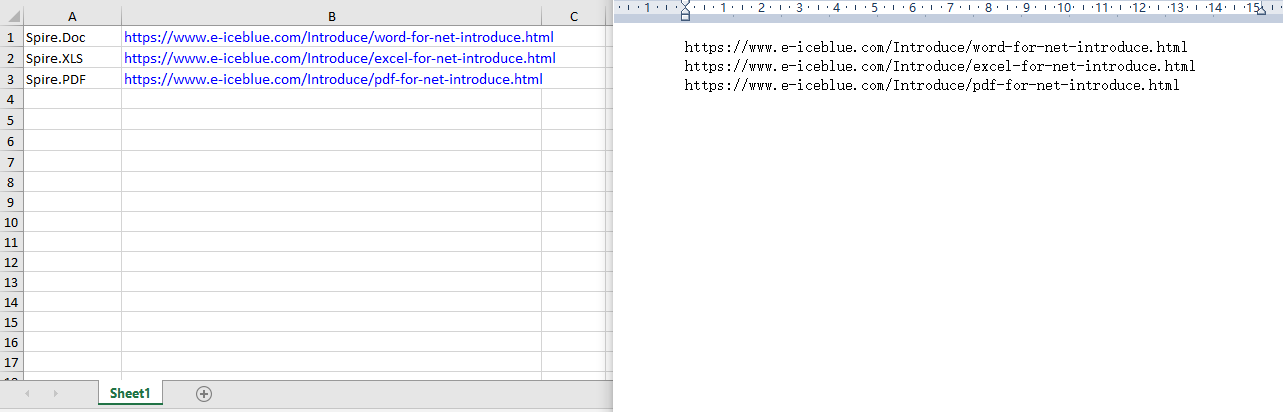
Through the Worksheet.HyperLinks collection, you can get all the hyperlinks in a worksheet and access the target address of each hyperlink by index.
function App() {
  const readHyperlinks = async () => {
    // Get the Spire.XLS WASM module
    const xlsModule = window.wasmModule?.spirexls;

    // Check whether the module is ready
    if (!xlsModule) {
      alert('Spire.Xls is not ready yet');
      return;
    }

    // Load the Excel file into the VFS
    const inputFileName = 'HyperlinksSample.xlsx';
    await window.spire.FetchFileToVFS(inputFileName, '', `${process.env.PUBLIC_URL}data/`);

    // Load the workbook
    const workbook = new xlsModule.Workbook();
    workbook.LoadFromFile({ fileName: inputFileName });

    // Get the first worksheet
    const sheet = workbook.Worksheets.get(0);

    // Read the target addresses of all hyperlinks
    const hyperlinkCount = sheet.HyperLinks.Count;
    let allAddresses = '';

    for (let i = 0; i < hyperlinkCount; i++) {
        const address = sheet.HyperLinks.get(i).Address;
        allAddresses += address + '\n';
    }

    // Save the hyperlink addresses as a txt file
    const outputFileName = 'ReadHyperlinks_output.txt';
    window.dotnetRuntime.Module.FS.writeFile(outputFileName, allAddresses);
    workbook.Dispose();

    // Read the generated file from the VFS and trigger the download
    const fileArray = window.dotnetRuntime.Module.FS.readFile(outputFileName);
    const blob = new Blob([fileArray], { type: 'text/plain' });
    const url = URL.createObjectURL(blob);
    const a = document.createElement('a');
    a.href = url;
    a.download = outputFileName;
    a.click();
    URL.revokeObjectURL(url);
  };

  return (
    <div style={{ textAlign: 'center', height: '300px' }}>
      <h1>Read Hyperlinks</h1>
      <button onClick={readHyperlinks}>Start</button>
    </div>
  );
}

export default App;
Use the HyperLinks.Count property to get the total number of hyperlinks in the worksheet.
Modify a Hyperlink
After getting a hyperlink by index with HyperLinks.get(0), you can reset its display text and target address to modify the hyperlink.
function App() {
  const modifyHyperlink = async () => {
    // Get the Spire.XLS WASM module
    const xlsModule = window.wasmModule?.spirexls;

    // Check whether the module is ready
    if (!xlsModule) {
      alert('Spire.Xls is not ready yet');
      return;
    }

    // Load the font and the Excel file into the VFS
    await window.spire.FetchFileToVFS('ARIAL.TTF', '/Library/Fonts/', `${process.env.PUBLIC_URL}/font/`);
    const inputFileName = 'HyperlinksSample.xlsx';
    await window.spire.FetchFileToVFS(inputFileName, '', `${process.env.PUBLIC_URL}data/`);

    // Load the workbook
    const workbook = new xlsModule.Workbook();
    workbook.LoadFromFile({ fileName: inputFileName });

    // Get the first worksheet
    const sheet = workbook.Worksheets.get(0);

    // Get all hyperlinks in the worksheet
    const links = sheet.HyperLinks;

    // Modify the display text and target address of the first hyperlink
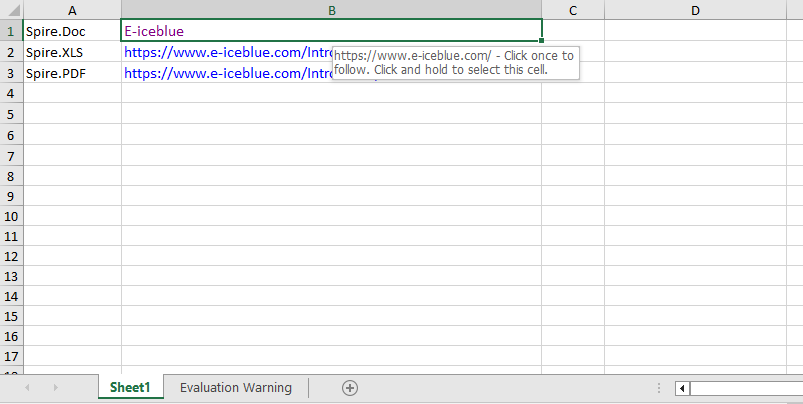
    links.get(0).TextToDisplay = 'E-iceblue';
    links.get(0).Address = 'https://www.e-iceblue.com/';

    // Save the workbook
    const outputFileName = 'ModifyHyperlink_output.xlsx';
    workbook.SaveToFile({ fileName: outputFileName, version: xlsModule.ExcelVersion.Version2010 });

    // Dispose of the workbook
    workbook.Dispose();

    // Read the generated file from the VFS and trigger the download
    const fileArray = window.dotnetRuntime.Module.FS.readFile(outputFileName);
    const blob = new Blob([fileArray], { type: 'application/vnd.openxmlformats-officedocument.spreadsheetml.sheet' });
    const url = URL.createObjectURL(blob);
    const a = document.createElement('a');
    a.href = url;
    a.download = outputFileName;
    a.click();
    URL.revokeObjectURL(url);
  };

  return (
    <div style={{ textAlign: 'center', height: '300px' }}>
      <h1>Modify Hyperlink</h1>
      <button onClick={modifyHyperlink}>Start</button>
    </div>
  );
}

export default App;
After modification, both the display text and the target address of the first hyperlink are updated.
Remove Hyperlinks
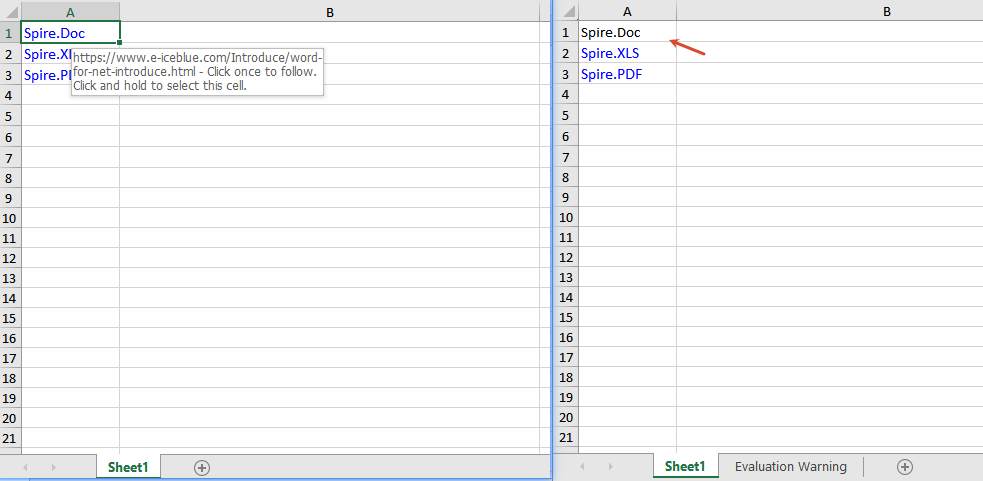
Use the HyperLinks.RemoveAt(index) method to only remove the hyperlink and keep the text, or use the Range.ClearAll() method to clear all content in the cell, including the hyperlink.
function App() {
  const removeHyperlinks = async () => {
    // Get the Spire.XLS WASM module
    const xlsModule = window.wasmModule?.spirexls;

    // Check whether the module is ready
    if (!xlsModule) {
      alert('Spire.Xls is not ready yet');
      return;
    }

    // Load the font and the Excel file into the VFS
    await window.spire.FetchFileToVFS('ARIAL.TTF', '/Library/Fonts/', `${process.env.PUBLIC_URL}/font/`);
    const inputFileName = 'HyperlinksSample.xlsx';
    await window.spire.FetchFileToVFS(inputFileName, '', `${process.env.PUBLIC_URL}data/`);

    // Load the workbook
    const workbook = new xlsModule.Workbook();
    workbook.LoadFromFile({ fileName: inputFileName });

    // Get the first worksheet
    const sheet = workbook.Worksheets.get(0);

    // Get all hyperlinks in the worksheet
    const links = sheet.HyperLinks;

    // Clear all content in the linked cells
    // sheet.Range.get('A1').ClearAll();
    // sheet.Range.get('A2').ClearAll();
    // sheet.Range.get('A3').ClearAll();

    // Only remove the hyperlink and keep the original text
    sheet.HyperLinks.RemoveAt(0);

    // Save the workbook
    const outputFileName = 'RemoveHyperlinks_output.xlsx';
    workbook.SaveToFile({ fileName: outputFileName, version: xlsModule.ExcelVersion.Version2010 });

    // Dispose of the workbook
    workbook.Dispose();

    // Read the generated file from the VFS and trigger the download
    const fileArray = window.dotnetRuntime.Module.FS.readFile(outputFileName);
    const blob = new Blob([fileArray], { type: 'application/vnd.openxmlformats-officedocument.spreadsheetml.sheet' });
    const url = URL.createObjectURL(blob);
    const a = document.createElement('a');
    a.href = url;
    a.download = outputFileName;
    a.click();
    URL.revokeObjectURL(url);
  };

  return (
    <div style={{ textAlign: 'center', height: '300px' }}>
      <h1>Remove Hyperlinks</h1>
      <button onClick={removeHyperlinks}>Start</button>
    </div>
  );
}

export default App;
Frequently Asked Questions
The target address is not updated after modifying the hyperlink
Reason: The wrong hyperlink index was modified, or there is no hyperlink on the target cell.
Solution: Make sure a hyperlink already exists in the worksheet, access it at the correct index such as sheet.HyperLinks.get(0), and then set its Address property.
Get a Free License
If you want to remove the evaluation message from the result documents or get rid of feature limitations, please contact sales to obtain a temporary license valid for 30 days.