
Program Guide (137)
Children categories
In Word documents, the ability to add, modify, and remove table borders flexibly can significantly enhance readability and professionalism. Firstly, customizing border styles highlights important information, helping readers quickly locate key data or paragraphs and enhancing visual impact. Secondly, by adjusting the thickness, color, and style of border lines, finer design control can be achieved, ensuring a uniform and aesthetically pleasing document style. Lastly, removing unnecessary borders helps reduce visual clutter, making page layouts cleaner and more comprehensible, improving the reading experience. This article will introduce how to add, modify, or remove Word table borders in Java projects using Spire.Doc for Java.
Install Spire.Doc for Java
First, you're required to add the Spire.Doc.jar file as a dependency in your Java program. The JAR file can be downloaded from this link. If you use Maven, you can easily import the JAR file in your application by adding the following code to your project's pom.xml file.
<repositories>
    <repository>
        <id>com.e-iceblue</id>
        <name>e-iceblue</name>
        <url>https://repo.e-iceblue.com/nexus/content/groups/public/</url>
    </repository>
</repositories>
<dependencies>
    <dependency>
        <groupId>e-iceblue</groupId>
        <artifactId>spire.doc</artifactId>
        <version>14.8.4</version>
    </dependency>
</dependencies>
Java Add Word Table Borders
To uniformly add borders to all cells in a table, you need to visit each cell individually and visually set its border properties. Here are the detailed steps:
- Create a Document object.
- Load a document using the Document.loadFromFile() method.
- Retrieve the first section of the document using Document.getSections().get(0).
- Get the first table within the section using Section.getTables().get(0).
- Use a for loop to iterate through all cells in the table.
- Set the cell border to a single line style by using TableCell.getCellFormat().getBorders().setBorderType(BorderStyle.Single).
- Define the border width to 1 point by using TableCell.getCellFormat().getBorders().setLineWidth(1f).
- Set the border color to black by using TableCell.getCellFormat().getBorders().setColor(Color.black).
- Save the changes to the document using the Document.saveToFile() method.
- Java
import com.spire.doc.*;
import com.spire.doc.documents.*;
import java.awt.*;

public class AddBorder {
    public static void main(String[] args) throws Exception{
        // Create a new Document object
        Document doc = new Document();

        // Load the document from file
        doc.loadFromFile("TableExample1.docx");

        // Get the first section of the document
        Section section = doc.getSections().get(0);

        // Get the first table in the section
        Table table = section.getTables().get(0);

        // Declare TableRow and TableCell variables for use in the loop
        TableRow tableRow;
        TableCell tableCell;

        // Iterate through all rows of the table
        for (int i = 0; i < table.getRows().getCount(); i++) {
            // Get the current row
            tableRow = table.getRows().get(i);

            // Iterate through all cells in the current row
            for (int j = 0; j < tableRow.getCells().getCount(); j++) {
                // Get the current cell
                tableCell = tableRow.getCells().get(j);

                // Set the border style of the current cell to single line
                tableCell.getCellFormat().getBorders().setBorderType(BorderStyle.Single);

                // Set the width of the border
                tableCell.getCellFormat().getBorders().setLineWidth(1f);

                // Set the color of the border
                tableCell.getCellFormat().getBorders().setColor(Color.black);
            }
        }

        // Save the modified document as a new file
        doc.saveToFile("AddBorders.docx", FileFormat.Docx);

        // Close the document to release resources
        doc.close();
    }
}
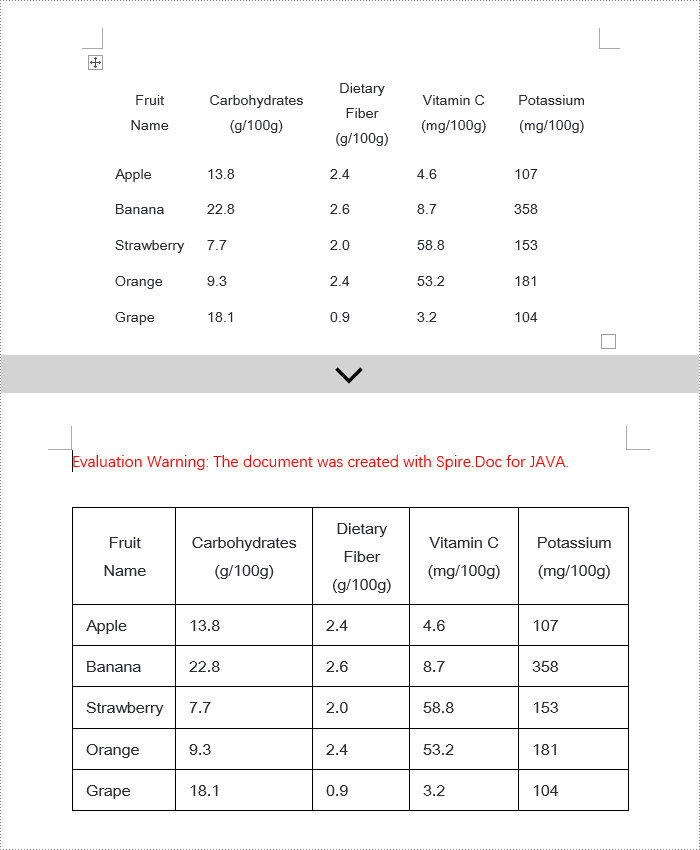
Java Modify Word Table Borders
Spire.Doc empowers users with extensive customization options for borders, allowing adjustments such as selecting border styles through TableCell.getCellFormat().getBorders().getBottom().setBorderType(), setting border thickness via TableCell.getCellFormat().getBorders().getBottom().setLineWidth(), and specifying border colors with TableCell.getCellFormat().getBorders().getBottom().setColor(). This enables fine-tuned design of table borders within documents according to personal or project needs. Below are the detailed steps:
- Instantiate a Document object.
- Load a document using the Document.loadFromFile() method.
- Retrieve the first section of the document by calling Document.getSections().get(0).
- Get the first table within the section using Section.getTables().get(0).
- Iterate over the cells in the table that require border style changes using a for loop.
- Change the color of the bottom border to orange by invoking TableCell.getCellFormat().getBorders().getBottom ().setColor(Color.ORANGE).
- Alter the style of the bottom border to a dashed line by calling TableCell.getCellFormat().getBorders().getBottom ().setBorderType(BorderStyle.Dot_Dash).
- Modify the width of the bottom border to 2 points by executing TableCell.getCellFormat().getBorders().getBottom ().setLineWidth(2).
- Save the document using the Document.saveToFile() method.
- Java
import com.spire.doc.*;
import com.spire.doc.documents.*;
import java.awt.*;

public class ModifyBorder {
    public static void main(String[] args) {
        // Create a new Document object
        Document doc = new Document();

        // Load the document from a file
        doc.loadFromFile("TableExample2.docx");

        // Get the first section of the document
        Section section = doc.getSections().get(0);

        // Get the first table in that section
        Table table = section.getTables().get(0);

        // Declare a TableRow to use within the loop
        TableRow tableRow;

        // Iterate through all rows of the table
        for (int i = 1; i < table.getRows().getCount() - 1; i++) {
            tableRow = table.getRows().get(i);

            // Set the border color of the current cell     tableRow.getCells().get(1).getCellFormat().getBorders().getBottom().setColor(Color.ORANGE);
            // Set the border style of the current cell to dotted line
tableRow.getCells().get(1).getCellFormat().getBorders().getBottom().setBorderType(BorderStyle.Dot_Dash);

            // Set the width of the border
tableRow.getCells().get(1).getCellFormat().getBorders().getBottom().setLineWidth(2);
        }

        // Save the modified document as a new file
        doc.saveToFile("ModifyBorder.docx", FileFormat.Docx);

        // Close the document to release resources
        doc.close();
    }
}
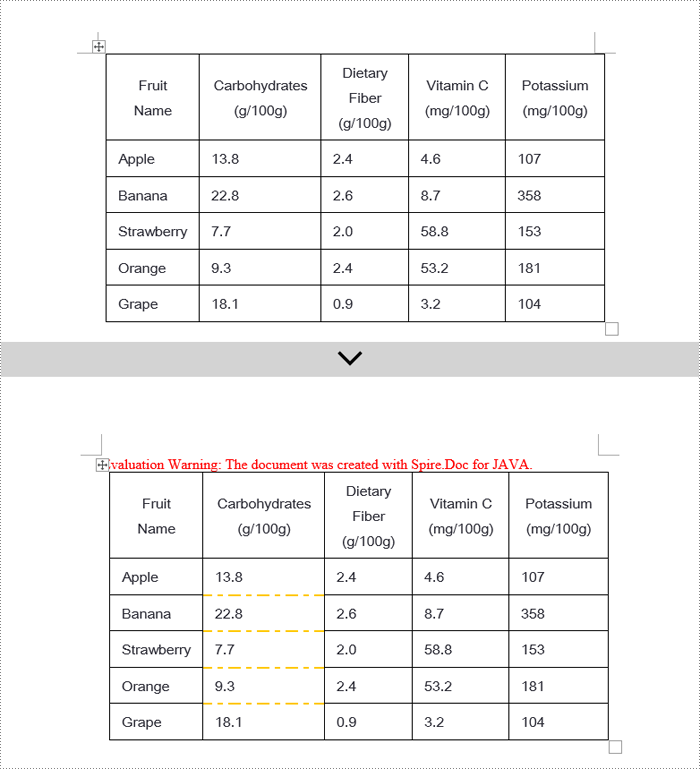
Java Remove Word Table Borders
When editing Word documents, the flexibility of border design extends beyond the entire table level, allowing for meticulous personalized adjustments at the individual cell level. To comprehensively remove all traces of borders both inside and outside of tables, a phased approach is recommended: Firstly, address the macro-level by clearing the overall border style of the table; subsequently, enter the micro-adjustment phase where each cell within the table is iterated over to revoke its unique border settings. Below are the detailed steps:
- Instantiate a Document object.
- Load a document using the Document.loadFromFile() method.
- Retrieve the first section of the document by calling Document.getSections().get(0).
- Access the first table within the section using Section.getTables().get(0).
- Iterate over all cells in the table using a for loop.
- Remove the border of the table by invoking Table.getTableFormat().getBorders().setBorderType(BorderStyle.None).
- Eliminate the borders of each cell individually by applying TableCell.getCellFormat().getBorders().setBorderType(BorderStyle.None).
- Save the modified document using the Document.saveToFile() method.
- Java
import com.spire.doc.*;
import com.spire.doc.documents.BorderStyle;

public class RemoveBorder {
    public static void main(String[] args) {
        // Create a new Document object
        Document doc = new Document();

        // Load the document from a file
        doc.loadFromFile("TableExample2.docx");

        // Get the first section of the document
        Section section = doc.getSections().get(0);

        // Get the first table in the section
        Table table = section.getTables().get(0);

        // Remove the borders set on the table
        table.getTableFormat().getBorders().setBorderType(BorderStyle.None);

        // Declare a TableRow to use in the loop
        TableRow tableRow;

        // Iterate through all rows of the table
        for (int i = 0; i < table.getRows().getCount(); i++) {
            tableRow = table.getRows().get(i);
            for (int j = 0; j < tableRow.getCells().getCount(); j++) {
                // Remove all borders set on the cell          tableRow.getCells().get(j).getCellFormat().getBorders().setBorderType(BorderStyle.None);
            }
        }

        // Save the modified document as a new file
        doc.saveToFile("RemoveBorder.docx", FileFormat.Docx);

        // Close the document and release resources
        doc.close();
    }
}
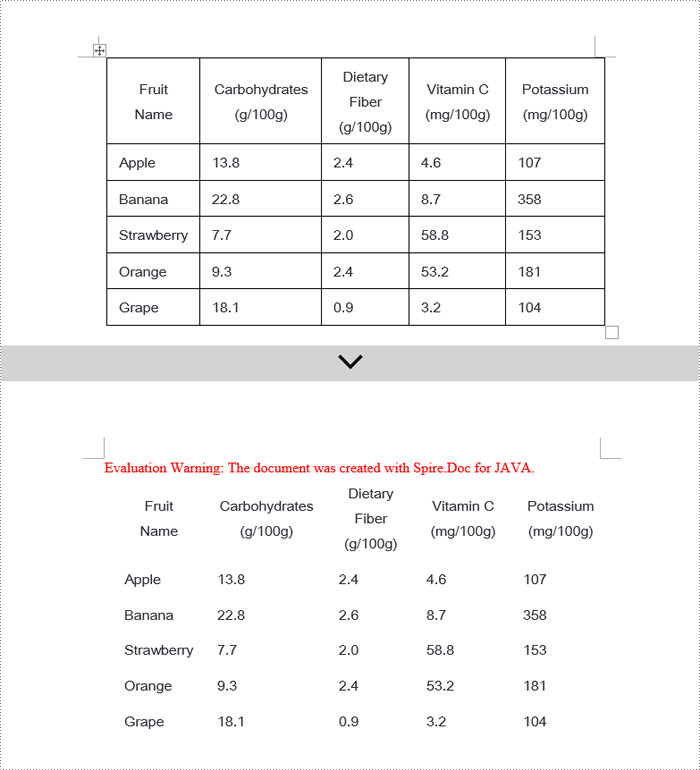
Apply for a Temporary License
If you'd like to remove the evaluation message from the generated documents, or to get rid of the function limitations, please request a 30-day trial license for yourself.
Markdown is a popular format among writers and developers for its simplicity and readability, allowing content to be formatted using easy-to-write plain text syntax. However, converting Markdown files to universally accessible formats like Word documents and PDF files is essential for sharing documents with readers, enabling complex formatting, and ensuring capability and consistency across devices and platforms. This article demonstrates how to convert Markdown files to Word and PDF files with the powerful library Spire.Doc for Java, enhancing the versatility and distribution potential of your written content.
- Convert a Markdown File to a Word Document with Java
- Convert a Markdown File to a PDF Document with Java
- Customizing Page Settings of the Result Document
Install Spire.Doc for Java
First of all, you're required to add the Spire.Doc.jar file as a dependency in your Java program. The JAR file can be downloaded from this link. If you use Maven, you can easily import the JAR file in your application by adding the following code to your project's pom.xml file.
<repositories>
    <repository>
        <id>com.e-iceblue</id>
        <name>e-iceblue</name>
        <url>https://repo.e-iceblue.com/nexus/content/groups/public/</url>
    </repository>
</repositories>
<dependencies>
    <dependency>
        <groupId>e-iceblue</groupId>
        <artifactId>spire.doc</artifactId>
        <version>14.8.4</version>
    </dependency>
</dependencies>
Convert a Markdown File to a Word Document with Java
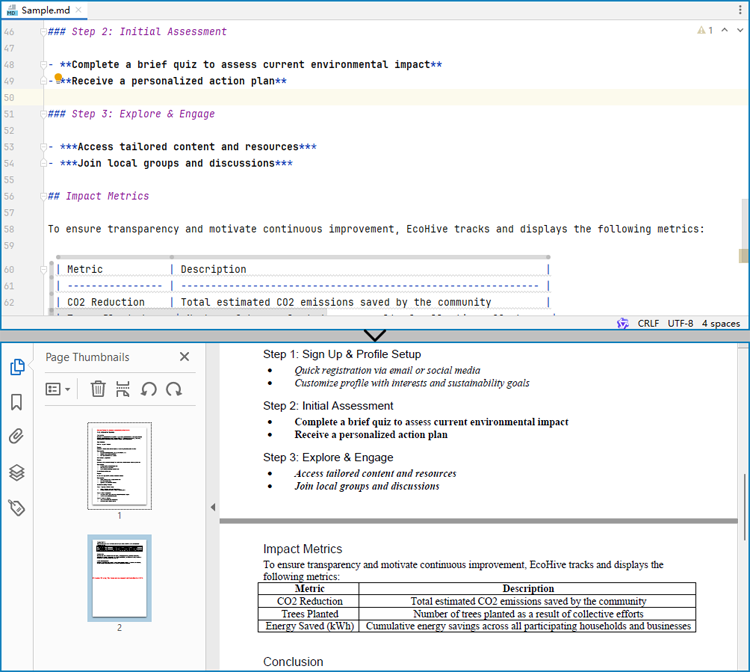
Spire.Doc for Java provides a simple way to convert Markdown format to Word and PDF document formats by using the Document.loadFromFile(String: fileName, FileFormat.Markdown) method to load the Markdown file and the Document.saveToFile(String: fileName, FileFormat: fileFormat) method to save the file as a Word or PDF document.
It should be noted that since images are stored as links in Markdown files, they need to be further processed after conversion if they are to be retained.
The detailed steps for converting a Markdown file to a Word document are as follows:
- Create an instance of Document class.
- Load a Markdown file using Document.loadFromFile(String: fileName, FileFormat.Markdown) method.
- Save the Markdown file as Word document using Document.saveToFile(String: fileName, FileFormat.Docx) method.
- Java
import com.spire.doc.Document;
import com.spire.doc.FileFormat;

public class MarkdownToWord {
    public static void main(String[] args) {
        // Create an instance of Document
        Document doc = new Document();

        // Load a Markdown file
        doc.loadFromFile("Sample.md", FileFormat.Markdown);

        // Save the Markdown file as Word document
        doc.saveToFile("output/MarkdownToWord.docx", FileFormat.Docx);
        doc.dispose();
    }
}
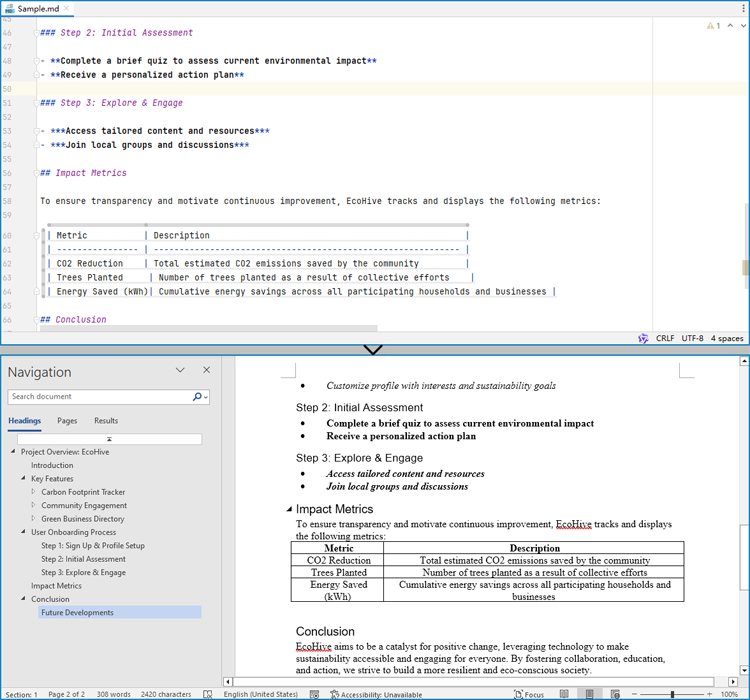
Convert a Markdown File to a PDF Document with Java
By using the FileFormat.PDF Enum as the format parameter of the Document.saveToFile() method, the Markdown file can be directly converted to a PDF document.
The detailed steps for converting a Markdown file to a PDF document are as follows:
- Create an instance of Document class.
- Load a Markdown file using Document.loadFromFile(String: fileName, FileFormat.Markdown) method.
- Save the Markdown file as PDF document using Document.saveToFile(String: fileName, FileFormat.PDF) method.
- Java
import com.spire.doc.Document;
import com.spire.doc.FileFormat;

public class MarkdownToPDF {
    public static void main(String[] args) {
        // Create an instance of the Document class
        Document doc = new Document();

        // Load a Markdown file
        doc.loadFromFile("Sample.md");

        // Save the Markdown file as a PDF file
        doc.saveToFile("output/MarkdownToPDF.pdf", FileFormat.PDF);
        doc.dispose();
    }
}
Customizing Page Settings of the Result Document
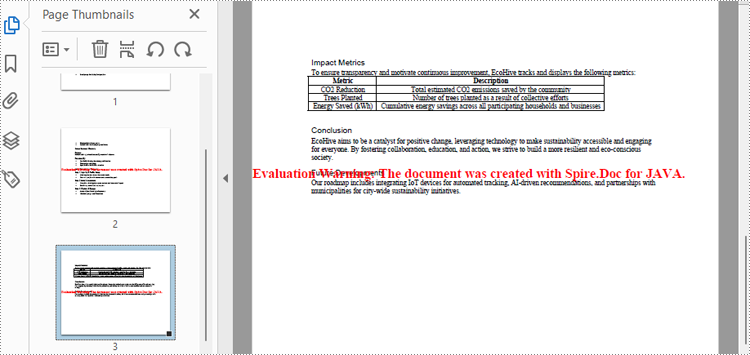
Spire.Doc for Java also provides methods under PageSetup class to do page setup before the conversion, allowing control over page settings such as page margins and page size of the resulting document.
The following are the steps to customize the page settings of the resulting document:
- Create an instance of Document class.
- Load a Markdown file using Document.loadFromFile(String: fileName, FileFormat.Markdown) method.
- Get the first section using Document.getSections().get() method.
- Set the page size, page orientation, and page margins using methods under PageSetup class.
- Save the Markdown file as PDF document using Document.saveToFile(String: fileName, FileFormat.PDF) method.
- Java
import com.spire.doc.Document;
import com.spire.doc.FileFormat;
import com.spire.doc.PageSetup;
import com.spire.doc.Section;
import com.spire.doc.documents.MarginsF;
import com.spire.doc.documents.PageOrientation;
import com.spire.doc.documents.PageSize;

public class PageSettingMarkdown {
    public static void main(String[] args) {
        // Create an instance of the Document class
        Document doc = new Document();

        // Load a Markdown file
        doc.loadFromFile("Sample.md");

        // Get the first section
        Section section = doc.getSections().get(0);

        // Set the page size, orientation, and margins
        PageSetup pageSetup = section.getPageSetup();
        pageSetup.setPageSize(PageSize.Letter);
        pageSetup.setOrientation(PageOrientation.Landscape);
        pageSetup.setMargins(new MarginsF(100, 100, 100, 100));

        // Save the Markdown file as a PDF file
        doc.saveToFile("output/MarkdownToPDF.pdf", FileFormat.PDF);
        doc.dispose();
    }
}
Apply for a Temporary License
If you'd like to remove the evaluation message from the generated documents, or to get rid of the function limitations, please request a 30-day trial license for yourself.
In a Word document, content controls are special elements that can be used to add interactivity and dynamic content, making the document more interactive and functional. Through content controls, users can easily insert, delete, or modify content in specific sections without altering the overall structure of the document, making it easier to create various types of documents and improve efficiency. This article will introduce how to use Spire.Doc for Java to modify content controls in Word documents within a Java project.
- Modify Content Controls in the Body using Java
- Modify Content Controls within Paragraphs using Java
- Modify Content Controls Wrapping Table Rows using Java
- Modify Content Controls Wrapping Table Cells using Java
- Modify Content Controls within Table Cells using Java
Install Spire.Doc for Java
First, you're required to add the Spire.Doc.jar file as a dependency in your Java program. The JAR file can be downloaded from this link. If you use Maven, you can easily import the JAR file in your application by adding the following code to your project's pom.xml file.
<repositories>
    <repository>
        <id>com.e-iceblue</id>
        <name>e-iceblue</name>
        <url>https://repo.e-iceblue.com/nexus/content/groups/public/</url>
    </repository>
</repositories>
<dependencies>
    <dependency>
        <groupId>e-iceblue</groupId>
        <artifactId>spire.doc</artifactId>
        <version>14.8.4</version>
    </dependency>
</dependencies>
Modify Content Controls in the Body using Java
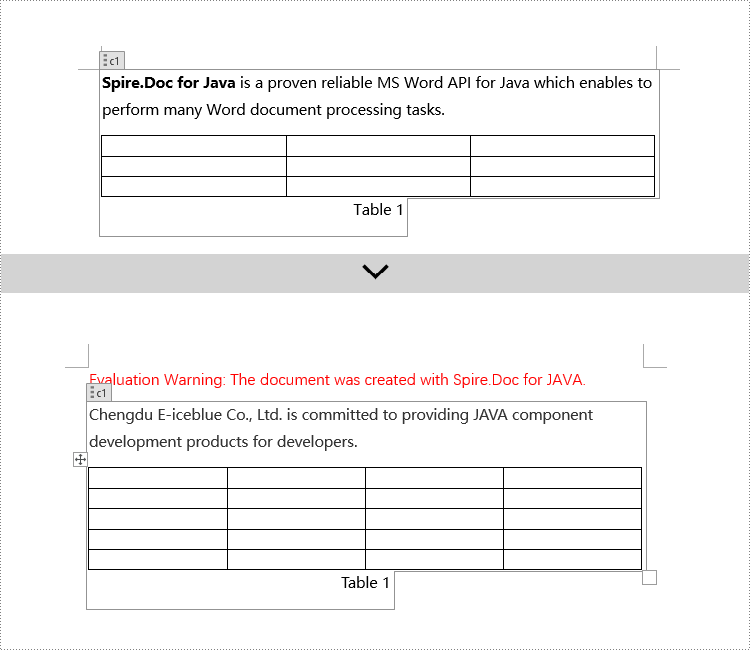
In Spire.Doc, to modify content controls in the body, you need to work with objects of the StructureDocumentTag type. By iterating through the collection of child objects in Section.getBody(), you can find objects of type StructureDocumentTag and make the necessary changes. Here are the detailed steps:
- Create a Document object.
- Load a document using the Document.loadFromFile() method.
- Get the body of a section in the document using Section.getBody().
- Iterate through the collection of child objects in the body using Body.getChildObjects() to find objects of type StructureDocumentTag.
- Access the collection of child objects in StructureDocumentTag.getChildObjects() and perform the required modifications based on the type of the child objects.
- Save the document using the Document.saveToFile() method.
- Java
import com.spire.doc.*;
import com.spire.doc.documents.*;
import java.util.*;

public class ModifyContentControlInBody {
    public static void main(String[] args) {
        // Create a new document object
        Document doc = new Document();

        // Load document content from file
        doc.loadFromFile("Sample1.docx");

        // Get the body of the document
        Body body = doc.getSections().get(0).getBody();

        // Create lists for paragraphs and tables
        List<Paragraph> paragraphs = new ArrayList<>();
        List<Table> tables = new ArrayList<>();
        for (int i = 0; i < body.getChildObjects().getCount(); i++) {

            // Get the document object
            DocumentObject documentObject = body.getChildObjects().get(i);

            // If it is a StructureDocumentTag object
            if (documentObject instanceof StructureDocumentTag) {
                StructureDocumentTag structureDocumentTag = (StructureDocumentTag) documentObject;

                // If the tag is "c1" or the alias is "c1"
                if (structureDocumentTag.getSDTProperties().getTag().equals("c1") || structureDocumentTag.getSDTProperties().getAlias().equals("c1")) {
                    for (int j = 0; j < structureDocumentTag.getChildObjects().getCount(); j++) {
                        // If it is a paragraph object
                        if (structureDocumentTag.getChildObjects().get(j) instanceof Paragraph) {
                            Paragraph paragraph = (Paragraph) structureDocumentTag.getChildObjects().get(j);
                            paragraphs.add(paragraph);
                        }

                        // If it is a table object
                        if (structureDocumentTag.getChildObjects().get(j) instanceof Table) {
                            Table table = (Table) structureDocumentTag.getChildObjects().get(j);
                            tables.add(table);
                        }
                    }
                }
            }
        }

        // Modify the text content of the first paragraph
        paragraphs.get(0).setText("Chengdu E-iceblue Co., Ltd. is committed to providing JAVA component development products for developers.");

        // Reset the cells of the first table to 5 rows and 4 columns
        tables.get(0).resetCells(5, 4);

        // Save the modified document to a file
        doc.saveToFile("Modify Content Controls in Word Document Body.docx", FileFormat.Docx_2016);

        // Close the document and release document resources
        doc.close();
        doc.dispose();
    }
}
Modify Content Controls within Paragraphs using Java
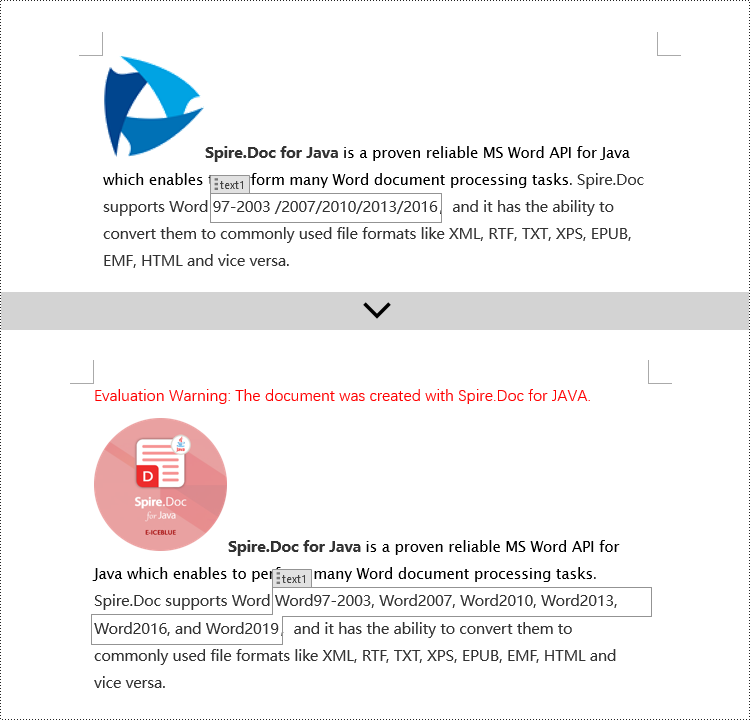
In Spire.Doc, to modify content controls within a paragraph, you need to use objects of type StructureDocumentTagInline. The specific steps involve iterating through the collection of child objects in a paragraph, finding objects of type StructureDocumentTagInline, and then making the necessary modifications. Here are the detailed steps:
- Create a Document object.
- Load a document using the Document.loadFromFile() method.
- Get the body of a section using Section.getBody().
- Retrieve the first paragraph of the body using Body.getParagraphs().get(0).
- Iterate through the collection of child objects in the paragraph using Paragraph.getChildObjects() to find objects of type StructureDocumentTagInline.
- Access the collection of child objects in StructureDocumentTagInline using StructureDocumentTagInline.getChildObjects() and perform the necessary modifications based on the type of child objects.
- Save the document using the Document.saveToFile() method.
- Java
import com.spire.doc.*;
import com.spire.doc.documents.*;
import com.spire.doc.fields.*;

public class ModifyContentControlInParagraph {
    public static void main(String[] args) {
        // Create a new Document object
        Document doc = new Document();

        // Load document content from a file
        doc.loadFromFile("Sample2.docx");

        // Get the body of the document
        Body body = doc.getSections().get(0).getBody();

        // Get the first paragraph of the body
        Paragraph paragraph = body.getParagraphs().get(0);

        // Iterate through the child objects in the paragraph
        for (int i = 0; i < paragraph.getChildObjects().getCount(); i++) {

            // Check if the child object is of type StructureDocumentTagInline
            if (paragraph.getChildObjects().get(i) instanceof StructureDocumentTagInline) {

                // Convert the child object to StructureDocumentTagInline type
                StructureDocumentTagInline structureDocumentTagInline = (StructureDocumentTagInline) paragraph.getChildObjects().get(i);

                // Check if the Tag or Alias property of the document tag is "text1"
                if (structureDocumentTagInline.getSDTProperties().getTag().equals("text1") || structureDocumentTagInline.getSDTProperties().getAlias().equals("text1")) {

                    // Iterate through the child objects in the StructureDocumentTagInline object
                    for (int j = 0; j < structureDocumentTagInline.getChildObjects().getCount(); j++) {

                        // Check if the child object is a TextRange object
                        if (structureDocumentTagInline.getChildObjects().get(j) instanceof TextRange) {

                            // Convert the child object to TextRange type
                            TextRange range = (TextRange) structureDocumentTagInline.getChildObjects().get(j);

                            // Set the text content to the specified content
                            range.setText("Word97-2003, Word2007, Word2010, Word2013, Word2016, and Word2019");
                        }
                    }
                }

                // Check if the Tag or Alias property of the document tag is "logo1"
                if (structureDocumentTagInline.getSDTProperties().getTag().equals("logo1") || structureDocumentTagInline.getSDTProperties().getAlias().equals("logo1")) {

                    // Iterate through the child objects in the StructureDocumentTagInline object
                    for (int j = 0; j < structureDocumentTagInline.getChildObjects().getCount(); j++) {

                        // Check if the child object is an image
                        if (structureDocumentTagInline.getChildObjects().get(j) instanceof DocPicture) {

                            // Convert the child object to DocPicture type
                            DocPicture docPicture = (DocPicture) structureDocumentTagInline.getChildObjects().get(j);

                            // Load the specified image
                            docPicture.loadImage("Doc-Java.png");

                            // Set the width and height of the image
                            docPicture.setWidth(100);
                            docPicture.setHeight(100);
                        }
                    }
                }
            }
        }

        // Save the modified document to a new file
        doc.saveToFile("Modified Content Controls in Paragraphs of a Word Document.docx", FileFormat.Docx_2016);

        // Close the document and release document resources
        doc.close();
        doc.dispose();
    }
}
Modify Content Controls Wrapping Table Rows using Java
In Spire.Doc, to modify content controls in table rows, you need to iterate through the collection of table's child objects, find objects of type StructureDocumentTagRow, and then make the necessary changes. Here are the detailed steps:
- Create a Document object.
- Load a document using the Document.loadFromFile() method.
- Get the body of a section in the document using Section.getBody().
- Get the first table in the body using Body.getTables().get(0).
- Iterate through the table's child objects collection using Table.getChildObjects() to find objects of type StructureDocumentTagRow.
- Access the cell collection of the table row content controls using StructureDocumentTagRow.getCells(), and then perform the required modifications on the cell contents.
- Save the document using Document.saveToFile() method.
- Java
import com.spire.doc.*;
import com.spire.doc.documents.*;
import com.spire.doc.fields.*;
import java.awt.*;

public class ModifyTextContentControlInTableRow {
    public static void main(String[] args) {
        // Create a new document object
        Document doc = new Document();

        // Load a document from a file
        doc.loadFromFile("Sample3.docx");

        // Get the body of the document
        Body body = doc.getSections().get(0).getBody();

        // Get the first table
        Table table = body.getTables().get(0);

        // Iterate through the child objects in the table
        for (int i = 0; i < table.getChildObjects().getCount(); i++) {

            // Check if the child object is of type StructureDocumentTagRow
            if (table.getChildObjects().get(i) instanceof StructureDocumentTagRow) {

                // Convert the child object to a StructureDocumentTagRow object
                StructureDocumentTagRow structureDocumentTagRow = (StructureDocumentTagRow) table.getChildObjects().get(i);

                // Check if the Tag or Alias property of the StructureDocumentTagRow is "row1"
                if (structureDocumentTagRow.getSDTProperties().getTag().equals("row1") || structureDocumentTagRow.getSDTProperties().getAlias().equals("row1")) {

                    // Clear the paragraphs in the cell
                    structureDocumentTagRow.getCells().get(0).getParagraphs().clear();

                    // Add a paragraph in the cell and set the text
                    TextRange textRange = structureDocumentTagRow.getCells().get(0).addParagraph().appendText("Art");
                    textRange.getCharacterFormat().setTextColor(Color.BLUE);
                }
            }
        }

        // Save the modified document to a file
        doc.saveToFile("ModifiedTableRowContentControl.docx", FileFormat.Docx_2016);

        // Close the document and release the document resources
        doc.close();
        doc.dispose();
    }
}
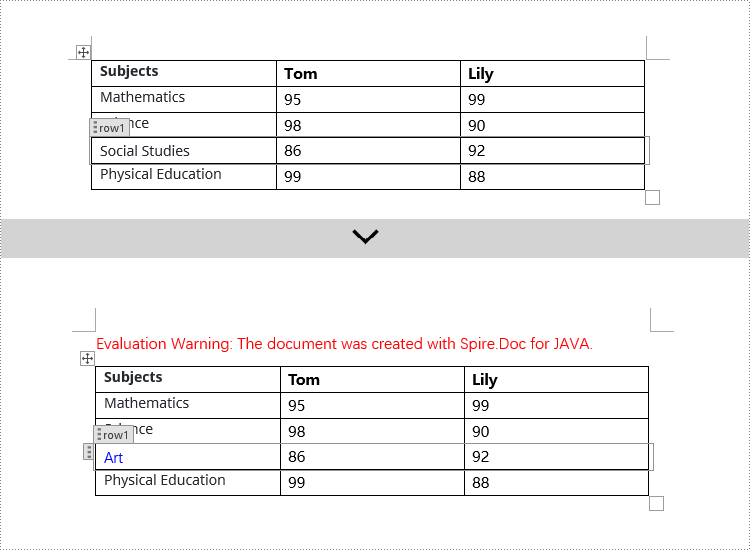
Modify Content Controls Wrapping Table Cells using Java
In Spire.Doc, to manipulate content control objects in table cells, you need to use a specific type of object called StructureDocumentTagCell. This can be done by examining the collection of child objects in TableRow.getChildObjects(), finding objects of type StructureDocumentTagCell, and then performing the necessary operations. Here are the detailed steps:
- Create a Document object.
- Load a document using the Document.loadFromFile() method.
- Get the body of a section in the document using Section.getBody().
- Get the first table in the body using Body.getTables().get(0).
- Iterate through the collection of table rows using Table.getRows() and access each TableRow object.
- Iterate through the collection of child objects in the table row using TableRow.getChildObjects() to find objects of type StructureDocumentTagCell.
- Access the collection of paragraphs in StructureDocumentTagCell.getParagraphs() for the content control in the table cell and perform the necessary modifications on the content.
- Save the document using the Document.saveToFile() method.
- Java
import com.spire.doc.*;
import com.spire.doc.documents.*;
import com.spire.doc.fields.*;
import java.awt.*;

public class ModifyTextContentControlInTableCell {
    public static void main(String[] args) {
        // Create a new document object
        Document doc = new Document();

        // Load the document from a file
        doc.loadFromFile("Sample4.docx");

        // Get the body of the document
        Body body = doc.getSections().get(0).getBody();

        // Get the first table in the document
        Table table = body.getTables().get(0);

        // Iterate through the rows of the table
        for (int i = 0; i < table.getRows().getCount(); i++) {

            // Iterate through the child objects in each row
            for (int j = 0; j < table.getRows().get(i).getChildObjects().getCount(); j++) {

                // Check if the child object is a StructureDocumentTagCell
                if (table.getRows().get(i).getChildObjects().get(j) instanceof StructureDocumentTagCell) {

                    // Convert the child object to StructureDocumentTagCell type
                    StructureDocumentTagCell structureDocumentTagCell = (StructureDocumentTagCell) table.getRows().get(i).getChildObjects().get(j);

                    // Check if the Tag or Alias property of structureDocumentTagCell is "cell1"
                    if (structureDocumentTagCell.getSDTProperties().getTag().equals("cell1") || structureDocumentTagCell.getSDTProperties().getAlias().equals("cell1")) {

                        // Clear the paragraphs in the cell
                        structureDocumentTagCell.getParagraphs().clear();

                        // Add a new paragraph and append text to it
                        TextRange textRange = structureDocumentTagCell.addParagraph().appendText("92");
                        textRange.getCharacterFormat().setTextColor(Color.BLUE);
                    }
                }
            }
        }

        // Save the modified document to a new file
        doc.saveToFile("ModifiedTableCellContentControl.docx", FileFormat.Docx_2016);

        // Close the document and release the document resources
        doc.close();
        doc.dispose();
    }
}
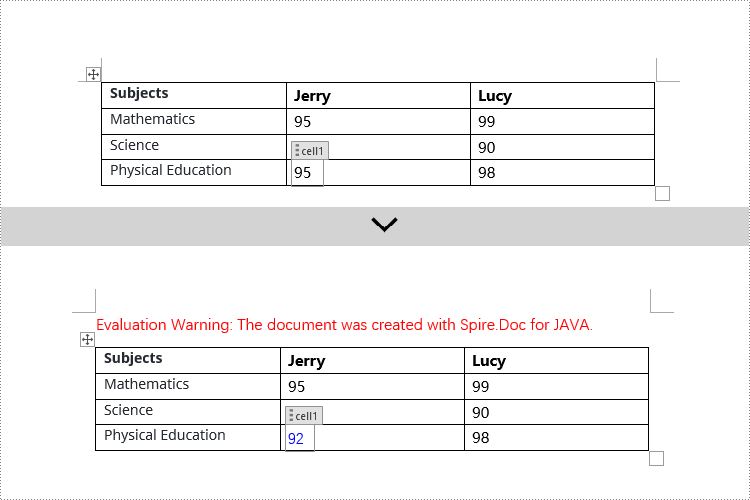
Modify Content Controls within Table Cells using Java
This example demonstrates how to modify content controls in paragraphs within table cells. Firstly, you need to access the collection of paragraphs in a cell using TableCell.getParagraphs(), then iterate through the child objects collection of each paragraph using Paragraph.getChildObjects(), and search for objects of type StructureDocumentTagInline within it for modification.
- Create a Document object.
- Load a document using Document.loadFromFile() method.
- Get the body of a section in the document using Section.getBody().
- Get the first table in the body using Body.getTables().get(0).
- Iterate through the collection of table rows using Table.getRows(), accessing each TableRow object.
- Iterate through the collection of cells in a row using TableRow.getCells(), accessing each TableCell object.
- Iterate through the collection of paragraphs in a cell using TableCell.getParagraphs(), accessing each Paragraph object.
- Iterate through the collection of child objects in a paragraph using Paragraph.getChildObjects(), looking for objects of type StructureDocumentTagInline.
- Access the collection of child objects in StructureDocumentTagInline using StructureDocumentTagInline.getChildObjects(), and perform the necessary modification based on the type of child object.
- Save the document using Document.saveToFile() method.
- Java
import com.spire.doc.*;
import com.spire.doc.documents.*;
import com.spire.doc.fields.*;
import java.awt.*;

public class ModifyTextContentControlInParagraphOfTableCell {
    public static void main(String[] args) {
        // Create a new Document object
        Document doc = new Document();

        // Load document content from a file
        doc.loadFromFile("Sample5.docx");

        // Get the body of the document
        Body body = doc.getSections().get(0).getBody();

        // Get the first table
        Table table = body.getTables().get(0);

        // Iterate through the rows of the table
        for (int r = 0; r < table.getRows().getCount(); r++) {

            // Iterate through the cells in the table row
            for (int c = 0; c < table.getRows().get(r).getCells().getCount(); c++) {

                // Iterate through the paragraphs in the cell
                for (int p = 0; p < table.getRows().get(r).getCells().get(c).getParagraphs().getCount(); p++) {

                    // Get the paragraph object
                    Paragraph paragraph = table.getRows().get(r).getCells().get(c).getParagraphs().get(p);

                    // Iterate through the child objects in the paragraph
                    for (int i = 0; i < paragraph.getChildObjects().getCount(); i++) {

                        // Check if the child object is of type StructureDocumentTagInline
                        if (paragraph.getChildObjects().get(i) instanceof StructureDocumentTagInline) {

                            // Convert it to a StructureDocumentTagInline object
                            StructureDocumentTagInline structureDocumentTagInline = (StructureDocumentTagInline) paragraph.getChildObjects().get(i);

                            // Check if the Tag or Alias property of StructureDocumentTagInline is "test1"
                            if (structureDocumentTagInline.getSDTProperties().getTag().equals("test1") || structureDocumentTagInline.getSDTProperties().getAlias().equals("test1")) {

                                // Iterate through the child objects of StructureDocumentTagInline
                                for (int j = 0; j < structureDocumentTagInline.getChildObjects().getCount(); j++) {

                                    // Check if the child object is of type TextRange
                                    if (structureDocumentTagInline.getChildObjects().get(j) instanceof TextRange) {

                                        // Convert it to a TextRange object
                                        TextRange textRange = (TextRange) structureDocumentTagInline.getChildObjects().get(j);

                                        // Set the text content
                                        textRange.setText("89");

                                        // Set the text color
                                        textRange.getCharacterFormat().setTextColor(Color.BLUE);
                                    }
                                }
                            }
                        }
                    }
                }
            }
        }

        // Save the modified document to a new file
        doc.saveToFile("ModifiedContentControlInParagraphsOfTableCell.docx", FileFormat.Docx_2016);

        // Close the document and release document resources
        doc.close();
        doc.dispose();
    }
}
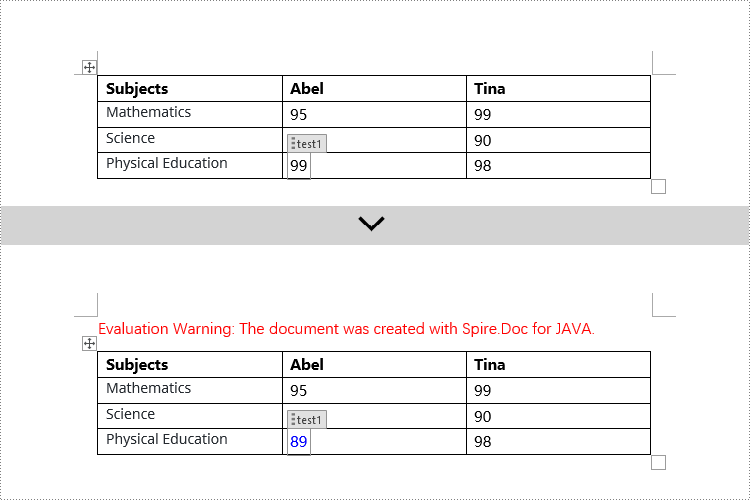
Apply for a Temporary License
If you'd like to remove the evaluation message from the generated documents, or to get rid of the function limitations, please request a 30-day trial license for yourself.
Java: Create a Table Of Contents for a Newly Created Word Document
2024-05-06 01:12:30 Written by KoohjiCreating a table of contents in a Word document can help readers quickly understand the structure and content of the document, thereby enhancing its readability. The creation of a table of contents also aids authors in organizing the document's content, ensuring a clear structure and strong logical flow. When modifications or additional content need to be made to the document, the table of contents can help authors quickly locate the sections that require editing. This article will explain how to use Spire.Doc for Java to create a table of contents for a newly created Word document in a Java project.
- Java Create a Table Of Contents Using Heading Styles
- Java Create a Table Of Contents Using Outline Level Styles
- Java Create a Table Of Contents Using Image Captions
- Java Create a Table Of Contents Using Table Captions
Install Spire.Doc for Java
First, you're required to add the Spire.Doc.jar file as a dependency in your Java program. The JAR file can be downloaded from this link. If you use Maven, you can easily import the JAR file in your application by adding the following code to your project's pom.xml file.
<repositories>
    <repository>
        <id>com.e-iceblue</id>
        <name>e-iceblue</name>
        <url>https://repo.e-iceblue.com/nexus/content/groups/public/</url>
    </repository>
</repositories>
<dependencies>
    <dependency>
        <groupId>e-iceblue</groupId>
        <artifactId>spire.doc</artifactId>
        <version>14.8.4</version>
    </dependency>
</dependencies>
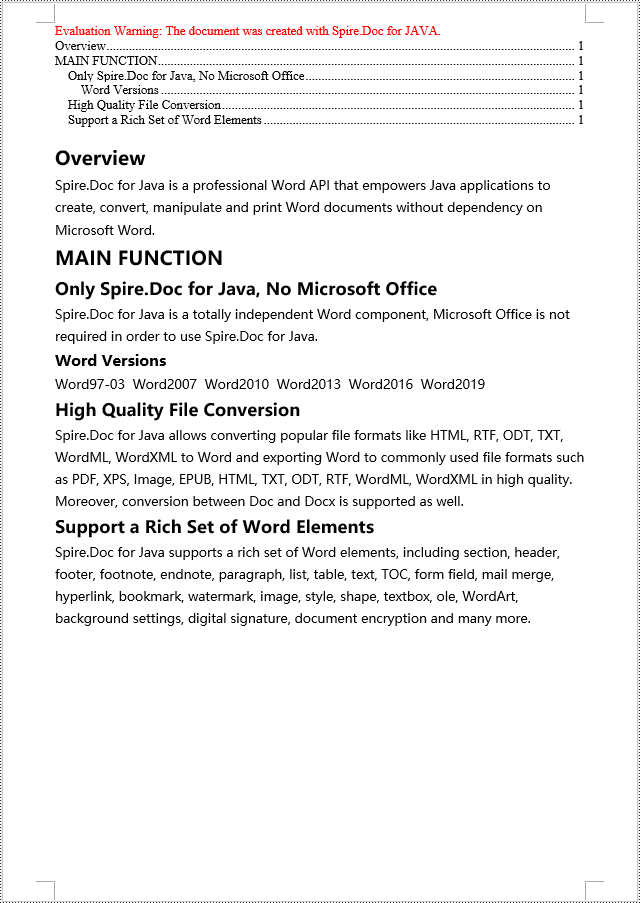
Java Create a Table Of Contents Using Heading Styles
In Spire.Doc, creating a table of contents using heading styles is the default method for generating a table of contents. By applying different levels of heading styles to sections and subsections in the document, the table of contents is automatically generated. Here are the detailed steps:
- Create a Document object.
- Add a section using the Document.addSection() method.
- Add a paragraph using the Section.addParagraph() method.
- Create a table of contents object using the Paragraph.appendTOC(int lowerLevel, int upperLevel) method.
- Create a CharacterFormat character format object and set the font.
- Apply a heading style to the paragraph using the Paragraph.applyStyle(BuiltinStyle.Heading_1) method.
- Add text content using the Paragraph.appendText() method.
- Set character formatting for the text using the TextRange.applyCharacterFormat() method.
- Update the table of contents using the Document.updateTableOfContents() method.
- Save the document using the Document.saveToFile() method.
- Java
import com.spire.doc.*;
import com.spire.doc.documents.*;
import com.spire.doc.fields.*;
import com.spire.doc.formatting.*;

public class CreateTOCByHeadingStyle {
    public static void main(String[] args) {
        // Create a new Document object
        Document doc = new Document();

        // Add a section to the document
        Section section = doc.addSection();

        // Add a table of contents paragraph
        Paragraph TOCparagraph = section.addParagraph();
        TOCparagraph.appendTOC(1, 3);

        // Create a character format object and set the font
        CharacterFormat characterFormat1 = new CharacterFormat(doc);
        characterFormat1.setFontName("Microsoft YaHei");

        // Create another character format object and set the font and font size
        CharacterFormat characterFormat2 = new CharacterFormat(doc);
        characterFormat2.setFontName("Microsoft YaHei");
        characterFormat2.setFontSize(12);

        // Add a paragraph with Heading 1 style
        Paragraph paragraph = section.getBody().addParagraph();
        paragraph.applyStyle(BuiltinStyle.Heading_1);

        // Add text and apply character format
        TextRange textRange1 = paragraph.appendText("Overview");
        textRange1.applyCharacterFormat(characterFormat1);

        // Add regular content
        paragraph = section.getBody().addParagraph();
        TextRange textRange2 = paragraph.appendText("Spire.Doc for Java is a professional Word API that empowers Java applications to create, convert, manipulate and print Word documents without dependency on Microsoft Word.");
        textRange2.applyCharacterFormat(characterFormat2);

        // Add a paragraph with Heading 1 style
        paragraph = section.getBody().addParagraph();
        paragraph.applyStyle(BuiltinStyle.Heading_1);
        textRange1 = paragraph.appendText("MAIN FUNCTION");
        textRange1.applyCharacterFormat(characterFormat1);

        // Add a paragraph with Heading 2 style
        paragraph = section.getBody().addParagraph();
        paragraph.applyStyle(BuiltinStyle.Heading_2);
        textRange1 = paragraph.appendText("Only Spire.Doc for Java, No Microsoft Office");
        textRange1.applyCharacterFormat(characterFormat1);

        // Add regular content
        paragraph = section.getBody().addParagraph();
        textRange2 = paragraph.appendText("Spire.Doc for Java is a totally independent Word component, Microsoft Office is not required in order to use Spire.Doc for Java.");
        textRange2.applyCharacterFormat(characterFormat2);

        // Add a paragraph with Heading 3 style
        paragraph = section.getBody().addParagraph();
        paragraph.applyStyle(BuiltinStyle.Heading_3);
        textRange1 = paragraph.appendText("Word Versions");
        textRange1.applyCharacterFormat(characterFormat1);
        paragraph = section.getBody().addParagraph();
        textRange2 = paragraph.appendText("Word97-03  Word2007  Word2010  Word2013  Word2016  Word2019");
        textRange2.applyCharacterFormat(characterFormat2);

        // Add a paragraph with Heading 2 style
        paragraph = section.getBody().addParagraph();
        paragraph.applyStyle(BuiltinStyle.Heading_2);
        textRange1 = paragraph.appendText("High Quality File Conversion");
        textRange1.applyCharacterFormat(characterFormat1);

        // Add regular content
        paragraph = section.getBody().addParagraph();
        textRange2 = paragraph.appendText("Spire.Doc for Java allows converting popular file formats like HTML, RTF, ODT, TXT, WordML, WordXML to Word and exporting Word to commonly used file formats such as PDF, XPS, Image, EPUB, HTML, TXT, ODT, RTF, WordML, WordXML in high quality. Moreover, conversion between Doc and Docx is supported as well.");
        textRange2.applyCharacterFormat(characterFormat2);

        // Add a paragraph with Heading 2 style
        paragraph = section.getBody().addParagraph();
        paragraph.applyStyle(BuiltinStyle.Heading_2);
        textRange1 = paragraph.appendText("Support a Rich Set of Word Elements");
        textRange1.applyCharacterFormat(characterFormat1);

        // Add regular content
        paragraph = section.getBody().addParagraph();
        textRange2 = paragraph.appendText("Spire.Doc for Java supports a rich set of Word elements, including section, header, footer, footnote, endnote, paragraph, list, table, text, TOC, form field, mail merge, hyperlink, bookmark, watermark, image, style, shape, textbox, ole, WordArt, background settings, digital signature, document encryption and many more.");
        textRange2.applyCharacterFormat(characterFormat2);

        // Update the table of contents
        doc.updateTableOfContents();

        // Save the document
        doc.saveToFile("Table of Contents Created Using Heading Styles.docx", FileFormat.Docx_2016);

        // Dispose of resources
        doc.dispose();
    }
}
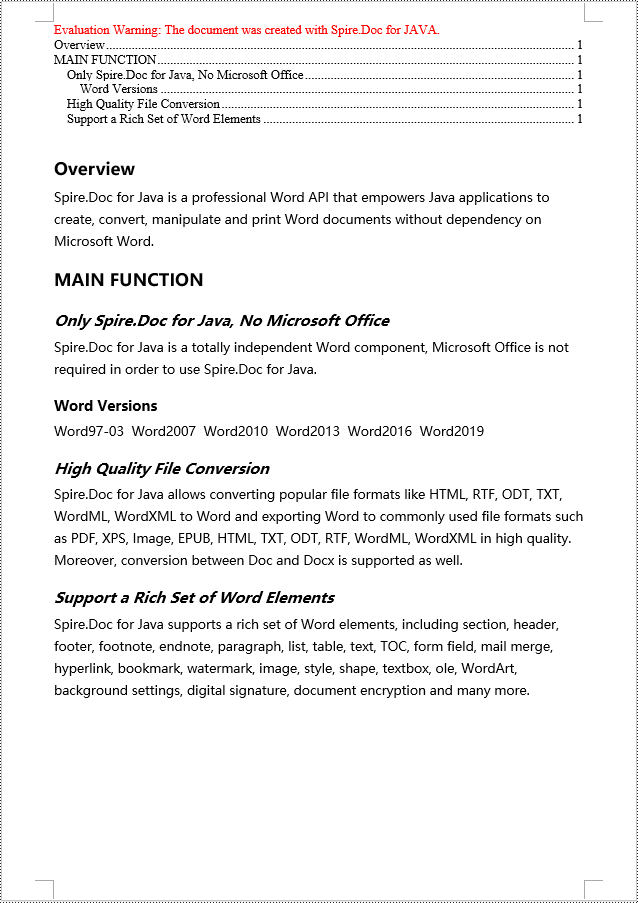
Java Create a Table Of Contents Using Outline Level Styles
You can also use outline level styles to create a table of contents in a Word document. In Spire.Doc, by setting the OutlineLevel property of a paragraph, you can specify the hierarchical style of the paragraph in the outline. Then, by calling the TableOfContent.setTOCLevelStyle() method, you can apply these outline level styles to the generation rules of the table of contents. Here are the detailed steps:
- Create a Document object.
- Add a section using the Document.addSection() method.
- Create a ParagraphStyle object and set the outline level using ParagraphStyle.getParagraphFormat().setOutlineLevel(OutlineLevel.Level_1).
- Add the created ParagraphStyle object to the document using Document.getStyles().add() method.
- Add a paragraph using Section.addParagraph() method.
- Create a table of contents object using Paragraph.appendTOC(int lowerLevel, int upperLevel) method.
- Set the default setting for creating the table of contents using heading styles to false, TableOfContent.setUseHeadingStyles(false).
- Apply the outline level styles to the table of contents rules using TableOfContent.setTOCLevelStyle(int levelNumber, string styleName) method.
- Create a CharacterFormat object and set the font.
- Apply the style to the paragraph using Paragraph.applyStyle(ParagraphStyle.getName()) method.
- Add text content using Paragraph.appendText() method.
- Apply character formatting to the text using TextRange.applyCharacterFormat() method.
- Update the table of contents using Document.updateTableOfContents() method.
- Save the document using Document.saveToFile() method.
- Java
import com.spire.doc.*;
import com.spire.doc.documents.*;
import com.spire.doc.fields.*;
import com.spire.doc.formatting.*;

public class CreateTOCByOutlineLevelStyle {
    public static void main(String[] args) {
        // Create a new Document object
        Document doc = new Document();
        Section section = doc.addSection();

        // Define Outline Level 1
        ParagraphStyle titleStyle1 = new ParagraphStyle(doc);
        titleStyle1.setName("T1S");
        titleStyle1.getParagraphFormat().setOutlineLevel(OutlineLevel.Level_1);
        titleStyle1.getCharacterFormat().setBold(true);
        titleStyle1.getCharacterFormat().setFontName("Microsoft YaHei");
        titleStyle1.getCharacterFormat().setFontSize(18f);
        titleStyle1.getParagraphFormat().setHorizontalAlignment(HorizontalAlignment.Left);
        doc.getStyles().add(titleStyle1);

        // Define Outline Level 2
        ParagraphStyle titleStyle2 = new ParagraphStyle(doc);
        titleStyle2.setName("T2S");
        titleStyle2.getParagraphFormat().setOutlineLevel(OutlineLevel.Level_2);
        titleStyle2.getCharacterFormat().setBold(true);
        titleStyle2.getCharacterFormat().setFontName("Microsoft YaHei");
        titleStyle2.getCharacterFormat().setFontSize(16f);
        titleStyle2.getParagraphFormat().setHorizontalAlignment(HorizontalAlignment.Left);
        doc.getStyles().add(titleStyle2);

        // Define Outline Level 3
        ParagraphStyle titleStyle3 = new ParagraphStyle(doc);
        titleStyle3.setName("T3S");
        titleStyle3.getParagraphFormat().setOutlineLevel(OutlineLevel.Level_3);
        titleStyle3.getCharacterFormat().setBold(true);
        titleStyle3.getCharacterFormat().setFontName("Microsoft YaHei");
        titleStyle3.getCharacterFormat().setFontSize(14f);
        titleStyle3.getParagraphFormat().setHorizontalAlignment(HorizontalAlignment.Left);
        doc.getStyles().add(titleStyle3);

        // Add Table of Contents paragraph
        Paragraph TOCparagraph = section.addParagraph();
        TableOfContent toc = TOCparagraph.appendTOC(1, 3);
        toc.setUseHeadingStyles(false);
        toc.setUseHyperlinks(true);
        toc.setUseTableEntryFields(false);
        toc.setRightAlignPageNumbers(true);
        toc.setTOCLevelStyle(1, titleStyle1.getName());
        toc.setTOCLevelStyle(2, titleStyle2.getName());
        toc.setTOCLevelStyle(3, titleStyle3.getName());

        // Define Character Format
        CharacterFormat characterFormat = new CharacterFormat(doc);
        characterFormat.setFontName("Microsoft YaHei");
        characterFormat.setFontSize(12);

        // Add paragraph and apply Outline Level Style 1
        Paragraph paragraph = section.getBody().addParagraph();
        paragraph.applyStyle(titleStyle1.getName());
        paragraph.appendText("Overview");

        // Add paragraph and set text content
        paragraph = section.getBody().addParagraph();
        TextRange textRange = paragraph.appendText("Spire.Doc for Java is a professional Word API that empowers Java applications to create, convert, manipulate and print Word documents without dependency on Microsoft Word.");
        textRange.applyCharacterFormat(characterFormat);

        // Add paragraph and apply Outline Level Style 1
        paragraph = section.getBody().addParagraph();
        paragraph.applyStyle(titleStyle1.getName());
        paragraph.appendText("MAIN FUNCTION");

        // Add paragraph and apply Outline Level Style 2
        paragraph = section.getBody().addParagraph();
        paragraph.applyStyle(titleStyle2.getName());
        paragraph.appendText("Only Spire.Doc for Java, No Microsoft Office");

        // Add paragraph and set text content
        paragraph = section.getBody().addParagraph();
        textRange = paragraph.appendText("Spire.Doc for Java is a totally independent Word component, Microsoft Office is not required in order to use Spire.Doc for Java.");
        textRange.applyCharacterFormat(characterFormat);

        // Add paragraph and apply Outline Level Style 3
        paragraph = section.getBody().addParagraph();
        paragraph.applyStyle(titleStyle3.getName());
        paragraph.appendText("Word Versions");

        // Add paragraph and set text content
        paragraph = section.getBody().addParagraph();
        textRange = paragraph.appendText("Word97-03  Word2007  Word2010  Word2013  Word2016  Word2019");
        textRange.applyCharacterFormat(characterFormat);

        // Add paragraph and apply Outline Level Style 2
        paragraph = section.getBody().addParagraph();
        paragraph.applyStyle(titleStyle2.getName());
        paragraph.appendText("High Quality File Conversion");

        // Add paragraph and set text content
        paragraph = section.getBody().addParagraph();
        textRange = paragraph.appendText("Spire.Doc for Java allows converting popular file formats like HTML, RTF, ODT, TXT, WordML, WordXML to Word and exporting Word to commonly used file formats such as PDF, XPS, Image, EPUB, HTML, TXT, ODT, RTF, WordML, WordXML in high quality. Moreover, conversion between Doc and Docx is supported as well.");
        textRange.applyCharacterFormat(characterFormat);

        // Add paragraph and apply Outline Level Style 2
        paragraph = section.getBody().addParagraph();
        paragraph.applyStyle(titleStyle2.getName());
        paragraph.appendText("Support a Rich Set of Word Elements");

        // Add paragraph and set text content
        paragraph = section.getBody().addParagraph();
        textRange = paragraph.appendText("Spire.Doc for Java supports a rich set of Word elements, including section, header, footer, footnote, endnote, paragraph, list, table, text, TOC, form field, mail merge, hyperlink, bookmark, watermark, image, style, shape, textbox, ole, WordArt, background settings, digital signature, document encryption and many more.");
        textRange.applyCharacterFormat(characterFormat);

        // Update the table of contents
        doc.updateTableOfContents();

        // Save the document
        doc.saveToFile("Creating Table of Contents with Outline Level Styles.docx", FileFormat.Docx_2016);

        // Dispose of resources
        doc.dispose();
    }
}
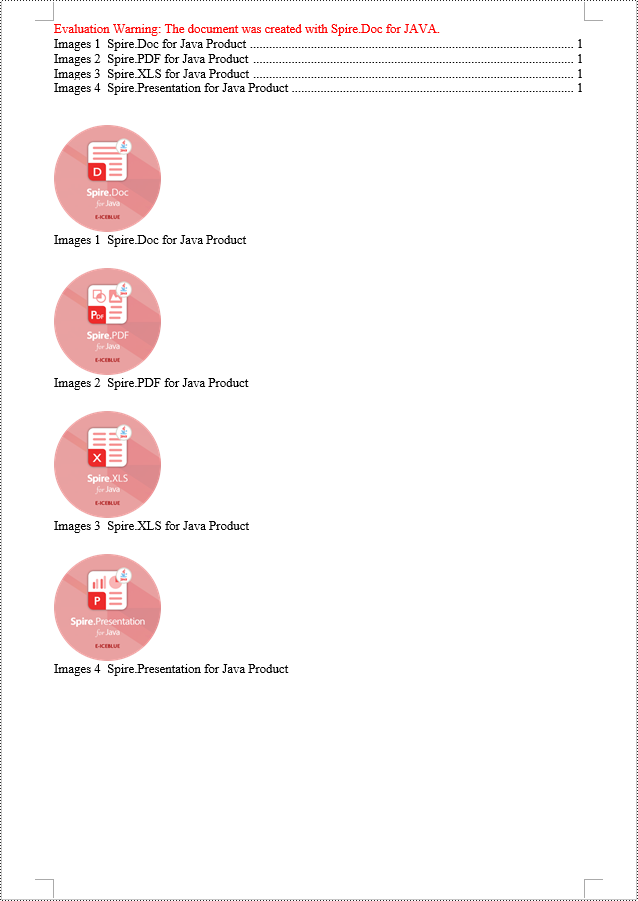
Java Create a Table Of Contents Using Image Captions
Using the Spire.Doc library, you can create a table of contents based on image titles using the TableOfContent tocForImage = new TableOfContent(Document, " \\h \\z \\c \"Image\"") method. Here are the detailed steps:
- Create a Document object.
- Add a section using the Document.addSection() method.
- Create a table of contents object TableOfContent tocForImage = new TableOfContent(Document, " \\h \\z \\c \"Image\"") and specify the style of the table of contents.
- Add a paragraph using the Section.addParagraph() method.
- Add the table of contents object to the paragraph using the Paragraph.getItems().add(tocForImage) method.
- Add a field separator using the Paragraph.appendFieldMark(FieldMarkType.Field_Separator) method.
- Add the text content "TOC" using the Paragraph.appendText("TOC") method.
- Add a field end mark using the Paragraph.appendFieldMark(FieldMarkType.Field_End) method.
- Add an image using the Paragraph.appendPicture() method.
- Add a paragraph for the image title, including product information and formatting, using the DocPicture.addCaption() method.
- Update the table of contents to reflect changes in the document using the Document.updateTableOfContents(tocForImage) method.
- Save the document using the Document.saveToFile() method.
- Java
import com.spire.doc.*;
import com.spire.doc.documents.*;
import com.spire.doc.fields.*;

public class CreateTOCByImageCaption {
    public static void main(String[] args) {
        // Create a new document object
        Document doc = new Document();

        // Add a section to the document
        Section section = doc.addSection();

        // Create a table of content object for images
        TableOfContent tocForImage = new TableOfContent(doc, " \\h \\z \\c \"Images\"");

        // Add a paragraph to the section
        Paragraph tocParagraph = section.getBody().addParagraph();

        // Add the table of content object to the paragraph
        tocParagraph.getItems().add(tocForImage);

        // Add a field separator
        tocParagraph.appendFieldMark(FieldMarkType.Field_Separator);

        // Add text content
        tocParagraph.appendText("TOC");

        // Add a field end mark
        tocParagraph.appendFieldMark(FieldMarkType.Field_End);

        // Add a blank paragraph to the section
        section.getBody().addParagraph();

        // Add a paragraph to the section
        Paragraph paragraph = section.getBody().addParagraph();

        // Add an image
        DocPicture docPicture = paragraph.appendPicture("images/Doc-Java.png");
        docPicture.setWidth(100);
        docPicture.setHeight(100);

        // Add a paragraph for the image caption
        Paragraph pictureCaptionParagraph = (Paragraph) docPicture.addCaption("Images", CaptionNumberingFormat.Number, CaptionPosition.Below_Item);
        pictureCaptionParagraph.appendText("  Spire.Doc for Java Product ");
        pictureCaptionParagraph.getFormat().setAfterSpacing(20);

        // Continue adding paragraphs to the section
        paragraph = section.getBody().addParagraph();
        docPicture = paragraph.appendPicture("images/PDF-Java.png");
        docPicture.setWidth(100);
        docPicture.setHeight(100);
        pictureCaptionParagraph = (Paragraph) docPicture.addCaption("Images", CaptionNumberingFormat.Number, CaptionPosition.Below_Item);
        pictureCaptionParagraph.appendText("  Spire.PDF for Java Product ");
        pictureCaptionParagraph.getFormat().setAfterSpacing(20);
        paragraph = section.getBody().addParagraph();
        docPicture = paragraph.appendPicture("images/XLS-Java.png");
        docPicture.setWidth(100);
        docPicture.setHeight(100);
        pictureCaptionParagraph = (Paragraph) docPicture.addCaption("Images", CaptionNumberingFormat.Number, CaptionPosition.Below_Item);
        pictureCaptionParagraph.appendText("  Spire.XLS for Java Product ");
        pictureCaptionParagraph.getFormat().setAfterSpacing(20);
        paragraph = section.getBody().addParagraph();
        docPicture = paragraph.appendPicture("images/PPT-Java.png");
        docPicture.setWidth(100);
        docPicture.setHeight(100);
        pictureCaptionParagraph = (Paragraph) docPicture.addCaption("Images", CaptionNumberingFormat.Number, CaptionPosition.Below_Item);
        pictureCaptionParagraph.appendText("  Spire.Presentation for Java Product ");

        // Update the table of contents
        doc.updateTableOfContents(tocForImage);

        // Save the document to a file
        doc.saveToFile("CreateTOCWithImageCaptions.docx", FileFormat.Docx_2016);

        // Dispose of the document object
        doc.dispose();
    }
}
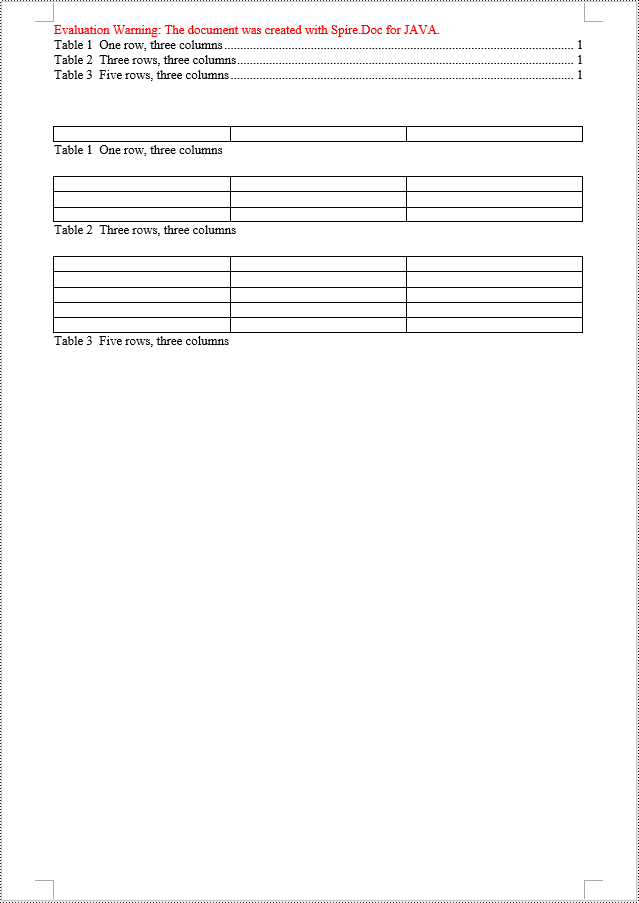
Java Create a Table Of Contents Using Table Captions
You can also create a table of contents using table titles by the method TableOfContent tocForImage = new TableOfContent(Document, " \\h \\z \\c \"Table\""). Here are the detailed steps:
- Create a Document object.
- Add a section using the Document.addSection() method.
- Create a table of contents object TableOfContent tocForTable = new TableOfContent(Document, " \\h \\z \\c \"Table\"") and specify the style of the table of contents.
- Add a paragraph using the Section.addParagraph() method.
- Add the table of contents object to the paragraph using the Paragraph.getItems().add(tocForTable) method.
- Add a field separator using the Paragraph.appendFieldMark(FieldMarkType.Field_Separator) method.
- Add the text "TOC" using the Paragraph.appendText("TOC") method.
- Add a field end mark using the Paragraph.appendFieldMark(FieldMarkType.Field_End) method.
- Add a table using the Section.addTable() method and set the number of rows and columns using the Table.resetCells(int rowsNum, int columnsNum) method.
- Add a caption paragraph to the table using the Table.addCaption() method, including product information and formatting.
- Update the table of contents to reflect changes in the document using the Document.updateTableOfContents(tocForTable) method.
- Save the document using the Document.saveToFile() method.
- Java
import com.spire.doc.*;
import com.spire.doc.documents.*;
import com.spire.doc.fields.*;

public class CreateTOCByTableCaption {
    public static void main(String[] args) {
        // Create a new document
        Document doc = new Document();

        // Add a section to the document
        Section section = doc.addSection();

        // Create a table of content object
        TableOfContent tocForTable = new TableOfContent(doc, " \\h \\z \\c \"Table\"");

        // Add a paragraph in the section to place the table of content
        Paragraph tocParagraph = section.getBody().addParagraph();
        tocParagraph.getItems().add(tocForTable);
        tocParagraph.appendFieldMark(FieldMarkType.Field_Separator);
        tocParagraph.appendText("TOC");
        tocParagraph.appendFieldMark(FieldMarkType.Field_End);

        // Add two empty paragraphs in the section
        section.getBody().addParagraph();
        section.getBody().addParagraph();

        // Add a table in the section
        Table table = section.getBody().addTable(true);
        table.resetCells(1, 3);

        // Add a title for the table
        Paragraph tableCaptionParagraph = (Paragraph) table.addCaption("Table", CaptionNumberingFormat.Number, CaptionPosition.Below_Item);
        tableCaptionParagraph.appendText("  One row, three columns");
        tableCaptionParagraph.getFormat().setAfterSpacing(18);

        // Add a new table in the section
        table = section.getBody().addTable(true);
        table.resetCells(3, 3);

        // Add a title for the second table
        tableCaptionParagraph = (Paragraph) table.addCaption("Table", CaptionNumberingFormat.Number, CaptionPosition.Below_Item);
        tableCaptionParagraph.appendText("  Three rows, three columns");
        tableCaptionParagraph.getFormat().setAfterSpacing(18);

        // Add another new table in the section
        table = section.getBody().addTable(true);
        table.resetCells(5, 3);

        // Add a title for the third table
        tableCaptionParagraph = (Paragraph) table.addCaption("Table", CaptionNumberingFormat.Number, CaptionPosition.Below_Item);
        tableCaptionParagraph.appendText("  Five rows, three columns");

        // Update the table of contents
        doc.updateTableOfContents(tocForTable);

        // Save the document to a specified file
        doc.saveToFile("CreateTableOfContentsUsingTableCaptions.docx", FileFormat.Docx_2016);

        // Dispose of resources
        doc.dispose();
    }
}
Apply for a Temporary License
If you'd like to remove the evaluation message from the generated documents, or to get rid of the function limitations, please request a 30-day trial license for yourself.
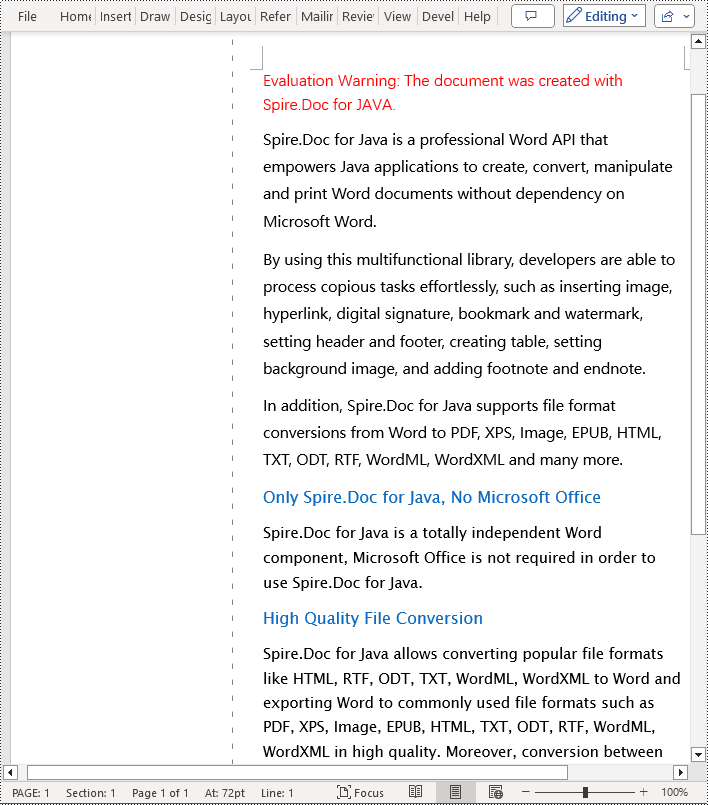
Adding gutters on Word document pages can assist users in better page layout and design, especially when preparing documents for printing or creating books that require gutter. Gutter can indicate the gutter position on the page, helping users to design with appropriate blank areas to avoid text or images being cut off. By setting gutter, users can have better control over the appearance and layout of the document, ensuring that the final output meets the expected gutter requirements, enhancing the professionalism and readability of the document. This article shows how to add gutters on Word document pages by programming using Spire.Doc for Java.
- Add a Gutter at the Top of a Word Document Page in Java
- Add a Gutter at the Left of a Word Document Page in Java
Install Spire.Doc for Java
First, you're required to add the Spire.Doc.jar file as a dependency in your Java program. The JAR file can be downloaded from this link. If you use Maven, you can easily import the JAR file in your application by adding the following code to your project's pom.xml file.
<repositories>
    <repository>
        <id>com.e-iceblue</id>
        <name>e-iceblue</name>
        <url>https://repo.e-iceblue.com/nexus/content/groups/public/</url>
    </repository>
</repositories>
<dependencies>
    <dependency>
        <groupId>e-iceblue</groupId>
        <artifactId>spire.doc</artifactId>
        <version>14.8.4</version>
    </dependency>
</dependencies>
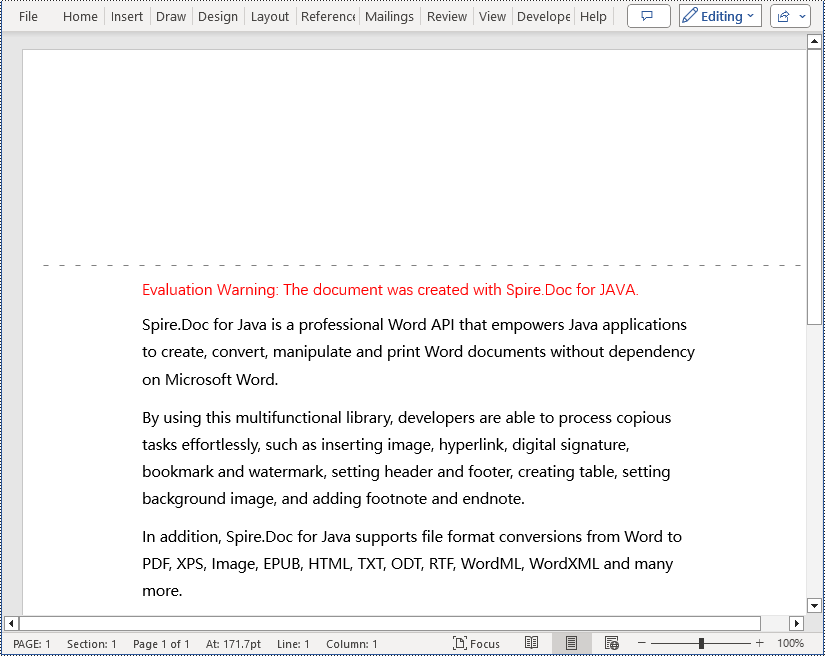
Add a Gutter at the Top of a Word Document Page in Java
In a Word document, you can set section.getPageSetup().isTopGutter(true) to place the gutter at the top of the page. By default, the gutter area is displayed as blank without any content. This example also includes steps on how to add content, such as the dash symbol, to the gutter area to customize content around the gutter. Here are the detailed steps:
- Create a Document object.
- Load a document using the Document.loadFromFile() method.
- Iterate through all sections of the document using a for loop and Document.getSections().
- Set Section.getPageSetup().isTopGutter(true) to display the gutter at the top of the page.
- Use Section.getPageSetup().setGutter() to set the width of the gutter.
- Call the custom addTopGutterContent() method to add content to the gutter area.
- Save the document using the Document.saveToFile() method.
- Java
import com.spire.doc.*;
import com.spire.doc.documents.*;
import com.spire.doc.fields.*;
import com.spire.doc.formatting.CharacterFormat;
import java.awt.*;

public class AddTopGutter {
    public static void main(String[] args) {
        // Create a document object
        Document document = new Document();

        // Load the document
        document.loadFromFile("Sample1.docx");

        // Iterate through all sections of the document
        for (int i = 0; i < document.getSections().getCount(); i++) {
            // Get the current section
            Section section = document.getSections().get(i);

            // Set whether to add a gutter at the top of the page to true
            section.getPageSetup().isTopGutter(true);

            // Set the width of the gutter to 100f
            section.getPageSetup().setGutter(100f);

            // Call the method to add content to the top gutter
            addTopGutterContent(section);
        }

        // Save the modified document to a file
        document.saveToFile("AddGutterOnTop.docx", FileFormat.Docx_2016);

        // Release document resources
        document.dispose();
    }

    // Method to add content to the top gutter
    static void addTopGutterContent(Section section) {
        // Get the header of the section
        HeaderFooter header = section.getHeadersFooters().getHeader();

        // Set the width of the text box to the width of the page
        float width = (float) section.getPageSetup().getPageSize().getWidth();

        // Set the height of the text box to 40
        float height = 40;

        // Add a text box to the header
        TextBox textBox = header.addParagraph().appendTextBox(width, height);

        // Set the text box without borders
        textBox.getFormat().setNoLine(true);

        // Set the vertical origin of the text box to the top margin area
        textBox.setVerticalOrigin(VerticalOrigin.Top_Margin_Area);

        // Set the vertical position of the text box
        textBox.setVerticalPosition(140);

        // Set the horizontal alignment of the text box to left
        textBox.setHorizontalAlignment(ShapeHorizontalAlignment.Left);

        // Set the horizontal origin of the text box to the left margin area
        textBox.setHorizontalOrigin(HorizontalOrigin.Left_Margin_Area);

        // Set the text anchor to the bottom
        textBox.getFormat().setTextAnchor(ShapeVerticalAlignment.Bottom);

        // Set the text wrapping style to in front of text
        textBox.getFormat().setTextWrappingStyle(TextWrappingStyle.In_Front_Of_Text);

        // Set the text wrapping type to both sides
        textBox.getFormat().setTextWrappingType(TextWrappingType.Both);

        // Create a paragraph object
        Paragraph paragraph = new Paragraph(section.getDocument());

        // Set the paragraph alignment to center
        paragraph.getFormat().setHorizontalAlignment(HorizontalAlignment.Center);

        // Create a font object
        Font font = new Font("SimSun", Font.PLAIN, 8);

        Graphics graphics = new java.awt.image.BufferedImage(1, 1, java.awt.image.BufferedImage.TYPE_INT_ARGB).getGraphics();
        graphics.setFont(font);
        FontMetrics fontMetrics = graphics.getFontMetrics();
        String text1 = " - ";
        int textWidth1 = fontMetrics.stringWidth(text1);
        int count = (int) (textBox.getWidth() / textWidth1);
        StringBuilder stringBuilder = new StringBuilder();
        for (int i = 1; i < count; i++) {
            stringBuilder.append(text1);
        }
        // Create a character format object
        CharacterFormat characterFormat = new CharacterFormat(section.getDocument());
        characterFormat.setFontName(font.getFontName());
        characterFormat.setFontSize(font.getSize());
        TextRange textRange = paragraph.appendText(stringBuilder.toString());
        textRange.applyCharacterFormat(characterFormat);

        // Add the paragraph to the text box
        textBox.getChildObjects().add(paragraph);
    }
}
Add a Gutter at the Left of a Word Document Page in Java
To set the gutter on the left side of the page, the key is to set Section.getPageSetup().isTopGutter(false). Here are the detailed steps:
- Create a Document object.
- Load a document using the Document.loadFromFile() method.
- Iterate through all sections of the document using a for loop and Document.getSections().
- Set Section.getPageSetup().isTopGutter(false) to display the gutter on the left side of the page.
- Use Section.getPageSetup().setGutter() to set the width of the gutter.
- Call the custom addLeftGutterContent() method to add content to the gutter area.
- Save the document using the Document.saveToFile() method.
- Java
import com.spire.doc.*;
import com.spire.doc.documents.*;
import com.spire.doc.fields.*;
import com.spire.doc.formatting.CharacterFormat;
import java.awt.*;

public class AddLeftGutter {
    public static void main(String[] args) {
        // Create a document object
        Document document = new Document();

        // Load the document
        document.loadFromFile("Sample1.docx");

        // Iterate through all sections of the document
        for (int i = 0; i < document.getSections().getCount(); i++) {
            // Get the current section
            Section section = document.getSections().get(i);

            // Set whether to add a gutter at the top of the page to false, it will be added to the left side of the page
            section.getPageSetup().isTopGutter(false);

            // Set the width of the gutter to 100f
            section.getPageSetup().setGutter(100f);

            // Call the method to add content to the left gutter
            AddLeftGutterContent (section);
        }

        // Save the modified document to a file
        document.saveToFile("AddGutterOnLeft.docx", FileFormat.Docx_2016);

        // Release document resources
        document.dispose();
    }

    // Method to add content to the left gutter
    static void AddLeftGutterContent(Section section) {
        // Get the header of the section
        HeaderFooter header = section.getHeadersFooters().getHeader();

        // Set the width of the text box to 40
        float width = 40;

        // Get the page height
        float height = (float) section.getPageSetup().getPageSize().getHeight();

        // Add a text box to the header
        TextBox textBox = header.addParagraph().appendTextBox(width, height);

        // Set the text box without borders
        textBox.getFormat().setNoLine(true);

        // Set the text direction in the text box from right to left
        textBox.getFormat().setLayoutFlowAlt(TextDirection.Right_To_Left);

        // Set the horizontal starting position of the text box
        textBox.setHorizontalOrigin(HorizontalOrigin.Left_Margin_Area);

        // Set the horizontal position of the text box
        textBox.setHorizontalPosition(140);

        // Set the vertical alignment of the text box to the top
        textBox.setVerticalAlignment(ShapeVerticalAlignment.Top);

        // Set the vertical origin of the text box to the top margin area
        textBox.setVerticalOrigin(VerticalOrigin.Top_Margin_Area);

        // Set the text anchor to the top
        textBox.getFormat().setTextAnchor(ShapeVerticalAlignment.Top);

        // Set the text wrapping style to in front of text
        textBox.getFormat().setTextWrappingStyle(TextWrappingStyle.In_Front_Of_Text);

        // Set the text wrapping type to both sides
        textBox.getFormat().setTextWrappingType(TextWrappingType.Both);

        // Create a paragraph object
        Paragraph paragraph = new Paragraph(section.getDocument());

        // Set the paragraph alignment to center
        paragraph.getFormat().setHorizontalAlignment(HorizontalAlignment.Center);

        // Create a font object, SimSun, size 8
        Font font = new Font("SimSun", Font.PLAIN, 8);

        Graphics graphics = new java.awt.image.BufferedImage(1, 1, java.awt.image.BufferedImage.TYPE_INT_ARGB).getGraphics();
        graphics.setFont(font);
        FontMetrics fontMetrics = graphics.getFontMetrics();
        String text1 = " - ";
        int textWidth1 = fontMetrics.stringWidth(text1);
        int count = (int) (textBox.getHeight() / textWidth1);
        StringBuilder stringBuilder = new StringBuilder();
        for (int i = 1; i < count ; i++) {
            stringBuilder.append(text1);
        }

        // Create a character format object
        CharacterFormat characterFormat = new CharacterFormat(section.getDocument());
        characterFormat.setFontName(font.getFontName());
        characterFormat.setFontSize(font.getSize());
        TextRange textRange = paragraph.appendText(stringBuilder.toString());
        textRange.applyCharacterFormat(characterFormat);

        // Add the paragraph to the text box
        textBox.getChildObjects().add(paragraph);
    }
}
Apply for a Temporary License
If you'd like to remove the evaluation message from the generated documents, or to get rid of the function limitations, please request a 30-day trial license for yourself.
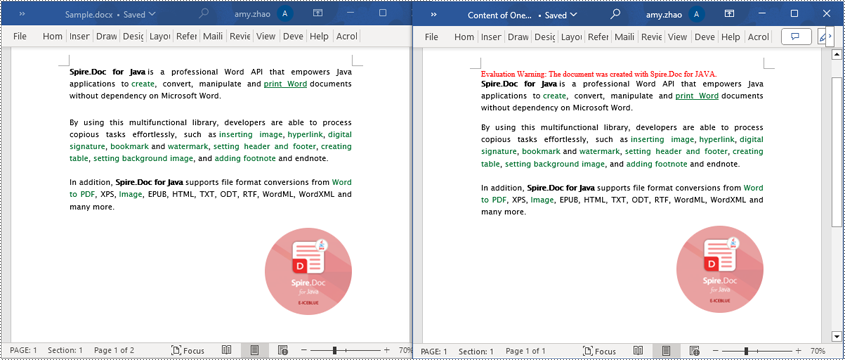
Extracting content from Word documents plays a crucial role in both work and study. Extracting one page of content helps in quickly browsing and summarizing key points, while extracting content from one section aids in in-depth study of specific topics or sections. Extracting the entire document allows you to have a comprehensive understanding of the document content, facilitating deep analysis and comprehensive comprehension. This article will introduce how to use Spire.Doc for Java to read a page, a section, and the entire content of a Word document in a Java project.
- Read a Page from a Word Document in Java
- Read a Section from a Word Document in Java
- Read the Entire Content from a Word Document in Java
Install Spire.Doc for Java
First, you're required to add the Spire.Doc.jar file as a dependency in your Java program. The JAR file can be downloaded from this link. If you use Maven, you can easily import the JAR file in your application by adding the following code to your project's pom.xml file.
<repositories>
    <repository>
        <id>com.e-iceblue</id>
        <name>e-iceblue</name>
        <url>https://repo.e-iceblue.com/nexus/content/groups/public/</url>
    </repository>
</repositories>
<dependencies>
    <dependency>
        <groupId>e-iceblue</groupId>
        <artifactId>spire.doc</artifactId>
        <version>14.8.4</version>
    </dependency>
</dependencies>
Read a Page from a Word Document in Java
Using the FixedLayoutDocument class and FixedLayoutPage class makes it easy to extract content from a specified page. To facilitate viewing the extracted content, the following example code saves the extracted content to a new Word document. The detailed steps are as follows:
- Create a Document object.
- Load a Word document using the Document.loadFromFile() method.
- Create a FixedLayoutDocument object.
- Obtain a FixedLayoutPage object for a page in the document.
- Use the FixedLayoutPage.getSection() method to get the section where the page is located.
- Get the index position of the first paragraph on the page within the section.
- Get the index position of the last paragraph on the page within the section.
- Create another Document object.
- Add a new section using Document.addSection().
- Clone the properties of the original section to the new section using Section.cloneSectionPropertiesTo(newSection) method.
- Copy the content of the page from the original document to the new document.
- Save the resulting document using the Document.saveToFile() method.
- Java
import com.spire.doc.*;
import com.spire.doc.pages.*;
import com.spire.doc.documents.*;

public class ReadOnePage {
    public static void main(String[] args) {
        // Create a new document object
        Document document = new Document();

        // Load document content from the specified file
        document.loadFromFile("Sample.docx");

        // Create a fixed layout document object
        FixedLayoutDocument layoutDoc = new FixedLayoutDocument(document);

        // Get the first page
        FixedLayoutPage page = layoutDoc.getPages().get(0);

        // Get the section where the page is located
        Section section = page.getSection();

        // Get the first paragraph of the page
        Paragraph paragraphStart = page.getColumns().get(0).getLines().getFirst().getParagraph();
        int startIndex = 0;
        if (paragraphStart != null) {
            // Get the index of the paragraph in the section
            startIndex = section.getBody().getChildObjects().indexOf(paragraphStart);
        }

        // Get the last paragraph of the page
        Paragraph paragraphEnd = page.getColumns().get(0).getLines().getLast().getParagraph();

        int endIndex = 0;
        if (paragraphEnd != null) {
            // Get the index of the paragraph in the section
            endIndex = section.getBody().getChildObjects().indexOf(paragraphEnd);
        }

        // Create a new document object
        Document newdoc = new Document();

        // Add a new section
        Section newSection = newdoc.addSection();

        // Clone the properties of the original section to the new section
        section.cloneSectionPropertiesTo(newSection);

        // Copy the content of the original document's page to the new document
        for (int i = startIndex; i <=endIndex; i++)
        {
            newSection.getBody().getChildObjects().add(section.getBody().getChildObjects().get(i).deepClone());
        }

        // Save the new document to the specified file
        newdoc.saveToFile("Content of One Page.docx", FileFormat.Docx);

        // Close and release the new document
        newdoc.close();
        newdoc.dispose();

        // Close and release the original document
        document.close();
        document.dispose();
    }
}
Read a Section from a Word Document in Java
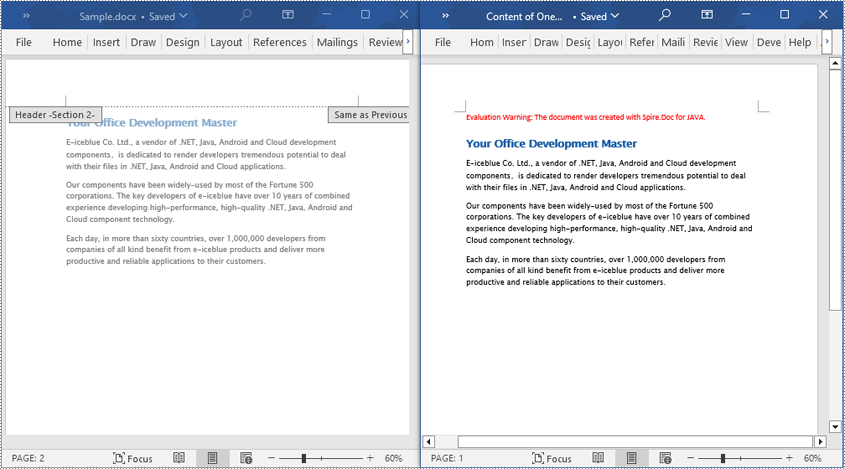
Using Document.Sections[index], you can access specific Section objects that contain the header, footer, and body content of a document. The following example demonstrates a simple method to copy all content from one section to another document. The detailed steps are as follows:
- Create a Document object.
- Load a Word document using the Document.loadFromFile() method.
- Use Document.getSections().get(1) to retrieve the second section of the document.
- Create another new Document object.
- Clone the default style of the original document to the new document using Document.cloneDefaultStyleTo(newdoc) method.
- Use Document.getSections().add(section.deepClone()) to clone the content of the second section of the original document to the new document.
- Save the resulting document using the Document.saveToFile() method.
- Java
import com.spire.doc.*;

public class ReadOneSection {
    public static void main(String[] args) {
        // Create a new document object
        Document document = new Document();

        // Load a Word document from a file
        document.loadFromFile("Sample.docx");

        // Get the second section of the document
        Section section = document.getSections().get(1);

        // Create a new document object
        Document newdoc = new Document();

        // Clone the default style to the new document
        document.cloneDefaultStyleTo(newdoc);

        // Clone the second section to the new document
        newdoc.getSections().add(section.deepClone());

        // Save the new document to a file
        newdoc.saveToFile("Content of One Section.docx", FileFormat.Docx);

        // Close and release the new document object
        newdoc.close();
        newdoc.dispose();

        // Close and release the original document object
        document.close();
        document.dispose();
    }
}
Read the Entire Content from a Word Document in Java
This example demonstrates how to iterate through each section of the original document to read the entire content of the document and clone each section into a new document. This method can help you quickly replicate both the structure and content of the entire document, preserving the format and layout of the original document in the new document. Such operations are very useful for maintaining the integrity and consistency of the document structure. The detailed steps are as follows:
- Create a Document object.
- Load a Word document using the Document.loadFromFile() method.
- Create another new Document object.
- Clone the default style of the original document to the new document using the Document.cloneDefaultStyleTo(newdoc) method.
- Iterate through each section of the original document using a for loop and clone it into the new document.
- Save the resulting document using the Document.saveToFile() method.
- Java
import com.spire.doc.*;

public class ReadOneDocument {
    public static void main(String[] args) {
        // Create a new document object
        Document document = new Document();

        // Load a Word document from a file
        document.loadFromFile("Sample.docx");

        // Create a new document object
        Document newdoc = new Document();

        // Clone the default style to the new document
        document.cloneDefaultStyleTo(newdoc);

        // Iterate through each section in the original document and clone it to the new document
        for (Section sourceSection : (Iterable<Section>) document.getSections()) {
            newdoc.getSections().add(sourceSection.deepClone());
        }
        // Save the new document to a file
        newdoc.saveToFile("Content of the entire document.docx", FileFormat.Docx);

        // Close and release the new document object
        newdoc.close();
        newdoc.dispose();

        // Close and release the original document object
        document.close();
        document.dispose();
    }
}
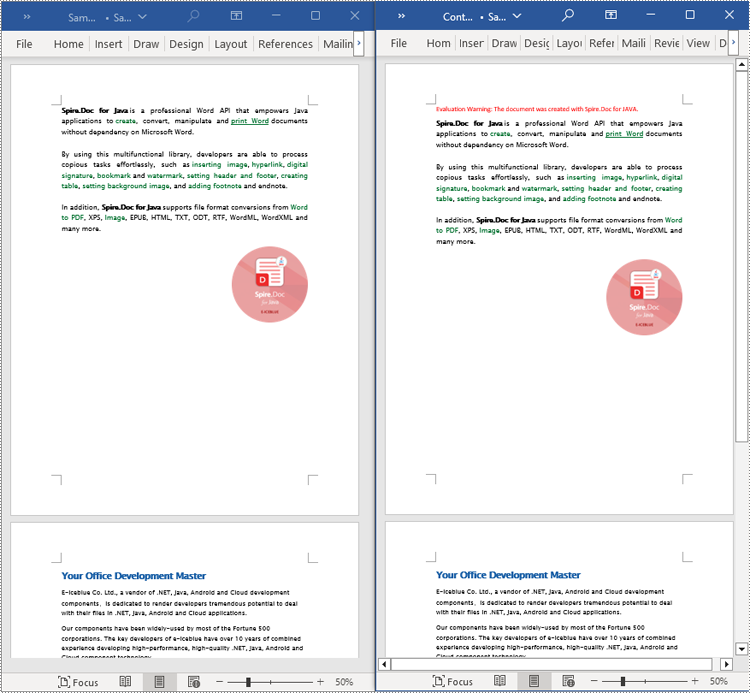
Apply for a Temporary License
If you'd like to remove the evaluation message from the generated documents, or to get rid of the function limitations, please request a 30-day trial license for yourself.
Adding, inserting, and deleting pages in a Word document are crucial steps in managing and presenting content. By adding or inserting new pages, you can expand the document to accommodate more content, making it more organized and readable. Deleting pages helps simplify the document by removing unnecessary or erroneous information. These operations can enhance the overall quality and clarity of the document. This article will demonstrate how to use Spire.Doc for Java to add, insert, and delete pages in a Word document within a Java project.
- Add a Page in a Word Document in Java
- Insert a Page in a Word Document in Java
- Delete a Page from a Word Document in Java
Install Spire.Doc for Java
First, you're required to add the Spire.Doc.jar file as a dependency in your Java program. The JAR file can be downloaded from this link. If you use Maven, you can easily import the JAR file in your application by adding the following code to your project's pom.xml file.
<repositories>
    <repository>
        <id>com.e-iceblue</id>
        <name>e-iceblue</name>
        <url>https://repo.e-iceblue.com/nexus/content/groups/public/</url>
    </repository>
</repositories>
<dependencies>
    <dependency>
        <groupId>e-iceblue</groupId>
        <artifactId>spire.doc</artifactId>
        <version>14.8.4</version>
    </dependency>
</dependencies>
Add a Page in a Word Document in Java
The steps to add a new page at the end of a Word document include locating the last section, and then inserting a page break at the end of that section's last paragraph. This way ensures that any content added subsequently will start displaying on a new page, maintaining the clarity and coherence of the document structure. The detailed steps are as follows:
- Create a Document object.
- Load a Word document using the Document.loadFromFile() method.
- Get the body of the last section of the document using Document.getLastSection().getBody().
- Add a page break by calling Paragraph.appendBreak(BreakType.Page_Break) method.
- Create a new paragraph style ParagraphStyle object.
- Add the new paragraph style to the document's style collection using Document.getStyles().add(paragraphStyle) method.
- Create a new paragraph Paragraph object and set the text content.
- Apply the previously created paragraph style to the new paragraph using Paragraph.applyStyle(paragraphStyle.getName()) method.
- Add the new paragraph to the document using Body.getChildObjects().add(paragraph) method.
- Save the resulting document using the Document.saveToFile() method.
- Java
import com.spire.doc.*;
import com.spire.doc.documents.*;

public class AddOnePage {
    public static void main(String[] args) {
        // Create a new document object
        Document document = new Document();

        // Load a sample document from a file
        document.loadFromFile("Sample.docx");

        // Get the body of the last section of the document
        Body body = document.getLastSection().getBody();

        // Insert a page break after the last paragraph in the body
        body.getLastParagraph().appendBreak(BreakType.Page_Break);

        // Create a new paragraph style
        ParagraphStyle paragraphStyle = new ParagraphStyle(document);
        paragraphStyle.setName("CustomParagraphStyle1");
        paragraphStyle.getParagraphFormat().setLineSpacing(12);
        paragraphStyle.getParagraphFormat().setAfterSpacing(8);
        paragraphStyle.getCharacterFormat().setFontName("Microsoft YaHei");
        paragraphStyle.getCharacterFormat().setFontSize(12);

        // Add the paragraph style to the document's style collection
        document.getStyles().add(paragraphStyle);

        // Create a new paragraph and set the text content
        Paragraph paragraph = new Paragraph(document);
        paragraph.appendText("Thank you for using our Spire.Doc for Java product. The trial version will add a red watermark to the generated result document and only supports converting the first 10 pages to other formats. Upon purchasing and applying a license, these watermarks will be removed, and the functionality restrictions will be lifted.");

        // Apply the paragraph style
        paragraph.applyStyle(paragraphStyle.getName());

        // Add the paragraph to the body's content collection
        body.getChildObjects().add(paragraph);

        // Create another new paragraph and set the text content
        paragraph = new Paragraph(document);
        paragraph.appendText("To fully experience our product, we provide a one-month temporary license for each of our customers for free. Please send an email to sales@e-iceblue.com, and we will send the license to you within one working day.");

        // Apply the paragraph style
        paragraph.applyStyle(paragraphStyle.getName());

        // Add the paragraph to the body's content collection
        body.getChildObjects().add(paragraph);

        // Save the document to a specified path
        document.saveToFile("Add a Page.docx", FileFormat.Docx);

        // Close the document
        document.close();

        // Dispose of the document object's resources
        document.dispose();
    }
}
Insert a Page in a Word Document in Java
Before inserting a new page, it is necessary to determine the ending position index of the specified page content within the section, and then add the content of the new page to the document one by one. To ensure that the content is separated from the subsequent pages, page breaks need to be inserted at appropriate positions. The detailed steps are as follows:
- Create a Document object.
- Load a Word document using the Document.loadFromFile() method.
- Create a FixedLayoutDocument object.
- Obtain the FixedLayoutPage object of a page in the document.
- Get the index position of the last paragraph on the page within the section.
- Create a new paragraph style ParagraphStyle object.
- Add the new paragraph style to the document using the Document.getStyles().add(paragraphStyle) method.
- Create a new paragraph Paragraph object and set the text content.
- Apply the previously created paragraph style to the new paragraph using the Paragraph.applyStyle(paragraphStyle.getName()) method.
- Insert the new paragraph at the specified position using the Body.getChildObjects().insert(index, Paragraph) method.
- Create another new paragraph object, set its text content, add a page break by calling the Paragraph.appendBreak(BreakType.Page_Break) method, apply the previously created paragraph style, and finally insert this paragraph into the document.
- Save the resulting document using the Document.saveToFile() method.
- Java
import com.spire.doc.*;
import com.spire.doc.pages.*;
import com.spire.doc.documents.*;

public class InsertOnePage {
    public static void main(String[] args) {
        // Create a new document object
        Document document = new Document();

        // Load a sample document from a file
        document.loadFromFile("Sample.docx");

        // Create a fixed layout document object
        FixedLayoutDocument layoutDoc = new FixedLayoutDocument(document);

        // Get the first page
        FixedLayoutPage page = layoutDoc.getPages().get(0);

        // Get the body of the document
        Body body = page.getSection().getBody();

        // Get the paragraph at the end of the current page
        Paragraph paragraphEnd = page.getColumns().get(0).getLines().getLast().getParagraph();

        // Initialize the end index
        int endIndex = 0;
        if (paragraphEnd != null) {
            // Get the index of the last paragraph
            endIndex = body.getChildObjects().indexOf(paragraphEnd);
        }

        // Create a new paragraph style
        ParagraphStyle paragraphStyle = new ParagraphStyle(document);
        paragraphStyle.setName("CustomParagraphStyle1");
        paragraphStyle.getParagraphFormat().setLineSpacing(12);
        paragraphStyle.getParagraphFormat().setAfterSpacing(8);
        paragraphStyle.getCharacterFormat().setFontName("Microsoft YaHei");
        paragraphStyle.getCharacterFormat().setFontSize(12);

        // Add the style to the document
        document.getStyles().add(paragraphStyle);

        // Create a new paragraph and set the text content
        Paragraph paragraph = new Paragraph(document);
        paragraph.appendText("Thank you for using our Spire.Doc for Java product. The trial version will add a red watermark to the generated result document and only supports converting the first 10 pages to other formats. Upon purchasing and applying a license, these watermarks will be removed, and the functionality restrictions will be lifted.");

        // Apply the paragraph style
        paragraph.applyStyle(paragraphStyle.getName());

        // Insert the paragraph at the specified position
        body.getChildObjects().insert(endIndex + 1, paragraph);

        // Create another new paragraph and set the text content
        paragraph = new Paragraph(document);
        paragraph.appendText("To fully experience our product, we provide a one-month temporary license for each of our customers for free. Please send an email to sales@e-iceblue.com, and we will send the license to you within one working day.");

        // Apply the paragraph style
        paragraph.applyStyle(paragraphStyle.getName());

        // Add a page break
        paragraph.appendBreak(BreakType.Page_Break);

        // Insert the paragraph at the specified position
        body.getChildObjects().insert(endIndex + 2, paragraph);

        // Save the document to a specified path
        document.saveToFile("Insert a New Page after a Specified Page.docx", FileFormat.Docx);

        // Close and dispose of the document object's resources
        document.close();
        document.dispose();
    }
}
Delete a Page from a Word Document in Java
To delete the content of a page, you first need to find the position index of the starting and ending elements of that page in the document. Then, by looping through, you can remove these elements one by one to delete the entire content of the page. The detailed steps are as follows:
- Create a Document object.
- Load a Word document using the Document.loadFromFile() method.
- Create a FixedLayoutDocument object.
- Obtain the FixedLayoutPage object of the first page in the document.
- Use the FixedLayoutPage.getSection() method to get the section where the page is located.
- Get the index position of the first paragraph on the page within the section.
- Get the index position of the last paragraph on the page within the section.
- Use a for loop to remove the content of the page one by one.
- Save the resulting document using the Document.saveToFile() method.
- Java
import com.spire.doc.*;
import com.spire.doc.pages.*;
import com.spire.doc.documents.*;

public class RemoveOnePage {
    public static void main(String[] args) {
        // Create a new document object
        Document document = new Document();

        // Load a sample document from a file
        document.loadFromFile("Sample.docx");

        // Create a fixed layout document object
        FixedLayoutDocument layoutDoc = new FixedLayoutDocument(document);

        // Get the second page
        FixedLayoutPage page = layoutDoc.getPages().get(1);

        // Get the section of the page
        Section section = page.getSection();

        // Get the first paragraph on the first page
        Paragraph paragraphStart = page.getColumns().get(0).getLines().getFirst().getParagraph();
        int startIndex = 0;
        if (paragraphStart != null) {
            // Get the index of the starting paragraph
            startIndex = section.getBody().getChildObjects().indexOf(paragraphStart);
        }

        // Get the last paragraph on the last page
        Paragraph paragraphEnd = page.getColumns().get(0).getLines().getLast().getParagraph();

        int endIndex = 0;
        if (paragraphEnd != null) {
            // Get the index of the ending paragraph
            endIndex = section.getBody().getChildObjects().indexOf(paragraphEnd);
        }

        // Remove paragraphs within the specified range
        for (int i = 0; i <= (endIndex - startIndex); i++) {
            section.getBody().getChildObjects().removeAt(startIndex);
        }

        // Save the document to a specified path
        document.saveToFile("Delete a Page.docx", FileFormat.Docx);

        // Close and dispose of the document object's resources
        document.close();
        document.dispose();
    }
}
Apply for a Temporary License
If you'd like to remove the evaluation message from the generated documents, or to get rid of the function limitations, please request a 30-day trial license for yourself.
Captions play multiple important roles in a document. They not only provide explanations for images or tables but also help in organizing the document structure, referencing specific content, and ensuring consistency and standardization. They serve as guides, summaries, and emphasis within the document, enhancing readability and assisting readers in better understanding and utilizing the information presented in the document. This article will demonstrate how to use Spire.Doc for Java to add or remove captions in Word documents within a Java project.
- Add Image Captions to a Word document in Java
- Add Table Captions to a Word document in Java
- Remove Captions from a Word document in Java
Install Spire.Doc for Java
First, you're required to add the Spire.Doc.jar file as a dependency in your Java program. The JAR file can be downloaded from this link. If you use Maven, you can easily import the JAR file in your application by adding the following code to your project's pom.xml file.
<repositories>
    <repository>
        <id>com.e-iceblue</id>
        <name>e-iceblue</name>
        <url>https://repo.e-iceblue.com/nexus/content/groups/public/</url>
    </repository>
</repositories>
<dependencies>
    <dependency>
        <groupId>e-iceblue</groupId>
        <artifactId>spire.doc</artifactId>
        <version>14.8.4</version>
    </dependency>
</dependencies>
Add Image Captions to a Word document in Java
By using the DocPicture.addCaption(String name, CaptionNumberingFormat format, CaptionPosition captionPosition) method, you can easily add descriptive captions to images within a Word document. The following are the detailed steps:
- Create an object of the Document class.
- Use the Document.addSection() method to add a section.
- Add a paragraph using Section.addParagraph() method.
- Use the Paragraph.appendPicture(String filePath) method to add a DocPicture image object to the paragraph.
- Add a caption using the DocPicture.addCaption(String name, CaptionNumberingFormat format, CaptionPosition captionPosition) method, numbering the captions in CaptionNumberingFormat.Number format.
- Update all fields using the Document.isUpdateFields(true) method.
- Save the resulting document using the Document.saveToFile() method.
- Java
import com.spire.doc.*;
import com.spire.doc.documents.*;
import com.spire.doc.fields.*;
public class addPictureCaption {
    public static void main(String[] args) {

        // Create a Word document object
        Document document = new Document();

        // Add a section to the document
        Section section = document.addSection();

        // Add a new paragraph and insert an image into it
        Paragraph pictureParagraphCaption = section.addParagraph();
        pictureParagraphCaption.getFormat().setAfterSpacing(10);
        DocPicture pic1 = pictureParagraphCaption.appendPicture("Data\\1.png");
        pic1.setHeight(100);
        pic1.setWidth(100);

        // Add a caption to the image
        CaptionNumberingFormat format = CaptionNumberingFormat.Number;
        pic1.addCaption("Image", format, CaptionPosition.Below_Item);

        // Add another paragraph and insert another image into it
        pictureParagraphCaption = section.addParagraph();
        DocPicture pic2 = pictureParagraphCaption.appendPicture("Data\\2.png");
        pic2.setHeight(100);
        pic2.setWidth(100);

        // Add a caption to the second image
        pic2.addCaption("Image", format, CaptionPosition.Below_Item);

        // Update all fields in the document
        document.isUpdateFields(true);

        // Save the document as a docx file
        String result = "AddImageCaption.docx";
        document.saveToFile(result, FileFormat.Docx_2016);

        // Close and dispose the document object to release resources
        document.close();
        document.dispose();
    }
}
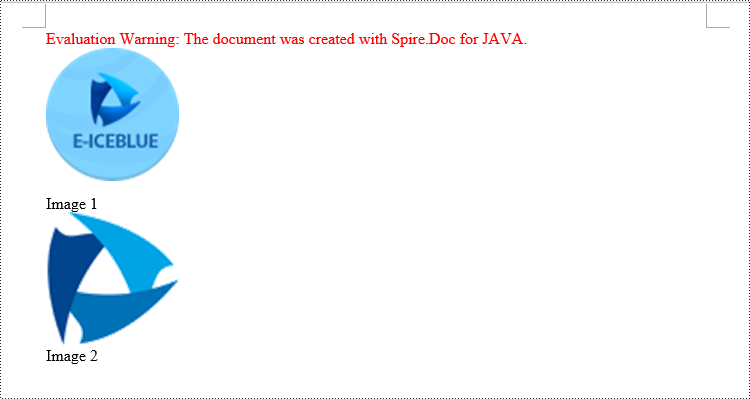
Add Table Captions to a Word document in Java
Similar to adding captions to images, to add a caption to a table, you need to call the Table.addCaption(String name, CaptionNumberingFormat format, CaptionPosition captionPosition) method. The detailed steps are as follows:
- Create an object of the Document class.
- Use the Document.addSection() method to add a section.
- Create a Table object and add it to the specified section in the document.
- Use the Table.resetCells(int rowsNum, int columnsNum) method to set the number of rows and columns in the table.
- Add a caption using the Table.addCaption(String name, CaptionNumberingFormat format, CaptionPosition captionPosition) method, numbering the captions in CaptionNumberingFormat.Number format.
- Update all fields using the Document.isUpdateFields(true) method.
- Save the resulting document using the Document.saveToFile() method.
- Java
import com.spire.doc.*;
public class addTableCaption {
    public static void main(String[] args) {

        // Create a Word document object
        Document document = new Document();

        // Add a section to the document
        Section section = document.addSection();

        // Add a table to the section
        Table tableCaption = section.addTable(true);
        tableCaption.resetCells(3, 2);

        // Add a caption to the table
        tableCaption.addCaption("Table", CaptionNumberingFormat.Number, CaptionPosition.Below_Item);

        // Add another table to the section
        tableCaption = section.addTable(true);
        tableCaption.resetCells(2, 3);

        // Add a caption to the second table
        tableCaption.addCaption("Table", CaptionNumberingFormat.Number, CaptionPosition.Below_Item);

        // Update all fields in the document
        document.isUpdateFields(true);

        // Save the document as a docx file
        String result = "AddTableCaption.docx";
        document.saveToFile(result, FileFormat.Docx_2016);

        // Close and dispose the document object to release resources
        document.close();
        document.dispose();
    }
}
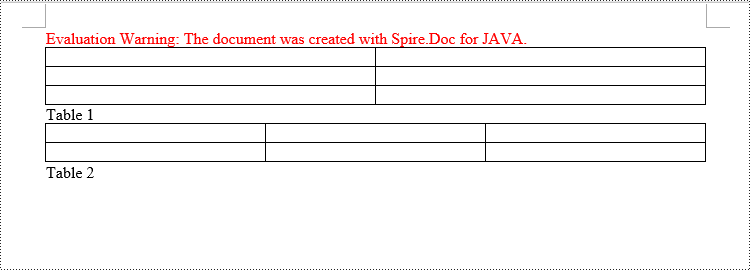
Remove Captions from a Word document in Java
In addition to adding captions, Spire.Doc for Java also supports deleting captions from a Word document. The steps involved are as follows:
- Create an object of the Document class.
- Use the Document.loadFromFile() method to load a Word document.
- Create a custom method named DetectCaptionParagraph(Paragraph paragraph), to determine if the paragraph contains a caption.
- Iterate through all the Paragraph objects in the document using a loop and use the custom method, DetectCaptionParagraph(Paragraph paragraph), to identify the paragraphs that contain captions and delete them.
- Save the resulting document using the Document.saveToFile() method.
- Java
import com.spire.doc.*;
import com.spire.doc.documents.*;
import com.spire.doc.fields.*;

public class deleteCaptions {
    public static void main(String[] args) {

        // Create a Word document object
        Document document = new Document();

        // Load the sample.docx file
        document.loadFromFile("Data/sample.docx");

        Section section;

        // Iterate through all sections
        for (int i = 0; i < document.getSections().getCount(); i++) {
            section = document.getSections().get(i);

        // Iterate through paragraphs in reverse order
            for (int j = section.getBody().getParagraphs().getCount() - 1; j >= 0; j--) {
                // Check if the paragraph is a caption paragraph
                if (DetectCaptionParagraph(section.getBody().getParagraphs().get(j))) {
                    // If it is a caption paragraph, remove it
                    section.getBody().getParagraphs().removeAt(j);
                }
            }
        }

        // Save the document after removing captions
        String result = "RemoveCaptions.docx";
        document.saveToFile(result, FileFormat.Docx_2016);

        // Close and dispose the document object to release resources
        document.close();
        document.dispose();
    }

    // Method to detect if a paragraph is a caption paragraph
    static Boolean DetectCaptionParagraph(Paragraph paragraph) {
        Boolean tag = false;
        Field field;

        // Iterate through child objects of the paragraph
        for (int i = 0; i < paragraph.getChildObjects().getCount(); i++) {
            if (paragraph.getChildObjects().get(i).getDocumentObjectType().equals(DocumentObjectType.Field)) {
                // Check if the child object is of type Field
                field = (Field) paragraph.getChildObjects().get(i);
                if (field.getType().equals(FieldType.Field_Sequence)) {
                    // Check if the Field type is FieldSequence, indicating a caption field
                    return true;
                }
            }
        }

        return tag;
    }
}
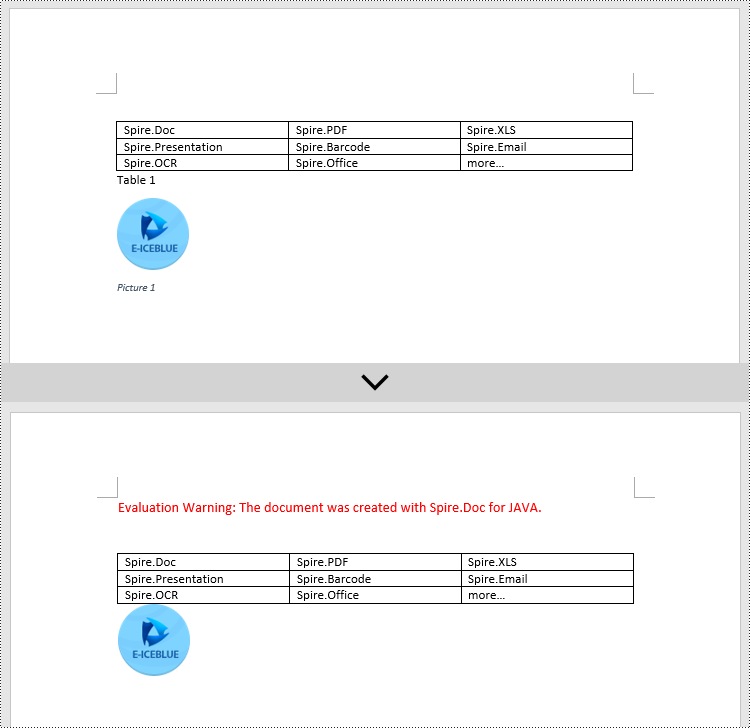
Apply for a Temporary License
If you'd like to remove the evaluation message from the generated documents, or to get rid of the function limitations, please request a 30-day trial license for yourself.
HTML (Hypertext Markup Language) has become one of the most commonly used text markup languages on the Internet, and nearly all web pages are created using HTML. While HTML contains numerous tags and formatting information, the most valuable content is typically the visible text. It is important to know how to extract the text content from an HTML file when users intend to utilize it for tasks such as editing, AI training, or storing in databases. This article will demonstrate how to extract text from HTML using Spire.Doc for Java within Java programs.
Install Spire.Doc for Java
First of all, you're required to add the Spire.Doc.jar file as a dependency in your Java program. The JAR file can be downloaded from this link. If you use Maven, you can easily import the JAR file in your application by adding the following code to your project's pom.xml file.
<repositories>
    <repository>
        <id>com.e-iceblue</id>
        <name>e-iceblue</name>
        <url>https://repo.e-iceblue.com/nexus/content/groups/public/</url>
    </repository>
</repositories>
<dependencies>
    <dependency>
        <groupId>e-iceblue</groupId>
        <artifactId>spire.doc</artifactId>
        <version>14.8.4</version>
    </dependency>
</dependencies>
Extract Text from HTML File
Spire.Doc for Java supports loading HTML files using the Document.loadFromFile(fileName, FileFormat.Html) method. Then, users can use Document.getText() method to get the text that is visible in browsers and write it to a TXT file. The detailed steps are as follows:
- Create an object of Document class.
- Load an HTML file using Document.loadFromFile(fileName, FileFormat.Html) method.
- Get the text of the HTML file using Document.getText() method.
- Write the text to a TXT file.
- Java
import com.spire.doc.Document;
import com.spire.doc.FileFormat;

import java.io.FileWriter;
import java.io.IOException;

public class ExtractTextFromHTML {
    public static void main(String[] args) throws IOException {

        //Create an object of Document class
        Document doc = new Document();

        //Load an HTML file
        doc.loadFromFile("Sample.html", FileFormat.Html);

        //Get text from the HTML file
        String text = doc.getText();

        //Write the text to a TXT file
        FileWriter fileWriter = new FileWriter("HTMLText.txt");
        fileWriter.write(text);
        fileWriter.close();
    }
}
HTML Web Page:

Extracted Text:
Extract Text from URL
To extract text from a URL, users need to create a custom method to retrieve the HTML file from the URL and then extract the text from it. The detailed steps are as follows:
- Create an object of Document class.
- Use the custom method readHTML() to get the HTML file from a URL and return the file path.
- Load the HTML file using Document.loadFromFile(filename, FileFormat.Html) method.
- Get the text from the HTML file using Document.getText() method.
- Write the text to a TXT file.
- Java
import com.spire.doc.Document;
import com.spire.doc.FileFormat;

import java.io.*;
import java.net.URL;
import java.net.URLConnection;

public class ExtractTextFromURL {
    public static void main(String[] args) throws IOException {
        //Create an object of Document
        Document doc = new Document();

        //Call the custom method to load the HTML file from a URL
        doc.loadFromFile(readHTML("https://aeon.co/essays/how-to-face-the-climate-crisis-with-spinoza-and-self-knowledge", "output.html"), FileFormat.Html);

        //Get the text from the HTML file
        String urlText = doc.getText();

        //Write the text to a TXT file
        FileWriter fileWriter = new FileWriter("URLText.txt");
        fileWriter.write(urlText);
    }

    public static String readHTML(String urlString, String saveHtmlFilePath) throws IOException {

        //Create an object of URL class
        URL url = new URL(urlString);

        //Open the URL
        URLConnection connection = url.openConnection();

        //Save the url as an HTML file
        BufferedReader reader = new BufferedReader(new InputStreamReader(connection.getInputStream(), "UTF-8"));
        BufferedWriter writer = new BufferedWriter(new OutputStreamWriter(new FileOutputStream(saveHtmlFilePath), "UTF-8"));
        String line;
        while ((line = reader.readLine()) != null) {
            writer.write(line);
            writer.newLine();
        }

        reader.close();
        writer.close();

        //Return the file path of the saved HTML file
        return saveHtmlFilePath;
    }
}
URL Web Page:
Extracted Text:
Apply for a Temporary License
If you'd like to remove the evaluation message from the generated documents, or to get rid of the function limitations, please request a 30-day trial license for yourself.
Repeating watermarks, also called multi-line watermarks, are a type of watermark that appears multiple times on a page of a Word document at regular intervals. Compared with single watermarks, repeating watermarks are more difficult to remove or obscure, thus offering a better deterrent to unauthorized copying and distribution. This article is going to show how to insert repeating text and image watermarks into Word documents programmatically using Spire.Doc for Java.
- Add Repeating Text Watermarks to Word Documents in Java
- Add Repeating Picture Watermarks to Word Documents in Java
Install Spire.Doc for Java
First of all, you're required to add the Spire.Doc.jar file as a dependency in your Java program. The JAR file can be downloaded from this link. If you use Maven, you can easily import the JAR file in your application by adding the following code to your project's pom.xml file.
<repositories>
    <repository>
        <id>com.e-iceblue</id>
        <name>e-iceblue</name>
        <url>https://repo.e-iceblue.com/nexus/content/groups/public/</url>
    </repository>
</repositories>
<dependencies>
    <dependency>
        <groupId>e-iceblue</groupId>
        <artifactId>spire.doc</artifactId>
        <version>14.8.4</version>
    </dependency>
</dependencies>
Add Repeating Text Watermarks to Word Documents in Java
We can insert repeating text watermarks to Word documents by adding repeating WordArt to the headers of a document at specified intervals. The detailed steps are as follows:
- Create an object of Document class.
- Load a Word document using Document.loadFromFile() method.
- Create an object of ShapeObject class and set the WordArt text using ShapeObject.getWordArt().setText() method.
- Specify the rotation angle and the number of vertical repetitions and horizontal repetitions.
- Set the format of the shape using methods under ShapeObject class.
- Loop through the sections in the document to insert repeating watermarks to each section by adding the WordArt shape to the header of each section multiple times at specified intervals using Paragraph.getChildObjects().add(ShapeObject) method.
- Save the document using Document.saveToFile() method.
- Java
import com.spire.doc.Document;
import com.spire.doc.HeaderFooter;
import com.spire.doc.Section;
import com.spire.doc.documents.Paragraph;
import com.spire.doc.documents.ShapeLineStyle;
import com.spire.doc.documents.ShapeType;
import com.spire.doc.fields.ShapeObject;

import java.awt.*;

public class insertRepeatingTextWatermark {
    public static void main(String[] args) {

        //Create an object of Document class
        Document doc = new Document();

        //Load a Word document
        doc.loadFromFile("Sample.docx");

        //Create an object of ShapeObject class and set the WordArt text
        ShapeObject shape = new ShapeObject(doc, ShapeType.Text_Plain_Text);
        shape.getWordArt().setText("DRAFT");

        //Specify the watermark rotating angle and the number of vertical repetitions and horizontal repetitions
        double rotation = 315;
        int ver = 5;
        int hor = 3;

        //Set the format of the WordArt shape
        shape.setWidth(60);
        shape.setHeight(20);
        shape.setVerticalPosition(30);
        shape.setHorizontalPosition(20);
        shape.setRotation(rotation);
        shape.setFillColor(Color.BLUE);
        shape.setLineStyle(ShapeLineStyle.Single);
        shape.setStrokeColor(Color.CYAN);
        shape.setStrokeWeight(1);

        //Loop through the sections in the document
        for (Section section : (Iterable<Section>) doc.getSections()) {
            //Get the header of a section
            HeaderFooter header = section.getHeadersFooters().getHeader();
            //Add paragraphs to the header
            Paragraph paragraph = header.addParagraph();
            for (int i = 0; i < ver; i++) {
                for (int j = 0; j < hor; j++) {
                    //Add the WordArt shape to the header
                    shape = (ShapeObject) shape.deepClone();
                    shape.setVerticalPosition((float) (section.getPageSetup().getPageSize().getHeight()/ver * i + Math.sin(rotation) * shape.getWidth()/2));
                    shape.setHorizontalPosition((float) ((section.getPageSetup().getPageSize().getWidth()/hor - shape.getWidth()/2) * j));
                    paragraph.getChildObjects().add(shape);
                }
            }
        }

        //Save the document
        doc.saveToFile("RepeatingTextWatermark.docx");
        doc.dispose();
    }
}
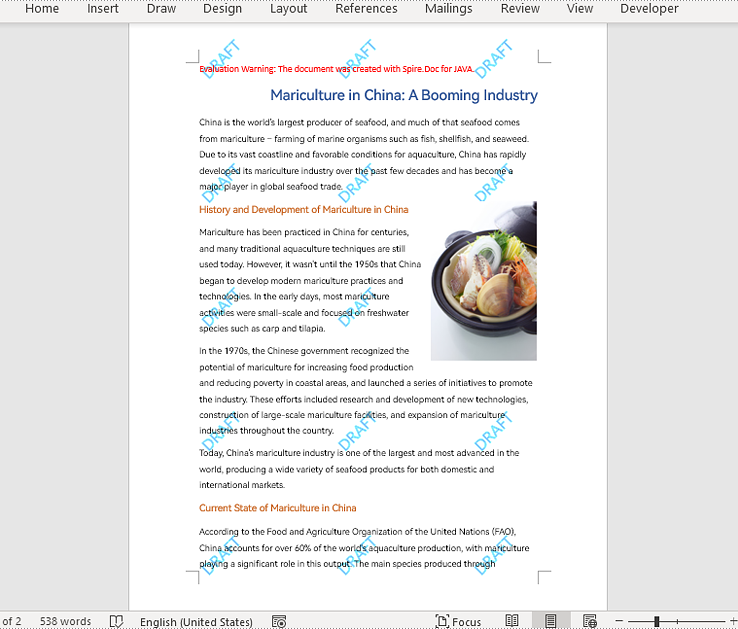
Add Repeating Picture Watermarks to Word Documents in Java
Similarly, we can insert repeating image watermarks into Word documents by adding repeating pictures to headers at regular intervals. The detailed steps are as follows:
- Create an object of Document class.
- Load a Word document using Document.loadFromFile() method.
- Load a picture using DocPicture.loadImage() method.
- Set the text wrapping style of the picture as Behind using DocPicture.setTextWrappingStyle(TextWrappingStyle.Behind) method.
- Specify the number of vertical repetitions and horizontal repetitions.
- Loop through the sections in the document to insert repeating picture watermarks to the document by adding a picture to the header of each section at specified intervals using Paragraph.getChildObjects().add(DocPicture) method.
- Save the document using Document.saveToFile() method.
- Java
import com.spire.doc.Document;
import com.spire.doc.FileFormat;
import com.spire.doc.HeaderFooter;
import com.spire.doc.Section;
import com.spire.doc.documents.Paragraph;
import com.spire.doc.documents.TextWrappingStyle;
import com.spire.doc.fields.DocPicture;

public class insertRepeatingPictureWatermark {
    public static void main(String[] args) {

        //Create an object of Document class
        Document doc = new Document();

        //Load a Word document
        doc.loadFromFile("Sample.docx");

        //Load a picture
        DocPicture pic = new DocPicture(doc);
        pic.loadImage("watermark.png");

        //Set the text wrapping style of the picture as Behind
        pic.setTextWrappingStyle(TextWrappingStyle.Behind);

        //Specify the number of vertical repetitions and horizontal repetitions
        int ver = 4;
        int hor = 3;

        //Loop through the sections in the document
        for (Section section : (Iterable<Section>) doc.getSections()) {
            //Get the header of a section
            HeaderFooter header = section.getHeadersFooters().getHeader();
            //Add a paragraph to the section
            Paragraph paragraph = header.addParagraph();
            for (int i = 0; i < ver; i++) {
                for (int j = 0; j < hor; j++) {
                    //Add the picture to the header
                    pic = (DocPicture) pic.deepClone();
                    pic.setVerticalPosition((float) ((section.getPageSetup().getPageSize().getHeight()/ver) * i));
                    pic.setHorizontalPosition((float) (section.getPageSetup().getPageSize().getWidth()/hor - pic.getWidth()/2) * j);
                    paragraph.getChildObjects().add(pic);
                }
            }
        }

        //Save the document
        doc.saveToFile("RepeatingPictureWatermark.docx", FileFormat.Auto);
        doc.dispose();
    }
}
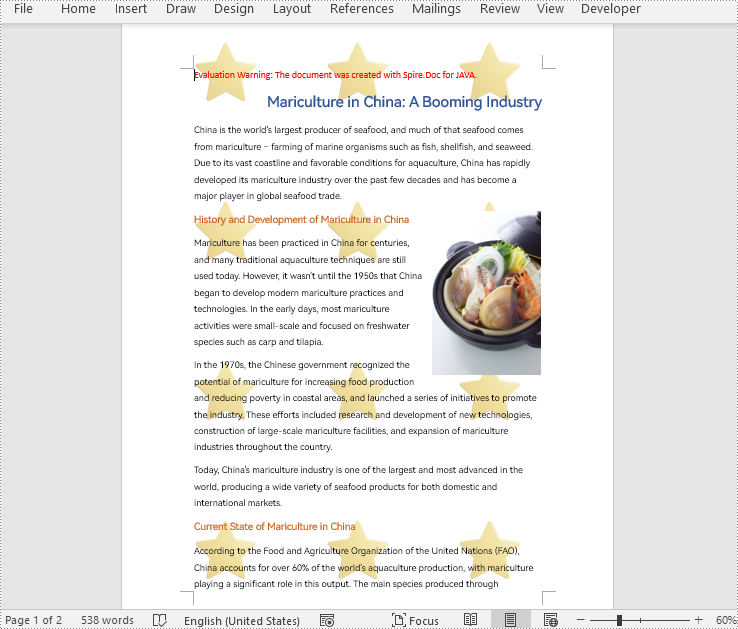
Apply for a Temporary License
If you'd like to remove the evaluation message from the generated documents, or to get rid of the function limitations, please request a 30-day trial license for yourself.
