
Program Guide (137)
Children categories
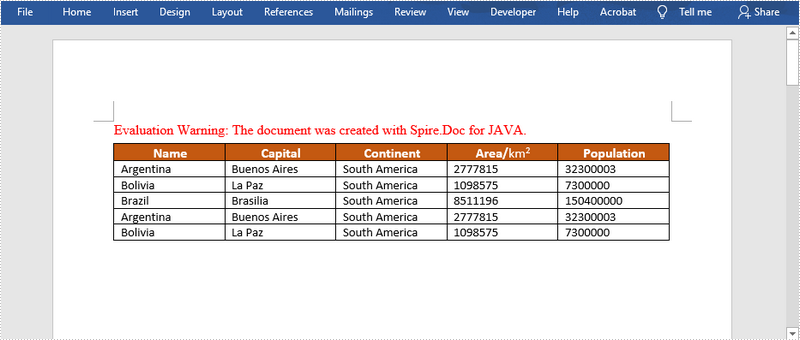
When you run mail merge with a region, all merge fields within the region are repeated for each record in the data source. This is useful when you want to dynamically add rows to a Word table. In this article, you will learn how to perform mail merge with a region using Spire.Doc for Java.
Install Spire.Doc for Java
First of all, you're required to add the Spire.Doc.jar file as a dependency in your Java program. The JAR file can be downloaded from this link. If you use Maven, you can easily import the JAR file in your application by adding the following code to your project's pom.xml file.
<repositories>
    <repository>
        <id>com.e-iceblue</id>
        <name>e-iceblue</name>
        <url>https://repo.e-iceblue.com/nexus/content/groups/public/</url>
    </repository>
</repositories>
<dependencies>
    <dependency>
        <groupId>e-iceblue</groupId>
        <artifactId>spire.doc</artifactId>
        <version>14.8.4</version>
    </dependency>
</dependencies>
Create a Template
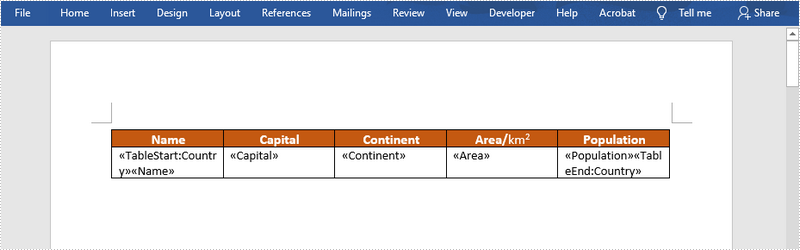
To create a mail merge region, you need to specify the start point and the end point of the region. For example, the following Word template contains the region "Country" which is marked by «TableStart:Country» and «TableEnd:Country». Mail Merge will repeat that region for each record in the data source.
The following is the sample XML file that will be used as the data source.
- Package Manager
<?xml version="1.0" encoding="UTF-8"?>
<Data>
	<Country>
		<Capital>Buenos Aires</Capital>
		<Name>Argentina</Name>
		<Continent>South America</Continent>
		<Area>2777815</Area>
		<Population>32300003</Population>
	</Country>
	<Country>
		<Capital>La Paz</Capital>
		<Name>Bolivia</Name>
		<Continent>South America</Continent>
		<Area>1098575</Area>
		<Population>7300000</Population>
	</Country>
	<Country>
		<Capital>Brasilia</Capital>
		<Name>Brazil</Name>
		<Continent>South America</Continent>
		<Area>8511196</Area>
		<Population>150400000</Population>
	</Country>
	<Country>
		<Capital>Buenos Aires</Capital>
		<Name>Argentina</Name>
		<Continent>South America</Continent>
		<Area>2777815</Area>
		<Population>32300003</Population>
	</Country>
	<Country>
		<Capital>La Paz</Capital>
		<Name>Bolivia</Name>
		<Continent>South America</Continent>
		<Area>1098575</Area>
		<Population>7300000</Population>
	</Country>
</Data>
Preform Mail Merge with a Region
The following are the steps to preform mail merge with a region.
- Create a Document object.
- Load the Word template file using Document.loadFromFile() method.
- Execute mail merge with a region using Document.getMailMerge().executeWidthRegion() method.
- Save the changes to another file using Document.saveToFile() method.
- Java
import com.spire.doc.Document;
import com.spire.doc.FileFormat;

public class MailMergeWithRegions {

    public static void main(String[] args) throws Exception {

        //Create a Document object
        Document doc = new Document();

        //Load the Word template file
        doc.loadFromFile("C:\\Users\\Administrator\\Desktop\\MailMergeTemplate.docx");

        //Execute mail merge with a region
        doc.getMailMerge().executeWidthRegion("C:\\Users\\Administrator\\Desktop\\Data.xml");

        //Save the changes to another file
        doc.saveToFile("output/MailMergeWithRegions.docx", FileFormat.Docx_2013);
    }
}
Apply for a Temporary License
If you'd like to remove the evaluation message from the generated documents, or to get rid of the function limitations, please request a 30-day trial license for yourself.
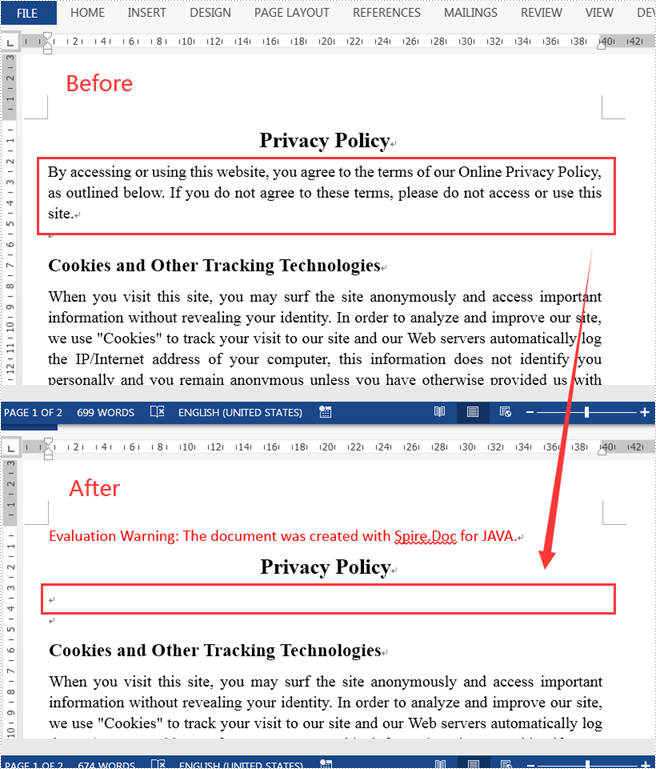
In the process of manipulating Word documents, it is sometimes necessary to keep some important information from others. For this reason, we can hide them to ensure confidentiality. This article shows how to hide a specific paragraph in a Word document using Spire.Doc for Java.
Install Spire.Doc for Java
First of all, you're required to add the Spire.Doc.jar file as a dependency in your Java program. The JAR file can be downloaded from this link. If you use Maven, you can easily import the JAR file in your application by adding the following code to your project's pom.xml file.
<repositories>
    <repository>
        <id>com.e-iceblue</id>
        <name>e-iceblue</name>
        <url>https://repo.e-iceblue.com/nexus/content/groups/public/</url>
    </repository>
</repositories>
<dependencies>
    <dependency>
        <groupId>e-iceblue</groupId>
        <artifactId>spire.doc</artifactId>
        <version>14.8.4</version>
    </dependency>
</dependencies>
Hide a Specific Paragraph in Word
Spire.Doc for Java supports hiding a specific paragraph in Word by using TextRange.getCharacterFormat().setHidden(boolean value) method. Here are detailed steps to follow.
- Create a Document instance.
- Load a sample Word document using Document.loadFromFile() method.
- Get a specific section of the Word document using Document.getSections().get() method.
- Get a specific paragraph of the section using Section.getParagraphs().get() method.
- Loop through the child objects of the paragraph, and convert each child object as a text range if it is plain text. Then hide the text range using TextRange.getCharacterFormat().setHidden(boolean value) method.
- Save the document to another file using Document.saveToFile() method.
- Java
import com.spire.doc.*;
import com.spire.doc.documents.*;
import com.spire.doc.fields.*;

public class HideParagraph {
    public static void main(String[] args) {
        //Create a Document instance
        Document document = new Document();

        //Load a sample Word document
        document.loadFromFile("C:\\Users\\Test1\\Desktop\\sample.docx");

        //Get a specific section of Word
        Section sec = document.getSections().get(0);

        //Get a specific paragraph of the section
        Paragraph para = sec.getParagraphs().get(1);

        //Loop through the child objects
        for (Object docObj : para.getChildObjects()) {
            DocumentObject obj = (DocumentObject)docObj;

            //Determine if a child object is an instance of TextRange
            if ((obj instanceof TextRange)) {
                TextRange range = ((TextRange)(obj));

                //Hide the text range
                range.getCharacterFormat().setHidden(true);
            }
        }

        //Save the document to another file
        document.saveToFile("output/hideParagraph.docx", FileFormat.Docx_2013);
    }
}
Apply for a Temporary License
If you'd like to remove the evaluation message from the generated documents, or to get rid of the function limitations, please request a 30-day trial license for yourself.
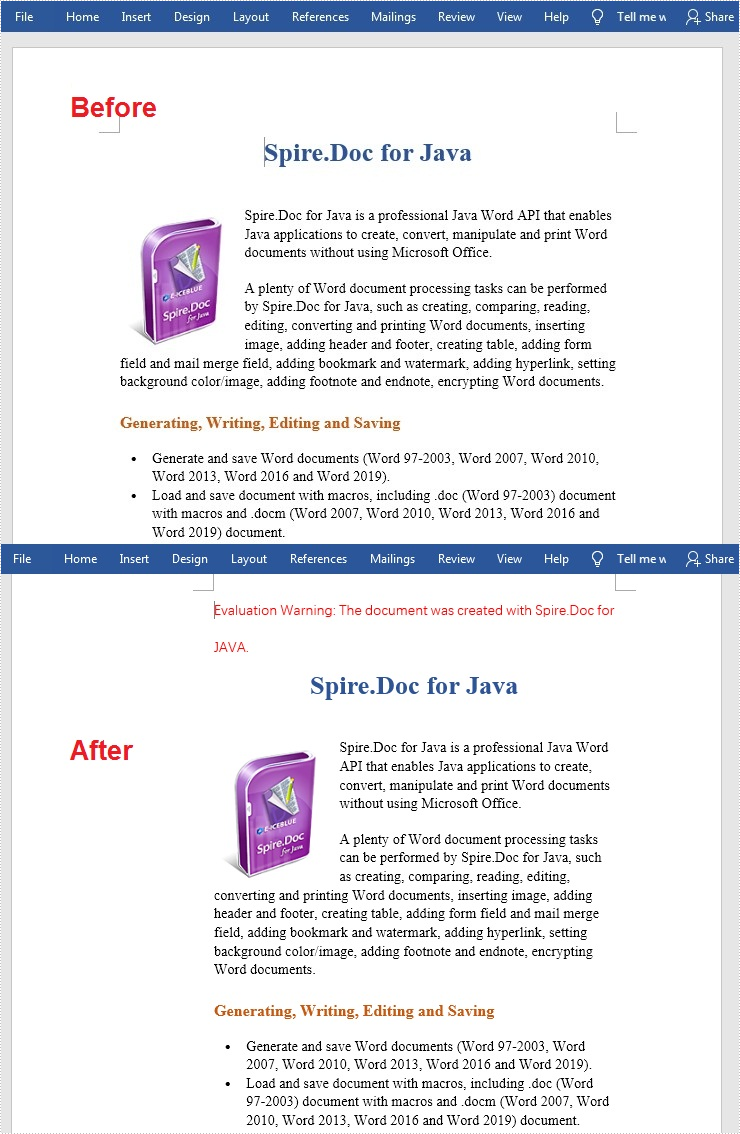
Gutter margins are designed to add extra space to the existing margins of a document, which ensures that the text of the document will not be obscured when binding. This is very useful when you need to bind some important official documents, books, or examination papers. This article will introduce how to set gutter margins on the left edges of the pages in a Word document using Spire.Doc for Java.
Install Spire.Doc for Java
First of all, you're required to add the Spire.Doc.jar file as a dependency in your Java program. The JAR file can be downloaded from this link. If you use Maven, you can easily import the JAR file in your application by adding the following code to your project's pom.xml file.
<repositories>
    <repository>
        <id>com.e-iceblue</id>
        <name>e-iceblue</name>
        <url>https://repo.e-iceblue.com/nexus/content/groups/public/</url>
    </repository>
</repositories>
<dependencies>
    <dependency>
        <groupId>e-iceblue</groupId>
        <artifactId>spire.doc</artifactId>
        <version>14.8.4</version>
    </dependency>
</dependencies>
Set Gutter Margins in Word
Although you can adjust the normal margins to add more space for document binding, setting gutter margins is a more efficient way to achieve the same function. The following are the steps to set gutter margins in a Word document:
- Create a Document instance.
- Load a Word document using Document.loadFromFile() method.
- Get a specific section using Document.getSections().get() method.
- Set gutter margin for that specified section using Section.getPageSetup().setGutter() method.
- Save the document to file using Document.saveToFile() method.
- Java
import com.spire.doc.*;
import java.io.IOException;

public class addGutter {
    public static void main(String[] args) throws IOException {
        //Create a Document instance
        Document document = new Document();

        //Load a sample Word document
        document.loadFromFile("input.docx");

        //Get the first section
        Section section = document.getSections().get(0);

        //Set gutter margin
        section.getPageSetup().setGutter(100f);

        //Save the file
        document.saveToFile("addGutter_output.docx", FileFormat.Docx);
    }
}
Apply for a Temporary License
If you'd like to remove the evaluation message from the generated documents, or to get rid of the function limitations, please request a 30-day trial license for yourself.
Spire.Doc for Java allows developers to convert Word documents to password-protected PDF documents by using the Document.saveToFile(String, ToPdfParameterList) method. The ToPdfParameterList parameter controls how a Word document will be converted to PDF, for example, whether to encrypt the document while converting.
Install Spire.Doc for Java
First of all, you're required to add the Spire.Doc.jar file as a dependency in your Java program. The JAR file can be downloaded from this link. If you use Maven, you can easily import the JAR file in your application by adding the following code to your project's pom.xml file.
<repositories>
    <repository>
        <id>com.e-iceblue</id>
        <name>e-iceblue</name>
        <url>https://repo.e-iceblue.com/nexus/content/groups/public/</url>
    </repository>
</repositories>
<dependencies>
    <dependency>
        <groupId>e-iceblue</groupId>
        <artifactId>spire.doc</artifactId>
        <version>14.8.4</version>
    </dependency>
</dependencies>
Convert Word to Password-Protected PDF
The following are the steps to convert a Word document to password-protected PDF:
- Create a Document instance.
- Load a Word document using Document.loadFromFile() method.
- Create a ToPdfParameterList instance.
- Set open password and permission password for PDF using ToPdfParameterList.getPdfSecurity().encrypt() method.
- Save the Word document to PDF with password using Document.saveToFile(String, ToPdfParameterList) method.
- Java
import com.spire.doc.Document;
import com.spire.doc.ToPdfParameterList;
import com.spire.pdf.security.PdfEncryptionKeySize;
import com.spire.pdf.security.PdfPermissionsFlags;

public class ConvertWordToPasswordProtectedPDF {
    public static void main(String[] args){

        //Create a Document instance
        Document document = new Document(false);
        //Load a Word document
        document.loadFromFile("Sample.docx");

        //Create a ToPdfParameterList instance
        ToPdfParameterList toPdf = new ToPdfParameterList();
        //Set open password and permission password for PDF
        String password = "password";
        toPdf.getPdfSecurity().encrypt(password, password, PdfPermissionsFlags.None, PdfEncryptionKeySize.Key_128_Bit);

        //Save the Word document to PDF with password
        document.saveToFile("ToPdfWithPassword.pdf", toPdf);
    }
}

Apply for a Temporary License
If you'd like to remove the evaluation message from the generated documents, or to get rid of the function limitations, please request a 30-day trial license for yourself.
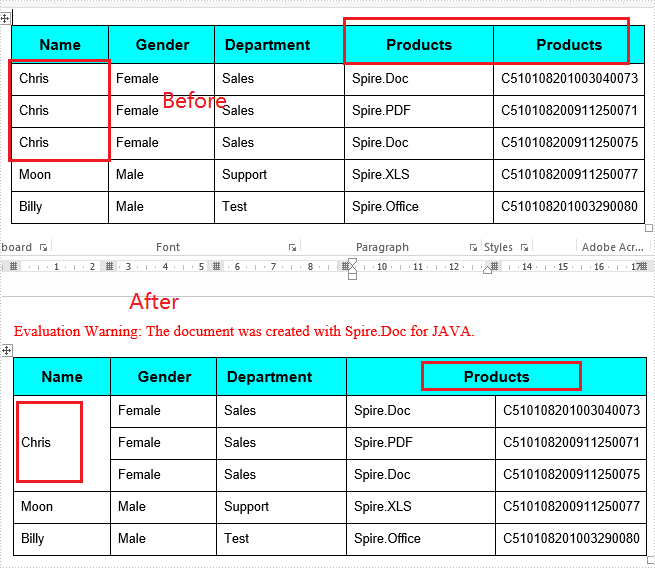
Spire.Doc offers Table.applyVerticalMerge() method to merge table cells vertically and Table.applyHorizontalMerge() method to merge table cells horizontally. By default, the merged cells will have repeated values if the cells to be merged contain the same value. This article will demonstrate how to remove repeated values in the merged cells using a customized method with Spire.Doc for Java.
Install Spire.Doc for Java
First of all, you're required to add the Spire.Doc.jar file as a dependency in your Java program. The JAR file can be downloaded from this link. If you use Maven, you can easily import the JAR file in your application by adding the following code to your project's pom.xml file.
<repositories>
    <repository>
        <id>com.e-iceblue</id>
        <name>e-iceblue</name>
        <url>https://repo.e-iceblue.com/nexus/content/groups/public/</url>
    </repository>
</repositories>
<dependencies>
    <dependency>
        <groupId>e-iceblue</groupId>
        <artifactId>spire.doc</artifactId>
        <version>14.8.4</version>
    </dependency>
</dependencies>
Remove Duplicate Values When Merging Cells
The following are the steps to remove the duplicate values in the merged cells in a Word table.
- Create an object of Document class and load the sample document using Document.loadFromFile() method.
- Use Document.getSections() method to get the section collection, and then get the specific section using SectionCollection.get() method.
- Use Section.getTables() method to get the table collection, and then get the desired table using TableCollection.get() method
- Invoke mergeCell(Table table, boolean isHorizontalMerge, int index, int start, int end) method to merge table cells vertically or horizontally. This method will determine whether the cells to be merged have the same value, and will preserve only one value in the merged cell.
- Save the document to file using Document.saveToFile() method.
- Java
import com.spire.doc.*;
import com.spire.doc.interfaces.ITable;

    public class MergeCells {
    public static void main(String[] args) throws Exception {

        //Create an object of Document class and load the sample document.
        Document document = new Document();
        document.loadFromFile("Sample.docx");

        //Get the first section
        Section section = document.getSections().get(0);

        //Get the first table
        Table table = section.getTables().get(0);

        //Invoike mergeCell()method to merge cells vertically
        mergeCell(table, false, 0, 1, 3);

        //Invoike mergeCell()method to merge cell horizontally
        mergeCell(table, true, 0, 4, 5);

        //Save the document to file
        document.saveToFile("MergeTable.docx",FileFormat.Docx_2013);
}

        //Customize a mergeCell() method to remove the duplicate values while merging cells
        public static void mergeCell(Table table, boolean isHorizontalMerge, int index, int start, int end) {

        if (isHorizontalMerge) {
            //Get a cell from table
            TableCell firstCell = table.get(index, start);
            //Invoke getCellText() method to get the cell’s text
            String firstCellText = getCellText(firstCell);
            for (int i = start + 1; i <= end; i++) {
                TableCell cell1 = table.get(index, i);
                //Check if the text is the same as the first cell
        if (firstCellText.equals(getCellText(cell1))) {
                    //If yes, clear all the paragraphs in the cell
                    cell1.getParagraphs().clear();
                }
            }
            //Merge cells horizontally
            table.applyHorizontalMerge(index, start, end);

        }
            else {
            TableCell firstCell = table.get(start, index);
            String firstCellText = getCellText(firstCell);
            for (int i = start + 1; i <= end; i++) {
                TableCell cell1 = table.get(i, index);
                if (firstCellText.equals(getCellText(cell1))) {
                    cell1.getParagraphs().clear();
                }
            }
            //Merge cells vertically
            table.applyVerticalMerge(index, start, end);
        }
    }
        public static String getCellText(TableCell cell) {

        StringBuilder text = new StringBuilder();
        //Traverse all the paragraphs of a cell
        for (int i = 0; i < cell.getParagraphs().getCount(); i++) {
            //Get every paragraph’s text and append it to StringBuilder
            text.append(cell.getParagraphs().get(i).getText().trim());
        }
        return text.toString();
    }
}
Apply for a Temporary License
If you'd like to remove the evaluation message from the generated documents, or to get rid of the function limitations, please request a 30-day trial license for yourself.
In daily work, converting a Word document to other formats can be extremely frequent. For example, sometimes you may need to convert a Word document to XML to store and organize data; on some occasions, you may also need to convert Word to SVG for sharing graphics contents on the Internet. In this article, you will learn how to convert Word to XPS, XML, RTF, TXT and SVG using Spire.Doc for Java.
Install Spire.Doc for Java
First of all, you're required to add the Spire.Doc.jar file as a dependency in your Java program. The JAR file can be downloaded from this link. If you use Maven, you can easily import the JAR file in your application by adding the following code to your project's pom.xml file.
<repositories>
    <repository>
        <id>com.e-iceblue</id>
        <name>e-iceblue</name>
        <url>https://repo.e-iceblue.com/nexus/content/groups/public/</url>
    </repository>
</repositories>
<dependencies>
    <dependency>
        <groupId>e-iceblue</groupId>
        <artifactId>spire.doc</artifactId>
        <version>14.8.4</version>
    </dependency>
</dependencies>
Convert Word to XPS, XML, RTF, TXT and SVG
The following are the main steps to convert Word to XPS, XML, RTF, TXT and SVG.
- Create a Document object.
- Load the document using Document.loadFromFile() method.
- Use Document.saveToFile() method to save the document as SVG, RTF, XPS, XML and TXT respectively.
- Java
import com.spire.doc.Document;
import com.spire.doc.FileFormat;
import com.spire.doc.documents.ImageType;

import javax.imageio.ImageIO;
import java.awt.image.BufferedImage;
import java.io.File;
import java.io.IOException;

public class ConvertWordToOtherFormats {

    public static void main(String[] args) throws IOException {

        //Create a Document object.
        Document doc = new Document();

        //Load the Word document.
        doc.loadFromFile("C:\\Users\\Administrator\\Desktop\\sample.docx");

        //Save Word as SVG.
        doc.saveToFile("output/ToSVG.svg",FileFormat.SVG);

        //Save Word as RTF.
        doc.saveToFile("output/ToRTF.rtf",FileFormat.Rtf);

        //Save Word as XPS.
        doc.saveToFile("output/ToXPS.xps",FileFormat.XPS);

        //Save Word as XML.
        doc.saveToFile("output/ToXML.xml",FileFormat.Xml);

        //Save Word as TXT.
        doc.saveToFile("output/ToTXT.txt",FileFormat.Txt);
    }
}
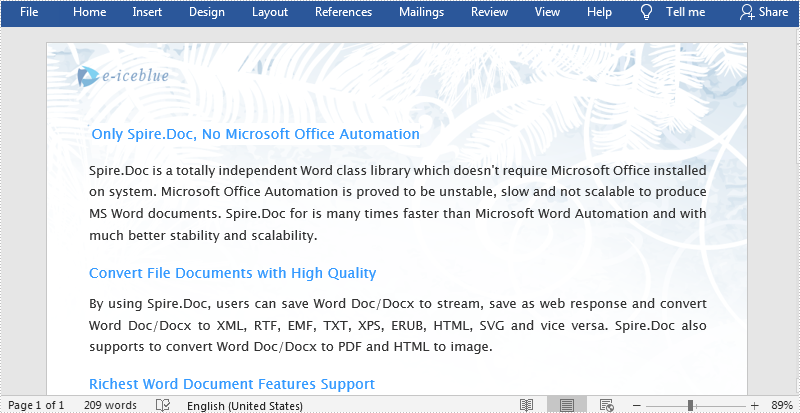
The original Word file:
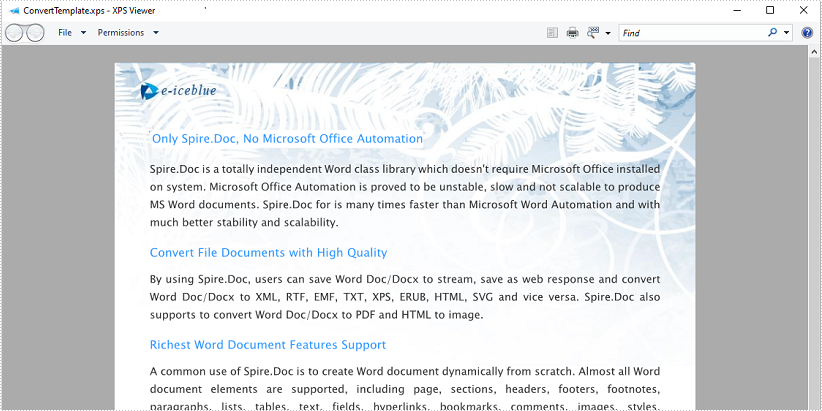
The generated XPS file:
Apply for a Temporary License
If you'd like to remove the evaluation message from the generated documents, or to get rid of the function limitations, please request a 30-day trial license for yourself.
An HTML (Hyper Text Markup Language) file is a webpage coded in HTML that can be displayed in a Web browser. It is widely used on the Web as most static webpages have an .html extension. In some cases, you need to convert some document formats (such as Word) to HTML. This tutorial will demonstrate how to convert Word to HTML using Spire.Doc for Java.
Install Spire.Doc for Java
First of all, you're required to add the Spire.Doc.jar file as a dependency in your Java program. The JAR file can be downloaded from this link. If you use Maven, you can easily import the JAR file in your application by adding the following code to your project's pom.xml file.
<repositories>
    <repository>
        <id>com.e-iceblue</id>
        <name>e-iceblue</name>
        <url>https://repo.e-iceblue.com/nexus/content/groups/public/</url>
    </repository>
</repositories>
<dependencies>
    <dependency>
        <groupId>e-iceblue</groupId>
        <artifactId>spire.doc</artifactId>
        <version>14.8.4</version>
    </dependency>
</dependencies>
Convert Word to HTML
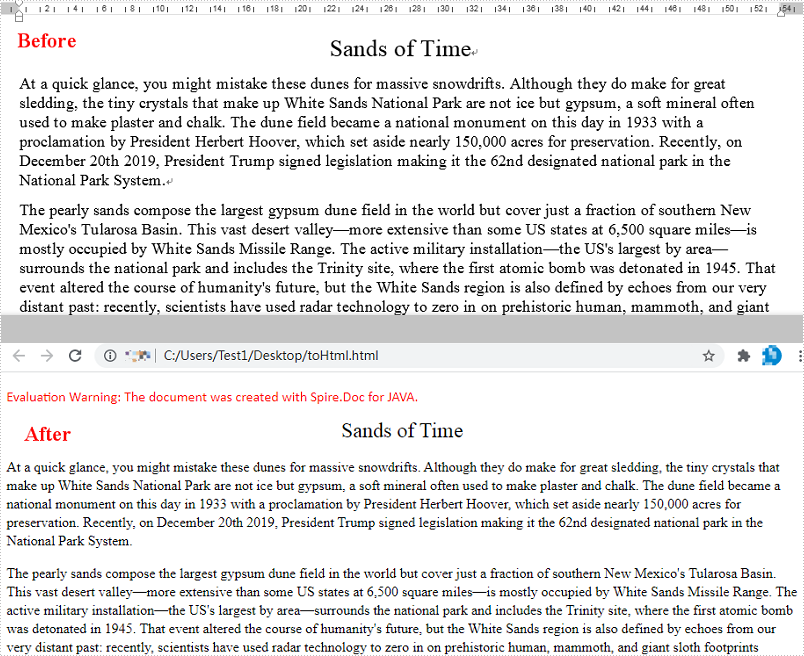
Spire.Doc for Java can easily convert Word to HTML using Document.saveToFile() method. You can find the steps as blow.
- Create a Document instance.
- Load a Word document using Document.loadFromFile() method.
- Save the document as an HTML file using Document.saveToFile() method.
- Java
import com.spire.doc.*;

public class WordToHtml {
    public static void main(String[] args) {
        //Create a Document instance
        Document document = new Document();
        //Load a Word document
        document.loadFromFile("C:\\Users\\Test1\\Desktop\\sample.docx");

        //Save the document as HTML
        document.saveToFile("output/toHtml.html", FileFormat.Html);
    }
}
Apply for a Temporary License
If you'd like to remove the evaluation message from the generated documents, or to get rid of the function limitations, please request a 30-day trial license for yourself.
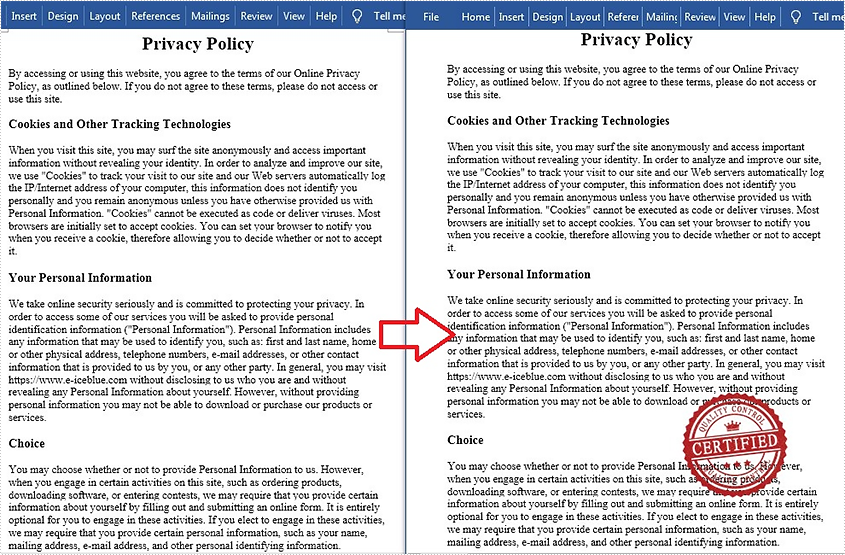
Stamps can guarantee the authenticity and validity of a document and also make the document look more professional. Since Microsoft Word doesn't provide a built-in stamp feature, you can add an image to your Word documents to mimic the stamp effect. This is useful when the document will be printed to paper or PDF. In this article, you will learn how to add a "stamp" to a Word document using Spire.Doc for Java.
Install Spire.Doc for Java
First of all, you're required to add the Spire.Doc.jar file as a dependency in your Java program. The JAR file can be downloaded from this link. If you use Maven, you can easily import the JAR file in your application by adding the following code to your project's pom.xml file.
<repositories>
    <repository>
        <id>com.e-iceblue</id>
        <name>e-iceblue</name>
        <url>https://repo.e-iceblue.com/nexus/content/groups/public/</url>
    </repository>
</repositories>
<dependencies>
    <dependency>
        <groupId>e-iceblue</groupId>
        <artifactId>spire.doc</artifactId>
        <version>14.8.4</version>
    </dependency>
</dependencies>
Add an Image Stamp to Word Document
Spire.Doc for Java allow developers to use the core classes and method listed in the below table to add and format an image to make it look like a stamp in the Word document.
| Name | Description |
| DocPicture Class | Represents a picture in a Word document. |
| Paragraph.appendPicture() Method | Appends an image to end of paragraph. |
| DocPicture.setHorizontalPosition() Method | Sets absolute horizontal position of the picture. |
| DocPicture.setVerticalPosition() Method | Sets absolute vertical position of the picture. |
| DocPicture.setWidth() Method | Sets picture width. |
| DocPicture.setHeight Method | Sets picture height. |
| DocPicture.setTextWrappingStyle() Method | Sets text wrapping type of the picture. |
The detailed steps are as follows:
- Create a Document instance.
- Load a Word document using Document.loadFromFile() method.
- Get the specific paragraph using ParagraphCollection.get() method.
- Add an image to the Word document using Paragraph.appendPicture() method.
- Set position, size and wrapping style of the image using the methods offered by DocPicture class.
- Save the document to another file using Document.saveToFile() method.
- Java
import com.spire.doc.*;
import com.spire.doc.documents.Paragraph;
import com.spire.doc.documents.TextWrappingStyle;
import com.spire.doc.fields.DocPicture;

public class AddStamp {
    public static void main(String[] args) {
        //Create a Document instance
        Document doc = new Document();

        //Load a Word document
        doc.loadFromFile("test.docx");

        //Get the specific paragraph
        Section section = doc.getSections().get(0);
        Paragraph paragraph = section.getParagraphs().get(4);

        //Add an image
        DocPicture picture = paragraph.appendPicture("cert.png");

        //Set the position of the image
        picture.setHorizontalPosition(240f);
        picture.setVerticalPosition(120f);

        //Set width and height of the image
        picture.setWidth(150);
        picture.setHeight(150);

        //Set wrapping style of the image to In_Front_Of_Text, so that it looks like a stamp
        picture.setTextWrappingStyle(TextWrappingStyle.In_Front_Of_Text);

        //Save the document to file
        doc.saveToFile("AddStamp.docx", FileFormat.Docx);
        doc.dispose();
    }
}
Apply for a Temporary License
If you'd like to remove the evaluation message from the generated documents, or to get rid of the function limitations, please request a 30-day trial license for yourself.
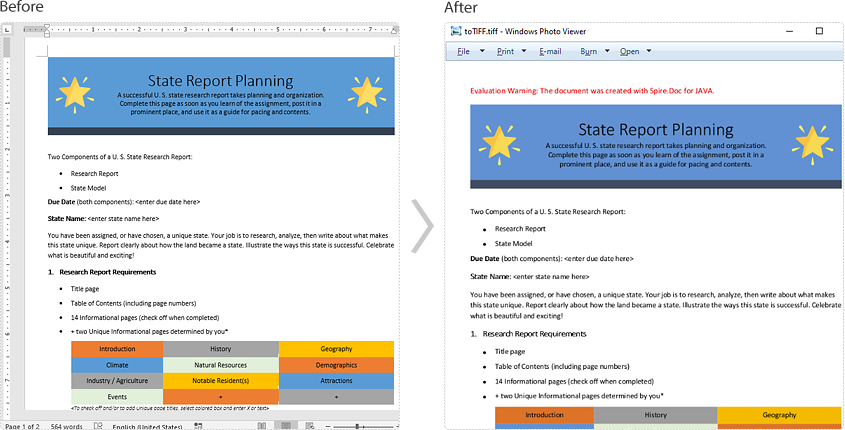
TIFF (Tagged Image File Format) is a flexible file format for storing raster graphics images. It's popular and widely supported by image-manipulation, scanning, faxing and word processing applications etc. The ability to store image data in a lossless format makes a TIFF file to be a useful image archive. In some cases, developers may need to convert documents in other format like Word to TIFF. In this article, we will describe how to achieve this task in Java using Spire.Doc for Java.
Install Spire.Doc for Java
First of all, you're required to add the Spire.Doc.jar file as a dependency in your Java program. The JAR file can be downloaded from this link. If you use Maven, you can easily import the JAR file in your application by adding the following code to your project's pom.xml file.
<repositories>
    <repository>
        <id>com.e-iceblue</id>
        <name>e-iceblue</name>
        <url>https://repo.e-iceblue.com/nexus/content/groups/public/</url>
    </repository>
</repositories>
<dependencies>
    <dependency>
        <groupId>e-iceblue</groupId>
        <artifactId>spire.doc</artifactId>
        <version>14.8.4</version>
    </dependency>
</dependencies>
Convert Word to TIFF
Spire.Doc for Java provides the Document.saveToTiff() method for converting Word to TIFF. This method accepts a String parameter which specifies the file path of the converted TIFF.
You can follow the steps below to convert a Word document to TIFF format:
- Create a Document instance.
- Load a Word document using Document.loadFromFile() method.
- Save the document to TIFF using Document.saveToTiff() method.
- Java
import com.spire.doc.Document;

public class ConvertWordToTiff {
    public static void main(String[] args){

        //Create a Document instance
        Document document = new Document();
        //Load a Word document
        document.loadFromFile("Sample.docx");

        //Save the document as multi-page TIFF
        document.saveToTiff("toTIFF.tiff");
    }
}
Apply for a Temporary License
If you'd like to remove the evaluation message from the generated documents, or to get rid of the function limitations, please request a 30-day trial license for yourself.
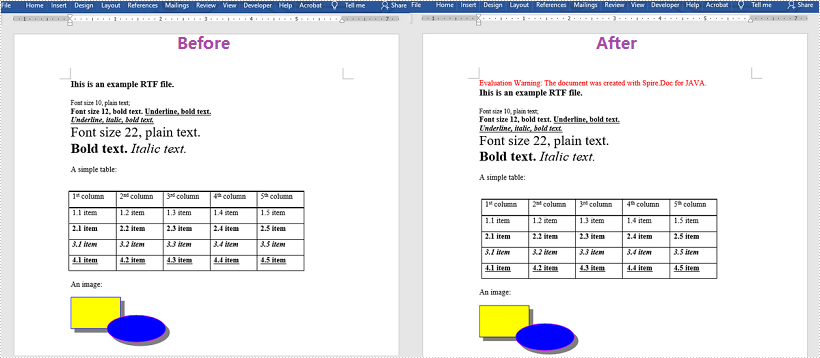
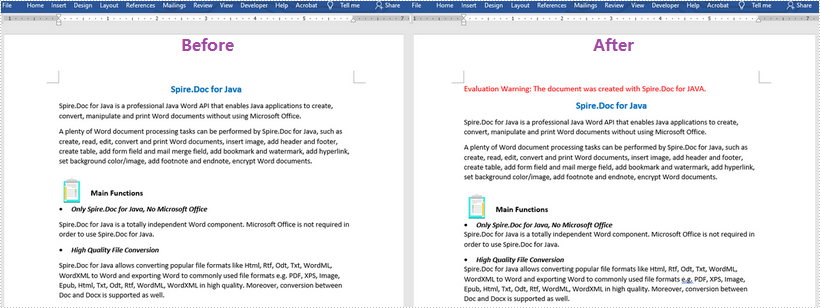
RTF, short for Rich Text Format, is created by Microsoft in 1987 for the purpose of cross-platform document interchange. It is supported by many word processing applications, and the most popular one among them is Microsoft Word. In certain circumstances, you may need to convert an RTF document to Word Doc/Docx format or convert a Word Doc/Docx document to RTF. In this article, you will learn how to accomplish this task using Spire.Doc for Java.
Install Spire.Doc for Java
First of all, you're required to add the Spire.Doc.jar file as a dependency in your Java program. The JAR file can be downloaded from this link. If you use Maven, you can easily import the JAR file in your application by adding the following code to your project's pom.xml file.
<repositories>
    <repository>
        <id>com.e-iceblue</id>
        <name>e-iceblue</name>
        <url>https://repo.e-iceblue.com/nexus/content/groups/public/</url>
    </repository>
</repositories>
<dependencies>
    <dependency>
        <groupId>e-iceblue</groupId>
        <artifactId>spire.doc</artifactId>
        <version>14.8.4</version>
    </dependency>
</dependencies>
Convert RTF to Word Doc/Docx
The following are the steps to convert an RTF document to Word Doc/Docx using Spire.Doc for Java:
- Create a Document instance.
- Load an RTF document using Document.loadFromFile(String, FileFormat) method.
- Save the RTF to Doc/Docx format using Document.saveToFile(String, FileFormat) method.
- Java
import com.spire.doc.Document;
import com.spire.doc.FileFormat;

public class RtfToDocDocx {
    public static void main(String[] args){
        //Create a Document instance
        Document document = new Document();

        //Load a RTF document
        document.loadFromFile("Input.rtf", FileFormat.Rtf);

        //Save the document to Doc
        document.saveToFile("toDoc.doc", FileFormat.Doc);

        //Save the document to Docx
        document.saveToFile("toDocx.docx", FileFormat.Docx_2013);
    }
}
Convert Word Doc/Docx to RTF
The steps to convert a Word Doc/Docx document to RTF is very similar with that of the above example:
- Create a Document instance.
- Load a Doc or Docx document using Document.loadFromFile(String) method.
- Save the Doc/Docx document to RTF using Document.saveToFile(String, FileFormat) method.
- Java
import com.spire.doc.Document;
import com.spire.doc.FileFormat;

public class DocDocxToRtf {
    public static void main(String[] args){
        //Create a Document instance
        Document document = new Document();

        //Load a Docx document
        document.loadFromFile("input.docx");

        //Load a Doc document
        //document.loadFromFile("sample.doc");

        //Save the document to RTF
        document.saveToFile("toRTF.rtf", FileFormat.Rtf);
    }
}
Apply for a Temporary License
If you'd like to remove the evaluation message from the generated documents, or to get rid of the function limitations, please request a 30-day trial license for yourself.
