
Program Guide (137)
Children categories
When you have a fairly long Word document that requires teamwork, it may be necessary to split the document into several shorter files and assign them to different people to speed up the workflow. Instead of manually cutting and pasting, this article will demonstrate how to programmatically split a Word document using Spire.Doc for Java .
Install Spire.Doc for Java
First, you're required to add the Spire.Doc.jar file as a dependency in your Java program. The JAR file can be downloaded from this link. If you use Maven, you can easily import the JAR file in your application by adding the following code to your project's pom.xml file.
<repositories>
    <repository>
        <id>com.e-iceblue</id>
        <name>e-iceblue</name>
        <url>https://repo.e-iceblue.com/nexus/content/groups/public/</url>
    </repository>
</repositories>
<dependencies>
    <dependency>
        <groupId>e-iceblue</groupId>
        <artifactId>spire.doc</artifactId>
        <version>14.8.4</version>
    </dependency>
</dependencies>
Split a Word Document by Page Break
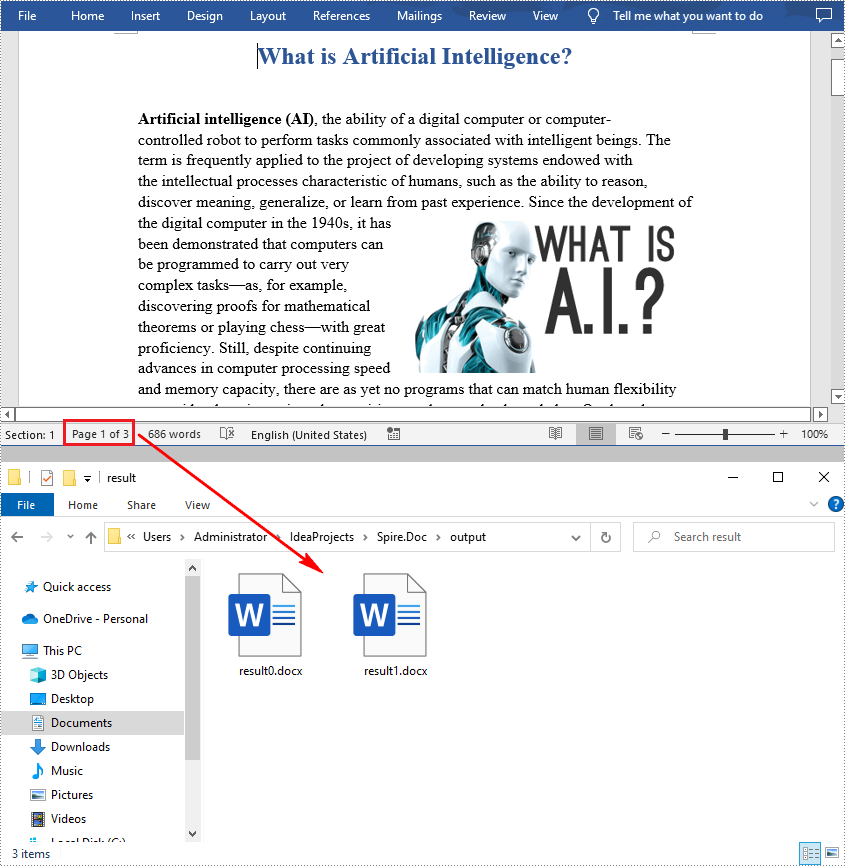
A Word document can contain multiple pages separated by page breaks. To split a Word document by page break, you can refer to the below steps and code.
- Create a Document instance.
- Load a sample Word document using Document.loadFromFile() method.
- Create a new Word document and add a section to it.
- Traverse through all body child objects of each section in the original document and determine whether the child object is a paragraph or a table.
- If the child object of the section is a table, directly add it to the section of new document using Section.getBody().getChildObjects().add() method.
- If the child object of the section is a paragraph, first add the paragraph object to the section of the new document. Then traverse through all child objects of the paragraph and determine whether the child object is a page break.
- If the child object is a page break, get its index and then remove the page break from its paragraph by index.
- Save the new Word document and then repeat the above processes.
- Java
import com.spire.doc.*;
import com.spire.doc.documents.*;

public class splitDocByPageBreak {
    public static void main(String[] args) throws Exception {
        // Create a Document instance
        Document original = new Document();

        // Load a sample Word document
        original.loadFromFile("E:\\Files\\SplitByPageBreak.docx");

        // Create a new Word document and add a section to it
        Document newWord = new Document();
        Section section = newWord.addSection();
        int index = 0;

        //Traverse through all sections of original document
        for (int s = 0; s < original.getSections().getCount(); s++) {
            Section sec = original.getSections().get(s);

            //Traverse through all body child objects of each section.
            for (int c = 0; c < sec.getBody().getChildObjects().getCount(); c++) {
                DocumentObject obj = sec.getBody().getChildObjects().get(c);
                if (obj instanceof Paragraph) {
                    Paragraph para = (Paragraph) obj;
                    sec.cloneSectionPropertiesTo(section);

                    //Add paragraph object in original section into section of new document
                    section.getBody().getChildObjects().add(para.deepClone());
                    for (int i = 0; i < para.getChildObjects().getCount(); i++) {
                        DocumentObject parobj = para.getChildObjects().get(i);
                        if (parobj instanceof Break) {
                            Break break1 = (Break) parobj;
                            if (break1.getBreakType().equals(BreakType.Page_Break)) {

                                //Get the index of page break in paragraph
                                int indexId = para.getChildObjects().indexOf(parobj);

                                //Remove the page break from its paragraph
                                Paragraph newPara = (Paragraph) section.getBody().getLastParagraph();
                                newPara.getChildObjects().removeAt(indexId);

                                //Save the new Word document
                                newWord.saveToFile("output/result"+index+".docx", FileFormat.Docx);
                                index++;

                                //Create a new document and add a section
                                newWord = new Document();
                                section = newWord.addSection();

                                //Add paragraph object in original section into section of new document
                                section.getBody().getChildObjects().add(para.deepClone());
                                if (section.getParagraphs().get(0).getChildObjects().getCount() == 0) {

                                    //Remove the first blank paragraph
                                    section.getBody().getChildObjects().removeAt(0);
                                } else {

                                    //Remove the child objects before the page break
                                    while (indexId >= 0) {
                                        section.getParagraphs().get(0).getChildObjects().removeAt(indexId);
                                        indexId--;
                                    }
                                }
                            }
                        }
                    }
                }
                if (obj instanceof Table) {
                    //Add table object in original section into section of new document
                    section.getBody().getChildObjects().add(obj.deepClone());
                }
            }
        }

        //Save to file
        newWord.saveToFile("output/result"+index+".docx", FileFormat.Docx);
    }
}
Split a Word Document by Section Break
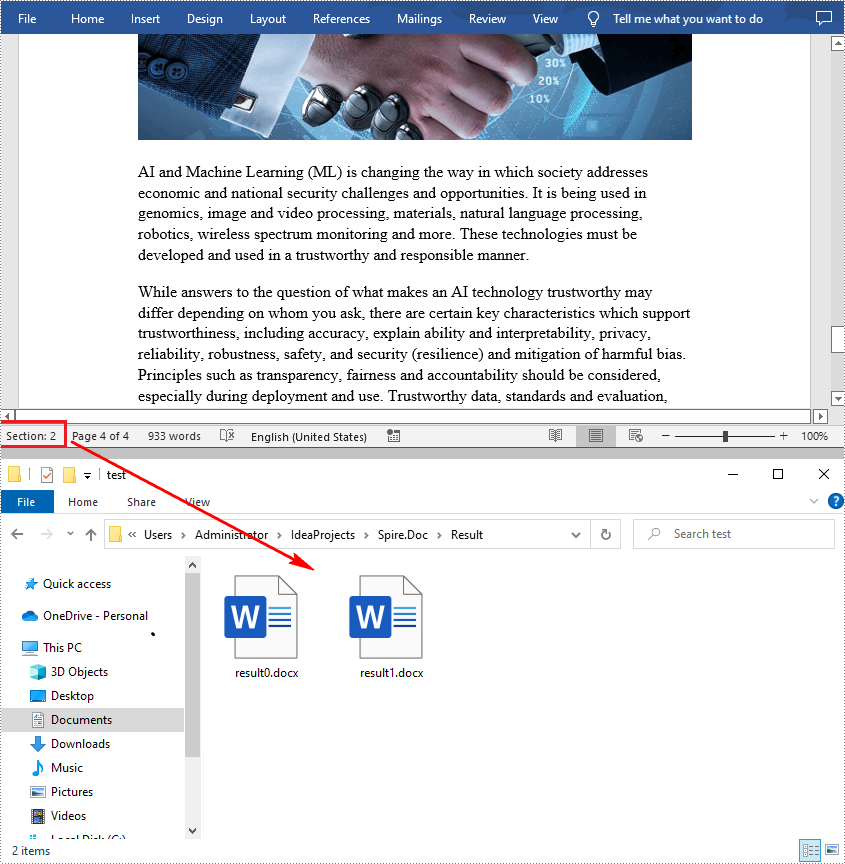
In Word, a section is a part of a document that contains its own page formatting. For documents that contain multiple sections, Spire.Doc for .NET also supports splitting documents by section breaks. The detailed steps are as follows.
- Create a Document instance.
- Load a sample Word document using Document.LoadFromFile() method.
- Define a new Word document object.
- Traverse through all sections of the original Word document.
- Clone each section of the original document using Section.deepClone() method.
- Add the cloned section to the new document as a new section using Document.getSections().add() method.
- Save the result document using Document.saveToFile() method.
- Java
import com.spire.doc.*;
public class splitDocBySectionBreak {
    public static void main(String[] args) throws Exception {
        //Create Document instance
        Document document = new Document();

        //Load a sample Word document
        document.loadFromFile("E:\\Files\\SplitBySectionBreak.docx");

        //Define a new Word document object
        Document newWord;

        //Traverse through all sections of the original Word document
        for (int i = 0; i < document.getSections().getCount(); i++){
            newWord = new Document();

            //Clone each section of the original document and add it to the new document as new section
            newWord.getSections().add(document.getSections().get(i).deepClone());

            //Save the result document
            newWord.saveToFile("Result/result"+i+".docx");
        }
    }
}
Apply for a Temporary License
If you'd like to remove the evaluation message from the generated documents, or to get rid of the function limitations, please request a 30-day trial license for yourself.
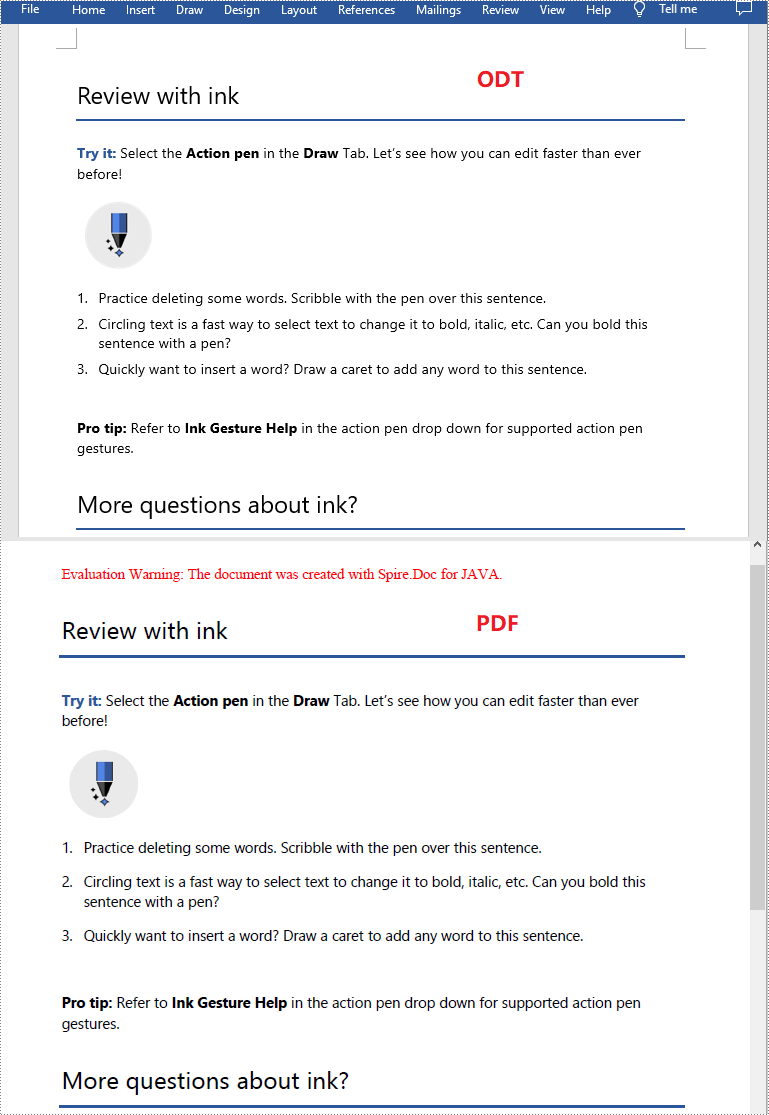
Before you email or share an ODT file with others, you may want to convert the file to PDF in order to make it accessible to anyone across multiple operating systems. In this article, you will learn how to convert ODT to PDF in Java using Spire.Doc for Java.
Install Spire.Doc for Java
First of all, you're required to add the Spire.Doc.jar file as a dependency in your Java program. The JAR file can be downloaded from this link. If you use Maven, you can easily import the JAR file in your application by adding the following code to your project's pom.xml file.
<repositories>
    <repository>
        <id>com.e-iceblue</id>
        <name>e-iceblue</name>
        <url>https://repo.e-iceblue.com/nexus/content/groups/public/</url>
    </repository>
</repositories>
<dependencies>
    <dependency>
        <groupId>e-iceblue</groupId>
        <artifactId>spire.doc</artifactId>
        <version>14.8.4</version>
    </dependency>
</dependencies>
Convert ODT to PDF using Java
The following are the steps to convert an ODT file to PDF:
- Create an instance of Document class.
- Load an ODT file using Document.loadFromFile() method.
- Convert the ODT file to PDF using Document.saveToFile(String fileName, FileFormat fileFormat) method.
- Java
import com.spire.doc.Document;
import com.spire.doc.FileFormat;

public class ConvertOdtToPdf {
    public static void main(String[] args){
        //Create a Document instance
        Document doc = new Document();
        //Load an ODT file
        doc.loadFromFile("Sample.odt");

        //Save the ODT file to PDF
        doc.saveToFile("OdtToPDF.pdf", FileFormat.PDF);

    }
}
Apply for a Temporary License
If you'd like to remove the evaluation message from the generated documents, or to get rid of the function limitations, please request a 30-day trial license for yourself.
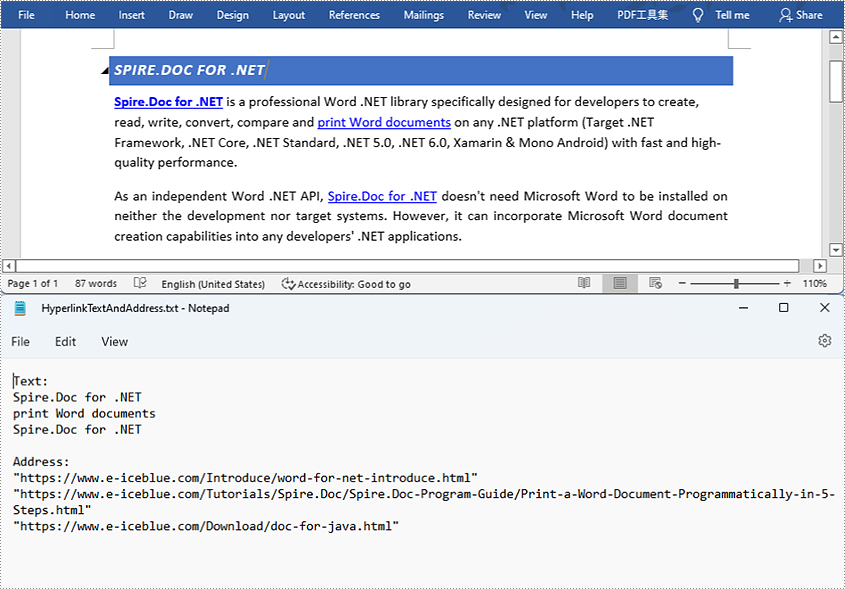
Hyperlinks in Word documents can lead readers to a webpage, an external file, an email address, and a specific place of the document being read. They are commonly used in Word documents for their convenience. This article will teach you how to use Spire.Doc for Java to find and extract hyperlinks in Word documents, including hypertexts and links.
- Find and Extract a Specified Hyperlink in a Word Document
- Find and Extract All the Hyperlinks in a Word Document
Install Spire.Doc for Java
First, you're required to add the Spire.Doc.jar file as a dependency in your Java program. The JAR file can be downloaded from this link. If you use Maven, you can easily import the JAR file in your application by adding the following code to your project's pom.xml file.
<repositories>
    <repository>
        <id>com.e-iceblue</id>
        <name>e-iceblue</name>
        <url>https://repo.e-iceblue.com/nexus/content/groups/public/</url>
    </repository>
</repositories>
<dependencies>
    <dependency>
        <groupId>e-iceblue</groupId>
        <artifactId>spire.doc</artifactId>
        <version>14.8.4</version>
    </dependency>
</dependencies>
Find and Extract a Specified Hyperlink in a Word Document
The detailed steps are as follows:
- Create a Document instance and load a Word document from disk using Document.loadFromFile() method.
- Create an object of ArrayList<Field>.
- Iterate through the items in the sections to find all hyperlinks.
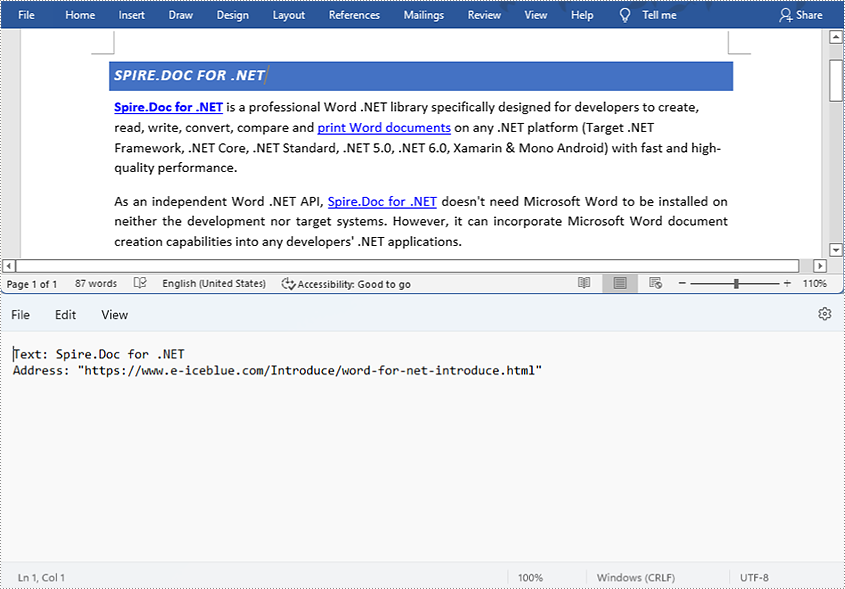
- Get the text of the first hyperlink using Field.get().getFieldText() method and get its link using Field.get().getValue() method.
- Save the text and the link of the first hyperlink to a TXT file using custom method writeStringToText().
- Java
import com.spire.doc.*;
import com.spire.doc.documents.*;
import com.spire.doc.fields.Field;
import java.io.*;
import java.util.ArrayList;
public class findHyperlinks {
public static void main(String[] args) throws IOException {
//Create a Document instance and load a Word document from file
String input = "D:/testp/test.docx";
Document doc = new Document();
doc.loadFromFile(input);
//Create an object of ArrayList
ArrayListField> hyperlinks = new ArrayList();
//Iterate through the items in the sections to find all hyperlinks
for (Section section : (IterableSection>) doc.getSections()) {
for (DocumentObject object : (IterableDocumentObject>) section.getBody().getChildObjects()) {
if (object.getDocumentObjectType().equals(DocumentObjectType.Paragraph)) {
Paragraph paragraph = (Paragraph) object;
for (DocumentObject cObject : (IterableDocumentObject>) paragraph.getChildObjects()) {
if (cObject.getDocumentObjectType().equals(DocumentObjectType.Field)) {
Field field = (Field) cObject;
if (field.getType().equals(FieldType.Field_Hyperlink)) {
hyperlinks.add(field);
}
}
}
}
}
}
//Get the text and the address of the first hyperlink
String hyperlinksText = hyperlinks.get(0).getFieldText();
String hyperlinkAddress = hyperlinks.get(0).getValue();
//Save the text and the link of the first hyperlink to a TXT file
String output = "D:/javaOutput/HyperlinkTextAndLink.txt";
writeStringToText("Text:\r\n" + hyperlinksText+ "\r\n" + "Link:\r\n" + hyperlinkAddress, output);
}
//Create a method to write the text and link of hyperlinks to a TXT file
public static void writeStringToText(String content, String textFileName) throws IOException {
File file = new File(textFileName);
if (file.exists())
{
file.delete();
}
FileWriter fWriter = new FileWriter(textFileName, true);
try {
fWriter.write(content);
} catch (IOException ex) {
ex.printStackTrace();
} finally {
try {
fWriter.flush();
fWriter.close();
} catch (IOException ex) {
ex.printStackTrace();
}
}
}
}
Find and Extract All the Hyperlinks in a Word Document
The detailed steps are as follows:
- Create a Document instance and load a Word document from disk using Document.loadFromFile() method.
- Create an object of ArrayList<Field>.
- Iterate through the items in the sections to find all hyperlinks.
- Get the texts of the hyperlinks using Field.get().getFieldText() method and get their links using Field.get().getValue() method.
- Save the text and the links of the hyperlinks to a TXT file using custom method writeStringToText().
- Java
import com.spire.doc.*;
import com.spire.doc.documents.*;
import com.spire.doc.fields.Field;
import java.io.*;
import java.util.ArrayList;
public class findHyperlinks {
public static void main(String[] args) throws IOException {
//Create a Document instance and load a Word document from file
String input = "D:/testp/test.docx";
Document doc = new Document();
doc.loadFromFile(input);
//Create an object of ArrayList
ArrayListField> hyperlinks = new ArrayList();
String hyperlinkText = "";
String hyperlinkAddress = "";
//Iterate through the items in the sections to find all hyperlinks
for (Section section : (IterableSection>) doc.getSections()) {
for (DocumentObject object : (IterableDocumentObject>) section.getBody().getChildObjects()) {
if (object.getDocumentObjectType().equals(DocumentObjectType.Paragraph)) {
Paragraph paragraph = (Paragraph) object;
for (DocumentObject cObject : (IterableDocumentObject>) paragraph.getChildObjects()) {
if (cObject.getDocumentObjectType().equals(DocumentObjectType.Field)) {
Field field = (Field) cObject;
if (field.getType().equals(FieldType.Field_Hyperlink)) {
hyperlinks.add(field);
}
}
}
}
}
}
//Save the texts and the links of the hyperlinks to a TXT file
String output = "D:/javaOutput/HyperlinksTextsAndLinks.txt";
writeStringToText("Text:\r\n " + hyperlinkText + "\r\n" + "Link:\r\n" + hyperlinkAddress + "\r\n", output);
}
//Create a method to write the text and link of hyperlinks to a TXT file
public static void writeStringToText(String content, String textFileName) throws IOException {
File file = new File(textFileName);
if (file.exists())
{
file.delete();
}
FileWriter fWriter = new FileWriter(textFileName, true);
try {
fWriter.write(content);
} catch (IOException ex) {
ex.printStackTrace();
} finally {
try {
fWriter.flush();
fWriter.close();
} catch (IOException ex) {
ex.printStackTrace();
}
}
}
}
Apply for a Temporary License
If you'd like to remove the evaluation message from the generated documents, or to get rid of the function limitations, please request a 30-day trial license for yourself.
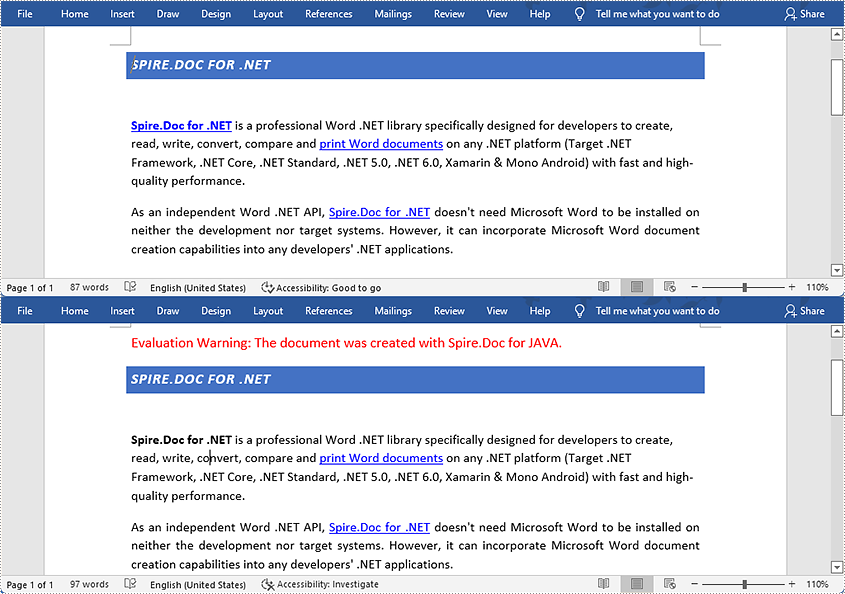
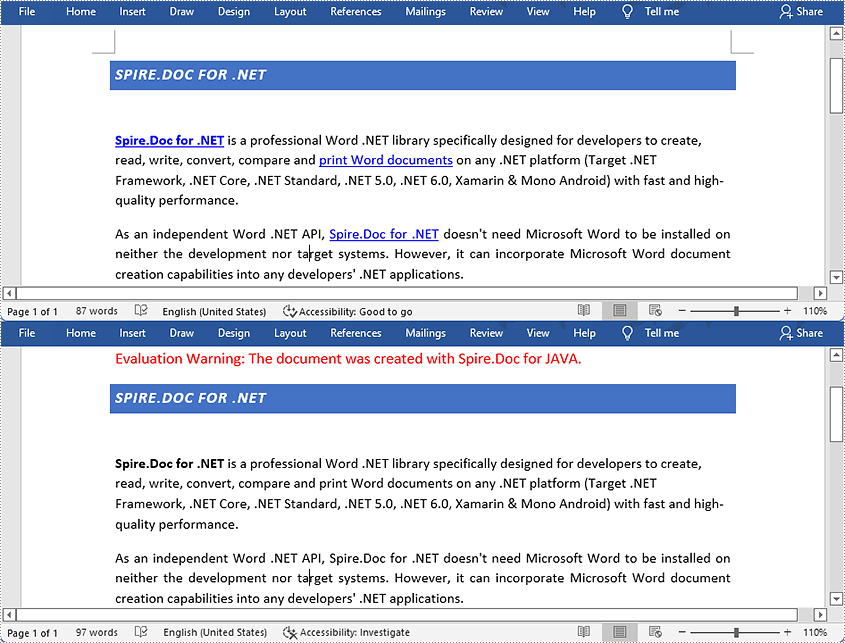
Hyperlinks usually appear on texts. By clicking on a hyperlink, we can access a website, a document, an email address, or other elements. Some Word documents, especially those that are generated from web content, may contain irritating hyperlinks, such as advertisements. This article shows you how to programmatically remove one hyperlink or all hyperlinks in a Word document using Spire.Doc for Java.
Install Spire.Doc for Java
First, you're required to add the Spire.Doc.jar file as a dependency in your Java program. The JAR file can be downloaded from this link. If you use Maven, you can easily import the JAR file in your application by adding the following code to your project's pom.xml file.
<repositories>
    <repository>
        <id>com.e-iceblue</id>
        <name>e-iceblue</name>
        <url>https://repo.e-iceblue.com/nexus/content/groups/public/</url>
    </repository>
</repositories>
<dependencies>
    <dependency>
        <groupId>e-iceblue</groupId>
        <artifactId>spire.doc</artifactId>
        <version>14.8.4</version>
    </dependency>
</dependencies>
Remove a Specified Hyperlink in a Word Document
The detailed steps to remove a specified hyperlink in a Word file are as follows:
- Create a Document object and load a Word document from disk using Document.loadFromFile() method.
- Find all the hyperlinks using custom method FindAllHyperlinks().
- Flatten the first hyperlink using custom method FlattenHyperlinks().
- Save the document using Document.saveToFile() method.
- Java
import com.spire.doc.*;
import com.spire.doc.documents.DocumentObjectType;
import com.spire.doc.documents.Paragraph;
import com.spire.doc.documents.UnderlineStyle;
import com.spire.doc.fields.Field;
import com.spire.doc.fields.TextRange;

import java.awt.*;
import java.util.ArrayList;

public class removeHyperlink {
    public static void main(String[] args) {
        //Create a Document object and load a Word document from disk
        String input = "D:/testp/test.docx";
        Document doc = new Document();
        doc.loadFromFile(input);

        //Find all hyperlinks
        ArrayList<Field> hyperlinks = FindAllHyperlinks(doc);

        //Flatten the first hyperlink
        FlattenHyperlinks(hyperlinks.get(0));

        //Save the document to file
        String output = "D:/javaOutput/RemoveHyperlinks.docx";
        doc.saveToFile(output, FileFormat.Docx);
    }

     //Iterate through the items in the sections to find all hyperlinks
        for (Section section : (Iterable<Section>)document.getSections())
        {
            for (DocumentObject object : (Iterable<DocumentObject>)section.getBody().getChildObjects())
            {
                if (object.getDocumentObjectType().equals(DocumentObjectType.Paragraph))
                {
                    Paragraph paragraph = (Paragraph) object;
                    for (DocumentObject cObject : (Iterable<DocumentObject>)paragraph.getChildObjects())
                    {
                    Paragraph paragraph = (Paragraph) object;
                    for (DocumentObject cObject : (Iterable)paragraph.getChildObjects())
                    {
                        if (cObject.getDocumentObjectType().equals(DocumentObjectType.Field))
                        {
                            Field field = (Field) cObject;
                            if (field.getType().equals(FieldType.Field_Hyperlink))
                            {
                                hyperlinks.add(field);
                            }
                        }
                    }
                }
            }
        }
        return hyperlinks;
    }

    //Create a method FlattenHyperlinks() to flatten the hyperlink field
    public static void FlattenHyperlinks(Field field)
    {
        int ownerParaIndex = field.getOwnerParagraph().getOwnerTextBody().getChildObjects().indexOf(field.getOwnerParagraph());
        int fieldIndex = field.getOwnerParagraph().getChildObjects().indexOf(field);
        Paragraph sepOwnerPara = field.getSeparator().getOwnerParagraph();
        int sepOwnerParaIndex = field.getSeparator().getOwnerParagraph().getOwnerTextBody().getChildObjects().indexOf(field.getSeparator().getOwnerParagraph());
        int sepIndex = field.getSeparator().getOwnerParagraph().getChildObjects().indexOf(field.getSeparator());
        int endIndex = field.getEnd().getOwnerParagraph().getChildObjects().indexOf(field.getEnd());
        int endOwnerParaIndex = field.getEnd().getOwnerParagraph().getOwnerTextBody().getChildObjects().indexOf(field.getEnd().getOwnerParagraph());
        FormatFieldResultText(field.getSeparator().getOwnerParagraph().getOwnerTextBody(), sepOwnerParaIndex, endOwnerParaIndex, sepIndex, endIndex);
        field.getEnd().getOwnerParagraph().getChildObjects().removeAt(endIndex);"
        for (int i = sepOwnerParaIndex; i >= ownerParaIndex; i--)
        {
            if (i == sepOwnerParaIndex && i == ownerParaIndex)
            {
                for (int j = sepIndex; j >= fieldIndex; j--)
                {
                    field.getOwnerParagraph().getChildObjects().removeAt(j);
                }
            }
            else if (i == ownerParaIndex)
            {
                for (int j = field.getOwnerParagraph().getChildObjects().getCount() - 1; j >= fieldIndex; j--)
                {
                    field.getOwnerParagraph().getChildObjects().removeAt(j);
                }
            }
            else if (i == sepOwnerParaIndex)
            {
                for (int j = sepIndex; j >= 0; j--)
                {
                    sepOwnerPara.getChildObjects().removeAt(j);
                }
            }
            else
            {
                field.getOwnerParagraph().ownerTextBody().getChildObjects().removeAt(i);
            }
        }
    }

    //Create a method FormatFieldResultText() to remove the font color and underline format of the hyperlinks
    private static void FormatFieldResultText(Body ownerBody, int sepOwnerParaIndex, int endOwnerParaIndex, int sepIndex, int endIndex)
    {
        for (int i = sepOwnerParaIndex; i <= endOwnerParaIndex; i++)
        {
            Paragraph para = (Paragraph) ownerBody.getChildObjects().get(i);
            if (i == sepOwnerParaIndex && i == endOwnerParaIndex)
            {
                for (int j = sepIndex + 1; j < endIndex; j++)
                {
                    FormatText((TextRange)para.getChildObjects().get(j));
                }
            }
            else if (i == sepOwnerParaIndex)
            {
                for (int j = sepIndex + 1; j < para.getChildObjects().getCount(); j++)
                {
                    FormatText((TextRange)para.getChildObjects().get(j));
                }
            }
            else if (i == endOwnerParaIndex)
            {
                for (int j = 0; j < endIndex; j++)
                {
                    FormatText((TextRange)para.getChildObjects().get(j));
                }
            }
            else
            {
                for (int j = 0; j < para.getChildObjects().getCount(); j++)
                {
                    FormatText((TextRange)para.getChildObjects().get(j));
                }
            }
        }
    }

    //Create a method FormatText() to change the color of the text to black and remove the underline
    private static void FormatText(TextRange tr)
    {
        //Set the text color to black
        tr.getCharacterFormat().setTextColor(Color.black);

        //Set the text underline style to none
        tr.getCharacterFormat().setUnderlineStyle(UnderlineStyle.None);
    }
}
Remove All the Hyperlinks in a Word Document
The detailed steps to remove all the hyperlinks in a Word file are as follows:
- Create a Document object and load a Word document from disk using Document.loadFromFile() method.
- Find all the hyperlinks using custom method FindAllHyperlinks().
- Loop through the hyperlinks, and invoke the custom method FlattenHyperlinks() to flatten the specific hyperlink.
- Save the document using Document.saveToFile() method.
- Java
import com.spire.doc.*;
import com.spire.doc.documents.DocumentObjectType;
import com.spire.doc.documents.Paragraph;
import com.spire.doc.documents.UnderlineStyle;
import com.spire.doc.fields.Field;
import com.spire.doc.fields.TextRange;
import java.awt.*;
import java.util.ArrayList;
public class removeHyperlink {
public static void main(String[] args) {
//Create a Document object and load a Word document from disk
String input = "D:/testp/test.docx";
Document doc = new Document();
doc.loadFromFile(input);
//Find all the hyperlinks
ArrayList<Field> hyperlinks = FindAllHyperlinks(doc);
//Loop through the hyperlinks, and flatten the specific hyperlink.
for (int i = hyperlinks.size() -1; i >= 0; i--)
{
FlattenHyperlinks(hyperlinks.get(i));
}
//Save the document to file
String output = "D:/javaOutput/RemoveHyperlinks.docx";
doc.saveToFile(output, FileFormat.Docx);
}
//Create a method FindAllHyperlinks() to get all the hyperlinks from the sample document
private static ArrayList FindAllHyperlinks(Document document)
{
ArrayListField> hyperlinks = new ArrayList();
//Iterate through the items in the sections to find all hyperlinks
for (Section section : (Iterable<Section>)document.getSections())
{
for (DocumentObject object : (Iterable<DocumentObject>)section.getBody().getChildObjects())
{
if (object.getDocumentObjectType().equals(DocumentObjectType.Paragraph))
{
Paragraph paragraph = (Paragraph) object;
for (DocumentObject cObject : (Iterable<DocumentObject>)paragraph.getChildObjects())
{
if (cObject.getDocumentObjectType().equals(DocumentObjectType.Field))
{
Field field = (Field) cObject;
if (field.getType().equals(FieldType.Field_Hyperlink))
{
hyperlinks.add(field);
}
}
}
}
}
}
return hyperlinks;
}
//Create a method FlattenHyperlinks() to flatten the hyperlink field
public static void FlattenHyperlinks(Field field)
{
int ownerParaIndex = field.getOwnerParagraph().getOwnerTextBody().getChildObjects().indexOf(field.getOwnerParagraph());
int fieldIndex = field.getOwnerParagraph().getChildObjects().indexOf(field);
Paragraph sepOwnerPara = field.getSeparator().getOwnerParagraph();
int sepOwnerParaIndex = field.getSeparator().getOwnerParagraph().getOwnerTextBody().getChildObjects().indexOf(field.getSeparator().getOwnerParagraph());
int sepIndex = field.getSeparator().getOwnerParagraph().getChildObjects().indexOf(field.getSeparator());
int endIndex = field.getEnd().getOwnerParagraph().getChildObjects().indexOf(field.getEnd());
int endOwnerParaIndex = field.getEnd().getOwnerParagraph().getOwnerTextBody().getChildObjects().indexOf(field.getEnd().getOwnerParagraph());
FormatFieldResultText(field.getSeparator().getOwnerParagraph().getOwnerTextBody(), sepOwnerParaIndex, endOwnerParaIndex, sepIndex, endIndex);
field.getEnd().getOwnerParagraph().getChildObjects().removeAt(endIndex);"
for (int i = sepOwnerParaIndex; i >= ownerParaIndex; i--)
{
if (i == sepOwnerParaIndex && i == ownerParaIndex)
{
for (int j = sepIndex; j >= fieldIndex; j--)
{
field.getOwnerParagraph().getChildObjects().removeAt(j);
}
}
else if (i == ownerParaIndex)
{
for (int j = field.getOwnerParagraph().getChildObjects().getCount() - 1; j >= fieldIndex; j--)
{
field.getOwnerParagraph().getChildObjects().removeAt(j);
}
}
else if (i == sepOwnerParaIndex)
{
for (int j = sepIndex; j >= 0; j--)
{
sepOwnerPara.getChildObjects().removeAt(j);
}
}
else
{
field.getOwnerParagraph().ownerTextBody().getChildObjects().removeAt(i);
}
}
}
//Create a method FormatFieldResultText() to format the texts
private static void FormatFieldResultText(Body ownerBody, int sepOwnerParaIndex, int endOwnerParaIndex, int sepIndex, int endIndex)
{
for (int i = sepOwnerParaIndex; i <= endOwnerParaIndex; i++)
{
Paragraph para = (Paragraph) ownerBody.getChildObjects().get(i);
if (i == sepOwnerParaIndex && i == endOwnerParaIndex)
{
for (int j = sepIndex + 1; j < endIndex; j++)
{
FormatText((TextRange)para.getChildObjects().get(j));
}
}
else if (i == sepOwnerParaIndex)
{
for (int j = sepIndex + 1; j < para.getChildObjects().getCount(); j++)
{
FormatText((TextRange)para.getChildObjects().get(j));
}
}
else if (i == endOwnerParaIndex)
{
for (int j = 0; j < endIndex; j++)
{
FormatText((TextRange)para.getChildObjects().get(j));
}
}
else
{
for (int j = 0; j < para.getChildObjects().getCount(); j++)
{
FormatText((TextRange)para.getChildObjects().get(j));
}
}
}
}
//Create a method FormatText() to change the color of the text to black and remove the underline
private static void FormatText(TextRange tr)
{
//Set the text color to black
tr.getCharacterFormat().setTextColor(Color.black);
//Set the text underline style to none
tr.getCharacterFormat().setUnderlineStyle(UnderlineStyle.None);
}
}
Apply for a Temporary License
If you'd like to remove the evaluation message from the generated documents, or to get rid of the function limitations, please request a 30-day trial license for yourself.
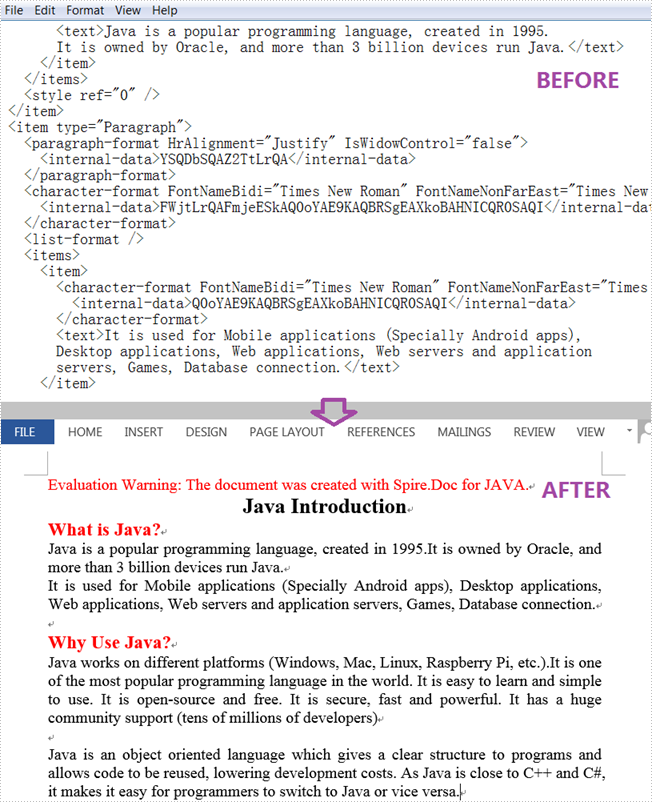
An XML file is a plain text file that uses custom tags to display a document's structure and other features. In daily work, you sometimes need to convert Word to XML for storing and organizing data, or convert XML to Word for working on them more easily and efficiently. This article will demonstrate how to programmatically convert XML to Word using Spire.Doc for Java.
Install Spire.Doc for Java
First of all, you're required to add the Spire.Doc.jar file as a dependency in your Java program. The JAR file can be downloaded from this link. If you use Maven, you can easily import the JAR file in your application by adding the following code to your project's pom.xml file.
<repositories>
    <repository>
        <id>com.e-iceblue</id>
        <name>e-iceblue</name>
        <url>https://repo.e-iceblue.com/nexus/content/groups/public/</url>
    </repository>
</repositories>
<dependencies>
    <dependency>
        <groupId>e-iceblue</groupId>
        <artifactId>spire.doc</artifactId>
        <version>14.8.4</version>
    </dependency>
</dependencies>
Convert XML to Word
The following are steps to convert XML to Word using Spire.Doc for Java.
- Create a Document instance.
- Load an XML sample document using Document.loadFromFile() method.
- Save the document as a Word file using Document.saveToFile() method.
- Java
import com.spire.doc.Document;
import com.spire.doc.FileFormat;

public class XMLToWord {
    public static void main(String[] args) {
        //Create a Document instance
        Document document = new Document();

        //Load an XML sample document
        document.loadFromFile(sample.xml");

        //Save the document to Word
        document.saveToFile("output/XMLToWord.docx", FileFormat.Docx );
    }
}
Apply for a Temporary License
If you'd like to remove the evaluation message from the generated documents, or to get rid of the function limitations, please request a 30-day trial license for yourself.
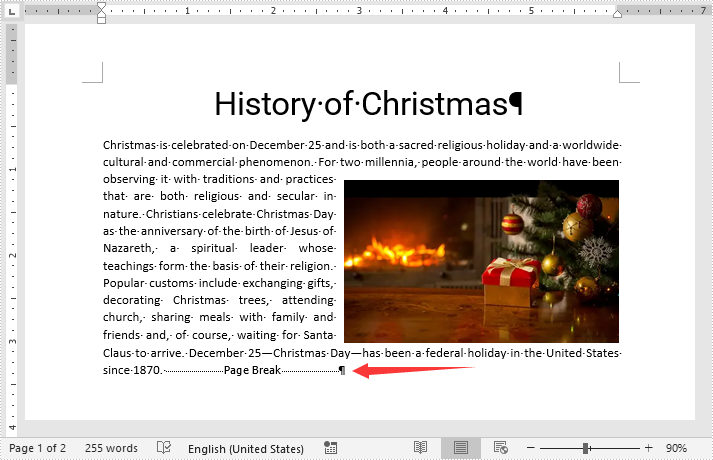
By inserting a page break into your Word document, you can end a page at the place you want and begin a new page at once without hitting the enter key repeatedly. In this article, we will demonstrate how to insert page breaks into a Word document in Java using Spire.Doc for Java library.
Install Spire.Doc for Java
First of all, you're required to add the Spire.Doc.jar file as a dependency in your Java program. The JAR file can be downloaded from this link. If you use Maven, you can easily import the JAR file in your application by adding the following code to your project's pom.xml file.
<repositories>
    <repository>
        <id>com.e-iceblue</id>
        <name>e-iceblue</name>
        <url>https://repo.e-iceblue.com/nexus/content/groups/public/</url>
    </repository>
</repositories>
<dependencies>
    <dependency>
        <groupId>e-iceblue</groupId>
        <artifactId>spire.doc</artifactId>
        <version>14.8.4</version>
    </dependency>
</dependencies>
Insert Page Break after a Specific Paragraph
The following are the steps to insert page break after a specific paragraph:
- Create a Document instance.
- Load a Word document using Document.loadFromFile() method.
- Get the desired section using Document.getSections().get(sectionIndex) method.
- Get the desired paragraph using Section.getParagraphs().get(paragraphIndex) method.
- Add a page break to the paragraph using Paragraph.appendBreak(BreakType.Page_Break) method.
- Save the result document using Document.saveToFile() method.
- Java
import com.spire.doc.Document;
import com.spire.doc.Section;
import com.spire.doc.documents.BreakType;
import com.spire.doc.documents.Paragraph;
import com.spire.doc.FileFormat;

public class InsertPageBreakAfterParagraph {
    public static void main(String[] args){
        //Create a Document instance
        Document document = new Document();
        //Load a Word document
        document.loadFromFile("Sample.docx");

        //Get the first section
        Section section = document.getSections().get(0);
        //Get the 2nd paragraph in the section
        Paragraph paragraph = section.getParagraphs().get(1);

        //Append a page break to the paragraph
        paragraph.appendBreak(BreakType.Page_Break);

        //Save the result document
        document.saveToFile("InsertPageBreak.docx", FileFormat.Docx_2013);
    }
}
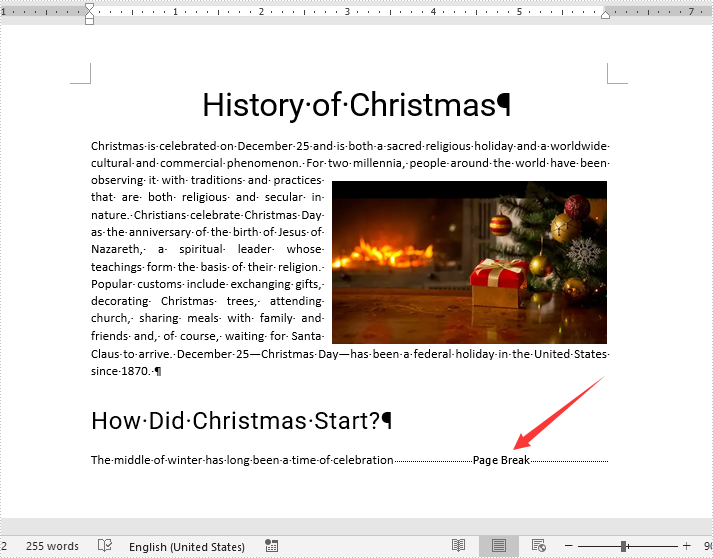
Insert Page Break after a Specific Text
The following are the steps to insert a page break after a specific text:
- Create a Document instance.
- Load a Word document using Document.loadFromFile() method.
- Find a specific text using Document.findString() method.
- Access the text range of the searched text using TextSelection.getAsOneRange() method.
- Get the paragraph where the text range is located using ParagraphBase.getOwnerParagraph() method.
- Get the position index of the text range in the paragraph using Paragraph.getChildObjects().indexOf() method.
- Initialize an instance of Break class to create a page break.
- Insert the page break after the searched text using Paragraph.getChildObjects().insert() method.
- Save the result document using Document.saveToFile() method.
- Java
import com.spire.doc.Break;
import com.spire.doc.Document;
import com.spire.doc.FileFormat;
import com.spire.doc.documents.BreakType;
import com.spire.doc.documents.Paragraph;
import com.spire.doc.documents.TextSelection;
import com.spire.doc.fields.TextRange;

public class InsertPageBreakAfterText {
    public static void main(String[] args){
        //Create a Document instance
        Document document = new Document();

        //Load a Word document
        document.loadFromFile("Sample.docx");

        //Search a specific text
        TextSelection selection = document.findString("celebration", true, true);
        //Get the text range of the seached text
        TextRange range = selection.getAsOneRange();
        //Get the paragraph where the text range is located
        Paragraph paragraph = range.getOwnerParagraph();
        //Get the position index of the text range in the paragraph
        int index = paragraph.getChildObjects().indexOf(range);

        //Create a page break
        Break pageBreak = new Break(document, BreakType.Page_Break);
        //Insert the page break after the searched text
        paragraph.getChildObjects().insert(index + 1, pageBreak);

        //Save the result document
        document.saveToFile("InsertPageBreakAfterText.docx", FileFormat.Docx_2013);
    }
}
Apply for a Temporary License
If you'd like to remove the evaluation message from the generated documents, or to get rid of the function limitations, please request a 30-day trial license for yourself.
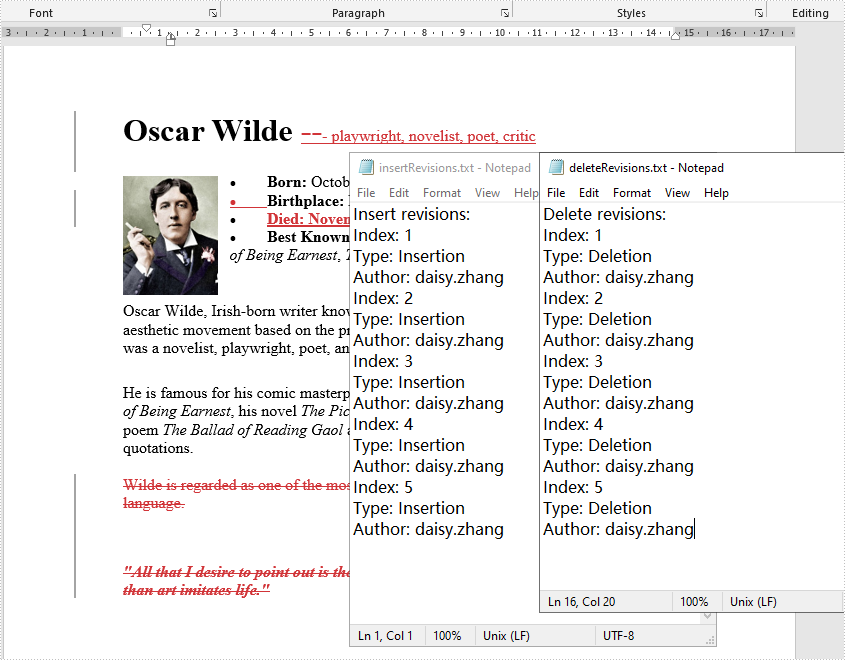
After you enable the Track Changes feature in a Word document, it records all the edits in the document, such as insertions, deletions, replacements, and format changes. Track Changes is a great feature allowing you to see what changes have been made to a document. This tutorial shows how to get all revisions from a Word document by using Spire.Doc for Java.
Install Spire.Doc for Java
First of all, you're required to add the Spire.Doc.jar file as a dependency in your Java program. The JAR file can be downloaded from this link. If you use Maven, you can easily import the JAR file in your application by adding the following code to your project's pom.xml file.
<repositories>
    <repository>
        <id>com.e-iceblue</id>
        <name>e-iceblue</name>
        <url>https://repo.e-iceblue.com/nexus/content/groups/public/</url>
    </repository>
</repositories>
<dependencies>
    <dependency>
        <groupId>e-iceblue</groupId>
        <artifactId>spire.doc</artifactId>
        <version>14.8.4</version>
    </dependency>
</dependencies>
Get All Revisions from Word
The detailed steps are as follows.
- Create a Document instance and load a sample Word document using Document.loadFromFile() method.
- Create a StringBuilder object and then using StringBuilder.append() method to log data.
- Traverse all the sections and every element under body in the section.
- Determine if the paragraph is an insertion revision or not using Paragraph.isInsertRevision() method. If yes, use Paragraph.getInsertRevision() method to get the insertion revision. Then get the revision type and author using EditRevision.getType() method and EditRevision.getAuthor() method.
- Determine if the paragraph is a delete revision or not using Paragraph.inDeleteRevision() method. If yes, use Paragraph.getDeleteRevision() method to get the delete revision. Then get the revision type and author using EditRevision.getType() method and EditRevision.getAuthor() method.
- Traverse all the elements in the paragraphs to get the text ranges' revisions.
- Write the content of StringBuilder to a txt document using FileWriter.write() method.
- Java
import com.spire.doc.*;
import com.spire.doc.documents.*;
import com.spire.doc.fields.*;
import com.spire.doc.formatting.revisions.*;

import java.io.FileWriter;

public class getRevisions {
    public static void main(String[] args) throws Exception {

        //Load the sample Word document
        Document document = new Document();
        document.loadFromFile("test file.docx");

        //Create a StringBuilder object to get the insertions
        StringBuilder insertRevision = new StringBuilder();
        insertRevision.append("Insert revisions:"+"\n");
        int index_insertRevision = 0;

        //Create a StringBuilder object to get the deletions
        StringBuilder deleteRevision = new StringBuilder();
        deleteRevision.append("Delete revisions:"+"\n");
        int index_deleteRevision = 0;

        //Traverse all the sections
        for (Section sec : (Iterable<Section>) document.getSections())
        {
            //Iterate through the element under body in the section
            for(DocumentObject docItem : (Iterable<DocumentObject>)sec.getBody().getChildObjects())
            {
                if (docItem instanceof Paragraph)
                {
                    Paragraph para = (Paragraph)docItem;
                    //Determine if the paragraph is an insertion revision
                    if (para.isInsertRevision())
                    {
                        index_insertRevision++;
                        insertRevision.append("Index: " + index_insertRevision+"\n");
                        //Get insertion revision
                        EditRevision insRevison = para.getInsertRevision();

                        //Get insertion revision type
                        EditRevisionType insType = insRevison.getType();
                        insertRevision.append("Type: " + insType+"\n");
                        //Get insertion revision author
                        String insAuthor = insRevison.getAuthor();
                        insertRevision.append("Author: " + insAuthor + "\n");

                    }
                    //Determine if the paragraph is a delete revision
                    else if (para.isDeleteRevision())
                    {
                        index_deleteRevision++;
                        deleteRevision.append("Index: " + index_deleteRevision +"\n");
                        EditRevision delRevison = para.getDeleteRevision();
                        EditRevisionType delType = delRevison.getType();
                        deleteRevision.append("Type: " + delType+ "\n");
                        String delAuthor = delRevison.getAuthor();
                        deleteRevision.append("Author: " + delAuthor + "\n");
                    }
                    //Iterate through the element in the paragraph
                    for(DocumentObject obj : (Iterable<DocumentObject>)para.getChildObjects())
                    {
                        if (obj instanceof TextRange)
                        {
                            TextRange textRange = (TextRange)obj;
                            //Determine if the textrange is an insertion revision
                            if (textRange.isInsertRevision())
                            {
                                index_insertRevision++;
                                insertRevision.append("Index: " + index_insertRevision +"\n");
                                EditRevision insRevison = textRange.getInsertRevision();
                                                                EditRevisionType insType = insRevison.getType();
                                insertRevision.append("Type: " + insType + "\n");
                                String insAuthor = insRevison.getAuthor();
                                insertRevision.append("Author: " + insAuthor + "\n");
                            }
                            else if (textRange.isDeleteRevision())
                            {
                                index_deleteRevision++;
                                deleteRevision.append("Index: " + index_deleteRevision +"\n");
                                //Determine if the textrange is a delete revision
                                EditRevision delRevison = textRange.getDeleteRevision();
                                EditRevisionType delType = delRevison.getType();
                                deleteRevision.append("Type: " + delType+"\n");
                                String delAuthor = delRevison.getAuthor();
                                deleteRevision.append("Author: " + delAuthor+"\n");
                            }
                        }
                    }
                }
            }
        }

        //Save to a .txt file
        FileWriter writer1 = new FileWriter("insertRevisions.txt");
        writer1.write(insertRevision.toString());
        writer1.flush();
        writer1.close();

        //Save to a .txt file
        FileWriter writer2 = new FileWriter("deleteRevisions.txt");
        writer2.write(deleteRevision.toString());
        writer2.flush();
        writer2.close();
    }
}
Apply for a Temporary License
If you'd like to remove the evaluation message from the generated documents, or to get rid of the function limitations, please request a 30-day trial license for yourself.
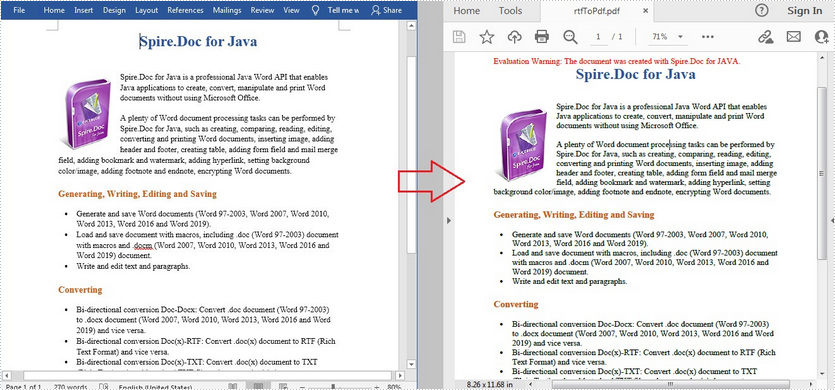
RTF (Rich Text Format) is a proprietary file format developed by Microsoft for cross-platform document interchange. RTF files have good compatibility and they can be opened by most word processors on any operating system such as Unix, Macintosh, and Windows. In some cases, you may need to convert RTF to other file formats to meet different requirements. In this article, you will learn how to convert RTF to PDF programmatically using Spire.Doc for Java.
Install Spire.Doc for Java
First of all, you're required to add the Spire.Doc.jar file as a dependency in your Java program. The JAR file can be downloaded from this link. If you use Maven, you can easily import the JAR file in your application by adding the following code to your project's pom.xml file.
<repositories>
    <repository>
        <id>com.e-iceblue</id>
        <name>e-iceblue</name>
        <url>https://repo.e-iceblue.com/nexus/content/groups/public/</url>
    </repository>
</repositories>
<dependencies>
    <dependency>
        <groupId>e-iceblue</groupId>
        <artifactId>spire.doc</artifactId>
        <version>14.8.4</version>
    </dependency>
</dependencies>
Convert RTF to PDF in Java
The detailed steps are as follows.
- Create a Document instance.
- Load a sample RTF document using Document.loadFromFile() method.
- Save the RTF to PDF using Document.saveToFile() method.
- Java
import com.spire.doc.*;

public class RTFToPDF {
    public static void main(String[] args) {

        //Create Document instance.
        Document document = new Document();

        //Load a sample RTF document
        document.loadFromFile("sample.rtf", FileFormat.Rtf);

        //Save the document to PDF
        document.saveToFile("rtfToPdf.pdf", FileFormat.PDF);
    }
}
Apply for a Temporary License
If you'd like to remove the evaluation message from the generated documents, or to get rid of the function limitations, please request a 30-day trial license for yourself.
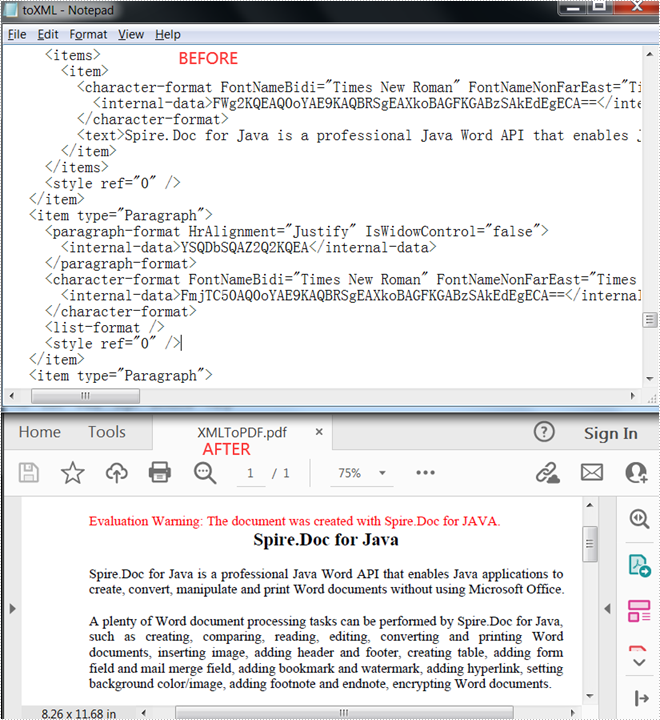
An Extensible Markup Language (XML) file is a plain text file that uses custom tags to describe the structure and other features of a document. In some cases, you may need to convert XML to PDF because the latter one is easier for others to access. This article will show you how to programmatically convert XML to PDF using Spire.Doc for Java.
Install Spire.Doc for Java
First of all, you're required to add the Spire.Doc.jar file as a dependency in your Java program. The JAR file can be downloaded from this link. If you use Maven, you can easily import the JAR file in your application by adding the following code to your project's pom.xml file.
<repositories>
    <repository>
        <id>com.e-iceblue</id>
        <name>e-iceblue</name>
        <url>https://repo.e-iceblue.com/nexus/content/groups/public/</url>
    </repository>
</repositories>
<dependencies>
    <dependency>
        <groupId>e-iceblue</groupId>
        <artifactId>spire.doc</artifactId>
        <version>14.8.4</version>
    </dependency>
</dependencies>
Convert XML to PDF
Spire.Doc for Java supports converting XML to PDF using the Document.saveToFile() method. The following are detailed steps.
- Create a Document instance.
- Load an XML sample document using Document.loadFromFile() method.
- Save the document as a PDF file using Document.saveToFile() method.
- Java
import com.spire.doc.Document;
import com.spire.doc.FileFormat;

public class XMLToPDF {
    public static void main(String[] args) {
        //Create a Document instance
        Document document = new Document();
        //Load a XML sample document
        document.loadFromFile("toXML.xml");
        //Save  the document to PDF
        document.saveToFile("output/XMLToPDF.pdf", FileFormat.PDF );
    }
}
Apply for a Temporary License
If you'd like to remove the evaluation message from the generated documents, or to get rid of the function limitations, please request a 30-day trial license for yourself.
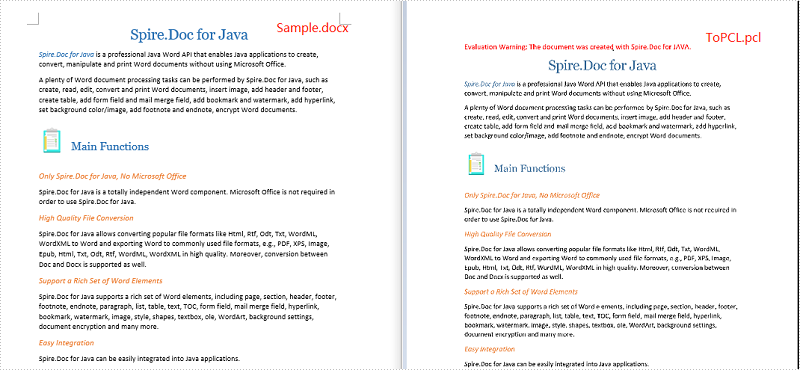
A PCL file is a digital printed document created in the Printer Command Language. It can be printed to HP LaserJet printers directly without having to be opened in an application. At some point, you might need to convert Word document to PCL. This article will introduce how to implement the conversion programmatically in Java using Spire.Doc for Java.
Install Spire.Doc for Java
First of all, you're required to add the Spire.Doc.jar file as a dependency in your Java program. The JAR file can be downloaded from this link. If you use Maven, you can easily import the JAR file in your application by adding the following code to your project's pom.xml file.
<repositories>
    <repository>
        <id>com.e-iceblue</id>
        <name>e-iceblue</name>
        <url>https://repo.e-iceblue.com/nexus/content/groups/public/</url>
    </repository>
</repositories>
<dependencies>
    <dependency>
        <groupId>e-iceblue</groupId>
        <artifactId>spire.doc</artifactId>
        <version>14.8.4</version>
    </dependency>
</dependencies>
Convert Word to PCL
The following are the steps to convert a Word document to PCL:
- Create an instance of Document class.
- Load a Word document using Document.loadFromFile() method.
- Save the document to PCL using Document.saveToFile() method.
- Java
import com.spire.doc.Document;
import com.spire.doc.FileFormat;

public class ConvertWordToPCL {
    public static void main(String[] args){
        //Create a Document instance
        Document document= new Document();
        //Load a Word document
        document.loadFromFile("Sample.docx");

        //Save the document to PCL
        document.saveToFile("ToPCL.pcl", FileFormat.PCL);
    }
}
Apply for a Temporary License
If you'd like to remove the evaluation message from the generated documents, or to get rid of the function limitations, please request a 30-day trial license for yourself.
