
Program Guide (137)
Children categories
Word allows you to create forms that other people can use to enter information. Fillable forms are used for a variety of purposes. Human resources use forms to collect employee and consultant information. Marketing departments use forms to survey customer satisfaction with their products and services. Organizations use forms to register members, students, or clients. Some of the tools you will use when creating a form include:
- Content Controls: The areas where users input information in a form.
- Tables: Tables are used in forms to align text and form fields, and to create borders and boxes.
- Protection: Allows users to populate fields but not to make changes to the rest of the document.
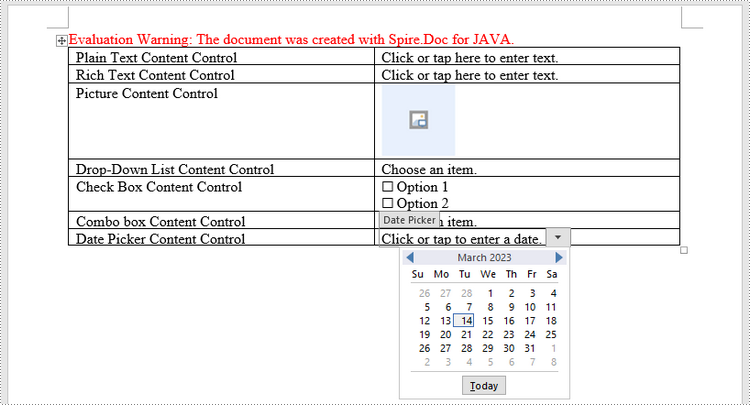
Content controls in Word are containers for content that let users build structured documents. A structured document controls where content appears within the document. There are basically ten types of content controls available in Word 2013. This article focuses on how to create a fillable form in Word consisting of the following seven common content controls using Spire.Doc for Java.
| Content Control | Description |
| Plain Text | A text field limited to plain text, so no formatting can be included. |
| Rich Text | A text field that can contain formatted text or other items, such as tables, pictures, or other content controls. |
| Picture | Accepts a single picture. |
| Drop-Down List | A drop-down list displays a predefined list of items for the user to choose from. |
| Combo Box | A combo box enables users to select a predefined value in a list or type their own value in the text box of the control. |
| Check Box | A check box provides a graphical widget that allows the user to make a binary choice: yes (checked) or no (not checked). |
| Date Picker | Contains a calendar control from which the user can select a date. |
Install Spire.Doc for Java
First of all, you're required to add the Spire.Doc.jar file as a dependency in your Java program. The JAR file can be downloaded from this link. If you use Maven, you can easily import the JAR file in your application by adding the following code to your project's pom.xml file.
<repositories>
    <repository>
        <id>com.e-iceblue</id>
        <name>e-iceblue</name>
        <url>https://repo.e-iceblue.com/nexus/content/groups/public/</url>
    </repository>
</repositories>
<dependencies>
    <dependency>
        <groupId>e-iceblue</groupId>
        <artifactId>spire.doc</artifactId>
        <version>14.8.4</version>
    </dependency>
</dependencies>
Create a Fillable Form in Word in Java
The StructureDocumentTagInline class provided by Spire.Doc for Java is used to create structured document tags for inline-level structures (DrawingML object, fields, etc.) in a paragraph. The SDTProperties property and the SDTContent property under this class shall be used to specify the properties and content of the current structured document tag. The following are the detailed steps to create a fillable form with content controls in Word.
- Create a Document object.
- Add a section using Document.addSection() method.
- Add a table using Section.addTable() method.
- Add a paragraph to a specific table cell using TableCell.addParagraph() method.
- Create an instance of StructureDocumentTagInline class, and add it to the paragraph as a child object using Paragraph.getChildObjects().add() method.
- Specify the properties and content of the structured document tag using the methods under the SDTProperties property and the SDTContent property of the StructureDocumentTagInline object. The type of the structured document tag is set through SDTProperties.setSDTType() method.
- Prevent users from editing content outside form fields using Document.protect() method.
- Save the document using Document.saveToFile() method.
- Java
import com.spire.doc.*;
import com.spire.doc.documents.*;
import com.spire.doc.fields.DocPicture;
import com.spire.doc.fields.TextRange;

import java.util.Date;

public class CreateFillableForm {

    public static void main(String[] args) {

        //Create a Document object
        Document doc = new Document();

        //Add a section
        Section section = doc.addSection();

        //add a table
        Table table = section.addTable(true);
        table.resetCells(7, 2);

        //Add text to the cells of the first column
        Paragraph paragraph = table.getRows().get(0).getCells().get(0).addParagraph();
        paragraph.appendText("Plain Text Content Control");
        paragraph = table.getRows().get(1).getCells().get(0).addParagraph();
        paragraph.appendText("Rich Text Content Control");
        paragraph = table.getRows().get(2).getCells().get(0).addParagraph();
        paragraph.appendText("Picture Content Control");
        paragraph = table.getRows().get(3).getCells().get(0).addParagraph();
        paragraph.appendText("Drop-Down List Content Control");
        paragraph = table.getRows().get(4).getCells().get(0).addParagraph();
        paragraph.appendText("Check Box Content Control");
        paragraph = table.getRows().get(5).getCells().get(0).addParagraph();
        paragraph.appendText("Combo box Content Control");
        paragraph = table.getRows().get(6).getCells().get(0).addParagraph();
        paragraph.appendText("Date Picker Content Control");

        //Add a plain text content control to the cell (0,1)
        paragraph = table.getRows().get(0).getCells().get(1).addParagraph();
        StructureDocumentTagInline sdt = new StructureDocumentTagInline(doc);
        paragraph.getChildObjects().add(sdt);
        sdt.getSDTProperties().setSDTType(SdtType.Text);
        sdt.getSDTProperties().setAlias("Plain Text");
        sdt.getSDTProperties().setTag("Plain Text");
        sdt.getSDTProperties().isShowingPlaceHolder(true);
        SdtText text = new SdtText(true);
        text.isMultiline(false);
        sdt.getSDTProperties().setControlProperties(text);
        TextRange tr = new TextRange(doc);
        tr.setText("Click or tap here to enter text.");
        sdt.getSDTContent().getChildObjects().add(tr);

        //Add a rich text content control to the cell (1,1)
        paragraph = table.getRows().get(1).getCells().get(1).addParagraph();
        sdt = new StructureDocumentTagInline(doc);
        paragraph.getChildObjects().add(sdt);
        sdt.getSDTProperties().setSDTType(SdtType.Rich_Text);
        sdt.getSDTProperties().setAlias("Rich Text");
        sdt.getSDTProperties().setTag("Rich Text");
        sdt.getSDTProperties().isShowingPlaceHolder(true);
        text = new SdtText(true);
        text.isMultiline(false);
        sdt.getSDTProperties().setControlProperties(text);
        tr = new TextRange(doc);
        tr.setText("Click or tap here to enter text.");
        sdt.getSDTContent().getChildObjects().add(tr);

        //Add a picture content control to the cell (2,1)
        paragraph = table.getRows().get(2).getCells().get(1).addParagraph();
        sdt = new StructureDocumentTagInline(doc);
        paragraph.getChildObjects().add(sdt);
        sdt.getSDTProperties().setSDTType(SdtType.Picture);
        sdt.getSDTProperties().setAlias("Picture");
        sdt.getSDTProperties().setTag("Picture");
        SdtPicture sdtPicture = new SdtPicture();
        sdt.getSDTProperties().setControlProperties(sdtPicture);
        DocPicture pic = new DocPicture(doc);
        pic.loadImage("C:\\Users\\Administrator\\Desktop\\ChooseImage.png");
        sdt.getSDTContent().getChildObjects().add(pic);

        //Add a dropdown list content control to the cell(3,1)
        paragraph = table.getRows().get(3).getCells().get(1).addParagraph();
        sdt = new StructureDocumentTagInline(doc);
        sdt.getSDTProperties().setSDTType(SdtType.Drop_Down_List);
        sdt.getSDTProperties().setAlias("Dropdown List");
        sdt.getSDTProperties().setTag("Dropdown List");
        paragraph.getChildObjects().add(sdt);
        SdtDropDownList sddl = new SdtDropDownList();
        sddl.getListItems().add(new SdtListItem("Choose an item.", "1"));
        sddl.getListItems().add(new SdtListItem("Item 2", "2"));
        sddl.getListItems().add(new SdtListItem("Item 3", "3"));
        sddl.getListItems().add(new SdtListItem("Item 4", "4"));
        sdt.getSDTProperties().setControlProperties(sddl);
        tr = new TextRange(doc);
        tr.setText(sddl.getListItems().get(0).getDisplayText());
        sdt.getSDTContent().getChildObjects().add(tr);

        //Add two check box content controls to the cell (4,1)
        paragraph = table.getRows().get(4).getCells().get(1).addParagraph();
        sdt = new StructureDocumentTagInline(doc);
        paragraph.getChildObjects().add(sdt);
        sdt.getSDTProperties().setSDTType(SdtType.Check_Box);
        SdtCheckBox scb = new SdtCheckBox();
        sdt.getSDTProperties().setControlProperties(scb);
        tr = new TextRange(doc);
        sdt.getChildObjects().add(tr);
        scb.setChecked(false);
        paragraph.appendText(" Option 1");

        paragraph = table.getRows().get(4).getCells().get(1).addParagraph();
        sdt = new StructureDocumentTagInline(doc);
        paragraph.getChildObjects().add(sdt);
        sdt.getSDTProperties().setSDTType(SdtType.Check_Box);
        scb = new SdtCheckBox();
        sdt.getSDTProperties().setControlProperties(scb);
        tr = new TextRange(doc);
        sdt.getChildObjects().add(tr);
        scb.setChecked(false);
        paragraph.appendText(" Option 2");

        //Add a combo box content control to the cell (5,1)
        paragraph = table.getRows().get(5).getCells().get(1).addParagraph();
        sdt = new StructureDocumentTagInline(doc);
        paragraph.getChildObjects().add(sdt);
        sdt.getSDTProperties().setSDTType(SdtType.Combo_Box);
        sdt.getSDTProperties().setAlias("Combo Box");
        sdt.getSDTProperties().setTag("Combo Box");
        SdtComboBox cb = new SdtComboBox();
        cb.getListItems().add(new SdtListItem("Choose an item."));
        cb.getListItems().add(new SdtListItem("Item 2"));
        cb.getListItems().add(new SdtListItem("Item 3"));
        sdt.getSDTProperties().setControlProperties(cb);
        tr = new TextRange(doc);
        tr.setText(cb.getListItems().get(0).getDisplayText());
        sdt.getSDTContent().getChildObjects().add(tr);

        //Add a date picker content control to the cell (6,1)
        paragraph = table.getRows().get(6).getCells().get(1).addParagraph();
        sdt = new StructureDocumentTagInline(doc);
        paragraph.getChildObjects().add(sdt);
        sdt.getSDTProperties().setSDTType(SdtType.Date_Picker);
        sdt.getSDTProperties().setAlias("Date Picker");
        sdt.getSDTProperties().setTag("Date Picker");
        SdtDate date = new SdtDate();
        date.setCalendarType(CalendarType.Default);
        date.setDateFormat("yyyy.MM.dd");
        date.setFullDate(new Date());
        sdt.getSDTProperties().setControlProperties(date);
        tr = new TextRange(doc);
        tr.setText("Click or tap to enter a date.");
        sdt.getSDTContent().getChildObjects().add(tr);

        //Allow users to edit the form fields only
        doc.protect(ProtectionType.Allow_Only_Form_Fields, "permission-psd");

        //Save to file
        doc.saveToFile("output/WordForm.docx", FileFormat.Docx_2013);
    }
}
Apply for a Temporary License
If you'd like to remove the evaluation message from the generated documents, or to get rid of the function limitations, please request a 30-day trial license for yourself.
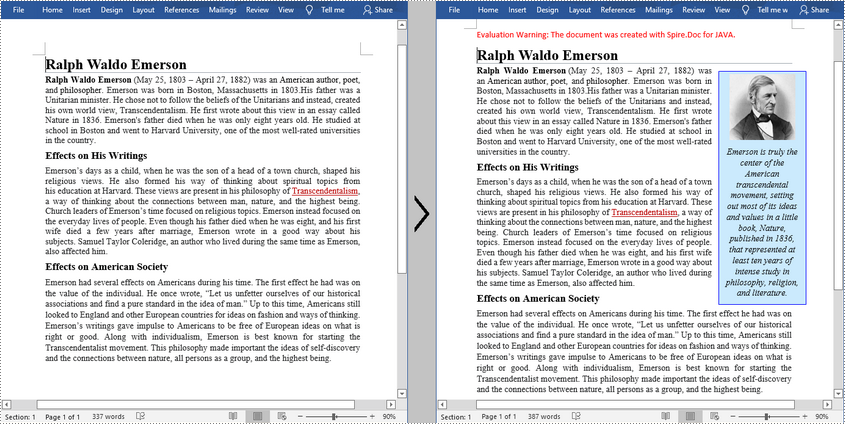
A text box is an element you can insert and position anywhere in a document. MS Word provides several pre-formatted text boxes, and you can also create custom text boxes with unique appearances to grab the reader's attention. In this article, you will learn how to programmatically insert or remove a text box in a Word document using Spire.Doc for Java.
Install Spire.Doc for Java
First, you're required to add the Spire.Doc.jar file as a dependency in your Java program. The JAR file can be downloaded from this link. If you use Maven, you can easily import the JAR file in your application by adding the following code to your project's pom.xml file.
<repositories>
    <repository>
        <id>com.e-iceblue</id>
        <name>e-iceblue</name>
        <url>https://repo.e-iceblue.com/nexus/content/groups/public/</url>
    </repository>
</repositories>
<dependencies>
    <dependency>
        <groupId>e-iceblue</groupId>
        <artifactId>spire.doc</artifactId>
        <version>14.8.4</version>
    </dependency>
</dependencies>
Insert a Text Box in a Word Document
Spire.Doc for Java provides the Paragraph.appendTextBox(float width, float height) method to insert a text box in a specified paragraph. The detailed steps are as follows.
- Create a Document instance, and then load a sample Word document using Document.loadFromFile() method.
- Get the first section using Document.getSections().get() method, and then add a paragraph to the section using Section.addParagraph() method.
- Add a text box to the paragraph using Paragraph.appendTextBox(float width, float height) method.
- Get the format of the text box using TextBox.getFormat() method, and then set the text box's wrapping type, position, border color and fill color using the methods under TextBoxFormat Class.
- Add a paragraph to the text box using TextBox.getBody().addParagraph() method, and then insert an image to the paragraph using Paragraph.appendPicture() method.
- Insert text to the text box using Paragraph.appendText() method, and then set the text font.
- Save the document to another file using Document.saveToFile() method.
- Java
import com.spire.doc.*;
import com.spire.doc.documents.*;
import com.spire.doc.fields.DocPicture;
import com.spire.doc.fields.TextBox;
import com.spire.doc.fields.TextRange;

import java.awt.*;

public class InsertTextbox {

    public static void main(String[] args) {

        //Create a Document instance
        Document doc = new Document();

        //Load a Word document
        doc.loadFromFile("E:\\Files\\Ralph.docx");

        //Append a text box and set its wrapping style
        TextBox tb = doc.getSections().get(0).addParagraph().appendTextBox(120f, 320f);
        tb.getFormat().setTextWrappingStyle(TextWrappingStyle.Square);

        //Set the position of text box
        tb.getFormat().setHorizontalOrigin(HorizontalOrigin.Right_Margin_Area);
        tb.getFormat().setHorizontalPosition(-100f);
        tb.getFormat().setVerticalOrigin(VerticalOrigin.Page);
        tb.getFormat().setVerticalPosition(130f);

        //Set the border color and fill color of the text box
        tb.getFormat().setLineColor(Color.BLUE);
        tb.getFormat().setFillColor(new Color(203,234,253) );

        //Insert an image to text box as a paragraph
        Paragraph para = tb.getBody().addParagraph();
        DocPicture picture = para.appendPicture("C:\\Users\\Administrator\\Desktop\\Ralph.jpg");

        //Set alignment for the paragraph
        para.getFormat().setHorizontalAlignment(HorizontalAlignment.Center);

        //Set the size of the inserted image
        picture.setHeight(90f);
        picture.setWidth(90f);

        //Insert text to text box as the second paragraph
        para = tb.getBody().addParagraph();
        TextRange textRange = para.appendText("Emerson is truly the center of the American transcendental movement, "
                +"setting out most of its ideas and values in a little book, Nature, published in 1836, "
                +"that represented at least ten years of intense study in philosophy, religion, and literature.");

        //Set alignment for the paragraph
        para.getFormat().setHorizontalAlignment(HorizontalAlignment.Center);

        //Set the text font
        textRange.getCharacterFormat().setFontName("Times New Roman");
        textRange.getCharacterFormat().setFontSize(12f);
        textRange.getCharacterFormat().setItalic(true);

        //Save to file
        doc.saveToFile("InsertTextBox.docx", FileFormat.Docx_2013);
    }
}
Remove a Text Box from a Word Document
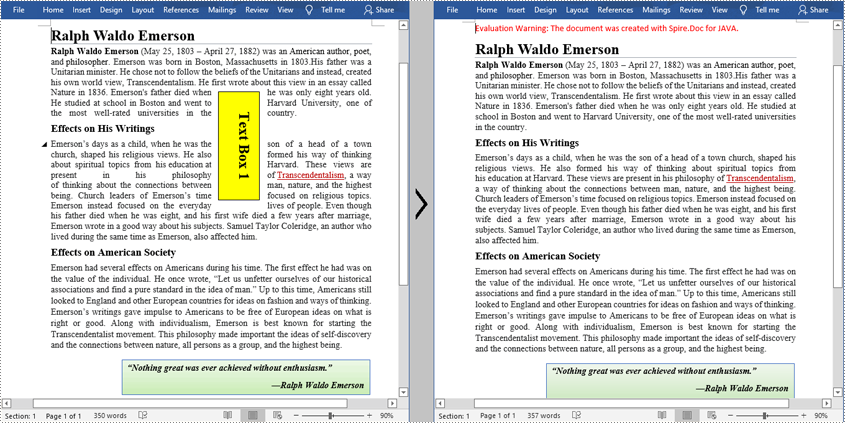
Spire.Doc for Java provides the Document.getTextBoxes().removeAt() method to delete a specified text box by index. If you want to delete all text boxes from the Word document, you can use the Document.getTextBoxes().clear() method. The below example shows how to remove the first text box from a Word document.
- Create a Document instance.
- Load a sample Word document using Document.loadFromFile() method.
- Remove the first text box using Document.getTextBoxes().removeAt() method.
- Save the document to another file using Document.saveToFile() method.
- Java
import com.spire.doc.Document;
import com.spire.doc.FileFormat;

public class DeleteTextbox {

    public static void main(String[] args) {

        //Create a Document instance
        Document doc = new Document();

        //Load a Word document
        doc.loadFromFile("E:\\Files\\TextBox.docx");

        //Remove text box by index
        doc.getTextBoxes().removeAt(0);

        //Remove all text boxes
        //doc.getTextBoxes().clear();

        //Save to file
        doc.saveToFile("RemoveTextbox.docx", FileFormat.Docx);
    }
}
Apply for a Temporary License
If you'd like to remove the evaluation message from the generated documents, or to get rid of the function limitations, please request a 30-day trial license for yourself.
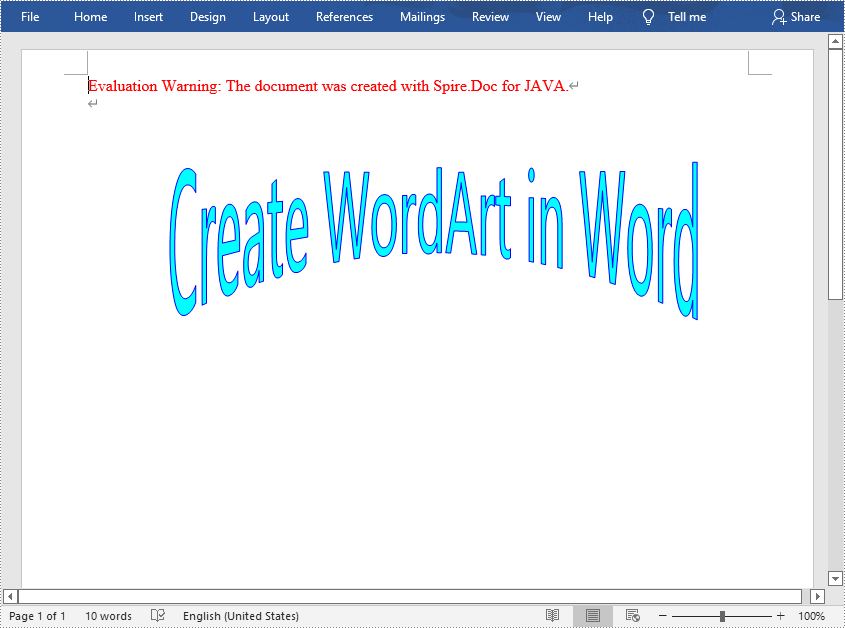
In MS Word, WordArt is used to insert text with special effects such as shadows, outlines, colors, gradients, and 3D effects. It can be helpful when creating stylish headlines or highlighting specific content. In this article, you will learn how to programmatically insert WordArt in a Word document using Spire.Doc for Java.
Install Spire.Doc for Java
First of all, you're required to add the Spire.Doc.jar file as a dependency in your Java program. The JAR file can be downloaded from this link. If you use Maven, you can easily import the JAR file in your application by adding the following code to your project's pom.xml file.
<repositories>
    <repository>
        <id>com.e-iceblue</id>
        <name>e-iceblue</name>
        <url>https://repo.e-iceblue.com/nexus/content/groups/public/</url>
    </repository>
</repositories>
<dependencies>
    <dependency>
        <groupId>e-iceblue</groupId>
        <artifactId>spire.doc</artifactId>
        <version>14.8.4</version>
    </dependency>
</dependencies>
Insert WordArt in Word
The ShapeType enumeration provided by Spire.Doc for Java defines a variety of WordArt shape types whose names begin with "Text". In order to create a WordArt in Word, you need to initialize an instance of ShapeObject and specify the WordArt type and text content. The detailed steps are as follows:
- Create a Document instance.
- Add a section to the document using Document.addSection() method, and then add a paragraph to the section using Section.addParagraph() method.
- Append a shape to the paragraph and specify the shape size and type using Paragraph.appendShape(float width, float height, ShapeType shapeType) method.
- Set the position of the shape using ShapeObject.setVerticalPosition() and ShapeObject.setHorizontalPosition() methods.
- Set the text of WordArt using ShapeObject.getWordArt().setText() method.
- Set the fill color and stroke color of WordArt using ShapeObject.setFillColor() and ShapeObject.setStrokeColor() methods.
- Save the document to another file using Document.saveToFile() method.
- Java
import com.spire.doc.*;
import com.spire.doc.documents.*;
import com.spire.doc.fields.ShapeObject;
import java.awt.*;


public class WordArt{
    public static void main(String[] args) throws Exception {
        //Create a Document instance
        Document doc = new Document();

        //Add a section
        Section section = doc.addSection();

        //Add a paragraph.
        Paragraph paragraph = section.addParagraph();

        //Add a shape to the paragraph and specify the shape size and type
        ShapeObject shape = paragraph.appendShape(400, 150, ShapeType.Text_Deflate_Bottom);

        //Set the position of the shape
        shape.setVerticalPosition(60);
        shape.setHorizontalPosition(60);

        //set the text of WordArt
        shape.getWordArt().setText("Create WordArt in Word");

        // Set the fill color and stroke color of WordArt
        shape.setFillColor(Color.CYAN);
        shape.setStrokeColor(Color.BLUE);

        //save the document to file.
        doc.saveToFile("WordArt.docx", FileFormat.Docx_2013);
    }
}
Apply for a Temporary License
If you'd like to remove the evaluation message from the generated documents, or to get rid of the function limitations, please request a 30-day trial license for yourself.
The properties of a document are a set of information about the document and its content, such as title, subject, author's name, manager, company, category, keywords (also known as tags), and comments. This information does not appear in the content of the document, but it can help you better search, sort, and filter files. In this article, you will learn how to add document properties to Word documents in Java using Spire.Doc for Java.
- Add Built-in Document Properties to a Word Document
- Add Custom Document Properties to a Word Document
Install Spire.Doc for Java
First, you're required to add the Spire.Doc.jar file as a dependency in your Java program. The JAR file can be downloaded from this link. If you use Maven, you can easily import the JAR file in your application by adding the following code to your project's pom.xml file.
<repositories>
    <repository>
        <id>com.e-iceblue</id>
        <name>e-iceblue</name>
        <url>https://repo.e-iceblue.com/nexus/content/groups/public/</url>
    </repository>
</repositories>
<dependencies>
    <dependency>
        <groupId>e-iceblue</groupId>
        <artifactId>spire.doc</artifactId>
        <version>14.8.4</version>
    </dependency>
</dependencies>
Add Built-in Document Properties to a Word Document in Java
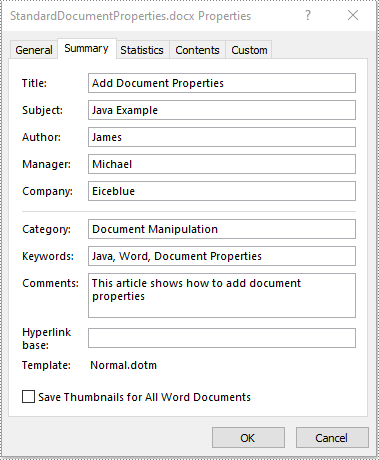
A built-in document property (also known as a standard document property) consists of a name and a value. You cannot set or change the name of a built-in document property as it’s predefined by Microsoft Word, but you can set or change its value. The following steps demonstrate how to set values for built-in document properties in a Word document in Java using Spire.Doc for Java:
- Initialize an instance of Document class.
- Load a Word document using Document.loadFromFile() method.
- Access the built-in document properties of the document using Document.getBuiltinDocumentProperties() method.
- Set the values of specific document properties such as title, subject and author using setTitle(), setSubject() and setAuthor() methods provided by BuiltinDocumentProperties class.
- Save the result document using Document.saveToFile() method.
- Java
import com.spire.doc.BuiltinDocumentProperties;
import com.spire.doc.Document;
import com.spire.doc.FileFormat;

public class AddBuiltinDocumentProperties {
    public static void main(String []args) throws Exception {
        //Create a Document instance
        Document document = new Document();
        //Load a Word document
        document.loadFromFile("Sample.docx");

        //Access the built-in document properties of the document
        BuiltinDocumentProperties standardProperties = document.getBuiltinDocumentProperties();
        //Set the values of specific built-in document properties
        standardProperties.setTitle("Add Document Properties");
        standardProperties.setSubject("Java Example");
        standardProperties.setAuthor("James");
        standardProperties.setCompany("Eiceblue");
        standardProperties.setManager("Michael");
        standardProperties.setCategory("Document Manipulation");
        standardProperties.setKeywords("Java, Word, Document Properties");
        standardProperties.setComments("This article shows how to add document properties");

        //Save the result document
        document.saveToFile("AddStandardDocumentProperties.docx", FileFormat.Docx_2013);
    }
}
Add Custom Document Properties to a Word Document in Java
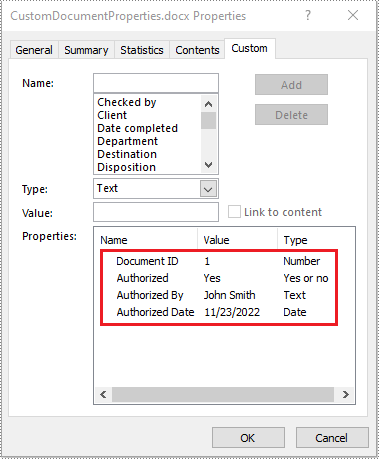
A custom document property can be defined by a document author or user. Each custom document property should contain a name, a value and a data type. The data type can be one of these four types: Text, Date, Number and Yes or No. The following steps demonstrate how to add custom document properties with different data types to a Word document in Java using Spire.Doc for Java:
- Initialize an instance of Document class.
- Load a Word document using Document.loadFromFile() method.
- Access the custom document properties of the document using Document.getCustomDocumentProperties() method.
- Add custom document properties with different data types to the document using CustomDocumentProperties.add(String, Object) method.
- Save the result document using Document.saveToFile() method.
- Java
import com.spire.doc.CustomDocumentProperties;
import com.spire.doc.Document;
import com.spire.doc.FileFormat;

import java.util.Date;

public class AddCustomDocumentProperties {
    public static void main(String []args) throws Exception {
        //Create a Document instance
        Document document = new Document();
        //Load a Word document
        document.loadFromFile("Sample.docx");

        //Access the custom document properties of the document
        CustomDocumentProperties customProperties = document.getCustomDocumentProperties();
        //Add custom document properties with different data types to the document
        customProperties.add("Document ID", 1);
        customProperties.add("Authorized", true);
        customProperties.add("Authorized By", "John Smith");
        customProperties.add("Authorized Date", new Date());

        //Save the result document
        document.saveToFile("AddCustomDocumentProperties.docx", FileFormat.Docx_2013);
    }
}
Apply for a Temporary License
If you'd like to remove the evaluation message from the generated documents, or to get rid of the function limitations, please request a 30-day trial license for yourself.
Sometimes we need to merge several related Word documents to make a more complete one. To merge documents with MS Word, you need to manually copy and paste contents or import contents from other documents, which can be tedious. Luckily, Spire.Doc for Java provides 2 easy ways to merge Word documents by programming. This article will show the detailed steps to merge Word documents.
Install Spire.Doc for Java
First, you're required to add the Spire.Doc.jar file as a dependency in your Java program. The JAR file can be downloaded from this link. If you use Maven, you can easily import the JAR file in your application by adding the following code to your project's pom.xml file.
<repositories>
    <repository>
        <id>com.e-iceblue</id>
        <name>e-iceblue</name>
        <url>https://repo.e-iceblue.com/nexus/content/groups/public/</url>
    </repository>
</repositories>
<dependencies>
    <dependency>
        <groupId>e-iceblue</groupId>
        <artifactId>spire.doc</artifactId>
        <version>14.8.4</version>
    </dependency>
</dependencies>
Merge Documents by Inserting the Entire File
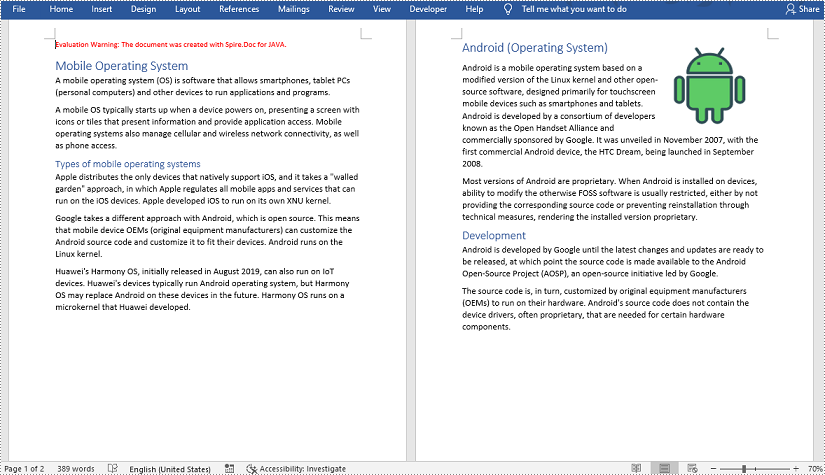
The method Document.insertTextFromFile() provided by Spire.Doc allows merging Word documents by inserting other documents entirely into a document with the inserted contents starting from a new page.
The detailed steps of merging documents by inserting the entire file are as follows:
- Create an object of Document class and load a Word document from disk.
- Insert another Word document entirely to the loaded document using Document.insertTextFromFile() method.
- Save the result document using Document.saveToFile() method.
- Java
import com.spire.doc.*;

public class merge {
    public static void main(String[] args) {
        //Create an object of Document and load a Word document from disk
        Document document = new Document("C:/Samples/Sample1.docx");

        //Insert another Word document entirely to the document
        document.insertTextFromFile("C:/Samples/Sample2.docx", FileFormat.Docx_2013);

        //Save the result document
        document.saveToFile("MergingResult.docx", FileFormat.Docx_2013);
    }
}
Merge Documents by Cloning Contents
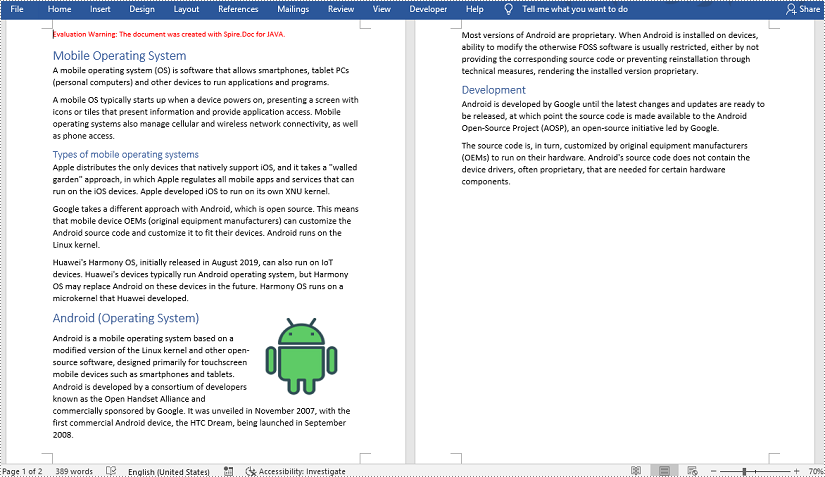
If you want to merge documents without starting a new page, you can clone the contents of other documents to add to the end of a document.
The detailed steps of merging documents by cloning contents are as follows:
- Create two objects of Document and load the two Word documents from disk.
- Loop through the second document to get all the sections using Document.getSections() method, then loop through all the sections to get their child objects using Section.getBod().getChildObjects() method, then get the last section of the first document using Document.getLastSection() method, and then add the child objects to the last section of the first document using Body.getChildObjects().add() method.
- Save the result document using Document.saveToFile() method.
- Java
import com.spire.doc.*;

public class mergeDocuments {
    public static void main(String[] args){
        //Create two Document objects and load two Word documents from disk
        Document document1 = new Document("C:/Samples/Sample1.docx");
        Document document2 = new Document("C:/Samples/Sample2.docx");

        //Loop through the second document to get all the sections
        for (Object sectionObj : (Iterable) document2.getSections()) {
            Section sec=(Section)sectionObj;
            //Loop through the sections of the second document to get their child objects
            for (Object docObj :(Iterable ) sec.getBody().getChildObjects()) {
                DocumentObject obj=(DocumentObject)docObj;

                //Get the last section of the first document
                Section lastSection = document1.getLastSection();

                //Add the child objects to the last section of the first document
                Body body = lastSection.getBody();
                body.getChildObjects().add(obj.deepClone());
            }
        }

        //Save the result document
        document1.saveToFile("MergingResult.docx", FileFormat.Docx_2013);
    }
}
Apply for a Temporary License
If you'd like to remove the evaluation message from the generated documents, or to get rid of the function limitations, please request a 30-day trial license for yourself.
Footnotes are commonly used in Word documents to provide additional information or detailed explanations for the content. Long and complex words and phrases can make writings difficult for readers to travel through. But providing explanations in the main text would break the coherence of writings and make them much more tedious. Fortunately, footnotes can help writers to give information and explanations at the end of the page, without disrupting the fluency and concision of writings. This article demonstrates how to use Spire.Doc for Java to insert or remove footnotes in Word.
Install Spire.Doc for Java
First, you're required to add the Spire.Doc.jar file as a dependency in your Java program. The JAR file can be downloaded from this link. If you use Maven, you can easily import the JAR file in your application by adding the following code to your project's pom.xml file.
<repositories>
    <repository>
        <id>com.e-iceblue</id>
        <name>e-iceblue</name>
        <url>https://repo.e-iceblue.com/nexus/content/groups/public/</url>
    </repository>
</repositories>
<dependencies>
    <dependency>
        <groupId>e-iceblue</groupId>
        <artifactId>spire.doc</artifactId>
        <version>14.8.4</version>
    </dependency>
</dependencies>
Insert a Footnote into a Word Document
The detailed steps of inserting footnote are as follows:
- Create an object of Document class.
- Load a Word document form disk using Document.loadFromFile() method.
- Find the text to be noted using Document.findString() method.
- Add a footnote using Paragraph.getChildObjects().insert() method.
- Add a paragraph in the footnote using Footnote.getTextBody().addParagraph() method.
- Add text in the added paragraph using Paragraph.appendText() method.
- Set the text format of the footnote using the methods under CharacterFormat object returned by TextRange.getCharacterFormat() method.
- Set the text format of the marker using the methods under CharaterFormat object returned by Footnote.getMarkerCharacterFormat() method.
- Save the document using Document.saveToFile() method.
- Java
import com.spire.doc.*;
import com.spire.doc.documents.*;
import com.spire.doc.fields.*;
import java.awt.*;

public class insertFootnote {
    public static void main(String[] args) {
        //Create an object of Document class
        Document document = new Document();

        //Load a Word document from disk
        document.loadFromFile("D:/Samples/Sample.docx");

        //Find the word to be cited
        TextSelection selection = document.findString("ISO", false, true);

        //Add a footnote
        TextRange textRange = selection.getAsOneRange();
        Paragraph paragraph = textRange.getOwnerParagraph();
        int index = paragraph.getChildObjects().indexOf(textRange);
        Footnote footnote = paragraph.appendFootnote(FootnoteType.Footnote);
        paragraph.getChildObjects().insert(index + 1, footnote);

        //Add a paragraph in the footnote
        Paragraph paragraph1 = footnote.getTextBody().addParagraph();

        //Add text in the added paragraph
        textRange = paragraph1.appendText("International Organization for Standardization");

        //Set the text format of the footnote
        textRange.getCharacterFormat().setFontName("Arial Black");
        textRange.getCharacterFormat().setFontSize(10);
        textRange.getCharacterFormat().setTextColor(Color.yellow);

        //Set the text format of the marker
        footnote.getMarkerCharacterFormat().setFontName("Calibri");
        footnote.getMarkerCharacterFormat().setFontSize(12);
        footnote.getMarkerCharacterFormat().setBold(true);
        footnote.getMarkerCharacterFormat().setTextColor(Color.red);

        //Save the document
        String output = "output/insertFootnote.docx";
        document.saveToFile(output, FileFormat.Docx_2010);
    }
}
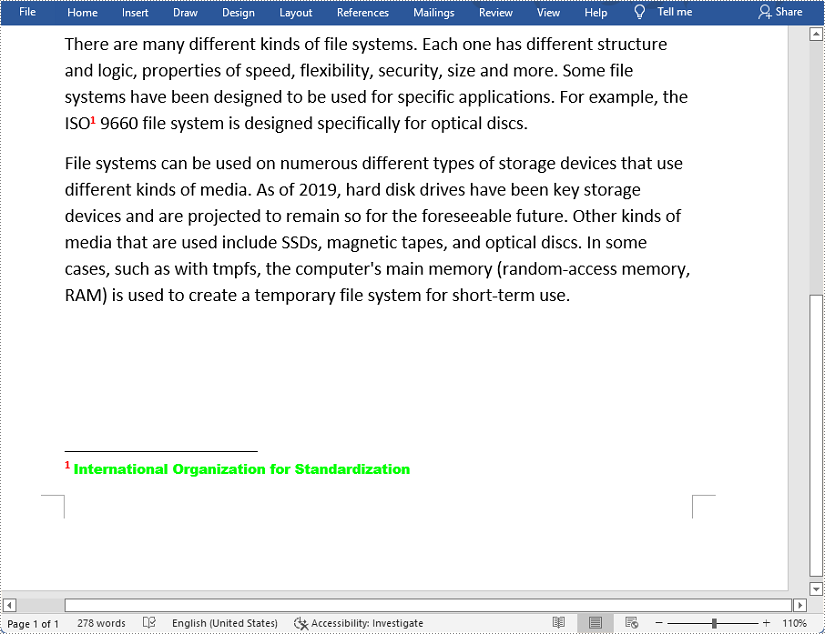
Remove Footnotes from a Word Document
The detailed steps of removing footnotes are as follows:
- Create an object of Document class.
- Load a Word document from disk using Document.loadFromFile() method.
- Loop through sections, then paragraphs and then their child objects to get a specific child object and determine if it is a footnote.
- Remove a specific footnote using Paragraph.getChildObjects().removeAt() method.
- Save the document using Document.saveToFile() method.
- Java
import com.spire.doc.*;
import com.spire.doc.fields.*;
import com.spire.doc.documents.*;
import java.util.*;
public class RemoveFootnote {
public static void main(String[] args) {
//Create an object of Document class
Document document = new Document();
//Load a Word document from disk
document.loadFromFile("D:/Samples/Sample.docx");
//Loop through the sections
for (int i = 0; i < document.getSections().getCount(); i++) {
//Get a specific section
Section section = document.getSections().get(i);
//Loop through the paragraphs in the section
for (int j = 0; j < section.getParagraphs().getCount(); j++)
{
//Get a specific paragraph
Paragraph para = section.getParagraphs().get(j);
//Create a list
ListFootnote> footnotes = new ArrayList<>();
//Loop through the child objects in the paragraph
for (int k = 0, cnt = para.getChildObjects().getCount(); k < cnt; k++)
{
//Get a specific child object
ParagraphBase pBase = (ParagraphBase)para.getChildObjects().get(k);
//Determine if the child object is a footnote
if (pBase instanceof Footnote)
{
Footnote footnote = (Footnote)pBase;
//Add the footnote to the list
footnotes.add(footnote);
}
}
if (footnotes != null) {
//Loop through the footnotes in the list
for (int y = 0; y < footnotes.size(); y++) {
//Remove a specific footnote
para.getChildObjects().remove(footnotes.get(y));
}
}
}
}
//Save the document
document.saveToFile("output/removeFootnote.docx", FileFormat.Docx);
}
}
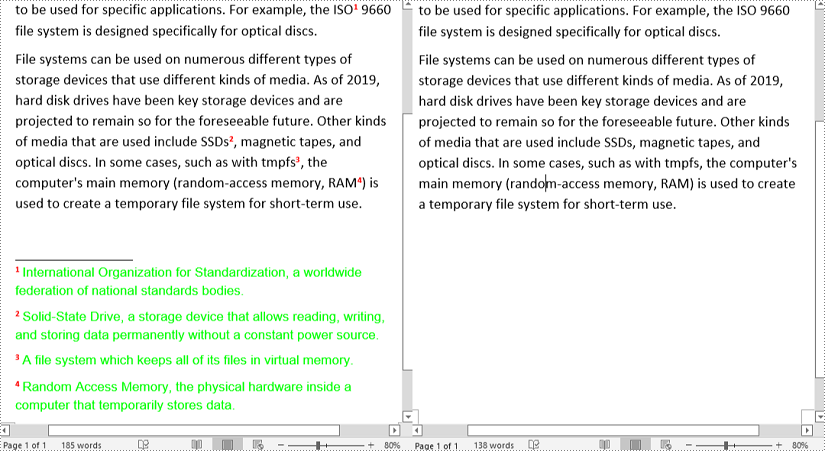
Apply for a Temporary License
If you'd like to remove the evaluation message from the generated documents, or to get rid of the function limitations, please request a 30-day trial license for yourself.
Printing Word documents is a fundamental aspect of document management, allowing you to transform digital files into tangible, physical copies. Whether you need to produce hard copies for reference, distribution, or archival purposes, the ability to print Word documents is a valuable skill that remains relevant in various professional and personal settings.
In this article, you will learn how to print Word documents in Java using the Spire.Doc for Java library and java.awt.print package.
- Print Word with the Default Printer in Java
- Print Word with a Specified Printer in Java
- Print Word with a Print Dialog Box in Java
- Print a Range of Pages in Word in Java
- Print Word in Duplex Mode in Java
Install Spire.Doc for Java
First, you're required to add the Spire.Doc.jar file as a dependency in your Java program. The JAR file can be downloaded from this link. If you use Maven, you can easily import the JAR file in your application by adding the following code to your project's pom.xml file.
<repositories>
    <repository>
        <id>com.e-iceblue</id>
        <name>e-iceblue</name>
        <url>https://repo.e-iceblue.com/nexus/content/groups/public/</url>
    </repository>
</repositories>
<dependencies>
    <dependency>
        <groupId>e-iceblue</groupId>
        <artifactId>spire.doc</artifactId>
        <version>14.8.4</version>
    </dependency>
</dependencies>
Print Word with the Default Printer in Java
Printing Word documents with the default printer is a convenient and straightforward method. This approach is often suitable for regular printing tasks when specific printer settings are not necessary or when users prefer to utilize the default configurations set in their printer.
The following are the steps to print Word documents with the default printer using Spire.Doc for Java and java.awt.print.
- Create a PrinterJob object, and call the methods under it to set up a print job.
- Create a Document object, and load a Word document using Document.LoadFromFile() method.
- Render each page of the document in the specified format using PrinterJob.setPrintable() method.
- Call PrinterJob.print() method to print the Word document.
- Java
import com.spire.doc.Document;

import java.awt.print.PageFormat;
import java.awt.print.Paper;
import java.awt.print.PrinterException;
import java.awt.print.PrinterJob;

public class PrintWithDefaultPrinter {

    public static void main(String[] args) {

        // Create a Document object
        Document document = new Document();

        // Load a Word file
        document.loadFromFile("C:\\Users\\Administrator\\Desktop\\Input.docx");

        // Create a PrinterJob object
        PrinterJob printerJob = PrinterJob.getPrinterJob();

        // Create a PageFormat object and set it to the default size and orientation
        PageFormat pageFormat = printerJob.defaultPage();

        // Return a copy of the Paper object associated with this PageFormat
        Paper paper = pageFormat.getPaper();

        // Set the imageable area of this Paper
        paper.setImageableArea(0, 0, pageFormat.getWidth(), pageFormat.getHeight());

        // Set the number of copies to be printed
        printerJob.setCopies(1);

        // Set the Paper object for this PageFormat
        pageFormat.setPaper(paper);

        // Call painter to render the pages in the specified format
        printerJob.setPrintable(document, pageFormat);

        // Print document
        try {
            printerJob.print();
        } catch (PrinterException e) {
            e.printStackTrace();
        }
    }
}
Print Word with a Specified Printer in Java
Printing a Word document with a specified printer in Java allows you to choose a specific printer device to handle the printing task. This approach can be useful in scenarios where you have multiple printers available and want to direct the print output to a specific one.
The following are the steps to print Word documents with a specified printer using Spire.Doc for Java and java.awt.print.
- Create a PrinterJob object, and call the methods under it to set up a print job.
- Find the print service by the printer name using the custom method findPrintService().
- Apply the print service using PrinterJob.setPrintService() method.
- Create a Document object, and load a Word document using Document.LoadFromFile() method.
- Render each page of the document in the specified format using PrinterJob.setPrintable() method.
- Call PrinterJob.print() method to print the Word document.
- Java
import com.spire.doc.Document;

import javax.print.PrintService;
import java.awt.print.PageFormat;
import java.awt.print.Paper;
import java.awt.print.PrinterException;
import java.awt.print.PrinterJob;

public class PrintWithSpecifiedPrinter {

    public static void main(String[] args) throws PrinterException {

        // Create a PrinterJob object which is initially associated with the default printer
        PrinterJob printerJob = PrinterJob.getPrinterJob();

        // Specify printer name
        PrintService myPrintService = findPrintService("\\\\192.168.1.104\\HP LaserJet P1007");
        printerJob.setPrintService(myPrintService);

        // Create a PageFormat instance and set it to a default size and orientation
        PageFormat pageFormat = printerJob.defaultPage();

        // Return a copy of the Paper object associated with this PageFormat.
        Paper paper = pageFormat.getPaper();

        // Set the imageable area of this Paper.
        paper.setImageableArea(0, 0, pageFormat.getWidth(), pageFormat.getHeight());

        // Set the Paper object for this PageFormat.
        pageFormat.setPaper(paper);

        // Create a Document object
        Document document = new Document();

        // Load a Word file
        document.loadFromFile("C:\\Users\\Administrator\\Desktop\\Input.docx");

        // Call painter to render the pages in the specified format
        printerJob.setPrintable(document, pageFormat);

        // Print document
        try {
            printerJob.print();
        } catch (PrinterException e) {
            e.printStackTrace();
        }
    }

    // Find print service
    private static PrintService findPrintService(String printerName) {

        PrintService[] printServices = PrinterJob.lookupPrintServices();
        for (PrintService printService : printServices) {
            if (printService.getName().equals(printerName)) {
                return printService;
            }
        }
        return null;
    }
}
Print Word with a Print Dialog Box in Java
Printing a Word document with a print dialog box enables users to select a printer and customize print settings before initiating the process. By presenting a print dialog box, you provide users with flexibility and control over the printing operation.
To print Word document with a print dialog box in Java, follow these step:
- Create a PrinterJob object, and call methods under it to set up a print job.
- Create a Document object, and load a Word document using Document.LoadFromFile() method.
- Render each page of the document in the specified format using PrinterJob.setPrintable() method.
- Call PrinterJob.printDialog() method to display print dialog.
- Call PrinterJob.print() method to print the Word document.
- Java
import com.spire.doc.Document;

import java.awt.print.PageFormat;
import java.awt.print.Paper;
import java.awt.print.PrinterException;
import java.awt.print.PrinterJob;

public class PrintWithDialogBox {

    public static void main(String[] args) {

        // Create a PrinterJob object which is initially associated with the default printer
        PrinterJob printerJob = PrinterJob.getPrinterJob();

        // Create a PageFormat object and set it to a default size and orientation
        PageFormat pageFormat = printerJob.defaultPage();

        // Return a copy of the Paper object associated with this PageFormat
        Paper paper = pageFormat.getPaper();

        // Set the imageable area of this Paper
        paper.setImageableArea(0, 0, pageFormat.getWidth(), pageFormat.getHeight());

        // Set the Paper object for this PageFormat
        pageFormat.setPaper(paper);

        // Create a Document object
        Document document = new Document();

        // Load a Word file
        document.loadFromFile("C:\\Users\\Administrator\\Desktop\\Math.docx");

        // Call painter to render the pages in the specified format
        printerJob.setPrintable(document, pageFormat);

        // Display the print dialog
        if (printerJob.printDialog()) {
            try {

// Print document
                printerJob.print();
            } catch (PrinterException e) {
                e.printStackTrace();
            }
        }
    }
}
Print a Range of Pages in Word in Java
Printing a range of pages in Microsoft Word is a useful feature that allows you to select specific pages from a document and print only those pages, rather than printing the entire document. This can be particularly handy when you're working with lengthy documents or when you only need to print a specific section.
The steps to set print range while printing Word documents in Java are as follows.
- Create a PrinterJob object, and call the methods under it to set up a print job.
- Create a Document object, and load a Word document using Document.LoadFromFile() method.
- Render each page of the document in the specified format using PrinterJob.setPrintable() method.
- Create a PrintRequestAttributeSet object, and add the print range to the attribute set.
- Call PrinterJob.print() method to print the range of pages.
- Java
import com.spire.doc.Document;

import javax.print.attribute.HashPrintRequestAttributeSet;
import javax.print.attribute.PrintRequestAttributeSet;
import javax.print.attribute.standard.PageRanges;
import java.awt.print.PageFormat;
import java.awt.print.Paper;
import java.awt.print.PrinterException;
import java.awt.print.PrinterJob;

public class PrintPageRange {

    public static void main(String[] args) {

        // Create a Document object
        Document document = new Document();

        // Load a Word file
        document.loadFromFile("C:\\Users\\Administrator\\Desktop\\Input.docx");

        // Create a PrinterJob object
        PrinterJob printerJob = PrinterJob.getPrinterJob();

        // Create a PageFormat object and set it to the default size and orientation
        PageFormat pageFormat = printerJob.defaultPage();

        // Return a copy of the Paper object associated with this PageFormat
        Paper paper = pageFormat.getPaper();

        // Set the imageable area of this Paper
        paper.setImageableArea(0, 0, pageFormat.getWidth(), pageFormat.getHeight());

        // Set the number of copies
        printerJob.setCopies(1);

        // Set the Paper object for this PageFormat
        pageFormat.setPaper(paper);

        // Call painter to render the pages in the specified format
        printerJob.setPrintable(document, pageFormat);

        // Create a PrintRequestAttributeSet object
        PrintRequestAttributeSet attributeSet = new HashPrintRequestAttributeSet();

        // Set print range
        attributeSet.add(new PageRanges(1,5));

        // Print document
        try {
            printerJob.print(attributeSet);
        } catch (PrinterException e) {
            e.printStackTrace();
        }
    }
}
Print Word in Duplex Mode in Java
Duplex printing, also known as two-sided printing, allows you to print on both sides of a sheet of paper automatically, which can be beneficial for lengthy reports, presentations, or handouts.
The steps to print Word documents in duplex mode in Java are as follows.
- Create a PrinterJob object, and call the methods under it to set up a print job.
- Create a Document object, and load a Word document using Document.LoadFromFile() method.
- Render each page of the document in the specified format using PrinterJob.setPrintable() method.
- Create a PrintRequestAttributeSet object, and add the two-sided printing mode to the attribute set.
- Call PrinterJob.print() method to print the Word document.
- Java
import com.spire.doc.Document;

import javax.print.attribute.HashPrintRequestAttributeSet;
import javax.print.attribute.PrintRequestAttributeSet;
import javax.print.attribute.standard.Sides;
import java.awt.print.PageFormat;
import java.awt.print.Paper;
import java.awt.print.PrinterException;
import java.awt.print.PrinterJob;

public class PrintInDuplexMode {

    public static void main(String[] args) {

        // Create a Document object
        Document document = new Document();

        // Load a Word file
        document.loadFromFile("C:\\Users\\Administrator\\Desktop\\Input.docx");

        // Create a PrinterJob object which is initially associated with the default printer
        PrinterJob printerJob = PrinterJob.getPrinterJob();

        // Create a PageFormat object and set it to a default size and orientation
        PageFormat pageFormat = printerJob.defaultPage();

        // Return a copy of the Paper object associated with this PageFormat
        Paper paper = pageFormat.getPaper();

        // Set the imageable area of this Paper
        paper.setImageableArea(0, 0, pageFormat.getWidth(), pageFormat.getHeight());

        // Set the Paper object for this PageFormat
        pageFormat.setPaper(paper);

        // Call painter to render the pages in the specified format
        printerJob.setPrintable(document, pageFormat);

        // Create a PrintRequestAttributed object
        PrintRequestAttributeSet attributeSet = new HashPrintRequestAttributeSet();

        // Enable duplex printing mode
        attributeSet.add(Sides.TWO_SIDED_SHORT_EDGE);

        // Print document
        try {
            printerJob.print(attributeSet);
        } catch (PrinterException e) {
            e.printStackTrace();
        }
    }
}
Apply for a Temporary License
If you'd like to remove the evaluation message from the generated documents, or to get rid of the function limitations, please request a 30-day trial license for yourself.
Headers are text or pictures on the top of pages in Word documents while footers are at the bottom. People usually use headers and footers to display some important information about documents, such as copyright, author information, and page numbers or just to make the document more good-looking and professional. They can be inserted into a Word document on every page, only on the first page, or differently on odd pages and even pages. This article will show how to insert headers and footers into Word documents programmatically using Spire.Doc for Java.
- Insert Headers and Footers into a Word Document
- Insert a Header and a Footer Only into the First Page of a Word Document
- Insert Different Headers and Footers into Odd Pages and Even Pages
Install Spire.Doc for Java
First of all, you're required to add the Spire.Doc.jar file as a dependency in your Java program. The JAR file can be downloaded from this link. If you use Maven, you can easily import the JAR file in your application by adding the following code to your project's pom.xml file.
<repositories>
    <repository>
        <id>com.e-iceblue</id>
        <name>e-iceblue</name>
        <url>https://repo.e-iceblue.com/nexus/content/groups/public/</url>
    </repository>
</repositories>
<dependencies>
    <dependency>
        <groupId>e-iceblue</groupId>
        <artifactId>spire.doc</artifactId>
        <version>14.8.4</version>
    </dependency>
</dependencies>
Insert Headers and Footers into a Word Document
To insert a header or a footer into a Word document using Spire.Doc for Java, you need to use Section.getHeadersFooters().getHeader() and Section.getHeadersFooters().getFooter() methods to get them and then add paragraphs to them to insert pictures, text, or page number fields.
The detailed steps for inserting headers and footers are as follows:
- Create an instance of Document class.
- Load a Word document using Document.loadFromFIle() method.
- Get the first section using Document.getSections().get() method.
- Call the custom method insertHeaderAndFooter() to insert a header and a footer into the section.
- Save the document using Document.saveToFile() method.
- Java
import com.spire.doc.*;
import com.spire.doc.documents.*;
import com.spire.doc.fields.TextRange;

public class insertHeaderAndFooter {

    public static void main(String[] args) {

        //Create a Document class instance
        Document document = new Document();

        //Load a Word document
        document.loadFromFile("We Are Interwoven Beings.docx");

        //Get the first section
        Section section = document.getSections().get(0);

        //Call the custom method insertHeaderAndFooter() to insert headers and footers to the section
        insertHeaderAndFooter(section);

        //Save the document
        document.saveToFile("HeaderAndFooter.docx", FileFormat.Docx);
    }

    private static void insertHeaderAndFooter(Section section) {


        //Get header and footer from a section
        HeaderFooter header = section.getHeadersFooters().getHeader();
        HeaderFooter footer = section.getHeadersFooters().getFooter();

        //Add a paragraph to the header
        Paragraph headerParagraph = header.addParagraph();

        //Add text to the header paragraph
        TextRange text = headerParagraph.appendText("Philosophy\rWe Are Interwoven Beings");
        text.getCharacterFormat().setFontName("Arial");
        text.getCharacterFormat().setFontSize(12);
        text.getCharacterFormat().setItalic(true);
        headerParagraph.getFormat().setHorizontalAlignment(HorizontalAlignment.Center);

        //Set the bottom border style of the header paragraph
        headerParagraph.getFormat().getBorders().getBottom().setBorderType(BorderStyle.Single);
        headerParagraph.getFormat().getBorders().getBottom().setLineWidth(1f);

        //Add a paragraph to the footer
        Paragraph footerParagraph = footer.addParagraph();

        //Add Field_Page and Field_Num_Pages fields to the footer paragraph
        footerParagraph.appendField("Page Number", FieldType.Field_Page);
        footerParagraph.appendText(" of ");
        footerParagraph.appendField("Number of Pages", FieldType.Field_Num_Pages);
        footerParagraph.getFormat().setHorizontalAlignment(HorizontalAlignment.Center);

        //Set the top border style of the footer paragraph
        footerParagraph.getFormat().getBorders().getTop().setBorderType(BorderStyle.Single);
        footerParagraph.getFormat().getBorders().getTop().setLineWidth(1f);
    }
}
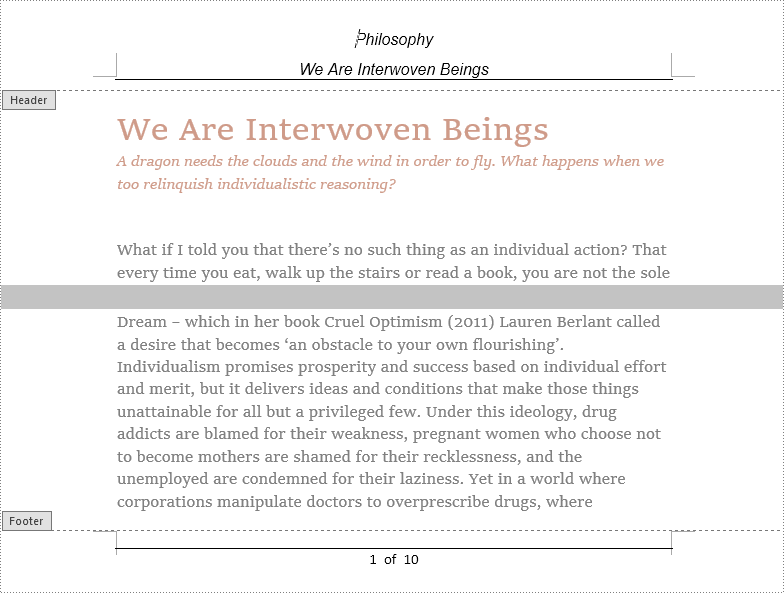
Insert a Header and a Footer Only into the First Page of a Word Document
Sometimes we only need to insert a header and a footer into the first page, which can be realized by Spire.Doc for Java as well. We can use Section.getPageSetup().setDifferentFirstPageHeaderFooter() method to make the headers and footers of the first page different from other pages.
The detailed steps for inserting header and footer only into the first page are as follows:
- Create a Document class instance.
- Load a Word document using Document.loadFromFile() method.
- Get the first section using Document.getSections().get() method.
- Make the headers and footers of the first page different from other pages using Section.getPageSetup().setDifferentFirstPageHeaderFooter() method.
- Call the custom method insertHeaderAndFooterFirst() to insert a header and a footer into the first page.
- Save the document using Document.saveToFile() method.
- Java
import com.spire.doc.*;
import com.spire.doc.documents.*;
import com.spire.doc.fields.DocPicture;
import com.spire.doc.fields.TextRange;

import java.awt.*;

public class insertHeaderAndFooter {

    public static void main(String[] args) {

        //Create a Document class instance
        Document document = new Document();

        //Load a Word document
        document.loadFromFile("We Are Interwoven Beings.docx");

        //Get the first section
        Section section = document.getSections().get(0);

        //Make the headers and footers of the first page different from other pages
        section.getPageSetup().setDifferentFirstPageHeaderFooter(true);

        //Call the custom method insertHeaderAndFooterFirst() to insert a header and a footer into the first page
        insertHeaderAndFooterFirst(section);

        //Save the document
        document.saveToFile("FirstPageHeaderAndFooter.docx", FileFormat.Docx);
    }

    private static void insertHeaderAndFooterFirst(Section section) {

        //Get header and footer of the first page
        HeaderFooter header = section.getHeadersFooters().getFirstPageHeader();
        HeaderFooter footer = section.getHeadersFooters().getFirstPageFooter();

        //Add a paragraph to the header
        Paragraph headerParagraph = header.addParagraph();

        //Add text to the header paragraph
        TextRange text = headerParagraph.appendText("Philosophy");
        text.getCharacterFormat().setFontName("Arial");
        text.getCharacterFormat().setFontSize(14);
        text.getCharacterFormat().setTextColor(Color.blue);
        text.getCharacterFormat().setItalic(true);
        headerParagraph.getFormat().setHorizontalAlignment(HorizontalAlignment.Right);

        //Insert a picture into the header paragraph and set its position
        DocPicture headerPicture = headerParagraph.appendPicture("Header.png");
        headerPicture.setHorizontalAlignment(ShapeHorizontalAlignment.Left);
        headerPicture.setVerticalOrigin(VerticalOrigin.Top_Margin_Area);
        headerPicture.setVerticalAlignment(ShapeVerticalAlignment.Center);

        //Set text wrapping style to Behind
        headerPicture.setTextWrappingStyle(TextWrappingStyle.Behind);

        //Set the bottom border style of the header paragraph
        headerParagraph.getFormat().getBorders().getBottom().setBorderType(BorderStyle.Single);
        headerParagraph.getFormat().getBorders().getBottom().setLineWidth(1f);

        //Add a paragraph to the footer
        Paragraph footerParagraph = footer.addParagraph();

        //Add text to the footer paragraph
        TextRange text1 = footerParagraph.appendText("We Are Interwoven Beings");
        text1.getCharacterFormat().setFontName("Arial");
        text1.getCharacterFormat().setFontSize(14);
        text1.getCharacterFormat().setTextColor(Color.BLUE);
        text1.getCharacterFormat().setItalic(true);
        footerParagraph.getFormat().setHorizontalAlignment(HorizontalAlignment.Center);

        //Set the top border style of the footer paragraph
        footerParagraph.getFormat().getBorders().getTop().setBorderType(BorderStyle.Single);
        footerParagraph.getFormat().getBorders().getTop().setLineWidth(1f);
    }
}
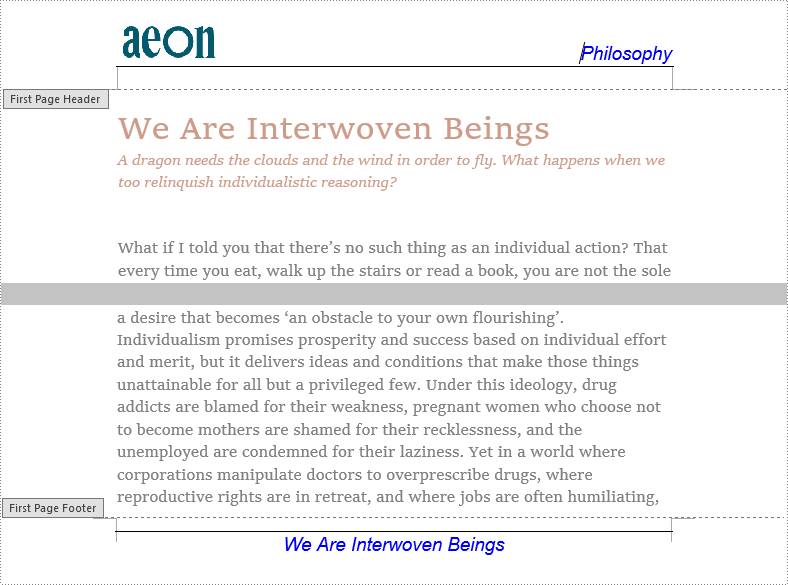
Insert Different Headers and Footers into Odd Pages and Even Pages
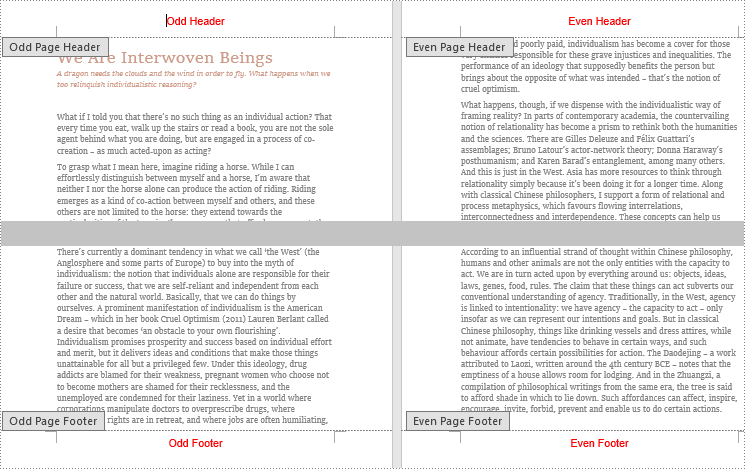
We may also encounter situations where we need to insert different headers and footers into odd pages and even pages. Spire.Doc for Java provides a method Section.getPageSetup().setDifferentOddAndEvenPagesHeaderFooter(), which can make headers and footers different on odd pages and even pages, to meet such needs.
The detailed steps for inserting different headers and footers into odd pages and even pages are as follows:
- Create an object of Document class.
- Load a Word document using Document.loadFromFile() method.
- Get the first section using Document.getSections().get() method.
- Make the headers and footers of odd pages and even pages different using Section.getPageSetup().setDifferentOddAndEvenPagesHeaderFooter() method.
- Call the custom method insertHeaderAndFooterOddEven() to insert different headers and footers into odd pages and even pages.
- Save the document using Document.saveToFile() method.
- Java
import com.spire.doc.*;
import com.spire.doc.documents.*;
import com.spire.doc.fields.TextRange;

import java.awt.*;

public class insertHeaderAndFooter {

    public static void main(String[] args) {

        //Create a Document class instance
        Document document = new Document();

        //Load a Word document
        document.loadFromFile("We Are Interwoven Beings.docx");

        //Get the first section
        Section section = document.getSections().get(0);

        //Make the headers and footers of odd pages and even pages different
        section.getPageSetup().setDifferentOddAndEvenPagesHeaderFooter(true);

        //Call the custom method insertHeaderAndFooterOddEven() to insert different headers and footers into odd pages and even pages
        insertHeaderAndFooterOddEven(section);

        //Save the document
        document.saveToFile("OddEvenHeaderAndFooter.docx", FileFormat.Docx);
    }

    private static void insertHeaderAndFooterOddEven(Section section) {

        //Insert odd header
        Paragraph P1 = section.getHeadersFooters().getOddHeader().addParagraph();
        TextRange OH = P1.appendText("Odd Header");
        P1.getFormat().setHorizontalAlignment(HorizontalAlignment.Center);
        OH.getCharacterFormat().setFontName("Arial");
        OH.getCharacterFormat().setFontSize(16);
        OH.getCharacterFormat().setTextColor(Color.RED);

        //Insert even header
        Paragraph P2 = section.getHeadersFooters().getEvenHeader().addParagraph();
        TextRange EH = P2.appendText("Even Header");
        P2.getFormat().setHorizontalAlignment(HorizontalAlignment.Center);
        EH.getCharacterFormat().setFontName("Arial");
        EH.getCharacterFormat().setFontSize(16);
        EH.getCharacterFormat().setTextColor(Color.RED);

        //Insert odd footer
        Paragraph P3 = section.getHeadersFooters().getOddFooter().addParagraph();
        TextRange OF = P3.appendText("Odd Footer");
        P3.getFormat().setHorizontalAlignment(HorizontalAlignment.Center);
        OF.getCharacterFormat().setFontName("Arial");
        OF.getCharacterFormat().setFontSize(16);
        OF.getCharacterFormat().setTextColor(Color.RED);

        //Insert even footer
        Paragraph P4 = section.getHeadersFooters().getEvenFooter().addParagraph();
        TextRange EF = P4.appendText("Even Footer");
        EF.getCharacterFormat().setFontName("Arial");
        EF.getCharacterFormat().setFontSize(16);
        P4.getFormat().setHorizontalAlignment(HorizontalAlignment.Center);
        EF.getCharacterFormat().setTextColor(Color.RED);
    }
}
Apply for a Temporary License
If you'd like to remove the evaluation message from the generated documents, or to get rid of the function limitations, please request a 30-day trial license for yourself.
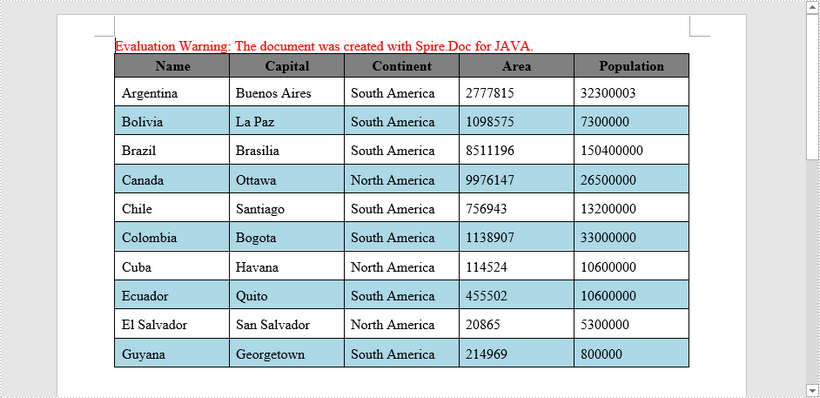
A table is a common way to present tabular data in a Word document. It helps a lot in organizing a big set of information. In this article, you'll learn how to create how to create a table, fill the table with data, and apply formatting to the table cells using Spire.Doc for Java.
Install Spire.Doc for Java
First of all, you're required to add the Spire.Doc.jar file as a dependency in your Java program. The JAR file can be downloaded from this link. If you use Maven, you can easily import the JAR file in your application by adding the following code to your project's pom.xml file.
<repositories>
    <repository>
        <id>com.e-iceblue</id>
        <name>e-iceblue</name>
        <url>https://repo.e-iceblue.com/nexus/content/groups/public/</url>
    </repository>
</repositories>
<dependencies>
    <dependency>
        <groupId>e-iceblue</groupId>
        <artifactId>spire.doc</artifactId>
        <version>14.8.4</version>
    </dependency>
</dependencies>
Create a Simple Table in Word
The table below lists some of the core classes and methods responsible for creating as well as formatting a table.
| Name | Description |
| Table Class | Represents a table in a Word document. |
| TableRow Class | Represents a row in a table. |
| TableCell Class | Represents a specific cell in a table. |
| Section.addTbale() Method | Adds a new table to the specified section. |
| Table.resetCells() Method | Resets row number and column number. |
| Table.getRows() Method | Gets the table rows. |
| TableRow.setHeight() Method | Sets the height of the specified row. |
| TableRow.getCells() Method | Returns the cells collection. |
| TableRow.getFormat() Method | Gets the format of the specified row. |
The following are the steps to create a simple table in a Word document.
- Create a Document object, and add a section to it.
- Prepare the data for the header row and other rows, storing them in a one-dimensional string array and a two-dimensional string array respectively.
- Add a table to the section using Section.addTable() method.
- Insert data to the header row, and set the row formatting, including row height, background color, and text alignment.
- Insert data to the rest of the rows, and apply formatting to these rows.
- Save the document to another file using Document.saveToFile() method.
- Java
import com.spire.doc.*;
import com.spire.doc.documents.*;
import com.spire.doc.fields.TextRange;

import java.awt.*;

public class CreateTable {

    public static void main(String[] args) {

        //Create a Document object
        Document document = new Document();

        //Add a section
        Section section = document.addSection();

        //Define the data for table
        String[] header = {"Name", "Capital", "Continent", "Area", "Population"};
        String[][] data =
                {
                        new String[]{"Argentina", "Buenos Aires", "South America", "2777815", "32300003"},
                        new String[]{"Bolivia", "La Paz", "South America", "1098575", "7300000"},
                        new String[]{"Brazil", "Brasilia", "South America", "8511196", "150400000"},
                        new String[]{"Canada", "Ottawa", "North America", "9976147", "26500000"},
                        new String[]{"Chile", "Santiago", "South America", "756943", "13200000"},
                        new String[]{"Colombia", "Bogota", "South America", "1138907", "33000000"},
                        new String[]{"Cuba", "Havana", "North America", "114524", "10600000"},
                        new String[]{"Ecuador", "Quito", "South America", "455502", "10600000"},
                        new String[]{"El Salvador", "San Salvador", "North America", "20865", "5300000"},
                        new String[]{"Guyana", "Georgetown", "South America", "214969", "800000"},

                };

        //Add a table
        Table table = section.addTable(true);
        table.resetCells(data.length + 1, header.length);

        //Set the first row as table header
        TableRow row = table.getRows().get(0);
        row.isHeader(true);
        row.setHeight(20);
        row.setHeightType(TableRowHeightType.Exactly);
        for (int j = 0; j < row.getCells().getCount(); j++) {
            row.getCells().get(j).getCellFormat().getShading().setBackgroundPatternColor(Color.gray);
        }
        for (int i = 0; i < header.length; i++) {
            row.getCells().get(i).getCellFormat().setVerticalAlignment(VerticalAlignment.Middle);
            Paragraph p = row.getCells().get(i).addParagraph();
            p.getFormat().setHorizontalAlignment(HorizontalAlignment.Center);
            TextRange txtRange = p.appendText(header[i]);
            txtRange.getCharacterFormat().setBold(true);
        }

        //Add data to the rest of rows
        for (int r = 0; r < data.length; r++) {
            TableRow dataRow = table.getRows().get(r + 1);
            dataRow.setHeight(25);
            dataRow.setHeightType(TableRowHeightType.Exactly);
            for (int c = 0; c < dataRow.getCells().getCount(); c++) {
                dataRow.getCells().get(c).getCellFormat().getShading().setBackgroundPatternColor(Color.white);
            }
            for (int c = 0; c < data[r].length; c++) {
                dataRow.getCells().get(c).getCellFormat().setVerticalAlignment(VerticalAlignment.Middle);
                dataRow.getCells().get(c).addParagraph().appendText(data[r][c]);
            }
        }

        //Set background color for cells
        for (int j = 1; j < table.getRows().getCount(); j++) {
            if (j % 2 == 0) {
                TableRow row2 = table.getRows().get(j);
                for (int f = 0; f < row2.getCells().getCount(); f++) {
                    row2.getCells().get(f).getCellFormat().getShading().setBackgroundPatternColor(new Color(173, 216, 230));
                }
            }
        }

        //Save to file
        document.saveToFile("output/CreateTable.docx", FileFormat.Docx_2013);
    }
}
Apply for a Temporary License
If you'd like to remove the evaluation message from the generated documents, or to get rid of the function limitations, please request a 30-day trial license for yourself.
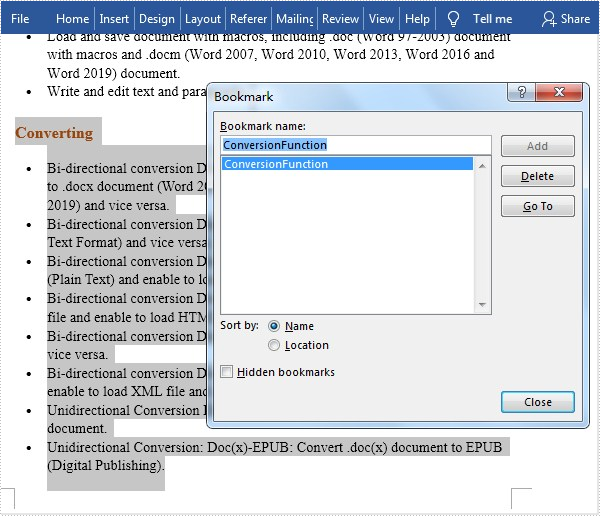
Bookmarks in Microsoft Word can mark text, pictures, and places in a document, allowing you to jump straight to the desired text, picture, or place without scrolling through several paragraphs or pages. This is especially useful for navigating some research papers or contracts that contain a lot of pages. In this article, you will learn how to programmatically add or remove a bookmark in a Word document using Spire.Doc for Java.
Install Spire.Doc for Java
First of all, you're required to add the Spire.Doc.jar file as a dependency in your Java program. The JAR file can be downloaded from this link. If you use Maven, you can easily import the JAR file in your application by adding the following code to your project's pom.xml file.
<repositories>
    <repository>
        <id>com.e-iceblue</id>
        <name>e-iceblue</name>
        <url>https://repo.e-iceblue.com/nexus/content/groups/public/</url>
    </repository>
</repositories>
<dependencies>
    <dependency>
        <groupId>e-iceblue</groupId>
        <artifactId>spire.doc</artifactId>
        <version>14.8.4</version>
    </dependency>
</dependencies>
Add a Bookmarks to an Existing Word Document
The detailed steps are as follows:
- Create a Document instance.
- Load a sample Word document using Document.loadFromFile() method.
- Get the first section using Document.getSections().get() method.
- Get a specified paragraph using Section.getParagraphs().get() method.
- Append the start of the bookmark with specified name to the specified paragraph using Paragraph.appendBookmarkStart(java.lang.String name) method.
- Append the end of the bookmark with specified name to the specified paragraph using Paragraph.appendBookmarkEnd(java.lang.String name) method.
- Save the document to another file using Document. saveToFile() method.
- Java
import com.spire.doc.*;
import com.spire.doc.documents.Paragraph;

public class InsertBookmark {

    public static void main(String[] args) {

        //Create a Document instance
        Document doc = new Document();

        //Load a sample Word file
        doc.loadFromFile("sample.docx");

        //Get the first section
        Section section = doc.getSections().get(0);

        //Insert a bookmark with specified name into the specified paragraphs
        section.getParagraphs().get(7).appendBookmarkStart("ConversionFunction");
        section.getParagraphs().get(16).appendBookmarkEnd("ConversionFunction");


        //Save the document
        doc.saveToFile("AddBookmark.docx", FileFormat.Docx_2013);
    }
}
Remove an Existing Bookmark in a Word Document
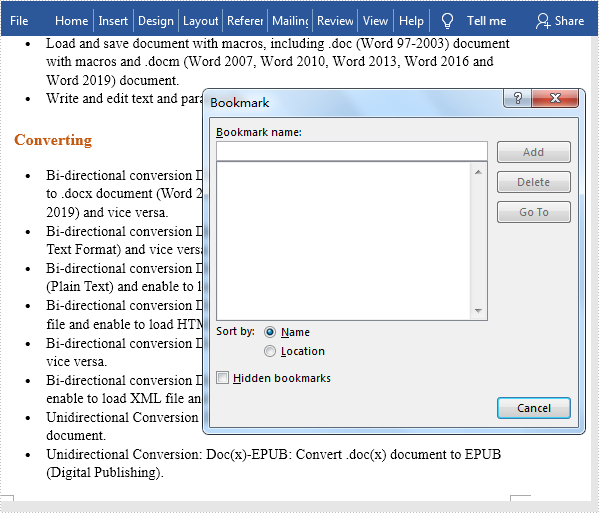
The detailed steps are as follows:
- Create a Document instance.
- Load a sample Word document using Document.loadFromFile() method.
- Get a specified bookmark by its index using Document.getBookmarks().get() method.
- Remove the specified bookmark using Document.getBookmarks().remove() method.
- Save the document to another file using Document.saveToFile() method.
- Java
import com.spire.doc.Bookmark;
import com.spire.doc.Document;
import com.spire.doc.FileFormat;

public class RemoveBookmark {

    public static void main(String[] args) {

        //Create a Document instance
        Document doc = new Document();

        //Load a sample Word file
        doc.loadFromFile("C:\\Users\\Administrator\\Desktop\\AddBookmark.docx");

        //Get bookmark by its index
        Bookmark bookmark = doc.getBookmarks().get(0);

        //Remove the bookmark
        doc.getBookmarks().remove(bookmark);

        //Save the document.
        doc.saveToFile("RemoveBookmark.docx", FileFormat.Docx);
    }
}
Apply for a Temporary License
If you'd like to remove the evaluation message from the generated documents, or to get rid of the function limitations, please request a 30-day trial license for yourself.
