Program Guide (137)
Children categories
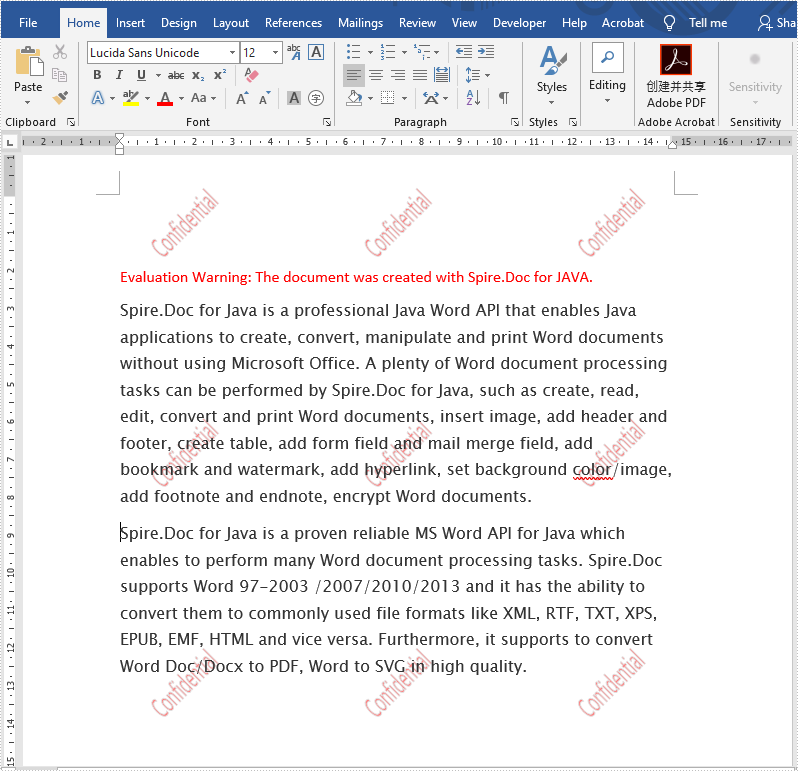
We have demonstrated how to use Spire.Doc for Java to add text watermark and image watermark to word document. This article will show you how to add WordArt to the Word header to get the multiple watermarks on the Word document:
Insert multiple text watermarks to Word
import com.spire.doc.Document;
import com.spire.doc.FileFormat;
import com.spire.doc.HeaderFooter;
import com.spire.doc.Section;
import com.spire.doc.documents.Paragraph;
import com.spire.doc.documents.ShapeLineStyle;
import com.spire.doc.documents.ShapeType;
import com.spire.doc.fields.ShapeObject;
import java.awt.*;

public class WordWatermark {

    public static void main(String[] args) {

        //Load the sample document
        Document doc = new Document();
        doc.loadFromFile("Sample.docx");
        //Add WordArt shape and set the size
        ShapeObject shape = new ShapeObject(doc, ShapeType.Text_Plain_Text);
        shape.setWidth(60);
        shape.setHeight(20);
        //Set the text, position and sytle for the wordart
        shape.setVerticalPosition(30);
        shape.setHorizontalPosition(20);
        shape.setRotation(315);
        shape.getWordArt().setText("Confidential");
        shape.setFillColor(Color.red);
        shape.setLineStyle(ShapeLineStyle.Single);
        shape.setStrokeColor(new Color(192, 192, 192, 255));
        shape.setStrokeWeight(1);

        Section section;
        HeaderFooter header;
        for (int n = 0; n < doc.getSections().getCount(); n++) {
            section = doc.getSections().get(n);
            //Get the header of section
            header = section.getHeadersFooters().getHeader();
            Paragraph paragraph1;
            for (int i = 0; i < 4; i++) {
                //Add the hearder to the paragraph
                paragraph1 = header.addParagraph();
                for (int j = 0; j < 3; j++) {
                    //copy the word are and add it to many places
                    shape = (ShapeObject) shape.deepClone();
                    shape.setVerticalPosition(50 + 150 * i);
                    shape.setHorizontalPosition(20 + 160 * j);
                    paragraph1.getChildObjects().add(shape);
                }
            }
        }
        //Save the document to file
        doc.saveToFile("Result.docx", FileFormat.Docx_2013);

    }
}
Effective screenshot:
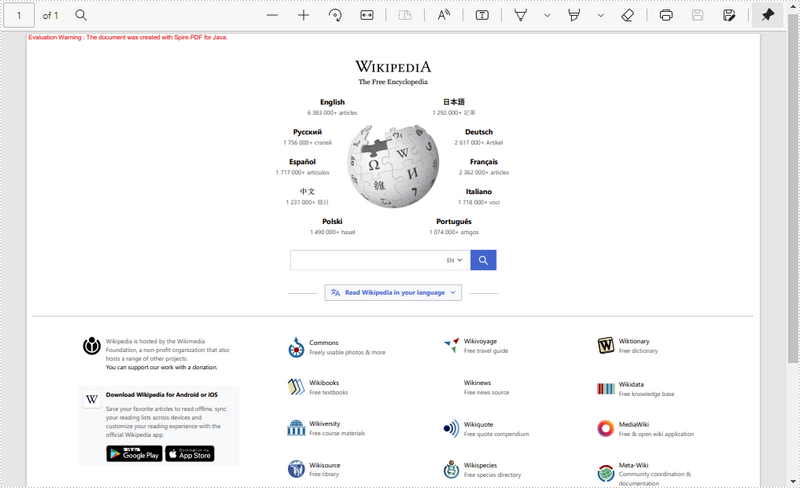
When processing HTML file, you may sometimes find them render differently depending on the browser and screen size. By converting HTML to PDF, you can maintain the layout and formatting of your HTML files, ensuring that the content looks consistent across devices and platforms. In this article, you will learn how to convert a HTML file or a HTML string to PDF in Java using Spire.Doc for Java.
Install Spire.Doc for Java
First of all, you're required to add the Spire.Doc.jar file as a dependency in your Java program. The JAR file can be downloaded from this link. If you use Maven, you can easily import the JAR file in your application by adding the following code to your project's pom.xml file.
<repositories>
    <repository>
        <id>com.e-iceblue</id>
        <name>e-iceblue</name>
        <url>https://repo.e-iceblue.com/nexus/content/groups/public/</url>
    </repository>
</repositories>
<dependencies>
    <dependency>
        <groupId>e-iceblue</groupId>
        <artifactId>spire.doc</artifactId>
        <version>14.8.4</version>
    </dependency>
</dependencies>
Convert an HTML File to PDF in Java
You can load an HTML file and then save it as a PDF file using the Document.saveToFile() method. The following are the detailed steps.
- Create a Document object.
- Load an HTML file using Document.loadFromFile() method.
- Convert the HTML file to PDF using Document.saveToFile(String fileName, FileFormat.PDF) method.
- Java
import com.spire.doc.*;
import com.spire.doc.documents.XHTMLValidationType;

public class htmlFileToPdf {
    public static void main(String[] args) {

        // Create a Document object
        Document document = new Document();

        // Load an HTML file into the document object
        document.loadFromFile("sample1.html", FileFormat.Html, XHTMLValidationType.None);

        // Save the HTML file to a PDF file
        document.saveToFile("htmlFileToPdf.pdf", FileFormat.PDF);
        document.dispose();
    }
}
Convert an HTML String to PDF in Java
To convert an HTML string to PDF, you first need to add the HTML string to a paragraph in Word through the Paragraph.appendHTML() method, and then save the it as a PDF file. The following are the detailed steps.
- Create a Document object.
- Add a section using Document.addSection() method.
- Add a paragraph using Section.addParagraph() method.
- Specify the HTML string, and then add the HTML string to the paragraph using Paragraph.appendHTML() method.
- Save the document as a PDF file using Document.saveToFile(String fileName, FileFormat.PDF) method.
- Java
import com.spire.doc.*;
import com.spire.doc.documents.Paragraph;

import java.io.*;

public class htmlStringToPdf {
    public static void main(String[] args) throws IOException {

        // Create a Document object
        Document document = new Document();

        // Add a section to the document
        Section sec = document.addSection();

        // Add a paragraph to the section
        Paragraph paragraph = sec.addParagraph();

        // Specify the HTML string
        String htmlString = "<html><head><title>HTML to Word Example</title><style>, body {font-family: 'Calibri';}, h1 {color: #FF5733; font-size: 24px; margin-bottom: 20px;}, " +
                "p {color: #333333; font-size: 16px; margin-bottom: 10px;} ul {list-style-type: disc; margin-left: 20px; margin-bottom: 15px;}, " +
                "li {font-size: 14px; margin-bottom: 5px;}, table {border-collapse: collapse; width: 100%; margin-bottom: 20px;}" +
                "th, td {border: 1px solid #CCCCCC; padding: 8px; text-align: left;}, th {background-color: #F2F2F2; font-weight: bold;}, td {color: #0000FF;}</style></head>" +
                "<body><h1>This is a Heading</h1><p>This is a paragraph demonstrating the conversion of HTML to Word document.</p>" +
                "<p>Here's an example of an unordered list:</p><ul><li>Item 1</li><li>Item 2</li><li>Item 3</li></ul> " +
                "<p>Here's a table:</p><table><tr><th>Product</th><th>Quantity</th><th>Price</th></tr><tr><td>Jacket</td>" +
                "<td>30</td><td>$150</td></tr><tr><td>Sweater</td><td>25</td><td>$99</td></tr></table></body></html>";

        // Append the HTML string to the paragraph
        paragraph.appendHTML(htmlString);

        // Save the HTML string to a pdf file
        document.saveToFile("htmlStringToPDF.pdf", FileFormat.PDF);
        document.dispose();
    }
}
Apply for a Temporary License
If you'd like to remove the evaluation message from the generated documents, or to get rid of the function limitations, please request a 30-day trial license for yourself.
Document comparison is the process of checking new versions of a document against previous copies in order to identify changes made by different contributors. These differences may include additions or omissions of words, sentences or paragraphs, and formatting adjustments. This article demonstrates how to compare two Word documents in Java using Spire.Doc for Java.
- Compare Two Documents and Save Result in a Third Word Document
- Compare Two Documents and Return Insertions and Deletions in Lists
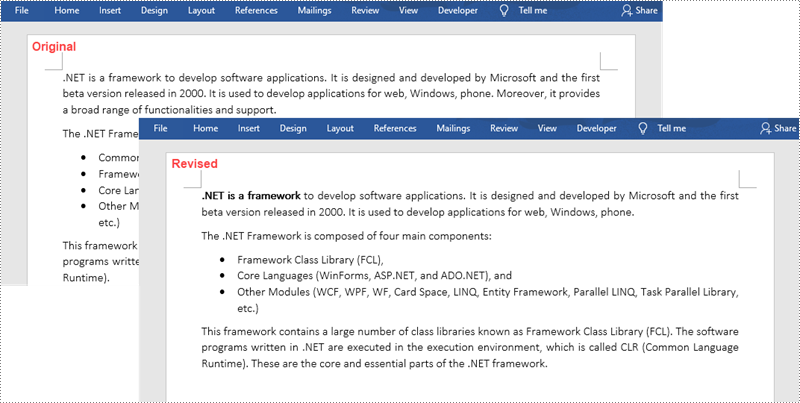
Below is a screenshot of the two Word documents that’ll be compared.
Install Spire.Doc for Java
First, you're required to add the Spire.Doc.jar file as a dependency in your Java program. The JAR file can be downloaded from this link. If you use Maven, you can easily import the JAR file in your application by adding the following code to your project's pom.xml file.
<repositories>
    <repository>
        <id>com.e-iceblue</id>
        <name>e-iceblue</name>
        <url>https://repo.e-iceblue.com/nexus/content/groups/public/</url>
    </repository>
</repositories>
<dependencies>
    <dependency>
        <groupId>e-iceblue</groupId>
        <artifactId>spire.doc</artifactId>
        <version>14.8.4</version>
    </dependency>
</dependencies>
Compare Two Documents and Save Result in a Third Word Document
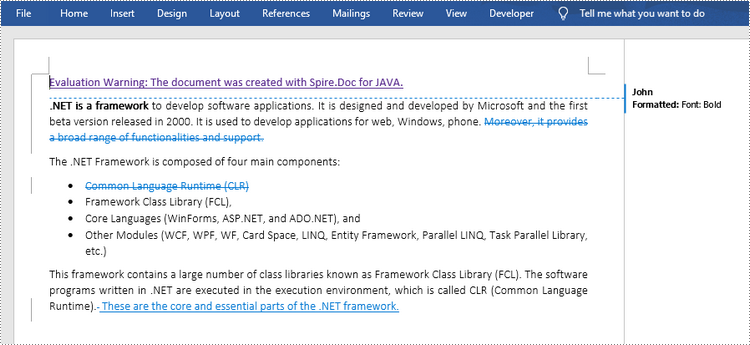
Saving the comparison result in a separate Word document allows users to see all the changes made to the original document, including insertions, deletions as well as modifications on formatting. The following are the steps to compare two documents and save the result in a third Word document using Spire.Doc for Java.
- Load two Word documents separately while initialing the Document objects.
- Compare these two documents using Document.compare() method.
- Save the result in a third Word document using Document.saveToFile() method.
- Java
import com.spire.doc.Document;
import com.spire.doc.FileFormat;

public class CompareDocuments {

    public static void main(String[] args) {

        //Load one Word document
        Document doc1 = new Document("C:\\Users\\Administrator\\Desktop\\original.docx");

        //Load the other Word document
        Document doc2 = new Document("C:\\Users\\Administrator\\Desktop\\revised.docx");

        //Compare two documents
        doc1.compare(doc2, "John");

        //Save the differences in a third document
        doc1.saveToFile("Differences.docx", FileFormat.Docx_2013);
        doc1.dispose();
    }
}
Compare Two Documents and Return Insertions and Deletions in Lists
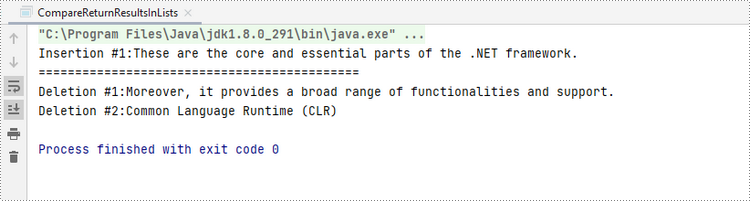
Sometimes, we may only care about the insertions and deletions instead of the whole differences. The following are the steps to get insertions and deletions in two separate lists.
- Load two Word documents separately while initialing the Document objects.
- Compare two documents using Document.compare() method.
- Get the revisions using the constructor function of the DifferRevisions class.
- Get a list of insertions using DifferRevisions.getInsertRevisions() method.
- Get a list of deletions using DifferRevisions.getDeleteRevisions() method.
- Loop through the elements in the two lists to get the specific insertion and deletion.
- Java
import com.spire.doc.DifferRevisions;
import com.spire.doc.Document;
import com.spire.doc.DocumentObject;
import com.spire.doc.fields.TextRange;
import com.spire.ms.System.Collections.Generic.List;

public class CompareReturnResultsInLists {

    public static void main(String[] args) {

        //Load one Word document
        Document doc1 = new Document("C:\\Users\\Administrator\\Desktop\\original.docx");

        //Load the other Word document
        Document doc2 = new Document("C:\\Users\\Administrator\\Desktop\\revised.docx");

        //Compare the two Word documents
        doc1.compare(doc2, "Author");

        //Get the revisions
        DifferRevisions differRevisions = new DifferRevisions(doc1);

        //Return the insertion revisions in a list
        List insertRevisionsList = differRevisions.getInsertRevisions();

        //Return the deletion revisions in a list
        List  deleteRevisionsList = differRevisions.getDeleteRevisions();

        //Create two int variables
        int m = 0;
        int n = 0;

        //Loop through the insertion revision list
        for (int i = 0; i < insertRevisionsList.size(); i++)
        {
            if (insertRevisionsList.get(i) instanceof TextRange)
            {
                m += 1;
                //Get the specific revision and get its content
                TextRange textRange = (TextRange)insertRevisionsList.get(i) ;
                System.out.println("Insertion #" + m + ":" + textRange.getText());
            }
        }
        System.out.println("============================================");
        //Loop through the deletion revision list
        for (int i = 0; i < deleteRevisionsList.size() ; i++)
        {
            if (deleteRevisionsList.get(i) instanceof TextRange)
            {
                n += 1;
                //Get the specific revision and get its content
                TextRange textRange = (TextRange) deleteRevisionsList.get(i) ;
                System.out.println("Deletion #" + n + ":" + textRange.getText());
            }
        }
    }
}
Apply for a Temporary License
If you'd like to remove the evaluation message from the generated documents, or to get rid of the function limitations, please request a 30-day trial license for yourself.
Java: Change the Color or Remove the Underline of Hyperlinks in Word
2022-08-04 07:49:00 Written by KoohjiHyperlinks in Word documents are usually displayed blue with an underline. Actually, if you don't like the default style of hyperlinks, you can change the color of hyperlinks or remove the underline to make your own hyperlink style while keeping the link. This article shows how to change the color or remove the underline of hyperlinks in Word by programming using Spire.Doc for Java.
Install Spire.Doc for Java
First, you're required to add the Spire.Doc.jar file as a dependency in your Java program. The JAR file can be downloaded from this link. If you use Maven, you can easily import the JAR file in your application by adding the following code to your project's pom.xml file.
<repositories>
    <repository>
        <id>com.e-iceblue</id>
        <name>e-iceblue</name>
        <url>https://repo.e-iceblue.com/nexus/content/groups/public/</url>
    </repository>
</repositories>
<dependencies>
    <dependency>
        <groupId>e-iceblue</groupId>
        <artifactId>spire.doc</artifactId>
        <version>14.8.4</version>
    </dependency>
</dependencies>
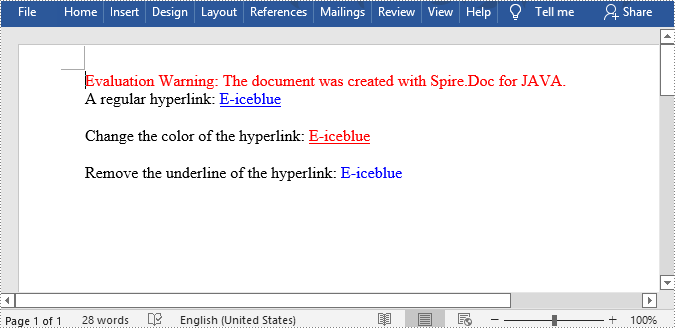
Change the Color of a Hyperlink or Remove the Underline of a Hyperlink in a Word Document
The detailed steps are as follows:
- Create an object of Document class.
- Add a section to the document using Document.addSection() method.
- Add a paragraph to the section using Section.addParagraph() method.
- Insert a normal hyperlink using Paragraph.appendHyperlink() method.
- Add a paragraph and a hyperlink, and then change the color of the hyperlink text to red using TextRange.getCharacterFormat().setTextColor() method.
- Add a paragraph and a hyperlink, and then remove the underline of the hyperlink using TextRange.getCharacterFormat().setUnderlineStyle() method.
- Save the document using Document.saveToFile() method.
- Java
import com.spire.doc.Document;
import com.spire.doc.FileFormat;
import com.spire.doc.Section;
import com.spire.doc.documents.*;
import com.spire.doc.fields.TextRange;

import java.awt.*;

public class ChangeHyperlink {

    public static void main(String[] args) {

        //Create a Document object
        Document document = new Document();

        //Add a section
        Section section = document.addSection();

        //Add a paragraph
        Paragraph para= section.addParagraph();
        para.appendText("A regular hyperlink: ");

        //Insert a hyperlink
        TextRange textRange = para.appendHyperlink("www.e-iceblue.com", "E-iceblue", HyperlinkType.Web_Link);
        textRange.getCharacterFormat().setFontName("Times New Roman");
        textRange.getCharacterFormat().setFontSize(12f);
        para.appendBreak(BreakType.Line_Break);


        //Add a paragraph
        para = section.addParagraph();
        para.appendText("Change the color of the hyperlink: ");

        //Insert a hyperlink
        textRange = para.appendHyperlink("www.e-iceblue.com", "E-iceblue", HyperlinkType.Web_Link);
        textRange.getCharacterFormat().setFontName("Times New Roman");
        textRange.getCharacterFormat().setFontSize(12f);
        //Change the color of the hyperlink to red
        textRange.getCharacterFormat().setTextColor(Color.RED);
        para.appendBreak(BreakType.Line_Break);

        //Add a paragraph
        para = section.addParagraph();
        para.appendText("Remove the underline of the hyperlink: ");

        //Insert a hyperlink
        textRange = para.appendHyperlink("www.e-iceblue.com", "E-iceblue", HyperlinkType.Web_Link);
        textRange.getCharacterFormat().setFontName("Times New Roman");
        textRange.getCharacterFormat().setFontSize(12f);
        //Remove the underline of the hyperlink
        textRange.getCharacterFormat().setUnderlineStyle(UnderlineStyle.None);

        //Save the document
        document.saveToFile("ChangeHyperlink.docx", FileFormat.Docx_2013);
    }
}
Apply for a Temporary License
If you'd like to remove the evaluation message from the generated documents, or to get rid of the function limitations, please request a 30-day trial license for yourself.
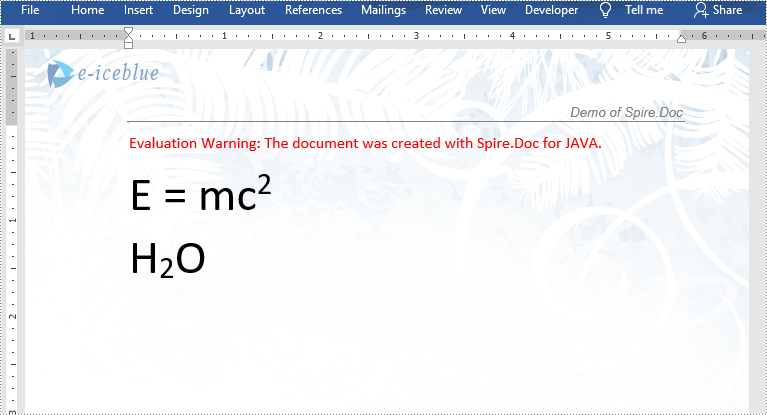
In certain circumstances, you may need to insert superscripts and subscripts in Microsoft Word. For instance, when you are creating an academic document involving scientific formulas. In this article, you will learn how to insert superscripts and subscripts into Word documents in Java using Spire.Doc for Java library.
Install Spire.Doc for Java
First, you're required to add the Spire.Doc.jar file as a dependency in your Java program. The JAR file can be downloaded from this link. If you use Maven, you can easily import the JAR file in your application by adding the following code to your project's pom.xml file.
<repositories>
    <repository>
        <id>com.e-iceblue</id>
        <name>e-iceblue</name>
        <url>https://repo.e-iceblue.com/nexus/content/groups/public/</url>
    </repository>
</repositories>
<dependencies>
    <dependency>
        <groupId>e-iceblue</groupId>
        <artifactId>spire.doc</artifactId>
        <version>14.8.4</version>
    </dependency>
</dependencies>
Insert Superscripts and Subscripts into Word using Java
The following are the main steps to insert a superscript or subscript into a Word document using Spire.Doc for Java:
- Create a Document instance.
- Load a Word document using Document.loadFromFile() method.
- Get the specific section using Document.getSections().get(sectionIndex) method.
- Add a paragraph to the section using Section.addParagraph() method.
- Add normal text to the paragraph using Paragraph.appendText() method.
- Add superscript or subscript text to the paragraph using Paragraph.appendText() method.
- Apply superscript or subscript formatting to the superscript or subscript text through TextRange.getCharacterFormat().setSubSuperScript() method.
- Save the result document using Document.saveToFile() method.
- Java
import com.spire.doc.Document;
import com.spire.doc.FileFormat;
import com.spire.doc.Section;
import com.spire.doc.documents.BreakType;
import com.spire.doc.documents.Paragraph;
import com.spire.doc.documents.SubSuperScript;
import com.spire.doc.fields.TextRange;

public class InsertSuperscriptAndSubscript {
    public static void main(String[] args){
        //Create a Document instance
        Document document = new Document();
        //Load a Word document
        document.loadFromFile("Sample.docx");

        //Get the first section
        Section section = document.getSections().get(0);

        //Add a paragraph to the section
        Paragraph paragraph = section.addParagraph();

        //Add normal text to the paragraph
        paragraph.appendText("E = mc");
        //Add superscript text to the paragraph
        TextRange superscriptText = paragraph.appendText("2");
        //Apply superscript formatting to the superscript text
        superscriptText.getCharacterFormat().setSubSuperScript(SubSuperScript.Super_Script);

        //Start a new line
        paragraph.appendBreak(BreakType.Line_Break);

        //Add normal text to the paragraph
        paragraph.appendText("H");
        //Add subscript text to the paragraph
        TextRange subscriptText = paragraph.appendText("2");
        //Apply subscript formatting to the subscript text
        subscriptText.getCharacterFormat().setSubSuperScript(SubSuperScript.Sub_Script);
        //Add normal text to the paragraph
        paragraph.appendText("O");

        //Set font size for the text in the paragraph
        for(Object item : paragraph.getItems())
        {
            if (item instanceof TextRange)
            {
                TextRange textRange = (TextRange)item ;
                textRange.getCharacterFormat().setFontSize(36f);
            }
        }

        //Save the result document
        document.saveToFile("InsertSuperscriptAndSubscript.docx", FileFormat.Docx_2013);
    }
}
Apply for a Temporary License
If you'd like to remove the evaluation message from the generated documents, or to get rid of the function limitations, please request a 30-day trial license for yourself.
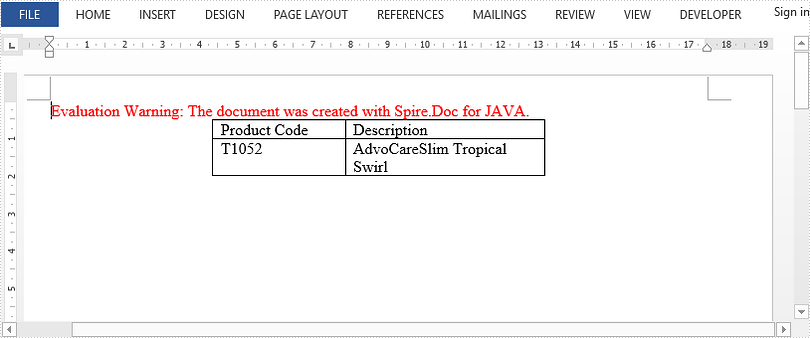
This article demonstrates how to align a table in a Word document using Spire.Doc for Java.
import com.spire.doc.Document;
import com.spire.doc.FileFormat;
import com.spire.doc.Table;
import com.spire.doc.documents.RowAlignment;

public class AlignTable {

    public static void main(String[] args) {

        //Create a Document object
        Document doc=new Document();

        //Add a table
        Table table =doc.addSection().addTable(true);

        //Set column width
        table.setColumnWidth(new float[]{100f,150f});

        //Set column number and row number
        table.resetCells(2,2);

        //Add text to cells
        table.get(0,0).addParagraph().appendText("Product Code");
        table.get(0,1).addParagraph().appendText("Description");
        table.get(1,0).addParagraph().appendText("T1052");
        table.get(1,1).addParagraph().appendText("AdvoCareSlim Tropical Swirl");

        //Align table to center
        table.getFormat().setHorizontalAlignment(RowAlignment.Center);

        //Save the document
        doc.saveToFile("AlignTable.docx", FileFormat.Docx_2013);
    }
}
Convert Word to PDF Using Java – Complete Guide with Sample Code
2024-07-05 07:54:00 Written by AdministratorTo better understand the process, watch this short video demonstrating how to convert Word documents to PDF in Java before following the step-by-step guide below.
Converting Word documents (doc or .docx) to PDF is a common requirement in many Java-based applications, especially those involving documentation, report generation, or digital archiving. In this tutorial, we'll show you how to convert Word to PDF in Java using reliable and easy-to-implement libraries like Spire.Doc for Java. This guide will walk you through all the code examples from code library integration to converting Word files to PDF format seamlessly.
After reading this guide, you will learn:
- Specific Steps of How to Convert Doc/Docx Files to PDF Format with Spire.Doc for Java
- Advanced Settings When Converting Word Files to PDF
- How to Adjust Word Files When Converting Word to PDF with Java Code
Let's dive into the Java code for Word to PDF conversion and help your application automate document processing with just a few lines of code.
Specific Steps of How to Convert Doc/Docx Files to PDF Format with Spire.Doc for Java
Before going through the sample code, you should know one of the best Word Java library known as Spire.Doc for Java. It supports not only Word file format conversion, but more advanced settings including page size adjustment, font embed, specific area conversion, etc. It is a one time download for long-term benefits.
Follow the steps below to learn how you can convert Word files to PDF format with Spire.Doc for Java.
Step 1. Install Spire.Doc for Java
Before converting, you should add the Spire.Doc.jar file as a dependency in your Java program. You can download the JAR file from the official download page.
If you are using Maven, you can easily import the JAR file in your application by adding the following code to your project's pom.xml file directly:
<repositories>
    <repository>
        <id>com.e-iceblue</id>
        <name>e-iceblue</name>
        <url>https://repo.e-iceblue.com/nexus/content/groups/public/</url>
    </repository>
</repositories>
<dependencies>
    <dependency>
        <groupId>e-iceblue</groupId>
        <artifactId>spire.doc</artifactId>
        <version>14.8.4</version>
    </dependency>
</dependencies>
Step 2. Convert Word to PDF with Java Code
After library integration, now, it's time to convert your Word files. Copy the code below to your Java program:
import com.spire.doc.Document;
import com.spire.doc.FileFormat;

public class ConvertWordToPdf {

    public static void main(String[] args) {

        // Create a Document object
        Document doc = new Document();

        // Load a Word document
        doc.loadFromFile("C:\\Users\\Administrator\\Desktop\\Input.docx");

        // Save the document to PDF
        doc.saveToFile("ToPDF.pdf", FileFormat.PDF);

        // Dispose resources
        doc.dispose();
    }
}
RESULT:

Advanced Settings When Converting Word Files to PDF
Except for simply converting Word to PDF files, Spire.Doc for Java provides more options beyond simply conversion. For example, you can set a password to protect your PDF data with simple code during the conversion. You have no need to look for other tutorials. The following list is a preview of these settings, and you can directly jump to the corresponding part.
- Convert Word files to PDF/A Format with Java Code
- Convert Word Files to Password-Protected PDF in Java
- Convert a Specific Area in Word to PDF in Java
Convert Word files to PDF/A Format with Java Code
Spire.Doc for Java allows you to set the conformance level as Pdf/A-1a. To apply these customized settings, pass the ToPdfParameterList object as a parameter to the Document.saveToFile() method.
Copy the code below to convert your doc/docx to PDF/A files with Java:
import com.spire.doc.Document;
import com.spire.doc.ToPdfParameterList;
import com.spire.doc.PdfConformanceLevel;

public class ConvertWordToPdfa {

    public static void main(String[] args) {

        // Create a Document object
        Document doc = new Document();

        // Load a Word document
        doc.loadFromFile("C:\\Users\\Administrator\\Desktop\\input.docx");

        // Create a ToPdfParameterList object
        ToPdfParameterList parameters  = new ToPdfParameterList();

        // Set the conformance level for PDF
        parameters.setPdfConformanceLevel(PdfConformanceLevel.Pdf_A_1_A);

        // Save the document to a PDF file
        doc.saveToFile("C:\\Users\\Administrator\\Desktop\\ToPdfA.pdf", parameters);

        // Dispose resources
        doc.dispose();
    }
}
Convert Word Files to Password-Protected PDF in Java
To protect your data, you may need to set a password for the converted PDF file. In this part, you can encrypt the converted PDF documents with password during the conversion process without any hassle. By passing the ToPdfParameterList object as a parameter to the Document.saveToFile() method, these encryption settings will be applied during the saving process.
Copy the code below to encrypt converted PDF files during conversion with Java:
import com.spire.doc.Document;
import com.spire.doc.PdfPermissionsFlags;
import com.spire.doc.ToPdfParameterList;

public class ConvertWordToPasswordProtectedPdf {

    public static void main(String[] args) {

        // Create a Document object
        Document doc = new Document();

        // Load a Word document
        doc.loadFromFile("C:\\Users\\Administrator\\Desktop\\Input.docx");

        // Create a ToPdfParameterList object
        ToPdfParameterList parameters = new ToPdfParameterList();

        // Set open password and permission password for PDF
        parameters.getPdfSecurity().encrypt("openPsd", PdfPermissionsFlags.valueOf("permissionPsd"));

        // Save the document to PDF
        doc.saveToFile("PasswordProtected.pdf", parameters);

        // Dispose resources
        doc.dispose();
    }
}
Convert a Specific Area in Word to PDF in Java
The third section is that you can create a copy of a certain section with Spire.Doc's Section.deepClone() method and use the SectionCollection.add() method to add the copied section to the section collection of another document.
You can easily create a document containing the desired section from the source document with the following Java code:
import com.spire.doc.Document;
import com.spire.doc.FileFormat;
import com.spire.doc.Section;

public class ConvertSectionToPdf {

    public static void main(String[] args) {

        // Create a Document object
        Document doc = new Document();

        // Load a Word document
        doc.loadFromFile("C:\\Users\\Administrator\\Desktop\\Input.docx");

        // Get a specific section of the document
        Section section = doc.getSections().get(1);

        // Create a new document object
        Document newDoc = new Document();

        // Clone the default style to the new document
        doc.cloneDefaultStyleTo(newDoc);

        // Clone the section to the new document
        newDoc.getSections().add(section.deepClone());

        // Save the new document to PDF
        newDoc.saveToFile("SectionToPDF.pdf", FileFormat.PDF);

        // Dispose resources
        doc.dispose();
        newDoc.dispose();
    }
}
How to Adjust Word Files When Converting Word to PDF with Java Code
To get the best conversion result, you can make more adjustment to your Word documents during the conversion process. For example, you can embed fonts, adjust page size, set image quality, create bookmarks, or modify hyperlink with Java code.
Here, I will take one adjustment as an example to show you how to manage it. If you need to apply other adjustments, you can directly click the link above and jump to the corresponding page.
Example: Set Image Quality During Word to PDF Conversion
Image quality is a vital element when converting DOC/DOCX files to PDF format. It may influence the conversion speed and play an important role in the conversion result. With Spire.Doc for Java, you can set the image quality according to your specific needs to ensure the highest efficiency.
Copy the following code in your Java program to adjust picture quality:
import com.spire.doc.Document;
import com.spire.doc.FileFormat;

public class SetImageQualityDuringConversion {

    public static void main(String[] args) {

        // Create a Document object
        Document doc = new Document();

        // Load a Word document
        doc.loadFromFile("C:\\Users\\Administrator\\Desktop\\Input.docx");

        // Set the image quality to 50% of the original quality
        doc.setJPEGQuality(50);

        // Preserve original image quality
        // doc.setJPEGQuality(100);

        // Save the document to PDF
        doc.saveToFile("SetImageQuality.pdf", FileFormat.PDF);

        // Dispose resources
        doc.dispose();
    }
}
Final Words
Converting Word to PDF in Java is simple and efficient with Spire.Doc for Java. From basic conversion to advanced options like password protection, section export, and image quality settings, you can handle it all with just a few lines of code.
If you'd like to access all features without limitations and remove the evaluation watermark, please request a 30-day trial license for yourself.
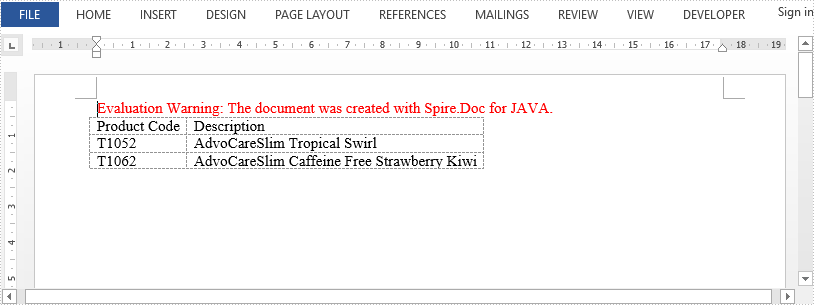
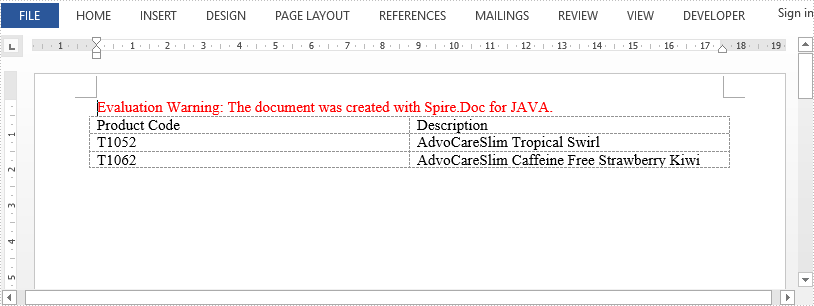
This article demonstrates how to auto fit a Word table to content or to window, as well as how to fix the cloumn widths, by using Spire.Doc for Java.
Autofit to content
import com.spire.doc.*;

public class AutofitToContent {
    public static void main(String[] args) {

        //Create a Document object
        Document document = new Document();

        //Add a section
        Section section = document.addSection();

        //Add a table
        Table table = section.addTable();
        table.resetCells(3, 2);

        //Add content to the cells
        table.get(0,0).addParagraph().appendText("Product Code");
        table.get(0,1).addParagraph().appendText("Description");
        table.get(1,0).addParagraph().appendText("T1052");
        table.get(1,1).addParagraph().appendText("AdvoCareSlim Tropical Swirl");
        table.get(2,0).addParagraph().appendText("T1062");
        table.get(2,1).addParagraph().appendText("AdvoCareSlim Caffeine Free Strawberry Kiwi");

        //Autofit column widths to contents
        table.autoFit(AutoFitBehaviorType.Auto_Fit_To_Contents);

        //Save the document
        document.saveToFile("AutofitToContent.docx", FileFormat.Docx);
    }
}
Autofit to window
import com.spire.doc.*;

public class AutofitToWindow {

    public static void main(String[] args) {

        //Create a Document object
        Document document = new Document();

        //Add a section
        Section section = document.addSection();

        //Add a table
        Table table = section.addTable();
        table.resetCells(3, 2);

        //Add content to the cells
        table.get(0,0).addParagraph().appendText("Product Code");
        table.get(0,1).addParagraph().appendText("Description");
        table.get(1,0).addParagraph().appendText("T1052");
        table.get(1,1).addParagraph().appendText("AdvoCareSlim Tropical Swirl");
        table.get(2,0).addParagraph().appendText("T1062");
        table.get(2,1).addParagraph().appendText("AdvoCareSlim Caffeine Free Strawberry Kiwi");

        //Autofit column widths to window
        table.autoFit(AutoFitBehaviorType.Auto_Fit_To_Window);

        //Save the document
        document.saveToFile("AutofitToWindow.docx", FileFormat.Docx);
    }
}
Fix column width
import com.spire.doc.*;

public class FixColumnWidths {
    public static void main(String[] args) {

        //Create a Document object
        Document document = new Document();

        //Add a section
        Section section = document.addSection();

        //Add a table
        Table table = section.addTable();
        table.resetCells(3, 2);

        //Add content to the cells
        table.get(0, 0).addParagraph().appendText("Product Code");
        table.get(0, 1).addParagraph().appendText("Description");
        table.get(1, 0).addParagraph().appendText("T1052");
        table.get(1, 1).addParagraph().appendText("AdvoCareSlim Tropical Swirl");
        table.get(2, 0).addParagraph().appendText("T1062");
        table.get(2, 1).addParagraph().appendText("AdvoCareSlim Caffeine Free Strawberry Kiwi");

        //Set the column widths
        for (int i = 0; i < table.getRows().getCount(); i++) {

            table.get(i,0).setCellWidth(80f,CellWidthType.Point);
            table.get(i,1).setCellWidth(160f,CellWidthType.Point);
        }

        //Fix the column widths so that the column width does not increases when the content exceeds the width
        table.autoFit(AutoFitBehaviorType.Fixed_Column_Widths);

        //Save the document
        document.saveToFile("FixColumnWidths.docx", FileFormat.Docx);
    }
}
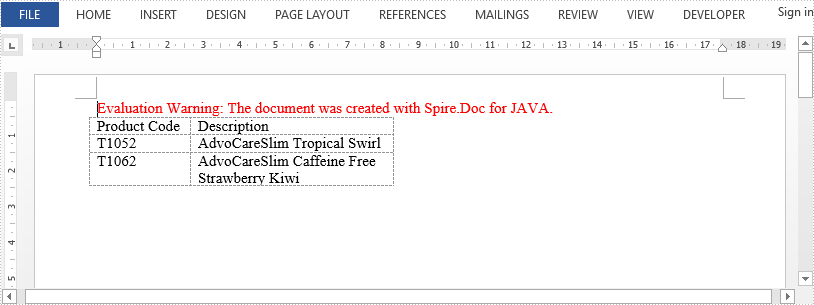
This article demonstrates how to apply a border around a set of charaters and how to apply a border around a whole paragraph, by using Spire.Doc for Java.
import com.spire.doc.Document;
import com.spire.doc.FileFormat;
import com.spire.doc.Section;
import com.spire.doc.documents.BorderStyle;
import com.spire.doc.documents.BreakType;
import com.spire.doc.documents.Paragraph;
import com.spire.doc.fields.TextRange;

import java.awt.*;

public class AddBorders {

    public static void main(String[] args) {

        //Create a Document instance
        Document doc = new Document();

        //Add a section
        Section section = doc.addSection();

        //Add a border to a set of characters
        Paragraph para = section.addParagraph();
        TextRange tr = para.appendText("Spire.Doc for Java");
        tr.getCharacterFormat().getBorder().setBorderType(BorderStyle.Single);
        tr.getCharacterFormat().getBorder().setColor(Color.BLACK);
        String text = " is a professional Java library specifically designed for developers to create, read, " +
                "write, convert and print Word document files on Java platform.";
        para.appendText(text);
        para.appendBreak(BreakType.Line_Break);

        //Add a border to a paragraph
        para = section.addParagraph();
        String text2 = "A plenty of Word document processing tasks can be performed by Spire.Doc for Java, such as " +
                "creating, reading, editing, converting and printing Word documents." ;
        para.appendText(text2);
        para.getFormat().getBorders().setBorderType(BorderStyle.Single);
        para.getFormat().getBorders().setColor(Color.BLACK);

        //Save the document
        doc.saveToFile("AddBorder.docx", FileFormat.Docx_2013);
    }
}
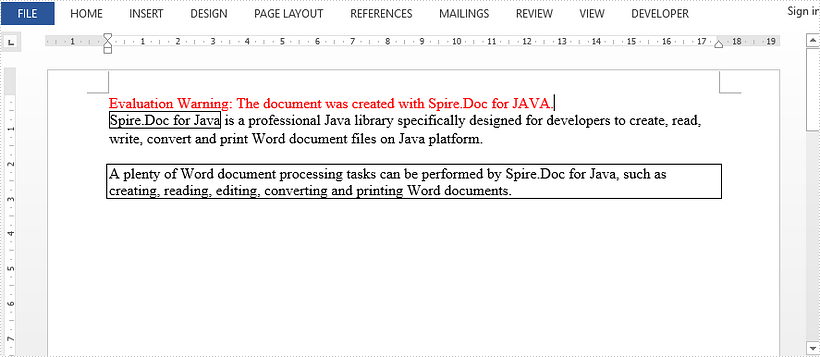
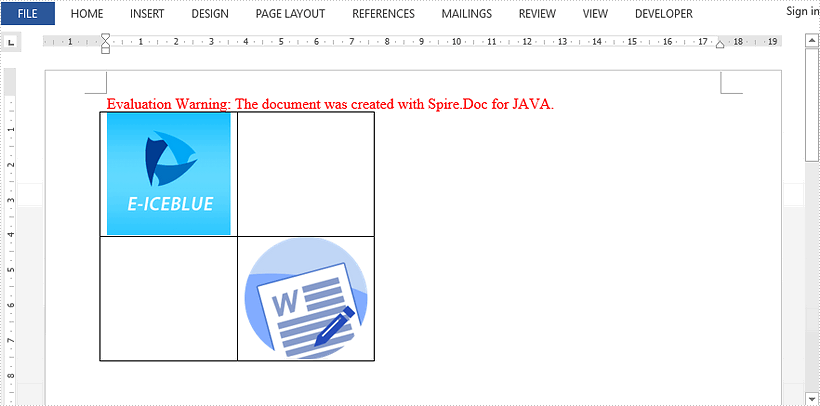
This article demonstrates how to insert images to table cells in a Word document using Spire.Doc for Java.
import com.spire.doc.AutoFitBehaviorType;
import com.spire.doc.Document;
import com.spire.doc.Section;
import com.spire.doc.Table;
import com.spire.doc.fields.DocPicture;

import java.io.FileInputStream;
import java.io.FileNotFoundException;
import java.io.InputStream;

public class InsertImageToTableCell {

    public static void main(String[] args) throws FileNotFoundException {

        //Create a Document object
        Document document = new Document();

        //Add a section
        Section section  = document.addSection();

        //Add a table
        Table table = section.addTable(true);
        table.resetCells(2,2);
        table.autoFit(AutoFitBehaviorType.Auto_Fit_To_Contents);

        //Load an image to InputStream
        InputStream inputStream = new FileInputStream("C:\\Users\\Administrator\\Desktop\\company-logo.png");

        //Insert the image to the cell(0,0)
        DocPicture picture = table.get(0,0).addParagraph().appendPicture(inputStream);

        //Set the width and height of the image
        picture.setWidth(100);
        picture.setHeight(100);

        //Insert another image to the cell(1,1)
        inputStream = new FileInputStream("C:\\Users\\Administrator\\Desktop\\intro.png");
        picture = table.get(1,1).addParagraph().appendPicture(inputStream);
        picture.setWidth(100);
        picture.setHeight(100);

        //Save the document
        document.saveToFile("InsertImgToCell.docx");
    }
}