Program Guide (137)
Children categories
Verify the Restrict Editing Password of a Word Document in Java
2021-05-17 08:34:18 Written by KoohjiThis article demonstrates how to verify if the restrict editing password of a Word document is correct using Spire.Doc for Java.
import com.spire.doc.Document;

public class VerifyRestrictEditingPassword {
    public static void main(String[] args) {
        //Create a Document instance
        Document document = new Document();
        //Load a Word document
        document.loadFromFile("Input.docx");

        //Verify if the password is valid
        boolean result = document.checkProtectionPassWord("123");

        if(!result) {
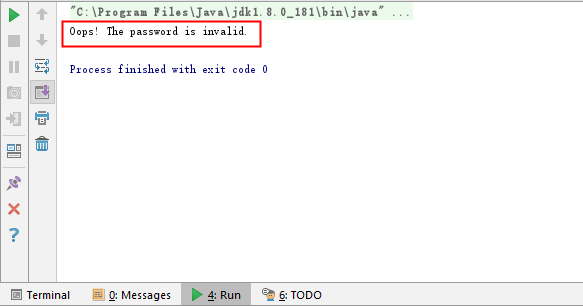
            System.out.println("Oops! The password is invalid.");
        }
        else {
            System.out.println("Congrats! The password is valid.");
        }
    }
}
Output:
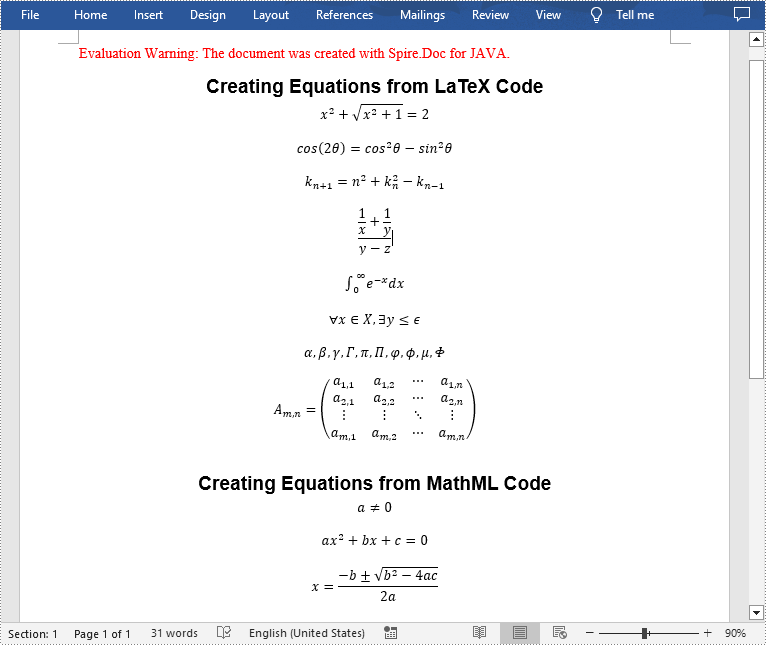
Math equations are mathematical expressions commonly used in physics, engineering, computer science, and economics fields. When creating a professional Word document, you may sometimes need to include math equations to explain complex concepts, solve problems, or support specific arguments. In this article, you will learn how to insert math equations into Word documents in Java using Spire.Doc for Java.
Install Spire.Doc for Java
First of all, you're required to add the Spire.Doc.jar file as a dependency in your Java program. The JAR file can be downloaded from this link. If you use Maven, you can easily import the JAR file in your application by adding the following code to your project's pom.xml file.
<repositories>
    <repository>
        <id>com.e-iceblue</id>
        <name>e-iceblue</name>
        <url>https://repo.e-iceblue.com/nexus/content/groups/public/</url>
    </repository>
</repositories>
<dependencies>
    <dependency>
        <groupId>e-iceblue</groupId>
        <artifactId>spire.doc</artifactId>
        <version>14.8.4</version>
    </dependency>
</dependencies>
Insert Math Equations into a Word Document in Java
Spire.Doc for Java allows generating math equations from LaTeX code and MathML code using OfficeMath.fromLatexMathCode(String latexMathCode) and OfficeMath.fromMathMLCode(String mathMLCode) methods. The following are the detailed steps.
- Create two string arrays from LaTeX code and MathML code.
- Create a Document instance and add a section to it using Document.addSection() method.
- Iterate through each LaTeX code in the string array.
- Create a math equation from the LaTeX code using OfficeMath.fromLatexMathCode() method.
- Add a paragraph to the section, then add the math equation to the paragraph using Paragraph.getItems().add() method.
- Iterate through each MathML code in the string array.
- Create a math equation from the MathML code using OfficeMath.fromMathMLCode() method.
- Add a paragraph to the section, then add the math equation to the paragraph using Paragraph.getItems().add() method.
- Save the result document using Document.saveToFile() method.
- Java
import com.spire.doc.*;
import com.spire.doc.documents.*;
import com.spire.doc.fields.omath.*;

public class AddMathEquations {
    public static void main(String[] args){

        //Create a string array from LaTeX code
        String[] latexMathCode = {
                "x^{2}+\\sqrt{x^{2}+1}=2",
                "\\cos (2\\theta) = \\cos^2 \\theta - \\sin^2 \\theta",
                "k_{n+1} = n^2 + k_n^2 - k_{n-1}",
                "\\frac {\\frac {1}{x}+ \\frac {1}{y}}{y-z}",
                "\\int_0^ \\infty \\mathrm {e}^{-x} \\, \\mathrm {d}x",
                "\\forall x \\in X, \\quad \\exists y \\leq \\epsilon",
                "\\alpha, \\beta, \\gamma, \\Gamma, \\pi, \\Pi, \\phi, \\varphi, \\mu, \\Phi",
                "A_{m,n} = \\begin{pmatrix} a_{1,1} & a_{1,2} & \\cdots & a_{1,n} \\\\ a_{2,1} & a_{2,2} & \\cdots & a_{2,n} \\\\ \\vdots  & \\vdots  & \\ddots & \\vdots  \\\\ a_{m,1} & a_{m,2} & \\cdots & a_{m,n} \\end{pmatrix}",
        };

        //Create a string array from MathML code
        String[] mathMLCode = {
                "<math xmlns=\"http://www.w3.org/1998/Math/MathML\"><mi>a</mi><mo>≠</mo><mn>0</mn></math>",
                "<math xmlns=\"http://www.w3.org/1998/Math/MathML\"><mi>a</mi><msup><mi>x</mi><mn>2</mn></msup><mo>+</mo><mi>b</mi><mi>x</mi><mo>+</mo><mi>c</mi><mo>=</mo><mn>0</mn></math>",
                "<math xmlns=\"http://www.w3.org/1998/Math/MathML\"><mi>x</mi><mo>=</mo><mrow><mfrac><mrow><mo>−</mo><mi>b</mi><mo>±</mo><msqrt><msup><mi>b</mi><mn>2</mn></msup><mo>−</mo><mn>4</mn><mi>a</mi><mi>c</mi></msqrt></mrow><mrow><mn>2</mn><mi>a</mi></mrow></mfrac></mrow></math>",
        };

        //Create a Document instance
        Document doc = new Document();

        //Add a section
        Section section = doc.addSection();

        //Add a paragraph to the section
        Paragraph textPara = section.addParagraph();
        textPara.appendText("Creating Equations from LaTeX Code");
        textPara.applyStyle(BuiltinStyle.Heading_1);
        textPara.getFormat().setHorizontalAlignment(HorizontalAlignment.Center);

        //Iterate through each LaTeX code in the string array
        for (int i = 0; i < latexMathCode.length; i++)
        {
            //Create a math equation from the LaTeX code
            OfficeMath officeMath = new OfficeMath(doc);
            officeMath.fromLatexMathCode(latexMathCode[i]);

            //Add the math equation to the section
            Paragraph paragraph = section.addParagraph();
            paragraph.getItems().add(officeMath);
            section.addParagraph();
        }

        //Add a paragraph to the section
        textPara = section.addParagraph();
        textPara.appendText("Creating Equations from MathML Code");
        textPara.applyStyle(BuiltinStyle.Heading_1);
        textPara.getFormat().setHorizontalAlignment(HorizontalAlignment.Center);

        //Iterate through each MathML code in the string array
        for (int j = 0; j < mathMLCode.length; j++)
        {
            //Create a math equation from the MathML code
            OfficeMath officeMath = new OfficeMath(doc);
            officeMath.fromMathMLCode(mathMLCode[j]);

            //Add the math equation to the section
            Paragraph paragraph = section.addParagraph();
            paragraph.getItems().add(officeMath);
            section.addParagraph();
        }

        //Save the result document
        doc.saveToFile("AddMathEquations.docx", FileFormat.Docx_2016);
        doc.dispose();
    }
}
Apply for a Temporary License
If you'd like to remove the evaluation message from the generated documents, or to get rid of the function limitations, please request a 30-day trial license for yourself.
Java set the character spacing and paragraph spacing on Word document
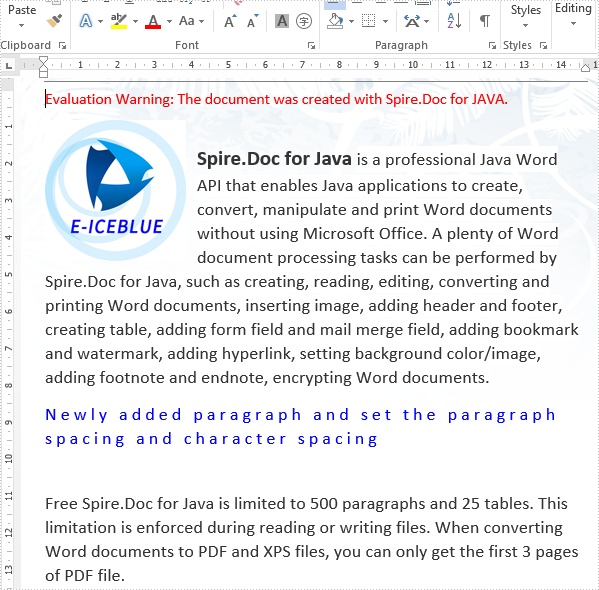
2021-05-12 06:31:17 Written by KoohjiThis article will show you how to use Spire.Doc for Java to set the character spacing and paragraph spacing on Word.
import com.spire.doc.*;
import com.spire.doc.documents.Paragraph;
import com.spire.doc.fields.TextRange;

import java.awt.*;
import java.io.*;

public class setSpacing {
    public static void main(String[] args)throws IOException {
        //Load the sample document
        Document document= new Document("Sample1.docx");

        //Add a new paragraph and append the text
        Paragraph para = new Paragraph(document);
        TextRange textRange1 = para.appendText("Newly added paragraph and set the paragraph spacing and character spacing");
        textRange1.getCharacterFormat().setTextColor(Color.blue);
        textRange1.getCharacterFormat().setFontSize(14);

        //Set the spacing before and after paragraph
        para.getFormat().setBeforeAutoSpacing(false);
        para.getFormat().setBeforeSpacing(10);
        para.getFormat().setAfterAutoSpacing(false);
        para.getFormat().setAfterSpacing(10);

        //Set the character spacing
        for (DocumentObject object :(Iterable<DocumentObject>)para.getChildObjects())
        {
            TextRange textRange= (TextRange) object;
            textRange.getCharacterFormat().setCharacterSpacing(3f);
        }

        //Insert the paragraph
        document.getSections().get(0).getParagraphs().insert(2, para);

        //Save the document to file
        document.saveToFile("Result.docx", FileFormat.Docx);

    }
}
Output:
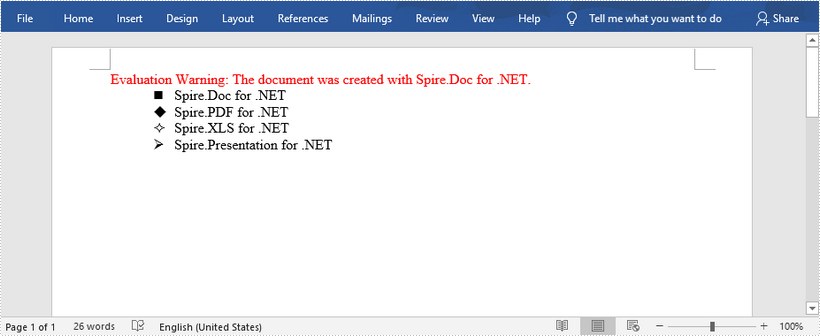
This article shows you how to set ASCII characters (special symbols) as bullet points in Word documents using Spire.Doc for Java.
import com.spire.doc.Document;
import com.spire.doc.FileFormat;
import com.spire.doc.Section;
import com.spire.doc.documents.ListStyle;
import com.spire.doc.documents.ListType;
import com.spire.doc.documents.Paragraph;

public class SetBulletPoints {

    public static void main(String[] args) {

        //Create a Document object and add a section
        Document doc = new Document();
        Section section = doc.addSection();

        //Create four list styles based on different ASCII characters
        ListStyle listStyle1 = new ListStyle(doc, ListType.Bulleted);
        listStyle1.getLevels().get(0).setBulletCharacter("\u006e");
        listStyle1.getLevels().get(0).getCharacterFormat().setFontName("Wingdings");
        listStyle1.setName("liststyle1");
        doc.getListStyles().add(listStyle1);
        ListStyle listStyle2 = new ListStyle(doc, ListType.Bulleted);
        listStyle2.getLevels().get(0).setBulletCharacter("\u0075");
        listStyle2.getLevels().get(0).getCharacterFormat().setFontName("Wingdings");
        listStyle2.setName("liststyle2");
        doc.getListStyles().add(listStyle2);
        ListStyle listStyle3 = new ListStyle(doc, ListType.Bulleted);
        listStyle3.getLevels().get(0).setBulletCharacter("\u00b2");
        listStyle3.getLevels().get(0).getCharacterFormat().setFontName("Wingdings");
        listStyle3.setName("liststyle3");
        doc.getListStyles().add(listStyle3);
        ListStyle listStyle4 = new ListStyle(doc, ListType.Bulleted);
        listStyle4 .getLevels().get(0).setBulletCharacter("\u00d8");
        listStyle4 .getLevels().get(0).getCharacterFormat().setFontName("Wingdings");
        listStyle4.setName("liststyle4");
        doc.getListStyles().add(listStyle4);

        //Add four paragraphs and apply list style separately
        Paragraph p1 = section.getBody().addParagraph();
        p1.appendText("Spire.Doc for .NET");
        p1.getListFormat().applyStyle(listStyle1.getName());
        Paragraph p2 = section.getBody().addParagraph();
        p2.appendText("Spire.PDF for .NET");
        p2.getListFormat().applyStyle(listStyle2.getName());
        Paragraph p3 = section.getBody().addParagraph();
        p3.appendText("Spire.XLS for .NET");
        p3.getListFormat().applyStyle(listStyle3.getName());
        Paragraph p4= section.getBody().addParagraph();
        p4.appendText("Spire.Presentation for .NET");
        p4.getListFormat().applyStyle(listStyle4.getName());

        //Save to file
        doc.saveToFile("SetBulletCharacter.docx", FileFormat.Docx);
    }
}
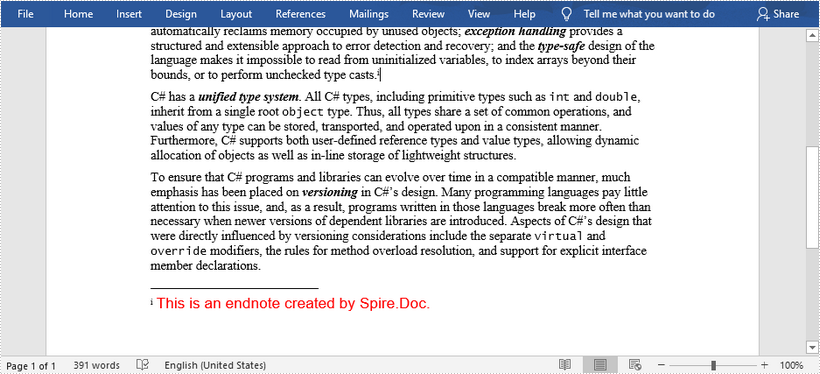
This article shows you how to add an endnote to Word documents using Spire.Doc for Java.
import com.spire.doc.*;
import com.spire.doc.documents.Paragraph;
import com.spire.doc.fields.Footnote;
import com.spire.doc.fields.TextRange;

import java.awt.*;

public class AddEndnote {

    public static void main(String[] args) {

        //Create a Document object
        Document doc = new Document();

        //Load the sample Word file
        doc.loadFromFile("C:\\Users\\Administrator\\Desktop\\sample.docx");

        //Get the first section
        Section section = doc.getSections().get(0);

        //Get the specific paragraph to add endnote
        Paragraph paragraph = section.getParagraphs().get(2);

        //Add an endnote
        Footnote endnote = paragraph.appendFootnote(FootnoteType.Endnote);

        //Set endnote text
        TextRange textRange = endnote.getTextBody().addParagraph().appendText("This is an endnote created by Spire.Doc.");

        //Set text format of endnote
        textRange.getCharacterFormat().setFontName("Arial");
        textRange.getCharacterFormat().setFontSize(13f);
        textRange.getCharacterFormat().setTextColor(Color.RED);

        //Save to file
        doc.saveToFile("AddEndnote.docx", FileFormat.Docx_2013);
    }
}
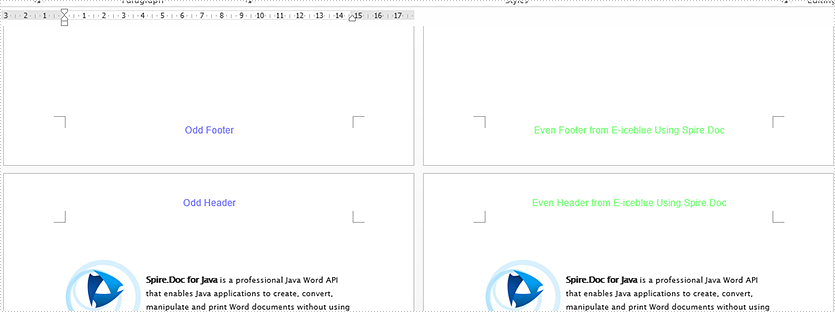
We have demonstrated how to add text and image header footer to Word document by using Spire.Doc for Java. This article will show you how to create different headers/footers for odd and even pages on Word document in Java applications.
import com.spire.doc.*;
import com.spire.doc.documents.*;
import com.spire.doc.fields.*;
import java.awt.*;

public class oddAndEvenHeaderFooter {
    public static void main(String[] args) throws Exception {

        String input = "multiPages.docx";
        String output = "output/oddAndEvenHeaderFooter.docx";

        //load the document
        Document doc = new Document();
        doc.loadFromFile(input);

        //get the first section
        Section section = doc.getSections().get(0);

        //set the DifferentOddAndEvenPagesHeaderFooter property as true
        section.getPageSetup().setDifferentOddAndEvenPagesHeaderFooter(true);

        //add odd header
        Paragraph P3 = section.getHeadersFooters().getOddHeader().addParagraph();
        TextRange OH = P3.appendText("Odd Header");
        P3.getFormat().setHorizontalAlignment(HorizontalAlignment.Center);
        OH.getCharacterFormat().setFontName("Arial");
        OH.getCharacterFormat().setFontSize(14);
        OH.getCharacterFormat().setTextColor(Color.BLUE);

        //add even header
        Paragraph P4 = section.getHeadersFooters().getEvenHeader().addParagraph();
        TextRange EH = P4.appendText("Even Header from E-iceblue Using Spire.Doc");
        P4.getFormat().setHorizontalAlignment(HorizontalAlignment.Center);
        EH.getCharacterFormat().setFontName("Arial");
        EH.getCharacterFormat().setFontSize(14);
        EH.getCharacterFormat().setTextColor(Color.GREEN);

        //add odd footer
        Paragraph P2 = section.getHeadersFooters().getOddFooter().addParagraph();
        TextRange OF = P2.appendText("Odd Footer");
        P2.getFormat().setHorizontalAlignment(HorizontalAlignment.Center);
        OF.getCharacterFormat().setFontName("Arial");
        OF.getCharacterFormat().setFontSize(14);
        OF.getCharacterFormat().setTextColor(Color.BLUE);

        //add even footer
        Paragraph P1 = section.getHeadersFooters().getEvenFooter().addParagraph();
        TextRange EF = P1.appendText("Even Footer from E-iceblue Using Spire.Doc");
        EF.getCharacterFormat().setFontName("Arial");
        EF.getCharacterFormat().setFontSize(14);
        P1.getFormat().setHorizontalAlignment(HorizontalAlignment.Center);
        EF.getCharacterFormat().setTextColor(Color.GREEN);

        //save the document
        doc.saveToFile(output, FileFormat.Docx);

    }
}
Output:
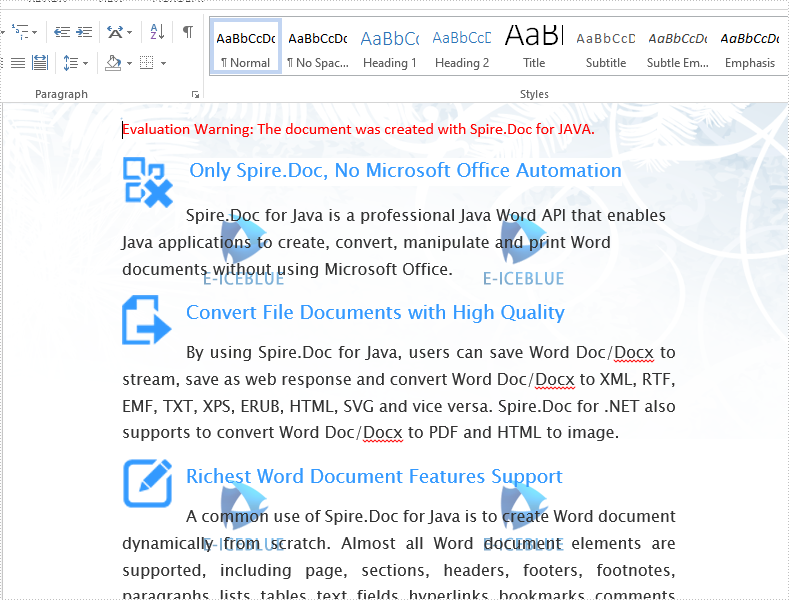
We have demonstrated how to use Spire.Doc for Java to add multiple text watermarks to word document. This article will show you how to add multiple image watermarks to the Word document with the help of Spire.Doc for Java.
import com.spire.doc.Document;
import com.spire.doc.FileFormat;
import com.spire.doc.HeaderFooter;
import com.spire.doc.Section;
import com.spire.doc.documents.Paragraph;
import com.spire.doc.documents.TextWrappingStyle;
import com.spire.doc.fields.DocPicture;

public class WordImageWatermark {

    public static void main(String[] args) throws Exception {
        //Load the sample file
        Document doc=new Document();
        doc.loadFromFile("Sample.docx");
        //Load the image
        DocPicture picture = new DocPicture(doc);
        picture.loadImage("Logo.png");

        //Set the text wrapping style
        picture.setTextWrappingStyle(TextWrappingStyle.Behind);

        for (int n = 0; n < doc.getSections().getCount(); n++) {
            Section section = doc.getSections().get(n);
            //Get the head of section
            HeaderFooter header = section.getHeadersFooters().getHeader();
            Paragraph paragrapg1;
            if(header.getParagraphs().getCount()>0){
                paragrapg1=header.getParagraphs().get(0);

            }else {
                //Add the header to the paragraph
                paragrapg1 = header.addParagraph();
            }

            for (int p = 0; p < 3; p++) {

                for (int q = 0; q < 2; q++) {
                    //copy the image and add it to many places
                    picture = (DocPicture)picture.deepClone();
                    picture.setVerticalPosition(100 + 200 * p);
                    picture.setHorizontalPosition(50 + 210 * q);
                    paragrapg1.getChildObjects().add(picture);
                }
            }
        }
        //Save the document to file
        doc.saveToFile("Result.docx", FileFormat.Docx_2013);
    }
}
Output:
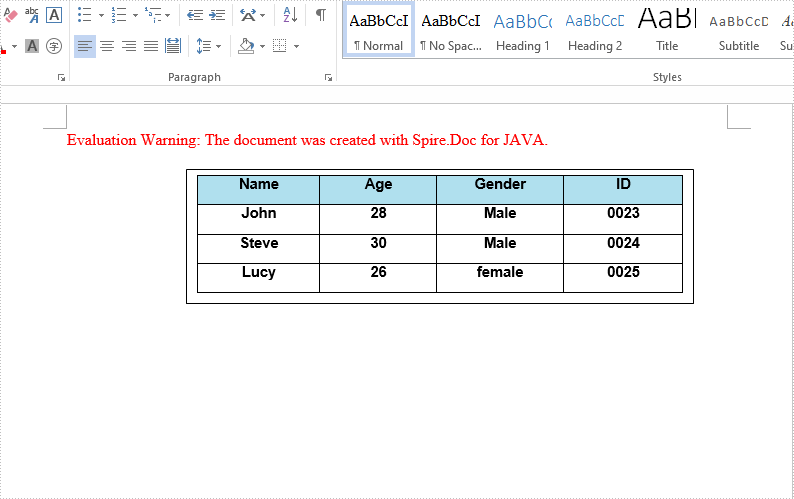
We have demonstrated how to insert text and image to textbox in a Word document by using Spire.Doc for Java. This article will demonstrate how to insert table to textbox in Word.
import com.spire.doc.*;
import com.spire.doc.documents.*;
import com.spire.doc.fields.*;

import java.awt.*;

public class insertTableIntoTextBox {
    public static void main(String[] args) throws Exception{
        //Create a new document; add a section and paragraph
        Document doc = new Document();
        Section section = doc.addSection();
        Paragraph paragraph = section.addParagraph();
        //Add a textbox to the paragraph
        TextBox textbox = paragraph.appendTextBox(380, 100);
        //Set the position of the textbox
        textbox.getFormat().setHorizontalOrigin(HorizontalOrigin.Page);
        textbox.getFormat().setHorizontalPosition(140);
        textbox.getFormat().setVerticalOrigin(VerticalOrigin.Page);
        textbox.getFormat().setVerticalPosition(50);
        //Insert table to the textbox
        Table table = textbox.getBody().addTable(true);
        //Specify the number of rows and columns of the table
        table.resetCells(4, 4);
        //Define the data
        String[][] data = new String[][]
                {
                        {"Name", "Age", "Gender", "ID"},
                        {"John", "28", "Male", "0023"},
                        {"Steve", "30", "Male", "0024"},
                        {"Lucy", "26", "female", "0025"}
                };
        //Add data to the table
        for (int i = 0; i < 4; i++) {
            TableRow dataRow = table.getRows().get(i);
            dataRow.getCells().get(i).setCellWidth(70,CellWidthType.Point);
            dataRow.setHeight(22);
            dataRow.setHeightType(TableRowHeightType.Exactly);
            for (int j = 0; j < 4; j++) {
                TextRange tableRange = table.getRows().get(i).getCells().get(j).addParagraph().appendText(data[i][j]);
                tableRange.getCharacterFormat().setFontName("Arial");
                tableRange.getCharacterFormat().setFontSize(11f);
                tableRange.getOwnerParagraph().getFormat().setHorizontalAlignment(HorizontalAlignment.Center);
                tableRange.getCharacterFormat().setBold(true);
            }
        }
        //Set the background color for the first row
        TableRow row = table.getRows().get(0);
        for (int z = 0; z < row.getCells().getCount(); z++) {
            row.getCells().get(z).getCellFormat().getShading().setBackgroundPatternColor(new Color(176,224,238));
        }
        //Apply style to the table
        table.applyStyle(DefaultTableStyle.Table_Grid_5);
        //Save the document
        String output = "output/insertTableIntoTextBox1.docx";
        doc.saveToFile(output, FileFormat.Docx_2013);
    }
}
The effective screenshot after insert table to Textbox in Word:
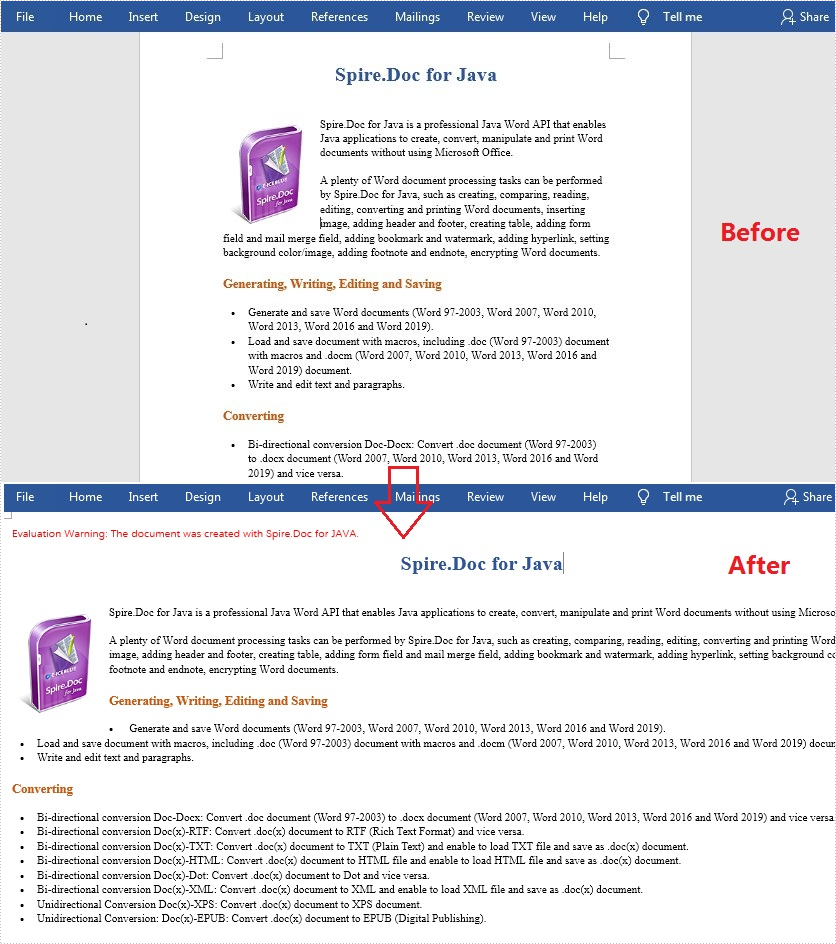
Normally, the default page size of a Word document is “Letter” (8.5 x 11 inches), and the default page orientation is “Portrait”. In most cases, the general page setup can meet the needs of most users, but sometimes you may also need to adjust the page size and orientation to design a different document such as an application form, certificate, or brochure. In this article, you will learn how to programmatically change the page size and page orientation in a Word document using Spire.Doc for Java.
Install Spire.Doc for Java
First of all, you're required to add the Spire.Doc.jar file as a dependency in your Java program. The JAR file can be downloaded from this link. If you use Maven, you can easily import the JAR file in your application by adding the following code to your project's pom.xml file.
<repositories>
    <repository>
        <id>com.e-iceblue</id>
        <name>e-iceblue</name>
        <url>https://repo.e-iceblue.com/nexus/content/groups/public/</url>
    </repository>
</repositories>
<dependencies>
    <dependency>
        <groupId>e-iceblue</groupId>
        <artifactId>spire.doc</artifactId>
        <version>14.8.4</version>
    </dependency>
</dependencies>
Change Page Size and Page Orientation in Word
The detailed steps are as follows:
- Create a Document instance.
- Load a sample Word document using Document.loadFromFile() method.
- Get the first section using Document.getSections().get() method.
- Change the default page size using Section.getPageSetup().setPageSize() method.
- Change the default page orientation using Section.getPageSetup().setOrientation() method.
- Save the document to file using Document.saveToFile() method.
- Java
import com.spire.doc.*;
import com.spire.doc.documents.*;

public class WordPageSetup {
    public static void main(String[] args) throws Exception {
        //Create a Document instance
        Document doc= new Document();

        //Load a sample Word document
        doc.loadFromFile("sample.docx");

        //Get the first section
        Section section = doc.getSections().get(0);

        //Change the page size to A3
        section.getPageSetup().setPageSize(PageSize.A3);

        //Change the page orientation to Landscape
        section.getPageSetup().setOrientation(PageOrientation.Landscape);

        //Save the document to file
        doc.saveToFile("Result.docx",FileFormat.Docx_2013);
    }
}
Apply for a Temporary License
If you'd like to remove the evaluation message from the generated documents, or to get rid of the function limitations, please request a 30-day trial license for yourself.
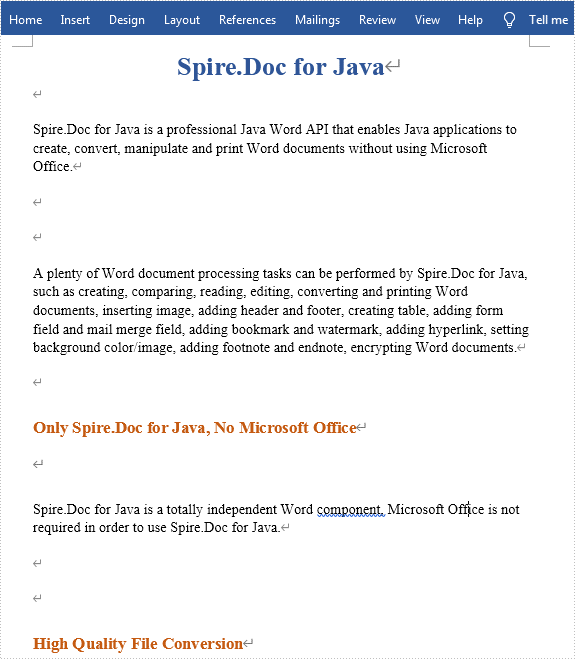
This article demonstrates how to remove blank lines/empty paragraphs in a Word document by using Spire.Doc for Java.
Below is the sample document which contains many blank lines:
import com.spire.doc.*;
import com.spire.doc.documents.*;

public class removeBlankLines {
    public static void main(String[] args) {

        //Load the sample document
        Document document = new Document();
        document.loadFromFile("sample.docx");

        //Traverse every section in the word document and remove the null and empty paragraphs
        for (Object sectionObj : document.getSections()) {
            Section section=(Section)sectionObj;
            for (int i = 0; i < section.getBody().getChildObjects().getCount(); i++) {
                if ((section.getBody().getChildObjects().get(i).getDocumentObjectType().equals(DocumentObjectType.Paragraph) )) {
                    String s= ((Paragraph)(section.getBody().getChildObjects().get(i))).getText().trim();
                    if (s.isEmpty()) {
                        section.getBody().getChildObjects().remove(section.getBody().getChildObjects().get(i));
                        i--;
                    }
                }
            }
        }

        //Save the document to file
        String result = "removeBlankLines.docx";
        document.saveToFile(result, FileFormat.Docx_2013);
    }
}