
Program Guide (137)
Children categories
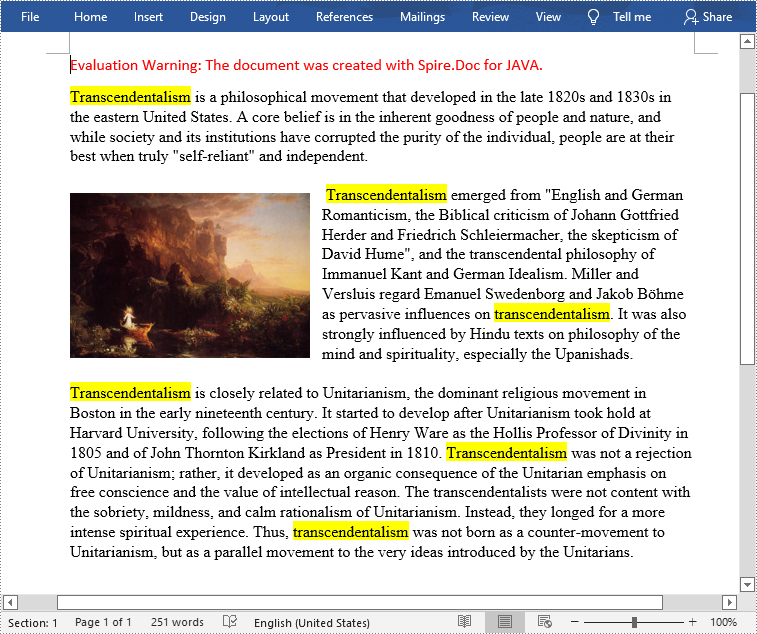
The "Find" function in MS Word allows users to search for specific text or phrases in a document quickly, and users can also highlight the found text in yellow or other bright colors to make them visible to readers at a glance. In this article, you will learn how to programmatically find and highlight text in a Word document using Spire.Doc for Java.
Install Spire.Doc for Java
First, you're required to add the Spire.Doc.jar file as a dependency in your Java program. The JAR file can be downloaded from this link. If you use Maven, you can easily import the JAR file in your application by adding the following code to your project's pom.xml file.
<repositories>
    <repository>
        <id>com.e-iceblue</id>
        <name>e-iceblue</name>
        <url>https://repo.e-iceblue.com/nexus/content/groups/public/</url>
    </repository>
</repositories>
<dependencies>
    <dependency>
        <groupId>e-iceblue</groupId>
        <artifactId>spire.doc</artifactId>
        <version>14.7.0</version>
    </dependency>
</dependencies>
Find and Highlight Text in Word
The detailed steps are as follows.
- Create a Document instance
- Load a sample Word document using Document.loadFromFile() method.
- Find all matching text in the document using Document.findAllString(java.lang.String matchString, boolean caseSensitive, boolean wholeWord) method.
- Loop through all matching text in the document.
- Get the text range of a specific matching text using TextSelection.getAsOneRange() method, and then set its highlight color using TextRange.getCharacterFormat().setHighlightColor() method.
- Save the result document using Document.saveToFile() method.
- Java
import com.spire.doc.*;
import com.spire.doc.documents.TextSelection;

import java.awt.*;
public class FindAndHighlight {
    public static void main(String[] args){
        //Create a Document instance
        Document document = new Document();

        //Load a sample Word document
        document.loadFromFile("E:\\Files\\input1.docx");

        //Find all matching text in the document
        TextSelection[] textSelections = document.findAllString("transcendentalism", false, true);

        //Loop through all matching text and set highlight color for them
        for (TextSelection selection : textSelections) {
            selection.getAsOneRange().getCharacterFormat().setHighlightColor(Color.YELLOW);
        }

        //Save the document
        document.saveToFile("FindAndHighlight.docx", FileFormat.Docx_2013);
    }
}
Apply for a Temporary License
If you'd like to remove the evaluation message from the generated documents, or to get rid of the function limitations, please request a 30-day trial license for yourself.
Text and images are crucial elements that can enrich the content of a Word document. When users need to manipulate text or images separately of the document, programmatically extracting them from a Word document provides an optimal solution. Extracting text guarantees greater convenience and efficiency when dealing with large documents compared to manually copying text. Additionally, image extraction enables users to perform further editing on the images of the document or effortlessly share them with others. In this article, we will demonstrate how to extract text and images from Word in Java by using Spire.Doc for Java library.
Install Spire.Doc for Java
First of all, you're required to add the Spire.Doc.jar file as a dependency in your Java program. The JAR file can be downloaded from this link. If you use Maven, you can easily import the JAR file in your application by adding the following code to your project's pom.xml file.
<repositories>
    <repository>
        <id>com.e-iceblue</id>
        <name>e-iceblue</name>
        <url>https://repo.e-iceblue.com/nexus/content/groups/public/</url>
    </repository>
</repositories>
<dependencies>
    <dependency>
        <groupId>e-iceblue</groupId>
        <artifactId>spire.doc</artifactId>
        <version>14.7.0</version>
    </dependency>
</dependencies>
Extract Text from Word in Java
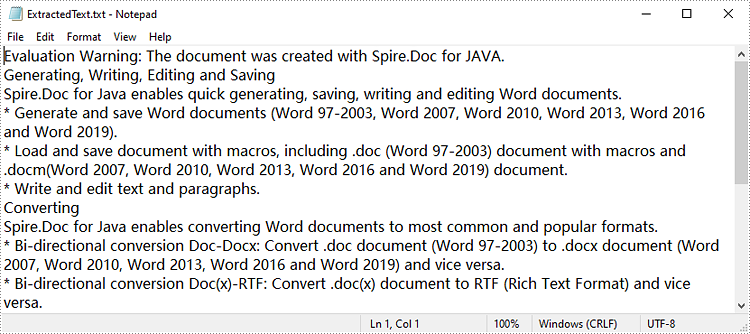
Spire.Doc for Java supports extracting text from Word documents and saving it as a text file format, which allows users to view text content without device restrictions. Below are detailed steps for extracting text from a Word document.
- Create a Document object.
- Load a word document using Document.loadFromFile method.
- Get text from document as string using Document.getText() method.
- Call writeStringToTxt() method to write string to a specified text file.
- Java
import com.spire.doc.Document;
import java.io.FileWriter;
import java.io.IOException;

public class ExtractText {

    public static void main(String[] args) throws IOException {

        //Create a Document object and load a Word document
        Document document = new Document();
        document.loadFromFile("sample1.docx");

        //Get text from document as string
        String text=document.getText();

        //Write string to a .txt file
        writeStringToTxt(text," ExtractedText.txt");
    }
    public static void writeStringToTxt(String content, String txtFileName) throws IOException{
        FileWriter fWriter= new FileWriter(txtFileName,true);
        try {
            fWriter.write(content);
        }catch(IOException ex){
            ex.printStackTrace();
        }finally{
            try{
                fWriter.flush();
                fWriter.close();
            } catch (IOException ex) {
                ex.printStackTrace();
            }
        }
    }
}
Extract Images from Word in Java
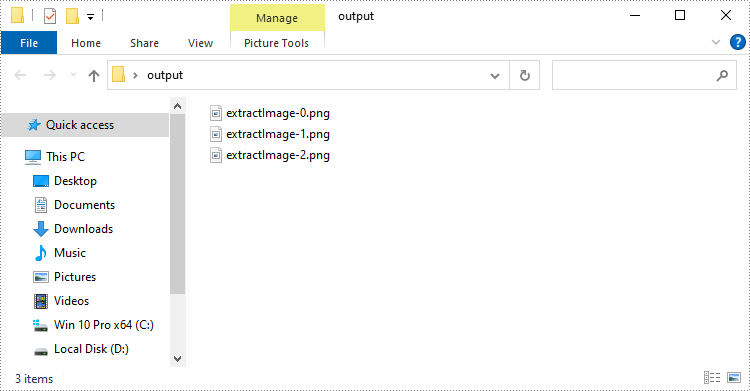
By extracting images, users are able to import image data into other applications for further processing without difficulty. Spire.Doc for Java allows users to extract images from Word documents and save them to the specified path. The following are detailed steps.
- Create a Document object.
- Load a Word document using Document.loadFromFile() method.
- Create a queue of composite objects.
- Add the root document element to the traversal queue using Queue<ICompositeObject>.add(ICompositeObject e) method.
- Create a ArrayList object to store extracted images.
- Traverse the document tree and check for composite or picture objects by iterating over the children node of each node.
- Check if the child element is a composite object. If so, add it to the queue for further processing.
- Check if the child element is a picture object. If so, extract its image data and add it to the extracted image list.
- Save images to the specific folder using ImageIO.write(RenderedImage im, String formatName, File output) method.
- Java
import com.spire.doc.*;
import com.spire.doc.documents.*;
import com.spire.doc.fields.*;
import com.spire.doc.interfaces.*;
import javax.imageio.ImageIO;
import java.awt.image.BufferedImage;
import java.io.*;
import java.util.*;

public class ExtractImage {
    public static void main(String[] args) throws IOException {

        //Create a Document object and load a Word document
        Document document = new Document();
        document.loadFromFile("sample2.docx");

        //Create a queue and add the root document element to it
        Queue<ICompositeObject> nodes = new LinkedList<>();
        nodes.add(document);

        //Create a ArrayList object to store extracted images
        List<BufferedImage> images = new ArrayList<>();

        //Traverse the document tree
        while (nodes.size() > 0) {
            ICompositeObject node = nodes.poll();
            for (int i = 0; i < node.getChildObjects().getCount(); i++)
            {
                IDocumentObject child = node.getChildObjects().get(i);
                if (child instanceof ICompositeObject)
                {
                    nodes.add((ICompositeObject) child);
                }
                else if (child.getDocumentObjectType() == DocumentObjectType.Picture)
                {
                    DocPicture picture = (DocPicture) child;
                    images.add(picture.getImage());
                }
            }
        }

        //Save images to the specific folder
        for (int i = 0; i < images.size(); i++) {
            File file = new File(String.format("output/extractImage-%d.png", i));
            ImageIO.write(images.get(i), "PNG", file);
        }
    }
}
Apply for a Temporary License
If you'd like to remove the evaluation message from the generated documents, or to get rid of the function limitations, please request a 30-day trial license for yourself.
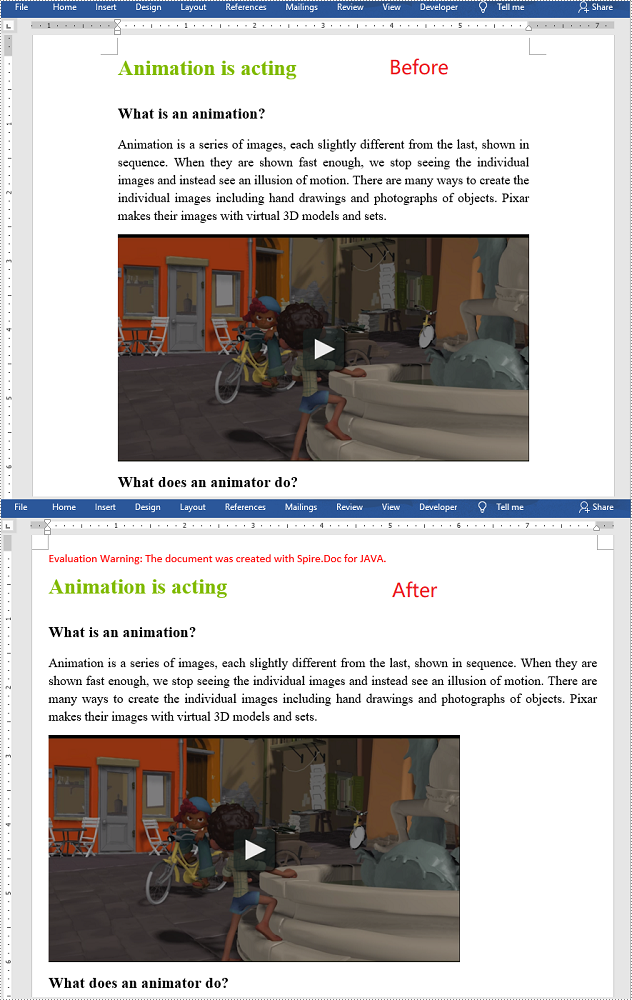
Page margins are the blank spaces between the body content and the page edges. In Microsoft Word, the default margins of each page are set as 1 inch, but sometimes you may need to resize the margins to accordance with your requirements. In this article, you will learn how to set page margins for Word documents in Java using Spire.Doc for Java.
Install Spire.Doc for Java
First of all, you're required to add the Spire.Doc.jar file as a dependency in your Java program. The JAR file can be downloaded from this link. If you use Maven, you can easily import the JAR file in your application by adding the following code to your project's pom.xml file.
<repositories>
    <repository>
        <id>com.e-iceblue</id>
        <name>e-iceblue</name>
        <url>https://repo.e-iceblue.com/nexus/content/groups/public/</url>
    </repository>
</repositories>
<dependencies>
    <dependency>
        <groupId>e-iceblue</groupId>
        <artifactId>spire.doc</artifactId>
        <version>14.7.0</version>
    </dependency>
</dependencies>
Set Page Margins in Word in Java
The following are the steps to set page margins in a Word document:
- Initialize an instance of Document class.
- Load a Word document using Document.loadFromFile() method.
- Get the desired section through Document.getSections().get(sectionIndex) method.
- Set the top, bottom, left and right margins for the pages in the section through Section.getPageSetup().getMargins().setTop(), Section. getPageSetup().getMargins().setBottom(), Section. getPageSetup().getMargins().setLeft(), Section.getPageSetup().getMargins().setRight() methods.
- Save the result document using Document.saveToFile() method.
- Java
import com.spire.doc.Document;
import com.spire.doc.FileFormat;
import com.spire.doc.Section;

public class SetPageMargins {
    public static void main(String []args){
        //Create a Document instance
        Document document = new Document();
        //Load a Word document
        document.loadFromFile("Sample.docx");

        //Get the first section
        Section section = document.getSections().get(0);

        //Set top, bottom, left and right page margins for the section
        section.getPageSetup().getMargins().setTop(17.9f);
        section.getPageSetup().getMargins().setBottom(17.9f);
        section.getPageSetup().getMargins().setLeft(17.9f);
        section.getPageSetup().getMargins().setRight(17.9f);

        //Save the result document
        document.saveToFile("SetMargins.docx", FileFormat.Docx_2013);
    }
}
Apply for a Temporary License
If you'd like to remove the evaluation message from the generated documents, or to get rid of the function limitations, please request a 30-day trial license for yourself.
MS Word allows users to insert a lot of elements in Word documents, including text, images, charts, and files. Images are frequently used in Word documents to make them intuitive, to express ideas that are hard to express in words, or just to make them beautiful. This article provides you a convenient and efficient way to insert images to Word documents under the help of Spire.Doc for Java.
- Insert an Image to a Word Document with Specified Text Wrapping Style
- Insert an Image to a Word Document at a Specific Location
Install Spire.Doc for Java
First, you're required to add the Spire.Doc.jar file as a dependency in your Java program. The JAR file can be downloaded from this link. If you use Maven, you can easily import the JAR file in your application by adding the following code to your project's pom.xml file.
<repositories>
    <repository>
        <id>com.e-iceblue</id>
        <name>e-iceblue</name>
        <url>https://repo.e-iceblue.com/nexus/content/groups/public/</url>
    </repository>
</repositories>
<dependencies>
    <dependency>
        <groupId>e-iceblue</groupId>
        <artifactId>spire.doc</artifactId>
        <version>14.7.0</version>
    </dependency>
</dependencies>
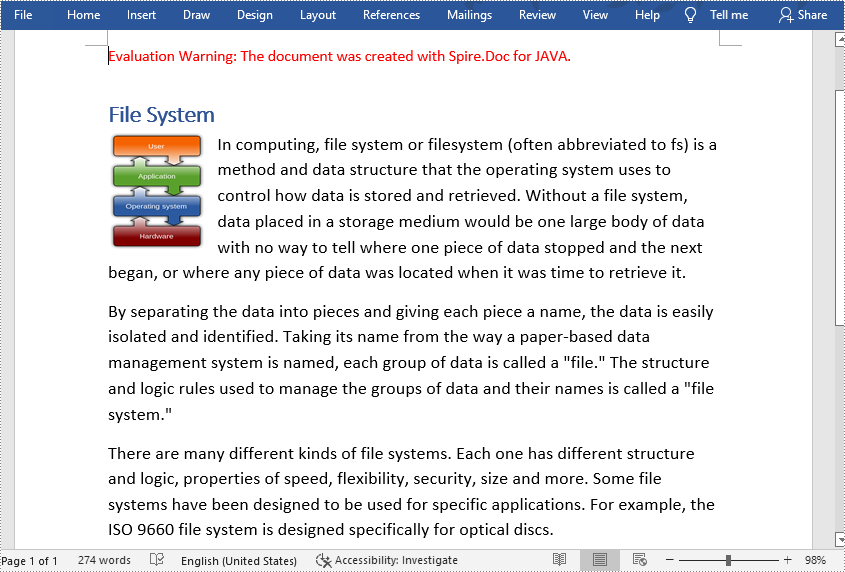
Insert an Image to a Word Document with Specified Text Wrapping Style
The detailed steps of inserting images with specified wrapping style are as follows:
- Create an object of Document class.
- Load a Word document from disk using Document.loadFromFile() method.
- Create an object of DocPicture class.
- Load an image from disk using DocPicture.loadImage() method.
- Set the size of the image using DocPicture.setWidth() and DocPicture.setHeight() method.
- Set the text wrapping style of the image as Square using DocPicture.setTextWrappingStyle() method.
- Insert the image at the start of the second paragraph using Paragraph.getChildObjects().insert() method.
- Save the document using Document.saveToFile method.
- Java
import com.spire.doc.*;
import com.spire.doc.documents.*;
import com.spire.doc.fields.*;

public class insertImage {
    public static void main(String[] args) throws Exception {
        //Create an object of Document class
        Document doc = new Document();

        //Load a Word document from disk
        doc.loadFromFile("D:/Samples/Sample.docx");

        //Create an object of DocPicture class
        DocPicture picture = new DocPicture(doc);

        //Load an image from disk
        picture.loadImage("D:/Samples/System.png");

        //Set the size of the image
        picture.setWidth(75);
        picture.setHeight(90);

        //Set the text wrapping style of the image as Square
        picture.setTextWrappingStyle( TextWrappingStyle.Square);

        //Insert the image at the start of the second paragraph
        doc.getSections().get(0).getParagraphs().get(1).getChildObjects().insert(0,picture);

        //Save the document
        doc.saveToFile("D:/javaOutput/insertImage.docx", FileFormat.Docx);
    }
}
Insert an Image to a Word Document at a Specific Location
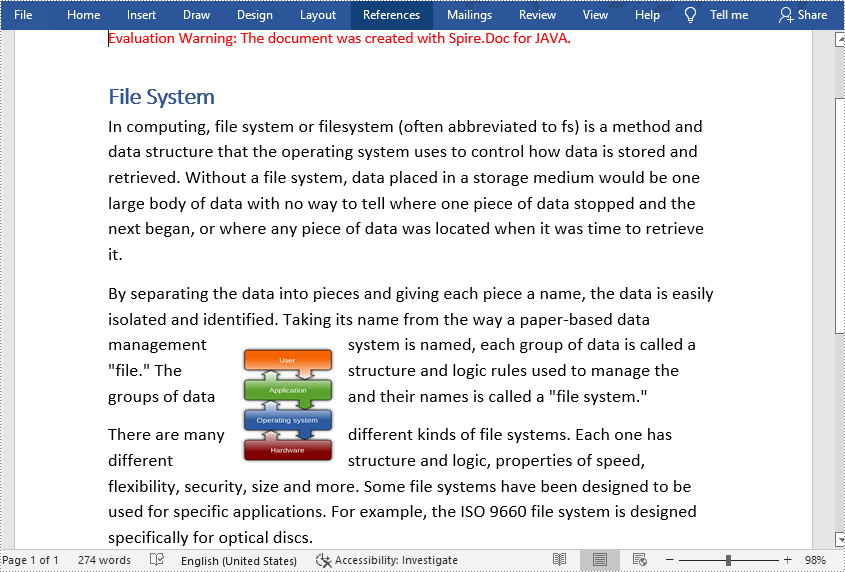
The detailed steps of inserting images at a specific location are as follows:
- Create an object of Document class.
- Load a Word document from disk using Document.loadFromFile() method.
- Create an object of DocPicture class.
- Load an image from disk using DocPicture.loadImage() method.
- Set the size of the image using DocPicture.setWidth() and DocPicture.setHeight() method.
- Set the text wrapping style of the image as Tight using DocPicture.setTextWrappingStyle() method.
- Insert the image into the third paragraph using Paragraph.getChildObjects().insert() method.
- Set the position of the image using DocPicture.setHorizontalPosition() and DocPicture.setVerticalPositon() method. The original location is at the start of the selected paragraph.
- Save the document using Document.saveToFile method.
- Java
import com.spire.doc.*;
import com.spire.doc.documents.*;
import com.spire.doc.fields.*;

public class insertImage {
    public static void main(String[] args) throws Exception {
        //Create an object of Document class
        Document doc = new Document();

        //Load a Word document from disk
        doc.loadFromFile("D:/Samples/Sample.docx");

        //Create an object of DocPicture class
        DocPicture picture = new DocPicture(doc);

        //Load an image from disk
        picture.loadImage("D:/Samples/PDF.png");

        //Set the size of the image
        picture.setWidth(75);
        picture.setHeight(90);

        //Set the text wrapping style of the image as Tight
        picture.setTextWrappingStyle( TextWrappingStyle.Tight);

        //Insert the image into the Third paragraph
        doc.getSections().get(0).getParagraphs().get(2).getChildObjects().insert(0,picture);

        //Set the position of the image
        picture.setHorizontalPosition(370.0F);
        picture.setVerticalPosition(10.0F);

        //Save the document
        doc.saveToFile("D:/javaOutput/insertImage.docx", FileFormat.Docx);
    }
}
Apply for a Temporary License
If you'd like to remove the evaluation message from the generated documents, or to get rid of the function limitations, please request a 30-day trial license for yourself.
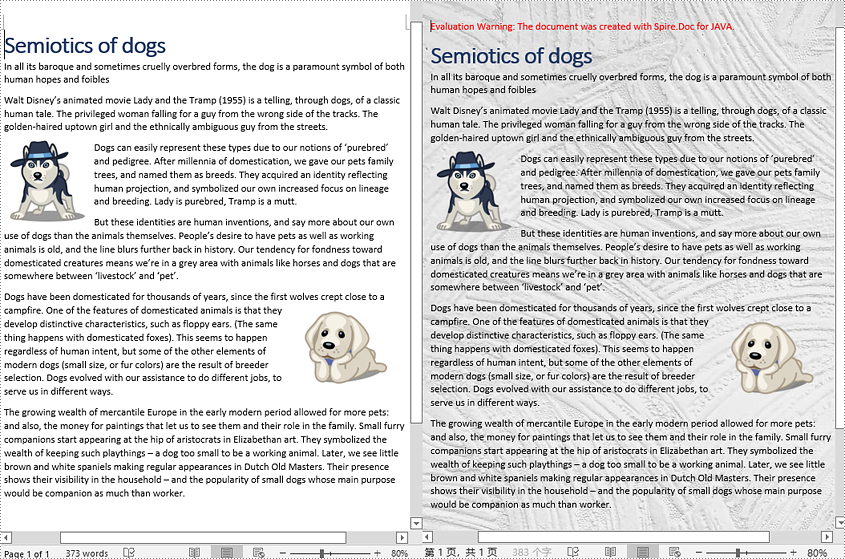
The background of a Word document is blank by default. For documents like brochures, invitations, handouts, and marketing materials, blank backgrounds will be too tedious. A good-looking background can be a great attraction to readers. Therefore, you can add a color or insert an image as a background to make your documents more appealing. This article shows how to set background color or image for Word documents by programming using Spire.Doc for Java.
- Add a Background Color to a Word Document
- Add a Gradient Background to a Word Document
- Insert a Background Image to a Word Document
Install Spire.Doc for Java
First, you're required to add the Spire.Doc.jar file as a dependency in your Java program. The JAR file can be downloaded from this link. If you use Maven, you can easily import the JAR file in your application by adding the following code to your project's pom.xml file.
<repositories>
    <repository>
        <id>com.e-iceblue</id>
        <name>e-iceblue</name>
        <url>https://repo.e-iceblue.com/nexus/content/groups/public/</url>
    </repository>
</repositories>
<dependencies>
    <dependency>
        <groupId>e-iceblue</groupId>
        <artifactId>spire.doc</artifactId>
        <version>14.7.0</version>
    </dependency>
</dependencies>
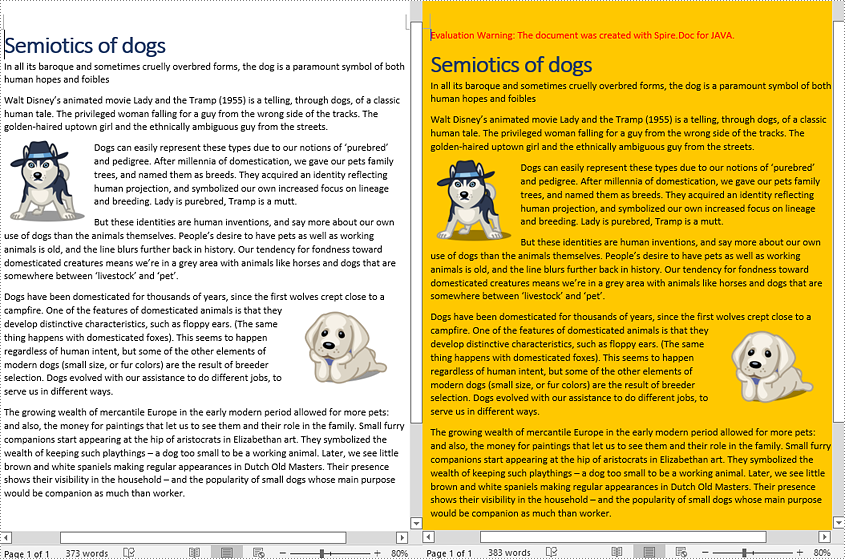
Add a Background Color to a Word Document
Adding a background color to a Word document is very easy. You only need to set the background type as color and then choose a color as your background. The detailed steps are as follows.
- Create an object of Document class.
- Load a Word document using Document.loadFromFile() method.
- Set the background type as color using Document.getBackground().setType() method.
- Set the background color using Document.getBackground().setColor() method.
- Save the document using Document.saveToFile() method.
- Java
import com.spire.doc.*;
import com.spire.doc.documents.BackgroundType;

import java.awt.*;
import java.io.*;

public class addBackgroundColor {
    public static void main(String[] args) throws IOException {

        //Create an object of Document class
        Document document= new Document();

        //Load a Word document
        document.loadFromFile("C:/Sample.docx");

        //Set the background type as color
        document.getBackground().setType(BackgroundType.Color);

        //Set the background color as orange
        document.getBackground().setColor(Color.orange);

        //Save the document
        document.saveToFile("AddBackgroundColor.docx", FileFormat.Docx);
    }
}
Add a Gradient Background to a Word Document
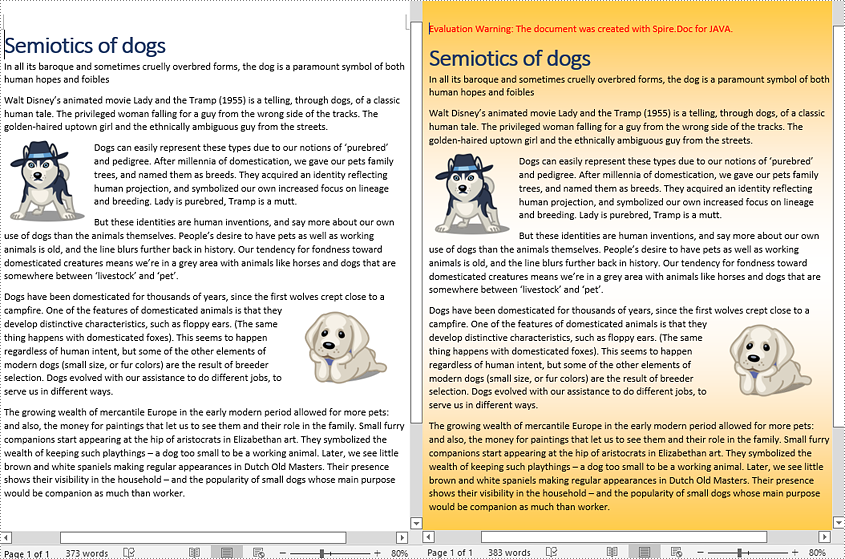
Adding gradient background requires more steps. You need to set the background type as gradient, choose two colors, and then set shading variant and style. The detailed steps are as follows.
- Create an object of Document class.
- Load a Word document using Document.loadFromFile() method.
- Set the background type as gradient using Document.getBackground().setType() method.
- Choose two colors using >Background.getGradient().setColor1() and Background.getGradient().setColor2() method.
- Set shading variant using Background.getGradient().setShadingVariant() method.
- Set shading style using Background.getGradient().setShadingStyle() method.
- Save the document using Document.saveToFile() method.
- Java
import com.spire.doc.*;
import com.spire.doc.documents.BackgroundType;
import com.spire.doc.documents.GradientShadingStyle;
import com.spire.doc.documents.GradientShadingVariant;
import java.awt.*;
import java.io.*;

public class addBackgroundColor {
    public static void main(String[] args) throws IOException {

        //load a word document
        Document document= new Document("C:/Sample.docx");

        //Set the background type as gradient
        document.getBackground().setType(BackgroundType.Gradient);

        //Choose two colors
        Background background = document.getBackground();
        background.getGradient().setColor1(Color.white);
        background.getGradient().setColor2(Color.orange);

        //Choose gradient variant
        background.getGradient().setShadingVariant(GradientShadingVariant.Shading_Down);

        //Choose gradient style
        background.getGradient().setShadingStyle(GradientShadingStyle.Horizontal);

        //Save the document
        document.saveToFile("AddGradientBackground.docx", FileFormat.Docx_2013);
    }
}
Insert Background Image to a Word Document
To insert a background picture to a Word document, you need to set the background type as picture, and then insert a picture as the background. The detailed steps are as follows.
- Create an object of Document class.
- Load a Word document using Document.loadFromFile() method.
- Change the background type to picture using Document.getBackground().setType() method.
- Insert a picture as the background using Document.getBackground().setPicture() method.
- Save the document using Document.saveToFile() method.
- Java
import com.spire.doc.*;
import com.spire.doc.documents.BackgroundType;
import java.io.*;

public class addBackgroundColor {
    public static void main(String[] args) throws IOException {

        //Create an object of Document class
        Document document= new Document();

        //Load a Word document
        document.loadFromFile("C:/Sample.docx");

        //Set the background type as picture
        document.getBackground().setType(BackgroundType.Picture);

        //Set the background picture
        document.getBackground().setPicture("C:/background.jpg");

        //Save the document
        document.saveToFile("AddBackgroundPicture.docx", FileFormat.Docx);
    }
}
Apply for a Temporary License
If you'd like to remove the evaluation message from the generated documents, or to get rid of the function limitations, please request a 30-day trial license for yourself.
Enabling security options of your Word documents is essential for keeping sensitive information safe. You can encrypt your document with a password so that it cannot be opened by unauthorized users; you can enable the Read-only mode to prevent users from changing the content; you can also partially restrict editing your document. This article demonstrates how to protect or unprotect Word documents in Java using Spire.Doc for Java.
- Protect a Word Document with a Password in Java
- Change Permission of a Word Document in Java
- Lock Specified Sections of a Word Document in Java
- Mark a Word Document as Final in Java
- Remove Password from an Encrypted Word Document in Java
Install Spire.Doc for Java
First of all, you're required to add the Spire.Doc.jar file as a dependency in your Java program. The JAR file can be downloaded from this link. If you use Maven, you can easily import the JAR file in your application by adding the following code to your project's pom.xml file.
<repositories>
    <repository>
        <id>com.e-iceblue</id>
        <name>e-iceblue</name>
        <url>https://repo.e-iceblue.com/nexus/content/groups/public/</url>
    </repository>
</repositories>
<dependencies>
    <dependency>
        <groupId>e-iceblue</groupId>
        <artifactId>spire.doc</artifactId>
        <version>14.7.0</version>
    </dependency>
</dependencies>
Protect a Word Document with a Password in Java
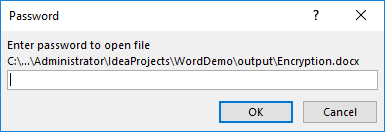
Encrypting a document with a password makes sure that only you and certain people can read or edit it. The following are the steps to password protect a Word document using Spire.Doc for Java.
- Create a Document object.
- Load a Word document using Document.loadFromFile() method.
- Encrypt the document with a password using Document.encrypt() method.
- Save the document to another Word file using Document.saveToFile() method.
- Java
import com.spire.doc.Document;
import com.spire.doc.FileFormat;

public class PasswordProtectWord {

    public static void main(String[] args) {

        //Create a Document object
        Document document = new Document();

        //Load a Word file
        document.loadFromFile("C:\\Users\\Administrator\\Desktop\\sample.docx");

        //Encrypt the document with a password
        document.encrypt("open-psd");

        //Save the document to another Word file
        document.saveToFile("output/Encryption.docx", FileFormat.Docx);
    }
}
Change Permission of a Word Document in Java
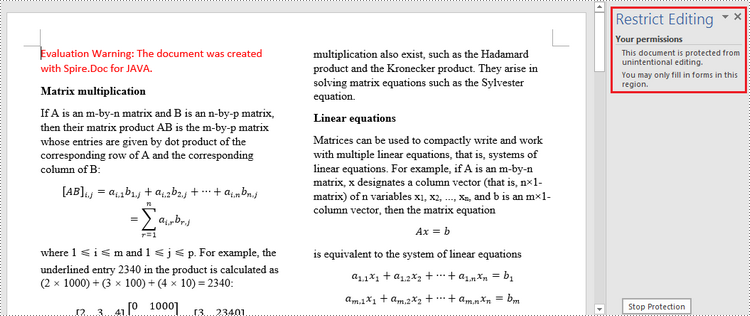
Documents encrypted with an open password cannot be opened by those who do not know the password. If you’d like to grant people permission to read your document but restrict the types of modifications that someone can make, you can set the document permission. The following are the steps to change permission of a Word document using Spire.Doc for Java.
- Create a Document object.
- Load a Word document using Document.loadFromFile() method.
- Set the document permission and the permission password using Document.protect() method.
- Save the document to another Word file using Document.saveToFile() method.
- Java
import com.spire.doc.Document;
import com.spire.doc.ProtectionType;

public class ChangePermission {

    public static void main(String[] args) {

        //Create a Document object
        Document document = new Document();

        //Load a Word document
        document.loadFromFile("C:\\Users\\Administrator\\Desktop\\sample.docx");

        //Set the document permission and set the permission password
        document.protect(ProtectionType.Allow_Only_Form_Fields, "permission-psd");

        //Save the document to another Word file
        document.saveToFile("output/Permission.docx");
    }
}
Lock Specified Sections of a Word Document in Java
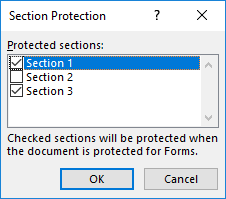
You can lock parts of your Word document so that they cannot be changed and leave the unlocked parts available for editing. The following are the steps to protect specified sections of a Word document using Spire.Doc for Java.
- Create a Document object.
- Load a Word document using Document.loadFromFile() method.
- Set the editing restriction as Allow_Only_Form_Fields.
- Unprotect a specific section by passing false to Section.protectForm() as a parameter. The rest sections will continue to be protected.
- Save the document to another Word file using Document.saveToFile() method.
- Java
import com.spire.doc.Document;
import com.spire.doc.ProtectionType;

public class LockSpecificSections {

    public static void main(String[] args) {

        //Create a Document object
        Document doc = new Document();

        //Load a Word document
        doc.loadFromFile("C:\\Users\\Administrator\\Desktop\\sample.docx");

        //Set editing restriction as "Allow_Only_Form_Fields"
        doc.protect(ProtectionType.Allow_Only_Form_Fields, "permissionPsd");

        //Unprotect section 2
        doc.getSections().get(1).setProtectForm(false);

        //Save the document to another Word file
        doc.saveToFile("output/ProtectSection.docx");
    }
}
Mark a Word Document as Final in Java
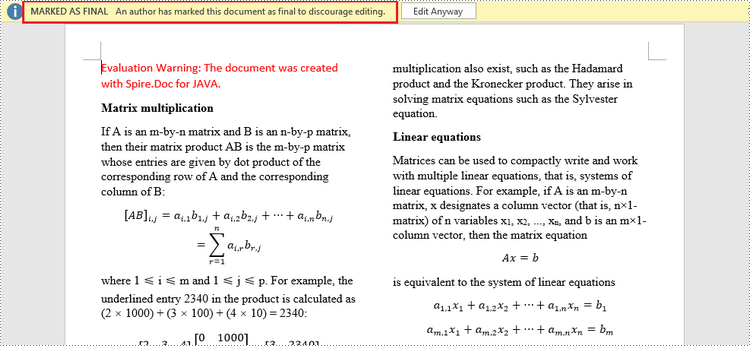
By marking a document as Final, you disable typing, editing, and format changes capabilities and a message will appear to any reader that the document has been finalized. The following are the steps to mark a Word document as final using Spire.Doc for Java.
- Create a Document object.
- Load a Word file using Document.loadFromFile() method.
- Get the CustomDocumentProperties object from the document.
- Add a custom property "_MarkAsFinal" to the document.
- Save the document to another Word file using Document.saveToFile() method.
- Java
import com.spire.doc.CustomDocumentProperties;
import com.spire.doc.Document;

public class MarkAsFinal {

    public static void main(String[] args) {

        //Create a Document object
        Document doc = new Document();

        //Load a Word document
        doc.loadFromFile("C:\\Users\\Administrator\\Desktop\\sample.docx");

        //Get custom document properties
        CustomDocumentProperties customProperties = doc.getCustomDocumentProperties();

        //Add "_MarkAsFinal" as a property to the document
        customProperties.add("_MarkAsFinal", true);

        //Save the document to another Word file
        doc.saveToFile("output/MarkAsFinal.docx");
    }
}
Remove Password from an Encrypted Word Document in Java
You can remove the password from an encrypted document if the encryption is no longer needed. The following are the detailed steps.
- Create a Document object.
- Load a Word document using Document.loadFromFile() method.
- Remove the password using Document.removeEncryption() method.
- Save the document to another Word file using Document.saveToFile() method.
- Java
import com.spire.doc.Document;
import com.spire.doc.FileFormat;

public class RemovePassword {

    public static void main(String[] args) {

        //Create a Document object
        Document document = new Document();

        //Load an encrypted Word document
        document.loadFromFile("C:\\Users\\Administrator\\Desktop\\Encryption.docx", FileFormat.Docx, "open-psd");

        //Remove encryption
        document.removeEncryption();

        //Save the document to another Word file
        document.saveToFile("output/RemoveEncryption.docx", FileFormat.Docx);
    }
}
Apply for a Temporary License
If you'd like to remove the evaluation message from the generated documents, or to get rid of the function limitations, please request a 30-day trial license for yourself.
Creating Word documents programmatically in Java enables developers to automate report generation, invoice creation, and other document workflows with precision. With Spire.Doc for Java, you can dynamically build, format, and customize Word files directly from your applications-without relying on Microsoft Office.
This article guides you through the essential steps to generate a Word document from scratch, covering text formatting, image insertion, table creation, and list management. Whether you're producing business reports, contracts, or data-driven documents, this tutorial provides the foundation to streamline your document automation process in Java.
- Add Titles, Headings, and Paragraphs to a Word Document
- Add an Image to a Word Document
- Add a Table to a Word Document
- Add a List to a Word Document
Install Spire.Doc for Java
First of all, you're required to add the Spire.Doc.jar file as a dependency in your Java program. The JAR file can be downloaded from this link. If you use Maven, you can easily import the JAR file in your application by adding the following code to your project's pom.xml file.
<repositories>
    <repository>
        <id>com.e-iceblue</id>
        <name>e-iceblue</name>
        <url>https://repo.e-iceblue.com/nexus/content/groups/public/</url>
    </repository>
</repositories>
<dependencies>
    <dependency>
        <groupId>e-iceblue</groupId>
        <artifactId>spire.doc</artifactId>
        <version>14.7.0</version>
    </dependency>
</dependencies>
Add Titles, Headings, and Paragraphs to a Word Document in Java
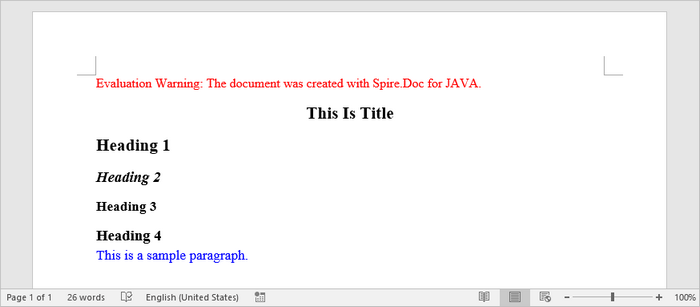
When creating structured Word documents with Spire.Doc for .NET, its core functionality revolves around the Document and Section classes. Use the addParagraph() method to add new paragraphs and the appendText() method to insert text content. To ensure consistent formatting, you can apply built-in styles (such as Title or Heading 1-4), which achieve professional and standardized typesetting effects. You can also customize styles to precisely control fonts, colors, and sizes, thereby creating personalized document designs.
The steps to add titles, headings, and paragraphs to a Word document in Java are as follows:
- Create a Document object.
- Use Document.addSection() to add sections to the document.
- Use Section.addParagraph() to add paragraphs to a section.
- Apply built-in styles (Title, Heading1, Heading2, Heading3) to specific paragraphs using Paragraph.applyStyle().
- Define a custom paragraph style using ParagraphStyle() and apply it to the specified paragraph.
- Save the document as a DOCX file.
- Java
import com.spire.doc.*;
import com.spire.doc.documents.*;
import com.spire.doc.fields.*;
import java.awt.Color;

public class CreateSimpleDocument {
    public static void main(String[] args) {

        // Create a Document object
        Document document = new Document();

        // Add a section
        Section section = document.addSection();

        // Set page margins
        section.getPageSetup().getMargins().setAll(60f);

        // Add a title paragraph
        Paragraph title_para = section.addParagraph();
        TextRange textRange = title_para.appendText("This Is Title");
        title_para.applyStyle(BuiltinStyle.Title);
        textRange.getCharacterFormat().setFontName("Times New Roman");

        // Add a couple of heading paragraphs
        Paragraph heading_one = section.addParagraph();
        textRange = heading_one.appendText("Heading 1");
        heading_one.applyStyle(BuiltinStyle.Heading_1);
        textRange.getCharacterFormat().setFontName("Times New Roman");

        Paragraph heading_two = section.addParagraph();
        textRange = heading_two.appendText("Heading 2");
        heading_two.applyStyle(BuiltinStyle.Heading_2);
        textRange.getCharacterFormat().setFontName("Times New Roman");

        Paragraph heading_three = section.addParagraph();
        textRange = heading_three.appendText("Heading 3");
        heading_three.applyStyle(BuiltinStyle.Heading_3);
        textRange.getCharacterFormat().setFontName("Times New Roman");

        Paragraph heading_four = section.addParagraph();
        textRange = heading_four.appendText("Heading 4");
        heading_four.applyStyle(BuiltinStyle.Heading_4);
        textRange.getCharacterFormat().setFontName("Times New Roman");

        // Add a normal paragraph
        Paragraph normal_para = section.addParagraph();
        normal_para.appendText("This is a sample paragraph.");

        // Create a paragraph style
        ParagraphStyle style = new ParagraphStyle(document);
        style.setName("paraStyle");
        style.getCharacterFormat().setFontName("Times New Roman");
        style.getCharacterFormat().setFontSize(13f);
        style.getCharacterFormat().setTextColor(Color.blue);
        document.getStyles().add(style);

        // Apply the custom style to the paragraph
        normal_para.applyStyle("paraStyle");

        // Save the document
        document.saveToFile("output/AddText.docx", FileFormat.Docx);

        // Dispose resources
        document.dispose();
    }
}
Add an Image to a Word Document in Java
To insert an image into a Word document, you first need to create a dedicated paragraph element as the image container. By using the appendPicture() method, you can load an image from the file system and embed it directly into the document structure.
The steps to add an image to a Word document in Java are as follows:
- Create a Document object.
- Use Document.addSection() to add a section to the document.
- Add a paragraph to the section using Section.addParagraph().
- Insert the image into the paragraph using Paragraph.appendPicture().
- Save the document as a DOCX file.
- Java
import com.spire.doc.*;
import com.spire.doc.documents.*;

import javax.imageio.ImageIO;
import java.awt.image.BufferedImage;
import java.io.File;
import java.io.IOException;

public class AddImage {
    public static void main(String[] args) throws IOException {

        // Create a Document object
        Document document = new Document();

        // Add a section
        Section section = document.addSection();

        // Set page margins
        section.getPageSetup().getMargins().setAll(60f);

        // Add a paragraph
        Paragraph image_para = section.addParagraph();

        // Load an image file
        BufferedImage image =  ImageIO.read(new File("C:\\Users\\Administrator\\Desktop\\logo.png"));

        // Append it to the paragraph
        image_para.appendPicture(image);

        // Save the document
        document.saveToFile("output/AddImage.docx", FileFormat.Docx);

        // Dispose resources
        document.dispose();
    }
}
Add a Table to a Word Document in Java
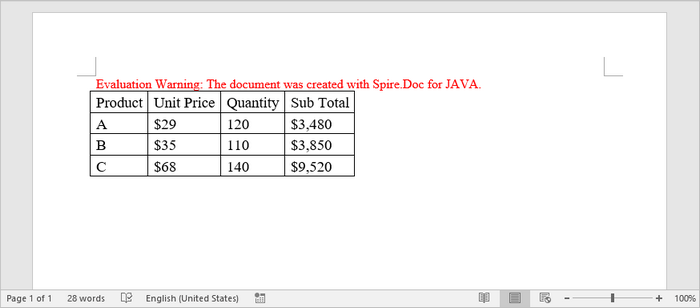
The table creation process begins with the addTable() method, which is used to establish the basic table structure. Using the resetCells() method, you can specify the desired number of rows and columns. Once initialized, filling each cell with content requires first adding a paragraph element via the addParagraph() method, followed by inserting text using the appendText() method.
The steps to add a table to a Word document in Java are as follows:
- Create a Document object.
- Use Document.addSection() to add a section to the document.
- Create a two-dimensional array to store table data (including headers and values).
- Generate the table using Section.addTable().
- Call the Table.resetCells() method to define the number of rows and columns based on the data.
- Iterate through the data array and use the TableCell.addParagraph() and Paragraph.appendText() methods to add text to each cell.
- Save the document as a DOCX file.
- Java
import com.spire.doc.*;
import com.spire.doc.documents.*;
import com.spire.doc.fields.*;

public class AddTable {
    public static void main(String[] args) {

        // Create a Document object
        Document document = new Document();

        // Add a section
        Section section = document.addSection();

        // Set page margins
        section.getPageSetup().getMargins().setAll(60f);

        // Define table data as a 2D array
        String[][] data = {
                {"Product", "Unit Price", "Quantity", "Sub Total"},
                {"A", "$29", "120", "$3,480"},
                {"B", "$35", "110", "$3,850"},
                {"C", "$68", "140", "$9,520"}
        };

        // Add a table
        Table table = section.addTable(true);

        // Set row number and column number
        table.resetCells(data.length, data[0].length);

        // Write data to cells
        for (int r = 0; r < data.length; r++) {
            TableRow row = table.getRows().get(r);
            row.setHeight(20);
            row.setHeightType(TableRowHeightType.Exactly);

            for (int c = 0; c < data[r].length; c++) {
                TableCell cell = row.getCells().get(c);
                cell.getCellFormat().setVerticalAlignment(VerticalAlignment.Middle);
                TextRange textRange = cell.addParagraph().appendText(data[r][c]);
                textRange.getCharacterFormat().setFontName("Times New Roman");
                textRange.getCharacterFormat().setFontSize(14);
            }
        }

        // Automatically adjusts the column widths of a table to fit its contents
        table.autoFit(AutoFitBehaviorType.Auto_Fit_To_Contents);

        // Save the document to file
        document.saveToFile("output/AddTable.docx", FileFormat.Docx);

        // Dispose resources
        document.dispose();
    }
}
Add a List to a Word Document in Java
The ListStyle class provides the foundation for implementing bulleted lists and numbered lists in documents. By configuring this class, you can establish a unified visual format for all list items. Once the list style is defined, simply apply it to target paragraphs using the applyStyle() method.
The steps to add a list to a Word document in Java are as follows:
- Create a Document object.
- Use Document.addSection() to add a section to the document.
- Define the list style using ListStyle().
- Add paragraphs to the section using Section.addParagraph().
- Apply the defined list style to paragraphs using Paragraph.getListFormat().applyStyle().
- Save the document as a DOCX file.
- Java
import com.spire.doc.*;
import com.spire.doc.documents.*;
import com.spire.doc.fields.*;

public class AddList {
    public static void main(String[] args) {

        // Create a Document object
        Document document = new Document();

        // Add a section
        Section section = document.addSection();

        // Set page margins
        section.getPageSetup().getMargins().setAll(60f);

        // Create a bulleted list style
        ListStyle listStyle = new ListStyle(document, ListType.Bulleted);
        listStyle.setName("bulletedList");
        listStyle.getLevels().get(0).setBulletCharacter("\u00B7");
        listStyle.getLevels().get(0).getCharacterFormat().setFontName("Symbol");
        listStyle.getLevels().get(0).setTextPosition(20);
        document.getListStyles().add(listStyle);

        // Add a paragraph
        Paragraph paragraph = section.addParagraph();
        TextRange textRange = paragraph.appendText("Fruits:");
        paragraph.getFormat().setAfterSpacing(5f);
        textRange.getCharacterFormat().setFontName("Times New Roman");
        textRange.getCharacterFormat().setFontSize(14);

        // Add another four paragraphs as bulleted list items
        String[] fruits = {"Apple", "Banana", "Watermelon", "Mango"};
        for (String fruit : fruits) {
            paragraph = section.addParagraph();
            textRange = paragraph.appendText(fruit);
            paragraph.getListFormat().applyStyle(listStyle.getName());
            paragraph.getListFormat().setListLevelNumber(0);
            textRange.getCharacterFormat().setFontName("Times New Roman");
            textRange.getCharacterFormat().setFontSize(14);
        }

        // Save the document to file
        document.saveToFile("output/AddList.docx", FileFormat.Docx);

        // Dispose resources
        document.dispose();
    }
}
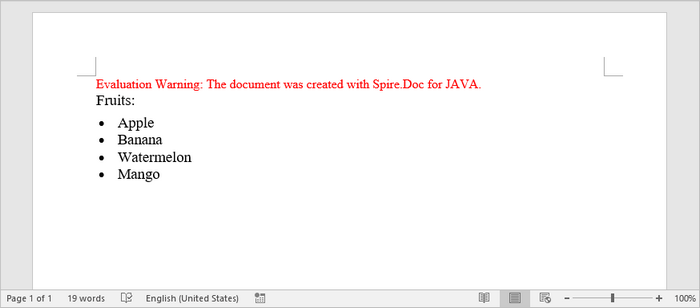
This tutorial provides a brief introduction to the basic operations of creating Word documents using Spire.Doc for Java, including core functionalities such as inserting titles, paragraphs, images, tables, and lists. For more comprehensive element additions and finer formatting settings, please refer to the official Spire.Doc online tutorials for complete guidance.
Get a Free License
To fully experience the capabilities of Spire.Doc for Java without any evaluation limitations, you can request a free 30-day trial license.
The appearance of a document conveys more than just document's message; it also reveals the information about the creator. A well-organized document that includes consistently formatted content and appropriate graphics, and that contains no spelling or grammatical mistakes, inspires greater trust in your ability to deliver a product or service.
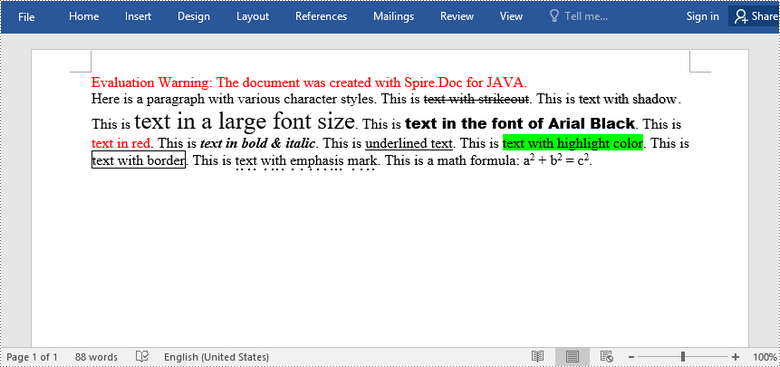
Using Spire.Doc for Java, you're able to format entire paragraphs as well as individual words or phrases. This article focuses on introducing how to apply various types of formatting to characters in a Word document in Java using Spire.Doc for Java.
- Font Name
- Font Size
- Font Color
- Highlight Color
- Bold
- Italic
- Underline
- Strikethrough
- Border
- Shadow Effect
- Emphasis Mark
- Subscript and Superscript
Install Spire.Doc for Java
First of all, you're required to add the Spire.Doc.jar file as a dependency in your Java program. The JAR file can be downloaded from this link. If you use Maven, you can easily import the JAR file in your application by adding the following code to your project's pom.xml file.
<repositories>
    <repository>
        <id>com.e-iceblue</id>
        <name>e-iceblue</name>
        <url>https://repo.e-iceblue.com/nexus/content/groups/public/</url>
    </repository>
</repositories>
<dependencies>
    <dependency>
        <groupId>e-iceblue</groupId>
        <artifactId>spire.doc</artifactId>
        <version>14.7.0</version>
    </dependency>
</dependencies>
Apply Formatting to Characters in Word in Java
In order to apply formatting to a piece of text, you need to get the text in a TextRange and then format the characters within the TextRange using the methods under CharacterFormat class. The following are the steps to set character formatting in a Word document using Spire.Doc for Java.
- Create a Document object.
- Add a section to the document using Document.addSection() method.
- Add a paragraph to the section using Section.addParagraph() method.
- Append text to the paragraph using Paragraph.appendText() method and return a TextRange object.
- Apply formatting such as font name, font size, border and highlight color to the characters within the text range using the methods under CharacterFormat class.
- Save the document to a Word file using Document.saveToFile() method.
- Java
import com.spire.doc.Document;
import com.spire.doc.FileFormat;
import com.spire.doc.Section;
import com.spire.doc.documents.BorderStyle;
import com.spire.doc.documents.Paragraph;
import com.spire.doc.documents.SubSuperScript;
import com.spire.doc.documents.UnderlineStyle;
import com.spire.doc.fields.TextRange;
import com.spire.doc.fields.shape.Emphasis;

import java.awt.*;

public class ApplyFormattingToCharacters {

    public static void main(String[] args) {

        //Create a Document object
        Document document = new Document();

        //Add a section
        Section sec = document.addSection();

        //Add a paragraph
        Paragraph paragraph = sec.addParagraph();
        paragraph.appendText("Here is a paragraph with various character styles. This is ");

        //Append text to the paragraph and return a TextRange object
        TextRange tr = paragraph.appendText("text with strikeout");

        //Set the character format to strikeout via TextRange object
        tr.getCharacterFormat().isStrikeout(true);

        //Apply shadow effect to text
        paragraph.appendText(". This is ");
        tr = paragraph.appendText("text with shadow");
        tr.getCharacterFormat().isShadow (true);

        //Set font size
        paragraph.appendText(". This is ");
        tr = paragraph.appendText("text in a large font size");
        tr.getCharacterFormat().setFontSize(20);

        //Set font name
        paragraph.appendText(". This is ");
        tr = paragraph.appendText("text in the font of Arial Black");
        tr.getCharacterFormat().setFontName("Arial Black");

        //Set font color
        paragraph.appendText(". This is ");
        tr = paragraph.appendText("text in red");
        tr.getCharacterFormat().setTextColor(Color.red);

        //Apply bold & italic to text
        paragraph.appendText(". This is ");
        tr = paragraph.appendText("text in bold & italic");
        tr.getCharacterFormat().setBold(true);
        tr.getCharacterFormat().setItalic(true);

        //Apply underline to text
        paragraph.appendText(". This is ");
        tr = paragraph.appendText("underlined text");
        tr.getCharacterFormat().setUnderlineStyle(UnderlineStyle.Single);

        //Apply background color to text
        paragraph.appendText(". This is ");
        tr = paragraph.appendText("text with highlight color");
        tr.getCharacterFormat().setHighlightColor(Color.green);

        //Apply border to text
        paragraph.appendText(". This is ");
        tr = paragraph.appendText("text with border");
        tr.getCharacterFormat().getBorder().setBorderType(BorderStyle.Single);
        tr.getCharacterFormat().getBorder().setColor(Color.black);

        //Apply emphasis mark to text
        paragraph.appendText(". This is ");
        tr = paragraph.appendText("text with emphasis mark");
        tr.getCharacterFormat().setEmphasisMark(Emphasis.Dot_Below);

        //Apply superscript to text
        paragraph.appendText(". This is a math formula: a");
        tr = paragraph.appendText("2");
        tr.getCharacterFormat().setSubSuperScript(SubSuperScript.Super_Script);
        paragraph.appendText(" + b");
        tr = paragraph.appendText("2");
        tr.getCharacterFormat().setSubSuperScript(SubSuperScript.Super_Script);
        paragraph.appendText(" = c");
        tr = paragraph.appendText("2");
        tr.getCharacterFormat().setSubSuperScript(SubSuperScript.Super_Script);
        paragraph.appendText(".");

        //Save to file
        document.saveToFile("output/SetCharacterFormat.docx", FileFormat.Docx);
    }
}
Apply for a Temporary License
If you'd like to remove the evaluation message from the generated documents, or to get rid of the function limitations, please request a 30-day trial license for yourself.
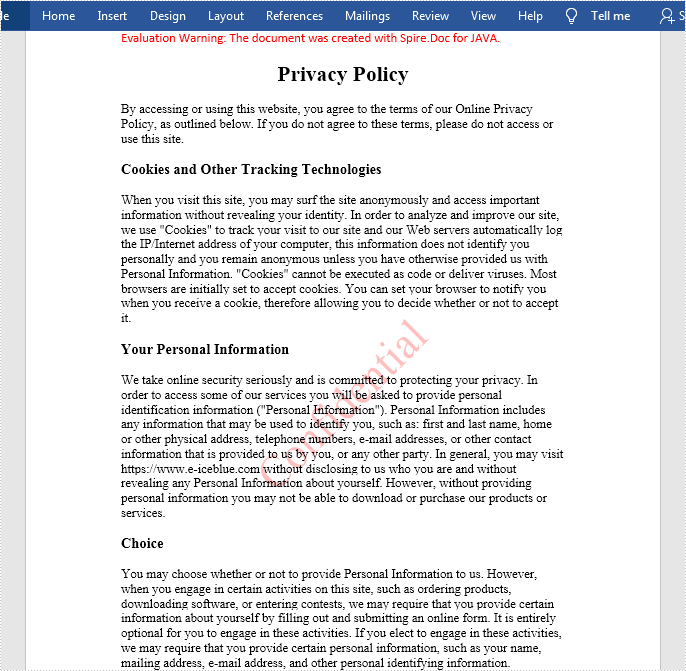
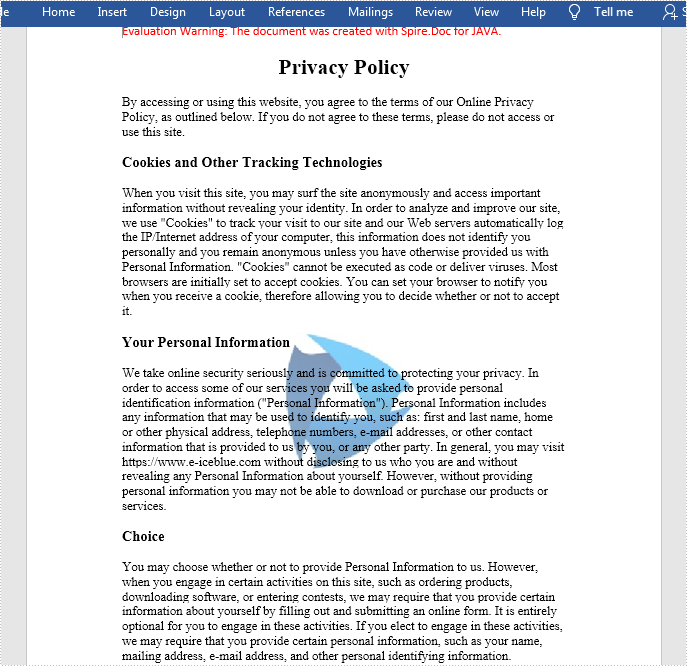
A watermark is a very light image or text that sits in the background of a document. When you need to send a document to others, it’s common to add a watermark to the document to prevent unwarranted use or remind readers that the document is confidential or is a draft, sample, etc. In this article, you will learn how to programmatically add a text watermark or an image watermark to a Word document using Spire.Doc for Java.
Install Spire.Doc for Java
First of all, you're required to add the Spire.Doc.jar file as a dependency in your Java program. The JAR file can be downloaded from this link. If you use Maven, you can easily import the JAR file in your application by adding the following code to your project's pom.xml file.
<repositories>
    <repository>
        <id>com.e-iceblue</id>
        <name>e-iceblue</name>
        <url>https://repo.e-iceblue.com/nexus/content/groups/public/</url>
    </repository>
</repositories>
<dependencies>
    <dependency>
        <groupId>e-iceblue</groupId>
        <artifactId>spire.doc</artifactId>
        <version>14.7.0</version>
    </dependency>
</dependencies>
Add a Text Watermark to Word
The detailed steps are as follows:
- Create a Document instance.
- Load a sample Word document using Document.loadFromFile() method.
- Get the first section using Document.getSections().get() method.
- Create a TextWatermark instance.
- Set the text, font size, color and layout of the text watermark using the methods offered by TextWatermark class.
- Add the text watermark to sample document using Section.getDocument().setWatermark() method.
- Save the document to file using Document.saveToFile() method.
- Java
import com.spire.doc.*;
import com.spire.doc.documents.WatermarkLayout;
import java.awt.*;

public class WordTextWatermark {
    public static void main(String[] args) {
        //Create a Document instance
        Document document = new Document();

        //Load a sample Word document
        document.loadFromFile("Sample.docx");

        //Get the first section
        Section section = document.getSections().get(0);

        //Create a TextWatermark instance
        TextWatermark txtWatermark = new TextWatermark();

        //Set the format of the text watermark
        txtWatermark.setText("Confidential");
        txtWatermark.setFontSize(40);
        txtWatermark.setColor(Color.red);
        txtWatermark.setLayout(WatermarkLayout.Diagonal);

        //Add the text watermark to document
        section.getDocument().setWatermark(txtWatermark);

        //Save the document to file
        document.saveToFile("out/result.docx", FileFormat.Docx);
    }

}
Add an Image Watermark to Word
The detailed steps are as follows:
- Create a Document instance.
- Load a sample Word document using Document.loadFromFile() method.
- Create a PictureWatermark instance.
- Load an image as the image watermark using PictureWatermark.setPicture() method, and then set scaling as well as washout property of the image watermark using PictureWatermark.setScaling() method and PictureWatermark.isWashout() method.
- Add the image watermark to sample document using Document.setWatermark() method.
- Save the document to file using Document.saveToFile() method.
- Java
import com.spire.doc.*;


public class WordImageWatermark {
    public static void main(String[] args)  throws Exception{
        //Create a Document instance
        Document document = new Document();

        //Load a sample Word document
        document.loadFromFile("Sample.docx");

        //Create a PictureWatermark instance
        PictureWatermark picture = new PictureWatermark();

        //Set the format of the picture watermark
        picture.setPicture("logo.png");
        picture.setScaling(100);
        picture.isWashout(false);

        //Add the image watermark to document
        document.setWatermark(picture);

        //Save the result file
        document.saveToFile("out/result2.docx",FileFormat.Docx );
    }
}
Apply for a Temporary License
If you'd like to remove the evaluation message from the generated documents, or to get rid of the function limitations, please request a 30-day trial license for yourself.

Spire.Doc for Java is a professional Word API that empowers Java applications to create, convert, manipulate and print Word documents without dependency on Microsoft Word.
By using this multifunctional library, developers are able to process copious tasks effortlessly, such as inserting images, shapes, lists, hyperlink, pages, digital signature, WordArt, variables, bookmark, watermark, barcodes, page breaks, section breaks, math equations, and setting header and footer, creating table, setting background image, setting fonts, adding footnote/endnote etc.


