Program Guide (137)
Children categories
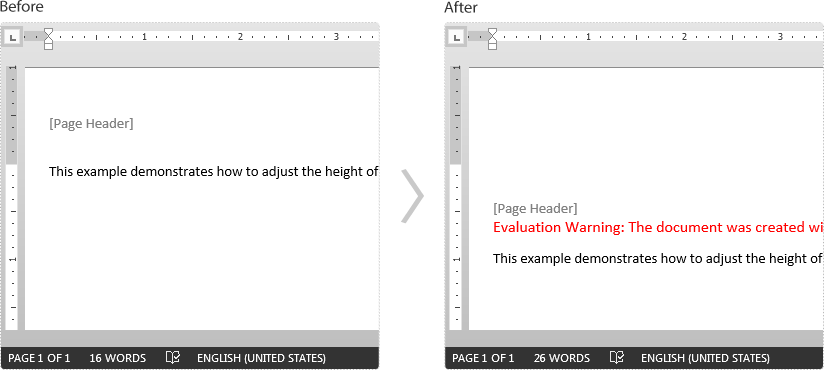
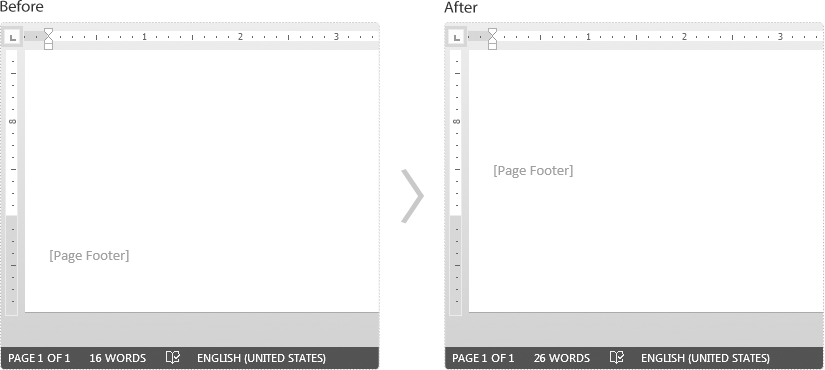
This article demonstrates how to adjust the header and footer distance in a Word document using Spire.Doc for Java.
import com.spire.doc.Document;
import com.spire.doc.FileFormat;
import com.spire.doc.Section;

public class AdjustHeaderFooterDistance {
    public static void main(String[] args){
        //Create a Document instance
        Document doc = new Document();
        //Load a Word document
        doc.loadFromFile("Headers and Footers.docx");

        //Get the first section
        Section section = doc.getSections().get(0);

        //Adjust the header distance
        section.getPageSetup().setHeaderDistance(100);

        //Adjust the footer distance
        section.getPageSetup().setFooterDistance(100);

        //Save the result document
        doc.saveToFile("Output.docx", FileFormat.Docx);
    }
}
Screenshot
Header:
Footer:
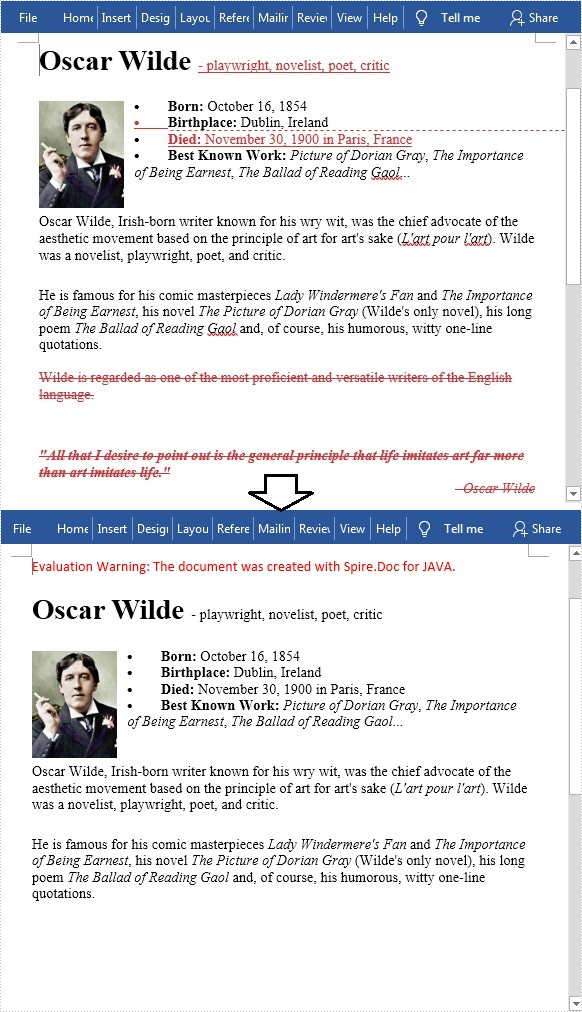
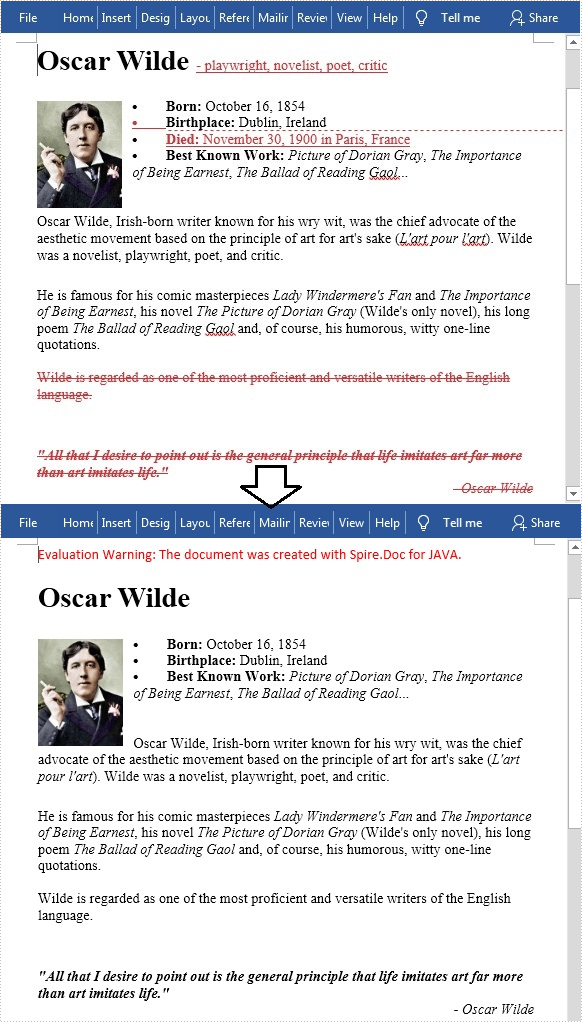
Track Changes is a built-in feature in Microsoft Word which allows you to see all changes that were made to the document, and you can decide whether to accept or reject those changes. It is very useful especially when you are collaborating with multiple people on the same contracts or school assignments. In this article, you will learn how to programmatically accept or reject all tracked changes in a Word document using Spire.Doc for Java.
Install Spire.Doc for Java
First of all, you're required to add the Spire.Doc.jar file as a dependency in your Java program. The JAR file can be downloaded from this link. If you use Maven, you can easily import the JAR file in your application by adding the following code to your project's pom.xml file.
<repositories>
    <repository>
        <id>com.e-iceblue</id>
        <name>e-iceblue</name>
        <url>https://repo.e-iceblue.com/nexus/content/groups/public/</url>
    </repository>
</repositories>
<dependencies>
    <dependency>
        <groupId>e-iceblue</groupId>
        <artifactId>spire.doc</artifactId>
        <version>14.8.4</version>
    </dependency>
</dependencies>
Accept All Tracked Changes in a Word document
The detailed steps are as follows.
- Create a Document instance.
- Load a sample Word document using Document.loadFromFile() method.
- Accept all changes in the document using Document.acceptChanges() method.
- Save the document to another file using Document.saveToFile() method.
- Java
import com.spire.doc.Document;
import com.spire.doc.FileFormat;

public class AcceptTrackedChanges {
    public static void main(String[] args) {

        //Create a Document instance
        Document doc = new Document();

        //Load the sample Word document
        doc.loadFromFile("test file.docx");

        //Accept all changes in the document
        doc.acceptChanges();

        //Save the document
        doc.saveToFile("AcceptAllChanges.docx", FileFormat.Docx);
    }
}
Reject All Tracked Changes in a Word document
The detailed steps are as follows.
- Create a Document instance.
- Load a sample Word document using Document.loadFromFile() method.
- Reject all changes in the document using Document.rejectChanges() method.
- Save the document to another file using Document.saveToFile() method.
- Java
import com.spire.doc.Document;
import com.spire.doc.FileFormat;

public class RejectTrackedChanges {
    public static void main(String[] args) {

        //Create a Document instance
        Document doc = new Document();

        //Load the sample Word document
        doc.loadFromFile("test file.docx");

        //Reject all changes in the document
        doc.rejectChanges();

        //Save the document
        doc.saveToFile("RejectAllChanges.docx", FileFormat.Docx);
    }
}
Apply for a Temporary License
If you'd like to remove the evaluation message from the generated documents, or to get rid of the function limitations, please request a 30-day trial license for yourself.
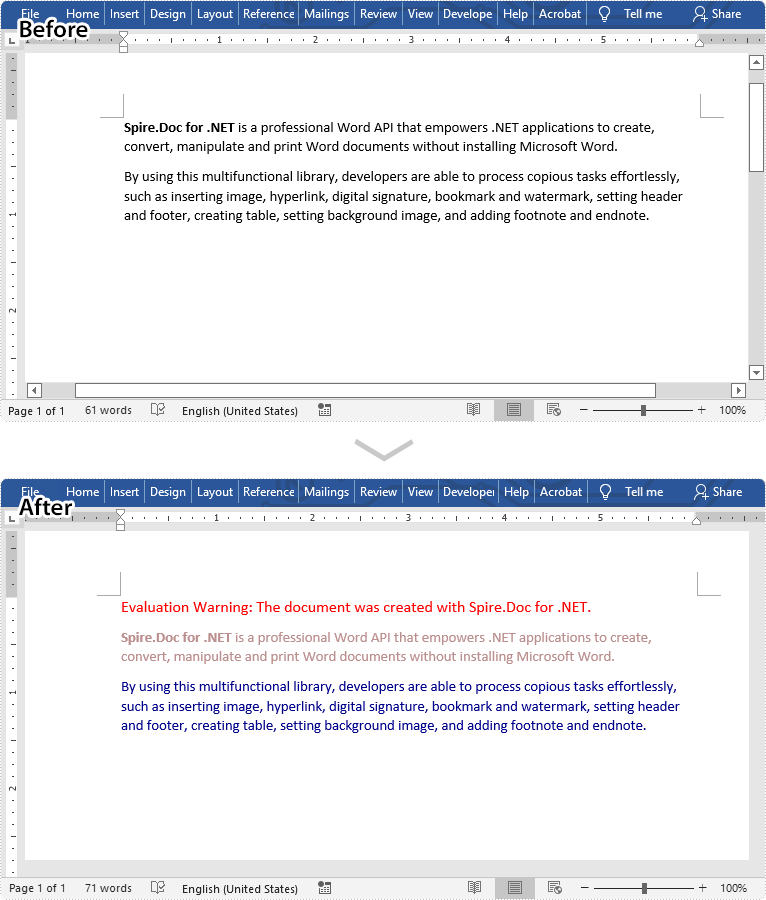
Changing the font color of a certain paragraph or text can help you make the paragraph or text stand out in your Word document. In this article, we will demonstrate how to change the font color in Word in Java using Spire.Doc for Java library.
Install Spire.Doc for Java
First of all, you're required to add the Spire.Doc.jar file as a dependency in your Java program. The JAR file can be downloaded from this link. If you use Maven, you can easily import the JAR file in your application by adding the following code to your project's pom.xml file.
<repositories>
    <repository>
        <id>com.e-iceblue</id>
        <name>e-iceblue</name>
        <url>https://repo.e-iceblue.com/nexus/content/groups/public/</url>
    </repository>
</repositories>
<dependencies>
    <dependency>
        <groupId>e-iceblue</groupId>
        <artifactId>spire.doc</artifactId>
        <version>14.8.4</version>
    </dependency>
</dependencies>
Change Font Color of a Paragraph in Java
The following are the steps to change the font color of a paragraph in a Word document:
- Create a Document instance.
- Load the Word document using Document.LoadFromFile() method.
- Get the desired section using Document.getSections().get(sectionIndex) method.
- Get the desired paragraph that you want to change the font color of using Section.getParagraphs().get(paragraphIndex) method.
- Create a ParagraphStyle instance.
- Set the style name and font color using ParagraphStyle.setName() and ParagraphStyle.getCharacterFormat().setTextColor() methods.
- Add the style to the document using Document.getStyles().add() method.
- Apply the style to the paragraph using Paragraph.applyStyle() method.
- Save the result document using Document.saveToFile() method.
- Java
import com.spire.doc.Document;
import com.spire.doc.FileFormat;
import com.spire.doc.Section;
import com.spire.doc.documents.Paragraph;
import com.spire.doc.documents.ParagraphStyle;

import java.awt.*;

public class ChangeFontColorForParagraph {
    public static void main(String []args){
        //Create a Document instance
        Document document = new Document();
        //Load a Word document
        document.loadFromFile("Sample.docx");

        //Get the first section
        Section section = document.getSections().get(0);

        //Change text color of the first Paragraph
        Paragraph p1 = section.getParagraphs().get(0);
        ParagraphStyle s1 = new ParagraphStyle(document);
        s1.setName("Color1");
        s1.getCharacterFormat().setTextColor(new Color(188, 143, 143));
        document.getStyles().add(s1);
        p1.applyStyle(s1.getName());

        //Change text color of the second Paragraph
        Paragraph p2 = section.getParagraphs().get(1);
        ParagraphStyle s2 = new ParagraphStyle(document);
        s2.setName("Color2");
        s2.getCharacterFormat().setTextColor(new Color(0, 0, 139));;
        document.getStyles().add(s2);
        p2.applyStyle(s2.getName());

        //Save the result document
        document.saveToFile("ChangeParagraphTextColor.docx", FileFormat.Docx);
    }
}
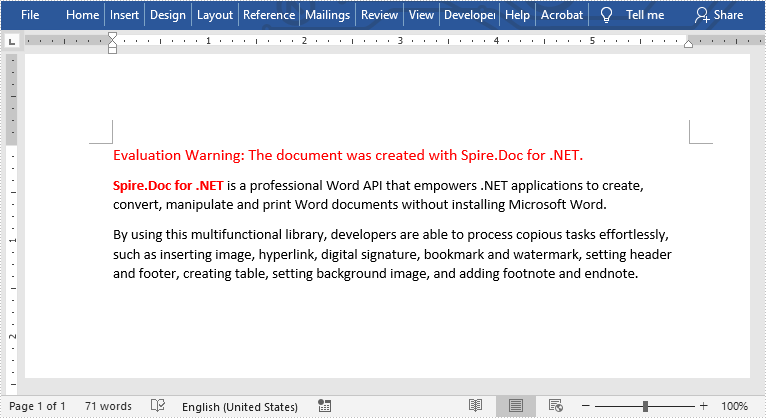
Change Font Color of a Specific Text in Java
The following are the steps to change the font color of a specific text in a Word document:
- Create a Document instance.
- Load a Word document using Document.loadFromFile() method.
- Find the text that you want to change font color of using Document.findAllString() method.
- Loop through all occurrences of the searched text and change the font color for each occurrence using TextSelection.getAsOneRange().getCharacterFormat().setTextColor() method.
- Save the result document using Document.saveToFile() method.
- Java
import com.spire.doc.Document;
import com.spire.doc.FileFormat;
import com.spire.doc.documents.TextSelection;

import java.awt.*;

public class ChangeFontColorForText {
    public static void main(String []args){
        //Create a Document instance
        Document document = new Document();
        //Load a Word document
        document.loadFromFile("Sample.docx");

        //Find the text that you want to change font color for
        TextSelection[] text = document.findAllString("Spire.Doc for .NET", false, true);
        //Change the font color for the searched text
        for (TextSelection seletion : text)
        {
            seletion.getAsOneRange().getCharacterFormat().setTextColor(Color.red);
        }

        //Save the result document
        document.saveToFile("ChangeCertainTextColor.docx", FileFormat.Docx);

    }
}
Apply for a Temporary License
If you'd like to remove the evaluation message from the generated documents, or to get rid of the function limitations, please request a 30-day trial license for yourself.
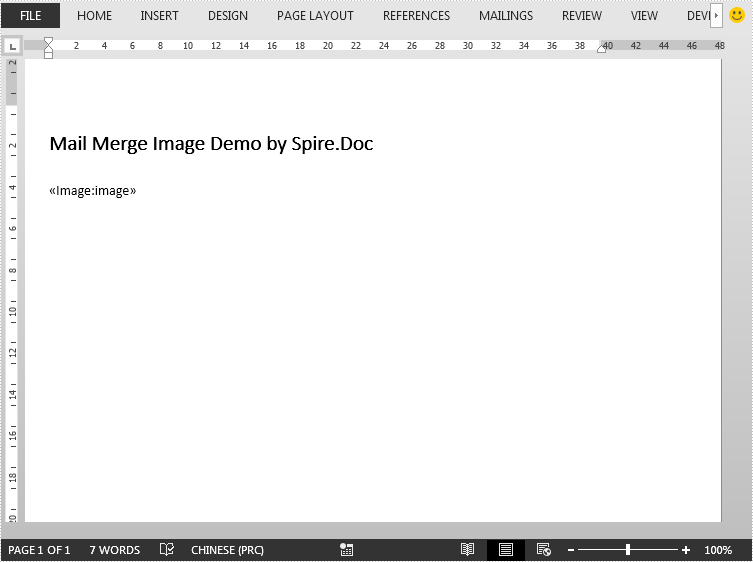
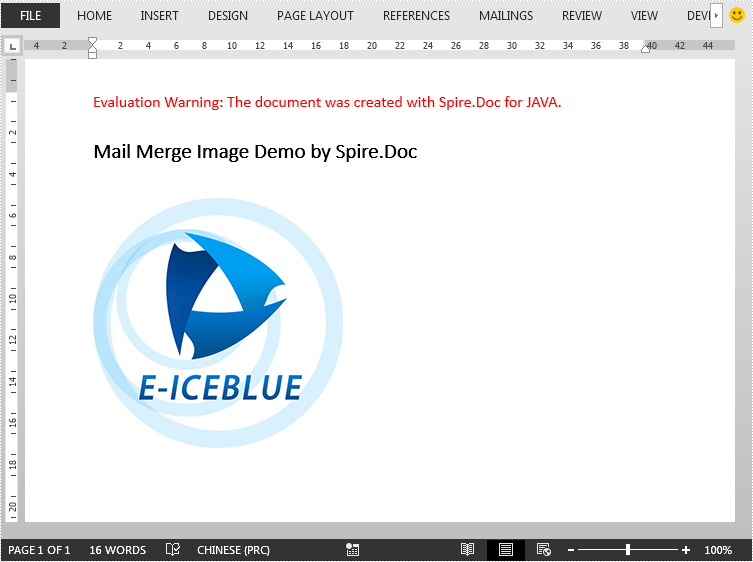
This article demonstrates how to mail merge image in Word document in Java using Spire.Doc for Java.
The template document:
import com.spire.doc.Document;
import com.spire.doc.FileFormat;
import com.spire.doc.reporting.MergeImageFieldEventArgs;
import com.spire.doc.reporting.MergeImageFieldEventHandler;

import java.text.SimpleDateFormat;
import java.util.Date;

public class SimpleMailMerge {
    public static void main(String[] args) throws Exception {
        //create a Document instance
        Document document = new Document();
        //load the template document
        document.loadFromFile("template - Copy.docx");

        //specify the merge field name
        String[] filedNames = new String[]{"image"};
        //specify the path of image
        String[] filedValues = new String[]{"logo.png"};
        //invoke the mail merge event to load image
        document.getMailMerge().MergeImageField = new MergeImageFieldEventHandler() {
            public void invoke(Object sender, MergeImageFieldEventArgs args) {
                mailMerge_MergeImageField(sender, args);
            }
        };
        //execute mail merge
        document.getMailMerge().execute(filedNames, filedValues);

        //save file
        document.saveToFile("MailMergeImage.docx", FileFormat.Docx_2013);
    }
    //create a mail merge event to load image
    private static void mailMerge_MergeImageField(Object sender, MergeImageFieldEventArgs field) {
        String filePath = field.getImageFileName();
        if (filePath != null && !"".equals(filePath)) {
            try {
                field.setImage(filePath);
            } catch (Exception e) {
                e.printStackTrace();
            }
        }
    }
}
The output document:
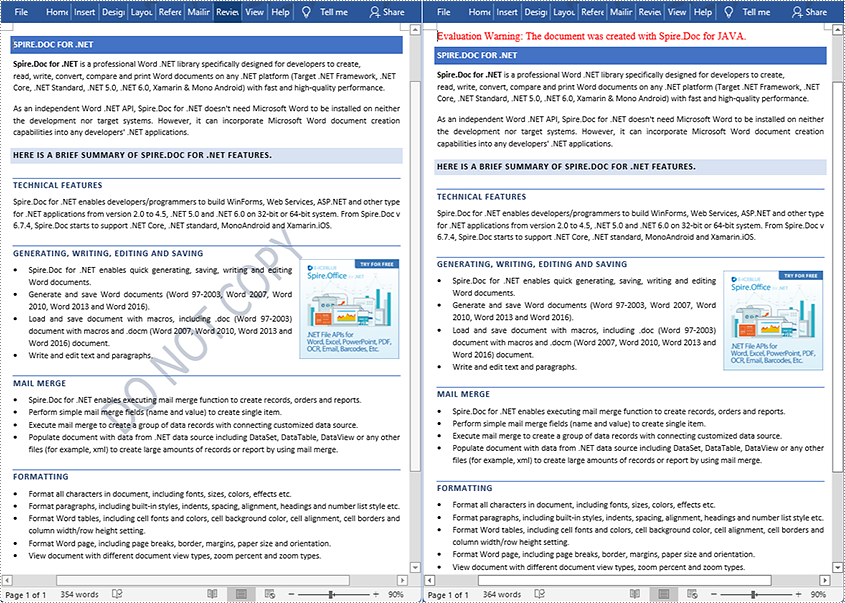
A watermark in a Word document is a semitransparent text or image background that is used to highlight something important about the document, such as using text watermark to remind the reader that the document is confidential or just a draft and declaring copyright through a picture of your company. Sometimes watermarks can affect the readability of documents, and if we want to remove them, Spire.Doc for Java will be of great help. This article shows the detailed steps of removing watermarks from Word documents with the help of Spire.Doc for Java.
Install Spire.Doc for Java
First, you're required to add the Spire.Doc.jar file as a dependency in your Java program. The JAR file can be downloaded from this link. If you use Maven, you can easily import the JAR file in your application by adding the following code to your project's pom.xml file.
<repositories>
    <repository>
        <id>com.e-iceblue</id>
        <name>e-iceblue</name>
        <url>https://repo.e-iceblue.com/nexus/content/groups/public/</url>
    </repository>
</repositories>
<dependencies>
    <dependency>
        <groupId>e-iceblue</groupId>
        <artifactId>spire.doc</artifactId>
        <version>14.8.4</version>
    </dependency>
</dependencies>
Remove the Watermark from a Word Document
The detailed steps of removing a watermark are as follows:
- Create an object of Document.
- Load a Word document from disk using Document.loadFromFile() method.
- Set the watermark to null to remove the watermark using Document.setWatermark() method.
- Save the Word document using Document.saveToFile() method.
- Java
import com.spire.doc.*;

public class removeWatermark {
    public static void main(String[] args) {


        //Create an object of Document
        Document document = new Document();

        //Load a Word document from disk
        document.loadFromFile("D:/testp/test.docx");

        //Set the watermark value to null to remove the watermark
        document.setWatermark(null);

        //Save the Word document
        String output = "D:/javaOutput/removeWatermark.docx";
        document.saveToFile(output, FileFormat.Docx_2013);
    }
}
Apply for a Temporary License
If you'd like to remove the evaluation message from the generated documents, or to get rid of the function limitations, please request a 30-day trial license for yourself.
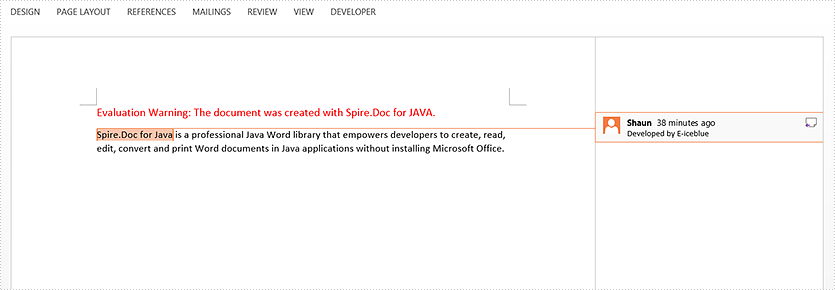
Comments can be added to almost every element in Word, such as text, images, charts, tables, etc. This article focuses on how to add comments to selected text (phrase) in a Word document using Spire.Doc for Java.
Install Spire.Doc for Java
First of all, you're required to add the Spire.Doc.jar file as a dependency in your Java program. The JAR file can be downloaded from this link. If you use Maven, you can easily import the JAR file in your application by adding the following code to your project’s pom.xml file.
<repositories>
    <repository>
        <id>com.e-iceblue</id>
        <name>e-iceblue</name>
        <url>https://repo.e-iceblue.com/nexus/content/groups/public/</url>
    </repository>
</repositories>
<dependencies>
    <dependency>
        <groupId>e-iceblue</groupId>
        <artifactId>spire.doc</artifactId>
        <version>14.8.4</version>
    </dependency>
</dependencies>
Add a Comment to a Specific Phrase
The Paragraph.appendComment() method is used to add comments to an entire paragraph. By default, the comment mark will be placed at the end of the paragraph. To add a comment to a specific phrase, you need to place comment marks (represented by the CommentMark class) at the beginning and end of the text range. The following are the steps to add a comment to a specific phrase.
- Create a Document object, and load the sample Word file using Document.loadFromFile() method.
- Find the specific string from the document using Document.findAllString() method.
- Create a comment start mark and a comment end mark, which will be placed at the beginning and end of the selected phrase respectively.
- Create a Comment object, specifying content and author.
- Get the oner paragraph of the selected phrase, and add the comment to the paragraph as a child object.
- Save the document using Document.saveToFile() method.
- Java
import com.spire.doc.Document;
import com.spire.doc.FileFormat;
import com.spire.doc.documents.CommentMark;
import com.spire.doc.documents.CommentMarkType;
import com.spire.doc.documents.Paragraph;
import com.spire.doc.documents.TextSelection;
import com.spire.doc.fields.Comment;

public class AddCommentToSpecificText {

    public static void main(String[] args) {

        //Create a Document object
        Document doc = new Document();

        //Load the sample Word file
        doc.loadFromFile("C:\\Users\\Administrator\\Desktop\\sample.docx");

        //Find the specific string to add comment
        TextSelection[] finds = doc.findAllString("Spire.Doc for Java", false, true);
        TextSelection specificText = finds[0];

        //Create a start mark
        CommentMark commentmarkStart = new CommentMark(doc);
        commentmarkStart.setType(CommentMarkType.Comment_Start);

        //Create an end mark
        CommentMark commentmarkEnd = new CommentMark(doc);
        commentmarkEnd.setType(CommentMarkType.Comment_End);

        //Create a comment
        Comment comment = new Comment(doc);
        comment.getBody().addParagraph().setText("Developed by E-iceblue");
        comment.getFormat().setAuthor("Shaun");

        //Find the paragraph where the string is located
        Paragraph para = specificText.getAsOneRange().getOwnerParagraph();

        //Get the index of the string in the paragraph
        int index = para.getChildObjects().indexOf(specificText.getAsOneRange());

        //Add the comment to the paragraph
        para.getChildObjects().add(comment);

        //Insert the start mark and end mark to the paragraph based on the index
        para.getChildObjects().insert(index, commentmarkStart);
        para.getChildObjects().insert(index + 2, commentmarkEnd);

        //Save to file
        doc.saveToFile("AddComment.docx", FileFormat.Docx_2013);
    }
}
Apply for a Temporary License
If you'd like to remove the evaluation message from the generated documents, or to get rid of the function limitations, please request a 30-day trial license for yourself.
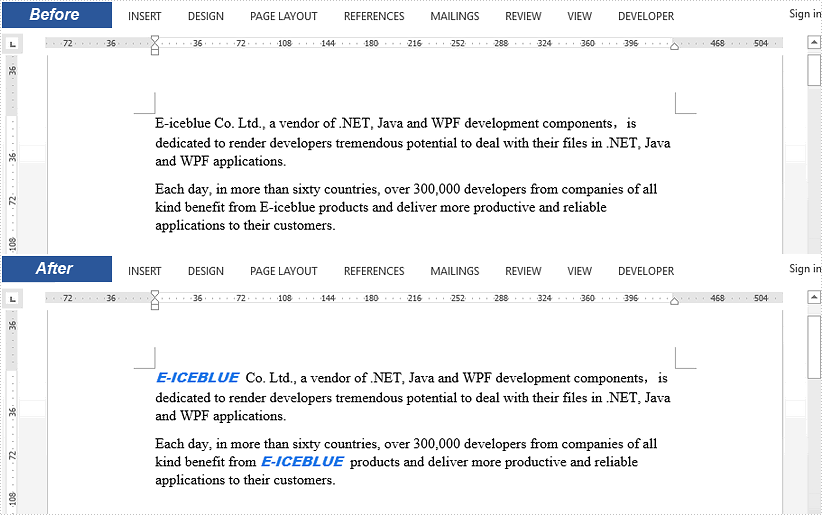
This article demonstrates how to replace selected text in a Word document with an image using Spire.Doc for Java.
import com.spire.doc.Document;
import com.spire.doc.FileFormat;
import com.spire.doc.documents.TextSelection;
import com.spire.doc.fields.DocPicture;
import com.spire.doc.fields.TextRange;

public class ReplaceTextWithImage {

    public static void main(String[] args) {

        //Load a sample Word file
        Document document = new Document();
        document.loadFromFile("C:\\Users\\Administrator\\Desktop\\input.docx");

        //Find the string 'E-iceblue' in the document
        TextSelection[] selections = document.findAllString("E-iceblue", true, true);

        //Replace the string with an image
        int index = 0;
        TextRange range = null;
        for (Object obj : selections) {

            TextSelection textSelection = (TextSelection)obj;
            DocPicture pic = new DocPicture(document);
            pic.loadImage("C:\\Users\\Administrator\\Desktop\\e-iceblue-logo.png");
            range = textSelection.getAsOneRange();
            index = range.getOwnerParagraph().getChildObjects().indexOf(range);
            range.getOwnerParagraph().getChildObjects().insert(index,pic);
            range.getOwnerParagraph().getChildObjects().remove(range);
        }

        //Save the document
        document.saveToFile("output/ReplaceTextWithImage.docx", FileFormat.Docx_2013);
    }
}
This article demonstrates how to modify hyperlinks in Word including modifying hyperlink address and display text using Spire.Doc for Java.
Below is the sample Word document we used for demonstration:

import com.spire.doc.*;
import com.spire.doc.documents.*;
import com.spire.doc.fields.Field;
import java.util.ArrayList;
import java.util.List;
public class ModifyHyperlink {
public static void main(String[] args) {
//Load Word document
Document doc = new Document();
doc.loadFromFile("Hyperlink.docx");
List<Field> hyperlinks = new ArrayList<>();
//Loop through the section in the document
for (Section section : (Iterable<Section>) doc.getSections()
) {
//Loop through the section in the document
for (Paragraph para : (Iterable<Paragraph>) section.getParagraphs()
) {
for (DocumentObject obj:(Iterable<DocumentObject>) para.getChildObjects()
) {
if (obj.getDocumentObjectType().equals(DocumentObjectType.Field)) {
Field field = (Field) obj;
if (field.getType().equals(FieldType.Field_Hyperlink)) {
hyperlinks.add(field);
}
}
}
}
}
hyperlinks.get(0).setCode("HYPERLINK \"http://www.google.com\"");
hyperlinks.get(0).setFieldText("www.google.com");
doc.saveToFile("EditHyperlink.docx", FileFormat.Docx_2013);
}
}
Output:

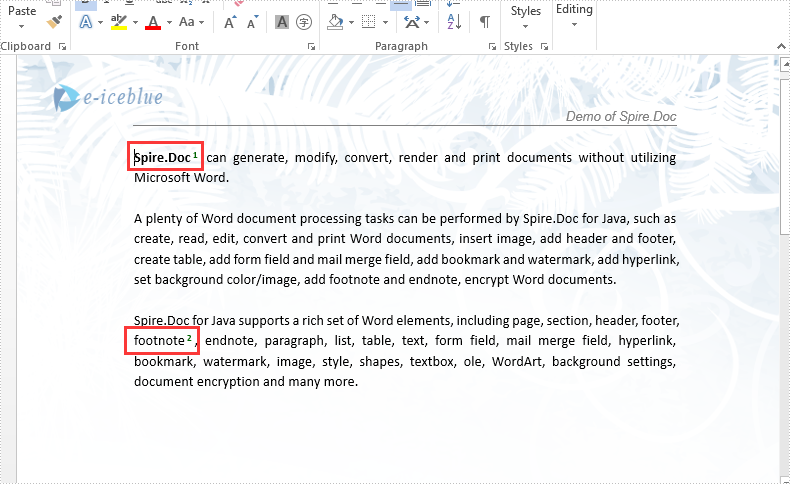
We have already demonstrated how to use Spire.Doc to insert footnote to word document in Java applications. This article will show how to remove footnote from word document in Java.
Firstly, view the sample document with footnotes:
import com.spire.doc.*;
import com.spire.doc.documents.Paragraph;
import com.spire.doc.fields.*;

public class RemoveFootnote {
    public static void main(String[] args) throws Exception {

        //Load the Sample Word document.
        Document document = new Document();
        document.loadFromFile("Sample.docx");

        Section section = document.getSections().get(0);

        //Traverse paragraphs in the section and find the footnote
        for (int j = 0; j < section.getParagraphs().getCount(); j++) {
            Paragraph para = section.getParagraphs().get(j);
            int index = -1;
            for (int i = 0, cnt = para.getChildObjects().getCount(); i < cnt; i++) {
                ParagraphBase pBase = (ParagraphBase) para.getChildObjects().get(i);
                if (pBase instanceof Footnote) {
                    index = i;
                    break;
                }
            }

            if (index > -1)
                //remove the footnote
                para.getChildObjects().removeAt(index);
        }
        document.saveToFile("Removefootnote.docx", FileFormat.Docx);
    }
}
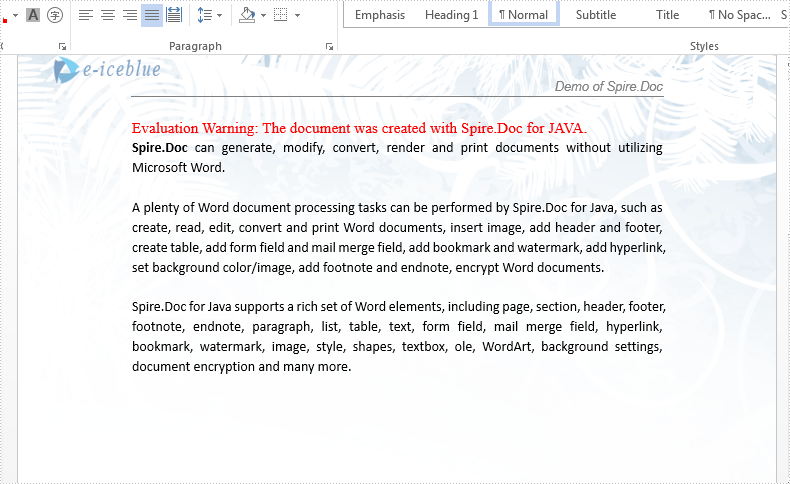
Effective screenshot after remove the footnote from word document:
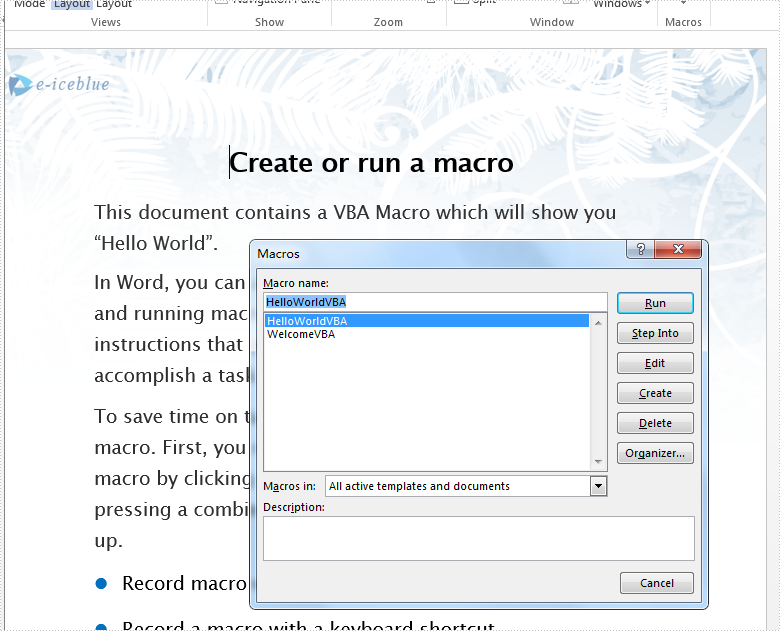
Spire.Doc load the word document with macros, it also supports to detect if a Word document contains VBA macros and remove all the VBA macros from a word document. This article demonstrates how to detect and remove VBA macros from Word document in Java applications.
Firstly, please view the sample document with macros:
import com.spire.doc.Document;
import com.spire.doc.FileFormat;


public class RemoveMacro {
    public static void main(String[] args) throws Exception {

        //Load the Sample Word document.
        Document doc = new Document();
        doc.loadFromFile("VBAMacros.docm");

        //If the document contains Macros, remove them from the document.
        if (doc.isContainMacro() )
        {
            doc.clearMacros();
        }

        //save to file
        doc.saveToFile("output/RemoveMacro.docm", FileFormat.Docm);

    }
}
Effective screenshot after clear the VBA macros from word document: