
Conversion (18)
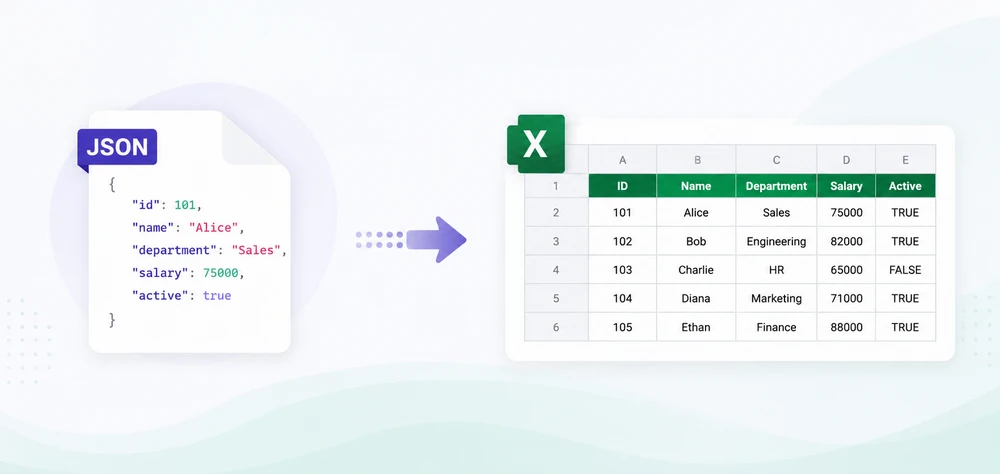
JSON is widely used for data exchange in REST APIs, web services, and enterprise applications. However, business users often prefer Excel for reporting, filtering, and data analysis. As a result, developers frequently need to convert JSON to Excel in Java when exporting API responses, generating reports, or sharing structured data with non-technical users.
While Java provides several JSON libraries, transforming data into a well-structured Excel file requires handling column headers, cell types, row iteration, and output formats — all of which become tedious without the right tool. Spire.XLS for Java simplifies this with a clean API that creates Excel workbooks without relying on Microsoft Office.
In this article, you'll learn how to convert JSON to Excel in Java using Spire.XLS for Java and Jackson. We'll cover JSON array conversion, nested JSON handling, JSON file processing, XLSX and XLS export, auto-fitting, formatting, and best practices for working with large datasets.
Quick Navigation
- Why Convert JSON to Excel in Java
- Install Spire.XLS for Java
- Prepare JSON Data
- Convert JSON to Excel in Java — Step by Step
- Complete Java Code to Convert JSON to Excel
- Export JSON to XLSX in Java
- Convert Nested JSON to Excel in Java
- Convert a JSON File to Excel
- Auto-Fit Rows and Columns in Excel
- Apply Formatting to the Exported Excel File
- Common Challenges When Converting JSON to Excel
- Why Use Spire.XLS for Java
- Conclusion
- FAQ
1. Why Convert JSON to Excel in Java
JSON is widely used for data exchange in REST APIs, web services, and enterprise applications because it is lightweight and easy for machines to process. However, business users often need Excel files for reporting, filtering, visualization, and further analysis.
Converting JSON to Excel in Java helps bridge the gap between backend systems and business workflows. Common use cases include:
Export API Data
Many REST APIs return JSON responses. Converting these responses into Excel allows users to review, filter, and analyze data without manually processing raw JSON.
Generate Reports
Java applications can transform JSON data from APIs, databases, or other sources into structured Excel reports with headers, formatting, and organized tables.
Share Structured Data
Excel files are easier to distribute and analyze using tools such as charts, formulas, and pivot tables. Exporting JSON data to Excel gives non-technical users direct access to these features.
2. Install Spire.XLS for Java
Before converting JSON to Excel in Java, set up the following dependencies in your project.
Maven Dependency
Spire.XLS for Java is available through the e-iceblue Maven repository. Add the repository and dependency to your pom.xml:
<repositories>
    <repository>
        <id>com.e-iceblue</id>
        <name>e-iceblue</name>
        <url>https://repo.e-iceblue.com/nexus/content/groups/public/</url>
    </repository>
</repositories>

<dependency>
    <groupId>e-iceblue</groupId>
    <artifactId>spire.xls</artifactId>
    <version>16.6.5</version>
</dependency>
You can also download Spire.XLS for Java and add the JAR to your project manually.
Add a JSON Library
Java does not include built-in JSON support. This guide uses Jackson, the most widely adopted JSON processing library in the Java ecosystem:
<dependency>
    <groupId>com.fasterxml.jackson.core</groupId>
    <artifactId>jackson-databind</artifactId>
    <version>2.17.2</version>
</dependency>
Import Required Classes
Include the following imports in your Java source file:
import com.spire.xls.*;
import com.spire.xls.core.spreadsheet.collections.AutoFitType;
import com.fasterxml.jackson.databind.JsonNode;
import com.fasterxml.jackson.databind.ObjectMapper;
import com.fasterxml.jackson.databind.node.ArrayNode;
import com.fasterxml.jackson.databind.node.ObjectNode;
import java.io.File;
import java.io.IOException;
import java.util.Iterator;
import java.util.Map;
3. Prepare JSON Data
To illustrate the conversion process, we will use a simple JSON array where each object represents a row and each property represents a column. This is the most common JSON structure encountered in REST API responses and data export workflows.
Example: Simple JSON Array
[
  {
    "ID": 1,
    "Name": "Alice",
    "Department": "Sales",
    "Salary": 75000,
    "HireDate": "2022-03-15"
  },
  {
    "ID": 2,
    "Name": "Bob",
    "Department": "Marketing",
    "Salary": 68000,
    "HireDate": "2021-07-01"
  },
  {
    "ID": 3,
    "Name": "Carol",
    "Department": "Engineering",
    "Salary": 92000,
    "HireDate": "2023-01-10"
  }
]
The mapping between JSON and Excel is straightforward:
- Each JSON object becomes a row in the spreadsheet
- Each property key becomes a column header
- Each property value becomes a cell value in the corresponding row and column
Understanding this mapping is essential for following the code examples in the next sections.
4. Convert JSON to Excel in Java — Step by Step
The conversion process involves five steps: creating a workbook, accessing a worksheet, parsing JSON data, writing column headers, and populating cell values. This section walks through each step individually before presenting the complete code.
Step 1: Create a Workbook
The Workbook class represents an Excel file. Instantiate it to create a new, empty workbook:
Workbook workbook = new Workbook();
Step 2: Create a Worksheet
A workbook contains one or more worksheets. Access the first worksheet (created by default) and optionally rename it:
Worksheet sheet = workbook.getWorksheets().get(0);
sheet.setName("EmployeeData");
Step 3: Read JSON Data
Use Jackson's ObjectMapper to parse the JSON string into a JsonNode tree. If the root element is a JSON array, cast it to ArrayNode for iteration:
ObjectMapper mapper = new ObjectMapper();
JsonNode rootNode = mapper.readTree(jsonString);

if (!rootNode.isArray()) {
    throw new IllegalArgumentException("Expected a JSON array at the root level");
}
ArrayNode jsonArray = (ArrayNode) rootNode;
Step 4: Write JSON Keys as Column Headers
Extract the field names from the first JSON object and write them to the first row of the worksheet. Spire.XLS uses 1-based row and column indices:
JsonNode firstObject = jsonArray.get(0);
int col = 1;
for (Iterator<Map.Entry<String, JsonNode>> it = firstObject.fields(); it.hasNext(); ) {
    Map.Entry<String, JsonNode> entry = it.next();
    sheet.get(1, col).setValue(entry.getKey());
    col++;
}
Step 5: Write JSON Values to Excel Cells
Iterate through each JSON object in the array and write its values to the corresponding row. Start from row 2 since row 1 contains the headers:
for (int i = 0; i < jsonArray.size(); i++) {
    JsonNode record = jsonArray.get(i);
    int dataRow = i + 2;
    int dataCol = 1;
    for (Iterator<Map.Entry<String, JsonNode>> it = record.fields(); it.hasNext(); ) {
        Map.Entry<String, JsonNode> entry = it.next();
        JsonNode value = entry.getValue();
        if (value.isNumber()) {
            sheet.get(dataRow, dataCol).setNumberValue(value.doubleValue());
        } else if (value.isBoolean()) {
            sheet.get(dataRow, dataCol).setBooleanValue(value.booleanValue());
        } else {
            sheet.get(dataRow, dataCol).setValue(value.asText());
        }
        dataCol++;
    }
}
This approach preserves data types — numbers and booleans are written as typed cell values rather than strings, which ensures that numeric sorting, filtering, and formula calculations work correctly in the generated Excel file.
5. Complete Java Code to Convert JSON to Excel
Here is the full, runnable program that reads a JSON string and converts it to an Excel file. This example demonstrates the complete Java code to convert JSON to Excel from start to finish:
import com.spire.xls.*;
import com.fasterxml.jackson.databind.JsonNode;
import com.fasterxml.jackson.databind.ObjectMapper;
import com.fasterxml.jackson.databind.node.ArrayNode;
import java.io.File;
import java.util.Iterator;
import java.util.Map;

public class JsonToExcelConverter {

    public static void main(String[] args) {

        // Sample JSON data — an array of employee records
        String jsonString = "["
            + "{\"ID\":1,\"Name\":\"Alice\",\"Department\":\"Sales\",\"Salary\":75000,\"HireDate\":\"2022-03-15\"},"
            + "{\"ID\":2,\"Name\":\"Bob\",\"Department\":\"Marketing\",\"Salary\":68000,\"HireDate\":\"2021-07-01\"},"
            + "{\"ID\":3,\"Name\":\"Carol\",\"Department\":\"Engineering\",\"Salary\":92000,\"HireDate\":\"2023-01-10\"}"
            + "]";

        try {
            // Parse the JSON string into a JsonNode tree
            ObjectMapper mapper = new ObjectMapper();
            JsonNode rootNode = mapper.readTree(jsonString);

            if (!rootNode.isArray()) {
                throw new IllegalArgumentException("Expected a JSON array at the root level");
            }
            ArrayNode jsonArray = (ArrayNode) rootNode;

            // Create a new workbook and access the first worksheet
            Workbook workbook = new Workbook();
            Worksheet sheet = workbook.getWorksheets().get(0);
            sheet.setName("EmployeeData");

            // Write column headers from the first JSON object's keys
            JsonNode firstObject = jsonArray.get(0);
            int col = 1;
            for (Iterator<Map.Entry<String, JsonNode>> it = firstObject.fields(); it.hasNext(); ) {
                Map.Entry<String, JsonNode> entry = it.next();
                sheet.get(1, col).setValue(entry.getKey());
                col++;
            }

            // Write data rows from JSON values
            for (int i = 0; i < jsonArray.size(); i++) {
                JsonNode record = jsonArray.get(i);
                int dataRow = i + 2;
                int dataCol = 1;

                for (Iterator<Map.Entry<String, JsonNode>> it = record.fields(); it.hasNext(); ) {
                    Map.Entry<String, JsonNode> entry = it.next();
                    JsonNode value = entry.getValue();

                    // Preserve data types: numbers and booleans as typed cells
                    if (value.isNumber()) {
                        sheet.get(dataRow, dataCol).setNumberValue(value.doubleValue());
                    } else if (value.isBoolean()) {
                        sheet.get(dataRow, dataCol).setBooleanValue(value.booleanValue());
                    } else {
                        sheet.get(dataRow, dataCol).setValue(value.asText());
                    }
                    dataCol++;
                }
            }

            // Auto-fit columns for readability
            sheet.getAllocatedRange().autoFitColumns();

            // Save the workbook as an XLSX file
            workbook.saveToFile("EmployeeData.xlsx", ExcelVersion.Version2016);
            System.out.println("JSON converted to Excel successfully.");

            // Release resources
            workbook.dispose();

        } catch (Exception e) {
            System.err.println("Error during JSON to Excel conversion: " + e.getMessage());
            e.printStackTrace();
        }
    }
}
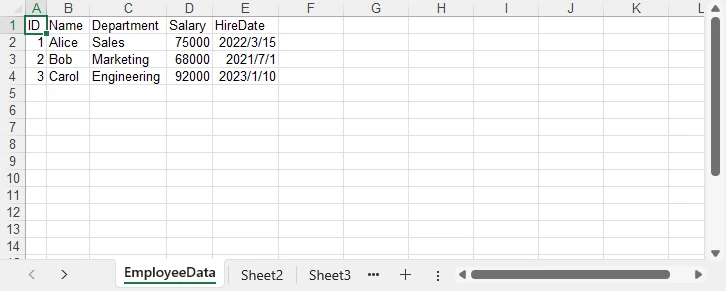
After running the program, the JSON data is converted into an Excel worksheet. The generated EmployeeData.xlsx file contains the employee records with preserved data types and automatically adjusted column widths:
Key Spire.XLS Classes and Methods
- Workbook — Represents an Excel file. Handles creation, worksheet management, and file saving.
- Worksheet — Represents a single sheet within a workbook. Provides access to cells, rows, and columns.
get(int row, int column)— Returns aCellRangeobject for the specified cell. Row and column indices are 1-based.setValue(String)— Sets a cell's value as a string. Used for text and headers.setNumberValue(double)— Sets a cell's value as a number, preserving numeric type for calculations.setBooleanValue(boolean)— Sets a cell's value as a boolean (TRUE/FALSE).saveToFile(String, ExcelVersion)— Saves the workbook to a file in the specified Excel format.dispose()— Releases unmanaged resources held by the workbook.
If you also need to convert Excel files back to JSON format, see our guide on how to convert Excel to JSON in Java using Spire.XLS for Java.
6. Export JSON to XLSX in Java
Spire.XLS for Java supports both the modern XLSX format (Excel 2007 and later) and the legacy XLS format (Excel 97–2003). You can control the output format by passing the appropriate ExcelVersion enum to saveToFile().
Save as XLSX
// Export to modern Excel format (.xlsx)
workbook.saveToFile("EmployeeData.xlsx", ExcelVersion.Version2016);
Save as XLS
// Export to legacy Excel format (.xls)
workbook.saveToFile("EmployeeData.xls", ExcelVersion.Version97to2003);
| Format | Description | Use Case |
|---|---|---|
| XLSX | Modern Excel format (Excel 2007+) | Default choice; smaller file, full features |
| XLS | Legacy Excel format (Excel 97–2003) | Compatibility with older systems |
The same workbook object can be saved to either format — no code changes are needed beyond the file extension and version parameter. This is particularly useful when your application needs to support both modern and legacy environments.
You can also learn how to convert between XLS and XLSX formats in Java for scenarios where format migration or legacy upgrade is required.
7. Convert Nested JSON to Excel in Java
Real-world JSON data often contains nested objects and arrays. To write nested JSON to Excel, you need to flatten the hierarchical structure into a tabular format where each nested field becomes its own column.
Consider the following JSON containing employee records with nested contact information:
[
  {
    "ID": 1,
    "Name": "Alice",
    "Department": "Sales",
    "Contact": {
      "Email": "alice@company.com",
      "Phone": "555-0101"
    }
  },
  {
    "ID": 2,
    "Name": "Bob",
    "Department": "Marketing",
    "Contact": {
      "Email": "bob@company.com",
      "Phone": "555-0102"
    }
  }
]
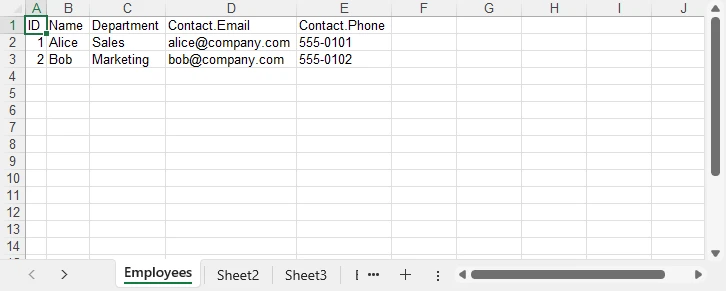
The goal is to flatten the Contact object so that Email and Phone become individual columns:
| ID | Name | Department | Contact.Email | Contact.Phone |
|---|---|---|---|---|
| 1 | Alice | Sales | alice@company.com | 555-0101 |
| 2 | Bob | Marketing | bob@company.com | 555-0102 |
The following code uses a recursive flattening approach to handle arbitrary nesting depth:
import com.spire.xls.*;
import com.fasterxml.jackson.databind.JsonNode;
import com.fasterxml.jackson.databind.ObjectMapper;
import com.fasterxml.jackson.databind.node.ArrayNode;
import java.util.Iterator;
import java.util.LinkedHashMap;
import java.util.Map;

public class NestedJsonToExcel {

    public static void main(String[] args) {

        String jsonString = "["
            + "{\"ID\":1,\"Name\":\"Alice\",\"Department\":\"Sales\","
            + "\"Contact\":{\"Email\":\"alice@company.com\",\"Phone\":\"555-0101\"}},"
            + "{\"ID\":2,\"Name\":\"Bob\",\"Department\":\"Marketing\","
            + "\"Contact\":{\"Email\":\"bob@company.com\",\"Phone\":\"555-0102\"}}"
            + "]";

        try {
            ObjectMapper mapper = new ObjectMapper();
            ArrayNode jsonArray = (ArrayNode) mapper.readTree(jsonString);

            Workbook workbook = new Workbook();
            Worksheet sheet = workbook.getWorksheets().get(0);
            sheet.setName("Employees");

            // Flatten the first object to extract all column headers (including nested keys)
            LinkedHashMap<String, String> firstFlat = flattenJson(jsonArray.get(0), "");
            int col = 1;
            for (String key : firstFlat.keySet()) {
                sheet.get(1, col).setValue(key);
                col++;
            }

            // Write data rows
            for (int i = 0; i < jsonArray.size(); i++) {
                LinkedHashMap<String, String> flat = flattenJson(jsonArray.get(i), "");
                int dataRow = i + 2;
                int dataCol = 1;
                for (String key : firstFlat.keySet()) {
                    String value = flat.getOrDefault(key, "");
                    sheet.get(dataRow, dataCol).setValue(value);
                    dataCol++;
                }
            }

            sheet.getAllocatedRange().autoFitColumns();
            workbook.saveToFile("NestedEmployees.xlsx", ExcelVersion.Version2016);
            System.out.println("Nested JSON converted to Excel successfully.");
            workbook.dispose();

        } catch (Exception e) {
            System.err.println("Error: " + e.getMessage());
        }
    }

    /**
     * Recursively flattens a JSON object into key-value pairs.
     * Nested keys are joined with a dot (e.g., "Contact.Email").
     */
    private static LinkedHashMap<String, String> flattenJson(JsonNode node, String prefix) {
        LinkedHashMap<String, String> flat = new LinkedHashMap<>();
        if (node.isObject()) {
            for (Iterator<Map.Entry<String, JsonNode>> it = node.fields(); it.hasNext(); ) {
                Map.Entry<String, JsonNode> entry = it.next();
                String newPrefix = prefix.isEmpty() ? entry.getKey() : prefix + "." + entry.getKey();
                flat.putAll(flattenJson(entry.getValue(), newPrefix));
            }
        } else {
            flat.put(prefix, node.asText());
        }
        return flat;
    }
}
The flattenJson method recursively traverses each JSON object. When it encounters a nested object, it prepends the parent key with a dot separator (e.g., Contact.Email). When it reaches a leaf value, it stores the full dotted key and its value in the map. This ensures that all fields — at any nesting depth — are represented as columns in the resulting Excel sheet.
8. Convert a JSON File to Excel
In production applications, JSON data typically comes from a file on disk rather than an inline string. The conversion steps remain the same — only the JSON source changes. Jackson's ObjectMapper can read directly from a File object:
import com.spire.xls.*;
import com.fasterxml.jackson.databind.JsonNode;
import com.fasterxml.jackson.databind.ObjectMapper;
import com.fasterxml.jackson.databind.node.ArrayNode;
import java.io.File;
import java.util.Iterator;
import java.util.Map;

public class JsonFileToExcel {

    public static void main(String[] args) {

        try {
            // Step 1: Read and parse the JSON file
            ObjectMapper mapper = new ObjectMapper();
            JsonNode rootNode = mapper.readTree(new File("employees.json"));

            if (!rootNode.isArray()) {
                throw new IllegalArgumentException("Expected a JSON array at the root level");
            }
            ArrayNode jsonArray = (ArrayNode) rootNode;

            // Step 2: Create a workbook
            Workbook workbook = new Workbook();
            Worksheet sheet = workbook.getWorksheets().get(0);
            sheet.setName("Employees");

            // Step 3: Write headers from the first object
            JsonNode firstObject = jsonArray.get(0);
            int col = 1;
            for (Iterator<Map.Entry<String, JsonNode>> it = firstObject.fields(); it.hasNext(); ) {
                Map.Entry<String, JsonNode> entry = it.next();
                sheet.get(1, col).setValue(entry.getKey());
                col++;
            }

            // Step 4: Write data rows
            for (int i = 0; i < jsonArray.size(); i++) {
                JsonNode record = jsonArray.get(i);
                int dataRow = i + 2;
                int dataCol = 1;
                for (Iterator<Map.Entry<String, JsonNode>> it = record.fields(); it.hasNext(); ) {
                    Map.Entry<String, JsonNode> entry = it.next();
                    JsonNode value = entry.getValue();
                    if (value.isNumber()) {
                        sheet.get(dataRow, dataCol).setNumberValue(value.doubleValue());
                    } else if (value.isBoolean()) {
                        sheet.get(dataRow, dataCol).setBooleanValue(value.booleanValue());
                    } else {
                        sheet.get(dataRow, dataCol).setValue(value.asText());
                    }
                    dataCol++;
                }
            }

            // Step 5: Export to Excel
            sheet.getAllocatedRange().autoFitColumns();
            workbook.saveToFile("EmployeesFromJson.xlsx", ExcelVersion.Version2016);
            System.out.println("JSON file converted to Excel successfully.");
            workbook.dispose();

        } catch (Exception e) {
            System.err.println("Error reading JSON file: " + e.getMessage());
            e.printStackTrace();
        }
    }
}
This approach handles large JSON files efficiently because Jackson processes the file as a streaming tree model. For very large JSON files (hundreds of megabytes), consider using Jackson's JsonParser in streaming mode to read records incrementally rather than loading the entire tree into memory at once.
9. Auto-Fit Rows and Columns in Excel
When JSON data is written to Excel cells, the default column width may not be wide enough to display all content. Text values such as email addresses, URLs, or long descriptions get truncated visually. Spire.XLS provides auto-fit methods that adjust column widths and row heights to match their content:
// Auto-fit all columns and rows in the used range
sheet.getAllocatedRange().autoFitColumns();
sheet.getAllocatedRange().autoFitRows();
Add these lines after writing all data but before saving the workbook. The getAllocatedRange() method returns the range of cells that contain data, so only populated cells are affected.
For more granular control, you can auto-fit individual columns:
// Auto-fit a specific column (e.g., column 3)
sheet.getAllocatedRange().getColumns()[2].autoFitColumns();
Auto-fitting produces a more professional, readable spreadsheet — especially when the JSON data contains variable-length text fields. The screenshot below shows the difference between a raw export and one with auto-fit applied.
10. Apply Formatting to the Exported Excel File
Raw data exports often need formatting to meet business reporting standards. Spire.XLS for Java provides a rich set of cell formatting APIs that let you style the header row, format numbers, and apply date formats — all programmatically.
Format the Header Row
Apply bold text and a background color to the first row to distinguish headers from data:
import com.spire.xls.core.spreadsheet.styles.CellStyle;
import java.awt.Color;

// Apply formatting to the header row
CellRange headerRange = sheet.getAllocatedRange().getRows()[0];
headerRange.getStyle().setFont(new ExcelFont(true));
headerRange.getStyle().setColor(Color.decode("#4472C4"));
headerRange.getStyle().getFont().setColor(Color.WHITE);
headerRange.setStyle(headerRange.getStyle());
Format Numbers
Apply currency or percentage formatting to numeric columns:
// Format the Salary column (column 4) as currency
CellRange salaryColumn = sheet.getAllocatedRange().getColumns()[3];
salaryColumn.setNumberFormat("$#,##0.00");
Format Dates
If your JSON contains date strings, you can format the corresponding column to display them in a consistent format:
// Format the HireDate column (column 5) as a date
CellRange dateColumn = sheet.getAllocatedRange().getColumns()[4];
dateColumn.setNumberFormat("yyyy-mm-dd");
The formatting techniques above can be combined to create professional Excel reports. For a complete Java example covering advanced Excel formatting features, refer to How to Create and Format Excel Files in Java Using Spire.XLS.
11. Common Challenges When Converting JSON to Excel
Real-world JSON data is rarely as clean as tutorial examples. Here are the most common challenges developers face when converting JSON to Excel, along with practical solutions.
Missing Fields Across Objects
Different JSON objects in the same array may have inconsistent fields. One record might include a Phone field while another omits it entirely. If your code assumes all objects share the same keys, missing fields cause index misalignment in the Excel output.
Solution: Collect all unique keys across all objects first, then write each object's values using the unified key list:
// Collect all unique keys from all JSON objects
LinkedHashSet<String> allKeys = new LinkedHashSet<>();
for (JsonNode record : jsonArray) {
    record.fieldNames().forEachRemaining(allKeys::add);
}

// Write headers from the complete key set
int col = 1;
for (String key : allKeys) {
    sheet.get(1, col).setValue(key);
    col++;
}

// Write values, using empty string for missing fields
for (int i = 0; i < jsonArray.size(); i++) {
    JsonNode record = jsonArray.get(i);
    int dataRow = i + 2;
    int dataCol = 1;
    for (String key : allKeys) {
        JsonNode value = record.get(key);
        String cellValue = (value != null && !value.isNull()) ? value.asText() : "";
        sheet.get(dataRow, dataCol).setValue(cellValue);
        dataCol++;
    }
}
Nested Objects
JSON objects can contain arbitrarily deep nesting. Writing nested objects directly to cells produces unreadable output like [object Object] or serialized JSON strings.
Solution: Use the recursive flattening approach demonstrated in Section 7. The flattenJson method traverses the entire object tree and produces flat key-value pairs where nested keys are joined with dot notation.
Large JSON Files
Parsing very large JSON files (hundreds of megabytes or more) into a single in-memory tree can cause OutOfMemoryError in Java. Additionally, writing tens of thousands of rows one cell at a time can be slow.
Solution: Use Jackson's streaming API (JsonParser) to read JSON records one at a time, and write each record to Excel immediately before moving to the next. This keeps memory usage constant regardless of file size:
import com.fasterxml.jackson.core.JsonFactory;
import com.fasterxml.jackson.core.JsonParser;
import com.fasterxml.jackson.core.JsonToken;

JsonFactory factory = new JsonFactory();
try (JsonParser parser = factory.createParser(new File("large_data.json"))) {
    int dataRow = 2;
    while (parser.nextToken() != JsonToken.END_ARRAY) {
        // Parse one object at a time
        JsonNode record = mapper.readTree(parser);
        // Write to Excel...
        dataRow++;
    }
}
Data Type Conversion
JSON supports strings, numbers, booleans, null values, arrays, and objects. Excel cells support text, numbers, booleans, dates, and errors. Mismatched types — for example, storing a numeric value as a string — prevent Excel sorting and formulas from working correctly.
Solution: Check each JSON value's type before writing it to a cell. Use setNumberValue() for numbers, setBooleanValue() for booleans, and setValue() for text. Handle null values by writing an empty string or a placeholder. For date strings, parse them into Date objects and use setDateTimeValue() to write them as Excel date cells:
if (value == null || value.isNull()) {
    sheet.get(dataRow, dataCol).setValue("");
} else if (value.isNumber()) {
    sheet.get(dataRow, dataCol).setNumberValue(value.doubleValue());
} else if (value.isBoolean()) {
    sheet.get(dataRow, dataCol).setBooleanValue(value.booleanValue());
} else {
    sheet.get(dataRow, dataCol).setValue(value.asText());
}
12. Why Use Spire.XLS for Java for JSON-to-Excel Conversion
Several characteristics make Spire.XLS for Java well-suited for JSON-to-Excel conversion in enterprise Java applications.
No Microsoft Excel Required
Spire.XLS for Java is a standalone library that does not depend on Microsoft Office or any other external software. It runs on any system with a Java Runtime Environment, including Linux servers, Docker containers, and cloud platforms where Office is not available.
Supports XLS and XLSX
The library handles both the legacy XLS format (Excel 97–2003) and the modern XLSX format (Excel 2007+). You can export to either format by changing a single parameter, making it easy to support diverse downstream environments.
Rich Formatting Features
Beyond basic cell value writing, Spire.XLS provides comprehensive formatting capabilities — cell styles, number formats, fonts, colors, borders, conditional formatting, charts, and pivot tables. This allows you to generate professional-grade Excel files directly from JSON data without any post-processing in Excel.
Easy API
The API follows an intuitive object model: Workbook contains Worksheets, each Worksheet contains CellRanges, and each CellRange supports value setting, styling, and formatting. Developers familiar with the Excel object model can become productive quickly.
Suitable for Enterprise Applications
Spire.XLS for Java is designed for server-side and enterprise use cases. It handles large files efficiently, supports multi-threaded access patterns, and integrates cleanly with Spring Boot, Jakarta EE, and other Java frameworks commonly used in enterprise environments.
You can apply for a 30-day free license to evaluate all features in your projects.
13. Conclusion
In this article, we explored how to convert JSON to Excel in Java using Spire.XLS for Java and Jackson. By parsing JSON data, writing values into Excel worksheets, and exporting the workbook as XLSX or XLS files, developers can efficiently transform structured JSON data into readable spreadsheets.
Spire.XLS for Java provides a simple and flexible way to generate Excel files from JSON data without requiring Microsoft Office or external dependencies. It also supports advanced features such as formatting, auto-fitting, and handling complex data structures for professional Excel reports.
14. FAQ
How do I convert JSON to Excel in Java?
Parse the JSON data using Jackson's ObjectMapper, create a Workbook and Worksheet using Spire.XLS for Java, write the JSON keys as column headers in the first row, then iterate through the JSON array to populate each data row. Save the workbook using saveToFile() with the desired ExcelVersion. The complete code example is shown in Section 5.
Can I convert JSON to XLSX in Java without Microsoft Excel installed?
Yes. Spire.XLS for Java is a standalone library that does not require Microsoft Office or any other software. It can create, read, and write XLSX files entirely in Java, making it suitable for server-side applications running on Linux, Docker, or cloud platforms.
How do I handle nested JSON objects when converting to Excel?
Use a recursive flattening function that traverses the JSON object tree and produces flat key-value pairs. Nested keys are joined with a dot separator (e.g., Contact.Email). The flattened keys become column headers in the Excel sheet. See Section 7 for the complete implementation.
What is the difference between setValue() and setNumberValue() in Spire.XLS?
setValue(String) writes a string value to a cell, while setNumberValue(double) writes a numeric value that Excel treats as a number. Using setNumberValue() for numeric JSON fields ensures that sorting, filtering, and formula calculations work correctly. Similarly, setBooleanValue(boolean) writes typed boolean values.
How do I convert a large JSON file to Excel without running out of memory?
For large JSON files, use Jackson's streaming API (JsonParser) to read and process one JSON record at a time instead of loading the entire file into memory. Write each record to the Excel worksheet immediately after parsing it. This keeps memory usage constant regardless of the file size.
Is Spire.XLS for Java free?
Spire.XLS for Java is a commercial library. A free version, Free Spire.XLS for Java, is available with limitations on worksheet count and features. You can also apply for a 30-day free license to evaluate the full feature set before purchasing.
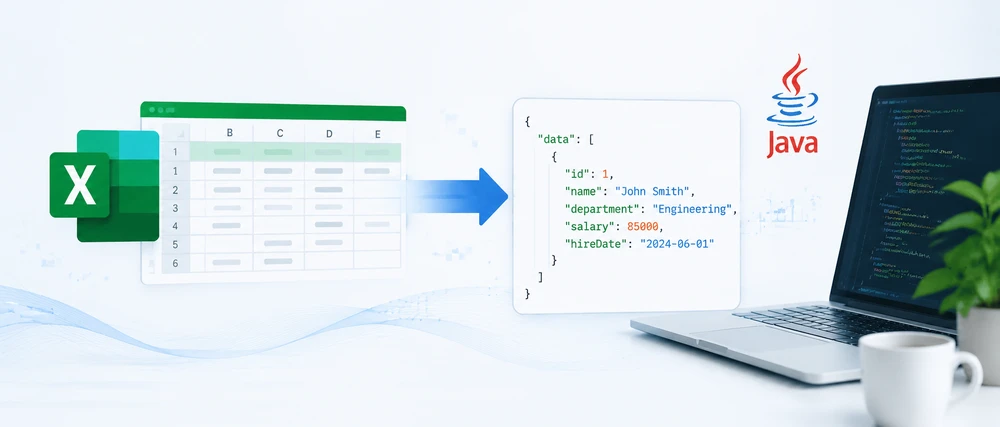
Converting Excel to JSON in Java is a common requirement in backend development, especially when building APIs, ETL pipelines, or data integration workflows. In this guide, you will learn how to convert Excel to JSON in Java using Spire.XLS, a powerful library that supports both XLS and XLSX formats with minimal code.
Excel files are widely used for data storage and reporting, while JSON has become the standard format for data exchange in modern applications. However, converting Excel to JSON in Java is not trivial if done manually — developers need to handle file parsing, data type conversion, empty cells, and multi-sheet structures, which can quickly become complex and error-prone.
Using Spire.XLS for Java together with Jackson, developers can easily transform Excel spreadsheets into structured JSON data with clean and maintainable code. This article provides a complete step-by-step tutorial on Java Excel to JSON conversion, including single-sheet conversion, multi-sheet processing, and nested JSON structures.
Quick Navigation
- Why Convert Excel to JSON in Java
- Prerequisites
- Convert Excel to JSON in Java — Step by Step
- Convert XLS and XLSX Files to JSON
- Handling Multi-Sheet Workbooks and Nested JSON
- Handling Empty Cells and Data Types
- Common Pitfalls
- Conclusion
- FAQ
1. Why Convert Excel to JSON in Java
Excel and JSON are widely used in modern software systems but serve very different roles. Excel is designed for structured data entry, analysis, and reporting with support for formulas, formatting, and multi-sheet workbooks. JSON (JavaScript Object Notation), in contrast, is a lightweight data format used for machine-to-machine communication, REST APIs, configuration files, and NoSQL databases.
Because of this difference, Java developers often need to convert Excel to JSON when integrating spreadsheet-based data into backend systems.
Common use cases include:
- REST API integration — Converting Excel data uploaded by users into JSON for API responses
- ETL workflows — Extracting spreadsheet data and transforming it into JSON for databases or data lakes
- Configuration migration — Moving legacy Excel-based configs into JSON-based microservice systems
- Automated reporting — Turning Excel templates into structured JSON for downstream processing
In Java applications, converting Excel to JSON is more than just reading rows and mapping columns. Real-world files often include inconsistent data types, empty cells, date formatting issues, and multi-sheet structures, which make manual parsing complex and error-prone.
Spire.XLS for Java simplifies this process by providing a unified API for both XLS and XLSX formats. It allows developers to directly access cell values, data types, and formatting information, enabling clean and reliable Excel to JSON conversion logic without dealing with low-level file parsing.
2. Prerequisites
Before converting Excel to JSON in Java, set up the following dependencies in your project.
Install Spire.XLS for Java via Maven (Recommended)
Spire.XLS for Java is available through the e-iceblue Maven repository. Add the repository and dependency to your pom.xml:
<repositories>
    <repository>
        <id>com.e-iceblue</id>
        <name>e-iceblue</name>
        <url>https://repo.e-iceblue.com/nexus/content/groups/public/</url>
    </repository>
</repositories>

<dependency>
    <groupId>e-iceblue</groupId>
    <artifactId>spire.xls</artifactId>
    <version>16.6.5</version>
</dependency>
You can also download Spire.XLS for Java and add it to your project manually.
Add a JSON Library
Java does not include built-in JSON support. This guide uses Jackson, the most widely adopted JSON processing library in the Java ecosystem:
<dependency>
    <groupId>com.fasterxml.jackson.core</groupId>
    <artifactId>jackson-databind</artifactId>
    <version>2.17.2</version>
</dependency>
Import Required Classes
Include the following imports in your Java source file:
import com.spire.xls.*;
import com.fasterxml.jackson.databind.ObjectMapper;
import com.fasterxml.jackson.databind.node.ObjectNode;
import com.fasterxml.jackson.databind.node.ArrayNode;
import java.io.File;
import java.io.IOException;
If you prefer manual installation, download the Spire.XLS for Java JAR from the e-iceblue website and add it to your project's classpath.
3. Convert Excel to JSON in Java — Step by Step
The conversion process involves four steps: loading the workbook, reading the header row, iterating through data rows, and assembling the JSON output. This section walks through each step and then presents the complete code.
Step 1: Load the Excel File
Use the Workbook class to open an Excel file. Then retrieve the target worksheet by index:
Workbook workbook = new Workbook();
workbook.loadFromFile("EmployeeData.xlsx");
Worksheet worksheet = workbook.getWorksheets().get(0);
Step 2: Read the Header Row
The first row of the spreadsheet typically contains column headers. These headers become the JSON keys for each record. Read them into a String array:
int columnCount = worksheet.getLastColumn();
String[] headers = new String[columnCount];
for (int col = 1; col <= columnCount; col++) {
    headers[col - 1] = worksheet.get(1, col).getValue();
}
Step 3: Iterate Data Rows and Build JSON Objects
Starting from row 2, loop through each row and create an ObjectNode for every record. Each cell value is mapped to the corresponding header key:
ObjectMapper mapper = new ObjectMapper();
ArrayNode arrayNode = mapper.createArrayNode();
for (int row = 2; row <= worksheet.getLastRow(); row++) {
    ObjectNode record = mapper.createObjectNode();
    for (int col = 1; col <= columnCount; col++) {
        record.put(headers[col - 1], worksheet.get(row, col).getValue());
    }
    arrayNode.add(record);
}
Step 4: Export JSON Output
Use Jackson's ObjectMapper to write the ArrayNode to a file with pretty-print formatting:
try {
    mapper.writerWithDefaultPrettyPrinter().writeValue(new File("EmployeeData.json"), arrayNode);
    System.out.println("JSON exported successfully.");
} catch (IOException e) {
    System.err.println("Failed to write JSON file: " + e.getMessage());
}
workbook.dispose();
Complete Code Example
Here is the full program that reads an Excel file and converts it to JSON:
import com.spire.xls.*;
import com.fasterxml.jackson.databind.ObjectMapper;
import com.fasterxml.jackson.databind.node.ObjectNode;
import com.fasterxml.jackson.databind.node.ArrayNode;
import java.io.File;
import java.io.IOException;

public class ExcelToJsonConverter {

    public static void main(String[] args) {

        // Load the Excel workbook
        Workbook workbook = new Workbook();
        workbook.loadFromFile("EmployeeData.xlsx");

        // Access the first worksheet
        Worksheet worksheet = workbook.getWorksheets().get(0);

        // Read column headers from the first row
        int columnCount = worksheet.getLastColumn();
        String[] headers = new String[columnCount];
        for (int col = 1; col <= columnCount; col++) {
            headers[col - 1] = worksheet.get(1, col).getValue();
        }

        // Create Jackson ObjectMapper and ArrayNode
        ObjectMapper mapper = new ObjectMapper();
        ArrayNode arrayNode = mapper.createArrayNode();

        // Convert each data row to a JSON object
        for (int row = 2; row <= worksheet.getLastRow(); row++) {
            ObjectNode record = mapper.createObjectNode();
            for (int col = 1; col <= columnCount; col++) {
                record.put(headers[col - 1], worksheet.get(row, col).getValue());
            }
            arrayNode.add(record);
        }

        // Write JSON output to file with pretty-print formatting
        try {
            mapper.writerWithDefaultPrettyPrinter().writeValue(new File("EmployeeData.json"), arrayNode);
            System.out.println("Excel data converted to JSON successfully.");
        } catch (IOException e) {
            System.err.println("Error writing JSON file: " + e.getMessage());
        }

        // Release workbook resources
        workbook.dispose();
    }
}
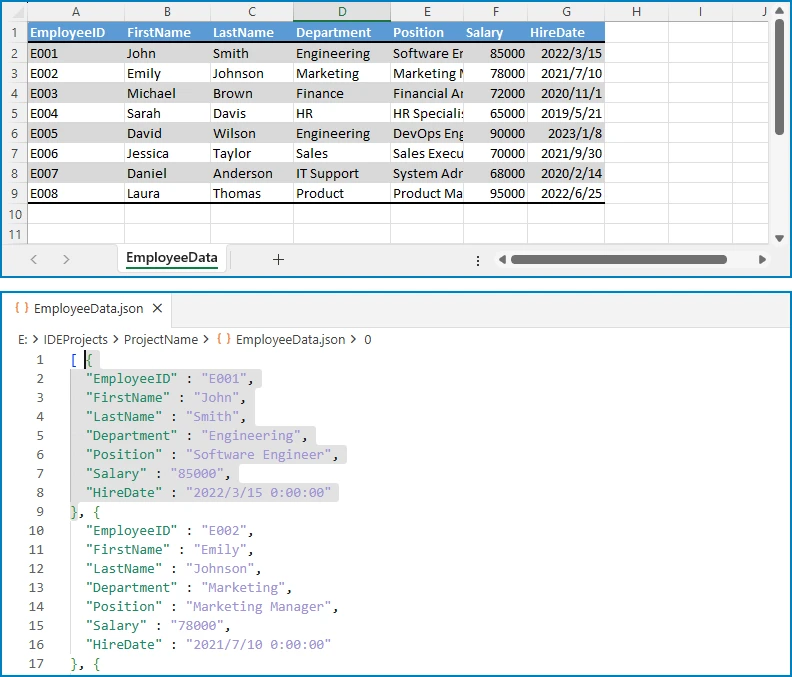
Expected JSON output (for an Excel file with Name, Department, Email, and Salary columns):
[ {
  "EmployeeID" : "E001",
  "FirstName" : "John",
  "LastName" : "Smith",
  "Department" : "Engineering",
  "Position" : "Software Engineer",
  "Salary" : "85000",
  "HireDate" : "2022/3/15 0:00:00"
} ]
The following diagram shows a visual comparison between the original Excel data and the converted JSON output for better understanding.
Key Spire.XLS Classes and Methods
- Workbook — Represents an Excel file. Handles loading, saving, and managing worksheets.
- Worksheet — Represents a single sheet within a workbook. Provides access to rows, columns, and cells.
get(int row, int column)— Returns aCellRangeobject for the specified cell. Row and column indices are 1-based.getValue()— Returns the cell's display value. UnlikegetText(), it correctly retrieves the value regardless of the cell's data type (text, number, date, etc.).getLastRow()/getLastColumn()— Return the last row and column numbers that contain data.
You can also learn how to convert Excel to CSV in Java for scenarios where a lightweight, tabular format is preferred for data exchange and storage.
4. Convert XLS and XLSX Files to JSON
Spire.XLS for Java supports both the legacy XLS format (Excel 97–2003) and the modern XLSX format (Excel 2007 and later). The library detects the file format automatically when you call loadFromFile(), so the same Java code converts XLS to JSON and XLSX to JSON without any modifications.
// Convert XLSX to JSON (modern format)
Workbook xlsxWorkbook = new Workbook();
xlsxWorkbook.loadFromFile("SalesReport.xlsx");

// Convert XLS to JSON (legacy format)
Workbook xlsWorkbook = new Workbook();
xlsWorkbook.loadFromFile("SalesReport.xls");

// Both workbooks are processed identically
Worksheet sheet = xlsxWorkbook.getWorksheets().get(0);
int rowCount = sheet.getLastRow();
int colCount = sheet.getLastColumn();
// ... same conversion logic as the basic example
No additional configuration, format flags, or separate code paths are needed. Whether you receive .xls files from legacy systems or .xlsx files from modern applications, Spire.XLS handles the parsing transparently. This is particularly useful in enterprise environments where Excel files may come from different sources and span multiple format generations.
You can also learn how to convert between XLS and XLSX formats in Java for scenarios where file format migration or legacy upgrade is required.
5. Handling Multi-Sheet Workbooks and Nested JSON
Real-world Excel workbooks often contain multiple worksheets. Converting each sheet to a separate JSON array produces a structured output that preserves the workbook's organization. In some cases, developers also need to build nested JSON objects that reflect hierarchical relationships within the data.
Convert Multiple Sheets to JSON
The following example reads all worksheets in a workbook and creates a JSON object where each key is the sheet name and each value is an array of records from that sheet:
import com.spire.xls.*;
import com.fasterxml.jackson.databind.ObjectMapper;
import com.fasterxml.jackson.databind.node.ObjectNode;
import com.fasterxml.jackson.databind.node.ArrayNode;
import java.io.File;
import java.io.IOException;

public class MultiSheetExcelToJson {

    public static void main(String[] args) {

        Workbook workbook = new Workbook();
        workbook.loadFromFile("SalesReport.xlsx");

        ObjectMapper mapper = new ObjectMapper();
        ObjectNode fullReport = mapper.createObjectNode();

        // Iterate through every worksheet in the workbook
        for (int s = 0; s < workbook.getWorksheets().getCount(); s++) {
            Worksheet worksheet = workbook.getWorksheets().get(s);
            String sheetName = worksheet.getName();

            // Read headers from the first row
            int columnCount = worksheet.getLastColumn();
            String[] headers = new String[columnCount];
            for (int col = 1; col <= columnCount; col++) {
                headers[col - 1] = worksheet.get(1, col).getValue();
            }

            // Convert data rows to JSON objects
            ArrayNode sheetData = mapper.createArrayNode();
            for (int row = 2; row <= worksheet.getLastRow(); row++) {
                ObjectNode record = mapper.createObjectNode();
                for (int col = 1; col <= columnCount; col++) {
                    record.put(headers[col - 1], worksheet.get(row, col).getValue());
                }
                sheetData.add(record);
            }

            // Add this sheet's data to the final output
            fullReport.set(sheetName, sheetData);
        }

        // Write the combined JSON to file with pretty-print formatting
        try {
            mapper.writerWithDefaultPrettyPrinter().writeValue(new File("SalesReport.json"), fullReport);
            System.out.println("Multi-sheet workbook converted to JSON.");
        } catch (IOException e) {
            System.err.println("Error writing JSON: " + e.getMessage());
        }

        workbook.dispose();
    }
}
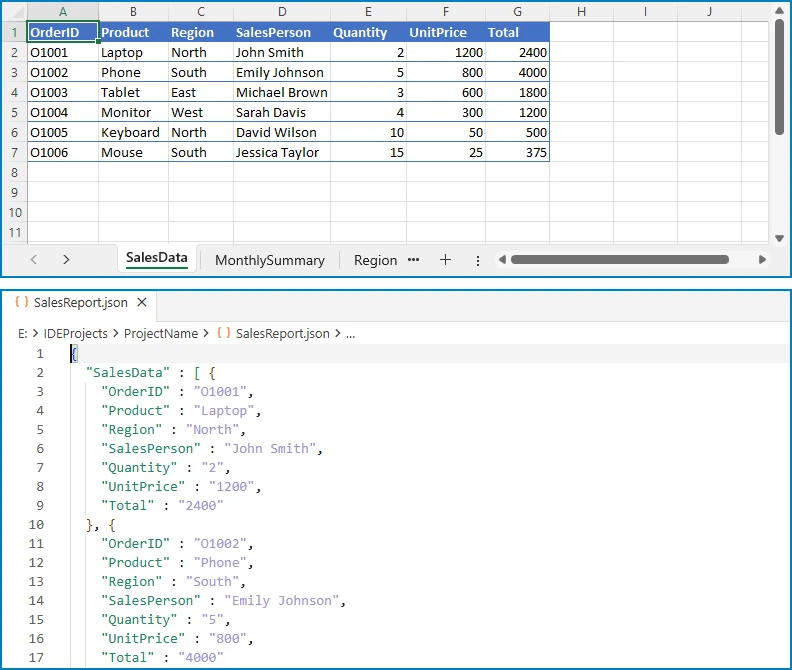
Output (for a workbook with "East Region" and "West Region" sheets):
{
  "East Region": [
    {"Employee": "Alice", "Product": "Laptop", "Amount": "1200"},
    {"Employee": "Bob", "Product": "Monitor", "Amount": "450"}
  ],
  "West Region": [
    {"Employee": "Carol", "Product": "Keyboard", "Amount": "150"},
    {"Employee": "Dave", "Product": "Mouse", "Amount": "75"}
  ]
}
The diagram below illustrates how multiple Excel sheets are mapped into a single JSON object structure.
Build Nested JSON from Excel Data
Some scenarios require nested JSON structures rather than flat arrays. For example, a project management spreadsheet might list projects and their tasks in adjacent columns. The following code groups tasks under their parent projects:
import com.spire.xls.*;
import com.fasterxml.jackson.databind.ObjectMapper;
import com.fasterxml.jackson.databind.node.ObjectNode;
import com.fasterxml.jackson.databind.node.ArrayNode;
import java.util.LinkedHashMap;
import java.util.Map;
import java.io.File;
import java.io.IOException;

public class NestedExcelToJson {

    public static void main(String[] args) {

        Workbook workbook = new Workbook();
        workbook.loadFromFile("ProjectTasks.xlsx");
        Worksheet worksheet = workbook.getWorksheets().get(0);

        ObjectMapper mapper = new ObjectMapper();

        // Use a LinkedHashMap to preserve project insertion order
        Map<String, ObjectNode> projectMap = new LinkedHashMap<>();

        for (int row = 2; row <= worksheet.getLastRow(); row++) {
            String projectName = worksheet.get(row, 1).getValue();
            String taskName = worksheet.get(row, 2).getValue();
            String assignee = worksheet.get(row, 3).getValue();
            String status = worksheet.get(row, 4).getValue();

            // Create project entry on first encounter
            if (!projectMap.containsKey(projectName)) {
                ObjectNode project = mapper.createObjectNode();
                project.put("name", projectName);
                project.set("tasks", mapper.createArrayNode());
                projectMap.put(projectName, project);
            }

            // Build task object and add to the project's task array
            ObjectNode task = mapper.createObjectNode();
            task.put("task", taskName);
            task.put("assignee", assignee);
            task.put("status", status);
            ((ArrayNode) projectMap.get(projectName).get("tasks")).add(task);
        }

        // Assemble final JSON array
        ArrayNode projectsJson = mapper.createArrayNode();
        for (ObjectNode project : projectMap.values()) {
            projectsJson.add(project);
        }

        try {
            mapper.writerWithDefaultPrettyPrinter()
                    .writeValue(new File("ProjectTasks.json"), projectsJson);

            System.out.println("Nested JSON file generated successfully.");
        } catch (IOException e) {
            System.err.println("Error writing JSON file: " + e.getMessage());
        }

        workbook.dispose();
    }
}
Output (for a project-task spreadsheet):
[
  {
    "name": "Website Redesign",
    "tasks": [
      {"task": "Design mockups", "assignee": "Alice", "status": "Complete"},
      {"task": "Frontend implementation", "assignee": "Bob", "status": "In Progress"}
    ]
  },
  {
    "name": "Mobile App",
    "tasks": [
      {"task": "API integration", "assignee": "Carol", "status": "Pending"},
      {"task": "UI testing", "assignee": "Dave", "status": "Not Started"}
    ]
  }
]
The following diagram shows how flat Excel rows are transformed into a nested JSON structure grouped by project.
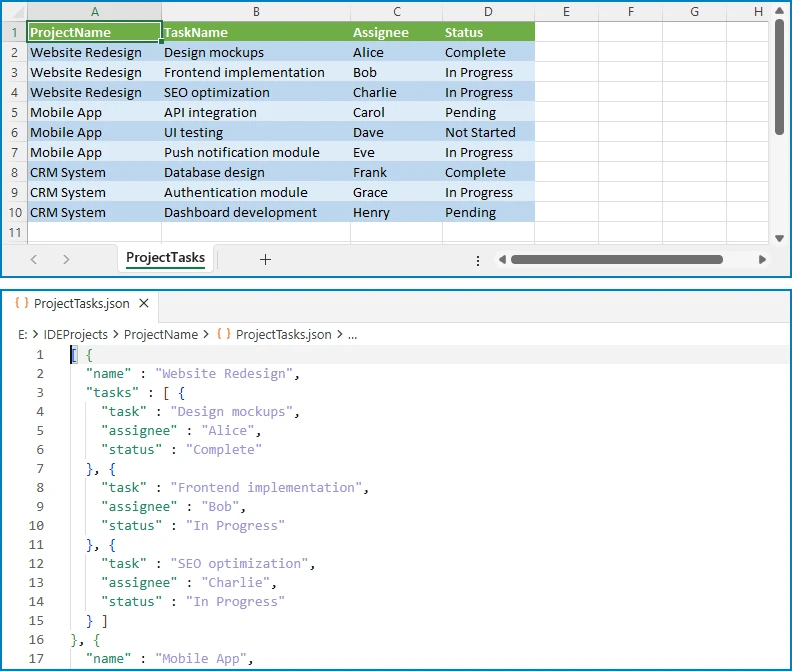
This pattern is useful when Excel data needs to be restructured into a hierarchical format that matches an API schema or a database document model.
You can also explore how to parse Excel files in Java for scenarios where you need to extract and process raw spreadsheet data before transformation.
6. Handling Empty Cells and Data Types
Production Excel files rarely contain clean, complete data. Empty cells, mixed data types, and formatting inconsistencies are common. A robust Java program to convert Excel to JSON must account for these variations.
Detect and Handle Empty Cells
Use CellRange.getType() to check whether a cell is empty before reading its value. Provide a default value to prevent null entries in the JSON output:
CellRange cell = worksheet.get(row, col);
String value;

if (cell.getType() == CellValueType.Empty) {
    value = "";  // or a default value like "N/A"
} else {
    value = cell.getValue();
}
record.put(headers[col - 1], value);
Note: In Jackson,
ObjectNode.put(String, String)is used for string values. For other types, useput(String, double),put(String, boolean), etc.
Preserve Data Types in JSON Output
The getValue() method returns the cell's display value as a string. For numeric data, use getNumberValue() to preserve the original type in the JSON output:
CellRange cell = worksheet.get(row, col);

if (cell.getType() == CellValueType.Number) {
    record.put(headers[col - 1], cell.getNumberValue().doubleValue());
} else if (cell.getType() == CellValueType.Boolean) {
    record.put(headers[col - 1], cell.getBooleanValue());
} else {
    record.put(headers[col - 1], cell.getValue());
}
Handle Date-Formatted Cells
Excel stores dates as serial numbers internally. To output dates as ISO 8601 strings in JSON, detect date formatting and convert accordingly:
CellRange cell = worksheet.get(row, col);

if (cell.getType() == CellValueType.DateTime) {
    java.util.Date date = cell.getDateTimeValue();
    java.text.SimpleDateFormat iso = new java.text.SimpleDateFormat("yyyy-MM-dd");
    record.put(headers[col - 1], iso.format(date));
} else {
    record.put(headers[col - 1], cell.getValue());
}
This approach ensures that dates appear in a standard format (e.g., "2026-07-02") rather than Excel's internal numeric representation.
7. Common Pitfalls
Skipping the Header Row
One of the most frequent mistakes is starting the data loop from row 1 instead of row 2. When the first row contains column headers, including it in the data loop produces a JSON object where the keys are duplicated as values.
Solution: Always read headers from row 1 first, then start the data loop from row 2.
Hardcoding Column Indices
Hardcoding column positions (e.g., worksheet.get(row, 1) for "Name") makes the code fragile. If the Excel template changes and columns are reordered, the JSON keys no longer match the intended data.
Solution: Read headers dynamically from the first row and use the header array to assign JSON keys. This way, column reordering does not break the conversion.
Number Precision Loss
Excel stores numbers as double-precision floating-point values. Using getValue() returns the display content of the cell, but the result is always a string. If the JSON output should contain raw numeric values (rather than strings), additional type conversion is needed.
Solution: Check the cell type with getType() and use getNumberValue() for numeric cells to get the actual numeric value instead of a string representation.
Ignoring Date Formatting
Excel represents dates as serial numbers (e.g., 45109 for June 15, 2023). While getValue() returns the display content of a date cell, the exact format depends on the cell's number format and may not be consistent across different workbooks.
Solution: Use getDateTimeValue() for cells with date formatting and convert the result to a standard ISO 8601 string (yyyy-MM-dd or yyyy-MM-dd'T'HH:mm:ss) for consistent JSON output.
Memory Leaks from Undisposed Workbooks
Spire.XLS workbook objects hold unmanaged resources. Failing to call dispose() after processing can lead to memory leaks, especially when converting multiple files in a batch.
Solution: Always call workbook.dispose() after the conversion is complete. Use a try-finally block to guarantee cleanup even if an exception occurs:
Workbook workbook = new Workbook();
try {
    workbook.loadFromFile("EmployeeData.xlsx");
    // ... conversion logic ...
} finally {
    workbook.dispose();
}
8. Conclusion
In this article, we demonstrated how to convert Excel to JSON in Java using Spire.XLS for Java. Starting from a basic single-sheet conversion, we covered step-by-step workbook loading, header-based key mapping, and JSON output generation. We then extended the approach to handle XLS and XLSX formats, multi-sheet workbooks, nested JSON structures, empty cells, and data type preservation.
Spire.XLS for Java simplifies the entire process with a clean API that requires no Microsoft Office installation. Beyond Excel-to-JSON conversion, the library provides comprehensive spreadsheet capabilities including PDF export, chart creation, formula calculation, and data validation. You can apply for a 30-day free license to evaluate all features in your projects.
9. FAQ
How do I convert Excel to JSON in Java?
Load the Excel file using Spire.XLS for Java, read the header row to determine JSON keys, iterate through the data rows starting from row 2, and map each cell value to its corresponding key in a Jackson ObjectNode. Collect all objects into an ArrayNode and use ObjectMapper to write the result to a file or return it as a string. The complete code example is shown in Section 3.
Which Java library is best for Excel to JSON conversion?
Spire.XLS for Java provides a comprehensive API for reading Excel data with support for both XLS and XLSX formats. It handles cell types, formulas, and formatting natively, making it straightforward to extract structured data for JSON conversion without requiring Microsoft Office or any other external dependency.
Can Spire.XLS handle both XLS and XLSX formats?
Yes. Spire.XLS for Java automatically detects whether a file is in the legacy XLS format (Excel 97–2003) or the modern XLSX format (Excel 2007 and later). The same code works for both formats without any additional configuration. See Section 4 for details.
What is the difference between getValue() and getCellValue() in Spire.XLS?
getValue() returns the cell's display value — it works for all data types (text, number, date, boolean, etc.) and returns what the user sees in the cell. getCellValue() returns the raw underlying value as an Object. Use getValue() when the JSON output should match what users see in Excel, and use getNumberValue() or getBooleanValue() when you need typed values for numeric or boolean data.
How do I handle empty cells when converting Excel to JSON?
Check the cell type using CellRange.getType() before reading a value. If the type is CellValueType.Empty, assign a default value such as an empty string or "N/A". This prevents null entries and ensures consistent JSON structure across all records. See Section 6 for code examples.
Is Spire.XLS for Java free?
Spire.XLS for Java is a commercial library. A free version, Free Spire.XLS for Java, is available with limitations on worksheet count and features. You can also apply for a 30-day free license to evaluate the full feature set before purchasing.
Converting CSV files to Excel is a common task for Java developers working on data reporting, analytics pipelines, or file transformation tools. While manual CSV parsing is possible, it often leads to bloated code and limited formatting. Using a dedicated Excel library like Spire.XLS for Java simplifies the process and allows full control over layout, styles, templates, and data consolidation.
In this tutorial, we’ll walk through various use cases to convert CSV to Excel using Java — including basic import/export, formatting, injecting CSV into templates, and merging multiple CSVs into a single Excel file.
Quick Navigation
- Set Up Spire.XLS in Your Java Project
- Convert a CSV File to Excel Using Java
- Format Excel Output Using Java
- Merge Multiple CSV Files into One Excel File
- Tips & Troubleshooting
- Frequently Asked Questions
Set Up Spire.XLS in Your Java Project
Before converting CSV to Excel, you’ll need to add Spire.XLS for Java to your project. It supports both .xls and .xlsx formats and provides a clean API for working with Excel files without relying on Microsoft Office.
Install via Maven
<repositories>
    <repository>
        <id>com.e-iceblue</id>
        <name>e-iceblue</name>
        <url>https://repo.e-iceblue.com/nexus/content/groups/public/</url>
    </repository>
</repositories>
<dependencies>
    <dependency>
        <groupId>e-iceblue</groupId>
        <artifactId>spire.xls</artifactId>
        <version>16.10.1</version>
    </dependency>
</dependencies>
Add JAR Manually
Download Spire.XLS for Java and add the JAR to your classpath manually. For smaller projects, you can also use the Free Spire.XLS for Java.
Convert a CSV File to Excel Using Java
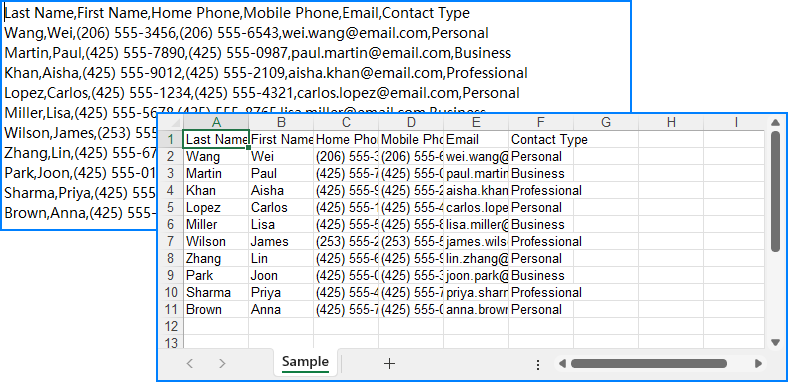
The simplest use case is to convert a single .csv file into .xlsx or .xls format in Java. Spire.XLS makes this process easy using just two methods: loadFromFile() to read the CSV, and saveToFile() to export it as Excel.
import com.spire.xls.*;

public class CsvToXlsx {
    public static void main(String[] args) {
        Workbook workbook = new Workbook();
        workbook.loadFromFile("data.csv", ",");
        workbook.saveToFile("output.xlsx", ExcelVersion.Version2013);
    }
}
To generate .xls format instead, use ExcelVersion.Version97to2003.
Below is the output Excel file generated after converting the CSV:
You can also specify a custom delimiter or choose the row/column to begin inserting data — useful if your sheet has titles or a fixed layout.
workbook.loadFromFile("data_semicolon.csv", ";", 3, 2);
Format Excel Output Using Java
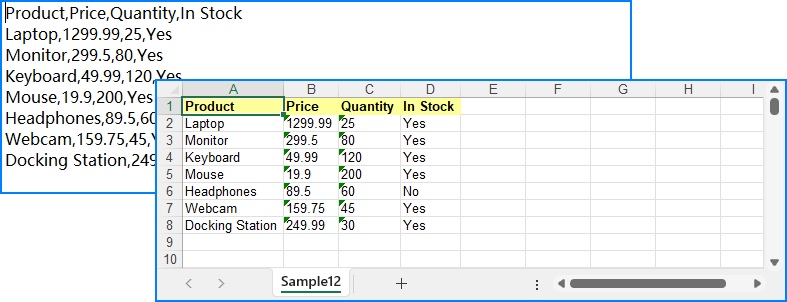
When you're exporting CSV for reporting or customer-facing documents, it's often necessary to apply styles for better readability and presentation. Spire.XLS allows you to set cell fonts, colors, and number formats using the CellStyle class, automatically adjust column widths to fit content, and more.
Example: Apply Styling and Auto-Fit Columns
import com.spire.xls.*;

public class CsvToXlsx {
    public static void main(String[] args) {
        Workbook workbook = new Workbook();
        workbook.loadFromFile("data.csv", ",");

        Worksheet sheet = workbook.getWorksheets().get(0);

        // Format header row
        CellStyle headerStyle = workbook.getStyles().addStyle("Header");
        headerStyle.getFont().isBold(true);
        headerStyle.setKnownColor(ExcelColors.LightYellow);
        for (int col = 1; col <= sheet.getLastColumn(); col++) {
            sheet.getCellRange(1, col).setStyle(headerStyle);
        }

        // Format numeric column
        CellStyle numStyle = workbook.getStyles().addStyle("Numbers");
        numStyle.setNumberFormat("#,##0.00");
        sheet.getCellRange("B2:B100").setStyle(numStyle);

        // Auto-fit all columns
        for (int i = 1; i <= sheet.getLastRow(); i++) {
            sheet.autoFitColumn(i);
        }

        workbook.saveToFile("formatted_output.xlsx", ExcelVersion.Version2013);
    }
}
Here’s what the styled Excel output looks like with formatted headers and numeric columns:
Need to use a pre-designed Excel template? You can load an existing .xlsx file and insert your data using methods like insertArray(). Just note that formatting won’t automatically apply — use CellStyle to style your data programmatically.
Merge Multiple CSV Files into One Excel File
When handling batch processing or multi-source datasets, it’s common to combine multiple CSV files into a single Excel workbook. Spire.XLS lets you:
- Merge each CSV into a separate worksheet, or
- Append all CSV content into a single worksheet
Option 1: Separate Worksheets per CSV
import com.spire.xls.*;
import java.io.File;

public class CsvToXlsx {
    public static void main(String[] args) {
        // Get the CSV file names
        File[] csvFiles = new File("CSVs/").listFiles((dir, name) -> name.endsWith(".csv"));
        // Create a workbook and clear all worksheets
        Workbook workbook = new Workbook();
        workbook.getWorksheets().clear();

        for (File csv : csvFiles) {
            // Load the CSV file
            Workbook temp = new Workbook();
            temp.loadFromFile(csv.getAbsolutePath(), ",");
            // Append the CSV file to the workbook as a worksheet
            workbook.getWorksheets().addCopy(temp.getWorksheets().get(0));
        }

        // Save the workbook
        workbook.saveToFile("merged.xlsx", ExcelVersion.Version2016);
    }
}
Each CSV file is placed into its own worksheet in the final Excel file:

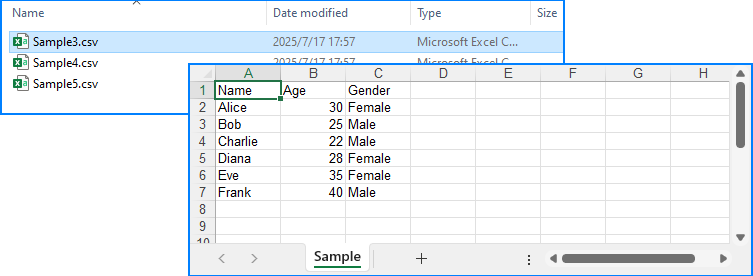
Option 2: All Data in a Single Worksheet
import com.spire.xls.*;
import java.io.File;

public class CsvToXlsx {
    public static void main(String[] args) {
        // Get the CSV file names
        File[] csvFiles = new File("CSVs/").listFiles((dir, name) -> name.endsWith(".csv"));
        // Create a workbook
        Workbook workbook = new Workbook();
        // Clear default sheets and add a new one
        workbook.getWorksheets().clear();
        Worksheet sheet = workbook.getWorksheets().add("Sample");

        int startRow = 1;
        boolean isFirstFile = true;

        for (File csv : csvFiles) {
            // Load the CSV data
            Workbook temp = new Workbook();
            temp.loadFromFile(csv.getAbsolutePath(), ",");
            Worksheet tempSheet = temp.getWorksheets().get(0);

            // Check if it's the first file
            int startReadRow = isFirstFile ? 1 : 2;
            isFirstFile = false;

            // Copy the CSV data to the sheet
            for (int r = startReadRow; r <= tempSheet.getLastRow(); r++) {
                for (int c = 1; c <= tempSheet.getLastColumn(); c++) {
                    sheet.getCellRange(startRow, c).setValue(tempSheet.getCellRange(r, c).getText());
                }
                startRow++;
            }
        }

        // Save the merged workbook
        workbook.saveToFile("merged_single_sheet.xlsx", ExcelVersion.Version2016);
    }
}
Below is the final Excel sheet with all CSV data merged into a single worksheet:
Related Article: How to Merge Excel Files Using Java
Tips & Troubleshooting
Problems with your output? Try these fixes:
-
Text garbled in Excel → Make sure your CSV is UTF-8 encoded.
-
Wrong column alignment? → Check if delimiters are mismatched.
-
Large CSV files? → Split files or use multiple sheets for better memory handling.
-
Appending files with different structures? → Normalize column headers beforehand.
Conclusion
Whether you're handling a simple CSV file or building a more advanced reporting workflow, Spire.XLS for Java offers a powerful and flexible solution for converting CSV to Excel through Java code. It allows you to convert CSV files to XLSX or XLS with just a few lines of code, apply professional formatting to ensure readability, inject data into pre-designed templates for consistent branding, and even merge multiple CSVs into a single, well-organized workbook. By automating these processes, you can minimize manual effort and generate clean, professional Excel files more efficiently.
You can apply for a free temporary license to experience the full capabilities without limitations.
Frequently Asked Questions
How do I convert CSV to XLSX in Java?
Use Workbook.loadFromFile("file.csv", ",") and then saveToFile("output.xlsx", ExcelVersion.Version2016).
Can I format the Excel output?
Yes. Use CellStyle to control fonts, colors, alignment, and number formats.
Is it possible to use Excel templates for CSV data?
Absolutely. Load a .xlsx template and inject CSV using setText() or insertDataTable().
How can I merge several CSV files into one Excel file?
Use either multiple worksheets or merge everything into one sheet row by row.
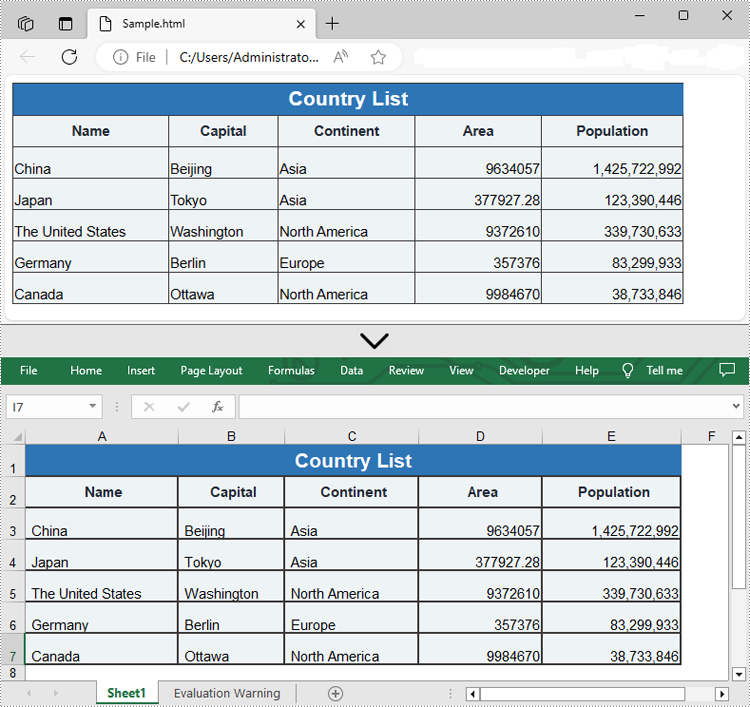
HTML files often contain valuable datasets embedded within tables. However, analyzing this data directly in HTML can be cumbersome and inefficient. Converting HTML tables to Excel format allows you to take advantage of Excel's powerful data manipulation and analysis tools, making it easier to sort, filter, and visualize the information. Whether you need to analyze data for a report, perform calculations, or simply organize it in a more user-friendly format, converting HTML to Excel streamlines the process. In this article, we will demonstrate how to convert HTML files to Excel format in Java using Spire.XLS for Java.
Install Spire.XLS for Java
First of all, you're required to add the Spire.Xls.jar file as a dependency in your Java program. The JAR file can be downloaded from this link. If you use Maven, you can easily import the JAR file in your application by adding the following code to your project's pom.xml file.
<repositories>
    <repository>
        <id>com.e-iceblue</id>
        <name>e-iceblue</name>
        <url>https://repo.e-iceblue.com/nexus/content/groups/public/</url>
    </repository>
</repositories>
<dependencies>
    <dependency>
        <groupId>e-iceblue</groupId>
        <artifactId>spire.xls</artifactId>
        <version>16.10.1</version>
    </dependency>
</dependencies>
Convert HTML to Excel in Java
Spire.XLS for Java provides the Workbook.loadFromHtml() method for loading an HTML file. Once the HTML file is loaded, you can convert it to Excel format using the Workbook.saveToFile() method. The detailed steps are as follows.
- Create an object of the Workbook class.
- Load an HTML file using the Workbook.loadFromHtml() method.
- Save the HTML file in Excel format using the Workbook.saveToFile() method.
- Java
import com.spire.xls.ExcelVersion;
import com.spire.xls.Workbook;

public class ConvertHtmlToExcel {
    public static void main(String[] args) {
        // Specify the input HTML file path
        String filePath = "C:\\Users\\Administrator\\Desktop\\Sample.html";

        // Create an object of the workbook class
        Workbook workbook = new Workbook();
        // Load the HTML file
        workbook.loadFromHtml(filePath);

        // Save the HTML file in Excel XLSX format
        String result = "C:\\Users\\Administrator\\Desktop\\ToExcel.xlsx";
        workbook.saveToFile(result, ExcelVersion.Version2013);

        workbook.dispose();
    }
}
Insert HTML String into Excel in Java
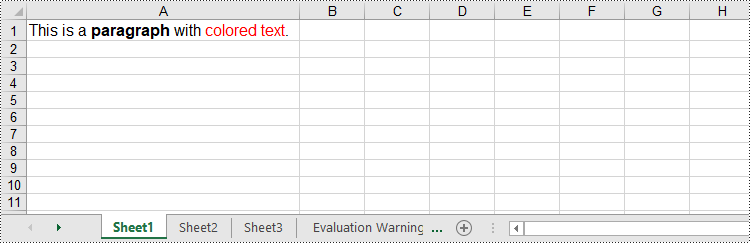
In addition to converting HTML files to Excel, Spire.XLS for Java allows you to insert HTML strings directly into Excel cells using the CellRange.setHtmlString() method. The detailed steps are as follows.
- Create an object of the Workbook class.
- Get a specific worksheet by its index (0-based) using the Workbook.getWorksheets().get(index) method.
- Get the cell that you want to add an HTML string to using the Worksheet.getCellRange() method.
- Add an HTML sting to the cell using the CellRange.setHtmlString() method.
- Save the resulting workbook to a new file using the Workbook.saveToFile() method.
- Java
import com.spire.xls.CellRange;
import com.spire.xls.ExcelVersion;
import com.spire.xls.Workbook;
import com.spire.xls.Worksheet;

public class InsertHtmlStringInExcelCell {
    public static void main(String[] args) {
        // Create an object of the workbook class
        Workbook workbook = new Workbook();
        // Get the first sheet
        Worksheet sheet = workbook.getWorksheets().get(0);

        // Specify the HTML string
        String htmlCode = "<p><font size='12'>This is a <b>paragraph</b> with <span style='color: red;'>colored text</span>.</font></p>";

        // Get the cell that you want to add the HTML string to
        CellRange range = sheet.getCellRange("A1");
        // Add the HTML string to the cell
        range.setHtmlString(htmlCode);

        // Auto-adjust the width of the first column based on its content
        sheet.autoFitColumn(1);

        // Save the resulting workbook to a new file
        String result = "C:\\Users\\Administrator\\Desktop\\InsertHtmlStringIntoCell.xlsx";
        workbook.saveToFile(result, ExcelVersion.Version2013);

        workbook.dispose();
    }
}
Apply for a Temporary License
If you'd like to remove the evaluation message from the generated documents, or to get rid of the function limitations, please request a 30-day trial license for yourself.
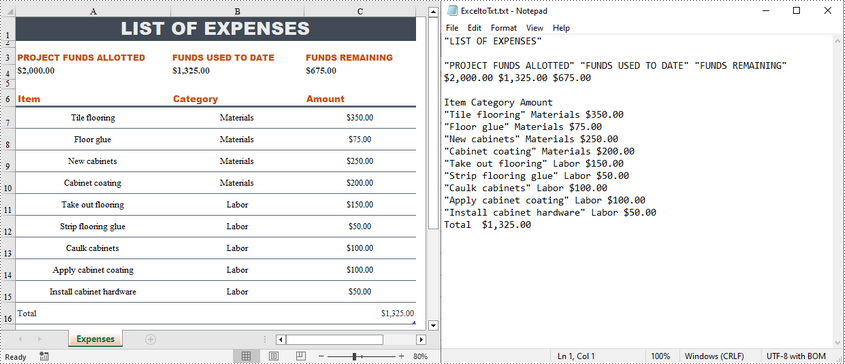
Converting Excel files to text files has several benefits. For example, it reduces file size, making data easier to store and share. In addition, text files are usually simple in structure, and converting Excel to text can make the document more straightforward for certain tasks. This article will demonstrate how to programmatically convert Excel to TXT format using Spire.XLS for Java.
Install Spire.XLS for Java
First of all, you're required to add the Spire.Xls.jar file as a dependency in your Java program. The JAR file can be downloaded from this link. If you use Maven, you can easily import the JAR file in your application by adding the following code to your project's pom.xml file.
<repositories>
    <repository>
        <id>com.e-iceblue</id>
        <name>e-iceblue</name>
        <url>https://repo.e-iceblue.com/nexus/content/groups/public/</url>
    </repository>
</repositories>
<dependencies>
    <dependency>
        <groupId>e-iceblue</groupId>
        <artifactId>spire.xls</artifactId>
        <version>16.10.1</version>
    </dependency>
</dependencies>
Create Excel to TXT in Java
Spire.XLS for Java offers the Worksheet.saveToFile(String fileName, String separator, java.nio.charset.Charset encoding) method to convert a specified worksheet to a txt file. The following are the detailed steps.
- Create a Workbook instance.
- Load a sample Excel file using Workbook.loadFromFile() method.
- Get a specified worksheet by its index using Workbook.getWorksheets().get() method.
- Convert the Excel worksheet to a TXT file using Worksheet.saveToFile() method.
- Java
import com.spire.xls.*;

import java.nio.charset.Charset;

public class toText {
    public static void main(String[] args) {
        //Create a Workbook object
        Workbook workbook = new Workbook();

        //Load a sample Excel file
        workbook.loadFromFile("sample.xlsx");

        //Get the first worksheet
        Worksheet worksheet = workbook.getWorksheets().get(0);

        //Save the worksheet as a txt file
        Charset charset = Charset.forName("utf8");
        worksheet.saveToFile("ExceltoTxt.txt", " ", charset);

    }
}
Apply for a Temporary License
If you'd like to remove the evaluation message from the generated documents, or to get rid of the function limitations, please request a 30-day trial license for yourself.
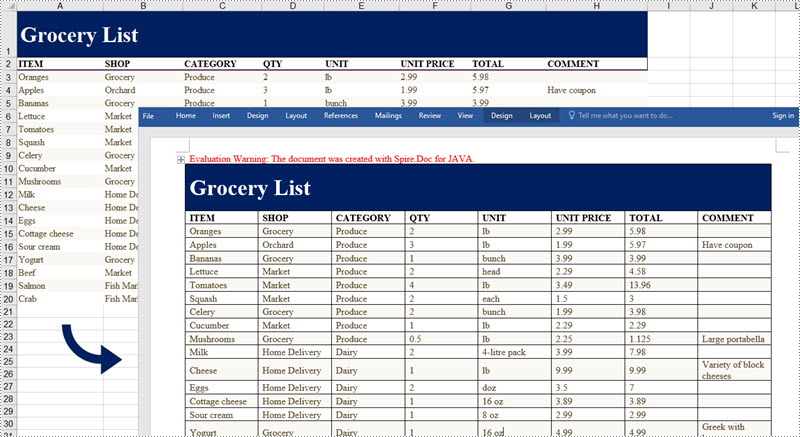
When creating reports in Word, we often encounter the situation where we need to copy and paste data from Excel to Word, so that readers can browse data directly in Word without opening Excel documents. In this article, you will learn how to convert Excel data into Word tables and preserve the formatting using Spire.Office for Java.
Install Spire.Office for Java
First, you're required to add the Spire.Office.jar file as a dependency in your Java program. The JAR file can be downloaded from this link. If you use Maven, you can easily import the JAR file in your application by adding the following code to your project's pom.xml file.
<repositories>
    <repository>
        <id>com.e-iceblue</id>
        <name>e-iceblue</name>
        <url>https://repo.e-iceblue.com/nexus/content/groups/public/</url>
    </repository>
</repositories>
<dependencies>
    <dependency>
        <groupId>e-iceblue</groupId>
        <artifactId>spire.office</artifactId>
        <version>11.9.0</version>
    </dependency>
</dependencies>
Export Excel Data to a Word Table with Formatting
The following are the steps to convert Excel data to a Word table maintaining formatting using Spire.Office for Java.
- Create a Workbook object and load a sample Excel file using Workbook.loadFromFile() method.
- Get a specific worksheet using Workbook.getWorksheets().get() method.
- Create a Document object, and add a section to it.
- Add a table using Section.addTable() method.
- Detect the merged cells in the worksheet and merge the corresponding cells of the Word tale using the custom method mergeCells().
- Get value of a specific Excel cell using CellRange.getValue() method and add it to a cell of the Word table using TableCell.addParagraph().appendText() method.
- Copy the font style and cell style from Excel to the Word table using the custom method copyStyle().
- Save the document to a Word file using Document.saveToFile() method.
- Java
import com.spire.doc.*;
import com.spire.doc.FileFormat;
import com.spire.doc.documents.HorizontalAlignment;
import com.spire.doc.documents.PageOrientation;
import com.spire.doc.documents.VerticalAlignment;
import com.spire.doc.fields.TextRange;
import com.spire.xls.*;

public class ExportExcelToWord {

    public static void main(String[] args) {

        //Load an Excel file
        Workbook workbook = new Workbook();
        workbook.loadFromFile("C:/Users/Administrator/Desktop/sample.xlsx");

        //Get the first worksheet
        Worksheet sheet = workbook.getWorksheets().get(0);

        //Create a Word document
        Document doc = new Document();
        Section section = doc.addSection();
        section.getPageSetup().setOrientation(PageOrientation.Landscape);

        //Add a table
        Table table = section.addTable(true);
        table.resetCells(sheet.getLastRow(), sheet.getLastColumn());

        //Merge cells
        mergeCells(sheet, table);

        for (int r = 1; r <= sheet.getLastRow(); r++) {

            //Set row Height
            table.getRows().get(r - 1).setHeight((float) sheet.getRowHeight(r));

            for (int c = 1; c <= sheet.getLastColumn(); c++) {
                CellRange xCell = sheet.getCellRange(r, c);
                TableCell wCell = table.get(r - 1, c - 1);

                //Get value of a specific Excel cell and add it to a cell of Word table
                TextRange textRange = wCell.addParagraph().appendText(xCell.getValue());

                //Copy font and cell style from Excel to Word
                copyStyle(textRange, xCell, wCell);
            }
        }

        //Save the document to a Word file
        doc.saveToFile("ExportToWord.docx", FileFormat.Docx);
    }

    //Merge cells if any
    private static void mergeCells(Worksheet sheet, Table table) {
        if (sheet.hasMergedCells()) {

            //Get merged cell ranges from Excel
            CellRange[] ranges = sheet.getMergedCells();
            for (int i = 0; i < ranges.length; i++) {
                int startRow = ranges[i].getRow();
                int startColumn = ranges[i].getColumn();
                int rowCount = ranges[i].getRowCount();
                int columnCount = ranges[i].getColumnCount();

                //Merge corresponding cells in Word table
                if (rowCount > 1 && columnCount > 1) {
                    for (int j = startRow; j <= startRow + rowCount ; j++) {
                        table.applyHorizontalMerge(j - 1, startColumn - 1, startColumn - 1 + columnCount - 1);
                    }
                    table.applyVerticalMerge(startColumn - 1, startRow - 1, startRow - 1 + rowCount -1);
                }
                if (rowCount > 1 && columnCount == 1 ) {
                     table.applyVerticalMerge(startColumn - 1, startRow - 1, startRow - 1 + rowCount -1);
                }
                if (columnCount > 1 && rowCount == 1 ) {
                    table.applyHorizontalMerge(startRow - 1, startColumn - 1,  startColumn - 1 + columnCount-1);
                }
            }
        }
    }

    //Copy cell style of Excel to Word table
    private static void copyStyle(TextRange wTextRange, CellRange xCell, TableCell wCell) {

        //Copy font style
        wTextRange.getCharacterFormat().setTextColor(xCell.getStyle().getFont().getColor());
        wTextRange.getCharacterFormat().setFontSize((float) xCell.getStyle().getFont().getSize());
        wTextRange.getCharacterFormat().setFontName(xCell.getStyle().getFont().getFontName());
        wTextRange.getCharacterFormat().setBold(xCell.getStyle().getFont().isBold());
        wTextRange.getCharacterFormat().setItalic(xCell.getStyle().getFont().isItalic());

        //Copy backcolor
        wCell.getCellFormat().setBackColor(xCell.getStyle().getColor());

        //Copy horizontal alignment
        switch (xCell.getHorizontalAlignment()) {
            case Left:
                wTextRange.getOwnerParagraph().getFormat().setHorizontalAlignment(HorizontalAlignment.Left);
                break;
            case Center:
                wTextRange.getOwnerParagraph().getFormat().setHorizontalAlignment(HorizontalAlignment.Center);
                break;
            case Right:
                wTextRange.getOwnerParagraph().getFormat().setHorizontalAlignment(HorizontalAlignment.Right);
                break;
        }

        //Copy vertical alignment
        switch (xCell.getVerticalAlignment()) {
            case Bottom:
                wCell.getCellFormat().setVerticalAlignment(VerticalAlignment.Bottom);
                break;
            case Center:
                wCell.getCellFormat().setVerticalAlignment(VerticalAlignment.Middle);
                break;
            case Top:
                wCell.getCellFormat().setVerticalAlignment(VerticalAlignment.Top);
                break;
        }
    }
}
Apply for a Temporary License
If you'd like to remove the evaluation message from the generated documents, or to get rid of the function limitations, please request a 30-day trial license for yourself.
ODS (OpenDocument Spreadsheet) is an XML-based file format created by the Calc program. Similar to MS Excel files, ODS files store data in cells organized into rows and columns, and can contain text, mathematical functions, formatting, and more. Sometimes, you may need to convert an Excel file to an ODS file to ensure that the file can be viewed by more applications in different operating systems. This article will demonstrate how to accomplish this task programmatically using Spire.XLS for Java.
Install Spire.XLS for Java
First of all, you're required to add the Spire.Xls.jar file as a dependency in your Java program. The JAR file can be downloaded from this link. If you use Maven, you can easily import the JAR file in your application by adding the following code to your project's pom.xml file.
<repositories>
    <repository>
        <id>com.e-iceblue</id>
        <name>e-iceblue</name>
        <url>https://repo.e-iceblue.com/nexus/content/groups/public/</url>
    </repository>
</repositories>
<dependencies>
    <dependency>
        <groupId>e-iceblue</groupId>
        <artifactId>spire.xls</artifactId>
        <version>16.10.1</version>
    </dependency>
</dependencies>
Convert Excel to ODS
The detailed steps are as follows:
- Create a Workbook instance.
- Load a sample Excel file using Workbook.loadFromFile() method.
- Convert the Excel file to ODS using Workbook.saveToFile() method.
- Java
import com.spire.xls.*;

public class toODS {
    public static void main(String[] args) {
        //Create a Workbook instance
        Workbook workbook = new Workbook();

        //Load a sample Excel document
        workbook.loadFromFile("C:\\Files\\sample.xlsx");

        //Convert to ODS file
        workbook.saveToFile("ExcelToODS.ods", FileFormat.ODS);
    }
}
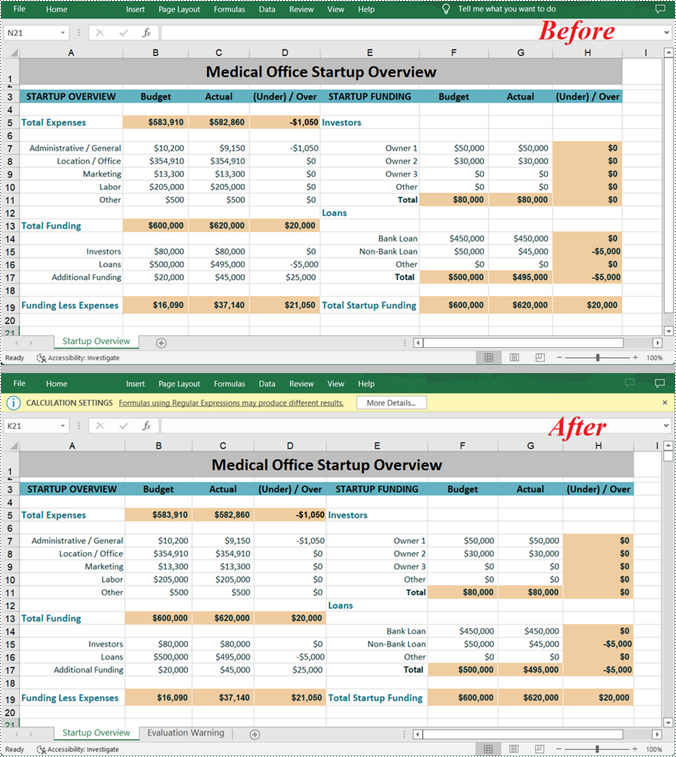
Apply for a Temporary License
If you'd like to remove the evaluation message from the generated documents, or to get rid of the function limitations, please request a 30-day trial license for yourself.
When you open an XLS file in a newer version of Microsoft Excel, such as Excel 2016 or 2019, you'll see "Compatibility Mode" in the title bar after the file name. If you want to change from Compatibility Mode to Normal Mode, you can save the XLS file as a newer Excel file format like XLSX. In this article, you will learn how to convert XLS to XLSX or XLSX to XLS in Java using Spire.XLS for Java.
Install Spire.XLS for Java
First of all, you're required to add the Spire.Xls.jar file as a dependency in your Java program. The JAR file can be downloaded from this link. If you use Maven, you can easily import the JAR file in your application by adding the following code to your project's pom.xml file.
<repositories>
    <repository>
        <id>com.e-iceblue</id>
        <name>e-iceblue</name>
        <url>https://repo.e-iceblue.com/nexus/content/groups/public/</url>
    </repository>
</repositories>
<dependencies>
    <dependency>
        <groupId>e-iceblue</groupId>
        <artifactId>spire.xls</artifactId>
        <version>16.10.1</version>
    </dependency>
</dependencies>
Convert XLS to XLSX in Java
The following are the steps to convert an XLS file to XLSX format using Spire.XLS for Java:
- Create a Workbook instance.
- Load the XLS file using Workbook.loadFromFile() method.
- Save the XLS file to XLSX format using Workbook.saveToFile(String, ExcelVersion) method.
- Java
import com.spire.xls.ExcelVersion;
import com.spire.xls.Workbook;

public class ConvertXlsToXlsx {
    public static void main(String[] args){
        //Initialize an instance of Workbook class
        Workbook workbook = new Workbook();
        //Load the XLS file
        workbook.loadFromFile("Input.xls");

        //Save the XLS file to XLSX format
        workbook.saveToFile("ToXlsx.xlsx", ExcelVersion.Version2016);
    }
}
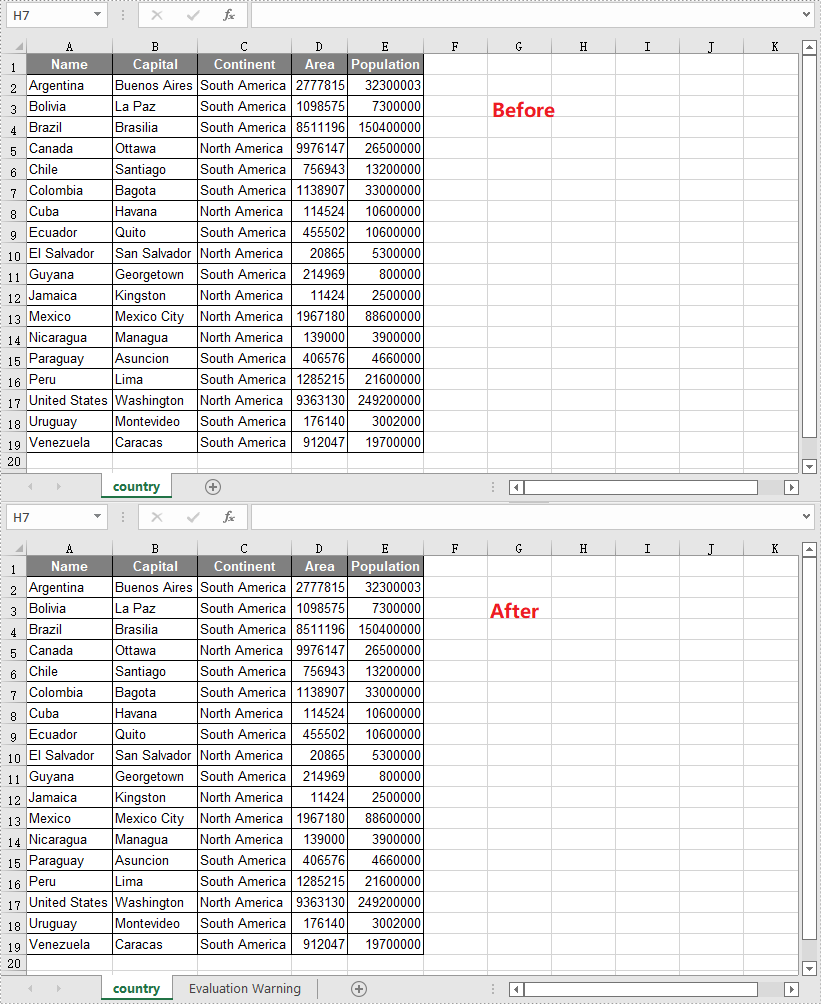
Convert XLSX to XLS in Java
The following are the steps to convert an XLSX file to XLS format using Spire.XLS for Java:
- Create a Workbook instance.
- Load the XLSX file using Workbook.loadFromFile() method.
- Save the XLSX file to XLS format using Workbook.saveToFile(String, ExcelVersion) method.
- Java
import com.spire.xls.ExcelVersion;
import com.spire.xls.Workbook;

public class ConvertXlsxToXls {
    public static void main(String[] args){
        //Initialize an instance of Workbook class
        Workbook workbook = new Workbook();
        //Load the XLSX file
        workbook.loadFromFile("Input.xlsx");

        //Save the XLSX file to XLS format
        workbook.saveToFile("ToXls.xls", ExcelVersion.Version97to2003);
    }
}
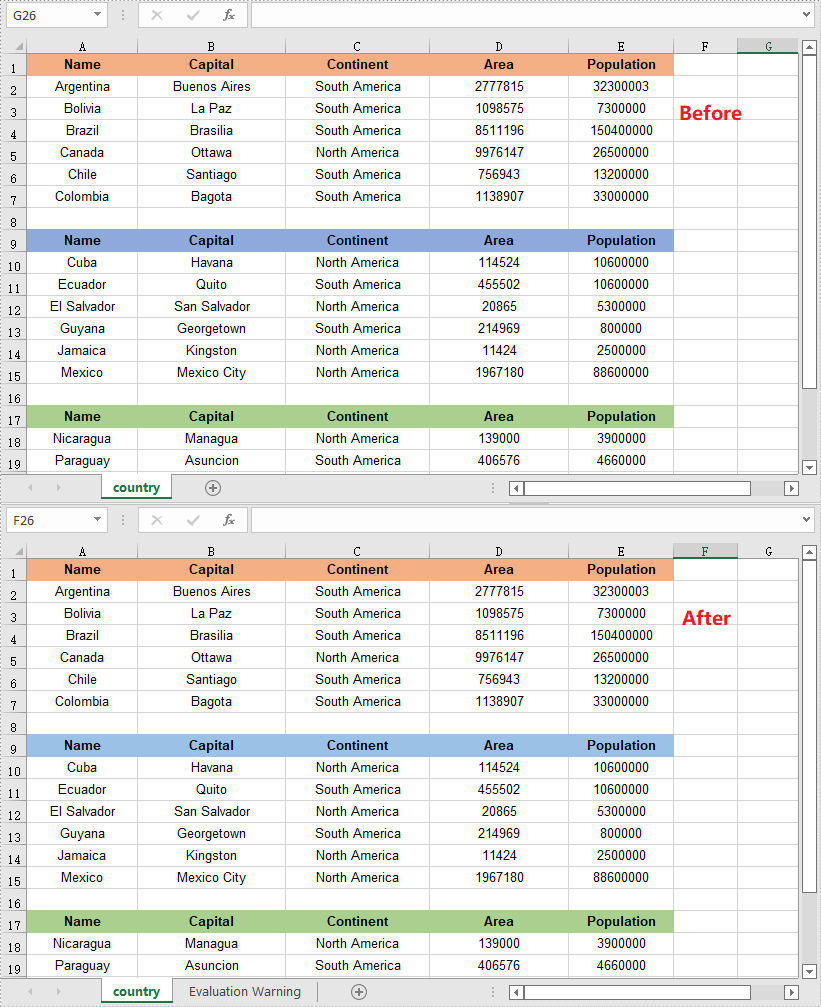
Apply for a Temporary License
If you'd like to remove the evaluation message from the generated documents, or to get rid of the function limitations, please request a 30-day trial license for yourself.
A CSV file is essentially a plain text file. It can be easily edited by almost any program that can handle text files, such as Notepad. Converting a CSV file to PDF can help in preventing it from being edited by viewers. In this article, you will learn how to convert CSV to PDF in Java using Spire.XLS for Java.
Install Spire.XLS for Java
First of all, you're required to add the Spire.Xls.jar file as a dependency in your Java program. The JAR file can be downloaded from this link. If you use Maven, you can easily import the JAR file in your application by adding the following code to your project's pom.xml file.
<repositories>
    <repository>
        <id>com.e-iceblue</id>
        <name>e-iceblue</name>
        <url>https://repo.e-iceblue.com/nexus/content/groups/public/</url>
    </repository>
</repositories>
<dependencies>
    <dependency>
        <groupId>e-iceblue</groupId>
        <artifactId>spire.xls</artifactId>
        <version>16.10.1</version>
    </dependency>
</dependencies>
Convert CSV to PDF in Java
The following are the steps to convert a CSV file to PDF:
- Create an instance of Workbook class.
- Load the CSV file using Workbook.loadFromFile(filePath, separator) method.
- Set the worksheet to be rendered to one PDF page using Workbook.getConverterSetting().setSheetFitToPage(true) method.
- Get the first worksheet in the Workbook using Workbook.getWorksheets().get(0) method.
- Loop through the columns in the worksheet and auto-fit the width of each column using Worksheet.autoFitColumn() method.
- Save the worksheet to PDF using Worksheet.saveToPdf() method.
- Java
import com.spire.xls.Workbook;
import com.spire.xls.Worksheet;

public class ConvertCsvToPdf {
    public static void main(String []args) {
        //Create a Workbook instance
        Workbook wb = new Workbook();
        //Load a CSV file
        wb.loadFromFile("Sample.csv", ",");

        //Set SheetFitToPage property as true to ensure the worksheet is converted to 1 PDF page
        wb.getConverterSetting().setSheetFitToPage(true);

        //Get the first worksheet
        Worksheet sheet = wb.getWorksheets().get(0);

        //Loop through the columns in the worksheet
        for (int i = 1; i < sheet.getColumns().length; i++)
        {
            //AutoFit columns
            sheet.autoFitColumn(i);
        }

        //Save the worksheet to PDF
        sheet.saveToPdf("toPDF.pdf");
    }
}
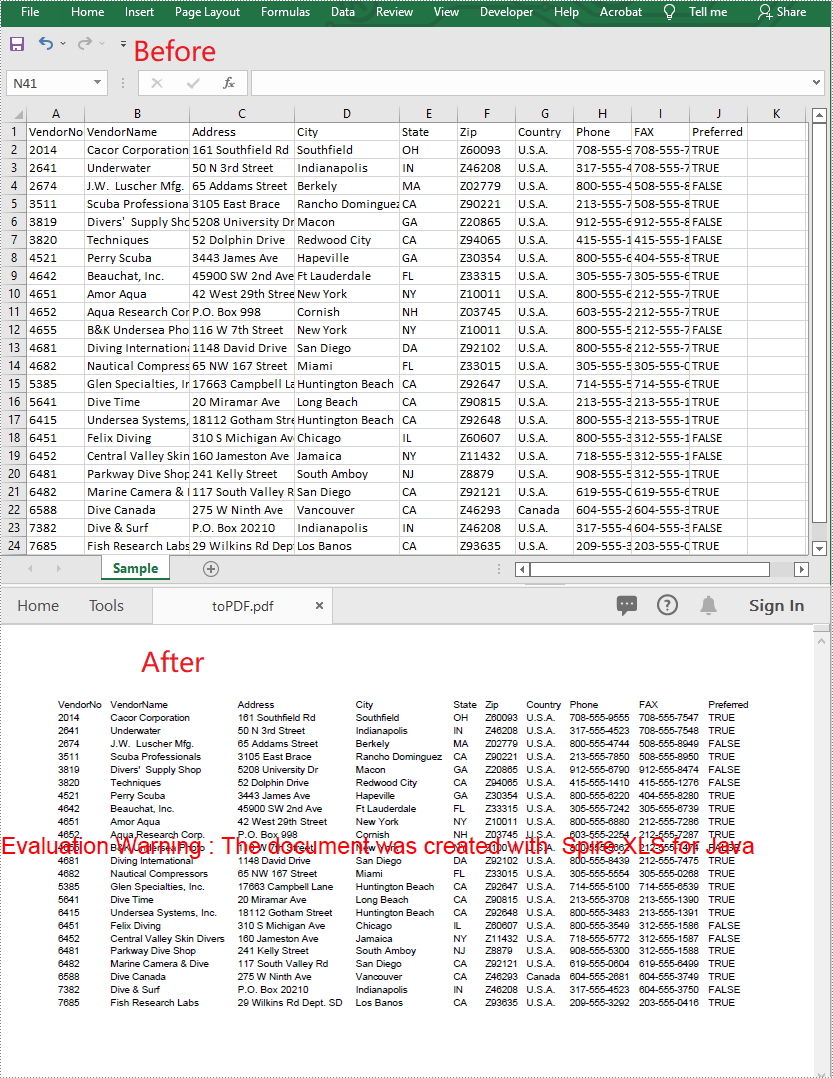
Apply for a Temporary License
If you'd like to remove the evaluation message from the generated documents, or to get rid of the function limitations, please request a 30-day trial license for yourself.
Office Open XML (also referred to as OOXML) is a zipped, XML-based format for Excel, Word and Presentation documents. Sometimes, you may need to convert an Excel file to Office Open XML in order to make it readable on various applications and platforms. Likewise, you might also want to convert Office Open XML to Excel for data calculations. In this article, you will learn how to Convert Excel to Office Open XML and vice versa in Java using Spire.XLS for Java library.
Install Spire.XLS for Java
First of all, you're required to add the Spire.Xls.jar file as a dependency in your Java program. The JAR file can be downloaded from this link. If you use Maven, you can easily import the JAR file in your application by adding the following code to your project's pom.xml file.
<repositories>
    <repository>
        <id>com.e-iceblue</id>
        <name>e-iceblue</name>
        <url>https://repo.e-iceblue.com/nexus/content/groups/public/</url>
    </repository>
</repositories>
<dependencies>
    <dependency>
        <groupId>e-iceblue</groupId>
        <artifactId>spire.xls</artifactId>
        <version>16.10.1</version>
    </dependency>
</dependencies>
Convert Excel to Office Open XML in Java
The following are the steps to convert an Excel file to Office Open XML:
- Create an instance of Workbook class.
- Load an Excel file using Workbook.loadFromFile() method.
- Call Workbook.saveAsXml() method to save the Excel file as Office Open XML.
- Java
import com.spire.xls.Workbook;

public class ExcelToOpenXML {
    public static void main(String []args){
        //Create a Workbook instance
        Workbook workbook = new Workbook();
        //Load an Excel file
        workbook.loadFromFile("Sample.xlsx");

        //Save as Office Open XML file format
        workbook.saveAsXml("ToXML.xml");
    }
}
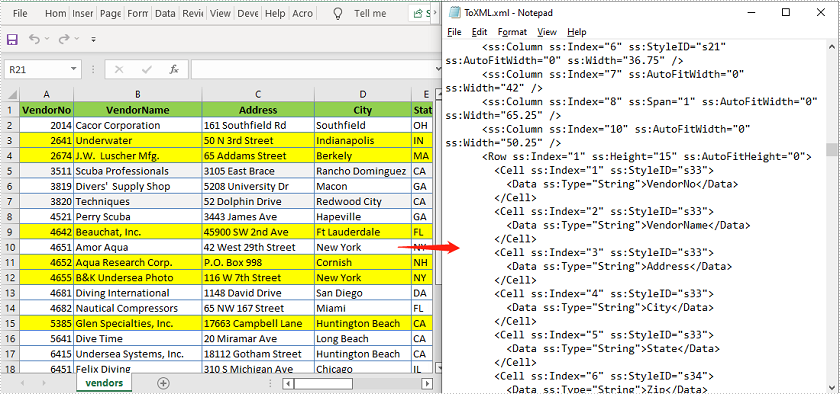
Convert Office Open XML to Excel in Java
The following are the steps to convert an Office Open XML file to Excel:
- Create an instance of Workbook class.
- Load an Office Open XML file using Workbook.loadFromXml() file.
- Call Workbook.saveToFile() method to save the Office Open XML file as Excel.
- Java
import com.spire.xls.ExcelVersion;
import com.spire.xls.Workbook;

public class OpenXmlToExcel {
    public static void main(String []args){
        //Create an instance of Workbook class
        Workbook workbook = new Workbook();
        //Load an Office Open XML file
        workbook.loadFromXml("ToXML.xml");

        //Save as Excel XLSX file format
        workbook.saveToFile("ToExcel.xlsx", ExcelVersion.Version2016);
    }
}
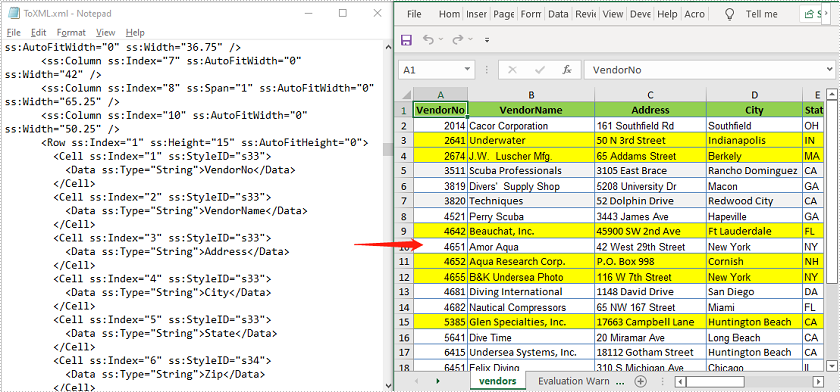
Apply for a Temporary License
If you'd like to remove the evaluation message from the generated documents, or to get rid of the function limitations, please request a 30-day trial license for yourself.
