
Conversion (18)
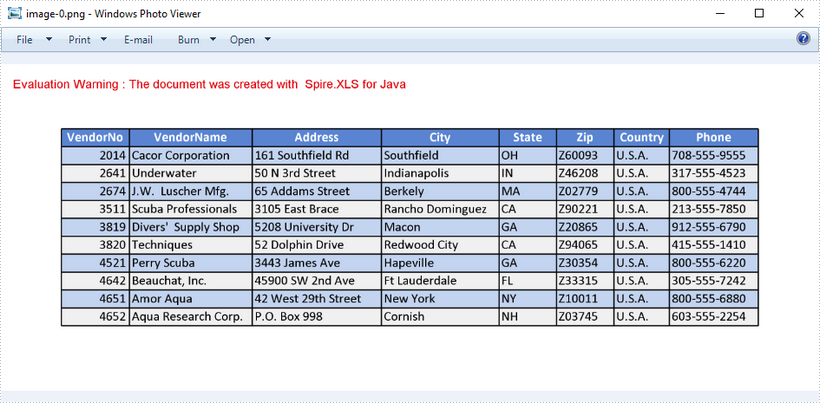
This article demonstrates how to set dpi on x and y axis when converting an Excel worksheet to an image using Spire.XLS for Java.
import com.spire.xls.*;

public class ConvertExcelToImage {

    public static void main(String[] args) {

        //Create a Workbook object
        Workbook wb = new Workbook();

        //Load an Excel file
        wb.loadFromFile("C:\\Users\\Administrator\\Desktop\\data.xlsx");

        //Set dpi on x and y axis
        wb.getConverterSetting().setXDpi(300);
        wb.getConverterSetting().setYDpi(300);

        //Declare a Worksheet variable
        Worksheet sheet;

        //Loop through the worksheets
        for (int i = 0; i < wb.getWorksheets().size(); i++) {

            //Get the specific worksheet
            sheet = wb.getWorksheets().get(i);

            //Convert worksheet to image
            sheet.saveToImage("C:\\Users\\Administrator\\Desktop\\Output\\image-" + i + ".png");
        }
    }
}
TIFF (Tagged Image File Format) is a standard image format created in the mid-1980s for saving high-quality color images on different computer platforms. Since the TIFF format is widely used in faxing, scanning, and other document exchange processing, conversion from Excel to TIFF may be frequently required in your daily work. This article will demonstrate how to programmatically convert Excel to TIFF using Spire.XLS for Java.
Install Spire.XLS for Java
First of all, you're required to add the Spire.Xls.jar file as a dependency in your Java program. The JAR file can be downloaded from this link. If you use Maven, you can easily import the JAR file in your application by adding the following code to your project's pom.xml file.
<repositories>
    <repository>
        <id>com.e-iceblue</id>
        <name>e-iceblue</name>
        <url>https://repo.e-iceblue.com/nexus/content/groups/public/</url>
    </repository>
</repositories>
<dependencies>
    <dependency>
        <groupId>e-iceblue</groupId>
        <artifactId>spire.xls</artifactId>
        <version>16.10.1</version>
    </dependency>
</dependencies>
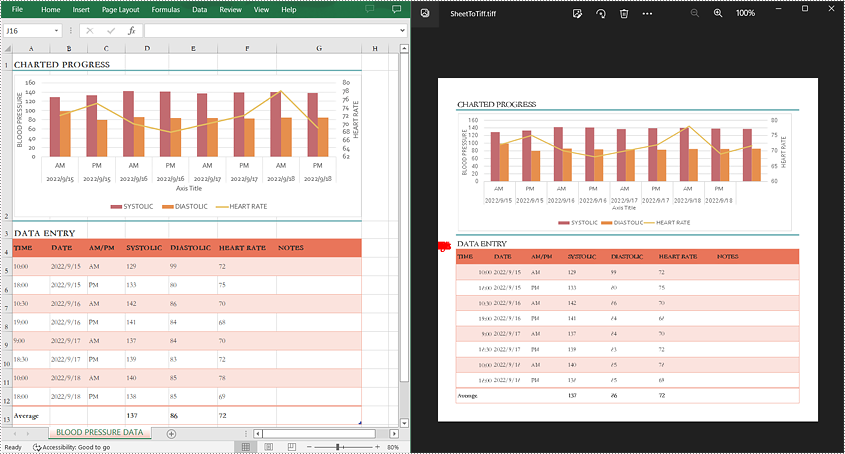
Convert a Whole Excel Worksheet to TIFF
The detailed steps are as follows:
- Create a Workbook instance.
- Load a sample Excel file using Workbook.loadFromFile() method.
- Get a specified worksheet using Workbook.getWorksheets().get() method.
- Convert the specified worksheet to TIFF using Worksheet.saveToTiff(java.lang.String fileName) method.
- Java
import com.spire.xls.Workbook;
import com.spire.xls.Worksheet;

public class ConvertExcelToTIFF {
    public static void main(String[] args) {

        //Create a Workbook instance
        Workbook workbook = new Workbook();

        //Load a sample Excel file
        workbook.loadFromFile("input.xlsx");

        //Get the first worksheet
        Worksheet sheet = workbook.getWorksheets().get(0);

        //Save the first worksheet to TIFF
        sheet.saveToTiff("SheetToTiff.tiff");

    }
}
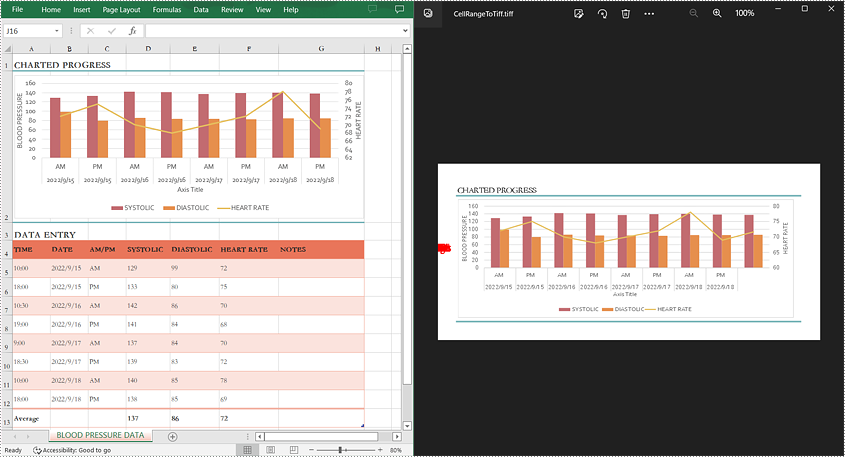
Convert a Specific Cell Range to TIFF
The detailed steps are as follows:
- Create a Workbook instance.
- Load a sample Excel file using Workbook.loadFromFile() method.
- Get a specified worksheet using Workbook.getWorksheets().get() method.
- Convert a specific cell range in the worksheet to TIFF using Worksheet.saveToTiff(java.lang.String fileName, int firstRow, int firstColumn, int lastRow, int lastColumn) method.
- Java
import com.spire.xls.Workbook;
import com.spire.xls.Worksheet;

public class CellRangeToTIFF {
    public static void main(String[] args) {

        //Create a Workbook instance
        Workbook workbook = new Workbook();

        //Load a sample Excel file
        workbook.loadFromFile("input.xlsx");

        //Get the first worksheet
        Worksheet sheet = workbook.getWorksheets().get(0);

        //Save a specific cell range in the first worksheet to TIFF
        sheet.saveToTiff("CellRangeToTiff.tiff",1,1,2,7);
    }
}
Apply for a Temporary License
If you'd like to remove the evaluation message from the generated documents, or to get rid of the function limitations, please request a 30-day trial license for yourself.
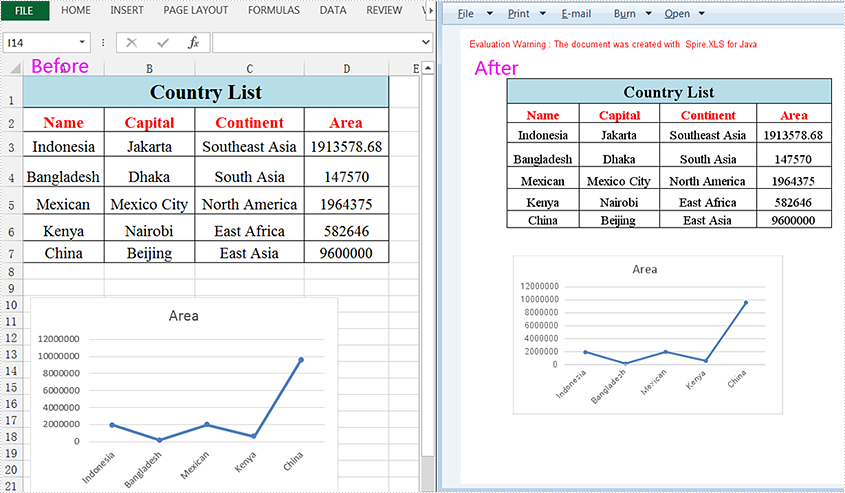
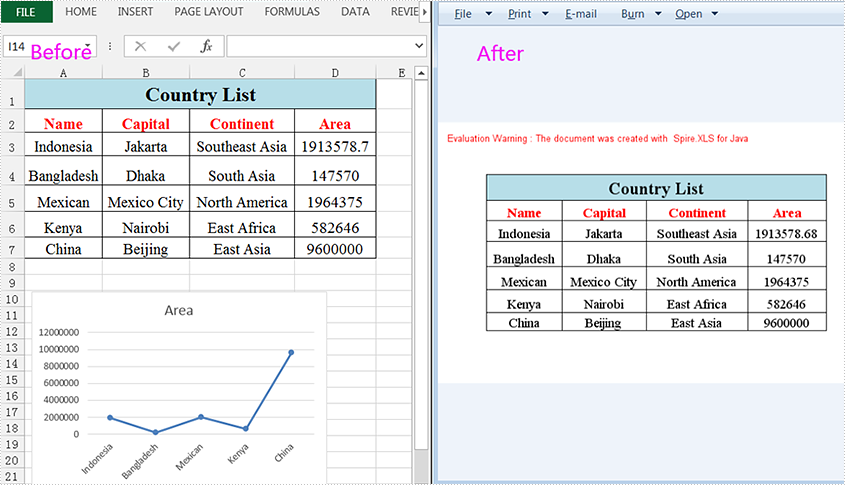
When you work with Excel worksheets on a daily basis, you sometimes need to convert them to images for storage or preventing data from being changed when shared with others. This article will show you how to convert a whole Excel worksheet or a specific cell range to an image using Spire.XLS for Java.
Install Spire.XLS for Java
First of all, you're required to add the Spire.Xls.jar file as a dependency in your Java program. The JAR file can be downloaded from this link. If you use Maven, you can easily import the JAR file in your application by adding the following code to your project's pom.xml file.
<repositories>
    <repository>
        <id>com.e-iceblue</id>
        <name>e-iceblue</name>
        <url>https://repo.e-iceblue.com/nexus/content/groups/public/</url>
    </repository>
</repositories>
<dependencies>
    <dependency>
        <groupId>e-iceblue</groupId>
        <artifactId>spire.xls</artifactId>
        <version>16.10.1</version>
    </dependency>
</dependencies>
Convert a Whole Excel Worksheet to Image
The following steps will demonstrate how to convert a whole Excel worksheet to an image.
- Create a Workbook instance.
- Load a sample Excel document using Workbook.loadFromFile() method.
- Get a specific worksheet of the document using Workbook.getWorksheets().get() method.
- Convert the worksheet to an image using Worksheet.saveToImage() method.
- Java
import com.spire.xls.*;

public class ExcelToImage {
    public static void main(String[] args){

        //Create a workbook instance
        Workbook workbook = new Workbook();
        //Load a sample Excel document
        workbook.loadFromFile("C:\\Users\\Test1\\Desktop\\sample.xlsx");

        //Get the first worksheet
        Worksheet sheet = workbook.getWorksheets().get(0);

        //Save the sheet to an image
        sheet.saveToImage("output/SheetToImage.png");
    }
}
Convert a Specific Cell Range to Image
Spire.XLS for Java supports converting a specific cell range to an image by using the Worksheet.toImage (int firstRow,int firstColumn,int lastRow,int lastColumn) method. Detailed steps are listed below.
- Create a Workbook instance.
- Load a sample Excel document using Workbook.loadFromFile() method.
- Get a specific worksheet of the document using Workbook.getWorksheets().get() method.
- Create a BufferedImage instance.
- Convert a specific cell range to the ButteredImage object using Worksheet.toImage () method.
- Save the BufferedImage object to a .png image.
- Java
import com.spire.xls.Workbook;
import com.spire.xls.Worksheet;
import javax.imageio.ImageIO;
import java.awt.image.BufferedImage;
import java.io.*;

public class SpecificCellsToImage {
    public static void main(String[] args) throws IOException {

        //Create a workbook instance
        Workbook workbook = new Workbook();
        //Load a sample Excel document
        workbook.loadFromFile("C:\\Users\\Test1\\Desktop\\sample.xlsx");

        //Get the first worksheet
        Worksheet sheet = workbook.getWorksheets().get(0);

        //Convert a specific cell range to the BufferedImage object
        BufferedImage bufferedImage = sheet.toImage(1, 1, 7, 4);
        //Save as a .png image
ImageIO.write(bufferedImage,"PNG",new File("output/specificCellsToImage.png"));
    }
}
Apply for a Temporary License
If you'd like to remove the evaluation message from the generated documents, or to get rid of the function limitations, please request a 30-day trial license for yourself.
Check out this video for a quick overview of Excel to PDF conversion in Java before reading the detailed tutorial below.
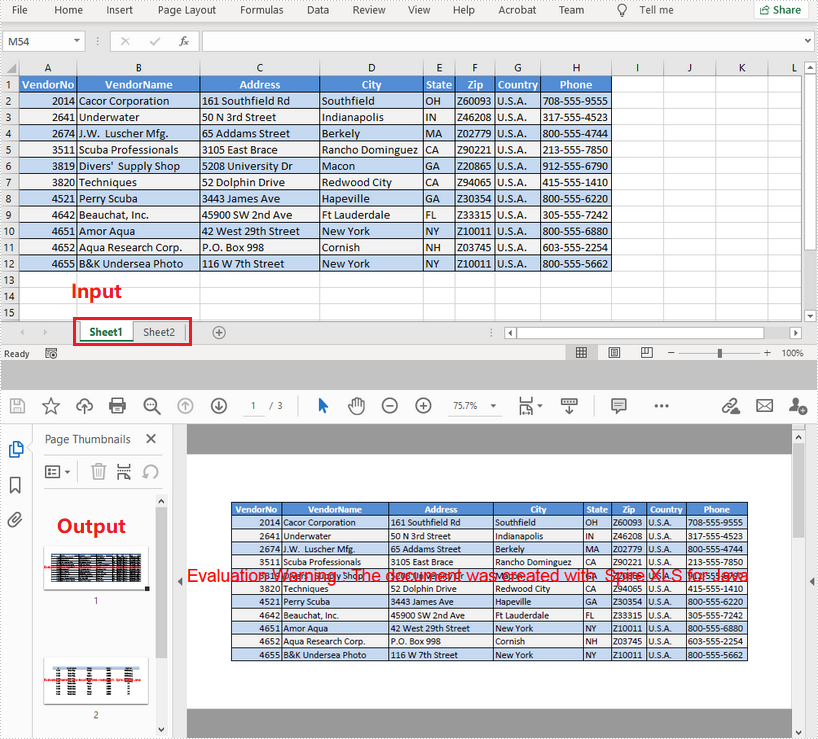
Using PDF as a format for sending documents ensures that no formatting changes will occur to the original document. Exporting Excel to PDF is a common practice in many cases. This article introduces how to convert a whole Excel document or a specific worksheet to PDF using Spire.XLS for Java.
Install Spire.XLS for Java
First of all, you're required to add the Spire.Xls.jar file as a dependency in your Java program. The JAR file can be downloaded from this link. If you use Maven, you can easily import the JAR file in your application by adding the following code to your project's pom.xml file.
<repositories>
    <repository>
        <id>com.e-iceblue</id>
        <name>e-iceblue</name>
        <url>https://repo.e-iceblue.com/nexus/content/groups/public/</url>
    </repository>
</repositories>
<dependencies>
    <dependency>
        <groupId>e-iceblue</groupId>
        <artifactId>spire.xls</artifactId>
        <version>16.10.1</version>
    </dependency>
</dependencies>
Convert a Whole Excel File to PDF
The following are the steps to convert a whole Excel document to PDF.
- Create a Workbook object.
- Load a sample Excel document using Workbook.loadFromFile() method.
- Set the Excel to PDF conversion options through the methods under the ConverterSetting object, which is returned by Workbook.getConverterSetting() method.
- Convert the whole Excel document to PDF using Workbook.saveToFile() method.
- Java
import com.spire.xls.FileFormat;
import com.spire.xls.Workbook;

public class ConvertExcelToPdf {

    public static void main(String[] args) {

        //Create a Workbook instance and load an Excel file
        Workbook workbook = new Workbook();
        workbook.loadFromFile("C:\\Users\\Administrator\\Desktop\\Sample.xlsx");

        //Set worksheets to fit to page when converting
        workbook.getConverterSetting().setSheetFitToPage(true);

        //Save the resulting document to a specified path
        workbook.saveToFile("output/ExcelToPdf.pdf", FileFormat.PDF);
    }
}
Convert a Specific Worksheet to PDF
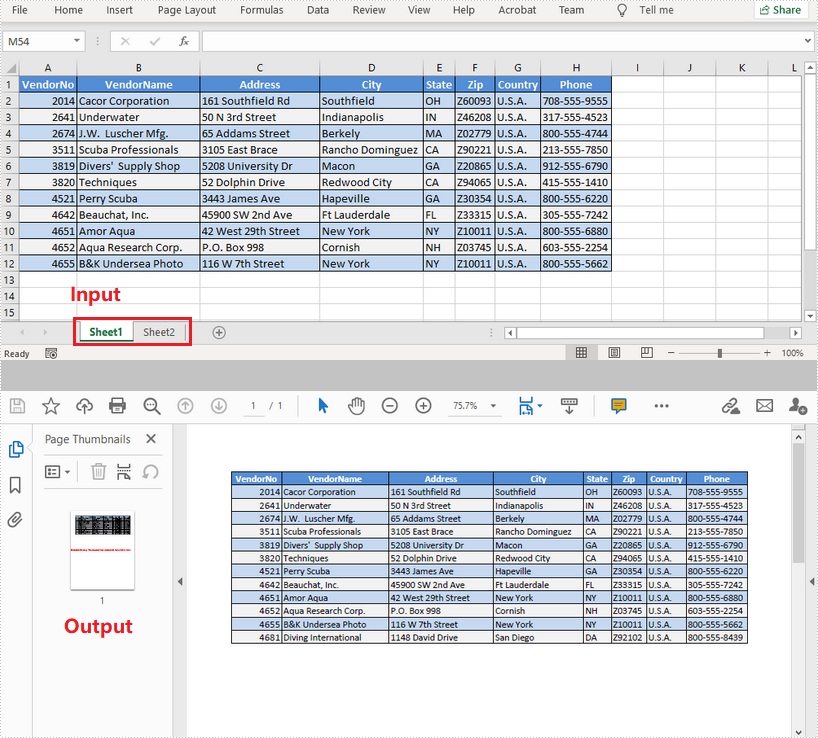
The following are the steps to convert a specific worksheet to PDF.
- Create a Workbook object.
- Load a sample Excel document using Workbook.loadFromFile() method.
- Set the Excel to PDF conversion options through the methods under the ConverterSetting object, which is returned by Workbook.getConverterSetting() method.
- Get a specific worksheet using Workbook.getWorksheets().get() method.
- Convert the worksheet to PDF using Worksheet.saveToPdf() method.
- Java
import com.spire.xls.Workbook;
import com.spire.xls.Worksheet;

public class ConvertWorksheetToPdf {

    public static void main(String[] args) {

        //Create a Workbook instance and load an Excel file
        Workbook workbook = new Workbook();
        workbook.loadFromFile("C:\\Users\\Administrator\\Desktop\\Sample.xlsx");

        //Set worksheets to fit to width when converting
        workbook.getConverterSetting().setSheetFitToWidth(true);

        //Get the first worksheet
        Worksheet worksheet = workbook.getWorksheets().get(0);

        //Convert to PDF and save the resulting document to a specified path
        worksheet.saveToPdf("output/WorksheetToPdf.pdf");
    }
}
Apply for a Temporary License
If you'd like to remove the evaluation message from the generated documents, or to get rid of the function limitations, please request a 30-day trial license for yourself.
