A Word document written by several people usually records its changes as revisions: inserted content is underlined, deleted content is kept with strikethrough, and formatting adjustments are marked as well. When the document is finalized, these revisions have to be resolved. Accepting a revision confirms the change, and the inserted content becomes part of the body text; rejecting a revision undoes the change, and the document returns to its state before the edit. Once the revisions have been processed, the revision records are cleared and the document can circulate as a formal version.
This article uses Spire.Doc for JavaScript to accept and reject revisions in the browser. The document is loaded through the virtual file system (VFS); when processing is finished, it is saved and downloaded directly. The whole process runs on the client side with WebAssembly, with no Office installation and no backend service required.
This article covers three features:
- Accept All Revisions in a Word Document
- Reject All Revisions in a Word Document
- Check Whether a Document Still Contains Unprocessed Revisions
For installation and project setup, refer to Integrating Spire.Doc for JavaScript in a React Project. The examples below assume that Spire.Doc is installed and the WebAssembly module is initialized.
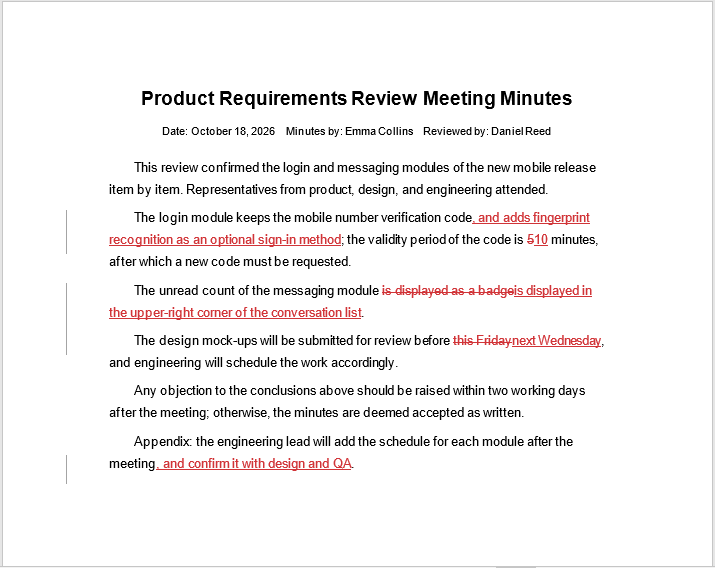
The sample document used in this article is a set of meeting minutes; its insertions, deletions, and replacements were all added by the reviewer during the review.
The meeting minutes with tracked changes:
Accept All Revisions in a Word Document
To accept all revisions in a Word document, call the Document.AcceptChanges() method. The method walks through the revision records in the document and handles each revision type separately; when it finishes, no revision marks remain in the document:
| Revision type | Result after accepting |
|---|---|
Insertion (RevisionType.Insertion) |
The inserted content is kept and becomes part of the body text |
Deletion (RevisionType.Deletion) |
The deleted content is removed permanently |
Format change (RevisionType.FormatChange) |
The changed formatting is adopted |
Move (RevisionType.Moving) |
The content stays at its new position |
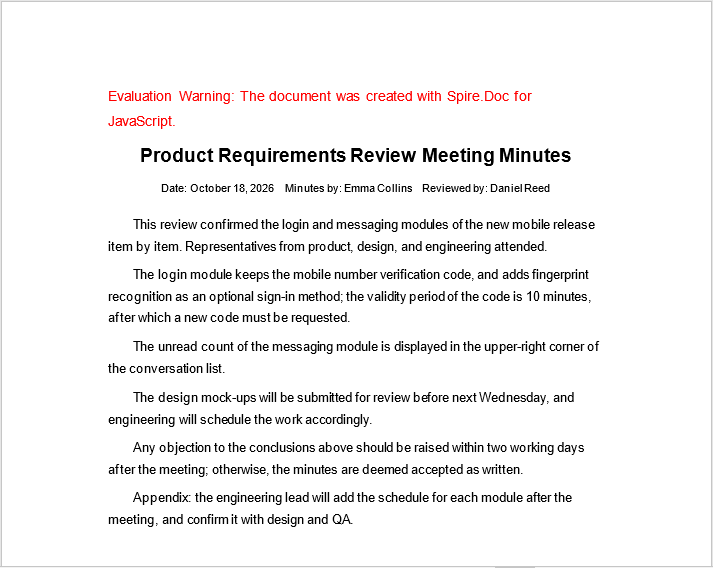
In the sample document, the reviewer changed the verification code validity period from 5 minutes to 10 minutes and moved the submission deadline for the design mock-ups from this Friday to next Wednesday. The code below loads the document and accepts all revisions; in the result file, the inserted content is kept and the deleted content is gone.
The specific steps are as follows:
- Get the Spire.Doc WASM module and confirm that it is ready.
- Load the font, read the sample document into the VFS and load it as a
Document. - Call
Document.AcceptChanges()to accept all revisions in the document. - Save the result file with
SaveToFile(). - Read the result file from the VFS and trigger a browser download.
The code for accepting all revisions in a Word document is as follows:
function App() {
  const acceptChanges = async () => {
    // Get the Spire.Doc WASM module
    const wasmModule = window.wasmModule?.spiredoc;

    // Check if the module is ready
    if (!wasmModule) {
      alert('Spire.Doc is not ready yet');
      return;
    }

    // Load the font and the document to be processed
    await window.spire.FetchFileToVFS('Sample.docx', '', `${process.env.PUBLIC_URL}/data/`);

    // Create a Document instance and load the document
    const doc = new wasmModule.Document();
    doc.LoadFromFile('Sample.docx');

    // Accept all revisions in the document
    doc.AcceptChanges();

    // Save the result file
    const outputFileName = 'AcceptChanges.docx';
    doc.SaveToFile({ fileName: outputFileName, fileFormat: wasmModule.FileFormat.Docx2013 });
    doc.Dispose();

    // Read the generated file from the VFS and trigger the download
    const fileArray = window.dotnetRuntime.Module.FS.readFile(outputFileName);
    const blob = new Blob([fileArray], { type: 'application/vnd.openxmlformats-officedocument.wordprocessingml.document' });
    const url = URL.createObjectURL(blob);
    const a = document.createElement('a');
    a.href = url;
    a.download = outputFileName;
    a.click();
    URL.revokeObjectURL(url);
  };

  return (
    <div style={{ textAlign: 'center', height: '300px' }}>
      <h1>Accept All Revisions in a Word Document</h1>
      <button onClick={acceptChanges}>
        Accept Revisions
      </button>
    </div>
  );
}

export default App;
The document after accepting all revisions:
Reject All Revisions in a Word Document
To reject all revisions in a Word document, call the Document.RejectChanges() method. The method also walks through the revision records in the document, but in the opposite direction: every change is undone, and the document returns to the state it had before the revisions were made:
| Revision type | Result after rejecting |
|---|---|
Insertion (RevisionType.Insertion) |
The inserted content is removed and the document returns to its state before the insertion |
Deletion (RevisionType.Deletion) |
The deleted content is restored to the body text |
Format change (RevisionType.FormatChange) |
The formatting is restored to what it was before the change |
Move (RevisionType.Moving) |
The content returns to its original position |
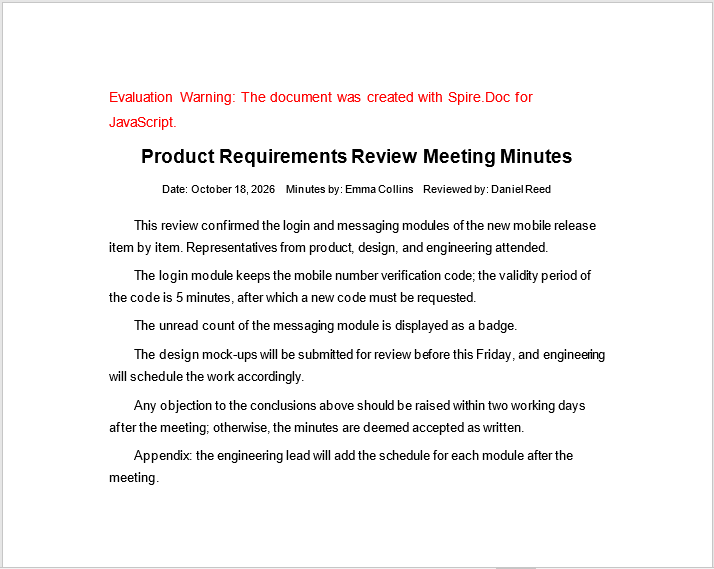
The code below loads the same meeting minutes, rejects all revisions and saves the result; in the result file every change is undone and the original text is restored.
The specific steps are as follows:
- Get the Spire.Doc WASM module and confirm that it is ready.
- Load the font, read the sample document into the VFS and load it as a
Document. - Call
Document.RejectChanges()to reject all revisions in the document. - Save the result file with
SaveToFile(). - Read the result file from the VFS and trigger a browser download.
The code for rejecting all revisions in a Word document is as follows:
function App() {
  const rejectChanges = async () => {
    // Get the Spire.Doc WASM module
    const wasmModule = window.wasmModule?.spiredoc;

    // Check if the module is ready
    if (!wasmModule) {
      alert('Spire.Doc is not ready yet');
      return;
    }

    // Load the font and the document to be processed
    await window.spire.FetchFileToVFS('Sample.docx', '', `${process.env.PUBLIC_URL}/data/`);

    // Create a Document instance and load the document
    const doc = new wasmModule.Document();
    doc.LoadFromFile('Sample.docx');

    // Reject all revisions in the document
    doc.RejectChanges();

    // Save the result file
    const outputFileName = 'RejectChanges.docx';
    doc.SaveToFile({ fileName: outputFileName, fileFormat: wasmModule.FileFormat.Docx2013 });
    doc.Dispose();

    // Read the generated file from the VFS and trigger the download
    const fileArray = window.dotnetRuntime.Module.FS.readFile(outputFileName);
    const blob = new Blob([fileArray], { type: 'application/vnd.openxmlformats-officedocument.wordprocessingml.document' });
    const url = URL.createObjectURL(blob);
    const a = document.createElement('a');
    a.href = url;
    a.download = outputFileName;
    a.click();
    URL.revokeObjectURL(url);
  };

  return (
    <div style={{ textAlign: 'center', height: '300px' }}>
      <h1>Reject All Revisions in a Word Document</h1>
      <button onClick={rejectChanges}>
        Reject Revisions
      </button>
    </div>
  );
}

export default App;
The document after rejecting all revisions:
Check Whether a Document Still Contains Unprocessed Revisions
To check whether a document still contains unprocessed revisions, read the Document.HasChanges property. The property is read-only: it returns true when revision records exist in the document, and false after all revisions have been accepted or rejected.
In batch processing, this property can decide whether an accept or reject operation is required: check first whether the document contains revisions, then process it according to the business rules, which avoids redundant writes to documents that have no revisions. The code below reads the property after loading the document, accepts all revisions only when revisions exist, and then saves the result.
The specific steps are as follows:
- Get the Spire.Doc WASM module and confirm that it is ready.
- Load the font, read the sample document into the VFS and load it as a
Document. - Read the
Document.HasChangesproperty to check whether unprocessed revisions remain in the document. - When revisions exist, call
Document.AcceptChanges()to process them all, then save the result file. - Read the result file from the VFS and trigger a browser download.
The code for checking whether a document still contains unprocessed revisions is as follows:
function App() {
  const checkChanges = async () => {
    // Get the Spire.Doc WASM module
    const wasmModule = window.wasmModule?.spiredoc;

    // Check if the module is ready
    if (!wasmModule) {
      alert('Spire.Doc is not ready yet');
      return;
    }

    // Load the font and the document to be processed
    await window.spire.FetchFileToVFS('Sample.docx', '', `${process.env.PUBLIC_URL}/data/`);

    // Create a Document instance and load the document
    const doc = new wasmModule.Document();
    doc.LoadFromFile('Sample.docx');

    // Check whether unprocessed revisions remain in the document
    if (doc.HasChanges) {
      // Accept all revisions when revisions exist
      doc.AcceptChanges();
    }

    // The property becomes false after the revisions have been processed
    console.log(doc.HasChanges);

    // Save the result file
    const outputFileName = 'CheckChanges.docx';
    doc.SaveToFile({ fileName: outputFileName, fileFormat: wasmModule.FileFormat.Docx2013 });
    doc.Dispose();

    // Read the generated file from the VFS and trigger the download
    const fileArray = window.dotnetRuntime.Module.FS.readFile(outputFileName);
    const blob = new Blob([fileArray], { type: 'application/vnd.openxmlformats-officedocument.wordprocessingml.document' });
    const url = URL.createObjectURL(blob);
    const a = document.createElement('a');
    a.href = url;
    a.download = outputFileName;
    a.click();
    URL.revokeObjectURL(url);
  };

  return (
    <div style={{ textAlign: 'center', height: '300px' }}>
      <h1>Check Whether a Document Still Contains Unprocessed Revisions</h1>
      <button onClick={checkChanges}>
        Check Revisions
      </button>
    </div>
  );
}

export default App;
FAQ
Why do revision marks still appear after revisions have been accepted
Accepting revisions modifies the document object in memory; if the result file is not saved, or if the original file rather than the processed file is opened, the revision marks remain in the document. In addition, the "Show Markup" option in Word only controls how revisions are displayed and does not change the revision records already saved in the document. Save the processed document as a new file, then open that file to confirm that the revisions have been cleared.
What is the difference between accepting and rejecting revisions
Accepting revisions confirms the reviewer's changes: inserted content is kept as body text, deleted content is removed, and formatting changes adopt the changed result. Rejecting revisions undoes those changes: inserted content is removed, deleted content is restored, and formatting returns to its state before the change. Both operations clear the revision records in the document, after which the document no longer distinguishes between the reviewer and the body text.
Can individual revisions be accepted or rejected one at a time
The current JavaScript binding provides the document-level Document.AcceptChanges() and Document.RejectChanges() methods. Document does not provide a collection for reading revisions one by one, nor an interface for accepting or rejecting a single revision. When a revision-by-revision decision is needed, handle it first in the Reviewing pane in Word, and then use the methods in this article to accept or reject the remaining revisions as a whole.
Are the author and time of revisions kept after accepting or rejecting them
No. When revisions are accepted or rejected, the revision records, together with the author and time recorded in them, are cleared, and the saved file no longer contains this information. If the origin of the changes has to be traced, keep the original document before processing, or archive the processing result and the original document separately.
Does calling AcceptChanges() on a document without revisions raise an error
No error is raised. Document.AcceptChanges() executes normally when the document contains no revision records, the document content stays unchanged, and the document can still be saved afterwards. To skip such documents in batch processing, read the Document.HasChanges property first and decide accordingly.
Get a Free License
Spire.Doc for JavaScript offers a 30-day full-featured free trial license with no functional limitations. Apply here to evaluate before purchasing.