In a Word document, filling a key paragraph or sentence with a background color sets it apart and helps distinguish the layers of the content. The conclusion of a report, the key clause of a contract and the main points of training material are all suitable for marking with a background color. Compared with setting the color by hand one item at a time, processing in code is better suited to documents that follow a fixed format and is far easier to fit into an automated document-generation pipeline.
This article uses Spire.Doc for JavaScript to add a background color to selected paragraphs or text in a Word document in the browser. The document is loaded through the virtual file system (VFS), and the download is triggered as soon as processing is finished. The whole process runs on the client side with WebAssembly, requires no Office installation and depends on no backend service.
This article covers two features:
The two approaches serve different purposes: a paragraph background covers the whole paragraph area and appears as a solid rectangle, whereas a text background covers only the selected characters. The examples read Sample.docx from public/data; put that file into the public/data directory of the project before running them.
For installation and project setup, refer to Integrating Spire.Doc for JavaScript in a React Project. The examples below assume that Spire.Doc is installed and the WebAssembly module is initialized.
Set a Background Color for a Specific Paragraph
Spire.Doc for JavaScript adds a background color to a specific paragraph through the Paragraph.Format.BackColor property. Once the target paragraph object has been obtained, assigning a Color value to its Format.BackColor is all that is required. The background covers the line spacing and the blank area left by the first-line indent of the paragraph.
The members used in this section are listed below:
| Member | Purpose |
|---|---|
Section.Paragraphs |
The paragraph collection of the current section; retrieve a paragraph by index with get_Item(index) |
Paragraph.Format |
The formatting settings of the paragraph |
ParagraphFormat.BackColor |
The background color of the paragraph |
Color.FromArgb(a, r, g, b) |
Builds a color from its alpha, red, green and blue components |
The specific steps are as follows:
- Get the Spire.Doc WASM module and confirm that it is ready.
- Load the font and the sample document, create a
Documentobject and load the file into it. - Get the first section through
Document.Sections, then take the target paragraph fromSection.Paragraphs. - Assign a value to
Paragraph.Format.BackColorto set the paragraph background color. - Save the result file with
Document.SaveToFile(), read it from the VFS and trigger a browser download.
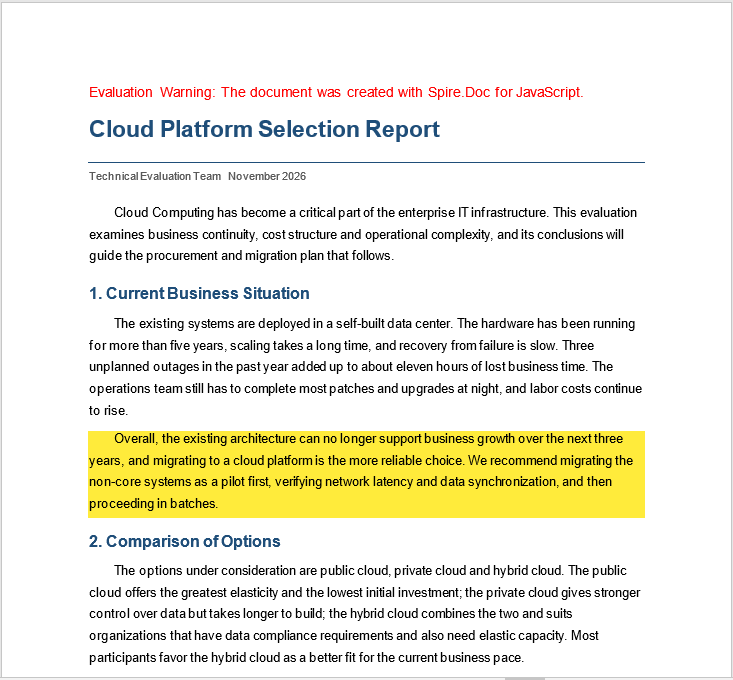
In the sample document, the paragraph that needs a background color is the 6th paragraph (index 5), the conclusion that begins "Overall, the existing architecture can no longer support…".
The code for adding a background color to a specific paragraph is as follows:
function App() {
  const setParagraphBackColor = async () => {
    // Get the Spire.Doc WASM module
    const wasmModule = window.wasmModule?.spiredoc;

    // Check if the module is ready
    if (!wasmModule) {
      alert('Spire.Doc is not ready yet');
      return;
    }

    // Load the sample document
    await window.spire.FetchFileToVFS('Sample.docx', '', `${process.env.PUBLIC_URL}/data/`);

    // Create a Document instance and load the document
    const doc = new wasmModule.Document();
    doc.LoadFromFile('Sample.docx');

    // Get the first section
    const section = doc.Sections.get_Item(0);

    // Get the 6th paragraph (index 5)
    const paragraph = section.Paragraphs.get_Item(5);

    // Set the background color of the paragraph
    paragraph.Format.BackColor = wasmModule.Color.FromArgb(255, 255, 235, 59);

    // Save the result file
    const outputFileName = 'ParagraphBackground.docx';
    doc.SaveToFile({ fileName: outputFileName, fileFormat: wasmModule.FileFormat.Docx2013 });
    doc.Dispose();

    // Read the generated file from the VFS and trigger the download
    const fileArray = window.dotnetRuntime.Module.FS.readFile(outputFileName);
    const blob = new Blob([fileArray], { type: 'application/vnd.openxmlformats-officedocument.wordprocessingml.document' });
    const url = URL.createObjectURL(blob);
    const a = document.createElement('a');
    a.href = url;
    a.download = outputFileName;
    a.click();
    URL.revokeObjectURL(url);
  };

  return (
    <div style={{ textAlign: 'center', height: '300px' }}>
      <h1>Set a Background Color for a Specific Paragraph</h1>
      <button onClick={setParagraphBackColor}>
        Set Paragraph Background Color
      </button>
    </div>
  );
}

export default App;
The document with a background color on the specified paragraph is shown below; the conclusion paragraph appears as a solid yellow block:
Set a Background Color for Specific Text
To add a background color to specific text, first locate the target text with Paragraph.Find(), obtain the text range with TextSelection.GetAsOneRange(), and then set the text background through TextRange.CharacterFormat.TextBackgroundColor. The color covers only the characters that were found; the rest of the paragraph is left untouched.
The members used in this section are listed below:
| Member | Purpose |
|---|---|
Paragraph.Find(given, caseSensitive, wholeWord) |
Finds text in the paragraph and returns a TextSelection |
TextSelection.GetAsOneRange() |
Converts the search result into a single TextRange |
TextRange.CharacterFormat |
The character formatting of the text range |
CharacterFormat.TextBackgroundColor |
The background color of the text range |
The three parameters of Paragraph.Find() are the text to find, whether the search is case-sensitive, and whether whole words only are matched. For example, Find('Cloud Computing', true, false) searches case-sensitively and does not require a whole-word match.
The specific steps are as follows:
- Get the Spire.Doc WASM module and confirm that it is ready.
- Load the font and the sample document, create a
Documentobject and load the file into it. - Get the first section through
Document.Sections, then take the target paragraph fromSection.Paragraphs. - Use
Paragraph.Find()to locate the given text in the paragraph. - Use
TextSelection.GetAsOneRange()to obtain the text range that was found. - Set the background color of the text range through
TextRange.CharacterFormat.TextBackgroundColor. - Save the result file with
Document.SaveToFile(), read it from the VFS and trigger a browser download.
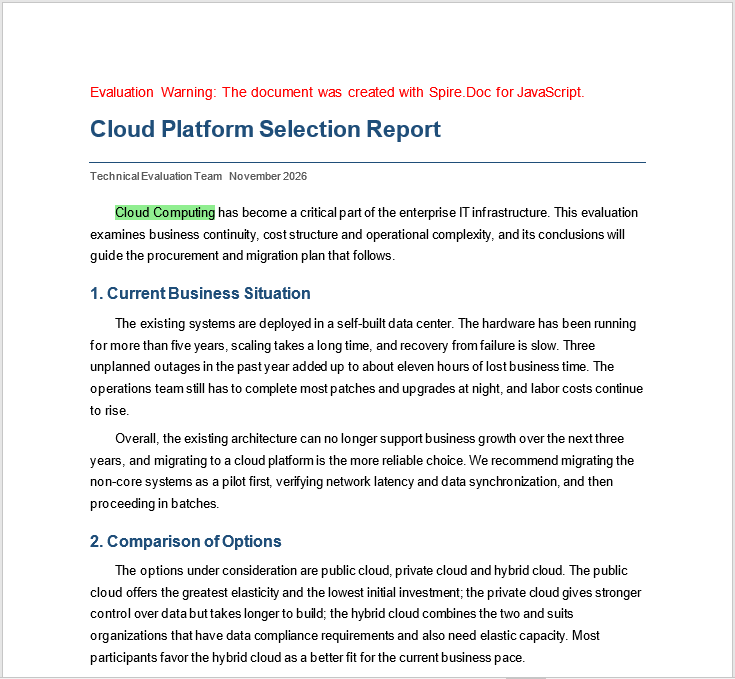
In the sample document, the text to be colored, "Cloud Computing", is in the 3rd paragraph (index 2).
The code for adding a background color to specific text is as follows:
function App() {
  const setTextBackColor = async () => {
    // Get the Spire.Doc WASM module
    const wasmModule = window.wasmModule?.spiredoc;

    // Check if the module is ready
    if (!wasmModule) {
      alert('Spire.Doc is not ready yet');
      return;
    }

    // Load the sample document
    await window.spire.FetchFileToVFS('Sample.docx', '', `${process.env.PUBLIC_URL}/data/`);

    // Create a Document instance and load the document
    const doc = new wasmModule.Document();
    doc.LoadFromFile('Sample.docx');

    // Get the first section
    const section = doc.Sections.get_Item(0);

    // Get the 3rd paragraph (index 2)
    const paragraph = section.Paragraphs.get_Item(2);

    // Find the given text in the paragraph
    const selection = paragraph.Find('Cloud Computing', true, false);

    // Get the text range of the found text
    const range = selection.GetAsOneRange();

    // Set the background color of the text range
    range.CharacterFormat.TextBackgroundColor = wasmModule.Color.FromArgb(255, 144, 238, 144);

    // Save the result file
    const outputFileName = 'TextBackground.docx';
    doc.SaveToFile({ fileName: outputFileName, fileFormat: wasmModule.FileFormat.Docx2013 });
    doc.Dispose();

    // Read the generated file from the VFS and trigger the download
    const fileArray = window.dotnetRuntime.Module.FS.readFile(outputFileName);
    const blob = new Blob([fileArray], { type: 'application/vnd.openxmlformats-officedocument.wordprocessingml.document' });
    const url = URL.createObjectURL(blob);
    const a = document.createElement('a');
    a.href = url;
    a.download = outputFileName;
    a.click();
    URL.revokeObjectURL(url);
  };

  return (
    <div style={{ textAlign: 'center', height: '300px' }}>
      <h1>Set a Background Color for Specific Text</h1>
      <button onClick={setTextBackColor}>
        Set Text Background Color
      </button>
    </div>
  );
}

export default App;
The document with a background color on the specified text is shown below; the color covers only the phrase "Cloud Computing":
Set a Background Color for All the Text in a Paragraph
When every text block in a paragraph should carry a background color instead of one solid paragraph rectangle, iterate over the paragraph's ChildObjects and set TextBackgroundColor on each TextRange:
for (let i = 0; i < paragraph.ChildObjects.Count; i++) {
  const child = paragraph.ChildObjects.get_Item(i);
  if (child.DocumentObjectType === wasmModule.DocumentObjectType.TextRange) {
    child.CharacterFormat.TextBackgroundColor = wasmModule.Color.FromArgb(255, 144, 238, 144);
  }
}
Clear a Background Color That Has Been Set
Setting the color to fully transparent clears the background, and the paragraph and the text range are written in the same way:
// Clear the paragraph background color
paragraph.Format.BackColor = wasmModule.Color.FromArgb(0, 0, 0, 0);

// Clear the text background color
range.CharacterFormat.TextBackgroundColor = wasmModule.Color.FromArgb(0, 0, 0, 0);
After the color has been cleared, the corresponding shading fill is written back as auto, and no color is displayed in the document.
FAQ
What is the difference between a paragraph background and a text background
Paragraph.Format.BackColor sets a background for the whole paragraph area, including the line spacing and the blank space left by the first-line indent, and shows on the page as one solid rectangle; CharacterFormat.TextBackgroundColor acts only on the characters in a TextRange, so the color hugs the edge of the text. Use the former to emphasize a whole conclusion paragraph, and the latter to mark only the keyword in a sentence.
Why is the color that has been set not applied
Both BackColor and TextBackgroundColor require a Color object. Spire.Doc for JavaScript offers only one way to construct a Color, FromArgb(a, r, g, b); there are no predefined colors such as Color.Yellow. Assigning '#FFFF00' or 0xFFFF00 directly does not raise an exception, but the background is not applied on the page. Writing the color as Color.FromArgb(255, 255, 235, 59) is all that is needed.
Why does an error occur when the searched text does not exist
Paragraph.Find() does not return null when it finds nothing; it returns an empty TextSelection, and calling GetAsOneRange() on it throws Arg_NullReferenceException. Check whether the paragraph text contains the target content before searching:
if (paragraph.Text.includes('Cloud Computing')) {
  const range = paragraph.Find('Cloud Computing', true, false).GetAsOneRange();
  range.CharacterFormat.TextBackgroundColor = wasmModule.Color.FromArgb(255, 144, 238, 144);
}
Can a background color be set for several paragraphs at once
Paragraph.Format.BackColor applies to one paragraph at a time. To process several paragraphs, loop over Section.Paragraphs and assign the color to each of them. The following code sets a background color for the 5th and 6th paragraphs:
const section = doc.Sections.get_Item(0);

for (let i = 4; i <= 5; i++) {
  section.Paragraphs.get_Item(i).Format.BackColor = wasmModule.Color.FromArgb(255, 255, 235, 59);
}
Can text still be found when it is split into several runs
Yes. While a document is being edited, Word often splits one sentence into several runs; Paragraph.Find() matches across those runs, and the complete text range of the result is still obtained through GetAsOneRange().
Get a Free License
Spire.Doc for JavaScript offers a 30-day full-featured free trial license with no functional limitations. Apply here to evaluate before purchasing.