Numbers stored in Excel cells often need to be displayed in different formats, such as keeping two decimal places, adding thousands separators, displaying amounts as currency, highlighting negative numbers in red, or showing them as percentages or in scientific notation. Proper number formatting not only makes reports easier to read but also avoids errors caused by manual entry and layout. Spire.XLS for JavaScript completes this directly in the browser based on WebAssembly, and manages input/output files through a virtual file system (VFS), with no backend service required.
Spire.XLS for JavaScript sets number formats through the NumberFormat property of the cell range Range. NumberFormat accepts Excel-standard format code strings. The table below lists the commonly used format code symbols and their meanings:
| Symbol | Description |
|---|---|
0 |
Digit placeholder that always displays a digit, padding with 0 when there are not enough digits |
# |
Digit placeholder that shows only significant digits; extra zeros are not displayed |
? |
Digit placeholder that leaves space for insignificant zeros, used to align decimal points |
. |
Decimal point |
, |
Thousands separator |
% |
Multiplies the number by 100 and displays it as a percentage |
E+ / E- |
Exponent part of scientific notation |
; |
Separates the formats for positive numbers, negative numbers, zeros and text |
[Red] and other color codes |
Sets the display color of the number, e.g. [Red], [Blue], [Green] |
[DBNum1] / [DBNum2] |
Converts numbers to Chinese lowercase / uppercase numerals |
@ |
Text placeholder that displays the number as text |
This article covers three core features:
- Set Decimal Places and Thousands Separator
- Set Currency Format and Highlight Negative Values
- Set Percentage, Scientific Notation and Other Formats
For installation and project configuration, refer to Integrating Spire.XLS for JavaScript in a React Project. The examples below assume Spire.XLS is installed and the WebAssembly module is initialized.
Set Decimal Places and Thousands Separator
When processing amounts, statistics and other data, it is often necessary to keep numbers to a specified number of decimal places, or to add thousands separators for readability. Presenting the same values with the right format codes makes reports easier to scan and avoids manual padding or misplaced commas.
The steps are:
- Load the font file into the VFS for text measurement.
- Create a
Workbookobject and get the first worksheet withWorkbook.Worksheets.get(0). - Use the
Range.Textproperty to write the title, column headers, and the format codes used as description text. - Use the
Range.NumberValueproperty to write the values, and set the corresponding format codes with theRange.NumberFormatproperty. - Use the
Workbook.SaveToFile()method to save the workbook, then release resources withWorkbook.Dispose().
Here is a complete code example showing how to set number formats with different decimal places and thousands separators for cells in React:
function App() {
  const setDecimalPlacesAndThousands = async () => {
    // Get the Spire.XLS WASM module
    const xlsModule = window.wasmModule?.spirexls;

    // Check whether the module is ready
    if (!xlsModule) {
      alert('Spire.Xls is not ready yet');
      return;
    }

    // Load the font into the VFS for text measurement
    await window.spire.FetchFileToVFS('ARIAL.TTF', '/Library/Fonts/', `${process.env.PUBLIC_URL}/font/`);

    // Create a new workbook and get the first worksheet
    const workbook = new xlsModule.Workbook();
    const sheet = workbook.Worksheets.get(0);

    // Write the title and column headers
    sheet.Range.get("B1").Text = "Number Formatting Sample";
    sheet.Range.get("B3").Text = "Format Code";
    sheet.Range.get("C3").Text = "Result";

    // Write the format code in column B, write the value in column C and apply the corresponding number format
    sheet.Range.get("B4").Text = "0";
    sheet.Range.get("C4").NumberValue = 1234.5678;
    sheet.Range.get("C4").NumberFormat = "0";

    sheet.Range.get("B5").Text = "0.00";
    sheet.Range.get("C5").NumberValue = 1234.5678;
    sheet.Range.get("C5").NumberFormat = "0.00";

    sheet.Range.get("B6").Text = "#,##0.00";
    sheet.Range.get("C6").NumberValue = 1234.5678;
    sheet.Range.get("C6").NumberFormat = "#,##0.00";

    // Add a background color to the format-code cells and set the column widths
    sheet.Range.get("B4:B6").Style.KnownColor = xlsModule.ExcelColors.Gray25Percent;
    sheet.SetColumnWidth(2, 26);
    sheet.SetColumnWidth(3, 20);

    // Save the document
    const outputFileName = 'NumberFormat_Decimals_output.xlsx';
    workbook.SaveToFile({ fileName: outputFileName, version: xlsModule.ExcelVersion.Version2010 });

    // Release resources
    workbook.Dispose();

    // Read the converted file from the VFS and trigger a download
    const fileArray = window.dotnetRuntime.Module.FS.readFile(outputFileName);
    const blob = new Blob([fileArray], { type: 'application/vnd.openxmlformats-officedocument.spreadsheetml.sheet' });
    const url = URL.createObjectURL(blob);
    const a = document.createElement('a');
    a.href = url;
    a.download = outputFileName;
    a.click();
    URL.revokeObjectURL(url);
  };

  return (
    <div style={{ textAlign: 'center', height: '300px' }}>
      <h1>Set Decimal Places and Thousands Separator</h1>
      <button onClick={setDecimalPlacesAndThousands}>
        Start
      </button>
    </div>
  );
}

export default App;
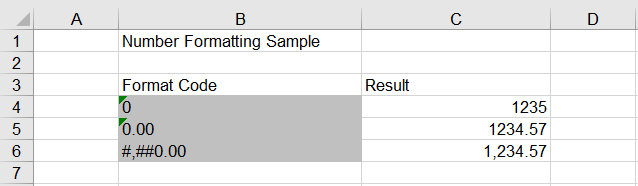
The worksheet after setting decimal places and thousands separator:
Set Currency Format and Highlight Negative Values
In financial reports, amounts are usually displayed in currency format, while negative numbers need to be highlighted so they can be spotted quickly. An Excel number format code can consist of several parts separated by semicolons, so positive and negative values in the same column can be displayed differently, and negative values can be colored on their own.
The steps are:
- Load the font file into the VFS for text measurement.
- Create a
Workbookobject and get the first worksheet withWorkbook.Worksheets.get(0). - Use the
Range.Textproperty to write the title, column headers, and the currency format codes used as description text. - Use the
Range.NumberValueproperty to write the values (including negative numbers), and set the format codes that contain a negative part with theRange.NumberFormatproperty. - Use the
Workbook.SaveToFile()method to save the workbook, then release resources withWorkbook.Dispose().
Here is a complete code example showing how to set a currency format for amounts in React and display negative numbers in red:
function App() {
  const setCurrencyFormat = async () => {
    // Get the Spire.XLS WASM module
    const xlsModule = window.wasmModule?.spirexls;

    // Check whether the module is ready
    if (!xlsModule) {
      alert('Spire.Xls is not ready yet');
      return;
    }

    // Load the font into the VFS for text measurement
    await window.spire.FetchFileToVFS('ARIAL.TTF', '/Library/Fonts/', `${process.env.PUBLIC_URL}/font/`);

    // Create a new workbook and get the first worksheet
    const workbook = new xlsModule.Workbook();
    const sheet = workbook.Worksheets.get(0);

    // Write the title and column headers
    sheet.Range.get("B1").Text = "Number Formatting Sample";
    sheet.Range.get("B3").Text = "Format Code";
    sheet.Range.get("C3").Text = "Result";

    // Set the currency format: two decimal places with a thousands separator
    sheet.Range.get("B4").Text = "$#,##0.00";
    sheet.Range.get("C4").NumberValue = 1234.5678;
    sheet.Range.get("C4").NumberFormat = "$#,##0.00";

    // Negative numbers with a thousands separator displayed in red
    sheet.Range.get("B5").Text = "#,##0.00;[Red]-#,##0.00";
    sheet.Range.get("C5").NumberValue = -1234.5678;
    sheet.Range.get("C5").NumberFormat = "#,##0.00;[Red]-#,##0.00";

    // Negative numbers with two decimal places displayed in red
    sheet.Range.get("B6").Text = "0.00;[Red]-0.00";
    sheet.Range.get("C6").NumberValue = -1234.5678;
    sheet.Range.get("C6").NumberFormat = "0.00;[Red]-0.00";

    // Add a background color to the format-code cells and set the column widths
    sheet.Range.get("B4:B6").Style.KnownColor = xlsModule.ExcelColors.Gray25Percent;
    sheet.SetColumnWidth(2, 26);
    sheet.SetColumnWidth(3, 20);

    // Save the document
    const outputFileName = 'NumberFormat_Currency_output.xlsx';
    workbook.SaveToFile({ fileName: outputFileName, version: xlsModule.ExcelVersion.Version2010 });

    // Release resources
    workbook.Dispose();

    // Read the converted file from the VFS and trigger a download
    const fileArray = window.dotnetRuntime.Module.FS.readFile(outputFileName);
    const blob = new Blob([fileArray], { type: 'application/vnd.openxmlformats-officedocument.spreadsheetml.sheet' });
    const url = URL.createObjectURL(blob);
    const a = document.createElement('a');
    a.href = url;
    a.download = outputFileName;
    a.click();
    URL.revokeObjectURL(url);
  };

  return (
    <div style={{ textAlign: 'center', height: '300px' }}>
      <h1>Set Currency Format and Highlight Negative Values</h1>
      <button onClick={setCurrencyFormat}>
        Start
      </button>
    </div>
  );
}

export default App;
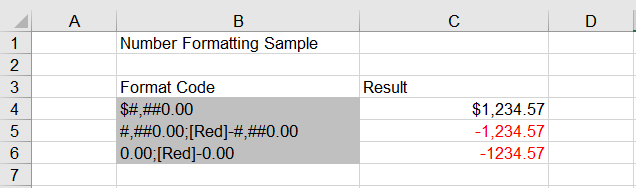
The worksheet after setting the currency format and highlighting negative values:
Set Percentage, Scientific Notation and Other Formats
Besides the common decimal, thousands separator and currency formats, reports often call for percentages, scientific notation and Chinese uppercase amounts. Percentages make proportions easier to compare, scientific notation suits very large or very small numbers, and Chinese uppercase is used on formal financial documents.
The steps are:
- Load the font file into the VFS for text measurement.
- Create a
Workbookobject and get the first worksheet withWorkbook.Worksheets.get(0). - Use the
Range.Textproperty to write the title, column headers, and the format codes used as description text. - Use the
Range.NumberValueproperty to write the values, and set the percentage, scientific notation or Chinese uppercase format codes respectively with theRange.NumberFormatproperty. - Use the
Workbook.SaveToFile()method to save the workbook, then release resources withWorkbook.Dispose().
Here is a complete code example showing how to set percentage, scientific notation and Chinese uppercase formats for cells in React:
function App() {
  const setSpecialNumberFormat = async () => {
    // Get the Spire.XLS WASM module
    const xlsModule = window.wasmModule?.spirexls;

    // Check whether the module is ready
    if (!xlsModule) {
      alert('Spire.Xls is not ready yet');
      return;
    }

    // Load the font into the VFS for text measurement
    await window.spire.FetchFileToVFS('ARIAL.TTF', '/Library/Fonts/', `${process.env.PUBLIC_URL}/font/`);

    // Create a new workbook and get the first worksheet
    const workbook = new xlsModule.Workbook();
    const sheet = workbook.Worksheets.get(0);

    // Write the title and column headers
    sheet.Range.get("B1").Text = "Number Formatting Sample";
    sheet.Range.get("B3").Text = "Format Code";
    sheet.Range.get("C3").Text = "Result";

    // Percentage format: the stored value is multiplied by 100 and a percent sign is shown
    sheet.Range.get("B4").Text = "0.00%";
    sheet.Range.get("C4").NumberValue = 0.1234;
    sheet.Range.get("C4").NumberFormat = "0.00%";

    // Scientific notation format
    sheet.Range.get("B5").Text = "0.00E+00";
    sheet.Range.get("C5").NumberValue = 123456789;
    sheet.Range.get("C5").NumberFormat = "0.00E+00";

    // Chinese uppercase format (uppercase for RMB amounts)
    sheet.Range.get("B6").Text = "[DBNum2][$-804]General";
    sheet.Range.get("C6").NumberValue = 1234567;
    sheet.Range.get("C6").NumberFormat = "[DBNum2][$-804]General";

    // Add a background color to the format-code cells and set the column widths
    sheet.Range.get("B4:B6").Style.KnownColor = xlsModule.ExcelColors.Gray25Percent;
    sheet.SetColumnWidth(2, 26);
    sheet.SetColumnWidth(3, 20);

    // Save the document
    const outputFileName = 'NumberFormat_Special_output.xlsx';
    workbook.SaveToFile({ fileName: outputFileName, version: xlsModule.ExcelVersion.Version2010 });

    // Release resources
    workbook.Dispose();

    // Read the converted file from the VFS and trigger a download
    const fileArray = window.dotnetRuntime.Module.FS.readFile(outputFileName);
    const blob = new Blob([fileArray], { type: 'application/vnd.openxmlformats-officedocument.spreadsheetml.sheet' });
    const url = URL.createObjectURL(blob);
    const a = document.createElement('a');
    a.href = url;
    a.download = outputFileName;
    a.click();
    URL.revokeObjectURL(url);
  };

  return (
    <div style={{ textAlign: 'center', height: '300px' }}>
      <h1>Set Percent, Scientific Notation and Other Formats</h1>
      <button onClick={setSpecialNumberFormat}>
        Start
      </button>
    </div>
  );
}

export default App;
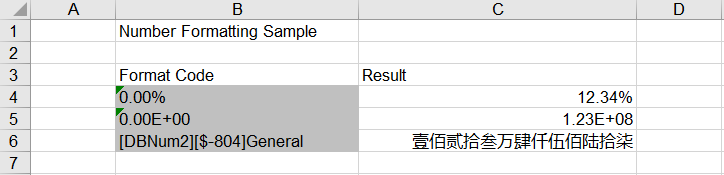
The worksheet after setting percentage, scientific notation and other special formats:
FAQ
The displayed value does not change after setting the number format
Cause: The value written to the cell is actually stored as text, or the data itself is not numeric, so NumberFormat cannot take effect on a number.
Solution: Make sure the value is written with the Range.NumberValue property (rather than a Text or Value string) before setting the NumberFormat, for example:
sheet.Range.get("C4").NumberValue = 1234.5678;
sheet.Range.get("C4").NumberFormat = "0.00";
The value is enlarged after using the percentage format
Cause: Excel displays a percentage format as "stored value × 100". For example, the stored value 12.34 combined with the 0.00% format is displayed as 1234.00%, not 12.34%.
Solution: To display 12.34%, the stored value should be 0.1234. If the original data was entered as a percentage number, divide it by 100 before setting the format.
Negative numbers are not displayed in red
Cause: When a format code contains only one section, positive numbers, negative numbers and zeros all use that section, so [Red] in it affects every value. The color applies only to negative numbers when it is placed in the negative section.
Solution: Split the positive and negative parts with a semicolon and put [Red] in the negative part, for example 0.00;[Red]-0.00.
Obtain a Free License
Spire.XLS for JavaScript offers a 30-day full-featured free trial license with no functional limitations. Apply here to evaluate before purchasing.