Copy Excel Cell Format with JavaScript in React
A cell whose formatting is already right often has to be reused elsewhere: the unit price column carries a money format, a light blue fill and thin borders, while the amount column on the same row is still plain. Copying a cell format hands the look the source cell has already settled on to the target cell -- number format, font, fill, border and alignment in one go -- and leaves the data in the target cell untouched. Spire.XLS for JavaScript performs these operations in the browser through WebAssembly; the input and output files are managed by a virtual file system (VFS), with no backend service required.
This article covers two feature points:
For installation and project setup, see Integrating Spire.XLS for JavaScript in a React Project. The examples below assume Spire.XLS is installed and the WebAssembly module has been initialized.
Copy the whole cell format
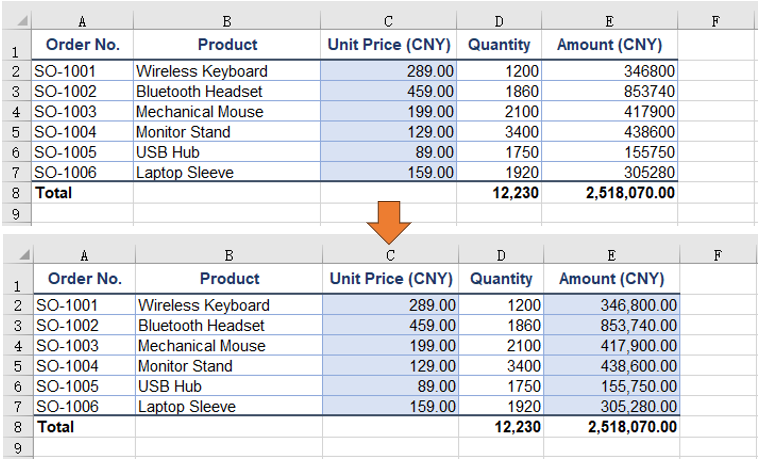
Every part of a cell's look is kept in a style object of its own. Handing the source cell's style object straight to the target cell carries the number format, font, fill, border and alignment across in one go, while the data in the target cell stays where it is. The sample workbook's unit price column already carries a money format and a light blue fill, and the amount column is still plain, so copying the former onto the latter row by row shows the difference.
Assigning the source cell's whole Style to the target cell's Style completes the copy:
| Syntax | Result |
|---|---|
sheet.Range.get('C2').Style |
Takes the whole style object of the source cell (the unit price column) |
sheet.Range.get('E2').Style = sheet.Range.get('C2').Style |
Hands that whole style to the target cell (the amount column): number format, font, fill, border and alignment follow |
sheet.Range.get({ row, column: 5 }).Text |
The value already in the target cell stays where it is, unaffected by the style assignment |
The steps are:
- Load the font file and the test data file into the VFS with
window.spire.FetchFileToVFS. - Create a workbook with
new Workbook(), load the input file withworkbook.LoadFromFile, and take the first worksheet withworkbook.Worksheets.get(0). - Take the source column's cell and the target column's cell row by row with
sheet.Range.get. - Assign the source cell's
Styleto the target cell'sStyle; the whole cell format follows, and the target cell's value is left untouched. - Save the workbook with
workbook.SaveToFileand dispose of it withworkbook.Disposeto free resources.
The full code example below shows how to copy the whole cell format in React:
function App() {
  const copyCellStyle = async () => {
    // get the Spire.XLS WASM module
    const xlsModule = window.wasmModule?.spirexls;

    // check that the module is ready
    if (!xlsModule) {
      alert('Spire.Xls is not ready yet');
      return;
    }

    // load the font and the test data file into the VFS
    await window.spire.FetchFileToVFS('ARIAL.TTF', '/Library/Fonts/', `${process.env.PUBLIC_URL}/font/`);
    const inputFileName = 'CopyCellStyle.xlsx';
    await window.spire.FetchFileToVFS(inputFileName, '', `${process.env.PUBLIC_URL}data/`);

    // load the workbook and take the first worksheet
    const workbook = new xlsModule.Workbook();
    workbook.LoadFromFile({ fileName: inputFileName });
    const sheet = workbook.Worksheets.get(0);

    // row by row, put the unit price column's format onto the amount column; the amounts stay put
    for (let row = 2; row <= 7; row++) {
      sheet.Range.get(`E${row}`).Style = sheet.Range.get(`C${row}`).Style;
    }

    // save the workbook
    const outputFileName = 'CopyCellStyle-output.xlsx';
    workbook.SaveToFile({ fileName: outputFileName, version: xlsModule.ExcelVersion.Version2016 });

    // dispose of the workbook to free resources
    workbook.Dispose();

    // read the result file from the VFS and start the download
    const fileArray = window.dotnetRuntime.Module.FS.readFile(outputFileName);
    const blob = new Blob([fileArray], { type: 'application/vnd.openxmlformats-officedocument.spreadsheetml.sheet' });
    const url = URL.createObjectURL(blob);
    const a = document.createElement('a');
    a.href = url;
    a.download = outputFileName;
    a.click();
    URL.revokeObjectURL(url);
  };

  return (
    <div style={{ textAlign: 'center', height: '300px' }}>
      <h1>Copy Cell Format</h1>
      <button id="copy-cell-style" onClick={copyCellStyle}>Copy the Whole Cell Format</button>
    </div>
  );
}

export default App;
The worksheet after copying the whole cell format:
Clone and reuse a named style
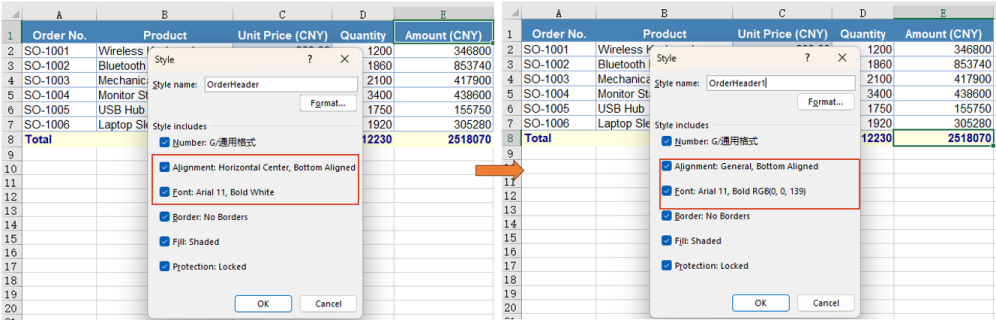
When one set of formatting is needed in several places, registering it as a named style lets it be applied to any range by name, and a colour change has to be made in one place only. A named style lives on the workbook: create it with workbook.Styles.Add, set its properties, then apply it by name through Range.CellStyleName. The example builds a style of white text on a steel blue fill for the header row, then clones it and changes only the colours for the total line -- the change lands on the clone alone, and the original style is unaffected.
A named style is registered on the workbook and applied to a range by name:
| Syntax | Result |
|---|---|
workbook.Styles.Add('OrderHeader') |
Registers a named style called OrderHeader on the workbook |
headerStyle.Font.Color, headerStyle.Color, headerStyle.FillPattern |
Sets the text colour, the fill colour and the fill pattern one by one |
headerStyle.clone() |
Copies out a style of its own, with a number appended to the name |
sheet.Range.get('A1:E1').CellStyleName = headerStyle.Name |
Applies the named style to that range by name |
The steps are:
- Load the font file and the test data file into the VFS with
window.spire.FetchFileToVFS. - Create a workbook with
new Workbook(), load the input file withworkbook.LoadFromFile, and take the first worksheet withworkbook.Worksheets.get(0). - Create a named style with
workbook.Styles.Addand set its font name, size, bold, text colour, fill colour, fill pattern and horizontal alignment. - Apply the style to the header range by name with
sheet.Range.get('A1:E1').CellStyleName. - Clone it with the style's
clone(), change only the text colour and the fill colour, and get the variant the total line needs. - Apply the variant to the total line with
sheet.Range.get('A8:E8').CellStyleName. - Save the workbook with
workbook.SaveToFileand dispose of it withworkbook.Disposeto free resources.
The full code example below shows how to clone a named style and reuse it for different ranges in React:
function App() {
  const cloneNamedStyle = async () => {
    // get the Spire.XLS WASM module
    const xlsModule = window.wasmModule?.spirexls;

    // check that the module is ready
    if (!xlsModule) {
      alert('Spire.Xls is not ready yet');
      return;
    }

    // load the font and the test data file into the VFS
    await window.spire.FetchFileToVFS('ARIAL.TTF', '/Library/Fonts/', `${process.env.PUBLIC_URL}/font/`);
    const inputFileName = 'CopyCellStyle.xlsx';
    await window.spire.FetchFileToVFS(inputFileName, '', `${process.env.PUBLIC_URL}data/`);

    // load the workbook and take the first worksheet
    const workbook = new xlsModule.Workbook();
    workbook.LoadFromFile({ fileName: inputFileName });
    const sheet = workbook.Worksheets.get(0);

    // create a named style: white text on a steel blue fill, centred
    const headerStyle = workbook.Styles.Add('OrderHeader');
    headerStyle.Font.FontName = 'Arial';
    headerStyle.Font.Size = 11;
    headerStyle.Font.IsBold = true;
    headerStyle.Font.Color = xlsModule.Color.get_White();
    headerStyle.Color = xlsModule.Color.get_SteelBlue();
    headerStyle.FillPattern = xlsModule.ExcelPatternType.Solid;
    headerStyle.HorizontalAlignment = xlsModule.HorizontalAlignType.Center;

    // apply the named style to the header row
    sheet.Range.get('A1:E1').CellStyleName = headerStyle.Name;

    // clone it and change only the colours, giving the variant the total line needs
    const totalStyle = headerStyle.clone();
    totalStyle.Font.Color = xlsModule.Color.get_DarkBlue();
    totalStyle.Color = xlsModule.Color.get_LightYellow();

    // apply the cloned style to the total line
    sheet.Range.get('A8:E8').CellStyleName = totalStyle.Name;

    // save the workbook
    const outputFileName = 'CloneNamedStyle.xlsx';
    workbook.SaveToFile({ fileName: outputFileName, version: xlsModule.ExcelVersion.Version2016 });

    // dispose of the workbook to free resources
    workbook.Dispose();

    // read the result file from the VFS and start the download
    const fileArray = window.dotnetRuntime.Module.FS.readFile(outputFileName);
    const blob = new Blob([fileArray], { type: 'application/vnd.openxmlformats-officedocument.spreadsheetml.sheet' });
    const url = URL.createObjectURL(blob);
    const a = document.createElement('a');
    a.href = url;
    a.download = outputFileName;
    a.click();
    URL.revokeObjectURL(url);
  };

  return (
    <div style={{ textAlign: 'center', height: '300px' }}>
      <h1>Clone and Reuse a Named Style</h1>
      <button id="clone-named-style" onClick={cloneNamedStyle}>Clone and Reuse a Named Style</button>
    </div>
  );
}

export default App;
The worksheet after cloning a named style and reusing it:
FAQ
Copying the number format alone, without the fill or the border
Reason: A whole-cell copy takes the fill, font and border along with the number format, which is more than a change of display calls for.
Solution: Take NumberFormat from the source cell's style and assign that single property to the target cell's style, leaving the rest untouched:
// take the number format of the total line's quantity cell as the format to apply
const sourceStyle = sheet.Range.get('D8').Style;

// put only the number format onto the quantity column; the bold and the top border stay untouched
for (let row = 2; row <= 7; row++) {
  sheet.Range.get(`D${row}`).Style.NumberFormat = sourceStyle.NumberFormat;
}
Why a whole font object cannot be assigned to the target cell
Reason: Style.Font is a read-only property; it returns the font object the cell currently carries, so it cannot be replaced wholesale -- only the members hanging off it can be changed.
Solution: Set FontName, Size, Color, IsBold and the like one at a time. To bring the fill and the border across as well, assign the whole Style; to reuse a group of settings, register them as a named style and apply that style by name.
Does re-colouring a clone change the original style as well
Cause: clone() produces a copy that stands on its own, and once saved it takes a separate entry among the workbook's named styles; the name has a number appended to keep the two apart, so OrderHeader clones to OrderHeader1. Changing the text colour and the fill colour on the copy leaves the original where it was, still carrying the colours it had before the clone.
Solution: When several colour variants are needed, clone them all from the same base style and adjust each one separately; the definition of the base style never moves.
A named style or a plain Style assignment -- which one to use
Cause: Assigning a Style copies the source cell's current look onto the target cell in one go, which suits a one-off move; Range.CellStyleName applies a named style registered on the workbook, so a format used over and over is referred to by a single name in the code.
Solution: For a one-off move of the look, assign the whole Style; for a format reused in several places, build a named style with workbook.Styles.Add and apply it by name.
Get a Free License
Spire.XLS for JavaScript offers a 30-day full-featured free trial license with no functional limitations. Apply here to evaluate before purchasing.
Split Excel Data into Columns with JavaScript in React
A single column often packs several pieces of information into one cell: a contact's name, phone number and city written on one line, an order code joining the country code, the date and a serial number into one string. Such data can neither be sorted nor filtered by any one of those parts. Splitting text into columns takes a column of text apart by a given rule and drops the pieces into the columns to its right, leaving the original data where it is. Spire.XLS for JavaScript performs these operations in the browser through WebAssembly; the input and output files are managed by a virtual file system (VFS), with no backend service required.
This article covers two feature points:
For installation and project setup, see Integrating Spire.XLS for JavaScript in a React Project. The examples below assume Spire.XLS is installed and the WebAssembly module has been initialized.
Split on a separator
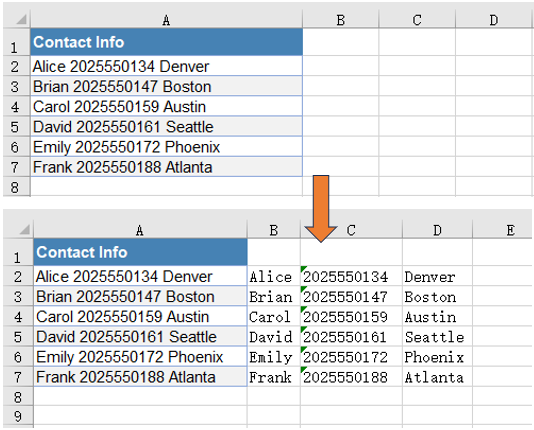
When every entry on a line is separated from the next by the same character, splitting on that character moves them into the columns to the right. Each kind of information then has a column of its own, ready for sorting, checking or grouping, while the original data stays where it is.
The split reads the text out of the first column, cuts it apart, and writes the pieces back into the columns on the right:
| Syntax | Result |
|---|---|
sheet.Range.get({ row, column: 1 }).Text |
Reads the raw text of the first column on that row |
.split(' ') |
Cuts the text apart on the space |
sheet.Range.get({ row, column: index + 2 }).Text = piece |
Writes the piece at index into the index + 1 column to its right |
sheet.AllocatedRange.AutoFitColumns() |
Sizes every column to its content |
The steps are:
- Load the font file and the test data file into the VFS with
window.spire.FetchFileToVFS. - Create a workbook with
new Workbook(), load the input file withworkbook.LoadFromFile, and take the target worksheet withworkbook.Worksheets.get(0). - Take the last data row with
sheet.LastRowand work row by row from row 2, skipping the header. - Read the raw text of the first column with
sheet.Range.get({ row, column: 1 }).Textand split it on the separator withsplit(' '). - Walk the pieces and write them back from the second column on with
sheet.Range.get({ row, column: index + 2 }).Text. - Size every column to its content with
sheet.AllocatedRange.AutoFitColumns(). - Save the workbook with
workbook.SaveToFileand dispose of it withworkbook.Disposeto free resources.
The full code example below shows how to split an Excel column on a separator in React:
function App() {
  const splitByDelimiter = async () => {
    // get the Spire.XLS WASM module
    const xlsModule = window.wasmModule?.spirexls;

    // check that the module is ready
    if (!xlsModule) {
      alert('Spire.Xls is not ready yet');
      return;
    }

    // load the font and the test data file into the VFS
    await window.spire.FetchFileToVFS('ARIAL.TTF', '/Library/Fonts/', `${process.env.PUBLIC_URL}/font/`);
    const inputFileName = 'SplitTextIntoColumns.xlsx';
    await window.spire.FetchFileToVFS(inputFileName, '', `${process.env.PUBLIC_URL}data/`);

    // load the workbook and take the first worksheet
    const workbook = new xlsModule.Workbook();
    workbook.LoadFromFile({ fileName: inputFileName });
    const sheet = workbook.Worksheets.get(0);

    // row by row, take the text in column A, split it on the space and write the pieces into the columns on the right
    const lastRow = sheet.LastRow;
    for (let row = 2; row <= lastRow; row++) {
      const pieces = sheet.Range.get({ row, column: 1 }).Text.split(' ');
      pieces.forEach((piece, index) => {
        sheet.Range.get({ row, column: index + 2 }).Text = piece;
      });
    }

    // size every column to its content
    sheet.AllocatedRange.AutoFitColumns();

    // save the workbook
    const outputFileName = 'SplitByDelimiter.xlsx';
    workbook.SaveToFile({ fileName: outputFileName, version: xlsModule.ExcelVersion.Version2016 });

    // dispose of the workbook to free resources
    workbook.Dispose();

    // read the result file from the VFS and start the download
    const fileArray = window.dotnetRuntime.Module.FS.readFile(outputFileName);
    const blob = new Blob([fileArray], { type: 'application/vnd.openxmlformats-officedocument.spreadsheetml.sheet' });
    const url = URL.createObjectURL(blob);
    const a = document.createElement('a');
    a.href = url;
    a.download = outputFileName;
    a.click();
    URL.revokeObjectURL(url);
  };

  return (
    <div style={{ textAlign: 'center', height: '300px' }}>
      <h1>Split Excel Data into Columns</h1>
      <button id="split-by-delimiter" onClick={splitByDelimiter}>Split by a Separator</button>
    </div>
  );
}

export default App;
The worksheet after splitting on a separator:
Split by fixed width
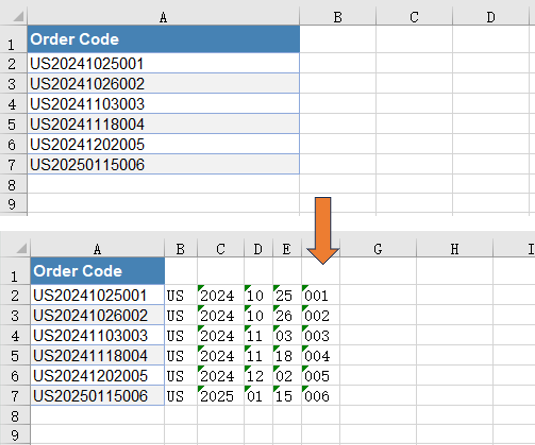
Other text is not divided by any character at all: every entry has a fixed length and they run end to end, as a code assembled from fields of known width. Such text is cut by the number of characters in each entry, carrying on from where the previous one ended.
The cut advances through the source text by the length of each entry and writes the pieces back into the columns on the right:
| Syntax | Result |
|---|---|
sheet.Range.get({ row, column: 1 }).Text |
Reads the raw code of the first column on that row |
code.substring(start, start + width) |
Cuts out width characters starting at start |
start += width |
Moves the cutting position past that entry, ready for the next |
sheet.Range.get({ row, column: index + 2 }).Text = piece |
Writes the piece at index into the index + 1 column to its right |
sheet.AllocatedRange.AutoFitColumns() |
Sizes every column to its content |
The steps are:
- Load the font file and the test data file into the VFS with
window.spire.FetchFileToVFS. - Create a workbook with
new Workbook(), load the input file withworkbook.LoadFromFile, and take the worksheet holding the text withworkbook.Worksheets.get(2). - Note down the number of characters in each entry in an array; the lengths should add up to that of the source text.
- Take the last data row with
sheet.LastRowand work row by row from row 2, skipping the header. - Cut one entry out with
code.substring(start, start + width), move the starting position on by that length, and write it back from the second column on withsheet.Range.get({ row, column: index + 2 }).Text. - Size every column to its content with
sheet.AllocatedRange.AutoFitColumns(). - Save the workbook with
workbook.SaveToFileand dispose of it withworkbook.Disposeto free resources.
The full code example below shows how to split an Excel column by fixed width in React:
function App() {
  const splitByFixedWidth = async () => {
    // get the Spire.XLS WASM module
    const xlsModule = window.wasmModule?.spirexls;

    // check that the module is ready
    if (!xlsModule) {
      alert('Spire.Xls is not ready yet');
      return;
    }

    // load the font and the test data file into the VFS
    await window.spire.FetchFileToVFS('ARIAL.TTF', '/Library/Fonts/', `${process.env.PUBLIC_URL}/font/`);
    const inputFileName = 'SplitTextIntoColumns.xlsx';
    await window.spire.FetchFileToVFS(inputFileName, '', `${process.env.PUBLIC_URL}data/`);

    // load the workbook and take the third worksheet
    const workbook = new xlsModule.Workbook();
    workbook.LoadFromFile({ fileName: inputFileName });
    const sheet = workbook.Worksheets.get(2);

    // row by row, take the code in column A and cut it at the fixed lengths into the columns on the right
    const widths = [2, 4, 2, 2, 3];
    const lastRow = sheet.LastRow;
    for (let row = 2; row <= lastRow; row++) {
      const code = sheet.Range.get({ row, column: 1 }).Text;
      let start = 0;
      widths.forEach((width, index) => {
        sheet.Range.get({ row, column: index + 2 }).Text = code.substring(start, start + width);
        start += width;
      });
    }

    // size every column to its content
    sheet.AllocatedRange.AutoFitColumns();

    // save the workbook
    const outputFileName = 'SplitByFixedWidth.xlsx';
    workbook.SaveToFile({ fileName: outputFileName, version: xlsModule.ExcelVersion.Version2016 });

    // dispose of the workbook to free resources
    workbook.Dispose();

    // read the result file from the VFS and start the download
    const fileArray = window.dotnetRuntime.Module.FS.readFile(outputFileName);
    const blob = new Blob([fileArray], { type: 'application/vnd.openxmlformats-officedocument.spreadsheetml.sheet' });
    const url = URL.createObjectURL(blob);
    const a = document.createElement('a');
    a.href = url;
    a.download = outputFileName;
    a.click();
    URL.revokeObjectURL(url);
  };

  return (
    <div style={{ textAlign: 'center', height: '300px' }}>
      <h1>Split Excel Data into Columns</h1>
      <button id="split-by-fixed-width" onClick={splitByFixedWidth}>Split by Fixed Width</button>
    </div>
  );
}

export default App;
The worksheet after splitting by fixed width:
FAQ
The column uses more than one kind of separator, how can it be split in one pass
Reason: split(' ') cuts on a single character at a time; when a text mixes commas, slashes and the like, each separator has to be handled on its own, so the code keeps piling up and one of them is easily left out.
Solution: Put the separators you expect into a character class, and a single split covers them all -- the characters inside the brackets are alternatives, so any one of them counts as a split point. The sample workbook's address sheet separates the levels of an address with a comma or a slash, and this form splits it into three columns at once:
// a comma and a slash both count as split points, taken apart in one pass
const pieces = sheet.Range.get({ row, column: 1 }).Text.split(/[,/]/);
An empty column turns up in the middle of the split result
Reason: split(' ') cuts strictly on a single space, so two adjacent spaces in the raw text cut out an empty string between them, and that empty string lands on the sheet as a blank column.
Solution: Strip the leading and trailing spaces with trim() first, then split on /\s+/ -- a run of consecutive spaces counts as one split point, and no empty string is cut out in between:
// strip the surrounding spaces, then split on a run of whitespace so no empty piece is cut out
const pieces = sheet.Range.get({ row, column: 1 }).Text.trim().split(/\s+/);
Does splitting into columns overwrite what the columns on the right already hold
Cause: The pieces are written cell by cell with sheet.Range.get({ row, column: index + 2 }).Text = piece, so whatever the target column held on that row is replaced by the entry written into it. The text in the first column is untouched; on the right, the columns the pieces land in are overwritten, and any column beyond them keeps its old data.
Solution: To keep what is already on the right, write the result further out into empty columns, or into a separate worksheet instead; sheet.LastColumn tells you whether the right-hand side already holds anything before you write.
What happens when the entry lengths do not add up to the length of the source text
Cause: substring(start, start + width) only takes what the source text actually holds. When the lengths add up to less than the source text, the characters left at the end of it go into no column at all; when they add up to more, the overrun is cut to an empty string and leaves a blank column.
Solution: Check that the lengths add up to the length of the source text before cutting, and every entry lands in a column of its own.
Get a Free License
Spire.XLS for JavaScript offers a 30-day full-featured free trial license with no functional limitations. Apply here to evaluate before purchasing.
Apply Cell Styles to an Excel Cell Range with JavaScript in React
Formatting a cell range cell by cell means repeating the same group of properties down every column, and with enough columns one of them is easily missed; these formats also tend to be spread across fonts, borders and alignment, so each has to be set and then checked again on its own. Spire.XLS stores that group of formats as a named style, uses a flag object to state which of those formats should land this time, and then applies it to the target range: properties that were not ticked are not applied, and every other format on the range is left unchanged. Spire.XLS for JavaScript performs these operations in the browser through WebAssembly; the output file is managed by a virtual file system (VFS), with no backend service required.
This article covers two feature points:
For installation and project setup, see Integrating Spire.XLS for JavaScript in a React Project. The examples below assume Spire.XLS is installed and the WebAssembly module has been initialized.
Apply a named style to a cell range
Setting formats cell by cell means repeating the same block of code in every column, and with enough columns a cell is easily missed; fonts, borders and centring set separately would also mean working over the same block three times over. A named style stores a group of formats as an object that can be taken up repeatedly, and the flag object states which of those formats should land this time; together they apply the wanted parts to the whole range in a single call, leaving the range's other formatting unchanged. The steps are:
- Load the font file into the VFS, create a workbook, take the first worksheet and write the header and two data rows.
- Create a named style with
workbook.Styles.Addand give it the font colour, size and italic the header will use. - Set the top and bottom borders on that same style.
- Set horizontal and vertical centring on that same style.
- Create the flag object with
new xlsModule.CellStyleFlag()and tick the properties to land this time; the items left unticked are not written into the target cells. - Apply the style to the header range with
sheet.Range.get('A1:E1').ApplyStyle(tableStyle, flag); set the column widths so the header text displays in full, then save the workbook and dispose of it to free resources.
The full code example below shows how to apply cell styles to an Excel cell range in React:
function App() {
  const applyStyleToRange = async () => {
    // get the Spire.XLS WASM module
    const xlsModule = window.wasmModule?.spirexls;

    // check that the module is ready
    if (!xlsModule) {
      alert('Spire.Xls is not ready yet');
      return;
    }

    // load the font file into the VFS
    await window.spire.FetchFileToVFS('ARIAL.TTF', '/Library/Fonts/', `${process.env.PUBLIC_URL}/font/`);

    // create a new workbook and take the first worksheet
    const workbook = new xlsModule.Workbook();
    const sheet = workbook.Worksheets.get(0);

    // write the header and two data rows
    const columns = ['A', 'B', 'C', 'D', 'E'];
    const headers = ['Product', 'Spec', 'Quantity', 'Unit price', 'Amount'];
    headers.forEach((text, index) => {
      sheet.Range.get(`${columns[index]}1`).Value = text;
    });

    const rows = [
      ['Blu-ray mini projector', '1080P / 8G', '6', '1299', '7794'],
      ['Portable Bluetooth speaker', '20W / IPX7', '12', '399', '4788'],
    ];
    rows.forEach((row, rowIndex) => {
      columns.forEach((column, columnIndex) => {
        sheet.Range.get(`${column}${rowIndex + 2}`).Value = row[columnIndex];
      });
    });

    // create a named style
    const tableStyle = workbook.Styles.Add('tableStyle');

    // give the header its font colour, size and italic
    tableStyle.Font.Color = xlsModule.Color.get_CornflowerBlue();
    tableStyle.Font.Size = 16;
    tableStyle.Font.IsItalic = true;

    // set the top and bottom borders on the same style
    tableStyle.Borders.get(xlsModule.BordersLineType.EdgeTop).LineStyle = xlsModule.LineStyleType.Thin;
    tableStyle.Borders.get(xlsModule.BordersLineType.EdgeBottom).LineStyle = xlsModule.LineStyleType.Thin;

    // and set horizontal and vertical centring on the same style
    tableStyle.HorizontalAlignment = xlsModule.HorizontalAlignType.Center;
    tableStyle.VerticalAlignment = xlsModule.VerticalAlignType.Center;

    // create the flag object and tick the properties to land this time; unticked ones are not written to the target cells
    const flag = new xlsModule.CellStyleFlag();
    flag.FontColor = true;
    flag.FontSize = true;
    flag.FontItalic = true;
    flag.Borders = true;
    flag.HorizontalAlignment = true;
    flag.VerticalAlignment = true;

    // apply the style to the header range
    sheet.Range.get('A1:E1').ApplyStyle(tableStyle, flag);

    // set the column widths
    sheet.Columns.get(0).ColumnWidth = 22;
    sheet.Columns.get(1).ColumnWidth = 14;

    // save the workbook as an Excel file
    const outputFileName = 'ApplyStyleToRange.xlsx';
    workbook.SaveToFile({ fileName: outputFileName, version: xlsModule.ExcelVersion.Version2016 });

    // dispose of the workbook to free resources
    workbook.Dispose();

    // read the result file from the VFS and start the download
    const fileArray = window.dotnetRuntime.Module.FS.readFile(outputFileName);
    const blob = new Blob([fileArray], { type: 'application/vnd.openxmlformats-officedocument.spreadsheetml.sheet' });
    const url = URL.createObjectURL(blob);
    const a = document.createElement('a');
    a.href = url;
    a.download = outputFileName;
    a.click();
    URL.revokeObjectURL(url);
  };

  return (
    <div style={{ textAlign: 'center', height: '300px' }}>
      <h1>Apply cell styles to a cell range</h1>
      <button id="apply-style-to-range" onClick={applyStyleToRange}>Apply cell styles to the cell range</button>
    </div>
  );
}

export default App;
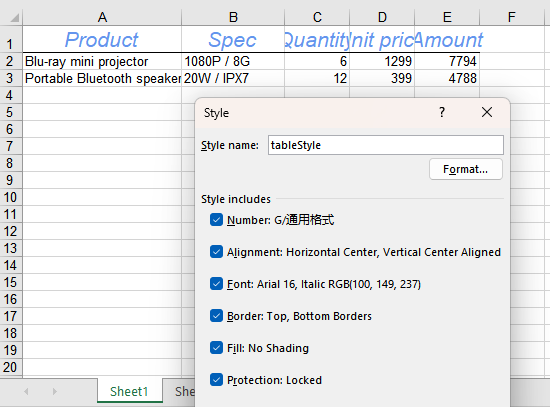
After running, the effect of applying the named style to the cell range:
Read and adjust the named style
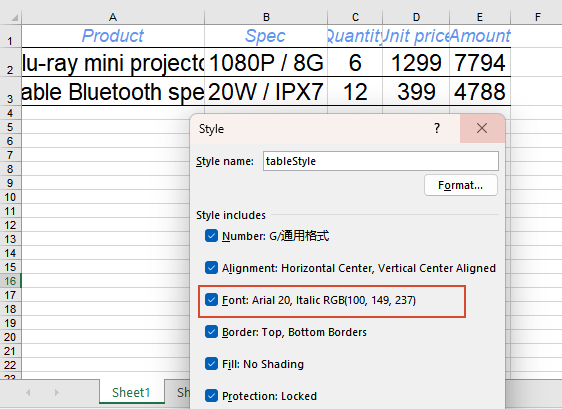
Once a style has been saved, later changes concern the values inside it rather than the whole set of formats, and no workbook has to be rebuilt: load the result file produced by feature point 1, read the named style by name, take the size already set in it, increase it, and apply the style to another range. The flag decides the scope here too: this time only the size, borders and centring are ticked, so the style's colour and italic are not written into the data range. Note that applying a style writes its properties into the cells as they stand at that moment, and the cells keep no reference to the style, so the range has to be applied again for the change to take effect. The steps are:
- Run the code of feature point 1 first, so that its result file
ApplyStyleToRange.xlsxstays in the VFS as this run's input file. - Load that input file with
workbook.LoadFromFileand take the first worksheet. - Read the named style feature point 1 created with
workbook.Styles.get('tableStyle')and take itsFont.Sizeas the baseline. - Raise the baseline size and write it back to the style, as the size the data range will use.
- Create the flag object and tick only the size, borders and centring; apply the adjusted style to the data range with
sheet.Range.get('A2:E3').ApplyStyle(readBack, flag), set the column widths so the larger font size still fits, then save the workbook and dispose of it to free resources.
The full code example below shows how to load a result file, read the named style and apply it after adjusting the size in React:
function App() {
  const readAndAdjustFontStyle = async () => {
    // get the Spire.XLS WASM module
    const xlsModule = window.wasmModule?.spirexls;

    // check that the module is ready
    if (!xlsModule) {
      alert('Spire.Xls is not ready yet');
      return;
    }

    // load the font file into the VFS
    await window.spire.FetchFileToVFS('ARIAL.TTF', '/Library/Fonts/', `${process.env.PUBLIC_URL}/font/`);

    // load the result file produced by feature point 1 as this run's input
    const workbook = new xlsModule.Workbook();
    workbook.LoadFromFile({ fileName: 'ApplyStyleToRange.xlsx' });
    const sheet = workbook.Worksheets.get(0);

    // read the named style feature point 1 created and take its current font size as the baseline
    const readBack = workbook.Styles.get('tableStyle');
    const baseSize = readBack.Font.Size;

    // raise the baseline size to get the size the data range will use
    readBack.Font.Size = baseSize + 4;

    // create the flag object: this time tick only the font size, borders and centring, so the style's colour and italic stay off the data range
    const flag = new xlsModule.CellStyleFlag();
    flag.FontSize = true;
    flag.Borders = true;
    flag.HorizontalAlignment = true;
    flag.VerticalAlignment = true;

    // apply the adjusted style to the data range
    sheet.Range.get('A2:E3').ApplyStyle(readBack, flag);

    // set the column widths so the larger font size still fits
    sheet.Columns.get(0).ColumnWidth = 30;
    sheet.Columns.get(1).ColumnWidth = 20;

    // save the workbook as an Excel file
    const outputFileName = 'ReadAndAdjustFontStyle.xlsx';
    workbook.SaveToFile({ fileName: outputFileName, version: xlsModule.ExcelVersion.Version2016 });

    // dispose of the workbook to free resources
    workbook.Dispose();

    // read the result file from the VFS and start the download
    const fileArray = window.dotnetRuntime.Module.FS.readFile(outputFileName);
    const blob = new Blob([fileArray], { type: 'application/vnd.openxmlformats-officedocument.spreadsheetml.sheet' });
    const url = URL.createObjectURL(blob);
    const a = document.createElement('a');
    a.href = url;
    a.download = outputFileName;
    a.click();
    URL.revokeObjectURL(url);
  };

  return (
    <div style={{ textAlign: 'center', height: '300px' }}>
      <h1>Read the style and adjust its size</h1>
      <button id="read-and-adjust-font-style" onClick={readAndAdjustFontStyle}>Read the named style, adjust it, then apply it</button>
    </div>
  );
}

export default App;
After running, the effect of reading the named style and adjusting its font size:
FAQ
Do the number formats already on the range change when I apply a style
Reason: No. Only the items ticked in the flag object are written into the target cells when the style is applied; the items left unticked take no part, so the number formats, borders and alignment already on the cells remain as they were.
Solution: Conversely, to apply number formats along with it, set the number format on the style as well and tick the matching item in the flag:
// give the style the number format first
tableStyle.NumberFormat = '0.00';

// tick the matching item in the flag
flag.NumberFormat = true;
sheet.Range.get('A1:E1').ApplyStyle(tableStyle, flag);
How do I apply a style to the whole worksheet
Reason: The examples above apply the style to one range at a time; a whole worksheet treated the same way would mean listing every range to cover. The worksheet object carries a method of the same name that covers the whole sheet in a single call.
Solution: Call ApplyStyle on the worksheet object to apply the whole style to the whole sheet:
sheet.ApplyStyle(tableStyle);
Get a Free License
Spire.XLS for JavaScript offers a 30-day full-featured free trial license with no functional limitations. Apply here to evaluate before purchasing.
Set Excel Cell Font Formatting with JavaScript in React
A table has only a few seconds to be understood, and the work is done not only by the numbers but by the fonts: a title big enough to stand out, a figure that matters found at a glance, a cancelled line spotted immediately. In Excel every one of those differences is carried by a font object belonging to a single cell -- font name, size, colour, bold, italic, underline, strikethrough; changing a cell touches only that cell. One cell can also hold several fonts at once, and switching a single word to another colour or size lifts it out of the sentence around it. Spire.XLS for JavaScript performs these operations in the browser through WebAssembly; the output file is managed by a virtual file system (VFS), with no backend service required.
This article covers two feature points:
For installation and project setup, see Integrating Spire.XLS for JavaScript in a React Project. The examples below assume Spire.XLS is installed and the WebAssembly module has been initialized.
Set the font formatting of a cell
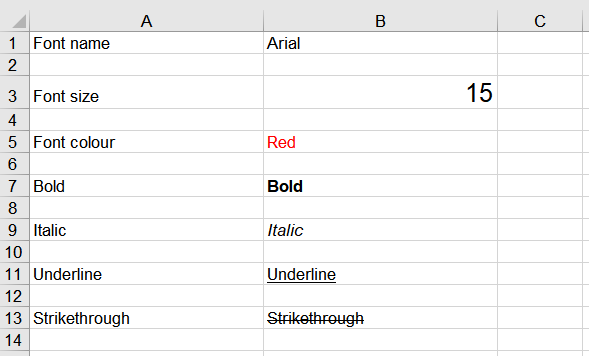
Every cell carries a font object of its own, and all seven properties -- font name, size, colour, bold, italic, underline and strikethrough -- hang off that object. To see what each one does, start a worksheet of its own, write the property's name and a sample of text row by row, and set the matching property on the cell that holds the sample: a change lands on that cell alone, and the description in column A keeps its own look. The steps are:
- Load the font file into the VFS with
window.spire.FetchFileToVFS. - Create a workbook with
new Workbook()and take the first worksheet withworkbook.Worksheets.get(0). - Write the properties out one per row with
sheet.Range.get: the name into column A and the sample text into column B, rows starting at 1 and going up by 2. - Set the matching format on each row's sample through
FontName,Size,Color,IsBold,IsItalic,UnderlineandIsStrikethroughonRange.Style.Font, taking the font colour fromxlsModule.Color.get_Red()and the underline fromxlsModule.FontUnderlineType.Single. - Set both columns to a width of 25 with
sheet.Columns.get(0).ColumnWidthandsheet.Columns.get(1).ColumnWidth. - Save the workbook with
workbook.SaveToFileand dispose of it withworkbook.Disposeto free resources.
The full code example below shows how to set font formatting for cells in React:
function App() {
  const setCellFont = async () => {
    // get the Spire.XLS WASM module
    const xlsModule = window.wasmModule?.spirexls;

    // check that the module is ready
    if (!xlsModule) {
      alert('Spire.Xls is not ready yet');
      return;
    }

    // load the font file into the VFS
    await window.spire.FetchFileToVFS('ARIAL.TTF', '/Library/Fonts/', `${process.env.PUBLIC_URL}/font/`);

    // create a new workbook and take the first worksheet
    const workbook = new xlsModule.Workbook();
    const sheet = workbook.Worksheets.get(0);

    // set the font name
    let row = 1;
    sheet.Range.get(`A${row}`).Value = 'Font name';
    sheet.Range.get(`B${row}`).Value = 'Arial';
    sheet.Range.get(`B${row}`).Style.Font.FontName = 'Arial';

    // set the font size
    row += 2;
    sheet.Range.get(`A${row}`).Value = 'Font size';
    sheet.Range.get(`B${row}`).Value = '15';
    sheet.Range.get(`B${row}`).Style.Font.Size = 15;

    // set the font colour
    row += 2;
    sheet.Range.get(`A${row}`).Value = 'Font colour';
    sheet.Range.get(`B${row}`).Value = 'Red';
    sheet.Range.get(`B${row}`).Style.Font.Color = xlsModule.Color.get_Red();

    // bold the text
    row += 2;
    sheet.Range.get(`A${row}`).Value = 'Bold';
    sheet.Range.get(`B${row}`).Value = 'Bold';
    sheet.Range.get(`B${row}`).Style.Font.IsBold = true;

    // italicise the text
    row += 2;
    sheet.Range.get(`A${row}`).Value = 'Italic';
    sheet.Range.get(`B${row}`).Value = 'Italic';
    sheet.Range.get(`B${row}`).Style.Font.IsItalic = true;

    // underline the text
    row += 2;
    sheet.Range.get(`A${row}`).Value = 'Underline';
    sheet.Range.get(`B${row}`).Value = 'Underline';
    sheet.Range.get(`B${row}`).Style.Font.Underline = xlsModule.FontUnderlineType.Single;

    // strike through the text
    row += 2;
    sheet.Range.get(`A${row}`).Value = 'Strikethrough';
    sheet.Range.get(`B${row}`).Value = 'Strikethrough';
    sheet.Range.get(`B${row}`).Style.Font.IsStrikethrough = true;

    // set the column widths
    sheet.Columns.get(0).ColumnWidth = 25;
    sheet.Columns.get(1).ColumnWidth = 25;

    // save the workbook as an Excel file
    const outputFileName = 'CellFont.xlsx';
    workbook.SaveToFile({ fileName: outputFileName, version: xlsModule.ExcelVersion.Version2016 });

    // dispose of the workbook to free resources
    workbook.Dispose();

    // read the result file from the VFS and start the download
    const fileArray = window.dotnetRuntime.Module.FS.readFile(outputFileName);
    const blob = new Blob([fileArray], { type: 'application/vnd.openxmlformats-officedocument.spreadsheetml.sheet' });
    const url = URL.createObjectURL(blob);
    const a = document.createElement('a');
    a.href = url;
    a.download = outputFileName;
    a.click();
    URL.revokeObjectURL(url);
  };

  return (
    <div style={{ textAlign: 'center', height: '300px' }}>
      <h1>Set Cell Font Formatting</h1>
      <button id="cell-font" onClick={setCellFont}>Set the font formatting of a cell</button>
    </div>
  );
}

export default App;
After running, the effect of setting font formatting for individual cells:
Mix several fonts inside one cell
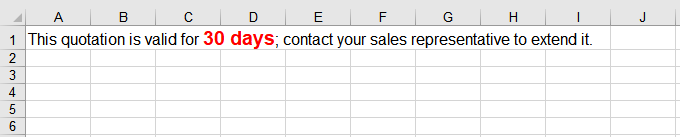
A cell's rich text object lets one run of text be cut at character positions and each piece given a different font, while the sentence still reads as a whole. The way to do it is to create the font objects first and then assign them range by range with SetFont -- each call overwrites one range, so every part of the sentence has to be covered. Ranges count from 0 and include both ends. The steps are:
- Load the font file into the VFS with
window.spire.FetchFileToVFS. - Create a workbook with
new Workbook()and take the first worksheet withworkbook.Worksheets.get(0). - Create two fonts with
workbook.CreateFont(): one for the whole sentence, and one that emphasises the key phrase throughIsBoldandKnownColor. - Take the cell that holds the sentence with
sheet.Range.get('A1'), and write the whole sentence into its rich text object throughRichText.Text. - Work out the start and end of the text that needs the new font within the sentence with
note.indexOf(key)andkey.length, then assign the fonts to the three parts -- before the key phrase, the key phrase itself and after it -- withRichText.SetFont. - Save the workbook with
workbook.SaveToFileand dispose of it withworkbook.Disposeto free resources.
The full code example below shows how to give part of the text in one cell a different font in React:
function App() {
  const setRichTextFonts = async () => {
    // get the Spire.XLS WASM module
    const xlsModule = window.wasmModule?.spirexls;

    // check that the module is ready
    if (!xlsModule) {
      alert('Spire.Xls is not ready yet');
      return;
    }

    // load the font file into the VFS
    await window.spire.FetchFileToVFS('ARIAL.TTF', '/Library/Fonts/', `${process.env.PUBLIC_URL}/font/`);

    // create a new workbook and take the first worksheet
    const workbook = new xlsModule.Workbook();
    const sheet = workbook.Worksheets.get(0);

    // create the first font, for the whole sentence
    const font1 = workbook.CreateFont();
    font1.FontName = 'Arial';
    font1.Size = 12;

    // create the second font, for the key phrase
    const font2 = workbook.CreateFont();
    font2.FontName = 'Arial';
    font2.Size = 14;
    font2.IsBold = true;
    font2.KnownColor = xlsModule.ExcelColors.Red;

    // take the cell's rich text object and write the whole sentence
    const note = 'This quotation is valid for 30 days; contact your sales representative to extend it.';
    const key = '30 days';
    const richText = sheet.Range.get('A1').RichText;
    richText.Text = note;

    // locate the character range the key phrase occupies
    const start = note.indexOf(key);
    const end = start + key.length - 1;

    // set the part before the key phrase to the first font
    richText.SetFont(0, start - 1, font1);

    // set the key phrase itself to the second font
    richText.SetFont(start, end, font2);

    // keep the part after the key phrase in the first font
    richText.SetFont(end + 1, note.length - 1, font1);

    // save the workbook as an Excel file
    const outputFileName = 'RichTextFont.xlsx';
    workbook.SaveToFile({ fileName: outputFileName, version: xlsModule.ExcelVersion.Version2016 });

    // dispose of the workbook to free resources
    workbook.Dispose();

    // read the result file from the VFS and start the download
    const fileArray = window.dotnetRuntime.Module.FS.readFile(outputFileName);
    const blob = new Blob([fileArray], { type: 'application/vnd.openxmlformats-officedocument.spreadsheetml.sheet' });
    const url = URL.createObjectURL(blob);
    const a = document.createElement('a');
    a.href = url;
    a.download = outputFileName;
    a.click();
    URL.revokeObjectURL(url);
  };

  return (
    <div style={{ textAlign: 'center', height: '300px' }}>
      <h1>Mix Several Fonts Inside One Cell</h1>
      <button id="rich-text-fonts" onClick={setRichTextFonts}>Give part of the text a different font</button>
    </div>
  );
}

export default App;
After running, the effect of mixing several fonts inside one cell:
FAQ
What value should SetFont's end position take
Reason: Both position arguments of SetFont count from 0 and include the end position itself, so passing a string's length directly lands one character past the end.
Solution: Pass "length minus one" as the end position. To cover a whole run of text, use the sentence's length minus one:
richText.SetFont(0, note.length - 1, font1);
Get a Free License
Spire.XLS for JavaScript offers a 30-day full-featured free trial license with no functional limitations. Apply here to evaluate before purchasing.
Set Excel Superscript and Subscript in React with JavaScript
The number of atoms in a chemical formula, the exponent in a mathematical expression, the square or cube on a unit symbol, the charge at the end of an ion — these characters are set one size smaller and shifted off the baseline, and that is how readers expect to find them. Typed at the same size as the surrounding text, they have to be inferred from context. Excel rich text lets individual characters inside a single cell carry their own formatting, and superscript and subscript are the two forms used most often. Spire.XLS for JavaScript performs this directly in the browser through WebAssembly, managing input and output files with a virtual file system (VFS) and requiring no backend service.
This article covers two key features:
For installation and project setup, see Integrating Spire.XLS for JavaScript in a React Project. The examples below assume Spire.XLS is already installed and the WebAssembly module has been initialized.
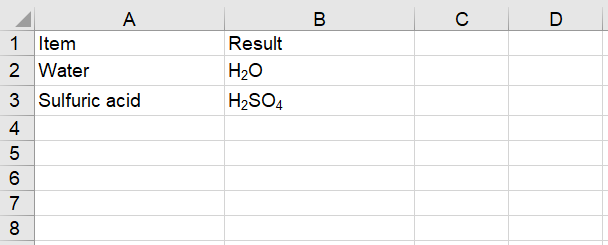
Set the Subscript of Text
Superscript and subscript are not whole-cell font properties: RichText.SetFont applies a font to a slice of the text inside a cell rather than to the cell as a whole. Three things have to line up — write the text as a rich-text run, prepare a font that carries the shift, then apply that font to the character range that should move. The steps are as follows:
- Load the font into the VFS.
- Create a workbook and get the first worksheet.
- Write the sample labels, then the chemical formulas with
RichText.Text. - Create a font object with
workbook.CreateFont()and setIsSubscripttotrue. - Apply the font to the digits with
RichText.SetFont(startIndex, endIndex, font), then save the workbook.
Here is a complete code example that sets the subscript of cell text in React:
function App() {
  const setSubscript = async () => {
    // Get the Spire.XLS WASM module
    const xlsModule = window.wasmModule?.spirexls;

    // Check if the module is ready
    if (!xlsModule) {
      alert('Spire.Xls is not ready yet');
      return;
    }

    // Load the font into the VFS
    await window.spire.FetchFileToVFS('ARIAL.TTF', '/Library/Fonts/', `${process.env.PUBLIC_URL}/font/`);

    // Create a new workbook and get the first worksheet
    const workbook = new xlsModule.Workbook();
    const sheet = workbook.Worksheets.get(0);

    // Write the header row and the sample labels
    sheet.Range.get("A1").Text = "Item";
    sheet.Range.get("B1").Text = "Result";
    sheet.Range.get("A2").Text = "Water";
    sheet.Range.get("A3").Text = "Sulfuric acid";

    // Write the chemical formulas
    const waterRange = sheet.Range.get("B2");
    waterRange.RichText.Text = "H2O";
    const acidRange = sheet.Range.get("B3");
    acidRange.RichText.Text = "H2SO4";

    // Create a font and set IsSubscript to true
    const font = workbook.CreateFont();
    font.IsSubscript = true;

    // Apply the subscript font to the digits only: indices start at 0 and the range is inclusive
    waterRange.RichText.SetFont(1, 1, font);
    acidRange.RichText.SetFont(1, 1, font);
    acidRange.RichText.SetFont(4, 4, font);

    // Widen columns A and B so the rich text is fully visible
    sheet.Range.get("A1:A3").ColumnWidth = 18;
    sheet.Range.get("B1:B3").ColumnWidth = 18;

    // Save the workbook
    const outputFileName = "SetSubscript.xlsx";
    workbook.SaveToFile({ fileName: outputFileName });

    // Dispose of the workbook object to free resources
    workbook.Dispose();

    // Read the result file from the VFS and trigger the download
    const fileArray = window.dotnetRuntime.Module.FS.readFile(outputFileName);
    const blob = new Blob([fileArray], { type: 'application/vnd.openxmlformats-officedocument.spreadsheetml.sheet' });
    const url = URL.createObjectURL(blob);
    const a = document.createElement('a');
    a.href = url;
    a.download = outputFileName;
    a.click();
    URL.revokeObjectURL(url);
  };

  return (
    <div style={{ textAlign: 'center', height: '300px' }}>
      <h1>Set Subscript</h1>
      <button onClick={setSubscript}>Start</button>
    </div>
  );
}

export default App;
After running, the effect of setting the subscript of text:
Set the Superscript of Text
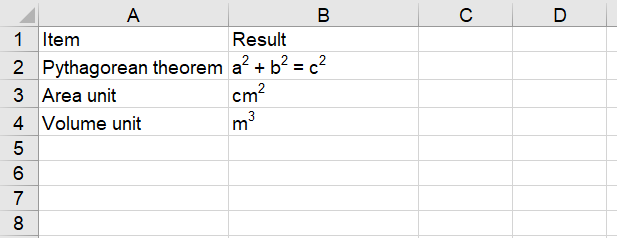
Superscript is the mirror image of subscript; the only difference is the direction the font shifts — up rather than down. Superscript suits powers and exponents — the squares in the Pythagorean theorem, the squared cm2 of an area unit, the cubed m3 of a volume unit. A single RichText.SetFont call covers one contiguous range, so text such as a2 + b2 = c2, with three characters to raise, takes three calls. The steps are as follows:
- Load the font into the VFS.
- Create a workbook and get the first worksheet.
- Write the sample labels, then the text that receives the formatting with
RichText.Text. - Create a font object with
workbook.CreateFont()and setIsSuperscripttotrue. - Apply the font to the characters that should be raised with
RichText.SetFont(startIndex, endIndex, font), then save the workbook.
Here is a complete code example that sets the superscript of cell text in React:
function App() {
  const setSuperscript = async () => {
    // Get the Spire.XLS WASM module
    const xlsModule = window.wasmModule?.spirexls;

    // Check if the module is ready
    if (!xlsModule) {
      alert('Spire.Xls is not ready yet');
      return;
    }

    // Load the font into the VFS
    await window.spire.FetchFileToVFS('ARIAL.TTF', '/Library/Fonts/', `${process.env.PUBLIC_URL}/font/`);

    // Create a new workbook and get the first worksheet
    const workbook = new xlsModule.Workbook();
    const sheet = workbook.Worksheets.get(0);

    // Write the header row and the sample labels
    sheet.Range.get("A1").Text = "Item";
    sheet.Range.get("B1").Text = "Result";
    sheet.Range.get("A2").Text = "Pythagorean theorem";
    sheet.Range.get("A3").Text = "Area unit";
    sheet.Range.get("A4").Text = "Volume unit";

    // Write the text that receives the formatting
    const theoremRange = sheet.Range.get("B2");
    theoremRange.RichText.Text = "a2 + b2 = c2";
    const areaRange = sheet.Range.get("B3");
    areaRange.RichText.Text = "cm2";
    const volumeRange = sheet.Range.get("B4");
    volumeRange.RichText.Text = "m3";

    // Create a font and set IsSuperscript to true
    const font = workbook.CreateFont();
    font.IsSuperscript = true;

    // Apply the superscript font to the characters that should be raised
    theoremRange.RichText.SetFont(1, 1, font);
    theoremRange.RichText.SetFont(6, 6, font);
    theoremRange.RichText.SetFont(11, 11, font);
    areaRange.RichText.SetFont(2, 2, font);
    volumeRange.RichText.SetFont(1, 1, font);

    // Widen columns A and B so the rich text is fully visible
    sheet.Range.get("A1:A4").ColumnWidth = 18;
    sheet.Range.get("B1:B4").ColumnWidth = 18;

    // Save the workbook
    const outputFileName = "SetSuperscript.xlsx";
    workbook.SaveToFile({ fileName: outputFileName });

    // Dispose of the workbook object to free resources
    workbook.Dispose();

    // Read the result file from the VFS and trigger the download
    const fileArray = window.dotnetRuntime.Module.FS.readFile(outputFileName);
    const blob = new Blob([fileArray], { type: 'application/vnd.openxmlformats-officedocument.spreadsheetml.sheet' });
    const url = URL.createObjectURL(blob);
    const a = document.createElement('a');
    a.href = url;
    a.download = outputFileName;
    a.click();
    URL.revokeObjectURL(url);
  };

  return (
    <div style={{ textAlign: 'center', height: '300px' }}>
      <h1>Set Superscript</h1>
      <button onClick={setSuperscript}>Start</button>
    </div>
  );
}

export default App;
After running, the effect of setting the superscript of text:
FAQ
How do I remove a superscript or subscript that has already been set?
Cause: Superscript and subscript are formats on individual characters. Calling SetFont again over the same range overwrites those characters with the new font's properties, so applying a font without the shift clears the effect.
Solution: Create a font with IsSubscript or IsSuperscript set to false, and call SetFont over the original range:
// Overwrite the subscript with a plain font
const normal = workbook.CreateFont();
normal.IsSubscript = false;
range.RichText.SetFont(1, 1, normal);
How can I tell whether a character is superscript when reading the file back?
Cause: The shift is a format on the character, not part of the cell's text. Range.Text, Range.Value and RichText.Text all return plain text, so they cannot show which characters carry it.
Solution: Read the font at the character's position and check its superscript and subscript properties. Positions count from 0, the same as with SetFont:
// Read the font at index 1 — the middle "2" in H2O
const font = range.RichText.GetFont(1);
console.log(font.IsSubscript);   // true
console.log(font.IsSuperscript); // false
Get a Free License
Spire.XLS for JavaScript offers a 30-day full-featured free trial license with no functional limitations. Apply here to evaluate before purchasing.
Import Arrays into Excel in React with JavaScript
The most direct way to get data into Excel is to assign one cell at a time, which means ten rows take ten loop iterations. But data usually arrives in JavaScript already in blocks -- a list from an API, a table rendered on the page, a computed result set -- and there is no reason to break an array apart just to feed it back cell by cell. The InsertArray method of Spire.XLS for JavaScript takes a whole array at once; combined with a starting row and column and a write direction, a single call drops an entire column or row of data into the worksheet. Spire.XLS for JavaScript performs these operations directly in the browser through WebAssembly, managing input and output files with a virtual file system (VFS) and requiring no backend service.
This article covers two core feature points:
- Import a one-dimensional array into a worksheet
- Import a two-dimensional data table into a worksheet
For installation and project setup, see Integrating Spire.XLS for JavaScript in a React Project. The examples below assume Spire.XLS is installed and the WebAssembly module has been initialized.
Import a one-dimensional array into a worksheet
InsertArray is split into several overloads by data type: stringArray for text, intArray for integers and doubleArray for decimals. That split is not needless fussiness -- Excel treats cells according to their data type. Numbers sit right-aligned and can take part in sums and charts directly, while a number written as text sits left-aligned and a formula referencing it only yields 0. Scores, amounts and quantities -- anything that will be used in a calculation -- belong in a numeric overload.
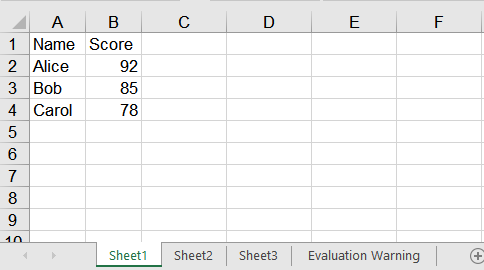
The remaining parameters decide where the data lands: firstRow and firstColumn give the starting position, with rows and columns both counted from 1, and isVertical picks the direction the array spreads -- false lays it along a row, true down a column. The same ['Jan', 'Feb', 'Mar'] becomes either a header row spanning A1 to C1 or a column of data running down A1 to A3. The steps are:
- Load the font into the VFS.
- Create a
Workbookand get the first worksheet withWorksheets.get(0). - Write a header row horizontally with the
stringArrayoverload ofInsertArray. - Write the name column vertically with
stringArrayand the score column withintArray. - Auto-fit the columns with
AllocatedRange.AutoFitColumns, then save the workbook withSaveToFile.
The complete code example below shows how to import a one-dimensional array into a worksheet in React:
function App() {
  const importArray = async () => {
    // Get the Spire.XLS WASM module
    const xlsModule = window.wasmModule?.spirexls;

    // Check if the module is ready
    if (!xlsModule) {
      alert('Spire.Xls is not ready yet');
      return;
    }

    // Load the font into the VFS
    await window.spire.FetchFileToVFS('ARIAL.TTF', '/Library/Fonts/', `${process.env.PUBLIC_URL}/font/`);

    // Create a new workbook and get the first worksheet
    const workbook = new xlsModule.Workbook();
    const sheet = workbook.Worksheets.get(0);

    // Write a header row horizontally: isVertical false spreads the array across A1:B1
    sheet.InsertArray({
      stringArray: ['Name', 'Score'],
      firstRow: 1,
      firstColumn: 1,
      isVertical: false,
    });

    // Write the name column vertically: isVertical true spreads the array down A2:A4
    sheet.InsertArray({
      stringArray: ['Alice', 'Bob', 'Carol'],
      firstRow: 2,
      firstColumn: 1,
      isVertical: true,
    });

    // Write the score column: numbers go through the intArray overload, so the cells hold
    // numbers rather than text
    sheet.InsertArray({
      intArray: [92, 85, 78],
      firstRow: 2,
      firstColumn: 2,
      isVertical: true,
    });

    // Auto-fit the columns to their content
    sheet.AllocatedRange.AutoFitColumns();

    // Save the workbook
    const outputFileName = 'ImportArray.xlsx';
    workbook.SaveToFile({ fileName: outputFileName });

    // Dispose of the workbook object to release resources
    workbook.Dispose();

    // Read the result file from the VFS and trigger the download
    const fileArray = window.dotnetRuntime.Module.FS.readFile(outputFileName);
    const blob = new Blob([fileArray], { type: 'application/vnd.openxmlformats-officedocument.spreadsheetml.sheet' });
    const url = URL.createObjectURL(blob);
    const a = document.createElement('a');
    a.href = url;
    a.download = outputFileName;
    a.click();
    URL.revokeObjectURL(url);
  };

  return (
    <div style={{ textAlign: 'center', height: '300px' }}>
      <h1>Import 1-D Array</h1>
      <button onClick={importArray}>Start</button>
    </div>
  );
}

export default App;
After running, the effect of importing a one-dimensional array into a worksheet:
Import a two-dimensional data table into a worksheet
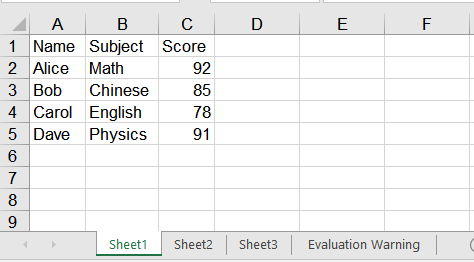
A data table is naturally a two-dimensional array -- a header row first, then one record per row, as in [['Name', 'Subject', 'Score'], ['Alice', 'Math', 92]]. Importing a two-dimensional data table into Excel means splitting it by column and writing each column as a one-dimensional array on its own: write the header across one row, then write the body column by column, text columns with stringArray and numeric ones with intArray. A column holds a single data type throughout, so each call only has to pick one form. When the data arrives in batches, read LastRow to find the last row currently in use and write the next batch from the row after it. The steps are:
- Load the font into the VFS.
- Create a
Workbookand get the first worksheet withWorksheets.get(0). - Write the header across the first row with the
stringArrayoverload ofInsertArray. - Split the body by column and write each one vertically with
stringArrayorintArray. - When a second batch arrives, locate its starting row with
LastRowand write the columns the same way. - Auto-fit the columns with
AllocatedRange.AutoFitColumns, then save the workbook withSaveToFile.
The complete code example below shows how to import a two-dimensional data table into a worksheet in React:
function App() {
  const importDataTable = async () => {
    // Get the Spire.XLS WASM module
    const xlsModule = window.wasmModule?.spirexls;

    // Check if the module is ready
    if (!xlsModule) {
      alert('Spire.Xls is not ready yet');
      return;
    }

    // Load the font into the VFS
    await window.spire.FetchFileToVFS('ARIAL.TTF', '/Library/Fonts/', `${process.env.PUBLIC_URL}/font/`);

    // The two-dimensional data to import, with the header as its first row
    const rows = [
      ['Name', 'Subject', 'Score'],
      ['Alice', 'Math', 92],
      ['Bob', 'Chinese', 85],
    ];

    // Create a new workbook and get the first worksheet
    const workbook = new xlsModule.Workbook();
    const sheet = workbook.Worksheets.get(0);

    // Write one column: text columns go through stringArray, numeric ones through intArray
    const writeColumn = (values, firstRow, firstColumn) => {
      const isNumeric = values.every((value) => typeof value === 'number');
      if (isNumeric) {
        sheet.InsertArray({ intArray: values, firstRow, firstColumn, isVertical: true });
      } else {
        sheet.InsertArray({ stringArray: values, firstRow, firstColumn, isVertical: true });
      }
    };

    // Write the header across the first row
    sheet.InsertArray({
      stringArray: rows[0],
      firstRow: 1,
      firstColumn: 1,
      isVertical: false,
    });

    // Split the body by column and write each one vertically, starting at row 2
    const body = rows.slice(1);
    for (let column = 0; column < rows[0].length; column++) {
      writeColumn(body.map((row) => row[column]), 2, column + 1);
    }

    // A second batch arrives: use LastRow to find where the existing data ends
    const nextBatch = [
      ['Carol', 'English', 78],
      ['Dave', 'Physics', 91],
    ];
    const startRow = sheet.LastRow + 1;
    for (let column = 0; column < rows[0].length; column++) {
      writeColumn(nextBatch.map((row) => row[column]), startRow, column + 1);
    }

    // Auto-fit the columns to their content
    sheet.AllocatedRange.AutoFitColumns();

    // Save the workbook
    const outputFileName = 'ImportDataTable.xlsx';
    workbook.SaveToFile({ fileName: outputFileName });

    // Dispose of the workbook object to release resources
    workbook.Dispose();

    // Read the result file from the VFS and trigger the download
    const fileArray = window.dotnetRuntime.Module.FS.readFile(outputFileName);
    const blob = new Blob([fileArray], { type: 'application/vnd.openxmlformats-officedocument.spreadsheetml.sheet' });
    const url = URL.createObjectURL(blob);
    const a = document.createElement('a');
    a.href = url;
    a.download = outputFileName;
    a.click();
    URL.revokeObjectURL(url);
  };

  return (
    <div style={{ textAlign: 'center', height: '300px' }}>
      <h1>Import 2-D Data Table</h1>
      <button onClick={importDataTable}>Start</button>
    </div>
  );
}

export default App;
After running, the effect of importing a two-dimensional data table into a worksheet:
FAQ
How do I put a date into a cell?
Cause: dateTimeArray cannot be used to write a JavaScript Date -- it lands as 0001/1/1. Assigning cell by cell through Range.DateTimeValue does work, but it only accepts a Date object; hand it a string and it reports Value is not a Date.
Solution: For a whole column, the least fuss is to write the date as a yyyy-mm-dd string and pass it to stringArray. The saved cell holds a real date value -- reading NumberValue back gives the date serial number, such as 46037 -- and no number format has to be set:
sheet.InsertArray({
  stringArray: ['2026-01-15', '2026-02-20'],
  firstRow: 1,
  firstColumn: 1,
  isVertical: true,
});
When only one cell needs setting, assign it directly instead, taking care to pass a Date object rather than a string:
sheet.Range.get('A1').DateTimeValue = new Date(Date.UTC(2026, 0, 15));
Do empty values in the array break the write?
Cause: No. null, undefined and the empty string all write an empty cell. InsertArray places each value by its index, so what the value happens to be makes no difference: later elements do not shift, and nothing throws.
Solution: Nothing extra is needed; pass the array as it is. The line below fills A1:D1, with D still landing in the fourth column:
sheet.InsertArray({
  stringArray: ['A', null, '', 'D'],
  firstRow: 1,
  firstColumn: 1,
  isVertical: false,
});
Get a Free License
Spire.XLS for JavaScript offers a 30-day full-featured free trial license with no functional limitations. Apply here to evaluate before purchasing.
Set the Alignment, Indent, Orientation and Wrapping of Excel Cell Text in React with JavaScript
How readable a table is often has nothing to do with the data itself and everything to do with how the text sits inside its cells. Titles need to be centred, amounts need to be pushed right, multi-line descriptions need to be indented, a long sentence in a narrow column needs to fold, and a header set at an angle fits more information into limited column width. All of these are cell text layout settings. Spire.XLS for JavaScript performs them directly in the browser through WebAssembly, managing input and output files with a virtual file system (VFS) and requiring no backend service.
This article covers four key features:
- Set the Alignment of Text
- Set the Indent of Text
- Set the Orientation of Text
- Set the Wrapping of Text
For installation and project setup, see Integrating Spire.XLS for JavaScript in a React Project. The examples below assume Spire.XLS is already installed and the WebAssembly module has been initialized.
Set the Alignment of Text
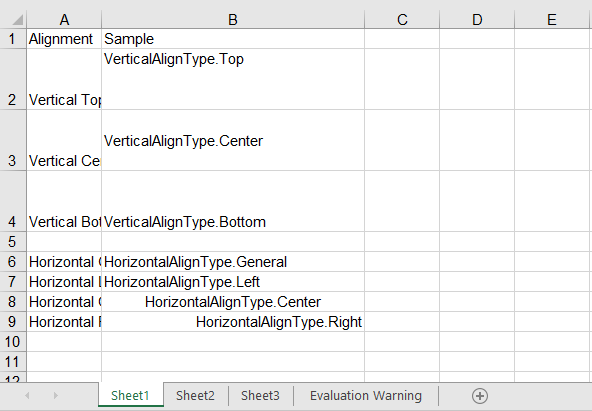
Alignment works along two axes. Vertical alignment decides where the text sits within the height of the cell and is set through the VerticalAlignment property, which accepts Top, Center, Bottom and others. Horizontal alignment decides where the text sits within the width of the cell and is set through the HorizontalAlignment property, which accepts General, Left, Center, Right and others. The two are independent and can be combined freely. The steps are as follows:
- Create a workbook and get the first worksheet.
- Write the sample text.
- Set the vertical alignment through
VerticalAlignment. - Set the horizontal alignment through
HorizontalAlignment. - Save the workbook.
Here is a complete code example that sets the alignment of cell text in React:
function App() {
  const setTextAlignment = async () => {
    // Get the Spire.XLS WASM module
    const xlsModule = window.wasmModule?.spirexls;

    // Check if the module is ready
    if (!xlsModule) {
      alert('Spire.Xls is not ready yet');
      return;
    }

    // Load the font into VFS
    await window.spire.FetchFileToVFS('ARIAL.TTF', '/Library/Fonts/', `${process.env.PUBLIC_URL}/font/`);

    // Create a new workbook
    const workbook = new xlsModule.Workbook();

    // Get the first worksheet
    const sheet = workbook.Worksheets.get(0);

    // Write the sample text for vertical alignment
    sheet.Range.get("A1").Text = "Alignment";
    sheet.Range.get("B1").Text = "Sample";
    sheet.Range.get("A2").Text = "Vertical Top";
    sheet.Range.get("B2").Text = "VerticalAlignType.Top";
    sheet.Range.get("A3").Text = "Vertical Center";
    sheet.Range.get("B3").Text = "VerticalAlignType.Center";
    sheet.Range.get("A4").Text = "Vertical Bottom";
    sheet.Range.get("B4").Text = "VerticalAlignType.Bottom";

    // Write the sample text for horizontal alignment
    sheet.Range.get("A6").Text = "Horizontal General";
    sheet.Range.get("B6").Text = "HorizontalAlignType.General";
    sheet.Range.get("A7").Text = "Horizontal Left";
    sheet.Range.get("B7").Text = "HorizontalAlignType.Left";
    sheet.Range.get("A8").Text = "Horizontal Center";
    sheet.Range.get("B8").Text = "HorizontalAlignType.Center";
    sheet.Range.get("A9").Text = "Horizontal Right";
    sheet.Range.get("B9").Text = "HorizontalAlignType.Right";

    // Set the vertical alignment
    sheet.Range.get("B2").Style.VerticalAlignment = xlsModule.VerticalAlignType.Top;
    sheet.Range.get("B3").Style.VerticalAlignment = xlsModule.VerticalAlignType.Center;
    sheet.Range.get("B4").Style.VerticalAlignment = xlsModule.VerticalAlignType.Bottom;

    // Set the horizontal alignment
    sheet.Range.get("B6").Style.HorizontalAlignment = xlsModule.HorizontalAlignType.General;
    sheet.Range.get("B7").Style.HorizontalAlignment = xlsModule.HorizontalAlignType.Left;
    sheet.Range.get("B8").Style.HorizontalAlignment = xlsModule.HorizontalAlignType.Center;
    sheet.Range.get("B9").Style.HorizontalAlignment = xlsModule.HorizontalAlignType.Right;

    // Widen column B and raise rows 2-4 so the alignment differences are visible
    sheet.Range.get("B1:B9").ColumnWidth = 32;
    sheet.Range.get("A2:B4").RowHeight = 40;

    // Save the workbook
    const outputFileName = "TextAlignment.xlsx";
    workbook.SaveToFile(outputFileName);

    // Release resources
    workbook.Dispose();

    // Read the result file from VFS and trigger the download
    const fileArray = window.dotnetRuntime.Module.FS.readFile(outputFileName);
    const blob = new Blob([fileArray], { type: "application/vnd.openxmlformats-officedocument.spreadsheetml.sheet" });
    const url = URL.createObjectURL(blob);
    const a = document.createElement('a');
    a.href = url;
    a.download = outputFileName;
    a.click();
    URL.revokeObjectURL(url);
  };

  return (
    <div style={{ textAlign: 'center', height: '300px' }}>
      <h1>Set Text Alignment</h1>
      <button onClick={setTextAlignment}>Start</button>
    </div>
  );
}

export default App;
Vertical alignment is only visible once the row is tall enough, which is why the example sets rows 2-4 to a height of 40; horizontal alignment is at its clearest once the column is wide enough.
After running, the effect of setting the alignment of text:
Set the Indent of Text
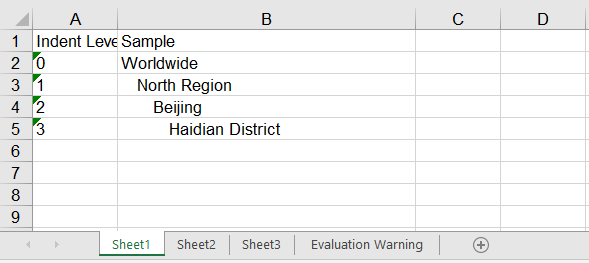
Indentation leaves blank space on the left (or right) inside a cell, which suits data that has a hierarchy, such as "region → city". The indent level is set through the IndentLevel property, where one level is roughly one character wide. The steps are as follows:
- Create a workbook and get the first worksheet.
- Write the sample text.
- Set the horizontal alignment to left so the indentation takes effect.
- Set an increasing indent level through
IndentLevel. - Save the workbook.
Here is a complete code example that sets the indent of cell text in React:
function App() {
  const setTextIndent = async () => {
    // Get the Spire.XLS WASM module
    const xlsModule = window.wasmModule?.spirexls;

    // Check if the module is ready
    if (!xlsModule) {
      alert('Spire.Xls is not ready yet');
      return;
    }

    // Load the font into VFS
    await window.spire.FetchFileToVFS('ARIAL.TTF', '/Library/Fonts/', `${process.env.PUBLIC_URL}/font/`);

    // Create a new workbook
    const workbook = new xlsModule.Workbook();

    // Get the first worksheet
    const sheet = workbook.Worksheets.get(0);

    // Write the sample text
    sheet.Range.get("A1").Text = "Indent Level";
    sheet.Range.get("B1").Text = "Sample";
    sheet.Range.get("A2").Text = "0";
    sheet.Range.get("B2").Text = "Worldwide";
    sheet.Range.get("A3").Text = "1";
    sheet.Range.get("B3").Text = "North Region";
    sheet.Range.get("A4").Text = "2";
    sheet.Range.get("B4").Text = "Beijing";
    sheet.Range.get("A5").Text = "3";
    sheet.Range.get("B5").Text = "Haidian District";

    // Indentation only takes effect together with left alignment
    sheet.Range.get("B2:B5").Style.HorizontalAlignment = xlsModule.HorizontalAlignType.Left;

    // Set the indentation level of the text
    sheet.Range.get("B2").Style.IndentLevel = 0;
    sheet.Range.get("B3").Style.IndentLevel = 1;
    sheet.Range.get("B4").Style.IndentLevel = 2;
    sheet.Range.get("B5").Style.IndentLevel = 3;

    // Widen column B so the indentation differences are visible
    sheet.Range.get("B1:B5").ColumnWidth = 32;

    // Save the workbook
    const outputFileName = "Indentation.xlsx";
    workbook.SaveToFile(outputFileName);

    // Release resources
    workbook.Dispose();

    // Read the result file from VFS and trigger the download
    const fileArray = window.dotnetRuntime.Module.FS.readFile(outputFileName);
    const blob = new Blob([fileArray], { type: "application/vnd.openxmlformats-officedocument.spreadsheetml.sheet" });
    const url = URL.createObjectURL(blob);
    const a = document.createElement('a');
    a.href = url;
    a.download = outputFileName;
    a.click();
    URL.revokeObjectURL(url);
  };

  return (
    <div style={{ textAlign: 'center', height: '300px' }}>
      <h1>Set Text Indent</h1>
      <button onClick={setTextIndent}>Start</button>
    </div>
  );
}

export default App;
The four rows step in one level at a time, forming exactly the hierarchy "Worldwide → North Region → Beijing → Haidian District". Cell B5 has an IndentLevel of 3, so its text starts about three characters in from the left edge.
After running, the effect of setting the indent of text:
Set the Orientation of Text
Text orientation covers two independent settings. The first is the rotation angle, set through the Rotation property, where values 0 to 90 are degrees counterclockwise and -1 to -90 are degrees clockwise. There is also the special value 255, which stacks the text vertically one character per line; rotation is often used to fit a long header into a narrow column. The second is the reading order, set through the ReadingOrder property, which accepts LeftToRight, RightToLeft and Context. It decides which direction the mixed content in a cell is laid out from, and is used for languages written from right to left such as Arabic and Hebrew. Rotated or stacked text takes up far more height than usual, so the row height has to be raised at the same time to keep the text inside the cell. The steps are as follows:
- Create a workbook and get the first worksheet.
- Write the sample text.
- Set the rotation angle through
Rotation. - Set the reading order through
ReadingOrder. - Save the workbook.
Here is a complete code example that sets the orientation of cell text in React:
function App() {
  const setTextOrientation = async () => {
    // Get the Spire.XLS WASM module
    const xlsModule = window.wasmModule?.spirexls;

    // Check if the module is ready
    if (!xlsModule) {
      alert('Spire.Xls is not ready yet');
      return;
    }

    // Load the font into VFS
    await window.spire.FetchFileToVFS('ARIAL.TTF', '/Library/Fonts/', `${process.env.PUBLIC_URL}/font/`);

    // Create a new workbook
    const workbook = new xlsModule.Workbook();

    // Get the first worksheet
    const sheet = workbook.Worksheets.get(0);

    // Write the sample text for the rotation angle
    sheet.Range.get("A1").Text = "Text Orientation";
    sheet.Range.get("B1").Text = "Sample";
    sheet.Range.get("A2").Text = "Counterclockwise 45";
    sheet.Range.get("B2").Text = "Rotation = 45";
    sheet.Range.get("A3").Text = "Counterclockwise 90";
    sheet.Range.get("B3").Text = "Rotation = 90";
    sheet.Range.get("A4").Text = "Clockwise 45";
    sheet.Range.get("B4").Text = "Rotation = -45";
    sheet.Range.get("A5").Text = "Stacked";
    sheet.Range.get("B5").Text = "Spire";

    // Write the sample text for the reading order: Latin mixed with Hebrew, so the
    // difference between the two directions is actually visible
    sheet.Range.get("A7").Text = "Left to Right";
    sheet.Range.get("B7").Text = "Spire.XLS שלום";
    sheet.Range.get("A8").Text = "Right to Left";
    sheet.Range.get("B8").Text = "Spire.XLS שלום";

    // Set the rotation angle of the text; 255 stacks the text vertically
    sheet.Range.get("B2").Style.Rotation = 45;
    sheet.Range.get("B3").Style.Rotation = 90;
    sheet.Range.get("B4").Style.Rotation = -45;
    sheet.Range.get("B5").Style.Rotation = 255;

    // Set the reading order of the text
    sheet.Range.get("B7").Style.ReadingOrder = xlsModule.ReadingOrderType.LeftToRight;
    sheet.Range.get("B8").Style.ReadingOrder = xlsModule.ReadingOrderType.RightToLeft;

    // Widen column B and raise rows 2-5 so the rotated and stacked text fits
    sheet.Range.get("B1:B8").ColumnWidth = 20;
    sheet.Range.get("A2:B5").RowHeight = 60;

    // Save the workbook
    const outputFileName = "TextOrientation.xlsx";
    workbook.SaveToFile(outputFileName);

    // Release resources
    workbook.Dispose();

    // Read the result file from VFS and trigger the download
    const fileArray = window.dotnetRuntime.Module.FS.readFile(outputFileName);
    const blob = new Blob([fileArray], { type: "application/vnd.openxmlformats-officedocument.spreadsheetml.sheet" });
    const url = URL.createObjectURL(blob);
    const a = document.createElement('a');
    a.href = url;
    a.download = outputFileName;
    a.click();
    URL.revokeObjectURL(url);
  };

  return (
    <div style={{ textAlign: 'center', height: '300px' }}>
      <h1>Set Text Orientation</h1>
      <button onClick={setTextOrientation}>Start</button>
    </div>
  );
}

export default App;
In the example, B2, B3 and B4 are rotated 45 degrees, 90 degrees and -45 degrees respectively, and B5 uses a Rotation of 255, which stacks the text into a column running top to bottom; all five rows are given a height of 60. B7 and B8 hold the same mixed Latin and Hebrew string with opposite reading orders, and the Hebrew ends up on opposite sides in the two rows — which is exactly what reading order does to mixed content.
After running, the effect of setting the orientation of text:
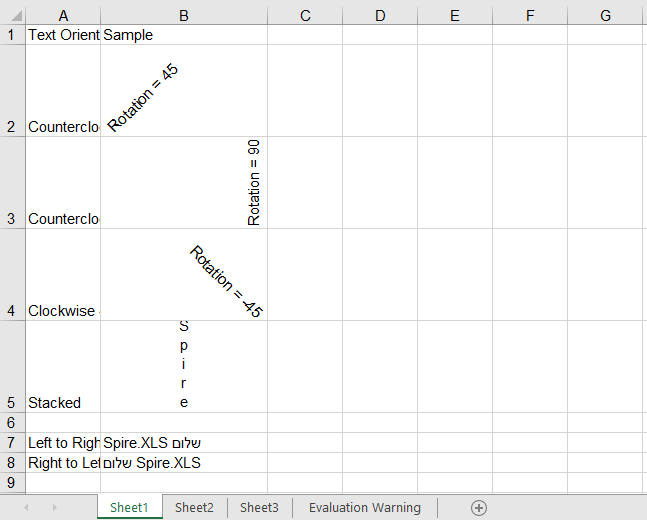
Set the Wrapping of Text
When a piece of text is longer than the column, it spills over onto the neighbouring empty cell by default, and is cut off as soon as that neighbour has content of its own. Setting the WrapText property to true folds the text inside the cell instead; setting it to false returns the text to a single line. As with rotation, wrapping only changes how the text is laid out and does not adjust the row height by itself, so the row height is usually raised as well to show every folded line in full. The steps are as follows:
- Create a workbook and get the first worksheet.
- Write a long piece of text.
- Turn wrapping on or off through
WrapText. - Adjust the column width and row height so the folding is fully visible.
- Save the workbook.
Here is a complete code example that sets the wrapping of cell text in React:
function App() {
  const setTextWrap = async () => {
    // Get the Spire.XLS WASM module
    const xlsModule = window.wasmModule?.spirexls;

    // Check if the module is ready
    if (!xlsModule) {
      alert('Spire.Xls is not ready yet');
      return;
    }

    // Load the font into VFS
    await window.spire.FetchFileToVFS('ARIAL.TTF', '/Library/Fonts/', `${process.env.PUBLIC_URL}/font/`);

    // Create a new workbook
    const workbook = new xlsModule.Workbook();

    // Get the first worksheet
    const sheet = workbook.Worksheets.get(0);

    // Write the sample text
    sheet.Range.get("A1").Text = "Wrap Text";
    sheet.Range.get("B1").Text = "Sample";
    sheet.Range.get("A2").Text = "On";
    sheet.Range.get("B2").Text = "Spire.XLS for JavaScript can wrap text inside a cell in the browser.";
    sheet.Range.get("A3").Text = "Off";
    sheet.Range.get("B3").Text = "Spire.XLS for JavaScript can wrap text inside a cell in the browser.";

    // Turn wrapping on so the text folds inside the cell when it is wider than the column
    sheet.Range.get("B2").Style.WrapText = true;

    // Turn wrapping off so the text stays on a single line
    sheet.Range.get("B3").Style.WrapText = false;

    // Narrow column B and raise rows 2-3 so the wrapping is visible
    sheet.Range.get("B1:B3").ColumnWidth = 24;
    sheet.Range.get("A2:B3").RowHeight = 60;

    // Save the workbook
    const outputFileName = "WrapText.xlsx";
    workbook.SaveToFile(outputFileName);

    // Release resources
    workbook.Dispose();

    // Read the result file from VFS and trigger the download
    const fileArray = window.dotnetRuntime.Module.FS.readFile(outputFileName);
    const blob = new Blob([fileArray], { type: "application/vnd.openxmlformats-officedocument.spreadsheetml.sheet" });
    const url = URL.createObjectURL(blob);
    const a = document.createElement('a');
    a.href = url;
    a.download = outputFileName;
    a.click();
    URL.revokeObjectURL(url);
  };

  return (
    <div style={{ textAlign: 'center', height: '300px' }}>
      <h1>Set Text Wrap</h1>
      <button onClick={setTextWrap}>Start</button>
    </div>
  );
}

export default App;
B2 and B3 hold the very same sentence; the only difference is the value of WrapText. B2 folds into several lines and shows in full, while B3 stays on one line. The cell to the right of B3 is empty, so the text spills into it; if there were content there, the overflow would simply be cut off.
After running, the effect of setting the wrapping of text:
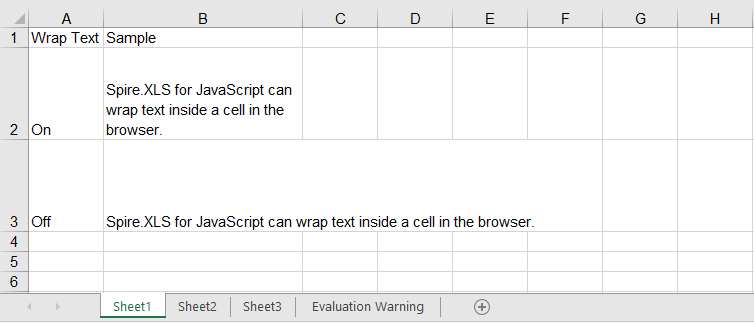
FAQ
I set IndentLevel and the text is not indented at all?
Cause: Indentation is only displayed when the horizontal alignment is a non-General value such as Left or Right. Cells default to General alignment, and IndentLevel is ignored outright in that case — so setting only the indent level shows no change.
Solution: Set HorizontalAlignment first, then IndentLevel:
// Indentation only takes effect together with left alignment
sheet.Range.get("B2").Style.HorizontalAlignment = xlsModule.HorizontalAlignType.Left;
sheet.Range.get("B3").Style.HorizontalAlignment = xlsModule.HorizontalAlignType.Left;

// Set the indent level of the text
sheet.Range.get("B2").Style.IndentLevel = 1;
sheet.Range.get("B3").Style.IndentLevel = 2;
I want the text stacked vertically, one character per line — why does Rotation = 90 not do it?
Cause: The 0 to 90 and -1 to -90 ranges of Rotation only deal with the rotation angle. 90 merely lays the text on its side; it never breaks it into a column of single characters.
Solution: Stacked text needs the special value 255:
// 90 degrees simply rotates the text
sheet.Range.get("B2").Style.Rotation = 90;

// 255 stacks the text vertically, one character per line
sheet.Range.get("B3").Style.Rotation = 255;
Get a Free License
Spire.XLS for JavaScript offers a 30-day full-featured free trial license with no functional limitations. Apply here to evaluate before purchasing.
Create and Style Excel Tables with JavaScript in React
When organizing data such as sales records or statistical reports, converting a plain data range into an Excel table (Table / ListObject) gives the data a dedicated header row, automatic filter drop-downs, banded styling, and a "total row", which makes later browsing and summarizing more convenient. After the table is created, its appearance can also be adjusted at any time through built-in styles and various display options. Spire.XLS for JavaScript completes all of these operations directly in the browser based on WebAssembly, and manages input/output files through a virtual file system (VFS), with no backend service required.
This article covers two core features:
For installation and project configuration, refer to Integrating Spire.XLS for JavaScript in a React Project. The examples below assume Spire.XLS is installed and the WebAssembly module is initialized.
Create a Table in Excel
Converting a data range into a table is a quick way to obtain a structured range that has built-in filter buttons and banded styling. In this example, a sales detail list (Product, Region, Month, Quantity, Sales Amount) is first written into the worksheet, then the A1:E13 range is converted into a table named "Table1" with ListObjects.Create(), and finally the built-in light style TableStyleLight9 is applied. The main steps are as follows:
- Create a
Workbookobject and get the first worksheet. - Write the headers and the sample data into the cells.
- Call the
Worksheet.ListObjects.Create()method to convert the range that contains the headers into a table. - Apply a built-in style to the table through the
IListObject.BuiltInTableStyleproperty. - Save the workbook with the
Workbook.SaveToFile()method.
Here is a complete code example showing how to create an Excel table for a worksheet in React:
function App() {
  const createTable = async () => {
    // Get the Spire.XLS WASM module
    const xlsModule = window.wasmModule?.spirexls;

    // Check whether the module is ready
    if (!xlsModule) {
      alert('Spire.Xls is not ready yet');
      return;
    }

    // Load the font into the VFS for text measurement and column auto-fit
    await window.spire.FetchFileToVFS('ARIAL.TTF', '/Library/Fonts/', `${process.env.PUBLIC_URL}/font/`);

    // Create a new workbook and get the first worksheet
    const workbook = new xlsModule.Workbook();
    const sheet = workbook.Worksheets.get(0);

    // Write the headers
    sheet.Range.get('A1').Value = 'Product';
    sheet.Range.get('B1').Value = 'Region';
    sheet.Range.get('C1').Value = 'Month';
    sheet.Range.get('D1').Value = 'Quantity';
    sheet.Range.get('E1').Value = 'Sales Amount';

    // Write the sample data
    sheet.Range.get('A2').Value = 'Laptop';
    sheet.Range.get('B2').Value = 'North';
    sheet.Range.get('C2').Value = 'Jan';
    sheet.Range.get('D2').NumberValue = 120;
    sheet.Range.get('E2').NumberValue = 239760;

    sheet.Range.get('A3').Value = 'Monitor';
    sheet.Range.get('B3').Value = 'East';
    sheet.Range.get('C3').Value = 'Jan';
    sheet.Range.get('D3').NumberValue = 80;
    sheet.Range.get('E3').NumberValue = 103920;

    sheet.Range.get('A4').Value = 'Keyboard';
    sheet.Range.get('B4').Value = 'South';
    sheet.Range.get('C4').Value = 'Jan';
    sheet.Range.get('D4').NumberValue = 200;
    sheet.Range.get('E4').NumberValue = 59800;

    sheet.Range.get('A5').Value = 'Laptop';
    sheet.Range.get('B5').Value = 'East';
    sheet.Range.get('C5').Value = 'Feb';
    sheet.Range.get('D5').NumberValue = 150;
    sheet.Range.get('E5').NumberValue = 299700;

    sheet.Range.get('A6').Value = 'Mouse';
    sheet.Range.get('B6').Value = 'North';
    sheet.Range.get('C6').Value = 'Feb';
    sheet.Range.get('D6').NumberValue = 300;
    sheet.Range.get('E6').NumberValue = 26700;

    sheet.Range.get('A7').Value = 'Printer';
    sheet.Range.get('B7').Value = 'South';
    sheet.Range.get('C7').Value = 'Feb';
    sheet.Range.get('D7').NumberValue = 60;
    sheet.Range.get('E7').NumberValue = 65940;

    sheet.Range.get('A8').Value = 'Monitor';
    sheet.Range.get('B8').Value = 'West';
    sheet.Range.get('C8').Value = 'Feb';
    sheet.Range.get('D8').NumberValue = 90;
    sheet.Range.get('E8').NumberValue = 116910;

    sheet.Range.get('A9').Value = 'Keyboard';
    sheet.Range.get('B9').Value = 'North';
    sheet.Range.get('C9').Value = 'Mar';
    sheet.Range.get('D9').NumberValue = 180;
    sheet.Range.get('E9').NumberValue = 53820;

    sheet.Range.get('A10').Value = 'Router';
    sheet.Range.get('B10').Value = 'East';
    sheet.Range.get('C10').Value = 'Mar';
    sheet.Range.get('D10').NumberValue = 70;
    sheet.Range.get('E10').NumberValue = 27930;

    sheet.Range.get('A11').Value = 'Laptop';
    sheet.Range.get('B11').Value = 'West';
    sheet.Range.get('C11').Value = 'Mar';
    sheet.Range.get('D11').NumberValue = 140;
    sheet.Range.get('E11').NumberValue = 279860;

    sheet.Range.get('A12').Value = 'Printer';
    sheet.Range.get('B12').Value = 'North';
    sheet.Range.get('C12').Value = 'Apr';
    sheet.Range.get('D12').NumberValue = 110;
    sheet.Range.get('E12').NumberValue = 120890;

    sheet.Range.get('A13').Value = 'Mouse';
    sheet.Range.get('B13').Value = 'South';
    sheet.Range.get('C13').Value = 'Apr';
    sheet.Range.get('D13').NumberValue = 260;
    sheet.Range.get('E13').NumberValue = 23140;

    // Convert the A1:E13 data range into an Excel table (ListObject)
    const table = sheet.ListObjects.Create('Table1', sheet.Range.get({ row: 1, column: 1, lastRow: 13, lastColumn: 5 }));

    // Apply a built-in light table style
    table.BuiltInTableStyle = xlsModule.TableBuiltInStyles.TableStyleLight9;

    // Auto-fit the columns so that the contents are fully shown
    sheet.AllocatedRange.AutoFitColumns();

    // Save the workbook
    const outputFileName = 'CreateTable.xlsx';
    workbook.SaveToFile({ fileName: outputFileName, version: xlsModule.ExcelVersion.Version2010 });

    // Release resources
    workbook.Dispose();

    // Read the saved file from the VFS and trigger the download
    const fileArray = window.dotnetRuntime.Module.FS.readFile(outputFileName);
    const blob = new Blob([fileArray], { type: 'application/vnd.openxmlformats-officedocument.spreadsheetml.sheet' });
    const url = URL.createObjectURL(blob);
    const a = document.createElement('a');
    a.href = url;
    a.download = outputFileName;
    a.click();
    URL.revokeObjectURL(url);
  };

  return (
    <div style={{ textAlign: 'center', height: '300px' }}>
      <h1>Create Table</h1>
      <button onClick={createTable}>Start</button>
    </div>
  );
}

export default App;
Effect of creating the table:
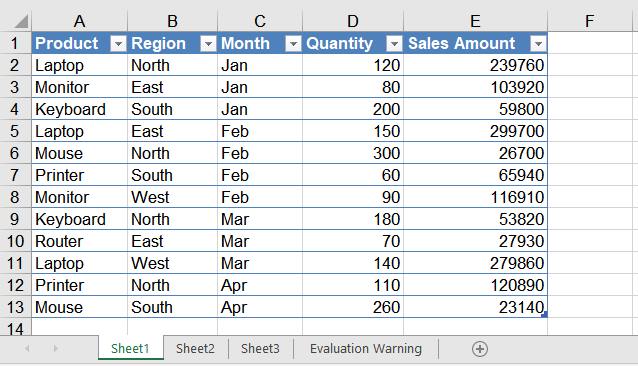
Set the Table Style, Total Row and Stripes
A created table can be restyled at any time: for example, replace the light style with the built-in Medium dark style, show a total row at the bottom of the table and let the "Quantity" and "Sales Amount" columns be summed automatically, and enable both row and column stripes to make the data easier to read. The main steps are as follows:
- Create a
Workbookobject and load a workbook that already contains a table with theWorkbook.LoadFromFile()method. - Get the worksheet with the
Workbook.Worksheets.get()method, and then get the table object withListObjects.get(). - Assign a new built-in style through the
BuiltInTableStyleproperty. - Set
DisplayTotalRowtotrueto show the total row, and useColumns[].TotalsRowLabelandColumns[].TotalsCalculationto set the label and the calculation of the total row columns. - Enable row and column stripes with
ShowTableStyleRowStripesandShowTableStyleColumnStripes. - Save the workbook with the
Workbook.SaveToFile()method.
Here is a complete code example showing how to load a created table in React and set its style and total row:
function App() {
  const formatTable = async () => {
    // Get the Spire.XLS WASM module
    const xlsModule = window.wasmModule?.spirexls;

    // Check whether the module is ready
    if (!xlsModule) {
      alert('Spire.Xls is not ready yet');
      return;
    }

    // Load the font into the VFS for text measurement and column auto-fit
    await window.spire.FetchFileToVFS('ARIAL.TTF', '/Library/Fonts/', `${process.env.PUBLIC_URL}/font/`);

    // Load the Excel file created in the previous section, which already contains a table
    const inputFileName = 'CreateTable.xlsx';
    await window.spire.FetchFileToVFS(inputFileName, '', `${process.env.PUBLIC_URL}data/`);

    // Create a Workbook object and load the workbook
    const workbook = new xlsModule.Workbook();
    workbook.LoadFromFile({ fileName: inputFileName });

    // Get the first worksheet and the table in it
    const sheet = workbook.Worksheets.get(0);
    const table = sheet.ListObjects.get(0);

    // Apply a built-in Medium table style
    table.BuiltInTableStyle = xlsModule.TableBuiltInStyles.TableStyleMedium9;

    // Show the total row
    table.DisplayTotalRow = true;

    // Set the label of the first column of the total row to "Total"
    table.Columns.get(0).TotalsRowLabel = 'Total';

    // Do not calculate the text columns, and sum the "Quantity" and "Sales Amount" columns automatically
    table.Columns.get(1).TotalsCalculation = xlsModule.ExcelTotalsCalculation.None;
    table.Columns.get(2).TotalsCalculation = xlsModule.ExcelTotalsCalculation.None;
    table.Columns.get(3).TotalsCalculation = xlsModule.ExcelTotalsCalculation.Sum;
    table.Columns.get(4).TotalsCalculation = xlsModule.ExcelTotalsCalculation.Sum;

    // Show the row stripes and column stripes
    table.ShowTableStyleRowStripes = true;
    table.ShowTableStyleColumnStripes = true;

    // Auto-fit the columns so that the contents are fully shown
    sheet.AllocatedRange.AutoFitColumns();

    // Save the workbook
    const outputFileName = 'FormatTable_out.xlsx';
    workbook.SaveToFile({ fileName: outputFileName, version: xlsModule.ExcelVersion.Version2010 });

    // Release resources
    workbook.Dispose();

    // Read the saved file from the VFS and trigger the download
    const fileArray = window.dotnetRuntime.Module.FS.readFile(outputFileName);
    const blob = new Blob([fileArray], { type: 'application/vnd.openxmlformats-officedocument.spreadsheetml.sheet' });
    const url = URL.createObjectURL(blob);
    const a = document.createElement('a');
    a.href = url;
    a.download = outputFileName;
    a.click();
    URL.revokeObjectURL(url);
  };

  return (
    <div style={{ textAlign: 'center', height: '300px' }}>
      <h1>Format Table</h1>
      <button onClick={formatTable}>Start</button>
    </div>
  );
}

export default App;
Effect of setting the table style:
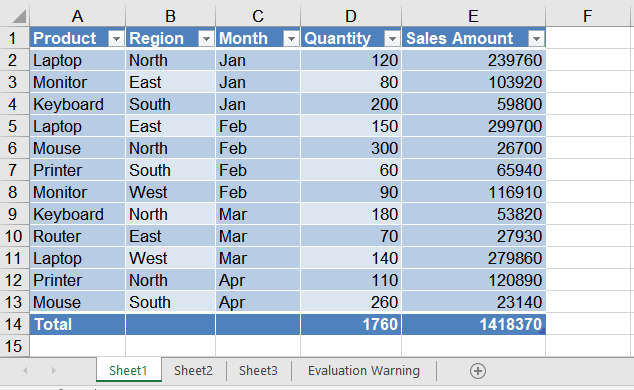
Frequently Asked Questions
How do I change the built-in style of a table? What styles are available?
Reason: The BuiltInTableStyle property was not reassigned after the table was created, or the wrong enum type was assigned to the property.
Solution: Reassign the IListObject.BuiltInTableStyle property. Its values come from the TableBuiltInStyles enum, which provides multiple built-in styles including Light (TableStyleLight1 ~ TableStyleLight21), Medium (TableStyleMedium1 ~ TableStyleMedium28) and Dark (TableStyleDark1 ~ TableStyleDark11). For example, this article first applies TableStyleLight9 and then switches to TableStyleMedium9.
How do I name a table or rename it? What happens if two tables have the same name?
Reason: The first parameter of ListObjects.Create() is the table name, e.g. Create("Table1", ...). Within the same worksheet, table names must be unique; otherwise creating another table with the same name raises an error.
Solution: Pass a unique name when creating the table (e.g. "SalesTable1"). To rename an existing table, set its DisplayName property directly, for example table.DisplayName = "SalesTable2025";.
Get a Free License
Spire.XLS for JavaScript offers a 30-day full-featured free trial license with no functional limitations. Apply here to evaluate before purchasing.
Group or Ungroup Rows and Columns in Excel with JavaScript in React
In everyday Excel spreadsheet handling, grouping rows or columns lets you collapse detail data and show only summary information, making large tables cleaner and easier to read. Spire.XLS for JavaScript performs grouping and ungrouping directly in the browser based on WebAssembly, and manages input/output files through a virtual file system (VFS), with no backend service required.
This article covers two core features:
For installation and project configuration, refer to Integrate Spire.XLS for JavaScript in a React Project. The examples below assume Spire.XLS is installed and the WebAssembly module is initialized.
Group Rows or Columns
After grouping rows or columns, you can collapse the detail data inside a group and keep only the summary rows or columns you need, making the worksheet tidier. Spire.XLS for JavaScript groups rows with the GroupByRows() method and columns with the GroupByColumns() method. The main steps are as follows:
- Create a
Workbookobject and use theLoadFromFile()method to load the Excel document. - Use the
Workbook.Worksheets.get()method to get a specific worksheet. - Use the
Worksheet.GroupByRows()method to group rows. - Use the
Worksheet.GroupByColumns()method to group columns. - Use the
Workbook.SaveToFile()method to save the document to a specified path.
Here is a complete code example showing how to group rows or columns in React:
function App() {
  const groupRowsAndColumns = async () => {
    // Get the Spire.XLS WASM module
    const xlsModule = window.wasmModule?.spirexls;

    // Check whether the module is ready
    if (!xlsModule) {
      alert('Spire.Xls is not ready yet');
      return;
    }

    // Load the font and Excel file into the VFS
    await window.spire.FetchFileToVFS('ARIAL.TTF', '/Library/Fonts/', `${process.env.PUBLIC_URL}/font/`);
    const inputFileName = 'GroupRowsAndColumns.xlsx';
    await window.spire.FetchFileToVFS(inputFileName, '', `${process.env.PUBLIC_URL}data/`);

    // Load the workbook
    const workbook = new xlsModule.Workbook();
    workbook.LoadFromFile({ fileName: inputFileName });

    // Get the first worksheet
    const sheet = workbook.Worksheets.get(0);

    // Group rows
    sheet.GroupByRows(6, 10, false);
    sheet.GroupByRows(14, 16, false);

    // Group columns
    sheet.GroupByColumns(2, 7, false);

    // Save the document
    const outputFileName = 'GroupRowsAndColumns_output.xlsx';
    workbook.SaveToFile({ fileName: outputFileName, version: xlsModule.ExcelVersion.Version2010 });

    // Release resources
    workbook.Dispose();

    // Read the converted file from the VFS and trigger a download
    const fileArray = window.dotnetRuntime.Module.FS.readFile(outputFileName);
    const blob = new Blob([fileArray], { type: 'application/vnd.openxmlformats-officedocument.spreadsheetml.sheet' });
    const url = URL.createObjectURL(blob);
    const a = document.createElement('a');
    a.href = url;
    a.download = outputFileName;
    a.click();
    URL.revokeObjectURL(url);
  };

  return (
    <div style={{ textAlign: 'center', height: '300px' }}>
      <h1>Group Rows And Columns</h1>
      <button onClick={groupRowsAndColumns}>
        Start
      </button>
    </div>
  );
}

export default App;
After grouping, group markers appear on the left side of the grouped rows or above the grouped columns. Click a marker to collapse or expand the detail data.
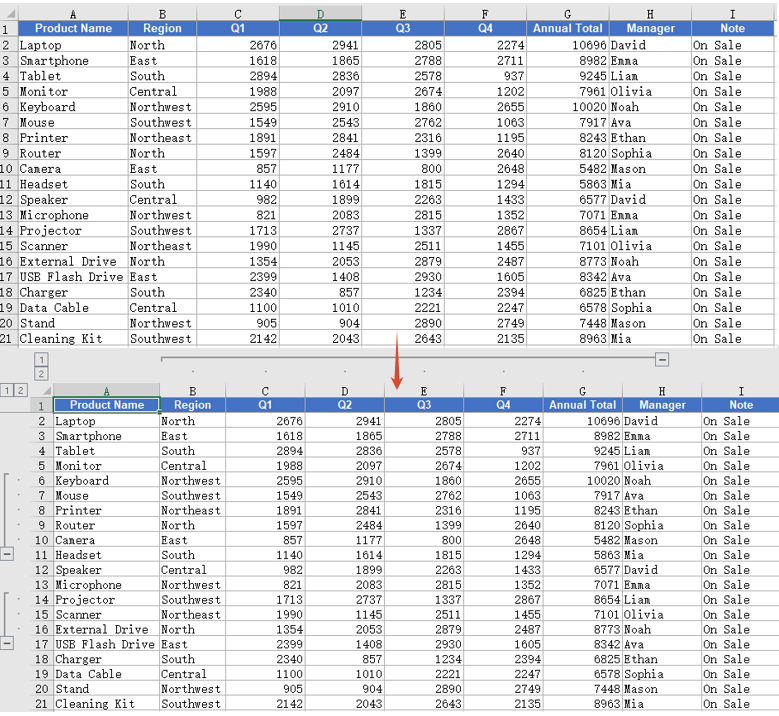
Ungroup Rows or Columns
When the grouping structure is no longer needed, you can ungroup the existing groups so that all rows and columns return to their normal display. Spire.XLS for JavaScript ungroups rows with the UngroupByRows() method and columns with the UngroupByColumns() method. The main steps are as follows:
- Create a
Workbookobject and use theLoadFromFile()method to load the Excel document that contains groups. - Use the
Workbook.Worksheets.get()method to get a specific worksheet. - Use the
Worksheet.UngroupByRows()method to ungroup rows. - Use the
Worksheet.UngroupByColumns()method to ungroup columns. - Use the
Workbook.SaveToFile()method to save the document to a specified path.
Here is a complete code example showing how to ungroup rows or columns in React:
function App() {
  const ungroupRowsAndColumns = async () => {
    // Get the Spire.XLS WASM module
    const xlsModule = window.wasmModule?.spirexls;

    // Check whether the module is ready
    if (!xlsModule) {
      alert('Spire.Xls is not ready yet');
      return;
    }

    // Load the font and Excel file into the VFS
    await window.spire.FetchFileToVFS('ARIAL.TTF', '/Library/Fonts/', `${process.env.PUBLIC_URL}/font/`);
    const inputFileName = 'GroupRowsAndColumns.xlsx';
    await window.spire.FetchFileToVFS(inputFileName, '', `${process.env.PUBLIC_URL}data/`);

    // Load the workbook
    const workbook = new xlsModule.Workbook();
    workbook.LoadFromFile({ fileName: inputFileName });

    // Get the first worksheet
    const sheet = workbook.Worksheets.get(0);

    // Ungroup rows
    sheet.UngroupByRows(6, 10);
    sheet.UngroupByRows(14, 16);

    // Ungroup columns
    sheet.UngroupByColumns(2, 7);

    // Save the document
    const outputFileName = 'UngroupRowsAndColumns_output.xlsx';
    workbook.SaveToFile({ fileName: outputFileName, version: xlsModule.ExcelVersion.Version2010 });

    // Release resources
    workbook.Dispose();

    // Read the converted file from the VFS and trigger a download
    const fileArray = window.dotnetRuntime.Module.FS.readFile(outputFileName);
    const blob = new Blob([fileArray], { type: 'application/vnd.openxmlformats-officedocument.spreadsheetml.sheet' });
    const url = URL.createObjectURL(blob);
    const a = document.createElement('a');
    a.href = url;
    a.download = outputFileName;
    a.click();
    URL.revokeObjectURL(url);
  };

  return (
    <div style={{ textAlign: 'center', height: '300px' }}>
      <h1>Ungroup Rows And Columns</h1>
      <button onClick={ungroupRowsAndColumns}>
        Start
      </button>
    </div>
  );
}

export default App;
After ungrouping, the group markers on the rows or columns disappear and the data returns to the normal ungrouped display.
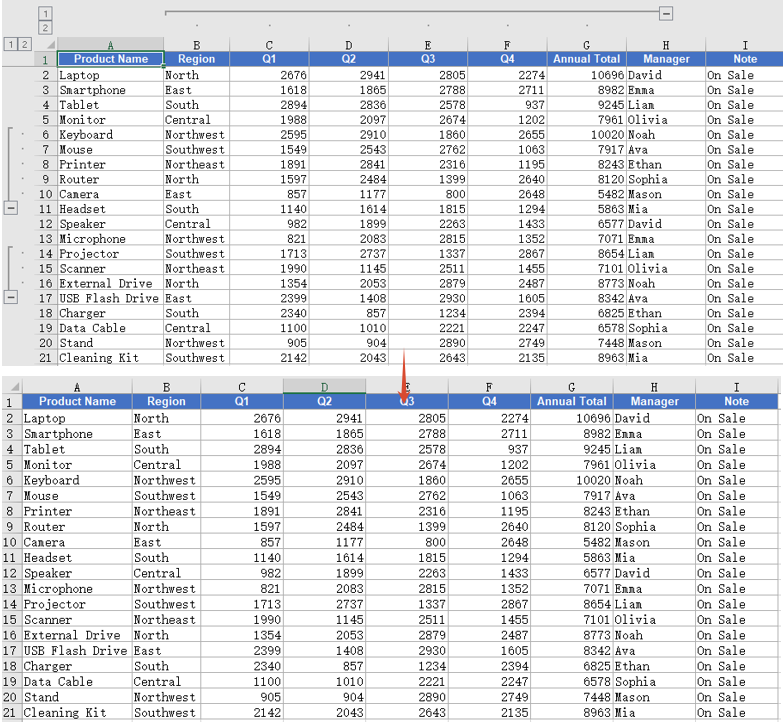
FAQ
Cannot collapse or expand detail data after grouping
Cause: The third parameter isCollapsed of the GroupByRows() and GroupByColumns() methods is set to false, so the groups are displayed expanded by default.
Solution: Set this parameter to true, and the groups will be displayed collapsed after saving:
sheet.GroupByRows(6, 10, true);
Some rows or columns still show group symbols after ungrouping
Cause: The UngroupByRows() and UngroupByColumns() methods only ungroup the rows or columns within the specified range. If these rows or columns also belong to a higher-level group, the higher-level group symbols are still retained.
Solution: Make sure the range passed when ungrouping matches the range used when grouping. If nested groups exist, call the ungroup methods repeatedly to ungroup level by level:
sheet.UngroupByRows(6, 10);
sheet.UngroupByRows(14, 16);
sheet.UngroupByColumns(2, 7);
Obtain a Free License
Spire.XLS for JavaScript offers a 30-day full-featured free trial license with no functional limitations. Apply here to evaluate before purchasing.
Sort Data in Excel with JavaScript in React
In everyday Excel data processing, sorting is one of the most common operations — whether rearranging data by name, value, or date, it makes tables more organized and easier to search. Spire.XLS for JavaScript performs data sorting directly in the browser based on WebAssembly, and manages input/output files through a virtual file system (VFS), with no backend service required.
This article covers two core features:
For installation and project configuration, refer to Integrating Spire.XLS for JavaScript in a React Project. The examples below assume Spire.XLS is installed and the WebAssembly module is initialized.
Sort Data in a Cell Range in Ascending Order
Sorting a specified cell range in ascending order is the most common data arrangement requirement. Spire.XLS for JavaScript adds a sort field and specifies the sort order with the Workbook.DataSorter.SortColumns.Add() method, then sorts the specified range with the Workbook.DataSorter.Sort() method. The main steps are as follows:
- Create a
Workbookobject and use theLoadFromFile()method to load the Excel document. - Use the
Workbook.Worksheets.get()method to get a specific worksheet. - Use the
Workbook.DataSorter.SortColumns.Add()method to add a sort field, specifying the column and the sort order. - Use the
Workbook.DataSorter.Sort()method to sort the specified cell range. - Use the
Workbook.SaveToFile()method to save the document to a specified path.
Here is a complete code example showing how to sort a cell range in ascending order by a single column in React:
function App() {
  const sortAscending = async () => {
    // Get the Spire.XLS WASM module
    const xlsModule = window.wasmModule?.spirexls;

    // Check whether the module is ready
    if (!xlsModule) {
      alert('Spire.Xls is not ready yet');
      return;
    }

    // Load the font and Excel file into the VFS
    await window.spire.FetchFileToVFS('ARIAL.TTF', '/Library/Fonts/', `${process.env.PUBLIC_URL}/font/`);
    const inputFileName = 'DataSorting.xlsx';
    await window.spire.FetchFileToVFS(inputFileName, '', `${process.env.PUBLIC_URL}data/`);

    // Load the workbook
    const workbook = new xlsModule.Workbook();
    workbook.LoadFromFile({ fileName: inputFileName });

    // Get the first worksheet
    const sheet = workbook.Worksheets.get(0);

    // Add a sort field: sort by the 5th column (Population) in ascending order
    workbook.DataSorter.SortColumns.Add({ key: 4, orderBy: xlsModule.OrderBy.Ascending });

    // Sort the specified cell range A1:E19
    workbook.DataSorter.Sort(sheet.Range.get("A1:E19"));

    // Save the document
    const outputFileName = 'SortDataAscending_output.xlsx';
    workbook.SaveToFile({ fileName: outputFileName, version: xlsModule.ExcelVersion.Version2010 });

    // Release resources
    workbook.Dispose();

    // Read the converted file from the VFS and trigger a download
    const fileArray = window.dotnetRuntime.Module.FS.readFile(outputFileName);
    const blob = new Blob([fileArray], { type: 'application/vnd.openxmlformats-officedocument.spreadsheetml.sheet' });
    const url = URL.createObjectURL(blob);
    const a = document.createElement('a');
    a.href = url;
    a.download = outputFileName;
    a.click();
    URL.revokeObjectURL(url);
  };

  return (
    <div style={{ textAlign: 'center', height: '300px' }}>
      <h1>Sort Data in Ascending Order</h1>
      <button onClick={sortAscending}>
        Start
      </button>
    </div>
  );
}

export default App;
After sorting, the data is rearranged in ascending numerical order based on the 5th column (Population), from the smallest to the largest, and the other columns in the same row stay aligned with the Population column.
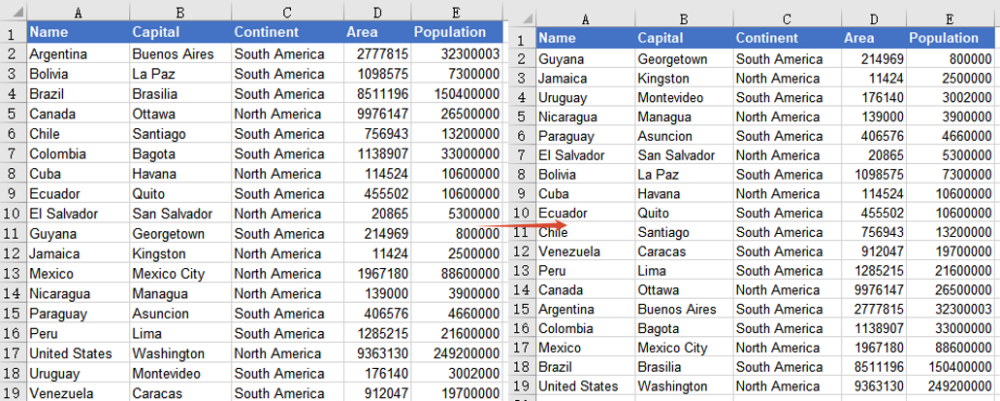
Sort Data by Multiple Columns
When a single-column sort is not enough, you can sort by multiple columns at the same time. Spire.XLS for JavaScript supports adding multiple sort fields by calling the SortColumns.Add() method several times. Data is sorted by the first field first, then by the subsequent fields. The main steps are as follows:
- Create a
Workbookobject and use theLoadFromFile()method to load the Excel document. - Use the
Workbook.Worksheets.get()method to get a specific worksheet. - Call the
Workbook.DataSorter.SortColumns.Add()method several times to add multiple sort fields. - Use the
Workbook.DataSorter.Sort()method to sort the specified cell range. - Use the
Workbook.SaveToFile()method to save the document to a specified path.
Here is a complete code example showing how to sort a cell range by multiple columns in React:
function App() {
  const sortMultipleColumns = async () => {
    // Get the Spire.XLS WASM module
    const xlsModule = window.wasmModule?.spirexls;

    // Check whether the module is ready
    if (!xlsModule) {
      alert('Spire.Xls is not ready yet');
      return;
    }

    // Load the font and Excel file into the VFS
    await window.spire.FetchFileToVFS('ARIAL.TTF', '/Library/Fonts/', `${process.env.PUBLIC_URL}/font/`);
    const inputFileName = 'DataSorting.xlsx';
    await window.spire.FetchFileToVFS(inputFileName, '', `${process.env.PUBLIC_URL}data/`);

    // Load the workbook
    const workbook = new xlsModule.Workbook();
    workbook.LoadFromFile({ fileName: inputFileName });

    // Get the first worksheet
    const sheet = workbook.Worksheets.get(0);

    // Add multiple sort fields: first by the 3rd column (Continent), then by the 4th column (Area), ascending
    workbook.DataSorter.SortColumns.Add({ key: 2, orderBy: xlsModule.OrderBy.Ascending });
    workbook.DataSorter.SortColumns.Add({ key: 3, orderBy: xlsModule.OrderBy.Ascending });

    // Sort the specified cell range A1:E19
    workbook.DataSorter.Sort(sheet.Range.get("A1:E19"));

    // Save the document
    const outputFileName = 'SortDataMultipleColumns_output.xlsx';
    workbook.SaveToFile({ fileName: outputFileName, version: xlsModule.ExcelVersion.Version2010 });

    // Release resources
    workbook.Dispose();

    // Read the converted file from the VFS and trigger a download
    const fileArray = window.dotnetRuntime.Module.FS.readFile(outputFileName);
    const blob = new Blob([fileArray], { type: 'application/vnd.openxmlformats-officedocument.spreadsheetml.sheet' });
    const url = URL.createObjectURL(blob);
    const a = document.createElement('a');
    a.href = url;
    a.download = outputFileName;
    a.click();
    URL.revokeObjectURL(url);
  };

  return (
    <div style={{ textAlign: 'center', height: '300px' }}>
      <h1>Sort Data by Multiple Columns</h1>
      <button onClick={sortMultipleColumns}>
        Start
      </button>
    </div>
  );
}

export default App;
After sorting, the data is first arranged in ascending order by the 3rd column (Continent), grouping countries from the same continent together; when the continents are the same, it is then sorted in ascending order by the 4th column (Area).
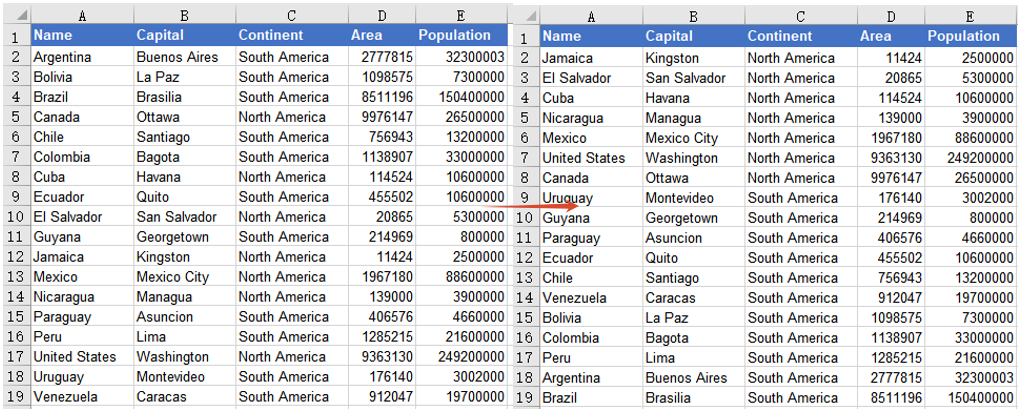
FAQ
The header row is also included in the sorting
Cause: By default, the DataSorter.Sort() method treats the first row of the sort range as a title row and keeps it in place. If the header is moved into the data rows, it is usually because the starting row of the sort range is set incorrectly.
Solution: Make sure the range passed to the Sort() method includes the header row and that the header row is at the top of the range, for example sheet.Range.get("A1:E19"). You can also start the sort from the data rows, such as sheet.Range.get("A2:E19").
After a single-column sort, other columns do not change accordingly
Cause: The sort only takes effect on the cell range passed to the Sort() method. If you sort only a single column's range, the other columns will not be rearranged, causing data in the same row to become misaligned.
Solution: Make the sort range cover all related columns (for example, the complete range that includes name, capital, continent, area, and population, A1:E19), so that the entire row moves together.
Obtain a Free License
Spire.XLS for JavaScript offers a 30-day full-featured free trial license with no functional limitations. Apply here to evaluate before purchasing.