
Knowledgebase (2370)
Children categories
In Spire.XLS, we can hide or show the headers of rows and columns by setting the RowColumnHeadersVisible property of XlsWorksheet class. This article elaborates the steps of how to accomplish this function using Spire.XLS.
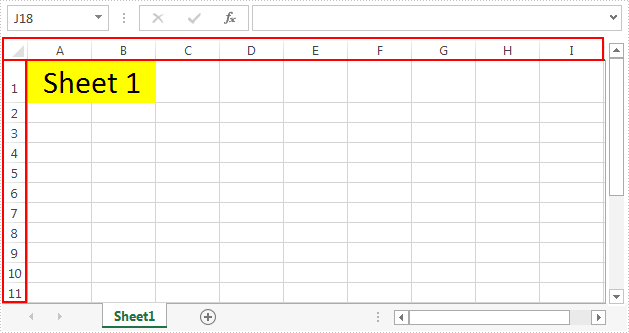
The following screenshot shows the input file which contain one worksheet with row and column headers.
Detail steps:
Step 1: Instantiate a Workbook instance and load the Excel file.
Workbook workbook = new Workbook();
workbook.LoadFromFile("Input.xlsx");
Step 2: Get the first worksheet.
Worksheet sheet = workbook.Worksheets[0];
Step 3: Hide or show the headers of rows and columns in the worksheet.
//Hide the headers of rows and columns
sheet.RowColumnHeadersVisible = false;

//Show the headers of rows and columns
//sheet.RowColumnHeadersVisible = true;
Step 4: Save the file.
workbook.SaveToFile("Output.xlsx");
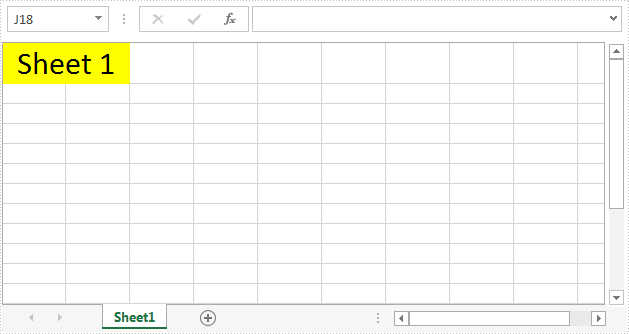
The screenshot after hiding the row and column headers:
Full code:
using Spire.Xls;
namespace ShowRowColumnHeader
{
    class Program
    {

        static void Main(string[] args)
        {
            // Instantiate a Workbook instance
            Workbook workbook = new Workbook();
            //Load the Excel file
            workbook.LoadFromFile("Input.xlsx");

            //Get the first worksheet
            Worksheet sheet = workbook.Worksheets[0];

            //Hide the headers of rows and columns
            sheet.RowColumnHeadersVisible = false;

            //Show the headers of rows and columns
            //sheet.RowColumnHeadersVisible = true;

            //Save the file
            workbook.SaveToFile("Output.xlsx");
        }
    }
}
In Excel, you can group related rows and columns to better organize and manage data. This feature is especially useful for simplifying complex spreadsheets, making data easier to navigate and analyze. When data is grouped, Excel provides the option to expand or collapse the groups, allowing users to control how much information is displayed at any given time. In this article, you will learn how to expand or collapse rows and columns in Excel in C# using Spire.XLS for .NET.
Install Spire.XLS for .NET
To begin with, you need to add the DLL files included in the Spire.XLS for .NET package as references in your .NET project. The DLL files can be either downloaded from this link or installed via NuGet.
PM> Install-Package Spire.XLS
Expand Rows and Columns in Excel in C#
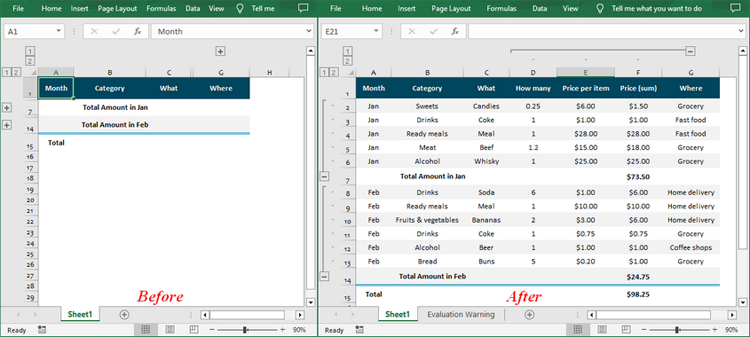
Expanding a group reveals all the detailed data within it. Using Spire.XLS for .NET, you can expand the grouped columns or rows through the Worksheet.Range[].ExpandGroup() method. The following are the detailed steps:
- Create a Workbook instance.
- Load an Excel file using Workbook.LoadFromFile() method.
- Get a specified worksheet using Workbook.Worksheets[] property.
- Expand the grouped rows using Worksheet.Range[].ExpandGroup(GroupByType.ByRows) method.
- Expand the grouped columns using Worksheet.Range[].ExpandGroup(GroupByType.ByColumns) method.
- Save the result file using Workbook.SaveToFile() method.
- C#
using Spire.Xls;
namespace ExpandandExcelGroups
{
    class Program
    {
        static void Main(string[] args)
        {
            // Create Workbook instance
            Workbook workbook = new Workbook();

            // Load an Excel file
            workbook.LoadFromFile("Grouped.xlsx");

            // Get the first worksheet
            Worksheet sheet = workbook.Worksheets[0];

            // Expand the grouped rows
            sheet.Range["A2:G6"].ExpandGroup(GroupByType.ByRows, ExpandCollapseFlags.ExpandParent);
            sheet.Range["A8:G13"].ExpandGroup(GroupByType.ByRows);

            // Expand the grouped columns
            sheet.Range["D2:G13"].ExpandGroup(GroupByType.ByColumns);

            // Save the result file
            workbook.SaveToFile("ExpandGroups.xlsx");
        }
    }
}
Collapse Rows and Columns in Excel in C#
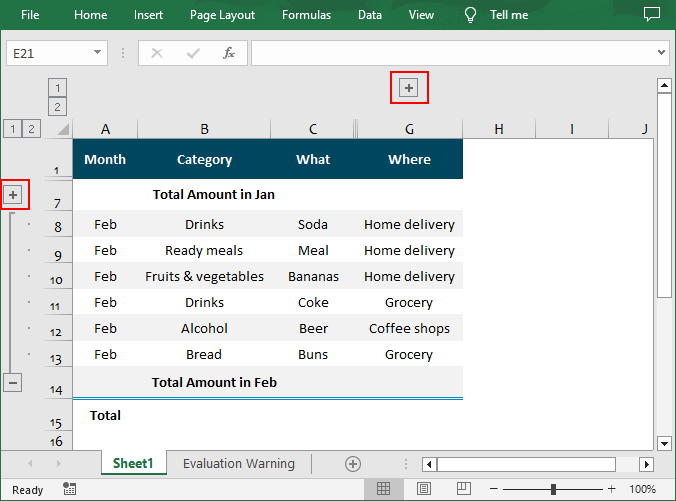
Collapsing a group hides the information, showing only the summary or parent data. To collapse rows or columns in Excel, you can use the Worksheet.Range[].CollapseGroup() method. The following are the detailed steps:
- Create a Workbook instance.
- Load an Excel file using Workbook.LoadFromFile() method.
- Get a specified worksheet using Workbook.Worksheets[] property.
- Collapse the rows using Worksheet.Range[].CollapseGroup(GroupByType.ByRows) method.
- Collapse the columns using Worksheet.Range[].CollapseGroup(GroupByType.ByColumns) method.
- Save the result file using Workbook.SaveToFile() method.
- C#
using Spire.Xls;
namespace CollapseExcelGroups
{
    class Program
    {
        static void Main(string[] args)
        {
            // Create Workbook instance
            Workbook workbook = new Workbook();

            // Load an Excel file
            workbook.LoadFromFile("ExpandGroups.xlsx");

            // Get the first worksheet
            Worksheet sheet = workbook.Worksheets[0];

            // Collapse rows
            sheet.Range["A2:A6"].CollapseGroup(GroupByType.ByRows);

            // Collapse Columns
            sheet.Range["D1:G1"].CollapseGroup(GroupByType.ByColumns);

            // Save the result file
            workbook.SaveToFile("CollapseGroups.xlsx");
        }
    }
}
Apply for a Temporary License
If you'd like to remove the evaluation message from the generated documents, or to get rid of the function limitations, please request a 30-day trial license for yourself.
