
Spire.Doc for .NET (338)
Children categories
Preserve Theme When Copying Sections from One Word Document to Another in C#
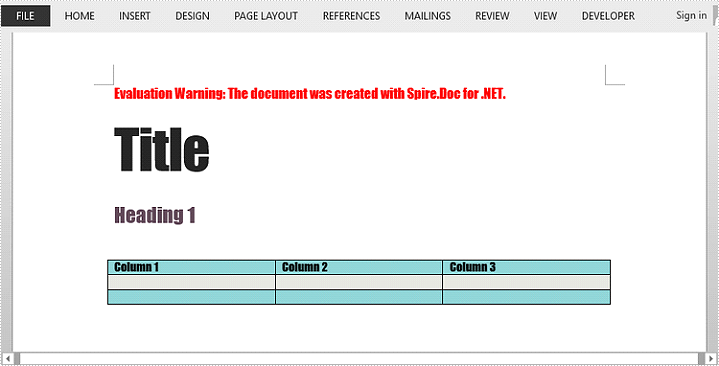
2018-01-19 08:04:49 Written by KoohjiA theme is a set of colors, fonts, and effects that determines the overall look of your Word document. Suppose you have a document which is neat and stylish, you’d like to copy contents of a section to another document without losing the theme and style. You can clone the theme to destination file using CloneThemeTo method.
Step 1: Create a Document object and load a sample Word file.
Document doc = new Document();
doc.LoadFromFile("theme.docx");
Step 2: Create a new Word document.
Document newWord = new Document();
Step 3: Clone default style, theme, compatibility from the source file to destination document.
doc.CloneDefaultStyleTo(newWord);
doc.CloneThemesTo(newWord);
doc.CloneCompatibilityTo(newWord);
Step 4: Add the cloned section to destination document.
newWord.Sections.Add(doc.Sections[0].Clone());
Step 5: Save the file.
newWord.SaveToFile("result.docx", FileFormat.Docx);
Output:
Full Code:
using Spire.Doc;
namespace PreserveTheme
{
    class Program
    {

        static void Main(string[] args)
        {
            Document doc = new Document();
            doc.LoadFromFile("theme.docx");

            Document newWord = new Document();
            doc.CloneDefaultStyleTo(newWord);
            doc.CloneThemesTo(newWord);
            doc.CloneCompatibilityTo(newWord);
            newWord.Sections.Add(doc.Sections[0].Clone());

            newWord.SaveToFile("result.docx", FileFormat.Docx);

        }
    }
}
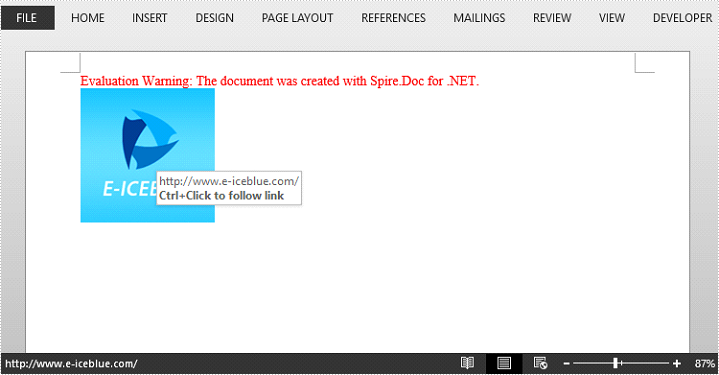
With linked images, you can direct users to a URL when they click the image. This article will show you how to create image hyperlinks in a Word document by using Spire.Doc.
Step 1: Create a Word document, add a section and a paragraph.
Document doc = new Document();
Section section = doc.AddSection();
Paragraph paragraph = section.AddParagraph();
Step 2: Load an image to a DocPicture object.
DocPicture picture = new DocPicture(doc);
picture.LoadImage(Image.FromFile("logo.png"));
Step 3: Add an image hyperlink to the paragraph.
paragraph.AppendHyperlink("www.e-iceblue.com", picture, HyperlinkType.WebLink);
Step 4: Save the file.
doc.SaveToFile("output.docx", FileFormat.Docx);
Output:
Full Code:
using Spire.Doc;
using Spire.Doc.Documents;
using Spire.Doc.Fields;
using System.Drawing;
namespace CreateLink
{
    class Program
    {

        static void Main(string[] args)
        {

            Document doc = new Document();
            Section section = doc.AddSection();

            Paragraph paragraph = section.AddParagraph();
            Image image = Image.FromFile("logo.png");
            DocPicture picture = new DocPicture(doc);
            picture.LoadImage(image);
            paragraph.AppendHyperlink("www.e-iceblue.com", picture, HyperlinkType.WebLink);

            doc.SaveToFile("output.docx", FileFormat.Docx);
        }
    }
}
Imports Spire.Doc
Imports Spire.Doc.Documents
Imports Spire.Doc.Fields
Imports System.Drawing
Namespace CreateLink
	Class Program

		Private Shared Sub Main(args As String())

			Dim doc As New Document()
			Dim section As Section = doc.AddSection()

			Dim paragraph As Paragraph = section.AddParagraph()
			Dim image__1 As Image = Image.FromFile("logo.png")
			Dim picture As New DocPicture(doc)
			picture.LoadImage(image__1)
			paragraph.AppendHyperlink("www.e-iceblue.com", picture, HyperlinkType.WebLink)

			doc.SaveToFile("output.docx", FileFormat.Docx)
		End Sub
	End Class
End Namespace
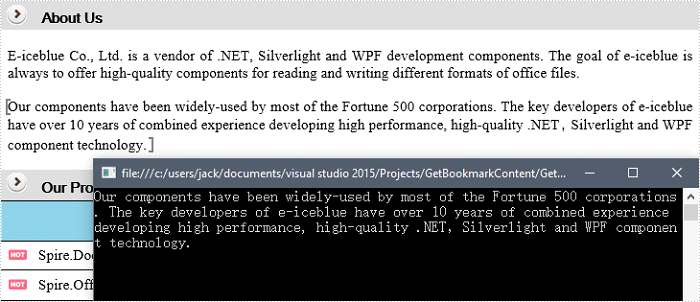
Spire.Doc supports to retrieve, replace and delete bookmark content of a specified bookmark. This article will show you how we can get the plain text within a bookmark by using Spire.Doc with C# and VB.NET.
Step 1: Create a Document instance, and load a sample Word document.
Document doc = new Document();
doc.LoadFromFile("Bookmark.docx");
Step 2: Creates a BookmarkNavigator instance to access the bookmark.
BookmarksNavigator navigator = new BookmarksNavigator(doc);
Step 3: Locate a specific bookmark by bookmark name. Call the method GetBookmarkContent to get content within the bookmark.
navigator.MoveToBookmark("bookmark_1");
TextBodyPart textBodyPart = navigator.GetBookmarkContent();
Step 4: Iterate through the items in the bookmark content to get the plain, unformatted text of the bookmark.
string text = null;
foreach (var item in textBodyPart.BodyItems)
{
    if (item is Paragraph)
    {
        foreach (var childObject in (item as Paragraph).ChildObjects)
        {
            if (childObject is TextRange)
            {
                text += (childObject as TextRange).Text;
            }
        }
    }
}
Result:
Full Code:
using Spire.Doc;
using Spire.Doc.Documents;
using Spire.Doc.Fields;
using System;
namespace GetText
{
    class Program
    {

        static void Main(string[] args)
        {

            Document doc = new Document();
            doc.LoadFromFile("Bookmark.docx");

            BookmarksNavigator navigator = new BookmarksNavigator(doc);
            navigator.MoveToBookmark("bookmark_1");
            TextBodyPart textBodyPart = navigator.GetBookmarkContent();

            string text = null;
            foreach (var item in textBodyPart.BodyItems)
            {
                if (item is Paragraph)
                {
                    foreach (var childObject in (item as Paragraph).ChildObjects)
                    {
                        if (childObject is TextRange)
                        {
                            text += (childObject as TextRange).Text;
                        }
                    }
                }
            }
            Console.WriteLine(text);
        }
    }
}
Imports Spire.Doc
Imports Spire.Doc.Documents
Imports Spire.Doc.Fields
Namespace GetText
	Class Program

		Private Shared Sub Main(args As String())

			Dim doc As New Document()
			doc.LoadFromFile("Bookmark.docx")

			Dim navigator As New BookmarksNavigator(doc)
			navigator.MoveToBookmark("bookmark_1")
			Dim textBodyPart As TextBodyPart = navigator.GetBookmarkContent()

			Dim text As String = Nothing
			For Each item As var In textBodyPart.BodyItems
				If TypeOf item Is Paragraph Then
					For Each childObject As var In TryCast(item, Paragraph).ChildObjects
						If TypeOf childObject Is TextRange Then
							text += TryCast(childObject, TextRange).Text
						End If
					Next
				End If
			Next
			Console.WriteLine(text)
		End Sub
	End Class
End Namespace
