
Program Guide (123)
Children categories
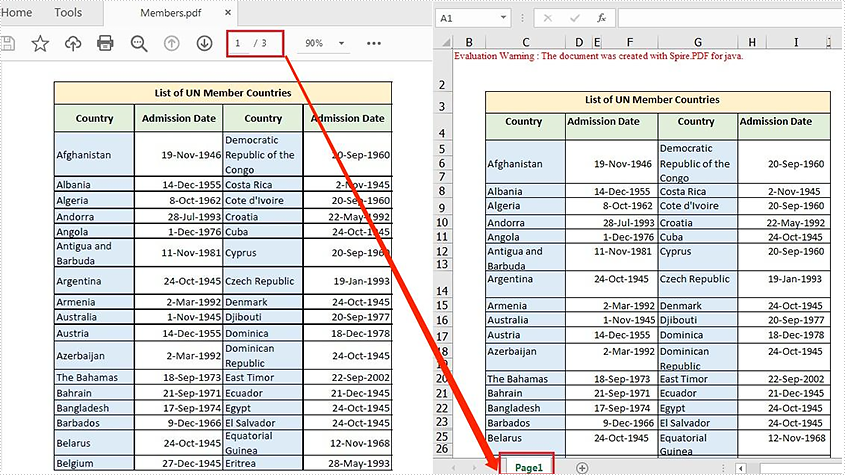
Spire.PDF for Java offers the PdfDocument.saveToFile() method to convert PDF to other file formats such as Word, Excel, HTML, SVG and XPS. When converting PDF to Excel, it allows you to convert each PDF page to a single Excel worksheet or convert multiple PDF pages to one Excel worksheet. This article will demonstrate how to convert a PDF file containing 3 pages to one Excel worksheet.
Install Spire.PDF for Java
First of all, you're required to add the Spire.PDF.jar file as a dependency in your Java program. The JAR file can be downloaded from this link. If you use Maven, you can easily import the JAR file in your application by adding the following code to your project's pom.xml file.
<repositories>
    <repository>
        <id>com.e-iceblue</id>
        <name>e-iceblue</name>
        <url>https://repo.e-iceblue.com/nexus/content/groups/public/</url>
    </repository>
</repositories>
<dependencies>
    <dependency>
        <groupId>e-iceblue</groupId>
        <artifactId>spire.pdf</artifactId>
        <version>11.11.11</version>
    </dependency>
</dependencies>
Convert a Multi-page PDF to One Excel Worksheet
The detailed steps are as follows:
- Create a PdfDocument object.
- Load a sample PDF file using PdfDocument.loadFromFile() method.
- Set the PDF to XLSX conversion options to render multiple PDF pages on a single worksheet using PdfDocument.getConvertOptions().setPdfToXlsxOptions() method.
- Save the PDF file to Excel using PdfDocument.saveToFile() method.
- Java
import com.spire.pdf.*;
import com.spire.pdf.conversion.XlsxLineLayoutOptions;

public class ManyPagesToOneSheet {
    public static void main(String[] args) {

        //Create a PdfDocument object
        PdfDocument pdf = new PdfDocument();

        //Load a sample PDF file
        pdf.loadFromFile("C:\\Users\\Administrator\\Desktop\\Members.pdf");

        //Set the PDF to XLSX conversion options: rendering multiple pages on a single worksheet
        pdf.getConvertOptions().setPdfToXlsxOptions(new XlsxLineLayoutOptions(false,true,true));

        //Save to Excel
        pdf.saveToFile("out/ToOneSheet.xlsx", FileFormat.XLSX);
    }
}
Apply for a Temporary License
If you'd like to remove the evaluation message from the generated documents, or to get rid of the function limitations, please request a 30-day trial license for yourself.
Finding and replacing text in PDF documents is essential for updating reports, legal contracts, or any other type of document where accurate and consistent information is crucial. The process involves identifying specific pieces of text and replacing them with new content, allowing users to update placeholder text, correct mistakes, customize document details, or undertake other modifications involving the written word.
This article introduces how to find and replace text in a PDF document in Java by using the Spire.PDF for Java library.
- Replace Text in a Specific PDF Page in Java
- Replace Text in an Entire PDF Document in Java
- Replace the First Instance of the Target Text in Java
- Replace Text Based on a Regular Expression in Java
Install Spire.PDF for Java
First of all, you're required to add the Spire.Pdf.jar file as a dependency in your Java program. The JAR file can be downloaded from this link. If you use Maven, you can easily import the JAR file in your application by adding the following code to your project's pom.xml file.
<repositories>
    <repository>
        <id>com.e-iceblue</id>
        <name>e-iceblue</name>
        <url>https://repo.e-iceblue.com/nexus/content/groups/public/</url>
    </repository>
</repositories>
<dependencies>
    <dependency>
        <groupId>e-iceblue</groupId>
        <artifactId>spire.pdf</artifactId>
        <version>11.11.11</version>
    </dependency>
</dependencies>
Replace Text in a Specific PDF Page in Java
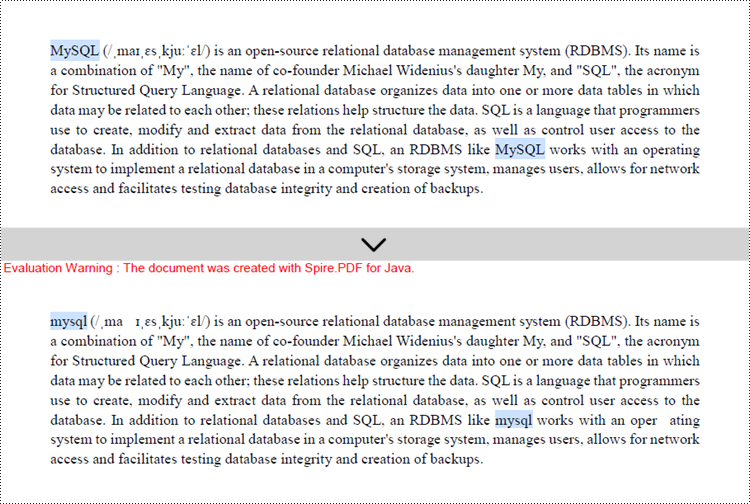
In Spire.PDF for Java, the PdfTextReplacer class is designed to facilitate text replacement within PDF documents. One of its primary methods, replaceAllText(), enables developers to replace all instances of a specified text on a page with new text.
To replace text in a specific page in Java, follow these steps:
- Create a PdfDocument object.
- Load a PDF file for a specified path.
- Get a specific page from the document.
- Create a PdfTextReplaceOptions object, and specify the replace options using setReplaceType() method of the object.
- Create a PdfTextReplacer object, and apply the replace options using setOptions() method of it.
- Replace all instances of the target text in the page with new text using PdfTextReplacer.replaceAllText() method.
- Save the document to a different PDF file.
- Java
import com.spire.pdf.PdfDocument;
import com.spire.pdf.PdfPageBase;
import com.spire.pdf.texts.PdfTextReplaceOptions;
import com.spire.pdf.texts.PdfTextReplacer;
import com.spire.pdf.texts.ReplaceActionType;

import java.util.EnumSet;

public class ReplaceTextInPage {

    public static void main(String[] args) {

        // Create a PdfDocument object
        PdfDocument doc = new PdfDocument();

        // Load a PDF file
        doc.loadFromFile("C:\\Users\\Administrator\\Desktop\\Input.pdf");

        // Create a PdfTextReplaceOptions object
        PdfTextReplaceOptions textReplaceOptions = new PdfTextReplaceOptions();

        // Specify the options for text replacement
        textReplaceOptions.setReplaceType(EnumSet.of(ReplaceActionType.IgnoreCase));
        textReplaceOptions.setReplaceType(EnumSet.of(ReplaceActionType.WholeWord));

        // Get a specific page
        PdfPageBase page = doc.getPages().get(0);

        // Create a PdfTextReplacer object based on the page
        PdfTextReplacer textReplacer = new PdfTextReplacer(page);

        // Set the replace options
        textReplacer.setOptions(textReplaceOptions);

        // Replace all instances of target text with new text
        textReplacer.replaceAllText("MySQL", "mysql");

        // Save the document to a different PDF file
        doc.saveToFile("output/ReplaceTextInPage.pdf");

        // Dispose resources
        doc.dispose();
    }
}
Replace Text in an Entire PDF Document in Java
You already know how to replace text in one page. To replace all instances of a specific text within a PDF document with new text, you just need to iterate through each page of the document and use the PdfTextReplacer.replaceAllText() method to update the text on every page.
The following are the steps to replace text in an entire PDF document using Java.
- Create a PdfDocument object.
- Load a PDF file for a specified path.
- Create a PdfTextReplaceOptions object, and specify the replace options using setReplaceType() method of the object.
- Iterate through the pages in the document.
- Create a PdfTextReplacer object based on a specified page, and apply the replace options using setOptions() method.
- Replace all instances of the target text in the page with new text using PdfTextReplacer.replaceAllText() method.
- Save the document to a different PDF file.
- Java
import com.spire.pdf.PdfDocument;
import com.spire.pdf.PdfPageBase;
import com.spire.pdf.texts.PdfTextReplaceOptions;
import com.spire.pdf.texts.PdfTextReplacer;
import com.spire.pdf.texts.ReplaceActionType;

import java.util.EnumSet;

public class ReplaceTextInDocument {

    public static void main(String[] args) {

        // Create a PdfDocument object
        PdfDocument doc = new PdfDocument();

        // Load a PDF file
        doc.loadFromFile("C:\\Users\\Administrator\\Desktop\\Input.pdf");

        // Create a PdfTextReplaceOptions object
        PdfTextReplaceOptions textReplaceOptions = new PdfTextReplaceOptions();

        // Specify the options for text replacement
        textReplaceOptions.setReplaceType(EnumSet.of(ReplaceActionType.IgnoreCase));
        textReplaceOptions.setReplaceType(EnumSet.of(ReplaceActionType.WholeWord));

        for (int i = 0; i < doc.getPages().getCount(); i++) {

            // Get a specific page
            PdfPageBase page = doc.getPages().get(i);

            // Create a PdfTextReplacer object based on the page
            PdfTextReplacer textReplacer = new PdfTextReplacer(page);

            // Set the replace options
            textReplacer.setOptions(textReplaceOptions);

            // Replace all instances of target text with new text
            textReplacer.replaceAllText("MySQL", "mysql");
        }

        // Save the document to a different PDF file
        doc.saveToFile("output/ReplaceTextInDocument.pdf");

        // Dispose resources
        doc.dispose();
    }
}
Replace the First Instance of the Target Text in Java
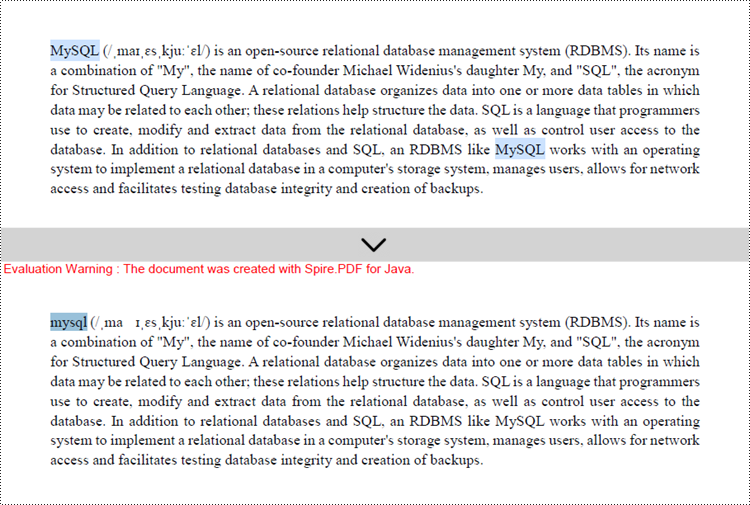
To replace the first instance of the target text in a page, you can make use of the replaceText() method from the PdfTextReplacer class. Here are the steps to accomplish this task in Java.
- Create a PdfDocument object.
- Load a PDF file for a specified path.
- Get a specific page from the document.
- Create a PdfTextReplaceOptions object, and specify the replace options using replaceType method of the object.
- Create a PdfTextReplacer object, and apply the replace options using setOptions() method.
- Replace the first occurrence of the target text in the page with new text using PdfTextReplacer.replaceText() method.
- Save the document to a different PDF file.
- Java
import com.spire.pdf.PdfDocument;
import com.spire.pdf.PdfPageBase;
import com.spire.pdf.texts.PdfTextReplaceOptions;
import com.spire.pdf.texts.PdfTextReplacer;
import com.spire.pdf.texts.ReplaceActionType;

import java.util.EnumSet;

public class ReplaceFirstInstance {

    public static void main(String[] args) {

        // Create a PdfDocument object
        PdfDocument doc = new PdfDocument();

        // Load a PDF file
        doc.loadFromFile("C:\\Users\\Administrator\\Desktop\\Input.pdf");

        // Create a PdfTextReplaceOptions object
        PdfTextReplaceOptions textReplaceOptions = new PdfTextReplaceOptions();

        // Specify the options for text replacement
        textReplaceOptions.setReplaceType(EnumSet.of(ReplaceActionType.IgnoreCase));
        textReplaceOptions.setReplaceType(EnumSet.of(ReplaceActionType.WholeWord));

        // Get a specific page
        PdfPageBase page = doc.getPages().get(0);

        // Create a PdfTextReplacer object based on the page
        PdfTextReplacer textReplacer = new PdfTextReplacer(page);

        // Set the replace options
        textReplacer.setOptions(textReplaceOptions);

        // Replace the first instance of target text with new text
        textReplacer.replaceText("MySQL", "mysql");

        // Save the document to a different PDF file
        doc.saveToFile("output/ReplaceFirstInstance.pdf");

        // Dispose resources
        doc.dispose();
    }
}
Replace Text Based on a Regular Expression in Java
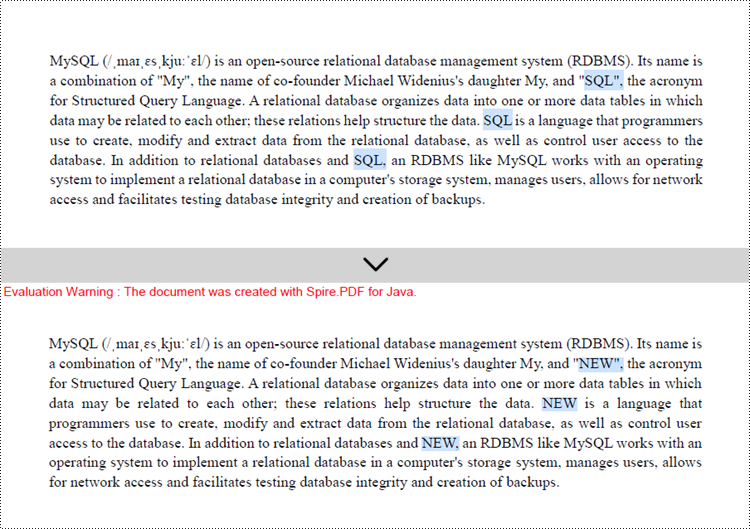
Regular expressions are incredibly powerful and flexible patterns that are commonly used for matching text. When working with Spire.PDF for Java, you can harness the capabilities of regular expressions to search for specific text within a PDF document and replace it or them with new text.
To replace text in a PDF based on a regular expression, you can follow these steps:
- Create a PdfDocument object.
- Load a PDF file for a specified path.
- Get a specific page from the document.
- Create a PdfTextReplaceOptions object.
- Specify the replace type as Regex using PdfTextReplaceOptions.setReplaceType() method.
- Create a PdfTextReplacer object, and apply the replace options using setOptions() method.
- Find and replace the text that matches a specified regular expression using PdfTextReplacer.replaceAllText() method.
- Save the document to a different PDF file.
- Java
import com.spire.pdf.PdfDocument;
import com.spire.pdf.PdfPageBase;
import com.spire.pdf.texts.PdfTextReplaceOptions;
import com.spire.pdf.texts.PdfTextReplacer;
import com.spire.pdf.texts.ReplaceActionType;

import java.util.EnumSet;

public class ReplaceBasedOnRegularExpression {

    public static void main(String[] args) {

        // Create a PdfDocument object
        PdfDocument doc = new PdfDocument();

        // Load a PDF file
        doc.loadFromFile("C:\\Users\\Administrator\\Desktop\\Input.pdf");

        // Create a PdfTextReplaceOptions object
        PdfTextReplaceOptions textReplaceOptions = new PdfTextReplaceOptions();

        // Set the replace type as Regex
        textReplaceOptions.setReplaceType(EnumSet.of(ReplaceActionType.Regex));

        // Get a specific page
        PdfPageBase page = doc.getPages().get(0);

        // Create a PdfTextReplacer object based on the page
        PdfTextReplacer textReplacer = new PdfTextReplacer(page);

        // Set the replace options
        textReplacer.setOptions(textReplaceOptions);

        // Specify the regular expression
        String regularExpression = "\\bS\\w*L\\b";

        // Replace all instances that match the regular expression with new text
        textReplacer.replaceAllText(regularExpression, "NEW");

        // Save the document to a different PDF file
        doc.saveToFile("output/ReplaceWithRegularExpression.pdf");

        // Dispose resources
        doc.dispose();
    }
}
Apply for a Temporary License
If you'd like to remove the evaluation message from the generated documents, or to get rid of the function limitations, please request a 30-day trial license for yourself.
Postscript, also known as PS, is a dynamically typed, concatenative programming language that describes the appearance of a printed page. Owing to its faster printing and improved quality, sometime you may need to convert a PDF document to Postscript. In this article, you will learn how to achieve this function using Spire.PDF for Java.
Install Spire.PDF for Java
First of all, you're required to add the Spire.PDF.jar file as a dependency in your Java program. The JAR file can be downloaded from this link. If you use Maven, you can easily import the JAR file in your application by adding the following code to your project's pom.xml file.
<repositories>
    <repository>
        <id>com.e-iceblue</id>
        <name>e-iceblue</name>
        <url>https://repo.e-iceblue.com/nexus/content/groups/public/</url>
    </repository>
</repositories>
<dependencies>
    <dependency>
        <groupId>e-iceblue</groupId>
        <artifactId>spire.pdf</artifactId>
        <version>11.11.11</version>
    </dependency>
</dependencies>
Convert PDF to PostScript
The following are the steps to convert PDF to PostScript.
- Create a PdfDocument object.
- Load a sample PDF file using PdfDocument.loadFromFile() method.
- Save the document as PostScript using PdfDocument.saveToFile() method
- Java
import com.spire.pdf.*;

public class PDFToPS {
    public static void main(String[] args) {

        //Load a pdf document
        PdfDocument doc = new PdfDocument();
        doc.loadFromFile("sample.pdf");

        //Convert to PostScript file
        doc.saveToFile("output.ps", FileFormat.POSTSCRIPT);

    }
}
Apply for a Temporary License
If you'd like to remove the evaluation message from the generated documents, or to get rid of the function limitations, please request a 30-day trial license for yourself.
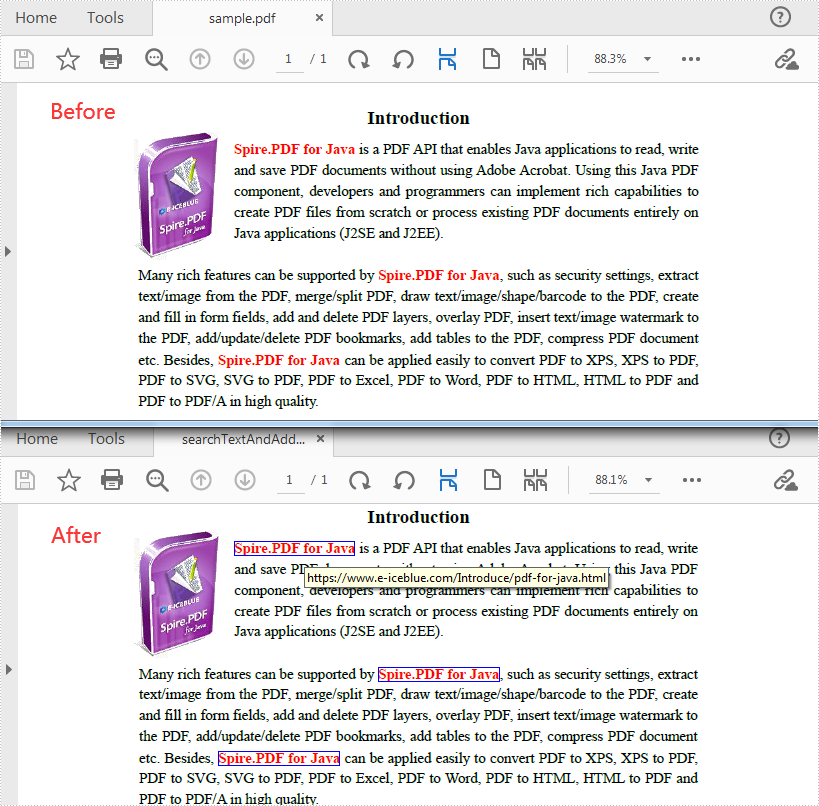
A hyperlink refers to an icon, graphic, or text that links to another file or object. It is one of the most commonly used features for manipulating documents. Spire.PDF for Java supports creating a new PDF document and adding various hyperlinks to it, including ordinary links, hypertext links, email links and document links. This article will show you how to add hyperlinks to specific text in an existing PDF.
Install Spire.PDF for Java
First of all, you need to add the Spire.Pdf.jar file as a dependency in your Java program. The JAR file can be downloaded from this link. If you use Maven, you can easily import the JAR file by adding the following code to your project's pom.xml file.
<repositories>
    <repository>
        <id>com.e-iceblue</id>
        <name>e-iceblue</name>
        <url>https://repo.e-iceblue.com/nexus/content/groups/public/</url>
    </repository>
</repositories>
<dependencies>
    <dependency>
        <groupId>e-iceblue</groupId>
        <artifactId>spire.pdf</artifactId>
        <version>11.11.11</version>
    </dependency>
</dependencies>
Find Text and Add Hyperlinks for Them in PDF
With Spire PDF for Java, you can find all matched text in a specific PDF page and add hyperlinks to them. Here are the detailed steps to follow.
- Create a PdfDocument instance and load a sample PDF document using PdfDocument.loadFromFile()method.
- Get a specific page of the document using PdfDocument.getPages().get() method.
- Find all matched text in the page using PdfPageBase.findText(String searchPatternText, boolean isSearchWholeWord) method, and return a PdfTextFindCollection object.
- Create a PdfUriAnnotation instance based on the bounds of a specific find result.
- Set a URL address for the annotation using PdfUriAnnotation.set(String value) method and set its border and color as well.
- Add the URL annotation to the PDF annotation collection as a new annotation using PdfPageBase.getAnnotationWidget().add() method.
- Save the document using PdfDocument.saveToFile() method.
- Java
import com.spire.pdf.*;
import com.spire.pdf.annotations.*;
import com.spire.pdf.general.find.*;
import com.spire.pdf.graphics.PdfRGBColor;
import java.awt.*;

public class SearchTextAndAddHyperlink {
    public static void main(String[] args) {
        //Create a PdfDocument instance
        PdfDocument pdf = new PdfDocument();

        //Load a sample PDF document
        pdf.loadFromFile("C:\\Users\\Test1\\Desktop\\sample.pdf");

        //Get the first page
        PdfPageBase page = pdf.getPages().get(0);

        // Find all matched strings and return a PdfTextFindCollection oject
        PdfTextFindCollection collection = page.findText("Spire.PDF for Java", false);

        //loop through the find collection
        for(PdfTextFind find : collection.getFinds())
        {
            // Create a PdfUriAnnotation instance to add hyperlinks for the searched text
            PdfUriAnnotation uri = new PdfUriAnnotation(find.getBounds());
            uri.setUri("https://www.e-iceblue.com/Introduce/pdf-for-java.html");
            uri.setBorder(new PdfAnnotationBorder(1f));
            uri.setColor(new PdfRGBColor(Color.blue));
            page.getAnnotationsWidget().add(uri);
        }

        //Save the document
        pdf.saveToFile("output/searchTextAndAddHyperlink.pdf");
    }
}
Apply for a Temporary License
If you'd like to remove the evaluation message from the generated documents, or to get rid of the function limitations, please request a 30-day trial license for yourself.
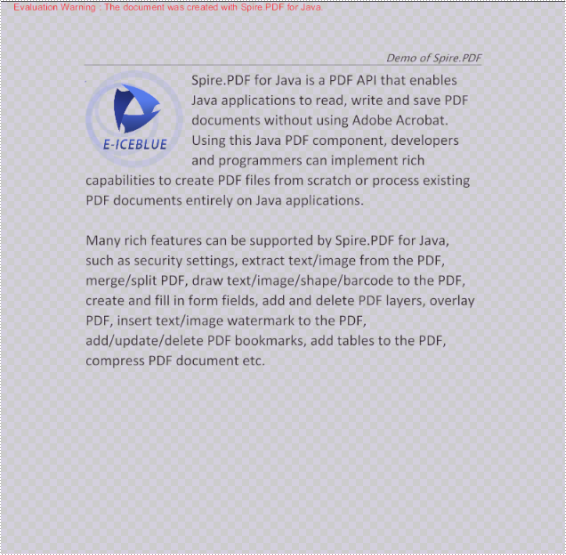
Spire.PDF for Java offers PdfDocument.saveAsImage() method to convert PDF document to image. From Version 4.11.1, Spire.PDF for Java supports to set the transparent value for the background of the resulted images during PDF to image conversion. This article will show you how to convert PDF to images with transparent background in Java applications.
Install Spire.PDF for Java
First of all, you need to add the Spire.PDF.jar file as a dependency in your Java program. The JAR file can be downloaded from this link. If you use Maven, you can easily import the JAR file by adding the following code to your project's pom.xml file.
<repositories>
    <repository>
        <id>com.e-iceblue</id>
        <name>e-iceblue</name>
        <url>https://repo.e-iceblue.com/nexus/content/groups/public/</url>
    </repository>
</repositories>
<dependencies>
    <dependency>
        <groupId>e-iceblue</groupId>
        <artifactId>spire.pdf</artifactId>
        <version>11.11.11</version>
    </dependency>
</dependencies>
Convert PDF to Images with Transparent Background
- Create an object of PdfDocument class.
- Load a sample PDF document using PdfDocument.loadFromFile() method.
- Specify the transparent value for the background of the resulted images using PdfDocument.getConvertOptions().setPdfToImageOptions() method.
- Save the document to images using PdfDocument.saveAsImage() method.
- Java
import com.spire.pdf.*;

import javax.imageio.ImageIO;
import java.awt.image.BufferedImage;
import java.io.File;


public class PdftoImage {
    public static void main(String[] args) throws Exception {

        //Create an object of PdfDocument class.
        PdfDocument pdf = new PdfDocument();

        //Load the sample PDF document
        pdf.loadFromFile("Sample.pdf");

        //Specify the background transparent value as 0 during PDF to image conversion.
        pdf.getConvertOptions().setPdfToImageOptions(0);

        //Save PDF to .png image
        BufferedImage image = pdf.saveAsImage(0);
        File file = new File( String.format("ToImage.png"));
        ImageIO.write(image, "PNG", file);
    }
}
Apply for a Temporary License
If you'd like to remove the evaluation message from the generated documents, or to get rid of the function limitations, please request a 30-day trial license for yourself.
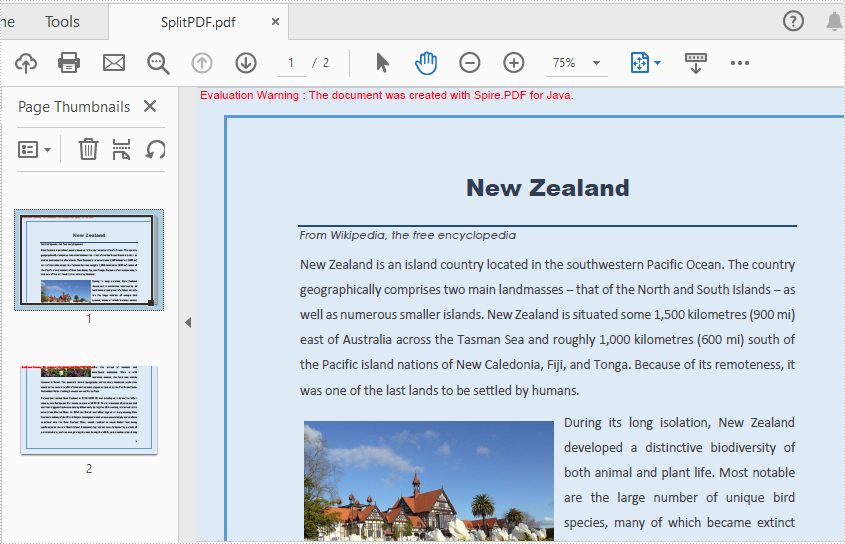
Spire.PDF for java offers PdfDocument.split() method to split one PDF document to multiple files by pages. In this article, we will demonstrate how to horizontally or vertically split a single PDF page into multiple pages in Java by using Spire.PDF for Java.
Install Spire.PDF for Java
First of all, you need to add the Spire.PDF.jar file as a dependency in your Java program. The JAR file can be downloaded from this link. If you use Maven, you can easily import the JAR file by adding the following code to your project's pom.xml file.
<repositories>
    <repository>
        <id>com.e-iceblue</id>
        <name>e-iceblue</name>
        <url>https://repo.e-iceblue.com/nexus/content/groups/public/</url>
    </repository>
</repositories>
<dependencies>
    <dependency>
        <groupId>e-iceblue</groupId>
        <artifactId>spire.pdf</artifactId>
        <version>11.11.11</version>
    </dependency>
</dependencies>
Split a PDF Page into multiple Pages
Spire.PDF for Java offers PdfPageBase.createTemplate().draw() method to draw the content of a source page on a new PDF page. Splitting a page into multiple pages actually means that the content of the source page will be drew on multiple smaller pages. The following are the main steps to split the first page into two pages:
- Create an object of PdfDocument class and load a sample PDF document using PdfDocument.loadFromFile() method.
- Get the desired page of PDF using PdfDocument.getPages().get() method.
- Create a new PDF document and set the page margins to 0.
- Set the page size of the new PDF to half or a fraction of that of the original.
- Add a new page to the new PDF document using PdfDocument.getPages().add() method.
- Draw content of source page on the new page using PdfPageBase.createTemplate().draw() method.
- Save the document to another file using PdfDocument.saveToFile() method.
- Java
import com.spire.pdf.*;
import com.spire.pdf.graphics.*;
import java.awt.geom.Point2D;

public class SplitPDF {
    public static void main(String[] args) throws Exception {

        //Create an object of PdfDocument class.
        PdfDocument pdf = new PdfDocument();

        //Load the sample PDF document
        pdf.loadFromFile("Sample.pdf");

        //Get the first page of PDF
        PdfPageBase page = pdf.getPages().get(0);

        //Create a new PDF document and remove page margins
        PdfDocument newPdf = new PdfDocument();
        newPdf.getPageSettings().getMargins().setAll(0);

        //Horizontally Split
        newPdf.getPageSettings().setWidth((float) page.getSize().getWidth());
        newPdf.getPageSettings().setHeight((float) page.getSize().getHeight()/2);

        ////Vertically Split
        //newPdf.getPageSettings().setWidth((float) page.getSize().getWidth()/2);
        //newPdf.getPageSettings().setHeight((float) page.getSize().getHeight());

        // Add a new page to the new PDF document
        PdfPageBase newPage = newPdf.getPages().add();

        //Set the PdfLayoutType to Paginate to make the content paginated automatically
        PdfTextLayout layout = new PdfTextLayout();
        layout.setBreak(PdfLayoutBreakType.Fit_Page);
        layout.setLayout(PdfLayoutType.Paginate);

        //Draw the content of source page in the new page
        page.createTemplate().draw(newPage, new Point2D.Float(0, 0), layout);

        //Save the Pdf document
        newPdf.saveToFile("SplitPDF.pdf");
        newPdf.close();

    }
}
Apply for a Temporary License
If you'd like to remove the evaluation message from the generated documents, or to get rid of the function limitations, please request a 30-day trial license for yourself.
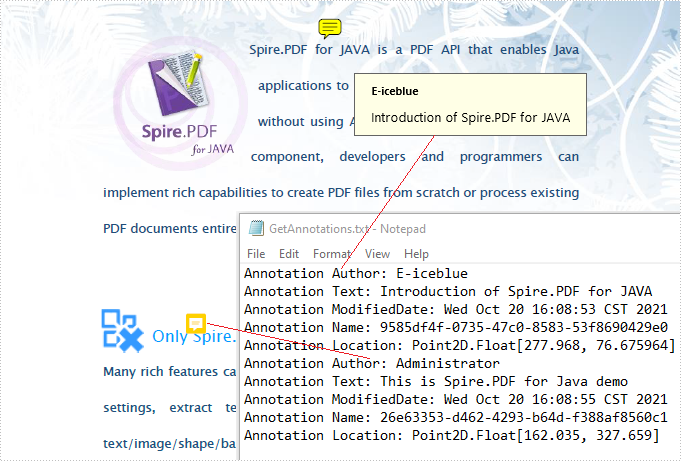
PDF Annotations are additional objects added to a PDF document. Sometimes you may need to extract these additional data from the PDF file so as to learn about the annotation details without opening the document. In this article, we will describe how to get the annotations from PDF in Java using Spire.PDF for Java.
Install Spire.PDF for Java
First of all, you need to add the Spire.PDF.jar file as a dependency in your Java program. The JAR file can be downloaded from this link. If you use Maven, you can easily import the JAR file by adding the following code to your project's pom.xml file.
<repositories>
    <repository>
        <id>com.e-iceblue</id>
        <name>e-iceblue</name>
        <url>https://repo.e-iceblue.com/nexus/content/groups/public/</url>
    </repository>
</repositories>
<dependencies>
    <dependency>
        <groupId>e-iceblue</groupId>
        <artifactId>spire.pdf</artifactId>
        <version>11.11.11</version>
    </dependency>
</dependencies>
Get Annotations from a PDF File
Spire.PDF for Java offers PdfPageBase.getAnnotationsWidget() method to get the annotation collection of the specified page of the document.
The following are the steps to get all the annotations from the first page of PDF file:
- Create an object of PdfDocument class.
- Load a sample PDF document using PdfDocument.loadFromFile() method.
- Create a StringBuilder object.
- Get the annotation collection of the first page of the document by using PdfPageBase.getAnnotationsWidget() method.
- Loop through the pop-up annotations, after extract data from each annotation using PdfAnnotation.getText()method, then append the data to the StringBuilder instance using StringBuilder.append() method.
- Write the extracted data to a txt document using Writer.write() method.
- Java
import com.spire.pdf.*;
import com.spire.pdf.annotations.*;

import java.io.FileWriter;

public class Test {
    public static void main(String[] args) throws Exception {
        //Create an object of PdfDocument class.
        PdfDocument pdf = new PdfDocument();
        //Load the sample PDF document
        pdf.loadFromFile("Annotations.pdf");

        //Get the annotation collection of the first page of the document.
        PdfAnnotationCollection annotations = pdf.getPages().get(0).getAnnotationsWidget();

        //Create a StringBuilder object
        StringBuilder content = new StringBuilder();

        //Traverse all the annotations
        for (int i = 0; i < annotations.getCount(); i++) {

            //If it is the pop-up annotations, continue
              if (annotations.get(i) instanceof PdfPopupAnnotationWidget)
              continue;

                //Get the annotations’ author
                content.append("Annotation Author: " + annotations.get(i).getAuthor()+"\n");

                //Get the annotations’ text
                content.append("Annotation Text: " + annotations.get(i).getText()+"\n");

                //Get the annotations’ modified date
                String modifiedDate = annotations.get(i).getModifiedDate().toString();
                content.append("Annotation ModifiedDate: " + modifiedDate+"\n");

                //Get the annotations’ name
                content.append("Annotation Name: " + annotations.get(i).getName()+"\n");

                //Get the annotations’ location
                content.append ("Annotation Location: " + annotations.get(i).getLocation()+"\n");
                }

        //Write to a .txt file
        FileWriter fw = new FileWriter("GetAnnotations.txt");
        fw.write(content.toString());
        fw.flush();
        fw.close();
        }
    }
Apply for a Temporary License
If you'd like to remove the evaluation message from the generated documents, or to get rid of the function limitations, please request a 30-day trial license for yourself.
Table is one of the most commonly used formatting elements in PDF. In some cases, you may need to extract data from PDF tables to perform further analysis. In this article, you will learn how to achieve this task programmatically in Java using Spire.PDF for Java.
Install Spire.PDF for Java
First of all, you're required to add the Spire.PDF.jar file as a dependency in your Java program. The JAR file can be downloaded from this link. If you use Maven, you can easily import the JAR file in your application by adding the following code to your project's pom.xml file.
<repositories>
    <repository>
        <id>com.e-iceblue</id>
        <name>e-iceblue</name>
        <url>https://repo.e-iceblue.com/nexus/content/groups/public/</url>
    </repository>
</repositories>
<dependencies>
    <dependency>
        <groupId>e-iceblue</groupId>
        <artifactId>spire.pdf</artifactId>
        <version>11.11.11</version>
    </dependency>
</dependencies>
Extract Table Data from PDF Document
Spire.PDF for Java uses the PdfTableExtractor.extractTable(int pageIndex) method to detect and extract tables from a desired PDF page.
The following are the steps to extract table data from a PDF file:
- Load a sample PDF document using PdfDocument class.
- Create a StringBuilder instance and a PdfTableExtractor instance.
- Loop through the pages in the PDF, extract tables from each page into a PdfTable array using PdfTableExtractor.extractTable(int pageIndex) method.
- Loop through the tables in the array.
- Loop through the rows and columns in each table, after that extract data from each table cell using PdfTable.getText(int rowIndex, int columnIndex) method, then append the data to the StringBuilder instance using StringBuilder.append() method.
- Write the extracted data to a txt document using Writer.write() method.
- Java
import com.spire.pdf.PdfDocument;
import com.spire.pdf.utilities.PdfTable;
import com.spire.pdf.utilities.PdfTableExtractor;

import java.io.FileWriter;

public class ExtractTableData {
    public static void main(String []args) throws Exception {

        //Load a sample PDF document
        PdfDocument pdf = new PdfDocument("Sample.pdf");

        //Create a StringBuilder instance
        StringBuilder builder = new StringBuilder();
        //Create a PdfTableExtractor instance
        PdfTableExtractor extractor = new PdfTableExtractor(pdf);

        //Loop through the pages in the PDF
        for (int pageIndex = 0; pageIndex < pdf.getPages().getCount(); pageIndex++) {
            //Extract tables from the current page into a PdfTable array
            PdfTable[] tableLists = extractor.extractTable(pageIndex);

            //If any tables are found
            if (tableLists != null && tableLists.length > 0) {
                //Loop through the tables in the array
                for (PdfTable table : tableLists) {
                    //Loop through the rows in the current table
                    for (int i = 0; i < table.getRowCount(); i++) {
                        //Loop through the columns in the current table
                        for (int j = 0; j < table.getColumnCount(); j++) {
                            //Extract data from the current table cell and append to the StringBuilder
                            String text = table.getText(i, j);
                            builder.append(text + " | ");
                        }
                        builder.append("\r\n");
                    }
                }
            }
        }

        //Write data into a .txt document
        FileWriter fw = new FileWriter("ExtractTable.txt");
        fw.write(builder.toString());
        fw.flush();
        fw.close();
    }
}
The input PDF:

The output .txt document with extracted table data:

Apply for a Temporary License
If you'd like to remove the evaluation message from the generated documents, or to get rid of the function limitations, please request a 30-day trial license for yourself.
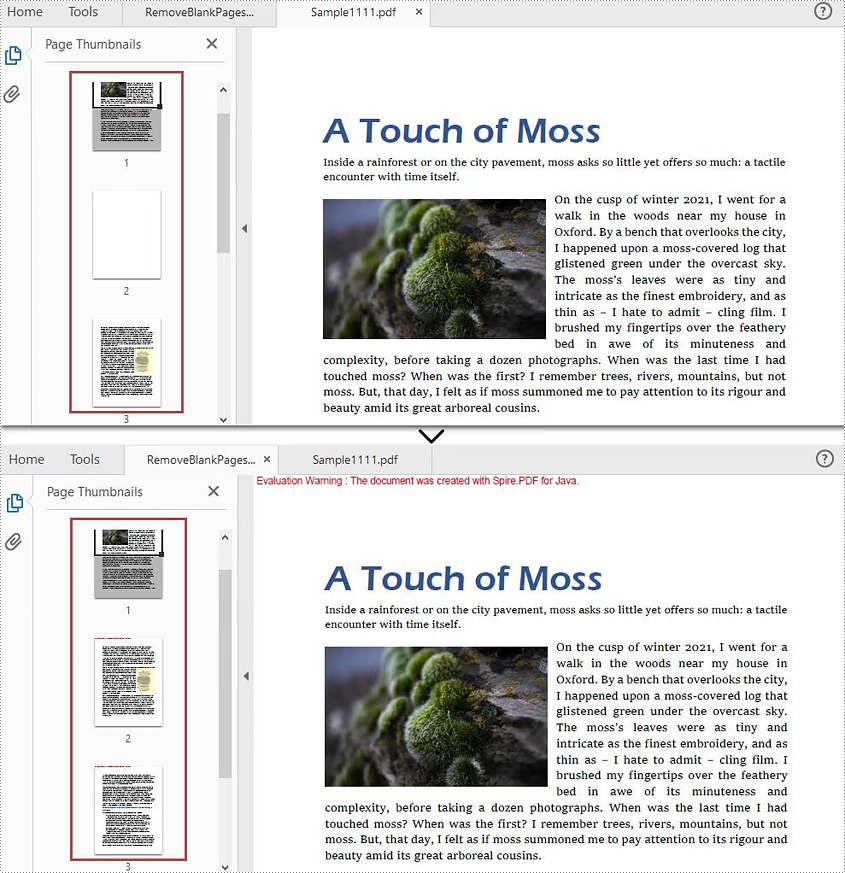
If you are going to print or share a PDF document, it’s better to check if there are blank pages in the document, because they will lead to a waste of paper and a less professional look for your document. However, it will take much time to look through every page to find the empty pages and then delete them. A better way to deal with this problem is to use Spire.PDF for Java. In this article, you will learn how to use Spire.PDF for Java to find and remove blank pages from PDF document easily by programming.
Install Spire.PDF for Java
First, you're required to add the Spire.Pdf.jar file as a dependency in your Java program. The JAR file can be downloaded from this link. If you use Maven, you can easily import the JAR file in your application by adding the following code to your project's pom.xml file.
<repositories>
    <repository>
        <id>com.e-iceblue</id>
        <name>e-iceblue</name>
        <url>https://repo.e-iceblue.com/nexus/content/groups/public/</url>
    </repository>
</repositories>
<dependencies>
    <dependency>
        <groupId>e-iceblue</groupId>
        <artifactId>spire.pdf</artifactId>
        <version>11.11.11</version>
    </dependency>
</dependencies>
Find and Delete Blank Pages from a PDF Document
Spire.PDF for Java provides a method PdfPageBase.isBlank() to detect if a PDF page is absolutely blank. But some pages that look blank actually contain white images, these pages won't be deemed as blank using the PdfPageBase.isBlank() method. Therefore, it is necessary create a custom method isBlankImage() to be used in conjunction with PdfPageBase.isBlank() method to detect blank and white but non-blank pages.
Note: This solution will convert PDF pages into images and detect if an image is blank. It is necessary to apply a license to remove the evaluation message in the converted images. Otherwise, this method won't work properly. If you do not have a license, contact sales@e-iceblue.com for a temporary one for evaluation purpose.
The detailed steps are as follows:
- Create an object of PdfDocument class.
- Load a PDF document using PdfDocument.loadFromFile() method.
- Loop through the pages in the PDF document to detect if the pages are blank using PdfPageBase.isBlank() method.
- For absolutely blank pages, delete them using PdfDocument.getPages().remove() method.
- For pages that are not absolutely blank, save them as images using PdfDocument.saveAsImage() method, detect if the converted images are blank using custom method isBlankImage() and then remove the pages that are “balnk” using PdfDocument.getPages().remove().
- Save the result document using PdfDocument.saveToFile() method.
- Java
import com.spire.pdf.PdfDocument;
import com.spire.pdf.PdfPageBase;
import com.spire.pdf.graphics.PdfImageType;

import java.awt.*;
import java.awt.image.BufferedImage;

public class removeBlankPages {
    public static void main(String []args){

        //Create a PdfDocument class instance
        PdfDocument pdf = new PdfDocument();

        //Load a PDF document
        pdf.loadFromFile("C:/Sample.pdf");

        BufferedImage image;
        //Loop through pages in the PDF
        for(int i = pdf.getPages().getCount()-1; i>=0; i--)
        {
            PdfPageBase page = pdf.getPages().get(i);
            //Detect if a page is blank
            if(page.isBlank())
            {
                //Remove the absolutely blank page
                pdf.getPages().remove(page);
            }
            else
            {
                //Save PDF page as image
                image = pdf.saveAsImage(i, PdfImageType.Bitmap);

                //Detect if the converted image is blank
                if (isBlankImage(image))
                {
                    //Remove the page
                    pdf.getPages().remove(page);
                }
            }

        }

        //Save the result document
        pdf.saveToFile("RemoveBlankPages.pdf");
    }
    //Detect if an image is blank
    public static boolean isBlankImage(BufferedImage image)
    {
        BufferedImage bufferedImage = image;

        Color pixel;
        for (int i = 0; i < bufferedImage.getWidth(); i++)
        {
            for (int j = 0; j < bufferedImage.getHeight(); j++)
            {
                pixel = new Color(bufferedImage.getRGB(i, j));
                if (pixel.getRed() < 240 || pixel.getGreen() < 240 || pixel.getBlue() < 240)
                {
                    return false;
                }
            }
        }
        return true;
    }
}
Apply for a Temporary License
If you'd like to remove the evaluation message from the generated documents, or to get rid of the function limitations, please request a 30-day trial license for yourself.
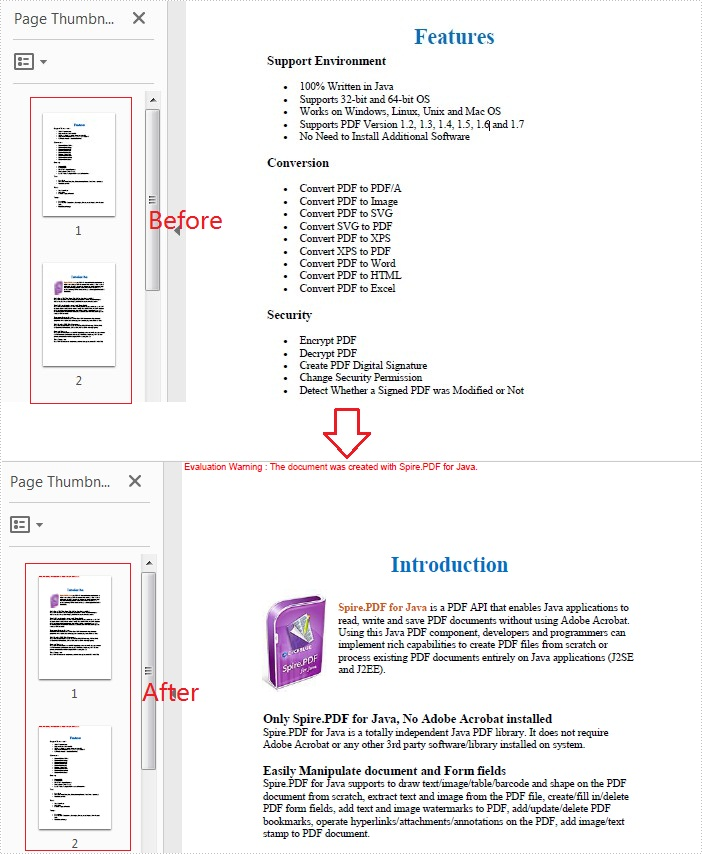
When you receive a PDF file with pages out of order, you may need to change the page order for a better viewing experience. In this article, you will learn how to programmatically rearrange pages in a PDF file using Spire.PDF for Java.
Install Spire.PDF for Java
First of all, you're required to add the Spire.PDF.jar file as a dependency in your Java program. The JAR file can be downloaded from this link. If you use Maven, you can easily import the JAR file in your application by adding the following code to your project's pom.xml file.
<repositories>
    <repository>
        <id>com.e-iceblue</id>
        <name>e-iceblue</name>
        <url>https://repo.e-iceblue.com/nexus/content/groups/public/</url>
    </repository>
</repositories>
<dependencies>
    <dependency>
        <groupId>e-iceblue</groupId>
        <artifactId>spire.pdf</artifactId>
        <version>11.11.11</version>
    </dependency>
</dependencies>
Rearrange Pages in PDF
The PdfDocument.getPages().reArrange() method offered by Spire.PDF for Java allows you to change the PDF page order quickly and effortlessly. The detailed steps are as follows.
- Create a PdfDocument object.
- Load a sample PDF file using PdfDocument.loadFromFile() method.
- Rearrange the pages using PdfDocument.getPages().reArrange() method.
- Save the document to another file using PdfDocument.saveToFile() method.
- Java
import com.spire.pdf.PdfDocument;

public class RearrangePages {

    public static void main(String[] args) {

        //Create a PdfDocument object
        PdfDocument doc = new PdfDocument();

        //Load a sample PDF file
        doc.loadFromFile("input.pdf");

        //Rearrange pages by setting a new page order
        doc.getPages().reArrange(new int[]{0, 2, 1, 3});

        //Save the document to another file
        doc.saveToFile("ChangeOrder.pdf");
        doc.close();
    }
}
Apply for a Temporary License
If you'd like to remove the evaluation message from the generated documents, or to get rid of the function limitations, please request a 30-day trial license for yourself.
