Program Guide (123)
Children categories
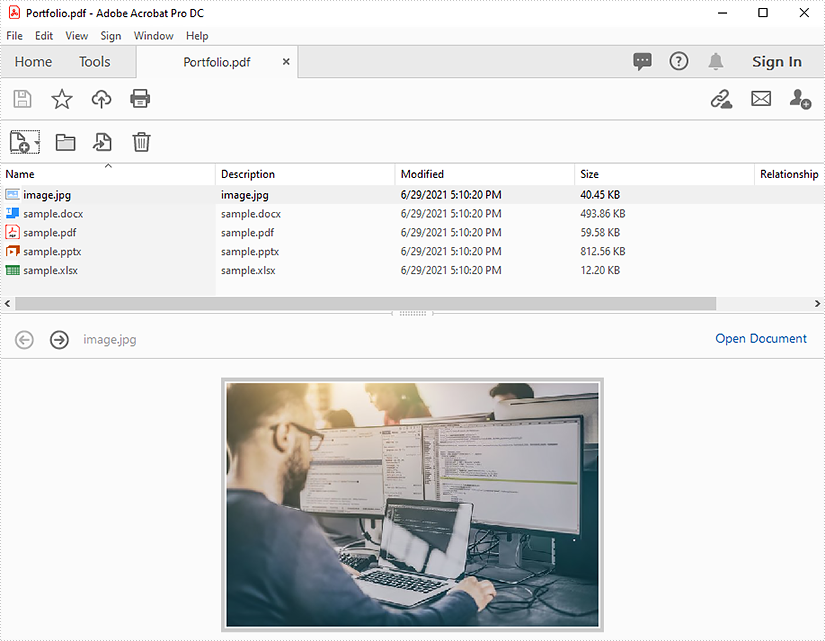
This article demonstrates how to extract files from a PDF portfolio in Java using Spire.PDF for Java.
The input PDF:
import com.spire.pdf.PdfDocument;
import com.spire.pdf.attachments.PdfAttachment;

import java.io.*;

public class ReadPortfolio {
    public static void main(String []args) throws IOException {
        //Create a PdfDocument instance
        PdfDocument pdf = new PdfDocument();
        //Load the PDF file
        pdf.loadFromFile("Portfolio.pdf");

        //Loop through the attachments in the file
        for(PdfAttachment attachment : (Iterable)pdf.getAttachments()){
            //Extract files
            String fileName = attachment.getFileName();
            OutputStream fos = new FileOutputStream("extract/" + fileName);
            fos.write(attachment.getData());
        }
        pdf.dispose();
    }
}
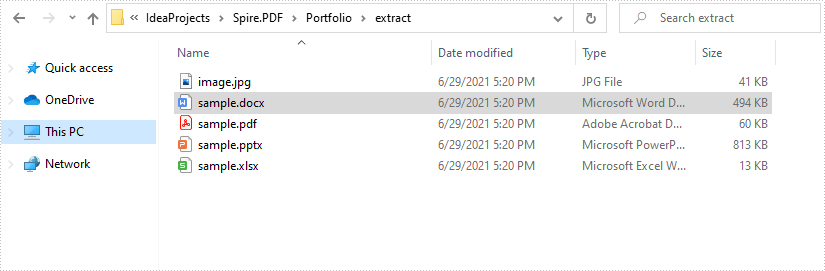
Output:
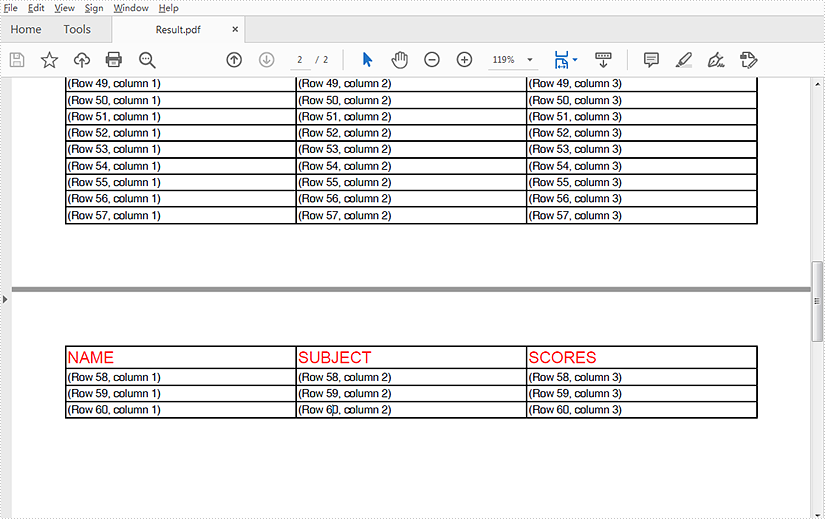
This article demonstrates how to repeat table header rows across pages in PDF using Spire.PDF for Java.
import com.spire.pdf.*;
import com.spire.pdf.graphics.*;
import com.spire.pdf.grid.PdfGrid;
import com.spire.pdf.grid.PdfGridRow;

import java.awt.*;

public class RepeatTableHeaderRow {
    public static void main(String[] args) {
        //Create a new PDF document
        PdfDocument pdf = new PdfDocument();

        //Add a page
        PdfPageBase page = pdf.getPages().add();

        //Instantiate a PdfGrid class object
        PdfGrid grid = new PdfGrid();

        //Set cell padding
        grid.getStyle().setCellPadding(new PdfPaddings(1,1,1,1));

        //Add columns
        grid.getColumns().add(3);

        //Add header rows and table data
        PdfGridRow[] pdfGridRows = grid.getHeaders().add(1);
        for (int i = 0; i < pdfGridRows.length; i++)
        {
            pdfGridRows[i].getStyle().setFont(new PdfTrueTypeFont(new Font("Arial", Font.PLAIN,12), true));//Designate a font
            pdfGridRows[i].getCells().get(0).setValue("NAME");
            pdfGridRows[i].getCells().get(1).setValue("SUBJECT");
            pdfGridRows[i].getCells().get(2).setValue("SCORES");
            pdfGridRows[i].getStyle().setTextBrush(PdfBrushes.getRed());
        }

        //Repeat header rows (when across pages)
        grid.setRepeatHeader(true);

        //Add values to the table
        for (int i = 0; i < 60; i++)
        {
            PdfGridRow row = grid.getRows().add();
            for (int j = 0; j < grid.getColumns().getCount();j++)
            {
                row.getCells().get(j).setValue("(Row " + (i+1) + ", column " + (j+1) + ")");
            }
        }

        // Draw a table in PDF
        grid.draw(page,0,40);

        //Save the document
        pdf.saveToFile("Result.pdf");
        pdf.dispose();
    }
}
Output
A PDF portfolio allows multiple files to be assembled into a single interactive PDF container. The files in a PDF portfolio can be text documents, spreadsheets, presentations, images, videos, audio files, and more. By creating PDF portfolios, you can consolidate all of the relevant materials for a project into one unified package, making it easier to manage and distribute files. This article will demonstrate how to programmatically create a PDF portfolio and add files and folders to it using Spire.PDF for Java.
Install Spire.PDF for Java
First of all, you're required to add the Spire.Pdf.jar file as a dependency in your Java program. The JAR file can be downloaded from this link. If you use Maven, you can easily import the JAR file in your application by adding the following code to your project's pom.xml file.
<repositories>
    <repository>
        <id>com.e-iceblue</id>
        <name>e-iceblue</name>
        <url>https://repo.e-iceblue.com/nexus/content/groups/public/</url>
    </repository>
</repositories>
<dependencies>
    <dependency>
        <groupId>e-iceblue</groupId>
        <artifactId>spire.pdf</artifactId>
        <version>11.11.11</version>
    </dependency>
</dependencies>
Create a PDF Portfolio and Add Files to It in Java
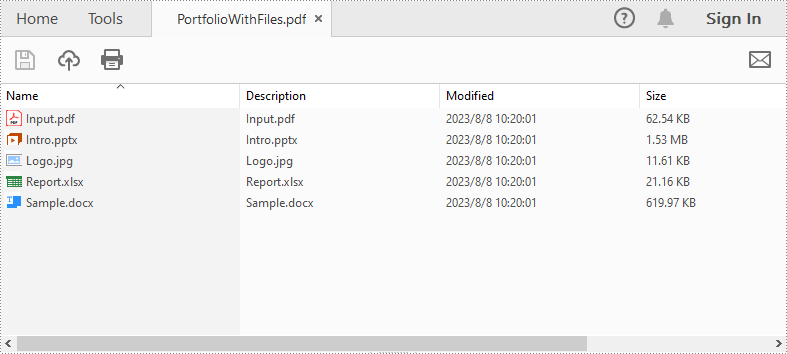
As a PDF portfolio is a collection of files, Spire.PDF for Java allows you to create it easily using the PdfDocument.getCollection() method. Then you can add files to the PDF portfolio using the PdfCollection.addFile() method. The detailed steps are as follows:
- Specify the files that need to be added to the PDF portfolio.
- Create a PdfDocument instance.
- Create a PDF portfolio and add files to it using PdfDocument.getCollection().addFile() method.
- Save the result file using PdfDocument.saveToFile() method.
- Java
import com.spire.pdf.FileFormat;
import com.spire.pdf.PdfDocument;

public class CreatePortfolioWithFiles {
    public static void main(String []args){

        // Specify the files
        String[] files = new String[] { "Input.pdf", "Sample.docx", "Report.xlsx","Intro.pptx","Logo.jpg" };

        //Create a PdfDocument instance
        PdfDocument pdf = new PdfDocument();

        //Create a PDF Portfolio and add files to it
        for (int i = 0; i < files.length; i++)
        {
            pdf.getCollection().addFile(files[i]);
        }

        //Save the result file
        pdf.saveToFile("PortfolioWithFiles.pdf", FileFormat.PDF);
        pdf.dispose();
    }
}
Create a PDF Portfolio and Add Folders to It in Java
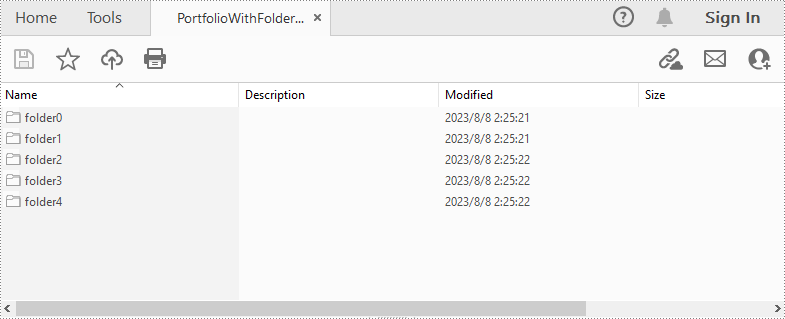
After creating a PDF portfolio, Spire.PDF for Java also allows you to create folders within the PDF portfolio to further manage the files. The detailed steps are as follows:
- Specify the files that need to be added to the PDF portfolio.
- Create PdfDocument instance.
- Create a PDF portfolio using PdfDocument.getCollection() method.
- Add folders to the PDF portfolio using PdfCollection.getFolders().createSubfolder() method, and then add files to the folders using PdfFolder.addFile() method.
- Save the result file using PdfDocument.saveToFile() method.
- Java
import com.spire.pdf.FileFormat;
import com.spire.pdf.PdfDocument;
import com.spire.pdf.collections.PdfFolder;

public class CreatePortfolioWithFolders {
    public static void main(String []args){

        // Specify the files
        String[] files = new String[] { "Input.pdf", "Sample.docx", "Report.xlsx","Intro.pptx","Logo.jpg" };

        //Create a PdfDocument instance
        PdfDocument pdf = new PdfDocument();

        //Create a portfolio and add folders to it
        for (int i = 0; i < files.length; i++)
        {
            PdfFolder folder = pdf.getCollection().getFolders().createSubfolder("folder" + i);

            //Add files to the folders
            folder.addFile(files[i]);
        }

        //Save the result file
        pdf.saveToFile("PortfolioWithFolders.pdf", FileFormat.PDF);
        pdf.dispose();
    }
}
Apply for a Temporary License
If you'd like to remove the evaluation message from the generated documents, or to get rid of the function limitations, please request a 30-day trial license for yourself.
We have demonstrated how to use Spire.PDF for java to convert PDF to image. This article will show you how to convert image to PDF in Java applications.
import com.spire.pdf.*;
import com.spire.pdf.graphics.PdfImage;

public class imageToPDF {
    public static void main(String[] args) throws Exception {

        //Create a PDF document
        PdfDocument pdf = new PdfDocument();
        //Add a new page
        PdfPageBase page = pdf.getPages().add();

        //Load the image
        PdfImage image = PdfImage.fromFile("logo.jpg");

        double widthFitRate = image.getPhysicalDimension().getWidth() / page.getCanvas().getClientSize().getWidth();
        double heightFitRate = image.getPhysicalDimension().getHeight() / page.getCanvas().getClientSize().getHeight();
        double fitRate = Math.max(widthFitRate, heightFitRate);

        //get the picture width and height
        double fitWidth = image.getPhysicalDimension().getWidth() / fitRate;
        double fitHeight = image.getPhysicalDimension().getHeight() / fitRate;

        //Draw image
        page.getCanvas().drawImage(image, 0, 30, fitWidth, fitHeight);

        // Save document to file
        pdf.saveToFile("output/ToPDF.pdf");
        pdf.close();

    }
}
Output:

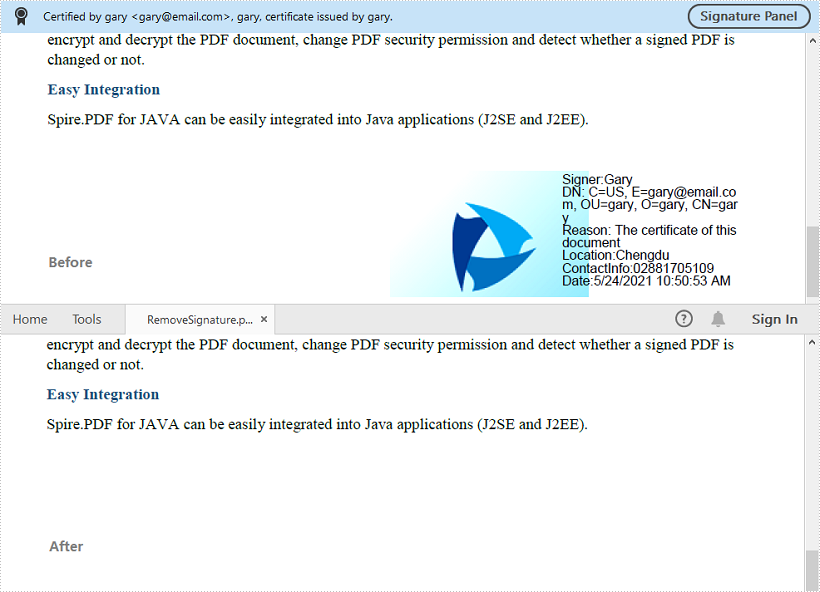
This article shows you how to remove digital signatures from a PDF document using Spire.PDF for Java.
import com.spire.pdf.PdfDocument;
import com.spire.pdf.widget.PdfFieldWidget;
import com.spire.pdf.widget.PdfFormWidget;
import com.spire.pdf.widget.PdfSignatureFieldWidget;

public class RemoveSignature {

    public static void main(String[] args) {

        //Create a PdfDocument object
        PdfDocument pdf = new PdfDocument();

        //Load the sample PDF document
        pdf.loadFromFile("C:\\Users\\Administrator\\Desktop\\Signature.pdf");

        //Get form widgets collection from the document
        PdfFormWidget widgets = (PdfFormWidget) pdf.getForm();

        //Loop through the widgets collection
        for (int i = 0; i < widgets.getFieldsWidget().getList().size(); i++)
        {
            //Get the specific widget
            PdfFieldWidget widget = (PdfFieldWidget)widgets.getFieldsWidget().getList().get(i);

            //Check if the widget is a PdfSignatureFieldWidget
            if (widget instanceof PdfSignatureFieldWidget)
            {
                //Remove the signature widget
                widgets.getFieldsWidget().remove(widget);;
            }
        }

        //Save to file
        pdf.saveToFile("RemoveSignature.pdf");
    }
}
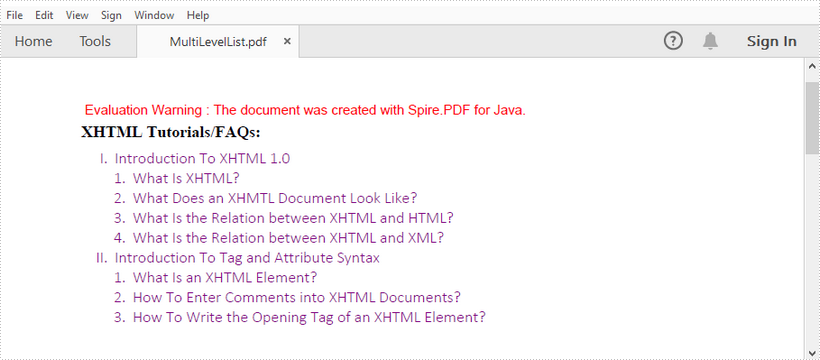
This article shows you how to create a multi-level list in a PDF document using Spire.PDF for Java.
import com.spire.pdf.PdfDocument;
import com.spire.pdf.PdfNumberStyle;
import com.spire.pdf.PdfPageBase;
import com.spire.pdf.PdfPageSize;
import com.spire.pdf.graphics.*;
import com.spire.pdf.lists.PdfListItem;
import com.spire.pdf.lists.PdfOrderedMarker;
import com.spire.pdf.lists.PdfSortedList;

import java.awt.*;
import java.awt.geom.Point2D;

public class CreateMultiLevelList {

    public static void main(String[] args) {

        //Create a PdfDocument object
        PdfDocument doc = new PdfDocument();

        //Set the margin
        PdfMargins margin = new PdfMargins(60, 60, 40, 40);

        //Create one page
        PdfPageBase page = doc.getPages().add(PdfPageSize.A4, margin);

        //Specify the initial coordinate
        float x = 0;
        float y = 15;

        //Create two brushed
        PdfBrush blackBrush = PdfBrushes.getBlack();
        PdfBrush purpleBrush = PdfBrushes.getPurple();

        //Create two fonts
        PdfTrueTypeFont titleFont = new PdfTrueTypeFont(new java.awt.Font("Times New Roman", Font.BOLD, 12));
        PdfTrueTypeFont listFont = new PdfTrueTypeFont(new java.awt.Font("Calibri Light", Font.PLAIN, 12));

        //Draw title
        String title = "XHTML Tutorials/FAQs:";
        page.getCanvas().drawString(title, titleFont, blackBrush, x, y);
        y = y + (float) titleFont.measureString(title).getHeight();
        y = y + 5;

        //Create two ordered makers, which are used to define the number style of sorted list
        PdfOrderedMarker marker1 = new PdfOrderedMarker(PdfNumberStyle.Upper_Roman, listFont);
        PdfOrderedMarker marker2 = new PdfOrderedMarker(PdfNumberStyle.Numeric, listFont);

        //Create a parent list
        String parentListContent = "Introduction To XHTML 1.0\n"
                + "Introduction To Tag and Attribute Syntax";
        PdfSortedList parentList = new PdfSortedList(parentListContent);
        parentList.setFont(listFont);
        parentList.setIndent(8);
        parentList.setBrush(purpleBrush);
        parentList.setMarker(marker1);

        //Create a sub list - "subList_1"
        String subListContent_1 = "What Is XHTML?\n"
                + "What Does an XHMTL Document Look Like?\n"
                + "What Is the Relation between XHTML and HTML?\n"
                + "What Is the Relation between XHTML and XML?";
        PdfSortedList subList_1 = new PdfSortedList(subListContent_1);
        subList_1.setIndent(16);
        subList_1.setFont(listFont);
        subList_1.setBrush(purpleBrush);
        subList_1.setMarker(marker2);

        //Create another sub list -"subList_2"
        String subListContent_2 = "What Is an XHTML Element?\n"
                + "How To Enter Comments into XHTML Documents?\n"
                + "How To Write the Opening Tag of an XHTML Element?";
        PdfSortedList subList_2 = new PdfSortedList(subListContent_2);
        subList_2.setIndent(16);
        subList_2.setFont(listFont);
        subList_2.setBrush(purpleBrush);
        subList_2.setMarker(marker2);

        //Set subList_1 as sub list of the first item of parent list
        PdfListItem item_1 = parentList.getItems().get(0);
        item_1.setSubList(subList_1);

        //Set subList_2 as sub list of the second item of parent list
        PdfListItem item_2 = parentList.getItems().get(1);
        item_2.setSubList(subList_2);

        //Draw parent list
        PdfTextLayout textLayout = new PdfTextLayout();
        textLayout.setBreak(PdfLayoutBreakType.Fit_Page);
        textLayout.setLayout(PdfLayoutType.Paginate);
        parentList.draw(page,new Point2D.Float(x,y),textLayout);

        //Save to file
        doc.saveToFile("MultiLevelList.pdf");
    }
}
Getting the coordinates of text or images in a PDF helps accurately identify elements, making it easier to extract content. This is especially important for data analysis, where specific information needs to be pulled from complicated layouts. Additionally, knowing these coordinates allows users to add notes, marks, or stamps in the right places, improving document interactivity and collaboration by letting them highlight important sections or add comments exactly where they're needed.
In this article, you will learn how to get coordinates of the specified text or image in a PDF document using Java and Spire.PDF for Java library.
Install Spire.PDF for Java
First of all, you're required to add the Spire.Pdf.jar file as a dependency in your Java program. The JAR file can be downloaded from this link. If you use Maven, you can easily import the JAR file in your application by adding the following code to your project's pom.xml file.
<repositories>
    <repository>
        <id>com.e-iceblue</id>
        <name>e-iceblue</name>
        <url>https://repo.e-iceblue.com/nexus/content/groups/public/</url>
    </repository>
</repositories>
<dependencies>
    <dependency>
        <groupId>e-iceblue</groupId>
        <artifactId>spire.pdf</artifactId>
        <version>11.11.11</version>
    </dependency>
</dependencies>
Coordinate System in Spire.PDF
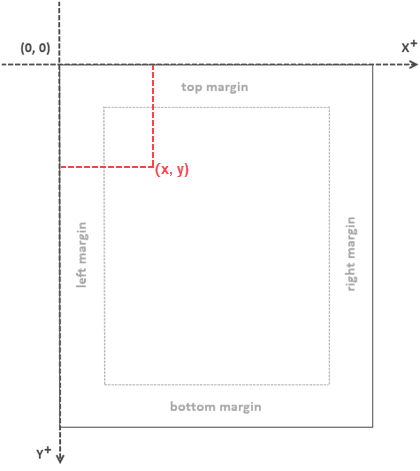
When utilizing Spire.PDF for Java to work with an existing PDF document, it's important to note that the coordinate system's origin is positioned at the top-left corner of the page. The x-axis extends to the right, and the y-axis extends downward, as illustrated below.
Get Coordinates of the Specified Text in PDF
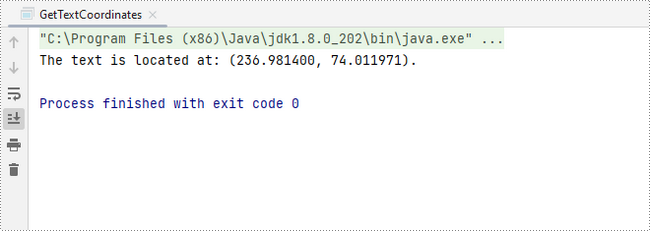
To start, you can use the PdfTextFinder.find() method to search for all occurrences of the specified text on the page, which results in a list of PdfTextFragment. After that, you can retrieve the coordinates of the first occurrence of the text using the PdfTextFragment.getPositions() method.
The steps to get coordinates of the specified text in PDF are as follows:
- Create a PdfDocument object.
- Load a PDF file using PdfDocument.loadFromFile() method.
- Get a specific page using PdfDocument.getPages().get() method.
- Search for all occurrences of the specified text on the page using PdfTextFinder.find() method and return results in a list of PdfTextFragment.
- Access a specific PdfTextFragment in the list, and get the coordinates of the fragment using PdfTextFragment.getPositions() method.
- Java
import com.spire.pdf.PdfDocument;
import com.spire.pdf.PdfPageBase;
import com.spire.pdf.texts.PdfTextFindOptions;
import com.spire.pdf.texts.PdfTextFinder;
import com.spire.pdf.texts.PdfTextFragment;
import com.spire.pdf.texts.TextFindParameter;

import java.awt.geom.Point2D;
import java.util.EnumSet;
import java.util.List;

public class GetTextCoordinates {

    public static void main(String[] args) {

        // Create a PdfDocument object
        PdfDocument doc = new PdfDocument();

        // Load a PDF file
        doc.loadFromFile("C:\\Users\\Administrator\\Desktop\\Input.pdf");

        // Get a specific page
        PdfPageBase page = doc.getPages().get(0);

        // Create a PdfTextFinder object
        PdfTextFinder finder = new PdfTextFinder(page);

        // Set the find options
        PdfTextFindOptions options = new PdfTextFindOptions();
        options.setTextFindParameter(EnumSet.of(TextFindParameter.IgnoreCase));
        finder.setOptions(options);

        // Find all instances of the text
        List fragments = finder.find("Personal Data");

        // Get a specific text fragment
        PdfTextFragment fragment = fragments.get(0);

        // Get the positions of the text (If the text spans multiple lines, there will be more than one position)
        Point2D[] positions = fragment.getPositions();

        // Get its first position
        double x = positions[0].getX();
        double y = positions[0].getY();

        // Print result
        System.out.println(String.format("The text is located at: (%f, %f).",x,y));
    }
}
Get Coordinates of the Specified Image in PDF
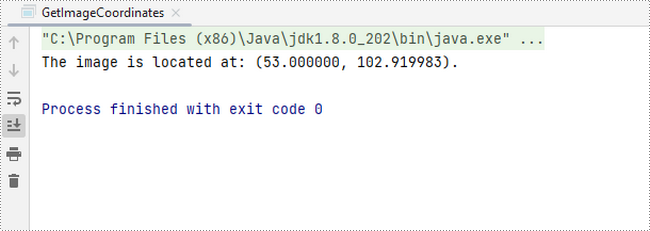
To begin, you can use the PdfImageHelper.getImagesInfo() method to retrieve information about all images on the specified page, storing the results in an array of PdfImageInfo. Next, you can obtain the X and Y coordinates of a specific image using the PdfImageInfo.getBounds().getX() and PdfImageInfo.getBounds().getY() methods.
The steps to get coordinates of the specified image in PDF are as follows:
- Create a PdfDocument object.
- Load a PDF file using PdfDocument.loadFromFile() method.
- Get a specific page using PdfDocument.getPages().get() method.
- Retrieve all the image information on the page using PdfImageHelper.getImagesInfo() method and return results in an array of PdfImageInfo.
- Get X and Y coordinates of a specific image using PdfImageInfo.getBounds().getX() and PdfImageInfo.getBounds().getY() methods
- Java
import com.spire.pdf.PdfDocument;
import com.spire.pdf.PdfPageBase;
import com.spire.pdf.utilities.PdfImageHelper;
import com.spire.pdf.utilities.PdfImageInfo;

public class GetImageCoordinates {

    public static void main(String[] args) {

        // Create a PdfDocument object
        PdfDocument doc = new PdfDocument();

        // Load a PDF file
        doc.loadFromFile("C:\\Users\\Administrator\\Desktop\\Input2.pdf");

        // Get a specific page
        PdfPageBase page = doc.getPages().get(0);

        // Create a PdfImageHelper object
        PdfImageHelper helper = new PdfImageHelper();

        // Get image information from the page
        PdfImageInfo[] imageInfo = helper.getImagesInfo(page);

        // Get X, Y coordinates of the first image
        double x = imageInfo[0].getBounds().getX();
        double y = imageInfo[0].getBounds().getY();

        // Print result
        System.out.println(String.format("The image is located at: (%f, %f).",x,y));
    }
}
Apply for a Temporary License
If you'd like to remove the evaluation message from the generated documents, or to get rid of the function limitations, please request a 30-day trial license for yourself.
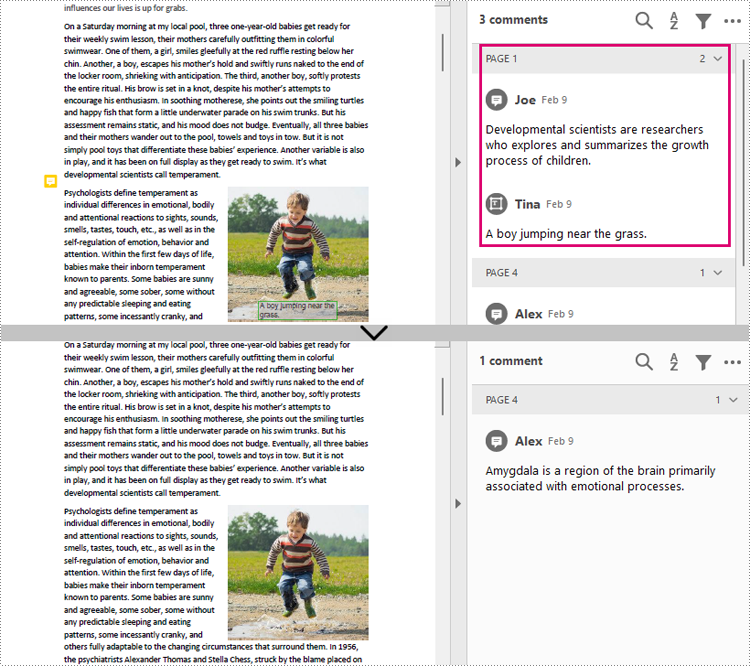
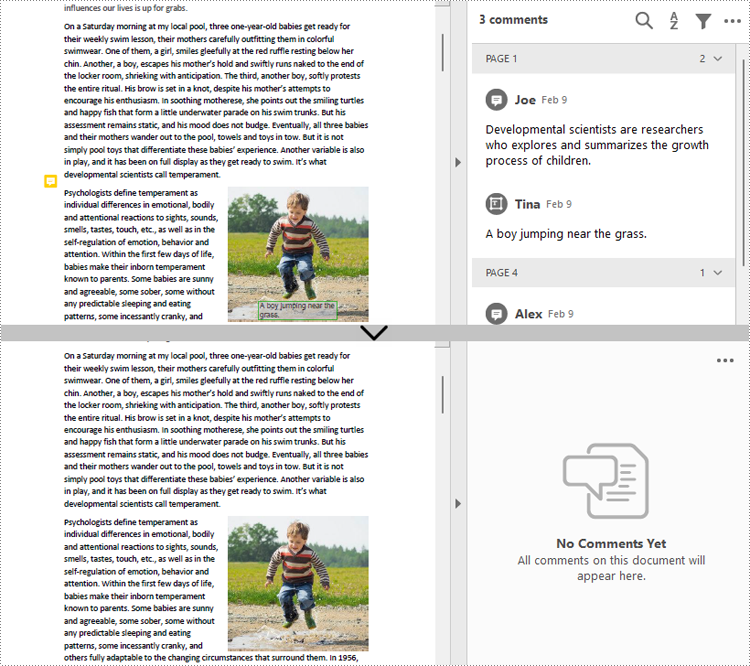
PDF annotations are notes or markers added to documents, which are great for making comments, giving explanations, giving feedback, etc. Co-creators of documents often communicate with annotations. However, when the issues associated with the annotations have been dealt with or the document has been finalized, it is necessary to remove the annotations to make the document more concise and professional. This article shows how to delete PDF annotations programmatically using Spire.PDF for Java.
- Remove the Specified Annotation
- Remove All Annotations from a Page
- Remove All Annotations from a PDF Document
Install Spire.PDF for Java
First of all, you're required to add the Spire.Pdf.jar file as a dependency in your Java program. The JAR file can be downloaded from this link. If you use Maven, you can easily import the JAR file in your application by adding the following code to your project's pom.xml file.
<repositories>
    <repository>
        <id>com.e-iceblue</id>
        <name>e-iceblue</name>
        <url>https://repo.e-iceblue.com/nexus/content/groups/public/</url>
    </repository>
</repositories>
<dependencies>
    <dependency>
        <groupId>e-iceblue</groupId>
        <artifactId>spire.pdf</artifactId>
        <version>11.11.11</version>
    </dependency>
</dependencies>
Remove the Specified Annotation
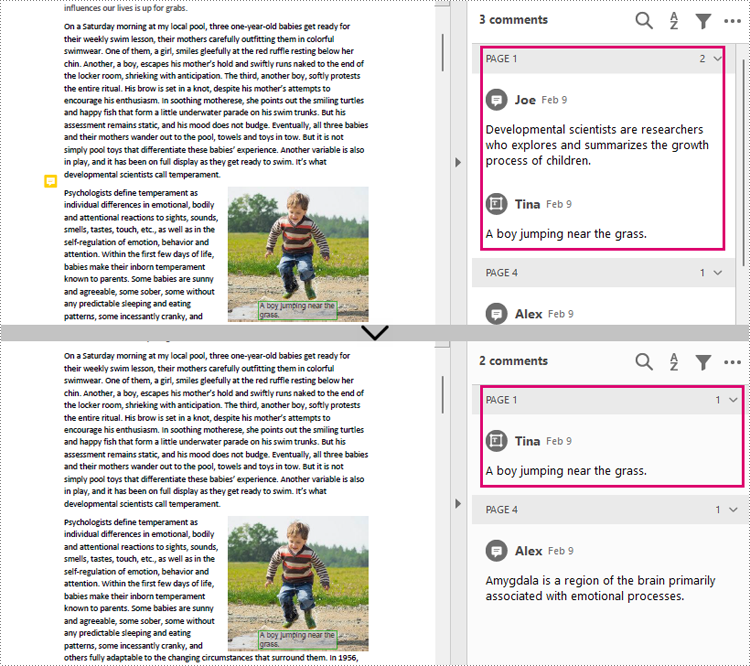
Annotations are page-level document elements. Therefore, deleting an annotation requires getting the page where the annotation is located first, and then you can use the PdfPageBase.getAnnotationsWidget().removeAt() method to delete the annotation. The detailed steps are as follows.
- Create a PdfDocument instance.
- Load a PDF document using PdfDocument.loadFromFile() method.
- Get the first page using PdfDocument.getPages().get() method.
- Remove the first annotation from this page using PdfPageBase.getAnnotationsWidget().removeAt() method.
- Save the document using PdfDocument.saveToFile() method.
- Java
import com.spire.pdf.PdfDocument;
import com.spire.pdf.PdfPageBase;

public class RemoveAnnotation {
    public static void main(String[] args) {

        //Create an object of PdfDocument
        PdfDocument pdf = new PdfDocument();

        //Load a PDF document
        pdf.loadFromFile("C:/Annotations.pdf");

        //Get the first page
        PdfPageBase page = pdf.getPages().get(0);

        //Remove the first annotation
        page.getAnnotationsWidget().removeAt(0);

        //Save the document
        pdf.saveToFile("RemoveOneAnnotation.pdf");
    }
}
Remove All Annotations from a Page
Spire.PDF for Java also provides PdfPageBase.getAnnotationsWidget().clear() method to remove all annotations in the specified page. The detailed steps are as follows.
- Create a PdfDocument instance.
- Load a PDF document using PdfDocument.loadFromFile() method.
- Get the first page using PdfDocument.getPages().get() method.
- Remove all annotations from the page using PdfPageBase.getAnnotationsWidget().clear() method.
- Save the document using PdfDocument.saveToFile() method.
- Java
import com.spire.pdf.PdfDocument;
import com.spire.pdf.PdfPageBase;

public class RemoveAllAnnotationPage {
    public static void main(String[] args) {

        //Create an object of PdfDocument
        PdfDocument pdf = new PdfDocument();

        //Load a PDF document
        pdf.loadFromFile("C:/Annotations.pdf");

        //Get the first page
        PdfPageBase page = pdf.getPages().get(0);

        //Remove all annotations in the page
        page.getAnnotationsWidget().clear();

        //Save the document
        pdf.saveToFile("RemoveAnnotationsPage.pdf");
    }
}
Remove All Annotations from a PDF Document
To remove all annotations from a PDF document, we need to loop through all pages in the document and delete all annotations from each page. The detailed steps are as follows.
- Create a PdfDocument instance.
- Load a PDF document using PdfDocument.loadFromFile() method.
- Loop through all pages to delete annotations.
- Delete annotations in each page using PdfPageBase.getAnnotationsWidget().clear() method.
- Save the document using PdfDocument.saveToFile() method.
- Java
import com.spire.pdf.PdfDocument;
import com.spire.pdf.PdfPageBase;

public class RemoveAllAnnotations {
    public static void main(String[] args) {

        //Create an object of PdfDocument
        PdfDocument pdf = new PdfDocument();

        //Load a PDF document
        pdf.loadFromFile("C:/Users/Sirion/Desktop/Annotations.pdf");

        //Loop through the pages in the document
        for (PdfPageBase page : (Iterable) pdf.getPages()) {
            //Remove annotations in each page
            page.getAnnotationsWidget().clear();
        }

        //Save the document
        pdf.saveToFile("RemoveAllAnnotations.pdf");
    }
}
Apply for a Temporary License
If you'd like to remove the evaluation message from the generated documents, or to get rid of the function limitations, please request a 30-day trial license for yourself.
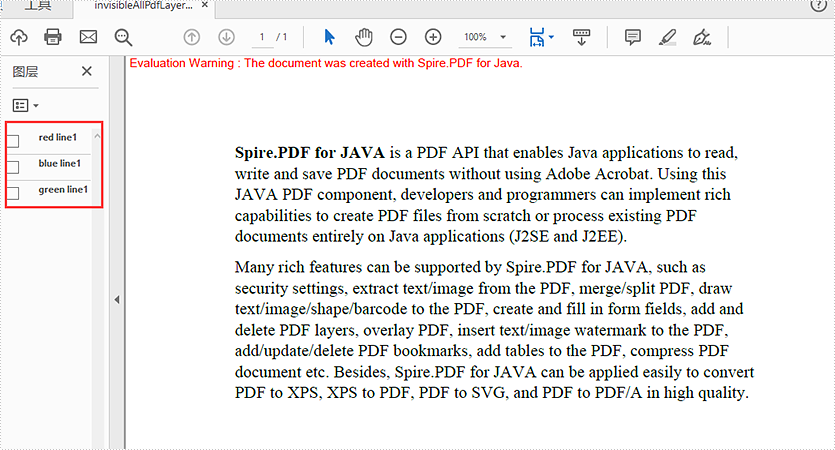
This article will demonstrate how to hide and display Layers in a PDF document using Spire.PDF for Java.
Hide all layers:
import com.spire.pdf.*;
import com.spire.pdf.graphics.layer.*;

public class invisibleAllPdfLayers {
    public static void main(String[] args) {
        //Load the sample document
        PdfDocument doc = new PdfDocument();
        doc.loadFromFile("layerSample.pdf");

        for (int i = 0; i < doc.getLayers().getCount(); i++)
        {
            //Show all the Pdf layers
            //doc.getLayers().get(i).setVisibility(PdfVisibility.On);
            //Set all the Pdf layers invisible
            doc.getLayers().get(i).setVisibility(PdfVisibility.Off);
        }

        //Save to document to file
        doc.saveToFile("output/invisibleAllPdfLayers.pdf", FileFormat.PDF);
    }
}
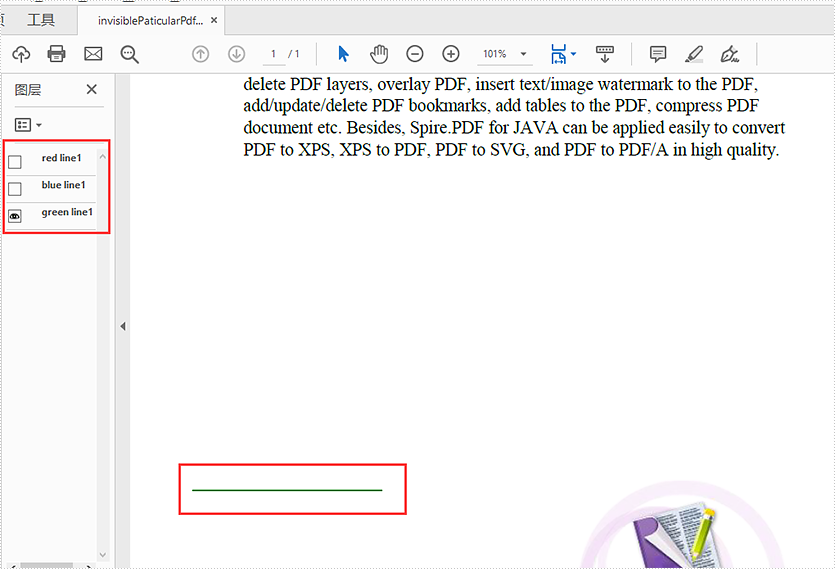
Hide some of the PDF layers:
import com.spire.pdf.*;
import com.spire.pdf.graphics.layer.*;

public class invisibleParticularPdfLayers {
    public static void main(String[] args) {
        //Load the sample document
        PdfDocument doc = new PdfDocument();
        doc.loadFromFile("layerSample.pdf");

        //Hide the first layer by index
        doc.getLayers().get(0).setVisibility(PdfVisibility.Off);

        //Hide the layer by name with blue line1
        for (int i = 0; i < doc.getLayers().getCount(); i++)
        {
            if("blue line1".equals(doc.getLayers().get(i).getName())){
                doc.getLayers().get(i).setVisibility(PdfVisibility.Off);
            }
        }

        //Save to document to file
        doc.saveToFile("output/invisiblePaticularPdfLayers.pdf", FileFormat.PDF);
    }
}
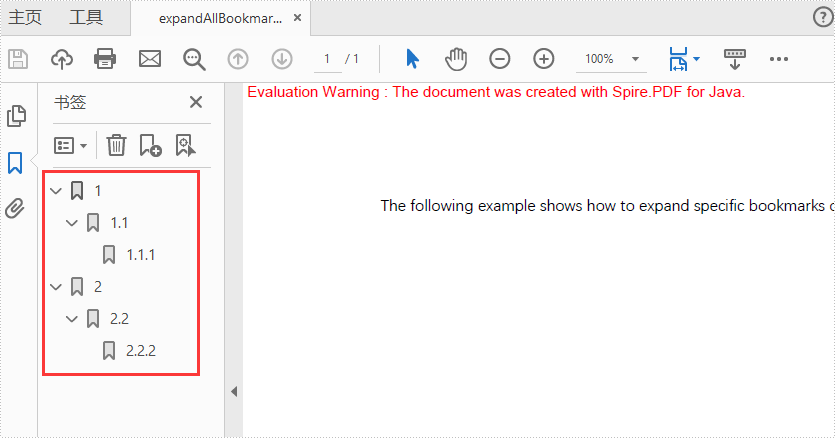
This article will demonstrate how to expand or collapse the bookmarks when viewing the PDF files.
Expand all bookmarks on PDF
import com.spire.pdf.PdfDocument;

public class expandBookmarks {
    public static void main(String[] args) {

        PdfDocument doc = new PdfDocument();
        doc.loadFromFile("Sample.pdf");

        //Set true to expand all bookmarks; set false to collapse all bookmarks
        doc.getViewerPreferences().setBookMarkExpandOrCollapse(true);

        doc.saveToFile("output/expandAllBookmarks_out.pdf");
        doc.close();
    }
}
Output:
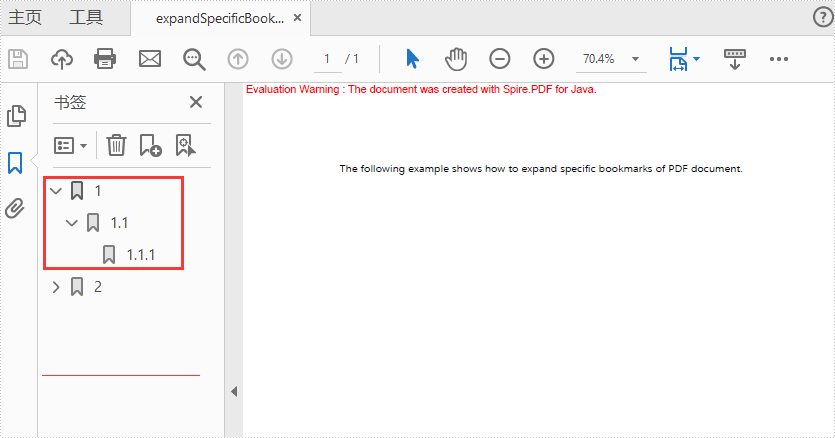
Expand specific bookmarks on PDF
import com.spire.pdf.PdfDocument;
import com.spire.pdf.bookmarks.*;

public class expandSpecificBookmarks {
    public static void main(String[] args) {

        PdfDocument doc = new PdfDocument();
        doc.loadFromFile("Sample.pdf");

        //Set BookMarkExpandOrCollapse as "true" for the first bookmarks
        doc.getBookmarks().get(0).setExpandBookmark(true);

        //Set BookMarkExpandOrCollapse as "false" for the first level of the second bookmarks
        PdfBookmarkCollection pdfBookmark = doc.getBookmarks().get(1);
        pdfBookmark.get(0).setExpandBookmark(false);

        doc.saveToFile("output/expandSpecificBookmarks_out.pdf");
        doc.close();
    }
}
Only expand the first bookmarks