
Program Guide (123)
Children categories
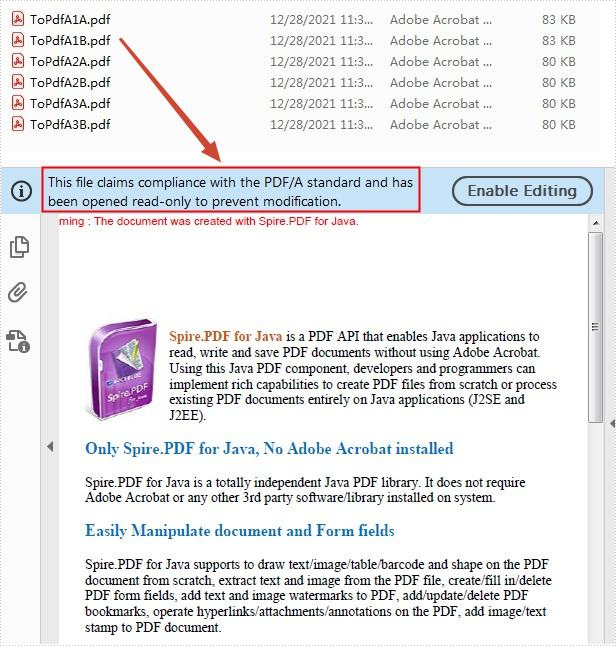
PDF/A is a kind of PDF format designed for archiving and long-term preservation of electronic documents. Unlike paper documents that are easily damaged or smeared, PDF/A format ensures that documents can be reproduced in exactly the same way even after long-term storage. This article will demonstrate how to convert PDF to PDF/A-1A, 2A, 3A, 1B, 2B and 3B compliant PDF using Spire.PDF for Java.
Install Spire.PDF for Java
First of all, you're required to add the Spire.PDF.jar file as a dependency in your Java program. The JAR file can be downloaded from this link. If you use Maven, you can easily import the JAR file in your application by adding the following code to your project's pom.xml file.
<repositories>
    <repository>
        <id>com.e-iceblue</id>
        <name>e-iceblue</name>
        <url>https://repo.e-iceblue.com/nexus/content/groups/public/</url>
    </repository>
</repositories>
<dependencies>
    <dependency>
        <groupId>e-iceblue</groupId>
        <artifactId>spire.pdf</artifactId>
        <version>11.11.11</version>
    </dependency>
</dependencies>
Convert PDF to PDF/A
The detailed steps are as follows:
- Create a PdfStandardsConverter instance, and pass in a sample PDF file as a parameter.
- Convert the sample file to PdfA1A conformance level using PdfStandardsConverter.toPdfA1A() method.
- Convert the sample file to PdfA1B conformance level using PdfStandardsConverter. toPdfA1B() method.
- Convert the sample file to PdfA2A conformance level using PdfStandardsConverter. toPdfA2A() method.
- Convert the sample file to PdfA2B conformance level using PdfStandardsConverter. toPdfA2B() method.
- Convert the sample file to PdfA3A conformance level using PdfStandardsConverter. toPdfA3A() method.
- Convert the sample file to PdfA3B conformance level using PdfStandardsConverter. toPdfA3B() method.
- Java
import com.spire.pdf.conversion.PdfStandardsConverter;

public class ConvertPdfToPdfA {
    public static void main(String[] args) {

        //Create a PdfStandardsConverter instance, and pass in a sample file as a parameter
        PdfStandardsConverter converter = new PdfStandardsConverter("sample.pdf");

        //Convert to PdfA1A
        converter.toPdfA1A("output/ToPdfA1A.pdf");

        //Convert to PdfA1B
        converter.toPdfA1B("output/ToPdfA1B.pdf");

        //Convert to PdfA2A
        converter.toPdfA2A( "output/ToPdfA2A.pdf");

        //Convert to PdfA2B
        converter.toPdfA2B("output/ToPdfA2B.pdf");

        //Convert to PdfA3A
        converter.toPdfA3A("output/ToPdfA3A.pdf");

        //Convert to PdfA3B
        converter.toPdfA3B("output/ToPdfA3B.pdf");
    }
}
Apply for a Temporary License
If you'd like to remove the evaluation message from the generated documents, or to get rid of the function limitations, please request a 30-day trial license for yourself.
Extract Images from PDF in Java – Preserve Quality & Filter Noise
2024-11-21 07:09:00 Written by zaki zou
When dealing with PDF documents that contain images—such as scanned reports, digital brochures, or design portfolios—you may need to extract these images for reuse or analysis. In this article, we'll show you how to extract images from PDF in Java, covering both basic usage and advanced image extracting techniques using the Spire.PDF for Java library.
Whether you're creating a PDF image extractor in Java or simply looking to extract images from a PDF file using Java code, this guide will walk you through the process step by step.
Guide Outline
- Getting Started – Tools and Setup
- Extract All Images from a PDF in Java
- Advanced Tips for More Precise Image Extraction
- Frequently Asked Questions
- Conclusion
Getting Started – Tools and Setup
Extracting images from PDF files in Java can be challenging without third-party libraries. While PDFs may contain valuable image assets—such as scanned pages, charts, or embedded graphics—these elements are often encoded or compressed in ways that native Java APIs can’t handle directly.
Spire.PDF for Java provides a high-level, reliable way to locate and extract embedded or inline images from PDF files. Whether you’re building an automation tool or a document parser, this library helps you extract image content efficiently and with full quality.
Before getting started, make sure you have the following development tools ready:
- Java Development Kit (JDK) 1.6 or above
- Spire.PDF for Java (Free or commercial version)
- An IDE (e.g., IntelliJ IDEA, Eclipse)
Maven Dependency:
<repositories>
    <repository>
        <id>com.e-iceblue</id>
        <name>e-iceblue</name>
        <url>https://repo.e-iceblue.com/nexus/content/groups/public/</url>
    </repository>
</repositories>
<dependencies>
    <dependency>
        <groupId>e-iceblue</groupId>
        <artifactId>spire.pdf</artifactId>
        <version>11.11.11</version>
    </dependency>
</dependencies>
You can use Free Spire.PDF for Java for smaller tasks.
Extract All Images from a PDF in Java
The most straightforward way to extract images from a PDF is by using the PdfImageHelper class in Spire.PDF for Java. This utility scans each page, locates embedded or inline images, and returns both the image data and metadata such as size and position.
Code Example: Basic Image Extraction
import com.spire.pdf.PdfDocument;
import com.spire.pdf.PdfPageBase;
import com.spire.pdf.utilities.PdfImageHelper;
import com.spire.pdf.utilities.PdfImageInfo;

import javax.imageio.ImageIO;
import java.awt.image.BufferedImage;
import java.io.File;
import java.io.IOException;

public class ExtractAllImagePDF {
    public static void main(String[] args) throws IOException {
        // Create a PdfDocument instance
        PdfDocument pdf = new PdfDocument();
        pdf.loadFromFile("input.pdf");

        // Create an image helper instance
        PdfImageHelper imageHelper = new PdfImageHelper();

        // Loop through each page to extract images
        for (int i = 0; i < pdf.getPages().getCount(); i++) {
            PdfPageBase page = pdf.getPages().get(i);
            PdfImageInfo[] imagesInfo = imageHelper.getImagesInfo(page);

            for (int j = 0; j < imagesInfo.length; j++) {
                BufferedImage image = imagesInfo[j].getImage();
                File file = new File("output/Page" + i + "_Image" + j + ".png");
                ImageIO.write(image, "png", file);
            }
        }

        pdf.close();
    }
}
Make sure the output folder exists before running the code to avoid IOException.
How It Works
-
PdfDocument loads and holds the structure of the input PDF.
-
PdfPageBase represents a single page inside the PDF.
-
PdfImageHelper.getImagesInfo(PdfPageBase) scans a specific page and returns an array of PdfImageInfo, each containing a detected image.
-
Each PdfImageInfo includes:
- The image itself as a BufferedImage
- Metadata like size, DPI, and page index
-
ImageIO.write() supports common formats like "png", "jpg", and "bmp" — you can change the format string as needed.
After running the extraction code, you’ll get a folder containing the exported images from the PDF, each saved in a separate file.

These high-level abstractions save you from manually decoding image XObjects or parsing raw streams—making PDF image extraction in Java easier and cleaner.
To save full PDF pages as images instead of just extracting embedded images, follow our guide on saving PDF pages as images in Java.
Advanced Tips for More Precise Image Extraction
Extracting images from a PDF is not always a one-size-fits-all operation. Some files contain layout elements like background layers, small decorative icons, or embedded metadata images. The following advanced tips help you refine your extraction logic for better results:
Skip Background Images (Optional)
Some PDF files include background images, such as watermarks or decorative layers. When these are defined using standard PDF background settings, they are typically extracted as the first image on the page. To focus on meaningful content, simply skip the first extracted image per page.
for (int i = 1; i < imagesInfo.length; i++) {  // Skip background image
    BufferedImage image = imagesInfo[i].getImage();
    ImageIO.write(image, "PNG", new File("output/image_" + (i - 1) + ".png"));
}
You can also check the getBounds() property to assess image dimensions and placement before deciding to skip.
Filter by Image Size (Ignore Small Icons)
To exclude small elements like buttons or logos, add a size threshold before saving:
BufferedImage image = imagesInfo[i].getImage();
if (image.getWidth() > 200 && image.getHeight() > 200) {
    ImageIO.write(image, "PNG", new File("output/image_" + i + ".png"));
}
This helps keep the output folder clean and focused on relevant image content.
Export Images in Various Formats or Streams
You can output images in various formats or streams depending on your use case:
ImageIO.write(image, "JPEG", new File("output/image_" + i + ".jpg"));  // compressed
ImageIO.write(image, "BMP", new File("output/image_" + i + ".bmp"));  // high-quality
- Use PNG or BMP for lossless quality (e.g., archival or OCR).
- Use JPEG for web or lower storage usage.
You can also write images to a ByteArrayOutputStream or other output streams for further processing:
ByteArrayOutputStream stream = new ByteArrayOutputStream();
ImageIO.write(image, "PNG", stream);
Also Want to Extract Images from PDF Attachments?
If your PDF contains embedded file attachments like .jpg or .png images, you'll need a different approach. See our guide here:
How to Extract Attachments from PDF in Java
FAQ for Image Extraction from PDF in Java
Can I extract images from a PDF file using Java?
Yes. Using Spire.PDF for Java, you can easily extract embedded or inline images from any PDF page with a few lines of code.
Will extracted images retain their original quality?
Absolutely. Images are extracted in their original resolution and encoding. You can save them in PNG or BMP format to preserve full quality.
What’s the difference between image extraction and rendering PDF as an image?
Rendering a PDF page creates a bitmap version of the entire page (including text and layout), while image extraction pulls out only the embedded image objects that were originally inserted in the file.
Does this work for scanned PDFs?
Yes. Many scanned PDFs contain full-page raster images (e.g., JPGs or TIFFs). These are extracted just like any other embedded image.
Conclusion
Extracting images from PDF files using Java is fast and efficient with Spire.PDF. Whether you're analyzing marketing materials, scanned reports, or design portfolios, this Java PDF image extractor solution helps you programmatically access and save high-quality images embedded in your documents.
For more advanced cases—such as excluding layout images or processing attachments—the API offers enough flexibility to customize your approach.
To fully unlock the capabilities of Spire.PDF for Java without any evaluation limitations, you can apply for a free temporary license.
For PDF documents that contain confidential or sensitive information, you may want to password protect these documents to ensure that only the designated person can access the information. This article will demonstrate how to programmatically encrypt a PDF document and decrypt a password-protected document using Spire.PDF for Java.
Install Spire.PDF for Java
First of all, you're required to add the Spire.Pdf.jar file as a dependency in your Java program. The JAR file can be downloaded from this link. If you use Maven, you can easily import the JAR file in your application by adding the following code to your project's pom.xml file.
<repositories>
    <repository>
        <id>com.e-iceblue</id>
        <name>e-iceblue</name>
        <url>https://repo.e-iceblue.com/nexus/content/groups/public/</url>
    </repository>
</repositories>
<dependencies>
    <dependency>
        <groupId>e-iceblue</groupId>
        <artifactId>spire.pdf</artifactId>
        <version>11.11.11</version>
    </dependency>
</dependencies>
Encrypt a PDF File with Password
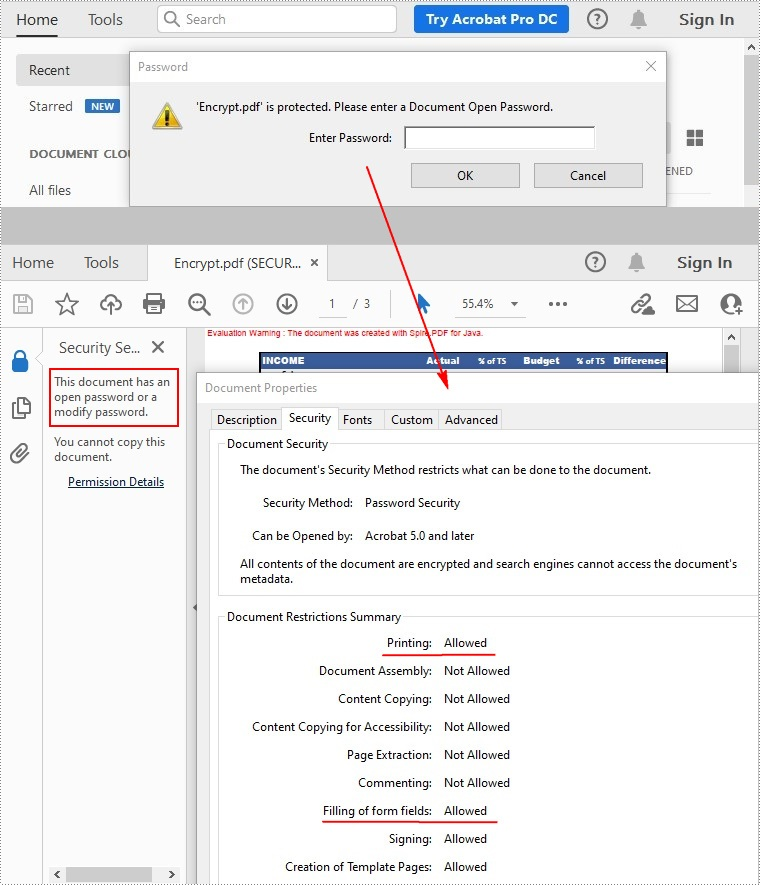
There are two kinds of passwords for encrypting a PDF file - open password and permission password. The former is set to open the PDF file, while the latter is set to restrict printing, contents copying, commenting, etc. If a PDF file is secured with both types of passwords, it can be opened with either password.
The PdfDocument.getSecurity().encrypt(java.lang.String openPassword, java.lang.String permissionPassword, java.util.EnumSet<PdfPermissionsFlags> permissions, PdfEncryptionKeySize keySize) method offered by Spire.PDF for Java allows you to set both open password and permission password to encrypt PDF files. The detailed steps are as follows.
- Create a PdfDocument instance.
- Load a sample PDF file using PdfDocument.loadFromFile() method.
- Set open password, permission password, encryption key size and permissions.
- Encrypt the PDF file using PdfDocument.getSecurity().encrypt(java.lang.String openPassword, java.lang.String permissionPassword, java.util.EnumSet<PdfPermissionsFlags> permissions, PdfEncryptionKeySize keySize) method.
- Save the result file using PdfDocument.saveToFile () method.
- Java
import java.util.EnumSet;

import com.spire.pdf.PdfDocument;
import com.spire.pdf.security.PdfEncryptionKeySize;
import com.spire.pdf.security.PdfPermissionsFlags;

public class EncryptPDF {

    public static void main(String[] args) {

        //Create a PdfDocument instance
        PdfDocument pdf = new PdfDocument();

        //Load a sample PDF file
        pdf.loadFromFile("E:\\Files\\sample.pdf");

        //Encrypt the file
        PdfEncryptionKeySize keySize = PdfEncryptionKeySize.Key_128_Bit;
        String openPassword = "e-iceblue";
        String permissionPassword = "test";
        EnumSet flags = EnumSet.of(PdfPermissionsFlags.Print, PdfPermissionsFlags.Fill_Fields);
        pdf.getSecurity().encrypt(openPassword, permissionPassword, flags, keySize);

        //Save and close
        pdf.saveToFile("Encrypt.pdf");
        pdf.close();

    }

}
Remove Password to Decrypt a PDF File
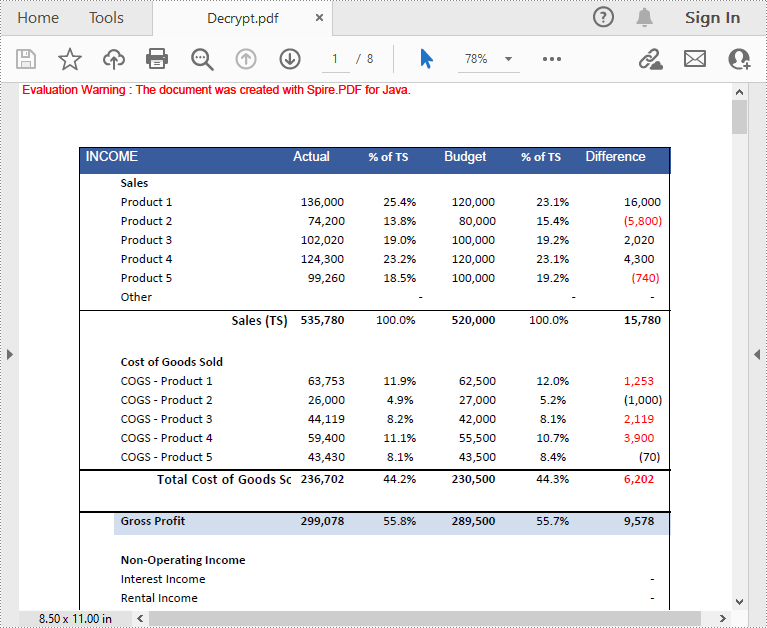
When you need to remove the password from a PDF file, you can set the open password and permission password to empty while calling the PdfDocument.getSecurity().encrypt(java.lang.String openPassword, java.lang.String permissionPassword, java.util.EnumSet<PdfPermissionsFlags> permissions, PdfEncryptionKeySize keySize, java.lang.String originalPermissionPassword) method. The detailed steps are as follows.
- Create a PdfDocument object.
- Load the encrypted PDF file with password using PdfDocument.loadFromFile(java.lang.String filename, java.lang.String password) method.
- Decrypt the PDF file by setting the open password and permission password to empty using PdfDocument.getSecurity().encrypt(java.lang.String openPassword, java.lang.String permissionPassword, java.util.EnumSet<PdfPermissionsFlags> permissions, PdfEncryptionKeySize keySize, java.lang.String originalPermissionPassword) method.
- Save the result file using PdfDocument.saveToFile() method.
- Java
import com.spire.pdf.PdfDocument;
import com.spire.pdf.security.PdfEncryptionKeySize;
import com.spire.pdf.security.PdfPermissionsFlags;

public class DecryptPDF {

    public static void main(String[] args) throws Exception {

        //Create a PdfDocument instance
        PdfDocument pdf = new PdfDocument();

        //Load the encrypted PDF file with password
        pdf.loadFromFile("Encrypt.pdf", "e-iceblue");

        //Decrypt the file
        pdf.getSecurity().encrypt("", "", PdfPermissionsFlags.getDefaultPermissions(), PdfEncryptionKeySize.Key_256_Bit, "test");

        //Save and close
        pdf.saveToFile("Decrypt.pdf");
        pdf.close();
    }
}
Apply for a Temporary License
If you'd like to remove the evaluation message from the generated documents, or to get rid of the function limitations, please request a 30-day trial license for yourself.
Adding Watermarks to PDF in Java: Text, Images & Custom Styling
2023-02-06 07:02:00 Written by Koohji
Watermarking PDF documents serves as an essential measure for intellectual property protection, document status identification, and brand reinforcement. Java developers can efficiently automate this process using specialized libraries like Spire.PDF for Java, which offers comprehensive solutions for applying both text-based watermarks (such as "CONFIDENTIAL" labels) and graphical watermarks (including corporate logos).
This practical guide provides step-by-step instructions for implementing PDF watermarking in Java using Spire.PDF. You'll learn proven techniques to enhance document security and professional presentation through effective watermark implementation.
- Java Library for Watermarking PDF
- Steps to Add a Watermark to PDF in Java
- Add a Text Watermark to PDF
- Add an Image Watermark to PDF
- Conclusion
- FAQs
Java Library for Watermarking PDF
Spire.PDF for Java is a versatile library that simplifies PDF manipulation, including watermarking. Its intuitive API allows developers to add watermarks with minimal code while offering fine-grained control over appearance and placement.
To get started, download Spire.PDF for Java and reference it in your project. For Maven users, include the following in your pom.xml:
<repositories>
    <repository>
        <id>com.e-iceblue</id>
        <name>e-iceblue</name>
        <url>https://repo.e-iceblue.com/nexus/content/groups/public/</url>
    </repository>
</repositories>
<dependencies>
    <dependency>
        <groupId>e-iceblue</groupId>
        <artifactId>spire.pdf</artifactId>
        <version>11.11.11</version>
    </dependency>
</dependencies>
Steps to Add a Watermark to PDF in Java
- Load the PDF using PdfDocument.
- Define the watermark (text with font/style or an image file).
- Set transparency (e.g., 0.3 for faint, 0.7 for stronger visibility).
- Calculate position (e.g., centered, custom location).
- Apply the watermark to all pages or specific ones.
- Save the modified document to a new file.
Add a Text Watermark to PDF
Text watermarks are ideal for adding labels like "DRAFT", "CONFIDENTIAL", or copyright notices. The implementation involves loading the PDF using PdfDocument , defining the font and brush for styling, and iterating through each page to apply the watermark text using a dedicated method that manages transparency, positioning, and drawing.
import com.spire.pdf.*;
import com.spire.pdf.graphics.*;
import java.awt.*;
import java.awt.geom.Dimension2D;

public class AddTextWatermark {
    public static void main(String[] args) {

        // Create a PdfDocument object
        PdfDocument doc = new PdfDocument();

        // Load a PDF document
        doc.loadFromFile("C:\\Users\\Administrator\\Desktop\\AI.pdf");

        // Create a font and a brush
        PdfTrueTypeFont font = new PdfTrueTypeFont(new Font("Arial Black", Font.PLAIN, 50), true);
        PdfBrush brush = PdfBrushes.getBlue();

        // Specify the watermark text
        String watermarkText = "DO NOT COPY";

        // Specify the opacity level
        float opacity = 0.6f;

        // Iterate through the pages
        for (int i = 0; i < doc.getPages().getCount(); i++) {
            PdfPageBase page = doc.getPages().get(i);
            // Draw watermark text on the page
            addTextWatermark(page, watermarkText, font, brush, opacity);
        }

        // Save the changes to another file
        doc.saveToFile("output/Watermark.pdf");

        // Dispose resources
        doc.dispose();
    }

    // Method to add a text watermark to a given page
    private static void addTextWatermark(PdfPageBase page, String watermarkText, PdfTrueTypeFont font, PdfBrush brush, float opacity) {

        // Set the transparency level for the watermark
        page.getCanvas().setTransparency(opacity);

        // Measure the size of the watermark text
        Dimension2D textSize = font.measureString(watermarkText);

        // Get the width and height of the page
        double pageWidth = page.getActualSize().getWidth();
        double pageHeight = page.getActualSize().getHeight();

        // Calculate the position to center the watermark on the page
        double x = (pageWidth - textSize.getWidth()) / 2;
        double y = (pageHeight - textSize.getHeight()) / 2;

        // Draw the watermark text on the page at the calculated position
        page.getCanvas().drawString(watermarkText, font, brush, x, y);
    }
}
Output:
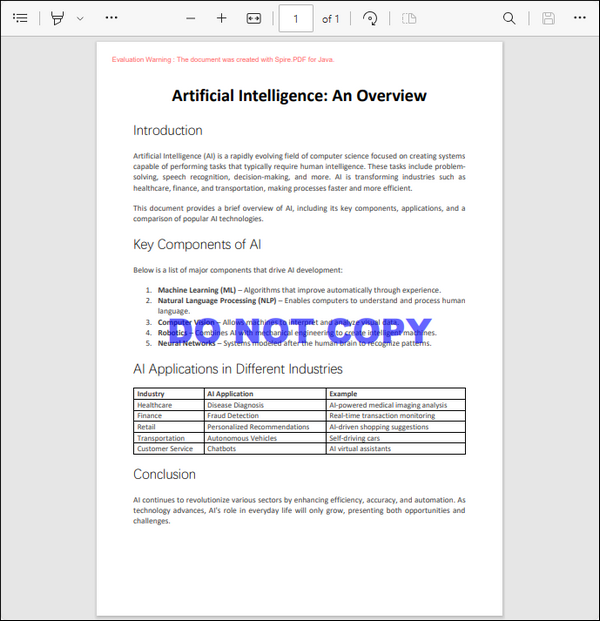
Add an Image Watermark to PDF
Image watermarks, such as logos, can elevate the professionalism of a document. This process begins by loading the PDF and specifying the image path and opacity. We then iterate through each page, calling a method that loads the image, calculates its position, and draws it on the page with the specified transparency.
import com.spire.pdf.*;
import com.spire.pdf.graphics.*;

public class AddImageWatermark {
    public static void main(String[] args) {

        // Create a PdfDocument object
        PdfDocument doc = new PdfDocument();

        // Load a PDF document
        doc.loadFromFile("C:\\Users\\Administrator\\Desktop\\AI.pdf");

        // Specify the image path
        String imagePath = "C:\\Users\\Administrator\\Desktop\\logo2.png";

        // Specify the opacity level
        float opacity = 0.3f;

        // Iterate through the pages
        for (int i = 0; i < doc.getPages().getCount(); i++) {

            // Draw watermark text on the current page
            addImageWatermark(doc.getPages().get(i), imagePath, opacity);
        }

        // Save the changes to another file
        doc.saveToFile("output/Watermark.pdf");

        // Dispose resources
        doc.dispose();
    }

    // Method to add an Image watermark to a given page
    private static void addImageWatermark(PdfPageBase page, String imagePath, float opacity) {

        // Load the image
        PdfImage image = PdfImage.fromFile(imagePath);

        // Get the width and height of the image
        double imageWidth = (double)image.getWidth();
        double imageHeight = (double)image.getHeight();

        // Get the width and height of the page
        double pageWidth = page.getActualSize().getWidth();
        double pageHeight = page.getActualSize().getHeight();

        // Calculate the position to center the watermark on the page
        double x = (pageWidth - imageWidth) / 2;
        double y = (pageHeight - imageHeight) / 2;

        // Set the transparency level for the watermark
        page.getCanvas().setTransparency(opacity);

        // Draw the image on the page at the calculated position
        page.getCanvas().drawImage(image, x, y);
    }
}
Output:

Conclusion
In conclusion, adding watermarks to PDF documents in Java is a straightforward task with the right tools and techniques. By leveraging the Spire.PDF for Java library, developers can seamlessly integrate dynamic text watermarks (like copyright notices) or high-resolution image logos while maintaining optimal file performance.
This guide provided a step-by-step approach, from initial setup to final implementation, ensuring that you can protect your documents effectively. Whether for personal use or professional needs, watermarking is an essential skill that adds a layer of professionalism and integrity to your work.
FAQs
Q1. Can I rotate the watermark text?
Yes, use page.getCanvas().rotateTransform(angle) before drawing the text.
Q2. How do I adjust the position of the watermark?
You can modify the x and y coordinates in the addTextWatermark and addImageWatermark methods to change the watermark position.
Q3. Is it possible to add multiple watermarks to the same PDF?
Yes, by calling drawString() or drawImage() multiple times with different parameters.
Q4. Can I use a transparent PNG as a watermark?
Yes, Spire.PDF preserves the transparency of PNG images.
Q5. How do I apply watermarks to specific pages only?
Modify the loop to target specific pages, e.g., if (i == 0) applies the watermark only to the first page.
Get a Free License
To fully experience the capabilities of Spire.PDF for Java without any evaluation limitations, you can request a free 30-day trial license.
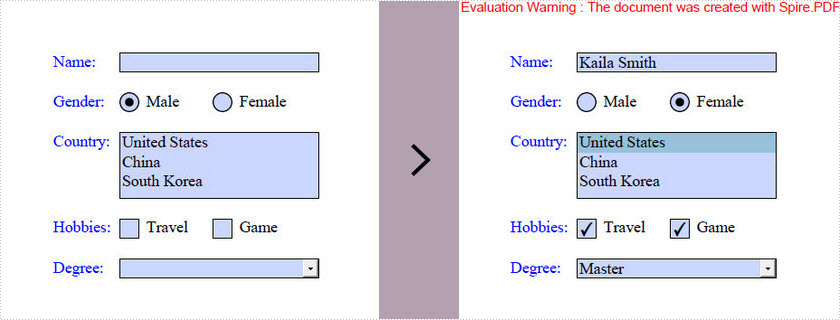
The tutorial shows you how to access the form fields in a PDF document and how to fill each form field with value by using Spire.PDF for Java.
Entire Code:
import com.spire.pdf.FileFormat;
import com.spire.pdf.PdfDocument;
import com.spire.pdf.fields.PdfField;
import com.spire.pdf.widget.*;


public class FillFormField{
    public static void main(String[] args){

        //create a PdfDocument object
        PdfDocument doc = new PdfDocument();

        //load a sample PDF containing forms
        doc.loadFromFile("G:\\java-workspace\\Spire.Pdf\\Forms.pdf");

        //get the form fields from the document
        PdfFormWidget form = (PdfFormWidget) doc.getForm();

        //get the form widget collection
        PdfFormFieldWidgetCollection formWidgetCollection = form.getFieldsWidget();

        //loop through the widget collection and fill each field with value
        for (int i = 0; i < formWidgetCollection.getCount(); i++) {

            PdfField field = formWidgetCollection.get(i);
            if (field instanceof PdfTextBoxFieldWidget) {
                PdfTextBoxFieldWidget textBoxField = (PdfTextBoxFieldWidget) field;
                textBoxField.setText("Kaila Smith");
            }
            if (field instanceof PdfRadioButtonListFieldWidget) {
                PdfRadioButtonListFieldWidget radioButtonListField = (PdfRadioButtonListFieldWidget) field;
                radioButtonListField.setSelectedIndex(1);
            }
            if (field instanceof PdfListBoxWidgetFieldWidget) {
                PdfListBoxWidgetFieldWidget listBox = (PdfListBoxWidgetFieldWidget) field;
                listBox.setSelectedIndex(0);
            }
            if (field instanceof PdfCheckBoxWidgetFieldWidget) {
                PdfCheckBoxWidgetFieldWidget checkBoxField = (PdfCheckBoxWidgetFieldWidget) field;
                switch(checkBoxField.getName()){
                case "checkbox1":
                	checkBoxField.setChecked(true);
                	break;
                case "checkbox2":
                	checkBoxField.setChecked(true);
                	break;
                }
            }
            if (field instanceof PdfComboBoxWidgetFieldWidget) {
                PdfComboBoxWidgetFieldWidget comboBoxField = (PdfComboBoxWidgetFieldWidget) field;
                comboBoxField.setSelectedIndex(1);
            }
        }

        //Save the file
        doc.saveToFile("FillFormFields.pdf", FileFormat.PDF);
    }

}
Output:
Converting PDF files to images is essential for various document processing tasks, including generating thumbnails, archiving, and image manipulation. These conversions allow applications to present PDF content in more accessible formats, enhancing user experience and functionality. Java libraries such as Spire.PDF for Java enable efficient conversions to formats like PNG , JPEG , GIF , BMP , TIFF , and SVG , each serving specific purposes based on their characteristics.
This guide will walk you through the conversion process using Spire.PDF for Java, providing optimized code examples for each format. Additionally, it will explain the key differences among these formats to help you select the most suitable option for your needs.
- Java PDF-to-Image Conversion Library
- Image Format Comparison
- Convert PDF to PNG, JPEG, GIF, and BMP
- Convert PDF to TIFF in Java
- Convert PDF to SVG in Java
- Conclusion
- FAQs
Java PDF-to-Image Conversion Library
Spire.PDF for Java is a robust, feature-rich library for PDF manipulation. It offers several advantages for image conversion:
- High-quality rendering that preserves document formatting and layout
- Batch processing capabilities for handling multiple documents
- Flexible output options including resolution and format control
- Lightweight implementation with minimal memory footprint
The library supports conversion to all major image formats while maintaining excellent text clarity and graphic fidelity, making it suitable for both simple conversions and complex document processing pipelines.
Installation
To get started, download Spire.PDF for Java from our website and add it as a dependency in your project. For Maven users, include the following in your pom.xml:
<repositories>
    <repository>
        <id>com.e-iceblue</id>
        <name>e-iceblue</name>
        <url>https://repo.e-iceblue.com/nexus/content/groups/public/</url>
    </repository>
</repositories>
<dependencies>
    <dependency>
        <groupId>e-iceblue</groupId>
        <artifactId>spire.pdf</artifactId>
        <version>11.6.2</version>
    </dependency>
</dependencies>
Image Format Comparison
Different image formats serve distinct purposes. Below is a comparison of commonly used formats:
| Format | Compression | Transparency | Best For | File Size |
|---|---|---|---|---|
| PNG | Lossless | Yes | High-quality graphics, logos | Medium |
| JPEG | Lossy | No | Photographs, web images | Small |
| GIF | Lossless | Yes (limited) | Simple animations, low-color graphics | Small |
| BMP | None | No | Uncompressed images, Windows apps | Large |
| TIFF | Lossless | Yes | High-quality scans, printing | Very Large |
| SVG | Vector-based | Yes (scalable) | Logos, icons, web graphics | Small |
PNG is ideal for images requiring transparency and lossless quality, while JPEG is better for photographs due to its smaller file size. GIF supports simple animations, and BMP is rarely used due to its large size. TIFF is preferred for professional printing, and SVG is perfect for scalable vector graphics.
Convert PDF to PNG, JPEG, GIF, and BMP
Converting PDF files into various image formats like PNG, JPEG, GIF, and BMP allows developers to cater to diverse application needs. Each format serves different purposes; for example, PNG is ideal for high-quality graphics with transparency, while JPEG is better suited for photographs with smooth gradients.
By leveraging Spire.PDF's capabilities, developers can easily generate the required image formats for their projects, ensuring compatibility and optimal performance.
Basic Conversion Example
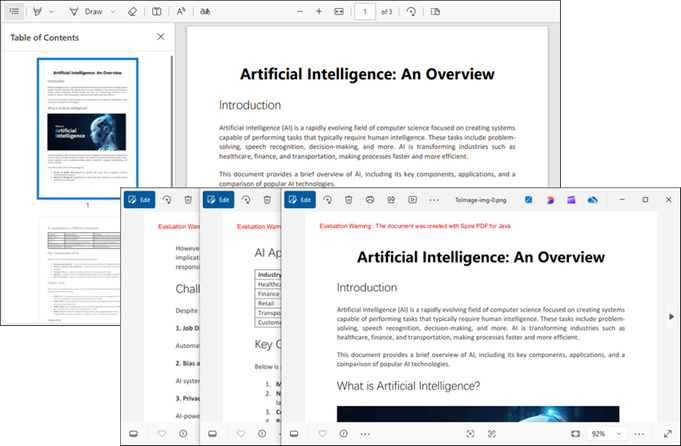
Let's start with the fundamental conversion process. The following code demonstrates how to convert each page of a PDF into individual PNG images:
import com.spire.pdf.PdfDocument;
import com.spire.pdf.graphics.PdfImageType;

import javax.imageio.ImageIO;
import java.awt.image.BufferedImage;
import java.io.File;
import java.io.IOException;

public class ConvertPdfToImage {

    public static void main(String[] args) throws IOException {

        // Create a PdfDocument instance
        PdfDocument doc = new PdfDocument();

        // Load a PDF file
        doc.loadFromFile("C:\\Users\\Administrator\\Desktop\\input.pdf");

        // Iterate through the pages
        for (int i = 0; i < doc.getPages().getCount(); i++) {

            // Convert the current page to BufferedImage
            BufferedImage image = doc.saveAsImage(i, PdfImageType.Bitmap);

            // Save the image data as a png file
            File file = new File("output/" + String.format(("ToImage-img-%d.png"), i));
            ImageIO.write(image, "PNG", file);
        }

        // Clear up resources
        doc.close();
    }
}
Explanation:
- The PdfDocument class loads the input PDF file.
- saveAsImage() converts each page into a BufferedImage .
- ImageIO.write() saves the image in PNG format.
Tip : To convert to JPEG, GIF, or BMP, simply replace " PNG " with " JPEG ", " GIF ", or " BMP " in the ImageIO.write() method.
Output:
PNG with Transparent Background
Converting a PDF page to PNG with a transparent background involves adjusting the conversion options using the setPdfToImageOptionsmethod. This adjustment provides greater flexibility in generating the images, allowing for customized output that meets specific requirements.
Here’s how to achieve this:
doc.getConvertOptions().setPdfToImageOptions(0);

for (int i = 0; i < doc.getPages().getCount(); i++) {
    BufferedImage image = doc.saveAsImage(i, PdfImageType.Bitmap);
    File file = new File("C:\\Users\\Administrator\\Desktop\\Images\\" + String.format(("ToImage-img-%d.png"), i));
    ImageIO.write(image, "PNG", file);
}
Explanation:
- setPdfToImageOptions(0) ensures transparency is preserved.
- The rest of the process remains the same as the basic conversion.
Custom DPI Settings
The saveAsImage method also provides an overload that allows developers to specify the DPI (dots per inch) for the output images. This feature is crucial for ensuring that the images are rendered at the desired resolution, particularly when high-quality images are required.
Here’s an example of converting a PDF to images with a specified DPI:
for (int i = 0; i < doc.getPages().getCount(); i++) {
    BufferedImage image = doc.saveAsImage(i, PdfImageType.Bitmap,300, 300);
    File file = new File("C:\\Users\\Administrator\\Desktop\\Images\\" + String.format(("ToImage-img-%d.png"), i));
    ImageIO.write(image, "PNG", file);
}
Explanation:
- The saveAsImage() method accepts dpiX and dpiY parameters for resolution control.
- Higher DPI values (e.g., 300) produce sharper images but increase file size.
DPI Selection Tip:
- 72-100 DPI : Suitable for screen display
- 150-200 DPI : Good for basic printing
- 300+ DPI : Professional printing quality
- 600+ DPI : High-resolution archival
Convert PDF to TIFF in Java
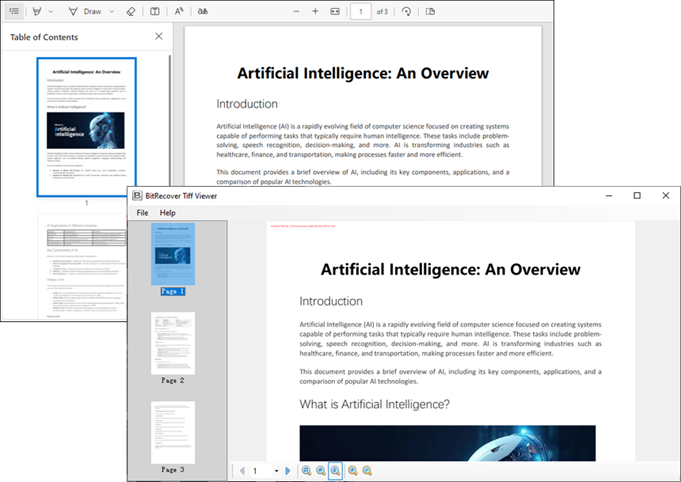
TIFF (Tagged Image File Format) is another popular image format, especially in the publishing and printing industries. Spire.PDF makes it easy to convert PDF pages to TIFF format using the saveToTiff method.
Here’s a simple example demonstrating how to convert a PDF to a multi-page TIFF:
import com.spire.pdf.PdfDocument;

public class ConvertPdfToTiff {

    public static void main(String[] args) {

        // Create a PdfDocument object
        PdfDocument doc = new PdfDocument();

        // Load a PDF file
        doc.loadFromFile("C:\\Users\\Administrator\\Desktop\\input.pdf");

        // Convert a page range to tiff
        doc.saveToTiff("output/PageToTiff.tiff",0,2,300,300);

        // Clear up resources
        doc.dispose();
    }
}
Explanation:
- saveToTiff() converts a specified page range (here, pages 0 to 2).
- The last two parameters set the DPI for the output image.
Output:
Convert PDF to SVG in Java
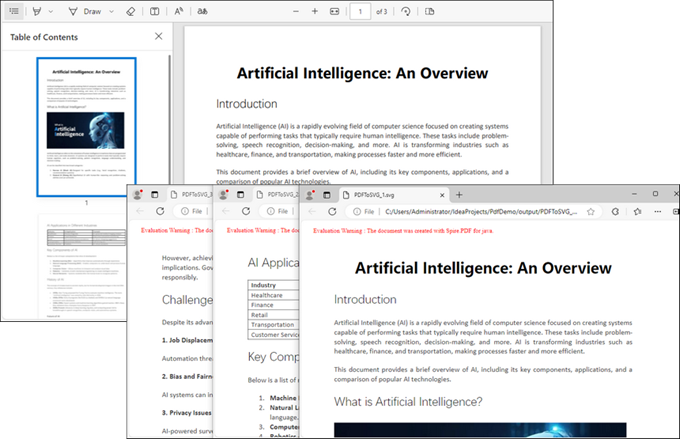
SVG (Scalable Vector Graphics) is a vector image format that is widely used for its scalability and compatibility with web technologies. Converting PDF to SVG can be beneficial for web applications that require responsive images.
To convert a PDF document to SVG using Spire.PDF, the following code can be implemented:
import com.spire.pdf.FileFormat;
import com.spire.pdf.PdfDocument;

public class ConvertPdfToSvg {

    public static void main(String[] args) {

        // Initialize a PdfDocument object
        PdfDocument doc = new PdfDocument();

        // Load the PDF document from the specified path
        doc.loadFromFile("C:\\Users\\Administrator\\Desktop\\input.pdf");

        // Optionally, convert to a single SVG (uncomment to enable)
        // doc.getConvertOptions().setOutputToOneSvg(true);

        // Save the document as SVG files (one SVG per page by default)
        doc.saveToFile("Output/PDFToSVG.svg", FileFormat.SVG);

        // Clear up resources
        doc.dispose();
    }
}
Explanation:
- saveToFile() with FileFormat.SVG exports the PDF as an SVG file.
- Optionally, setOutputToOneSvg(true) merges all pages into a single SVG.
Output:
Conclusion
Spire.PDF for Java simplifies PDF-to-image conversion with support for popular formats like PNG, JPEG, TIFF, SVG, and more . Key features such as transparency control, custom DPI settings, and multi-page TIFF/SVG output enable tailored solutions for generating thumbnails, high-quality prints, or web-optimized graphics. The library ensures high fidelity and performance , making it ideal for batch processing or dynamic rendering. Easily integrate the provided code snippets and APIs to enhance document handling in your Java applications, whether for reporting, archiving, or interactive content.
FAQs
Q1. Can I specify the DPI when converting to TIFF or SVG?
When converting to TIFF, you can specify the DPI to ensure high-quality output. However, SVG is a vector format and does not require DPI settings, as it scales based on the display size.
Q2. Can I convert specific pages of a PDF to images?
Yes, both the saveAsImage and saveToTiff methods allow you to indicate which pages to include in the conversion.
Q3. What is the difference between lossless and lossy image formats?
Lossless formats (like PNG and TIFF) retain all image quality during compression, while lossy formats (like JPEG) reduce file size by discarding some image information, which may affect quality.
Q4. How does converting to SVG differ from raster formats?
Converting to SVG generates vector images that scale without losing quality, while raster formats like PNG and JPEG are pixel-based and can lose quality when resized.
Q5. What other file formats can Spire.PDF convert PDFs to?
Spire.PDF is a powerful Java PDF library that supports converting PDF files to multiple formats, such as:
Get a Free License
To fully experience the capabilities of Spire.PDF for Java without any evaluation limitations, you can request a free 30-day trial license.
PDF to Text in Java: Extract Text from PDFs (Text-Based & Scanned)
2022-12-02 07:57:00 Written by Koohji
Extracting text from PDF files is a common task for Java developers working on document processing, data extraction, search indexing, and automation. PDFs often contain text in two formats: digital text embedded in the file or scanned images of text. Extracting content from these requires different approaches.
This article explains how to extract text from both text-based PDFs and scanned (image-based) PDFs using Java, complete with detailed code examples and explanations. Whether you need to process reports, invoices, or scanned documents, this guide will help you get started quickly and efficiently.
Table of Contents
- Why Extract Text from PDFs in Java?
- Difference Between Text-Based and Scanned PDFs
- How to Extract Text from Text-Based PDFs in Java
- How to Extract Text from Scanned PDFs Using Java & OCR
- Common Challenges and Best Practices for PDF Text Extraction
- Conclusion
- Frequently Asked Questions
Why Extract Text from PDFs in Java?
PDF files are designed for consistent visual formatting across platforms. However, extracting the underlying text lets developers:
- Enable full-text search
- Automate form and invoice processing
- Feed text into AI models
- Convert content for analysis or reporting
- Repurpose documents into other formats (HTML, Markdown, CSV)
Difference Between Text-Based and Scanned PDFs
Before extracting text, it’s important to understand the PDF type because the extraction approach differs:
Text-Based PDFs
- Contain embedded, selectable text stored in the document structure
- Text can be extracted directly by parsing the PDF’s text objects
- Typically created by exporting from word processors, reports, or digital sources
Scanned PDFs
- Are images of pages, often created by scanning paper documents
- Do not contain embedded text—only images of text
- Require Optical Character Recognition (OCR) to convert images into machine-readable text
Knowing your PDF type determines the extraction method and tools you need.
How to Extract Text from Text-Based PDFs in Java
Text-based PDFs allow direct extraction of text content. With libraries like Spire.PDF for Java, you can extract text from an entire PDF, specific pages, or designated rectangular areas. This is useful for a variety of tasks, such as content indexing, document analysis, and data processing.
Key Features
- Extract text from full documents or individual pages
- Target specific rectangular regions within a page
- Preserve original layout
- Support for multi-language text extraction
Maven Dependency
To begin, add the following Maven dependency for Spire.PDF to your pom.xml:
<repositories>
    <repository>
        <id>com.e-iceblue</id>
        <name>e-iceblue</name>
        <url>https://repo.e-iceblue.com/nexus/content/groups/public/</url>
    </repository>
</repositories>
<dependencies>
    <dependency>
        <groupId>e-iceblue</groupId>
        <artifactId>spire.pdf</artifactId>
        <version>11.7.5</version>
    </dependency>
</dependencies>
Extract All Text from a PDF
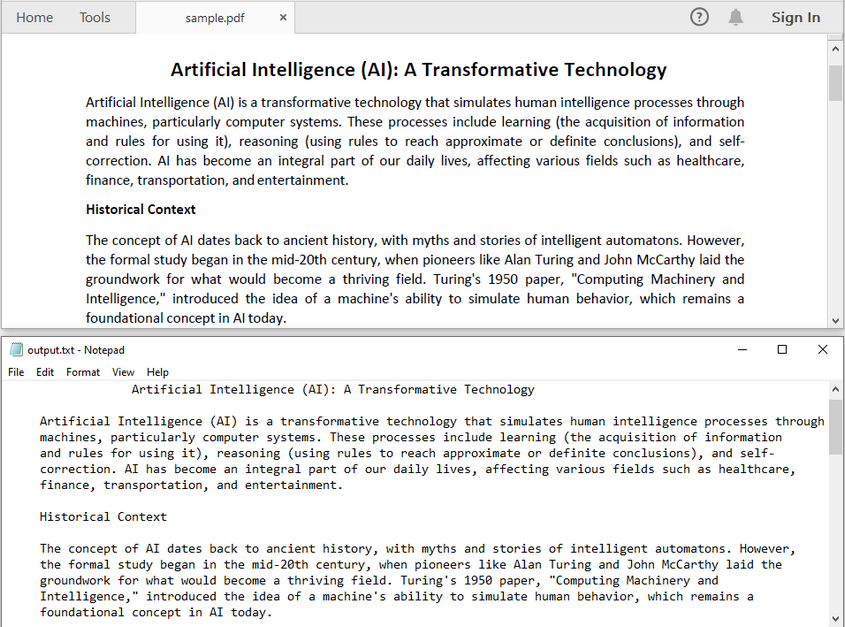
If you want to convert an entire PDF to plain text, you can iterate through all the pages and use the extract method provided by the PdfTextExtractor class to retrieve text from each page in sequence. This method returns a string containing the textual content of the page and preserves the original layout, including spacing, line breaks, and paragraph structure as much as possible.
import com.spire.pdf.PdfDocument;
import com.spire.pdf.PdfPageBase;
import com.spire.pdf.texts.PdfTextExtractOptions;
import com.spire.pdf.texts.PdfTextExtractor;


import java.io.BufferedWriter;
import java.io.FileWriter;
import java.io.IOException;

public class ExtractAllTextFromPDF {
    public static void main(String[] args){
        // Create a PdfDocument instance and load the PDF file
        PdfDocument doc = new PdfDocument();
        doc.loadFromFile("sample.pdf");

        // Create a StringBuilder to store extracted text from all pages
        StringBuilder fullText = new StringBuilder();

        // Loop through each page in the PDF
        for (int i = 0; i < doc.getPages().getCount(); i++) {
            // Get the current page
            PdfPageBase page = doc.getPages().get(i);
            // Create a text extractor for the page
            PdfTextExtractor extractor = new PdfTextExtractor(page);
            // Extract text using default options
            String text = extractor.extract(new PdfTextExtractOptions());
            // Append extracted text and add spacing between pages
            fullText.append(text).append("\n\n\n\n");
        }

        // Write the extracted text to a .txt file
        try (BufferedWriter writer = new BufferedWriter(new FileWriter("output.txt"))) {
            writer.write(fullText.toString());
        } catch (IOException e) {
            // Print any file I/O errors
            e.printStackTrace();
        }

        // Close the PDF document to free resources
        doc.close();
    }
}
Note: You need to modify the PDF file path as needed.
Extract Text from a Page
When working with multi-page PDFs, you may only need to extract content from a specific page—for example, a summary, cover sheet, or signature page. In such cases, you can access the target page by its index and use the extract method from the PdfTextExtractor class to retrieve text from that individual page.
import com.spire.pdf.PdfDocument;
import com.spire.pdf.PdfPageBase;
import com.spire.pdf.texts.PdfTextExtractOptions;
import com.spire.pdf.texts.PdfTextExtractor;

import java.io.BufferedWriter;
import java.io.FileWriter;
import java.io.IOException;

public class ExtractTextFromSelectedPage {
    public static void main(String[] args){
        // Create a PdfDocument instance and load the PDF file
        PdfDocument doc = new PdfDocument();
        doc.loadFromFile("sample.pdf");

        // Define the target page index (e.g., 0 for the first page)
        int pageIndex = 0;

        // Check if the specified page exists in the document
        if (pageIndex >= 0 && pageIndex < doc.getPages().getCount()) {
            // Get the specified page
            PdfPageBase page = doc.getPages().get(pageIndex);
            // Create a text extractor for the page
            PdfTextExtractor extractor = new PdfTextExtractor(page);
            // Extract text from the page
            String text = extractor.extract(new PdfTextExtractOptions());

            // Write the extracted text to a .txt file
            try (BufferedWriter writer = new BufferedWriter(new FileWriter("output.txt"))) {
                writer.write(text);
            } catch (IOException e) {
                // Print any file I/O errors
                e.printStackTrace();
            }
        } else {
            System.out.println("Invalid page index.");
        }

        // Close the PDF document to free resources
        doc.close();
    }
}
Note: You need to change the page index according to your needs.
Extract Text from a Page Area (Rectangular Region)
To extract text from a specific area of a PDF page, first define the rectangular region using a Rectangle2D object, then use the setExtractArea method of the PdfTextExtractOptions class to limit extraction to that area. This helps isolate relevant content and exclude unrelated text outside the defined region.
import com.spire.pdf.PdfDocument;
import com.spire.pdf.PdfPageBase;
import com.spire.pdf.texts.PdfTextExtractOptions;
import com.spire.pdf.texts.PdfTextExtractor;

import java.awt.geom.Rectangle2D;
import java.io.BufferedWriter;
import java.io.FileWriter;
import java.io.IOException;

public class ExtractTextFromSelectedPage {
    public static void main(String[] args){
        // Create a PdfDocument instance and load the PDF file
        PdfDocument doc = new PdfDocument();
        doc.loadFromFile("sample.pdf");

        // Define the target page index (0-based, 0 means first page)
        int pageIndex = 0;

        // Check if the specified page exists in the document
        if (pageIndex >= 0 && pageIndex < doc.getPages().getCount()) {
            // Get the specified page
            PdfPageBase page = doc.getPages().get(pageIndex);

            // Define the rectangular region (x, y, width, height)
            // Coordinates are relative to the PDF page coordinate system in the top-left corner
            Rectangle2D region = new Rectangle2D.Float(100, 150, 300, 100);

            // Initialize a text extractor for the page
            PdfTextExtractor extractor = new PdfTextExtractor(page);

            // Create extraction options and set the region to extract text from
            PdfTextExtractOptions options = new PdfTextExtractOptions();
            options.setExtractArea(region);

            // Extract text from the defined rectangular area
            String text = extractor.extract(options);

            // Write the extracted text to a text file
            try (BufferedWriter writer = new BufferedWriter(new FileWriter("output.txt"))) {
                writer.write(text);
            } catch (IOException e) {
                // Print any errors during file writing
                e.printStackTrace();
            }
        } else {
            // Inform if the specified page index is invalid
            System.out.println("Invalid page index.");
        }

        // Close the PDF document to free resources
        doc.close();
    }
}
Tip: Coordinates are relative to the PDF page, with the origin (0,0) at the top-left corner. The X-axis increases to the right, and the Y-axis increases downward. Learn more about PDF coordinate positioning in our guide: Generate PDF Files in Java (Developer Tutorial).
How to Extract Text from Scanned PDFs Using Java & OCR
Scanned PDFs do not contain embedded, selectable text; instead, they store images of the document pages. To extract text from such PDFs, you need to:
- Convert each PDF page into an image using a PDF processing library (e.g., Spire.PDF).
- Use an OCR (Optical Character Recognition) engine (e.g., Spire.OCR) to recognize and convert text from these images into machine-readable format.
Maven Dependencies
Add the following repositories and dependencies to your pom.xml to include the required libraries in your Java project:
<repositories>
    <repository>
        <id>com.e-iceblue</id>
        <name>e-iceblue</name>
        <url>https://repo.e-iceblue.com/nexus/content/groups/public/</url>
    </repository>
</repositories>

<dependencies>
    <dependency>
        <groupId>e-iceblue</groupId>
        <artifactId>spire.pdf</artifactId>
        <version>11.7.5</version>
    </dependency>
    <dependency>
        <groupId>e-iceblue</groupId>
        <artifactId>spire.ocr</artifactId>
        <version>1.9.22</version>
    </dependency>
</dependencies>
Download OCR Model
Spire.OCR for Java requires downloading a language model compatible with your operating system:
After downloading, extract the package to a directory accessible by your application. You'll reference its path in your code.
Java Code Example for OCR Text Extraction from Scanned PDF
The code below demonstrates how to extract text from scanned PDFs that contain only images. Each page is first converted into an image using saveAsImage(). Then, the OCR engine (OcrScanner) reads the image and extracts the text. The recognized text from all pages is saved to a .txt file.
import com.spire.ocr.ConfigureOptions;
import com.spire.ocr.OCRImageFormat;
import com.spire.ocr.OcrException;
import com.spire.ocr.OcrScanner;
import com.spire.pdf.PdfDocument;

import javax.imageio.ImageIO;
import java.awt.image.BufferedImage;
import java.io.*;

public class ExtractTextFromScannedPDF {
    public static void main(String[] args) throws IOException, OcrException {
        // Load a scanned PDF
        PdfDocument pdf = new PdfDocument();
        pdf.loadFromFile("sample.pdf");

        // Create a StringBuilder to store all extracted text
        StringBuilder allText = new StringBuilder();

        // Loop through each page
        for (int i = 0; i < pdf.getPages().getCount(); i++) {
            // Convert current page to image
            BufferedImage image = pdf.saveAsImage(i);

            // Convert image to input stream
            ByteArrayOutputStream os = new ByteArrayOutputStream();
            ImageIO.write(image, "PNG", os);
            InputStream imageStream = new ByteArrayInputStream(os.toByteArray());

            // Configure OCR options
            OcrScanner scanner = new OcrScanner();
            ConfigureOptions options = new ConfigureOptions();
            // Set the language for OCR engine
            // Supported languages include: English, Chinese, Chinesetraditional, French, German, Japanese, and Korean.
            options.setLanguage("English");
            // Se the path to OCR model folder
            options.setModelPath("E:\\win-x64");
            scanner.ConfigureDependencies(options);

            // Perform OCR and collect text
            scanner.Scan(imageStream, OCRImageFormat.Png);
            String text = scanner.getText().toString();
            allText.append(text).append(System.lineSeparator()).append(System.lineSeparator());
        }

        // Save all extracted text to a .txt file
        try (FileWriter writer = new FileWriter("OCR_ExtractedText.txt")) {
            writer.write(allText.toString());
        } catch (IOException e) {
            System.out.println("Failed to save extracted text.");
            e.printStackTrace();
        }

        // Close the PDF document to free resources
        pdf.close();
    }
}
Note: The model path should point to the folder that contains the OCR model and language data. Make sure the folder is accessible in your environment.
Common Challenges and Best Practices for PDF Text Extraction
When extracting text from PDFs, developers often face several common challenges; the following table outlines these issues along with practical tips to help overcome them effectively.
| Challenge | Description | Tips |
|---|---|---|
| Formatting Loss | Extracted text might lose original layout | Use libraries supporting layout retention |
| OCR Accuracy | Low-quality scans reduce recognition accuracy | Use high-resolution images and appropriate models |
| Multilingual Support | Scanned PDFs might contain languages other than English | Use corresponding OCR language models |
Conclusion
Converting PDF files to text in Java enables efficient document processing, search, and automation. Spire.PDF for Java simplifies text extraction from digital PDFs, while Spire.OCR for Java provides a reliable solution for handling scanned and image-based PDFs. By combining these tools, developers can build robust, end-to-end PDF text extraction systems tailored to any business need.
Frequently Asked Questions
Q1: Can I extract text from scanned PDFs in Java?
A1: Yes. You’ll need to convert each page to an image and then use OCR (Optical Character Recognition) to recognize and extract the text from the image.
Q2: How can I tell if a PDF is scanned or text-based?
A2: Open the PDF and try selecting the text with your mouse. If you can select and copy text, it’s text-based. If not, it's likely a scanned image.
Q3: Can I extract text from a password-protected PDF in Java?
A3: Yes. If the password is known, the PDF can be decrypted before extracting text using a supported library like Spire.PDF.
Q4: Can I extract tables or structured data from PDFs using Java?
A4: Yes. Some Java PDF libraries support extracting tables or structured content by detecting text alignment, cell boundaries, or using region-based extraction. For more accurate results, tools that offer table recognition features - such as Spire.PDF for Java - can help simplify the process.
Drawing shapes such as rectangles, ellipses, and lines in a PDF document can enhance the visual effect of the document and help to highlight key points. While creating a report, presentation or thesis, if there are some concepts or data relationships that are difficult to express clearly in words, adding appropriate shapes can assist in the expression of information. In this article, you will learn how to draw shapes in a PDF document in Java using Spire.PDF for Java.
- Draw Lines in PDF in Java
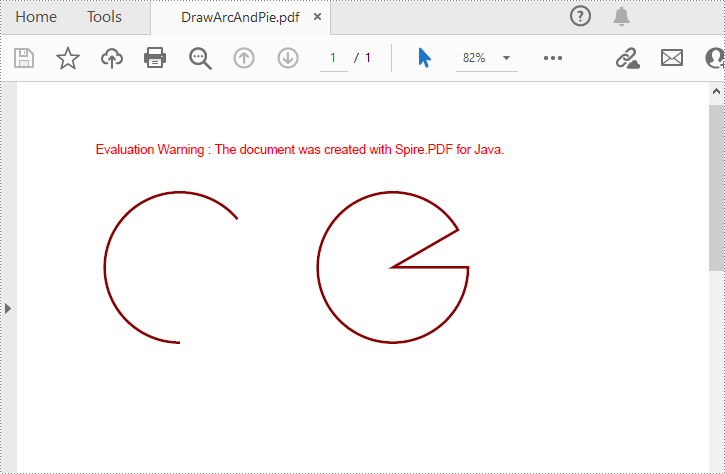
- Draw Arcs and Pies in PDF in Java
- Draw Rectangles in PDF in Java
- Draw Ellipses in PDF in Java
Install Spire.PDF for Java
First of all, you're required to add the Spire.Pdf.jar file as a dependency in your Java program. The JAR file can be downloaded from this link. If you use Maven, you can easily import the JAR file in your application by adding the following code to your project's pom.xml file.
<repositories>
    <repository>
        <id>com.e-iceblue</id>
        <name>e-iceblue</name>
        <url>https://repo.e-iceblue.com/nexus/content/groups/public/</url>
    </repository>
</repositories>
<dependencies>
    <dependency>
        <groupId>e-iceblue</groupId>
        <artifactId>spire.pdf</artifactId>
        <version>11.11.11</version>
    </dependency>
</dependencies>
Draw Lines in PDF in Java
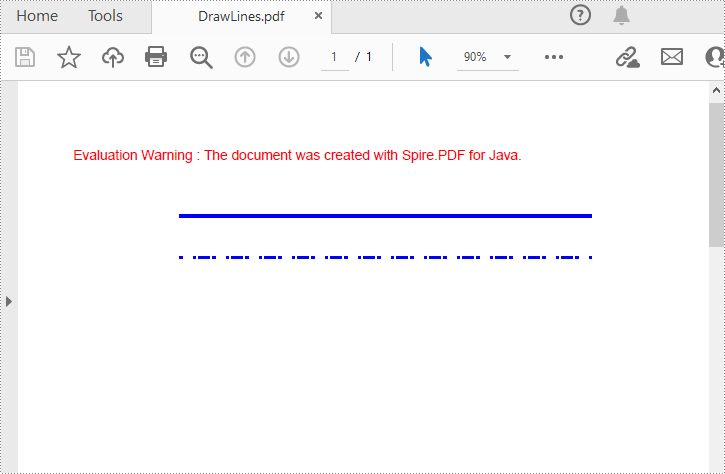
Spire.PDF for Java provides the PdfPageBase.getCanvas().drawLine(PdfPen pen, float x1, float y1, float x2, float y2) method to draw lines at specified locations on a PDF page. And by specifying different PDF pen styles, you can draw solid or dashed lines as needed. The following are the detailed steps.
- Create a PdfDocument object.
- Add a PDF page using PdfDocument.getPages().add() method.
- Save the current drawing state using PdfPageBase.getCanvas().save() method.
- Define the starting x, y coordinates and length of the line.
- Create a PdfPen object with specified color and thickness.
- Draw a solid line on the page using the pen through PdfPageBase.getCanvas().drawLine() method.
- Set the pen style to dashed, and then set the dashed line pattern.
- Draw a dashed line on the page using the pen with a dashed line style through PdfPageBase.getCanvas().drawLine() method.
- Restore the previous drawing state using PdfPageBase.getCanvas().restore() method.
- Save the result document using PdfDocument.saveToFile() method.
- Java
import com.spire.pdf.*;
import com.spire.pdf.graphics.*;

import java.awt.*;

public class drawLine {
    public static void main(String[] args) {
        // Create a PdfDocument object
        PdfDocument pdf = new PdfDocument();

        // Add a Page
        PdfPageBase page = pdf.getPages().add();

        // Save the current graphics state
        PdfGraphicsState state = page.getCanvas().save();

        // Specify the starting X and y coordinates of the line
        float x = 100;
        float y = 70;

        // Specify the length of the line
        float width = 300;

        // Create a PDF pen with blue color and thickness of 2
        PdfPen pen = new PdfPen(new PdfRGBColor(Color.BLUE), 2f);

        // Draw a solid line on the page using the pen
        page.getCanvas().drawLine(pen, x, y, x + width, y);

        // Set the pen style to dashed
        pen.setDashStyle(PdfDashStyle.Dash);

        // Set the dashed line pattern
        pen.setDashPattern(new float[]{1, 4, 1});

        // Draw a dashed line on the page using the pen
        page.getCanvas().drawLine(pen, x, y+30, x + width, y+30);

        // Restore the previous saved graphics state
        page.getCanvas().restore(state);

        // Save the PDF document
        pdf.saveToFile("DrawLines.pdf");

        // Close the document and release resources
        pdf.close();
        pdf.dispose();
    }
}
Draw Arcs and Pies in PDF in Java
To draw arcs or pies at the specified locations on a PDF page, you can use the PdfPageBase.getCanvas().drawArc() and the PdfPageBase.getCanvas().drawPie() methods. The following are the detailed steps.
- Create a PdfDocument object.
- Add a PDF page using PdfDocument.getPages().add() method.
- Save the current drawing state using PdfPageBase.getCanvas().save() method.
- Create a PdfPen object with specified color and thickness.
- Draw an arc on the page using the pen through PdfPageBase.getCanvas().drawArc()method.
- Draw a pie chart on the page using the pen through PdfPageBase.getCanvas().drawArc() method.
- Restore the previous drawing state using PdfPageBase.getCanvas().restore() method.
- Save the result document using PdfDocument.saveToFile() method.
- Java
import com.spire.pdf.*;
import com.spire.pdf.graphics.*;

import java.awt.*;
import java.awt.geom.Rectangle2D;

public class drawArcAndPie {
    public static void main(String[] args) {
        // Create a PdfDocument object
        PdfDocument pdf = new PdfDocument();

        // Add a Page
        PdfPageBase page = pdf.getPages().add();

        // Save the current graphics state
        PdfGraphicsState state = page.getCanvas().save();

        // Create a PDF pen with specified color and thickness of 2
        PdfPen pen = new PdfPen(new PdfRGBColor(new Color(139,0,0)), 2f);

        // Specify the start and sweep angles of the arc
        float startAngle = 90;
        float sweepAngle = 230;
        // Draw an arc on the page using the pen
        Rectangle2D.Float rect= new Rectangle2D.Float(30, 60, 120, 120);
        page.getCanvas().drawArc(pen, rect, startAngle, sweepAngle);

        // Specify the start and sweep angles of the pie chart
        float startAngle1 = 0;
        float sweepAngle1 = 330;
        // Draw a pie chart on the page using the pen
        Rectangle2D.Float rect2= new Rectangle2D.Float(200, 60, 120, 120);
        page.getCanvas().drawPie(pen, rect2, startAngle1, sweepAngle1);

        // Restore the previous saved graphics state
        page.getCanvas().restore(state);

        // Save the PDF document
        pdf.saveToFile("DrawArcAndPie.pdf");

        // Close the document and release resources
        pdf.close();
        pdf.dispose();
    }
}
Draw Rectangles in PDF in Java
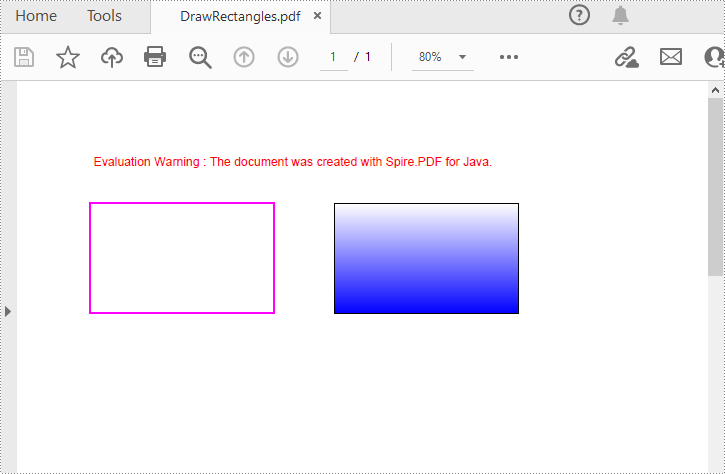
Spire.PDF for Java provides the PdfPageBase.getCanvas().drawRectangle() method to draw rectangular shapes on PDF pages. You can pass different parameters to the method to define the position, size and fill color of the rectangle. The following are the detailed steps.
- Create a PdfDocument object.
- Add a PDF page using PdfDocument.getPages().add() method.
- Save the current drawing state using PdfPageBase.getCanvas().save() method.
- Create a PdfPen object with specified color and thickness.
- Draw a rectangle on the page using the pen through PdfPageBase.getCanvas().drawRectangle() method.
- Create a PdfLinearGradientBrush object for linear gradient filling.
- Draw a filled rectangle using the linear gradient brush through PdfPageBase.getCanvas().drawRectangle() method.
- Restore the previous drawing state using PdfPageBase.getCanvas().restore() method.
- Save the result document using PdfDocument.saveToFile() method.
- Java
import com.spire.pdf.*;
import com.spire.pdf.graphics.*;

import java.awt.*;
import java.awt.geom.Rectangle2D;

public class drawRectangles {
    public static void main(String[] args) {
        // Create a PdfDocument object
        PdfDocument pdf = new PdfDocument();

        // Add a Page
        PdfPageBase page = pdf.getPages().add();

        // Save the current graphics state
        PdfGraphicsState state = page.getCanvas().save();

        // Create a PDF pen with specified color and thickness of 1.5
        PdfPen pen = new PdfPen(new PdfRGBColor(Color.magenta), 1.5f);

        // Draw a rectangle on the page using the pen
        page.getCanvas().drawRectangle(pen, new Rectangle(20, 60, 150, 90));

        // Create a linear gradient brush
        Rectangle2D.Float rect = new Rectangle2D.Float(220, 60, 150, 90);
        PdfLinearGradientBrush linearGradientBrush = new PdfLinearGradientBrush(rect,new PdfRGBColor(Color.white),new PdfRGBColor(Color.blue),PdfLinearGradientMode.Vertical);

        // Create a new PDF pen with specified color and thickness of 0.5
        PdfPen pen1 = new PdfPen(new PdfRGBColor(Color.black), 0.5f);

        // Draw a filled rectangle using the new pen and linear gradient brush
        page.getCanvas().drawRectangle(pen1, linearGradientBrush, rect);

        // Restore the previous graphics state
        page.getCanvas().restore(state);

        // Save the PDF document
        pdf.saveToFile("DrawRectangles.pdf");

        // Close the document and release resources
        pdf.close();
        pdf.dispose();
    }
}
Draw Ellipses in PDF in Java
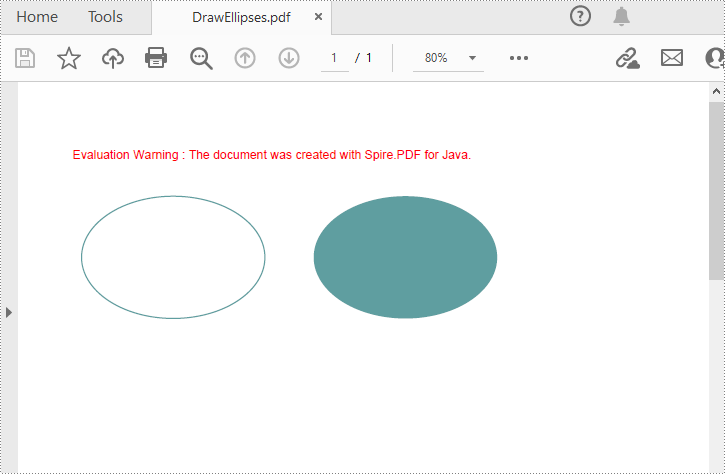
The PdfPageBase.getCanvas().drawEllipse() method allows for drawing ellipses on a PDF page. You can use either a PDF pen or a fill brush to draw ellipses in different styles. The following are the detailed steps.
- Create a PdfDocument object.
- Add a PDF page using PdfDocument.getPages().add() method.
- Save the current drawing state using PdfPageBase.getCanvas().save() method.
- Create a PdfPen object with specified color and thickness.
- Draw an ellipse on the page using the pen through PdfPageBase.getCanvas().drawEllipse() method.
- Create a PdfSolidBrush object.
- Draw a filled ellipse using the brush through PdfPageBase.getCanvas().drawEllipse() method.
- Restore the previous drawing state using PdfPageBase.getCanvas().restore() method.
- Save the result document using PdfDocument.saveToFile() method.
- Java
import com.spire.pdf.*;
import com.spire.pdf.graphics.*;

import java.awt.*;

public class drawEllipses {
    public static void main(String[] args) {
        // Create a PdfDocument object
        PdfDocument pdf = new PdfDocument();

        // Add a Page
        PdfPageBase page = pdf.getPages().add();

        // Save the current graphics state
        PdfGraphicsState state = page.getCanvas().save();

        // Create a PDF pen with specified color and thickness
        PdfPen pen = new PdfPen(new PdfRGBColor(new Color(95, 158, 160)), 1f);
        // Draw an ellipse on the page using the pen
        page.getCanvas().drawEllipse(pen, 30, 60, 150, 100);

        // Create a brush with specified color for filling
        PdfBrush brush = new PdfSolidBrush(new PdfRGBColor(new Color(95, 158, 160)));
        // Draw a filled ellipse using the brush
        page.getCanvas().drawEllipse(brush, 220, 60, 150, 100);

        // Restore the previous graphics state
        page.getCanvas().restore(state);

        // Save the PDF document
        pdf.saveToFile("DrawEllipses.pdf");

        // Close the document and release resources
        pdf.close();
        pdf.dispose();
    }
}
Apply for a Temporary License
If you'd like to remove the evaluation message from the generated documents, or to get rid of the function limitations, please request a 30-day trial license for yourself.
Knowing the number of pages in a PDF helps you understand the length of the document, which is especially useful in scenarios where a large number of PDF documents need to be processed, such as office work, academic research, or legal document management. By getting the PDF page count, you can estimate the time required to process the document, thus rationalizing tasks and increasing efficiency. In this article, you will learn how to get the number of pages in a PDF file in Java using Spire.PDF for Java.
Install Spire.PDF for Java
First of all, you're required to add the Spire.Pdf.jar file as a dependency in your Java program. The JAR file can be downloaded from this link. If you use Maven, you can easily import the JAR file in your application by adding the following code to your project's pom.xml file.
<repositories>
    <repository>
        <id>com.e-iceblue</id>
        <name>e-iceblue</name>
        <url>https://repo.e-iceblue.com/nexus/content/groups/public/</url>
    </repository>
</repositories>
<dependencies>
    <dependency>
        <groupId>e-iceblue</groupId>
        <artifactId>spire.pdf</artifactId>
        <version>11.11.11</version>
    </dependency>
</dependencies>
Count the Number of Pages in a PDF File in Java
The PdfDocument.getPages().getCount() method provided by Spire.PDF for Java allows to quickly count the number of pages in a PDF file without opening it. The following are the detailed steps.
- Create a PdfDocument object.
- Load a sample PDF file using PdfDocument.loadFromFile() method.
- Count the number of pages in the PDF file using PdfDocument.getPages().getCount() method.
- Print out the result.
- Java
import com.spire.pdf.PdfDocument;

public class CountPdfPages {

    public static void main(String[] args) {

        //Create a PdfDocument instance
        PdfDocument pdf = new PdfDocument();

        //Load a PDF file
       pdf.loadFromFile("contract.pdf");

        //Count the number of pages in the PDF file
        int pageCount = pdf.getPages().getCount();

        //Output the result
        System.out.print("The number of pages in the PDF is: " + pageCount);
    }
}

Apply for a Temporary License
If you'd like to remove the evaluation message from the generated documents, or to get rid of the function limitations, please request a 30-day trial license for yourself.
A fillable PDF form is useful for collecting data from users. Being able to create interactive and fillable PDF forms is important since PDF has become one of the most popular file formats in business. This article demonstrates how to create, fill, or remove fillable form fields in PDF using Spire.PDF for Java.
- Create Fillable Form Fields in a PDF Document
- Fill Form Fields in an Existing PDF Document
- Delete a Particular Field or All Fields in an Existing PDF Document
Spire.PDF for Java offers a series of useful classes under the com.spire.pdf.fields namespace, allowing programmers to create and edit various types of form fields including text box, check box, combo box, list box, and radio button. The table below lists some of the core classes involved in this tutorial.
| Class | Description |
| PdfForm | Represents interactive form of the PDF document. |
| PdfField | Represents field of the PDF document's interactive form. |
| PdfTextBoxField | Represents text box field in the PDF form. |
| PdfCheckBoxField | Represents check box field in the PDF form. |
| PdfComboBoxField | Represents combo box field in the PDF Form. |
| PdfListBoxField | Represents list box field of the PDF form. |
| PdfListFieldItem | Represents an item of a list field. |
| PdfRadioButtonListField | Represents radio button field in the PDF form. |
| PdfRadioButtonListItem | Represents an item of a radio button list. |
| PdfButtonField | Represents button field in the PDF form. |
| PdfSignatureField | Represents signature field in the PDF form. |
Install Spire.PDF for Java
First, you're required to add the Spire.Pdf.jar file as a dependency in your Java program. The JAR file can be downloaded from this link. If you use Maven, you can easily import the JAR file in your application by adding the following code to your project's pom.xml file.
<repositories>
    <repository>
        <id>com.e-iceblue</id>
        <name>e-iceblue</name>
        <url>https://repo.e-iceblue.com/nexus/content/groups/public/</url>
    </repository>
</repositories>
<dependencies>
    <dependency>
        <groupId>e-iceblue</groupId>
        <artifactId>spire.pdf</artifactId>
        <version>11.11.11</version>
    </dependency>
</dependencies>
Create Fillable Form Fields in a PDF Document in Java
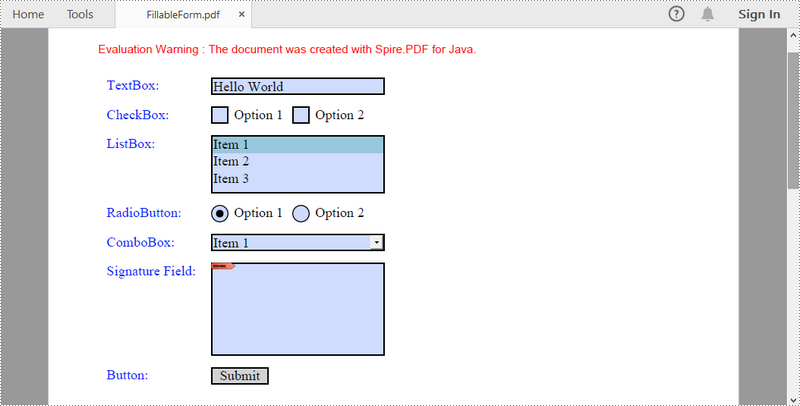
To create a field, initialize an instance of the corresponding class. Specify its size and position in the document using setBounds() method, and then add it to PDF using PdfForm.getFields().add() method. The following are the steps to create various types of form fields in a PDF document using Spire.PDF for Java.
- Create a PdfDocument object.
- Add a page using PdfDocuemnt.getPages().add() method.
- Create a PdfTextBoxField object, set the properties of the field including Bounds, Font and Text, and then add it to the document using PdFormfFieldCollection.add() method.
- Repeat the step 3 to add check box, combo box, list box, radio button, signature field and button to the document.
- Save the document to a PDF file using PdfDocument.saveToFile() method.
- Java
import com.spire.pdf.FileFormat;
import com.spire.pdf.PdfDocument;
import com.spire.pdf.PdfPageBase;
import com.spire.pdf.actions.PdfSubmitAction;
import com.spire.pdf.fields.*;
import com.spire.pdf.graphics.*;
import com.spire.pdf.packages.sprcfn;

import java.awt.*;
import java.awt.geom.Point2D;
import java.awt.geom.Rectangle2D;

public class CreateFillableFormFields {

    public static void main(String[] args) throws Exception {

        //Create a PdfDocument object
        PdfDocument doc = new PdfDocument();

        //Add a page
        PdfPageBase page = doc.getPages().add();

        //Initialize x and y coordinates
        float baseX = 100;
        float baseY = 30;

        //Create two brush objects
        PdfSolidBrush brush1 = new PdfSolidBrush(new PdfRGBColor(Color.blue));
        PdfSolidBrush brush2 = new PdfSolidBrush(new PdfRGBColor(Color.black));

        //Create a font
        PdfFont font = new PdfFont(PdfFontFamily.Times_Roman, 12f, PdfFontStyle.Regular);

        //Add a textbox
        page.getCanvas().drawString("TextBox:", font, brush1, new Point2D.Float(10, baseY));
        Rectangle2D.Float tbxBounds = new Rectangle2D.Float(baseX, baseY, 150, 15);
        PdfTextBoxField textBox = new PdfTextBoxField(page, "textbox");
        textBox.setBounds(tbxBounds);
        textBox.setText("Hello World");
        textBox.setFont(font);
        doc.getForm().getFields().add(textBox);
        baseY += 25;

        //add two checkboxes
        page.getCanvas().drawString("CheckBox:", font, brush1, new Point2D.Float(10, baseY));
        Rectangle2D.Float checkboxBound1 = new Rectangle2D.Float(baseX, baseY, 15, 15);
        PdfCheckBoxField checkBoxField1 = new PdfCheckBoxField(page, "checkbox1");
        checkBoxField1.setBounds(checkboxBound1);
        checkBoxField1.setChecked(false);
        page.getCanvas().drawString("Option 1", font, brush2, new Point2D.Float(baseX + 20, baseY));

        Rectangle2D.Float checkboxBound2 = new Rectangle2D.Float(baseX + 70, baseY, 15, 15);
        PdfCheckBoxField checkBoxField2 = new PdfCheckBoxField(page, "checkbox2");
        checkBoxField2.setBounds(checkboxBound2);
        checkBoxField2.setChecked(false);
        page.getCanvas().drawString("Option 2", font, brush2, new Point2D.Float(baseX + 90, baseY));
        doc.getForm().getFields().add(checkBoxField1);
        doc.getForm().getFields().add(checkBoxField2);
        baseY += 25;

        //Add a listbox
        page.getCanvas().drawString("ListBox:", font, brush1, new Point2D.Float(10, baseY));
        Rectangle2D.Float listboxBound = new Rectangle2D.Float(baseX, baseY, 150, 50);
        PdfListBoxField listBoxField = new PdfListBoxField(page, "listbox");
        listBoxField.getItems().add(new PdfListFieldItem("Item 1", "item1"));
        listBoxField.getItems().add(new PdfListFieldItem("Item 2", "item2"));
        listBoxField.getItems().add(new PdfListFieldItem("Item 3", "item3")); ;
        listBoxField.setBounds(listboxBound);
        listBoxField.setFont(font);
        listBoxField.setSelectedIndex(0);
        doc.getForm().getFields().add(listBoxField);
        baseY += 60;

        //Add two radio buttons
        page.getCanvas().drawString("RadioButton:", font, brush1, new Point2D.Float(10, baseY));
        PdfRadioButtonListField radioButtonListField = new PdfRadioButtonListField(page, "radio");
        PdfRadioButtonListItem radioItem1 = new PdfRadioButtonListItem("option1");
        Rectangle2D.Float radioBound1 = new Rectangle2D.Float(baseX, baseY, 15, 15);
        radioItem1.setBounds(radioBound1);
        page.getCanvas().drawString("Option 1", font, brush2, new Point2D.Float(baseX + 20, baseY));

        PdfRadioButtonListItem radioItem2 = new PdfRadioButtonListItem("option2");
        Rectangle2D.Float radioBound2 = new Rectangle2D.Float(baseX + 70, baseY, 15, 15);
        radioItem2.setBounds(radioBound2);
        page.getCanvas().drawString("Option 2", font, brush2, new Point2D.Float(baseX + 90, baseY));
        radioButtonListField.getItems().add(radioItem1);
        radioButtonListField.getItems().add(radioItem2);
        radioButtonListField.setSelectedIndex(0);
        doc.getForm().getFields().add(radioButtonListField);
        baseY += 25;

        //Add a combobox
        page.getCanvas().drawString("ComboBox:", font, brush1, new Point2D.Float(10, baseY));
        Rectangle2D.Float cmbBounds = new Rectangle2D.Float(baseX, baseY, 150, 15);
        PdfComboBoxField comboBoxField = new PdfComboBoxField(page, "combobox");
        comboBoxField.setBounds(cmbBounds);
        comboBoxField.getItems().add(new PdfListFieldItem("Item 1", "item1"));
        comboBoxField.getItems().add(new PdfListFieldItem("Item 2", "itme2"));
        comboBoxField.getItems().add(new PdfListFieldItem("Item 3", "item3"));
        comboBoxField.getItems().add(new PdfListFieldItem("Item 4", "item4"));
        comboBoxField.setSelectedIndex(0);
        comboBoxField.setFont(font);
        doc.getForm().getFields().add(comboBoxField);
        baseY += 25;

        //Add a signature field
        page.getCanvas().drawString("Signature Field:", font, brush1, new Point2D.Float(10, baseY));
        PdfSignatureField sgnField = new PdfSignatureField(page, "sgnField");
        Rectangle2D.Float sgnBounds = new Rectangle2D.Float(baseX, baseY, 150, 80);
        sgnField.setBounds(sgnBounds);
        doc.getForm().getFields().add(sgnField);
        baseY += 90;

        //Add a button
        page.getCanvas().drawString("Button:", font, brush1, new Point2D.Float(10, baseY));
        Rectangle2D.Float btnBounds = new Rectangle2D.Float(baseX, baseY, 50, 15);
        PdfButtonField buttonField = new PdfButtonField(page, "button");
        buttonField.setBounds(btnBounds);
        buttonField.setText("Submit");
        buttonField.setFont(font);
        PdfSubmitAction submitAction = new PdfSubmitAction("https://www.e-iceblue.com/getformvalues.php");
        buttonField.getActions().setMouseDown(submitAction);
        doc.getForm().getFields().add(buttonField);

        //Save to file
        doc.saveToFile("FillableForm.pdf", FileFormat.PDF);
    }
}
Fill Form Fields in an Existing PDF Document in Java
In order to fill out a form, we must first get all the form fields from the PDF document, determine the type of a certain field, and then input a value or select a value from a predefined list. The following are the steps to fill form fields in an existing PDF document using Spire.PDF for Java.
- Create a PdfDocument object.
- Load a sample PDF document using PdfDocument.loadFromFile() method.
- Get the form from the document through PdfDocument.getForm() method.
- Get the form field widget collection through PdfFormWidget.getFieldsWidget() method.
- Loop through the field widget collection to get a specific PdfField.
- Determine if the PdfField is a certain field type such as text box. If yes, set the text of the text box using PdfTextBoxFieldWidget.setText() method.
- Repeat the sixth step to fill radio button, check box, combo box, and list box with values.
- Save the document to a PDF file using PdfDocument.saveToFile() method.
- Java
import com.spire.pdf.FileFormat;
import com.spire.pdf.PdfDocument;
import com.spire.pdf.fields.PdfField;
import com.spire.pdf.widget.*;

public class FillFormFields {

    public static void main(String[] args) {

        //Create a PdfDocument object
        PdfDocument doc = new PdfDocument();

        //Load a template containing forms
        doc.loadFromFile("C:\\Users\\Administrator\\Desktop\\FormsTemplate.pdf");

        //Get the form from the document
        PdfFormWidget form = (PdfFormWidget)doc.getForm();

        //Get the form widget collection
        PdfFormFieldWidgetCollection formWidgetCollection = form.getFieldsWidget();

        //Loop through the widgets
        for (int i = 0; i < formWidgetCollection.getCount(); i++)
        {
            //Get a specific field
            PdfField field = formWidgetCollection.get(i);

            //Determine if the field is a text box
            if (field instanceof PdfTextBoxFieldWidget)
            {
                if (field.getName().equals("name"))
                {
                    //Set the text of text box
                    PdfTextBoxFieldWidget textBoxField = (PdfTextBoxFieldWidget)field;
                    textBoxField.setText("Kaila Smith");
                }
            }

            //Determine if the field is a radio button
            if (field instanceof PdfRadioButtonListFieldWidget)
            {
                if (field.getName().equals("gender"))
                {
                    //Set the selected index of radio button
                    PdfRadioButtonListFieldWidget radioButtonListField = (PdfRadioButtonListFieldWidget)field;
                    radioButtonListField.setSelectedIndex(1);
                }
            }

            //Determine if the field is a combo box
            if (field instanceof PdfComboBoxWidgetFieldWidget)
            {
                if (field.getName().equals("country"))
                {
                    //Set the selected index of combo box
                    PdfComboBoxWidgetFieldWidget comboBoxField = (PdfComboBoxWidgetFieldWidget)field;
                    comboBoxField.setSelectedIndex(0);
                }
            }

            //Determine if the field is a check box
            if (field instanceof PdfCheckBoxWidgetFieldWidget)
            {
                //Set the "Checked" status of check box
                PdfCheckBoxWidgetFieldWidget checkBoxField = (PdfCheckBoxWidgetFieldWidget)field;
                switch (checkBoxField.getName())
                {
                    case "travel":
                    case "movie":
                        checkBoxField.setChecked(true);
                        break;
                }
            }

            //Determine if the field is a list box
            if (field instanceof PdfListBoxWidgetFieldWidget)
            {
                if (field.getName().equals("degree"))
                {
                    //Set the selected index of list box
                    PdfListBoxWidgetFieldWidget listBox = (PdfListBoxWidgetFieldWidget)field;
                    listBox.setSelectedIndex(1);
                }
            }
        }

        //Save to file
        doc.saveToFile("FillFormFields.pdf", FileFormat.PDF);
    }
}
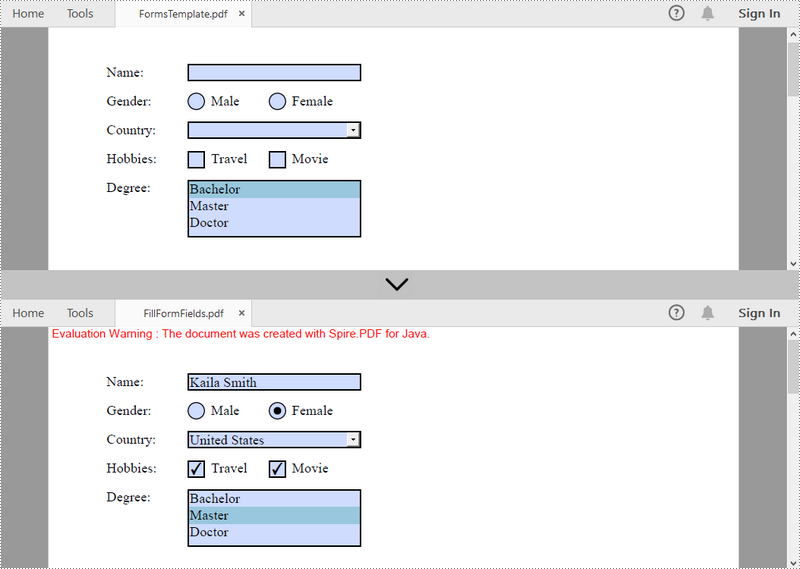
Delete a Particular Field or All Fields in an Existing PDF Document in Java
A form field in a PDF document can be accessed by its index or name and removed by PdfFieldCollection.remove() method. The following are the steps to remove a particular field or all fields from an existing PDF document using Sprie.PDF for Java.
- Create a PdfDocument object.
- Load a sample PDF document using PdfDocument.loadFromFile() method.
- Get the form from the document using PdfDocument.getForm() method.
- Get the form field widget collection using PdfFormWidget.getFieldsWidget() method.
- Loop through the widget collection to get a specific PdfField. Remove the field one by one using PdfFieldCollection.remove() method.
- To remove a certain form field, get it from the document using PdfFormFieldWidgetCollection.get() method and then call the PdfFieldCollection.remove() method.
- Save the document to a PDF file using PdfDocument.saveToFile() method.
- Java
import com.spire.pdf.PdfDocument;
import com.spire.pdf.fields.PdfField;
import com.spire.pdf.widget.PdfFormFieldWidgetCollection;
import com.spire.pdf.widget.PdfFormWidget;

public class DeleteFormFields {

    public static void main(String[] args) {

        //Create a PdfDocument object
        PdfDocument doc = new PdfDocument();

        //Load a PDF file
        doc.loadFromFile("C:\\Users\\Administrator\\Desktop\\FormsTemplate.pdf");

        //Get the form from the document
        PdfFormWidget form= (PdfFormWidget)doc.getForm();

        //Get form widgets from the form
         PdfFormFieldWidgetCollection widgets = form.getFieldsWidget();

        //Loop through the widgets
        for (int i = widgets.getCount() - 1; i >= 0; i--)
        {
            //Get a specific field
            PdfField field = (PdfField)widgets.getList().get(i) ;

            //Remove the field
            widgets.remove(field);
        }

        //Get a specific field by its name
        //PdfField field = widgets.get("name");
        //Remove the field
        //widgets.remove(field);

        //Save to file
        doc.saveToFile("DeleteAllFields.pdf");
    }
}
Apply for a Temporary License
If you'd like to remove the evaluation message from the generated documents, or to get rid of the function limitations, please request a 30-day trial license for yourself.
