
Program Guide (123)
Children categories
Converting images to PDF is beneficial for many reasons. For one reason, it allows you to convert images into a format that is more readable and easier to share. For another reason, it dramatically reduces the size of the file while preserving the quality of images. In this article, you will learn how to convert images to PDF in Java using Spire.PDF for Java.
There is no straightforward method provided by Spire.PDF to convert images to PDF. You could, however, create a new PDF document and draw images at the specified locations. Depending on whether the page size of the generated PDF matches the image, this topic can be divided into two subtopics.
Install Spire.PDF for Java
First, you're required to add the Spire.Pdf.jar file as a dependency in your Java program. The JAR file can be downloaded from this link. If you use Maven, you can easily import the JAR file in your application by adding the following code to your project's pom.xml file.
<repositories>
    <repository>
        <id>com.e-iceblue</id>
        <name>e-iceblue</name>
        <url>https://repo.e-iceblue.com/nexus/content/groups/public/</url>
    </repository>
</repositories>
<dependencies>
    <dependency>
        <groupId>e-iceblue</groupId>
        <artifactId>spire.pdf</artifactId>
        <version>11.11.11</version>
    </dependency>
</dependencies>
Additionally, the imgscalr library is used in the first code example to resize images. It is not necessary to install it if you do not need to adjust the image’s size.
Add an Image to PDF at a Specified Location
The following are the steps to add an image to PDF at a specified location using Spire.PDF for Java.
- Create a PdfDocument object.
- Set the page margins using PdfDocument.getPageSettings().setMargins() method.
- Add a page using PdfDocument.getPages().add() method
- Load an image using ImageIO.read() method, and get the image width and height.
- If the image width is larger than the page (the content area) width, resize the image to make it to fit to the page width using the imgscalr library.
- Create a PdfImage object based on the scaled image or the original image.
- Draw the PdfImage object on the first page at (0, 0) using PdfPageBase.getCanvas().drawImage() method.
- Save the document to a PDF file using PdfDocument.saveToFile() method.
- Java
import com.spire.pdf.PdfDocument;
import com.spire.pdf.PdfPageBase;
import com.spire.pdf.graphics.PdfImage;
import org.imgscalr.Scalr;

import javax.imageio.ImageIO;
import java.awt.image.BufferedImage;
import java.io.FileInputStream;
import java.io.IOException;

public class AddImageToPdf {

    public static void main(String[] args) throws IOException {

        //Create a PdfDocument object
        PdfDocument doc = new PdfDocument();

        //Set the margins
        doc.getPageSettings().setMargins(20);

        //Add a page
        PdfPageBase page = doc.getPages().add();

        //Load an image
        BufferedImage image = ImageIO.read(new FileInputStream("C:\\Users\\Administrator\\Desktop\\announcement.jpg"));

        //Get the image width and height
        int width = image.getWidth();
        int height = image.getHeight();

        //Declare a PdfImage variable
        PdfImage pdfImage;

        //If the image width is larger than page width
        if (width > page.getCanvas().getClientSize().getWidth())
        {
            //Resize the image to make it to fit to the page width
            int widthFitRate =  width / (int)page.getCanvas().getClientSize().getWidth();
            int targetWidth = width / widthFitRate;
            int targetHeight = height / widthFitRate;
            BufferedImage scaledImage = Scalr.resize(image,Scalr.Method.QUALITY,targetWidth,targetHeight);

            //Load the scaled image to the PdfImage object
            pdfImage = PdfImage.fromImage(scaledImage);

        } else
        {
            //Load the original image to the PdfImage object
            pdfImage = PdfImage.fromImage(image);
        }

        //Draw image at (0, 0)
        page.getCanvas().drawImage(pdfImage, 0, 0, pdfImage.getWidth(), pdfImage.getHeight());

        //Save to file
        doc.saveToFile("output/AddImage.pdf");
    }
}

Convert an Image to PDF with the Same Width and Height
The following are the steps to convert an image to a PDF with the same page size as the image using Spire.PDF for Java.
- Create a PdfDocument object.
- Set the page margins to zero using PdfDocument.getPageSettings().setMargins() method.
- Load an image using ImageIO.read() method, and get the image width and height.
- Add a page to PDF based on the size of the image using PdfDocument.getPages().add() method.
- Create a PdfImage object based on the image.
- Draw the PdfImage object on the first page from the coordinate (0, 0) using PdfPageBase.getCanvas().drawImage() method.
- Save the document to a PDF file using PdfDocument.saveToFile() method.
- Java
import com.spire.pdf.PdfDocument;
import com.spire.pdf.PdfPageBase;
import com.spire.pdf.graphics.PdfImage;

import javax.imageio.ImageIO;
import java.awt.*;
import java.awt.image.BufferedImage;
import java.io.FileInputStream;
import java.io.IOException;

public class ConvertImageToPdfWithSameSize {

    public static void main(String[] args) throws IOException {

        //Create a PdfDocument object
        PdfDocument doc = new PdfDocument();

        //Set the margins to 0
        doc.getPageSettings().setMargins(0);

        //Load an image
        BufferedImage image = ImageIO.read(new FileInputStream("C:\\Users\\Administrator\\Desktop\\announcement.jpg"));

        //Get the image width and height
        int width = image.getWidth();
        int height = image.getHeight();

        //Add a page of the same size as the image
        PdfPageBase page = doc.getPages().add(new Dimension(width, height));

        //Create a PdfImage object based on the image
        PdfImage pdfImage = PdfImage.fromImage(image);

        //Draw image at (0, 0) of the page
        page.getCanvas().drawImage(pdfImage, 0, 0, pdfImage.getWidth(), pdfImage.getHeight());

        //Save to file
        doc.saveToFile("output/ConvertPdfWithSameSize.pdf");
    }
}

Apply for a Temporary License
If you'd like to remove the evaluation message from the generated documents, or to get rid of the function limitations, please request a 30-day trial license for yourself.
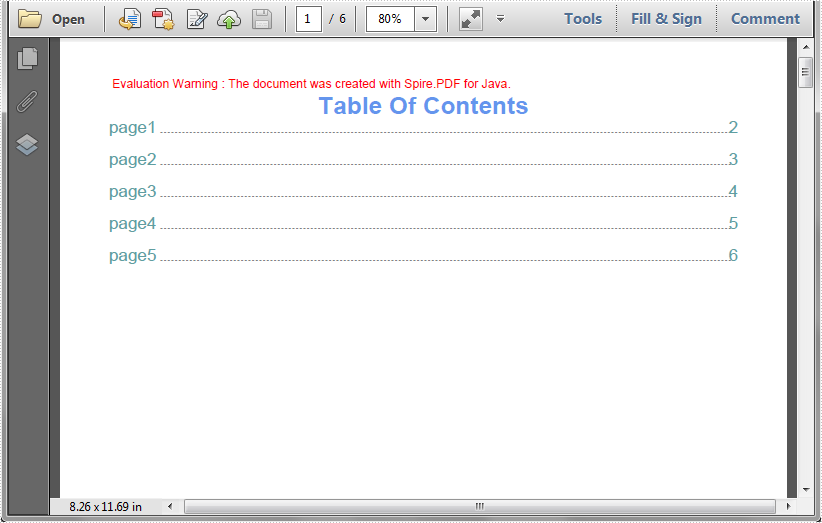
Table of contents (TOC) makes the PDF documents more accessible and easier to navigate, especially for large files. This article demonstrates how to create table of contents (TOC) for a PDF document using Spire.PDF for Java.
import com.spire.pdf.*;
import com.spire.pdf.actions.PdfGoToAction;
import com.spire.pdf.annotations.*;
import com.spire.pdf.general.PdfDestination;
import com.spire.pdf.graphics.*;
import java.awt.*;
import java.awt.geom.*;

public class TableOfContent {
    public static void main(String[] args) throws Exception
    {
        //load PDF file
        PdfDocument doc = new PdfDocument("sample.pdf");
        int pageCount = doc.getPages().getCount();
        //Insert a new page as the first page to draw table of content
        PdfPageBase tocPage = doc.getPages().insert(0);
        //set title
        String title = "Table Of Contents";
        PdfTrueTypeFont titleFont = new PdfTrueTypeFont(new Font("Arial",  Font.BOLD,20));
        PdfStringFormat centerAlignment = new PdfStringFormat(PdfTextAlignment.Center, PdfVerticalAlignment.Middle);
        Point2D location = new Point2D.Float((float) tocPage.getCanvas().getClientSize().getWidth() / 2, (float) titleFont.measureString(title).getHeight());
        tocPage.getCanvas().drawString(title, titleFont, PdfBrushes.getCornflowerBlue(), location, centerAlignment);
        //draw TOC text
        PdfTrueTypeFont titlesFont = new PdfTrueTypeFont(new Font("Arial", Font.PLAIN,14));
        String[] titles = new String[pageCount];
        for (int i = 0; i < titles.length; i++) {
            titles[i] = String.format("page%1$s", i + 1);
        }
        float y = (float)titleFont.measureString(title).getHeight() + 10;
        float x = 0;
        for (int i = 1; i <= pageCount; i++) {
            String text = titles[i - 1];
            Dimension2D titleSize = titlesFont.measureString(text);
            PdfPageBase navigatedPage = doc.getPages().get(i);
            String pageNumText = (String.valueOf(i+1));
            Dimension2D pageNumTextSize = titlesFont.measureString(pageNumText);
            tocPage.getCanvas().drawString(text, titlesFont, PdfBrushes.getCadetBlue(), 0, y);
            float dotLocation = (float)titleSize.getWidth() + 2 + x;
            float pageNumlocation = (float)(tocPage.getCanvas().getClientSize().getWidth() - pageNumTextSize.getWidth());
            for (float j = dotLocation; j < pageNumlocation; j++) {
                if (dotLocation >= pageNumlocation) {
                    break;
                }
                tocPage.getCanvas().drawString(".", titlesFont, PdfBrushes.getGray(), dotLocation, y);
                dotLocation += 3;
            }
            tocPage.getCanvas().drawString(pageNumText, titlesFont, PdfBrushes.getCadetBlue(), pageNumlocation, y);
            //add TOC action
            Rectangle2D titleBounds = new Rectangle2D.Float(0,y,(float)tocPage.getCanvas().getClientSize().getWidth(),(float)titleSize.getHeight());
            PdfDestination Dest = new PdfDestination(navigatedPage, new Point2D.Float(-doc.getPageSettings().getMargins().getTop(), -doc.getPageSettings().getMargins().getLeft()));
            PdfActionAnnotation action = new PdfActionAnnotation(titleBounds, new PdfGoToAction(Dest));
            action.setBorder(new PdfAnnotationBorder(0));
            ((PdfNewPage) ((tocPage instanceof PdfNewPage) ? tocPage : null)).getAnnotations().add(action);
            y += titleSize.getHeight() + 10;
        }

        //save the resultant file
        doc.saveToFile("addTableOfContent.pdf");
        doc.close();
    }
}
Output:
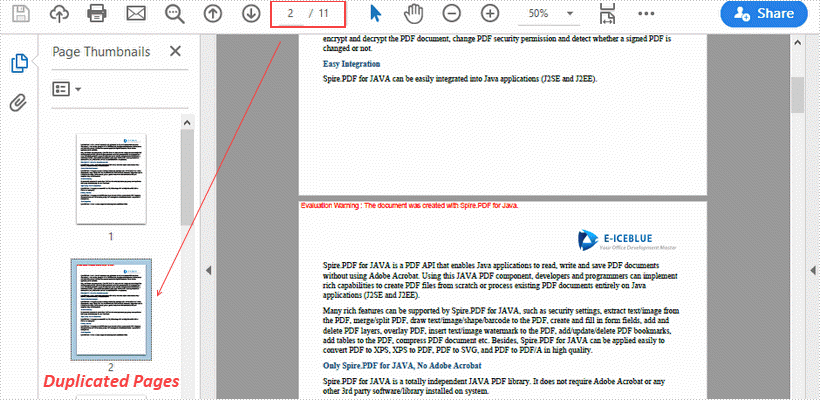
This article demonstrates how to duplicate a page within a PDF document using Spire.PDF for Java.
import com.spire.pdf.PdfDocument;
import com.spire.pdf.PdfPageBase;
import com.spire.pdf.graphics.PdfMargins;
import com.spire.pdf.graphics.PdfTemplate;

import java.awt.geom.Dimension2D;
import java.awt.geom.Point2D;

public class DuplicatePage {

    public static void main(String[] args) {

        //Load a sample PDF document
        PdfDocument pdf = new PdfDocument("C:\\Users\\Administrator\\Desktop\\original.pdf");

        //Get the first page
        PdfPageBase page = pdf.getPages().get(0);

        //Get the page size
        Dimension2D size = page.getActualSize();

        //Create a template based on the page
        PdfTemplate template = page.createTemplate();

        for (int i = 0; i < 10; i++) {

            //Add a new page to the document
            page = pdf.getPages().add(size, new PdfMargins(0));

            //Draw template on the new page
            page.getCanvas().drawTemplate(template, new Point2D.Float(0, 0));
        }

        //Save the file
        pdf.saveToFile("output/DuplicatePage.pdf");
    }
}
Getting the PDF page size, orientation and rotation angle are tasks that are often required when working with PDF documents. These parameters are important to ensure that the printout meets expectations and that the document content is displayed correctly on different devices. In this article, you will learn how to get the page size, orientation and rotation angle of PDFs in Java using Spire.PDF for Java.
- Get PDF Page Size in Java
- Detect PDF Page Orientation in Java
- Detect PDF Page Rotation Angle in Java
Install Spire.PDF for Java
First of all, you're required to add the Spire.Pdf.jar file as a dependency in your Java program. The JAR file can be downloaded from this link. If you use Maven, you can easily import the JAR file in your application by adding the following code to your project's pom.xml file.
<repositories>
    <repository>
        <id>com.e-iceblue</id>
        <name>e-iceblue</name>
        <url>https://repo.e-iceblue.com/nexus/content/groups/public/</url>
    </repository>
</repositories>
<dependencies>
    <dependency>
        <groupId>e-iceblue</groupId>
        <artifactId>spire.pdf</artifactId>
        <version>11.11.11</version>
    </dependency>
</dependencies>
Get PDF Page Size in Java
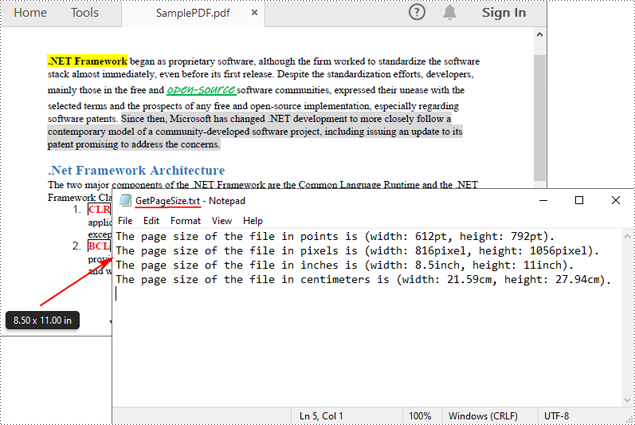
Spire.PDF for Java offers the PdfPageBase.getSize().getWidth() and PdfPageBase.getSize().getHeight() methods to get the width and height of a PDF page in points. If you want to convert the default unit of measure to other units, you can use the PdfUnitConvertor class. The following are the detailed steps.
- Create a PdfDocument instance.
- Load a PDF file using PdfDocument.loadFromFile() method.
- Get a specified page using PdfDocument.getPages().get() method.
- Get the width and height of the PDF page using PdfPageBase.getSize().getWidth() and PdfPageBase.getSize().getHeight() methods.
- Create a PdfUnitConvertor instance, and then convert the size units from points to other units of measure using PdfUnitConvertor.convertUnits() method.
- Add the page size information to a StringBuilder instance, and then save the result to a TXT file.
- Java
import com.spire.pdf.*;
import com.spire.pdf.graphics.*;
import java.io.*;

public class GetPDFPageSize {
    public static void main(String[] args) throws IOException {

        //Create a PdfDocument object
        PdfDocument pdf = new PdfDocument();

        //Load a PDF file from disk
        pdf.loadFromFile("SamplePDF.pdf");

        //Get the first page
        PdfPageBase page = pdf.getPages().get(0);

        //Get the width and height of the page in "point"
        double pointWidth = page.getSize().getWidth();
        double pointHeight = page.getSize().getHeight();

        //Create PdfUnitConvertor to convert the unit
        PdfUnitConvertor unitCvtr = new PdfUnitConvertor();

        //Convert size units from points to pixels
        float pixelWidth = unitCvtr.convertUnits((float) pointWidth, PdfGraphicsUnit.Point, PdfGraphicsUnit.Pixel);
        float pixelHeight = unitCvtr.convertUnits((float) pointHeight, PdfGraphicsUnit.Point, PdfGraphicsUnit.Pixel);

        //Convert size units from points to inches
        float inchWidth = unitCvtr.convertUnits((float) pointWidth, PdfGraphicsUnit.Point, PdfGraphicsUnit.Inch);
        float inchHeight = unitCvtr.convertUnits((float) pointHeight, PdfGraphicsUnit.Point, PdfGraphicsUnit.Inch);

        //Convert size units from points to centimeters
        float centimeterWidth = unitCvtr.convertUnits((float) pointWidth, PdfGraphicsUnit.Point, PdfGraphicsUnit.Centimeter);
        float centimeterHeight = unitCvtr.convertUnits((float) pointHeight, PdfGraphicsUnit.Point, PdfGraphicsUnit.Centimeter);

        //Create StringBuilder to save
        StringBuilder content = new StringBuilder();

        //Add the page size information to the StringBuilder instance
        content.append("The page size of the file in points is (width: " + pointWidth + "pt, height: " + pointHeight + "pt)." + "\r\n");
        content.append("The page size of the file in pixels is (width: " + pixelWidth + "pixel, height: " + pixelHeight + "pixel)." + "\r\n");
        content.append("The page size of the file in inches is (width: " + inchWidth + "inch, height: " + inchHeight + "inch)." + "\r\n");
        content.append("The page size of the file in centimeters is (width: " + centimeterWidth + "cm, height: " + centimeterHeight + "cm)." + "\r\n");

        //Write information to a txt file
        FileWriter writer = new FileWriter("GetPageSize.txt");
        writer.write(content.toString());
        writer.flush();
        writer.close();

        pdf.close();
        pdf.dispose();
    }
}
Detect PDF Page Orientation in Java
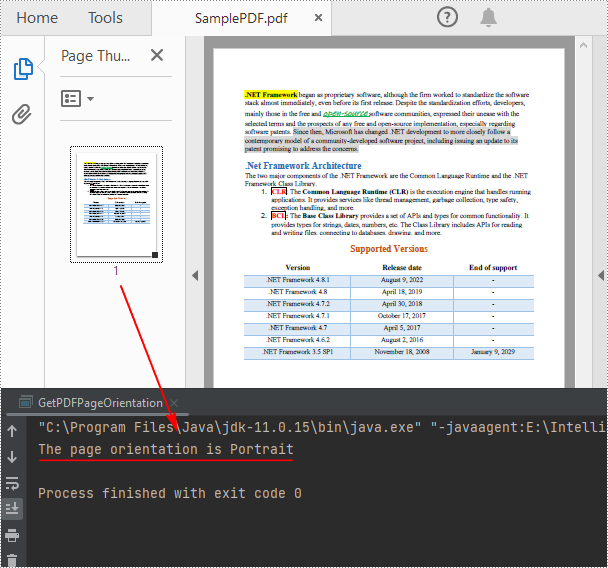
To detect the orientation of a PDF page, you can compare the width and height of the page. If the page width is greater than the height, then the page orientation is landscape, otherwise it is portrait. The following are the detailed steps.
- Create a PdfDocument instance.
- Load a PDF file using PdfDocument.loadFromFile() method.
- Get a specified page using PdfDocument.getPages().get() method.
- Get the width and height of the PDF page using PdfPageBase.getSize().getWidth() and PdfPageBase.getSize().getHeight() methods.
- Compare the values of page width and height to detect the page orientation.
- Print out the result.
- Java
import com.spire.pdf.*;
import java.io.*;

public class GetPDFPageOrientation {
    public static void main(String[] args) throws IOException {

        //Create a PdfDocument object
        PdfDocument pdf = new PdfDocument();

        //Load a PDF file from disk
        pdf.loadFromFile("SamplePDF.pdf");

        //Get the first page
        PdfPageBase page = pdf.getPages().get(0);

        //Get the width and height of the page
        double width = page.getSize().getWidth();
        double height = page.getSize().getHeight();

        //Compare the value of page width and height
        if (width> height){
            System.out.println("The page orientation is Landscape");
        }
        else{
            System.out.println("The page orientation is Portrait");
        }
    }
}
Detect PDF Page Rotation Angle in Java
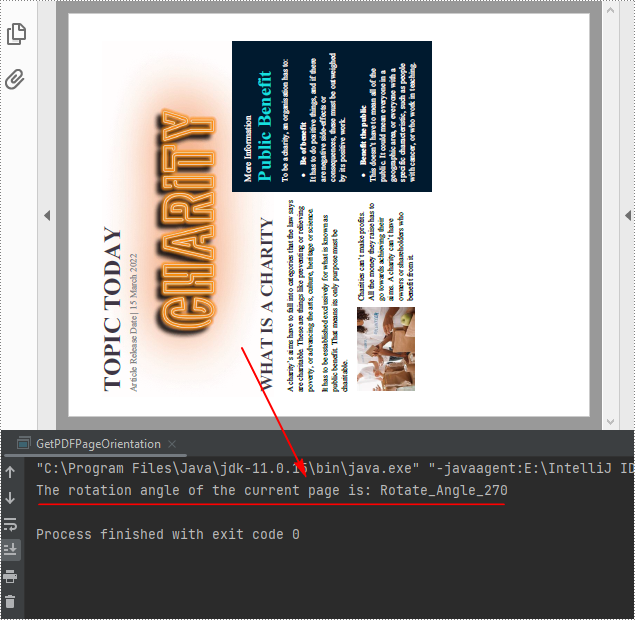
The rotation angle of a PDF page can be obtained through the PdfPageBase.getRotation() method. The following are the detailed steps.
- Create a PdfDocument instance.
- Load a PDF file using PdfDocument.loadFromFile() method.
- Get a specified page using PdfDocument.getPages().get() method.
- Get the rotation angle of the page using PdfPageBase.getRotation() method, and then convert it to text string.
- Create a PdfUnitConvertor instance, and then convert the size units from points to other units of measure using PdfUnitConvertor.convertUnits() method.
- Print out the result.
- Java
import com.spire.pdf.*;
import java.io.*;

public class GetPDFPageOrientation {
    public static void main(String[] args) throws IOException {

        //Create a PdfDocument object
        PdfDocument pdf = new PdfDocument();

        //Load a PDF file from disk
        pdf.loadFromFile("Sample.pdf");

        //Get the first page
        PdfPageBase page = pdf.getPages().get(0);

        //Get the rotation angle of the current page
        PdfPageRotateAngle rotationAngle = page.getRotation();
        String rotation = rotationAngle.toString();

        //Print out the page rotation angle information
        System.out.println("The rotation angle of the current page is: " + rotation);
    }
}
Apply for a Temporary License
If you'd like to remove the evaluation message from the generated documents, or to get rid of the function limitations, please request a 30-day trial license for yourself.
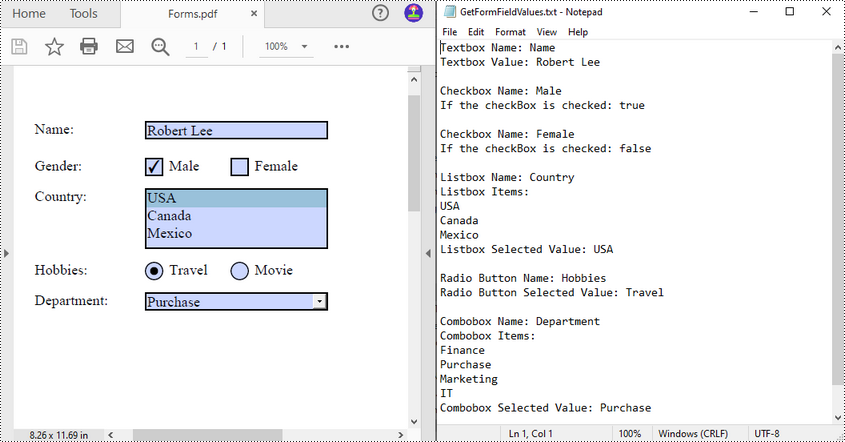
Extracting values from PDF forms can be a crucial task for organizations looking to analyze and utilize the information collected from these forms. For example, a company may use PDF forms to collect customer contact details or feedback on products or services. By extracting the PDF form data, the company can easily input the information into their database for further analysis and follow-up. In this article, you will learn how to extract values from PDF forms in Java using Spire.PDF for Java.
Install Spire.PDF for Java
First of all, you're required to add the Spire.Pdf.jar file as a dependency in your Java program. The JAR file can be downloaded from this link. If you use Maven, you can easily import the JAR file in your application by adding the following code to your project's pom.xml file.
<repositories>
    <repository>
        <id>com.e-iceblue</id>
        <name>e-iceblue</name>
        <url>https://repo.e-iceblue.com/nexus/content/groups/public/</url>
    </repository>
</repositories>
<dependencies>
    <dependency>
        <groupId>e-iceblue</groupId>
        <artifactId>spire.pdf</artifactId>
        <version>11.11.11</version>
    </dependency>
</dependencies>
Extract Data from PDF Forms in Java
Spire.PDF for Java supports various types of PDF form fields, including:
- Text box field (represented by the PdfTextBoxFieldWidget class)
- Check box field (represented by the PdfCheckBoxWidgetFieldWidget class)
- Radio button field (represented by the PdfRadioButtonListFieldWidget class)
- List box field (represented by the PdfListBoxWidgetFieldWidget class)
- Combo box field (represented by the PdfComboBoxWidgetFieldWidget class)
Before extracting data from the PDF forms, it is necessary to determine the specific type of each form field first, and then you can use the properties of the corresponding form field class to extract their values accurately. The following are the detailed steps.
- Initialize an instance of the PdfDocument class.
- Load a PDF document using PdfDocument.loadFromFile() method.
- Get the forms in the PDF document using PdfDocument.getForm() method.
- Create a StringBuilder instance to store the extracted form field values.
- Iterate through all fields in the PDF forms.
- Determine the types of the form fields, then get the names and values of the form fields using the corresponding properties.
- Write the results to a txt file.
- Java
import com.spire.pdf.PdfDocument;
import com.spire.pdf.fields.PdfField;
import com.spire.pdf.widget.*;

import java.io.FileWriter;
import java.io.IOException;

public class ReadPdfFormValues {
    public static void main(String[] args) throws Exception{
        //Create a PdfDocument instance
        PdfDocument pdf = new PdfDocument();

        //Load a PDF document
        pdf.loadFromFile("forms.pdf");

        //Create a StringBuilder instance
        StringBuilder sb = new StringBuilder();

        //Get PDF forms
        PdfFormWidget formWidget = (PdfFormWidget)pdf.getForm();

        //Iterate through all fields in the form
        for (int i = 0; i < formWidget.getFieldsWidget().getList().size(); i++)
        {
            PdfField field = (PdfField)formWidget.getFieldsWidget().getList().get(i);

            //Get the name and value of the textbox field
            if (field instanceof PdfTextBoxFieldWidget)
            {
                PdfTextBoxFieldWidget textBoxField = (PdfTextBoxFieldWidget)field ;
                String text = textBoxField.getName();
                String value = textBoxField.getText();
                sb.append("Textbox Name: " + text + "\r\n");
                sb.append("Textbox Value: " + value + "\n\r");
            }

            //Get the name of the listbox field
            if (field instanceof PdfListBoxWidgetFieldWidget)
            {
                PdfListBoxWidgetFieldWidget listBoxField = (PdfListBoxWidgetFieldWidget)field;
                String name = listBoxField.getName();
                sb.append("Listbox Name: " + name + "\r\n");

                //Get the items of the listbox field
                sb.append("Listbox Items: \r\n");
                PdfListWidgetItemCollection items = listBoxField.getValues();
                for (int j = 0; j < items.getCount(); j ++)
                {
                    sb.append( items.get(j).getValue() + "\r\n");
                }

                //Get the selected item of the listbox field
                String selectedValue = listBoxField.getSelectedValue();
                sb.append("Listbox Selected Value: " + selectedValue + "\n\r");

            }

            //Get the name of the combo box field
            if (field instanceof PdfComboBoxWidgetFieldWidget)
            {
                PdfComboBoxWidgetFieldWidget comBoxField = (PdfComboBoxWidgetFieldWidget)field;
                String name = comBoxField.getName();
                sb.append("Combobox Name: " + name + "\r\n");

                //Get the items of the combo box field
                sb.append("Combobox Items: \r\n");
                PdfListWidgetItemCollection items = comBoxField.getValues();
                for (int j = 0; j < items.getCount(); j ++)
                {
                    sb.append( items.get(j).getValue() + "\r\n");
                }

                //Get the selected item of the combo box field
                String selectedValue = comBoxField.getSelectedValue();
                sb.append("Combobox Selected Value: " + selectedValue + "\n\r");

            }

            //Get the name and selected item of the radio button field
            if (field instanceof PdfRadioButtonListFieldWidget)
            {
                PdfRadioButtonListFieldWidget radioBtnField = (PdfRadioButtonListFieldWidget)field;
                String name = radioBtnField.getName();
                String value = radioBtnField.getValue();
                sb.append("Radio Button Name: " + name + "\r\n");
                sb.append("Radio Button Selected Value: " + value + "\n\r");
            }

            //Get the name and status of the checkbox field
            if (field instanceof PdfCheckBoxWidgetFieldWidget)
            {
                PdfCheckBoxWidgetFieldWidget checkBoxField = (PdfCheckBoxWidgetFieldWidget)field;
                String name = checkBoxField.getName();
                sb.append("Checkbox Name: " + name + "\r\n");

                boolean state = checkBoxField.getChecked();
                sb.append("If the checkBox is checked: " + state + "\n\r");
            }
        }

        //Write the results to a txt file
        writeStringToTxt(sb.toString(), "GetFormFieldValues.txt");
    }

    public static void writeStringToTxt(String content, String txtFileName) throws IOException {
        FileWriter fWriter = new FileWriter(txtFileName, true);
        try {
            fWriter.write(content);
        } catch (IOException ex) {
            ex.printStackTrace();
        } finally {
            try {
                fWriter.flush();
                fWriter.close();
            } catch (IOException ex) {
                ex.printStackTrace();
            }
        }
    }
}
Apply for a Temporary License
If you'd like to remove the evaluation message from the generated documents, or to get rid of the function limitations, please request a 30-day trial license for yourself.
Page numbers provide clarity and structure to the content, making it easier for readers to navigate through the document. By including page numbers, readers can quickly locate specific information or refer to a specific page. Adding page numbers to a PDF document is a common requirement when creating professional and organized files. Whether you're working on a report, a thesis, or any other type of PDF document, incorporating page numbers enhances the overall readability and professionalism of your work.
In this article, you will learn how to add page numbers to a PDF document at the footer section using Spire.PDF for Java.
- Add Page Numbers to the Left Corner of PDF Footer
- Add Page Numbers to the Center of PDF Footer
- Add Page Numbers to the Right Corner of PDF Footer
Install Spire.PDF for Java
You're required to add the Spire.Pdf.jar file as a dependency in your Java program. The JAR file can be downloaded from this link. If you use Maven, you can easily import the JAR file in your application by adding the following code to your project's pom.xml file.
<repositories>
    <repository>
        <id>com.e-iceblue</id>
        <name>e-iceblue</name>
        <url>https://repo.e-iceblue.com/nexus/content/groups/public/</url>
    </repository>
</repositories>
<dependencies>
    <dependency>
        <groupId>e-iceblue</groupId>
        <artifactId>spire.pdf</artifactId>
        <version>11.11.11</version>
    </dependency>
</dependencies>
PDF Coordinate System
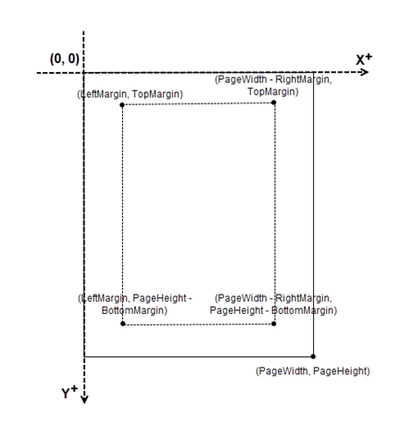
When using Spire.PDF for Java to manipulate an existing PDF document, the coordinate system's origin is positioned at the top left corner of the page. The x-axis extends to the right, while the y-axis extends downward.
In general, page numbers are commonly positioned in the header or footer section of a document. As a result, it is important to consider the page size and margins when deciding where to place the page numbers.
Add Page Numbers to the Left Corner of PDF Footer in Java
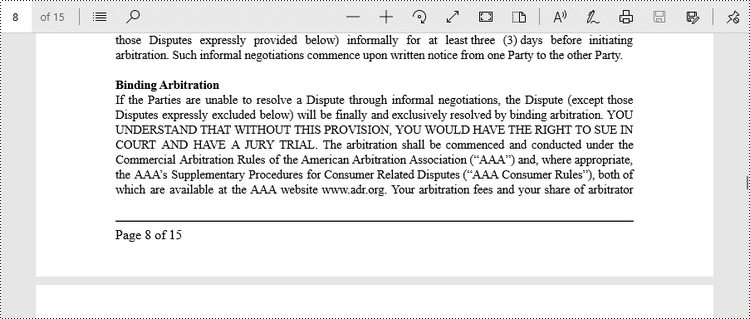
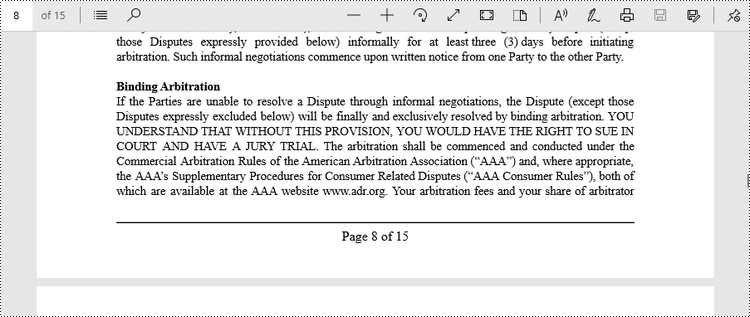
Spire.PDF for Java offers the PdfPageNumberField class and the PdfPageCountField class, which reflect the current page number and the total page count when added to a page of a PDF document. To insert a piece of text like "Page X" or "Page X of Y", you can use a PdfCompositeField object to combine the text with one or more fields into a single field.
To add "Page X of Y" to the left corner of PDF footer, follow the steps below.
- Create a Document object.
- Load a PDF file from a specified page.
- Create a PdfPageNumberField object and a PdfPageCountField object.
- Create a PdfCompositeField object to create a "Page X of Y" format.
- Specify the location of the PdfCompositeField object using PdfCompositeField.setLocation() method.
- Iterate though the pages in the document, and add "Page X of Y" to the left corner of the footer section using PdfCompositeField.draw() method.
- Save the document to a different PDF file.
- Java
import com.spire.pdf.PdfDocument;
import com.spire.pdf.PdfPageBase;
import com.spire.pdf.automaticfields.PdfCompositeField;
import com.spire.pdf.automaticfields.PdfPageCountField;
import com.spire.pdf.automaticfields.PdfPageNumberField;
import com.spire.pdf.graphics.*;
import com.spire.pdf.license.LicenseProvider;

import java.awt.*;
import java.awt.geom.Dimension2D;
import java.awt.geom.Point2D;

public class AddPageNumberToLeftCorner {

    public static void main(String[] args) {

        // Apply your license key
        LicenseProvider.setLicenseKey("License Key");

        // Create a PdfDocument object
        PdfDocument doc = new PdfDocument();

        // Load a PDF file
        doc.loadFromFile("C:\\Users\\Administrator\\Desktop\\Terms of service.pdf");

        // Create font, brush and pen, which determine the appearance of the page numbers to be added
        PdfTrueTypeFont font = new PdfTrueTypeFont(new Font("Times New Roman", Font.PLAIN, 12),true);
        PdfBrush brush = PdfBrushes.getBlack();
        PdfPen pen = new PdfPen(brush, 1.0);

        // Create a PdfPageNumberField object and a PdfPageCountField object
        PdfPageNumberField pageNumberField = new PdfPageNumberField();
        PdfPageCountField pageCountField = new PdfPageCountField();

        // Create a PdfCompositeField object to combine page count field and page number field in a single field
        PdfCompositeField compositeField = new PdfCompositeField(font, brush, "Page {0} of {1}", pageNumberField, pageCountField);

        // Get the page size
        Dimension2D pageSize = doc.getPages().get(0).getSize();

        // Set the location of the composite field
        compositeField.setLocation(new Point2D.Float(72, (float) pageSize.getHeight() - 45));

        // Iterate through the pages in the document
        for (int i = 0; i < doc.getPages().getCount(); i++) {

            // Get a specific page
            PdfPageBase page = doc.getPages().get(i);

            // Draw a line at the specified position
            page.getCanvas().drawLine(pen, 72, pageSize.getHeight() - 50, pageSize.getWidth() - 72, pageSize.getHeight() - 50);

            // Draw the composite field on the page
            compositeField.draw(page.getCanvas(), 0.0, 0.0);
        }

        // Save to a different PDF file
        doc.saveToFile("Output/AddPageNumbersToLeftCorner.pdf");

        // Dispose resources
        doc.dispose();
    }
}
Add Page Numbers to the Center of PDF Footer in Java
To center-align the page number in the footer section, it is necessary to dynamically calculate the width of the text "Page X of Y." This calculation is important because the X coordinate of the page number (PdfCompositeField) will be determined by subtracting the width of the page number from the page width and then dividing the result by 2, i.e., (PageWidth - PageNumberWidth)/2.
The steps to add page numbers to the center of PDF footer are as follows.
- Create a Document object.
- Load a PDF file from a specified page.
- Create a PdfPageNumberField object and a PdfPageCountField object.
- Create a PdfCompositeField object to create a "Page X of Y" format.
- Specify the location of the PdfCompositeField object using PdfCompositeField.setLocation() method.
- Iterate though the pages in the document, and add "Page X of Y" to the center of the footer section using PdfCompositeField.draw() method.
- Save the document to a different PDF file.
- Java
import com.spire.pdf.PdfDocument;
import com.spire.pdf.PdfPageBase;
import com.spire.pdf.automaticfields.PdfCompositeField;
import com.spire.pdf.automaticfields.PdfPageCountField;
import com.spire.pdf.automaticfields.PdfPageNumberField;
import com.spire.pdf.graphics.PdfBrush;
import com.spire.pdf.graphics.PdfBrushes;
import com.spire.pdf.graphics.PdfPen;
import com.spire.pdf.graphics.PdfTrueTypeFont;
import com.spire.pdf.license.LicenseProvider;

import java.awt.*;
import java.awt.geom.Dimension2D;
import java.awt.geom.Point2D;

public class AddPageNumberToCenter {

    public static void main(String[] args) {

        // Apply your license key
        LicenseProvider.setLicenseKey("License Key");

        // Create a PdfDocument object
        PdfDocument doc = new PdfDocument();

        // Load a PDF file
        doc.loadFromFile("C:\\Users\\Administrator\\Desktop\\Terms of service.pdf");

        // Create font, brush and pen, which determine the appearance of the page numbers to be added
        PdfTrueTypeFont font = new PdfTrueTypeFont(new Font("Times New Roman", Font.PLAIN, 12),true);
        PdfBrush brush = PdfBrushes.getBlack();
        PdfPen pen = new PdfPen(brush, 1.0);

        // Create a PdfPageNumberField object and a PdfPageCountField object
        PdfPageNumberField pageNumberField = new PdfPageNumberField();
        PdfPageCountField pageCountField = new PdfPageCountField();

        // Create a PdfCompositeField object to combine page count field and page number field in a single field
        PdfCompositeField compositeField = new PdfCompositeField(font, brush, "Page {0} of {1}", pageNumberField, pageCountField);

        // Iterate through the pages in the document
        for (int i = 0; i < doc.getPages().getCount(); i++) {

            // Get a specific page
            PdfPageBase page = doc.getPages().get(i);

            // Get the page size
            Dimension2D pageSize = doc.getPages().get(i).getSize();

            // Draw a line at the specified position
            page.getCanvas().drawLine(pen, 72, pageSize.getHeight() - 50, pageSize.getWidth() - 72, pageSize.getHeight() - 50);

            // Measure the size the "Page X of Y"
            Dimension2D pageNumberSize = font.measureString(String.format("Page %d of %d", i + 1, doc.getPages().getCount()));

            // Set the location of the composite field
            compositeField.setLocation(new Point2D.Float((float)(pageSize.getWidth() - pageNumberSize.getWidth())/2, (float)pageSize.getHeight() - 45));

            // Draw the composite field on the page
            compositeField.draw(page.getCanvas());
        }

        // Save to a different PDF file
        doc.saveToFile("Output/AddPageNumbersToCenter.pdf");

        // Dispose resources
        doc.dispose();
    }
}
Add Page Numbers to the Right Corner of PDF Footer in Java
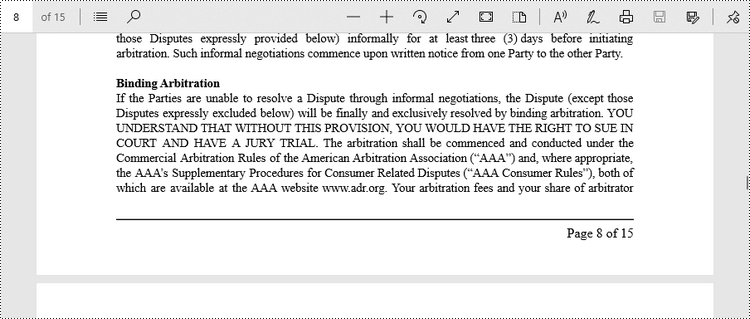
To position the page number at the right corner of the footer section, it is necessary to dynamically calculate the width of the text "Page X of Y" as well. Because the X coordinate of the page number (PdfCompositeField) will be determined by subtracting the width of the page number and the right page margin from the page width, i.e., PageWidth - PageNumberWidth - RightPageMargin.
The steps to add page numbers to the right corner of PDF footer are as follows.
- Create a Document object.
- Load a PDF file from a specified page.
- Create a PdfPageNumberField object and a PdfPageCountField object.
- Create a PdfCompositeField object to create a "Page X of Y" format.
- Specify the location of the PdfCompositeField object using PdfCompositeField.setLocation() method.
- Iterate though the pages in the document, and add "Page X of Y" to the right corner of the footer section using PdfCompositeField.draw() method.
- Save the document to a different PDF file.
- Java
import com.spire.pdf.PdfDocument;
import com.spire.pdf.PdfPageBase;
import com.spire.pdf.automaticfields.PdfCompositeField;
import com.spire.pdf.automaticfields.PdfPageCountField;
import com.spire.pdf.automaticfields.PdfPageNumberField;
import com.spire.pdf.graphics.PdfBrush;
import com.spire.pdf.graphics.PdfBrushes;
import com.spire.pdf.graphics.PdfPen;
import com.spire.pdf.graphics.PdfTrueTypeFont;
import com.spire.pdf.license.LicenseProvider;

import java.awt.*;
import java.awt.geom.Dimension2D;
import java.awt.geom.Point2D;

public class AddPageNumberToRightCorner {

    public static void main(String[] args) {

        // Apply your license key
        LicenseProvider.setLicenseKey("License Key");

        // Create a PdfDocument object
        PdfDocument doc = new PdfDocument();

        // Load a PDF file
        doc.loadFromFile("C:\\Users\\Administrator\\Desktop\\Terms of service.pdf");

        // Create font, brush and pen, which determine the appearance of the page numbers to be added
        PdfTrueTypeFont font = new PdfTrueTypeFont(new Font("Times New Roman", Font.PLAIN, 12),true);
        PdfBrush brush = PdfBrushes.getBlack();
        PdfPen pen = new PdfPen(brush, 1.0);

        // Create a PdfPageNumberField object and a PdfPageCountField object
        PdfPageNumberField pageNumberField = new PdfPageNumberField();
        PdfPageCountField pageCountField = new PdfPageCountField();

        // Create a PdfCompositeField object to combine page count field and page number field in a single field
        PdfCompositeField compositeField = new PdfCompositeField(font, brush, "Page {0} of {1}", pageNumberField, pageCountField);

        // Iterate through the pages in the document
        for (int i = 0; i < doc.getPages().getCount(); i++) {

            // Get a specific page
            PdfPageBase page = doc.getPages().get(i);

            // Get the page size
            Dimension2D pageSize = doc.getPages().get(i).getSize();

            // Draw a line at the specified position
            page.getCanvas().drawLine(pen, 72, pageSize.getHeight() - 50, pageSize.getWidth() - 72, pageSize.getHeight() - 50);

            // Measure the size the "Page X of Y"
            Dimension2D pageNumberSize = font.measureString(String.format("Page %d of %d", i + 1, doc.getPages().getCount()));

            // Set the location of the composite field
            compositeField.setLocation(new Point2D.Float((float)(pageSize.getWidth() - pageNumberSize.getWidth() -  72), (float)(pageSize.getHeight() - 45)));

            // Draw the composite field on the page
            compositeField.draw(page.getCanvas());
        }

        // Save to a different PDF file
        doc.saveToFile("Output/AddPageNumbersToRightCorner.pdf");

        // Dispose resources
        doc.dispose();
    }
}
Apply for a Temporary License
If you'd like to remove the evaluation message from the generated documents, or to get rid of the function limitations, please request a 30-day trial license for yourself.
PDF layers are supported through the usage of Optional Content Group (OCG) objects. As its name implies, optional content refers to the content in a PDF document that can be made visible or invisible dynamically by the user of PDF viewer applications. In this article, you will learn how to programmatically add, hide or delete layers in a PDF file using Spire.PDF for Java.
- Add Layers to a PDF Document in Java
- Set Visibility of Layers in a PDF Document in Java
- Delete Layers in a PDF Document in Java
Install Spire.PDF for Java
First of all, you're required to add the Spire.Pdf.jar file as a dependency in your Java program. The JAR file can be downloaded from this link. If you use Maven, you can easily import the JAR file in your application by adding the following code to your project's pom.xml file.
<repositories>
    <repository>
        <id>com.e-iceblue</id>
        <name>e-iceblue</name>
        <url>https://repo.e-iceblue.com/nexus/content/groups/public/</url>
    </repository>
</repositories>
<dependencies>
    <dependency>
        <groupId>e-iceblue</groupId>
        <artifactId>spire.pdf</artifactId>
        <version>11.11.11</version>
    </dependency>
</dependencies>
Add Layers to a PDF Document in Java
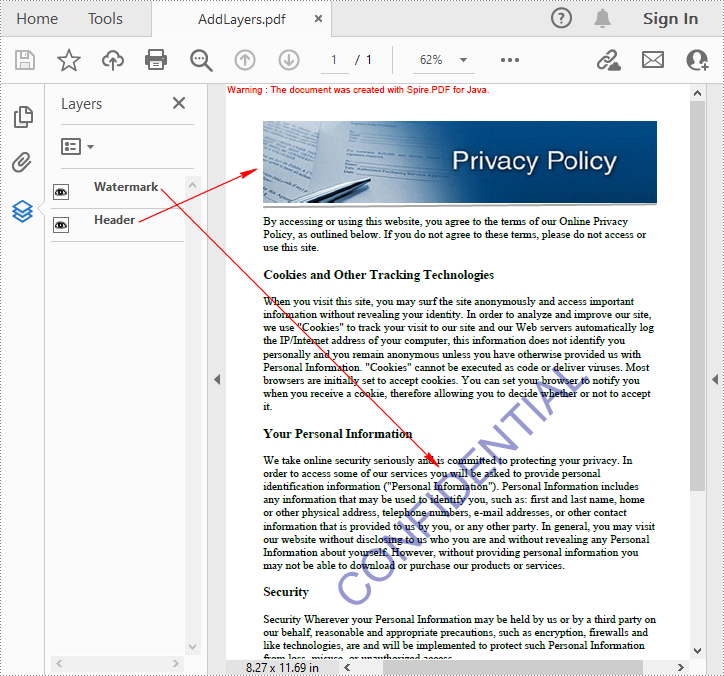
Spire.PDF for Java provides PdfDocument.getLayers().addLayer() method to add a layer in a PDF document, and you can then draw text, lines, images or shapes on the PDF layer. The detailed steps are as follows.
- Create a PdfDocument instance.
- Load a sample PDF file using PdfDocument.loadFromFile() method.
- Add a layer with specified name in the PDF using PdfDocument.getLayers().addLayer(java.lang.String name) method. Or you can also set the visibility of the layer while adding it using PdfDocument. getLayers().addLayer(java.lang.String name, PdfVisibility state) method.
- Create a canvas for the layer using PdfLayer.createGraphics() method.
- Draw text, image or other elements on the canvas.
- Save the result document using PdfDocument.saveToFile() method.
- Java
import com.spire.pdf.PdfDocument;
import com.spire.pdf.PdfPageBase;
import com.spire.pdf.graphics.*;
import com.spire.pdf.graphics.layer.PdfLayer;

import java.awt.*;
import java.awt.geom.Dimension2D;
import java.io.IOException;

public class AddLayersToPdf {

    public static void main(String[] args) throws IOException {

        //Create a PdfDocument instance and load the sample PDF file
        PdfDocument pdf = new PdfDocument();
        pdf.loadFromFile("C:\\Users\\Administrator\\Desktop\\Sample.pdf");

        //Invoke AddLayerWatermark method to add a watermark layer
        AddLayerWatermark(pdf);

        //Invoke AddLayerHeader method to add a header layer
        AddLayerHeader(pdf);

        //Save to file
        pdf.saveToFile("AddLayers.pdf");
        pdf.close();
    }

    private static void AddLayerWatermark(PdfDocument doc) throws IOException {

        //Create a layer named "watermark"
        PdfLayer layer = doc.getLayers().addLayer("Watermark");

        //Create a font
        PdfTrueTypeFont font = new PdfTrueTypeFont(new Font("Arial", Font.PLAIN,48),true);

        //Specify watermark text
        String watermarkText = "CONFIDENTIAL";

        //Get text size
        Dimension2D fontSize = font.measureString(watermarkText);

        //Calculate two offsets
        float offset1 = (float)(fontSize.getWidth() * Math.sqrt(2) / 4);
        float offset2 = (float)(fontSize.getHeight() * Math.sqrt(2) / 4);

        //Get page count
        int pageCount = doc.getPages().getCount();

        //Declare two variables
        PdfPageBase page;
        PdfCanvas canvas;

        //Loop through the pages
        for (int i = 0; i < pageCount; i++) {

            page = doc.getPages().get(i);

            //Create a canvas from layer
            canvas = layer.createGraphics(page.getCanvas());
            canvas.translateTransform(canvas.getSize().getWidth() / 2 - offset1 - offset2, canvas.getSize().getHeight() / 2 + offset1 - offset2);
            canvas.setTransparency(0.4f);
            canvas.rotateTransform(-45);

            //Draw sting on the canvas of layer
            canvas.drawString(watermarkText, font, PdfBrushes.getDarkBlue(), 0, 0);
        }
    }

    private static void AddLayerHeader(PdfDocument doc) {

        //Create a layer named "header"
        PdfLayer layer = doc.getLayers().addLayer("Header");

        //Get page size
        Dimension2D size = doc.getPages().get(0).getSize();

        //Specify the initial values of X and y
        float x = 90;
        float y = 40;

        //Get page count
        int pageCount = doc.getPages().getCount();

        //Declare two variables
        PdfPageBase page;
        PdfCanvas canvas;

        //Loop through the pages
        for (int i = 0; i < pageCount; i++) {

            //Draw an image on the layer
            PdfImage pdfImage = PdfImage.fromFile("C:\\Users\\Administrator\\Desktop\\img.jpg");
            float width = pdfImage.getWidth();
            float height = pdfImage.getHeight();
            page = doc.getPages().get(i);
            canvas = layer.createGraphics(page.getCanvas());
            canvas.drawImage(pdfImage, x, y, width, height);

            //Draw a line on the layer
            PdfPen pen = new PdfPen(PdfBrushes.getDarkGray(), 2f);
            canvas.drawLine(pen, x, y + height + 5, size.getWidth() - x, y + height + 2);
        }
    }
}
Set Visibility of Layers in a PDF Document in Java
To set the visibility of an existing layer, you'll need to get a specified layer by its index or name using PdfDocument.getLayers().get() method, and then show or hide the layer using PdfLayer.setVisibility(PdfVisibility value) method. The detailed steps are as follows.
- Create a PdfDocument instance.
- Load a sample PDF document using PdfDocument.loadFromFile() method.
- Set the visibility of a specified layer using PdfDocument.getLayers().get().setVisibility() method.
- Save the result document using PdfDocument.saveToFile() method.
- Java
import com.spire.pdf.FileFormat;
import com.spire.pdf.PdfDocument;
import com.spire.pdf.graphics.layer.PdfVisibility;

public class SetLayerVisibility {
    public static void main(String[] args) {

        //Create a PdfDocument instance
        PdfDocument pdf = new PdfDocument();

        //Load a sample PDF file
        pdf.loadFromFile("AddLayers.pdf");

        //Set the visibility of the first layer to off
        pdf.getLayers().get(0).setVisibility(PdfVisibility.Off);

        //Save to file
        pdf.saveToFile("HideLayer.pdf", FileFormat.PDF);
        pdf.dispose();
    }
}

Delete Layers in a PDF Document in Java
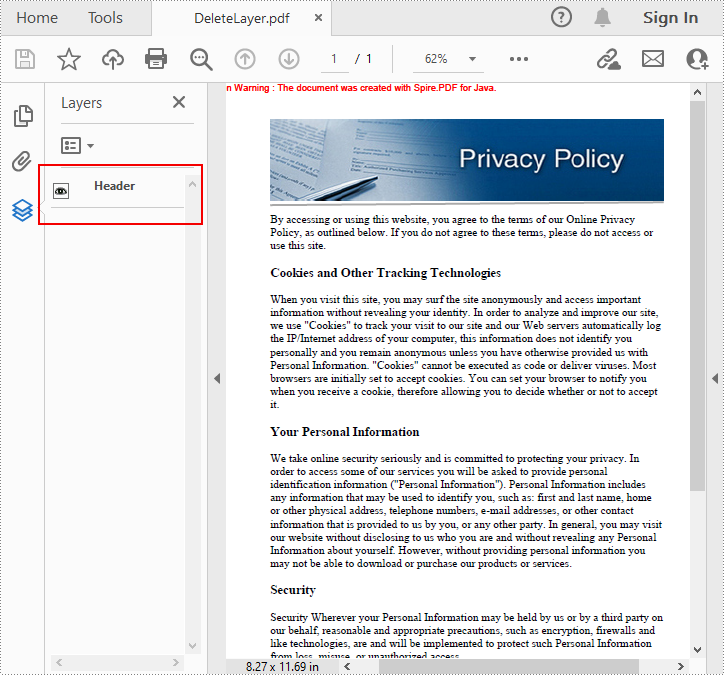
Spire.PDF for Java also allows you to remove an existing layer by its name using PdfDocument.getLayers().removeLayer(java.lang.String name) method. But kindly note that the names of PDF layers may not be unique and this method will remove all PDF layers with the same name. The detailed steps are as follows.
- Create a PdfDocument instance.
- Load a sample PDF document using PdfDocument.LoadFromFile() method.
- Delete a specified layer by its name using PdfDocument.getLayers().removeLayer() method.
- Save the result document using PdfDocument.saveToFile() method.
- Java
import com.spire.pdf.PdfDocument;

public class DeleteLayers {

    public static void main(String[] args) {

        //Create a PdfDocument object and load the sample PDF file
        PdfDocument pdf = new PdfDocument();
        pdf.loadFromFile("AddLayers.pdf");

        //Delete the specific layer by its name
        pdf.getLayers().removeLayer("Watermark");

        //Save to file
        pdf.saveToFile("DeleteLayer.pdf");
        pdf.close();
    }
}
Apply for a Temporary License
If you'd like to remove the evaluation message from the generated documents, or to get rid of the function limitations, please request a 30-day trial license for yourself.
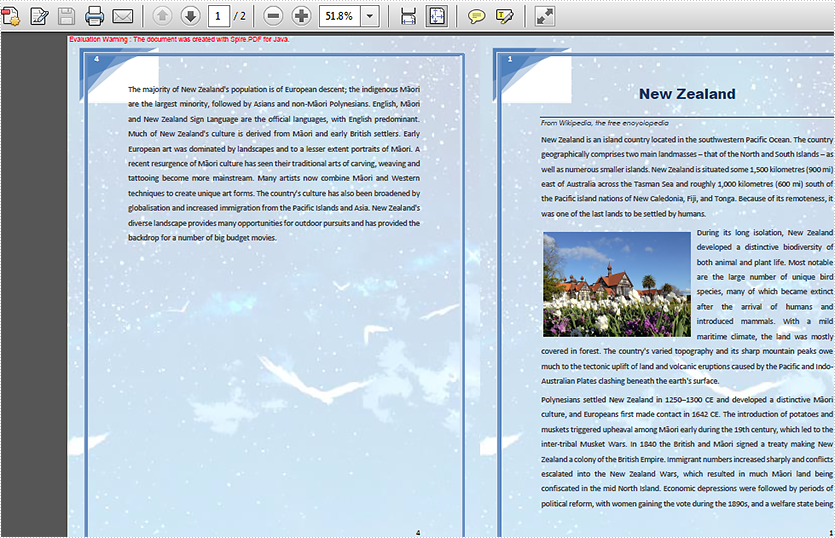
When we print a huge PDF document, print as a booklet is a great way to save the paper and make the pages tidy. This article we will introduce how to create a booklet from a PDF document in Java applications.
import com.spire.pdf.*;


public class PDFBooklet{
    public static void main(String[] args) throws Exception {

        String inputPath = "Sample.pdf";

        PdfDocument doc = new PdfDocument();
        doc.loadFromFile(inputPath);
        PdfPageBase page = doc.getPages().get(0);

        float width = (float) page.getSize().getWidth()*2;
        float height = (float) page.getSize().getHeight();

        doc.createBooklet(inputPath, width, height,true);

        doc.saveToFile("Output/Booklet.pdf");

    }
}
Effective screenshot after creating PDF booklet:
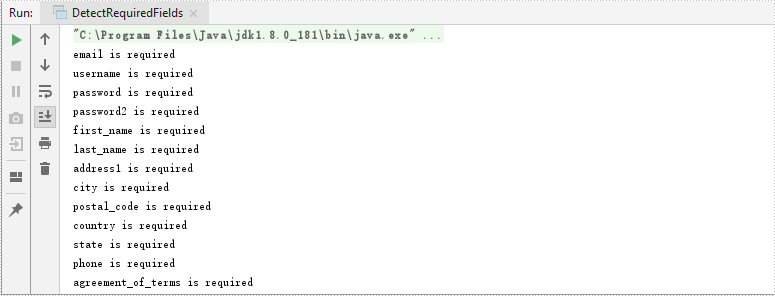
This article demonstrates how to detect the required form fields in an existing PDF document using Spire.PDF for Java.
import com.spire.pdf.fields.PdfField;
import com.spire.pdf.widget.PdfFormWidget;

public class DetectRequiredFields {

    public static void main(String[] args) {

        //load a PDF file
        PdfDocument doc = new PdfDocument();
        doc.loadFromFile("C:\\Users\\Administrator\\Desktop\\Fields.pdf");

        //get form widget from the PDF document.
        PdfFormWidget formWidget = (PdfFormWidget)doc.getForm();

        //loop through the fields widget
        for (int i = 0; i < formWidget.getFieldsWidget().getList().getCapacity(); i++) {

            //get the specific field
            PdfField field = (PdfField) formWidget.getFieldsWidget().getList().get_Item(i);

            //get the field name
            String fieldName = field.getName();

            //determine if the field is required
            boolean isRequired = field.getRequired();
            if (isRequired){

                //print the required field
                System.out.println(fieldName + " is required");
            }
        }
    }
}
This article demonstrates how to delete attachments and annotation attachments in a PDF document using Spire.PDF for Java.
Delete Attachments
import com.spire.pdf.attachments.PdfAttachmentCollection;

public class DeleteAttachments {

    public static void main(String[] args) {

        //load a PDF document
        PdfDocument doc = new PdfDocument();
        doc.loadFromFile("C:\\Users\\Administrator\\Desktop\\Attachments.pdf");

        //get the attachments collection, not containing annotation attachments
        PdfAttachmentCollection attachments = doc.getAttachments();

        //remove all attachments
        attachments.clear();

        //remove a specific attachment
        //attachments.removeAt(0);

        //save to file
        doc.saveToFile("output/DeleteAttachments.pdf");
        doc.close();
    }
}
Delete Annotation Attachments
import com.spire.pdf.annotations.PdfAnnotation;
import com.spire.pdf.annotations.PdfAnnotationCollection;
import com.spire.pdf.annotations.PdfAttachmentAnnotationWidget;

public class DeleteAnnotationAttachments {

    public static void main(String[] args) {

        //load a PDF document
        PdfDocument doc = new PdfDocument();
        doc.loadFromFile("C:\\Users\\Administrator\\Desktop\\Attachments.pdf");

        //loop through the pages
        for (int i = 0; i < doc.getPages().getCount(); i++) {

            //get the annotations collection
            PdfAnnotationCollection annotationCollection = doc.getPages().get(i).getAnnotationsWidget();

            //loop through the annotations
            for (Object annotation: annotationCollection) {

                //determine if an annotation is an instance of PdfAttachmentAnnotationWidget
                if (annotation instanceof PdfAttachmentAnnotationWidget){

                    //remove the attachment annotation
                    annotationCollection.remove((PdfAnnotation) annotation);
                }
            }
        }

        //save to file
        doc.saveToFile("output/DeleteAnnotationAttachments.pdf");
        doc.close();
    }
}
