
Program Guide (123)
Children categories
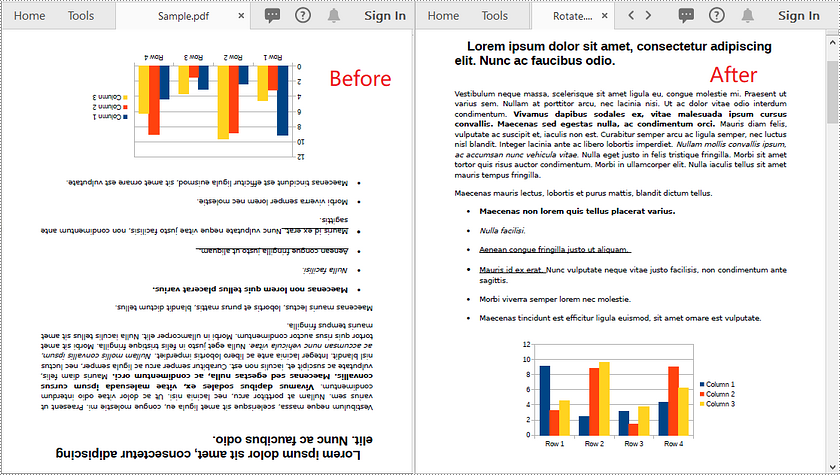
Some scanned PDF documents may contain pages displayed in the wrong orientation (e.g., upside-down), which could cause great inconvenience while reading. Rotating pages can help you solve this problem and provide readers with a better reading experience. This article will introduce how to rotate pages in PDF in Java using Spire.PDF for Java.
Install Spire.PDF for Java
First, you're required to add the Spire.Pdf.jar file as a dependency in your Java program. The JAR file can be downloaded from this link. If you use Maven, you can easily import the JAR file in your application by adding the following code to your project's pom.xml file.
<repositories>
    <repository>
        <id>com.e-iceblue</id>
        <name>e-iceblue</name>
        <url>https://repo.e-iceblue.com/nexus/content/groups/public/</url>
    </repository>
</repositories>
<dependencies>
    <dependency>
        <groupId>e-iceblue</groupId>
        <artifactId>spire.pdf</artifactId>
        <version>11.11.11</version>
    </dependency>
</dependencies>
Rotate a Specific Page in PDF in Java
Rotation is based on 90-degree increments. You can rotate a PDF page by 0/90/180/270 degrees. The following are the steps to rotate a PDF page:
- Create an instance of PdfDocument class.
- Load a PDF document using PdfDocument.loadFromFile() method.
- Get the desired page by its index (zero-based) using PdfDocument.getPages().get(pageIndex) method.
- Get the original rotation angle of the page using PdfPageBase.getRotation().getValue() method.
- Increase the original rotation angle by desired degrees.
- Apply the new rotation angle to the page using PdfPageBase.setRotation() method.
- Save the result document using PdfDocument.saveToFile() method.
- Java
import com.spire.pdf.PdfDocument;
import com.spire.pdf.PdfPageBase;
import com.spire.pdf.PdfPageRotateAngle;

public class RotatePdfPage {
    public static void main(String []args){
        //Create a PdfDocument instance
        PdfDocument pdf = new PdfDocument();
        //Load a PDF document
        pdf.loadFromFile("Sample.pdf");

        //Get the first page
        PdfPageBase page = pdf.getPages().get(0);

        //Get the original rotation angle of the page
        int rotation = page.getRotation().getValue();

        //Rotate the page 180 degrees clockwise based on the original rotation angle
        rotation += PdfPageRotateAngle.Rotate_Angle_180.getValue();
        page.setRotation(PdfPageRotateAngle.fromValue(rotation));

        //Save the result document
        pdf.saveToFile("Rotate.pdf");
    }
}
Rotate All Pages in PDF in Java
The following are the steps to rotate all pages in a PDF document:
- Create an instance of PdfDocument class.
- Load a PDF document using PdfDocument.loadFromFile() method.
- Loop through the pages in the document.
- Get the original rotation angle of each page using PdfPageBase.getRotation().getValue() method.
- Increase the original rotation angle by desired degrees.
- Apply the new rotation angle to the page using PdfPageBase.setRotation() method.
- Save the result document using PdfDocument.saveToFile() method.
- Java
import com.spire.pdf.PdfDocument;
import com.spire.pdf.PdfPageBase;
import com.spire.pdf.PdfPageRotateAngle;

public class RotateAllPdfPages {
    public static void main(String []args){
        //Create a PdfDocument instance
        PdfDocument pdf = new PdfDocument();
        //Load a PDF document
        pdf.loadFromFile("Sample.pdf");

        //Loop through each page in the document
        for(PdfPageBase page :(Iterable) pdf.getPages()) {
            //Get the original rotation angle of the page
            int rotation = page.getRotation().getValue();
            //Rotate the page 180 degrees clockwise based on the original rotation angle
            rotation += PdfPageRotateAngle.Rotate_Angle_180.getValue();
            page.setRotation(PdfPageRotateAngle.fromValue(rotation));
        }

        //Save the result document
        pdf.saveToFile("RotateAll.pdf");
    }
}
Apply for a Temporary License
If you'd like to remove the evaluation message from the generated documents, or to get rid of the function limitations, please request a 30-day trial license for yourself.
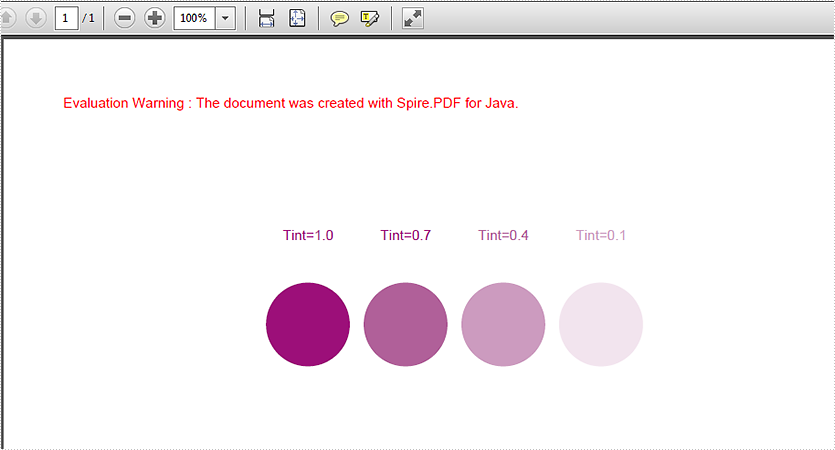
This article will demonstrate how to create spot color to PDF file using Spire.PDF in Java.
import com.spire.pdf.*;
import com.spire.pdf.colorspace.*;
import com.spire.pdf.graphics.*;
import java.awt.*;
import java.awt.geom.Point2D;


public class SpotColor {

    public static void main(String[] args) {

        //Create a PdfDocument instance
        PdfDocument pdf = new PdfDocument();

        //Add a page
        PdfPageBase page = pdf.getPages().add();

        //Define the spot color "MySpotColor" from the built-in color.
        PdfRGBColor pdfRGBColor = new PdfRGBColor(new Color(148,0,211));
        PdfSeparationColorSpace cs = new PdfSeparationColorSpace("MySpotColor",pdfRGBColor);

        //Apply the spot color while drawing content on the page.
        PdfSeparationColor color = new PdfSeparationColor(cs, 1f);
        PdfSolidBrush brush = new PdfSolidBrush(color);
        page.getCanvas().drawString("Tint=1.0", new PdfFont(PdfFontFamily.Helvetica, 10f), brush, new Point2D.Float(160, 160));

        //Draw pie with spot color(DarkViolet)
        page.getCanvas().drawPie(brush, 148, 200, 60, 60, 360, 360);

        page.getCanvas().drawString("Tint=0.7", new PdfFont(PdfFontFamily.Helvetica, 10f), brush, new Point2D.Float(230, 160));
        color = new PdfSeparationColor(cs, 0.7f);
        brush = new PdfSolidBrush(color);
        page.getCanvas().drawPie(brush, 218, 200, 60, 60, 360, 360);

        page.getCanvas().drawString("Tint=0.4", new PdfFont(PdfFontFamily.Helvetica, 10f), brush, new Point2D.Float(300, 160));
        color = new PdfSeparationColor(cs, 0.4f);
        brush = new PdfSolidBrush(color);
        page.getCanvas().drawPie(brush, 288, 200, 60, 60, 360, 360);

        page.getCanvas().drawString("Tint=0.1", new PdfFont(PdfFontFamily.Helvetica, 10f), brush, new Point2D.Float(370, 160));
        color = new PdfSeparationColor(cs, 0.1f);
        brush = new PdfSolidBrush(color);
        page.getCanvas().drawPie(brush, 358, 200, 60, 60, 360, 360);


        //Save the document
        pdf.saveToFile("output/drawContentWithSpotColor.pdf");

    }
}
Effective screenshot after adding spot color in PDF in Java application:
When you edit a PDF document, it is sometimes necessary to delete redundant pages of the document or add new pages to the document. This article will show you how to add or delete pages in a PDF document using Spire.PDF for Java.
Install Spire.PDF for Java
First of all, you're required to add the Spire.Pdf.jar file as a dependency in your Java program. The JAR file can be downloaded from this link. If you use Maven, you can easily import the JAR file in your application by adding the following code to your project's pom.xml file.
<repositories>
    <repository>
        <id>com.e-iceblue</id>
        <name>e-iceblue</name>
        <url>https://repo.e-iceblue.com/nexus/content/groups/public/</url>
    </repository>
</repositories>
<dependencies>
    <dependency>
        <groupId>e-iceblue</groupId>
        <artifactId>spire.pdf</artifactId>
        <version>11.11.11</version>
    </dependency>
</dependencies>
Add Empty Pages to a PDF Document
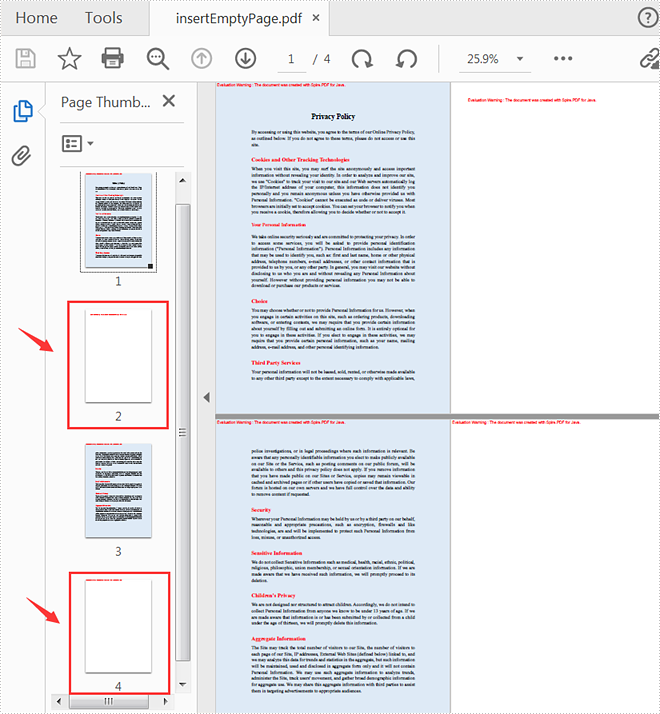
The following steps show you how to add empty pages to a specific position of a PDF document and its end.
- Create a PdfDocument instance.
- Load a sample PDF document using PdfDocument.loadFromFile() method.
- Create a new blank page and insert it into a specific position of the document using PdfDocument.getPages().insert(int index) method.
- Create another new blank page with the specified size and margins and then append it to the end of the document using PdfDocument.getPages().add(java.awt.geom.Dimension2D size, PdfMargins margins) method.
- Save the document to another file using PdfDocument.saveToFile() method.
- Java
import com.spire.pdf.*;
import com.spire.pdf.graphics.PdfMargins;

public class InsertEmptyPage {
    public static void main(String[] args) {
        //Create a PdfDocument instance
        PdfDocument pdf = new PdfDocument();

        //Load a sample PDF document
        pdf.loadFromFile("C:\\Users\\Test1\\Desktop\\sample.pdf");

        //Insert a blank page to the document as the second page
        pdf.getPages().insert(1);

        //Add an empty page to the end of the document
        pdf.getPages().add(PdfPageSize.A4, new PdfMargins(0, 0));

        //Save the document to another file
        pdf.saveToFile("output/insertEmptyPage.pdf");
        pdf.close();
    }
}
Delete an Existing Page in a PDF Document
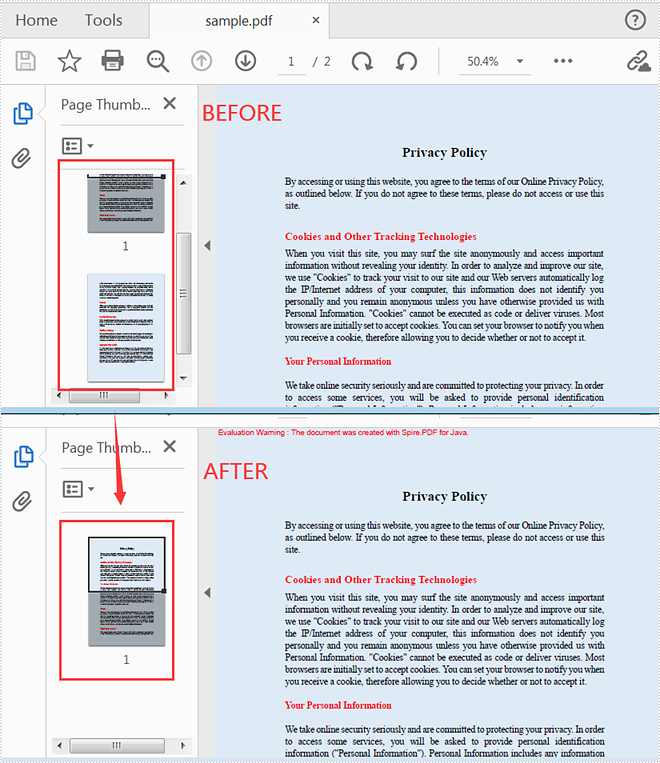
The following steps are to delete a specific page of a PDF document.
- Create a PdfDocument instance.
- Load a sample PDF document using PdfDocument.loadFromFile() method.
- Remove a specific page of the document using PdfDocument.getPages().removeAt(int index) method.
- Save the document to another file using PdfDocument.saveToFile() method.
- Java
import com.spire.pdf.*;

public class DeletePage {
    public static void main(String[] args) {

        //Create a PdfDocument instance
        PdfDocument pdf = new PdfDocument();

        //Load a sample PDF document
        pdf.loadFromFile("C:\\Users\\Test1\\Desktop\\sample.pdf");

        //Delete the second page of the document
        pdf.getPages().removeAt(1);

        //Save the document to another file
        pdf.saveToFile("output/deletePage.pdf");
        pdf.close();
    }
}
Apply for a Temporary License
If you'd like to remove the evaluation message from the generated documents, or to get rid of the function limitations, please request a 30-day trial license for yourself.
When reading a large PDF document, the reader may get frustrated by scrolling up and down to find information. Therefore, to enhance the reading experience, authors can embed navigation tools in PDF documents. The navigation button is one of those useful navigation tools, especially for navigating to related information. It is displayed on the page as a button with prompt text, which readers can click to jump to a specific location of the document easily. This article is going to demonstrate how to add navigation buttons to PDF documents in Java using Spire.PDF for Java.
Install Spire.PDF for Java
First of all, you're required to add the Spire.Pdf.jar file as a dependency in your Java program. The JAR file can be downloaded from this link. If you use Maven, you can easily import the JAR file in your application by adding the following code to your project's pom.xml file.
<repositories>
    <repository>
        <id>com.e-iceblue</id>
        <name>e-iceblue</name>
        <url>https://repo.e-iceblue.com/nexus/content/groups/public/</url>
    </repository>
</repositories>
<dependencies>
    <dependency>
        <groupId>e-iceblue</groupId>
        <artifactId>spire.pdf</artifactId>
        <version>11.11.11</version>
    </dependency>
</dependencies>
Insert Navigation Buttons to a PDF Document
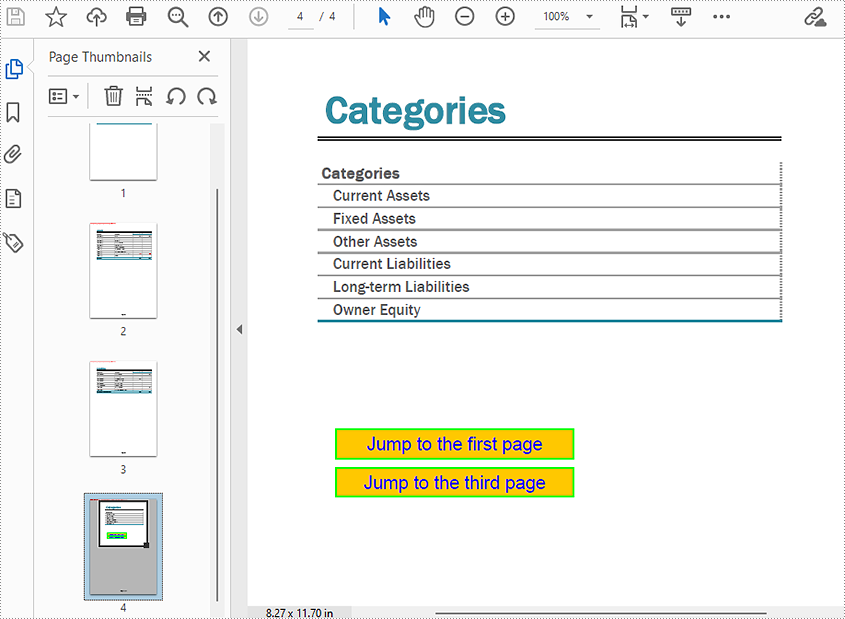
Spire.PDF for Java provides the PdfButtonField class to represent a button in a PDF document, and the methods under this class can be used to set the format and action of the button. We can create a custom method addNavigationButton(), and then pass the button, action, rectangle, and string as parameters to the method to add a navigation button to a PDF document. The detailed steps are as follows.
- Create an object of PdfDocument class.
- Load a PDF document using PdfDocument.loadFromFile() method.
- Get the last page using PdfDocument.getPages().get() method.
- Allow creating forms using PdfDocument.setAllowCreateForm().
- Create a PdfButtonField object.
- Create a PdfNamedAction object and set the action as jumping to the first page.
- Define the location and size of the button and the text to be displayed.
- Use the custom method addNavigationButton() to add a navigation button navigating to the first page.
- Create another PdfButtonField object.
- Create a PdfGoToAction object and set the action as jumping to the third page.
- Define the location and size of the button and the text to be displayed.
- Use the custom method addNavigationButton() to add a navigation button navigating to the third page.
- Save the document using PdfDocument.saveToFile() method.
- Java
import com.spire.pdf.FileFormat;
import com.spire.pdf.PdfDocument;
import com.spire.pdf.PdfPageBase;
import com.spire.pdf.actions.PdfAction;
import com.spire.pdf.actions.PdfActionDestination;
import com.spire.pdf.actions.PdfGoToAction;
import com.spire.pdf.actions.PdfNamedAction;
import com.spire.pdf.fields.PdfButtonField;
import com.spire.pdf.fields.PdfForm;
import com.spire.pdf.general.PdfDestination;
import com.spire.pdf.graphics.PdfRGBColor;
import com.spire.pdf.graphics.PdfTrueTypeFont;

import java.awt.*;
import java.awt.geom.Rectangle2D;

public class addNavigationButton {

    public static void main(String[] args) throws Exception {

        //Create an object of PdfDocument class
        PdfDocument pdf = new PdfDocument();

        //Load a PDF document
        pdf.loadFromFile("Balance Sheet.pdf");

        //Get the last page
        PdfPageBase lastPage = pdf.getPages().get(pdf.getPages().getCount() - 1);

        //Allow creating forms in PDF
        pdf.setAllowCreateForm(true);

        //Create a PdfButtonField object
        PdfButtonField btn_1 = new PdfButtonField(lastPage, "btn_1");
        //Create a PdfNamedAction object and set the action as jumping to the first page
        PdfNamedAction namedAction = new PdfNamedAction(PdfActionDestination.FirstPage);
        //Define the location and size of the button and the text to be displayed
        float x = 150;
        float y = 300;
        float width = 170;
        float height = 22;
        Rectangle2D.Float rect = new Rectangle2D.Float(x, y, width, height);
        String text = "Jump to the first page";
        //Use the custom method to add a navigation button navigating to the first page
        addNavigationButton(btn_1, rect, text, namedAction);

        //Create another PdfButtonField object
        PdfButtonField btn_2 = new PdfButtonField(lastPage, "btn_2");
        //Create a PdfGoToAction object and set the action as jumping to the third page
        PdfGoToAction goToAction = new PdfGoToAction(new PdfDestination(pdf.getPages().get(2)));
        //Define the location and size of the button and the text to be displayed
        rect = new Rectangle2D.Float( x, y + height + 5, width, height);
        String text1 = "Jump to the third page";
        //Use the custom method to add a navigation button navigating to the third page
        addNavigationButton(btn_2, rect, text1, goToAction);

        //Save the document
        pdf.saveToFile("NavigationButton.pdf", FileFormat.PDF);
        pdf.close();
    }
    static void addNavigationButton(PdfButtonField btn, Rectangle2D.Float rect, String text, PdfAction action) {
        //Create a PdfTrueTypeFont object
        PdfTrueTypeFont font = new PdfTrueTypeFont(new Font("Arial", Font.PLAIN, 13), true);
        //Set the location and size of the button
        btn.setBounds(rect);
        //Set the text font of the button
        btn.setFont(font);
        //Set the text to be displayed in the button
        btn.setText(text);
        //Set the background color of the button
        btn.setBackColor(new PdfRGBColor(Color.ORANGE));
        //Set the color of the displayed text
        btn.setForeColor(new PdfRGBColor(Color.blue));
        //Set the border color of the button
        btn.setBorderColor(new PdfRGBColor(Color.green));
        //Set an action as the mouse click response of the button
        btn.getActions().setMouseDown(action);
        //Add the button to the document
        PdfForm form = new PdfForm();
        form.getFields().add(btn);
    }
}
Apply for a Temporary License
If you'd like to remove the evaluation message from the generated documents, or to get rid of the function limitations, please request a 30-day trial license for yourself.
Preserving and displaying documents precisely is a primary function of PDF. However, the viewing preference settings of different devices and users would still affect the display of PDF documents. To solve this problem, PDF provides the viewer preference entry in a document to control the way the PDF document presents on screen. Without it, PDF documents will display according to the current user’s preference setting. This article will show how to set PDF viewer preferences by programming using Spire.PDF for Java.
Install Spire.PDF for Java
First of all, you're required to add the Spire.Pdf.jar file as a dependency in your Java program. The JAR file can be downloaded from this link. If you use Maven, you can easily import the JAR file in your application by adding the following code to your project's pom.xml file.
<repositories>
    <repository>
        <id>com.e-iceblue</id>
        <name>e-iceblue</name>
        <url>https://repo.e-iceblue.com/nexus/content/groups/public/</url>
    </repository>
</repositories>
<dependencies>
    <dependency>
        <groupId>e-iceblue</groupId>
        <artifactId>spire.pdf</artifactId>
        <version>11.11.11</version>
    </dependency>
</dependencies>
Set Viewer Preferences of a PDF Document
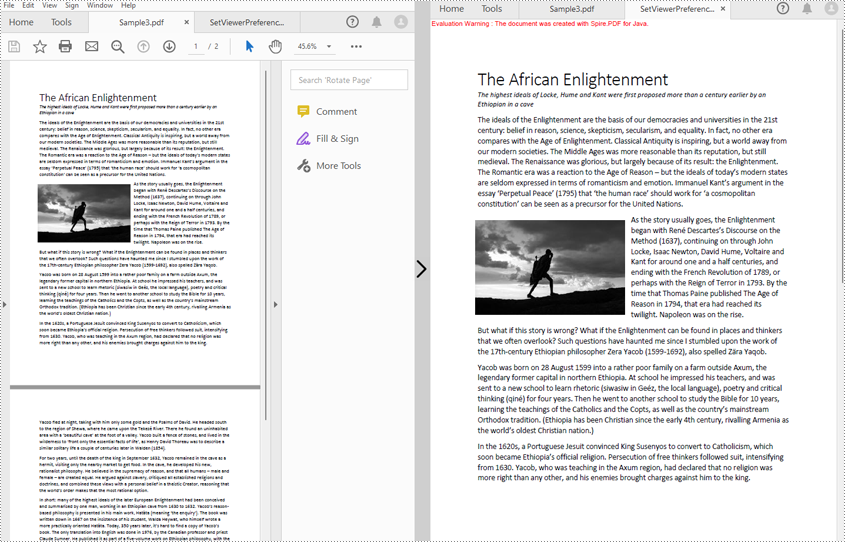
Spire.PDF for Java includes several methods under PdfViewerPreferences class, which can decide whether to center the window, display title, fit the window, and hide menu bar as well as tool bar and set page layout, page mode, and scaling mode. The detailed steps of setting viewer preferences are as follows.
- Create an object of PdfDocument class.
- Load a PDF file using PdfDocument.loadFromFile() method.
- Get viewer preferences of the document using PdfDocument.getViewerPreferences() method.
- Set the viewer preferences using the methods under PdfViewerPreferences object.
- Save the file using PdfDocument.saveToFile() method.
- Java
import com.spire.pdf.*;

public class setViewerPreference {
    public static void main(String[] args) {

        //Create an object of PdfDocument class
        PdfDocument pdf = new PdfDocument();

        //Load a PDF file
        pdf.loadFromFile("C:/Sample3.pdf");

        //Get viewer preferences of the document
        PdfViewerPreferences preferences = pdf.getViewerPreferences();

        //Set viewer preferences
        preferences.setCenterWindow(true);
        preferences.setDisplayTitle(false);
        preferences.setFitWindow(true);
        preferences.setHideMenubar(true);
        preferences.setHideToolbar(true);
        preferences.setPageLayout(PdfPageLayout.Single_Page);
        //preferences.setPageMode(PdfPageMode.Full_Screen);
        //preferences.setPrintScaling(PrintScalingMode.App_Default);

        //Save the file
        pdf.saveToFile("SetViewerPreference.pdf");
        pdf.close();
    }
}
Apply for a Temporary License
If you'd like to remove the evaluation message from the generated documents, or to get rid of the function limitations, please request a 30-day trial license for yourself.
The java.awt.print package provides classes and interfaces for a general printing API. It has the ability to specify the document types and manage the print options, such as specifying printer name, setting print range, printing in duplex, and printing in custom paper sizes. In this article, you will learn how to print PDF documents in Java using this package and Spire.PDF for Java library.
- Print PDF with the Default Printer Without a Print Dialog
- Print Page Ranges with a Specified Printer
- Print PDF with a Print Dialog
- Print PDF in Duplex Mode
- Print PDF in a Custom Paper Size
Install Spire.PDF for Java
First of all, you're required to add the Spire.Pdf.jar file as a dependency in your Java program. The JAR file can be downloaded from this link. If you use Maven, you can easily import the JAR file in your application by adding the following code to your project's pom.xml file.
<repositories>
    <repository>
        <id>com.e-iceblue</id>
        <name>e-iceblue</name>
        <url>https://repo.e-iceblue.com/nexus/content/groups/public/</url>
    </repository>
</repositories>
<dependencies>
    <dependency>
        <groupId>e-iceblue</groupId>
        <artifactId>spire.pdf</artifactId>
        <version>11.11.11</version>
    </dependency>
</dependencies>
Print PDF with the Default Printer Without a Print Dialog
The following are the steps to print PDF documents with the default printer using java.awt.print and Spire.PDF for Java.
- Create an instance of PrinterJob class, and calls methods in this class to set up a job.
- Create a PdfDocument object, and load a PDF document using PdfDocument.LoadFromFile() method.
- Render each page of the document in the specified format using PrinterJob.setPrintable() method.
- Call PrinterJob.print() method to print the PDF pages.
- Java
import com.spire.pdf.PdfDocument;
import java.awt.print.PageFormat;
import java.awt.print.Paper;
import java.awt.print.PrinterException;
import java.awt.print.PrinterJob;

public class PrintWithDefaultPrinter {

    public static void main(String[] args) {

        //Create a PrinterJob object which is initially associated with the default printer
        PrinterJob printerJob = PrinterJob.getPrinterJob();

        // Create a PageFormat object and set it to a default size and orientation
        PageFormat pageFormat = printerJob.defaultPage();

        //Return a copy of the Paper object associated with this PageFormat
        Paper paper = pageFormat.getPaper();

        //Set the imageable area of this Paper
        paper.setImageableArea(0, 0, pageFormat.getWidth(), pageFormat.getHeight());

        //Set the Paper object for this PageFormat
        pageFormat.setPaper(paper);

        //Create a PdfDocument object
        PdfDocument pdf = new PdfDocument();

        //Load a PDF file
        pdf.loadFromFile("C:\\Users\\Administrator\\Desktop\\sample.pdf");

        //Call painter to render the pages in the specified format
        printerJob.setPrintable(pdf, pageFormat);

        //Execute printing
        try {
            printerJob.print();
        } catch (PrinterException e) {
            e.printStackTrace();
        }
    }
}
Print Page Ranges with a Specified Printer
The following are the steps to print a page range with a specified printer using java.awt.print and Spire.PDF for Java.
- Create an instance of PrinterJob class and calls methods in this class to set up a job.
- Find the available print service using the custom method findPrintService(), and specify the printer name using PrinterJob.setPrintService() method.
- Create a PdfDocument object, and load a PDF document using PdfDocument.LoadFromFile() method.
- Render each page of the document in the specified format using PrinterJob.setPrintable() method.
- Create a PrintRequestAttributeSet object, and add the print range to the attribute set.
- Call PrinterJob.print() method to print the selected pages.
- Java
import com.spire.pdf.PdfDocument;
import javax.print.PrintService;
import javax.print.attribute.HashPrintRequestAttributeSet;
import javax.print.attribute.PrintRequestAttributeSet;
import javax.print.attribute.standard.PageRanges;
import java.awt.print.PageFormat;
import java.awt.print.Paper;
import java.awt.print.PrinterException;
import java.awt.print.PrinterJob;

public class PrintWithSpecifiedPrinter {

    public static void main(String[] args) throws PrinterException {

        //Create a PrinterJob object which is initially associated with the default printer
        PrinterJob printerJob = PrinterJob.getPrinterJob();

        //Specify printer name
        PrintService myPrintService = findPrintService("\\\\192.168.1.104\\HP LaserJet P1007");
        printerJob.setPrintService(myPrintService);

        //Create a PageFormat instance and set it to a default size and orientation
        PageFormat pageFormat = printerJob.defaultPage();

        //Return a copy of the Paper object associated with this PageFormat.
        Paper paper = pageFormat.getPaper();

        //Set the imageable area of this Paper.
        paper.setImageableArea(0, 0, pageFormat.getWidth(), pageFormat.getHeight());

        //Set the Paper object for this PageFormat.
        pageFormat.setPaper(paper);

        //Create a PdfDocument object
        PdfDocument pdf = new PdfDocument();

        //Load a PDF file
        pdf.loadFromFile("C:\\Users\\Administrator\\Desktop\\sample.pdf");

        //Call painter to render the pages in the specified format
        printerJob.setPrintable(pdf, pageFormat);

        //Create a PrintRequestAttributeSet object
        PrintRequestAttributeSet attributeSet = new HashPrintRequestAttributeSet();

        //Set print range
        attributeSet.add(new PageRanges(1,7));

        //Execute printing
        try {
            printerJob.print(attributeSet);
        } catch (PrinterException e) {
            e.printStackTrace();
        }
    }

    //Find print service
    private static PrintService findPrintService(String printerName) {

        PrintService[] printServices = PrinterJob.lookupPrintServices();
        for (PrintService printService : printServices) {
            if (printService.getName().equals(printerName)) {

                System.out.print(printService.getName());
                return printService;
            }
        }
        return null;
    }
}
Print PDF with a Print Dialog
The following are the steps to print PDF documents with print dialog using java.awt.print and Spire.PDF for Java.
- Create an instance of PrinterJob class, and calls methods in this class to set up a job.
- Create a PdfDocument object, and load a PDF document using PdfDocument.LoadFromFile() method.
- Render each page of the document in the specified format using PrinterJob.setPrintable() method.
- Call PrinterJob.printDialog() method to display print dialog.
- Call PrinterJob.print() method to print the PDF pages.
- Java
import com.spire.pdf.PdfDocument;
import java.awt.print.PageFormat;
import java.awt.print.Paper;
import java.awt.print.PrinterException;
import java.awt.print.PrinterJob;

public class PrintWithPrintDialog {

    public static void main(String[] args) {

        //Create a PrinterJob object which is initially associated with the default printer
        PrinterJob printerJob = PrinterJob.getPrinterJob();

        //Create a PageFormat object and set it to a default size and orientation
        PageFormat pageFormat = printerJob.defaultPage();

        //Return a copy of the Paper object associated with this PageFormat
        Paper paper = pageFormat.getPaper();

        //Set the imageable area of this Paper
        paper.setImageableArea(0, 0, pageFormat.getWidth(), pageFormat.getHeight());

        //Set the Paper object for this PageFormat
        pageFormat.setPaper(paper);

        //Create a PdfDocument object
        PdfDocument pdf = new PdfDocument();

        //Load a PDF file
        pdf.loadFromFile("C:\\Users\\Administrator\\Desktop\\sample.pdf");

        //Call painter to render the pages in the specified format
        printerJob.setPrintable(pdf, pageFormat);

        //Display the print dialog
        if (printerJob.printDialog()) {
            try {
                printerJob.print();
            } catch (PrinterException e) {
                e.printStackTrace();
            }
        }
    }
}
Print PDF in Duplex Mode
The following are the steps to print PDF documents in duplex mode using java.awt.print and Spire.PDF for Java.
- Create an instance of PrinterJob class and calls methods in this class to set up a job.
- Create a PdfDocument object, and load a PDF document using PdfDocument.LoadFromFile() method.
- Render each page of the document in the specified format using PrinterJob.setPrintable() method.
- Create a PrintRequestAttributeSet object, and add the two-sided printing mode to the attribute set.
- Call PrinterJob.print() method to print the PDF pages.
- Java
import com.spire.pdf.PdfDocument;
import javax.print.attribute.HashPrintRequestAttributeSet;
import javax.print.attribute.PrintRequestAttributeSet;
import javax.print.attribute.standard.Sides;
import java.awt.print.PageFormat;
import java.awt.print.Paper;
import java.awt.print.PrinterException;
import java.awt.print.PrinterJob;

public class PrintInDuplexMode {

    public static void main(String[] args) {

        //Create a PrinterJob object which is initially associated with the default printer
        PrinterJob printerJob = PrinterJob.getPrinterJob();

        //Create a PageFormat object and set it to a default size and orientation
        PageFormat pageFormat = printerJob.defaultPage();

        //Return a copy of the Paper object associated with this PageFormat
        Paper paper = pageFormat.getPaper();

        //Set the imageable area of this Paper
        paper.setImageableArea(0, 0, pageFormat.getWidth(), pageFormat.getHeight());

        //Set the Paper object for this PageFormat
        pageFormat.setPaper(paper);

        //Create a PdfDocument object
        PdfDocument pdf = new PdfDocument();

        //Load a PDF file
        pdf.loadFromFile("C:\\Users\\Administrator\\Desktop\\sample.pdf");

        //Call painter to render the pages in the specified format
        printerJob.setPrintable(pdf, pageFormat);

        //Create a PrintRequestAttributed object
        PrintRequestAttributeSet attributeSet = new HashPrintRequestAttributeSet();

        //Set to duplex printing mode
        attributeSet.add(Sides.TWO_SIDED_SHORT_EDGE);

        //Execute printing
        try {
            printerJob.print(attributeSet);
        } catch (PrinterException e) {
            e.printStackTrace();
        }
    }
}
Print PDF in a Custom Paper Size
The following are the steps to print PDF documents in a custom paper size using java.awt.print and Spire.PDF for Java.
- Create an instance of PrinterJob class and calls methods in this class to set up a job.
- Set the with and height of the Paper object using Paper.setSize() method.
- Create a PdfDocument object, and load a PDF document using PdfDocument.LoadFromFile() method.
- Render each page of the document in the specified format using PrinterJob.setPrintable() method.
- Call PrinterJob.print() method to print the PDF pages.
- Java
import com.spire.pdf.PdfDocument;
import java.awt.print.PageFormat;
import java.awt.print.Paper;
import java.awt.print.PrinterException;
import java.awt.print.PrinterJob;

public class PrintInCustomPaperSize {

    public static void main(String[] args) {

        //Create a PrinterJob object which is initially associated with the default printer
        PrinterJob printerJob = PrinterJob.getPrinterJob();

        //Create a PageFormat object and set it to a default size and orientation
        PageFormat pageFormat = printerJob.defaultPage();

        //Return a copy of the Paper object associated with this PageFormat
        Paper paper = pageFormat.getPaper();

        //Set the width and height of this Paper object
        paper.setSize(500,600);

        //Set the Paper object for this PageFormat
        pageFormat.setPaper(paper);

        //Create a PdfDocument object
        PdfDocument pdf = new PdfDocument();

        //Load a PDF file
        pdf.loadFromFile("C:\\Users\\Administrator\\Desktop\\sample.pdf");

        //Call painter to render the pages in the specified format
        printerJob.setPrintable(pdf, pageFormat);

        //Execute printing
        try {
            printerJob.print();
        } catch (PrinterException e) {
            e.printStackTrace();
        }
    }
}
Apply for a Temporary License
If you'd like to remove the evaluation message from the generated documents, or to get rid of the function limitations, please request a 30-day trial license for yourself.
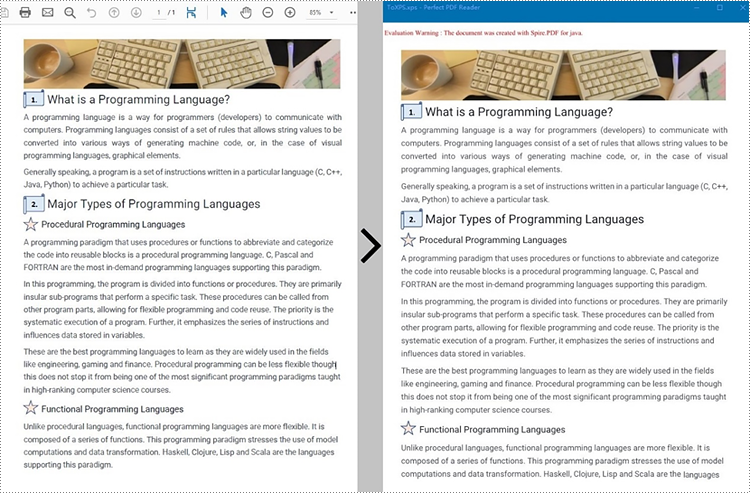
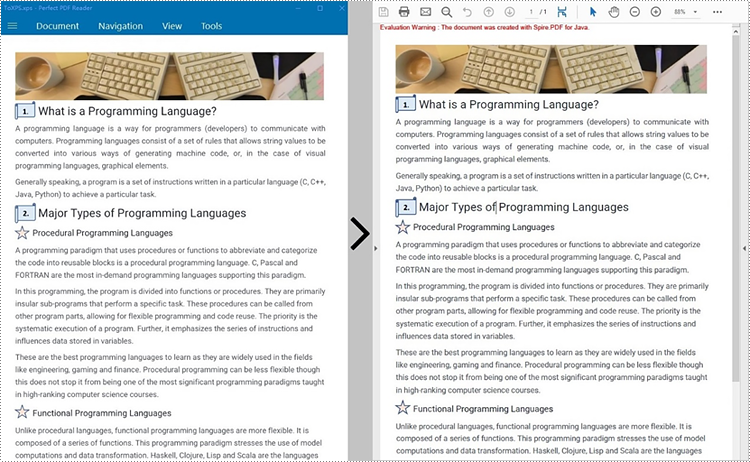
PDF (Portable Document Format) and XPS (XML Paper Specification) are two commonly used document formats for sharing and printing documents. While PDF is widely known and supported, XPS is a Microsoft-developed format that has gained popularity due to its superior graphics rendering capabilities. In this article, we will demonstrate how to use Spire.PDF for Java to convert PDF to XPS and XPS to PDF in high quality.
Install Spire.PDF for Java
First of all, you're required to add the Spire.Pdf.jar file as a dependency in your Java program. The JAR file can be downloaded from this link. If you use Maven, you can easily import the JAR file in your application by adding the following code to your project's pom.xml file.
<repositories>
    <repository>
        <id>com.e-iceblue</id>
        <name>e-iceblue</name>
        <url>https://repo.e-iceblue.com/nexus/content/groups/public/</url>
    </repository>
</repositories>
<dependencies>
    <dependency>
        <groupId>e-iceblue</groupId>
        <artifactId>spire.pdf</artifactId>
        <version>11.11.11</version>
    </dependency>
</dependencies>
Convert PDF to XPS in Java
Spire.PDF for Java has a powerful conversion feature, which can convert PDF to XPS in just three steps. The detailed steps are as follows:
- Create a PdfDocument instance.
- Load a PDF sample document using PdfDocument.loadFromFile() method.
- Save the document as XPS using PdfDocument.saveToFile() method.
- Java
import com.spire.pdf.*;

public class PDFtoXPS {
    public static void main(String[] args) {

        //Create a PdfDocument instance
        PdfDocument pdf = new PdfDocument();

        //Load the PDF file
       pdf.loadFromFile("C:\\Users\\Administrator\\Desktop\\Input.pdf.pdf");

        //Save to XPS
        pdf.saveToFile("ToXPS.xps", FileFormat.XPS);
        pdf.close();
    }
}
Convert XPS to PDF in Java
The PdfDocument.saveToFile() method provided by Spire.PDF for Java enables the conversion of a XPS file into a PDF document. The following are steps to convert XPS to PDF.
- Create a PdfDocument instance.
- Load a XPS file document using PdfDocument.loadFromFile() method.
- Save the document as PDF using PdfDocument.saveToFile() method.
- Java
import com.spire.pdf.*;

public class XPStoPDF {
    public static void main(String[] args) {

        //Create a PdfDocument instance
        PdfDocument pdf = new PdfDocument();

        //Load a XPS file
        pdf.loadFromXPS("C:\\Users\\Administrator\\Desktop\\sample.xps");

        //Save to PDF
        pdf.saveToFile("toPDF.pdf", FileFormat.PDF);
        pdf.close();
    }
}
Apply for a Temporary License
If you'd like to remove the evaluation message from the generated documents, or to get rid of the function limitations, please request a 30-day trial license for yourself.
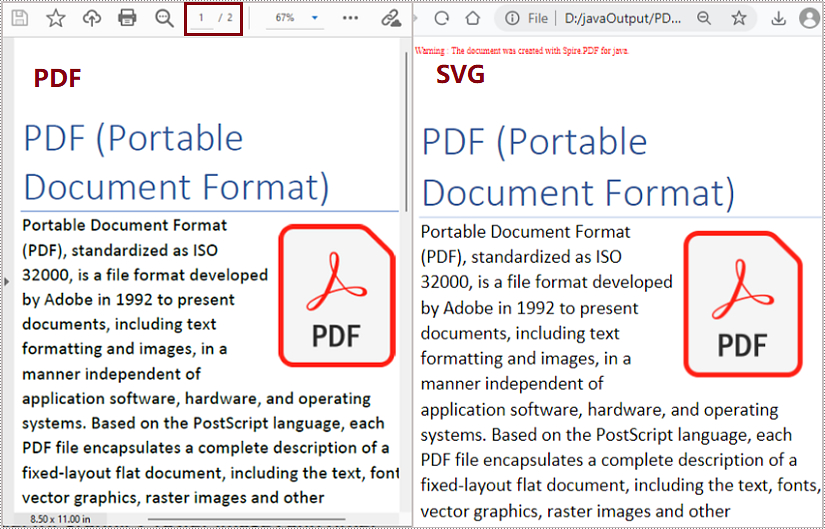
SVG, short for scalable vector graphics, is a vector image format based on XML for two-dimensional graphics. Vector image files, like SVG and PDF files, are very similar. They can display text, images, and other elements in the same appearance and keep the definition no matter how you zoom them. And because of their similarity, PDF files can be converted to SVG files almost losslessly. This article shows an easy method to convert PDF files to SVG files using Spire.PDF for Java.
- Convert Each Page of a PDF File to an SVG File
- Convert All the Pages of a PDF File to a Single SVG File
Install Spire.PDF for Java
First, you're required to add the Spire.Pdf.jar file as a dependency in your Java program. The JAR file can be downloaded from this link. If you use Maven, you can easily import the JAR file in your application by adding the following code to your project's pom.xml file.
<repositories>
    <repository>
        <id>com.e-iceblue</id>
        <name>e-iceblue</name>
        <url>https://repo.e-iceblue.com/nexus/content/groups/public/</url>
    </repository>
</repositories>
<dependencies>
    <dependency>
        <groupId>e-iceblue</groupId>
        <artifactId>spire.pdf</artifactId>
        <version>11.11.11</version>
    </dependency>
</dependencies>
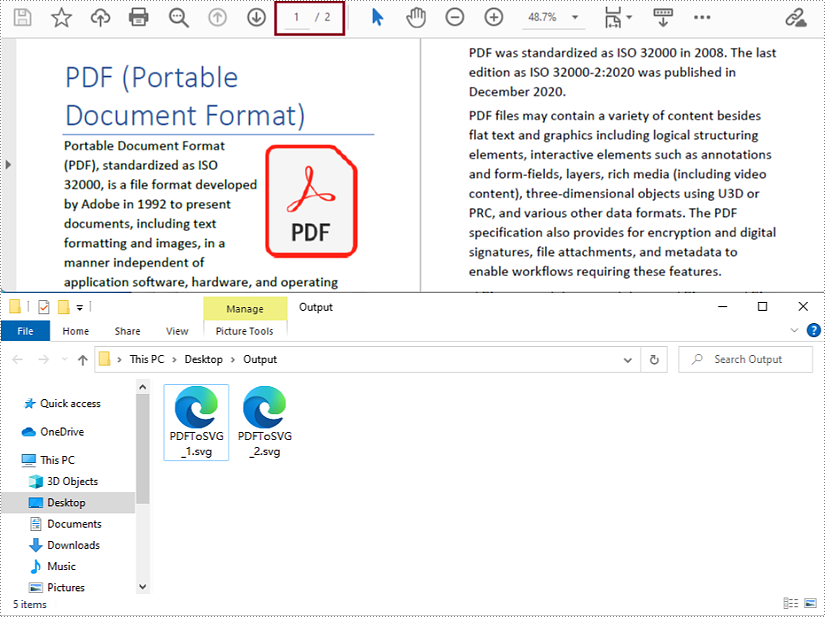
Convert Each Page of a PDF File to an SVG File
The detailed steps are as follows:
- Create an object of PdfDocument class.
- Load a PDF document from disk using PdfDocument.loadFromFile() method.
- Convert the document to SVG file and save it using PdfDocument.saveToFile() method.
- Java
import com.spire.pdf.*;

public class PDFToSVG {
    public static void main(String[] args) {
        //Create an object of Document class
        PdfDocument pdf = new PdfDocument();

        //Load a PDF document from disk
        pdf.loadFromFile("D:/Samples/Sample.pdf");

        //Convert the document to SVG and Save it
        pdf.saveToFile("D:/javaOutput/PDFToSVG.svg", FileFormat.SVG);
    }
}
Convert All the Pages of a PDF File to a Single SVG File
The detailed steps are as follows:
- Create an object of PdfDocument class.
- Load a PDF document from disk using PdfDocument.loadFromFile() method.
- Change the conversion settings to convert the PDF file to a single SVG file using PdfDocument.getConvertOptions().setOutputToOneSvg() method.
- Convert the document to SVG file and save it using PdfDocument.saveToFile() method.
- Java
import com.spire.pdf.*;

public class PDFToSVG {
    public static void main(String[] args) {
        //Create an object of Document class
        PdfDocument pdf = new PdfDocument();

        //Load a PDF document from disk
        pdf.loadFromFile("D:/Samples/Sample.pdf");

        //Change the conversion settings to convert the PDF file to a single SVG file
        pdf.getConvertOptions().setOutputToOneSvg(true);

        //Convert the document to SVG and Save it
        pdf.saveToFile("D:/javaOutput/PDFToSVG.svg", FileFormat.SVG);
    }
}
Apply for a Temporary License
If you'd like to remove the evaluation message from the generated documents, or to get rid of the function limitations, please request a 30-day trial license for yourself.
PDF file format makes the presentation of documents consistent across devices. However, when you need to put PDF documents on web pages, it's better to convert them to HTML files. In this way, all the content of your document can be displayed in the browser directly, with no need for downloading files. And the loading of large PDF documents takes a long time, while HTML files can be rendered in the browser very quickly. In addition, compared to PDF files, it is much easier for search engines to crawl HTML web pages to get information, which will give your website more exposure. This article will show how to convert PDF documents into HTML files in Java using Spire.PDF for Java.
- Convert a PDF document to an HTML file in Java
- Convert a PDF document to an HTML file with SVG Embedded
- Convert a PDF document to HTML Stream in Java
Install Spire.PDF for Java
First of all, you're required to add the Spire.Pdf.jar file as a dependency in your Java program. The JAR file can be downloaded from this link. If you use Maven, you can easily import the JAR file in your application by adding the following code to your project's pom.xml file.
<repositories>
    <repository>
        <id>com.e-iceblue</id>
        <name>e-iceblue</name>
        <url>https://repo.e-iceblue.com/nexus/content/groups/public/</url>
    </repository>
</repositories>
<dependencies>
    <dependency>
        <groupId>e-iceblue</groupId>
        <artifactId>spire.pdf</artifactId>
        <version>11.11.11</version>
    </dependency>
</dependencies>
Convert a PDF document to an HTML file in Java
The conversion from a PDF document to an HTML file can be directly done by loading a PDF document and saving it as an HTML file using PdfDocument.saveToFile(String filename, FileFormat.HTML) method provided by Spire.PDF for Java. The detailed steps are as follows.
- Create an object of PdfDocument.
- Load a PDF file using PdfDocument.loadFromFile() method.
- Save the PDF file as an HTML file using PdfDocument.saveToFle() method.
- Java
Java
import com.spire.pdf.*;

public class convertPDFToHTML {
    public static void main(String[] args) {

        //Create an object of PdfDocument
        PdfDocument pdf = new PdfDocument();

        //Load a PDF file
        pdf.loadFromFile("C:/Guide to a Foreign Past.pdf");

        //Save the PDF file as an HTML file
        pdf.saveToFile("PDFToHTML.html",FileFormat.HTML);
        pdf.close();
    }
}
Convert a PDF document to an HTML file with SVG Embedded
Spire.PDF for Java also provides the PdfDocument.getConvertOptions().setPdfToHtmlOptions(true) method to enable embedding SVG while converting. The detailed steps for converting a PDF file to an HTML file with SVG embedded are as follows.
- Create an object of PdfDocument.
- Load a PDF file using PdfDocument.loadFromFile() method.
- Enable embedding SVG using PdfDocument.getConvertOptions().setPdfToHtmlOptions(true) method.
- Save the PDF file as an HTML file using PdfDocument.saveToFle() method.
- Java
import com.spire.pdf.*;

public class convertPDFToHTMLEmbeddingSVG {
    public static void main(String[] args) {

        //Create an object of PdfDocument
        PdfDocument doc = new PdfDocument();

        //Load a PDF file
        doc.loadFromFile("C:/Guide to a Foreign Past.pdf");

        //Set embedding SVG
        doc.getConvertOptions().setPdfToHtmlOptions(true);

        //Save the PDF file as an HTML file
        doc.saveToFile("PDFToHTMLEmbeddingSVG.html", FileFormat.HTML);
        doc.close();
    }
}
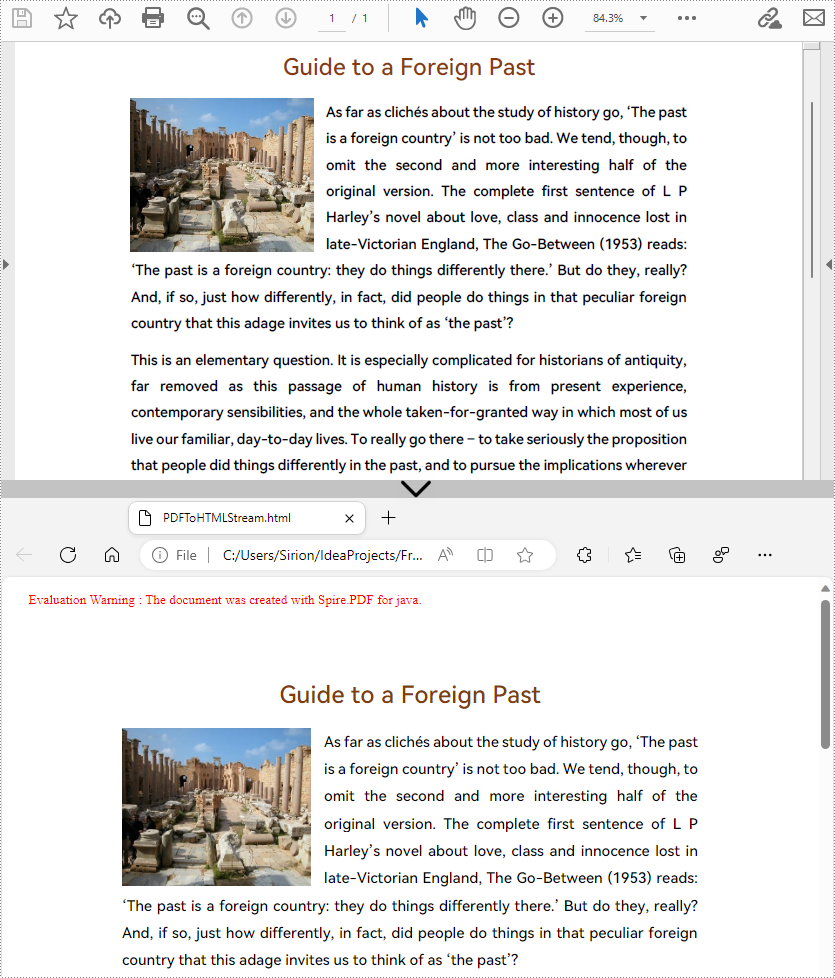
Convert a PDF document to HTML Stream in Java
Spire.PDF for Java also supports converting PDF documents to HTML stream. The detailed steps are as follows.
- Create an object of PdfDocument.
- Load a PDF file using PdfDocument.loadFromFile() method.
- Save the PDF file as HTML stream using PdfDocument.saveToStream() method.
- Java
import com.spire.pdf.*;

import java.io.*;


public class convertPDFToHTMLStream {
    public static void main(String[] args) throws FileNotFoundException {

        //Create an object of PdfDocument
        PdfDocument pdf = new PdfDocument();

        //Load a PDF file
        pdf.loadFromFile("C:/Guide to a Foreign Past.pdf");

        //Save the PDF file as HTML stream
        File outFile = new File("PDFToHTMLStream.html");
        OutputStream outputStream = new FileOutputStream(outFile);
        pdf.saveToStream(outputStream, FileFormat.HTML);
        pdf.close();
    }
}
Apply for a Temporary License
If you'd like to remove the evaluation message from the generated documents, or to get rid of the function limitations, please request a 30-day trial license for yourself.
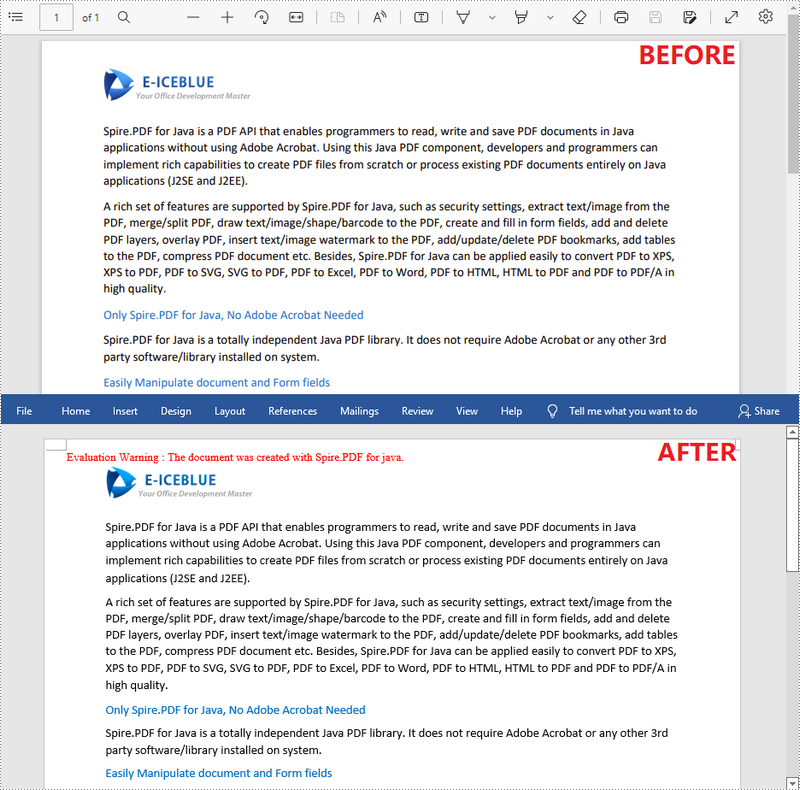
Nowadays, it is not difficult to convert PDF documents into Word files using a software. However, if you want to maintain the layout and even the font formatting while converting, it is not something that every software can accomplish. Spire.PDF for Java does it well and offers you the following two modes when converting PDF to Word in Java.
Fixed Layout mode has fast conversion speed and is conducive to maintaining the original appearance of PDF files to the greatest extent. However, the editability of the resulting document will be limited since each line of text in PDF will be presented in a separate frame in the generated Word document.
Flowable Structure is a full recognition mode. The converted content will not be presented in frames, and the structure of the resulting document is flowable. The generated Word document is easy to re-edit but may look different from the original PDF file.
Install Spire.PDF for Java
First, you're required to add the Spire.Pdf.jar file as a dependency in your Java program. The JAR file can be downloaded from this link. If you use Maven, you can easily import the JAR file in your application by adding the following code to your project's pom.xml file.
<repositories>
    <repository>
        <id>com.e-iceblue</id>
        <name>e-iceblue</name>
        <url>https://repo.e-iceblue.com/nexus/content/groups/public/</url>
    </repository>
</repositories>
<dependencies>
    <dependency>
        <groupId>e-iceblue</groupId>
        <artifactId>spire.pdf</artifactId>
        <version>11.11.11</version>
    </dependency>
</dependencies>
Convert PDF to Doc/Docx with Fixed Layout
The following are the steps to convert PDF to Doc or Docx with fixed layout.
- Create a PdfDocument object.
- Load a PDF file using PdfDocument.loadFromFile() method.
- Convert the PDF document to a Doc or Docx format file using PdfDocument.saveToFile(String fileName, FileFormat fileFormat) method.
- Java
import com.spire.pdf.FileFormat;
import com.spire.pdf.PdfDocument;

public class ConvertPdfToWordWithFixedLayout {

    public static void main(String[] args) {

        //Create a PdfDocument object
        PdfDocument doc = new PdfDocument();

        //Load a sample PDF document
        doc.loadFromFile("C:\\Users\\Administrator\\Desktop\\sample.pdf");

        //Convert PDF to Doc and save it to a specified path
        doc.saveToFile("output/ToDoc.doc", FileFormat.DOC);

        //Convert PDF to Docx and save it to a specified path
        doc.saveToFile("output/ToDocx.docx", FileFormat.DOCX);
        doc.close();
    }
}
Convert PDF to Doc/Docx with Flowable Structure
The following are the steps to convert PDF to Doc or Docx with flowable structure.
- Create a PdfDocument object.
- Load a PDF file using PdfDocument.loadFromFile() method.
- Set the conversion mode as flow using PdfDocument. getConvertOptions().setConvertToWordUsingFlow() method.
- Convert the PDF document to a Doc or Docx format file using PdfDocument.saveToFile(String fileName, FileFormat fileFormat) method.
- Java
import com.spire.pdf.FileFormat;
import com.spire.pdf.PdfDocument;

public class ConvertPdfToWordWithFlowableStructure {

    public static void main(String[] args) {

        //Create a PdfDocument object
        PdfDocument doc = new PdfDocument();

        //Load a sample PDF document
        doc.loadFromFile("C:\\Users\\Administrator\\Desktop\\sample.pdf");

        //Convert PDF to Word with flowable structure
        doc.getConvertOptions().setConvertToWordUsingFlow(true);

        //Convert PDF to Doc
        doc.saveToFile("output/ToDoc.doc", FileFormat.DOC);

        //Convert PDF to Docx
        doc.saveToFile("output/ToDocx.docx", FileFormat.DOCX);
        doc.close();
    }
}
Apply for a Temporary License
If you'd like to remove the evaluation message from the generated documents, or to get rid of the function limitations, please request a 30-day trial license for yourself.
