
Program Guide (123)
Children categories
Adding a header to a PDF document is a useful way to display important information such as the document title, author, and page numbers. A header is a section of text or graphics that appears at the top of each page in a document and can be customized according to your needs. This feature is particularly helpful when creating reports, contracts, or other professional documents that require a consistent format. In this article, you will learn how to add a header to an existing PDF document in Java using Spire.PDF for Java.
Install Spire.PDF for Java
First of all, you're required to add the Spire.Pdf.jar file as a dependency in your Java program. The JAR file can be downloaded from this link. If you use Maven, you can easily import the JAR file in your application by adding the following code to your project's pom.xml file.
<repositories>
    <repository>
        <id>com.e-iceblue</id>
        <name>e-iceblue</name>
        <url>https://repo.e-iceblue.com/nexus/content/groups/public/</url>
    </repository>
</repositories>
<dependencies>
    <dependency>
        <groupId>e-iceblue</groupId>
        <artifactId>spire.pdf</artifactId>
        <version>11.11.11</version>
    </dependency>
</dependencies>
Background Knowledge
When an existing PDF document is manipulated by Spire.PDF for Java, the origin of the coordinate system is located at the top left corner of the page, with the x-axis extending to the right and the y-axis extending downward. Adding a header to a page means adding content, such as text, images, automatic fields and shapes, to a specified location in the upper blank area of the page.
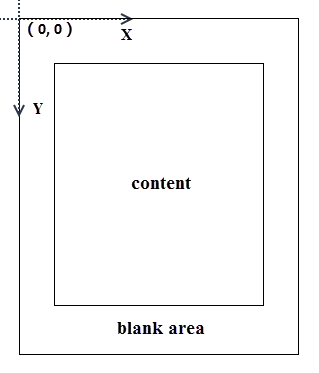
If the blank area is not large enough to accommodate the content you want to add, you can consider increasing the PDF page margins.
Add a Header to an Existing PDF Document in Java
Spire.PDF for Java allows users to draw text, images and shapes on a PDF page using PdfCanvas.drawString() method, PdfCanvas.drawImage() method, PdfCanvas.drawLine() method and other similar methods. To add dynamic information to the header, such as page numbers, sections, dates, you need to resort to automatic fields. Spire.PDF for Java provides the PdfPageNumberField class, PdfSectionNumberField class, PdfCreationDateField class, etc. to achieve the dynamic addition of these data.
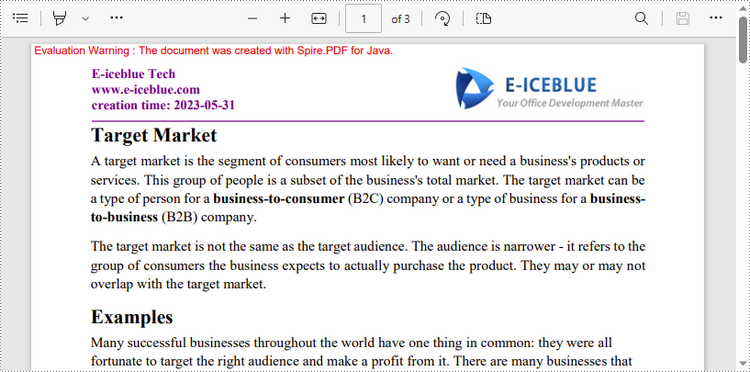
The following are the steps to add a header consisting of text, an image, a date, and a line to a PDF document using Spire.PDF for Java.
- Create a PdfDocument object.
- Load a PDF document using PdfDocument.loadFromFile() method.
- Create font, pen and brush objects that will be used to draw text or shapes.
- Draw text on the top blank area of a page using PdfPageBase.getCanvas().drawString() method.
- Draw a line on the top blank area of a page using PdfPageBase.getCanvas().drawLine() method.
- Load an image using PdfImage.fromFile() method.
- Draw the image on the top blank area of a page using PdfPageBase.getCanvas().drawImage() method.
- Create a PdfCreationDateField object that reflects the creation time of the document.
- Draw the creation time on the top blank area of a page using PdfCreationDateField.draw() method.
- Save the document to another PDF file using PdfDocument.saveToFile() method.
- Java
import com.spire.pdf.PdfDocument;
import com.spire.pdf.PdfPageBase;
import com.spire.pdf.automaticfields.PdfCompositeField;
import com.spire.pdf.automaticfields.PdfCreationDateField;
import com.spire.pdf.graphics.*;

import java.awt.*;

public class AddHeaderToPdf {

    public static void main(String[] args) {

        //Create a PdfDocument object
        PdfDocument doc = new PdfDocument();

        //Load a PDF file
        doc.loadFromFile("C:\\Users\\Administrator\\Desktop\\TargetMarket.pdf");

        //Load an image for the header
        PdfImage headerImage = PdfImage.fromFile("C:\\Users\\Administrator\\Desktop\\logo.png");

        //Get image width in pixel
        float width = headerImage.getWidth();

        //Convert pixel to point
        PdfUnitConvertor unitCvtr = new PdfUnitConvertor();
        float pointWidth = unitCvtr.convertUnits(width, PdfGraphicsUnit.Pixel, PdfGraphicsUnit.Point);

        //Specify text for the header
        String headerText = "E-iceblue Tech\nwww.e-iceblue.com";

        //Create a true type font
        PdfTrueTypeFont font = new PdfTrueTypeFont(new Font("Times New Roman", Font.BOLD, 12),true);

        //Create a brush
        PdfBrush brush = PdfBrushes.getPurple();

        //Create a pen
        PdfPen pen = new PdfPen(brush, 1.0f);

        //Create a creation date field
        PdfCreationDateField creationDateField = new PdfCreationDateField(font, brush);
        creationDateField.setDateFormatString("yyyy-MM-dd");

        //Create a composite field to combine static string and date field
        PdfCompositeField compositeField = new PdfCompositeField(font, brush, "creation time: {0}", creationDateField);
        compositeField.setLocation(new Point(55, 48));

        //Loop through the pages in the document
        for (int i = 0; i < doc.getPages().getCount(); i++)
        {
            //Get specific page
            PdfPageBase page = doc.getPages().get(i);

            //Draw the image on the top blank area
            page.getCanvas().drawImage(headerImage, page.getActualSize().getWidth() - pointWidth - 55, 20);

            //Draw text on the top blank area
            page.getCanvas().drawString(headerText, font, brush, 55, 20);

            //Draw a line on the top blank area
            page.getCanvas().drawLine(pen, new Point(55, 70), new Point((int)page.getActualSize().getWidth() - 55, 70));

            //Draw the composite field on the top blank area
            compositeField.draw(page.getCanvas());
        }

        //Save to file
        doc.saveToFile("output/AddHeader.pdf");
        doc.dispose();
    }
}
Apply for a Temporary License
If you'd like to remove the evaluation message from the generated documents, or to get rid of the function limitations, please request a 30-day trial license for yourself.
PDF is a popular and widely used file format, but when it comes to giving presentations to others in meetings, classes or other scenarios, PowerPoint is always preferred over PDF files because it contains rich presentation effects that can better capture the attention of your audience. In this article, you will learn how to convert an existing PDF file to a PowerPoint presentation using Spire.PDF for Java.
Install Spire.PDF for Java
First of all, you're required to add the Spire.Pdf.jar file as a dependency in your Java program. The JAR file can be downloaded from this link. If you use Maven, you can easily import the JAR file in your application by adding the following code to your project's pom.xml file.
<repositories>
    <repository>
        <id>com.e-iceblue</id>
        <name>e-iceblue</name>
        <url>https://repo.e-iceblue.com/nexus/content/groups/public/</url>
    </repository>
</repositories>
<dependencies>
    <dependency>
        <groupId>e-iceblue</groupId>
        <artifactId>spire.pdf</artifactId>
        <version>11.11.11</version>
    </dependency>
</dependencies>
Convert PDF to PowerPoint Presentation in Java
From Version 9.2.1, Spire.PDF for Java supports converting PDF to PPTX using PdfDocument.saveToFile() method. With this method, each page of your PDF file will be converted to a single slide in PowerPoint. Below are the steps to convert a PDF file to an editable PowerPoint document.
- Create a PdfDocument instance.
- Load a sample PDF document using PdfDocument.loadFromFile() method.
- Save the document as a PowerPoint document using PdfDocument.saveToFile(String filename, FileFormat.PPTX) method.
- Java
import com.spire.pdf.FileFormat;
import com.spire.pdf.PdfDocument;

public class PDFtoPowerPoint {
    public static void main(String[] args) {

        //Create a PdfDocument instance
        PdfDocument pdfDocument = new PdfDocument();

        //Load a sample PDF document
        pdfDocument.loadFromFile("sample.pdf");

        //Convert PDF to PPTX document
        pdfDocument.saveToFile("PDFtoPowerPoint.pptx", FileFormat.PPTX);
    }
}

Apply for a Temporary License
If you'd like to remove the evaluation message from the generated documents, or to get rid of the function limitations, please request a 30-day trial license for yourself.
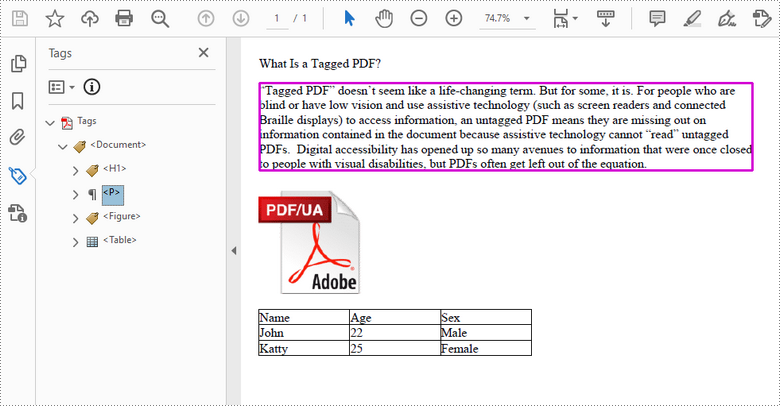
A tagged PDF is a PDF document that contains tags that are pretty similar to HTML code. Tags provide a logical structure that governs how the content of the PDF is presented through assistive technology. Each tag identifies the associated content element, for example heading level 1 <H1>, paragraph <P>, image <Figure>, or table <Table>. In this article, you will learn how to create a tagged PDF document in Java using Spire.PDF for Java.
Install Spire.PDF for Java
First of all, you're required to add the Spire.Pdf.jar file as a dependency in your Java program. The JAR file can be downloaded from this link. If you use Maven, you can easily import the JAR file in your application by adding the following code to your project's pom.xml file.
<repositories>
    <repository>
        <id>com.e-iceblue</id>
        <name>e-iceblue</name>
        <url>https://repo.e-iceblue.com/nexus/content/groups/public/</url>
    </repository>
</repositories>
<dependencies>
    <dependency>
        <groupId>e-iceblue</groupId>
        <artifactId>spire.pdf</artifactId>
        <version>11.11.11</version>
    </dependency>
</dependencies>
Create a Tagged PDF in Java
To add structure elements in a tagged PDF document, we must first create an object of PdfTaggedContent class. Then, add an element to the root using PdfTaggedContent.getStructureTreeRoot().appendChildElement() method. The following are the detailed steps to add a "heading" element to a tagged PDF using Spire.PDF for Java.
- Create a PdfDocument object and add a page to it using PdfDocument.getPages().add() method.
- Create an object of PdfTaggedContent class.
- Make the document compliance to PDF/UA identification using PdfTaggedContent.setPdfUA1Identification() method.
- Add a "document" element to the root of the document using PdfTaggedContent.getStructureTreeRoot().appendChildElement() method.
- Add a "heading" element under the "document" element using PdfStructureElement.appendChildElement() method.
- Add a start tag using PdfStructureElement.beginMarkedContent() method, which indicates the beginning of the heading element.
- Draw heading text on the page using PdfPageBase.getCanvas().drawString() method.
- Add an end tag using PdfStructureElement.beginMarkedContent() method, which implies the heading element ends here.
- Save the document to a PDF file using PdfDocument.saveToFile() method.
The following code snippet provides an example on how to create various elements including document, heading, paragraph, figure and table in a tagged PDF document in Java.
- Java
import com.spire.pdf.*;
import com.spire.pdf.graphics.*;
import com.spire.pdf.interchange.taggedpdf.PdfStandardStructTypes;
import com.spire.pdf.interchange.taggedpdf.PdfStructureElement;
import com.spire.pdf.interchange.taggedpdf.PdfTaggedContent;
import com.spire.pdf.tables.PdfTable;

import java.awt.*;
import java.awt.geom.Point2D;
import java.awt.geom.Rectangle2D;

public class CreateTaggedPdf {

    public static void main(String[] args) throws Exception {

        //Create a PdfDocument object
        PdfDocument doc = new PdfDocument();

        //Add a page
        PdfPageBase page = doc.getPages().add(PdfPageSize.A4, new PdfMargins(20));

        //Set tab order
        page.setTabOrder(TabOrder.Structure);

        //Create an object of PdfTaggedContent class
        PdfTaggedContent taggedContent = new PdfTaggedContent(doc);

        //Set language and title for the document
        taggedContent.setLanguage("en-US");
        taggedContent.setTitle("Create Tagged PDF in Java");

        //Set PDF/UA1 identification
        taggedContent.setPdfUA1Identification();

        //Create font and brush
        PdfTrueTypeFont font = new PdfTrueTypeFont(new Font("Times New Roman",Font.PLAIN,14), true);
        PdfSolidBrush brush = new PdfSolidBrush(new PdfRGBColor(Color.BLACK));

        //Add a "document" element
        PdfStructureElement document = taggedContent.getStructureTreeRoot().appendChildElement(PdfStandardStructTypes.Document);

        //Add a "heading" element
        PdfStructureElement heading1 = document.appendChildElement(PdfStandardStructTypes.HeadingLevel1);
        heading1.beginMarkedContent(page);
        String headingText = "What Is a Tagged PDF?";
        page.getCanvas().drawString(headingText, font, brush, new Point2D.Float(0, 0));
        heading1.endMarkedContent(page);

        //Add a "paragraph" element
        PdfStructureElement paragraph = document.appendChildElement(PdfStandardStructTypes.Paragraph);
        paragraph.beginMarkedContent(page);
        String paragraphText = "Tagged PDF doesn’t seem like a life-changing term. But for some, it is. For people who are " +
                "blind or have low vision and use assistive technology (such as screen readers and connected Braille displays) to " +
                "access information, an untagged PDF means they are missing out on information contained in the document because assistive " +
                "technology cannot “read” untagged PDFs.  Digital accessibility has opened up so many avenues to information that were once " +
                "closed to people with visual disabilities, but PDFs often get left out of the equation.";
        Rectangle2D.Float rect = new Rectangle2D.Float(0, 30, (float) page.getCanvas().getClientSize().getWidth(), (float) page.getCanvas().getClientSize().getHeight());
        page.getCanvas().drawString(paragraphText, font, brush, rect);
        paragraph.endMarkedContent(page);

        //Add a "figure" element
        PdfStructureElement figure = document.appendChildElement(PdfStandardStructTypes.Figure);
        figure.beginMarkedContent(page);
        PdfImage image = PdfImage.fromFile("C:\\Users\\Administrator\\Desktop\\pdfua.png");
        page.getCanvas().drawImage(image, new Point2D.Float(0, 150));
        figure.endMarkedContent(page);

        //Add a "table" element
        PdfStructureElement table = document.appendChildElement(PdfStandardStructTypes.Table);
        table.beginMarkedContent(page);
        PdfTable pdfTable = new PdfTable();
        pdfTable.getStyle().getDefaultStyle().setFont(font);
        String[] data = {"Name;Age;Sex",
                "John;22;Male",
                "Katty;25;Female"
        };
        String[][] dataSource = new String[data.length][];
        for (int i = 0; i < data.length; i++) {
            dataSource[i] = data[i].split("[;]", -1);
        }
        pdfTable.setDataSource(dataSource);
        pdfTable.getStyle().setShowHeader(true);
        pdfTable.draw(page.getCanvas(), new Point2D.Float(0, 280), 300f);
        table.endMarkedContent(page);

        //Save the document to file
        doc.saveToFile("output/CreatePDFUA.pdf");
    }
}
Apply for a Temporary License
If you'd like to remove the evaluation message from the generated documents, or to get rid of the function limitations, please request a 30-day trial license for yourself.
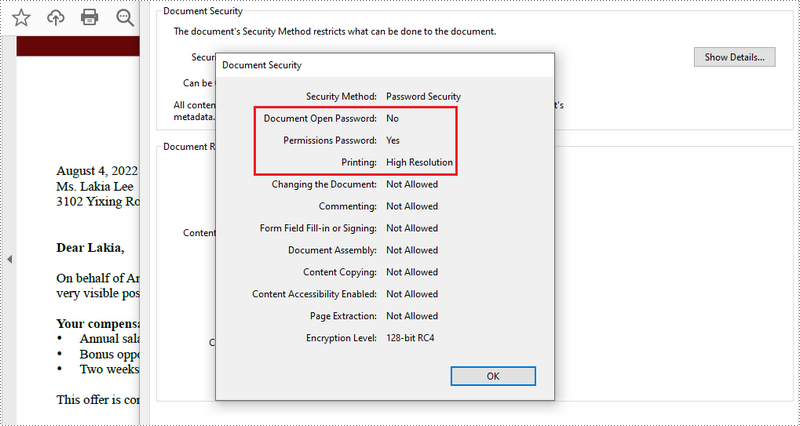
PDF documents can be secured in several ways. When PDFs are protected with a permission password, readers can open the document without needing to enter a password, but they may not have permission to further manipulate the document, such as printing or copying the content. In this article, you will learn how to set security permissions for a PDF document in Java using Spire.PDF for Java library.
Install Spire.PDF for Java
First, you're required to add the Spire.Pdf.jar file as a dependency in your Java program. The JAR file can be downloaded from this link. If you use Maven, you can easily import the JAR file in your application by adding the following code to your project's pom.xml file.
<repositories>
    <repository>
        <id>com.e-iceblue</id>
        <name>e-iceblue</name>
        <url>https://repo.e-iceblue.com/nexus/content/groups/public/</url>
    </repository>
</repositories>
<dependencies>
    <dependency>
        <groupId>e-iceblue</groupId>
        <artifactId>spire.pdf</artifactId>
        <version>11.11.11</version>
    </dependency>
</dependencies>
Add Security Permissions to a PDF Document in Java
Below are the steps to apply security permissions to a PDF document using Spire.PDF for Java.
- Create a PdfDocument object.
- Load a sample PDF file using PdfDocument.loadFileFile() method.
- Specify open password and permission password. The open password can be set to empty so that the generated document will not require a password to open.
- Encrypt the document with the open password and permission password, and set the security permissions using PdfDocument.getSecurity().encypt() method. This method takes PdfPermissionsFlags enumeration as a parameter, which defines user access permissions for an encrypted document.
- Save the document to another PDF file using PdfDocument.saveToFile() method.
- Java
import com.spire.pdf.PdfDocument;
import com.spire.pdf.security.PdfEncryptionKeySize;
import com.spire.pdf.security.PdfPermissionsFlags;

import java.util.EnumSet;

public class ChangeSecurityPermissions {

    public static void main(String[] args) {

        //Create a PdfDocument object
        PdfDocument doc = new PdfDocument();

        //Load a sample PDF file
        doc.loadFromFile("C:\\Users\\Administrator\\Desktop\\sample.pdf");

        //Specify open password
        String openPsd = "";

        //Specify permission password
        String permissionPsd = "e-iceblue";

        //Specify permissions
        EnumSet permissionsFlags = EnumSet.of(PdfPermissionsFlags.Print, PdfPermissionsFlags.Full_Quality_Print);

        //Encrypt the document with open password and permission password, and set the permissions and encryption key size
        doc.getSecurity().encrypt(openPsd, permissionPsd, permissionsFlags, PdfEncryptionKeySize.Key_128_Bit);

        //Save the document to another PDF file
        doc.saveToFile("output/SecurityPermissions.pdf");
    }
}
Apply for a Temporary License
If you'd like to remove the evaluation message from the generated documents, or to get rid of the function limitations, please request a 30-day trial license for yourself.
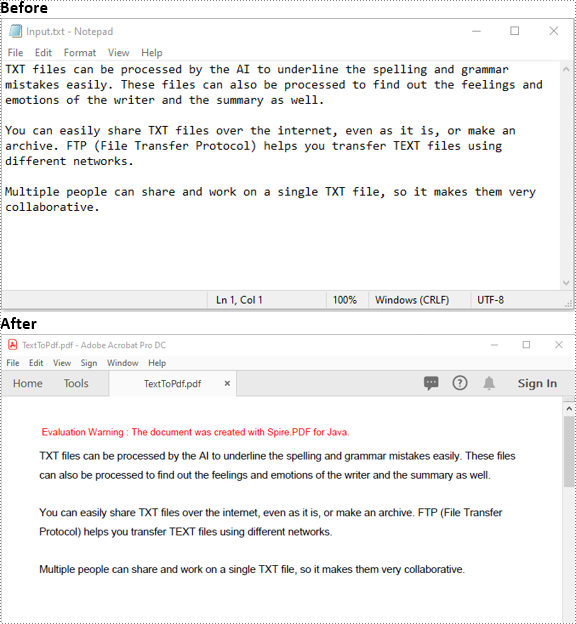
Text files can be easily edited by any text editing program. If you want to prevent changes when others view the files, you can convert them to PDF. In this article, we will demonstrate how to convert text files to PDF in Java using Spire.PDF for Java.
Install Spire.PDF for Java
First of all, you're required to add the Spire.Pdf.jar file as a dependency in your Java program. The JAR file can be downloaded from this link. If you use Maven, you can easily import the JAR file in your application by adding the following code to your project's pom.xml file.
<repositories>
    <repository>
        <id>com.e-iceblue</id>
        <name>e-iceblue</name>
        <url>https://repo.e-iceblue.com/nexus/content/groups/public/</url>
    </repository>
</repositories>
<dependencies>
    <dependency>
        <groupId>e-iceblue</groupId>
        <artifactId>spire.pdf</artifactId>
        <version>11.11.11</version>
    </dependency>
</dependencies>
Convert Text Files to PDF in Java
The following are the main steps to convert a text file to PDF using Spire.PDF for Java:
- Read the text in the text file into a String object.
- Create a PdfDocument instance and add a page to the PDF file using PdfDocument.getPages().add() method.
- Create a PdfTextWidget instance from the text.
- Draw the text onto the PDF page using PdfTextWidget.draw() method.
- Save the result file using PdfDocument.saveToFile() method.
- Java
import com.spire.pdf.FileFormat;
import com.spire.pdf.PdfDocument;
import com.spire.pdf.PdfPageBase;
import com.spire.pdf.graphics.*;

import java.awt.geom.Rectangle2D;
import java.io.BufferedReader;
import java.io.FileReader;
import java.io.IOException;

public class ConvertTextToPdf {
    public static void main(String[] args) throws Exception {
        //Read the text from the text file
        String text = readTextFromFile("Input.txt");

        //Create a PdfDocument instance
        PdfDocument pdf = new PdfDocument();
        //Add a page
        PdfPageBase page = pdf.getPages().add();

        //Create a PdfFont instance
        PdfFont font = new PdfFont(PdfFontFamily.Helvetica, 11);

        //Create a PdfTextLayout instance
        PdfTextLayout textLayout = new PdfTextLayout();
        textLayout.setBreak(PdfLayoutBreakType.Fit_Page);
        textLayout.setLayout(PdfLayoutType.Paginate);

        //Create a PdfStringFormat instance
        PdfStringFormat format = new PdfStringFormat();
        format.setLineSpacing(20f);

        //Create a PdfTextWidget instance from the text
        PdfTextWidget textWidget = new PdfTextWidget(text, font, PdfBrushes.getBlack());
        //Set string format
        textWidget.setStringFormat(format);

        //Draw the text at the specified location of the page
        Rectangle2D.Float bounds = new Rectangle2D.Float();
        bounds.setRect(0,25,page.getCanvas().getClientSize().getWidth(),page.getCanvas().getClientSize().getHeight());
        textWidget.draw(page, bounds, textLayout);

        //Save the result file
        pdf.saveToFile("TextToPdf.pdf", FileFormat.PDF);
    }
    public static String readTextFromFile(String fileName) throws IOException {
        StringBuffer sb = new StringBuffer();
        BufferedReader br = new BufferedReader(new FileReader(fileName));
        String content = null;
        while ((content = br.readLine()) != null) {
            sb.append(content);
            sb.append("\n");
        }
        return sb.toString();
    }
}
Apply for a Temporary License
If you'd like to remove the evaluation message from the generated documents, or to get rid of the function limitations, please request a 30-day trial license for yourself.
In some circumstances, you may need to change the page size of a PDF. For example, if you have a combined PDF file with pages of different sizes, you may want to resize the pages to the same size for easier reading and printing. In this article, we will introduce how to change the page size of a PDF file in Java using Spire.PDF for Java.
Install Spire.PDF for Java
First of all, you're required to add the Spire.Pdf.jar file as a dependency in your Java program. The JAR file can be downloaded from this link. If you use Maven, you can easily import the JAR file in your application by adding the following code to your project's pom.xml file.
<repositories>
    <repository>
        <id>com.e-iceblue</id>
        <name>e-iceblue</name>
        <url>https://repo.e-iceblue.com/nexus/content/groups/public/</url>
    </repository>
</repositories>
<dependencies>
    <dependency>
        <groupId>e-iceblue</groupId>
        <artifactId>spire.pdf</artifactId>
        <version>11.11.11</version>
    </dependency>
</dependencies>
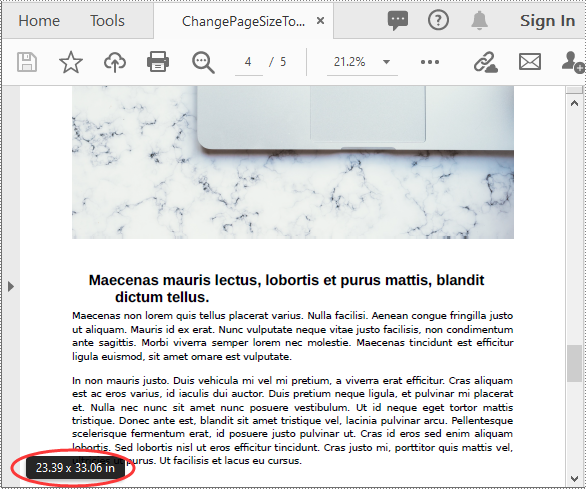
Change PDF Page Size to a Standard Paper Size in Java
The way to change the page size of a PDF file is to create a new PDF file and add pages of the desired size to it, next, create templates from the pages in the original PDF file, then draw the templates onto the pages in the new PDF file. This process will preserve text, images, and other elements present in the original PDF.
Spire.PDF for Java supports a variety of standard paper sizes like letter, legal, A0, A1, A2, A3, A4, B0, B1, B2, B3, B4 and many more. The following steps show you how to change the page size of a PDF file to a standard paper size.
- Initialize a PdfDocument instance and load the original PDF file using PdfDocument.loadFromFile() method.
- Initialize another PdfDocument instance to create a new PDF file.
- Loop through the pages in the original PDF.
- Add pages of the desired size to the new PDF file using PdfDocument.getPages().add() method.
- Initialize a PdfTextLayout instance and set the text layout as one page using PdfTextLayout.setLayout() method.
- Create templates based on the pages in the original PDF using PdfPageBase.createTemplate() method.
- Draw the templates onto the pages in the new PDF file with the specified text layout using PdfTemplate.draw() method.
- Save the result file using PdfDocument.saveToFile() method.
- Java
import com.spire.pdf.PdfDocument;
import com.spire.pdf.PdfPageBase;
import com.spire.pdf.PdfPageSize;
import com.spire.pdf.graphics.*;

import java.awt.geom.Point2D;

public class ChangePageSizeToStandardPaperSize {
    public static void main(String []args){
        //Load the original PDF document
        PdfDocument originPdf = new PdfDocument();
        originPdf.loadFromFile("Sample.pdf");

        //Create a new PDF document
        PdfDocument newPdf = new PdfDocument();

        //Loop through the pages in the original PDF
        for(int i = 0; i< originPdf.getPages().getCount(); i++)
        {
            //Add pages of size A1 to the new PDF
            PdfPageBase newPage = newPdf.getPages().add(PdfPageSize.A1, new PdfMargins((0)));
            //Create a PdfTextLayout instance
            PdfTextLayout layout = new PdfTextLayout();
            //Set text layout as one page (if not set the content will not scale to fit page size)
            layout.setLayout(PdfLayoutType.One_Page);
            //Create templates based on the pages in the original PDF
            PdfTemplate template = originPdf.getPages().get(i).createTemplate();
            //Draw templates onto the pages in the new PDF
            template.draw(newPage, new Point2D.Float(0,0), layout);
        }

        //Save the result document
        newPdf.saveToFile("ChangePageSizeToA1.pdf");
    }
}
Change PDF Page Size to a Custom Paper Size in Java
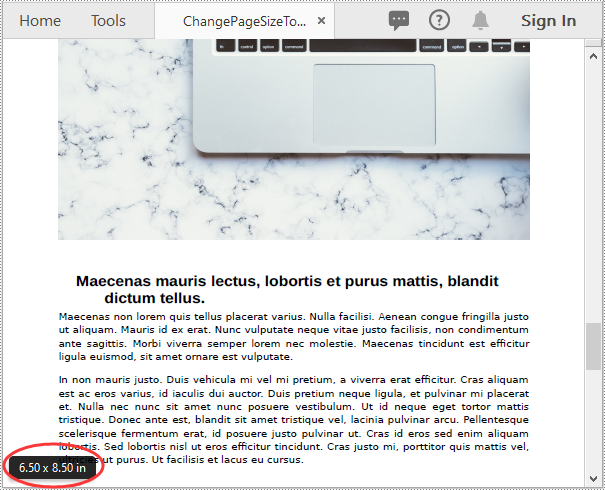
Spire.PDF for Java uses point (1/72 of an inch) as the unit of measure. If you want to change the page size of a PDF to a custom paper size in other units of measure like inches or millimeters, you can use the PdfUnitConvertor class to convert them to points.
The following steps show you how to change the page size of a PDF file to a custom paper size in inches:
- Initialize a PdfDocument instance and load the original PDF file using PdfDocument.loadFromFile() method.
- Initialize another PdfDocument instance to create a new PDF file.
- Initialize a PdfUnitConvertor instance, then convert the custom size in inches to points using PdfUnitConvertor.convertUnits() method.
- Initialize a Dimension2D instance from the custom size.
- Loop through the pages in the original PDF.
- Add pages of the custom size to the new PDF file using PdfDocument.getPages().add() method.
- Create a PdfTextLayout instance and set the text layout as one page using PdfTextLayout.setLayout() method.
- Create templates based on the pages in the original PDF using PdfPageBase.createTemplate() method.
- Draw the templates onto the pages in the new PDF file with the specified text layout using PdfTemplate.draw() method.
- Save the result file using PdfDocument.saveToFile() method.
- Java
import com.spire.pdf.PdfDocument;
import com.spire.pdf.PdfPageBase;
import com.spire.pdf.graphics.*;

import java.awt.*;
import java.awt.geom.Dimension2D;
import java.awt.geom.Point2D;

public class ChangePageSizeToCustomPaperSize {
    public static void main(String []args){
        //Load the original PDF document
        PdfDocument originPdf = new PdfDocument();
        originPdf.loadFromFile("Sample.pdf");

        //Create a new PDF document
        PdfDocument newPdf = new PdfDocument();

        //Create a PdfUnitConvertor instance
        PdfUnitConvertor unitCvtr = new PdfUnitConvertor();
        //Convert the custom size in inches to points
        float width = unitCvtr.convertUnits(6.5f, PdfGraphicsUnit.Inch, PdfGraphicsUnit.Point);
        float height = unitCvtr.convertUnits(8.5f, PdfGraphicsUnit.Inch, PdfGraphicsUnit.Point);

        //Create a Dimension2D instance from the custom size, then it will be used as the page size of the new PDF
        Dimension2D size = new Dimension();
        size.setSize(width, height);

        //Loop through the pages in the original PDF
        for(int i = 0; i< originPdf.getPages().getCount(); i++)
        {
            //Add pages of the custom size (6.5*8.5 inches) to the new PDF
            PdfPageBase newPage = newPdf.getPages().add(size, new PdfMargins((0)));
            //Create a PdfTextLayout instance
            PdfTextLayout layout = new PdfTextLayout();
            //Set text layout as one page (if not set the content will not scale to fit page size)
            layout.setLayout(PdfLayoutType.One_Page);
            //Create templates based on the pages in the original PDF
            PdfTemplate template = originPdf.getPages().get(i).createTemplate();
            //Draw templates onto the pages in the new PDF
            template.draw(newPage, new Point2D.Float(0,0), layout);
        }

        //Save the result document
        newPdf.saveToFile("ChangePageSizeToCustomSize.pdf");
    }
}
Apply for a Temporary License
If you'd like to remove the evaluation message from the generated documents, or to get rid of the function limitations, please request a 30-day trial license for yourself.
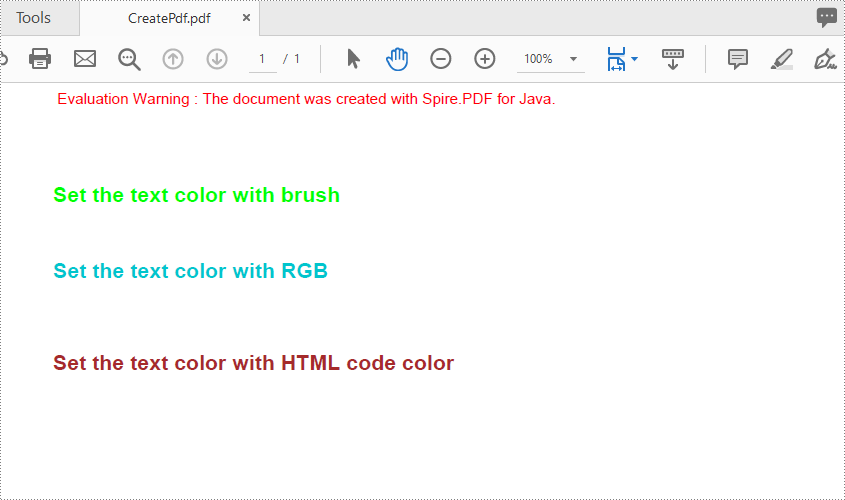
When you are drawing text into a PDF, you may need to define colorful brushes or pens in order to make the page more vivid. This article shows how to set the text string’s color space in a PDF document using Spire.PDF for Java.
Install Spire.PDF for Java
First, you need to add the Spire.Pdf.jar file as a dependency in your Java program. The JAR file can be downloaded from this link. If you use Maven, you can easily import the JAR file by adding the following code to your project's pom.xml file.
<repositories>
    <repository>
        <id>com.e-iceblue</id>
        <name>e-iceblue</name>
        <url>https://repo.e-iceblue.com/nexus/content/groups/public/</url>
    </repository>
</repositories>
<dependencies>
    <dependency>
        <groupId>e-iceblue</groupId>
        <artifactId>spire.pdf</artifactId>
        <version>11.11.11</version>
    </dependency>
</dependencies>
Set the Font Color for the Text String on PDF
Spire.PDF for Java offers PdfSolidBrush class to set the brush color for the text. It supports to define the brush color based on a particular RGB color space or a HTML color code.
- Create a PdfDocument object.
- Add a new page in the PDF using PdfDocument.getPages().add() method.
- Create a PdfSolidBrush object based on a particular RGB color space or a HTML color code.
- Create an object of PdfTrueTypeFont to set the font name, size and style.
- Draw text on the page at the specified location using PdfPageBase.getCanvas().drawString() method.
- Save the document to another PDF using PdfDocument.saveToFile() method.
- Java
import com.spire.pdf.PdfDocument;
import com.spire.pdf.PdfPageBase;
import com.spire.pdf.graphics.PdfRGBColor;
import com.spire.pdf.graphics.PdfSolidBrush;
import com.spire.pdf.graphics.PdfTrueTypeFont;

import java.awt.*;

       public class pdfBrush {
            public static void main(String[] args) throws Exception {


                //Create a PdfDocument object
                PdfDocument doc = new PdfDocument();
                //Add a page
                PdfPageBase page = doc.getPages().add();

                //Set the location
                float y = 30;

                //Create solid brush object and define the color
                PdfRGBColor rgb1 = new PdfRGBColor(Color.green);
                PdfSolidBrush brush1 = new PdfSolidBrush(rgb1);

                //RGB Color
                PdfRGBColor rgb2 = new PdfRGBColor(0,197,205);
                PdfSolidBrush brush2 = new PdfSolidBrush(rgb2);

                //HTML code color
                Color color = Color.decode("#A52A2A");
                PdfSolidBrush brush3 = new PdfSolidBrush(new PdfRGBColor(color));

                //Create true type font object
                Font font = new Font("Arial", java.awt.Font.BOLD, 14);
                PdfTrueTypeFont trueTypeFont = new PdfTrueTypeFont(font);

                //Draw text
                page.getCanvas().drawString("Set the text color with brush", trueTypeFont, brush1, 0, (y = y + 30f));
                page.getCanvas().drawString("Set the text color with RGB", trueTypeFont, brush2, 0, (y = y + 50f));
                page.getCanvas().drawString("Set the text color with HTML code color", trueTypeFont, brush3, 0, (y = y + 60f));

                //Save to file
                doc.saveToFile("output/CreatePdf.pdf");

            }
        }
Apply for a Temporary License
If you'd like to remove the evaluation message from the generated documents, or to get rid of the function limitations, please request a 30-day trial license for yourself.
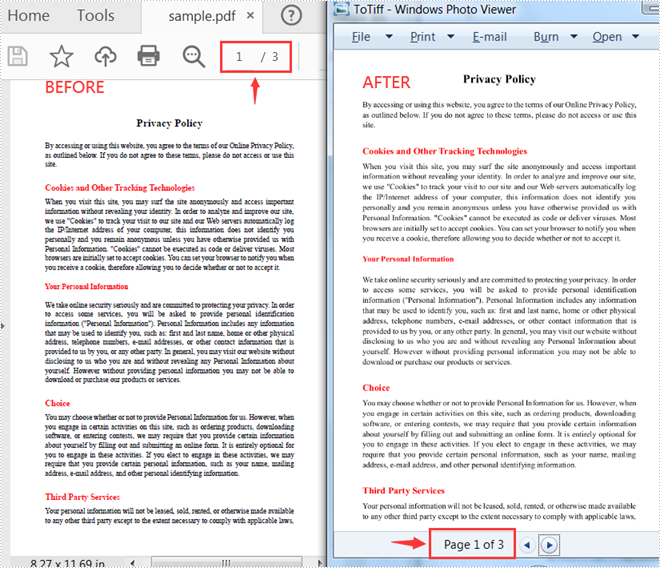
The Tagged Image File Format (TIFF) is a relatively flexible image format which has the advantages of not requiring specific hardware, as well as being portable. Spire.PDF for Java supports converting TIFF to PDF and vice versa. This article will show you how to programmatically convert PDF to TIFF using it from the two aspects below.
Install Spire.PDF for Java
First of all, you're required to add the Spire.Pdf.jar file as a dependency in your Java program. The JAR file can be downloaded from this link. If you use Maven, you can easily import the JAR file in your application by adding the following code to your project's pom.xml file.
<repositories>
    <repository>
        <id>com.e-iceblue</id>
        <name>e-iceblue</name>
        <url>https://repo.e-iceblue.com/nexus/content/groups/public/</url>
    </repository>
</repositories>
<dependencies>
    <dependency>
        <groupId>e-iceblue</groupId>
        <artifactId>spire.pdf</artifactId>
        <version>11.11.11</version>
    </dependency>
</dependencies>
Convert All Pages of a PDF File to TIFF
The following steps show you how to convert all pages of a PDF file to a TIFF file.
- Create a PdfDocument instance.
- Load a PDF sample document using PdfDocument.loadFromFile() method.
- Save all pages of the document to a TIFF file using PdfDocument.saveToTiff(String tiffFilename) method.
- Java
import com.spire.compression.TiffCompressionTypes;
import com.spire.pdf.PdfDocument;

public class PDFToTIFF {
    public static void main(String[] args) {

        //Create a PdfDocument instance
        PdfDocument pdf = new PdfDocument();

 //Load a PDF sample document
        pdf.loadFromFile("sample.pdf");

        //Save all pages of the document to Tiff
        pdf.saveToTiff("output/PDFtoTiff.tiff");
     }
}
Convert Some Specified Pages of a PDF File to TIFF
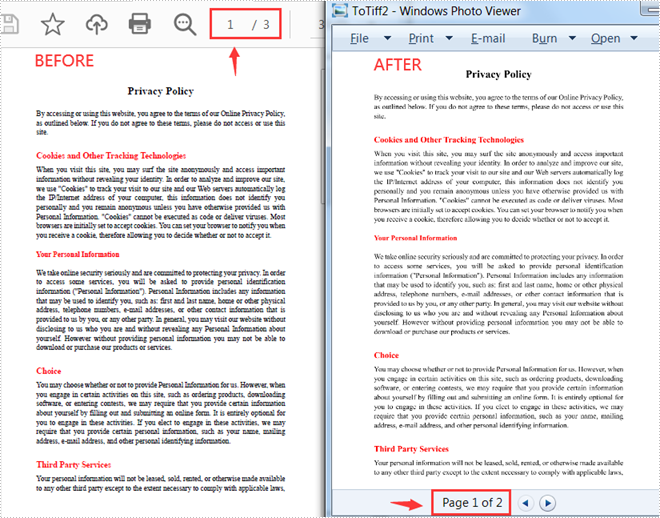
The following steps are to convert specified pages of a PDF document to a TIFF file.
- Create a PdfDocument instance.
- Load a PDF sample document using PdfDocument.loadFromFile() method.
- Save specified pages of the document to a TIFF file using PdfDocument.saveToTiff(String tiffFilename, int startPage, int endPage, int dpix, int dpiy) method.
- Java
import com.spire.pdf.PdfDocument;

public class PDFToTIFF {
    public static void main(String[] args) {
        //Create a PdfDocument instance
        PdfDocument pdf = new PdfDocument();

       //Load a PDF  sample document
        pdf.loadFromFile("sample.pdf");

        //Save specified pages of the document to TIFF and set horizontal and vertical resolution
        pdf.saveToTiff("output/ToTiff2.tiff",0,1,400,600);
    }
}
Apply for a Temporary License
If you'd like to remove the evaluation message from the generated documents, or to get rid of the function limitations, please request a 30-day trial license for yourself.
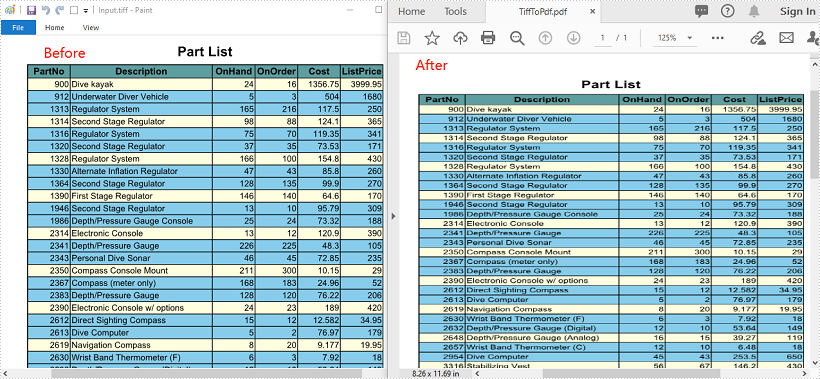
TIFF or TIF files are image files saved in the tagged image file format. They are often used for storing high-quality color images. Sometimes, you may wish to convert TIFF files to PDF so you can share them more easily. In this article, you will learn how to achieve this task programmatically in Java using Spire.PDF for Java library.
Install Spire.PDF for Java
First of all, you're required to add the Spire.Pdf.jar file as a dependency in your Java program. The JAR file can be downloaded from this link. If you use Maven, you can easily import the JAR file in your application by adding the following code to your project's pom.xml file.
<repositories>
    <repository>
        <id>com.e-iceblue</id>
        <name>e-iceblue</name>
        <url>https://repo.e-iceblue.com/nexus/content/groups/public/</url>
    </repository>
</repositories>
<dependencies>
    <dependency>
        <groupId>e-iceblue</groupId>
        <artifactId>spire.pdf</artifactId>
        <version>11.11.11</version>
    </dependency>
</dependencies>
Convert TIFF to PDF in Java
The following are the steps to convert a TIFF file to PDF:
- Create an instance of PdfDocument class.
- Add a page to the PDF using PdfDocument.getPages().add() method.
- Create a PdfImage object from the TIFF image using PdfImage.fromFile() method.
- Draw the image onto the page using PdfPageBase.getCanvas().drawImage() method.
- Save the result file using PdfDocument.saveToFile() method.
- Java
import com.spire.pdf.FileFormat;
import com.spire.pdf.PdfDocument;
import com.spire.pdf.PdfPageBase;
import com.spire.pdf.graphics.PdfImage;

public class ConvertTiffToPdf {
    public static void main(String[] args){
        //Create a PdfDocument instance
        PdfDocument doc = new PdfDocument();
        //Add a page
        PdfPageBase page = doc.getPages().add();

        //Create a PdfImage object from the TIFF image
        PdfImage tiff = PdfImage.fromFile("Input.tiff");
        //Draw the image to the page
        page.getCanvas().drawImage(tiff, 20, 0, 450, 450);

        //Save the result file
        doc.saveToFile("TiffToPdf.pdf", FileFormat.PDF);
    }
}
Apply for a Temporary License
If you'd like to remove the evaluation message from the generated documents, or to get rid of the function limitations, please request a 30-day trial license for yourself.
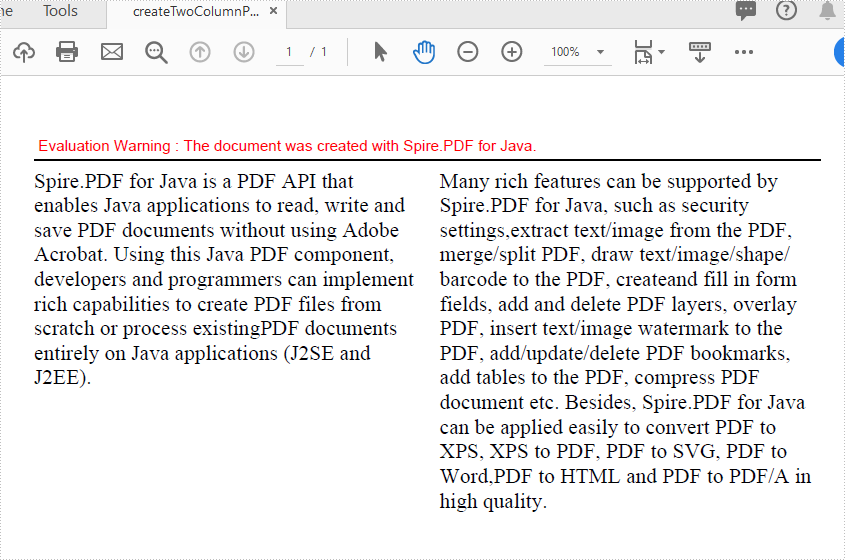
Multi-column PDFs are commonly used in magazines, newspapers, research articles, etc. With Spire.PDF for Java, you can create multi-column PDFs from code easily. This article will show you how to create a two-column PDF from scratch in Java applications.
Install Spire.PDF for Java
First of all, you need to add the Spire.Pdf.jar file as a dependency in your Java program. The JAR file can be downloaded from this link. If you use Maven, you can easily import the JAR file by adding the following code to your project's pom.xml file.
<repositories>
    <repository>
        <id>com.e-iceblue</id>
        <name>e-iceblue</name>
        <url>https://repo.e-iceblue.com/nexus/content/groups/public/</url>
    </repository>
</repositories>
<dependencies>
    <dependency>
        <groupId>e-iceblue</groupId>
        <artifactId>spire.pdf</artifactId>
        <version>11.11.11</version>
    </dependency>
</dependencies>
Create a Two-Column PDF from Scratch
The detailed steps are as follows:
- Create a PdfDocument object.
- Add a new page in the PDF using PdfDocument.getPages().add() method.
- Add a line and set its format in the PDF using PdfPageBase.getCanvas().drawLine() method.
- Add text in the PDF at two separate rectangle areas using PdfPageBase.getCanvas().drawString() method.
- Save the document to PDF using PdfDocument.saveToFile() method.
- Java
import com.spire.pdf.FileFormat;
import com.spire.pdf.PdfDocument;
import com.spire.pdf.PdfPageBase;
import com.spire.pdf.graphics.*;

import java.awt.*;
import java.awt.geom.Rectangle2D;

public class TwoColumnPDF {
    public static void main(String[] args) throws Exception {

        //Creates a pdf document
        PdfDocument doc = new PdfDocument();

        //Add a new page
        PdfPageBase page = doc.getPages().add();

        //Set location and width
        float x = 0;
        float y = 15;
        float width = 600;

        //Create pen
        PdfPen pen = new PdfPen(new PdfRGBColor(Color.black), 1f);

        //Draw line on the PDF page
        page.getCanvas().drawLine(pen, x, y, x + width, y);

       //Define paragraph text
        String s1 = "Spire.PDF for Java is a PDF API that enables Java applications to read, write and "
                + "save PDF documents without using Adobe Acrobat. Using this Java PDF component, developers and "
                + "programmers can implement rich capabilities to create PDF files from scratch or process existing"
                + "PDF documents entirely on Java applications (J2SE and J2EE).";
        String s2 = "Many rich features can be supported by Spire.PDF for Java, such as security settings,"
                + "extract text/image from the PDF, merge/split PDF, draw text/image/shape/barcode to the PDF, create"
                + "and fill in form fields, add and delete PDF layers, overlay PDF, insert text/image watermark to the "
                + "PDF, add/update/delete PDF bookmarks, add tables to the PDF, compress PDF document etc. Besides, "
                + "Spire.PDF for Java can be applied easily to convert PDF to XPS, XPS to PDF, PDF to SVG, PDF to Word,"
                + "PDF to HTML and PDF to PDF/A in high quality.";

        //Get width and height of page
        double pageWidth = page.getClientSize().getWidth();
        double pageHeight = page.getClientSize().getHeight();

        //Create solid brush objects
        PdfSolidBrush brush = new PdfSolidBrush(new PdfRGBColor(Color.BLACK));

        //Create true type font objects
        PdfTrueTypeFont font= new PdfTrueTypeFont(new Font("Times New Roman",Font.PLAIN,14));

        //Set the text alignment via PdfStringFormat class
        PdfStringFormat format = new PdfStringFormat(PdfTextAlignment.Left);

        //Draw text
        page.getCanvas().drawString(s1, font, brush, new Rectangle2D.Double(0, 20, pageWidth / 2 - 8f, pageHeight), format);
        page.getCanvas().drawString(s2, font, brush, new Rectangle2D.Double(pageWidth / 2 + 8f, 20, pageWidth / 2 - 8f, pageHeight), format);

        //Save the document
        String output = "output/createTwoColumnPDF.pdf";
        doc.saveToFile(output, FileFormat.PDF);
    }
}
Apply for a Temporary License
If you'd like to remove the evaluation message from the generated documents, or to get rid of the function limitations, please request a 30-day trial license for yourself.
