Program Guide (123)
Children categories
When creating PDF, it’s important to use appropriate fonts in different situations. For normal PDF files, you can draw text with common fonts such as Arial, Times New Roman. If you want to create a distinctive PDF with a unique visual identity, you can use private fonts. This article will demonstrate how to use different fonts in a PDF document with Spire.PDF for Java library.
Install Spire.PDF for Java
First of all, you're required to add the Spire.Pdf.jar file as a dependency in your Java program. The JAR file can be downloaded from this link. If you use Maven, you can easily import the JAR file in your application by adding the following code to your project's pom.xml file.
<repositories>
    <repository>
        <id>com.e-iceblue</id>
        <name>e-iceblue</name>
        <url>https://repo.e-iceblue.com/nexus/content/groups/public/</url>
    </repository>
</repositories>
<dependencies>
    <dependency>
        <groupId>e-iceblue</groupId>
        <artifactId>spire.pdf</artifactId>
        <version>11.11.11</version>
    </dependency>
</dependencies>
Apply Different Fonts in a PDF Document in Java
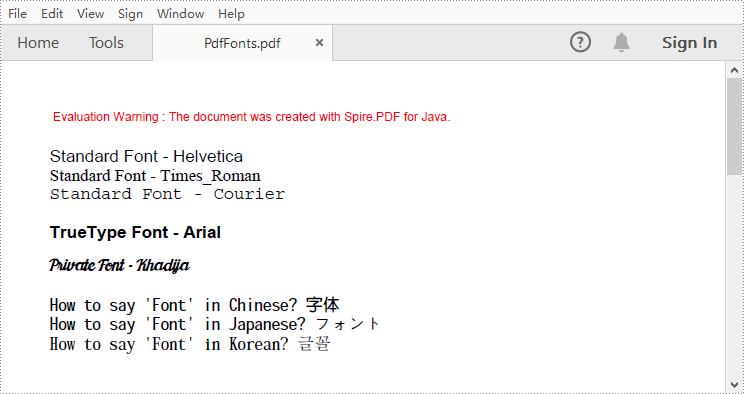
Spire.PDF for Java supports standard PDF fonts, TrueType fonts, private fonts as well as CJK font. The following are the steps to draw text in PDF using these fonts.
- Create a PdfDocument instance.
- Add a page and then create a brush.
- Create an instance of the PdfFont class with a standard PDF font, and then use the PdfPageBase.getCanvas().drawString() method to draw text on the page with the standard font.
- Create an instance of the PdfTrueTypeFont class with a specified font, and then draw text on the page with the TrueType font.
- Load a private font and create an instance of the PdfTrueTypeFont class with it. Then draw text on the page with the private font.
- Create an instance of PdfCjkStandardFont class with a CJK font, and then draw text on the page with the CJK font.
- Save the result document using PdfDocument.saveToFile() method.
- Java
import com.spire.pdf.PdfDocument;
import com.spire.pdf.PdfPageBase;
import com.spire.pdf.graphics.*;

public class PdfFonts {

    public static void main(String[] args) {

        //Create a PdfDocument instance
        PdfDocument pdf = new PdfDocument();

        //Add a page
        PdfPageBase page = pdf.getPages().add();

        //Create a brush
        PdfBrush brush = PdfBrushes.getBlack();

        //Initialize y coordinate
        float y = 30;

        //Draw text using standard fonts
        PdfFont standardFont = new PdfFont(PdfFontFamily.Helvetica, 14f);
        page.getCanvas().drawString("Standard Font - Helvetica", standardFont, brush, 0, y);
        standardFont = new PdfFont(PdfFontFamily.Times_Roman, 14f);
        page.getCanvas().drawString("Standard Font - Times_Roman", standardFont, brush, 0, (y = y + 16));
        standardFont = new PdfFont(PdfFontFamily.Courier, 14f);
        page.getCanvas().drawString("Standard Font - Courier", standardFont, brush, 0, (y = y + 16));

        //Draw text using truetype font
        java.awt.Font font = new java.awt.Font("Arial", java.awt.Font.BOLD, 14);
        PdfTrueTypeFont trueTypeFont = new PdfTrueTypeFont(font);
        page.getCanvas().drawString("TrueType Font - Arial", trueTypeFont, brush, 0, (y = y + 30f));

        //Draw text using private font
        String fontFileName = "Khadija.ttf";
        trueTypeFont = new PdfTrueTypeFont(fontFileName, 14f);
        page.getCanvas().drawString("Private Font - Khadija", trueTypeFont, brush, 0, (y = y + 30f));

        //Draw text using cjk fonts
        PdfCjkStandardFont cjkFont = new PdfCjkStandardFont(PdfCjkFontFamily.Monotype_Hei_Medium, 14f);
        page.getCanvas().drawString("How to say 'Font' in Chinese? \u5B57\u4F53", cjkFont, brush, 0, (y = y + 30f));
        cjkFont = new PdfCjkStandardFont(PdfCjkFontFamily.Hanyang_Systems_Gothic_Medium, 14f);
        page.getCanvas().drawString("How to say 'Font' in Japanese? \u30D5\u30A9\u30F3\u30C8", cjkFont, brush, 0, (y = y + 16f));
        cjkFont = new PdfCjkStandardFont(PdfCjkFontFamily.Hanyang_Systems_Shin_Myeong_Jo_Medium, 14f);
        page.getCanvas().drawString("How to say 'Font' in Korean? \uAE00\uAF34", cjkFont, brush, 0, (y = y + 16f));

        //Save the result document
        pdf.saveToFile("PdfFonts.pdf");
        pdf.close();
    }
}
Apply for a Temporary License
If you'd like to remove the evaluation message from the generated documents, or to get rid of the function limitations, please request a 30-day trial license for yourself.
Lists are a great way to organize your information. When compared to chunks of text, it is usually easier to identify important points from a list. There are generally two different types of lists in PDF: order list and unorder list. You can also mix these two types in a nested list. In this article, you will learn how to create various types of lists in a PDF document using Spire.PDF for Java.
- Create an Ordered List in PDF
- Create an Unordered List with Symbol Bullets in PDF
- Create an Unordered List with Image Bullets in PDF
- Create a Nested Numbered List in PDF
Spire.PDF for Java provides the PdfSortedList class and the PdfUnorderedList class to represent the ordered list and the unordered list, respectively. To set the list’s content, indent, font, marker style and other attributes, use the methods under these two classes. The following table lists some of the core items involved in this tutorial.
| Member | Description |
| PdfSortedList class | Represents an ordered list in a PDF document. |
| PdfUnorderedList class | Represents an unordered list in a PDF document. |
| PdfListBase.setBrush() method | Sets a list's brush. |
| PdfListBase.setFont() method | Sets a list's font. |
| PdfListBase.sertIndent() method | Sets a list's indent. |
| PdfListBase.setTextIndent() method | Sets the indent from the marker to the list item text. |
| PdfListBase.getItems() method | Gets items of a list. |
| PdfListBase.setMarker() method | Sets the marker of a list. |
| PdfListBase.draw() method | Draw list on the canvas of a page at the specified location. |
| PdfOrderedMarker class | Represents the marker style of an ordered list, such as numbers, letters, and roman numerals. |
| PdfMarker class | Represents bullet style for an unordered list. |
Install Spire.PDF for Java
First of all, you're required to add the Spire.Pdf.jar file as a dependency in your Java program. The JAR file can be downloaded from this link. If you use Maven, you can easily import the JAR file in your application by adding the following code to your project's pom.xml file.
<repositories>
    <repository>
        <id>com.e-iceblue</id>
        <name>e-iceblue</name>
        <url>https://repo.e-iceblue.com/nexus/content/groups/public/</url>
    </repository>
</repositories>
<dependencies>
    <dependency>
        <groupId>e-iceblue</groupId>
        <artifactId>spire.pdf</artifactId>
        <version>11.11.11</version>
    </dependency>
</dependencies>
Create an Ordered List in PDF
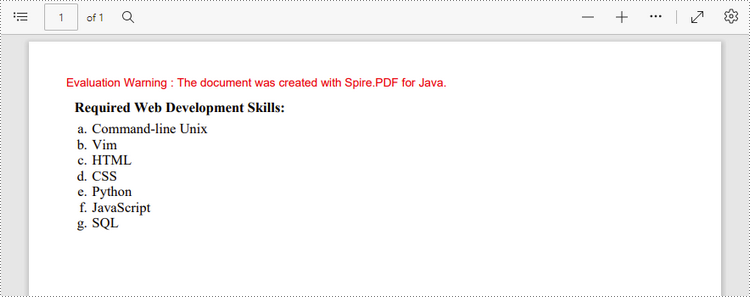
An ordered list is a container, which holds a sequence of objects. Each item in the list is marked with a number, a letter, or a roman numeral. The following are the step to create an ordered list in PDF using Spire.PDF for Java.
- Create a PdfDocument object.
- Add a page to it using PdfDocument.getPages().add() method.
- Create PdfBrush and PdfFont objects for the list.
- Create a PdfOrderedMarker object, specifying the marker style as Lower_Latin.
- Specify the list content with a string, and create an object of PdfSortedList class based on the string.
- Set the font, indent, brush and marker of the list using the methods under the PdfSortedList object.
- Draw the list on the page at the specified location using PdfSortedList.draw() method.
- Save the document to another file using PdfDocument.saveToFile() method.
- Java
import com.spire.pdf.PdfDocument;
import com.spire.pdf.PdfNumberStyle;
import com.spire.pdf.PdfPageBase;
import com.spire.pdf.PdfPageSize;
import com.spire.pdf.graphics.*;
import com.spire.pdf.lists.PdfOrderedMarker;
import com.spire.pdf.lists.PdfSortedList;

public class CreateOrderedList {

    public static void main(String[] args) {

        //Create a PdfDocument object
        PdfDocument doc = new PdfDocument();

        //Set the margins
        PdfMargins margins = new PdfMargins(30);

        //Add a page
        PdfPageBase page = doc.getPages().add(PdfPageSize.A4, margins);

        //Create a brush
        PdfBrush brush = PdfBrushes.getBlack();

        //Create fonts
        PdfFont titleFont = new PdfFont(PdfFontFamily.Times_Roman, 12f, PdfFontStyle.Bold);
        PdfFont listFont = new PdfFont(PdfFontFamily.Times_Roman, 12f, PdfFontStyle.Regular);

        //Create a maker for ordered list
        PdfOrderedMarker marker = new PdfOrderedMarker(PdfNumberStyle.Lower_Latin, listFont);

        //Specify the initial coordinate
        float x = 10;
        float y = 20;

        //Draw title
        String title = "Required Web Development Skills:";
        page.getCanvas().drawString(title, titleFont, brush, x, y);
        y = y + (float) titleFont.measureString(title).getHeight();
        y = y + 5;


        //Create a numbered list
        String listContent = "Command-line Unix\n"
                + "Vim\n"
                + "HTML\n"
                + "CSS\n"
                + "Python\n"
                + "JavaScript\n"
                + "SQL";
        PdfSortedList list = new PdfSortedList(listContent);

        //Set the font, indent, text indent, brush, marker of the list
        list.setFont(listFont);
        list.setIndent(2);
        list.setTextIndent(4);
        list.setBrush(brush);
        list.setMarker(marker);

        //Draw list on the page at the specified location
        list.draw(page, x, y);

        //Save to file
        doc.saveToFile("output/OrderedList.pdf");
    }
}
Create an Unordered List with Symbol Bullets in PDF
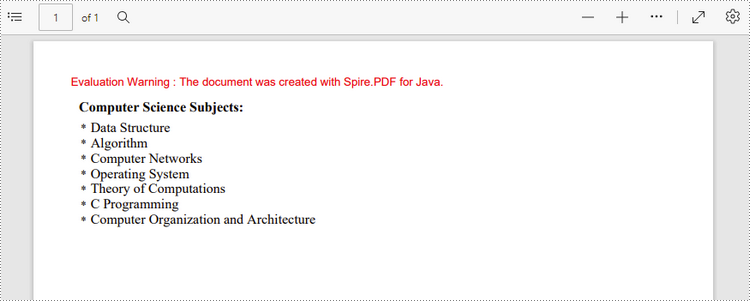
An unordered list, also named bulleted list, is a collection of related items that have no special order or sequence. Each item in the list is marked with a bullet. The following are the step to create an unordered list in PDF using Spire.PDF for Java.
- Create a PdfDocument object.
- Add a page to it using PdfDocument.getPages().add() method.
- Create PdfBrush and PdfFont objects for the list.
- Create a PdfMarker object, specifying the marker style.
- Specify the list content with a string, and create an object of PdfUnorderedList class based on the string.
- Set the font, indent, brush and marker of the list using the methods under the PdfUnorderedList object.
- Draw the list on the page at the specified location using PdfUnorderedList.draw() method.
- Save the document to another file using PdfDocument.saveToFile() method.
- Java
import com.spire.pdf.PdfDocument;
import com.spire.pdf.PdfPageBase;
import com.spire.pdf.PdfPageSize;
import com.spire.pdf.graphics.*;
import com.spire.pdf.lists.PdfMarker;
import com.spire.pdf.lists.PdfUnorderedList;
import com.spire.pdf.lists.PdfUnorderedMarkerStyle;

public class CreateUnorderedList {
    public static void main(String[] args) {

        //Create a PdfDocument object
        PdfDocument doc = new PdfDocument();

        //Set the margin
        PdfMargins margin = new PdfMargins(30);

        //Add a page
        PdfPageBase page = doc.getPages().add(PdfPageSize.A4, margin);

        //Create fonts
        PdfFont titleFont = new PdfFont(PdfFontFamily.Times_Roman, 12f, PdfFontStyle.Bold);
        PdfFont listFont = new PdfFont(PdfFontFamily.Times_Roman, 12f, PdfFontStyle.Regular);
        PdfFont markerFont = new PdfFont(PdfFontFamily.Times_Roman, 6f, PdfFontStyle.Regular);

        //Create a brush
        PdfBrush brush = PdfBrushes.getBlack();

        //Specify the initial coordinate
        float x = 10;
        float y = 20;

        //Draw title
        String title = "Computer Science Subjects:";
        page.getCanvas().drawString(title, titleFont, brush, x, y);
        y = y + (float)titleFont.measureString(title).getHeight();
        y = y + 5;

        //Specify the marker style
        PdfMarker marker = new PdfMarker(PdfUnorderedMarkerStyle.Asterisk);
        marker.setFont(markerFont);

        //Create an unordered list
        String listContent = "Data Structure\n"
                + "Algorithm\n"
                + "Computer Networks\n"
                + "Operating System\n"
                + "Theory of Computations\n"
                + "C Programming\n"
                +"Computer Organization and Architecture";
        PdfUnorderedList list = new PdfUnorderedList(listContent);

        //Set the font, indent, text indent, brush, marker of the list
        list.setFont(listFont);
        list.setIndent(2);
        list.setTextIndent(4);
        list.setBrush(brush);
        list.setMarker(marker);

        //Draw list on the page at the specified location
        list.draw(page, x, y);

        //Save to file
        doc.saveToFile("output/UnorderedList.pdf");
    }
}
Create an Unordered List with Image Bullets in PDF
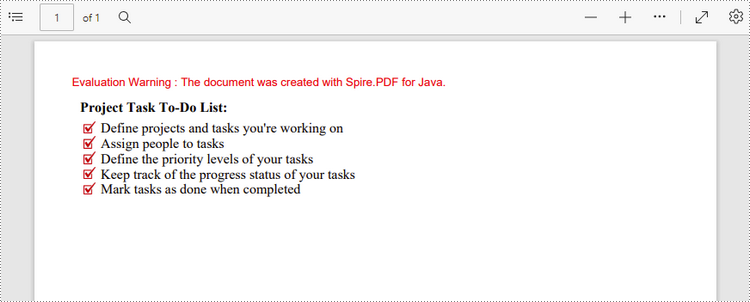
In addition to symbols, the bullet points of an unordered list can be also a picture. The steps to create an unordered list with images bullets are as follows.
- Create a PdfDocument object.
- Add a page to it using PdfDocument.getPages().add() method.
- Create PdfBrush and PdfFont objects for the list.
- Create a PdfMarker object, setting the marker style as Custom_Image.
- Set an image as the marker using PdfMarker.setImage() method.
- Specify the list content with a string, and create an object of PdfUnorderedList class based on the string.
- Set the font, indent, brush and marker of the list using the methods under the PdfUnorderedList object.
- Draw the list on the page at the specified location using PdfUnorderedList.draw() method.
- Save the document to another file using PdfDocument.saveToFile() method.
- Java
import com.spire.pdf.PdfDocument;
import com.spire.pdf.PdfPageBase;
import com.spire.pdf.PdfPageSize;
import com.spire.pdf.graphics.*;
import com.spire.pdf.lists.PdfMarker;
import com.spire.pdf.lists.PdfUnorderedList;
import com.spire.pdf.lists.PdfUnorderedMarkerStyle;

public class CustomizeBulletPointsWithImage {

    public static void main(String[] args) {

        //Create a PdfDocument object
        PdfDocument doc = new PdfDocument();

        //Set the margin
        PdfMargins margin = new PdfMargins(30);

        //Add a page
        PdfPageBase page = doc.getPages().add(PdfPageSize.A4, margin);

        //Create fonts
        PdfFont titleFont = new PdfFont(PdfFontFamily.Times_Roman, 12f, PdfFontStyle.Bold);
        PdfFont listFont = new PdfFont(PdfFontFamily.Times_Roman, 12f, PdfFontStyle.Regular);

        //Create a brush
        PdfBrush brush = PdfBrushes.getBlack();

        //Specify the initial coordinate
        float x = 10;
        float y = 20;

        //Draw title
        String title = "Project Task To-Do List:";
        page.getCanvas().drawString(title, titleFont, brush, x, y);
        y = y + (float)titleFont.measureString(title).getHeight();
        y = y + 5;

        //Specify the marker style to image
        PdfMarker marker = new PdfMarker(PdfUnorderedMarkerStyle.Custom_Image);

        //Set the image for the marker
        marker.setImage(PdfImage.fromFile("C:/Users/Administrator/Desktop/checkmark.png"));

        //Create an unordered list
        String listContent = "Define projects and tasks you're working on\n"
                + "Assign people to tasks\n"
                + "Define the priority levels of your tasks\n"
                + "Keep track of the progress status of your tasks\n"
                + "Mark tasks as done when completed";
        PdfUnorderedList list = new PdfUnorderedList(listContent);

        //Set the font, indent, text indent, brush, maker of the list
        list.setFont(listFont);
        list.setIndent(2);
        list.setTextIndent(4);
        list.setBrush(brush);
        list.setMarker(marker);

        //Draw list on a page at the specified location
        list.draw(page, x, y);

        //Save to file
        doc.saveToFile("output/ImageBullets.pdf");
    }
}
Create a Nested Numbered List in PDF
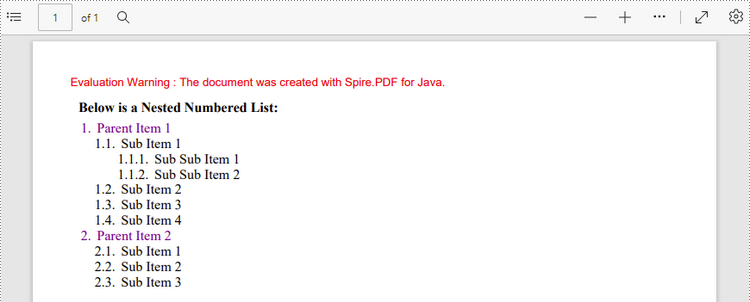
A nested list is a list that contains at least one sub list. Nested lists are used to present data in hierarchical structures. The following are the steps to create a nested numbered list in PDF using Spire.PDF for Java.
- Create a PdfDocument object.
- Add a page to it using PdfDocument.getPages().add() method.
- Create a PdfOrderedMarker object, specifying the marker style as Numeric.
- Specify the list content with a string, and create a parent list based on the string. Then set the font, indent, brush and marker of the list using the methods under the PdfSortedList object.
- Repeat the above step to create sub lists and sub-sub lists.
- Get the specific item of the parent list using PdfSortedList.getItems().get() method, and add a list to it as its sub list using PdfListItem.setSublist() method.
- Draw the list on the page at the specified location using PdfSortedList.draw() method.
- Save the document to another file using PdfDocument.saveToFile() method.
- Java
import com.spire.pdf.PdfDocument;
import com.spire.pdf.PdfNumberStyle;
import com.spire.pdf.PdfPageBase;
import com.spire.pdf.PdfPageSize;
import com.spire.pdf.graphics.*;
import com.spire.pdf.lists.PdfListItem;
import com.spire.pdf.lists.PdfOrderedMarker;
import com.spire.pdf.lists.PdfSortedList;

public class CreateMultiLevelList {

    public static void main(String[] args) {

        //Create a PdfDocument object
        PdfDocument doc = new PdfDocument();

        //Set the margin
        PdfMargins margin = new PdfMargins(30);

        //Add a page
        PdfPageBase page = doc.getPages().add(PdfPageSize.A4, margin);

        //Specify the initial coordinate
        float x = 10;
        float y = 20;

        //Create two brushes
        PdfBrush blackBrush = PdfBrushes.getBlack();
        PdfBrush purpleBrush = PdfBrushes.getPurple();

        //Create two fonts
        PdfFont titleFont = new PdfFont(PdfFontFamily.Times_Roman, 12f, PdfFontStyle.Bold);
        PdfFont listFont = new PdfFont(PdfFontFamily.Times_Roman, 12f, PdfFontStyle.Regular);

        //Create a maker for ordered list
        PdfOrderedMarker marker = new PdfOrderedMarker(PdfNumberStyle.Numeric, listFont);

        //Draw title
        String title = "Below is a Nested Numbered List:";
        page.getCanvas().drawString(title, titleFont, blackBrush, x, y);
        y = y + (float)titleFont.measureString(title).getHeight();
        y = y + 5;

        //Create a parent list
        String parentListContent = "Parent Item 1\n"
                + "Parent Item 2";
        PdfSortedList parentList = new PdfSortedList(parentListContent);
        parentList.setFont(listFont);
        parentList.setIndent(2);
        parentList.setBrush(purpleBrush);
        parentList.setMarker(marker);

        //Create a sub list - "subList_1"
        String subListContent_1 = "Sub Item 1\n"
                + "Sub Item 2\n"
                + "Sub Item 3\n"
                + "Sub Item 4";
        PdfSortedList subList_1 = new PdfSortedList(subListContent_1);
        subList_1.setIndent(12);
        subList_1.setFont(listFont);
        subList_1.setBrush(blackBrush);
        subList_1.setMarker(marker);
        subList_1.setMarkerHierarchy(true);

        //Create another sub list -"subList_2"
        String subListContent_2 = "Sub Item 1\n"
                + "Sub Item 2\n"
                + "Sub Item 3";
        PdfSortedList subList_2 = new PdfSortedList(subListContent_2);
        subList_2.setIndent(12);
        subList_2.setFont(listFont);
        subList_2.setBrush(blackBrush);
        subList_2.setMarker(marker);
        subList_2.setMarkerHierarchy(true);

        //Create a sub-sub list - "subList_1"
        String subSubListContent_1 = "Sub Sub Item 1\n"
                + "Sub Sub Item 2";
        PdfSortedList subSubList = new PdfSortedList(subSubListContent_1);
        subSubList.setIndent(20);
        subSubList.setFont(listFont);
        subSubList.setBrush(blackBrush);
        subSubList.setMarker(marker);
        subSubList.setMarkerHierarchy(true);

        //Set subList_1 as sub list of the first item of parent list
        PdfListItem item_1 = parentList.getItems().get(0);
        item_1.setSubList(subList_1);

        //Set subList_2 as sub list of the second item of parent list
        PdfListItem item_2 = parentList.getItems().get(1);
        item_2.setSubList(subList_2);

        //Set subSubList as sub list of the first item of subList_1
        PdfListItem item_1_1 = subList_1.getItems().get(0);
        item_1_1.setSubList(subSubList);

        //Draw parent list
        parentList.draw(page, x, y);

        //Save to file
        doc.saveToFile("output/MultiLevelList.pdf");
    }
}
Apply for a Temporary License
If you'd like to remove the evaluation message from the generated documents, or to get rid of the function limitations, please request a 30-day trial license for yourself.
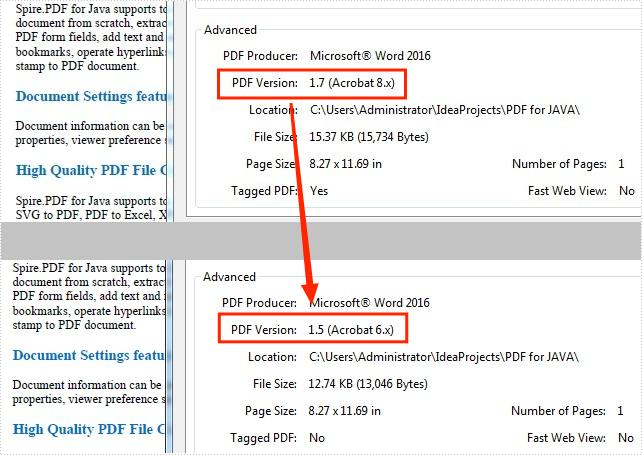
PDF is a file format developed by Adobe in 1992, and during the years, it has undergone a lot of changes. Sometimes you may find that some devices have strict requirements on the PDF version. In such a case, it's necessary to change the PDF file to a different version for compatibility purpose. This article will show how to programmatically change the PDF version using Spire.PDF for Java.
Install Spire.PDF for Java
First of all, you're required to add the Spire.Pdf.jar file as a dependency in your Java program. The JAR file can be downloaded from this link. If you use Maven, you can easily import the JAR file in your application by adding the following code to your project's pom.xml file.
<repositories>
    <repository>
        <id>com.e-iceblue</id>
        <name>e-iceblue</name>
        <url>https://repo.e-iceblue.com/nexus/content/groups/public/</url>
    </repository>
</repositories>
<dependencies>
    <dependency>
        <groupId>e-iceblue</groupId>
        <artifactId>spire.pdf</artifactId>
        <version>11.11.11</version>
    </dependency>
</dependencies>
Change PDF Version
Spire.PDF for Java supports the PDF versions from 1.0 to 1.7. The following are the detailed steps to change the PDF version.
- Create a PdfDocument object.
- Load a sample PDF file using PdfDocument.loadFromFile() method.
- Change the PDF file to another version using PdfDocument.getFileInfo().setVersion() method.
- Save the document to another file using PdfDocument.saveToFile() method.
- Java
import com.spire.pdf.*;

public class ChangePdfVersion {

    public static void main(String[] args) {

        //Create a PdfDocument object
        PdfDocument document = new PdfDocument();

        //Load a sample PDF file
        document.loadFromFile("sample.pdf");

        //Change the PDF to version 1.5
        document.getFileInfo().setVersion(PdfVersion.Version_1_5);

        //Save to file
        document.saveToFile("PdfVersion.pdf", FileFormat.PDF);
        document.close();
    }
}
Apply for a Temporary License
If you'd like to remove the evaluation message from the generated documents, or to get rid of the function limitations, please request a 30-day trial license for yourself.
This article demonstrates how to use Spire. PDF for Java to add header and footer when creating new PDF document in Java applications.
Spire.PDF has a class named PdfPageTemplateElement, which represents a page template element that can be used as header, footer, watermark or stamp. The template can contain text, image as well as dynamic fields like PdfPageCountField, PdfPageNumberField, etc. We use text string for the header and dynamic fields for the footer in the following example.
import java.awt.*;
import java.awt.geom.Dimension2D;
import com.spire.pdf.*;
import com.spire.pdf.automaticfields.PdfAutomaticField;
import com.spire.pdf.automaticfields.PdfCompositeField;
import com.spire.pdf.automaticfields.PdfPageCountField;
import com.spire.pdf.automaticfields.PdfPageNumberField;
import com.spire.pdf.graphics.*;

public class PDFHeaderFooter {
    public static void main(String[] args) throws Exception {

        //create a PdfDocument object
        PdfDocument doc = new PdfDocument();

        //Set margins
        PdfMargins margin = new PdfMargins(60,60,40,40);

        //Call the method addHeaderAndFooter() to add header and footer
        addHeaderAndFooter(doc, PdfPageSize.A4, margin);

        //Add two pages to the PDF document and draw string to it.
        PdfPageBase page1 = doc.getPages().add();
        PdfPageBase page2 = doc.getPages().add();
        PdfTrueTypeFont font = new PdfTrueTypeFont(new Font("Arial", Font.PLAIN, 14));
        String text1 = "Demo of Spire.PDF";
        String text2 = "How to add header and footer to PDF in JAVA";
        page1.getCanvas().drawString(text1, font, PdfBrushes.getBlack(),0,0);
        page2.getCanvas().drawString(text2, font, PdfBrushes.getBlack(),0,0);

        //Save the document
        doc.saveToFile("output/headerFooter.pdf");
        doc.close();

    }
static void addHeaderAndFooter(PdfDocument doc, Dimension2D pageSize, PdfMargins margin) {

      PdfPageTemplateElement header = new PdfPageTemplateElement(margin.getLeft(), pageSize.getHeight());
      doc.getTemplate().setLeft(header);

      PdfPageTemplateElement topSpace = new PdfPageTemplateElement(pageSize.getWidth(), margin.getTop());
      topSpace.setForeground(true);
      doc.getTemplate().setTop(topSpace);

      //Draw header label
      PdfTrueTypeFont font= new PdfTrueTypeFont(new Font("Arial",Font.PLAIN,12));

      PdfStringFormat format = new PdfStringFormat(PdfTextAlignment.Left);
      String label = "E-iceblue Co.,Ltd";
      Dimension2D dimension2D = new Dimension();
      dimension2D.setSize(font.measureString(label, format));
      float y = topSpace.getHeight() - font.getHeight() - 1;
      PdfPen pen = new PdfPen(new PdfRGBColor(Color.black), 0.75f);
      topSpace.getGraphics().setTransparency(0.5f);
      topSpace.getGraphics().drawLine(pen, margin.getLeft(), y, pageSize.getWidth() - margin.getRight(), y);
      y = y - 1 - (float) dimension2D.getHeight();
      topSpace.getGraphics().drawString(label, font, PdfBrushes.getBlack(), margin.getLeft(), y, format);

      PdfPageTemplateElement rightSpace = new PdfPageTemplateElement(margin.getRight(), pageSize.getHeight());
      doc.getTemplate().setRight(rightSpace);


      //Draw dynamic fields as footer
      PdfPageTemplateElement footer = new PdfPageTemplateElement(pageSize.getWidth(), margin.getBottom());
      footer.setForeground(true);
      doc.getTemplate().setBottom(footer);

      y = font.getHeight() + 1;
      footer.getGraphics().setTransparency(0.5f);
      footer.getGraphics().drawLine(pen, margin.getLeft(), y, pageSize.getWidth() - margin.getRight(), y);
      y = y + 1;
      PdfPageNumberField pageNumber = new PdfPageNumberField();
      PdfPageCountField pageCount = new PdfPageCountField();
      PdfCompositeField pageNumberLabel = new PdfCompositeField();
      pageNumberLabel.setAutomaticFields(new PdfAutomaticField[]{pageNumber, pageCount});
      pageNumberLabel.setBrush(PdfBrushes.getBlack());
      pageNumberLabel.setFont(font);
      format = new PdfStringFormat(PdfTextAlignment.Right);
      pageNumberLabel.setStringFormat(format);
      pageNumberLabel.setText("page {0} of {1}");
      pageNumberLabel.setBounds(footer.getBounds());
      pageNumberLabel.draw(footer.getGraphics(), - margin.getLeft(), y);
  }

}
Effective screenshot after adding header and footer to the new PDF document in JAVA application:

Finding and highlighting text within a PDF document is a crucial task for many individuals and organizations. Whether you're a student conducting research, a professional reviewing contracts, or an archivist organizing digital records, the ability to quickly locate and emphasize specific information is invaluable.
In this article, you will learn how to find and highlight text in a PDF document in Java using the Spire.PDF for Java library.
- Find and Highlight Text in a Specific Page in Java
- Find and Highlight Text in a Rectangular Area in Java
- Find and Highlight Text in an Entire PDF Document in Java
- Find and Highlight Text in PDF Using a Regular Expression in Java
Install Spire.PDF for Java
First of all, you're required to add the Spire.Pdf.jar file as a dependency in your Java program. The JAR file can be downloaded from this link. If you use Maven, you can easily import the JAR file in your application by adding the following code to your project's pom.xml file.
<repositories>
    <repository>
        <id>com.e-iceblue</id>
        <name>e-iceblue</name>
        <url>https://repo.e-iceblue.com/nexus/content/groups/public/</url>
    </repository>
</repositories>
<dependencies>
    <dependency>
        <groupId>e-iceblue</groupId>
        <artifactId>spire.pdf</artifactId>
        <version>11.11.11</version>
    </dependency>
</dependencies>
Find and Highlight Text in a Specific Page in Java
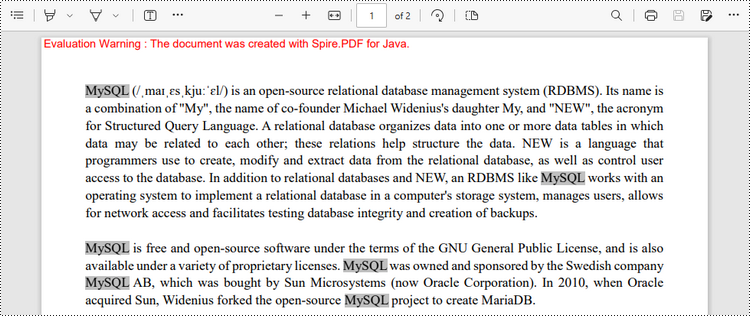
In Spire.PDF for Java, you can utilize the PdfTextFinder class to locate specific text within a page. Prior to executing the find operation, you can set the search options such as WholeWord and IgnoreCase by utilizing the PdfTextFinder.getOptions.setTextFindParameter() method. Once the text is located, you can apply highlighting to visually differentiate the text.
The following are the steps to find and highlight text in a specific page in PDF using Java.
- Create a PdfDocument object.
- Load a PDF file from a given path.
- Get a specific page from the document.
- Create a PdfTextFinder object based on the page.
- Specify search options using PdfTextFinder.getOptions().setTextFindParameter() method.
- Find all instance of searched text using PdfTextFinder.find() method.
- Iterate through the find results, and highlight each instance using PdfTextFragment.highlight() method.
- Save the document to a different PDF file.
- Java
import com.spire.ms.System.Collections.Generic.List;
import com.spire.pdf.FileFormat;
import com.spire.pdf.PdfDocument;
import com.spire.pdf.PdfPageBase;
import com.spire.pdf.texts.PdfTextFinder;
import com.spire.pdf.texts.PdfTextFragment;
import com.spire.pdf.texts.TextFindParameter;

import java.awt.*;
import java.util.EnumSet;

public class FindAndHighlightTextInPage {

    public static void main(String[] args) {

        // Create a PdfDocument object
        PdfDocument doc = new PdfDocument();

        // Load a PDF file
        doc.loadFromFile("C:\\Users\\Administrator\\Desktop\\Input.pdf");

        // Get a specific page
        PdfPageBase page = doc.getPages().get(0);

        // Create a PdfTextFinder object based on the page
        PdfTextFinder finder = new PdfTextFinder(page);

        // Specify the find options
        finder.getOptions().setTextFindParameter(EnumSet.of(TextFindParameter.WholeWord));
        finder.getOptions().setTextFindParameter(EnumSet.of(TextFindParameter.IgnoreCase));

        // Find the instances of the specified text
        List<PdfTextFragment> results = finder.find("MySQL");

        // Iterate through the find results
        for (PdfTextFragment textFragment: results)
        {
            // Highlight text
            textFragment.highLight(Color.LIGHT_GRAY);
        }

        // Save to a different PDF file
        doc.saveToFile("output/HighlightTextInPage.pdf", FileFormat.PDF);

        // Dispose resources
        doc.dispose();
    }
}
Find and Highlight Text in a Rectangular Area in Java
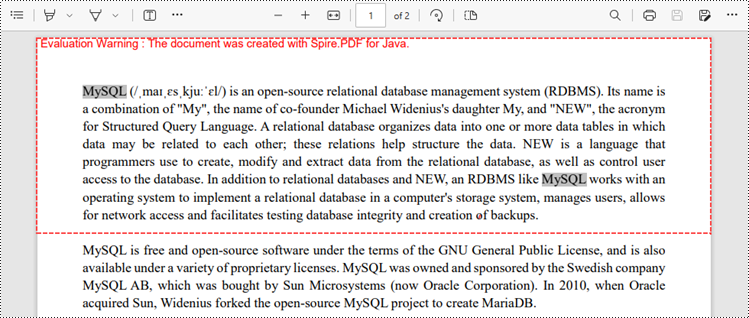
To draw attention to a specific section or piece of information within a document, users can find and highlight specified text within a rectangular area of a page. The rectangular region can be defined by utilizing the PdfTextFinder.getOptions().setFindArea() method.
The following are the steps to find and highlight text in a rectangular area of a PDF page using Java.
- Create a PdfDocument object.
- Load a PDF file from a given path.
- Get a specific page from the document.
- Create a PdfTextFinder object based on the page.
- Specify search options using PdfTextFinder.getOptions().setTextFindParameter() method.
- Find all instance of searched text within the rectangular area using PdfTextFinder.find() method.
- Iterate through the find results, and highlight each instance using PdfTextFragment.fighlight() method.
- Save the document to a different PDF file.
- Java
import com.spire.ms.System.Collections.Generic.List;
import com.spire.pdf.FileFormat;
import com.spire.pdf.PdfDocument;
import com.spire.pdf.PdfPageBase;
import com.spire.pdf.texts.PdfTextFinder;
import com.spire.pdf.texts.PdfTextFragment;
import com.spire.pdf.texts.TextFindParameter;

import java.awt.*;
import java.awt.geom.Rectangle2D;
import java.util.EnumSet;

public class FindAndHighlightTextInRectangle {

    public static void main(String[] args) {

        // Create a PdfDocument object
        PdfDocument doc = new PdfDocument();

        // Load a PDF file
        doc.loadFromFile("C:\\Users\\Administrator\\Desktop\\Input.pdf");

        // Get a specific page
        PdfPageBase page = doc.getPages().get(0);

        // Create a PdfTextFinder object based on the page
        PdfTextFinder finder = new PdfTextFinder(page);

        // Specify a rectangular area for searching text
        finder.getOptions().setFindArea(new Rectangle2D.Float(0,0,841,180));

        // Specify other options
        finder.getOptions().setTextFindParameter(EnumSet.of(TextFindParameter.WholeWord));
        finder.getOptions().setTextFindParameter(EnumSet.of(TextFindParameter.IgnoreCase));

        // Find the instances of the specified text in the rectangular area
        List<PdfTextFragment> results = finder.find("MySQL");

        // Iterate through the find results
        for (PdfTextFragment textFragment: results)
        {
            // Highlight text
            textFragment.highLight(Color.LIGHT_GRAY);
        }

        // Save to a different PDF file
        doc.saveToFile("output/HighlightTextInRectangle.pdf", FileFormat.PDF);

        // Dispose resources
        doc.dispose();
    }
}
Find and Highlight Text in an Entire PDF Document in Java
The first code example provides a demonstration of how to highlight text on a specific page. To highlight text throughout the entire document, you can traverse each page of the document, perform the search operation, and apply the highlighting to the identified text.
The steps to find and highlight text in an entire PDF document using Java are as follows.
- Create a PdfDocument object.
- Load a PDF file from a given path.
- Iterate through each page in the document.
- Create a PdfTextFinder object based on a certain page.
- Specify search options using PdfTextFinder.getOptions().setTextFindParameter() method.
- Find all instance of searched text using PdfTextFinder.find() method.
- Iterate through the find results, and highlight each instance using PdfTextFragment.fighlight() method.
- Save the document to a different PDF file.
- Java
import com.spire.ms.System.Collections.Generic.List;
import com.spire.pdf.FileFormat;
import com.spire.pdf.PdfDocument;
import com.spire.pdf.PdfPageBase;
import com.spire.pdf.texts.PdfTextFinder;
import com.spire.pdf.texts.PdfTextFragment;
import com.spire.pdf.texts.TextFindParameter;

import java.awt.*;
import java.util.EnumSet;

public class FindAndHighlightTextInDocument {

    public static void main(String[] args) {

        // Create a PdfDocument object
        PdfDocument doc = new PdfDocument();

        // Load a PDF file
        doc.loadFromFile("C:\\Users\\Administrator\\Desktop\\Input.pdf");

        // Iterate through the pages in the PDF file
        for (Object pageObj : doc.getPages()) {

            // Get a specific page
            PdfPageBase page = (PdfPageBase) pageObj;

            // Create a PdfTextFinder object based on the page
            PdfTextFinder finder = new PdfTextFinder(page);

            // Specify the find options
            finder.getOptions().setTextFindParameter(EnumSet.of(TextFindParameter.WholeWord));
            finder.getOptions().setTextFindParameter(EnumSet.of(TextFindParameter.IgnoreCase));

            // Find the instances of the specified text
            List<PdfTextFragment> results = finder.find("MySQL");

            // Iterate through the find results
            for (PdfTextFragment textFragment: results)
            {
                // Highlight text
                textFragment.highLight(Color.LIGHT_GRAY);
            }
        }

        // Save to a different PDF file
        doc.saveToFile("output/HighlightTextInDocument.pdf", FileFormat.PDF);

        // Dispose resources
        doc.dispose();
    }
}
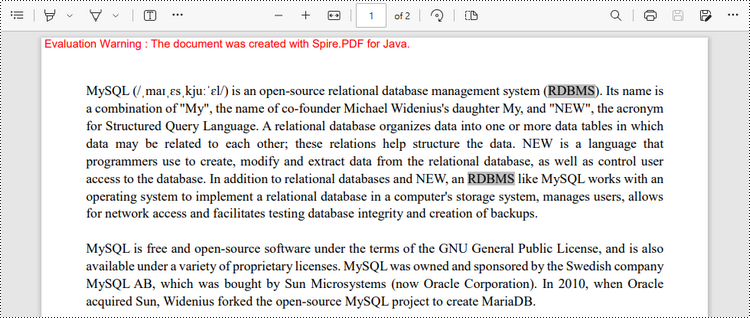
Find and Highlight Text in PDF Using a Regular Expression in Java
When you're looking for specific text within a document, regular expressions offer enhanced flexibility and control over the search criteria. To make use of a regular expression, you'll need to set the TextFindParameter as Regex and supply the desired regular expression pattern as input to the find()method.
The following are the steps to find and highlight text in PDF using a regular expression using Java.
- Create a PdfDocument object.
- Load a PDF file from a given path.
- Iterate through each page in the document.
- Create a PdfTextFinder object based on a certain page.
- Set the TextFindParameter as Regex using PdfTextFinder.getOptions().setTextFindParameter() method.
- Create a regular expression pattern that matches the specific text you are searching for.
- Find all instance of the searched text using PdfTextFinder.find() method.
- Iterate through the find results, and highlight each instance using PdfTextFragment.fighlight() method.
- Save the document to a different PDF file.
- Java
import com.spire.ms.System.Collections.Generic.List;
import com.spire.pdf.FileFormat;
import com.spire.pdf.PdfDocument;
import com.spire.pdf.PdfPageBase;
import com.spire.pdf.texts.PdfTextFinder;
import com.spire.pdf.texts.PdfTextFragment;
import com.spire.pdf.texts.TextFindParameter;

import java.awt.*;
import java.util.EnumSet;

public class FindAndHighlightTextUsingRegex {

    public static void main(String[] args) {

        // Create a PdfDocument object
        PdfDocument doc = new PdfDocument();

        // Load a PDF file
        doc.loadFromFile("C:\\Users\\Administrator\\Desktop\\Input.pdf");

        // Iterate through the pages in the PDF file
        for (Object pageObj : doc.getPages()) {

            // Get a specific page
            PdfPageBase page = (PdfPageBase) pageObj;

            // Create a PdfTextFinder object based on the page
            PdfTextFinder finder = new PdfTextFinder(page);

            // Specify the search model as Regex
            finder.getOptions().setTextFindParameter(EnumSet.of(TextFindParameter.Regex));

            // Define a regular expression pattern that matches a letter starting with 'R' and ending with 'S'
            String pattern = "\\bR\\w*S\\b";

            // Find the text that conforms to a regular expression
            List<PdfTextFragment> results = finder.find(pattern);

            // Iterate through the find results
            for (PdfTextFragment textFragment: results)
            {
                // Highlight text
                textFragment.highLight(Color.LIGHT_GRAY);
            }
        }

        // Save to a different PDF file
        doc.saveToFile("output/HighlightTextUsingRegex.pdf", FileFormat.PDF);

        // Dispose resources
        doc.dispose();
    }
}
Apply for a Temporary License
If you'd like to remove the evaluation message from the generated documents, or to get rid of the function limitations, please request a 30-day trial license for yourself.
By splitting PDF pages into separate files, you get smaller PDF documents that have one or some pages extracted from the original. A split file contains less information and is naturally smaller in size and easier to share over the internet. In this article, you will learn how to split PDF into single-page PDFs and how to split PDF by page ranges in Java using Spire.PDF for Java.
Install Spire.PDF for Java
First, you're required to add the Spire.Pdf.jar file as a dependency in your Java program. The JAR file can be downloaded from ;this link. If you use Maven, you can easily import the JAR file in your application by adding the following code to your project's pom.xml file.
<repositories>
    <repository>
        <id>com.e-iceblue</id>
        <name>e-iceblue</name>
        <url>https://repo.e-iceblue.com/nexus/content/groups/public/</url>
    </repository>
</repositories>
<dependencies>
    <dependency>
        <groupId>e-iceblue</groupId>
        <artifactId>spire.pdf</artifactId>
        <version>11.11.11</version>
    </dependency>
</dependencies>
Split a PDF File into Multiple Single-Page PDFs in Java
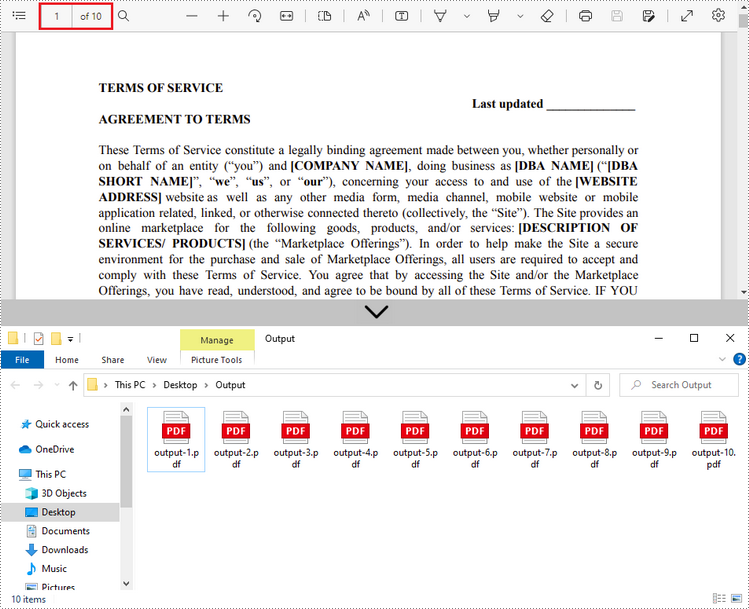
Spire.PDF for Java offers the split() method to divide a multipage PDF document into multiple single-page files. The following are the detailed steps.
- Create a PdfDcoument object.
- Load a PDF document using PdfDocument.loadFromFile() method.
- Split the document into one-page PDFs using PdfDocument.split(string destFilePattern, int startNumber) method.
- Java
import com.spire.pdf.PdfDocument;

public class SplitPdfByEachPage {

    public static void main(String[] args) {

        //Specify the input file path
        String inputFile = "C:\\Users\\Administrator\\Desktop\\Terms of Service.pdf";

        //Specify the output directory
        String outputDirectory = "C:\\Users\\Administrator\\Desktop\\Output\\";

        //Create a PdfDocument object
        PdfDocument doc = new PdfDocument();

        //Load a PDF file
        doc.loadFromFile(inputFile);

        //Split the PDF to one-page PDFs
        doc.split(outputDirectory + "output-{0}.pdf", 1);
    }
}
Split a PDF File by Page Ranges in Java
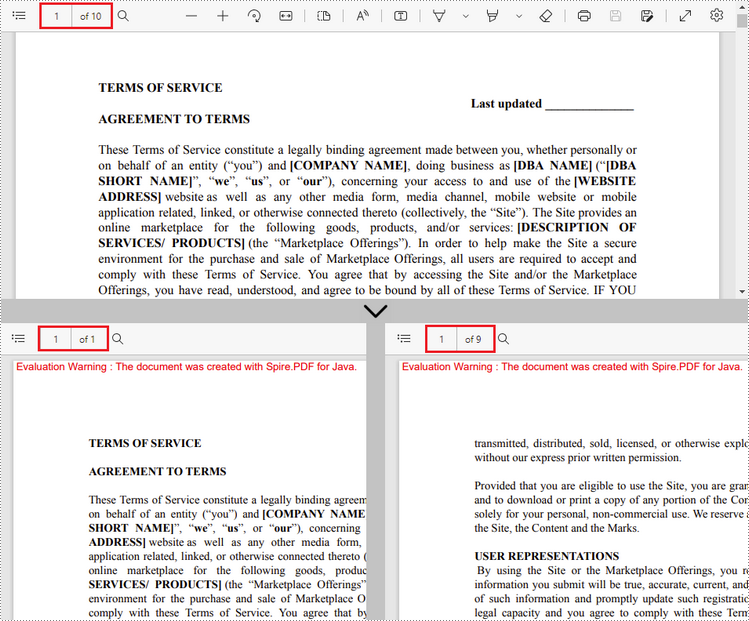
No straightforward method is offered for splitting PDF documents by page ranges. To do so, we create two or more new PDF documents and import the selected page or page range from the source document into them. Here are the detailed steps.
- Load the source PDF file while initialing the PdfDocument object.
- Create two additional PdfDocument objects.
- Import the first page from the source file to the first document using PdfDocument.insertPage() method.
- Import the remaining pages from the source file to the second document using PdfDocument.insertPageRange() method.
- Save the two documents as separate PDF files using PdfDocument.saveToFile() method.
- Java
import com.spire.pdf.PdfDocument;

public class SplitPdfByPageRange {

    public static void main(String[] args) {

        //Specify the input file path
        String inputFile = "C:\\Users\\Administrator\\Desktop\\Terms of Service.pdf";

        //Specify the output directory
        String outputDirectory = "C:\\Users\\Administrator\\Desktop\\Output\\";

        //Load the source PDF file while initialing the PdfDocument object
        PdfDocument sourceDoc = new PdfDocument(inputFile);

        //Create two additional PdfDocument objects
        PdfDocument newDoc_1 = new PdfDocument();
        PdfDocument newDoc_2 = new PdfDocument();

        //Insert the first page of source file to the first document
        newDoc_1.insertPage(sourceDoc, 0);

        //Insert the rest pages of source file to the second document
        newDoc_2.insertPageRange(sourceDoc, 1, sourceDoc.getPages().getCount() - 1);

        //Save the two documents as PDF files
        newDoc_1.saveToFile(outputDirectory + "output-1.pdf");
        newDoc_2.saveToFile(outputDirectory + "output-2.pdf");
    }
}
Apply for a Temporary License
If you'd like to remove the evaluation message from the generated documents, or to get rid of the function limitations, please request a 30-day trial license for yourself.
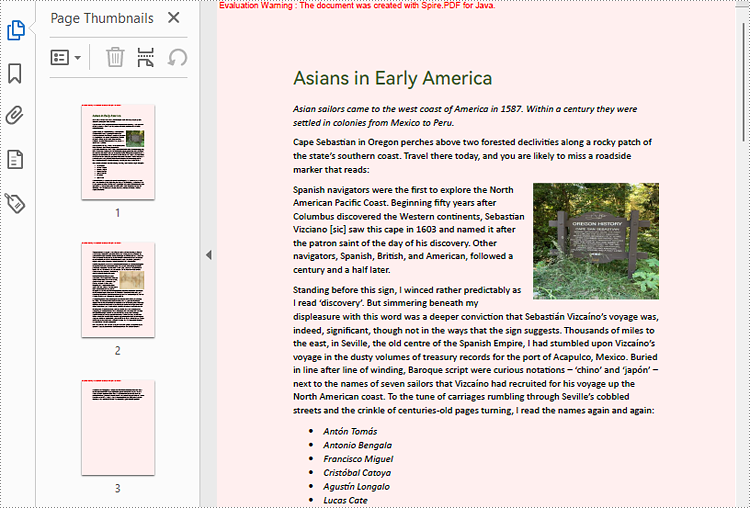
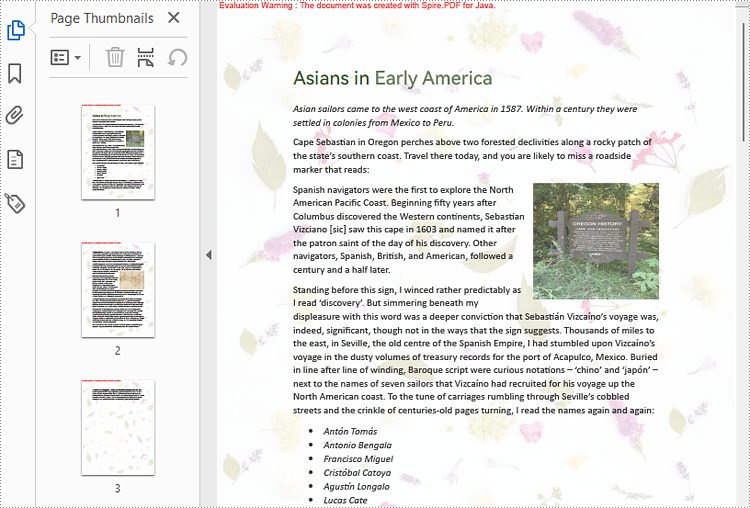
Proper backgrounds can make different content elements of PDF documents better matched and improve the visual impression and reading experience of PDF documents. Besides, it's important to add different backgrounds to PDF documents for different usage scenarios to enhance the professionalism of the documents. This article will show how to use Spire.PDF for Java to set the background color and background image for PDF documents.
Install Spire.PDF for Java
First, you're required to add the Spire.Pdf.jar file as a dependency in your Java program. The JAR file can be downloaded from this link. If you use Maven, you can easily import the JAR file in your application by adding the following code to your project's pom.xml file.
<repositories>
    <repository>
        <id>com.e-iceblue</id>
        <name>e-iceblue</name>
        <url>https://repo.e-iceblue.com/nexus/content/groups/public/</url>
    </repository>
</repositories>
<dependencies>
    <dependency>
        <groupId>e-iceblue</groupId>
        <artifactId>spire.pdf</artifactId>
        <version>11.11.11</version>
    </dependency>
</dependencies>
Add Background Color to PDF Documents in Java
As setting the background of a PDF document needs to be done page by page, we can loop through all the pages in the document and use the PdfPageBase.setBackgroundColor() method to set the background color for each page. The following are the detailed steps:
- Create an object of PdfDocument.
- Load a PDF document using PdfDocument.loadFromFile() method.
- Loop through the pages in the PDF document and add a background color to each page using PdfPageBase.setBackgroundColor() method. You can also use the PdfPageBase.setBackgroudOpacity() method to set the opacity of the background.
- Save the document using PdfDocument.saveToFile() method.
- Java
import com.spire.pdf.PdfDocument;
import com.spire.pdf.PdfPageBase;

import java.awt.*;

public class SetPDFBackgroundColor {
    public static void main(String[] args) {

        //Create an object of PdfDocument
        PdfDocument pdf = new PdfDocument();

        //Load a PDF file
        pdf.loadFromFile("Sample.pdf");

        //Loop through the pages in the PDF file
        for (PdfPageBase page : (Iterable) pdf.getPages()
             ) {
            //Set the background color for each page
            page.setBackgroundColor(Color.PINK);
            //Set the opacity of the background
            page.setBackgroudOpacity(0.2f);
        }

        //Save the PDF file
        pdf.saveToFile("BackgroundColor.pdf");
    }
}
Add Background Picture to PDF Documents in Java
Spire.PDF for Java provides the PdfPageBase.setBackgroundImage() to set a picture as the PDF page background. The detailed steps for adding an image background to a PDF document are as follows:
- Create an object of PdfDocument.
- Load a PDF document using PdfDocument.loadFromFile() method.
- Loop through the pages in the PDF document and add a background picture to each page using PdfPageBase.setBackgroundImage() method. You can also use the PdfPageBase.setBackgroudOpacity() method to set the opacity of the background.
- Save the document using PdfDocument.saveToFile() method.
- Java
import com.spire.pdf.PdfDocument;
import com.spire.pdf.PdfPageBase;

import javax.imageio.ImageIO;
import java.awt.image.BufferedImage;
import java.io.File;
import java.io.IOException;

public class SetPDFBackgroundImage {
    public static void main(String[] args) throws IOException {

        //Create an object of PdfDocument
        PdfDocument pdf = new PdfDocument();

        //Load a PDF file
        pdf.loadFromFile("Sample.pdf");

        //Load an image
        BufferedImage background = ImageIO.read(new File("background.jpg"));

        //Loop through the pages in the PDF file
        for (PdfPageBase page : (Iterable) pdf.getPages()
             ) {
            //Set the loaded image as the background image of a page
            page.setBackgroundImage(background);
            //Set the opacity of the background
            page.setBackgroudOpacity(0.2f);
        }

        //Save the PDF file
        pdf.saveToFile("BackgroundImage.pdf");
    }
}
Apply for a Temporary License
If you'd like to remove the evaluation message from the generated documents, or to get rid of the function limitations, please request a 30-day trial license for yourself.
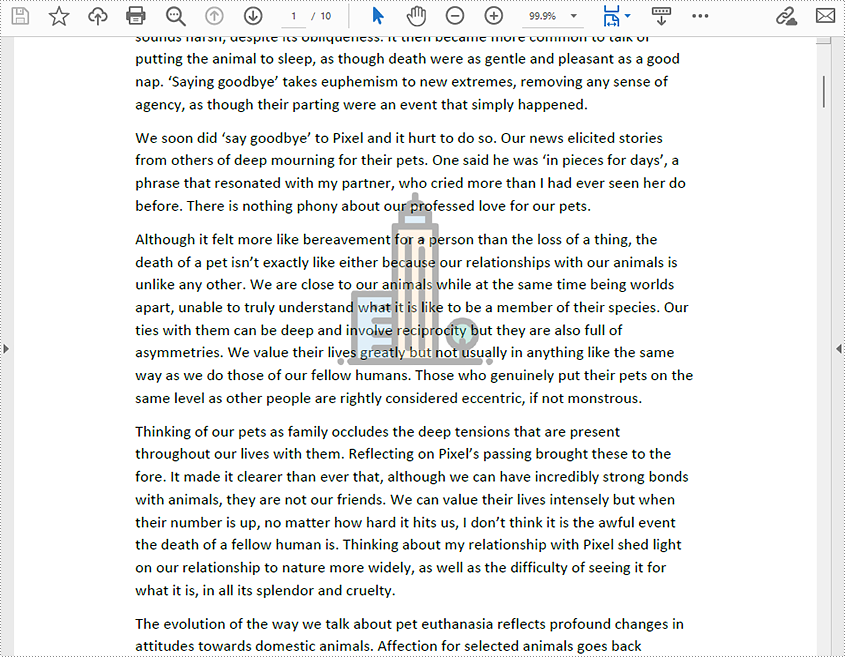
A PDF image watermark is a semi-transparent picture integrated into a PDF page as a fixed element. It is often used to protect the copyright and other rights of the document owner since it can't be removed easily. What's more, for famous PDF publishers, image watermarks are also used to increase the credibility of their documents. With an image watermark of their logo, the readers of documents can identify them at a glance. This article will show how to insert image watermarks into PDF documents using Spire.PDF for Java with simple code.
Install Spire.PDF for Java
First of all, you're required to add the Spire.Pdf.jar file as a dependency in your Java program. The JAR file can be downloaded from this link. If you use Maven, you can easily import the JAR file in your application by adding the following code to your project's pom.xml file.
<repositories>
    <repository>
        <id>com.e-iceblue</id>
        <name>e-iceblue</name>
        <url>https://repo.e-iceblue.com/nexus/content/groups/public/</url>
    </repository>
</repositories>
<dependencies>
    <dependency>
        <groupId>e-iceblue</groupId>
        <artifactId>spire.pdf</artifactId>
        <version>11.11.11</version>
    </dependency>
</dependencies>
Insert a Single Picture Watermark into PDF
A single image watermark is usually placed at the center of a PDF page. The detailed steps for inserting a single image watermark are as follows.
- Create a PdfDocument class instance.
- Load a PDF document using PdfDocument.loadFromFile() method.
- Load a picture using PdfImage.fromFile() method.
- Get the width and height of the picture using PdfImage.getWidth() and PdfImage.getHeight() methods.
- Loop through the pages in the PDF document to insert watermarks
- Get a page using PdfDocument.getPages().get() method.
- Get the width and height of the page using PdfPageBase.getActualSize().getWidth() and PdfPageBase.getActualSize().getHeight() methods.
- Set the transparency of the watermark picture using PdfPageBase.getCanvas().setTransparency() method.
- Draw the watermark picture at the center of the page using PdfPageBase.getCanvas().drawImage() method.
- Save the document using PdfDocument.saveToFile() method.
- Java
import com.spire.pdf.PdfDocument;
import com.spire.pdf.PdfPageBase;
import com.spire.pdf.graphics.PdfBrush;
import com.spire.pdf.graphics.PdfImage;

import java.awt.*;
import java.awt.image.BufferedImage;

public class insertSingleImageWatermark {
    public static void main(String[] args) {

        //Create a PdfDocument class instance
        PdfDocument pdf = new PdfDocument();

        //Load a PDF file
        pdf.loadFromFile("Goodbye Pixel.pdf");

        //Load a picture
        PdfImage image = PdfImage.fromFile("Logo.png");

        //Get the width and height of the image
        int imageWidth = image.getWidth();
        int imageHeight = image.getHeight();

        //Loop through the pages to insert watermark
        for (int i = 0; i < pdf.getPages().getCount(); i++) {
            //Get a page
            PdfPageBase page = pdf.getPages().get(i);
            //Get the width and height of the page
            float pageWidth = (float) (page.getActualSize().getWidth());
            float pageHeight = (float) (page.getActualSize().getHeight());
            //Set the transparency of the watermark
            page.getCanvas().setTransparency(0.3f);
            //Draw the watermark picture at the middle of the page
            page.getCanvas().drawImage(image, pageWidth/2 - imageWidth/2, pageHeight/2 - imageHeight/2, imageWidth, imageHeight);
        }

        //Save the file
        pdf.saveToFile("SingleImageWatermark.pdf");
    }
}
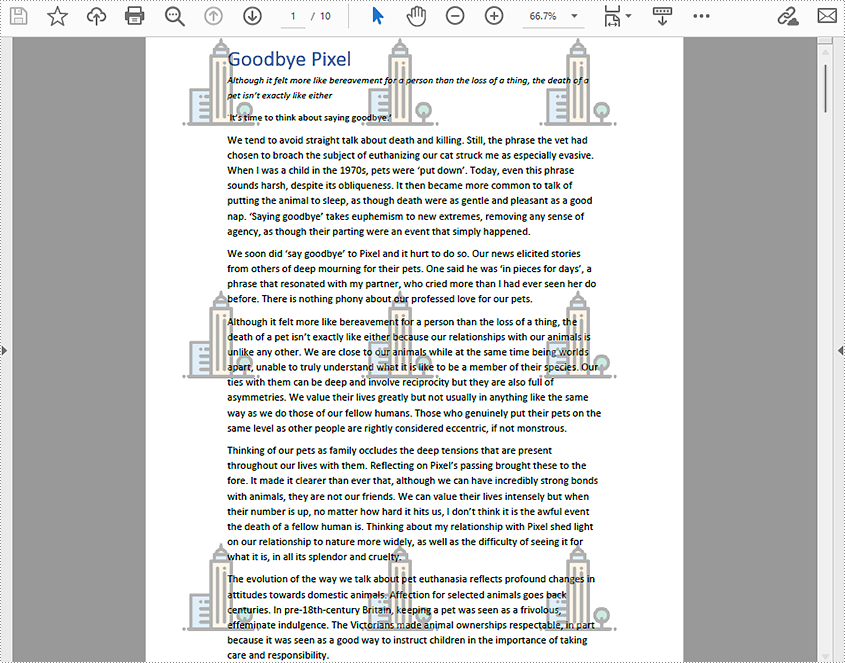
Insert Tiled Picture Watermarks into PDF
Tiled image watermarks contain a picture that is displayed multiple times on one PDF page. When inserting a tiled image watermark, we can set the number of repetitions of its picture. The detailed steps for inserting a tiled image watermark are as follow.
- Create a PdfDocument class instance.
- Load a PDF document using PdfDocument.loadFromFile() method.
- Load a picture using PdfImage.fromFile() method.
- Loop through the pages to insert watermarks.
- Get a specific page using PdfDocument.getPages().get() method.
- Use the custom method insertImageWatermark() to insert a tiled image watermark.
- Save the document using PdfDocument.saveToFile() method.
- Java
import com.spire.pdf.PdfDocument;
import com.spire.pdf.PdfPageBase;
import com.spire.pdf.graphics.PdfBrush;
import com.spire.pdf.graphics.PdfImage;
import com.spire.pdf.graphics.PdfTilingBrush;

import java.awt.*;

public class insertTiledImageWatermark {
    public static void main(String[] args) {
        //Create a PdfDocument class instance
        PdfDocument pdf = new PdfDocument();

        //Load a PDF file
        pdf.loadFromFile("Goodbye Pixel.pdf");

        //Load a picture
        PdfImage image = PdfImage.fromFile("Logo.png");

        //Loop through the pages in the PDF document to insert watermark
        for (int i = 0; i < pdf.getPages().getCount(); i++ ) {
            //Get a Page
            PdfPageBase page = pdf.getPages().get(i);
            //Use the custom method to insert a tiled image watermark
            insertImageWatermark(page, image, 3, 3);
        }

        //Save the file
        pdf.saveToFile("TiledImageWatermark.pdf");
    }
    static void insertImageWatermark(PdfPageBase page, PdfImage image, int row, int column) {
        //Create a tile brush
        PdfTilingBrush brush = new PdfTilingBrush(new Dimension((int) (page.getActualSize().getWidth()/column), (int) (page.getActualSize().getHeight()/row)));
        brush.getGraphics().setTransparency(0.3f);
        brush.getGraphics().save();
        brush.getGraphics().translateTransform(brush.getSize().getWidth()/2 - image.getWidth()/2, brush.getSize().getHeight()/2 - image.getHeight()/2);
        //Draw the watermark image at the center of the page
        brush.getGraphics().drawImage(image, 0, 0);
        brush.getGraphics().restore();
        //Use the tile brush to draw the watermark picture
        page.getCanvas().drawRectangle(brush, new Rectangle(new Point(0, 0), new Dimension((int) (page.getActualSize().getWidth()), (int) (page.getActualSize().getHeight()))));
    }
}
Apply for a Temporary License
If you'd like to remove the evaluation message from the generated documents, or to get rid of the function limitations, please request a 30-day trial license for yourself.
When it comes to PDF documents, stamps offer an indispensable feature for adding contextual information and visual elements. These stamps can range from simple notes to complex graphics, enabling users to annotate, emphasize, or personalize their PDF content. With the ability to place stamps strategically, businesses can streamline workflows, indicate approvals, or provide concise feedback.
In this article, you will learn how to programmatically add dynamic stamps and image stamps to a PDF document using Spire.PDF for Java.
Install Spire.PDF for Java
To start, make sure to add the Spire.Pdf.jar file as a dependency in your Java program. You can download Spire.PDF for Java from our website and manually import the JAR file into your application. If you are using Maven, simply add the following code to your project's pom.xml file to include the JAR file effortlessly.
<repositories>
    <repository>
        <id>com.e-iceblue</id>
        <name>e-iceblue</name>
        <url>https://repo.e-iceblue.com/nexus/content/groups/public/</url>
    </repository>
</repositories>
<dependencies>
    <dependency>
        <groupId>e-iceblue</groupId>
        <artifactId>spire.pdf</artifactId>
        <version>11.11.11</version>
    </dependency>
</dependencies>
Prior Knowledge
In PDF, a stamp refers to an annotation or graphical element that can be added to a document to provide additional information. Spire.PDF for Java introduces the PdfRubberStampAnnotation class, which serves as a representation of a rubber stamp. To create the visual representation of a rubber stamp, the PdfTemplate class is employed. This class acts as a canvas allowing you to draw various types of information, including text, images, shapes, and date/time elements.
Add a Dynamic Stamp to PDF in Java
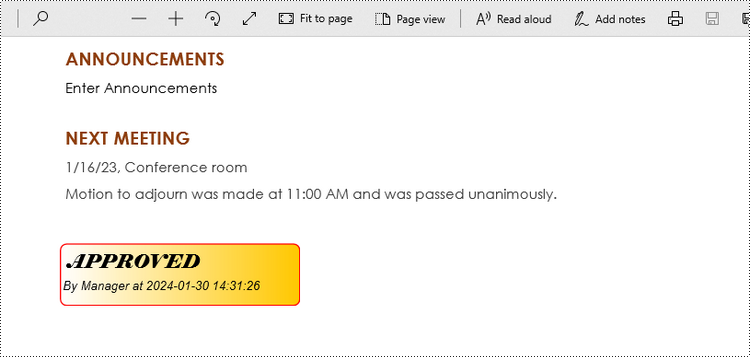
A dynamic stamp refers to a customizable annotation that can be added to a PDF document to indicate a specific status, approval, or other information. Unlike static stamps, dynamic stamps contain variables or fields that can be dynamically updated, such as the current date, time, username, or any other custom data.
The following are the steps to add a dynamic stamp to PDF using Spire.PDF for Java.
- Create a PdfDocument object.
- Load a PDF file using PdfDocument.loadFromFile() method.
- Create a PdfTemplate object with desired size.
- Draw strings (including dynamic information such as date and time) on the template using PdfTemplate.getGraphics().drawString() method.
- Create a PdfRubberStampAnnotation object, and set the template as its appearance.
- Add the stamp to a specific PDF page using PdfPageBase.getAnnotationsWidget().add() method.
- Save the document to a different PDF file using PdfDocument.saveToFile() method.
- Java
import com.spire.pdf.PdfDocument;
import com.spire.pdf.PdfPageBase;
import com.spire.pdf.annotations.PdfRubberStampAnnotation;
import com.spire.pdf.annotations.appearance.PdfAppearance;
import com.spire.pdf.graphics.*;

import java.awt.*;
import java.awt.geom.Point2D;
import java.awt.geom.Rectangle2D;
import java.text.SimpleDateFormat;

public class AddDynamicStampToPdf {

    public static void main(String[] args) {

        // Create a PdfDocument object
        PdfDocument document = new PdfDocument();

        // Load a PDF file
        document.loadFromFile("C:\\Users\\Administrator\\Desktop\\Input.pdf");

        // Get the last page
        PdfPageBase page = document.getPages().get(document.getPages().getCount() - 1);

        // Create a PdfTemplate object
        PdfTemplate template = new PdfTemplate(195, 50);

        // Create two fonts
        PdfTrueTypeFont font1 = new PdfTrueTypeFont(new Font("Elephant", Font.ITALIC, 15), true);
        PdfTrueTypeFont font2 = new PdfTrueTypeFont(new Font("Arial", Font.ITALIC, 10), true);

        // Create a solid brush and a gradient brush
        PdfSolidBrush solidBrush = new PdfSolidBrush(new PdfRGBColor(Color.black));
        Rectangle2D rect1 = new Rectangle2D.Float();
        rect1.setFrame(new Point2D.Float(0, 0), template.getSize());
        PdfLinearGradientBrush linearGradientBrush = new PdfLinearGradientBrush(rect1, new PdfRGBColor(Color.white), new PdfRGBColor(Color.orange), PdfLinearGradientMode.Horizontal);

        // Create rounded rectangle path
        int CornerRadius = 10;
        PdfPath path = new PdfPath();
        path.addArc(template.getBounds().getX(), template.getBounds().getY(), CornerRadius, CornerRadius, 180, 90);
        path.addArc(template.getBounds().getX() + template.getWidth() - CornerRadius, template.getBounds().getY(), CornerRadius, CornerRadius, 270, 90);
        path.addArc(template.getBounds().getX() + template.getWidth() - CornerRadius, template.getBounds().getY() + template.getHeight() - CornerRadius, CornerRadius, CornerRadius, 0, 90);
        path.addArc(template.getBounds().getX(), template.getBounds().getY() + template.getHeight() - CornerRadius, CornerRadius, CornerRadius, 90, 90);
        path.addLine(template.getBounds().getX(), template.getBounds().getY() + template.getHeight() - CornerRadius, template.getBounds().getX(), template.getBounds().getY() + CornerRadius / 2);

        // Draw path on the template
        template.getGraphics().drawPath(linearGradientBrush, path);
        template.getGraphics().drawPath(PdfPens.getRed(), path);

        // Draw dynamic text on the template
        String s1 = "APPROVED\n";
        String s2 = "By Manager at " + dateToString(new java.util.Date(), "yyyy-MM-dd HH:mm:ss");
        template.getGraphics().drawString(s1, font1, solidBrush, new Point2D.Float(5, 5));
        template.getGraphics().drawString(s2, font2, solidBrush, new Point2D.Float(2, 28));

        // Create a rubber stamp, specifying its size and location
        Rectangle2D rect2 = new Rectangle2D.Float();
        rect2.setFrame(new Point2D.Float(50, (float) (page.getActualSize().getHeight() - 300)), template.getSize());
        PdfRubberStampAnnotation stamp = new PdfRubberStampAnnotation(rect2);

        // Create a PdfAppearance object and apply the template as its normal state
        PdfAppearance appearance = new PdfAppearance(stamp);
        appearance.setNormal(template);

        // Apply the appearance to stamp
        stamp.setAppearance(appearance);

        // Add the stamp annotation to annotation collection
        page.getAnnotationsWidget().add(stamp);

        // Save the file
        document.saveToFile("output/DynamicStamp.pdf");
        document.close();
    }

    // Convert date to string
    public static String dateToString(java.util.Date date, String dateFormat) {
        SimpleDateFormat format = new SimpleDateFormat(dateFormat);
        return format.format(date);
    }
}
Add an Image Stamp to PDF in Java
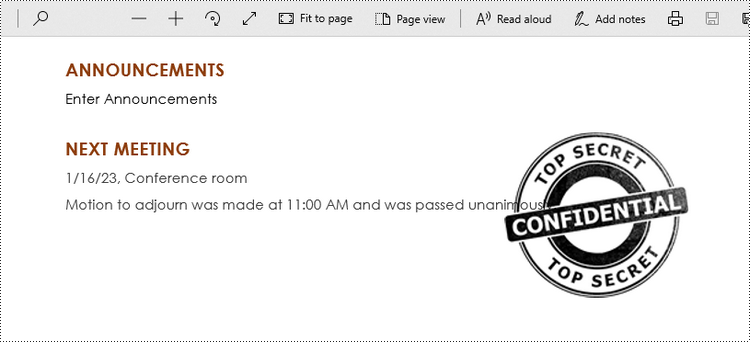
An image stamp in PDF refers to a graphical element that is added to a document as an annotation or overlay. It involves placing an image onto a specific location within a PDF page.
The steps to add an image stamp to PDF using Spire.PDF for Java are as follows.
- Create a PdfDocument object.
- Load a PDF file using PdfDocument.loadFromFile() method.
- Load an image that you want to stamp on PDF using PdfImage.fromFile() method.
- Create a PdfTemplate object based on the size of the image.
- Draw the image on the template using PdfTemplate.getGraphics().drawImage() method.
- Create a PdfRubberStampAnnotation object, and set the template as its appearance.
- Add the stamp to a specific PDF page using PdfPageBase.getAnnotationsWidget().add() method.
- Save the document to a different PDF file using PdfDocument.saveToFile() method.
- Java
import com.spire.pdf.PdfDocument;
import com.spire.pdf.PdfPageBase;
import com.spire.pdf.annotations.PdfRubberStampAnnotation;
import com.spire.pdf.annotations.appearance.PdfAppearance;
import com.spire.pdf.graphics.PdfImage;
import com.spire.pdf.graphics.PdfTemplate;

import java.awt.geom.Rectangle2D;

public class AddImageStampToPdf {

    public static void main(String[] args) {

        // Create a PdfDocument object
        PdfDocument document = new PdfDocument();

        // Load a PDF document
        document.loadFromFile("C:\\Users\\Administrator\\Desktop\\Input.pdf");

        // Get the last page
        PdfPageBase page = document.getPages().get(document.getPages().getCount() - 1);

        // Load an image file
        PdfImage image = PdfImage.fromFile("C:\\Users\\Administrator\\Desktop\\stamp-image.png");

        // Get the width and height of the image
        int width = image.getWidth();
        int height = image.getHeight();

        // Create a PdfTemplate object based on the size of the image
        PdfTemplate template = new PdfTemplate(width, height);

        // Draw image on the template
        template.getGraphics().drawImage(image, 0, 0, width, height);

        // Create a rubber stamp annotation, specifying its location and position
        Rectangle2D rect = new Rectangle2D.Float((float) (page.getActualSize().getWidth() - width - 50), (float) (page.getActualSize().getHeight() - 400), width, height);
        PdfRubberStampAnnotation stamp = new PdfRubberStampAnnotation(rect);

        // Create a PdfAppearance object
        PdfAppearance pdfAppearance = new PdfAppearance(stamp);

        // Set the template as the normal state of the appearance
        pdfAppearance.setNormal(template);

        // Apply the appearance to the stamp
        stamp.setAppearance(pdfAppearance);

        // Add the stamp annotation to PDF
        page.getAnnotationsWidget().add(stamp);

        // Save the file
        document.saveToFile("output/ImageStamp.pdf");
        document.close();
    }
}
Apply for a Temporary License
If you'd like to remove the evaluation message from the generated documents, or to get rid of the function limitations, please request a 30-day trial license for yourself.
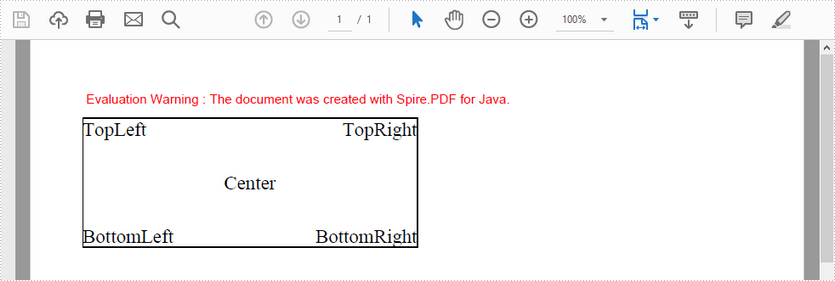
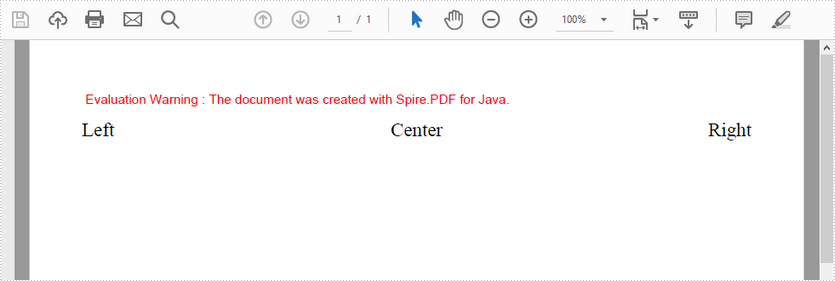
When drawing text on PDF page, you can align text horizontally and vertically. This tutorial will show you how to align text in a line and a rectangle by using Spire.PDF for Java.
Align Text in Line
import com.spire.pdf.graphics.*;

import java.awt.*;

public class AlignTextInLine {

    public static void main(String[] args) {

        //create a PdfDocument object
        PdfDocument doc = new PdfDocument();

        //add a page
        PdfPageBase page = doc.getPages().add();

        //create a true type font
        PdfTrueTypeFont font= new PdfTrueTypeFont(new Font("Times New Roman",Font.PLAIN,15));

        //create a brush
        PdfSolidBrush brush = new PdfSolidBrush(new PdfRGBColor(Color.black));

        //create a PdfStringFormat object, specifying PdfTextAlignment to Left
        PdfStringFormat leftAlignment = new PdfStringFormat(PdfTextAlignment.Left);

        //draw text at left
        page.getCanvas().drawString("Left", font , brush, 0, 20, leftAlignment);

        //draw text at right
        PdfStringFormat rightAlignment = new PdfStringFormat(PdfTextAlignment.Right);
        page.getCanvas().drawString("Right", font , brush, page.getCanvas().getClientSize().getWidth(), 20, rightAlignment);

        //draw text in center
        PdfStringFormat centerAlignment = new PdfStringFormat(PdfTextAlignment.Center);
        page.getCanvas().drawString("Center", font , brush, page.getCanvas().getClientSize().getWidth() / 2, 20, centerAlignment);

        //save the file
        doc.saveToFile("AlignTextInLine.pdf");
    }
}
Output:
Align Text in Rectangle
import com.spire.pdf.graphics.*;

import java.awt.*;
import java.awt.geom.Rectangle2D;

public class AlignTextInRectangle {

    public static void main(String[] args) {

        //create a PdfDocument object
        PdfDocument doc = new PdfDocument();

        //add a page
        PdfPageBase page = doc.getPages().add();

        //create a true type font
        PdfTrueTypeFont font= new PdfTrueTypeFont(new Font("Times New Roman",Font.PLAIN,15));

        //craete a pen
        PdfPen pen = new PdfPen(new PdfRGBColor(Color.black));

        //create a brush
        PdfSolidBrush brush = new PdfSolidBrush(new PdfRGBColor(Color.black));

        //draw a rectangle
        Rectangle2D.Float rect = new Rectangle2D.Float();
        rect.setRect(0, 20, page.getCanvas().getClientSize().getWidth() / 2, 100);
        page.getCanvas().drawRectangle(pen, rect);

        //create a PdfStringFormat object, specifying PdfTextAlignment to Top and Left
        PdfStringFormat topLeft = new PdfStringFormat(PdfTextAlignment.Left, PdfVerticalAlignment.Top);

        //draw text at top left
        page.getCanvas().drawString("TopLeft", font, brush, rect, topLeft);

        //draw text at top right
        PdfStringFormat topRight = new PdfStringFormat(PdfTextAlignment.Right, PdfVerticalAlignment.Top);
        page.getCanvas().drawString("TopRight", font, brush, rect, topRight);

        //draw text in center
        PdfStringFormat center = new PdfStringFormat(PdfTextAlignment.Center, PdfVerticalAlignment.Middle);
        page.getCanvas().drawString("Center", font, brush, rect, center);

        //draw text at bottom left
        PdfStringFormat bottomLeft = new PdfStringFormat(PdfTextAlignment.Left, PdfVerticalAlignment.Bottom);
        page.getCanvas().drawString("BottomLeft", font, brush, rect, bottomLeft);

        //draw text at bottom right
        PdfStringFormat bottomRight = new PdfStringFormat(PdfTextAlignment.Right, PdfVerticalAlignment.Bottom);
        page.getCanvas().drawString("BottomRight", font, brush, rect, bottomRight);

        //save the file
        doc.saveToFile("AlignTextInRectangle.pdf");
    }
}
Output: