Creating tables in Word documents is one of the most common requirements in daily office development — whether for data reports, product catalogs, or statistical analysis, tables present information clearly in a structured format. Spire.Doc for JavaScript runs entirely in the browser via WebAssembly, using a virtual file system (VFS) to manage font and file resources — no backend server required.
This article covers three core features:
For installation and project setup, refer to Integrating Spire.Doc for JavaScript in a React Project. The examples below assume Spire.Doc is installed and the WebAssembly module is initialized.
Create a Formatted Data Table
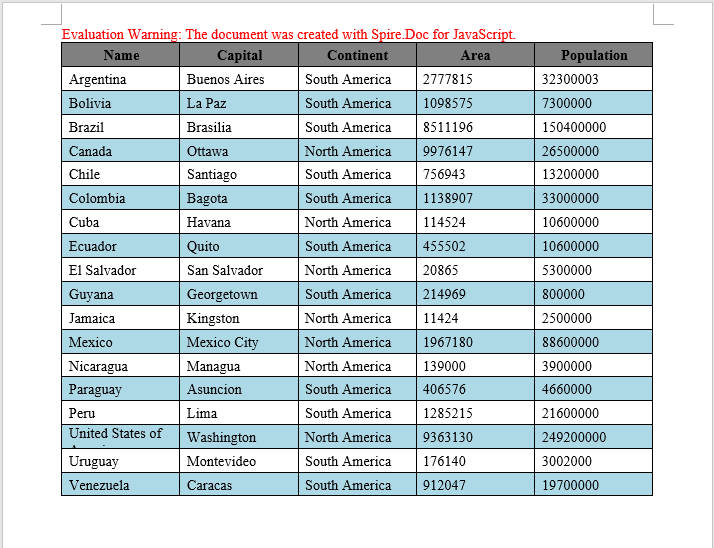
In real-world development, the most common scenario is writing data returned from a backend into a Word document as a table. The core workflow involves three steps: first, load font files into the WASM virtual file system via FetchFileToVFS; then instantiate a Document to create the document, add a table via AddTable, populate it with data, and configure header rows, alignment, and alternating row colors; finally, save the document, read the generated file from VFS, wrap it as a Blob, and trigger a browser download.
function addTable(section) {
  let docModule = window.wasmModule.spiredoc;
  let header = ["Name", "Capital", "Continent", "Area", "Population"];
  let data =
    [
      ["Argentina", "Buenos Aires", "South America", "2777815", "32300003"],
      ["Bolivia", "La Paz", "South America", "1098575", "7300000"],
      ["Brazil", "Brasilia", "South America", "8511196", "150400000"],
      ["Canada", "Ottawa", "North America", "9976147", "26500000"],
      ["Chile", "Santiago", "South America", "756943", "13200000"],
      ["Colombia", "Bagota", "South America", "1138907", "33000000"],
      ["Cuba", "Havana", "North America", "114524", "10600000"],
      ["Ecuador", "Quito", "South America", "455502", "10600000"],
      ["El Salvador", "San Salvador", "North America", "20865", "5300000"],
      ["Guyana", "Georgetown", "South America", "214969", "800000"],
      ["Jamaica", "Kingston", "North America", "11424", "2500000"],
      ["Mexico", "Mexico City", "North America", "1967180", "88600000"],
      ["Nicaragua", "Managua", "North America", "139000", "3900000"],
      ["Paraguay", "Asuncion", "South America", "406576", "4660000"],
      ["Peru", "Lima", "South America", "1285215", "21600000"],
      ["United States of America", "Washington", "North America", "9363130", "249200000"],
      ["Uruguay", "Montevideo", "South America", "176140", "3002000"],
      ["Venezuela", "Caracas", "South America", "912047", "19700000"]
    ];
  let table = section.AddTable({ showBorder: true });
  table.ResetCells(data.length + 1, header.length);

  // Set up the header row
  let row = table.Rows.get_Item(0);
  row.IsHeader = true;
  row.Height = 20;
  row.HeightType = docModule.TableRowHeightType.Exactly;
  for (let i = 0; i < row.Cells.Count; i++) {
    row.Cells.get_Item(i).CellFormat.Shading.BackgroundPatternColor = docModule.Color.get_Gray();
  }

  for (let i = 0; i < header.length; i++) {
    row.Cells.get_Item(i).CellFormat.VerticalAlignment = docModule.VerticalAlignment.Middle;
    let p = row.Cells.get_Item(i).AddParagraph();
    p.Format.HorizontalAlignment = docModule.HorizontalAlignment.Center;
    let txtRange = p.AppendText(header[i]);
    txtRange.CharacterFormat.Bold = true;
  }

  // Populate data rows with alternating row colors
  for (let r = 0; r < data.length; r++) {
    let dataRow = table.Rows.get_Item(r + 1);
    dataRow.Height = 20;
    dataRow.HeightType = docModule.TableRowHeightType.Exactly;
    for (let i = 0; i < dataRow.Cells.Count; i++) {
      dataRow.Cells.get_Item(i).CellFormat.Shading.BackgroundPatternColor = docModule.Color.Empty();
    }
    for (let c = 0; c < data[r].length; c++) {
      dataRow.Cells.get_Item(c).CellFormat.VerticalAlignment = docModule.VerticalAlignment.Middle;
      dataRow.Cells.get_Item(c).AddParagraph().AppendText(data[r][c]);
    }
  }

  // Apply light blue background to even rows
  for (let j = 1; j < table.Rows.Count; j++) {
    if (j % 2 == 0) {
      let row2 = table.Rows.get_Item(j);
      for (let f = 0; f < row2.Cells.Count; f++) {
        row2.Cells.get_Item(f).CellFormat.Shading.BackgroundPatternColor = docModule.Color.get_LightBlue();
      }
    }
  }
}

function App() {
  const CreateTable = async () => {
    // Get the Spire.Doc WASM module
    const docModule = window.wasmModule?.spiredoc;

    // Check if the module is ready
    if (!docModule) {
      alert('Spire.Doc is not ready yet');
      return;
    }

    // Load font files into VFS
    await window.spire.FetchFileToVFS('ARIALUNI.TTF', '/Library/Fonts/', `${process.env.PUBLIC_URL}/font/`);

    // Create a blank document
    let doc = new docModule.Document();
    let section = doc.AddSection();

    // Add the table
    addTable(section);

    // Define the output file name
    const outputFileName = "CreateTable_output.docx";

    // Save the document
    doc.SaveToFile({ fileName: outputFileName, fileFormat: docModule.FileFormat.Docx2013 });

    // Release resources
    doc.Dispose();

    // Read the generated file from VFS and trigger download
    const modifiedFileArray = window.dotnetRuntime.Module.FS.readFile(outputFileName);
    const blob = new Blob([modifiedFileArray], { type: 'application/vnd.openxmlformats-officedocument.wordprocessingml.document' });
    const url = URL.createObjectURL(blob);
    const a = document.createElement('a');
    a.href = url;
    a.download = outputFileName;
    a.click();
    URL.revokeObjectURL(url);
  };

  return (
    <div style={{ textAlign: 'center', height: '300px' }}>
      <h1>Click the button below to create a table in a Word document.</h1>
      <button onClick={CreateTable}>
        Generate
      </button>
    </div>
  );
}

export default App;
Word output generated from a formatted data table
Create a Table from HTML
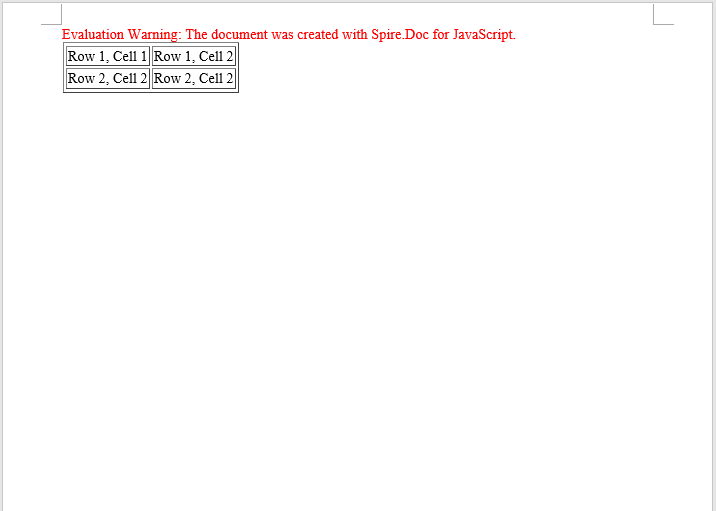
In web development, HTML tables are a universal format for displaying data. Spire.Doc provides the AppendHTML method, which can parse an HTML string directly into a Word document table, greatly simplifying the conversion from web content to Word documents. This is particularly useful for scenarios where you need to export table data from a web page to a Word document.
function App() {
  const CreateTableFromHTML = async () => {
    // Get the Spire.Doc WASM module
    const docModule = window.wasmModule?.spiredoc;

    // Check if the module is ready
    if (!docModule) {
      alert('Spire.Doc is not ready yet');
      return;
    }

    // Load font files into VFS
    await window.spire.FetchFileToVFS('ARIALUNI.TTF', '/Library/Fonts/', `${process.env.PUBLIC_URL}/font/`);

    // HTML string
    let HTML = "<table border='2px'>" +
      "<tr>" +
      "<td>Row 1, Cell 1</td>" +
      "<td>Row 1, Cell 2</td>" +
      "</tr>" +
      "<tr>" +
      "<td>Row 2, Cell 2</td>" +
      "<td>Row 2, Cell 2</td>" +
      "</tr>" +
      "</table>";

    // Create a Word document
    let doc = new docModule.Document();

    // Add a section
    let section = doc.AddSection();

    // Add a paragraph and append the HTML string
    section.AddParagraph().AppendHTML(HTML);

    // Define the output file name
    const outputFileName = "CreateTableFromHTML_output.docx";

    // Save the document
    doc.SaveToFile({ fileName: outputFileName, fileFormat: docModule.FileFormat.Docx2013 });

    // Release resources
    doc.Dispose();

    // Read the generated file from VFS and trigger download
    const modifiedFileArray = window.dotnetRuntime.Module.FS.readFile(outputFileName);
    const blob = new Blob([modifiedFileArray], { type: 'application/vnd.openxmlformats-officedocument.wordprocessingml.document' });
    const url = URL.createObjectURL(blob);
    const a = document.createElement('a');
    a.href = url;
    a.download = outputFileName;
    a.click();
    URL.revokeObjectURL(url);
  };

  return (
    <div style={{ textAlign: 'center', height: '300px' }}>
      <h1>Click the button below to create a table from HTML in a Word document.</h1>
      <button onClick={CreateTableFromHTML}>
        Generate
      </button>
    </div>
  );
}

export default App;
Word table created from HTML
Create a Nested Table
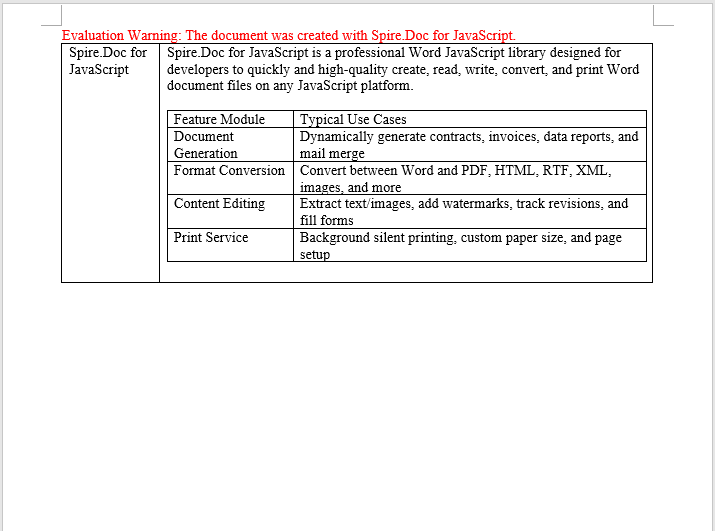
A nested table is a table inserted within a cell of another table. This is commonly used for complex document layouts — for example, in a product catalog, the main table displays product names and descriptions, while a sub-table containing specification parameters (number, item, price) is embedded inside the description cell. Spire.Doc makes nested table creation easy with the Cell.AddTable method.
function App() {
  const CreateNestedTable = async () => {
    // Get the Spire.Doc WASM module
    const docModule = window.wasmModule?.spiredoc;

    // Check if the module is ready
    if (!docModule) {
      alert('Spire.Doc is not ready yet');
      return;
    }

   // Load font and document files into VFS
    await window.spire.FetchFileToVFS('ARIALUNI.TTF', '/Library/Fonts/', `${process.env.PUBLIC_URL}/font/`);

    // Create a new document
    let doc = new docModule.Document();
    let section = doc.AddSection();

    // Add main table (2 rows, 2 columns)
    let table = section.AddTable({ showBorder: true });
    table.ResetCells(1, 2);

    // Set column widths
    table.Rows.get_Item(0).Cells.get_Item(0).SetCellWidth(70, docModule.CellWidthType.Point);
    table.Rows.get_Item(0).Cells.get_Item(1).SetCellWidth(150, docModule.CellWidthType.Point);
    table.Rows.get_Item(0).Height=200;
    table.AutoFit(docModule.AutoFitBehaviorType.AutoFitToWindow);

    // Insert content into cells
    table.Rows.get_Item(0).Cells.get_Item(0).AddParagraph().AppendText("Spire.Doc for JavaScript");
    let text = "Spire.Doc for JavaScript is a professional Word " +
      "JavaScript library designed for developers to quickly and " +
      "high-quality create, read, write, convert, and print Word " +
      "document files on any JavaScript platform.";
    table.Rows.get_Item(0).Cells.get_Item(1).AddParagraph().AppendText(text);

    table.Rows.get_Item(0).Cells.get_Item(1).AddParagraph();

    // Add a nested table in the cell (first row, second column)
    let nestedTable = table.Rows.get_Item(0).Cells.get_Item(1).AddTable({ showBorder: true });
    nestedTable.ResetCells(5, 2);
    nestedTable.AutoFit(docModule.AutoFitBehaviorType.AutoFitToContents);

    // Fill nested table content
    nestedTable.Rows.get_Item(0).Cells.get_Item(0).AddParagraph().AppendText("Feature Module");
    nestedTable.Rows.get_Item(0).Cells.get_Item(1).AddParagraph().AppendText("Typical Use Cases");

    nestedTable.Rows.get_Item(1).Cells.get_Item(0).AddParagraph().AppendText("Document Generation");
    nestedTable.Rows.get_Item(2).Cells.get_Item(0).AddParagraph().AppendText("Format Conversion");
    nestedTable.Rows.get_Item(3).Cells.get_Item(0).AddParagraph().AppendText("Content Editing");
    nestedTable.Rows.get_Item(4).Cells.get_Item(0).AddParagraph().AppendText("Print Service");

    nestedTable.Rows.get_Item(1).Cells.get_Item(1).AddParagraph().AppendText("Dynamically generate contracts, invoices, data reports, and mail merge");
    nestedTable.Rows.get_Item(2).Cells.get_Item(1).AddParagraph().AppendText("Convert between Word and PDF, HTML, RTF, XML, images, and more");
    nestedTable.Rows.get_Item(3).Cells.get_Item(1).AddParagraph().AppendText("Extract text/images, add watermarks, track revisions, and fill forms");
    nestedTable.Rows.get_Item(4).Cells.get_Item(1).AddParagraph().AppendText("Background silent printing, custom paper size, and page setup");

    // Define the output file name
    const outputFileName = "CreateNestedTable_output-en.docx";

    // Save the document
    doc.SaveToFile({ fileName: outputFileName, fileFormat: docModule.FileFormat.Docx2013 });

    // Release resources
    doc.Dispose();

    // Read the generated file from VFS and trigger download
    const modifiedFileArray = window.dotnetRuntime.Module.FS.readFile(outputFileName);
    const blob = new Blob([modifiedFileArray], { type: 'application/vnd.openxmlformats-officedocument.wordprocessingml.document' });
    const url = URL.createObjectURL(blob);
    const a = document.createElement('a');
    a.href = url;
    a.download = outputFileName;
    a.click();
    URL.revokeObjectURL(url);
  };

  return (
    <div style={{ textAlign: 'center', height: '300px' }}>
      <h1>Click the button below to create a nested table in a Word document.</h1>
      <button onClick={CreateNestedTable}>
        Generate
      </button>
    </div>
  );
}

export default App;
Nested table output in Word
FAQ
The downloaded file cannot be opened or appears corrupted
Cause: The MIME type is incorrect when creating the Blob, so the browser cannot properly identify the file format.
Solution: Use the correct Word document MIME type:
const modifiedFile = new Blob([fileArray], {
  type: "application/vnd.openxmlformats-officedocument.wordprocessingml.document"
});
Table borders are missing or inconsistent
Cause: When adding a table with AddTable({ showBorder: true }), borders are enabled by default, but tables created directly via the Table constructor need borders set manually.
Solution: When creating a table via the constructor, explicitly set the border type:
let table = new wasmModule.Table(doc, false);
table.Format.Borders.BorderType = wasmModule.BorderStyle.Single;
Get a Free License
If you want to remove the evaluation message from the result document, or eliminate functional limitations, contact our sales team to request a 30-day temporary license.
