In real-world document development, table structures often need to be adjusted dynamically — adding rows when report data counts are uncertain, inserting or removing columns when fields change, or deleting redundant data rows with a single click. Spire.Doc for JavaScript leverages WebAssembly to edit Word documents directly in the browser, managing fonts and file resources through a virtual file system (VFS) with no backend server required.
This article covers two core features:
For installation and project setup, refer to Integrating Spire.Doc for JavaScript in a React Project. The examples below assume Spire.Doc is installed and the WebAssembly module is initialized.
Add and Delete Rows
In report generation and data display scenarios, the number of table rows is often dynamic. Spire.Doc provides the Rows.RemoveAt method to delete a specific row, the Rows.Insert method to insert a new row at a specified position, and the AddRow method to append a row at the end of the table. The core workflow has three phases: first, load font files and the target Word document into the WASM virtual file system via FetchFileToVFS; then instantiate a Document, load the file, retrieve the target table, and call row/column manipulation methods; finally, save the document, read the generated file from VFS, wrap it as a Blob, and trigger a browser download.
function App() {
  const AddOrDeleteRow = async () => {
    // Get the Spire.Doc WASM module
    const wasmModule = window.wasmModule?.spiredoc;

    // Check if the module is ready
    if (!wasmModule) {
      alert('Spire.Doc is not ready yet');
      return;
    }

    // Load fonts and the document file into VFS
    await window.spire.FetchFileToVFS('ARIALUNI.TTF', '/Library/Fonts/', `${process.env.PUBLIC_URL}/font/`);

    // Load the sample Word file into VFS
    let inputFileName = "TableSample.docx";
    await window.spire.FetchFileToVFS(inputFileName, "", `${process.env.PUBLIC_URL}/data/`);

    // Load the document
    let doc = new wasmModule.Document();
    doc.LoadFromFile(inputFileName);
    let section = doc.Sections.get_Item(0);
    let table = section.Tables.get_Item(0);

    // Delete row 8
    table.Rows.RemoveAt(7);

    // Create a new row and insert it at a specified position (after row 2)
    let row = new wasmModule.TableRow(doc);
    for (let i = 0; i < table.Rows.get_Item(0).Cells.Count; i++) {
      let tc = row.AddCell();
      let paragraph = tc.AddParagraph();
      paragraph.Format.HorizontalAlignment = wasmModule.HorizontalAlignment.Center;
      paragraph.AppendText("Added");
    }
    table.Rows.Insert(2, row);

    // Append a row at the end of the table
    table.AddRow();

    // Define the output file name
    const outputFileName = "AddOrDeleteRow_output.docx";

    // Save the document
    doc.SaveToFile({ fileName: outputFileName, fileFormat: wasmModule.FileFormat.Docx2013 });

    // Release resources
    doc.Close();
    doc.Dispose();

    // Read the generated file from VFS and trigger download
    const modifiedFileArray = window.dotnetRuntime.Module.FS.readFile(outputFileName);
    const blob = new Blob([modifiedFileArray], { type: 'application/vnd.openxmlformats-officedocument.wordprocessingml.document'});
    const url = URL.createObjectURL(blob);
    const a = document.createElement('a');
    a.href = url;
    a.download = outputFileName;
    a.click();
    URL.revokeObjectURL(url);
  };

  return (
    <div style={{ textAlign: 'center', height: '300px' }}>
      <h1>Add And Delete Rows In Word Table</h1>
      <button onClick={AddOrDeleteRow}>
        Generate
      </button>
    </div>
  );
}

export default App;
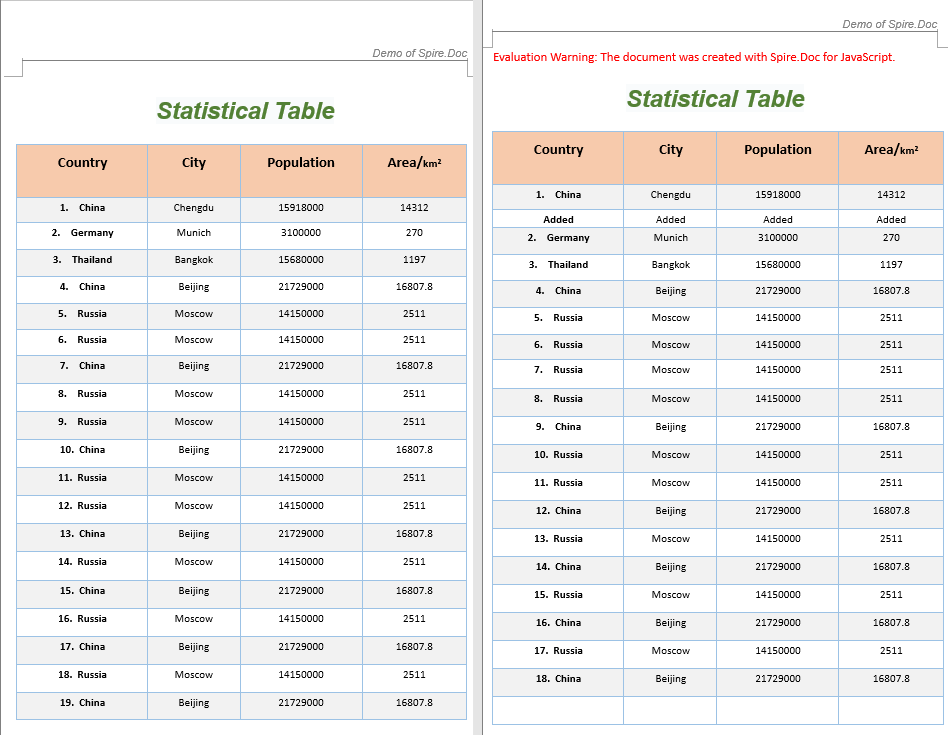
The code above performs three row operations on an existing table: deleting row 8, inserting a new row containing "Added" text after row 2, and appending an empty row at the end of the table.
Add and Remove Columns
In table structure adjustment scenarios, it is often necessary to add new field columns or remove redundant ones. Since Spire.Doc's table column operations are implemented by manipulating cells row by row, custom AddColumn and RemoveColumn helper functions are needed: to add a column, iterate through each row and insert a new blank cell at the specified index; to remove a column, iterate through each row and delete the cell at the specified index.
function AddColumn(table, columnIndex) {
  let wasmModule = window.wasmModule.spiredoc;
  for (let r = 0; r < table.Rows.Count; r++) {
    let addCell = new wasmModule.TableCell(table.Document);
    table.Rows.get_Item(r).Cells.Insert(columnIndex, addCell);
  }
}

function RemoveColumn(table, columnIndex) {
  for (let r = 0; r < table.Rows.Count; r++) {
    table.Rows.get_Item(r).Cells.RemoveAt(columnIndex);
  }
}

function App() {
  const AddOrRemoveColumn = async () => {
    // Get the Spire.Doc WASM module
    const wasmModule = window.wasmModule?.spiredoc;

    // Check if the module is ready
    if (!wasmModule) {
      alert('Spire.Doc is not ready yet');
      return;
    }

    // Load fonts and the document file into VFS
    await window.spire.FetchFileToVFS('ARIALUNI.TTF', '/Library/Fonts/', `${process.env.PUBLIC_URL}/font/`);

    // Load the sample file into VFS
    let inputFileName = "TableSample.docx";
    await window.spire.FetchFileToVFS(inputFileName, "", `${process.env.PUBLIC_URL}/data/`);

    // Load the document
    let doc = new wasmModule.Document();
    doc.LoadFromFile(inputFileName);

    // Get the first section and first table
    let section = doc.Sections.get_Item(0);
    let table = section.Tables.get_Item(0);

    // Insert a blank column before column 0
    let columnIndex1 = 0;
    AddColumn(table, columnIndex1);

    // Delete column 2
    let columnIndex2 = 2;
    RemoveColumn(table, columnIndex2);

    // Define the output file name
    const outputFileName = "AddOrRemoveColumn_output.docx";

    // Save the document
    doc.SaveToFile({ fileName: outputFileName, fileFormat: wasmModule.FileFormat.Docx2013 });

    // Release resources
    doc.Close();
    doc.Dispose();

    // Read the generated file from VFS and trigger download
    const modifiedFileArray = window.dotnetRuntime.Module.FS.readFile(outputFileName);
    const blob = new Blob([modifiedFileArray], { type: 'application/vnd.openxmlformats-officedocument.wordprocessingml.document'});
    const url = URL.createObjectURL(blob);
    const a = document.createElement('a');
    a.href = url;
    a.download = outputFileName;
    a.click();
    URL.revokeObjectURL(url);
  };

  return (
    <div style={{ textAlign: 'center', height: '300px' }}>
      <h1>Add And Remove Columns In Word Table</h1>
      <button onClick={AddOrRemoveColumn}>
        Generate
      </button>
    </div>
  );
}

export default App;
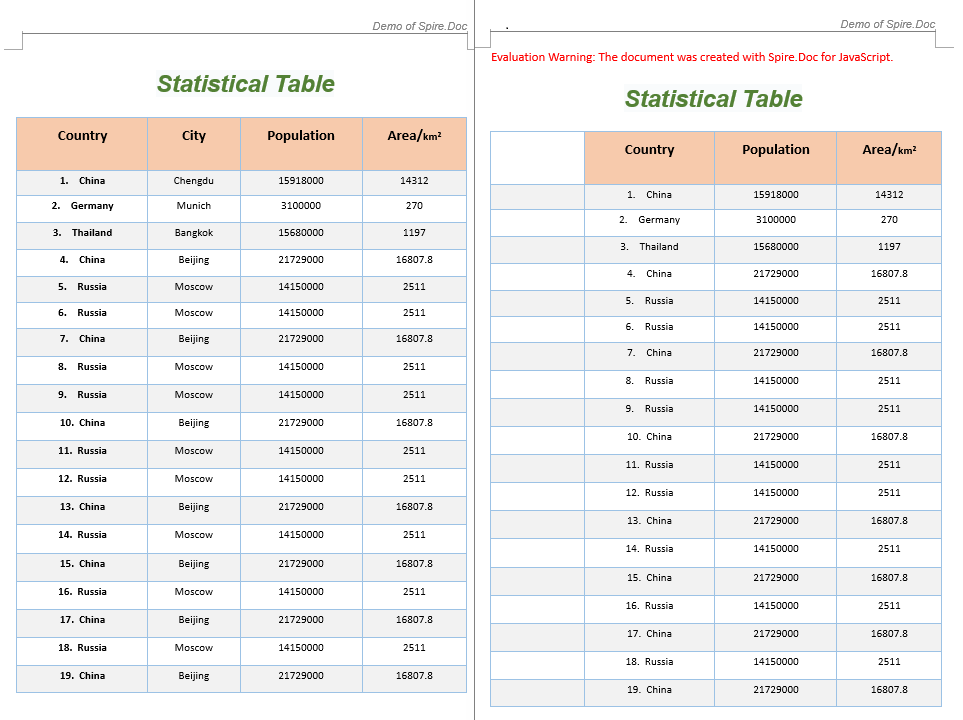
The code above inserts a blank column at column index 0 and removes column 2.
FAQ
Table data is garbled after deleting a row
Cause: When the table contains merged cells, deleting a row by index can cause subsequent row indices to shift, breaking the merged cell structure.
Solution: Before deleting, check whether the target row participates in a merge. If the row contains merged cells, unmerge them first before performing the deletion:
// Check the cell's merge state before deleting
let cell = table.Rows.get_Item(rowIndex).Cells.get_Item(0);
let verticalMerge = cell.CellFormat.VerticalMerge;
if (verticalMerge === wasmModule.CellMerge.None) {
  table.Rows.RemoveAt(rowIndex);
} else {
  console.warn("This row contains merged cells; consider handling the merge state first");
}
Newly added column appears blank in the document
Cause: The AddColumn function only inserts blank TableCell objects without adding paragraphs and text content to the new cells.
Solution: After inserting cells, iterate through the new column and add paragraphs with text:
function AddColumn(table, columnIndex) {
  let wasmModule = window.wasmModule.spiredoc;
  for (let r = 0; r < table.Rows.Count; r++) {
    let addCell = new wasmModule.TableCell(table.Document);
    let paragraph = addCell.AddParagraph();
    paragraph.AppendText("New Column");
    table.Rows.get_Item(r).Cells.Insert(columnIndex, addCell);
  }
}
Index out of bounds when deleting a column
Cause: The column index passed exceeds the maximum column count of the current table, or the row column counts are inconsistent.
Solution: Before deleting, get the column count from the first row as a reference and ensure the index is within range:
let maxColIndex = table.Rows.get_Item(0).Cells.Count - 1;
if (columnIndex <= maxColIndex) {
  RemoveColumn(table, columnIndex);
}
Get a Free License
If you wish to remove the evaluation message from the resulting document, or to eliminate functional limitations, please contact our sales team to request a 30-day temporary license.
