Merging and splitting table cells is one of the most common table editing operations in Word document development — whether creating report headers with cross-column titles or grouping products across rows, cell merging makes table structures clearer and more organized. Spire.Doc for JavaScript runs entirely in the browser via WebAssembly, using a virtual file system (VFS) to manage fonts and file resources — no backend server required.
This article covers three core features:
For installation and project setup, refer to Integrating Spire.Doc for JavaScript in a React Project. The examples below assume Spire.Doc is installed and the WebAssembly module is initialized.
Merge and Split Cells
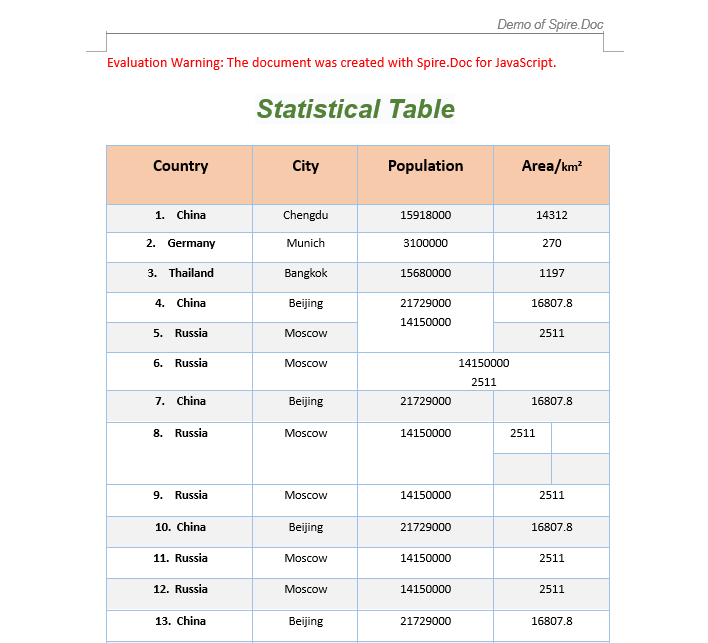
A common task in real-world development is adjusting the structure of an existing table: merging adjacent cells into one, or splitting a single cell into multiple rows and columns. Spire.Doc provides ApplyHorizontalMerge, ApplyVerticalMerge, and SplitCell methods for horizontal merging, vertical merging, and splitting respectively. The workflow involves three steps: first, load font files and the target Word file into the WASM virtual file system via FetchFileToVFS; then instantiate a Document, load the file, retrieve the target table, and call the merge or split methods; finally, save the document, read the generated file from VFS, wrap it as a Blob, and trigger a browser download.
function App() {
  const MergeAndSplitTableCell = async () => {
    // Get the Spire.Doc WASM module
    const wasmModule = window.wasmModule?.spiredoc;

    // Check if the module is ready
    if (!wasmModule) {
      alert('Spire.Doc is not ready yet');
      return;
    }

    // Load the sample Word file into VFS
    let inputFileName = "TableSample.docx";
    await window.spire.FetchFileToVFS(inputFileName, "", `${process.env.PUBLIC_URL}/data/`);

    // Load the document
    let doc = new wasmModule.Document();
    doc.LoadFromFile(inputFileName);
    let section = doc.Sections.get_Item(0);
    let table = section.Tables.get_Item(0);

    // Horizontal merge: merge columns 2 and 3 in row 6
    table.ApplyHorizontalMerge(6, 2, 3);
    // Vertical merge: merge rows 4 and 5 in column 2
    table.ApplyVerticalMerge(2, 4, 5);
    // Split cell: split the cell at row 8, column 3 into 2 rows and 2 columns
    table.Rows.get_Item(8).Cells.get_Item(3).SplitCell(2, 2);

    // Define the output file name
    const outputFileName = "MergeAndSplitTableCell_output.docx";

    // Save the document
    doc.SaveToFile({ fileName: outputFileName, fileFormat: wasmModule.FileFormat.Docx2013 });

    // Release resources
    doc.Dispose();

    // Read the generated file from VFS and trigger download
    const modifiedFileArray = window.dotnetRuntime.Module.FS.readFile(outputFileName);
    const blob = new Blob([modifiedFileArray], { type: 'application/vnd.openxmlformats-officedocument.wordprocessingml.document' });
    const url = URL.createObjectURL(blob);
    const a = document.createElement('a');
    a.href = url;
    a.download = outputFileName;
    a.click();
    URL.revokeObjectURL(url);
  };

  return (
    <div style={{ textAlign: 'center', height: '300px' }}>
      <h1>Merge and Split Table Cells</h1>
      <button onClick={MergeAndSplitTableCell}>
        Generate
      </button>
    </div>
  );
}

export default App;
Format Merged Cells
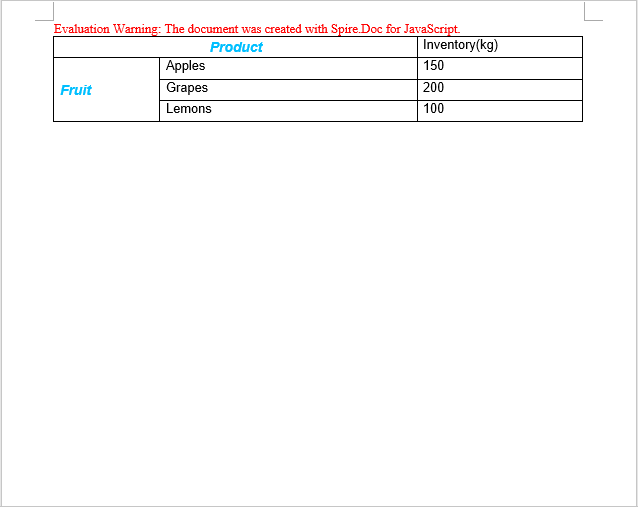
After merging cells, you typically need to format the merged area — setting font styles, alignment, and background colors — to improve table readability and visual appeal. The following example demonstrates how to create a product price table, merge the "Product" header cell and the version category cells on the left, and apply custom styling.
function AddTable(section) {
  let wasmModule = window.wasmModule.spiredoc;
  let table = section.AddTable({ showBorder: true });
  table.ResetCells(4, 3);
  // Table data
  let dt = [["Product", "", "Inventory(kg)"],
  ["Fruit", "Apples", "150"],
  ["", "Grapes", "200"],
  ["", "Lemons", "100"]];

  for (let r = 0; r < dt.length; r++) {
    let dataRow = table.Rows.get_Item(r);
    dataRow.Height = 20;
    dataRow.HeightType = wasmModule.TableRowHeightType.Exactly;
    for (let i = 0; i < dataRow.Cells.Count; i++) {
      dataRow.Cells.get_Item(i).CellFormat.Shading.BackgroundPatternColor = wasmModule.Color.Empty;
    }
    for (let c = 0; c < dataRow.Cells.Count; c++) {
      if (dt[r][c] !== "") {
        let range = dataRow.Cells.get_Item(c).AddParagraph().AppendText(dt[r][c]);
        range.CharacterFormat.FontName = "Arial";
      }
    }
  }
  return table;
}

function App() {
  const FormatMergedCells = async () => {
    // Get the Spire.Doc WASM module
    const wasmModule = window.wasmModule?.spiredoc;

    // Check if the module is ready
    if (!wasmModule) {
      alert('Spire.Doc is not ready yet');
      return;
    }

    // Create a Word document
    let doc = new wasmModule.Document();
    let section = doc.AddSection();

    // Add a table
    let table = AddTable(section);

    // Create a custom style
    let style = new wasmModule.ParagraphStyle(doc);
    style.Name = "Style";
    style.CharacterFormat.TextColor = wasmModule.Color.get_DeepSkyBlue();
    style.CharacterFormat.Italic = true;
    style.CharacterFormat.Bold = true;
    style.CharacterFormat.FontSize = 13;
    doc.Styles.Add(style);

    // Horizontal merge: merge columns 0 and 1 in row 0
    table.ApplyHorizontalMerge(0, 0, 1);
    // Apply the style
    table.Rows.get_Item(0).Cells.get_Item(0).Paragraphs.get_Item(0).ApplyStyle(style.Name);
    // Set vertical and horizontal alignment
    table.Rows.get_Item(0).Cells.get_Item(0).CellFormat.VerticalAlignment = wasmModule.VerticalAlignment.Middle;
    table.Rows.get_Item(0).Cells.get_Item(0).Paragraphs.get_Item(0).Format.HorizontalAlignment = wasmModule.HorizontalAlignment.Center;

    // Vertical merge: merge rows 1, 2, and 3 in column 0
    table.ApplyVerticalMerge(0, 1, 3);
    // Apply the style
    table.Rows.get_Item(1).Cells.get_Item(0).Paragraphs.get_Item(0).ApplyStyle(style.Name);
    // Set vertical and horizontal alignment
    table.Rows.get_Item(1).Cells.get_Item(0).CellFormat.VerticalAlignment = wasmModule.VerticalAlignment.Middle;
    table.Rows.get_Item(1).Cells.get_Item(0).Paragraphs.get_Item(0).Format.HorizontalAlignment = wasmModule.HorizontalAlignment.Left;
    // Set column width
    table.Rows.get_Item(1).Cells.get_Item(0).SetCellWidth(20, wasmModule.CellWidthType.Percentage);

    // Define the output file name
    const outputFileName = "FormatMergedCells_output.docx";

    // Save the document
    doc.SaveToFile({ fileName: outputFileName, fileFormat: wasmModule.FileFormat.Docx2013 });

    // Release resources
    doc.Dispose();

    // Read the generated file from VFS and trigger download
    const modifiedFileArray = window.dotnetRuntime.Module.FS.readFile(outputFileName);
    const blob = new Blob([modifiedFileArray], { type: 'application/vnd.openxmlformats-officedocument.wordprocessingml.document' });
    const url = URL.createObjectURL(blob);
    const a = document.createElement('a');
    a.href = url;
    a.download = outputFileName;
    a.click();
    URL.revokeObjectURL(url);
  };

  return (
    <div style={{ textAlign: 'center', height: '300px' }}>
      <h1>Format Merged Cells</h1>
      <button onClick={FormatMergedCells}>
        Generate
      </button>
    </div>
  );
}

export default App;
Check Cell Merge Status
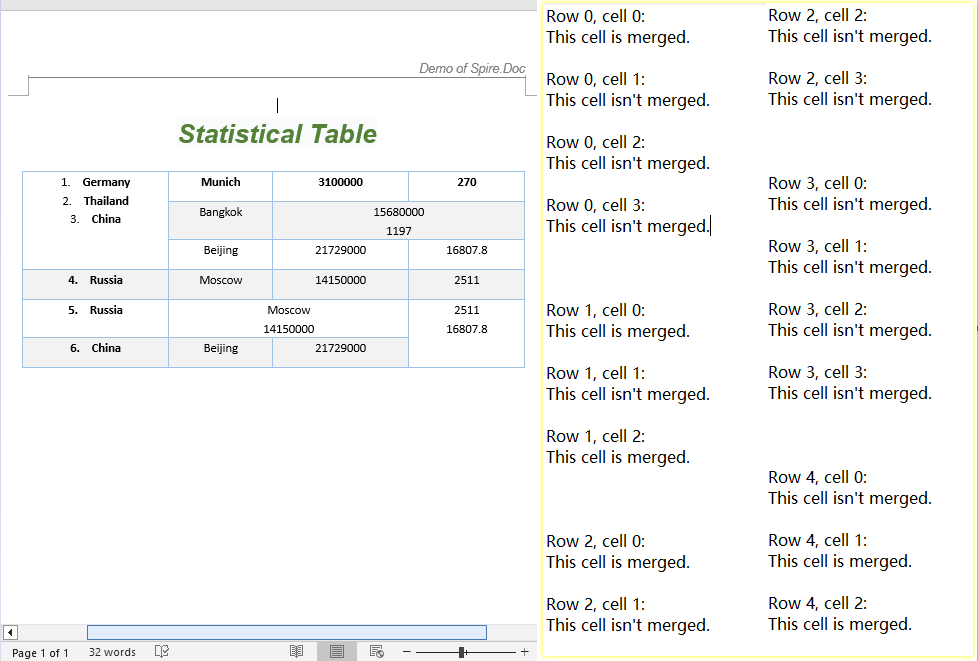
When working with tables created by others or generated by automated processes, you often need to identify which cells have been merged to avoid index-out-of-bounds errors. Spire.Doc provides two properties — CellFormat.VerticalMerge and Cell.GridSpan — to detect cell merge status: VerticalMerge indicates vertical merging, and GridSpan indicates the number of columns a cell spans horizontally.
function App() {
  const CellMergeStatus = async () => {
    // Get the Spire.Doc WASM module
    const wasmModule = window.wasmModule?.spiredoc;

    // Check if the module is ready
    if (!wasmModule) {
      alert('Spire.Doc is not ready yet');
      return;
    }

    // Load the sample file into VFS
    let inputFileName = "CellMergeStatus.docx";
    await window.spire.FetchFileToVFS(inputFileName, "", `${process.env.PUBLIC_URL}/data/`);

    // Load the document
    let doc = new wasmModule.Document();
    doc.LoadFromFile(inputFileName);

    // Get the first section and first table
    let section = doc.Sections.get_Item(0);
    let table = section.Tables.get_Item(0);

    // Iterate through all cells to detect merge status
    let stringBuidler = [];
    for (let i = 0; i < table.Rows.Count; i++) {
      let tableRow = table.Rows.get_Item(i);
      for (let j = 0; j < tableRow.Cells.Count; j++) {
    let tableCell = tableRow.Cells.get_Item(j);
    let verticalMerge = tableCell.CellFormat.VerticalMerge;
    let horizontalMerge = tableCell.GridSpan;
    if (verticalMerge === wasmModule.CellMerge.None && horizontalMerge === 1) {
      stringBuidler.push("Row " + i + ", cell " + j + ": ");
      stringBuidler.push("This cell isn't merged.\n");
    } else {
      stringBuidler.push("Row " + i + ", cell " + j + ": ");
      stringBuidler.push("This cell is merged.\n");
    }
      }
      stringBuidler.push("\n");
    }

    // Define the output file name
    const outputFileName = "CellMergeStatus_output.txt";

    // Write the detection result to a text file
    window.dotnetRuntime.Module.FS.writeFile(outputFileName, stringBuidler.join('\n'));

    // Read the generated file from VFS and trigger download
    const modifiedFileArray = window.dotnetRuntime.Module.FS.readFile(outputFileName);
    const blob = new Blob([modifiedFileArray], { type: "text/plain" });
    const url = URL.createObjectURL(blob);
    const a = document.createElement('a');
    a.href = url;
    a.download = outputFileName;
    a.click();
    URL.revokeObjectURL(url);
  };

  return (
    <div style={{ textAlign: 'center', height: '300px' }}>
      <h1>Check Cell Merge Status</h1>
      <button onClick={CellMergeStatus}>
        Generate
      </button>
    </div>
  );
}

export default App;
FAQ
How to verify if a cell merge was successful
Cause: Merge operations do not return a status value — you need to read cell properties to confirm.
Solution: Use CellFormat.VerticalMerge to check the vertical merge type (CellMerge.None means not merged), and Cell.GridSpan to check the number of columns spanned horizontally (a value of 1 means not merged):
let verticalMerge = tableCell.CellFormat.VerticalMerge;
let horizontalMerge = tableCell.GridSpan;
if (verticalMerge === wasmModule.CellMerge.None && horizontalMerge === 1) {
  // Not merged
} else {
  // Merged
}
Content lost after splitting a cell
Cause: When SplitCell splits a cell into multiple sub-cells, the original content remains in the first sub-cell by default.
Solution: Manually iterate through the sub-cells to redistribute content after splitting, or back up the cell text via the Paragraphs collection beforehand:
// Back up the content
let cell = table.Rows.get_Item(row).Cells.get_Item(col);
let text = cell.Paragraphs.get_Item(0).Text;

// Split into 2 rows and 2 columns
cell.SplitCell(2, 2);

// Write the content to the new cell
table.Rows.get_Item(row).Cells.get_Item(col).Paragraphs.get_Item(0).AppendText(text);
Index out of range when merging cells
Cause: ApplyHorizontalMerge(row, startCol, endCol) and ApplyVerticalMerge(col, startRow, endRow) use zero-based indexing. Passing indices that exceed the table's actual row or column count will throw an error.
Solution: Check the table dimensions before merging to ensure the end index does not exceed Rows.Count - 1 and Cells.Count - 1:
if (endCol < table.Rows.get_Item(row).Cells.Count && endRow < table.Rows.Count) {
  table.ApplyHorizontalMerge(row, startCol, endCol);
}
Get a Free License
Spire.Doc for JavaScript offers a 30-day full-featured free trial license with no functional limitations. Apply here to evaluate before purchasing.
