Headers and footers are essential parts of any Word document — headers typically hold a company logo or document title, while footers display page numbers, copyright notices, and other supplementary information. Spire.Doc for JavaScript leverages WebAssembly to create and edit Word documents directly in the browser, managing fonts and file resources through a virtual file system (VFS) with no backend server required.
This article covers three core features:
- Add headers and footers (image, text, page number)
- Set a different header/footer for the first page
- Set different headers and footers for odd and even pages
For installation and project setup, refer to Integrating Spire.Doc for JavaScript in a React Project. The examples below assume Spire.Doc is installed and the WebAssembly module is initialized.
Add Headers and Footers (Image, Text, Page Number)
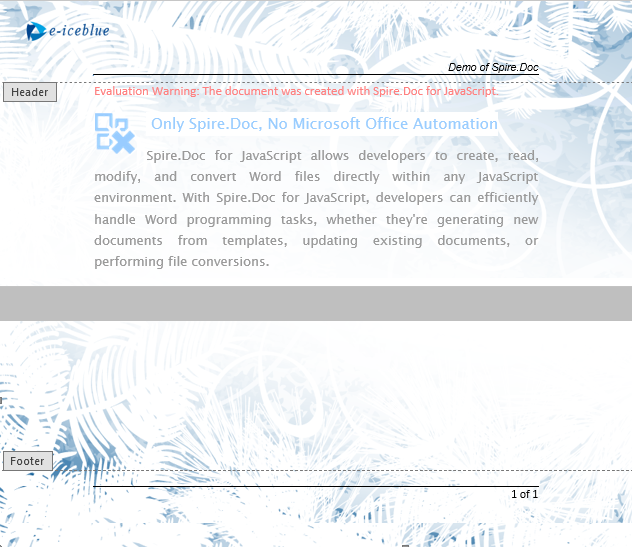
In real-world development, the most common requirement is adding headers and footers to a document: inserting a company logo and document title in the header, and page numbers with copyright information in the footer. Spire.Doc provides the HeadersFooters.Header and HeadersFooters.Footer properties to access header and footer objects, then uses AppendPicture to insert images, AppendText to insert text, and AppendField to insert page number fields. The core workflow has three phases: first, load font files and the target Word document into the WASM virtual file system via FetchFileToVFS; then instantiate a Document, load the file, retrieve the section, and call a custom function to populate the header and footer content; finally, save the document, read the generated file from VFS, wrap it as a Blob, and trigger a browser download.
function InsertHeaderAndFooter(section, inputImgFileName, inputImgFileName_1) {
    let wasmModule = window.wasmModule.spiredoc;
    let header = section.HeadersFooters.Header;
    let footer = section.HeadersFooters.Footer;

    // Insert an image and text in the header
    let headerParagraph = header.AddParagraph();

    let headerPicture = headerParagraph.AppendPicture({ imgFile: inputImgFileName });
    // Header text
    let text = headerParagraph.AppendText("Demo of Spire.Doc");
    text.CharacterFormat.FontName = "Arial";
    text.CharacterFormat.FontSize = 10;
    text.CharacterFormat.Italic = true;
    headerParagraph.Format.HorizontalAlignment = wasmModule.HorizontalAlignment.Right;

    // Bottom border for the header
    headerParagraph.Format.Borders.Bottom.BorderType = wasmModule.BorderStyle.Single;
    headerParagraph.Format.Borders.Bottom.Space = 0.05;

    // Header image layout - text wrapping
    headerPicture.TextWrappingStyle = wasmModule.TextWrappingStyle.Behind;

    // Header image layout - position
    headerPicture.HorizontalOrigin = wasmModule.HorizontalOrigin.Page;
    headerPicture.HorizontalAlignment = wasmModule.ShapeHorizontalAlignment.Left;
    headerPicture.VerticalOrigin = wasmModule.VerticalOrigin.Page;
    headerPicture.VerticalAlignment = wasmModule.ShapeVerticalAlignment.Top;

    // Insert an image in the footer
    let footerParagraph = footer.AddParagraph();

    let footerPicture = footerParagraph.AppendPicture({ imgFile: inputImgFileName_1 });

    // Footer image layout
    footerPicture.TextWrappingStyle = wasmModule.TextWrappingStyle.Behind;
    footerPicture.HorizontalOrigin = wasmModule.HorizontalOrigin.Page;
    footerPicture.HorizontalAlignment = wasmModule.ShapeHorizontalAlignment.Left;
    footerPicture.VerticalOrigin = wasmModule.VerticalOrigin.Page;
    footerPicture.VerticalAlignment = wasmModule.ShapeVerticalAlignment.Bottom;

    // Insert page number
    footerParagraph.AppendField("page number", wasmModule.FieldType.FieldPage);
    footerParagraph.AppendText(" of ");
    footerParagraph.AppendField("number of pages", wasmModule.FieldType.FieldNumPages);
    footerParagraph.Format.HorizontalAlignment = wasmModule.HorizontalAlignment.Right;

    // Top border for the footer
    footerParagraph.Format.Borders.Top.BorderType = wasmModule.BorderStyle.Single;
    footerParagraph.Format.Borders.Top.Space = 0.05;
}

function App() {
  const AddHeaderAndFooter = async () => {
    // Get the Spire.Doc WASM module
    const wasmModule = window.wasmModule?.spiredoc;

    // Check if the module is ready
    if (!wasmModule) {
      alert('Spire.Doc is not ready yet');
      return;
    }

    // Load the sample Word file into VFS
    const inputFileName = "Sample.docx";
    await window.spire.FetchFileToVFS(inputFileName, "", `${process.env.PUBLIC_URL}/data/`);

    const inputImgFileName = "Header.png";
    await window.spire.FetchFileToVFS(inputImgFileName, "", `${process.env.PUBLIC_URL}/data/`);

    const inputImgFileName_1 = "Footer.png";
    await window.spire.FetchFileToVFS(inputImgFileName_1, "", `${process.env.PUBLIC_URL}/data/`);

    // Load the document
    let doc = new wasmModule.Document();
    doc.LoadFromFile(inputFileName);
    let section = doc.Sections.get_Item(0);

    // Insert header and footer
    InsertHeaderAndFooter(section, inputImgFileName, inputImgFileName_1);

    // Define the output file name
    const outputFileName = "HeaderAndFooter.docx";

    // Save the document
    doc.SaveToFile({ fileName: outputFileName, fileFormat: wasmModule.FileFormat.Docx2013 });

    // Release resources
    doc.Close();
    doc.Dispose();

    // Read the generated file from VFS and trigger download
    const modifiedFileArray = window.dotnetRuntime.Module.FS.readFile(outputFileName);
    const blob = new Blob([modifiedFileArray], { type: 'application/vnd.openxmlformats-officedocument.wordprocessingml.document'});
    const url = URL.createObjectURL(blob);
    const a = document.createElement('a');
    a.href = url;
    a.download = outputFileName;
    a.click();
    URL.revokeObjectURL(url);
  };

  return (
    <div style={{ textAlign: 'center', height: '300px' }}>
      <h1>Add Headers And Footers To Word Document</h1>
      <button onClick={AddHeaderAndFooter}>
        Generate
      </button>
    </div>
  );
}

export default App;
Header and footer with image, text, and page numbers applied
Set a Different Header/Footer for the First Page
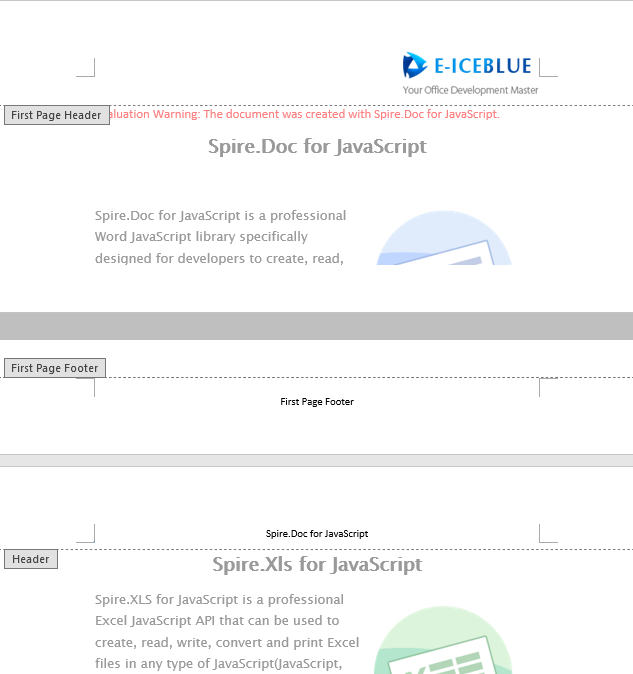
In many real-world scenarios, the first page (cover page) of a document needs different headers and footers than the rest of the pages, or even no headers and footers at all. Spire.Doc enables this by setting PageSetup.DifferentFirstPageHeaderFooter = true. The first page content is configured via HeadersFooters.FirstPageHeader / FirstPageFooter, while the remaining pages use HeadersFooters.Header / Footer.
function App() {
  const DifferentFirstPage = async () => {
    // Get the Spire.Doc WASM module
    const wasmModule = window.wasmModule?.spiredoc;

    // Check if the module is ready
    if (!wasmModule) {
      alert('Spire.Doc is not ready yet');
      return;
    }

     // Load the sample file into VFS
    let inputFileName = "MultiplePages.docx";
    await window.spire.FetchFileToVFS(inputFileName, "", `${process.env.PUBLIC_URL}/data/`);
    let inputImgFileName = "E-iceblue.png";
    await window.spire.FetchFileToVFS(inputImgFileName, "", `${process.env.PUBLIC_URL}/data/`);

    // Load the document
    let doc = new wasmModule.Document();
    doc.LoadFromFile(inputFileName);

    // Get the section and enable a different first-page header/footer
    let section = doc.Sections.get_Item(0);
    section.PageSetup.DifferentFirstPageHeaderFooter = true;

    // Set the first page header: insert an image aligned to the right
    let paragraph1 = section.HeadersFooters.FirstPageHeader.AddParagraph();
    paragraph1.Format.HorizontalAlignment = wasmModule.HorizontalAlignment.Right;
    let headerimage = paragraph1.AppendPicture({ imgFile: inputImgFileName });

    // Set the first page footer: centered text
    let paragraph2 = section.HeadersFooters.FirstPageFooter.AddParagraph();
    paragraph2.Format.HorizontalAlignment = wasmModule.HorizontalAlignment.Center;
    let FF = paragraph2.AppendText("First Page Footer");
    FF.CharacterFormat.FontSize = 10;

    // Set headers and footers for the other pages
    let paragraph3 = section.HeadersFooters.Header.AddParagraph();
    paragraph3.Format.HorizontalAlignment = wasmModule.HorizontalAlignment.Center;
    let NH = paragraph3.AppendText("Spire.Doc for JavaScript");
    NH.CharacterFormat.FontSize = 10;

    let paragraph4 = section.HeadersFooters.Footer.AddParagraph();
    paragraph4.Format.HorizontalAlignment = wasmModule.HorizontalAlignment.Center;
    let NF = paragraph4.AppendText("E-iceblue");
    NF.CharacterFormat.FontSize = 10;

    // Define the output file name
    const outputFileName = "DifferentFirstPage.docx";

    // Save the document
    doc.SaveToFile({ fileName: outputFileName, fileFormat: wasmModule.FileFormat.Docx2013 });

    // Release resources
    doc.Close();
    doc.Dispose();

    // Read the generated file from VFS and trigger download
    const modifiedFileArray = window.dotnetRuntime.Module.FS.readFile(outputFileName);
    const blob = new Blob([modifiedFileArray], { type: 'application/vnd.openxmlformats-officedocument.wordprocessingml.document'});
    const url = URL.createObjectURL(blob);
    const a = document.createElement('a');
    a.href = url;
    a.download = outputFileName;
    a.click();
    URL.revokeObjectURL(url);
  };

  return (
    <div style={{ textAlign: 'center', height: '300px' }}>
      <h1>Set Different First Page Header And Footer</h1>
      <button onClick={DifferentFirstPage}>
        Generate
      </button>
    </div>
  );
}

export default App;
The first page displays separate header and footer content, while the other pages use unified headers and footers.
Set Different Headers and Footers for Odd and Even Pages
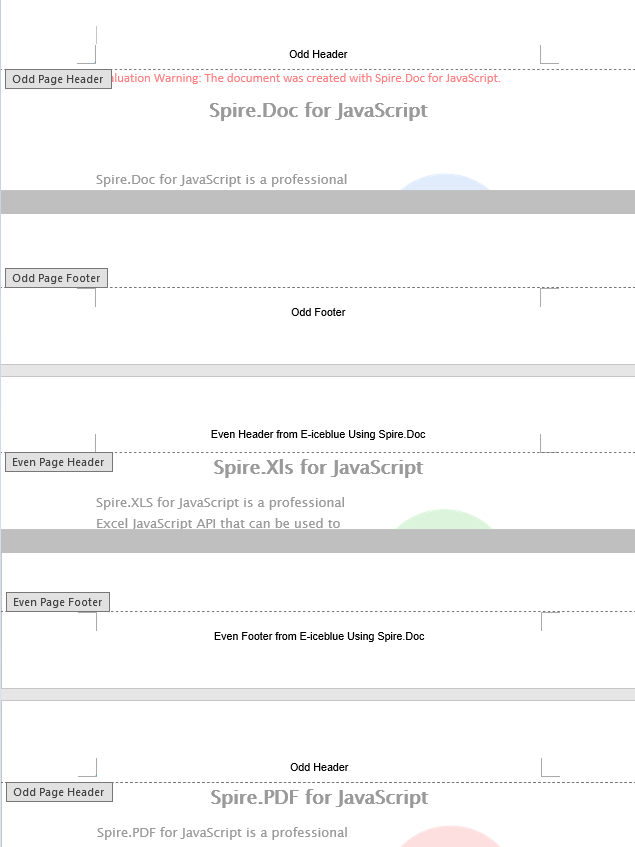
For documents intended for duplex printing or book layout, it is common to use different headers and footers for odd and even pages — for example, odd-page headers show the chapter name aligned to the right, while even-page headers show the book title aligned to the left. Spire.Doc enables this by setting PageSetup.DifferentOddAndEvenPagesHeaderFooter = true, then configuring content via OddHeader / OddFooter and EvenHeader / EvenFooter respectively.
function App() {
  const OddAndEvenHeaderFooter = async () => {
    // Get the Spire.Doc WASM module
    const wasmModule = window.wasmModule?.spiredoc;

    // Check if the module is ready
    if (!wasmModule) {
      alert('Spire.Doc is not ready yet');
      return;
    }

      // Load the sample file into VFS
    let inputFileName = "MultiplePages.docx";
    await window.spire.FetchFileToVFS(inputFileName, "", `${process.env.PUBLIC_URL}/data/`);

    // Load the document
    let doc = new wasmModule.Document();
    doc.LoadFromFile(inputFileName);

    // Get the first section
    let section = doc.Sections.get_Item(0);

    // Enable different odd and even page headers/footers
    section.PageSetup.DifferentOddAndEvenPagesHeaderFooter = true;

    // Add odd page header
    let P3 = section.HeadersFooters.OddHeader.AddParagraph();
    let OH = P3.AppendText("Odd Header");
    P3.Format.HorizontalAlignment = wasmModule.HorizontalAlignment.Center;
    OH.CharacterFormat.FontName = "Arial";
    OH.CharacterFormat.FontSize = 10;

    // Add even page header
    let P4 = section.HeadersFooters.EvenHeader.AddParagraph();
    let EH = P4.AppendText("Even Header from E-iceblue Using Spire.Doc");
    P4.Format.HorizontalAlignment = wasmModule.HorizontalAlignment.Center;
    EH.CharacterFormat.FontName = "Arial";
    EH.CharacterFormat.FontSize = 10;

    // Add odd page footer
    let P2 = section.HeadersFooters.OddFooter.AddParagraph();
    let OF = P2.AppendText("Odd Footer");
    P2.Format.HorizontalAlignment = wasmModule.HorizontalAlignment.Center;
    OF.CharacterFormat.FontName = "Arial";
    OF.CharacterFormat.FontSize = 10;

    // Add even page footer
    let P1 = section.HeadersFooters.EvenFooter.AddParagraph();
    let EF = P1.AppendText("Even Footer from E-iceblue Using Spire.Doc");
    EF.CharacterFormat.FontName = "Arial";
    EF.CharacterFormat.FontSize = 10;
    P1.Format.HorizontalAlignment = wasmModule.HorizontalAlignment.Center;

    // Define the output file name
    const outputFileName = "OddAndEvenHeaderFooter_output.docx";

    // Save the document
    doc.SaveToFile({ fileName: outputFileName, fileFormat: wasmModule.FileFormat.Docx2013 });

    // Release resources
    doc.Close();
    doc.Dispose();

    // Read the generated file from VFS and trigger download
    const modifiedFileArray = window.dotnetRuntime.Module.FS.readFile(outputFileName);
    const blob = new Blob([modifiedFileArray], { type: 'application/vnd.openxmlformats-officedocument.wordprocessingml.document'});
    const url = URL.createObjectURL(blob);
    const a = document.createElement('a');
    a.href = url;
    a.download = outputFileName;
    a.click();
    URL.revokeObjectURL(url);
  };

  return (
    <div style={{ textAlign: 'center', height: '300px' }}>
      <h1>Set Odd And Even Page Headers And Footers</h1>
      <button onClick={OddAndEvenHeaderFooter}>
        Generate
      </button>
    </div>
  );
}

export default App;
Different header and footer text is applied to odd and even pages.
FAQ
First-page header/footer does not display as expected
Cause: The DifferentFirstPageHeaderFooter property defaults to false. Editing FirstPageHeader or FirstPageFooter directly without enabling it has no effect.
Solution: Set the property to true before editing the first-page header/footer:
section.PageSetup.DifferentFirstPageHeaderFooter = true;
// Then edit FirstPageHeader / FirstPageFooter
Odd/even page settings do not take effect
Cause: The DifferentOddAndEvenPagesHeaderFooter property defaults to false. Editing OddHeader / EvenHeader directly without enabling it has no effect.
Solution: Enable the property before editing odd/even page content:
section.PageSetup.DifferentOddAndEvenPagesHeaderFooter = true;
// Then edit OddHeader / EvenHeader / OddFooter / EvenFooter
Get a Free License
If you wish to remove the evaluation message from the resulting document, or to eliminate functional limitations, please contact our sales team to request a 30-day temporary license.
