Whenever the same content has to go out to different recipients, Word's mail merge is the least painful way to do it: the parts that vary (the recipient, the fax number, the date) stay in the template as merge fields, the rest of the layout is fixed, and one set of data is filled in at run time. Doing this in the browser is worth the trouble because the template stays on the server, the data never has to be handed to Office, and the user gets the filled-in document with a single click.
Spire.Doc for JavaScript parses merge fields as a class of document element of their own, and the merge entry point is MailMerge.Execute(fieldNameArray, fieldValueArray): the two arrays correspond by index, and a field that exists in the template but is not supplied in the arrays is merged as empty.
This article covers two core features:
For installation and project setup, refer to Integrating Spire.Doc for JavaScript in a React Project. The examples below assume Spire.Doc is installed and the WebAssembly module is initialized.
Execute a Mail Merge
Prepare the Template
The template is an ordinary customer contact letter, with the four places that change with the data turned into merge fields:
To: «Contact Name»
From: Customer Service
Subject: Requirement Confirmation
Fax.: «Fax»          Date: «Date»

Message:
Dear «Contact Name»,
Thank you for getting back to us. We will contact you within two working days to confirm the exact delivery arrangements.
Sincerely,
Customer Service
The «Contact Name», «Fax» and «Date» in the template are how a merge field's placeholder is written in Word (press Ctrl + F9 at the field position, then type MERGEFIELD <name>). Note that Contact Name contains a space, so Word writes it in quoted form in the field code, MERGEFIELD "Contact Name"; when the name is passed to Execute in the code below the quotes are dropped, and only the name itself, "Contact Name", is written.
Code
function App() {
  const MailMerge = async () => {
    // Get the Spire.Doc WASM module
    const docModule = window.wasmModule?.spiredoc;

    // Check if the module is ready
    if (!docModule) {
      alert('Spire.Doc is not ready yet');
      return;
    }
    // Load the sample template into the virtual file system (VFS)
    let inputFileName = "MailMerge.docx";
    await window.spire.FetchFileToVFS(inputFileName, "", `${process.env.PUBLIC_URL}static/data/`);

    // Create a document and load the template
    const doc = new docModule.Document();
    doc.LoadFromFile(inputFileName);

    // Field names and field values correspond by index
    let fieldNames = ["Contact Name", "Fax", "Date"];
    let fieldValues = ["John Smith", "+1 (69) 123456", docModule.DateTime.get_Now().Date.ToString()];

    // Execute the mail merge
    doc.MailMerge.Execute(fieldNames, fieldValues);

    // Define the output file name
    const outputFileName = "MailMerge-result.docx";

    // Save the document
    doc.SaveToFile({ fileName: outputFileName, fileFormat: docModule.FileFormat.Docx2013 });
    doc.Dispose()

    // Read the saved file and convert it to a Blob
    const modifiedFileArray = window.dotnetRuntime.Module.FS.readFile(outputFileName);
    const blob = new Blob([modifiedFileArray], {type: "application/vnd.openxmlformats-officedocument.wordprocessingml.document"});
    const url = URL.createObjectURL(blob);
    const a = document.createElement('a');
    a.href = url;
    a.download = outputFileName;
    a.click();
    URL.revokeObjectURL(url);
  };

  return (
    <div style={{ textAlign: 'center', height: '300px' }}>
      <h1>Merge data into a Word document</h1>
      <button onClick={MailMerge}>Generate</button>
    </div>
  );
}
export default App;
Only one call here is the merge logic itself:
document.MailMerge.Execute(fieldNames, fieldValues);
DateTime.get_Now().Date.ToString() takes the current date and returns a string, which can be passed straight in as a field value — the run of blank space between the Fax value and the Date: label afterwards is decided by the template, and the merge does not touch it.
Result
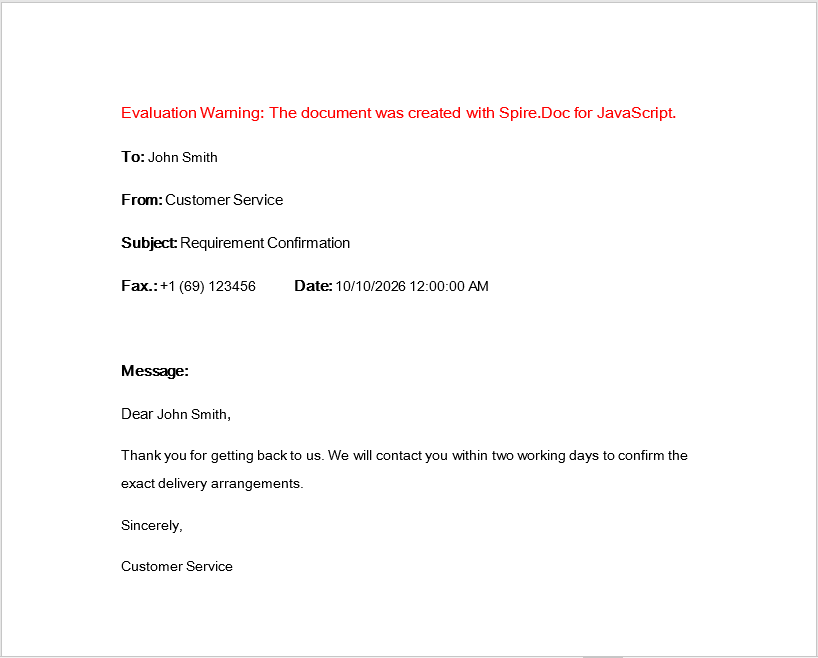
All four fields are replaced and the rest of the template is kept exactly as it was:
To: John Smith
From: Customer Service
Subject: Requirement Confirmation
Fax.: +1 (69) 123456          Date: 10/10/2026 12:00:00 AM

Message:
Dear John Smith,
Thank you for getting back to us. We will contact you within two working days to confirm the exact delivery arrangements.
Sincerely,
Customer Service
Contact Name appears twice and both occurrences take the same value — fields with the same name share one value, so it does not have to be listed twice in the arrays.
Word output after the contact letter has been merged with the data
Format Values by Culture
The output format of that Date.ToString() call is decided by the culture settings of the runtime environment. The same code gives 10/10/2026 12:00:00 AM in an English environment and 2026/10/10 上午12:00:00 on a Chinese Windows machine. If the recipient is in Germany, the correct spelling is 10.10.2026, 10:50:45 — day first, month in the middle, separated by dots.
The most direct way to control that format is to format the value before it ever reaches Execute: the merge itself only puts a string of text where the field is, and how the date is laid out is a matter for the data preparation stage.
Code
This shares the same MailMerge.docx template as the previous example and only swaps the date for a string formatted for the de-DE culture:
function App() {
  const ChangeLocale = async () => {
    // Get the Spire.Doc WASM module
    const docModule = window.wasmModule?.spiredoc;

    // Check if the module is ready
    if (!docModule) {
      alert('Spire.Doc is not ready yet');
      return;
    }
    // Load the sample template into the virtual file system (VFS)
    let inputFileName = "MailMerge.docx";
    await window.spire.FetchFileToVFS(inputFileName, "", `${process.env.PUBLIC_URL}static/data/`);

    // Create a document and load the template
    const doc = new docModule.Document();
    doc.LoadFromFile(inputFileName);

    // Prepare the date string in the German format (day.month.year)
    const now = new Date();
    const datestr = new Intl.DateTimeFormat("de-DE",
      {
        year: 'numeric', month: '2-digit', day: '2-digit',
        hour: "2-digit", minute: '2-digit', second: "2-digit"
      }).format(now);

    // Field names and field values correspond by index
    let fieldNames = ["Contact Name", "Fax", "Date"];
    let fieldValues = ["John Smith", "+1 (69) 123456", datestr];

    // Execute the mail merge
    doc.MailMerge.Execute(fieldNames, fieldValues);

    // Define the output file name
    const outputFileName = "ChangeLocale-result.docx";

    // Save the document
    doc.SaveToFile({ fileName: outputFileName, fileFormat: docModule.FileFormat.Docx2013 });
    doc.Dispose()

    // Read the saved file and convert it to a Blob
    const modifiedFileArray = window.dotnetRuntime.Module.FS.readFile(outputFileName);
    const blob = new Blob([modifiedFileArray], {type: "application/vnd.openxmlformats-officedocument.wordprocessingml.document"});
    const url = URL.createObjectURL(blob);
    const a = document.createElement('a');
    a.href = url;
    a.download = outputFileName;
    a.click();
    URL.revokeObjectURL(url);
  };

  return (
    <div style={{ textAlign: 'center', height: '300px' }}>
      <h1>Merge a de-DE formatted date into a Word document</h1>
      <button onClick={ChangeLocale}>Generate</button>
    </div>
  );
}
export default App;
The template is exactly the same and the merge call is exactly the same; the only thing that changes is where the date string in fieldValues comes from:
const datestr = new Intl.DateTimeFormat("de-DE", { /* … */ }).format(now);
Intl.DateTimeFormat is the browser's built-in formatting tool: the first argument is the locale code, the second the format options. Besides de-DE, the usual ones include en-US (10/10/2026, 10:50:45 AM), fr-FR, ja-JP and so on — switching the locale code switches the whole date convention.
Result
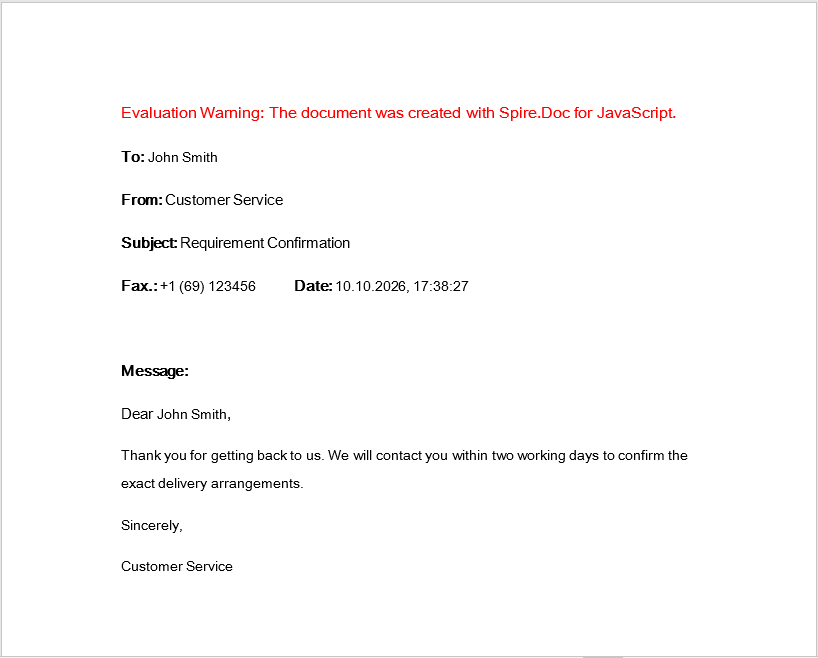
Same template, same set of data, only the way the Date field is written changes:
| Source of the date field | Output |
|---|---|
DateTime.get_Now().Date.ToString() |
Date: 10/10/2026 12:00:00 AM |
Intl.DateTimeFormat("de-DE", …).format(now) |
Date: 10.10.2026, 10:50:45 |
The merged document:
To: John Smith
From: Customer Service
Subject: Requirement Confirmation
Fax.: +1 (69) 123456          Date: 10.10.2026, 10:50:45

Message:
Dear John Smith,
…
Word output after the date has been formatted for the de-DE culture
FAQ
The merged document still contains the «Contact Name» angle brackets
Cause: A merge field's «name» placeholder is the field's result text (what sits between the MERGEFIELD field code and the end marker). A merge only replaces the field's result area — if the « and » in the template were typed as separate text outside the field, they are not part of that field and are naturally left untouched.
Solution: When editing the template in Word, press Ctrl + F9 at the field position to create the field, fill in the field code, and then press F9 to let Word generate the result text; do not type the angle brackets by hand outside the field. When the template is generated from code, the « and » have to be written between the field's separate and end markers, not as a separate run outside the field.
A field name in the array does not match the template and that position is left unfilled
Execute pairs its two arrays by index, and field names are matched case-sensitively. "Contact Name" and "contact name" are treated as two different fields.
A field that appears in the template but is not listed in fieldNames is merged as empty (its result area becomes an empty string rather than keeping the original placeholder). That is exactly how "leave it blank when there is no data" is implemented, but if the intent is to keep the original text, the field name has to be added to the array.
The field name contains a space — how should the field code in the template be written
In a Word field code, a field name containing a space or any other special character has to be wrapped in double quotes:
{ MERGEFIELD "Contact Name" \* MERGEFORMAT }
In JavaScript, what is passed to Execute is the name itself, without quotes:
let fieldNames = ["Contact Name"];
The date format comes out differently on different machines
DateTime.get_Now().Date.ToString() uses the current culture of the runtime environment, so systems with different regional settings and different browsers produce different date strings. For stable output, do what the second feature in this article does: pin the locale code with Intl.DateTimeFormat and pass the result into Execute. Alternatively, take the Date object from Spire's DateTime API and build the string yourself from the standard year, month, day, hour, minute and second properties.
The downloaded docx will not open and is reported as corrupted
Cause: The Blob's MIME type is wrong, or the file is downloaded without being read back from the VFS after it is saved.
Solution: A docx needs the full MIME type declared, and the bytes that are downloaded have to be the ones read from the VFS after SaveToFile:
const modifiedFileArray = window.dotnetRuntime.Module.FS.readFile(outputFileName);
const modifiedFile = new Blob([modifiedFileArray], {
  type: "application/vnd.openxmlformats-officedocument.wordprocessingml.document"
});
Get a Free License
Spire.Doc for JavaScript offers a 30-day full-featured free trial license with no functional limitations. Apply here to evaluate before purchasing.
