In document distribution and collaboration, controlling what a reader may do with a document often matters more than controlling who may open it — when a contract template goes to a client, the client should fill in the blank items without touching the agreed clauses; when a final draft goes to the team, comments should be allowed but the body text should not be edited directly. Requirements like these are met by restricting editing, which is a different concept from setting an open password. Spire.Doc for JavaScript processes Word documents directly in the browser via WebAssembly, using a virtual file system (VFS) to manage fonts and file resources — no backend server required.
This article covers two core features:
For installation and project setup, refer to Integrating Spire.Doc for JavaScript in a React Project. The examples below assume Spire.Doc is installed and the WebAssembly module is initialized.
Protect a Document with a Specified Protection Type
Word's editing restrictions come in five protection types, each covering a different editable scope: NoProtection (no restriction), AllowOnlyComments (comments only), AllowOnlyFormFields (form fields only), AllowOnlyReading (reading only), and AllowOnlyRevisions (tracked changes only). Calling the Protect method with a ProtectionType enum value and a password applies a restriction to the whole document as required.
Protecting a document with a specified protection type involves three stages: first, load the font files and the target Word document into the WASM virtual file system via FetchFileToVFS; then instantiate a Document and load the file, and call the Protect method to specify the protection type together with the password that lifts the restriction; finally, save the document, read the generated file from VFS, wrap it as a Blob, and trigger a browser download.
function App() {
  const protectWithSpecifiedType = async () => {
    const docModule = window.wasmModule?.spiredoc;
    if (!docModule) {
      alert('Spire.Doc is not ready yet');
      return;
    }

    const inputFileName = 'Template.docx';
    await window.spire.FetchFileToVFS(inputFileName, '', `${process.env.PUBLIC_URL}/data/`);

    // Load the document
    const doc = new docModule.Document();
    doc.LoadFromFile(inputFileName);

    // Protect the document with the "AllowOnlyReading" type; the password lifts the restriction
    doc.Protect({ type: docModule.ProtectionType.AllowOnlyReading, password: "123456" });

    // Define the output file name and save
    const outputFileName = "SpecifiedProtectionType.docx";
    doc.SaveToFile({ fileName: outputFileName, fileFormat: docModule.FileFormat.Docx2013 });
    doc.Dispose();

    const modifiedFileArray = window.dotnetRuntime.Module.FS.readFile(outputFileName);
    const blob = new Blob([modifiedFileArray], { type: 'application/vnd.openxmlformats-officedocument.wordprocessingml.document' });
    const url = URL.createObjectURL(blob);
    const a = document.createElement('a');
    a.href = url;
    a.download = outputFileName;
    a.click();
    URL.revokeObjectURL(url);
  };

 return (
    <div style={{ textAlign: 'center', height: '300px' }}>
      <h1>Protect a Document with a Specified Type</h1>
      <button onClick={protectWithSpecifiedType}>Generate</button>
    </div>
  );
}
export default App;
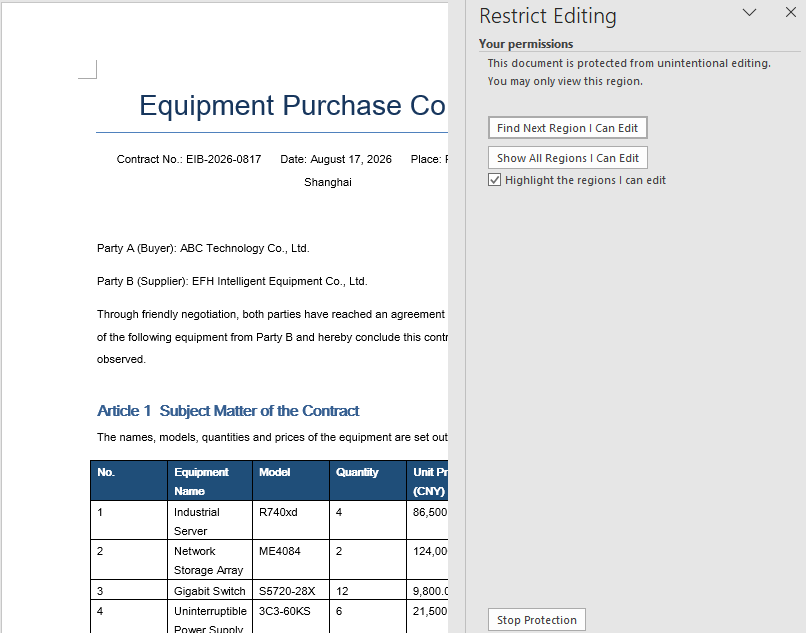
Once the document is protected with the AllowOnlyReading type, its content can only be viewed and the editing commands on the ribbon are restricted.
Lock Only Specified Sections
Protecting the whole document uniformly is not always appropriate. In templates such as contracts and quotations, usually only a few places need to be filled in while every other clause has to stay locked. In that case, protect the whole document with AllowOnlyFormFields first, then release the section that may be edited through the ProtectForm property, which gives per-section control over the permissions.
Locking only specified sections involves three stages: first, load the font files into the WASM virtual file system via FetchFileToVFS; then instantiate a Document, create several sections with AddSection and write content into them, call Protect to protect the whole document for form fields only, and set the ProtectForm property of the section to be released to false; finally, save the document, read the generated file from VFS, wrap it as a Blob, and trigger a browser download.
function App() {
  const lockSpecifiedSections = async () => {
    const docModule = window.wasmModule?.spiredoc;
    if (!docModule) {
      alert('Spire.Doc is not ready yet');
      return;
    }

    // Create a new document and add two sections
    const doc = new docModule.Document();
    let s1 = doc.AddSection();
    let s2 = doc.AddSection();

    // Write content into each of the two sections
    s1.AddParagraph().AppendText("Spire.Doc demo, section 1");
    s2.AddParagraph().AppendText("Spire.Doc demo, section 2");

    // Protect the whole document for form fields only
    doc.Protect({ type: docModule.ProtectionType.AllowOnlyFormFields, password: "123" });

    // Release section 2 on its own so that it can be edited
    s2.ProtectForm = false;

    // Define the output file name and save
    const outputFileName = 'LockSpecifiedSections.docx';
    doc.SaveToFile({ fileName: outputFileName, fileFormat: docModule.FileFormat.Docx2013 });
    doc.Dispose();

    const modifiedFileArray = window.dotnetRuntime.Module.FS.readFile(outputFileName);
    const blob = new Blob([modifiedFileArray], { type: 'application/vnd.openxmlformats-officedocument.wordprocessingml.document' });
    const url = URL.createObjectURL(blob);
    const a = document.createElement('a');
    a.href = url;
    a.download = outputFileName;
    a.click();
    URL.revokeObjectURL(url);
  };

 return (
    <div style={{ textAlign: 'center', height: '300px' }}>
      <h1>Lock Specified Sections of a Word Document</h1>
      <button onClick={lockSpecifiedSections}>Generate</button>
    </div>
  );
}
export default App;
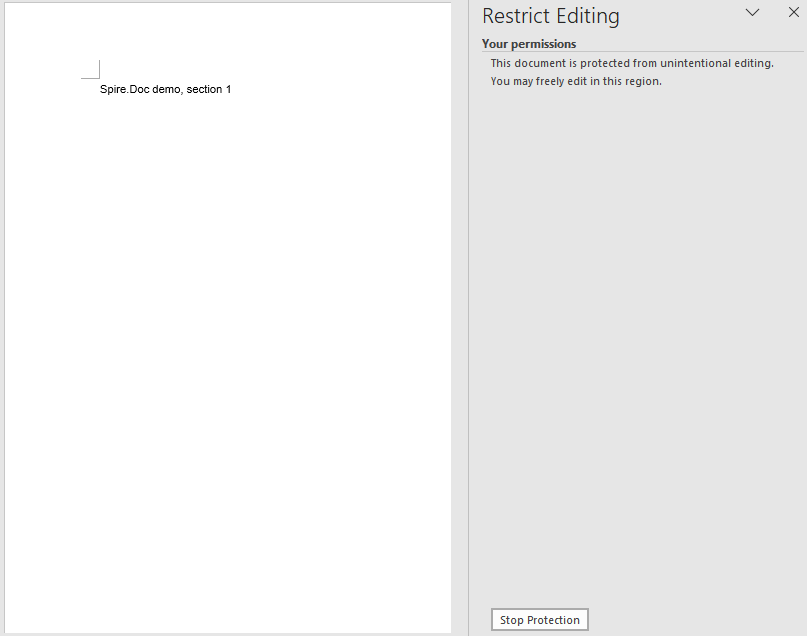
Once section 2 has been released, only section 1 keeps its editing restriction in the document.
FAQ
A section is still not editable after ProtectForm = false
Cause: ProtectForm only takes effect while the document is protected with AllowOnlyFormFields (form fields only). If the document uses another protection type such as AllowOnlyReading, releasing a single section has no effect.
Solution: Make sure the protection type passed to Protect matches the operation that releases the section:
doc.Protect({ type: wasmModule.ProtectionType.AllowOnlyFormFields, password: "123" });
s2.ProtectForm = false;
A protected document can still be selected and copied
Cause: Every protection type restricts editing behaviour, not reading behaviour. AllowOnlyReading only blocks changes to the body text; it does not affect selection, copying or searching. To restrict reading as well, an open password should be used rather than editing restrictions.
Solution: Choose the means for the actual purpose — use document encryption when the content must not be taken away, and use editing restrictions only when the content must not be changed:
doc.Protect({ type: wasmModule.ProtectionType.AllowOnlyReading, password: "123456" });
Get a Free License
Spire.Doc for JavaScript offers a 30-day full-featured free trial license with no functional limitations. Apply here to evaluate before purchasing.
