In practical document layout, a textbox is an ideal container for standalone content — it can be positioned freely without being constrained by the page flow, making it perfect for sidebars, pull quotes, product diagrams, and more. Inserting images or tables into a textbox is a common requirement for achieving rich layouts. Spire.Doc for JavaScript processes Word documents directly in the browser via WebAssembly, using a virtual file system (VFS) to manage fonts and file resources — no backend server required.
This article covers two core features:
For installation and project setup, refer to Integrating Spire.Doc for JavaScript in a React Project. The examples below assume Spire.Doc is installed and the WebAssembly module is initialized.
Insert Image into Textbox
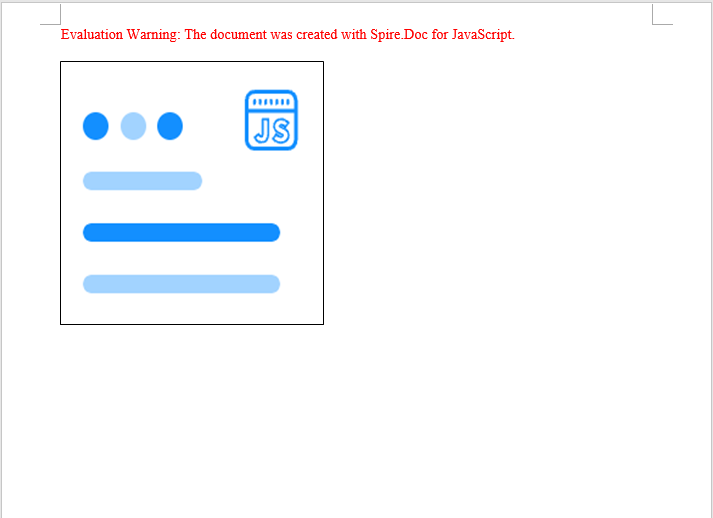
Filling a textbox with a picture is a common technique for creating product labels, business cards, or promotional materials. Spire.Doc creates a textbox via the AppendTextBox method, then fills its background with a picture using FillEfects.SetPicture. The core process involves three steps: first, load font files and the target image into the WASM virtual file system via FetchFileToVFS; then create a document, add a textbox with position properties, and apply the picture to the textbox through fill effects; finally, save the document, read the generated file from VFS, wrap it as a Blob, and trigger a browser download.
function App() {
  const InsertImageIntoTextBox = async () => {
    // Get the Spire.Doc WASM module
    const docModule = window.wasmModule?.spiredoc;

    // Check if the module is ready
    if (!docModule) {
      alert('Spire.Doc is not ready yet');
      return;
    }

    // Load fonts and the image file into VFS
    const imageFileName = 'Spire.Doc.png';
    await window.spire.FetchFileToVFS(imageFileName, '', `${process.env.PUBLIC_URL}/data/`);

    // Create a document
    const doc = new docModule.Document();

    // Add a section
    let section = doc.AddSection();

    // Add a paragraph
    let paragraph = section.AddParagraph();

    // Append a 220x220 textbox to the paragraph
    let tb = paragraph.AppendTextBox(220, 220);

    // Set textbox position
    tb.Format.HorizontalOrigin = docModule.HorizontalOrigin.Page;
    tb.Format.HorizontalPosition = 50;
    tb.Format.VerticalOrigin = docModule.VerticalOrigin.Page;
    tb.Format.VerticalPosition = 50;

    // Set the textbox fill type to Picture
    tb.Format.FillEfects.Type = docModule.BackgroundType.Picture;

    // Fill the textbox with the image
    tb.Format.FillEfects.SetPicture(imageFileName);

    // Define output file name and save
    const outputFileName = "InsertImageIntoTextBox_output.docx";
    doc.SaveToFile({ fileName: outputFileName, fileFormat: docModule.FileFormat.Docx2013 });

    // Release resources
    doc.Close();
    doc.Dispose();

    // Read the generated file from VFS and trigger download
    const modifiedFileArray = window.dotnetRuntime.Module.FS.readFile(outputFileName);
    const blob = new Blob([modifiedFileArray], { type: 'application/vnd.openxmlformats-officedocument.wordprocessingml.document'});
    const url = URL.createObjectURL(blob);
    const a = document.createElement('a');
    a.href = url;
    a.download = outputFileName;
    a.click();
    URL.revokeObjectURL(url);
  };

  return (
    <div style={{ textAlign: 'center', height: '300px' }}>
      <h1>Insert Image into a Word Textbox</h1>
      <button onClick={InsertImageIntoTextBox}>
        Generate
      </button>
    </div>
  );
}

export default App;
Image filled into the textbox, automatically scaled to fit
Insert Table into Textbox
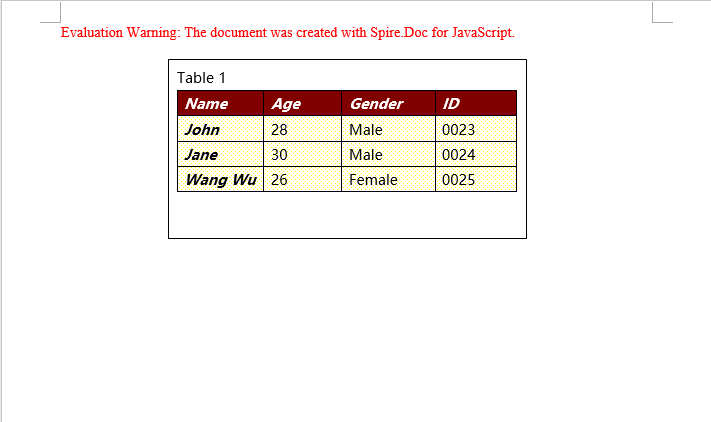
Embedding structured table data in sidebars or reference areas is a common requirement in technical documents and reports. Spire.Doc supports creating tables within a textbox and adding them directly to the textbox body via the textbox.Body.AddTable method. Compared to creating tables in the main document body, tables inside a textbox can be positioned independently without being affected by page layout. The core process involves three steps: first, load font files into the WASM virtual file system via FetchFileToVFS; then create a document and a textbox, add a table via textbox.Body.AddTable with specified row and column counts, fill data row by row, and apply styles; finally, save the document, read the generated file from VFS, wrap it as a Blob, and trigger a browser download.
function App() {
  const InsertTableIntoTextBox = async () => {
    // Get the Spire.Doc WASM module
    const docModule = window.wasmModule?.spiredoc;

    // Check if the module is ready
    if (!docModule) {
      alert('Spire.Doc is not ready yet');
      return;
    }

    // Load font files into VFS
    await window.spire.FetchFileToVFS('msyh.ttc', '/Library/Fonts/', `${process.env.PUBLIC_URL}/font/`);

    // Create a document
    const doc = new docModule.Document();

    // Add a section
    let section = doc.AddSection();

    // Add a paragraph
    let paragraph = section.AddParagraph();

    // Add a 300x150 textbox
    let textbox = paragraph.AppendTextBox(300, 150);

    // Set textbox position
    textbox.Format.HorizontalOrigin = docModule.HorizontalOrigin.Page;
    textbox.Format.HorizontalPosition = 140;
    textbox.Format.VerticalOrigin = docModule.VerticalOrigin.Page;
    textbox.Format.VerticalPosition = 50;

    // Add a title paragraph in the textbox
    let textboxParagraph = textbox.Body.AddParagraph();
    let textboxRange = textboxParagraph.AppendText("Table 1");
    textboxRange.CharacterFormat.FontName = "Microsoft YaHei";

    // Insert a table into the textbox
    let table = textbox.Body.AddTable({ showBorder: true });

    // Specify the number of rows and columns
    table.ResetCells(4, 4);

    let data = [
      ["Name", "Age", "Gender", "ID"],
      ["John", "28", "Male", "0023"],
      ["Jane", "30", "Male", "0024"],
      ["Wang Wu", "26", "Female", "0025"]
    ];
    // Populate data into the table
    for (let i = 0; i < 4; i++) {
      for (let j = 0; j < 4; j++) {
        let tableRange = table.Rows.get_Item(i).Cells.get_Item(j).AddParagraph().AppendText(data[i][j]);
        tableRange.CharacterFormat.FontName = "Microsoft YaHei";
      }
    }

    // Apply table style
    table.ApplyStyle({ builtinTableStyle: docModule.DefaultTableStyle.TableColorful2 });

    // Define output file name and save
    const outputFileName = "InsertTableIntoTextBox_output.docx";
    doc.SaveToFile({ fileName: outputFileName, fileFormat: docModule.FileFormat.Docx2013 });

    // Release resources
    doc.Close();
    doc.Dispose();

    // Read the generated file from VFS and trigger download
    const modifiedFileArray = window.dotnetRuntime.Module.FS.readFile(outputFileName);
    const blob = new Blob([modifiedFileArray], { type: 'application/vnd.openxmlformats-officedocument.wordprocessingml.document'});
    const url = URL.createObjectURL(blob);
    const a = document.createElement('a');
    a.href = url;
    a.download = outputFileName;
    a.click();
    URL.revokeObjectURL(url);
  };

  return (
    <div style={{ textAlign: 'center', height: '300px' }}>
      <h1>Insert Table into a Word Textbox</h1>
      <button onClick={InsertTableIntoTextBox}>
        Generate
      </button>
    </div>
  );
}

export default App;
Table created inside the textbox, contained within the textbox and freely positionable
FAQ
Image in the textbox is truncated or not fully displayed
Cause: The textbox size does not match the image aspect ratio, so the dimensions specified when creating the textbox cannot fully accommodate the image.
Solution: Adjust the textbox size to match the image proportions, or choose an image that fits the textbox dimensions:
let tb = paragraph.AppendTextBox(400, 300);
Table in the textbox has no visible borders
Cause: The showBorder parameter was not set or was set to false when creating the table, resulting in a borderless table.
Solution: Confirm the showBorder parameter is set to true when creating the table:
let table = textbox.Body.AddTable({ showBorder: true });
Textbox position is not as expected after saving
Cause: The HorizontalOrigin or VerticalOrigin values were configured incorrectly, causing the positioning reference point to differ from what was expected.
Solution: Choose the appropriate origin type based on your requirements, and fine-tune the position using HorizontalPosition / VerticalPosition:
tb.Format.HorizontalOrigin = docModule.HorizontalOrigin.Page;
tb.Format.HorizontalPosition = 50;
tb.Format.VerticalOrigin = docModule.VerticalOrigin.Page;
tb.Format.VerticalPosition = 50;
Get a Free License
Spire.Doc for JavaScript offers a 30-day full-featured free trial license with no functional limitations. Apply here to evaluate before purchasing.
