PDF annotations provide a convenient way to add comments, highlights, notes, links, stamps, and other interactive elements to a document without changing its original content. They are widely used in document review, proofreading, collaboration, and approval workflows.
With Spire.PDF for JavaScript, developers can programmatically add different types of annotations to PDF documents directly in React applications. This article demonstrates how to add two commonly used annotation types: markup annotations for highlighting specific text and popup annotations for attaching comments to a page.
On this page:
- Install Spire.PDF for JavaScript in a React Project
- Add a Markup Annotation to PDF with JavaScript
- Add a Popup Annotation to PDF with JavaScript
- Markup Annotation vs. Popup Annotation
- Working with Other PDF Annotation Types
- Conclusion
- FAQs
Install Spire.PDF for JavaScript in a React Project
Before working with PDF annotations, you need to integrate Spire.PDF for JavaScript into your React application.
You can install the required package through npm:
npm i spire.office
Then copy the required JavaScript, WebAssembly, and framework files to the public folder of your React project so that they can be loaded by the application at runtime.
For detailed installation and configuration instructions, refer to:
How to Integrate Spire.PDF for JavaScript in a React Project
The examples below assume that Spire.PDF has already been configured and that the input PDF file is available in the public folder.
Add a Markup Annotation to PDF with JavaScript
Markup annotations are commonly used during document review. They allow developers to highlight, underline, strike out, or otherwise mark specific text in a PDF.
In this example, we first locate a specific sentence in the PDF using PdfTextFinder. Once the text is found, its bounding rectangles are retrieved and a highlight annotation is created for each corresponding area.
The following React code demonstrates how to highlight specified text in a PDF document:
import React, { useEffect, useState } from 'react';

function App() {
  const [ready, setReady] = useState(false);

  useEffect(() => {
    (async () => {
      const publicUrl = process.env.PUBLIC_URL || '';
      await import(/* webpackIgnore: true */ `${publicUrl}/spire.common.js`);
      const spireModule = await import(/* webpackIgnore: true */ `${publicUrl}/spire.pdf.js`);
      const rawModule = spireModule.default || spireModule;

      window.wasmModule = typeof rawModule === 'function'
        ? await rawModule({ locateFile: p => p.endsWith('.wasm') ? `${publicUrl}/${p}` : p })
        : rawModule;

      setReady(true);
    })();
  }, []);

  const addMarkupAnnotation = async () => {
    const wasmModule = window.wasmModule.spirepdf;
    const inputFileName = 'input.pdf';
    const outputFileName = 'MarkupAnnotation.pdf';

    await window.spire.FetchFileToVFS(inputFileName, '/', `${process.env.PUBLIC_URL || ''}/`);

    const doc = new wasmModule.PdfDocument();
    doc.LoadFromFile(inputFileName);

    const page = doc.Pages.get_Item(0);
    const finder = new wasmModule.PdfTextFinder(page);
    finder.Options.Parameter = wasmModule.TextFindParameter.IgnoreCase;

    const TARGET_TEXT = 'Artificial Intelligence (AI) is a rapidly evolving field of computer science focused on creating ' +
    'systems capable of performing tasks that typically require human intelligence.';

    const textFragment = finder.Find(TARGET_TEXT).get(0);
    const bounds = textFragment.Bounds.toArray();

    bounds.forEach((rect) => {
      const annotation = new wasmModule.PdfTextMarkupAnnotation(
        'Administrator',
        'This is a markup annotation.',
        rect
      );

      annotation.TextMarkupAnnotationType =
        wasmModule.PdfTextMarkupAnnotationType.Highlight;

      annotation.TextMarkupColor =
        new wasmModule.PdfRGBColor({
          color: wasmModule.Color.get_LightYellow()
        });

      page.AnnotationsWidget.Add(annotation);
    });

    doc.SaveToFile(outputFileName);
    doc.Close();
    finder.Dispose();

    const fileArray = window.dotnetRuntime.Module.FS.readFile(outputFileName);
    const url = URL.createObjectURL(
      new Blob([fileArray], { type: 'application/pdf' })
    );

    const link = document.createElement('a');
    link.href = url;
    link.download = outputFileName;
    link.click();

    URL.revokeObjectURL(url);
  };

  return (
    <div style={{ textAlign: 'center', padding: 30 }}>
      <h1>Add Markup Annotation to PDF</h1>
      <button onClick={addMarkupAnnotation} disabled={!ready}>
        Add Markup Annotation
      </button>
    </div>
  );
}

export default App;
Output:
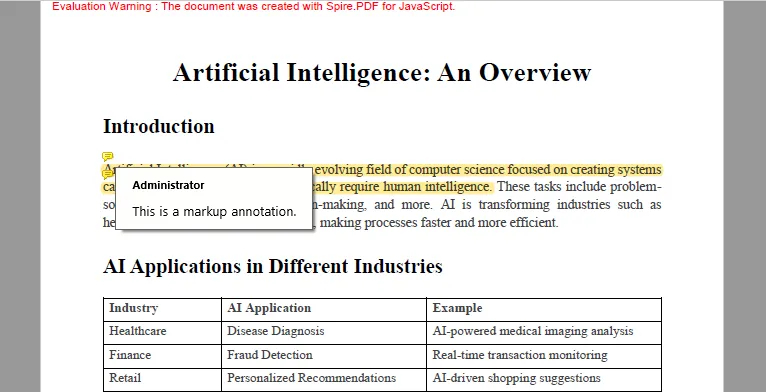
How the Code Works
The annotation process can be divided into several main steps.
First, FetchFileToVFS() loads input.pdf into the WebAssembly virtual file system. A PdfDocument object is then created to load and manipulate the document.
await window.spire.FetchFileToVFS(
  inputFileName,
  '/',
  `${process.env.PUBLIC_URL || ''}/`
);

const doc = new wasmModule.PdfDocument();
doc.LoadFromFile(inputFileName);
Next, the first PDF page is obtained and passed to PdfTextFinder. Setting TextFindParameter.IgnoreCase allows the search to ignore differences in uppercase and lowercase characters.
const page = doc.Pages.get_Item(0);
const finder = new wasmModule.PdfTextFinder(page);

finder.Options.Parameter =
  wasmModule.TextFindParameter.IgnoreCase;
The target text is then located, and its bounding rectangles are retrieved:
const textFragment = finder.Find(TARGET_TEXT).get(0);
const bounds = textFragment.Bounds.toArray();
A sentence may span multiple lines, so its location can consist of several rectangles. The code therefore loops through all returned bounds and creates a PdfTextMarkupAnnotation for each one.
bounds.forEach((rect) => {
  const annotation = new wasmModule.PdfTextMarkupAnnotation(
    'Administrator',
    'This is a markup annotation.',
    rect
  );

  annotation.TextMarkupAnnotationType =
    wasmModule.PdfTextMarkupAnnotationType.Highlight;

  page.AnnotationsWidget.Add(annotation);
});
In this example, the annotation type is set to Highlight and its color is set to light yellow.
Finally, the modified PDF is saved to the virtual file system and converted to a Blob, allowing the browser to download the resulting file.
Add a Popup Annotation to PDF with JavaScript
Popup annotations are useful when comments or notes need to be attached to a particular position on a PDF page. Instead of marking existing text, a popup annotation creates an annotation icon that readers can interact with in compatible PDF viewers.
The following example adds a comment annotation to the first page of a PDF:
import React, { useEffect, useState } from 'react';

function App() {
  const [ready, setReady] = useState(false);

  useEffect(() => {
    (async () => {
      const publicUrl = process.env.PUBLIC_URL || '';
      await import(/* webpackIgnore: true */ `${publicUrl}/spire.common.js`);
      const spireModule = await import(/* webpackIgnore: true */ `${publicUrl}/spire.pdf.js`);
      const rawModule = spireModule.default || spireModule;

      window.wasmModule = typeof rawModule === 'function'
        ? await rawModule({ locateFile: p => p.endsWith('.wasm') ? `${publicUrl}/${p}` : p })
        : rawModule;

      setReady(true);
    })();
  }, []);

  const addPopupAnnotation = async () => {
    const wasmModule = window.wasmModule.spirepdf;
    const inputFileName = 'input.pdf';
    const outputFileName = 'PopupAnnotation.pdf';

    await window.spire.FetchFileToVFS(
      inputFileName,
      '/',
      `${process.env.PUBLIC_URL || ''}/`
    );

    const doc = new wasmModule.PdfDocument();
    doc.LoadFromFile(inputFileName);

    const page = doc.Pages.get_Item(0);

    const rect = new wasmModule.RectangleF({
      x: 155,
      y: 105,
      width: 0,
      height: 0
    });

    const annotation = new wasmModule.PdfPopupAnnotation({
      rectangle: rect,
      text: 'This is a popup annotation.'
    });

    annotation.Icon = wasmModule.PdfPopupIcon.Comment;

    annotation.Color =
      new wasmModule.PdfRGBColor({
        color: wasmModule.Color.get_Red()
      });

    page.Annotations.Add(annotation);

    doc.SaveToFile(outputFileName);
    doc.Close();

    const fileArray =
      window.dotnetRuntime.Module.FS.readFile(outputFileName);

    const url = URL.createObjectURL(
      new Blob([fileArray], { type: 'application/pdf' })
    );

    const link = document.createElement('a');
    link.href = url;
    link.download = outputFileName;
    link.click();

    URL.revokeObjectURL(url);
  };

  return (
    <div style={{ textAlign: 'center', padding: 30 }}>
      <h1>Add Popup Annotation to PDF</h1>
      <button onClick={addPopupAnnotation} disabled={!ready}>
        Add Popup Annotation
      </button>
    </div>
  );
}

export default App;
Output:

How the Code Works
After loading the PDF, the first page is retrieved:
const page = doc.Pages.get_Item(0);
A RectangleF object is then created to define the position of the popup annotation on the page.
const rect = new wasmModule.RectangleF({
  x: 155,
  y: 105,
  width: 0,
  height: 0
});
Next, a PdfPopupAnnotation object is created. Its rectangle property determines where the annotation appears, while text defines the comment displayed by the annotation.
const annotation = new wasmModule.PdfPopupAnnotation({
  rectangle: rect,
  text: 'This is a popup annotation.'
});
The icon style and color can also be customized:
annotation.Icon = wasmModule.PdfPopupIcon.Comment;

annotation.Color =
  new wasmModule.PdfRGBColor({
    color: wasmModule.Color.get_Red()
  });
Finally, the annotation is added to the page using:
page.Annotations.Add(annotation);
The modified PDF is then saved and downloaded in the browser.
Markup Annotation vs. Popup Annotation
Although both annotation types are designed to add review information to PDF documents, they serve different purposes.
| Annotation Type | Typical Use | Positioning |
|---|---|---|
| Markup Annotation | Highlighting or marking existing PDF text | Based on the bounds of selected text |
| Popup Annotation | Adding comments or notes at a particular location | Based on page coordinates |
Markup annotations are particularly suitable for reviewing existing content because the annotation can follow the exact location of the target text. Popup annotations are more flexible when a comment needs to be associated with a general area rather than a specific text fragment.
Working with Other PDF Annotation Types
The examples above cover only two annotation types, but the overall process is similar when creating other annotations supported by Spire.PDF for JavaScript.
A typical annotation workflow is:
- Load the PDF document.
- Get the page where the annotation should be placed.
- Determine the annotation position or target content.
- Create the appropriate annotation object.
- Configure properties such as text, color, icon, border, or destination.
- Add the annotation to the PDF page.
- Save the modified document.
For example, free text annotations can be used to display text directly on a page, stamp annotations can represent review states such as approval, and link annotations can connect PDF content to web pages, external files, or other locations in the same document.
The annotation class and available properties will differ, but the basic implementation pattern remains largely the same.
Conclusion
Annotations make PDF documents more interactive and are particularly useful in reviewing, commenting, collaboration, and approval scenarios.
With Spire.PDF for JavaScript, React applications can create PDF annotations programmatically in the browser. In this article, we demonstrated how to locate text and apply a markup annotation , as well as how to place a popup annotation at specified coordinates on a PDF page.
Using the same general approach, developers can further implement free text, stamps, shapes, links, and other annotation types according to their application requirements.
FAQs
1. What types of PDF annotations can be added with Spire.PDF for JavaScript?
Spire.PDF for JavaScript supports various annotation types, including markup annotations, free text annotations, popup annotations, stamp annotations, shape annotations, web link annotations, file link annotations, and document link annotations.
The exact classes and properties used depend on the annotation type.
2. Can I highlight text automatically instead of specifying coordinates manually?
Yes. You can use PdfTextFinder to search for specific text in a PDF and retrieve its bounding rectangles. These rectangles can then be used to position markup annotations automatically.
This approach is useful for workflows such as automatically highlighting keywords, review terms, or specific sentences.
3. Why does the markup example create multiple annotations for one sentence?
A sentence may span multiple lines in a PDF. In this case, the text finder can return multiple bounding rectangles representing different portions of the same text.
Creating an annotation for each rectangle ensures that the entire target text is highlighted correctly across line breaks.
4. Can I customize the appearance of PDF annotations?
Yes. Depending on the annotation type, properties such as color, icon, annotation text, position, markup type, and other appearance settings can be customized.
For example, the markup annotation in this tutorial uses a light-yellow highlight, while the popup annotation uses a red comment icon.
5. Are the annotations preserved when the PDF is downloaded?
Yes. The annotations are written into the output PDF when SaveToFile() is called. After the file is downloaded, they can be viewed in PDF readers that support standard PDF annotations.
Get a Free License
To fully experience the capabilities of Spire.PDF for JavaScript without any evaluation limitations, you can request a 30-day free trial license.
