PDF is a fixed-layout format that is easy to distribute, yet a single PDF usually carries only the body of a document. In practice you often want to hand over supporting material together with the main document, such as a contract bundled with its signed images, or a report bundled with the source data behind it, so that everything stays together for archiving and circulation. PDF attachments (embedded files) provide a standard way to do this: a PDF can carry files of any type in its embedded-file tree, and a recipient who opens one PDF finds both the main document and the supporting files in the viewer’s “Attachments” panel, with no need to request them separately.
Spire.PDF for JavaScript is built on WebAssembly, so it loads, draws, and saves PDFs directly in the browser and manages input and output files through a virtual file system (VFS), with no backend service required. Working with attachments comes down to two operations: adding—wrap a file into an attachment with PdfAttachment and add it to the document’s attachment collection through doc.Attachments.Add; and removing—delete a specified attachment from the doc.Attachments collection with Attachments.RemoveAt(index). Both revolve around the PdfDocument.Attachments collection.
This article covers two key operations:
For installation and project setup, refer to How to Integrate Spire.PDF for JavaScript in a React Project. The examples below assume Spire.PDF is installed and the WebAssembly module has been initialized.
Add an Attachment to a PDF Document
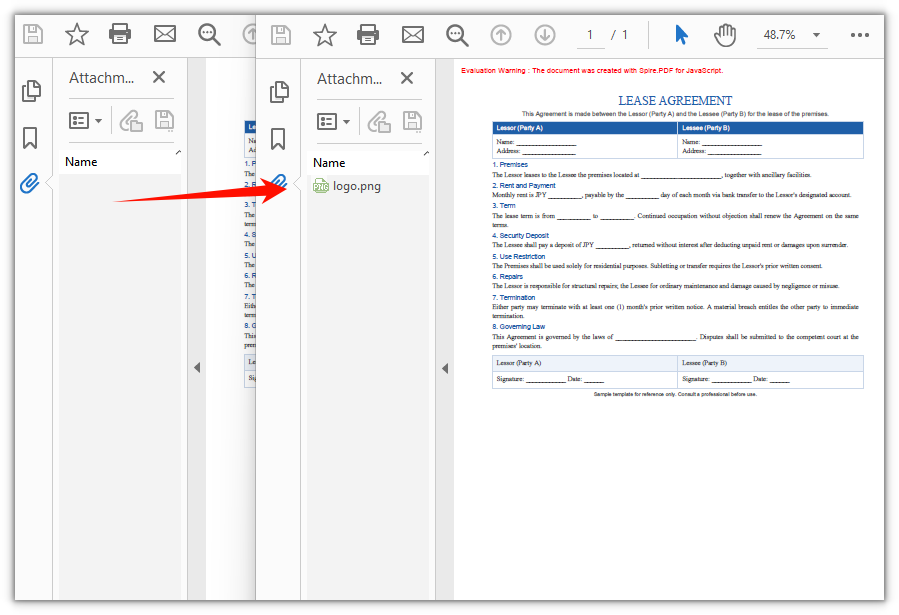
To add an attachment, first load the container PDF and the file to embed into the virtual file system, then wrap the file with PdfAttachment (name, data, description, and MIME type) and add it to doc.Attachments. The attachment is not drawn on the page; it is stored in the PDF’s embedded-file tree, where you can view and save it from the viewer’s “Attachments” panel. This example embeds a logo.png into a lease agreement.
function App() {
  const addAttachment = async () => {
    // Get the Spire.PDF WASM module
    const pdfModule = window.wasmModule?.spirepdf;

    // Check whether the module is ready
    if (!pdfModule) {
      alert('Spire.PDF is not ready yet');
      return;
    }

    // Load the container PDF file into the VFS
    const inputFileName = 'Lease_Agreement_EN.pdf';
    await window.spire.FetchFileToVFS(inputFileName, "", `${process.env.PUBLIC_URL}/data/`);

    // Load the image file to embed as an attachment into the VFS
    const attachFileName = 'logo.png';
    await window.spire.FetchFileToVFS(attachFileName, "", `${process.env.PUBLIC_URL}/data/`);

    // Create a PdfDocument object and load the PDF document
    let doc = new pdfModule.PdfDocument();
    doc.LoadFromFile(inputFileName);

    // Create the attachment and set its file name, description, and MIME type
    let attachment = new pdfModule.PdfAttachment({ fileName: attachFileName });
    attachment.Data = window.dotnetRuntime.Module.FS.readFile(attachFileName);
    attachment.Description = 'Company logo attached to the agreement';
    attachment.MimeType = 'image/png';

    // Add the attachment to the document's attachment collection
    doc.Attachments.Add({ attachment: attachment });

    // Define the output file name and save the document
    const outputFileName = 'Agreement_With_Attachment.pdf';
    doc.SaveToFile(outputFileName);
    doc.Close();

    // Read the generated file from the VFS and trigger a download
    const fileArray = window.dotnetRuntime.Module.FS.readFile(outputFileName);
    const blob = new Blob([fileArray], { type: 'application/pdf' });
    const url = URL.createObjectURL(blob);
    const a = document.createElement('a');
    a.href = url;
    a.download = outputFileName;
    a.click();
    URL.revokeObjectURL(url);
  };

  return (
    <div style={{ textAlign: 'center', height: '300px' }}>
      <h1>Add Attachment To PDF</h1>
      <button onClick={addAttachment}>
        Generate
      </button>
    </div>
  );
}

export default App;
Agreement with the logo.png attachment embedded
Remove an Attachment from a PDF Document
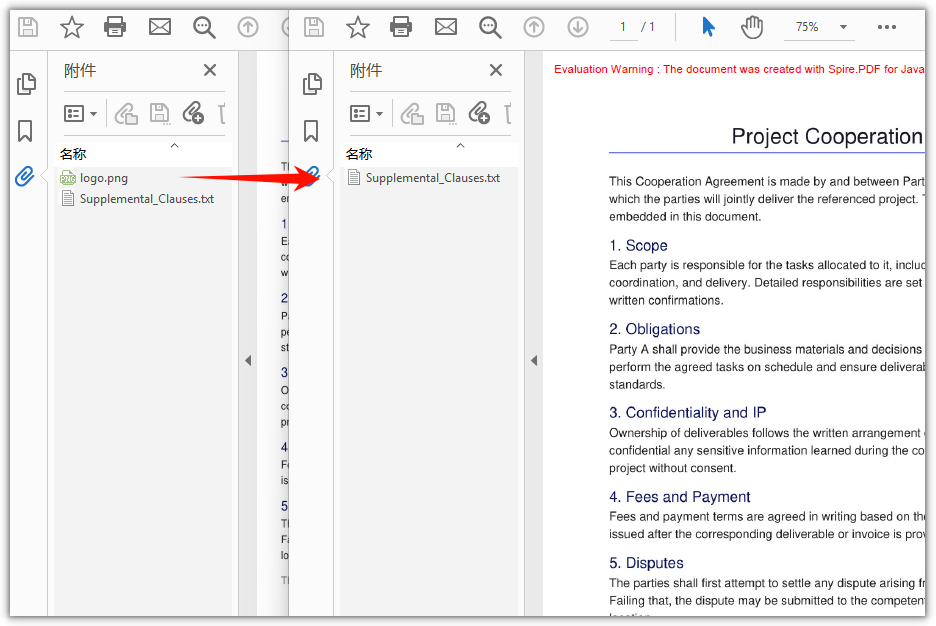
To remove a specified attachment, call Attachments.RemoveAt(index) on the attachment collection; the index is zero-based (check Count first to confirm how many attachments there are). This example loads a sample document that already contains attachments and deletes its first one. To remove every attachment from the document at once, call attachments.Clear() instead.
function App() {
  const deleteAttachments = async () => {
    // Get the Spire.PDF WASM module
    const pdfModule = window.wasmModule?.spirepdf;

    // Check whether the module is ready
    if (!pdfModule) {
      alert('Spire.PDF is not ready yet');
      return;
    }

    // Load the PDF file that contains attachments into the VFS
    const inputFileName = 'SampleWithAttachments.pdf';
    await window.spire.FetchFileToVFS(inputFileName, "", `${process.env.PUBLIC_URL}/data/`);

    // Create a PdfDocument object and load the PDF document
    let doc = new pdfModule.PdfDocument();
    doc.LoadFromFile(inputFileName);

    // Get the document's attachment collection
    let attachments = doc.Attachments;

    // Remove the attachment at the given index (zero-based; here the first one)
    attachments.RemoveAt(0);

    // Define the output file name and save the document
    const outputFileName = 'Attachment_Removed.pdf';
    doc.SaveToFile(outputFileName);
    doc.Close();

    // Read the generated file from the VFS and trigger a download
    const fileArray = window.dotnetRuntime.Module.FS.readFile(outputFileName);
    const blob = new Blob([fileArray], { type: 'application/pdf' });
    const url = URL.createObjectURL(blob);
    const a = document.createElement('a');
    a.href = url;
    a.download = outputFileName;
    a.click();
    URL.revokeObjectURL(url);
  };

  return (
    <div style={{ textAlign: 'center', height: '300px' }}>
      <h1>Delete Attachments From PDF</h1>
      <button onClick={deleteAttachments}>
        Generate
      </button>
    </div>
  );
}

export default App;
PDF document after the first attachment is removed
Frequently Asked Questions
How do I check whether a PDF contains attachments and how many there are
Reason: Before removing or reading attachments, you usually want to know whether the document has any attachments and how many, to avoid invalid operations on an empty collection.
Solution: All attachments of a document live in the doc.Attachments collection; its Count property returns the number of attachments, and a value of 0 means there are none. To read a single attachment, access it by index with get_Item(index):
// Get the document's attachment collection and the number of attachments
let attachments = doc.Attachments;
let count = attachments.Count;
Which properties should I set when adding an attachment
Reason: If you only assign the file bytes without a name and description, the item is displayed incompletely in the viewer’s “Attachments” panel and the recipient cannot tell what the file is.
Solution: The commonly used properties of PdfAttachment are fileName (the file name the recipient sees), Description (a one-line description), and MimeType (the content type); assign the file bytes to Data. After setting them, Add the attachment to the collection so the panel shows it with its name and description:
// Create the attachment and set its file name, data, description, and MIME type
let attachment = new pdfModule.PdfAttachment({ fileName: 'logo.png' });
attachment.Data = window.dotnetRuntime.Module.FS.readFile('logo.png');
attachment.Description = 'Company logo attached to the agreement';
attachment.MimeType = 'image/png';
doc.Attachments.Add({ attachment: attachment });
Can I embed file types other than images as attachments
Reason: Examples often demonstrate attachments with images, which can make it look as if PDF attachments only accept images.
Solution: A PDF attachment is essentially an embedded file that carries arbitrary bytes, with no restriction on the type. As long as you load the file into the virtual file system, read its bytes into Data with FS.readFile, and set MimeType to the matching content type, files such as Word, Excel, PDF, or archives can all be embedded as attachments. Embedding a PDF appendix, for example:
// Load the PDF appendix to embed and add it as an attachment
const attachName = 'Product_Appendix.pdf';
await window.spire.FetchFileToVFS(attachName, "", `${process.env.PUBLIC_URL}/data/`);
let attachment = new pdfModule.PdfAttachment({ fileName: attachName });
attachment.Data = window.dotnetRuntime.Module.FS.readFile(attachName);
attachment.MimeType = 'application/pdf';
doc.Attachments.Add({ attachment: attachment });
Get a Free License
If you wish to delete the evaluation message from the resulting documents, or to get rid of function limitations, please contact sales to obtain a valid 30-day temporary license.
