Bookmarks in a PDF document organize the document outline as a tree, and they are a core tool for quickly navigating long documents. When a document contains multi-level bookmarks, the default expanded or collapsed state directly affects the outline a reader sees when opening the document. With Spire.PDF for JavaScript, you can reset the expanded and collapsed state of bookmarks in a React application so that the document opens with exactly the outline levels you need.
Spire.PDF for JavaScript processes PDF documents directly in the browser based on WebAssembly, managing input and output files through a virtual file system (VFS), with no backend service required. The key to controlling whether a bookmark is expanded or collapsed is the ExpandBookmark property of the bookmark object: set it to true to expand the node and its child bookmarks, or false to collapse and hide its children. For multi-level bookmarks, you can recursively traverse the PdfBookmarkCollection to set them all at once, or locate a specific node by index to control it individually.
This article covers two core features:
For installation and project configuration, refer to Integrating Spire.PDF for JavaScript in a React Project. The following examples assume Spire.PDF is installed and the WebAssembly module has been initialized.
Expanding All PDF Bookmarks
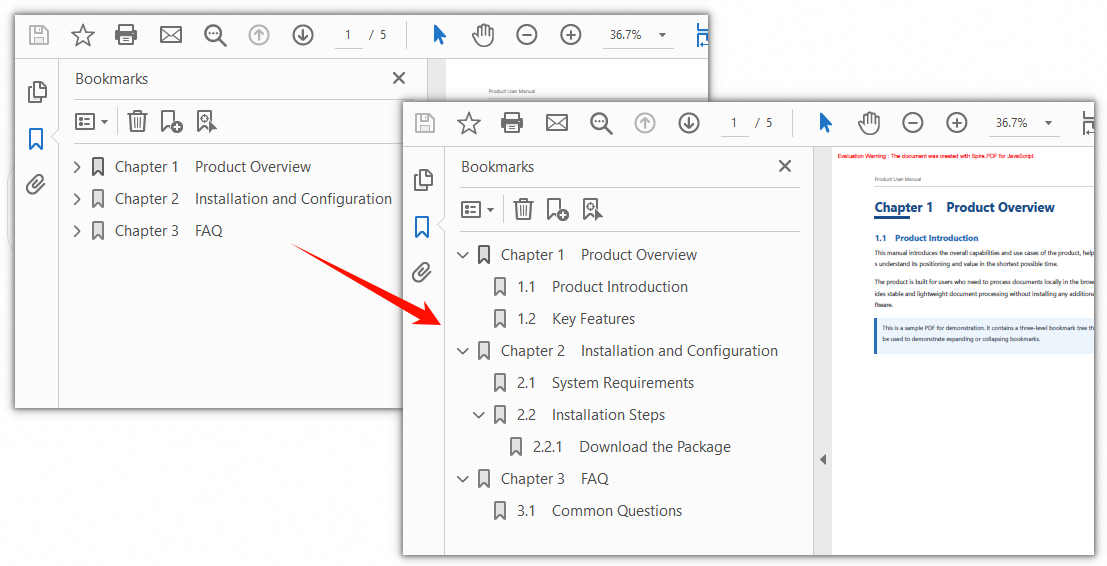
Spire.PDF for JavaScript can retrieve the bookmark collection of a document through PdfDocument.Bookmarks. Because bookmarks support multiple nesting levels, you need a recursive function that traverses the PdfBookmarkCollection: recursively process the child bookmarks first, then set the ExpandBookmark property of the current node to true, so that every level of bookmarks is fully expanded when the document is opened.
function App() {
  const expandAllBookmarks = async () => {
    // Get the Spire.PDF WASM module
    const pdfModule = window.wasmModule?.spirepdf;

    // Check whether the module is ready
    if (!pdfModule) {
      alert('Spire.PDF is not ready yet');
      return;
    }

    // Load the PDF file to be processed into the VFS
    const inputFileName = 'Sample.pdf';
    await window.spire.FetchFileToVFS(inputFileName, "", `${process.env.PUBLIC_URL}/data/`);

    // Create a PdfDocument object and load the PDF document
    let doc = new pdfModule.PdfDocument();
    doc.LoadFromFile(inputFileName);

    // Recursively traverse the bookmark collection and expand all levels
    function expandBookmarks(collection, expand) {
      // Stop the recursion when the collection is empty
      if (collection.Count === 0) {
        return;
      }

      for (let i = 0; i < collection.Count; i++) {
        let bookmark = collection.get_Item(i);

        // Process the child bookmarks first
        expandBookmarks(bookmark, expand);

        // Then set the expanded state of the current bookmark
        bookmark.ExpandBookmark = expand;
      }
    }

    // Expand all bookmarks in the document
    expandBookmarks(doc.Bookmarks, true);

    // Save the document and trigger the download
    const outputFileName = "ExpandAllBookmarks.pdf";
    doc.SaveToFile(outputFileName);
    doc.Close();

    const fileArray = window.dotnetRuntime.Module.FS.readFile(outputFileName);
    const blob = new Blob([fileArray], { type: "application/pdf" });
    const url = URL.createObjectURL(blob);
    const a = document.createElement('a');
    a.href = url;
    a.download = outputFileName;
    a.click();
    URL.revokeObjectURL(url);
  };

  return (
    <div style={{ textAlign: 'center', height: '300px' }}>
      <h1>Expand All PDF Bookmarks</h1>
      <button onClick={expandAllBookmarks}>
        Start Expanding
      </button>
    </div>
  );
}

export default App;
The document after recursively expanding the bookmarks at every level
Expanding or Collapsing Specific PDF Bookmarks
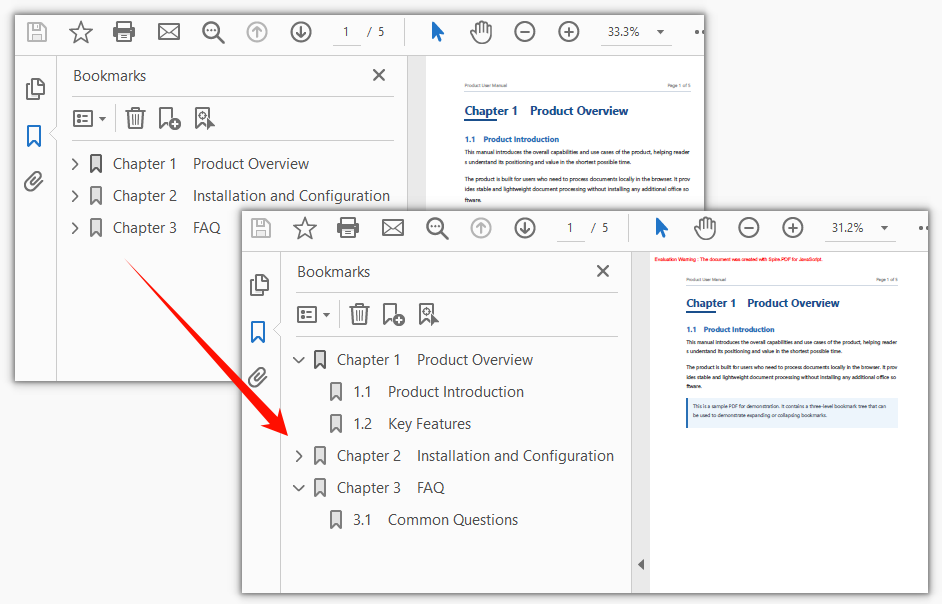
If you only need to control a few bookmark nodes, you can use PdfBookmarkCollection.get_Item to locate the target bookmark by index, and then set its ExpandBookmark property individually. Setting the ExpandBookmark of a node to true expands the child bookmarks under it, while setting it to false collapses them, which gives you precise control over a partially expanded, partially collapsed outline.
function App() {
  const toggleSpecificBookmarks = async () => {
    // Get the Spire.PDF WASM module
    const pdfModule = window.wasmModule?.spirepdf;

    // Check whether the module is ready
    if (!pdfModule) {
      alert('Spire.PDF is not ready yet');
      return;
    }

    // Load the PDF file to be processed into the VFS
    const inputFileName = 'Sample.pdf';
    await window.spire.FetchFileToVFS(inputFileName, "", `${process.env.PUBLIC_URL}/data/`);

    // Create a PdfDocument object and load the PDF document
    let doc = new pdfModule.PdfDocument();
    doc.LoadFromFile(inputFileName);

    // Expand the first bookmark (Chapter 1); its child bookmarks are shown as well
    doc.Bookmarks.get_Item(0).ExpandBookmark = true;

    // Collapse the second bookmark (Chapter 2); its child bookmarks are hidden
    doc.Bookmarks.get_Item(1).ExpandBookmark = false;

    // Expand the third bookmark (Chapter 3)
    doc.Bookmarks.get_Item(2).ExpandBookmark = true;

    // Save the document and trigger the download
    const outputFileName = "ToggleSpecificBookmarks.pdf";
    doc.SaveToFile(outputFileName);
    doc.Close();

    const fileArray = window.dotnetRuntime.Module.FS.readFile(outputFileName);
    const blob = new Blob([fileArray], { type: "application/pdf" });
    const url = URL.createObjectURL(blob);
    const a = document.createElement('a');
    a.href = url;
    a.download = outputFileName;
    a.click();
    URL.revokeObjectURL(url);
  };

  return (
    <div style={{ textAlign: 'center', height: '300px' }}>
      <h1>Expand or Collapse Specific PDF Bookmarks</h1>
      <button onClick={toggleSpecificBookmarks}>
        Start Processing
      </button>
    </div>
  );
}

export default App;
The document after expanding or collapsing the specified bookmarks by index
FAQ
Why do child bookmarks still not appear after setting ExpandBookmark
Reason: ExpandBookmark controls whether the child bookmarks of that node are shown. If the parent node of a bookmark is collapsed, then the bookmark itself will not be displayed no matter how its own ExpandBookmark is set, because its parent is collapsed.
Solution: Expand level by level starting from the root node, or simply set ExpandBookmark to true for the entire bookmark tree with a recursive function:
function expandBookmarks(collection) {
  for (let i = 0; i < collection.Count; i++) {
    let bookmark = collection.get_Item(i);
    bookmark.ExpandBookmark = true;
    expandBookmarks(bookmark);
  }
}

expandBookmarks(doc.Bookmarks);
How to expand only one level of a multi-level bookmark
Reason: Bookmarks form a tree structure, and each node of a PdfBookmarkCollection also exposes its child collection through get_Item, so you need to locate the target level by descending one level at a time.
Solution: Locate the parent node of the target level first, then set the ExpandBookmark of that node. For example, to expand only the first child bookmark under Chapter 2:
// Get the second bookmark (Chapter 2)
let chapterTwo = doc.Bookmarks.get_Item(1);

// Get the first child bookmark under that chapter
let sectionOne = chapterTwo.get_Item(0);

// Expand that child bookmark
sectionOne.ExpandBookmark = true;
Where is the expanded or collapsed state of ExpandBookmark stored
Reason: The expanded or collapsed state of a bookmark is written into the outline (Outlines) structure of the PDF along with the bookmark itself. It is part of the document content, not a temporary setting of the viewer.
Solution: After setting and saving, any viewer that supports the standard PDF outline (such as the bookmark panel of Adobe Acrobat, Edge or the built-in Chrome viewer) will display the state as it was saved. To restore a fully collapsed outline, simply set the ExpandBookmark of the corresponding nodes to false and save again:
// Collapse the first bookmark
doc.Bookmarks.get_Item(0).ExpandBookmark = false;
doc.SaveToFile(outputFileName);
Get a Free License
If you wish to remove the evaluation message from the result document or remove feature limitations, please contact sales to obtain a temporary license valid for 30 days.
