PDF has a fixed layout and is easy to distribute, but the tabular data within it is hard to edit and analyze directly; Excel (XLSX) is the common format in the spreadsheet domain, supporting formulas, sorting, filtering, and further processing. Real-world business often requires converting reports, invoices, and data tables in PDF to Excel for continued editing, summarization, or entry into systems. Because the underlying models of PDF and Excel differ significantly, the layout strategy during conversion has a notable impact on result quality.
Spire.PDF for JavaScript completes PDF-to-Excel conversion entirely in the browser via WebAssembly, managing input and output files through a virtual file system (VFS) with no backend server required. In addition to simple regular conversion, it also provides two types of conversion options, XlsxLineLayoutOptions and XlsxTextLayoutOptions, to help you control the row layout and text layout of the converted result.
This article covers three core features:
- Convert PDF to Excel Using the Regular Method
- Convert PDF to Excel Using XlsxLineLayoutOptions
- Convert PDF to Excel Using XlsxTextLayoutOptions
For installation and project setup, refer to Integrating Spire.PDF for JavaScript in a React Project. The examples below assume Spire.PDF is installed and the WebAssembly module is initialized.
Convert PDF to Excel Using the Regular Method
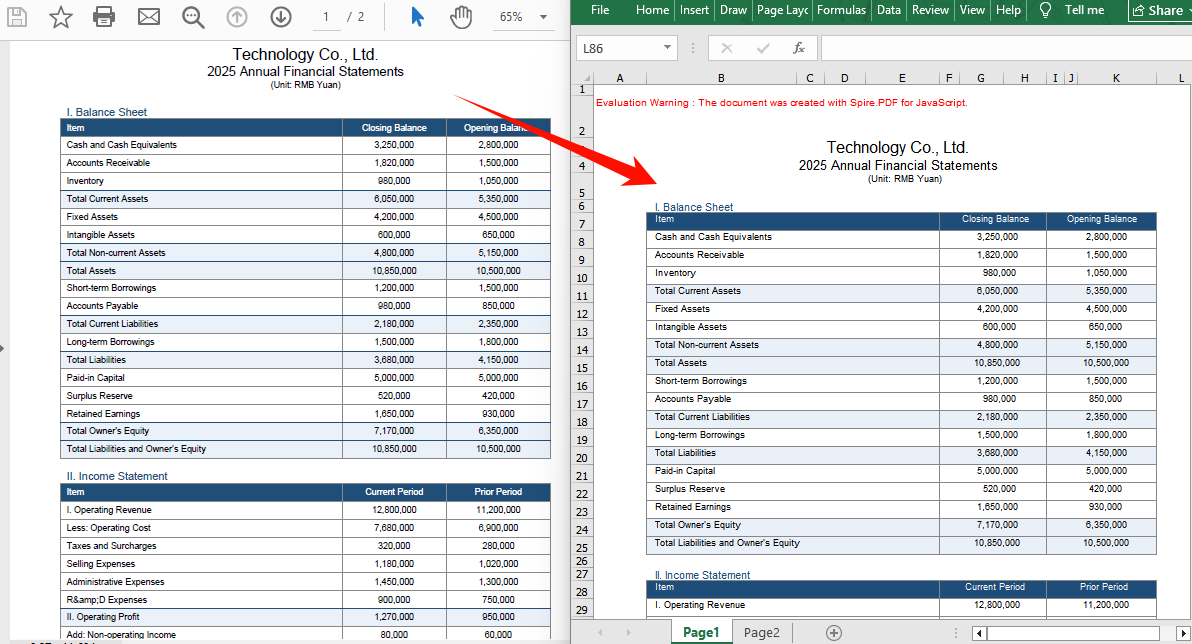
The regular conversion is the most direct way to convert PDF to Excel: after creating a PdfDocument object and loading the PDF, simply save it as an Excel document by specifying FileFormat.XLSX in the SaveToFile method, without setting any conversion options. Spire.PDF parses the text, table, and graphic content of the PDF using the default strategy, which suits most conversion needs for regular documents; when the default result cannot meet specific layout requirements, consider using XlsxLineLayoutOptions or XlsxTextLayoutOptions for fine-grained control.
function App() {
  const convertToExcel = async () => {
    // Get the Spire.PDF WASM module
    const pdfModule = window.wasmModule?.spirepdf;

    // Check if the WASM module is ready
    if (!pdfModule) {
      alert('Spire.PDF is not ready yet');
      return;
    }

    // Load the PDF file and fonts into VFS
    await window.spire.FetchFileToVFS('ARIAL.TTF', '/Library/Fonts/', `${process.env.PUBLIC_URL}/font/`);
    const inputFileName = 'FinancialStatement2025.pdf';
    await window.spire.FetchFileToVFS(inputFileName, "", `${process.env.PUBLIC_URL}/data/`);

    // Create PdfDocument object and load the PDF document
    let doc = new pdfModule.PdfDocument();
    doc.LoadFromFile(inputFileName);

    // Define the output file name in Excel format
    const outputFileName = 'OutputExcel.xlsx';

    // Save as Excel format
    doc.SaveToFile({ fileName: outputFileName, fileFormat: pdfModule.FileFormat.XLSX });
    doc.Close();

    // Read the converted file from VFS and trigger download
    const fileArray = window.dotnetRuntime.Module.FS.readFile(outputFileName);
    const blob = new Blob([fileArray], { type: 'application/vnd.openxmlformats-officedocument.spreadsheetml.sheet' });
    const url = URL.createObjectURL(blob);
    const a = document.createElement('a');
    a.href = url;
    a.download = outputFileName;
    a.click();
    URL.revokeObjectURL(url);
  };

  return (
    <div style={{ textAlign: 'center', height: '300px' }}>
      <h1>Convert PDF To Excel</h1>
      <button onClick={convertToExcel}>
        Generate
      </button>
    </div>
  );
}

export default App;
Excel document generated using the regular conversion method
Convert PDF to Excel Using XlsxLineLayoutOptions
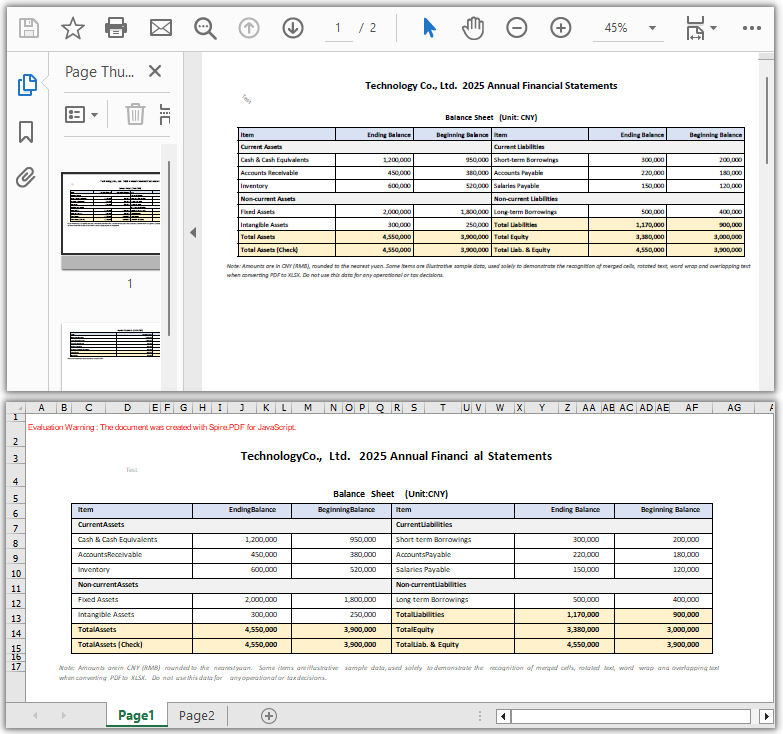
Line elements such as table borders, separator lines, and graphics need to be controlled through row layout options for their preservation during conversion to Excel. XlsxLineLayoutOptions provides several row layout parameters: whether to convert to multiple worksheets, whether to keep rotated text, whether to split cells containing multiple lines of text, whether to wrap text, and whether to keep overlapping text. Pass this option to the ConvertOptions SetPdfToXlsxOptions method, then save with SaveToFile specifying FileFormat.XLSX to complete the conversion.
function App() {
  const convertToExcel = async () => {
    // Get the Spire.PDF WASM module
    const pdfModule = window.wasmModule?.spirepdf;

    // Check if the WASM module is ready
    if (!pdfModule) {
      alert('Spire.PDF is not ready yet');
      return;
    }

    // Load the PDF file and fonts into VFS
    await window.spire.FetchFileToVFS('ARIAL.TTF', '/Library/Fonts/', `${process.env.PUBLIC_URL}/font/`);
    const inputFileName = 'FinancialStatement.pdf';
    await window.spire.FetchFileToVFS(inputFileName, "", `${process.env.PUBLIC_URL}/data/`);

    // Create PdfDocument object and load the PDF document
    let doc = new pdfModule.PdfDocument();
    doc.LoadFromFile(inputFileName);

    // Create row layout conversion options
    // Parameters: whether to convert to multiple worksheets, whether to keep rotated text, whether to split cells, whether to wrap text, whether to keep overlapping text
    let lineLayoutOptions = new pdfModule.XlsxLineLayoutOptions(true, true, false, true, true);
    doc.ConvertOptions.SetPdfToXlsxOptions(lineLayoutOptions);

    // Define the output file name in Excel format
    const outputFileName = 'LineLayoutOptions.xlsx';

    // Save as Excel format
    doc.SaveToFile({ fileName: outputFileName, fileFormat: pdfModule.FileFormat.XLSX });
    doc.Close();

    // Read the converted file from VFS and trigger download
    const fileArray = window.dotnetRuntime.Module.FS.readFile(outputFileName);
    const blob = new Blob([fileArray], { type: 'application/vnd.openxmlformats-officedocument.spreadsheetml.sheet' });
    const url = URL.createObjectURL(blob);
    const a = document.createElement('a');
    a.href = url;
    a.download = outputFileName;
    a.click();
    URL.revokeObjectURL(url);
  };

  return (
    <div style={{ textAlign: 'center', height: '300px' }}>
      <h1>Convert PDF To Excel using XlsxLineLayoutOptions</h1>
      <button onClick={convertToExcel}>
        Generate
      </button>
    </div>
  );
}

export default App;
Excel document generated using the XlsxLineLayoutOptions conversion option
Convert PDF to Excel Using XlsxTextLayoutOptions
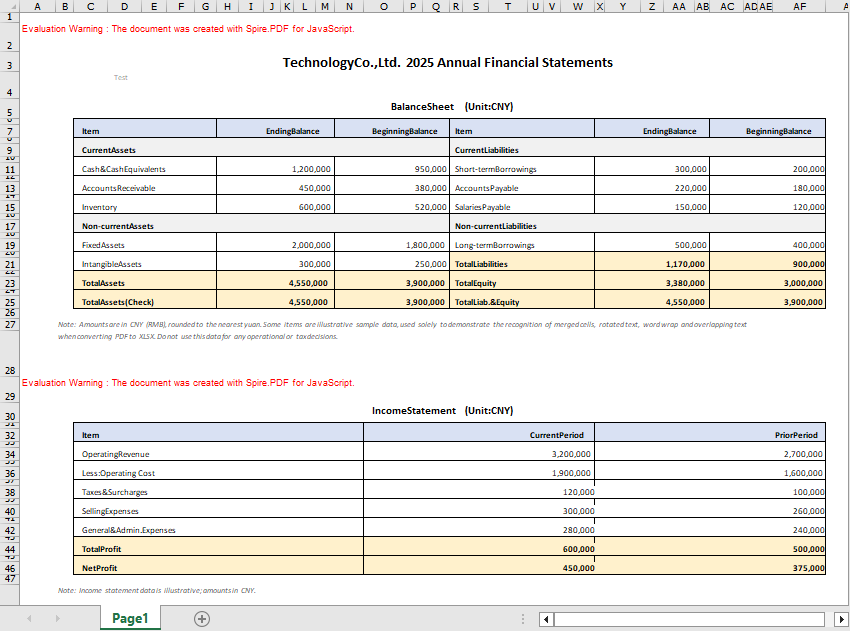
When the PDF content consists mainly of text and numeric values, you can switch to XlsxTextLayoutOptions to control text layout conversion parameters, such as whether to convert to multiple worksheets and whether to keep rotated text. Unlike the row layout option, this option focuses more on the arrangement of text content and is suitable for documents with few table lines and mainly text. The usage is the same: pass the option to the ConvertOptions SetPdfToXlsxOptions method, then save as XLSX.
function App() {
  const convertToExcel = async () => {
    // Get the Spire.PDF WASM module
    const pdfModule = window.wasmModule?.spirepdf;

    // Check if the WASM module is ready
    if (!pdfModule) {
      alert('Spire.PDF is not ready yet');
      return;
    }

    // Load the PDF file and fonts into VFS
    await window.spire.FetchFileToVFS('ARIAL.TTF', '/Library/Fonts/', `${process.env.PUBLIC_URL}/font/`);
    const inputFileName = 'Report.pdf';
    await window.spire.FetchFileToVFS(inputFileName, "", `${process.env.PUBLIC_URL}/data/`);

    // Create PdfDocument object and load the PDF document
    let doc = new pdfModule.PdfDocument();
    doc.LoadFromFile(inputFileName);

    // Create text layout conversion options
    // Parameters: whether to convert to multiple worksheets, whether to keep rotated text
    let textLayoutOptions = new pdfModule.XlsxTextLayoutOptions(false, true);
    doc.ConvertOptions.SetPdfToXlsxOptions(textLayoutOptions);

    // Define the output file name in Excel format
    const outputFileName = 'TextLayoutOptions.xlsx';

    // Save as Excel format
    doc.SaveToFile({ fileName: outputFileName, fileFormat: pdfModule.FileFormat.XLSX });
    doc.Close();

    // Read the converted file from VFS and trigger download
    const fileArray = window.dotnetRuntime.Module.FS.readFile(outputFileName);
    const blob = new Blob([fileArray], { type: 'application/vnd.openxmlformats-officedocument.spreadsheetml.sheet' });
    const url = URL.createObjectURL(blob);
    const a = document.createElement('a');
    a.href = url;
    a.download = outputFileName;
    a.click();
    URL.revokeObjectURL(url);
  };

  return (
    <div style={{ textAlign: 'center', height: '300px' }}>
      <h1>Convert PDF To Excel using XlsxTextLayoutOptions</h1>
      <button onClick={convertToExcel}>
        Generate
      </button>
    </div>
  );
}

export default App;
Excel document generated using the XlsxTextLayoutOptions conversion option
FAQ
What is the difference between regular conversion and conversion using the options?
Reason: When no conversion option is set, Spire.PDF converts the PDF content to Excel using the default layout strategy.
Solution: Regular conversion (without calling SetPdfToXlsxOptions) involves the fewest steps and suits documents with a simple content structure where the default layout is sufficient; when you need to control details such as multi-worksheet splitting, rotated text, cell splitting, and text wrapping, choose XlsxLineLayoutOptions (oriented toward graphics and lines) or XlsxTextLayoutOptions (oriented toward text) based on the document content.
What is the difference between XlsxLineLayoutOptions and XlsxTextLayoutOptions?
Reason: The two types of options control how different content is preserved during PDF-to-Excel conversion.
Solution: XlsxLineLayoutOptions targets graphic elements such as table borders and lines, controlling behaviors like multi-worksheet splitting, rotated text, cell splitting, text wrapping, and overlapping text; XlsxTextLayoutOptions targets text content, controlling whether to merge into a single worksheet and whether to keep rotated text. Choose the appropriate option based on whether the PDF content is graphics-oriented or text-oriented.
Can encrypted PDF files be converted to Excel?
Reason: Password-protected encrypted PDF files cannot be converted directly; the document needs to be decrypted first.
Solution: Pass the password as the second parameter of LoadFromFile when loading the PDF to decrypt it, then convert and save as Excel:
// Load the password-protected PDF document
let doc = new pdfModule.PdfDocument();
doc.LoadFromFile(inputFileName, "password");

// Save as Excel format
doc.SaveToFile({ fileName: outputFileName, fileFormat: pdfModule.FileFormat.XLSX });
doc.Close();
Get a Free License
If you want to remove the evaluation messages in the resulting documents or get rid of functional limitations, contact sales to obtain a 30-day temporary license.
