Product catalogs, checklists, step-by-step instructions, and clause summaries all read most clearly in a PDF when they are laid out as lists. Typing them out one by one in an editor is workable, but once the entries have to follow the data — exporting a category table or a to-do list to PDF, for example — manual layout stops keeping up: the number of entries, the numbering order, and the indentation levels all have to come from the data.
This article shows how to use Spire.PDF for JavaScript to create unordered lists, ordered lists, and multilevel lists, where unordered lists come in two forms: built-in markers and image markers. It runs on WebAssembly to create and save PDF documents directly in the browser, doing all the work locally and reading and writing files through a virtual file system (VFS) with no backend involved.
This article covers four core features:
- Create an Unordered List in a PDF Page
- Create an Unordered List with Images in a PDF Page
- Create an Ordered List in a PDF Page
- Create a Multilevel List in a PDF Page
Different list types use different classes and marker objects. Pick from the table below:
| List type | List class | Marker configuration | Common values |
|---|---|---|---|
| Unordered list (built-in markers) | PdfList |
PdfMarker + PdfUnorderedMarkerStyle |
Disk, Square, Circle, Asterisk |
| Unordered list (image markers) | PdfList |
the image parameter of PdfMarker (the style becomes CustomImage automatically) |
Any image, scaled to the text line height |
| Ordered list (numbers) | PdfSortedList |
PdfOrderedMarker + PdfNumberStyle (Suffix changes the number suffix, StartNumber changes the starting number) |
Numeric, LowerLatin, UpperLatin, LowerRoman, UpperRoman |
| Multilevel list (nested) | PdfList / PdfSortedList + the list item's SubList |
each level's own Marker and Indent |
the top level and the sublevel can each use a different marker or number style |
For installation and project configuration, see Integrate Spire.PDF for JavaScript into a React Project. The examples below assume Spire.PDF is installed and the WebAssembly module is initialized.
Create an Unordered List in a PDF Page
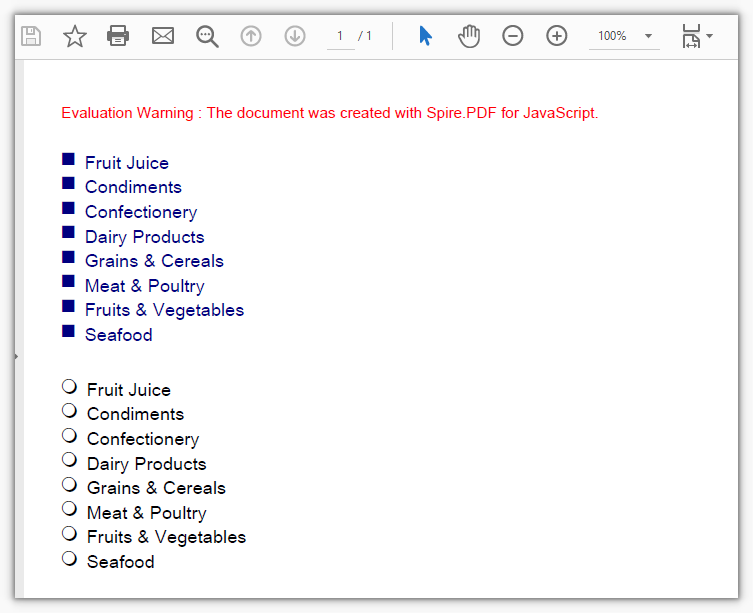
Spire.PDF for JavaScript provides PdfList to create lists, switching the marker shape through the PdfUnorderedMarkerStyle enumeration.
function App() {
  const createBulletLists = async () => {
    // Get the Spire.PDF WASM module
    const pdfModule = window.wasmModule?.spirepdf;

    // Check whether the module is ready
    if (!pdfModule) {
      alert('Spire.PDF is not ready yet');
      return;
    }

    // Load the font into the VFS for the list text
    await window.spire.FetchFileToVFS('ARIAL UNICODE MS.TTF', '/Library/Fonts/', `${process.env.PUBLIC_URL}/font/`);

    // Create a PDF document and add a blank page
    const doc = new pdfModule.PdfDocument();
    const page = doc.Pages.Add();

    // Font and item content for the list
    const font = new pdfModule.PdfTrueTypeFont({ fontFile: '/Library/Fonts/ARIAL UNICODE MS.TTF', size: 12 });
    const items = ['Fruit Juice', 'Condiments', 'Confectionery', 'Dairy Products', 'Grains & Cereals', 'Meat & Poultry', 'Fruits & Vegetables', 'Seafood'];

    // First list: add items one by one, with Square markers
    const list = new pdfModule.PdfList({ font: font });
    for (const item of items) {
      list.Items.Add(item);
    }
    list.Marker = new pdfModule.PdfMarker({ style: pdfModule.PdfUnorderedMarkerStyle.Square });
    // Brush affects both the marker and the list text
    list.Brush = new pdfModule.PdfSolidBrush({ pdfRGBColor: new pdfModule.PdfRGBColor({ color: pdfModule.Color.get_Navy() }) });
    list.Indent = 10;
    list.TextIndent = 6;
    const first = list.Draw({ page: page, x: 0, y: 40 });

    // Second list drawn below the first one, with Circle markers
    const list2 = new pdfModule.PdfList({ font: font });
    for (const item of items) {
      list2.Items.Add(item);
    }
    list2.Marker = new pdfModule.PdfMarker({ style: pdfModule.PdfUnorderedMarkerStyle.Circle });
    list2.Brush = pdfModule.PdfBrushes.get_Black();
    list2.Indent = 10;
    list2.TextIndent = 6;
    list2.Draw({ page: page, x: 0, y: first.Bounds.Bottom + 20 });

    // Save and read back from the VFS to trigger the download
    const outputFileName = 'BulletList.pdf';
    doc.SaveToFile(outputFileName);
    doc.Close();

    const fileArray = window.dotnetRuntime.Module.FS.readFile(outputFileName);
    const blob = new Blob([fileArray], { type: 'application/pdf' });
    const url = URL.createObjectURL(blob);
    const a = document.createElement('a');
    a.href = url;
    a.download = outputFileName;
    a.click();
    URL.revokeObjectURL(url);
  };

  return (
    <div style={{ textAlign: 'center', height: '300px' }}>
      <h1>Create an Unordered List</h1>
      <button onClick={createBulletLists}>
        Create
      </button>
    </div>
  );
}

export default App;
Two unordered lists of the same content, using Square and Circle markers
Create an Unordered List with Images in a PDF Page
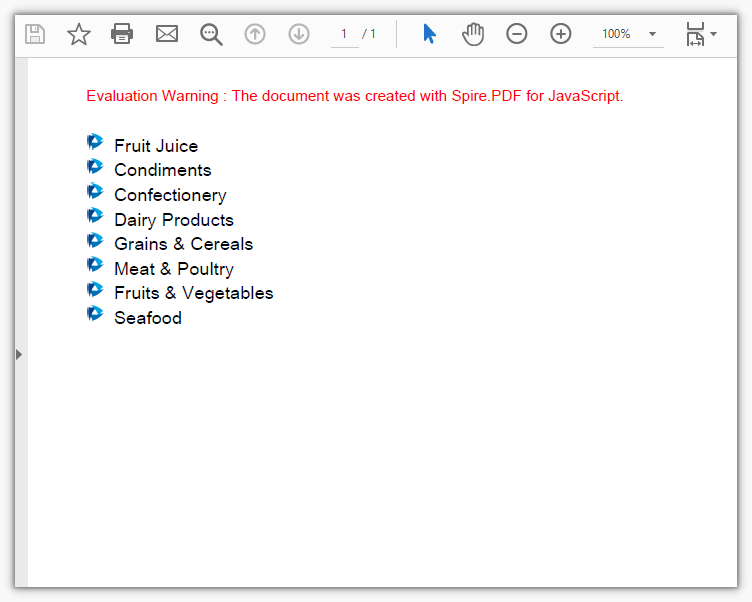
Spire.PDF for JavaScript also provides PdfImage to read an image; hand it to PdfMarker and it becomes the bullet marker, with the style switching to CustomImage automatically.
function App() {
  const createImageBulletList = async () => {
    // Get the Spire.PDF WASM module
    const pdfModule = window.wasmModule?.spirepdf;

    // Check whether the module is ready
    if (!pdfModule) {
      alert('Spire.PDF is not ready yet');
      return;
    }

    // Load the font and the bullet image into the VFS
    await window.spire.FetchFileToVFS('ARIAL UNICODE MS.TTF', '/Library/Fonts/', `${process.env.PUBLIC_URL}/font/`);
    await window.spire.FetchFileToVFS('logo.png', '', `${process.env.PUBLIC_URL}/data/`);

    // Create a PDF document and add a blank page
    const doc = new pdfModule.PdfDocument();
    const page = doc.Pages.Add();

    // Font and item content for the list
    const font = new pdfModule.PdfTrueTypeFont({ fontFile: '/Library/Fonts/ARIAL UNICODE MS.TTF', size: 12 });
    const items = ['Fruit Juice', 'Condiments', 'Confectionery', 'Dairy Products', 'Grains & Cereals', 'Meat & Poultry', 'Fruits & Vegetables', 'Seafood'];

    // Read the image and hand it to PdfMarker as the marker; the style becomes CustomImage automatically
    const image = pdfModule.PdfImage.FromFile('logo.png');
    const marker = new pdfModule.PdfMarker({ image: image });

    // Add items one by one and apply the image marker
    const list = new pdfModule.PdfList({ font: font });
    for (const item of items) {
      list.Items.Add(item);
    }
    list.Marker = marker;
    list.Brush = pdfModule.PdfBrushes.get_Black();
    list.Indent = 10;
    list.TextIndent = 6;
    list.Draw({ page: page, x: 0, y: 40 });

    // Save and read back from the VFS to trigger the download
    const outputFileName = 'ImageBulletList.pdf';
    doc.SaveToFile(outputFileName);
    doc.Close();

    const fileArray = window.dotnetRuntime.Module.FS.readFile(outputFileName);
    const blob = new Blob([fileArray], { type: 'application/pdf' });
    const url = URL.createObjectURL(blob);
    const a = document.createElement('a');
    a.href = url;
    a.download = outputFileName;
    a.click();
    URL.revokeObjectURL(url);
  };

  return (
    <div style={{ textAlign: 'center', height: '300px' }}>
      <h1>Create an Unordered List with Images</h1>
      <button onClick={createImageBulletList}>
        Create
      </button>
    </div>
  );
}

export default App;
An unordered list using logo.png as the bullet marker
Create an Ordered List in a PDF Page
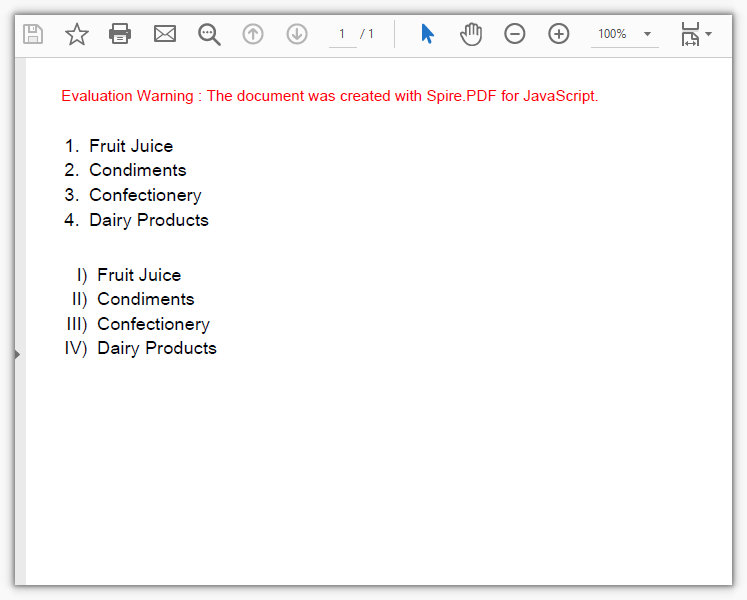
An ordered list is created by PdfSortedList, its numbers increment automatically with the items, and the number format is decided by the PdfNumberStyle enumeration on PdfOrderedMarker.
function App() {
  const createOrderedLists = async () => {
    // Get the Spire.PDF WASM module
    const pdfModule = window.wasmModule?.spirepdf;

    // Check whether the module is ready
    if (!pdfModule) {
      alert('Spire.PDF is not ready yet');
      return;
    }

    // Load the font into the VFS for the list text
    await window.spire.FetchFileToVFS('ARIAL UNICODE MS.TTF', '/Library/Fonts/', `${process.env.PUBLIC_URL}/font/`);

    // Create a PDF document and add a blank page
    const doc = new pdfModule.PdfDocument();
    const page = doc.Pages.Add();

    // Font and item content for the list
    const font = new pdfModule.PdfTrueTypeFont({ fontFile: '/Library/Fonts/ARIAL UNICODE MS.TTF', size: 12 });
    const items = ['Fruit Juice', 'Condiments', 'Confectionery', 'Dairy Products'];

    // First list: Arabic numerals, with "." as the default number suffix
    const list = new pdfModule.PdfSortedList({
      marker: new pdfModule.PdfOrderedMarker({ style: pdfModule.PdfNumberStyle.Numeric, font: font }),
    });
    list.Font = font;
    for (const item of items) {
      list.Items.Add(item);
    }
    list.Indent = 12;
    list.TextIndent = 6;
    list.Brush = pdfModule.PdfBrushes.get_Black();
    const first = list.Draw({ page: page, x: 0, y: 40 });

    // Second list: uppercase Roman numerals, with the suffix changed to ")"
    const marker = new pdfModule.PdfOrderedMarker({ style: pdfModule.PdfNumberStyle.UpperRoman, font: font });
    marker.Suffix = ')';
    const list2 = new pdfModule.PdfSortedList({ marker: marker });
    list2.Font = font;
    for (const item of items) {
      list2.Items.Add(item);
    }
    list2.Indent = 12;
    list2.TextIndent = 6;
    list2.Brush = pdfModule.PdfBrushes.get_Black();
    list2.Draw({ page: page, x: 0, y: first.Bounds.Bottom + 20 });

    // Save and read back from the VFS to trigger the download
    const outputFileName = 'NumberedList.pdf';
    doc.SaveToFile(outputFileName);
    doc.Close();

    const fileArray = window.dotnetRuntime.Module.FS.readFile(outputFileName);
    const blob = new Blob([fileArray], { type: 'application/pdf' });
    const url = URL.createObjectURL(blob);
    const a = document.createElement('a');
    a.href = url;
    a.download = outputFileName;
    a.click();
    URL.revokeObjectURL(url);
  };

  return (
    <div style={{ textAlign: 'center', height: '300px' }}>
      <h1>Create an Ordered List</h1>
      <button onClick={createOrderedLists}>
        Create
      </button>
    </div>
  );
}

export default App;
Ordered lists created with Arabic numerals and uppercase Roman numerals
Create a Multilevel List in a PDF Page
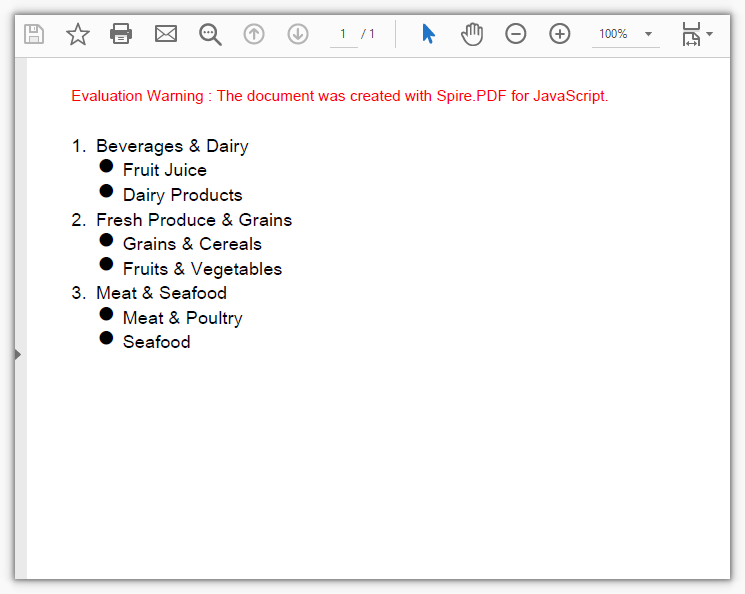
A multilevel list is built on the SubList property of an item: attach a sublist to an item and it gains one more level, with the indentation decided by the sublist's own Indent.
function App() {
  const createMultilevelList = async () => {
    // Get the Spire.PDF WASM module
    const pdfModule = window.wasmModule?.spirepdf;

    // Check whether the module is ready
    if (!pdfModule) {
      alert('Spire.PDF is not ready yet');
      return;
    }

    // Load the font into the VFS for the list text
    await window.spire.FetchFileToVFS('ARIAL UNICODE MS.TTF', '/Library/Fonts/', `${process.env.PUBLIC_URL}/font/`);

    // Create a PDF document and add a blank page
    const doc = new pdfModule.PdfDocument();
    const page = doc.Pages.Add();

    // Font and grouped data for the list
    const font = new pdfModule.PdfTrueTypeFont({ fontFile: '/Library/Fonts/ARIAL UNICODE MS.TTF', size: 12 });
    const groups = [
      { title: 'Beverages & Dairy', children: ['Fruit Juice', 'Dairy Products'] },
      { title: 'Fresh Produce & Grains', children: ['Grains & Cereals', 'Fruits & Vegetables'] },
      { title: 'Meat & Seafood', children: ['Meat & Poultry', 'Seafood'] },
    ];

    // Top-level list: Arabic numerals
    const root = new pdfModule.PdfSortedList({
      marker: new pdfModule.PdfOrderedMarker({ style: pdfModule.PdfNumberStyle.Numeric, font: font }),
    });
    root.Font = font;
    root.Indent = 10;
    root.TextIndent = 6;
    root.Brush = pdfModule.PdfBrushes.get_Black();

    // Attach a sublist to each top-level item, with Disk markers indented by 18 points
    for (const group of groups) {
      const item = root.Items.Add(group.title);
      const sub = new pdfModule.PdfList({ font: font });
      for (const child of group.children) {
        sub.Items.Add(child);
      }
      sub.Marker = new pdfModule.PdfMarker({ style: pdfModule.PdfUnorderedMarkerStyle.Disk });
      sub.Indent = 18;
      sub.TextIndent = 6;
      sub.Brush = pdfModule.PdfBrushes.get_Black();
      item.SubList = sub;
    }

    // Draw the whole multilevel list starting from the top of the page
    root.Draw({ page: page, x: 0, y: 40 });

    // Save and read back from the VFS to trigger the download
    const outputFileName = 'MultilevelList.pdf';
    doc.SaveToFile(outputFileName);
    doc.Close();

    const fileArray = window.dotnetRuntime.Module.FS.readFile(outputFileName);
    const blob = new Blob([fileArray], { type: 'application/pdf' });
    const url = URL.createObjectURL(blob);
    const a = document.createElement('a');
    a.href = url;
    a.download = outputFileName;
    a.click();
    URL.revokeObjectURL(url);
  };

  return (
    <div style={{ textAlign: 'center', height: '300px' }}>
      <h1>Create a Multilevel List</h1>
      <button onClick={createMultilevelList}>
        Create
      </button>
    </div>
  );
}

export default App;
A two-level list made of numbered top-level items and bulleted sublists
FAQ
The list item text does not show up
Cause: List items use the font on the Font property. If it is not set, or the font file has not been loaded into the virtual file system yet, only the bullet markers are left on the page and the text never appears.
Solution: Load the font file into /Library/Fonts/ first, then hand the font object to the list's Font:
// Load the font file into the virtual file system
await window.spire.FetchFileToVFS('ARIAL UNICODE MS.TTF', '/Library/Fonts/', `${process.env.PUBLIC_URL}/font/`);

// Create the font from that file and pass it in when constructing the list (assigning it to list.Font afterwards works the same way)
const font = new pdfModule.PdfTrueTypeFont({ fontFile: '/Library/Fonts/ARIAL UNICODE MS.TTF', size: 12 });
const list = new pdfModule.PdfList({ font: font });
"Ambiguous call" is thrown when creating a list
Cause: PdfList, PdfSortedList, and PdfMarker all have multiple overloads, so positional arguments leave the runtime unable to tell which one to use; it throws Ambiguous call: arguments (object) match multiple overloads. and lists the available key names in the error. Positional arguments in list.Draw(page, x, y) are rejected the same way.
Solution: Switch to object notation and spell out the parameter names:
// This throws: new pdfModule.PdfList(font)
const list = new pdfModule.PdfList({ font: font });
const sortedList = new pdfModule.PdfSortedList({ marker: marker });
const marker2 = new pdfModule.PdfMarker({ style: pdfModule.PdfUnorderedMarkerStyle.Disk });

// Drawing works the same way: list.Draw(page, 0, 40) throws, so write
list.Draw({ page: page, x: 0, y: 40 });
"IO_FileNotFound_FileName" is thrown when using an image as the bullet marker
Cause: PdfImage.FromFile reads a path inside the virtual file system, so it throws IO_FileNotFound_FileName when the image has not been loaded with FetchFileToVFS first — having the image on disk does not count.
Solution: Load the image into the virtual file system first, then read it with the same file name:
// Load the image into the virtual file system
await window.spire.FetchFileToVFS('logo.png', '', `${process.env.PUBLIC_URL}/data/`);

// Read it with the same file name
const image = pdfModule.PdfImage.FromFile('logo.png');
const marker = new pdfModule.PdfMarker({ image: image });
Get a Free License
If you want to remove the evaluation message from the resulting documents, or to get rid of the feature limitations, contact sales for a temporary license valid for 30 days.
