A PDF document is organized page by page, and reading, printing and archiving all follow that structure. In practice, you often need to adjust the pages of an existing PDF: add a signature page to a contract, append a summary page at the end of a report, or remove a page that no longer belongs. Doing this with desktop software or a server-side re-layout means exporting and uploading files back and forth. Handling it directly in the browser keeps the document on the user's device and shortens the whole path.
Spire.PDF for JavaScript loads, modifies and saves PDF documents directly in the browser based on WebAssembly, managing input and output files through a virtual file system (VFS), with no backend service required.
This article covers three core features:
For installation and project configuration, refer to Integrating Spire.PDF for JavaScript in a React Project. The following examples assume Spire.PDF is installed and the WebAssembly module has been initialized.
Adding a Page to a PDF
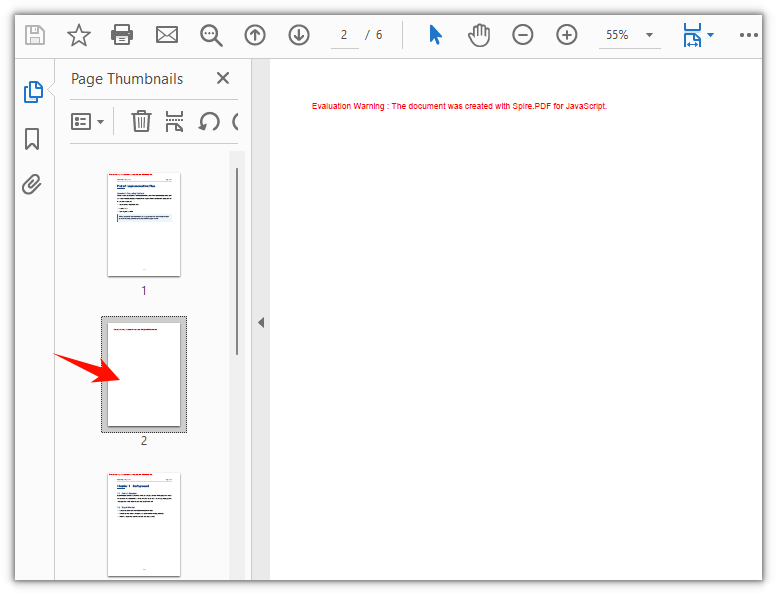
Adding a page means inserting one item into the PdfPageCollection. Use Pages.Insert(index) to insert at a specific position; the index is 0-based, and the pages after the insertion point shift back by one. Here the blank page goes into the second position and the existing pages move onward, which suits adding a page in the middle of a document.
function App() {
  const addPageToPdf = async () => {
    // Get the Spire.PDF WASM module
    const pdfModule = window.wasmModule?.spirepdf;

    // Check whether the module is ready
    if (!pdfModule) {
      alert('Spire.PDF is not ready yet');
      return;
    }

    // Load the PDF file into the VFS
    const inputFileName = 'Multipage_Document.pdf';
    await window.spire.FetchFileToVFS(inputFileName, "", `${process.env.PUBLIC_URL}/data/`);

    // Create a PdfDocument object and load the PDF document
    let doc = new pdfModule.PdfDocument();
    doc.LoadFromFile(inputFileName);

    // Insert a blank page as the second page (the index is 0-based, so index 1 is the second page)
    doc.Pages.Insert(1);

    // Define the output file name and save the document
    const outputFileName = 'Page_Inserted.pdf';
    doc.SaveToFile(outputFileName);
    doc.Close();

    // Read the generated file from the VFS and trigger the download
    const fileArray = window.dotnetRuntime.Module.FS.readFile(outputFileName);
    const blob = new Blob([fileArray], { type: 'application/pdf' });
    const url = URL.createObjectURL(blob);
    const a = document.createElement('a');
    a.href = url;
    a.download = outputFileName;
    a.click();
    URL.revokeObjectURL(url);
  };

  return (
    <div style={{ textAlign: 'center', height: '300px' }}>
      <h1>Add a Page to PDF</h1>
      <button onClick={addPageToPdf}>
        Start Adding
      </button>
    </div>
  );
}

export default App;
The PDF document after a blank page is inserted as the second page
Adding a Blank Page at the End of a Document
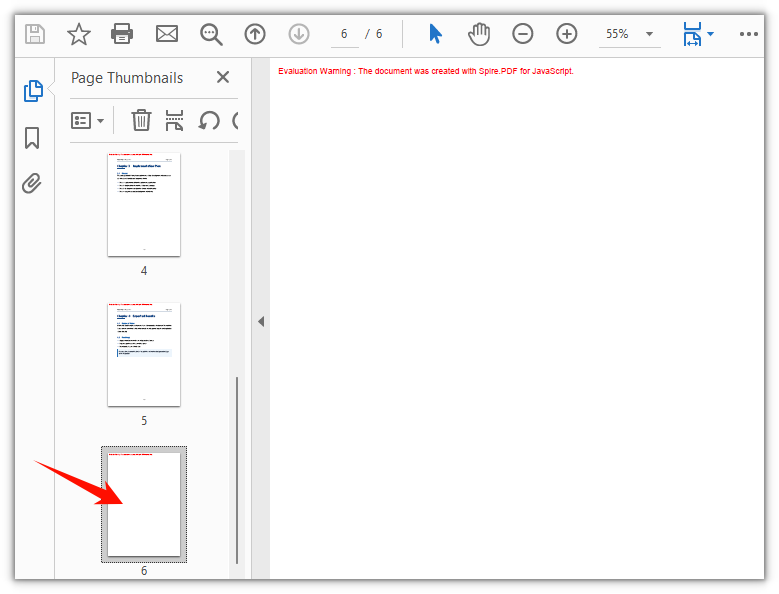
Spire.PDF for JavaScript also provides the Pages.Add() method, which appends a blank page at the end of a document. It uses A4 as the default page size and 40-point margins on all four sides; when needed, you can set the page size and margins yourself.
function App() {
  const appendPageToPdf = async () => {
    // Get the Spire.PDF WASM module
    const pdfModule = window.wasmModule?.spirepdf;

    // Check whether the module is ready
    if (!pdfModule) {
      alert('Spire.PDF is not ready yet');
      return;
    }

    // Load the PDF file into the VFS
    const inputFileName = 'Multipage_Document.pdf';
    await window.spire.FetchFileToVFS(inputFileName, "", `${process.env.PUBLIC_URL}/data/`);

    // Create a PdfDocument object and load the PDF document
    let doc = new pdfModule.PdfDocument();
    doc.LoadFromFile(inputFileName);

    // Append a blank A4 page with zero margins on all four sides
    doc.Pages.Add(pdfModule.PdfPageSize.A4(), new pdfModule.PdfMargins(0.0, 0.0));

    // Define the output file name and save the document
    const outputFileName = 'Page_Appended.pdf';
    doc.SaveToFile(outputFileName);
    doc.Close();

    // Read the generated file from the VFS and trigger the download
    const fileArray = window.dotnetRuntime.Module.FS.readFile(outputFileName);
    const blob = new Blob([fileArray], { type: 'application/pdf' });
    const url = URL.createObjectURL(blob);
    const a = document.createElement('a');
    a.href = url;
    a.download = outputFileName;
    a.click();
    URL.revokeObjectURL(url);
  };

  return (
    <div style={{ textAlign: 'center', height: '300px' }}>
      <h1>Append a Blank Page to PDF</h1>
      <button onClick={appendPageToPdf}>
        Start Adding
      </button>
    </div>
  );
}

export default App;
The PDF document after a blank A4 page is appended at the end
Deleting a Page from a PDF
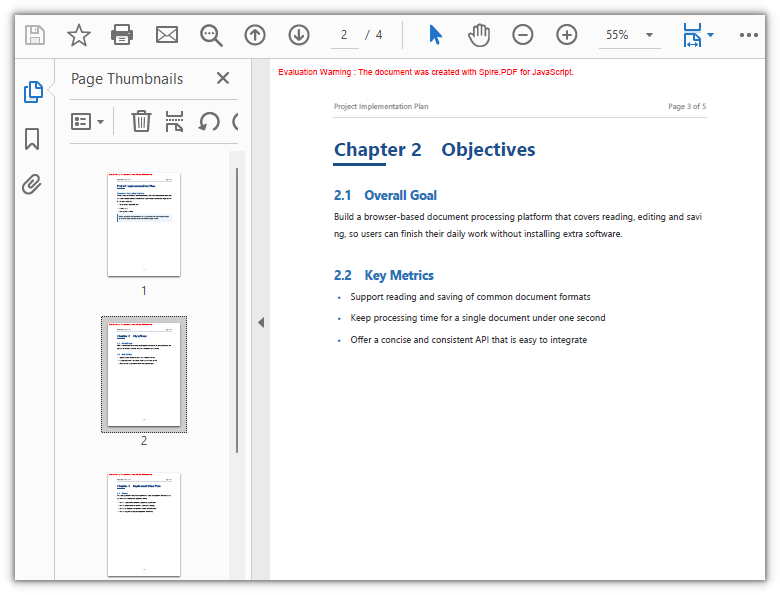
Deleting a page also works through the page collection: Pages.RemoveAt(index) removes one page by index, starting at 0, and the indexes of the pages after it shift forward by one. Before writing the delete logic, check the current page count with Pages.Count so the index stays in range. Here the second page of the sample document is removed and the remaining pages keep their original order.
function App() {
  const deletePageFromPdf = async () => {
    // Get the Spire.PDF WASM module
    const pdfModule = window.wasmModule?.spirepdf;

    // Check whether the module is ready
    if (!pdfModule) {
      alert('Spire.PDF is not ready yet');
      return;
    }

    // Load the PDF file into the VFS
    const inputFileName = 'Multipage_Document.pdf';
    await window.spire.FetchFileToVFS(inputFileName, "", `${process.env.PUBLIC_URL}/data/`);

    // Create a PdfDocument object and load the PDF document
    let doc = new pdfModule.PdfDocument();
    doc.LoadFromFile(inputFileName);

    // Delete the second page (the index is 0-based, so index 1 is the second page)
    doc.Pages.RemoveAt(1);

    // Define the output file name and save the document
    const outputFileName = 'Page_Deleted.pdf';
    doc.SaveToFile(outputFileName);
    doc.Close();

    // Read the generated file from the VFS and trigger the download
    const fileArray = window.dotnetRuntime.Module.FS.readFile(outputFileName);
    const blob = new Blob([fileArray], { type: 'application/pdf' });
    const url = URL.createObjectURL(blob);
    const a = document.createElement('a');
    a.href = url;
    a.download = outputFileName;
    a.click();
    URL.revokeObjectURL(url);
  };

  return (
    <div style={{ textAlign: 'center', height: '300px' }}>
      <h1>Delete a Page from PDF</h1>
      <button onClick={deletePageFromPdf}>
        Start Deleting
      </button>
    </div>
  );
}

export default App;
The PDF document after the second page is deleted
FAQ
How do I set the page size and margins of a new blank page
Reason: Pages.Add and Pages.Insert create blank pages of a regular size with default margins. When a new page has to match a specific paper size or margin, both values need to be passed in.
Solution: The paper size comes from PdfPageSize, such as PdfPageSize.A4() or PdfPageSize.A3(); the margins come from PdfMargins, where the two-argument form new PdfMargins(0.0, 0.0) sets both the vertical and horizontal margins to 0. To control each side separately, pass the named fields:
// A blank A4 page with zero margins on all four sides
doc.Pages.Add(pdfModule.PdfPageSize.A4(), new pdfModule.PdfMargins(0.0, 0.0));

// Set the top, bottom, left and right margins individually
doc.Pages.Add(pdfModule.PdfPageSize.A4(),
  new pdfModule.PdfMargins({ left: 40, top: 40, right: 40, bottom: 40 }));
Why does deleting a page report an index out of range
Reason: RemoveAt(index) is 0-based, and its valid range is 0 to Pages.Count - 1. Without checking the page count first, passing a value equal to or greater than Count goes out of range.
Solution: Check the page count with Pages.Count before deleting and keep the index within range. To delete the last page, for example, the index should be Count - 1:
let total = doc.Pages.Count;

if (total > 0) {
  // Delete the last page
  doc.Pages.RemoveAt(total - 1);
}
What should I watch out for when adding or deleting several pages in a row
Reason: Every insert or delete shifts the indexes of all pages after it. Deleting several pages by fixed indexes from front to back easily removes the wrong ones — once one page is gone, the later indexes recorded earlier have already moved forward.
Solution: Insert, Add and RemoveAt each handle a single page, so repeat the call for batch operations. When deleting several pages, work from back to front so the indexes do not drift:
// Delete from back to front, so the indexes do not shift after each removal
for (let i = doc.Pages.Count - 1; i >= 3; i--) {
  doc.Pages.RemoveAt(i);
}
Get a Free License
If you wish to remove the evaluation message from the result document or remove feature limitations, please contact sales to obtain a temporary license valid for 30 days.
