Adding shapes to PDF documents is a common requirement in many business scenarios: marking key areas with lines and boxes, adding a prominent border around content outside a table, distinguishing sections with filled color blocks, or overlaying pie and ellipse shapes on drawings and reports. Doing this by hand in a design tool each time is slow and hard to scale. With the drawing capabilities of Spire.PDF for JavaScript, you can write various shapes directly to PDF pages in the browser and let your code handle the annotation and diagramming work automatically.
Spire.PDF for JavaScript is based on WebAssembly and loads, edits, and saves PDF documents directly in the browser, managing input and output files through a virtual file system (VFS) without any backend service. The core object for drawing shapes on a PDF is the page drawing canvas PdfPage.Canvas: it provides methods such as DrawLine, DrawPie, DrawRectangle, and DrawEllipse.
This article covers four core features:
- Draw Lines on a PDF Page
- Draw a Pie on a PDF Page
- Draw a Rectangle on a PDF Page
- Draw an Ellipse on a PDF Page
For installation and project configuration, refer to How to Integrate Spire.PDF for JavaScript in a React Project. The examples below assume Spire.PDF is installed and the WebAssembly module is initialized.
Draw Lines on a PDF Page
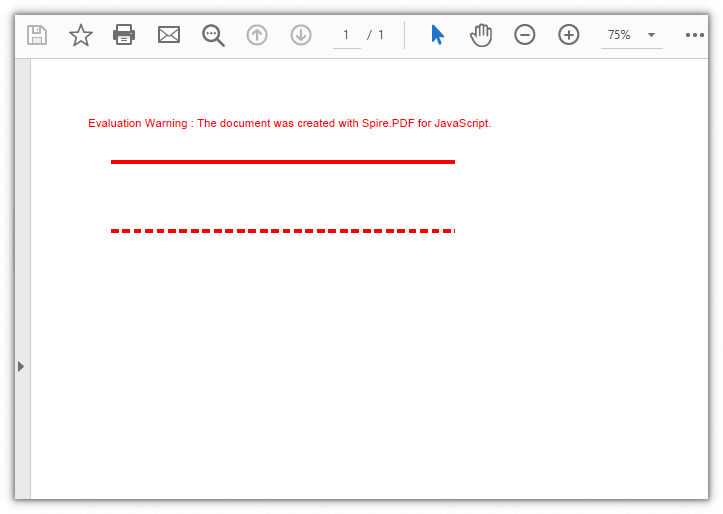
When drawing lines you can set the color and thickness, and choose between solid and dashed lines—the dash style is controlled by DashStyle and DashPattern.
function App() {
  const drawLines = async () => {
    // Get the Spire.PDF WASM module
    const pdfModule = window.wasmModule?.spirepdf;

    // Check whether the module is ready
    if (!pdfModule) {
      alert('Spire.PDF is not ready yet');
      return;
    }

    // Create a PDF document and add a blank page
    let doc = new pdfModule.PdfDocument();
    let page = doc.Pages.Add();

    // Save the current graphics state
    let state = page.Canvas.Save();

    // Create a red pen for drawing lines
    let pen = new pdfModule.PdfPen({
      pdfRGBColor: new pdfModule.PdfRGBColor({ color: pdfModule.Color.get_Red() }),
      width: 2,
    });

    // Starting coordinates and length of the lines
    let x = 30.0;
    let y = 50.0;
    let width = 300.0;

    // Draw a solid line
    page.Canvas.DrawLine({ pen: pen, x1: x, y1: y, x2: x + width, y2: y });

    // Set the dash style and dash pattern
    pen.DashStyle = pdfModule.PdfDashStyle.Dash;
    pen.DashPattern = [3.0, 2.0];

    // Draw a dashed line
    page.Canvas.DrawLine({ pen: pen, x1: x, y1: y + 60.0, x2: x + width, y2: y + 60.0 });

    // Restore the graphics state
    page.Canvas.Restore({ state: state });

    // Define the output file name and save the document
    const outputFileName = 'DrawLines_result.pdf';
    doc.SaveToFile(outputFileName);
    doc.Close();

    // Read the generated file from the VFS and trigger a download
    const fileArray = window.dotnetRuntime.Module.FS.readFile(outputFileName);
    const blob = new Blob([fileArray], { type: 'application/pdf' });
    const url = URL.createObjectURL(blob);
    const a = document.createElement('a');
    a.href = url;
    a.download = outputFileName;
    a.click();
    URL.revokeObjectURL(url);
  };

  return (
    <div style={{ textAlign: 'center', height: '300px' }}>
      <h1>Draw Lines in PDF</h1>
      <button onClick={drawLines}>
        Draw
      </button>
    </div>
  );
}

export default App;
The result of drawing one solid line and one dashed line on a PDF page
Draw a Pie on a PDF Page
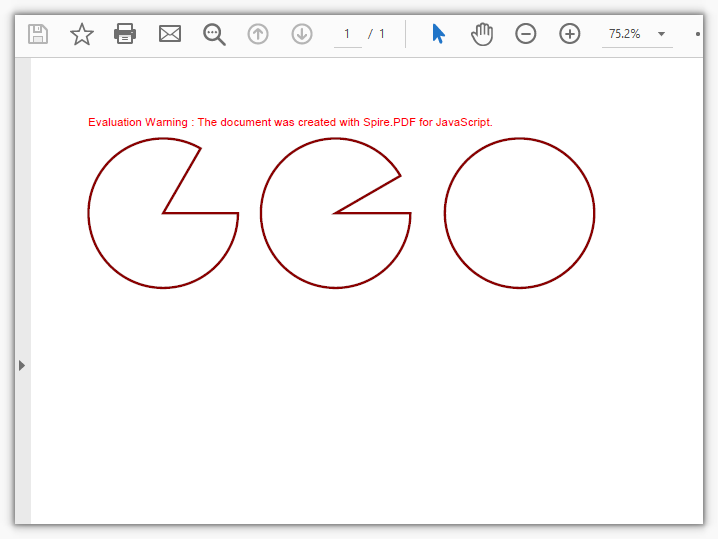
Pies express proportions: the bounding rectangle sets the position and size, while startAngle and sweepAngle set the opening angle of the sector.
function App() {
  const drawPie = async () => {
    // Get the Spire.PDF WASM module
    const pdfModule = window.wasmModule?.spirepdf;

    // Check whether the module is ready
    if (!pdfModule) {
      alert('Spire.PDF is not ready yet');
      return;
    }

    // Create a PDF document and add a blank page
    let doc = new pdfModule.PdfDocument();
    let page = doc.Pages.Add();

    // Save the current graphics state
    let state = page.Canvas.Save();

    // Create a dark red pen
    let pen = new pdfModule.PdfPen({
      pdfRGBColor: new pdfModule.PdfRGBColor({ color: pdfModule.Color.get_DarkRed() }),
      width: 2,
    });

    // Draw the first pie
    page.Canvas.DrawPie({ pen: pen, x: 10.0, y: 30.0, width: 130.0, height: 130.0, startAngle: 360.0, sweepAngle: 300.0 });

    // Draw the second pie
    page.Canvas.DrawPie({ pen: pen, x: 160.0, y: 30.0, width: 130.0, height: 130.0, startAngle: 360.0, sweepAngle: 330.0 });

    // Draw the third pie
    page.Canvas.DrawPie({ pen: pen, x: 320.0, y: 30.0, width: 130.0, height: 130.0, startAngle: 360.0, sweepAngle: 360.0 });

    // Restore the graphics state
    page.Canvas.Restore({ state: state });

    // Define the output file name and save the document
    const outputFileName = 'DrawPie_result.pdf';
    doc.SaveToFile(outputFileName);
    doc.Close();

    // Read the generated file from the VFS and trigger a download
    const fileArray = window.dotnetRuntime.Module.FS.readFile(outputFileName);
    const blob = new Blob([fileArray], { type: 'application/pdf' });
    const url = URL.createObjectURL(blob);
    const a = document.createElement('a');
    a.href = url;
    a.download = outputFileName;
    a.click();
    URL.revokeObjectURL(url);
  };

  return (
    <div style={{ textAlign: 'center', height: '300px' }}>
      <h1>Draw a Pie in PDF</h1>
      <button onClick={drawPie}>
        Draw
      </button>
    </div>
  );
}

export default App;
The result of drawing three pies on a PDF page
Draw a Rectangle on a PDF Page
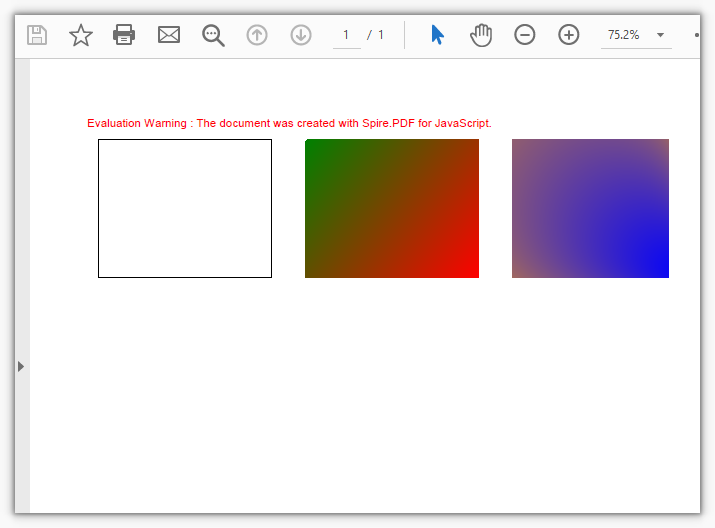
A rectangle can be drawn as an outline only, or filled. Besides a solid color (PdfSolidBrush), the fill also supports a linear gradient (PdfLinearGradientBrush) and a radial gradient (PdfRadialGradientBrush).
function App() {
  const drawRectangle = async () => {
    // Get the Spire.PDF WASM module
    const pdfModule = window.wasmModule?.spirepdf;

    // Check whether the module is ready
    if (!pdfModule) {
      alert('Spire.PDF is not ready yet');
      return;
    }

    // Create a PDF document and add a blank page
    let doc = new pdfModule.PdfDocument();
    let page = doc.Pages.Add();

    // Save the current graphics state
    let state = page.Canvas.Save();

    // Create a black pen
    let pen = new pdfModule.PdfPen({
      pdfRGBColor: new pdfModule.PdfRGBColor({ color: pdfModule.Color.get_Black() }),
      width: 1,
    });

    // Draw a rectangle outline with the pen
    page.Canvas.DrawRectangle({
      pen: pen,
      rectangle: new pdfModule.RectangleF({
        location: new pdfModule.PointF(20.0, 30.0),
        size: new pdfModule.SizeF({ width: 150.0, height: 120.0 }),
      }),
    });

    // Create a linear gradient brush
    let linearGradientBrush = new pdfModule.PdfLinearGradientBrush({
      point1: new pdfModule.PointF(200.0, 30.0),
      point2: new pdfModule.PointF(350.0, 150.0),
      color1: new pdfModule.PdfRGBColor({ color: pdfModule.Color.get_Green() }),
      color2: new pdfModule.PdfRGBColor({ color: pdfModule.Color.get_Red() }),
    });

    // Draw a filled rectangle with the linear gradient brush
    page.Canvas.DrawRectangle({
      brush: linearGradientBrush,
      rectangle: new pdfModule.RectangleF({
        location: new pdfModule.PointF(200.0, 30.0),
        size: new pdfModule.SizeF({ width: 150.0, height: 120.0 }),
      }),
    });

    // Create a radial gradient brush
    let radialGradientBrush = new pdfModule.PdfRadialGradientBrush({
      centreStart: new pdfModule.PointF(380.0, 30.0),
      radiusStart: 150.0,
      centreEnd: new pdfModule.PointF(530.0, 150.0),
      radiusEnd: 150.0,
      colorStart: new pdfModule.PdfRGBColor({ color: pdfModule.Color.get_Orange() }),
      colorEnd: new pdfModule.PdfRGBColor({ color: pdfModule.Color.get_Blue() }),
    });

    // Draw a filled rectangle with the radial gradient brush
    page.Canvas.DrawRectangle({
      brush: radialGradientBrush,
      rectangle: new pdfModule.RectangleF({
        location: new pdfModule.PointF(380.0, 30.0),
        size: new pdfModule.SizeF({ width: 150.0, height: 120.0 }),
      }),
    });

    // Restore the graphics state
    page.Canvas.Restore({ state: state });

    // Define the output file name and save the document
    const outputFileName = 'DrawRectangle_result.pdf';
    doc.SaveToFile(outputFileName);
    doc.Close();

    // Read the generated file from the VFS and trigger a download
    const fileArray = window.dotnetRuntime.Module.FS.readFile(outputFileName);
    const blob = new Blob([fileArray], { type: 'application/pdf' });
    const url = URL.createObjectURL(blob);
    const a = document.createElement('a');
    a.href = url;
    a.download = outputFileName;
    a.click();
    URL.revokeObjectURL(url);
  };

  return (
    <div style={{ textAlign: 'center', height: '300px' }}>
      <h1>Draw a Rectangle in PDF</h1>
      <button onClick={drawRectangle}>
        Draw
      </button>
    </div>
  );
}

export default App;
The result of drawing a rectangle outline and gradient-filled rectangles on a PDF page
Draw an Ellipse on a PDF Page
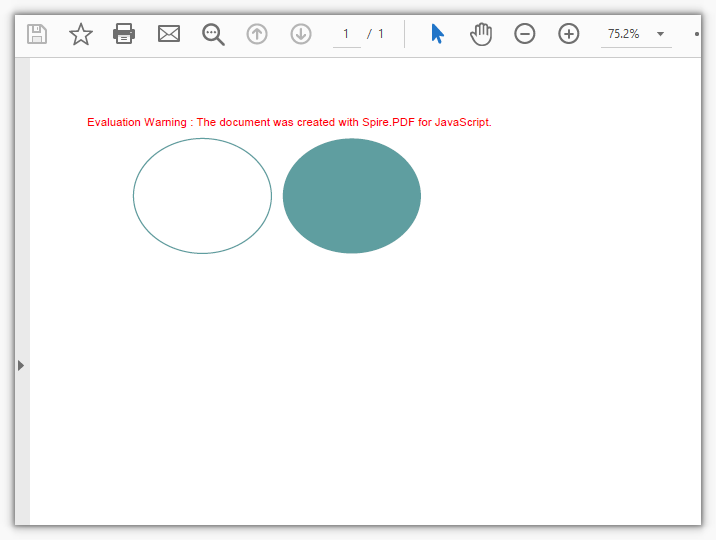
An ellipse likewise supports outlines and fills: use PdfPen for the outline and PdfSolidBrush for the fill, or take one of the preset pens from PdfPens.
function App() {
  const drawEllipse = async () => {
    // Get the Spire.PDF WASM module
    const pdfModule = window.wasmModule?.spirepdf;

    // Check whether the module is ready
    if (!pdfModule) {
      alert('Spire.PDF is not ready yet');
      return;
    }

    // Create a PDF document and add a blank page
    let doc = new pdfModule.PdfDocument();
    let page = doc.Pages.Add();

    // Save the current graphics state
    let state = page.Canvas.Save();

    // Create a CadetBlue pen
    let pen = pdfModule.PdfPens.get_CadetBlue();

    // Draw the ellipse outline
    page.Canvas.DrawEllipse({ pen: pen, x: 50.0, y: 30.0, width: 120.0, height: 100.0 });

    // Create a fill brush
    let brush = new pdfModule.PdfSolidBrush({
      pdfRGBColor: new pdfModule.PdfRGBColor({ color: pdfModule.Color.get_CadetBlue() }),
    });

    // Draw the filled ellipse
    page.Canvas.DrawEllipse({ brush: brush, x: 180.0, y: 30.0, width: 120.0, height: 100.0 });

    // Restore the graphics state
    page.Canvas.Restore({ state: state });

    // Define the output file name and save the document
    const outputFileName = 'DrawEllipse_result.pdf';
    doc.SaveToFile(outputFileName);
    doc.Close();

    // Read the generated file from the VFS and trigger a download
    const fileArray = window.dotnetRuntime.Module.FS.readFile(outputFileName);
    const blob = new Blob([fileArray], { type: 'application/pdf' });
    const url = URL.createObjectURL(blob);
    const a = document.createElement('a');
    a.href = url;
    a.download = outputFileName;
    a.click();
    URL.revokeObjectURL(url);
  };

  return (
    <div style={{ textAlign: 'center', height: '300px' }}>
      <h1>Draw an Ellipse in PDF</h1>
      <button onClick={drawEllipse}>
        Draw
      </button>
    </div>
  );
}

export default App;
The result of drawing an ellipse outline and a filled ellipse on a PDF page
FAQ
Why does the drawn shape appear at the edge of the page or outside the visible area
Cause: The coordinates used by DrawLine, DrawPie, DrawRectangle, and DrawEllipse have their origin at the bottom-left corner of the page, with the x-axis pointing right and the y-axis pointing up, in units of points. If you copy screen coordinates directly (where the origin is at the top-left), the drawn shape will end up in the opposite position or outside the page.
Solution: Convert the coordinates using the bottom-left corner of the page as the origin. You can read the page size first and then lay out the shape, for example by using PdfPage.Size to get the page width and height and calculating the shape's position from them:
// Get the page size and calculate coordinates with the bottom-left corner as the origin
let size = page.Size;
let x = size.Width / 4;
let y = size.Height / 3;
page.Canvas.DrawRectangle({ pen: pen, x: x, y: y, width: 200, height: 120 });
Why does the existing content on the page shift after drawing
Cause: Drawing modifies the canvas's current transform and graphics state. If you change the coordinate system with ScaleTransform, TranslateTransform, and similar methods before drawing, or fail to restore the state afterward, subsequent content will be affected.
Solution: Use Canvas.Save and Canvas.Restore in pairs, wrapping the drawing operations between them, to make sure the canvas state is restored to its previous level once drawing is complete:
// Save the state before drawing
let state = page.Canvas.Save();
// ... perform drawing ...
// Restore the state after drawing
page.Canvas.Restore({ state: state });
Why can't I see the drawn shape in the saved PDF
Cause: Shapes are drawn onto the canvas object. If you do not call doc.SaveToFile to write the document back to a file after drawing, or if the output file and the file read for download are not the same name, you will still see the original content.
Solution: Make sure you call doc.SaveToFile(outputFileName) to save after drawing, and read and download from the virtual file system using the same outputFileName:
// Save the document to the specified file name
doc.SaveToFile(outputFileName);
doc.Close();

// Read from the VFS using the same file name to trigger a download
const fileArray = window.dotnetRuntime.Module.FS.readFile(outputFileName);
Get a Free License
If you want to remove the evaluation message from the result documents or get rid of the feature limitations, please contact our sales team to obtain a temporary license valid for 30 days.
